

Network Setup#
NVIDIA CloudXR™ streaming requires a stable, high-bandwidth connection between the server and client devices. This section provides network requirements, setup recommendations, and configuration guidance for optimal streaming performance across all CloudXR clients.
Network Requirements#
The following table summarizes the recommended and minimum network requirements for CloudXR streaming:
Metric |
Recommended |
Minimum |
|---|---|---|
Downstream Available Bandwidth |
200 Mbps |
100 Mbps |
Pose to Frame Received Latency |
20-30 ms |
100 ms |
Downstream/Upstream Jitter |
1 ms |
4 ms |
Downstream Packet Loss |
0% |
1% |
Wi-Fi Channel |
5 GHz or 6 GHz |
5 GHz |
Wi-Fi Channel Width |
80 MHz |
40 MHz |
Warning
CloudXR does not support network connections with high levels of latency or packet drops. This might include solutions such as Powerline ethernet where not all hardware or electrical wiring is equal, or tunneled network services (VPN or similar).
Best Practices#
Server Configuration#
Connect the server to the network via Ethernet (wired connection).
If the server is in a home setting, connect it directly to the router’s LAN port (not WAN).
Ensure the server has sufficient upstream bandwidth for streaming.
Client Configuration#
Wi-Fi-enabled client devices must use the 5 GHz or 6 GHz band. Avoid using the 2.4 GHz band, as it lacks sufficient bandwidth.
Use at most one Wi-Fi connection: either the client or server may be wireless, but not both.
Router Configuration#
Use a modern Wi-Fi router that supports 5 GHz over 802.11ac with manual channel selection.
For Apple Vision Pro devices, use channel 44 or 149 with 80 MHz channel width.
For iPad devices, 6 GHz channels are recommended.
Use distinct SSIDs for each Wi-Fi band to prevent devices from switching bands.
Consider disabling the 2.4 GHz band entirely if not needed.
Place the router in the same room as the client device with a clear line of sight if possible.
Network Topology#
Dedicate the Wi-Fi network to CloudXR streaming if possible.
Connect other devices to the router via Ethernet to minimize interference.
Limit the number of client devices per router. We recommend no more than 2-4 devices, depending on the platform.
Ensure minimal interference from other wireless networks.

Recommended network topology for CloudXR streaming#
Note
For local streaming environments where router settings cannot be controlled (e.g., corporate Wi-Fi), consider using Windows Mobile Hotspot to broadcast a 5 GHz Wi-Fi network directly from the server workstation to client devices.
Ports and Firewalls#
CloudXR requires specific network ports to be open for communication between server applications (built with CloudXR Runtime) and client devices. Applications built with CloudXR Runtime attempt to open these ports automatically when started, but manual configuration may be required in some environments.
The port requirements differ between Apple native clients (using native stream protocol) and web clients (using WebRTC stream protocol).
Warning
Firewall and NAT configuration issues are among the top reasons for connectivity problems. If connections fail, temporarily disable the firewall to determine whether it is the source of the issue before configuring rules.
Apple Native Client Ports#
Apple native clients (based on CloudXR Framework) use the native stream protocol with separate channels:
Channel |
Protocol |
Server Port |
Description |
|---|---|---|---|
Signaling |
TCP |
48010 or 48322 |
48010 for standard connections; 48322 for secure connections (TLS) |
Video |
UDP |
47998, 48005, 48008, 48012 |
Video streaming (multiple ports) |
Input |
UDP |
47999 |
CloudXR Runtime input port |
Audio |
UDP |
48000 |
CloudXR Runtime audio port |
Microphone |
UDP |
48002 |
CloudXR Runtime microphone port |
Note
Secure Connection Mode: When using secure connections (localSecure or remoteSecure connection types), signaling uses port 48322 with TLS encryption. Port 48010 is not used in secure mode. The Stream Manager provides client tokens and certificate fingerprints for authentication. Refer to Secure Connection Mode for configuration details.
To disable Firewall with Apple Native Clients and Windows Servers:
# Signaling channel (use ONE of the following based on connection mode):
# - Port 48010: Standard connection (local/remote)
# - Port 48322: Secure connection (localSecure/remoteSecure)
netsh advfirewall firewall add rule name="CloudXR Native Signaling" dir=in action=allow protocol=TCP localport=48010
netsh advfirewall firewall add rule name="CloudXR Native Signaling Secure" dir=in action=allow protocol=TCP localport=48322
# Video channels
netsh advfirewall firewall add rule name="CloudXR Native Video" dir=in action=allow protocol=UDP localport=47998,48005,48008,48012
# Input channel
netsh advfirewall firewall add rule name="CloudXR Native Input" dir=in action=allow protocol=UDP localport=47999
# Audio channels
netsh advfirewall firewall add rule name="CloudXR Native Audio" dir=in action=allow protocol=UDP localport=48000,48002
To disable Firewall with Apple Native Clients and Ubuntu Linux Servers:
# Signaling channel (use ONE based on connection mode):
# - Port 48010: Standard connection (local/remote)
# - Port 48322: Secure connection (localSecure/remoteSecure)
sudo ufw allow 48010/tcp   # Standard mode
sudo ufw allow 48322/tcp   # Secure mode
# Video channels
sudo ufw allow 47998/udp
sudo ufw allow 48005/udp
sudo ufw allow 48008/udp
sudo ufw allow 48012/udp
# Input channel
sudo ufw allow 47999/udp
# Audio channels
sudo ufw allow 48000/udp
sudo ufw allow 48002/udp
Web Client Ports#
Web clients (based on CloudXR.js) use the WebRTC stream protocol with consolidated channels:
Channel |
Protocol |
Server Port |
Description |
|---|---|---|---|
Connect |
TCP |
49100 |
CloudXR Runtime signaling port (WebSocket) |
Media Stream |
UDP |
47998 |
CloudXR Runtime media port |
Proxy (HTTPS mode only) |
TCP |
48322 |
Secure WebSocket proxy (same port as CloudXR Framework secure signaling) |
Note
CloudXR.js Users: For detailed WebSocket proxy setup instructions (Docker + HAProxy, Kubernetes + nginx), refer to WebSocket Proxy Setup.
To disable Firewall with Web Clients and Windows Servers:
# WebSocket signaling
netsh advfirewall firewall add rule name="CloudXR.js Signaling" dir=in action=allow protocol=TCP localport=49100
# WebRTC media
netsh advfirewall firewall add rule name="CloudXR.js Media" dir=in action=allow protocol=UDP localport=47998
# WebSocket proxy (only for HTTPS mode)
netsh advfirewall firewall add rule name="CloudXR.js Proxy" dir=in action=allow protocol=TCP localport=48322
To disable Firewall with Web Clients and Ubuntu Linux Servers:
# Signaling
sudo ufw allow 49100/tcp
# Media stream
sudo ufw allow 47998/udp
# Proxy (HTTPS mode only)
sudo ufw allow 48322/tcp
CloudXR.js Connection Architecture#
CloudXR.js deployments use two separate connections:
Web application hosting (HTTP/HTTPS) to load the client app.
Streaming connection (WebSocket signaling + WebRTC media) from browser to CloudXR Runtime.
When the web app is hosted on HTTPS, browsers block non-secure ws:// signaling (mixed-content policy). In that case, use a TLS proxy and connect with wss://.
Client Web Server |
Runtime Connection |
Status |
Use Case |
|---|---|---|---|
HTTP |
|
Supported |
Local development |
HTTP |
|
Supported |
Proxy testing |
HTTPS |
|
Blocked |
Mixed-content policy violation |
HTTPS |
|
Supported |
XR device testing and production |
CloudXR.js NAT Configuration#
When CloudXR Runtime is behind NAT, configure runtime endpoint values using external/public values:
endpoint-ip: public IP visible to clientsserver-port: external TCP signaling portmedia-port: external UDP media port
Then configure NAT forwarding to the runtime host and set matching client-side connection values in createSession().
Important
When using mediaAddress in the client to specify a direct media endpoint, the CloudXR Runtime enable-ice property must be set to false via the management API. Without this, the runtime uses ICE negotiation, which conflicts with the explicit media endpoint and prevents connection. See enable-ice for details.
For CloudXR.js client-side routing and NAT options (mediaAddress, mediaPort, signalingResourcePath, signalingQueryParameters, iceServers), refer to Session API.
Runtime STUN Configuration for Cloud Deployments#
For cloud deployments that rely on ICE media negotiation, leave CloudXR Runtime
enable-ice enabled and configure a STUN server when the runtime needs to
discover a public-facing media candidate:
stun-server-ip: STUN server IP addressstun-server-port: STUN server port, default3478stun-usernameandstun-credential: optional STUN authentication values
See enable-ice and Cloud Deployment for cloud deployment guidance.
Monitoring Network Performance#
Note
The monitoring HUD and real-time network statistics described below are only available in Apple native clients based on CloudXR Framework.
Apple native clients provide real-time monitoring tools to track streaming performance. CloudXR Framework includes a HUD (Heads-Up Display) that provides real-time information about end-to-end frames/second, latency, and bandwidth.
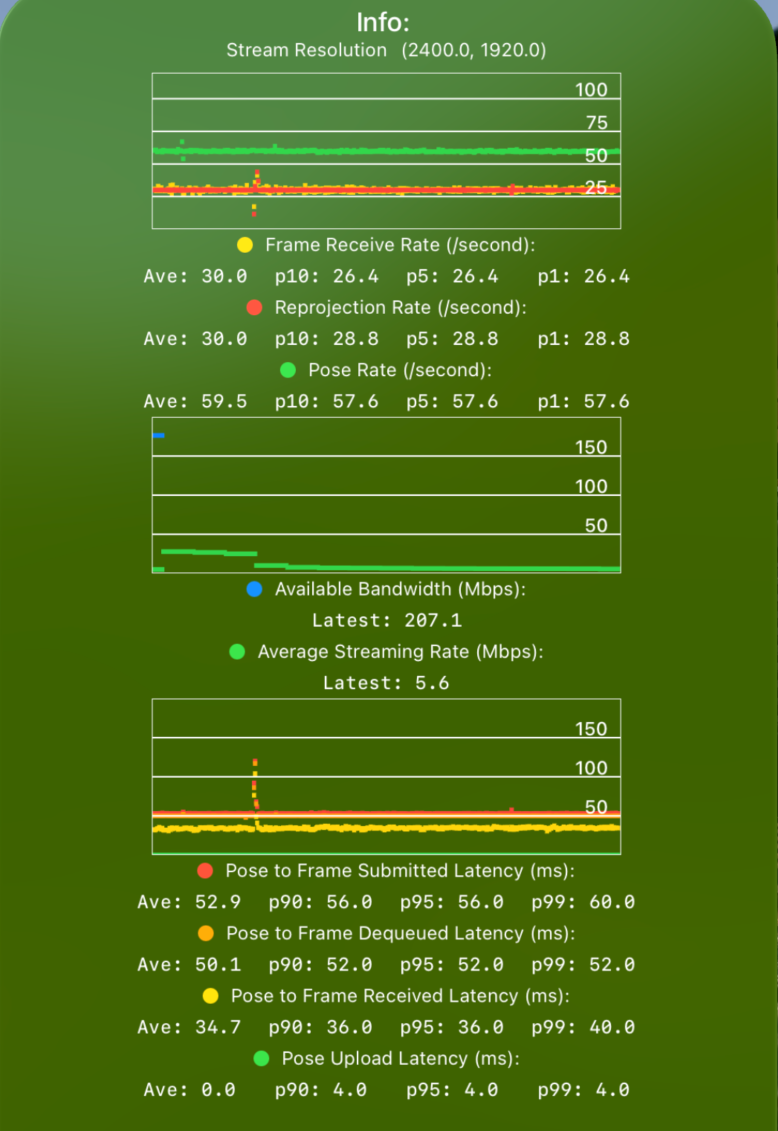
CloudXR streaming statistics HUD showing FPS, bandwidth, and latency metrics#
Key Metrics#
FPS (Frames Per Second): Displays pose rate, frame rate, and reprojection rate.
Pose Rate (Green): Shows how often the device is sending poses to the server.
Pose rate should maintain a steady 90 Hz (Apple Vision Pro) or 60 Hz (iPad).
Frame Rate (Yellow): Shows how often the server is sending rendered frames back.
Frame rate should be consistent and match pose rate divided by an integer.
The server will render at most one frame per received pose, so Frame Rate ≤ Pose Rate.
Reprojection Rate (Red): Shows how often the device is updating with received frames.
Any high variation indicates performance issues.
Bandwidth: Shows average streaming rate and available bandwidth
Average Streaming Rate (Green): How much bandwidth is being used for CloudXR.
Available Bandwidth (Blue): Total available network bandwidth in Mbps.
Monitor to ensure sufficient bandwidth is available for streaming (minimum 100 Mbps recommended).
Utilized bandwidth varies by content but should stay within available capacity.
Latency: Shows end-to-end latency from pose submission to frame display.
Pose Sent to Pose Received (Green): Upload latency.
The optimal value is 20-30 msec
Frame Received (Yellow): Time for rendered frame to arrive at client.
Frame Dequeued (Orange): Dejitter buffer delay.
Frame Submitted (Red): Final submission to display.
The maximum acceptable value is 100 msec (for non-interactive content).
Higher latencies result in noticeable lag and poor user experience.
Check p90/95/99 values to measure uplink and downlink jitter.
For detailed troubleshooting steps, refer to Network Troubleshooting.