

Troubleshooting#
To contact NVIDIA with questions and comments about NVIDIA CloudXR™ SDK, or to report a bug, go to the CloudXR Forum.
If you are reporting a bug, provide the following information:
Operating system (server and client)
GPU model and driver version
Client device used
Steps to reproduce the issue
Log files from both client and server
For performance or network issues, share any captured traces or diagnostics
Network Troubleshooting#
This section provides troubleshooting guidance for network and connectivity issues with CloudXR streaming.
Connection Issues#
Basic Connectivity Checks:
Verify that the server IP address is correct and reachable from the client device.
Check that required ports are open on both server and network firewalls.
Ensure client devices are on the correct Wi-Fi band (5 GHz or 6 GHz).
Verify that firewall permissions have been granted to the CloudXR application.
Confirm that the CloudXR Runtime is running on the server.
Port Verification:
Use network tools to verify port connectivity:
Apple native clients: Test TCP port 48010 for standard connections, or TCP port 48322 for secure connections.
Web clients: Test TCP port 49100.
Network Analyzer is a useful app for testing connectivity on iOS:
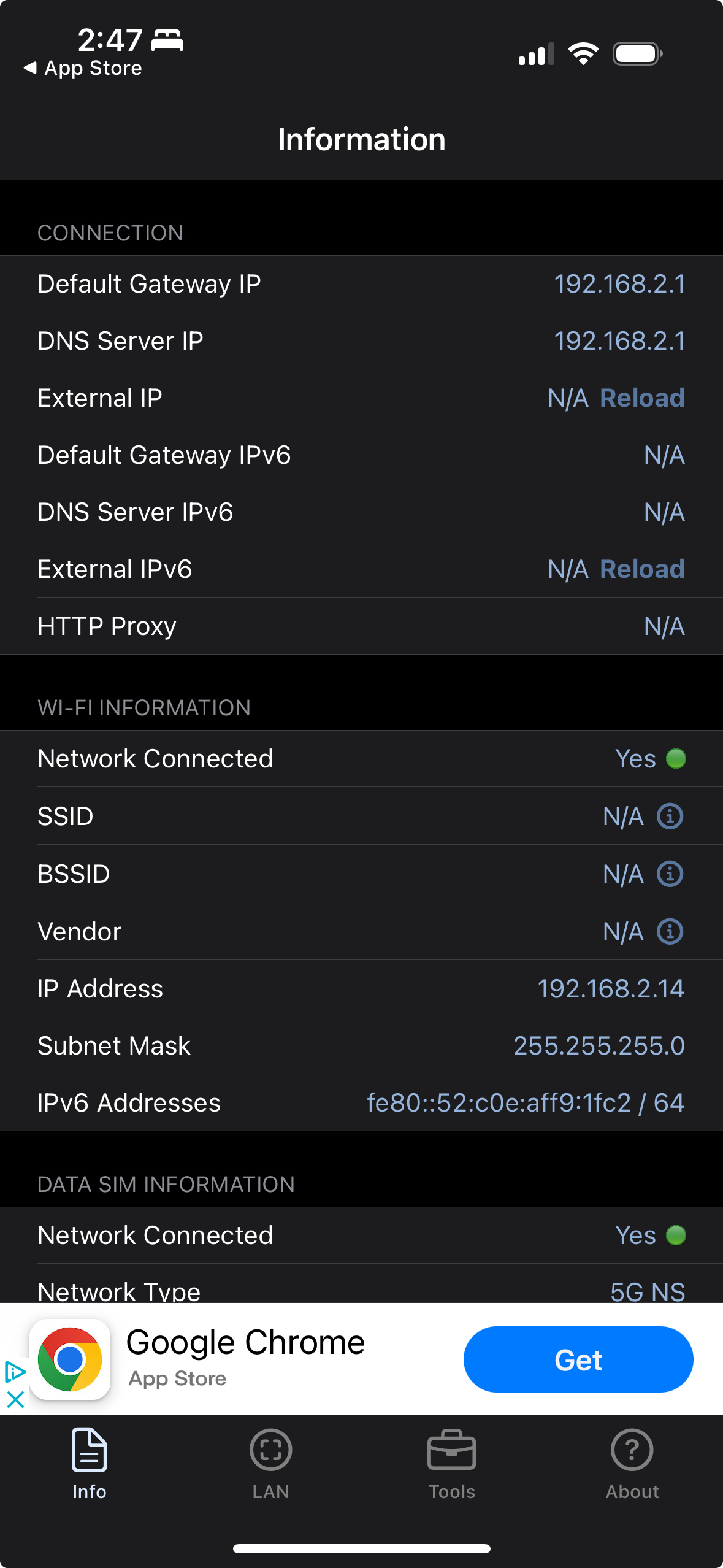
Information tab: General network connection info# |
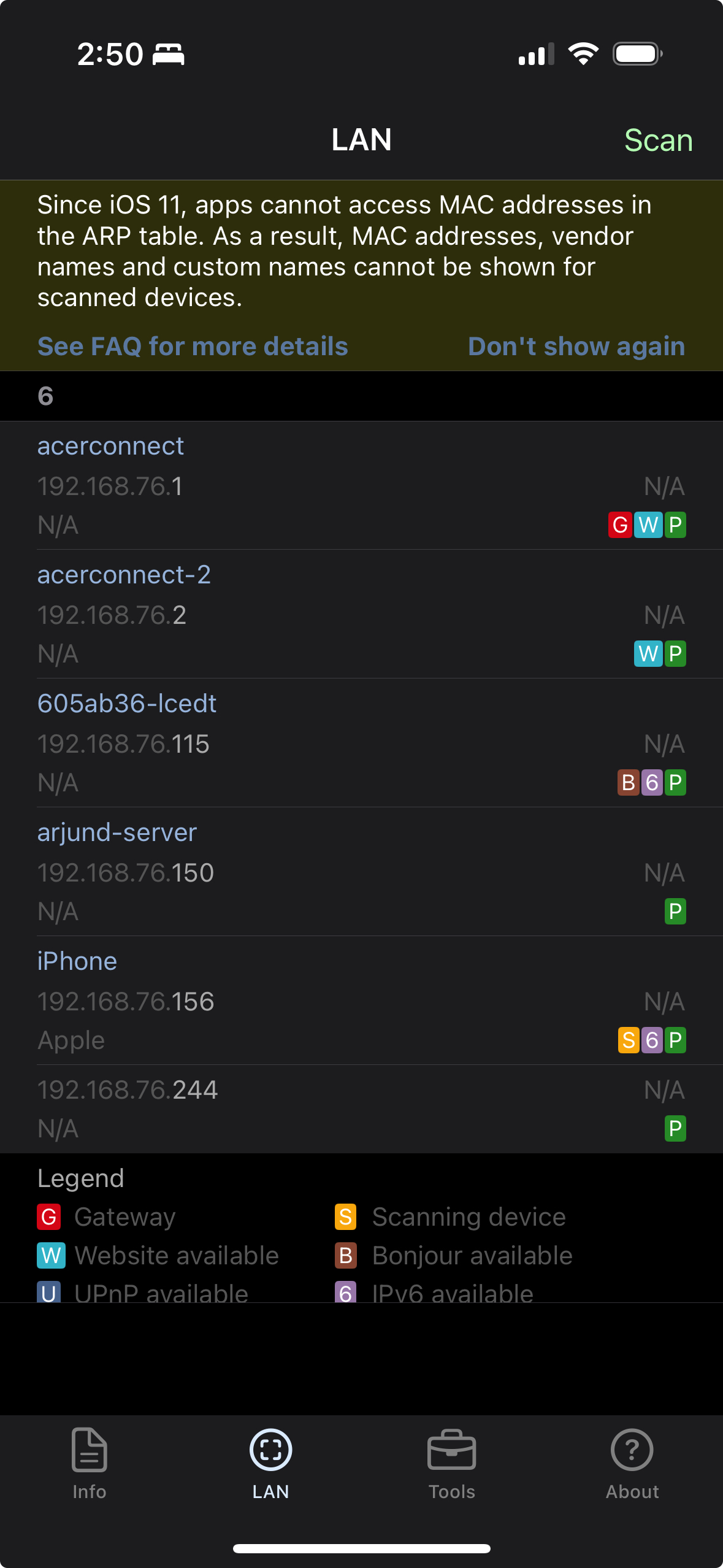
LAN tab: Scan for local servers# |
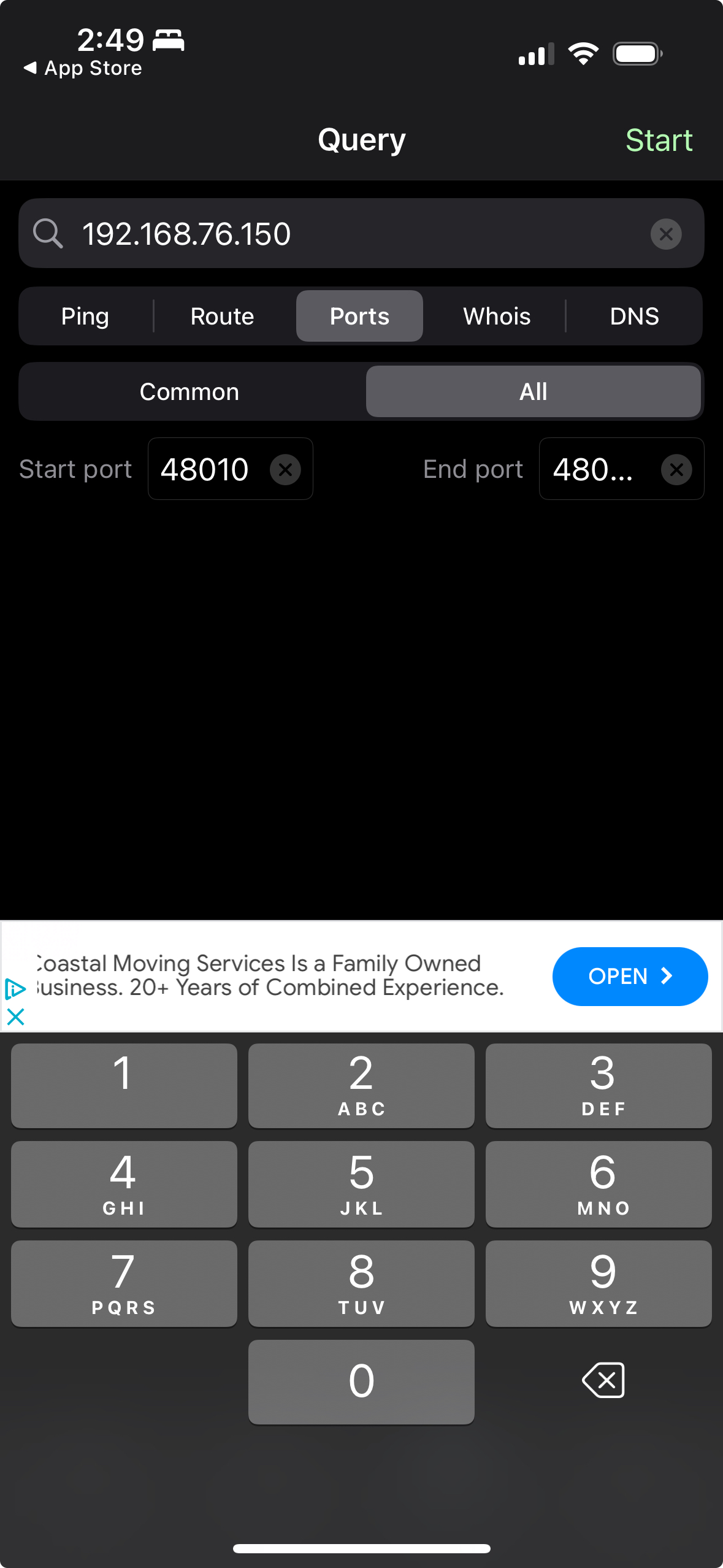
Tools tab: Ping server and check port 48010# |
Note
For iPad or Vision Pro apps to access servers on the local network, they must display a permissions prompt to the user. If the prompt is not shown or is accidentally dismissed, navigate to the app settings to grant the permission manually, or reinstall the app.
Performance Issues#
Packet Loss, Latency, and Jitter Testing:
Run tests from both the client device and the server. packetlosstest.com is a useful tool. Use the following settings:
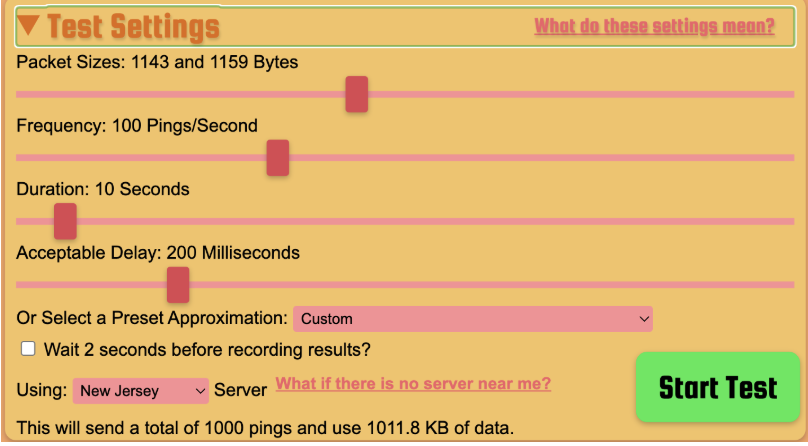
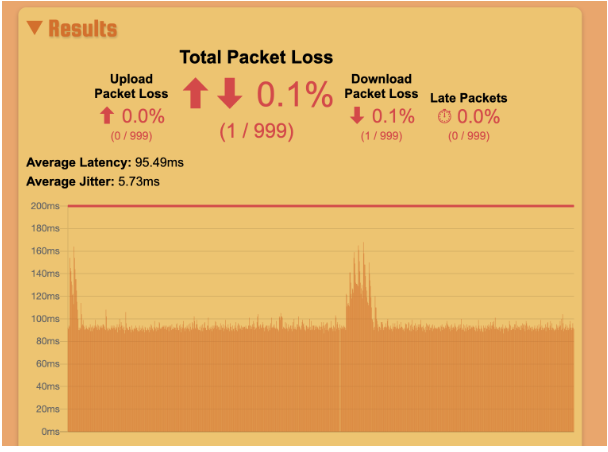
Interpreting Results:
Latency should be consistently low with minimal spikes.
Packet loss should be negligible.
High jitter indicates network instability.
If wired tests are good but wireless tests are bad, check the Wi-Fi configuration.
Bandwidth Testing:
Test bandwidth from both wired and wireless connections
For cloud streaming: Use speedtest.net or speed.cloudflare.com
For local streaming: Use iPerf to test between server and client
Ensure downstream bandwidth meets minimum requirements (100 Mbps)
Wi-Fi Interference Checks:
Use Wi-Fi analysis tools like WiFi Explorer on macOS to identify channel conflicts:
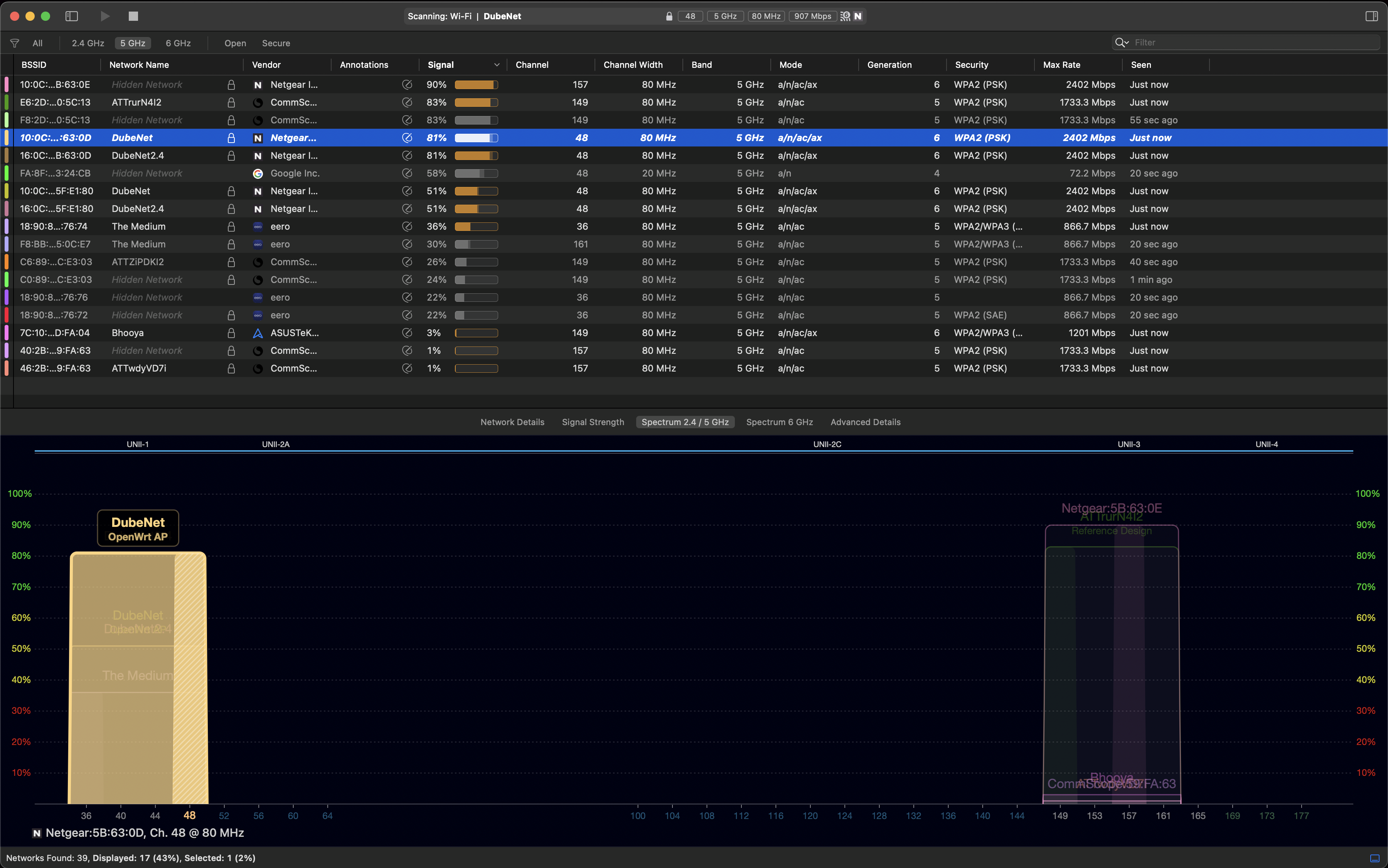
WiFi Explorer displaying channel usage and interference#
Check for other routers on the same channel.
Change your router’s channel or turn off interfering routers.
Consider using channels 44 or 149 to avoid Apple device channel hopping.
Periodic Latency Spikes#
If you experience regular, high, periodic network latency spikes, they may be caused by Apple’s Wireless Direct Link (AWDL) protocol causing channel hopping:
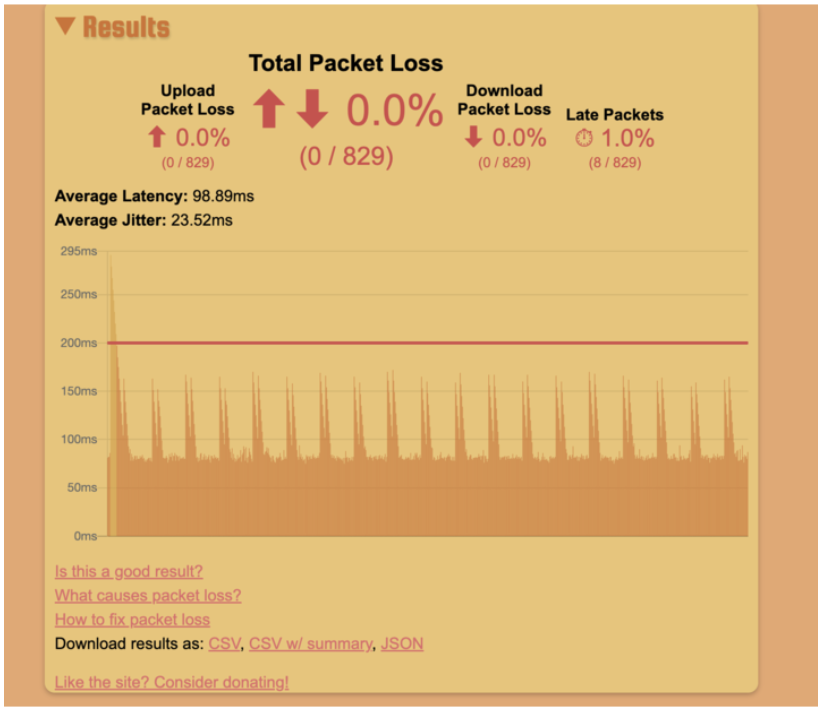
Example of periodic latency spikes caused by channel hopping#
To mitigate AWDL-related issues:
Configure the router to use channels 44 or 149 (used by AWDL).
Disable Bluetooth, AirPlay, and Handoff features on the client device.
Disable Location Services and other features that trigger AWDL.
Cloud Streaming Issues#
For streaming from cloud servers:
Ensure that you have a stable internet connection with at least 200 Mbps downstream and 20 Mbps upstream
Verify that the connection has IPv4 support. (CloudXR currently does not support IPv6.)
Test the connection from both wired and wireless devices to isolate local network issues.
Web Client Issues (CloudXR.js)#
Certificate Trust Issues:
When using HTTPS mode, browsers may show certificate warnings for self-signed certificates.
Visit the proxy URL directly in the browser and accept the certificate.
On Meta Quest, navigate to the HTTPS URL, click Advanced, then click Proceed to [site] (unsafe).
For production, use properly signed TLS certificates.
Pico 4 Ultra Not Connecting:
Pico 4 Ultra requires HTTPS mode. HTTP is not supported.
Ensure that WebSocket SSL proxy is configured and running.
Trust the SSL certificate on the device.
For web client-specific issues, refer to the documentation in WebSocket Proxy Setup and Client Setup Guide.
Log Files#
CloudXR components generate log files that are essential for debugging issues.
Server Logs (CloudXR Runtime)#
By default, CloudXR Runtime writes server logs to a temporary output
directory. On Windows, the directory’s pathname is %TEMP%\com.nvidia.CloudXR_<random> or
C:\Users\<name>\AppData\Local\Temp\com.nvidia.CloudXR_<random>. On Linux,
the path uses the directory returned by std::filesystem::temp_directory_path,
typically /tmp/com.nvidia.CloudXR_<random>.
When the runtime starts, it prints the exact outputDir and logFile values
to the console.
You can also query the log directory through the runtime C API by reading the
read-only output-dir string property with
nv_cxr_service_get_string_property. Refer to output-dir for
property details. To choose a persistent output directory, set
NV_CXR_OUTPUT_DIR before you start the runtime.
Runtime service log files are named cxr_server.<timestamp>.log. StreamSDK
log files are named cxr_streamsdk.<timestamp>.<count>.log.
CloudXR Runtime also writes ETL files to the same output directory. ETL files contain performance statistics. If you need support for a performance-related issue, collect and share the ETL file with the runtime log files.
On Windows, enable Performance Log access before you collect ETL files. Run
the following one-time command in an Administrator PowerShell window, replacing
YOURUSERNAME with your Windows user name:
net localgroup "Performance Log Users" YOURUSERNAME /add
Reboot the Windows host after you run the command. The reboot is required before the group membership change takes effect. After the reboot, the ETL file is written to the same output directory as the runtime log files.
On Linux, ETL files are created by default in the same output directory as the runtime log files.
Log Contents:
Connection events and errors
Streaming statistics
Client connection information
Runtime initialization status
Client Logs#
CloudXR Framework (Apple):
Logs are written to the Xcode console during development. For deployed applications, you can access logs through the system Console app or Xcode device logs.
CloudXR.js (Web):
Open the browser’s developer console (F12 or Cmd+Option+I) to view logs. CloudXR.js logs connection events, errors, and streaming statistics to the console.
Getting Support#
If you encounter issues not covered in this documentation:
Check the forum: The CloudXR Forum contains solutions to common problems and community support.
Gather information: Collect log files, network diagnostics, and steps to reproduce before reporting issues.
Submit a bug report: Provide detailed information, including:
Server OS, GPU, and driver version
Client device and OS version
SDK versions used
Network configuration
Complete log files
Steps to reproduce