

Creating a Confidential VM
The Host OS Administrator can use KVM and QEMU to create and launch a CVM with GPUs attached. This page is optional. If you have existing VMs or an orchestration flow, use your own flow and continue with Configuring the Guest.
Because of CPU Confidential Computing limitations, a reboot command in the CVM terminates the VM. This behavior is expected for every reboot. Launch the CVM again after each reboot.
Intel TDX
Intel refers to CVMs as Trust Domains (TDs). The Canonical TDX scripts that you downloaded in Configuring the Host create and launch the TD.
Creating the TD
-
Create an Ubuntu 24.04 guest image:
-
Edit
/shared/tdx/guest-tools/run_tdand replace theadd_gpusfunction with the following function, which attaches each GPU to its own PCIe root port throughiommufd:
Launching the TD
-
Optional: For maximum performance, if you downloaded the standalone version of pepc to
/shared/pepc, set the CPU frequency governor and disable C-states: -
Identify the NVIDIA GPUs. The following example shows the GPUs on an NVIDIA DGX B200 system:
-
Launch the TD with the GPUs attached. To attach every NVIDIA GPU, set
GPU_LISTfrom thelspcioutput. To attach specific GPUs, specify their PCIe addresses, such as1b:00.0, in the--gpusargument instead of$GPU_LIST.Example output:
Change the default guest passwords after the first boot.
Validating the TD
-
Log in to the TD by using SSH. Replace
rootwith the user name that you configured: -
Confirm that the guest kernel detects TDX:
AMD SEV-SNP
Creating the VM
-
Download an ISO image of a supported guest OS. The following example uses Ubuntu 24.04:
-
Create a virtual disk for the VM. Change
500Gto the disk size that you need: -
Create the
/shared/launch_vm.shscript with the following content:The script accepts the following options:
-
Make the script executable:
Installing the Guest OS
-
Launch the VM with CPU Confidential Computing disabled:
-
In the GRUB menu, highlight Try or Install Ubuntu Server.
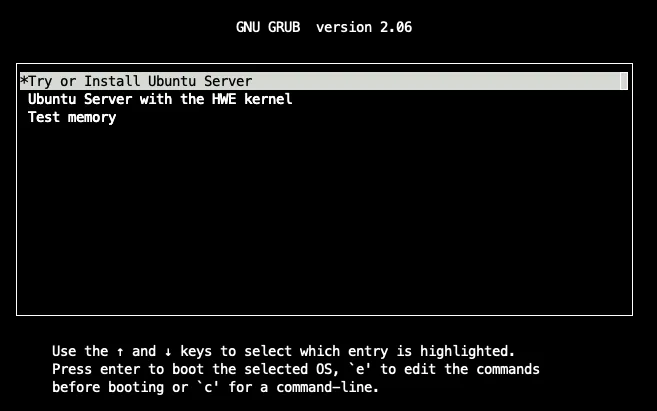
-
Press e to edit the boot commands.
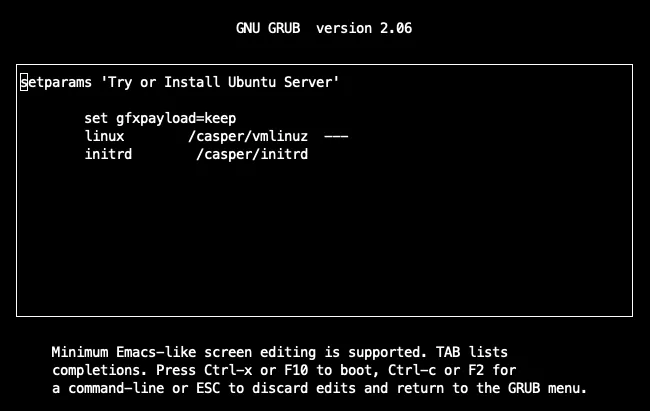
-
Add
console=ttyS0to thelinuxline so that the kernel prints to the serial console: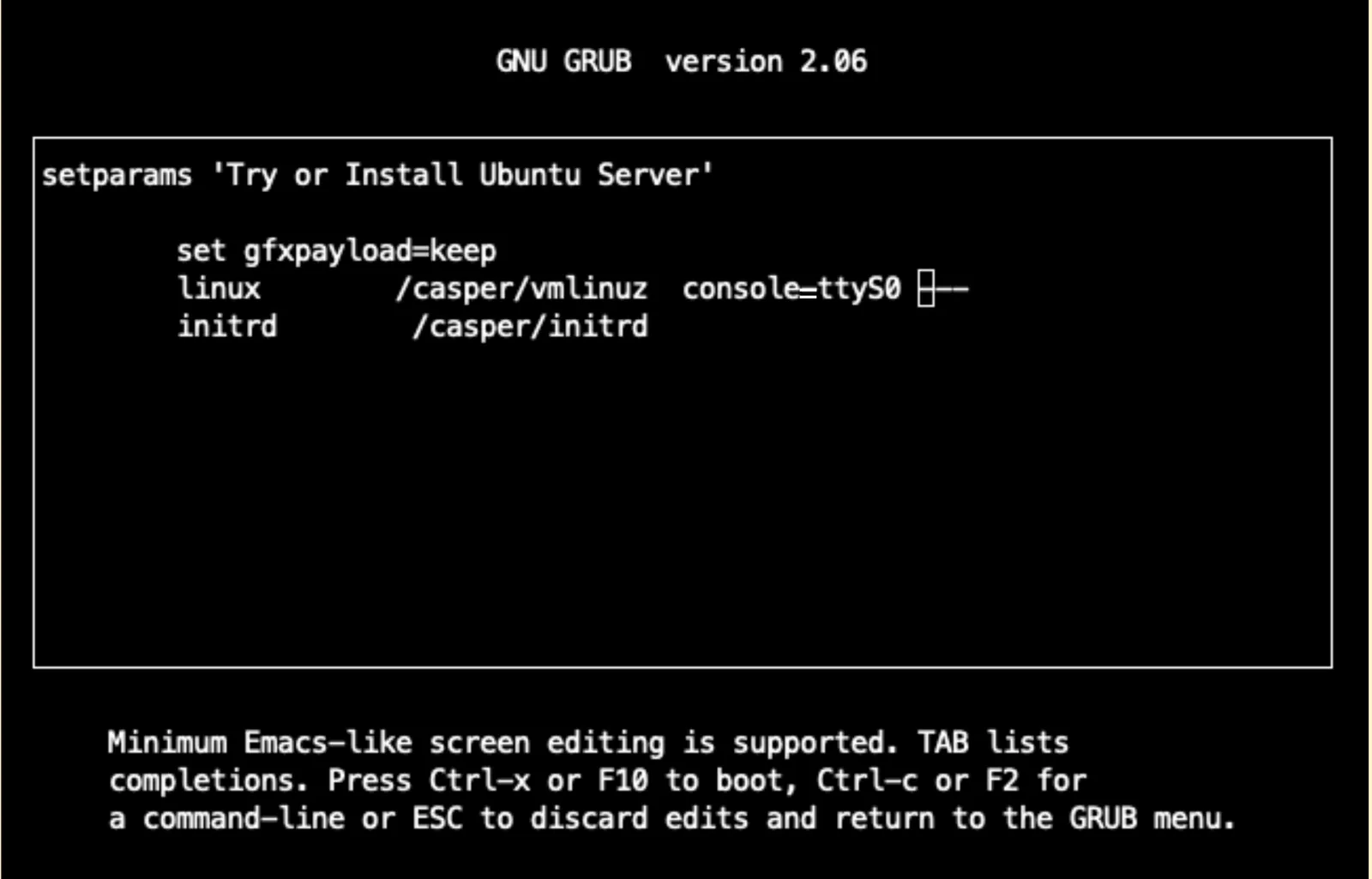
-
Press Ctrl+X to continue booting.
-
Complete the guest OS installation. The installation doesn’t require specific options. When the installation finishes, Ubuntu prompts you to reboot, the VM terminates, and you return to the host.
Finalizing the Guest OS
-
Edit
/shared/launch_vm.shand remove the following line so that the VM boots from the virtual disk: -
Launch the VM with CPU Confidential Computing disabled:
-
Log in to the VM. The console shows a welcome message similar to the following example:
Configuring PCIe BAR Remapping
OVMF can fail to assign ACPI addresses to PCIe devices with large amounts of memory. To work around this issue, configure the guest kernel to reallocate the PCIe resources.
-
In the guest, edit
/etc/default/gruband addpci=realloc,nocrstoGRUB_CMDLINE_LINUX_DEFAULT: -
Update GRUB and reboot. The reboot terminates the VM:
-
On the host, launch the VM with SEV-SNP enabled:
Validating the VM
In the guest, confirm that SEV-SNP memory encryption is active:
The CVM now runs with one or more confidential GPUs attached. Continue with Configuring the Guest.