

System Requirements#
Use this guide to choose the CPU, memory, and storage resources for running Dynamic Power Software (DPS) on Kubernetes. It is for cluster administrators, and its values are recommended starting points.
Actual usage depends on your inventory, how often you collect telemetry, and your hardware. Monitor usage after you deploy, and adjust the resources as needed. Refer to Validate and Monitor.
How DPS Is Deployed#
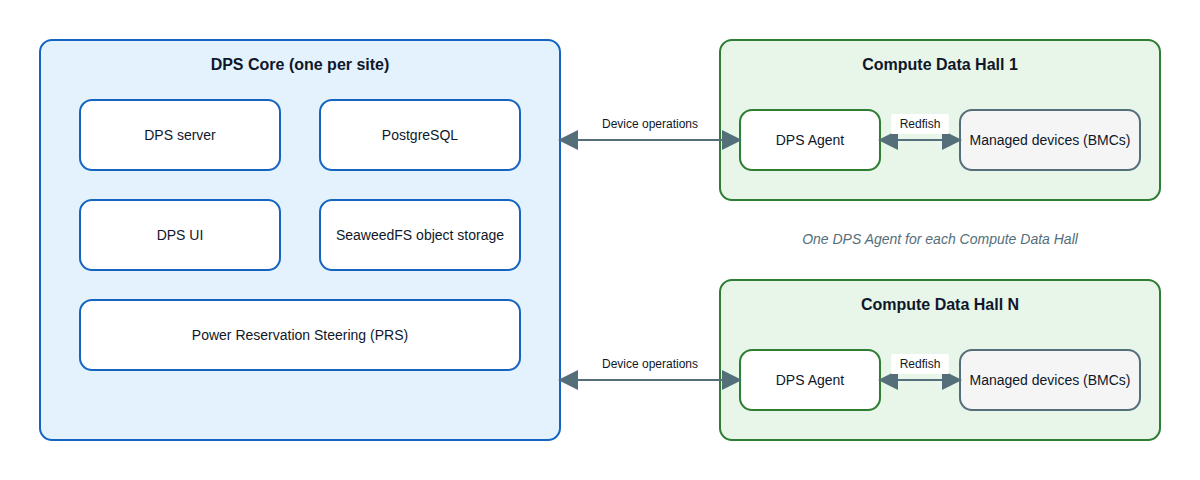
DPS has two parts:
DPS Core: one deployment per site. It includes the DPS server, the DPS UI, Power Steering, PostgreSQL, and SeaweedFS object storage.
DPS Agent: one deployment for each Compute Data Hall, the facility area that contains your compute scalable units (SUs). It collects telemetry from the devices in its hall and applies the power limits that DPS sets, through the devices’ baseboard management controllers (BMCs). Run one replica for each DPS Agent.
DPS Core and the DPS Agents can run in the same Kubernetes cluster or in separate clusters. The resource values are the same in both cases. The values in this guide assume Power Steering is enabled, which is the default.
Before You Begin#
Before you size your cluster, confirm that your environment meets the Kubernetes, Helm, PostgreSQL, storage, and network requirements in Deployment and Configuration Guide.
Size Your Deployment#
A Scalable Unit (SU) is the smallest repeatable IT building block in the DSX facilities architecture. One SU contains 14 NVIDIA Vera Rubin NVL72 racks. For details, refer to the DSX Facilities Infrastructure Reference Design.
To choose the resources for your deployment:
Determine how many SUs DPS manages across your site, and how many SUs each DPS Agent manages.
Select the DPS Core row that matches your site in Reserve Cluster Capacity. If your number of SUs falls between two rows, select the larger row.
Select the row that matches each DPS Agent in the same section, using the same rule.
Reserve that capacity in your cluster, and add capacity for other workloads. Refer to Additional Capacity.
Configure each container with the values in Configure Container Resources.
Verify the cluster. Refer to Validate and Monitor.
Reserve Cluster Capacity#
Size the cluster by allocatable capacity, not node capacity. Allocatable capacity is the CPU and memory that Kubernetes can give to pods, after it reserves resources for the operating system and system daemons.
CPU values are Kubernetes CPU units. One unit is one CPU core, and 250m is a
quarter of a unit. The capacity values include headroom. If you reserve the
listed capacity, the combined requests of the containers use no more than 80
percent of it.
The following table lists the total requests of the DPS Core containers and the capacity to reserve. The capacity is the total requests divided by 0.8. The container requests are listed in Configure Container Resources.
Total SUs |
Total CPU Requests |
Total Memory Requests |
CPU Units to Reserve |
Memory to Reserve |
Persistent Storage |
|---|---|---|---|---|---|
1 SU |
3.15 |
4,544 MiB |
4 |
6 GiB |
30 GiB |
3 SUs |
3.35 |
6,336 MiB |
5 |
8 GiB |
30 GiB |
4 SUs |
3.35 |
7,104 MiB |
5 |
9 GiB |
30 GiB |
9 SUs |
3.65 |
10,688 MiB |
5 |
14 GiB |
30 GiB |
The following table lists the total requests and the capacity to reserve for
each DPS Agent (dps-server-agent-<suffix>). If
DPS Core and an Agent run in separate clusters, reserve this
capacity in the Agent’s cluster, in addition to that cluster’s other
workloads:
SUs per DPS Agent |
CPU Requests |
Memory Requests |
CPU Units to Reserve |
Memory to Reserve |
|---|---|---|---|---|
1 SU |
0.3 |
384 MiB |
1 |
1 GiB |
3 SUs |
0.8 |
768 MiB |
1 |
1 GiB |
4 SUs |
1 |
896 MiB |
2 |
2 GiB |
The DPS Agent table covers up to 4 SUs per Agent. For an Agent that manages more SUs, start with the 4-SU row and add capacity for each additional SU as described in Scaling.
In a single-cluster deployment, add the DPS Core row from the first table and one DPS Agent row from the second table for each Agent. These values cover DPS only.
The following examples show the calculation for a single cluster:
3 SUs and one DPS Agent: DPS Core needs 5 CPU units, 8 GiB, and 30 GiB. The Agent adds 1 CPU unit and 1 GiB. The total is 6 CPU units, 9 GiB, and 30 GiB.
9 SUs and three DPS Agents that manage 3 SUs each: DPS Core needs 5 CPU units, 14 GiB, and 30 GiB. The three Agents add 3 CPU units and 3 GiB. The total is 8 CPU units, 17 GiB, and 30 GiB.
Use an External PostgreSQL Service#
The values in this guide include the PostgreSQL service that DPS deploys. If you use an externally managed PostgreSQL service, reduce the persistent storage for DPS Core by 10 GiB. Keep the CPU and memory values. The bundled PostgreSQL service accounts for at most 0.25 CPU units and 0.375 GiB of requests.
Configure Container Resources#
The capacity tables in Reserve Cluster Capacity tell you how much capacity to reserve in the cluster. The tables in this section tell you how to configure each container.
Set the requests of each container to at least the values in the tables. Set the memory limit of each container to the listed value.
CPU limits are optional. If you set a CPU limit on a container, set it to at least twice the CPU request of that container. For example, the DPS server requests 2 CPU units, so its CPU limit must be at least 4 CPU units.
Do not set a CPU limit lower than 1 CPU unit on the OpenTelemetry sidecars in the Power Steering controller and configuration server pods. A sidecar uses CPU in short bursts. A limit of twice its request (100m) throttles it.
Kubernetes rejects a pod whose request exceeds its limit.
Note
A limit is a ceiling, not a reservation. The memory limits can add up to more than the allocatable capacity in the capacity tables. Plan node memory for the requests, and watch for memory pressure on the node.
In the tables, Gi and Mi are the Kubernetes notation for GiB and MiB.
DPS Core#
DPS Core runs the following pods. Their requests add up to the total requests in the DPS Core capacity table in Reserve Cluster Capacity. A pod that a Deployment manages has a generated suffix after the name.
Component |
Pod Name |
Resources Depend on SUs |
|---|---|---|
DPS server |
|
Yes |
Power Steering controller, with its OpenTelemetry sidecar |
|
Yes |
PostgreSQL |
|
Yes |
DPS UI |
|
No |
Power Steering configuration server, with its OpenTelemetry sidecar |
|
No |
SeaweedFS master |
|
No |
SeaweedFS volume server |
|
No |
SeaweedFS filer |
|
No |
SeaweedFS S3 gateway |
|
No |
The following tables list the requests and limits for the three pods whose resources depend on the total number of SUs.
The following table lists the DPS server (dps-server-0)
resources:
Setting |
1 SU |
3 SUs |
4 SUs |
9 SUs |
|---|---|---|---|---|
CPU request |
|
|
|
|
Memory request |
|
|
|
|
Memory limit |
|
|
|
|
The following table lists the Power Steering controller
(dps-power-controller-<suffix>) resources:
Setting |
1 SU |
3 SUs |
4 SUs |
9 SUs |
|---|---|---|---|---|
CPU request |
|
|
|
|
Memory request |
|
|
|
|
Memory limit |
|
|
|
|
The following table lists the PostgreSQL (dps-postgresql-0) resources:
Setting |
1 SU |
3 SUs |
4 SUs |
9 SUs |
|---|---|---|---|---|
CPU request |
|
|
|
|
Memory request |
|
|
|
|
Memory limit |
|
|
|
|
The following table lists the remaining pods, and the OpenTelemetry sidecar in two of them, whose resources are the same for every number of SUs:
Component |
Pod Name |
CPU Request |
Memory Request |
Memory Limit |
|---|---|---|---|---|
DPS UI |
|
|
|
|
Power Steering configuration server |
|
|
|
|
Power Steering OpenTelemetry sidecar (in each of the controller and configuration server pods) |
|
|
|
|
SeaweedFS master |
|
|
|
|
SeaweedFS volume server |
|
|
|
|
SeaweedFS filer |
|
|
|
|
SeaweedFS S3 gateway |
|
|
|
|
DPS Agent#
The following table lists the requests for each DPS Agent
(dps-server-agent-<suffix>):
SUs per DPS Agent |
CPU Request |
Memory Request |
|---|---|---|
1 SU |
|
|
3 SUs |
|
|
4 SUs |
|
|
Set the DPS Agent memory limit to at least twice the memory request, or leave it unset.
Storage#
Keep at least 20 percent of the persistent volume capacity free. The following table lists the persistent volumes for DPS Core:
Volume |
Size |
|---|---|
PostgreSQL data |
8 GiB |
SeaweedFS volume server |
10 GiB |
SeaweedFS filer |
1 GiB |
SeaweedFS master |
1 GiB |
DPS server data |
1 GiB |
Total |
21 GiB |
The persistent volumes in the preceding table total 21 GiB. This is the sum of the PostgreSQL, SeaweedFS, and DPS server data volumes. Provision at least 30 GiB of storage capacity for DPS Core, which leaves room to grow beyond that total. A DPS Agent needs no persistent volume.
Ephemeral storage is separate from persistent storage. The following table lists the ephemeral-storage requests and limits:
Component |
Request |
Limit |
|---|---|---|
DPS UI |
|
|
DPS server |
|
|
PostgreSQL |
|
|
The capacities in this section do not include database backups, PostgreSQL write-ahead log (WAL) archives, replicas, snapshots, container images, logs, or monitoring data. Increase the volume sizes to match your data-retention requirements.
Data That Grows Over Time#
Power Steering dump (SeaweedFS volume server). Power Steering writes a record of each cycle to SeaweedFS. DPS deletes it after the retention period, set by
power-steering.global.telemetry.dump.retention(default5h). The dump needs about 80 MB per SU per hour. Size the SeaweedFS volume server for: SUs × 80 MB × retention in hours, plus 25 percent. With the default retention, 9 SUs need about 4.5 GB. With 24-hour retention, 9 SUs need about 22 GB, so increase the SeaweedFS volume above its default 10 GiB.PostgreSQL. PostgreSQL holds the configuration and state of DPS and Power Steering. Some tables keep history, and DPS does not delete it automatically. The write-ahead log uses up to about 1 GB with the default PostgreSQL settings.
Monitoring. Monitor the used space of each volume. Expand a volume before it is 80 percent full. Use a StorageClass that allows volume expansion.
Additional Capacity#
Reserve additional CPU, memory, and storage for:
Multiple replicas or high availability.
PostgreSQL or SeaweedFS replication.
Backup or disaster recovery services.
Ingress controllers, monitoring, log collection, service meshes, or security agents.
Other workloads on the same nodes.
Validate and Monitor#
Confirm that the cluster offers the required allocatable capacity:
kubectl describe node <node-name> | grep -A 8 "Allocatable"
The allocatable CPU and memory must be at least the values in the capacity
tables. For a cluster with more than one node, add the allocatable CPU and
memory of all schedulable nodes. At least one node must also have enough
allocatable capacity for the largest pod, the DPS server
(dps-server-0).
After you install DPS, confirm that every DPS pod is scheduled and that its requests match the values in Configure Container Resources:
kubectl get pods -n <namespace> -o wide
kubectl describe pod <pod-name> -n <namespace> | grep -A 6 "Requests"
Monitor usage during normal operation:
Compare actual usage with requests by using
kubectl top pod -n <namespace> --containers. This command requires a Metrics API implementation, such as metrics-server, in the cluster.Check for restarts caused by out-of-memory kills. Use
kubectl get pods -n <namespace>to find pods with restarts, then usekubectl describe pod <pod-name> -n <namespace>and look for a last state ofOOMKilled.Check for CPU throttling with the
container_cpu_cfs_throttled_seconds_totalmetric in your monitoring system.
To scrape DPS server metrics with Prometheus, refer to Prometheus Monitoring.
Increase a container’s memory limit when its usage exceeds 80 percent of the
limit, or when it restarts with OOMKilled. Increase CPU requests or limits
when throttling occurs repeatedly during normal operation. Watch
DPS server memory first, because its usage grows with the
number of SUs.
Scaling#
To add SUs to a site, move DPS Core to the next row in the Core capacity table. Each additional SU adds about 1 GiB of allocatable memory. For each DPS Agent, move to the next row in the Agent capacity table if it manages more SUs. Each additional SU adds about 0.3 CPU units and 0.2 GiB of allocatable capacity to that DPS Agent.
To add a Compute Data Hall, deploy one more DPS Agent, and review the DPS Core row for the new total number of SUs.
To add a site, deploy one more DPS Core and one DPS Agent for each Compute Data Hall.