


E1.S Cache Drive Replacement#
This topic describes how to replace an E1.S NVMe cache drive in the compute tray of an NVIDIA DGX VR NVL72 system.
E1.S Cache Drive Replacement Overview#
Identify the failed cache drive.
Power off the compute tray being serviced.
Replace the drive.
Power on the compute tray.
Rebuild the system RAID volume.
Confirm that the volume is healthy with
nvsm show volumes.
Identify the Failed Cache Drive#
Identify each E1.S cache drive to remove and record its PCIe bus, device, and function (BDF) address. The following diagram labels the four cache drives in Bay B and their BDF addresses.
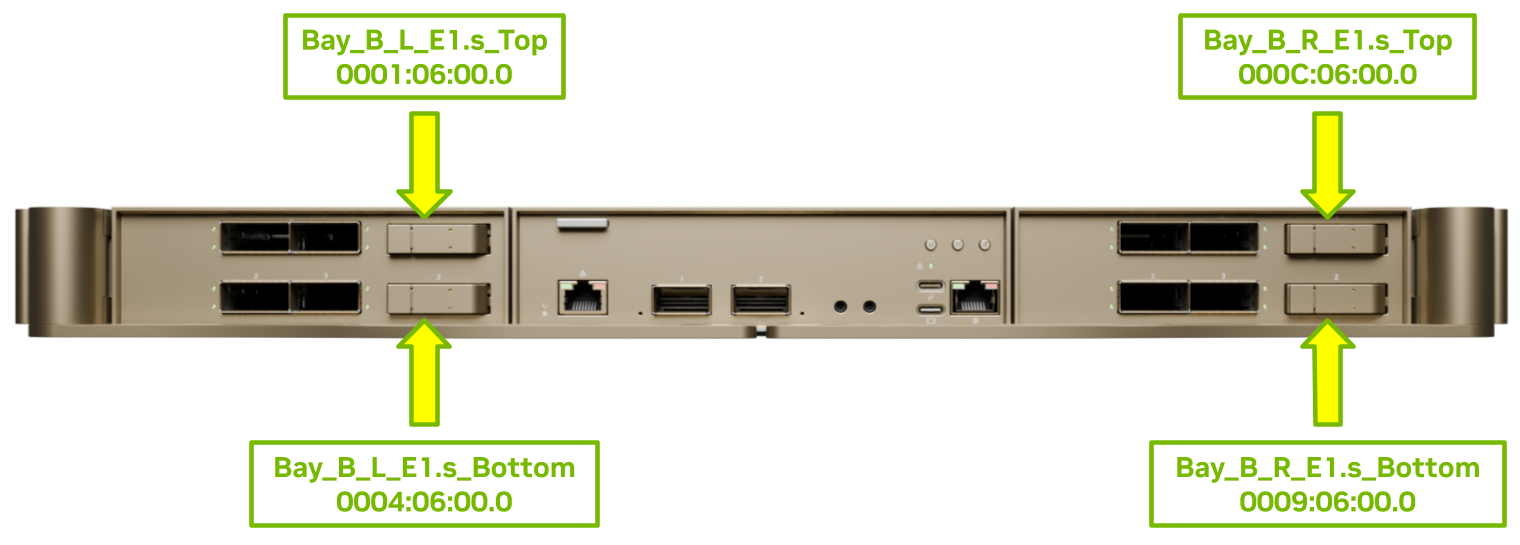
Have the system administrator power off the compute tray before you replace the drives.
Replace the Failed Cache Drive#
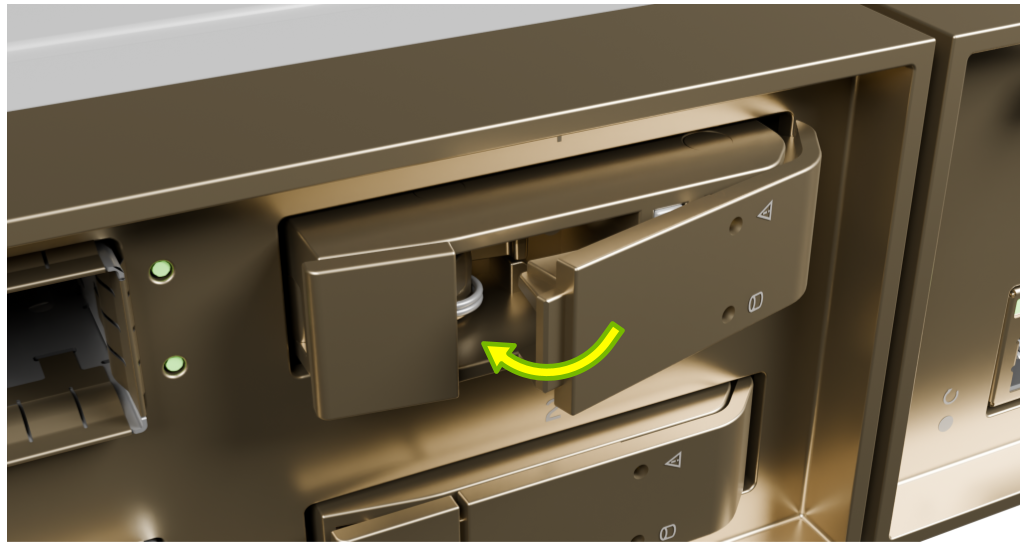
Press the smaller, leftmost tab inward toward the bezel. The larger, rightmost tab flips open, and the drive protrudes slightly.
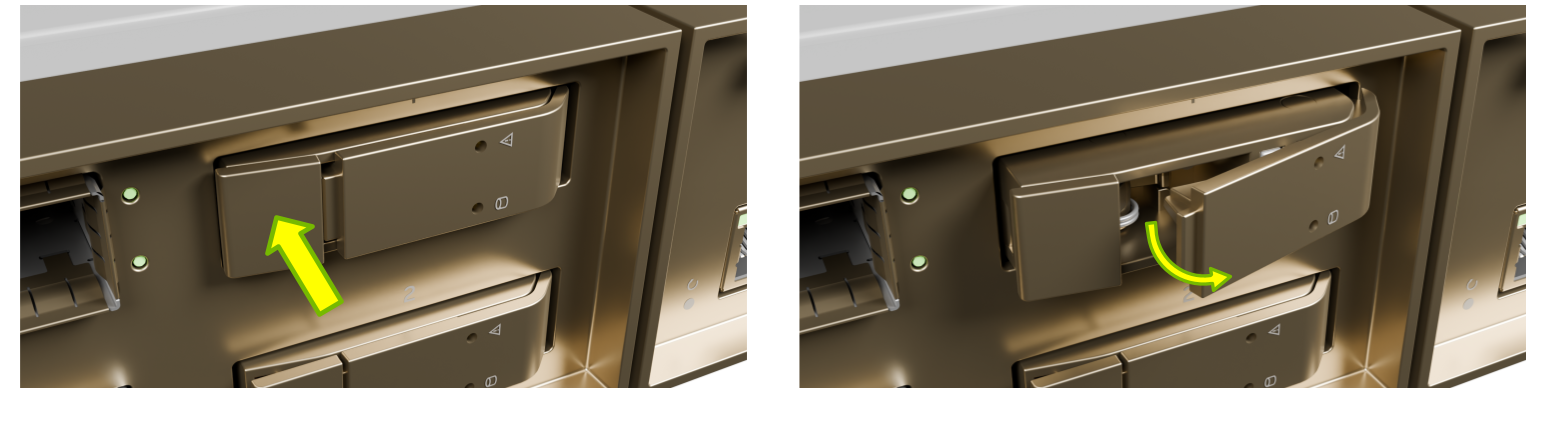
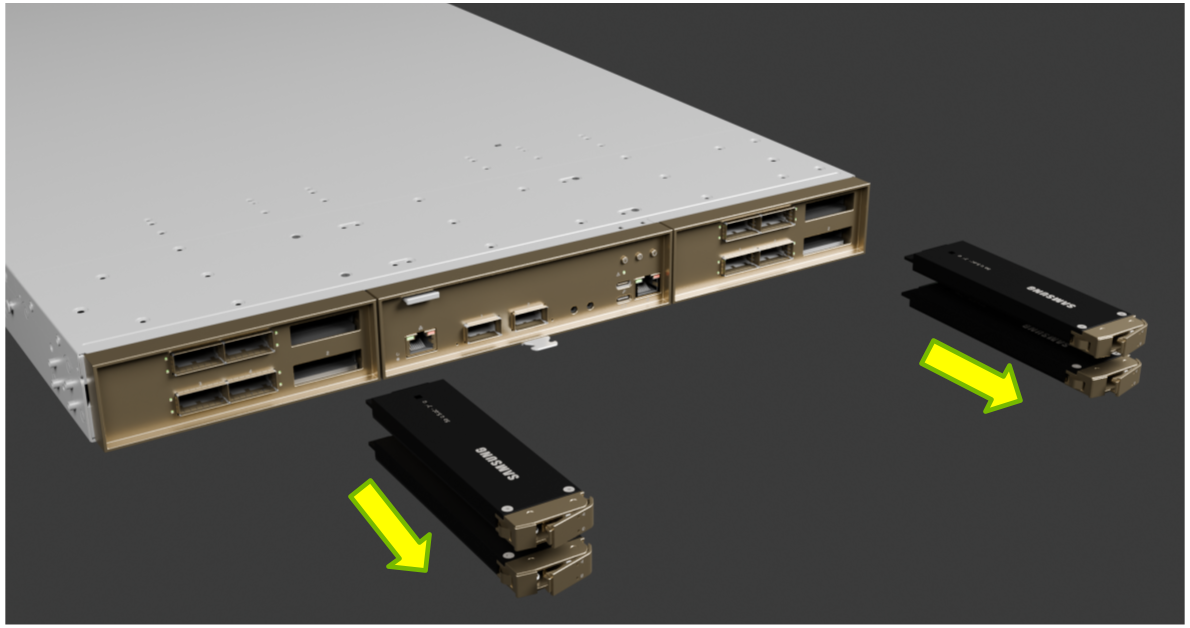
Repeat this step for any other cache drives that you need to remove, and then pull the drives out of the compute tray.
Insert each new E1.S cache drive into the compute tray.
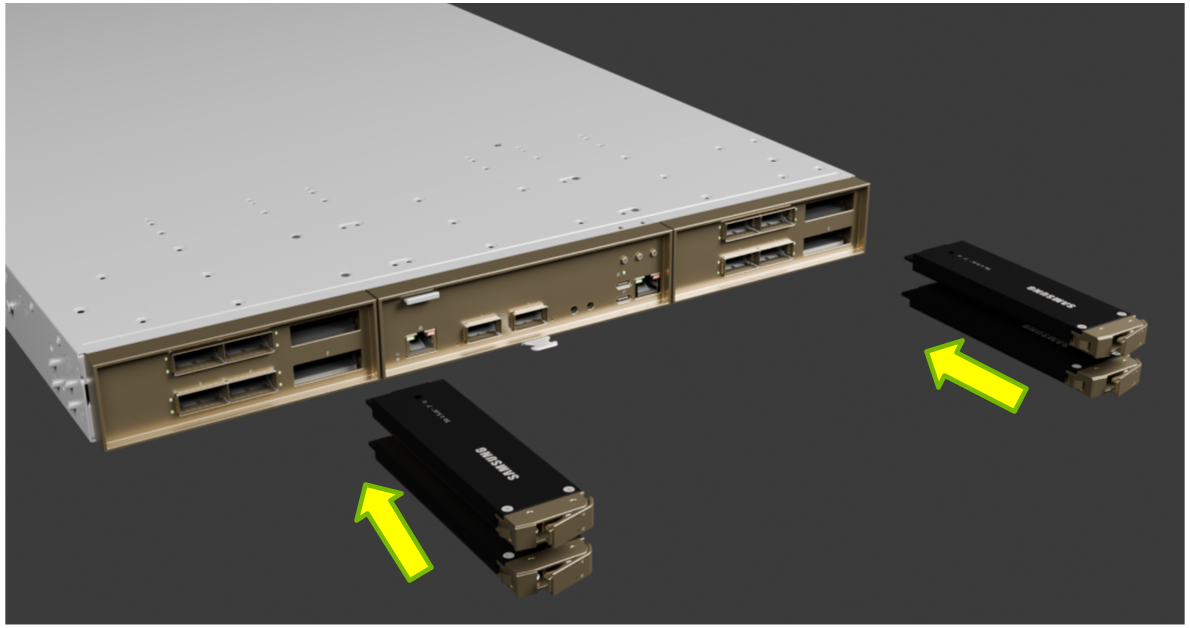
Press the larger, rightmost tab inward until it locks into the smaller, leftmost tab. Repeat for each new drive.
Finalize the Replacement Procedure#
Power on the system and log in.
Run the following command to confirm that all new drives are visible:
sudo nvme list
One boot drive and four cache drives should be visible. Model names can vary.
If the cache volume was locked with an access key, unlock the drives with the following command. The disk encryption packages must be installed; refer to the DGX OS User Guide.
sudo nv-disk-encrypt disable
Re-create the cache volume and the
/raidfilesystem:configure_raid_array.py -c -f
Enter
ywhen prompted to confirm the rebuild.If the volume needs to be locked with an access key, follow the instructions in the DGX OS User Guide.
Run the following command to confirm that the volume is healthy:
sudo nvsm show volumes
Pack the old drive in the packaging from the new drive and ship it back to NVIDIA Enterprise Support.