


Compute Tray Battery Replacement#
This topic describes how to replace the battery in the Bay-C module of a compute tray in an NVIDIA DGX VR NVL72 system. The procedure identifies the steps performed by the system administrator.
Compute Tray Battery Replacement Overview#
Power off all compute trays (system administrator).
Remove the compute tray from the rack with the help of another person.
Check the tray’s cooling-loop pressure.
Remove the tray lid and the Bay-C module, and replace the battery.
Reinstall the Bay-C module, replace the lid, and install the tray with the help of another person.
Run the CDU for 20 minutes to eliminate bubbles in the tray’s liquid cooling loop.
Run the power-on sequence, confirm that the tray comes up, update its firmware to match the rest of the system, and check system health (system administrator).
Remove the Compute Tray#
Have the system administrator power off all compute trays and power down the compute tray being serviced.
Allow the compute tray to cool down for five minutes.
Unlatch the compute tray from the rack.
Pull the tray out as far as the sliding rail allows.
With the help of another person, unlock the tray from the slide rails and remove it from the rack.
Rest the tray on a solid, flat surface.
Use the pressure gauge from the toolkit to check the pressure in the tray’s cooling loop.
At 1 PSI or above, continue with the procedure.
Below 1 PSI, contact NVIDIA Enterprise Support to confirm the next steps before you continue.
Remove the Tray Lid and Bay-C Module#
Remove the lid of the compute tray.
Remove the Bay-C module from the compute tray.
Replace the Battery#
Locate the battery in the Bay-C module.
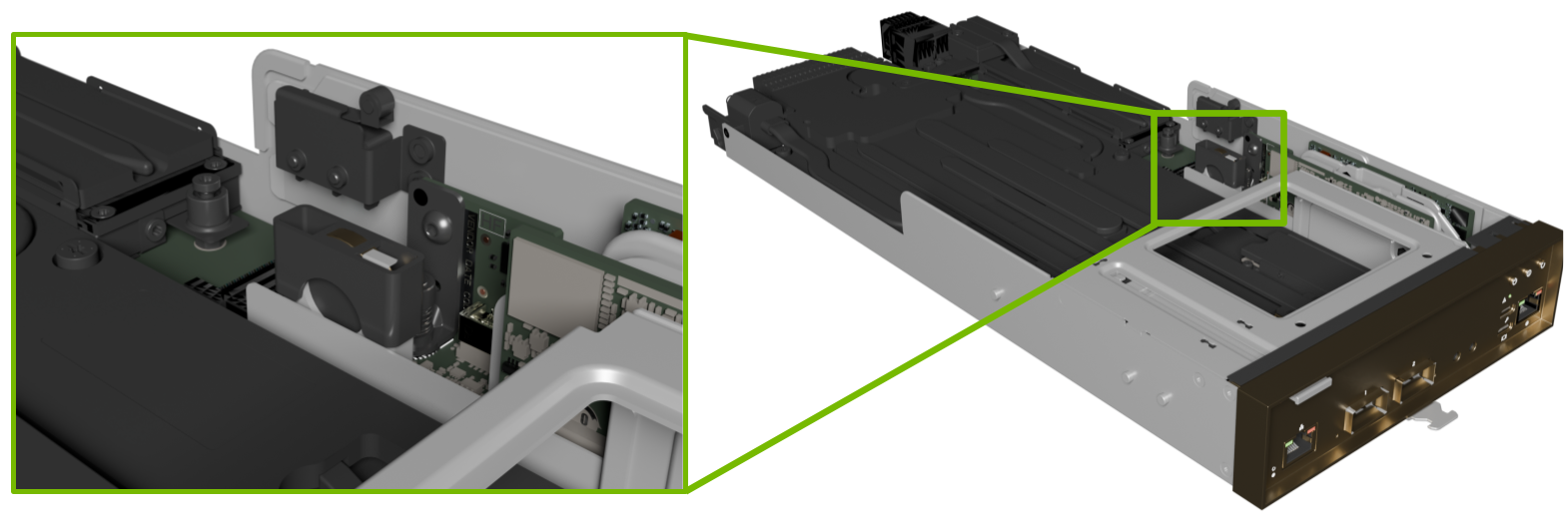
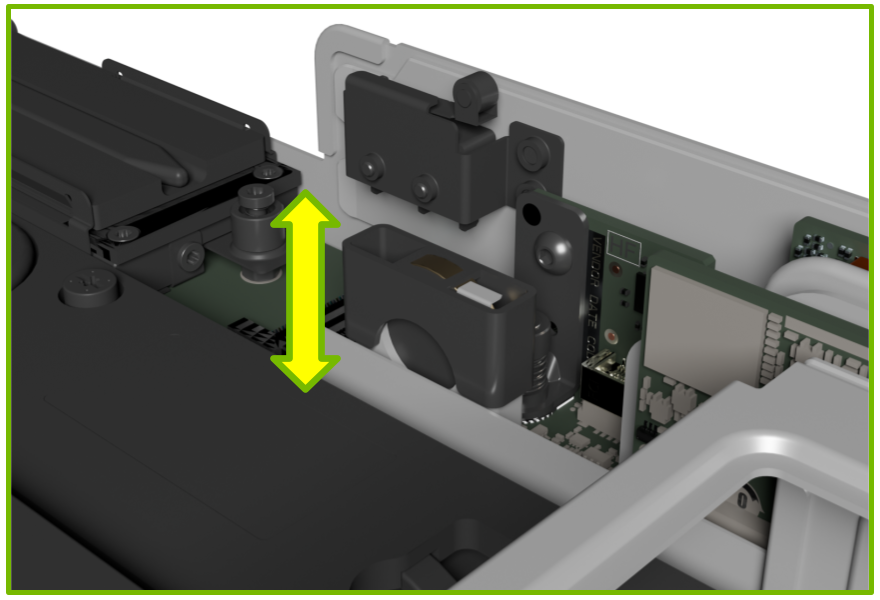
Remove the battery assembly’s top cover, remove the old battery, and replace it with a new battery. Replace the top cover.
Finalize the Replacement Procedure#
Reinstall the Bay-C module in the compute tray.
Replace the tray lid.
With the help of another person, install the compute tray in the rack.
Run the CDU for 20 minutes until any bubbles remaining in the compute tray’s liquid cooling loop are eliminated.
Have the system administrator run the power-on sequence.
Have the system administrator confirm that the compute tray comes up.
Have the system administrator update the tray’s firmware to match the rest of the system.
Have the system administrator check system health.