

Profiler Guide
This guide covers deployment, configuration, integration, and troubleshooting for the Dynamo Profiler.
What is a DynamoGraphDeploymentRequest (DGDR)?
A DynamoGraphDeploymentRequest (DGDR) is a Kubernetes Custom Resource that serves as the primary interface for users to request model deployments with specific performance and resource constraints. You specify:
- What model you want to deploy (
model) - How it should perform (SLA targets:
ttft,itl) - Where it should run (optional GPU preferences)
- Which backend to use (
backend: vllm, sglang, or trtllm) - Which images to use (
profilingConfig.profilerImage,deploymentOverrides.workersImage)
The Dynamo Operator watches for DGDRs and automatically:
- Discovers available GPU resources in your cluster
- Runs profiling (online or offline) to find optimal configurations
- Generates an optimized DynamoGraphDeployment (DGD) configuration
- Deploys the DGD to your cluster
Relationship to DGD:
- DGDR: High-level “intent” - what you want deployed
- DGD: Low-level “implementation” - how it’s deployed
Support Matrix
The profiler sweeps over the following parallelization mappings for prefill and decode:
Exact model x parallelization mapping support is dependent on the backend. The profiler does not guarantee that the recommended P/D engine configuration is supported and bug-free by the backend.
Deployment
Kubernetes Deployment (DGDR)
The recommended deployment method is through DGDRs. Sample configurations are provided in benchmarks/profiler/deploy/:
Container Images
Each DGDR requires container images for profiling and deployment:
profilingConfig.profilerImage(Required): Container image for the profiling job. Must contain the profiler code and dependencies.deploymentOverrides.workersImage(Optional): Container image for DGD worker components (frontend, workers, planner). If omitted, uses image from the base config file.
Quick Start: Deploy with DGDR
Step 1: Create Your DGDR
Use a sample configuration or create your own:
Step 2: Apply the DGDR
Step 3: Monitor Progress
DGDR Status States:
Pending: Initial state, preparing to profileProfiling: Running profiling job (20-30 seconds for AIC, 2-4 hours for online)Deploying: Generating and applying DGD configurationReady: DGD successfully deployed and runningFailed: Error occurred (check events for details)
Step 4: Access Your Deployment
DGDRs are immutable. To update SLAs or configuration, delete the existing DGDR and create a new one.
Direct Script Execution
For advanced use cases or local development:
Profiling Method
The profiler follows a 5-step process:
- Hardware Setup: Uses defaults or user-specified hardware configuration. Optionally, cluster-scoped operators can enable automatic GPU discovery to detect specifications from cluster nodes.
- Identify Sweep Ranges: Automatically determine minimum and maximum number of GPUs per engine. Minimum is determined by the model size and GPU VRAM. Maximum is set to one node for dense models and 4 nodes for MoE models.
- Parallelization Mapping Sweep: Test performance of engines with different parallelization mappings using the input ISL and OSL.
- For dense models, test different TP sizes for both prefill and decode.
- For MoE models (SGLang), evaluate both TEP and DEP as candidates for prefill and decode.
- Prefill:
- TP/TEP: Measure TTFT with batch size = 1 (assuming ISL is long enough to saturate compute) without KV reuse.
- DEP: Attention uses data parallelism. Send a single burst with total concurrency
attention_dp_size × attn_dp_num_req_ratio(defaults to 4) and compute the reported TTFT astime_to_first_token.max / attn_dp_num_req_ratiofrom the AIPerf summary of that burst.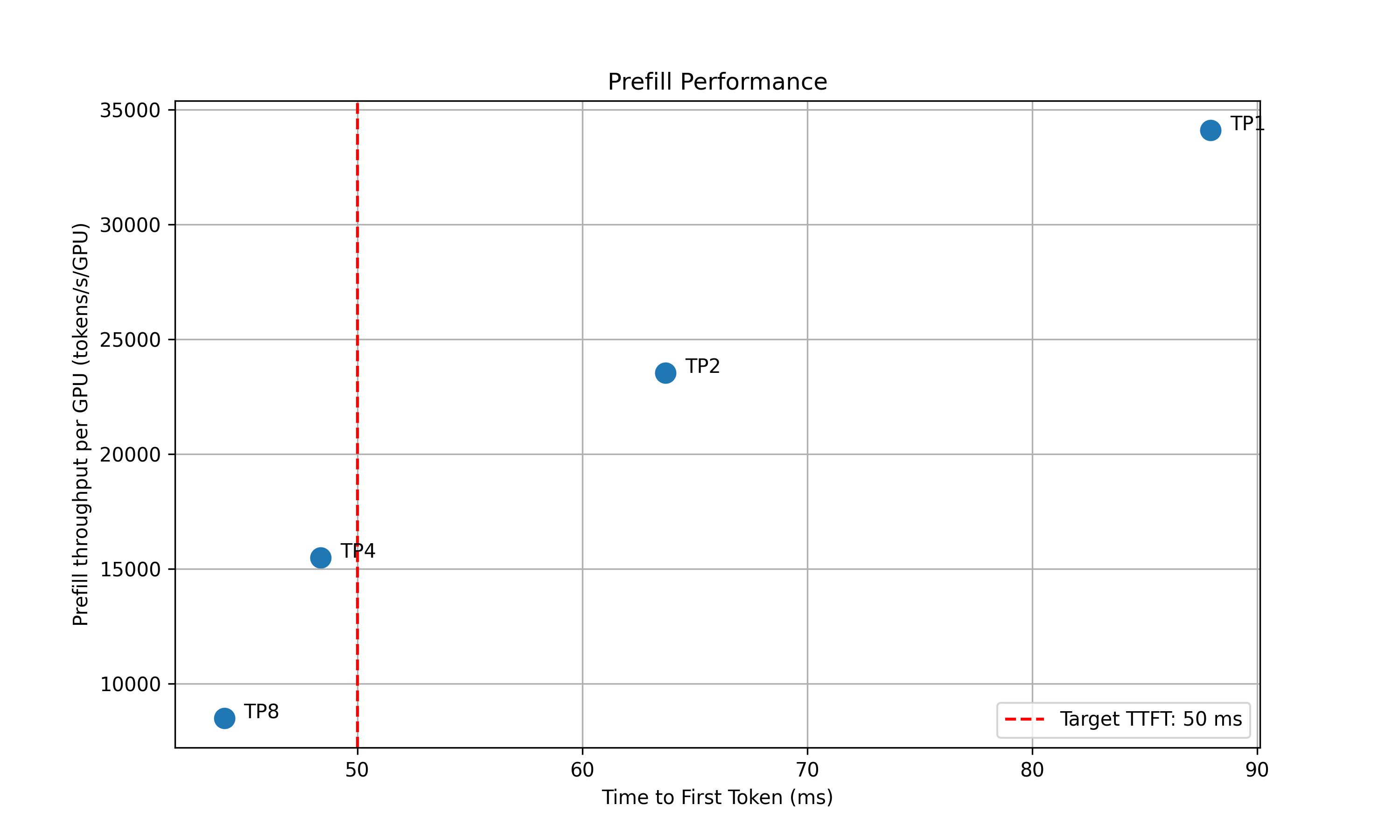
- Decode: Measure the ITL under different numbers of in-flight requests, from 1 to the maximum the KV cache can hold. To measure ITL without being affected by piggy-backed prefill requests, the script enables KV-reuse and warms up the engine by issuing the same prompts before measuring.
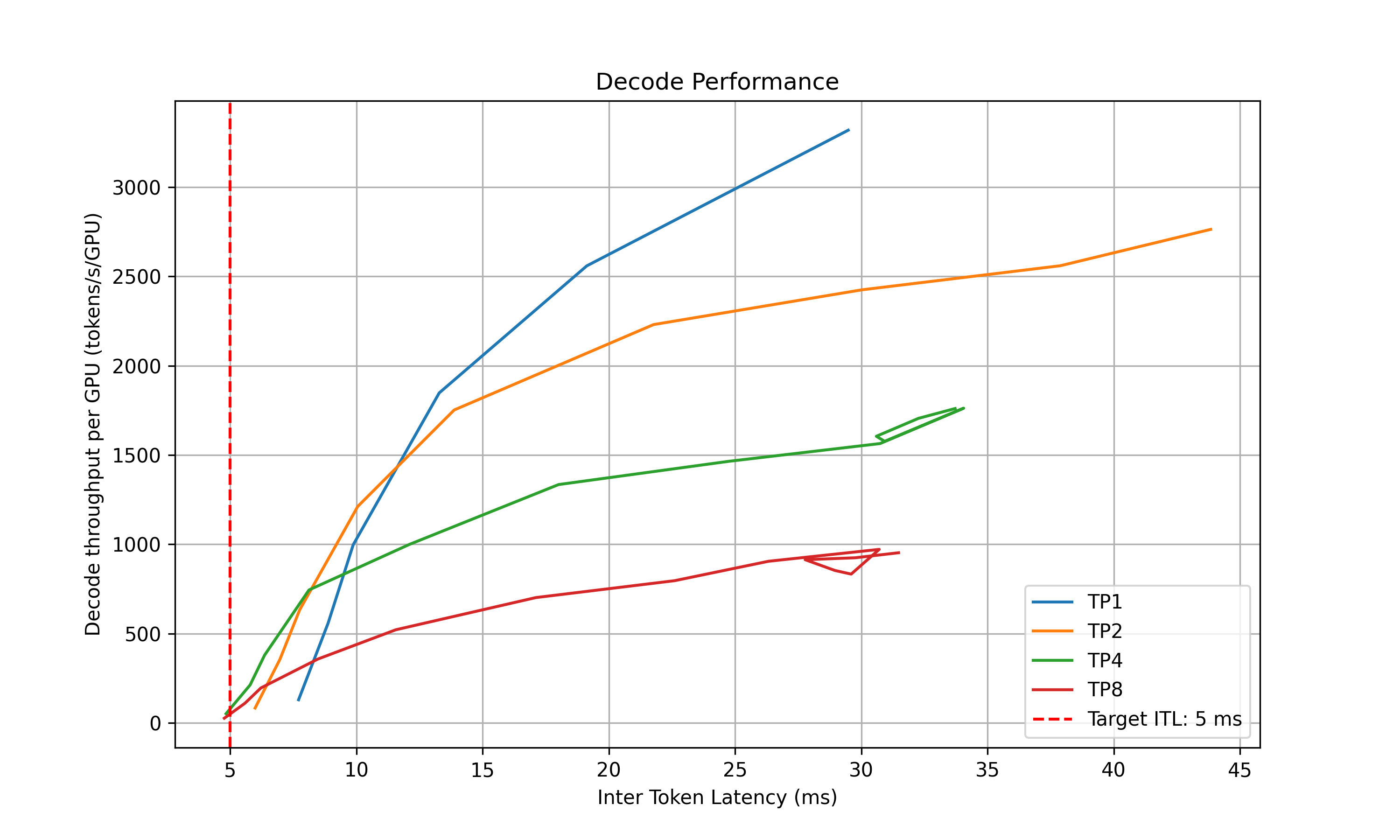
- Recommendation: Select optimal parallelization mapping for prefill and decode that achieves the highest per-GPU throughput while adhering to the SLA on TTFT and ITL.
- In-Depth Profiling on the Recommended P/D Engine: Interpolate TTFT with ISL and ITL with active KV cache and decode context length for more accurate performance estimation.

- Prefill: Measures TTFT and throughput per GPU across different input lengths with batch size=1.
- Decode: Measures ITL and throughput per GPU under various KV cache loads and decode context lengths.
AIPerf on Real Engines
Profiles your model by creating real test deployments in Kubernetes and measuring their performance.
- Duration: 2-4 hours
- Accuracy: Highest (real measurements)
- GPU Requirements: Full access to test different parallelization mappings
- Backends: vLLM, SGLang, TensorRT-LLM
AI Configurator Simulation
Uses performance simulation to rapidly estimate optimal configurations without running real deployments.
- Duration: 20-30 seconds
- Accuracy: Estimated (may have errors for unusual configurations)
- GPU Requirements: None
- Backends: TensorRT-LLM only (vLLM/SGLang coming soon)
aicBackendVersion specifies the TensorRT-LLM version that AI Configurator simulates. See the AI Configurator supported features for available versions.
Currently supports:
- Backends: TensorRT-LLM (versions 0.20.0, 1.0.0rc3, 1.0.0rc6)
- Systems: H100 SXM, H200 SXM, B200 SXM, GB200 SXM, A100 SXM
- Models: Wide range including GPT, Llama, Mixtral, DeepSeek, Qwen, and more
See AI Configurator documentation for the full list.
Automatic GPU Discovery
Cluster-scoped operators can optionally enable automatic GPU discovery:
This is only available with cluster-scoped operators (namespaceRestriction.enabled=false) as it requires cluster-wide node access permissions.
Configuration
DGDR Configuration Structure
All profiler configuration goes under spec.profilingConfig.config:
SLA Configuration (Required)
- ISL/OSL: Based on your expected traffic patterns
- TTFT: First token latency target (lower = more GPUs needed, affects prefill engine)
- ITL: Token generation latency target (lower = more GPUs needed, affects decode engine)
- Trade-offs: Tighter SLAs require more GPU resources
Hardware Configuration (Optional)
- minNumGpusPerEngine: Skip small TP sizes if your model is large
- maxNumGpusPerEngine: Limit search space or work around constraints (e.g., AIC attention heads)
- numGpusPerNode: Determine the upper bound of GPUs per node for dense models and configure Grove for multi-node MoE engines
- gpuType: Informational only, auto-detected by the controller. For AI Configurator, use
aicSystemin the sweep configuration instead
If you don’t specify hardware constraints, the controller auto-detects based on your model size and available cluster resources.
Sweep Configuration (Optional)
- useAiConfigurator: Set to
truefor 20-30 second profiling (TensorRT-LLM only) - prefillInterpolationGranularity: Samples for prefill TTFT curve (lower = faster but less accurate)
- decodeInterpolationGranularity: Samples for decode ITL curve. Since ITL interpolation is 3D and takes longer, we default to fewer samples. Increasing this value may quadratically increase profiling time.
AI Configurator Configuration
Required if useAiConfigurator: true:
Planner Configuration (Optional)
Pass arguments to the SLA planner:
Planner arguments use planner_ prefix. See SLA Planner documentation for full list.
Model Cache PVC (Advanced)
For large models, use a pre-populated PVC containing model weights instead of downloading from HuggingFace:
Requirements:
- The PVC must exist in the same namespace as the DGDR
- The model weights must be accessible at
{mountPath}/{pvcPath}
Engine Configuration (Auto-configured)
The controller automatically injects these from high-level fields:
You should not manually set deployment.model or engine.backend in profilingConfig.config.
Using Existing DGD Configs (ConfigMap)
Reference an existing DGD config via ConfigMap:
The profiler uses the DGD config as a base template, then optimizes it based on your SLA targets.
CLI Arguments
CLI arguments map to DGDR config fields: --min-num-gpus = hardware.minNumGpusPerEngine, --max-num-gpus = hardware.maxNumGpusPerEngine, --use-ai-configurator = sweep.useAiConfigurator. See DGDR Configuration Structure for all field mappings.
Integration
With SLA Planner
The Profiler generates interpolation data that the SLA Planner uses for autoscaling decisions.
Prefill Interpolation (selected_prefill_interpolation/raw_data.npz):
prefill_isl: 1D array of input sequence lengths testedprefill_ttft: 1D array of TTFTs (ms) at each ISLprefill_thpt_per_gpu: 1D array of throughput (tokens/s/GPU) at each ISL
Decode Interpolation (selected_decode_interpolation/raw_data.npz):
max_kv_tokens: Total KV tokens capacity in decode enginex_kv_usage: 1D array of active KV usage percentages [0, 1]y_context_length: 1D array of average context lengths testedz_itl: 1D array of ITLs (ms) at each (KV usage, context length) pointz_thpt_per_gpu: 1D array of throughput (tokens/s/GPU) at each point
With Dynamo Operator
When using DGDR, the Dynamo Operator:
- Creates profiling jobs automatically
- Stores profiling data in ConfigMaps (
planner-profile-data) - Generates optimized DGD configurations
- Deploys the DGD with SLA Planner integration
The generated DGD is tracked via labels:
With Observability
Monitor profiling jobs:
Advanced Topics
Manual Deployment Control
Disable auto-deployment to review the generated DGD before applying:
Then manually extract and apply:
Mocker Deployment
Deploy a mocker deployment that simulates engines without GPUs:
Profiling still runs against the real backend to collect performance data. The mocker uses this data to simulate realistic timing behavior. Useful for large-scale experiments, testing Planner behavior, and validating configurations.
Accessing Profiling Artifacts
By default, profiling data is stored in ConfigMaps. For detailed artifacts (plots, logs, raw data), attach a PVC:
ConfigMaps (always created):
dgdr-output-<name>: Generated DGD configurationplanner-profile-data: Profiling data for Planner (JSON)
PVC artifacts (optional):
- Performance plots (PNGs)
- DGD configurations for each profiled deployment
- AIPerf profiling artifacts
- Raw profiling data (
.npzfiles) - Profiler logs
Access PVC results:
Output Performance Plots
The profiler generates plots to visualize performance data:
Parallelization Mapping Sweep Plots:
prefill_performance.png: TTFT vs Parallelization Mapping sizedecode_performance.png: ITL vs Parallelization Mapping size and in-flight requests
In-Depth Profiling Plots:
selected_prefill_interpolation/prefill_ttft_interpolation.png: TTFT vs ISLselected_prefill_interpolation/prefill_throughput_interpolation.png: Throughput vs ISLselected_decode_interpolation/decode_itl_interplation.png: ITL vs KV usage and context lengthselected_decode_interpolation/decode_throughput_interpolation.png: Throughput vs KV usage and context length
Runtime Profiling (SGLang)
SGLang workers expose profiling endpoints for runtime performance analysis:
View traces using Chrome’s chrome://tracing, Perfetto UI, or TensorBoard.
Troubleshooting
Profiling Takes Too Long
Solution 1: Use AI Configurator for rapid profiling (TensorRT-LLM only):
Solution 2: Reduce search space:
SLA Cannot Be Met
Symptoms: Profiler reports no configuration meets targets
Solutions:
- Relax SLA targets (increase TTFT/ITL)
- Add more GPU resources
- Try a different backend
- Use a smaller model
AI Configurator: Attention Head Constraint Error
Symptoms: Profiling fails with error:
Cause: AI Configurator requires ≥4 attention heads per GPU. Small models with few heads cannot use high TP sizes.
Affected Models:
- Qwen3-0.6B (16 heads): Max TP = 4
- GPT-2 (12 heads): Max TP = 3
- Most models <1B parameters: May hit this constraint
Solution: Limit maxNumGpusPerEngine:
Calculate Max TP: max_tp = num_attention_heads / 4
Image Pull Errors
Symptoms: ErrImagePull or ImagePullBackOff
Solution: Ensure image pull secrets are configured:
Out of Memory During Profiling
Symptoms: OOM errors in profiling jobs
Solutions:
- Reduce
gpu_memory_utilizationin engine config - Reduce
--max-context-length - Skip larger TP configurations
- Use fewer GPUs per test
Unsupported Parallelization Mapping in Backend
Symptoms: Startup/runtime error in the backend (e.g., prime number of attention heads constraining TP to 1, or backend not supporting different TP sizes for prefill and decode).
Solutions:
- Contact the backend to add support and bump backend version in Dynamo
- Constrain the max and min number of GPUs per engine to the supported range
See Also
- Profiler Examples - Complete DGDR YAML examples
- SLA Planner Guide - End-to-end deployment workflow
- SLA Planner Architecture - How the Planner uses profiling data
- DGDR API Reference - DGDR specification
- Profiler Arguments Reference - Full CLI reference