


Factory Secure Key and Expansion Key Provisioning#
Factory Secure Key Provisioning (FSKP) is a technique to securely burn fuses on the factory floor. The fuse data contains a sensitive device and encryption keys that establish the root of trust on the target device. FSKP protection is important because the factory floor might not have a high level of security and can pose security risks.
FSKP provides a way to securely transfer fuse data to NVIDIA® Jetson™ using encryption. This encryption is completed with a shared platform key called the FSKP key, and this key is available on the OEM’s hardware security module (HSM) server for encryption and in the chip’s internal ROM (KROM) for decryption.
The following diagram shows the FSKP fuse-burning flow.
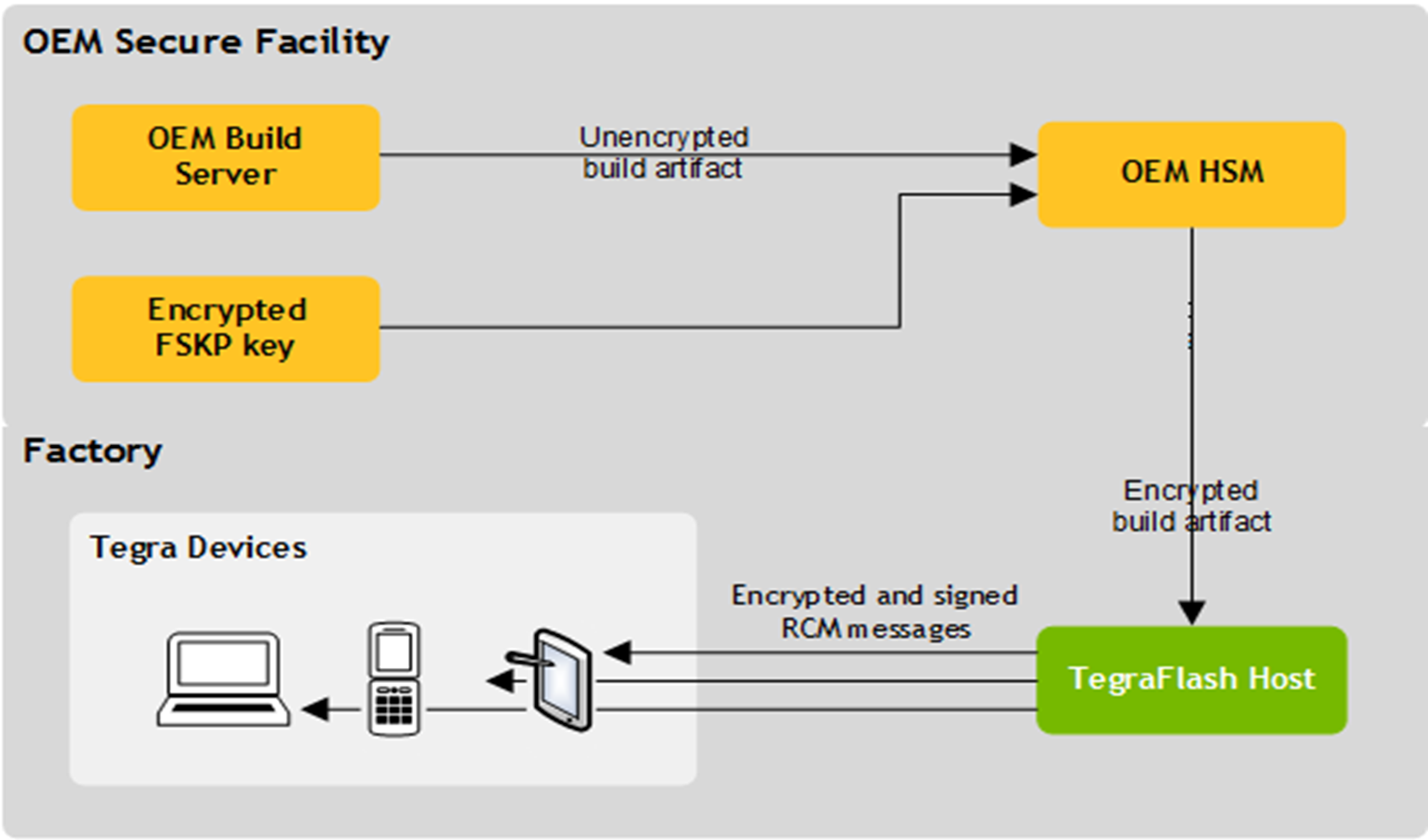
Jetson devices are programmed with FSKP root keys, which are AES 256-bit symmetric keys stored on the chip. These root keys are used to derive the FSKP keys using the key derivation function (KDF), enabling key management to scale across multiple OEMs and use cases.
NVIDIA provides various types of keys to customers depending on the platform:
Platform |
Root Key Storage |
Keys Provided to Customers |
|---|---|---|
Jetson Orin |
Internal ROM (KROM) |
A pair of FSKP expansion keys along with per-OEM unique configuration strings. |
Jetson Thor |
RTL keys |
A FSKP key derivation key (KDK) along with a per-OEM unique selection string. |
The overall FSKP handling procedure is as follows:
Get your FSKP key from NVIDIA.
Generate a secure fuse blob using the FSKP key at a highly secure location.
Use the secure fuse blob to burn fuses at the factory.
Requesting FSKP Keys from NVIDIA#
Contact your NVIDIA representative to start the process.
Generate a one-time RSA key pair with a cryptographic tool. We recommend using OpenSSL. For detailed instructions, refer to Generating an RSA Key Pair and Creating a Certificate with the Public Key (Option 2 with OpenSSL).
Send
public_key.certo NVIDIA.After the request is approved, NVIDIA encrypts the FSKP keys with
public_key.cerand sends them back to you inside aResults.zipfile.You can use the keys to prepare your encrypted and signed fuse blob.
Generating and Verifying the Self-Signed X.509 Certificate#
The self-signed X.509 certificate is the certificate that the FSKP owner emails to the key custodian.
Here are the requirements to generate and verify the certificate:
A Linux system with the Java key tool utility (keytool) installed. Refer to keytool - Key and Certificate Management Tool for more information.
The OpenSSL toolkit. Refer to the home page of the OpenSSL Project, Welcome to Open SSL! for more information.
To generate a self-signed X.509 certificate, use keytool or openssl.
Generating an RSA Key Pair and Creating a Certificate with the Public Key (Option 1 with keytool)#
On the Linux system, create a directory to store the private and public key:
$ mkdir ~/CKMS
Generate a Java keystore and an RSA key pair and place the key pair in the Java keystore.
A Java keystore (JKS) is a storage area in the Linux file system where the Java key tool utility stores cryptographic keys and certificates. You can use the keytool command to generate the key pair and place it in the Java keystore where <alias> is an alias that keytool uses to identify the key pair. Although the alias is arbitrary, it must be unique in the Java keystore because the alias is used as the basename of the CER (certificate) file.
To access the keystore, enter a password.
To access the RSA key pair, enter a password.
Export the public key to a certificate (CER) file:
keytool -export -alias <alias> -file ~/CKMS/<alias>.cer \\ -keystore ~/CKMS/mystore.jks
where
<alias>is assigned to the key pair, and the keytool utility creates the CER file with the specified name and stores the certificate in the CER file and the Java keystore.Email the CER file to the NVIDIA key custodian.
Generating an RSA Key Pair and Creating a Certificate with the Public Key (Option 2 with OpenSSL)#
Generate 4096 bits RSA Public and private keys:
openssl genrsa -aes-256-cbc -out oem_rsa_priv.pem 4096
Generate RSA x509 based Certification:
openssl req -new -x509 –outform PEM -key oem_rsa_priv.pem -out oem_publickey.cer -days 365
Email the CER file to the NVIDIA key custodian.
Content of the Results.zip File#
Your FSKP expansion keys, wrapped and encrypted with the OEM public_key.cer certificate, will be sent from NVIDIA in a file named Results.zip.
The contents of Results.zip are as follows:
Jetson Thor series:
oem_fskp_per_entry_psc.bin.rsa_wrap: The FSKP Key wrapped with the RSA public key (binary).oem_fskp_per_entry_psc.bin.rsa_wrap.info: A file that contains information about the key (including the metadata, label, and string/context used in the KDF) and the KCV of the FSKP key.fskp_select.txt: A file that includes the FSKP context string to be used by the FSKP fusing scripts,fskp_fuseburn.py.
Jetson Orin series:
fskp_ak.bin.rsa_wrap: The FSKP_AK key wrapped with the RSA public key (binary).fskp_ak.bin.rsa_wrap.info: The metadata, label, and string/context used in the KDF and the KCV of FSKP_AK.fskp_ek.bin.rsa_wrap: The FSKP_EK key wrapped with the RSA public key (binary).fskp_ek.bin.rsa_wrap.info: The metadata, label, and string/context used in the KDF and the KCV of FSKP_EK.fskp_conf.txt: Includes the AK and EK strings for use byfskp_fuseburn.py.
An Example: Preparing the Encrypted and Signed Blob at HSM#
Here are the software requirements:
Ubuntu 18.04, 20.04, or 22.04.
JetPack public release package:
Jetson_Linux_R3x.x.0_aarch64.tbz2Tegra_Linux_Sample-Root-Filesystem_R3x.x.0_aarch64.tbz2
FSKP tool package:
host_overlay_fskp_tools_R3x.x.0_aarch64.tbz2.Results.zip: Obtained from NVIDIA.OpenSSL: https://www.openssl.org/.
Untar the JetPack release and the
host_overlay_fskp_tools_R3x.x.0_aarch64.tbz2file:$ tar xpfv ${L4T_RELEASE_PACKAGE} $ sudo tar xpf ${SAMPLE_FS_PACKAGE} -C Linux_for_Tegra/rootfs/ # Copy host_overlay_fskp_tools_R3x.x.0_aarch64.tbz2 to the same directory $ cd Linux_for_Tegra/ $ tar xvjf ../host_overlay_fskp_tools_R3x.x.0_aarch64.tbz2 $ sudo ./apply_binaries.sh $ sudo ./tools/l4t_flash_prerequisites.sh $ cd l4t/tools/flashtools/fuseburnCopy the
Results.zipfile to thel4t/tools/flashtools/fuseburnfolder and unzip it:$ unzip Results.zip
Navigate to the
fuseburnscripts directory:$ cd l4t/tools/flashtools/fuseburn/Results
Decrypt the
*.rsa_warpfiles (encrypted keys). To restore keys, run theopensslcommand:Jetson Thor series:
$ openssl rsautl -decrypt -inkey oem_rsa_priv.pem -in oem_fskp_per_entry_psc.bin.rsa_wrap > fskp_key.bin
Jetson Orin series:
$ openssl rsautl -decrypt -inkey oem_rsa_priv.pem -in fskp_ak.bin.rsa_wrap > fskp_ak.bin

$ openssl rsautl -decrypt -inkey oem_rsa_priv.pem -in fskp_ek.bin.rsa_wrap > fskp_ek.bin
Copy these files from the
Resultsdirectory to thefuseburndirectory (one level higher):Jetson Thor series:
$ mv fskp_key.bin ..
$ mv fskp_select.txt ..
Jetson Orin series:
$ mv fskp_ak.bin ..
$ mv fskp_ek.bin ..
$ mv fskp_conf.txt ..
Preparing the Encrypted and Signed Blob#
Make sure the board specifications files and the board configuration files have the correct information. The board specification file contains a non-exhaustive list of environment variables to pass to the NVIDIA-provided board configuration file to generate a list of files to use for the FSKP process. We recommend that you provide the following variables for the board specification. Refer to the official Jetson documentations on how to retrieve these values:
BOARDIDCHIP_SKUBOARDSKURAMCODE_IDFAB
Note
All these variables can be retrieved by
flash.shwith the--read-infocommand option. For example:$ sudo ./flash.sh --read-info jetson-agx-thor-devkit internal Board ID(3834) version(TS1) sku(0008) revision(B.1) Platform ID() Board Boot Device() RAMCODE is 0 Chip SKU(00:00:00:E2) ramcode(0) fuselevel(fuselevel_production) board_FAB(TS1)
The corresponding board-spec variables for the Jetson AGX Thor developer kit:
BOARDID=3834
FAB=TS1
BOARDSKU=0008
CHIP_SKU=00:00:00:E2
RAMCODE_ID=0
Run the following command:
$ cd <top>/l4t/tools/flashtools/fuseburn
Generate the encrypted fuse blob. For example,
Jetson AGX Thor developer kit:
# Check the FSKP context string in the ``fskp_select.txt`` file
$ cat fskp_select.txt
02TEST0264082500

$ sudo ./fskp_fuseburn.py --board-spec thor-agx-board-spec.txt -f fuseblob.xml -i 02TEST0264082500 --test -k fskp_key.bin -g out/ -c 0x26 -B <top>/jetson-agx-thor-devkit.conf
The
fuseblob.xmlfile contains the fuse blob data to burn.Note
The FSKP key context
fskp_select.txtfile content shown, 02TEST0264082500, is for demonstration only. You use your own FSKP context string in thefskp_select.txtfile provided by NVIDIA.Jetson AGX Orin developer kit:
$ sudo ./fskp_fuseburn.py --board-spec orin-agx-board-spec.txt -f fuseblob.xml -i 62 --test --key-exp fskp_ak.bin fskp_ek.bin --fskpcfg fskp_conf.txt -g out/ -c 0x23 -B <top>/jetson-agx-orin-devkit.conf
The
fuseblob.xmlfile contains the fuse blob data to burn.Jetson Orin Nano developer kit:
 $ sudo ./fskp_fuseburn.py --board-spec orinnano-board-spec.txt -f fuseblob.xml -i 62 --test --key-exp fskp_ak.bin fskp_ek.bin --fskpcfg fskp_conf.txt -g out/ -c 0x23 -B <top>/jetson-orin-nano-devkit.conf

The ``fuseblob.xml`` file contains the fuse blob data to burn.
Note
This example uses the
--testargument that does not burn the fuses. To burn the fuses, you need to use the-bargument instead.
When prompted whether to continue the fuse operations, enter No:
do you want to continue the fuse operations on device (Yes/No) **No**

The out directory will be generated, and it will contain the encrypted
and signed blob files that can be delivered to the factory floor.
Archive the
outdirectory:tar cf out.tar out/
An Example: Using the Encrypted and Signed Blob at the Factory#
The software requirements are as follows:
Ubuntu 18.04, 20.04, or 22.04.
JetPack public release package:
Jetson_Linux_R3x.x.0_aarch64.tbz2Tegra_Linux_Sample-Root-Filesystem_R3x.x.0_aarch64.tbz2
FSKP tool package:
host_overlay_fskp_tools_R3x.x.0_aarch64.tbz2out.tar: Generated in 1.5 and is delivered to the factory floor.
Single Device Workflow#
Untar the JetPack release and the
host_overlay_fskp_tools_R3x.x.0_aarch64.tbz2file:$ tar xpfv ${L4T_RELEASE_PACKAGE} $ sudo tar xpf ${SAMPLE_FS_PACKAGE} -C Linux_for_Tegra/rootfs/ # Copy host_overlay_fskp_tools_R3x.x.0_aarch64.tbz2 to the same directory $ cd Linux_for_Tegra/ $ tar xvjf ../host_overlay_fskp_tools_R3x.x.0_aarch64.tbz2 $ sudo ./apply_binaries.sh $ sudo ./tools/l4t_flash_prerequisites.sh $ cd l4t/tools/flashtools/fuseburnThe Tegra UART output is as follows:
$ sudo minicom -D /dev/ttyACM0
You need to capture the Tegra UART output to determine whether the burn fuse process was successful.
Place the device in Recovery mode:
$ cd <top>/Linux_for_Tegra/tools/board_automation
$ sudo ./boardctl -t topo recovery
Navigate to the
fuseburnscripts directory:$ cd <top>/l4t/tools/flashtools/fuseburn
Copy the
out.tarfile that was delivered to the factory:#Untar the out.tar $ tar xpfv out.tar
Burn the fuses.
Jetson AGX Thor developer kit:
sudo ./fskp_fuseburn.py --board-spec thor-agx-board-spec.txt -P ./out -c 0x26 -B <top>/jetson-agx-thor-devkit.conf
Jetson AGX Orin developer kit:
sudo ./fskp_fuseburn.py --board-spec orin-agx-board-spec.txt -P ./out -c 0x23 -B <top>/jetson-agx-orin-devkit.conf
Jetson Orin Nano developer kit:
sudo ./fskp_fuseburn.py --board-spec orinnano-board-spec.txt -P ./out -c 0x23 -B <top>/jetson-orin-nano-devkit.conf
Note
The
jetson-agx-orin-devkit.conffile is used for the Jetson AGX Orin developer kit, so you need to modify the board spec file with the correct information for your hardware.When prompted about continuing the fuse operations, enter Yes:
do you want to continue the fuse operations on device (Yes/No) **Yes**
Note
User can add
-soption into the aboveBurn the fusescommand line to skip the interactive step.
Mass Fuse Burn Workflow#
To burn multiple devices with the same fuse configuration simultaneously, verify that all of the following requirements are met:
All devices are connected to the same host.
Each device’s UART output is visible.
All devices have identical board specifications (including BOARDID, BOARDSKU, FAB, CHIP_SKU, RAMCODE_ID).
Then use the following steps to burn the fuses to multiple devices at once:
Untar the JetPack release and the
host_overlay_fskp_tools_R3x.x.0_aarch64.tbz2file:$ tar xpfv ${L4T_RELEASE_PACKAGE} $ sudo tar xpf ${SAMPLE_FS_PACKAGE} -C Linux_for_Tegra/rootfs/ # Copy host_overlay_fskp_tools_R3x.x.0_aarch64.tbz2 to the same directory $ cd Linux_for_Tegra/ $ tar xvjf ../host_overlay_fskp_tools_R3x.x.0_aarch64.tbz2 $ sudo ./apply_binaries.sh $ sudo ./tools/l4t_flash_prerequisites.sh $ cd l4t/tools/flashtools/fuseburnYou need to capture the Tegra UART output to determine whether the burn fuse process was successful.
Put all devices in Recovery mode.
Method 1: Manually put each device in Recovery mode.
Method 2: Use the topo list command to list all devices, and then use the topo recovery command to put each device in Recovery mode. For example:
$ cd <top>/Linux_for_Tegra/tools/board_automation

# List all devices
$ sudo ./nvtopo.py list
   Index   Serial Number
   0       TOPOA4608C45
   1       TOPO9EB11ECF
   2       TOPO9EB11ECE

# Put each device in Recovery mode
$ sudo ./boardctl -t topo recovery -s TOPOA4608C45
$ sudo ./boardctl -t topo recovery -s TOPO9EB11ECF
$ sudo ./boardctl -t topo recovery -s TOPO9EB11ECE
Navigate to the
fuseburnscripts directory:$ cd <top>/l4t/tools/flashtools/fuseburn
Copy the
out.tarfile that was delivered to the factory:#Untar the out.tar $ tar xpfv out.tar
Burn the fuses.
Jetson AGX Thor developer kit:
sudo python3 ./fskp_massfuseburn.py --skipconfirmation --burnfuse --board-spec thor-agx-board-spec.txt -P ./out -c 0x26 -B ../../../../jetson-agx-thor-devkit.conf
Jetson AGX Orin developer kit:
sudo python3 ./fskp_massfuseburn.py --skipconfirmation --burnfuse --board-spec orin-agx-board-spec.txt -P ./out -c 0x23 -B ../../../../jetson-agx-orin-devkit.conf
Jetson Orin Nano developer kit:
sudo python3 ./fskp_massfuseburn.py --skipconfirmation --burnfuse --board-spec orinnano-board-spec.txt -P ./out -c 0x23 -B ../../../../jetson-orin-nano-devkit.conf
Burn Status#
To determine the burn status:
On the Linux Host, verify that the following message is displayed:
Single device workflow:
FSKP execution successful
Mass fuse burn workflow:
MassFSKP Fuse burn complete (SUCCESS)
On the target (Tegra UART output), here is a sample fuseblob.xml result:
I> Task: Burn fuses (0x500039e4)
I> Index : 1 Kdk0 size: 32
I> Index : 2 OemK1 size: 32
I> Index : 3 PublicKeyHash size: 64
I> Index : 4 SecureBootKey size: 32
I> Index : 5 BootSecurityInfo size: 4
I> Index : 6 OdmId size: 8
I> Index : 7 OdmInfo size: 4
I> Fuse Blob found
I>
I> ...
I> **Successfully burnt fuses as per fuse info**
Action |
Result |
|---|---|
Burned successfully |
On the host, find this text: FSKP execution successful |
On the target (Tegra UART output), find this text: Successfully burnt fuses as per fuse info |
|
Failed to burn |
If missing either of the texts from the host or the target. |
Using the fskp_fuseburn.py File to Burn Fuses#
The FSKP fusing scripts include the following:
fskp_fuseburn.py: Provides a high-level script that is invoked by the user. The script prepares encrypted and signed blobs, performs fuse burning, and invokes other tools based on the input parameters.fskp_helper.py,fskp_parser.py, andfskp_shell_helper.py: helper scripts for thefskp_fuseburn.pyscripts.
The FSKP tools include the following:
tegraparser_v2: Parses a fuse XML configuration file and uses it to generate a blob that contains the fuse data and an FSKP target-binary.tegrarcm_v2: Manages communication between the host and the target and exchanges data and commands over USB with target’s BootROM and bootloader.tegrasign_v3.py: Encrypts and signs an input image with the specified key.tegrabct_v2: Creates BR_BCT, MB1_BCT, and the derivatives key binaries are used to encrypt and sign the fskp_blob.tegrahost_v2: Appends the necessary header and brushes binaries to help sign and encrypt the binary.fskp.bin: This FSKP target-binary is a minimal bootloader that is used to burn fuses and write to storage. Optionally, it also completes RPMB provisioning for the Jetson Orin series.Fuse configuration file: An XML file that contains the fuse list that is read by the tegraparser_v2 tool. The fuse list specifies the name, length, and value of each fuse to be burned in the order in which they are listed.
FSKP Fuse Burn Script#
Before you can use the fskp_fuseburn.py tool, the Python programming
software must be installed on the host system.
Here is an example of how the script is used:
For Jetson Thor series:
$ sudo ./fskp_fuseburn.py [--test|-b] --board-spec <board_spec> -f <fuse_config> -i <fskp_select> -k <FSKP_key> [-g <out>|-P <out>] -c 0x26 -B <board>
For Jetson Orin series:
$ sudo ./fskp_fuseburn.py [--test|-b] --board-spec <board_spec> -f <fuse_config> -i 62 --key-exp <fskp_ak> <fskp_ek> --fskpcfg fskp_conf.txt [-g <out>|-P <out>] -c 0x23 -B <board>
Argument |
Description |
|---|---|
--help (or -h) |
Displays the help menu. |
--burnfuse (or -b) |
Performs fuse burning. |
--board (or -B) |
Board name for which you want to create a fuse blob or program fuses. Check help for the default supported boards. |
--chip (or -c) <chip> |
Sets tegra chipid, for example, 0x23 for NVIDIA Orin SoC. |
--fskpcfg (or -C) <file> |
Sets the derivation strings values from a text file instead of using the default values. |
--ecid (or -e) |
Gets the ECID of the target. |
--fusefile (or -f) <file> |
Specifies the fuse configuration file. |
--outdir (or -g) <path> |
Generates a blob at <path> and does not perform a burn. |
--keyindex (or -i) <index> |
For Orin, FSKP key index. For Thor, FSKP context string, fskp_select, allocated to the OEM. |
--key (or -k) |
FSKP key file provided to OEMs as per keyindex. |
--key-exp <AK_keyfile> <EK_keyfile> |
FSKP expansion key file pair that is provided to OEMs as per the key index. |
--board-spec <file> |
A board specification contains the BOARDSKU,
FAB, and other board specific values. For
example,
|
--skipconfirmation (or -s) |
Skips the confirmation message while burning the fuse. |
--test (or -t) |
Performs a dummy operation and does not burn fuses. |
--skipuid (or -u) |
Skips querying the UID of the target. |
--verbose (or -v) |
Enables verbose logs. |
--skipfskpkey (or -K) |
Use FSKP without using a FSKP key. With this
option, no |
--prebuilt (or -P) <path> |
Picks a prebuilt blob from <path> and does not generate a blob. |
--version (or -V) |
Identifies the version number. |
Fuse Configuration File#
The fuse configuration file is an XML file that contains the fuse data.
Note
Although the fuse configuration file contains XML tags, it does
not need the <?xml...?> prolog defined by the XML standard because the
fuse configurations might not have a prolog. To run general XML
utilities on this file, you might have to add a prolog.
For information about the format of the fuse configuration file, refer to Format of the Fuse Configuration File.
The fuse burn script burns fuses in the order in which they are specified in the fuse configuration file. It does not check for fuse dependencies. You must ensure that the fuse configuration file specifies fuses in an order that does not burn the dependent fuses before the fuses on which they depend.
Format of the Fuse Configuration File#
A fuse configuration file contains a <genericfuse>… </genericfuse> tag
pair that contains one <fuse/> tag for each fuse that will be burned.
The following template shows the format of the file:
<genericfuse MagicId="0x45535546" version="1.0.0">

<fuse name="<name>" size="<size>" value="<value>"/>

<fuse name="<name>" size="<size>" value="<value>"/>

. . .

</genericfuse>
Where:
<name>is the name of a fuse and these names are documented in the table under Manufacture Programmable Fuses.<size>is the size of the fuse in bytes.<value>is the value to be burned into the fuse, with two hexadecimal digits per byte.
MagicID is used by the FSKP target-binary and must not be changed.
fskp.bin burns fuses in the order in which they appear in the
fuse configuration file. If the value of two or more fuses are
interdependent, the independent fuses must be specified before the
dependent fuses so that the independent fuses are burned first. That is,
if the values that can be burned into fuse Z depend on the value of fuse
Y, and the values that might be burned into fuse Y depend on the value
of fuse X, the fuse configuration file must specify and burn the fuses
in the following order:
Fuse X
Fuse Y
Fuse Z
Caution
The FSKP fuse burning tool does not check for dependencies, so specifying a dependent fuse before the fuse on which it depends, might render the target device inoperable. Check the fuse list’s order carefully before you burn the fuses.
To use RPMB provisioning for the Jetson Orin series, the tool supports fusing the RPMB key on eMMC storage. The version field must be 2.0.0 for RPMB. This requires the OEM_K1 key to be present in the fuse configuration file:
<genericfuse MagicId="0x45535546" version="2.0.0">

<rpmb provisioning = "0x1" dev_type = "0x2"/>

<fuse name="<name>" size="<size>" value="<value>"/>

<fuse name="<name>" size="<size>" value="<value>"/>

. . .

</genericfuse>
A Reference JetsonThor Fuse Configuration File#
Use the following fuse configuration file as a reference. The fuse list for this file is ordered correctly to allow for fuse dependencies.
Some fuse values in the reference configuration file are enclosed in XML comments, as in the following example. To adapt the reference file for your use, uncomment the lines and replace the 0xFFFF… placeholder values with the actual key values for your target:
<genericfuse MagicId="0x45535546" version="1.0.0">
   <!-- <fuse name="OdmId" size="8" value="0xFFFFFFFFFFFFFFFF"/> -->
   <!-- <fuse name="OdmInfo" size="4" value="0xFFFF"/> -->
   <!-- <fuse name="ReservedOdm0" size="4" value="0xFFFFFFFF"/> -->
   <!-- <fuse name="ReservedOdm1" size="4" value="0xFFFFFFFF"/> -->
   <!-- <fuse name="ReservedOdm2" size="4" value="0xFFFFFFFF"/> -->
   <!-- <fuse name="ReservedOdm3" size="4" value="0xFFFFFFFF"/> -->
   <!-- <fuse name="ReservedOdm4" size="4" value="0xFFFFFFFF"/> -->
   <!-- <fuse name="ReservedOdm5" size="4" value="0xFFFFFFFF"/> -->
   <!-- <fuse name="ReservedOdm6" size="4" value="0xFFFFFFFF"/> -->
   <!-- <fuse name="ReservedOdm7" size="4" value="0xFFFFFFFF"/> -->
   <!-- <fuse name="OptInEnable" size="4" value="0x00000001"/> -->
   <!-- <fuse name="PublicKeyHash" size="64" value="0xFFFFFFFFFFFFFFFFFFFFFFFFFFFFFFFFFFFFFFFFFFFFFFFFFFFFFFFFFFFFFFFFFFFFFFFFFFFFFFFFFFFFFFFFFFFFFFFFFFFFFFFFFFFFFFFFFFFFFFFFFFFFFFFF"/> -->
   <!-- <fuse name="PscSecureBootKey" size="32" value="0xFFFFFFFFFFFFFFFFFFFFFFFFFFFFFFFFFFFFFFFFFFFFFFFFFFFFFFFFFFFFFFFF"/> -->
   <!-- <fuse name="OespSecureBootKey" size="32" value="0xFFFFFFFFFFFFFFFFFFFFFFFFFFFFFFFFFFFFFFFFFFFFFFFFFFFFFFFFFFFFFFFF"/> -->
   <!-- <fuse name="SbSecureBootKey" size="32" value="0xFFFFFFFFFFFFFFFFFFFFFFFFFFFFFFFFFFFFFFFFFFFFFFFFFFFFFFFFFFFFFFFF"/> -->
   <!-- <fuse name="PscOemKdk0" size="32" value="0xFFFFFFFFFFFFFFFFFFFFFFFFFFFFFFFFFFFFFFFFFFFFFFFFFFFFFFFFFFFFFFFF"/> -->
   <!-- <fuse name="OespOemKdk0" size="32" value="0xFFFFFFFFFFFFFFFFFFFFFFFFFFFFFFFFFFFFFFFFFFFFFFFFFFFFFFFFFFFFFFFF"/> -->
   <!-- <fuse name="SbOemKdk0" size="32" value="0xFFFFFFFFFFFFFFFFFFFFFFFFFFFFFFFFFFFFFFFFFFFFFFFFFFFFFFFFFFFFFFFF"/> -->
   <!-- <fuse name="PscOemKdk1" size="32" value="0xFFFFFFFFFFFFFFFFFFFFFFFFFFFFFFFFFFFFFFFFFFFFFFFFFFFFFFFFFFFFFFFF"/> -->
   <!-- <fuse name="OespOemKdk1" size="32" value="0xFFFFFFFFFFFFFFFFFFFFFFFFFFFFFFFFFFFFFFFFFFFFFFFFFFFFFFFFFFFFFFFF"/> -->
   <!-- <fuse name="SbOemKdk1" size="32" value="0xFFFFFFFFFFFFFFFFFFFFFFFFFFFFFFFFFFFFFFFFFFFFFFFFFFFFFFFFFFFFFFFF"/> -->
   <!-- <fuse name="BootSecurityInfo" size="4" value="0xFFFFFFFF"/> -->
   <!-- <fuse name="SecurityMode" size="4" value="0x1"/> -->
</genericfuse>
Note
Fuse values must follow specific rules and constraints. For detailed information about the fuse values, refer to the Secure Boot section.
Note
Although the size of the “OdmInfo” fuse is 4, only the last two bytes are programmable. “OptInEnable” and “SecurityMode” are both 1-bit fuses despite their sizes being 4.
A Reference Jetson Orin Fuse Configuration File#
The Jetson Linux platform provides a fuse configuration file for use as a reference, and the file is located here:
<top>/l4t/tools/flashtools/fuseburn
The fuse list for this file is ordered correctly to allow for fuse dependencies.
Some fuse values in the reference configuration file are enclosed in XML
comments, as in the following example. To adapt the reference file for
your use, uncomment the lines and replace the 0xFFFF… placeholder values with
the actual key index values for your target:
<genericfuse MagicId="0x45535546" version="1.0.0">
   <!-- <fuse name="OdmId" size="8" value="0xFFFFFFFFFFFFFFFF"/> -->
   <!-- <fuse name="OdmInfo" size="4" value="0xFFFF"/> -->
   <!-- <fuse name="ArmJtagDisable" size="4" value="0x1"/> -->
   <!-- <fuse name="ReservedOdm0" size="4" value="0xFFFFFFFF"/> -->
   <!-- <fuse name="ReservedOdm1" size="4" value="0xFFFFFFFF"/> -->
   <!-- <fuse name="ReservedOdm2" size="4" value="0xFFFFFFFF"/> -->
   <!-- <fuse name="ReservedOdm3" size="4" value="0xFFFFFFFF"/> -->
   <!-- <fuse name="ReservedOdm4" size="4" value="0xFFFFFFFF"/> -->
   <!-- <fuse name="ReservedOdm5" size="4" value="0xFFFFFFFF"/> -->
   <!-- <fuse name="ReservedOdm6" size="4" value="0xFFFFFFFF"/> -->
   <!-- <fuse name="ReservedOdm7" size="4" value="0xFFFFFFFF"/> -->
   <!-- <fuse name="OptInEnable" size="4" value="0x1"/> -->
   <!-- <fuse name="PublicKeyHash" size="64" value="0xFFFFFFFFFFFFFFFFFFFFFFFFFFFFFFFFFFFFFFFFFFFFFFFFFFFFFFFFFFFFFFFFFFFFFFFFFFFFFFFFFFFFFFFFFFFFFFFFFFFFFFFFFFFFFFFFFFFFFFFFFFFFFFFF"/> -->
   <!-- <fuse name="PkcPubkeyHash1" size="64" value="0xFFFFFFFFFFFFFFFFFFFFFFFFFFFFFFFFFFFFFFFFFFFFFFFFFFFFFFFFFFFFFFFFFFFFFFFFFFFFFFFFFFFFFFFFFFFFFFFFFFFFFFFFFFFFFFFFFFFFFFFFFFFFFFFF"/> -->
   <!-- <fuse name="PkcPubkeyHash2" size="64" value="0xFFFFFFFFFFFFFFFFFFFFFFFFFFFFFFFFFFFFFFFFFFFFFFFFFFFFFFFFFFFFFFFFFFFFFFFFFFFFFFFFFFFFFFFFFFFFFFFFFFFFFFFFFFFFFFFFFFFFFFFFFFFFFFFF"/> -->
   <!-- <fuse name="SecureBootKey" size="32" value="0xFFFFFFFFFFFFFFFFFFFFFFFFFFFFFFFFFFFFFFFFFFFFFFFFFFFFFFFFFFFFFFFF"/> -->
   <!-- <fuse name="Kdk0" size="32" value="0xFFFFFFFFFFFFFFFFFFFFFFFFFFFFFFFFFFFFFFFFFFFFFFFFFFFFFFFFFFFFFFFF"/> -->
   <!-- <fuse name="PscOdmStatic" size="4" value="0xFFFFFFFF"/> -->
   <!-- <fuse name="OemK1" size="32" value="0xFFFFFFFFFFFFFFFFFFFFFFFFFFFFFFFFFFFFFFFFFFFFFFFFFFFFFFFFFFFFFFFF"/> -->
   <!-- <fuse name="OemK2" size="32" value="0xFFFFFFFFFFFFFFFFFFFFFFFFFFFFFFFFFFFFFFFFFFFFFFFFFFFFFFFFFFFFFFFF"/> -->
   <!-- <fuse name="BootSecurityInfo" size="4" value="0xFFFFFFFF"/> -->
   <!-- <fuse name="SecurityMode" size="4" value="0x1"/> -->
 </genericfuse>
Note
Although its size is 4, only the last two bytes in the Odminfo are allowed to be programmed.
An Example: Fuse Burning without FSKP Key#
fskp_fuseburn.py allows you to fuse the device without a FSKP key by using the --skipfskpkey option.
However, ensure that fuse burning is performed in a secure environment and that the fuse blob is stored securely, because the fuse blob generated with this option is not encrypted.
Make sure the board specifications files and the board configuration files have the correct information. The board specification file contains a non-exhaustive list of environment variables to pass to the NVIDIA-provided board configuration file to generate a list of files to use for the FSKP process. We recommend that you provide the following variables for the board specification. Refer to the official Jetson documentations on how to retrieve these values:
BOARDIDCHIP_SKUBOARDSKURAMCODE_IDFAB
Note
All these variables can be retrieved by
flash.shwith the--read-infocommand option. For example:$ sudo ./flash.sh --read-info jetson-agx-thor-devkit internal Board ID(3834) version(TS1) sku(0008) revision(B.1) Platform ID() Board Boot Device() RAMCODE is 0 Chip SKU(00:00:00:E2) ramcode(0) fuselevel(fuselevel_production) board_FAB(TS1)
The corresponding board-spec variables for the Jetson AGX Thor developer kit:
BOARDID=3834
FAB=TS1
BOARDSKU=0008
CHIP_SKU=00:00:00:E2
RAMCODE_ID=0
Run the following command:
$ cd <top>/l4t/tools/flashtools/fuseburn
Generate the non-encrypted fuse blob. For example:
$ sudo ./fskp_fuseburn.py --board-spec thor-agx-board-spec.txt -f fuseblob.xml --skipfskpkey --test -g out/ -c 0x26 -B <top>/jetson-agx-thor-devkit.conf
When prompted whether to continue the fuse operations, enter No:
do you want to continue the fuse operations on device (Yes/No) No
Run the following command to burn the fuses on the device:
$ sudo ./fskp_fuseburn.py --board-spec thor-agx-board-spec.txt -P ./out -c 0x26 -B <top>/jetson-agx-thor-devkit.conf
Note
This example uses the --test argument that does not burn the fuses. To burn the fuses, use the -b argument instead.