

Connecting to NVIDIA Mission Control autonomous hardware recovery#
NVIDIA Mission Control autonomous hardware recovery authenticates through BCM’s LDAP authentication, so you use your BCM credentials to log in.
Upon successful authentication, the user session receives a short-lived JWT and a refresh token. The JWT is used for identity and refreshed by the UI at expiration time.
An administrator can opt to manage users and groups using BCM. Any changes will automatically be reflected within NVIDIA Mission Control autonomous hardware recovery. There are two options to access NVIDIA Mission Control autonomous hardware recovery. The first option is to authenticate using SSO with BCM identity. The other option is to go to the URL for the NVIDIA Mission Control autonomous hardware recovery UI, which presents a login screen.
Login screen
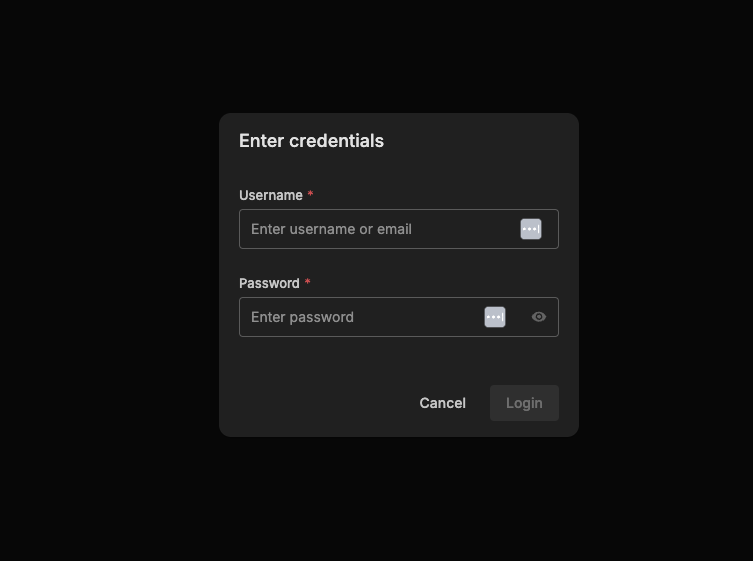
After you select Login, the authentication page appears, where you enter your credentials.
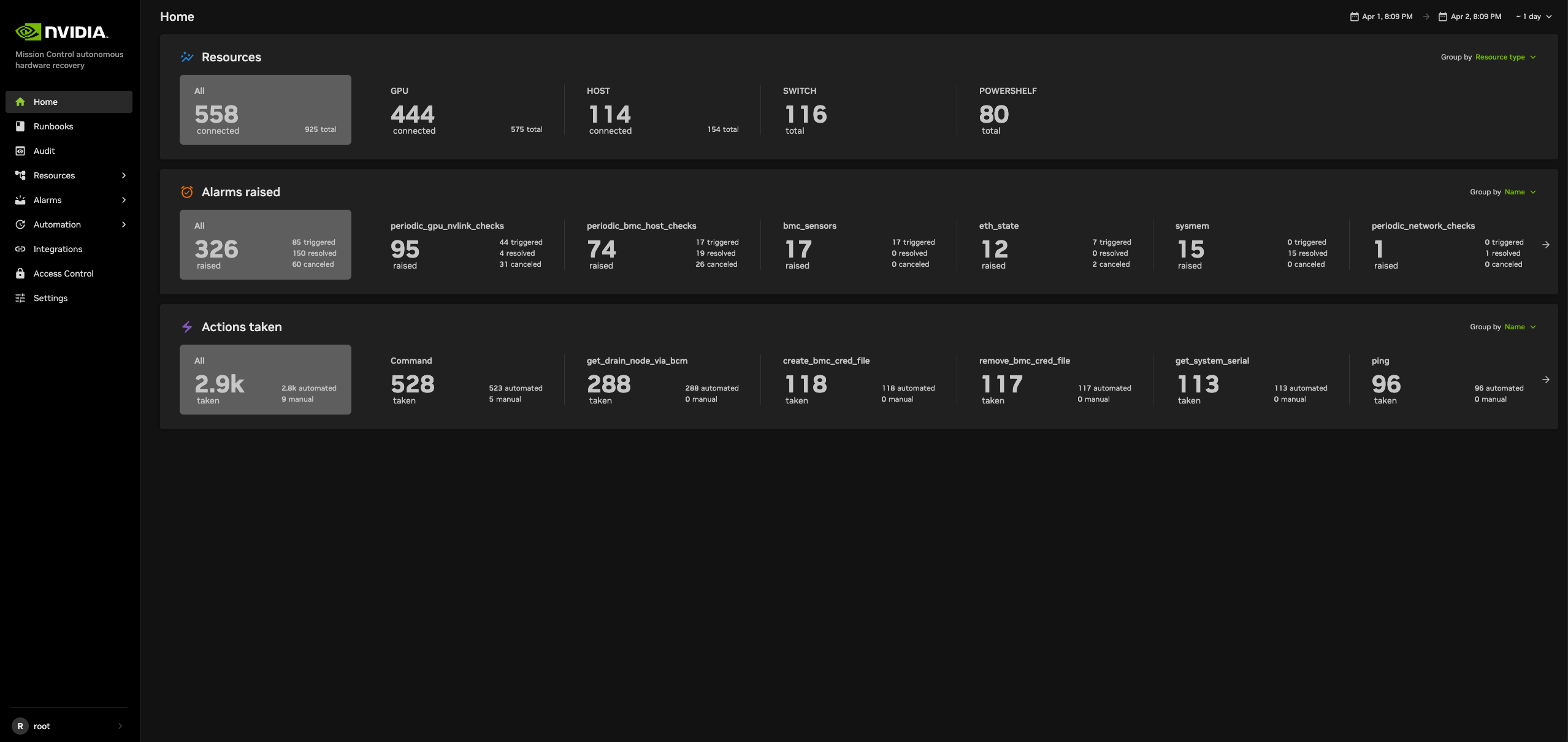
Main landing page
Users are authorized to perform different operations within NVIDIA Mission Control autonomous hardware recovery by configuring permission policies. Policies determine if the user can view resources and execute actions (named and/or anonymous). Action execution can be limited to a maximum number of affected resources, to specific resources, or to both. Permissions can also be attached to runbooks to allow or disallow certain users or groups. Refer to the Access Control documentation for additional details.
New users are first created in BCM before they are able to access NVIDIA Mission Control autonomous hardware recovery. Upon logging in, there is a default permission policy that every user is assigned. The permissions of this policy are determined by the administrator. The administrator role has permission to perform any action in NVIDIA Mission Control autonomous hardware recovery. The configurator role has the permission to create, edit, delete any artifacts in NVIDIA Mission Control autonomous hardware recovery. By default, new users are granted administer and configure roles until the privileges are overridden. Defaults can be modified in the Access Control section of the NVIDIA Mission Control autonomous hardware recovery UI.
Baseline testing#
SUT (Single Unit Testing) and MUT (Multi-Unit Testing) use the same entry points and operator lifecycle across all platforms where the selected revision wires both runbooks. Keep that procedure common; use platform material only for verified scope, input, test, or visual differences.
Automated Baseline Testing with NVIDIA Mission Control autonomous hardware recovery#
Introduction#
The NVIDIA Mission Control autonomous hardware recovery portal automates baseline testing across one compute node or multiple selected units. It validates CPU, GPU, memory, storage, network connectivity, and firmware, and runs performance workloads such as HPL, NCCL, and Nemotron. A unit is the resource set resolved by resource_tag and resource_value; SUT and MUT identify unit test modes rather than topology-specific workflows.
Create the run from the parent DGX_SUPERPOD_BASELINE_TESTING runbook and select the suite with MULTI_UNIT_TEST_MODE. Set it to false (the default) for SUT or true for MUT. Both conditional child cells remain enabled; do not toggle cells or save a modified runbook between modes. Firmware version validation is part of the SUT path; reports and dashboards are reviewed after the selected child workflow completes.
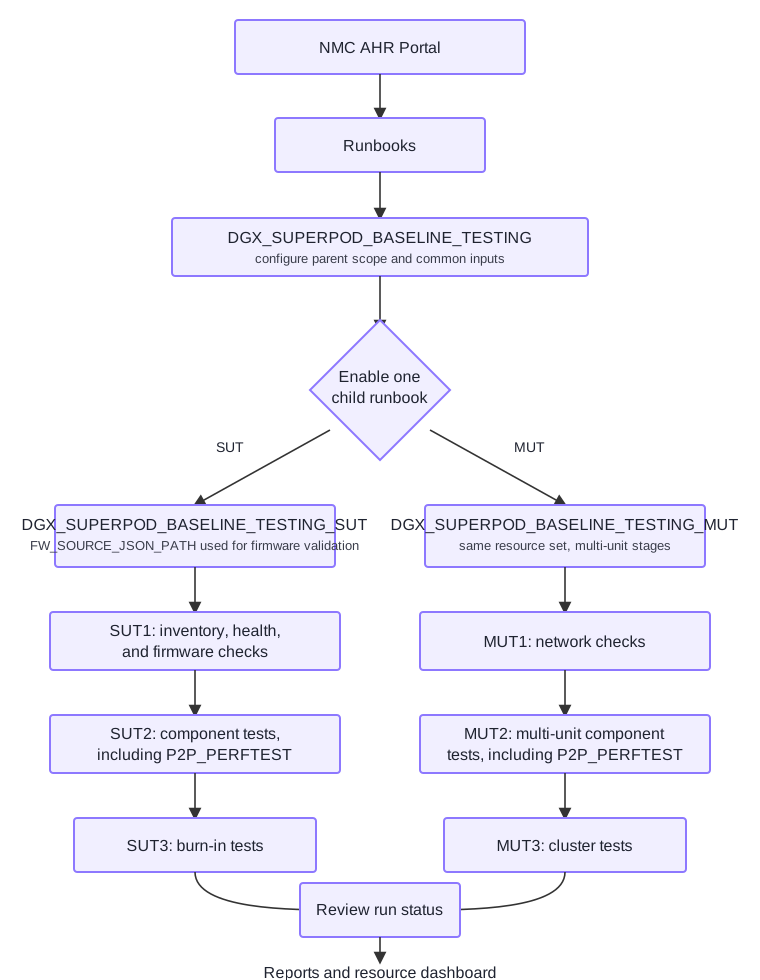
Shared SUT and MUT workflow#
The selected revision wires both baseline entry points for all five platforms: GB300, GB200, B300, B200, VR. Legacy topology-based mode names are retired in this revision; document the unit-based SUT and MUT modes only.
Mode |
|
Selected child |
Required parent inputs |
Configured timeout |
|---|---|---|---|---|
SUT |
|
|
|
|
MUT |
|
|
|
|
These are timeout ceilings, not expected durations. A run still going as it approaches its ceiling indicates a stalled stage rather than normal progress.
Runbook configurations#
The parent entry point selects one of the following SUT or MUT stage sequences. The platform tabs later in this section list the tests that each stage runs on each supported platform.
Category |
Runbook name |
Description |
|---|---|---|
Entry point |
|
Selects the SUT or MUT parent from |
SUT parent |
|
Runs SUT1, SUT2, and SUT3 in order and publishes their combined result. |
SUT |
|
Inventory and firmware checks. |
SUT |
|
Component health and functional testing. |
SUT |
|
Single-unit performance and burn-in testing. |
MUT parent |
|
Runs MUT1, MUT2, and MUT3 in order and publishes their combined result. |
MUT |
|
Multi-unit prechecks and fabric readiness. |
MUT |
|
Multi-unit component and communication testing. |
MUT |
|
Cluster performance and burn-in testing. |
Stage child |
|
Runs at the start of every individual baseline test runbook in the SUT and MUT stages to confirm the selected hosts are ready for that test. |
Stage child |
|
Runs at the end of every individual baseline test runbook. It performs the post-test validation and applies the aggregate result tags: |
Input guidance:
MULTI_UNIT_TEST_MODE: accepts onlytrueorfalse. The parent validates this input before it selects a suite, so any other value, includingTrueor1, stops the run immediately withMULTI_UNIT_TEST_MODE must be true or false.FW_SOURCE_JSON_PATH: full path to the SOT/golden JSON on the BCM head node; use the literalNAwhen it is unavailable.IGNORE_LIST: usenonewhen nothing is excluded. A single node, a pipe-delimited expression such asnode01|node02, or an array such as["node01", "node02"]is accepted.resource_value: value or regular expression matched againstresource_tag. Do not place spaces around|in multi-value expressions such asm06|m07.
Open Runbooks and locate
DGX_SUPERPOD_BASELINE_TESTING.Select Create Run on the parent. Leave both conditional child cells enabled.
Set
MULTI_UNIT_TEST_MODE=falsefor SUT orMULTI_UNIT_TEST_MODE=truefor MUT.Provide the remaining required inputs, create the run, and use View Run to monitor cells and results.
Review the corresponding report and resource dashboard after the run.
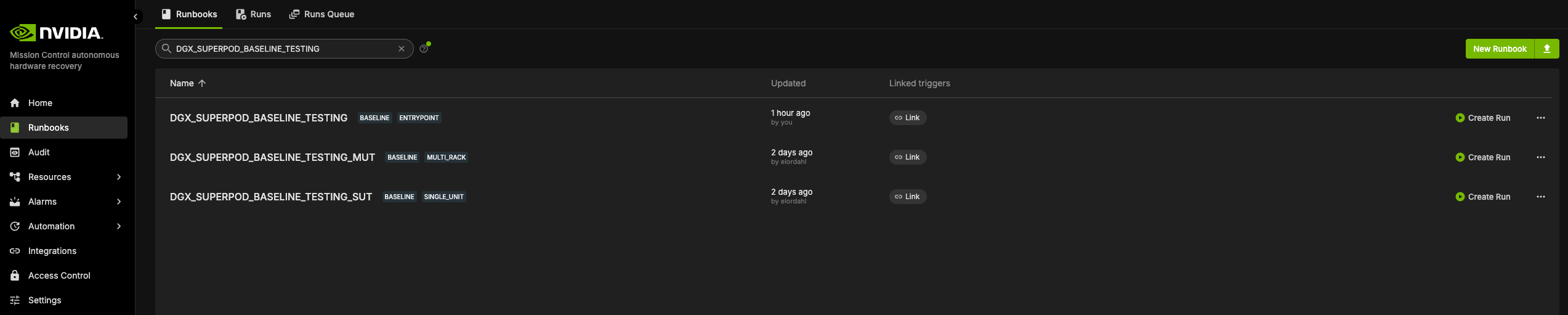
Figure 1 Locate the baseline entry point and its SUT and MUT runbooks.#
Name-scoped run examples#
Use the following parent-run values for a resource_tag=name platform. For resource_tag=rack_name platforms, use the same procedure with the selector shown in the scope table.
SUT example#
MULTI_UNIT_TEST_MODE=falseresource_tag=nameresource_value=dgx1Set
FW_SOURCE_JSON_PATHto the SOT JSON path, or the literalNAwhen unavailable.Set
IGNORE_LIST=nonewhen no host is excluded.Optional: set
ENABLE_FIO_STORAGE=trueand setFIO_STORAGE_DIRto a shared network-filesystem directory accessible from every selected compute node. The parent passes both values to SUT2. LeaveENABLE_FIO_STORAGE=falseto skip FIO.
MUT example#
MULTI_UNIT_TEST_MODE=trueresource_tag=nameresource_value=dgx-01|dgx-02Provide
FW_SOURCE_JSON_PATHbecause it remains a required parent parameter, although the MUT child does not consume it.Set
IGNORE_LIST=nonewhen no host is excluded.Optional: set
ENABLE_FIO_STORAGE=trueand setFIO_STORAGE_DIRto a shared network-filesystem directory accessible from every selected compute node. The parent passes both values to MUT2. LeaveENABLE_FIO_STORAGE=falseto skip FIO.
Note
Optional FIO storage testing
FIO is disabled by default in both baseline modes. SUT runs its optional storage checks in SUT2; MUT runs the multi-unit FIO_STORAGE_PERF_TEST_MPIRUN check in MUT2. Configure ENABLE_FIO_STORAGE and FIO_STORAGE_DIR on the DGX_SUPERPOD_BASELINE_TESTING parent; do not enable FIO with an empty or local-only path.
Find a resource value#
If the selector value is unknown, create an op statement, query the host inventory, and display the field named by resource_tag.
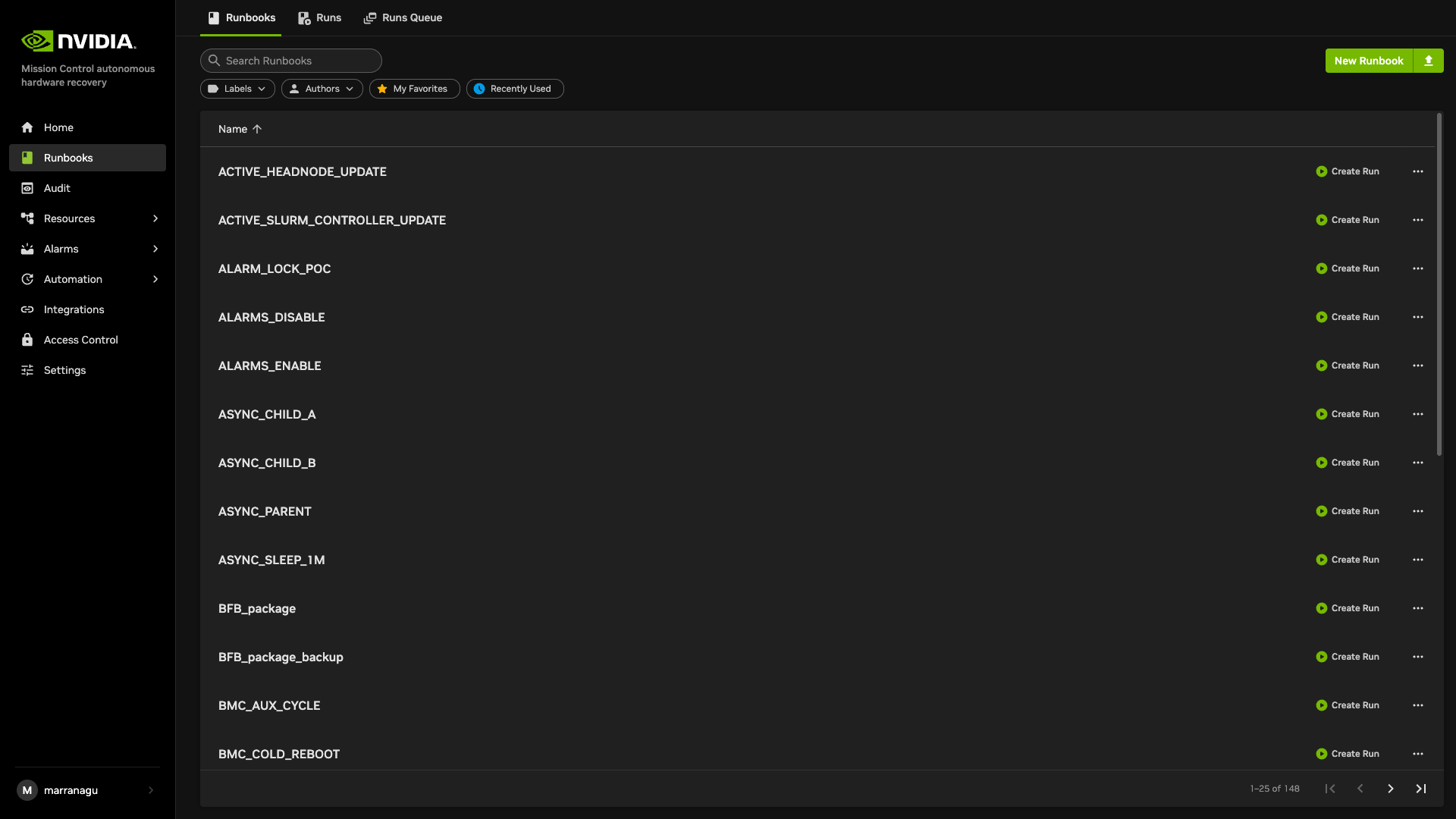
Figure 2 Open a new runbook to query resource inventory.#
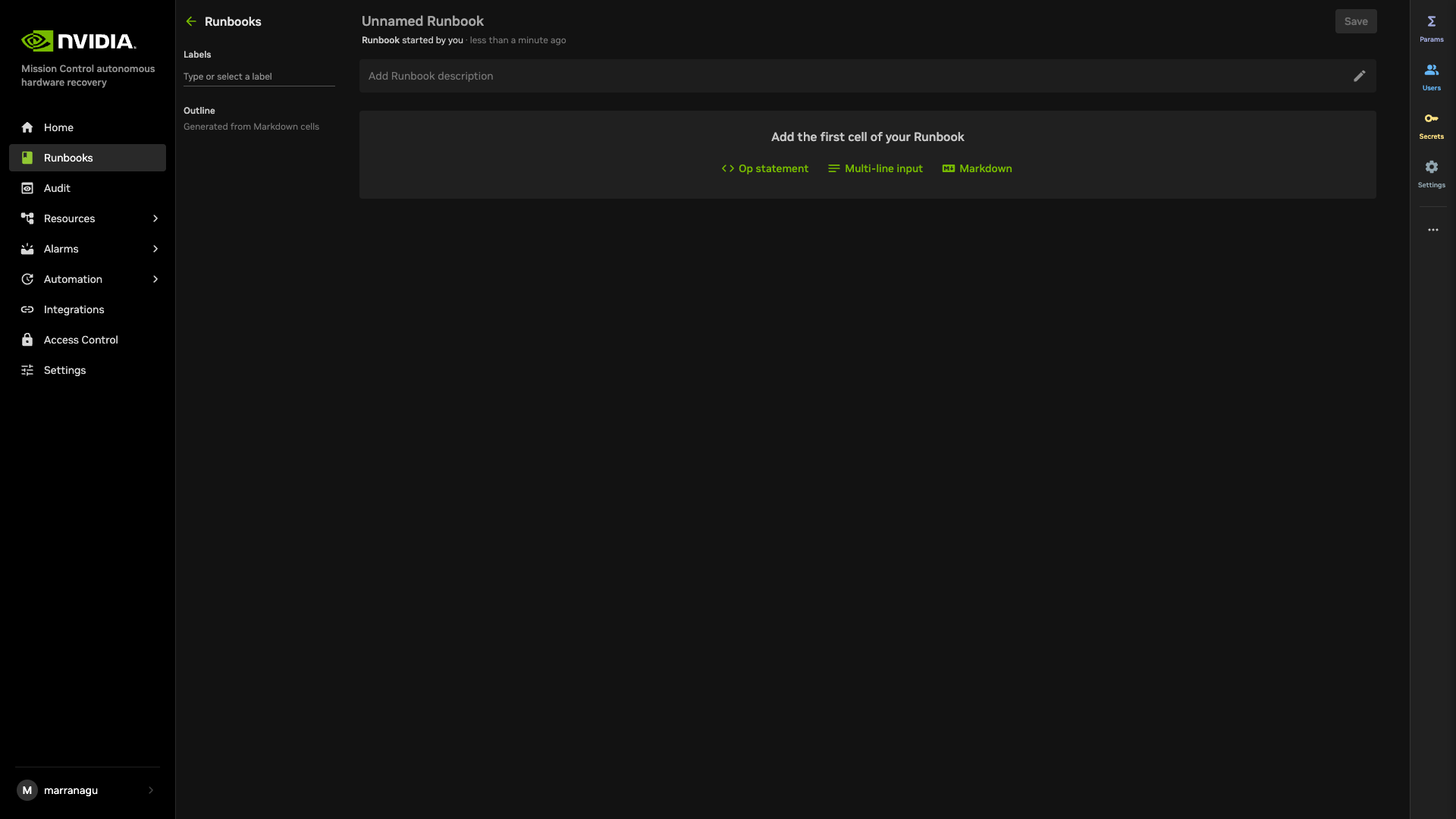
Figure 3 Add an op statement to the inventory query runbook.#
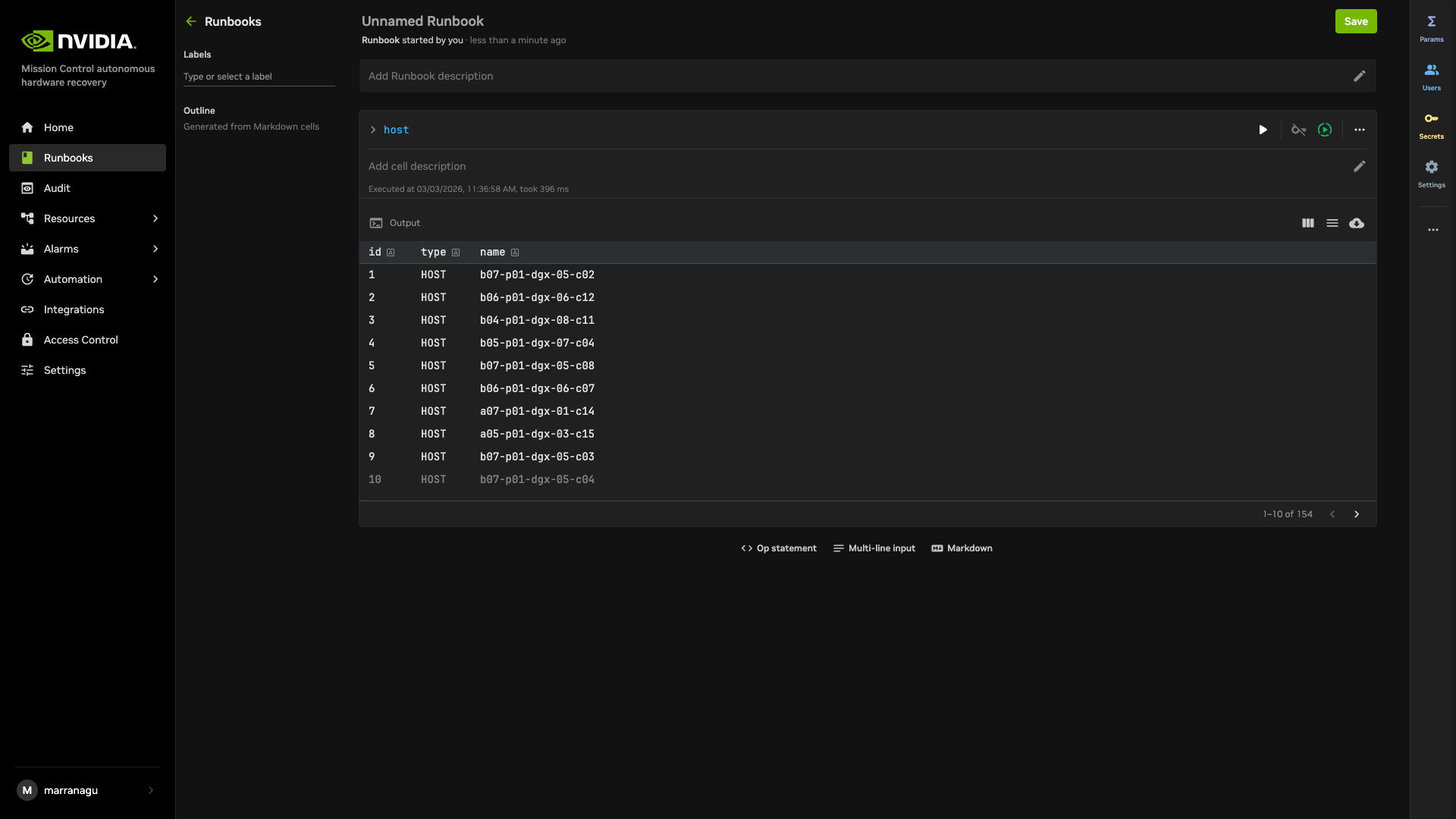
Figure 4 Query host inventory from an op statement.#
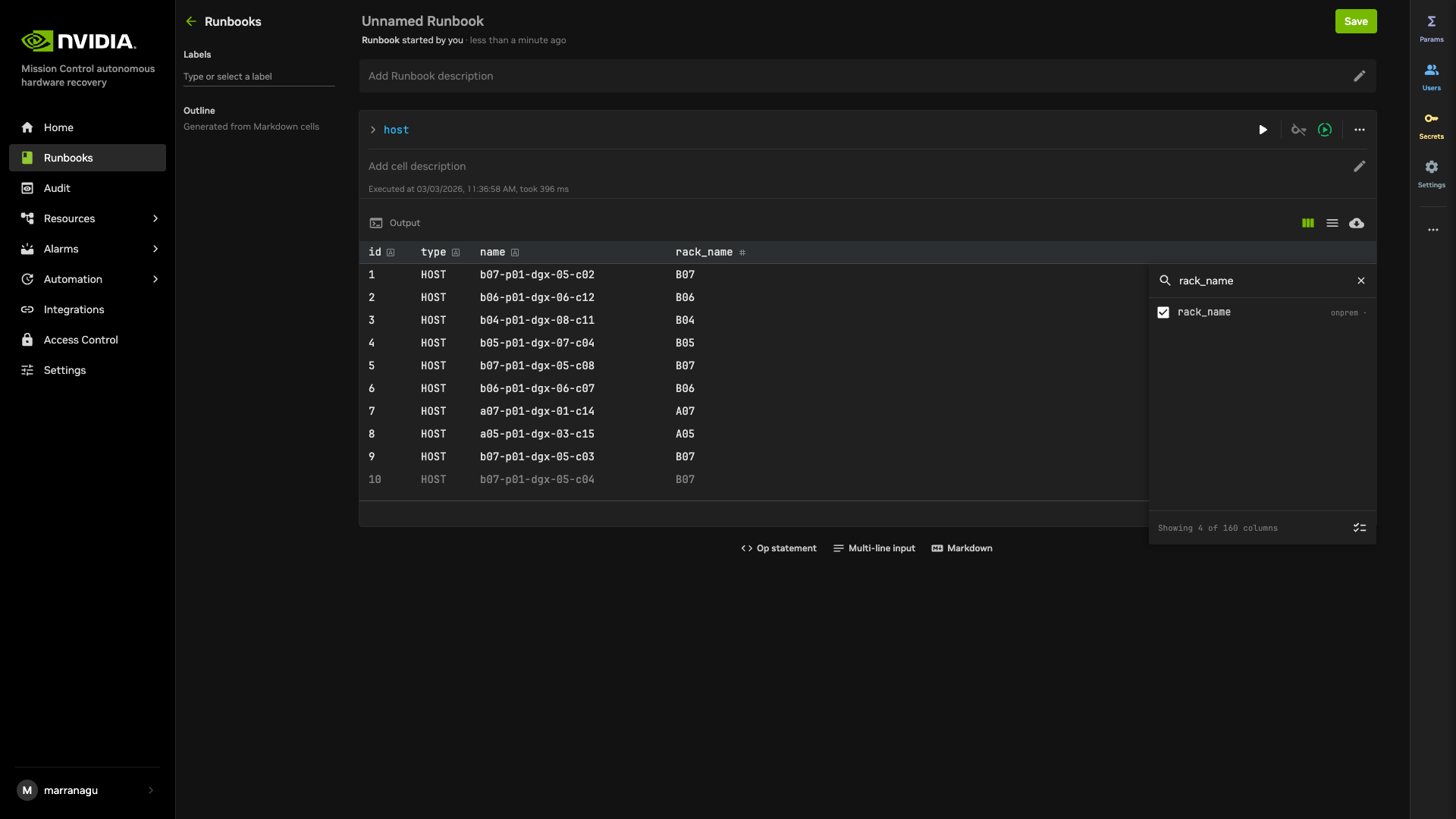
Figure 5 Display the resource selector field in inventory results.#
Inspect the runbook configuration#
Search for the baseline entry point before a run when you need to inspect its cells or current enablement.
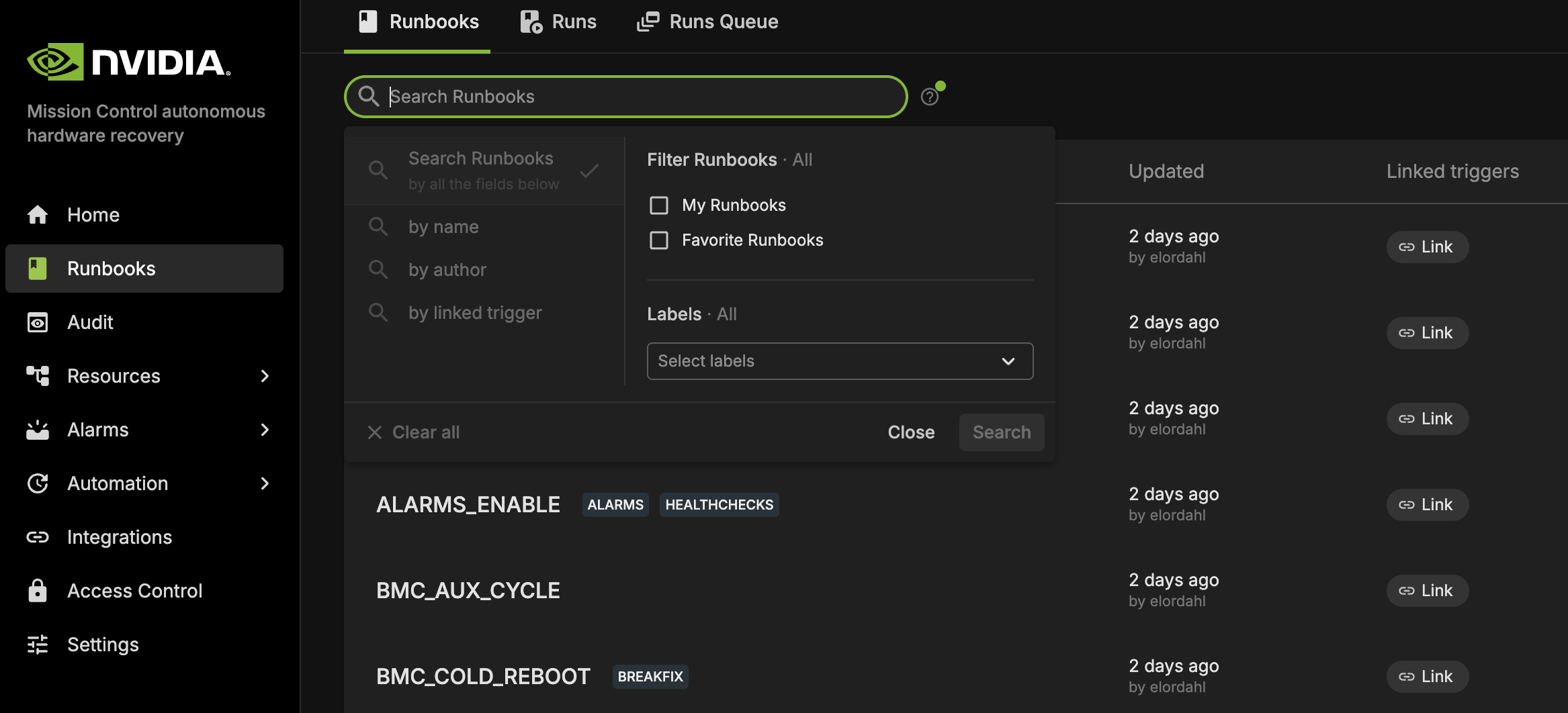
Scope inputs by platform#
The mode names and lifecycle are shared. The following values are the defaults for each architecture, not a restriction on the resource fields that can be queried.
Platform |
SUT |
MUT |
|---|---|---|
GB300 |
|
|
GB200 |
|
|
B300 |
|
|
B200 |
|
|
VR |
|
|
resource_value accepts the value matched by the selected tag. Use a pipe-delimited expression when one run should select more than one unit, for example m06|m07; this changes only the selected scope, not the test mode.
Flexible resource query#
The flex_resource_query resource resolves the runbook INPUT from a key/value selector. Set resource_tag to a resource field exposed by AHR, then set resource_value to the exact value or regular expression that should match that field. Common selectors include name, rack_name, and nvdomain_clique_id.
Use
resource_tag=nameandresource_value=dgx1to select a host nameddgx1.Use
resource_tag=rack_namewith a rack value to select the matching rack, or a no-space expression such asA01|A02to select either value.When
resource_tag=nvdomain_clique_id, AHR filters GPU resources by clique ID and resolves their controllers. Other keys filter hosts directly.IGNORE_LISTremoves hosts by name after selection, and Run:ai resources are excluded from the resultingINPUT.The literal
noneis not a wildcard forresource_value; it normally selects no hosts. Always provide a selector value that exists in the target environment.
Before creating the run, use the inventory-query procedure in Find a resource value to confirm that the selected key exists and that the expression returns the intended resources.
Runbook Interface Guide#
When accessing a runbook, note these important configuration elements:
Central Workspace#
The main content area displays your resource queries, commands, scripts, or nested runbooks.
Each row represents an individual cell
Each cell includes a play button for isolated execution
Toggle switches allow you to enable/disable specific cells
Configuration Panel (Right Side)#
The right panel contains several critical configuration sections:
Parameters Contains all required inputs for runbook execution
Triggers Configure automated execution methods:
Alarm triggers
Time Trigger (cron jobs)
Other integrations like AlertManager
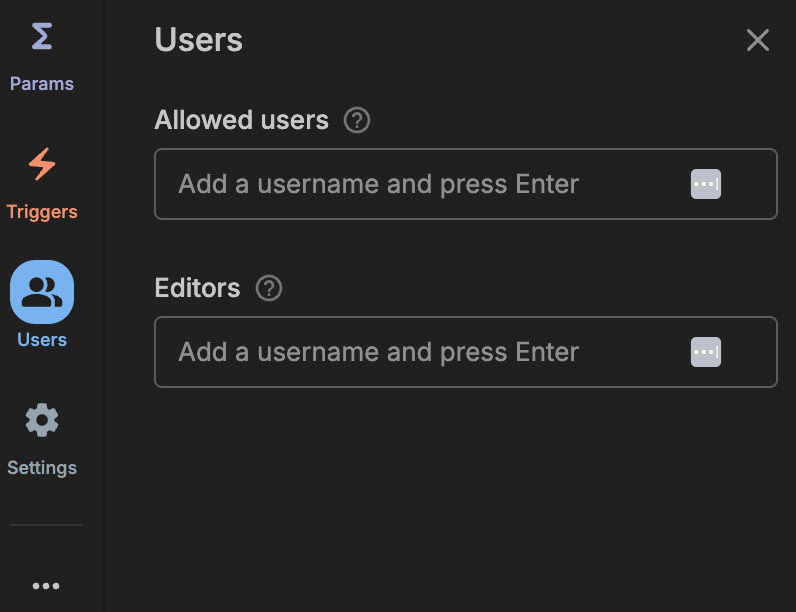
Users Manage permissions for who may run or edit the runbook
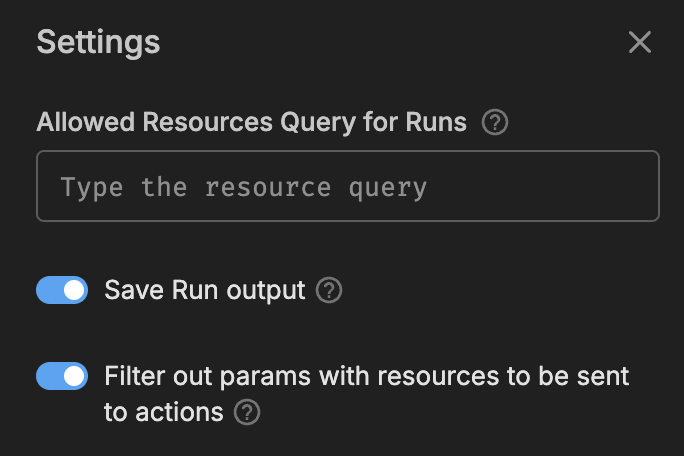
Settings General runbook configuration options
… more runbook operations including:
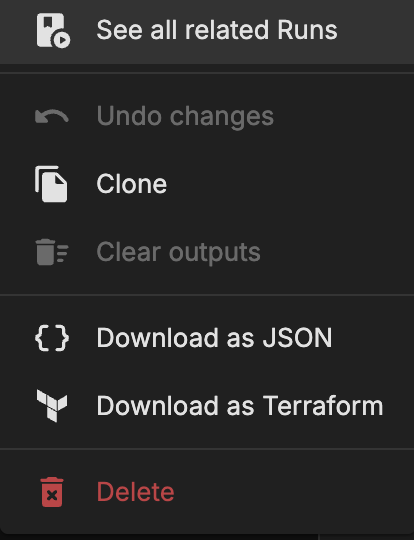
Clone functionality
Export options
Delete runbook
Check Job Status and Result#
This section provides comprehensive guidance on monitoring runbook execution progress and interpreting results.
Check Job Status#
To monitor the status of a runbook execution:
After creating a run, select the View Run link in the confirmation dialog
Alternatively, navigate to Runs in the left panel and select your specific execution
The run details page displays:
Overall run status
Start time and duration
Each cell’s execution status
Resource filtering information
Output from each step
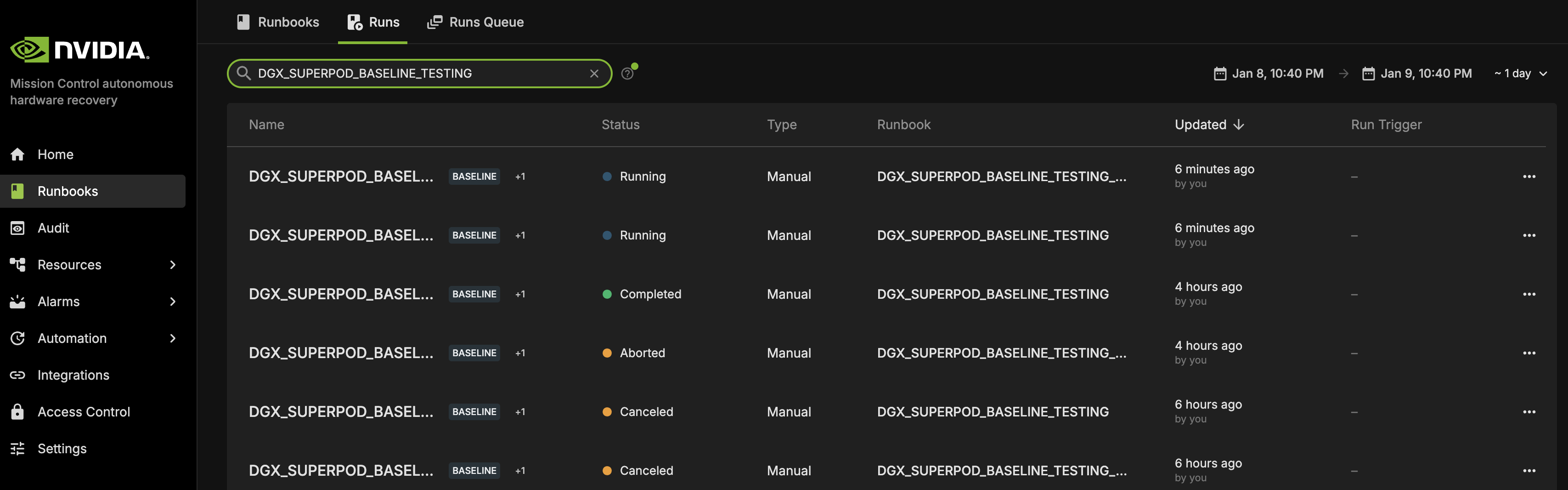
Status Types and Definitions#
Running The job is currently executing. Progress is displayed as a percentage based on completed cells.
Completed The job has finished execution. Note that completion status does not guarantee successful results. Review the detailed output in the results section.
Aborted The job terminated prematurely due to execution errors, such as cell syntax issues.
Terminated The job was forcibly ended by the system.
Timed Out The job exceeded the timeout configured by the active runbook cell. The baseline parent explicitly allows up to 6 hours for SUT and 48 hours for MUT. Other runbooks and actions can use shorter explicit values; the source-level fallback for a runbook with no timeout is 1 minute. Check the failed cell rather than applying a universal 1-hour expectation.
Canceled The job was manually terminated by a user.
Check Job Results#
When the job status displays Completed, you can review the job results. If the job status shows anything else, open the job for more details and troubleshooting.
Cell Structure Overview#
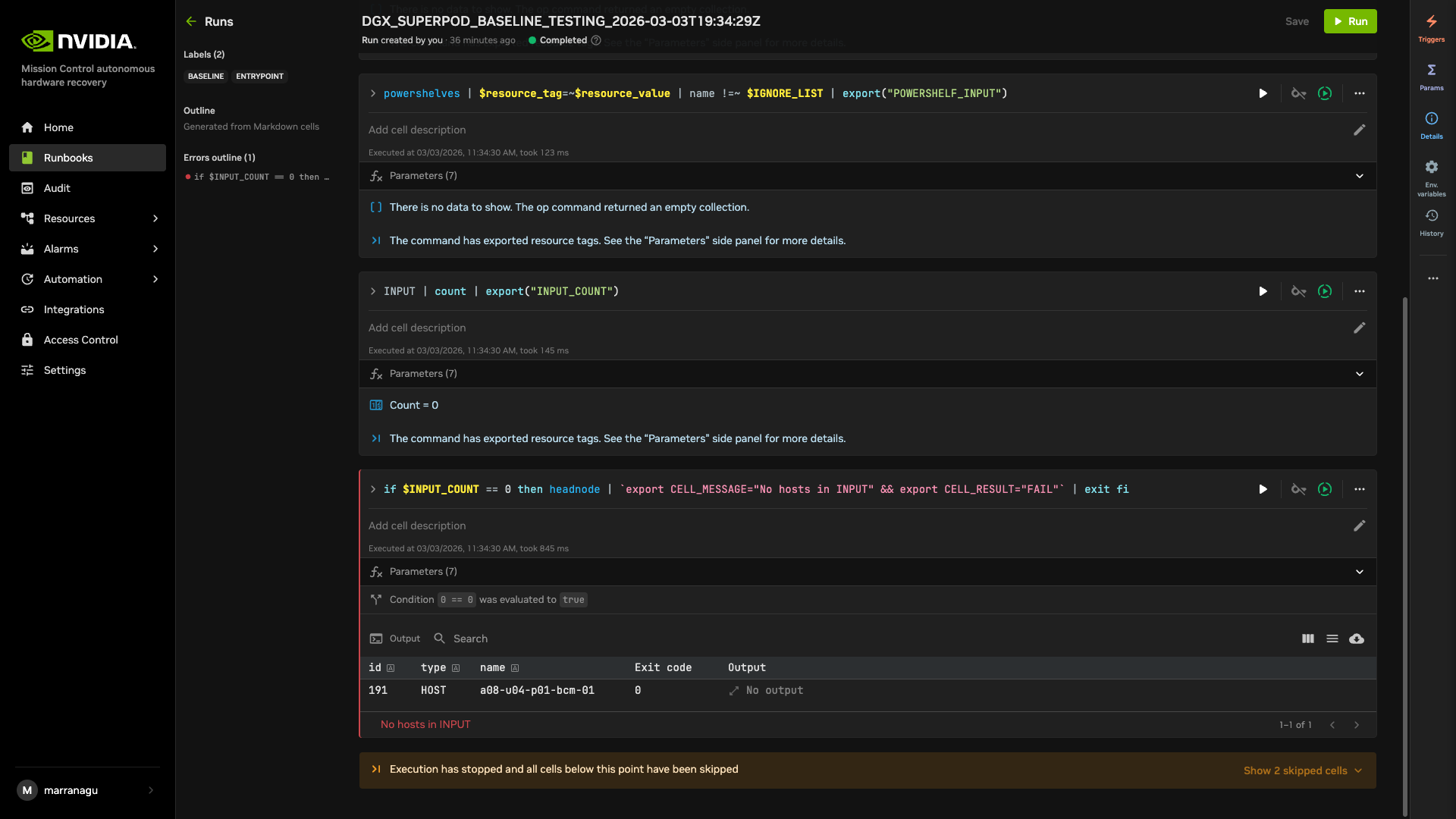
Each cell in the runbook contains three primary components:
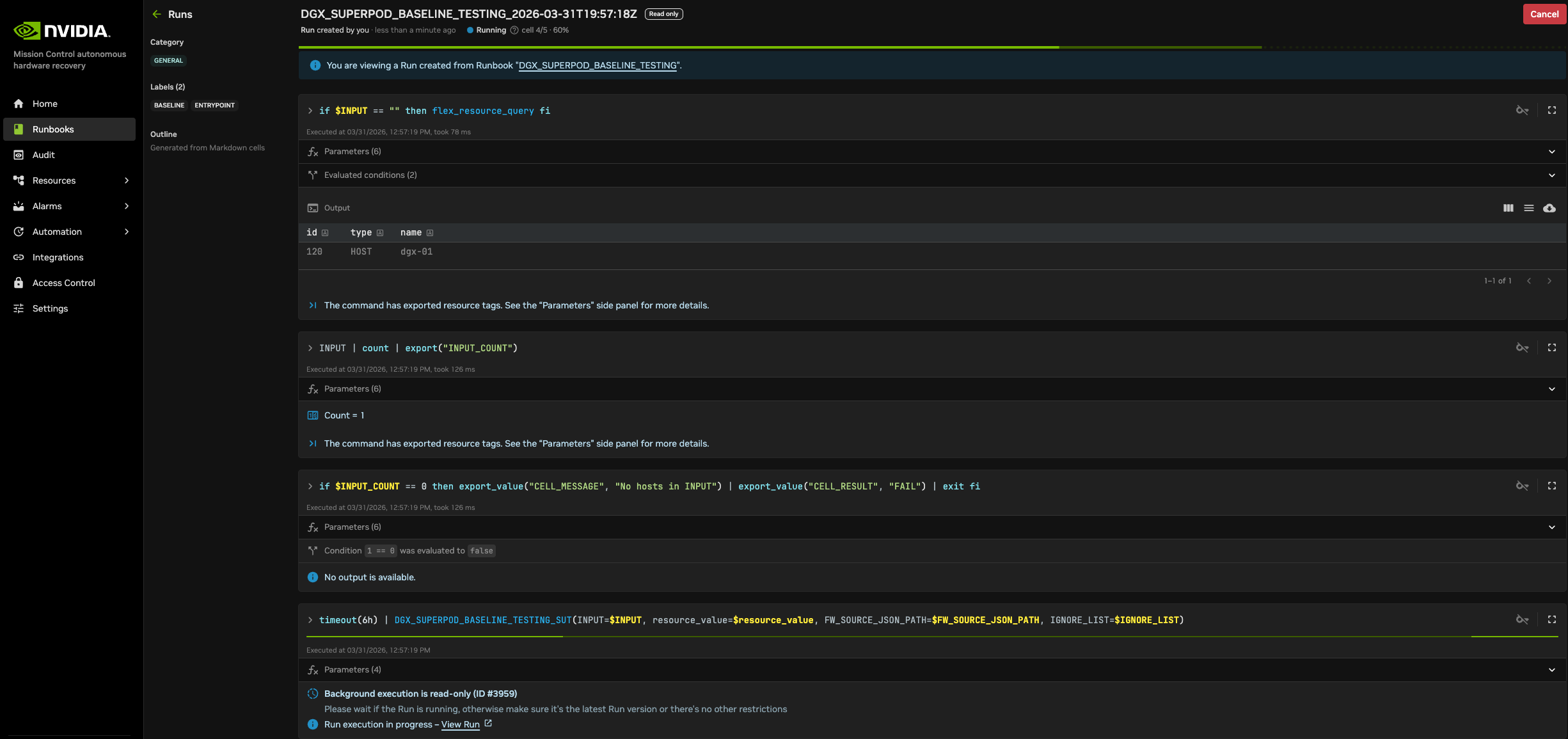
Main Content Area: This section displays the executed script or command. On the right side of the cell, you’ll find several control icons. While most icons were detailed in the previous section, the “fx” icon is particularly valuable as it displays all parameters along with input/output values for the specific cell when hovering over it.
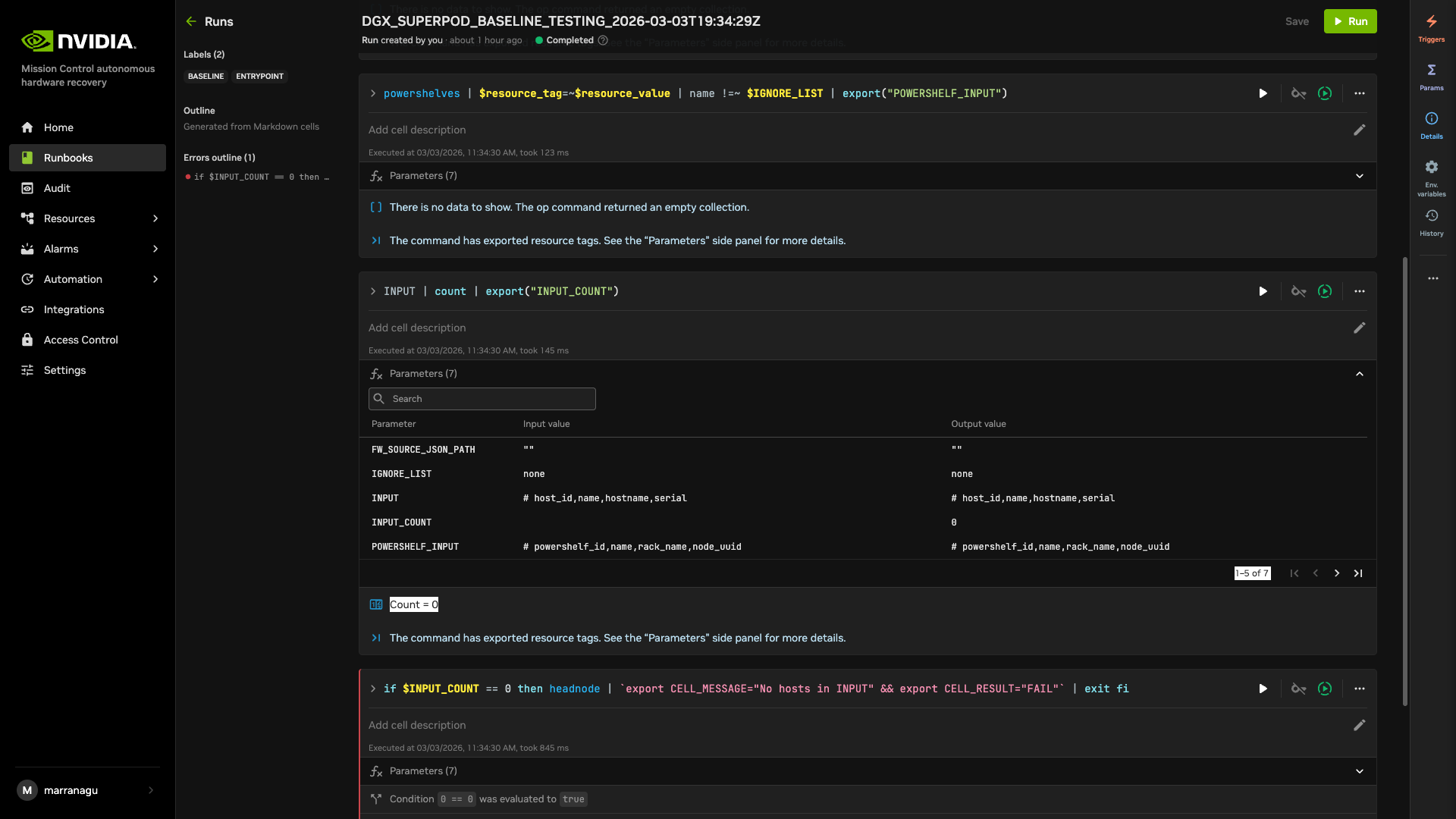
Execution Information Bar: Located in the middle of the cell, this light grey text line indicates the execution start time and duration of the operation.
Results Section: The bottom portion displays:
Exit code status
Execution location information
Complete command output (accessible by selecting the contents of the Output column)
Additional Features:
Configure output display preferences
Toggle the density
Download results in various formats using the download options menu
Streamlined Error Navigation: When a job contains numerous cells, manually checking for failures becomes inefficient. Use the Error outline feature in the middle panel to locate problematic cells. Select any item in the list to navigate to the corresponding failed cell.
Note: Reports are available for the major runbooks. Refer to Testing reports for details.
Handling Job Failures#
In the event of job or cell execution failures, the following remediation options are available:
Major Issue Resolution: Upon resolution of critical infrastructure issues, such as hardware replacement, a complete re-initialization of the SUT or MUT job is recommended.
Targeted Component Resolution: When specific components have been updated, such as firmware version upgrades, execute the relevant job or runbook within the existing session by selecting the “Run” button located in the upper-right interface section. This maintains all previously established parameters.
Individual Cell Correction: For isolated cell failures that have been addressed, execute the specific cell independently by activating the execution control (play button) positioned on the right margin of the cell interface. Note: This option might make it difficult to locate the job/run from the reports panel (refer to Testing reports).
Firmware checks#
NVIDIA Mission Control autonomous hardware recovery includes firmware checks that read the current firmware versions from the resources under test and compare them with the expected versions in the Source of Truth (SOT) JSON. On GB200, GB300, and VR, the check covers both the compute trays and the rack NVLink switches. On B200 and B300, it covers the compute trays only — the NVSwitch and PCIe switch results in those runs are tray components, not rack switches.
The SOT JSON supplies the expected versions that the check validates: BMC, HMC, SBIOS, CPLD, ERoT, ConnectX, and GPU firmware on every platform, plus the switch NVOS, NMX, and switch CPLD versions and the MFT and NVIDIA driver versions on GB200, GB300, and VR. Obtain the SOT file through your existing NVIDIA Enterprise Support case or designated account support contact; a matching golden configuration JSON is also shipped inside some firmware packages.
No SOT file is prepopulated on the system. FW_SOURCE_JSON_PATH is a required input with no default value, and the literal NA skips the SOT load; the checks then fall back to the expected versions supplied with the deployment. Supply a SOT path for an authoritative comparison.
The runbook extracts the expected versions from the SOT and compares the current versions against them. A component whose expected version is absent from the SOT is skipped rather than compared: it is reported as SKIP with an expected version of NOT_IN_SOT, and the run raises a “Golden config partially loaded” warning. Supply a complete SOT to close those gaps; rerunning with the same file reproduces the same result.
A component reported as FAIL with a current version of NOTFOUND means the version could not be read from the resource, not that it mismatched the expected value. Check the run for resources tagged DISCONNECTED or IPMI_ERROR first; if the resource was reachable, rerun the firmware check, because version collection is not retried within a run.
Updating the SOT file#
Place the SOT JSON file on the BCM head node and provide the complete file path as the input FW_SOURCE_JSON_PATH to the DGX_SUPERPOD_BASELINE_TESTING runbook. To update the file, replace it and update the path in the runbook input. The parent runbook passes this input to the SUT path only, so a MUT-only run ignores it.
Expected Versions and Test Defaults#
Firmware checks compare the current component versions with the expected versions in the SOT JSON supplied through FW_SOURCE_JSON_PATH. Non-firmware SUT and MUT checks use predefined defaults and benchmark thresholds generated from the chip configuration YAML.
EXPECTED_NVBANDWIDTH is the minimum mean bandwidth, in GB/s, across all ordered GPU pairs. The check computes SUM / (R * (R - 1)) and passes only when the measured value is greater than the configured threshold.
Platform |
SUT threshold (GB/s) |
MUT threshold (GB/s) |
|---|---|---|
GB300 |
800 |
650 |
GB200 |
800 |
650 |
B300 |
1100 |
750 |
B200 |
1000 |
750 |
VR |
1000 |
1000 |
These values come from config/<CHIP>/defaults.yaml. Confirm estimated thresholds against the deployment hardware before using them as acceptance criteria.
Generated Defaults Files#
AHR generates chip-specific defaults files during deployment. The <CHIP>_defaults.env file carries hardware expectations and benchmark thresholds. Firmware expected versions are not taken from these files; they come from the SOT JSON supplied through FW_SOURCE_JSON_PATH. The generated defaults are distributed to the trays and control nodes and loaded as environment variables during testing.
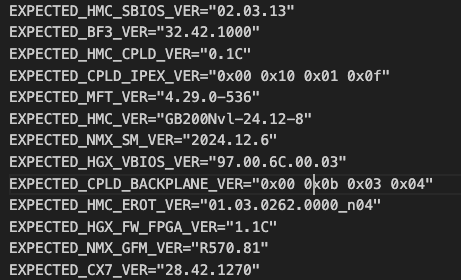
Updating Generated Defaults#
To update generated defaults, edit config/<CHIP>/defaults.yaml (for example, config/B200/defaults.yaml or config/GB200/defaults.yaml). The chip-specific env files are generated automatically from these YAML files during deployment — do not edit the generated files under Shoreline_files/generated/ directly.
Once the changes are made and saved, use the NVIDIA Mission Control autonomous hardware recovery Runbook Deployment section (from the NVIDIA Mission Control AHR installation documentation) to apply them via OpenTofu. This process creates File objects on NVIDIA Mission Control autonomous hardware recovery, which push the updated generated defaults automatically to all control and compute trays. Firmware checks, prolog checks, epilog checks, and benchmark runbooks source the relevant generated defaults and use those expected values during testing.
Testing reports#
NVIDIA Mission Control autonomous hardware recovery provides reports for baseline testing, reflecting the status of nodes (compute and switches) at each test stage. These reports help identify and troubleshoot root causes.
To access the NVIDIA Mission Control autonomous hardware recovery reports, select Resources in the side menu, then select Reports.
The landing page contains two tabs: Report Templates and Published Reports.
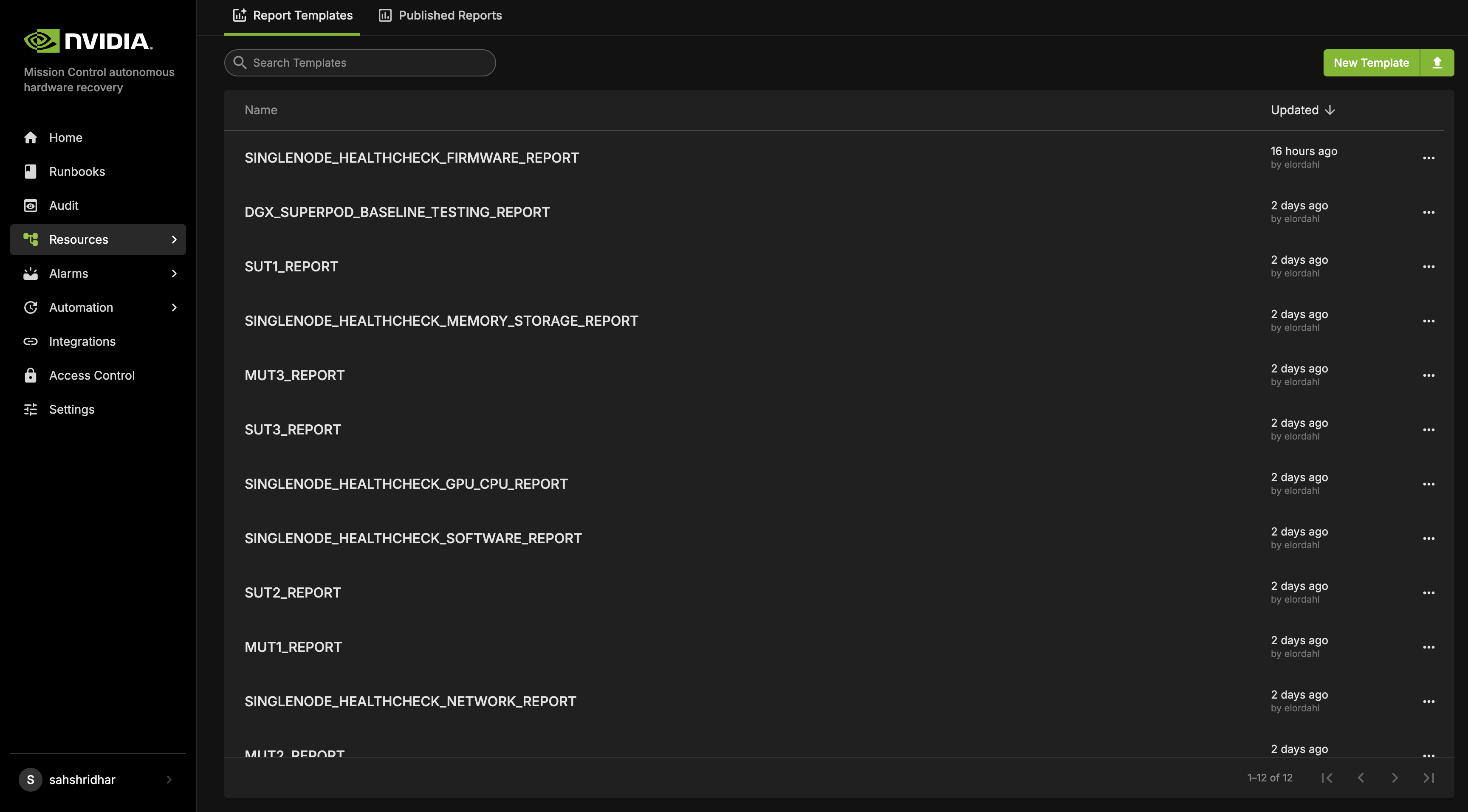
Report templates are provided for each stage of baseline testing. These templates include bar graphs that display the PASS or FAIL status for different nodes during the tests. However, these templates are static and do not store any test data. This means that while you can view the templates, you cannot save or modify the test results within them.
To generate a report that records the test results along with timestamps, click Publish. This action will create a new report based on the template, which will capture the current status of the tests. The report will display PASS for tests that were successful and FAIL for those that did not pass, with each status reflecting the most up-to-date information. The report also includes links to additional reports at the top of the page. These links allow you to access the detailed results of the individual SUT and MUT tests that make up each stage, giving you a deeper insight into the performance and status of each test within the overall baseline testing process.
Note
Reports reflect updated information only after the SUT and MUT tests have run.
Guide to initiate Reporting for Baseline Testing#
Navigate to the “DGX_SUPERPOD_BASELINE_TESTING_REPORT” under the Report Templates.
[Optional] While templates do not reflect the current status of the test suite, you can use it to view the current state before publishing the reports. Clicking the refresh button at the top of the report will load the current data.
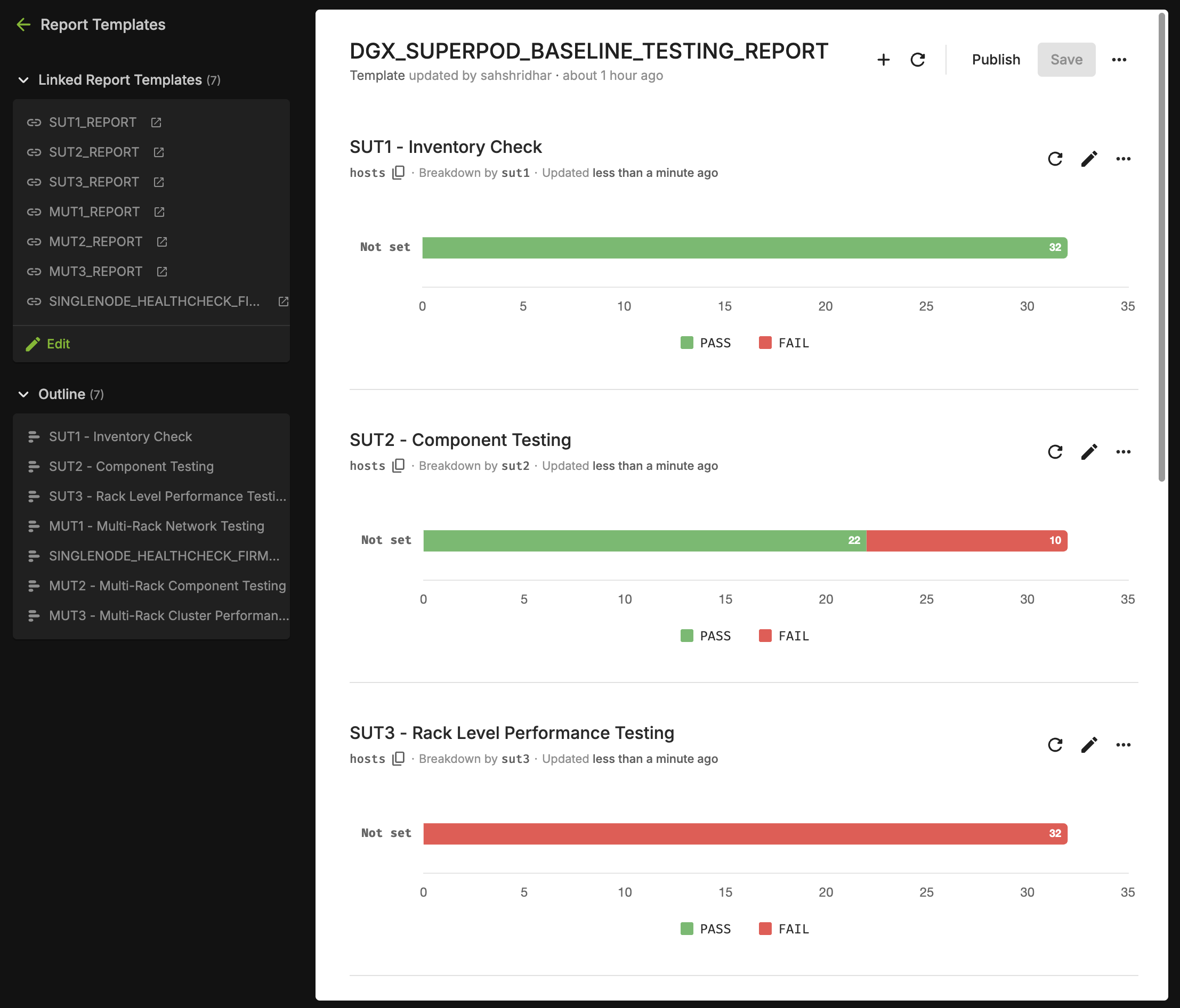
Select Publish to generate a timestamped instance of the template that can be easily viewed and shared. Additionally, it automatically publishes all linked reports at the top of the page, ensuring that all related data is included and accessible.
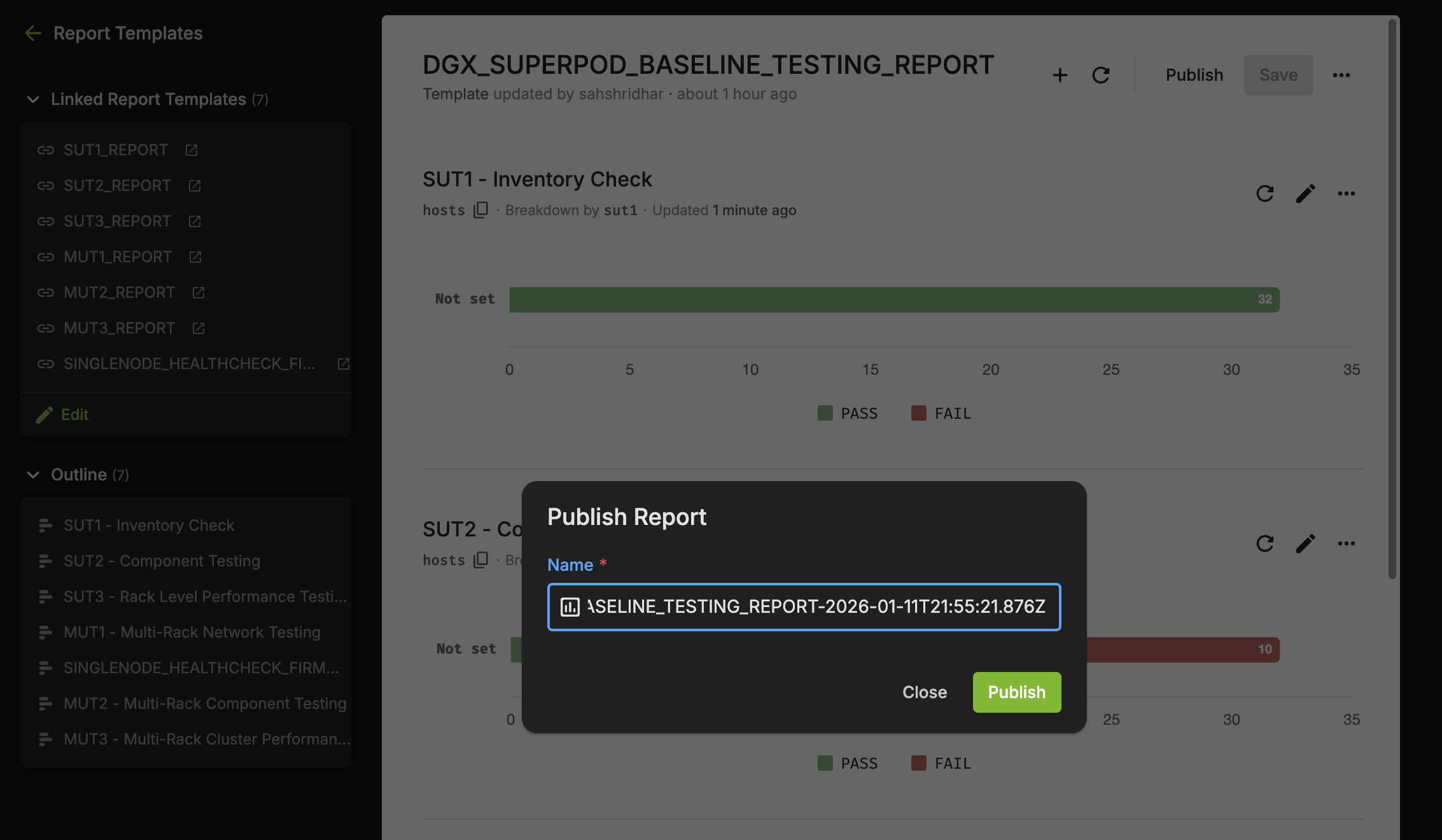
Retain the auto-generated name for the report which includes the timestamp or provide your own name.
After the process starts, the published reports begin generating in the background. This includes “DGX_SUPERPOD_BASELINE_TESTING_REPORT” as well as all the SUT and MUT linked reports.
A pop-up notification will appear containing a hyperlink to access the published reports that are being currently generated.
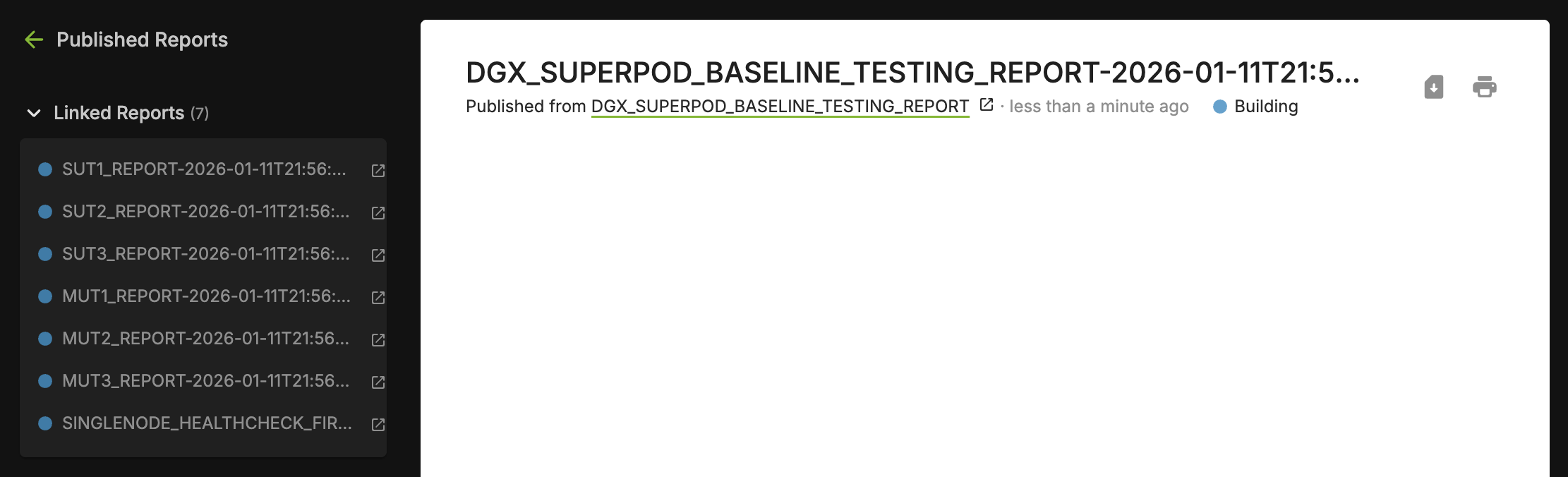
When you publish the “DGX_SUPERPOD_BASELINE_TESTING_REPORT”, it automatically triggers the publication of all “linked reports”, including the associated SUT and MUT reports, with the data captured at that given time.
All the reports will complete building in under a minute, and the “Linked Published Reports” will include the published reports for all the Linked Reports.
Navigating to Previously Published Reports#
Navigate to the Reports from the NVIDIA Mission Control autonomous hardware recovery Home Page
Select Published Reports, then select the “DGX_SUPERPOD_BASELINE_TESTING_REPORT_timestamp” or any other report of interest.
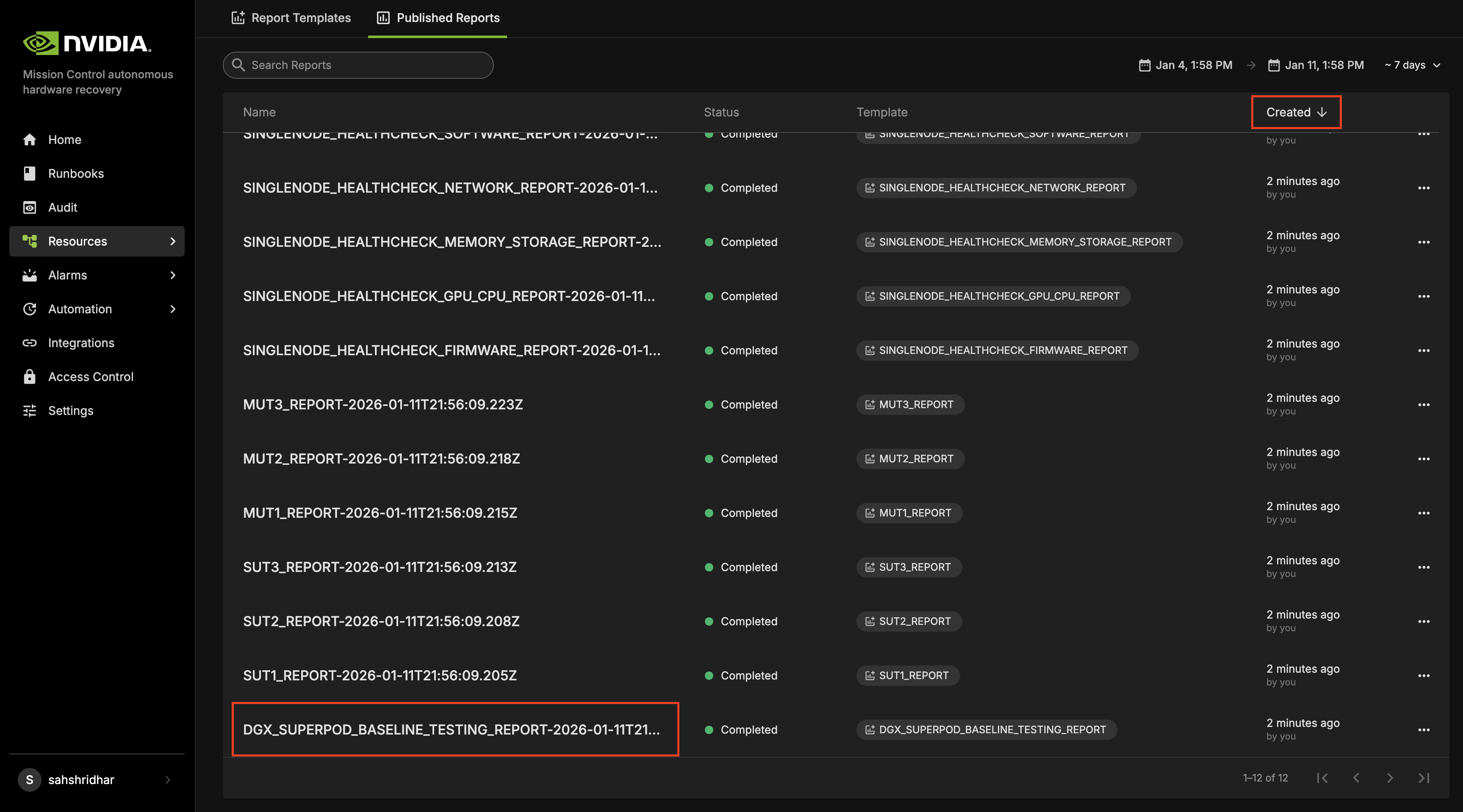
You can also adjust the time range at the top of the screen to view reports generated within specific time frames. Options include viewing reports from the last 10 minutes, last 1 hour, or selecting a custom time range to explore older data beyond these periods.
Breakdown of a Published Report#
DGX_SUPERPOD_BASELINE_TESTING_REPORT#
“DGX_SUPERPOD_BASELINE_TESTING_REPORT”, is the entry point for the Baseline Testing reports. It provides a comprehensive overview of all the SUT/MUT tests for the compute nodes.
Each stage is represented by a separate cell, displaying the results for that specific SUT or MUT test.
To perform a deeper analysis or understand the tests in each stage, click on the relevant report listed under “Linked Published Reports” at the top of the page.
Similarly, all the reports for each stage are available. You can either find the report of interest from Published Reports, or traverse it from the parent report (DGX_SUPERPOD_BASELINE_TESTING_REPORT_
)
Understanding the Published Reports#
The reports align with the SUT and MUT tests. Each cell in “DGX_SUPERPOD_BASELINE_TESTING_REPORT” represents a specific testing stage such as SUT1, SUT2 etc. Within each of these “Linked Reports”, the cells represent individual tests such as Singlenode Healthchecks, HPL, NCCL etc. The layout of the graph for each of the cells is organized as follows:
The X-axis represents all the nodes.
The Y-axis is not defined, which groups all the nodes into a single bar in the bar chart.
For example, in the following visualization, each bar represents the number of nodes within a cluster. In this case, there are 32 nodes per cluster, as indicated by the number displayed on each bar. This provides a clear view of the test progress for each tray across different clusters.
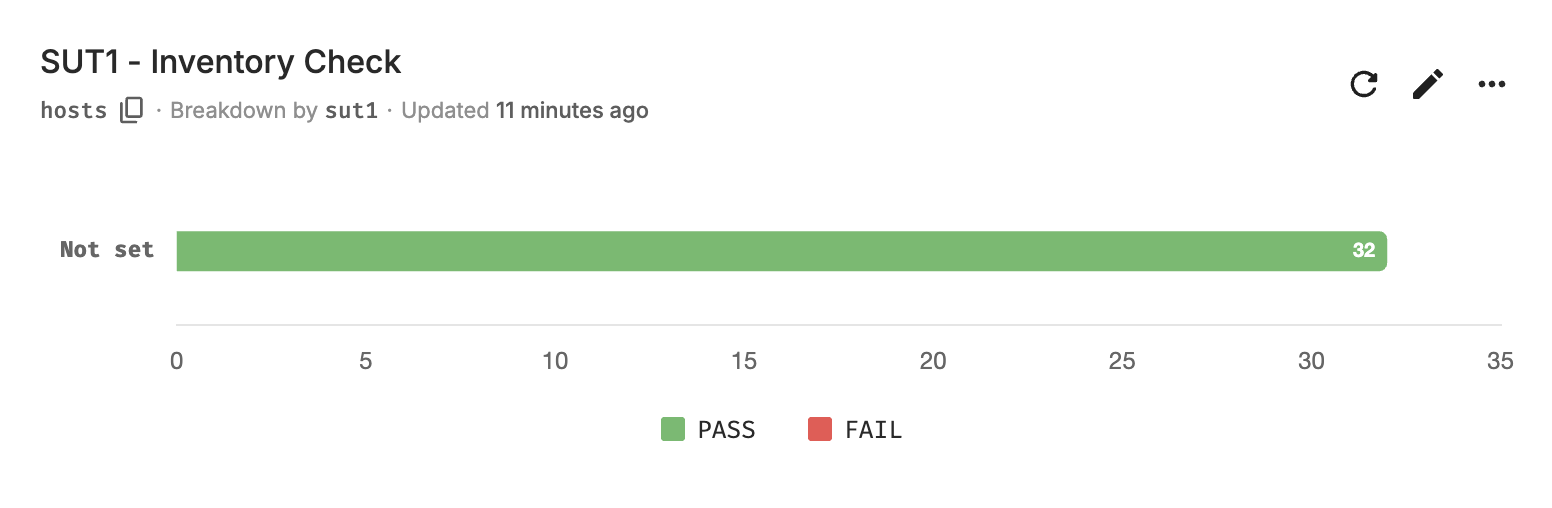
You can click on any bar in the graph to view a detailed list of the resources that passed or failed the tests within that specific bar. This allows you to drill down and see the test results for each tray in a particular rack or test stage.
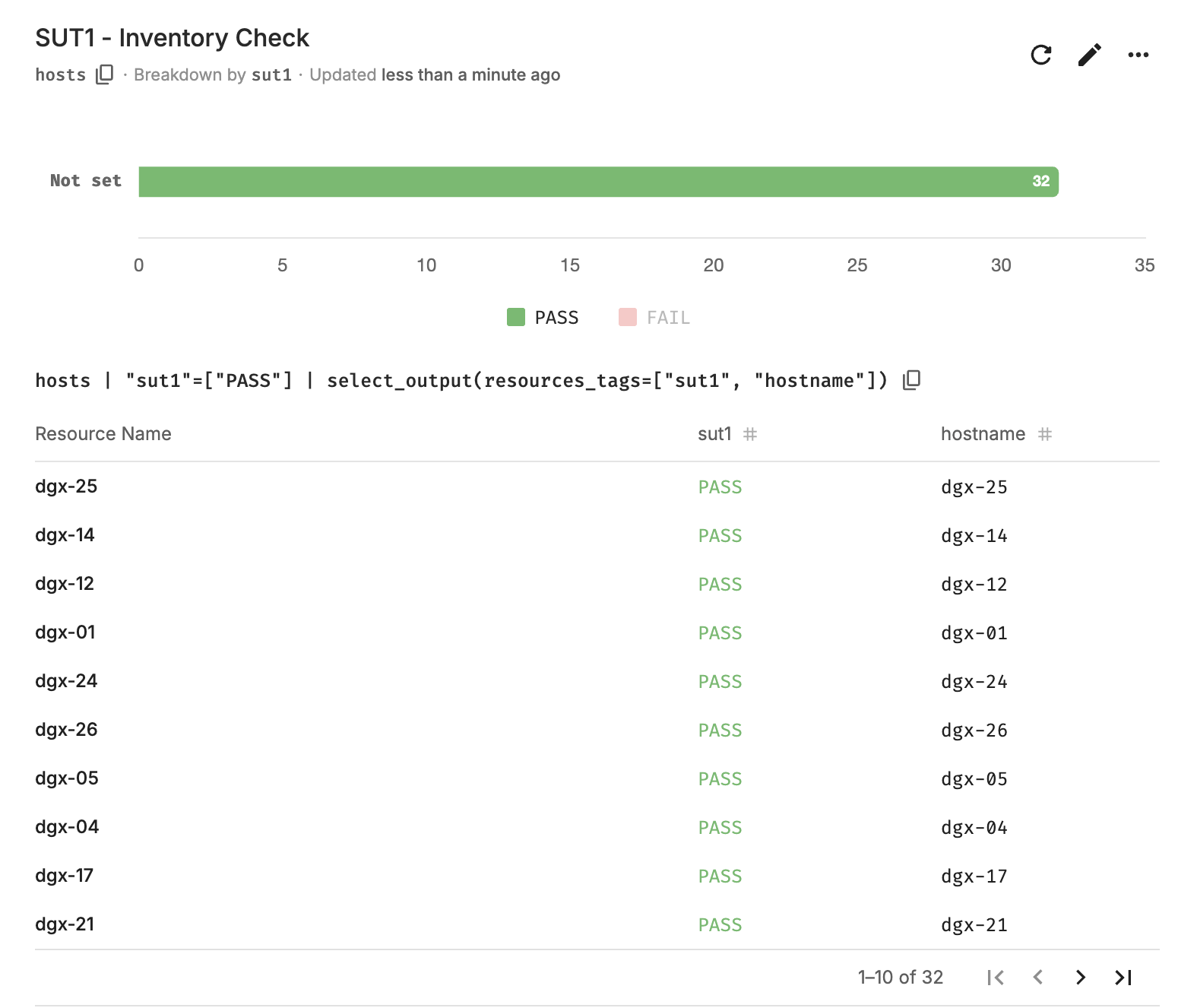
Alternatively, you can click on the legend to filter and display all the passed or failed resources across the entire cluster, providing a comprehensive view of the overall test status.
Root Cause Analysis#
The report for each stage shows the trays that have passed and failed the test. To understand the actual issue and access the logs, you can follow these steps:
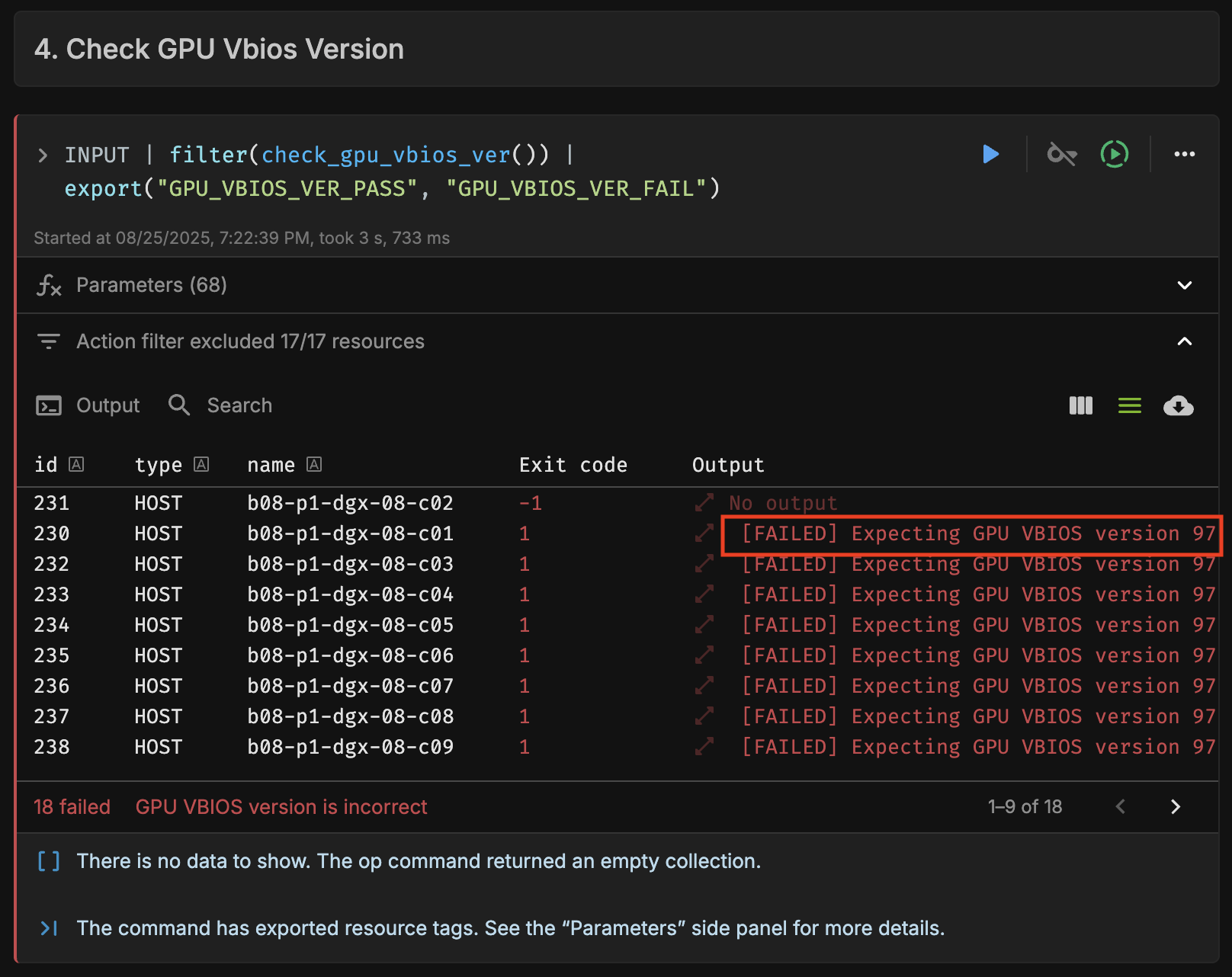
Navigate to the report with the PASS/FAIL values you want to analyze. This example uses the SUT1 report, which has a few failed SINGLENODE_HEALTHCHECK_GPU_CPU tests.
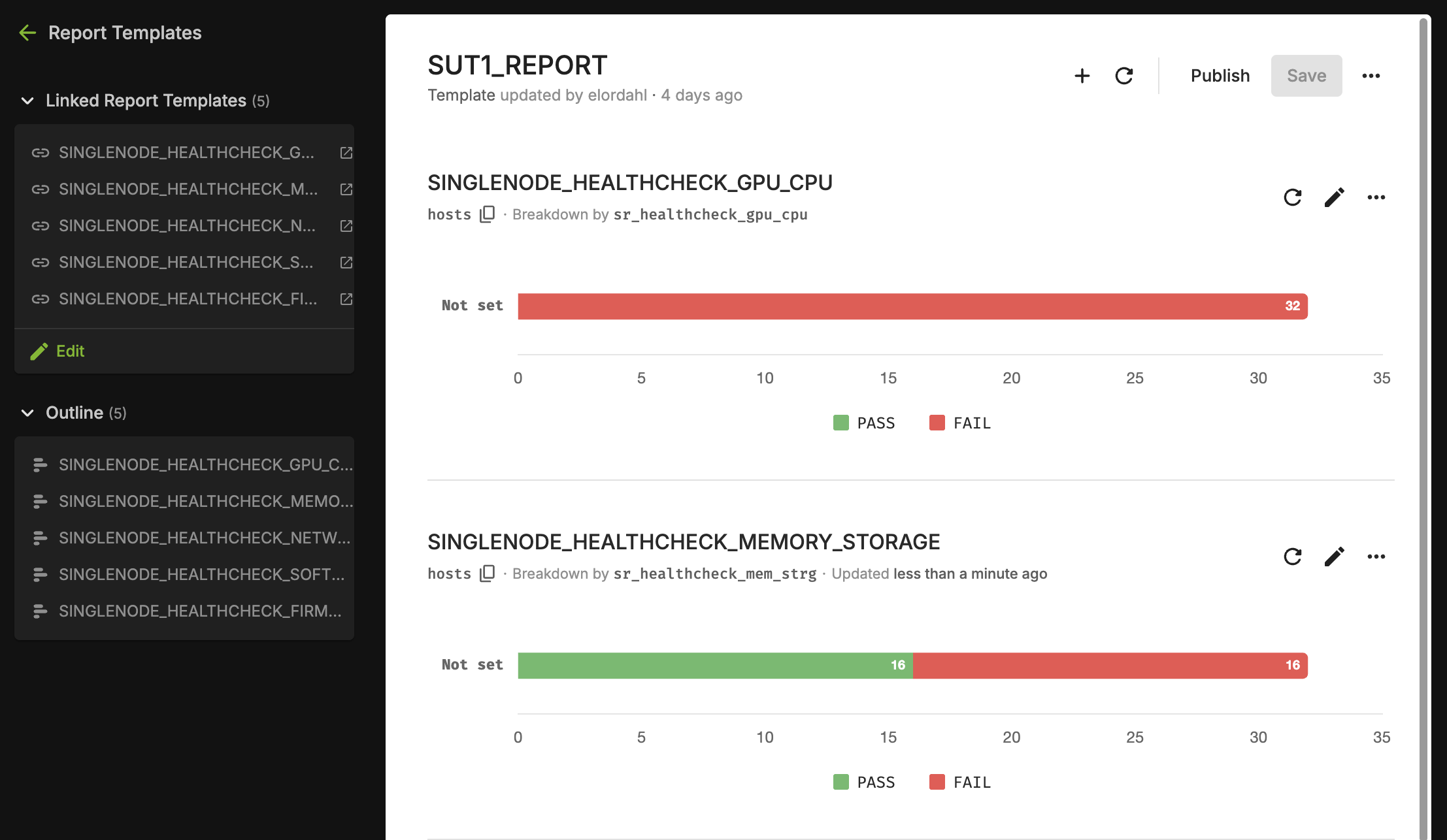
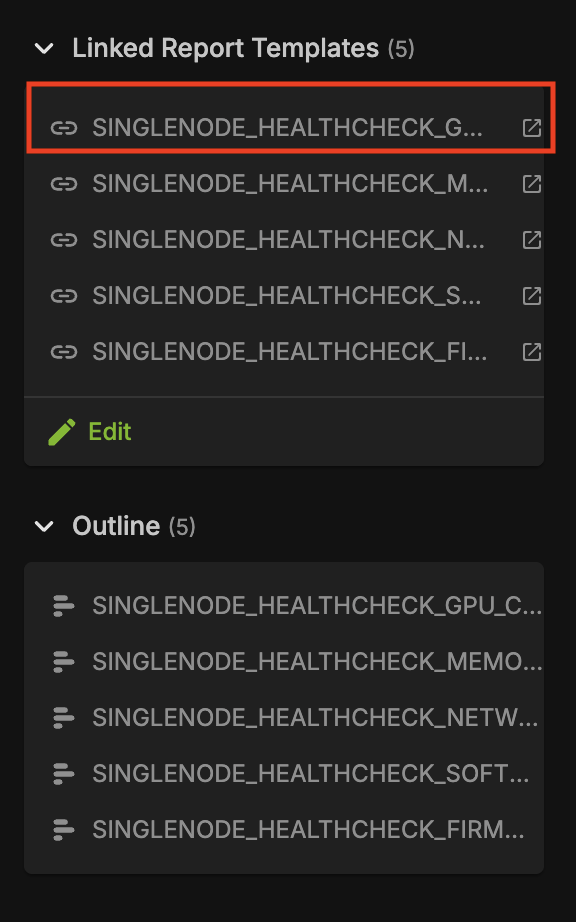
Navigate to the report corresponding to SINGLENODE_HEALTHCHECK_GPU_CPU and scroll to the tests that are failing.
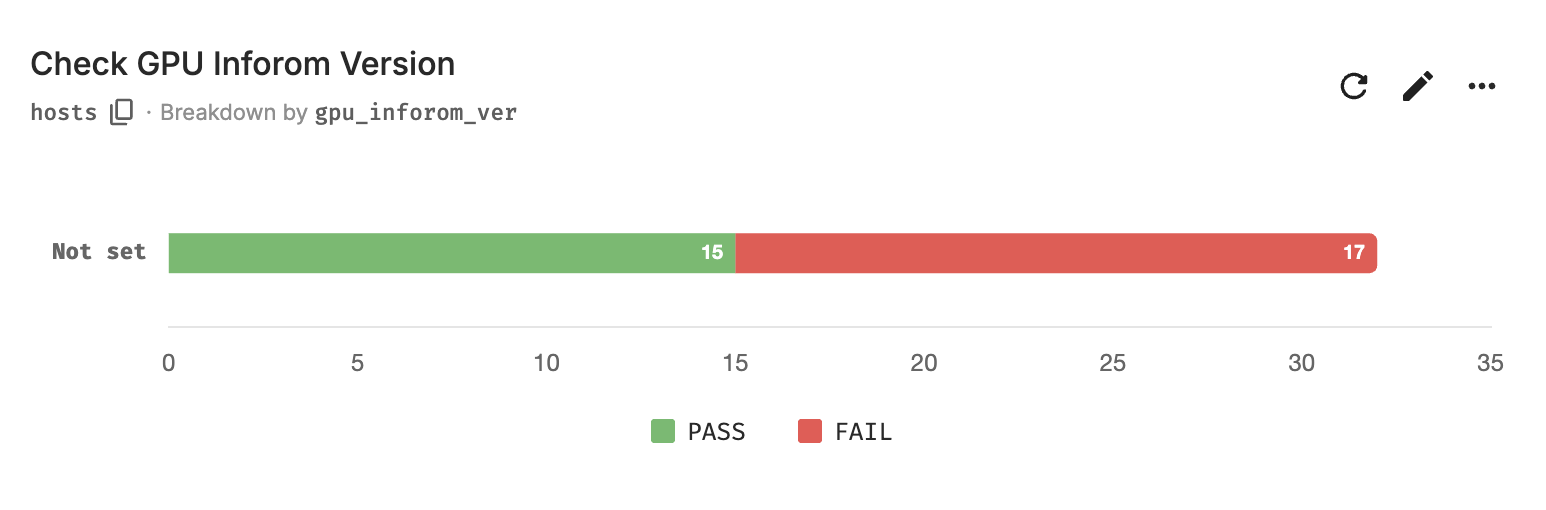
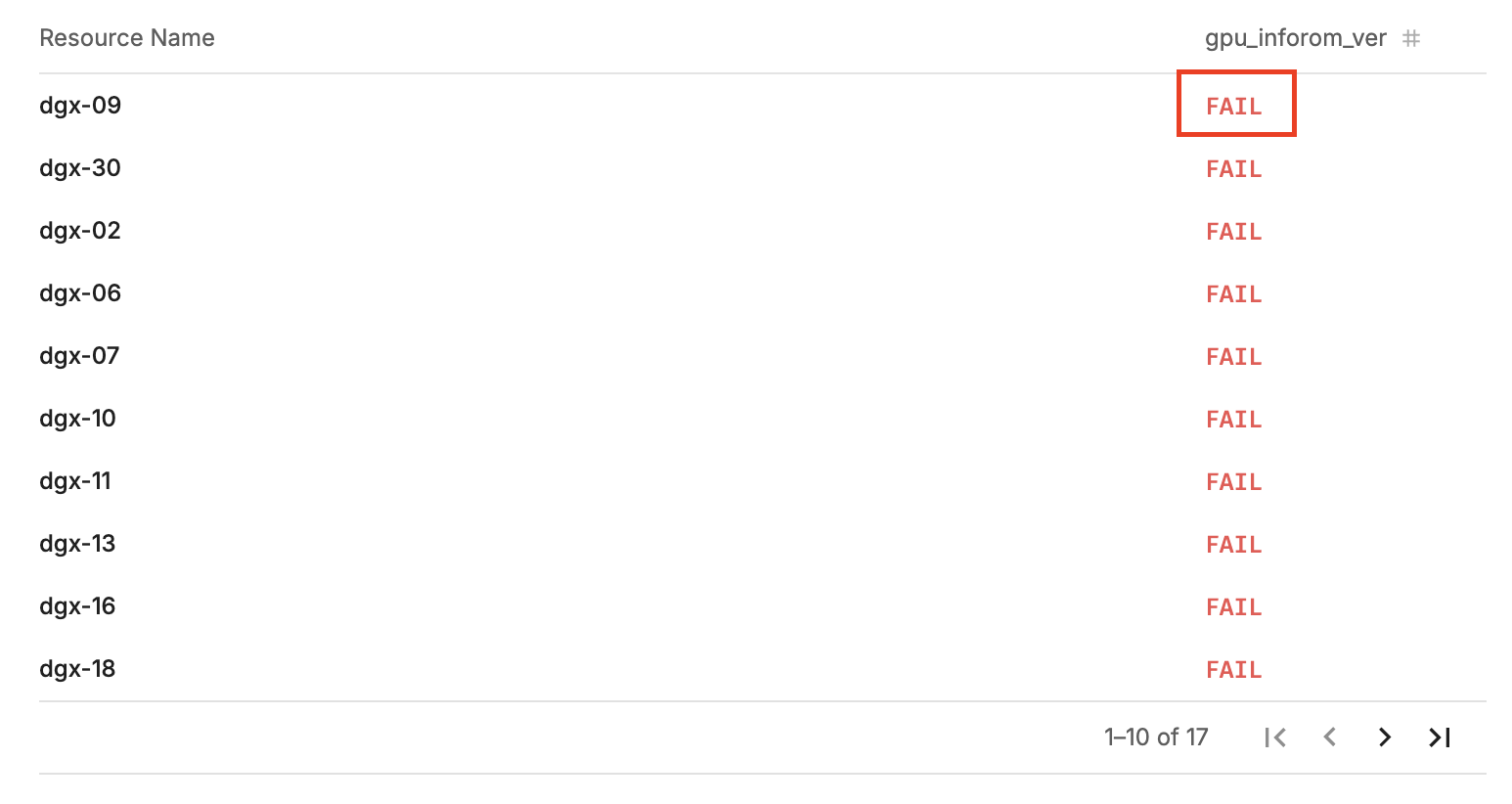
In this example, GPU Inforom Version has failed on 17 nodes. Click on the bar for one of the nodes to list the resources that the test failed on.
Click on the status (FAIL) which directly links you to the runbook where these tests failed. You can also do the same for tests that passed by clicking on the PASS status.
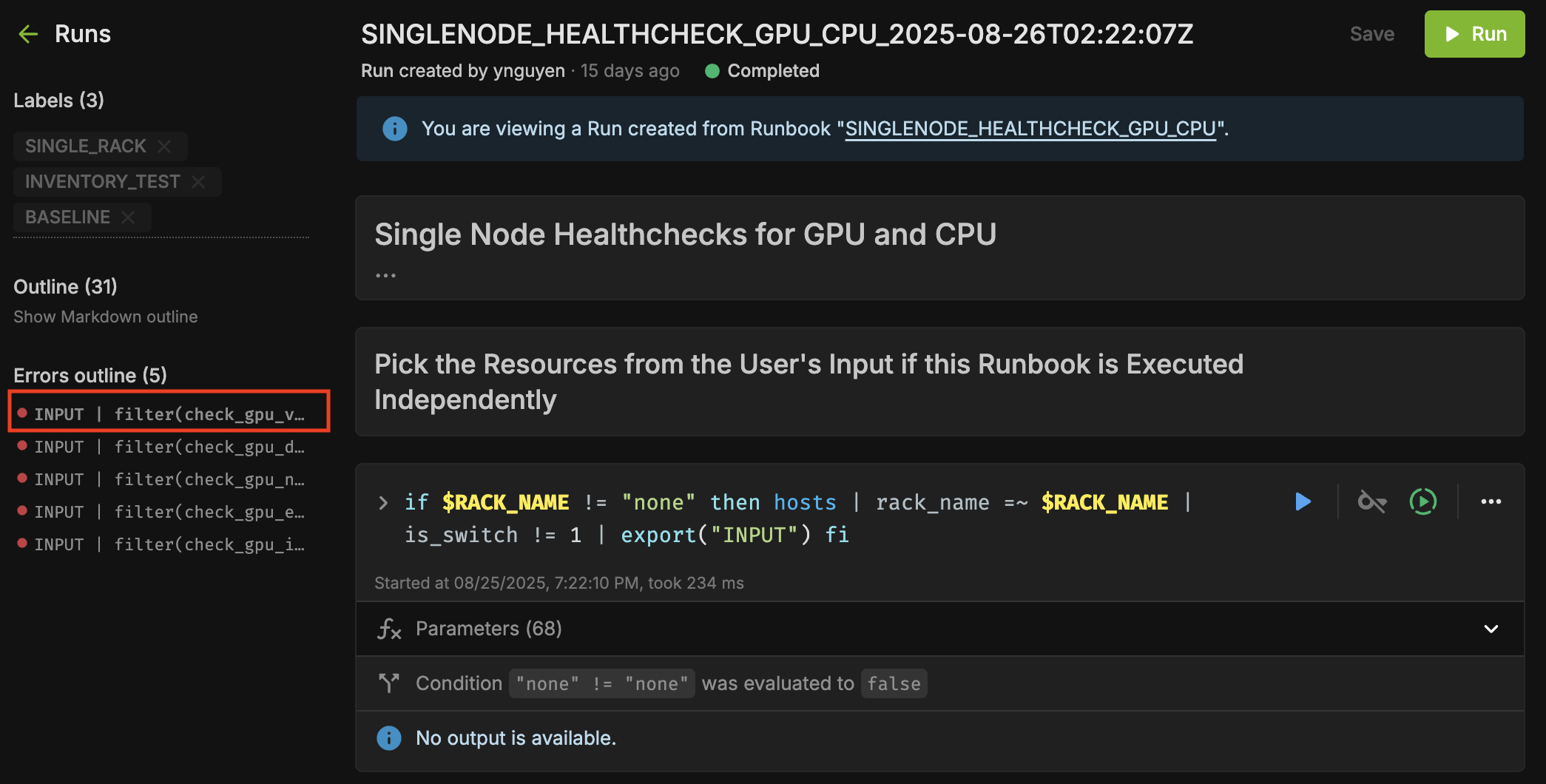
The errors in the runbook are outlined to the left of the screen. Navigate to the test that we are debugging (Inforom Version). Alternatively, you can also scroll through the run to find the failed tests.
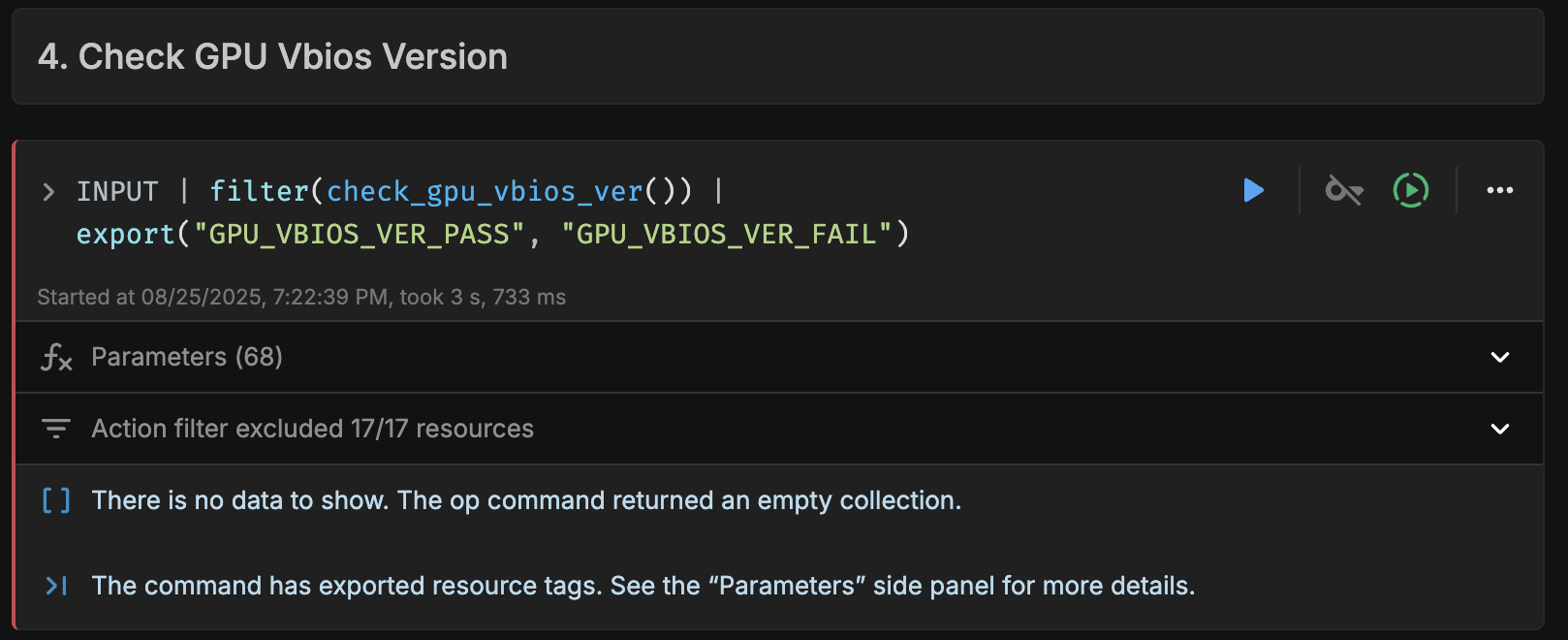
Select Command filter excluded x/y resources to get detailed output for each resource.
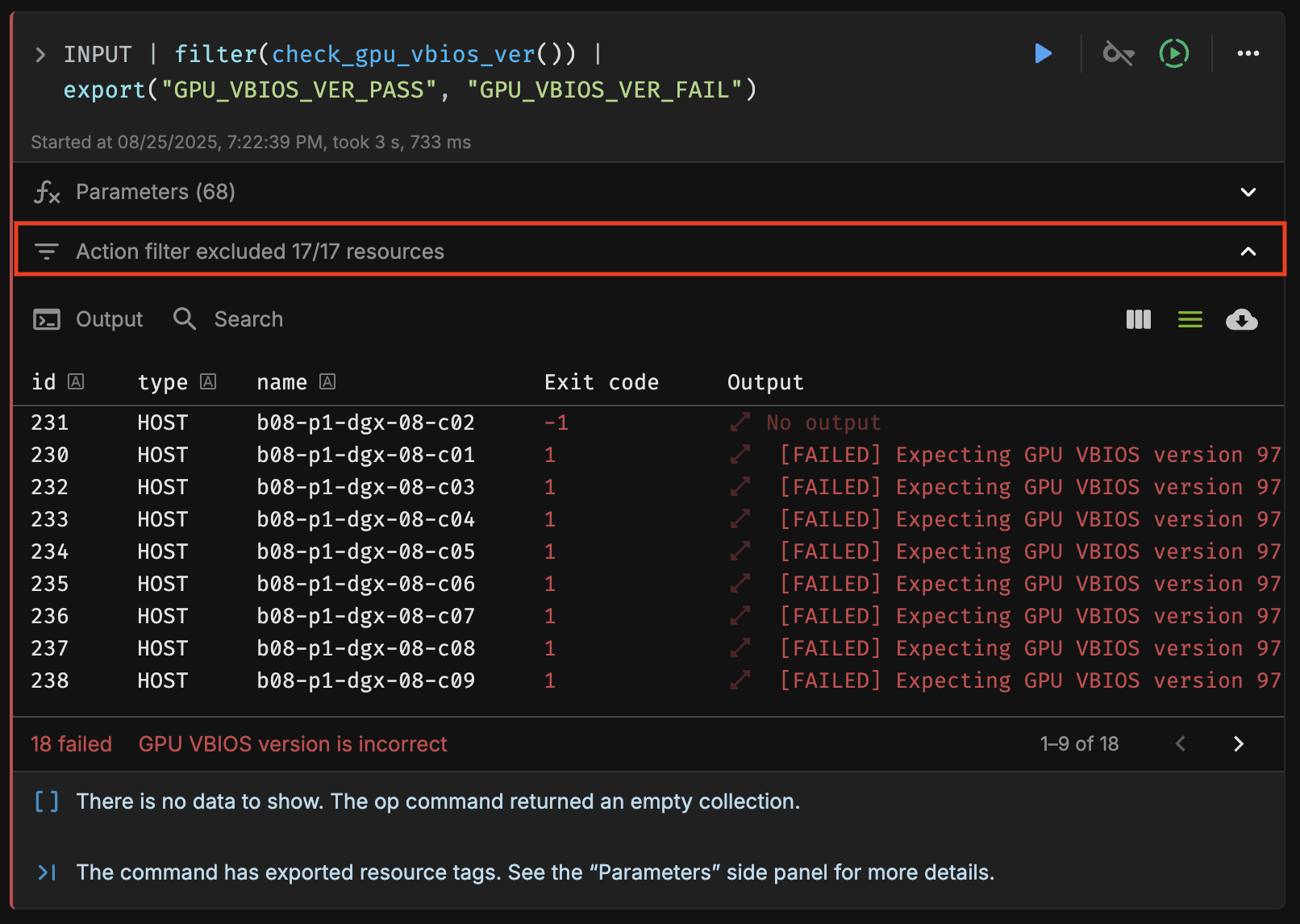
Select Output to view the detailed logs.

Firmware Reports#
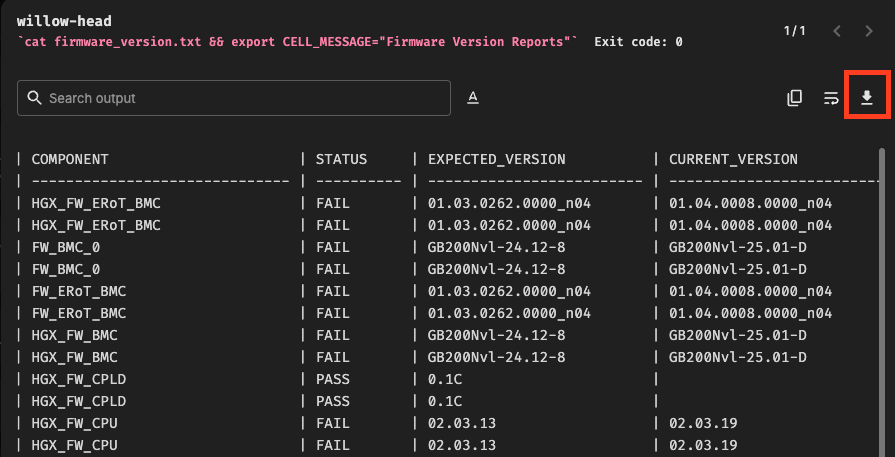
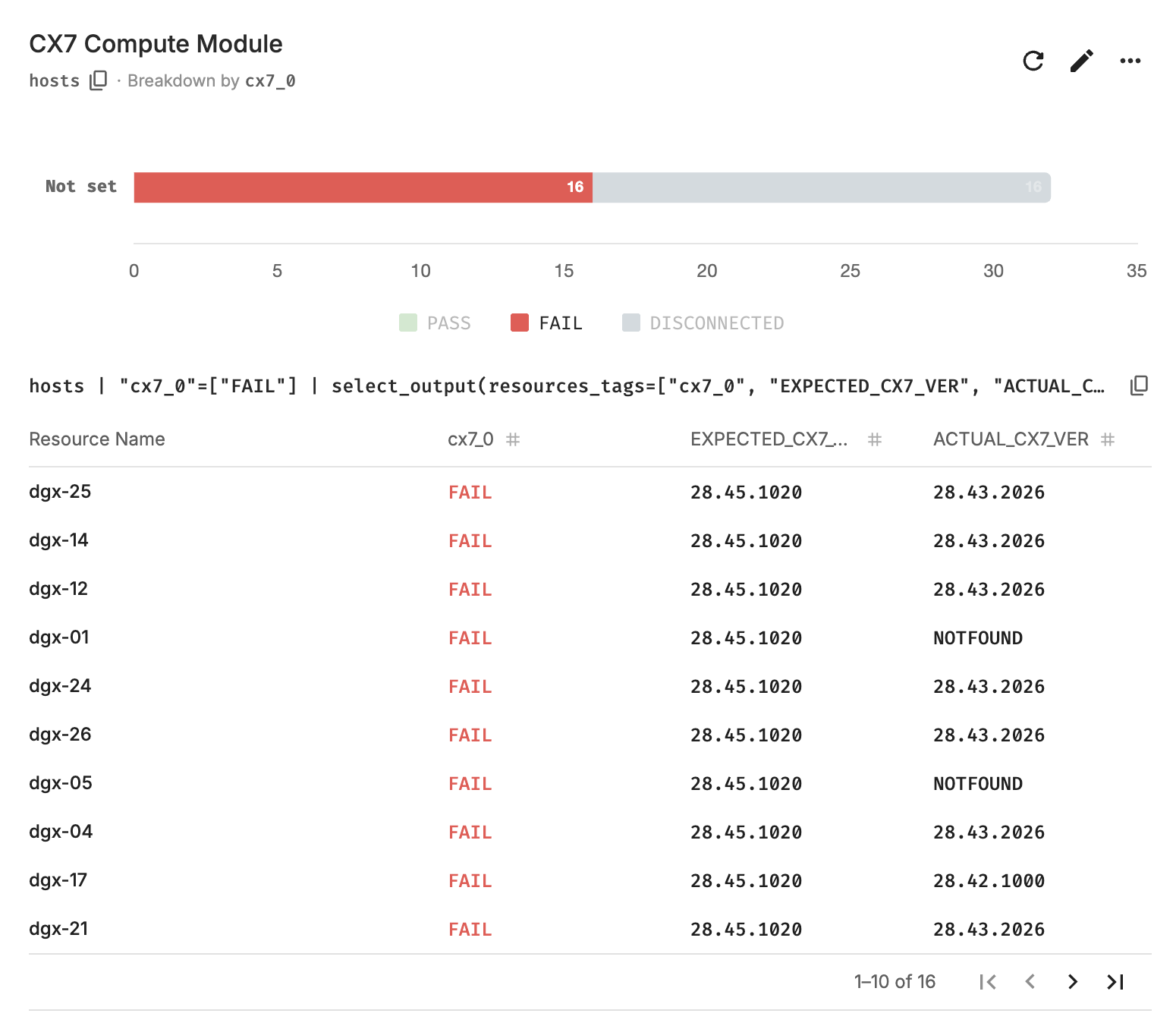
For Firmware Checks, NVIDIA Mission Control autonomous hardware recovery offers a tabular report detailing the status of each node. The report includes:
Pass/Fail Status: Indicates whether the firmware check for each node passed or failed.
Expected Version: Shows the firmware version that was expected for the node.
Current Version: Displays the actual firmware version currently installed on the node.
Navigating to Tabular Report for Firmware Checks#
You can access the SINGLENODE_HEALTHCHECK_FIRMWARE_
report either through the Runs (Check Job Status and Result) section or by navigating to the Runs History (refer to Root Cause Analysis). Scroll to the last cell of the execution and click on the output of the cell.
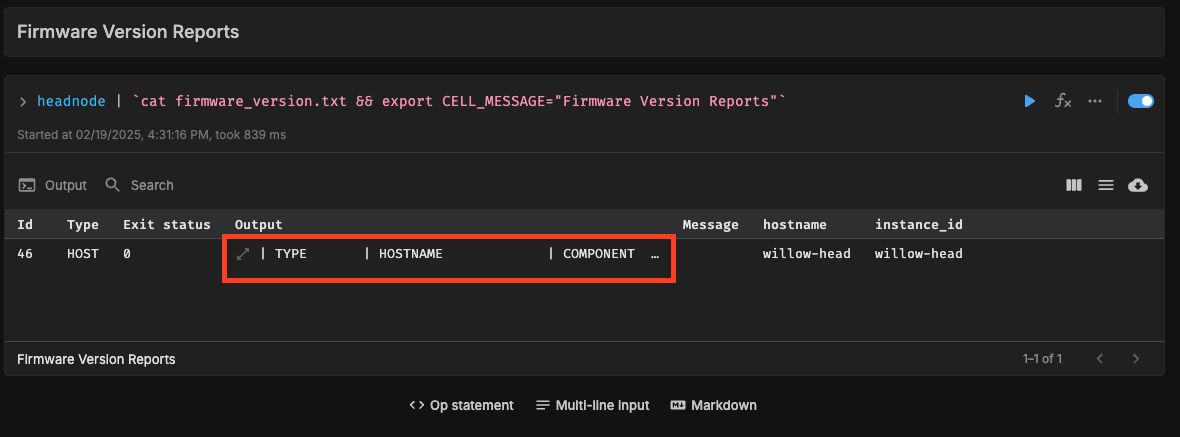
You can scroll horizontally and vertically to view the complete output. Additionally, you have the option to download the cell output for further analysis.
You can also navigate to the Reports section and view the tabular output by clicking on the status bar. This includes both the expected firmware version and the current firmware version.
Resource Dashboard#
NVIDIA Mission Control autonomous hardware recovery dashboard provides a comprehensive view of the status of all resources in the cluster, displaying the progress of testing at various stages for each node (control, compute and switch nodes). It shows which tests are completed, which ones have passed, and which have failed. This allows users to easily track the overall health and status of the cluster, identify any issues, and assess the readiness of each resource.
Navigating to the Resource Dashboard#
From the NVIDIA Mission Control autonomous hardware recovery home page, select the Resources menu, then select Dashboards to open the dashboard page.
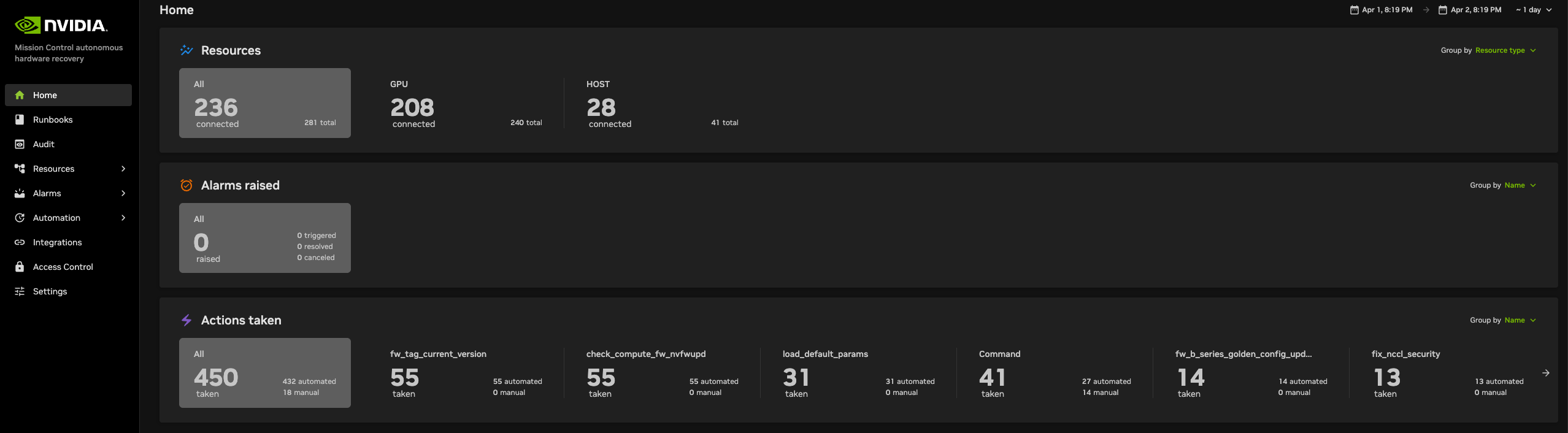
The landing page contains two tabs: Dashboards and Dashboard Views.
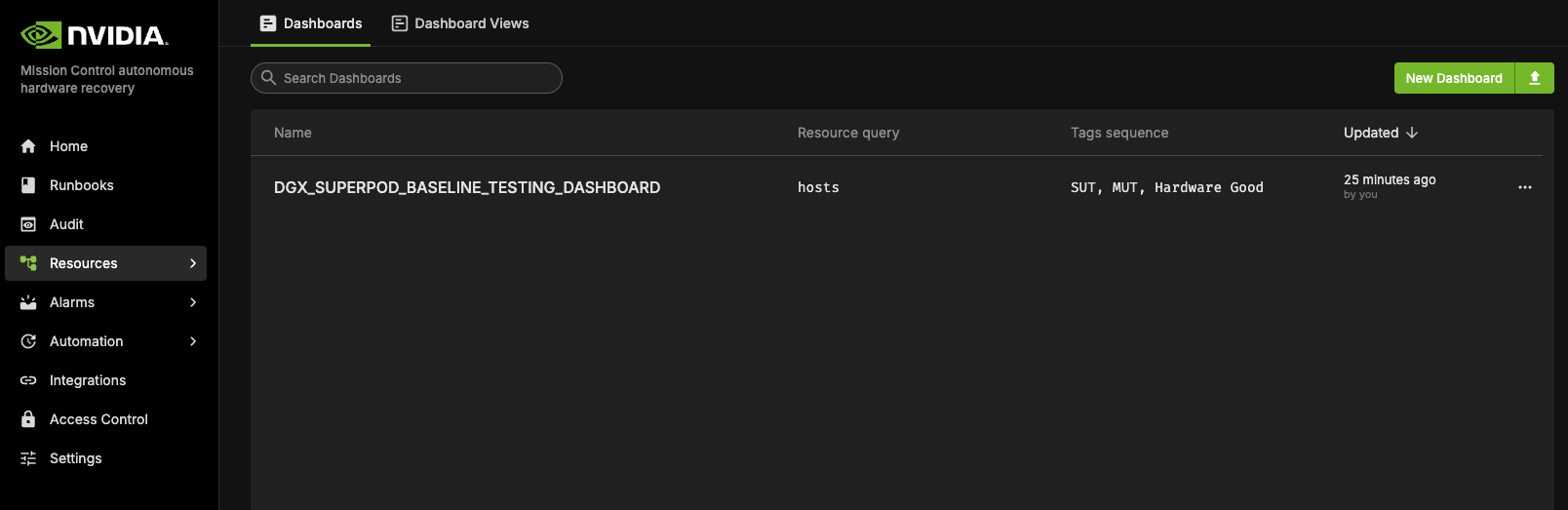
The Dashboards lists all the Dashboards available. All these dashboards reflect the current status of the cluster and the test status.
A Dashboard View is a snapshot of the Dashboard that captures the data at a specific point in time. This snapshot remains static, preserving the exact state and data of the Dashboard as it appeared at that moment, regardless of any future changes or updates to the live data.
DGX_SUPERPOD_BASELINE_TESTING_DASHBOARD#
The DGX_SUPERPOD_BASELINE_TESTING_DASHBOARD provides a detailed view of the cluster’s resources and the status of the baseline tests. Specifically, it tracks the progress of two key testing phases for each resource: SUT and MUT.
Resource Status: The dashboard displays all resources within the cluster, such as compute nodes, control nodes, and switch nodes, along with their associated status.
Hostname: For each resource, you will see the hostname, along with a Tag sequence that indicates the stage of both the SUT and MUT tests.
Test Stage Progress: The rows in the dashboard reflect the current status of each test stage. Each stage (SUT and MUT) has a corresponding tag name that visually represents its test progress, showing whether the stage has been successfully completed, is in progress, or has failed.
Snapshot of Cluster Health: The dashboard offers a comprehensive snapshot of the cluster’s readiness. It allows users to identify potential issues early, track the completion status of tests, and quickly assess which resources are ready and which ones may require attention.
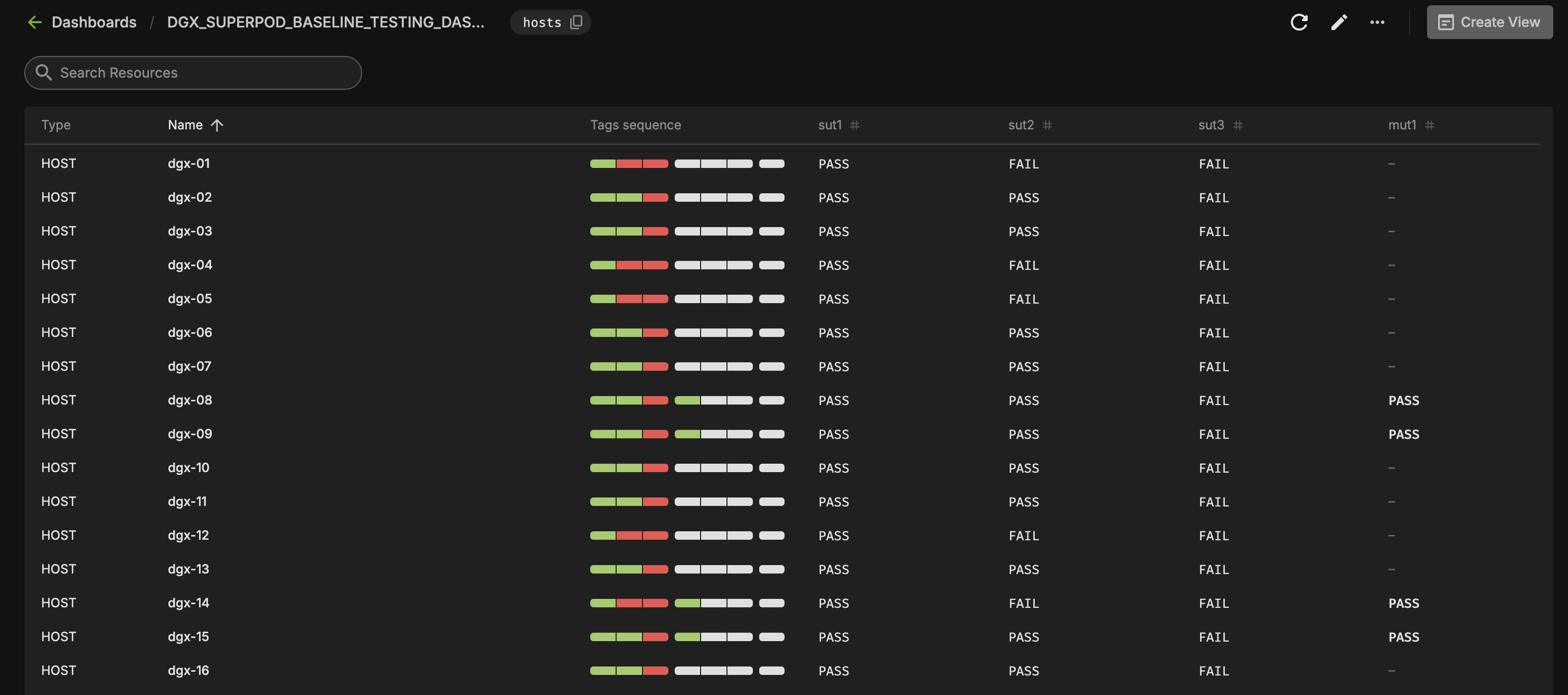
The dashboard allows you to sort the resources by Name, or Progress Bar, making it easier to organize and view the status of your cluster based on your preferred criteria.
Name: Sort resources alphabetically by their hostname for quick access.
Progress Bar: Sort by test progress to focus on resources at different stages of testing or to identify incomplete tasks.
Creating a View / Snapshot#
To create a snapshot of the dashboard, follow these steps.
Select Create View in the top-right corner of the screen.
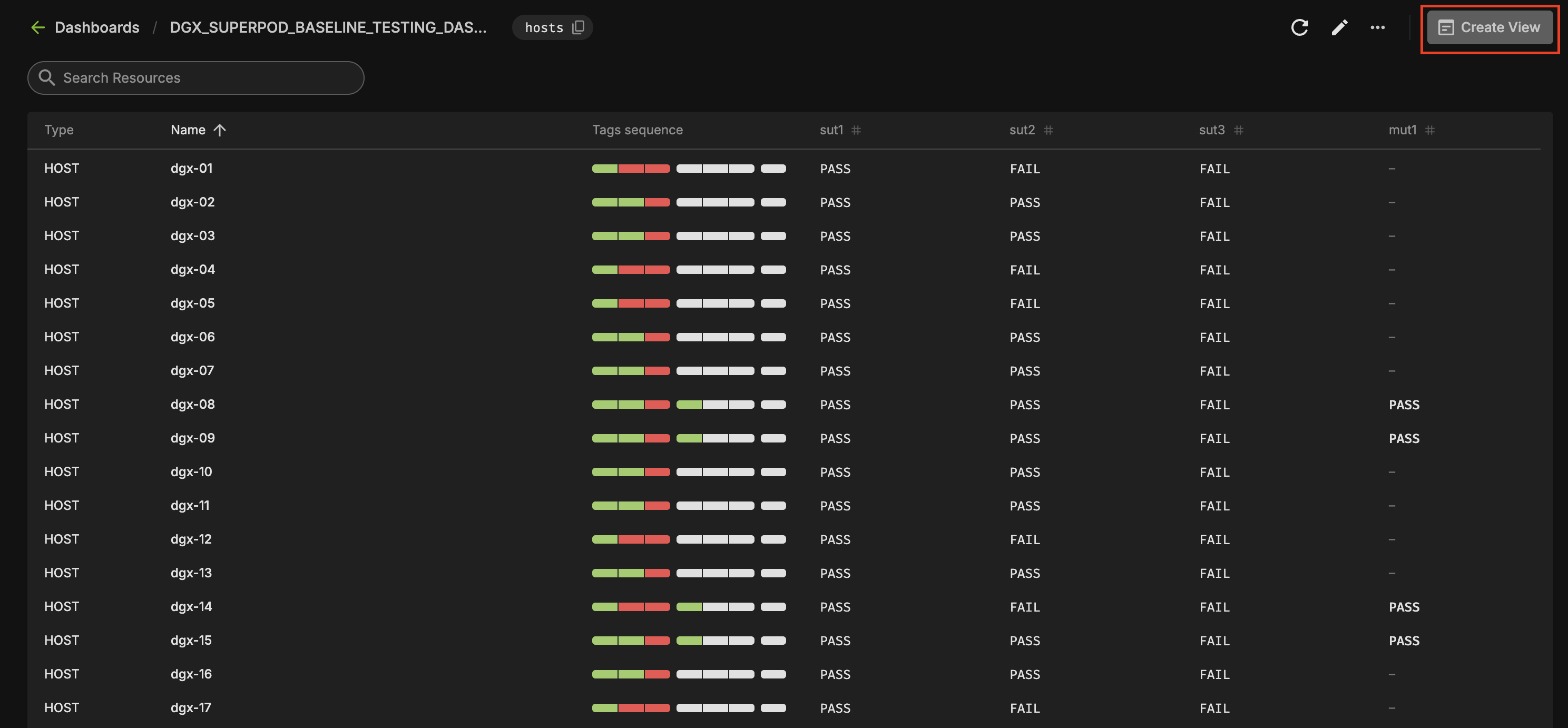
Retain the auto-generated name for the dashboard which includes the timestamp or provide your own name.
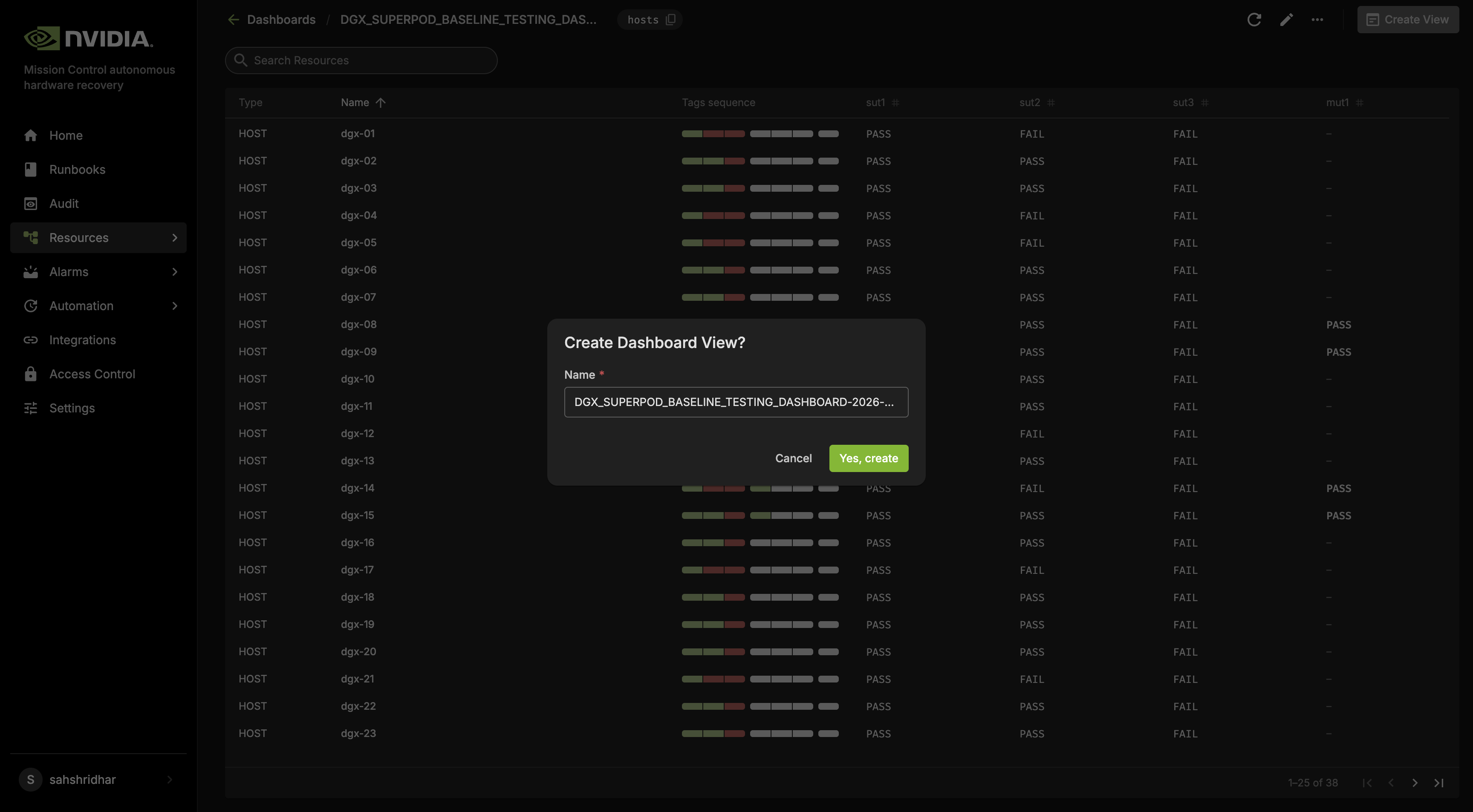
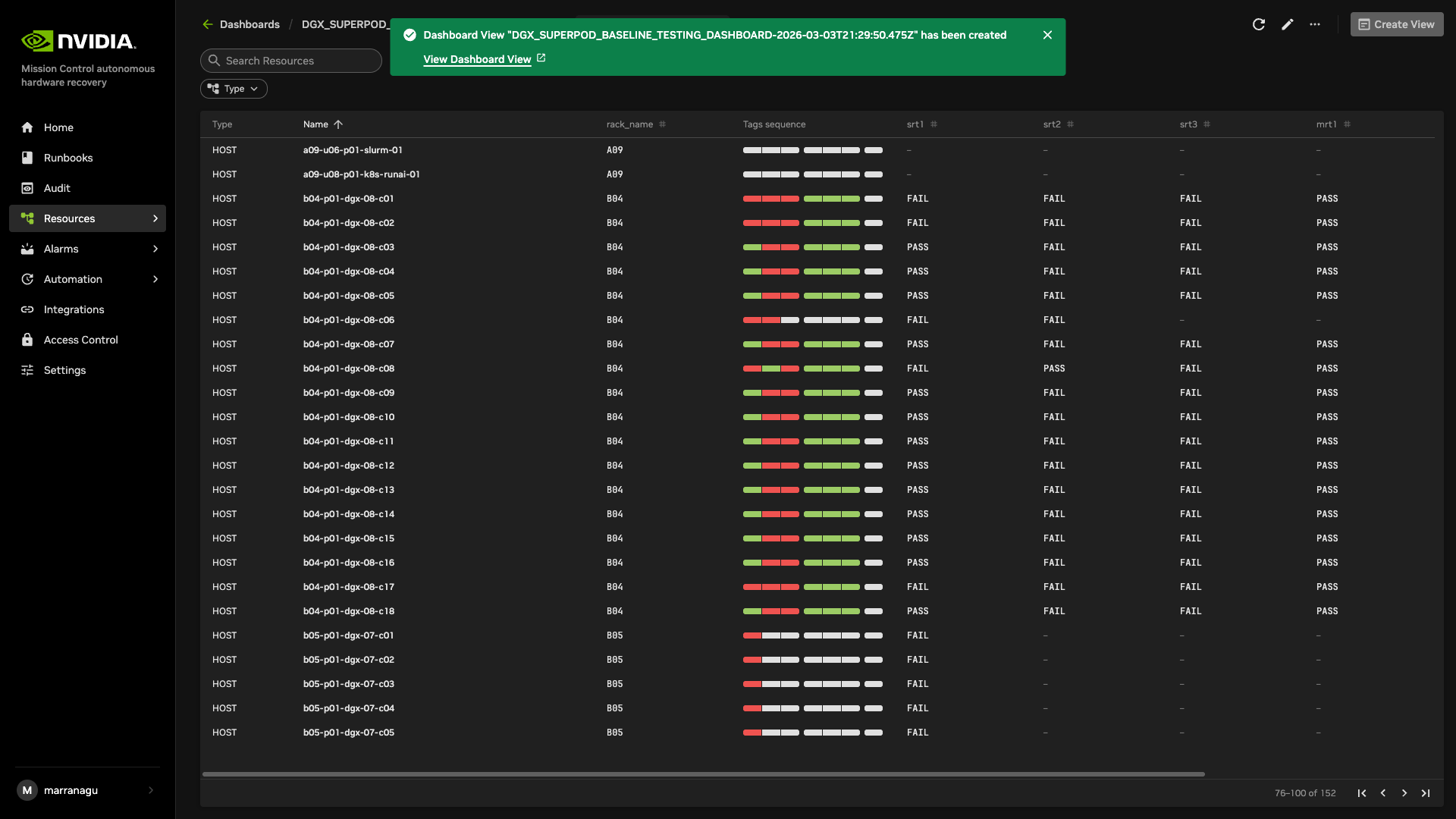
Once the Dashboard View is created, a pop-up notification will appear with a hyperlink to access the Dashboard View.
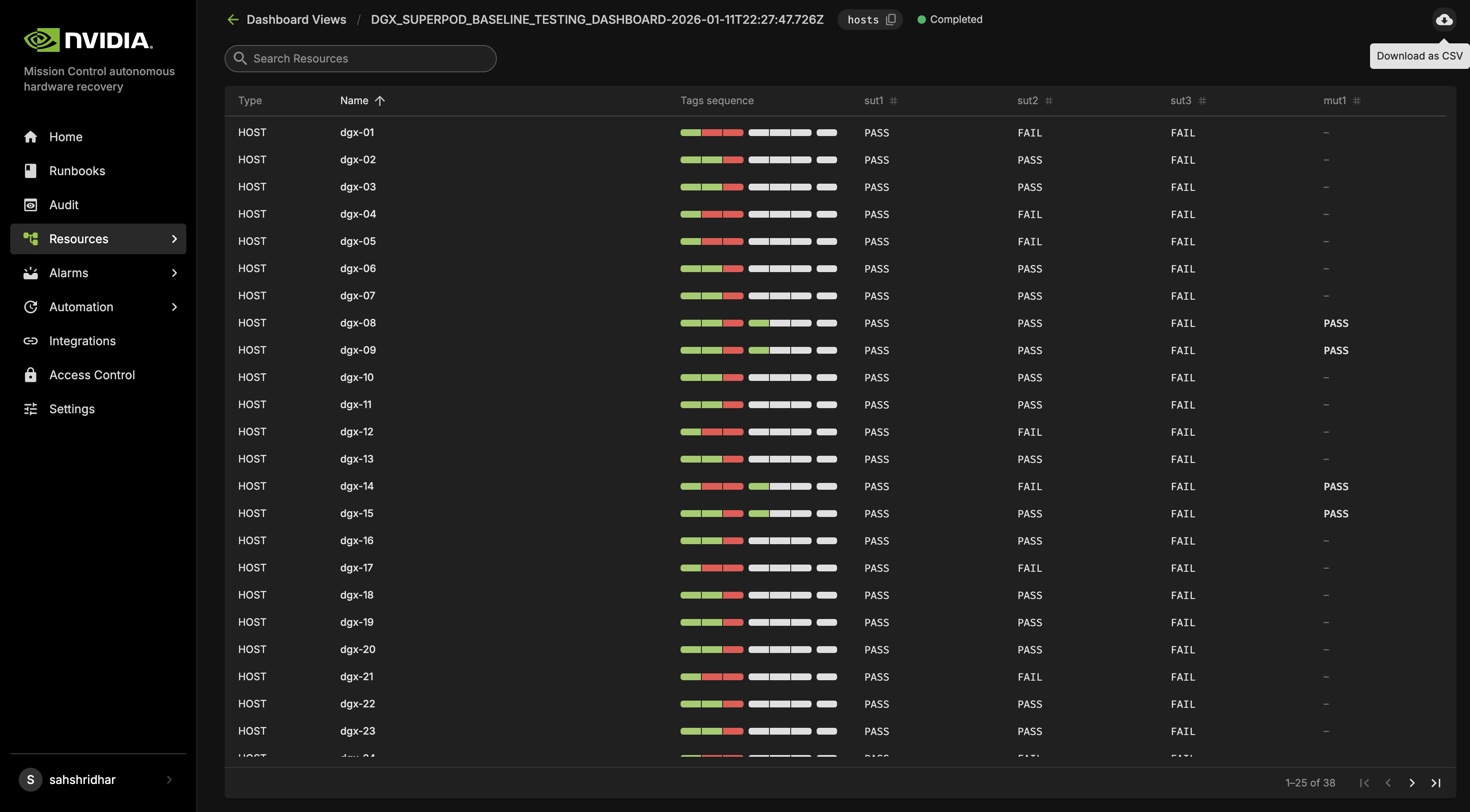
The Dashboard View created can be downloaded as a CSV to further manipulate the data to generate reports.
Platform-specific baseline runbooks#
Select a platform family to see the complete child-runbook inventory for each SUT and MUT stage. The entry-point rows explain the stage; the child rows identify the checks and workloads that the stage invokes. Optional FIO rows are deployed only when storage-performance testing is enabled.
On GB300 and GB200, the NCCL_TEST_MPIRUN and HPL_TEST_MPIRUN runbooks check fabric NIC health before they pull containers or start a run. If any selected node enumerates fewer healthy fabric NICs than its peers, the runbook reports how many nodes are affected and fails without running the benchmark. Without the preflight the run proceeds and fails later inside communicator setup, where the error is attributed to the first host in the job rather than the deficient one, or completes with a degraded bandwidth number that reads as a performance regression instead of a fabric fault. The other platforms do not run this preflight.
GB300 uses the rack-scale HPL-MxP stage inventory.
Stage |
Runbooks and descriptions |
|---|---|
SUT1 |
|
SUT2 |
|
SUT3 |
|
MUT1 |
|
MUT2 |
|
MUT3 |
|
GB200 uses standard-precision HPL while retaining the rack-scale power-shelf and multi-node fabric checks.
Stage |
Runbooks and descriptions |
|---|---|
SUT1 |
|
SUT2 |
|
SUT3 |
|
MUT1 |
|
MUT2 |
|
MUT3 |
|
B300 uses the node-scale HPL-MxP stage inventory.
Stage |
Runbooks and descriptions |
|---|---|
SUT1 |
|
SUT2 |
|
SUT3 |
|
MUT1 |
|
MUT2 |
|
MUT3 |
|
B200 uses standard-precision HPL and the node-scale fabric paths.
Stage |
Runbooks and descriptions |
|---|---|
SUT1 |
|
SUT2 |
|
SUT3 |
|
MUT1 |
|
MUT2 |
|
MUT3 |
|
VR uses the rack-scale HPL-MxP stage inventory. Platform thresholds and firmware baselines remain VR-specific.
Stage |
Runbooks and descriptions |
|---|---|
SUT1 |
|
SUT2 |
|
SUT3 |
|
MUT1 |
|
MUT2 |
|
MUT3 |
|
Firmware upgrades#
Use FIRMWARE_UPGRADE as the current entry point. The rack-scale and node-scale runbook families have different parameters and child workflows, so use the diagram and platform tab for the target architecture. For required path fields that are not used, retain the literal default none; an empty value is not a skip value.
Both families deploy DEBUG_FIRMWARE_UPGRADE_FAILURE, which collects the firmware upgrade debug log from the selected compute nodes using their BMC credentials. The rack-scale parent runs it after the compute branch whenever a compute package path was supplied, and the node-scale compute BMC and HGX upgrade runbooks run it after their upgrade step, before the pass or fail result is recorded. It runs on those paths regardless of the outcome, and it only collects evidence: it does not retry, resume, or roll back an upgrade.
Note
Platform tabs are intentionally self-contained Unlike the compact Break/Fix tabs, every firmware tab repeats the complete operator procedure. A reader should be able to plan, execute, validate, and recover a firmware upgrade without switching to another platform tab.
NVOS upgrade#
The NVOS upgrade path depends on the platform. FIRMWARE_UPGRADE_SWITCH selects the correct runbook for the platform it runs on, and the choice is not configurable.
Platform |
Runbook |
Transport |
Requires |
|---|---|---|---|
GB300 |
|
NetQ NMX REST API |
NetQ reachable from the BCM head node |
GB200 |
|
NetQ NMX REST API |
NetQ reachable from the BCM head node |
VR |
|
|
Switch SSH reachable from the BCM head node |
On every platform, each NVLink switch in the selected rack is upgraded concurrently. There is no per-switch or rolling mode.
Running an NVOS upgrade
Set both FWPKG_DIR_PATH_SWITCH and NVOS_FILE_PATH on FIRMWARE_UPGRADE. FIRMWARE_UPGRADE_SWITCH is reached only when the switch package directory is set, so NVOS is upgraded together with switch firmware; an NVOS-only run through the parent is not supported.
Important
Always start an NVOS upgrade from FIRMWARE_UPGRADE. Both BreakFix_NVOS_Upgrade_NetQ and BreakFix_NVOS_Upgrade are child workflows: they perform no compute drain, apply no maintenance tag, and run no post-upgrade validation, because the parent owns all three. Running either alone upgrades and reboots the switches without those safeguards while compute nodes are still in service.
NVOS upgrades on the NVLink switches are performed through the NetQ NMX REST API. BreakFix_NVOS_Upgrade_NetQ uploads the NVOS image to NetQ, asks NetQ to upgrade the switches, and polls NetQ until the operation reaches a terminal state. AHR does not open an SSH session to any switch. A NetQ deployment reachable from the BCM head node is required; switch SSH reachability is not.
Prerequisites
The NetQ NMX API answers from the BCM head node.
FIRMWARE_UPGRADE_SWITCHdoes not setNETQ_LINK, so an NVOS upgrade uses the defaultlocalhost.The BCM head node can read the Kong credential from Kubernetes. The run reads the secret
rw-user-passwordin thenetq-infranamespace using/root/.kube/config-k8s-admin. If the kubeconfig, namespace, or secret is missing, the run fails at “Failed to fetch Kong password from Kubernetes”.Switch credentials are present in BCM and identical across the rack. All NVLink switches share one NetQ profile built from the first switch’s credentials, so they must use the same NVOS account and password.
How AHR authenticates to NetQ
The runbook reads the Kong rw-user password from the Kubernetes secret rw-user-password in the netq-infra namespace, using /root/.kube/config-k8s-admin on the BCM head node. It authenticates to the NMX API as rw-user over HTTPS using basic authentication supplied through a temporary, mode-0600 .netrc file that is removed after each call. TLS certificate verification is not performed. The endpoint is set by NETQ_LINK, which defaults to localhost; FIRMWARE_UPGRADE_SWITCH does not override it. Switch credentials are read from BCM accesssettings, the switch-OS account, not the bmcsettings account used for compute nodes.
Upgrade sequence
Step |
Timeout |
|---|---|
Confirm the NVOS image exists and is readable on the BCM head node |
2m |
Resolve the NVLink switches for the rack |
— |
Read switch IPs and credentials from BCM into a per-run credential file |
10m |
Confirm the credential file is present and non-empty |
2m |
Read the Kong password from Kubernetes |
5m |
Create a shared NetQ switch profile |
5m |
Upload the NVOS image to NetQ and resolve its image ID |
60m |
Trigger one upgrade operation covering every switch in the rack |
5m |
Poll the operation every 30 seconds until it reaches a terminal state |
1h |
Stage the image in BCM and update each switch ZTP image setting |
10m each |
Delete the NetQ profile and image, and remove the credential file |
5m |
Terminal states are completed, failed, and cancelled. Only completed is a success. If a step before the trigger fails, the runbook deletes whatever NetQ profile and image it already created and removes the credential file, so a failed run does not leave stale entries in NetQ.
Note
All switches in a rack share one NetQ switch profile, built from the credentials of the first switch in the credential file. NVOS credentials must therefore be identical across every NVLink switch in the rack. A switch with different credentials fails inside the NetQ operation rather than at credential validation.
On completion the runbook stages the NVOS image in BCM and updates each switch ZTP image setting, so that a later reprovision installs the new image rather than the previous one. It then deletes the switch profile and the uploaded image from NetQ and removes the credential file.
NVOS upgrades on the NVLink switches are performed through the NetQ NMX REST API. BreakFix_NVOS_Upgrade_NetQ uploads the NVOS image to NetQ, asks NetQ to upgrade the switches, and polls NetQ until the operation reaches a terminal state. AHR does not open an SSH session to any switch. A NetQ deployment reachable from the BCM head node is required; switch SSH reachability is not.
Prerequisites
The NetQ NMX API answers from the BCM head node.
FIRMWARE_UPGRADE_SWITCHdoes not setNETQ_LINK, so an NVOS upgrade uses the defaultlocalhost.The BCM head node can read the Kong credential from Kubernetes. The run reads the secret
rw-user-passwordin thenetq-infranamespace using/root/.kube/config-k8s-admin. If the kubeconfig, namespace, or secret is missing, the run fails at “Failed to fetch Kong password from Kubernetes”.Switch credentials are present in BCM and identical across the rack. All NVLink switches share one NetQ profile built from the first switch’s credentials, so they must use the same NVOS account and password.
How AHR authenticates to NetQ
The runbook reads the Kong rw-user password from the Kubernetes secret rw-user-password in the netq-infra namespace, using /root/.kube/config-k8s-admin on the BCM head node. It authenticates to the NMX API as rw-user over HTTPS using basic authentication supplied through a temporary, mode-0600 .netrc file that is removed after each call. TLS certificate verification is not performed. The endpoint is set by NETQ_LINK, which defaults to localhost; FIRMWARE_UPGRADE_SWITCH does not override it. Switch credentials are read from BCM accesssettings, the switch-OS account, not the bmcsettings account used for compute nodes.
Upgrade sequence
Step |
Timeout |
|---|---|
Confirm the NVOS image exists and is readable on the BCM head node |
2m |
Resolve the NVLink switches for the rack |
— |
Read switch IPs and credentials from BCM into a per-run credential file |
10m |
Confirm the credential file is present and non-empty |
2m |
Read the Kong password from Kubernetes |
5m |
Create a shared NetQ switch profile |
5m |
Upload the NVOS image to NetQ and resolve its image ID |
60m |
Trigger one upgrade operation covering every switch in the rack |
5m |
Poll the operation every 30 seconds until it reaches a terminal state |
1h |
Stage the image in BCM and update each switch ZTP image setting |
10m each |
Delete the NetQ profile and image, and remove the credential file |
5m |
Terminal states are completed, failed, and cancelled. Only completed is a success. If a step before the trigger fails, the runbook deletes whatever NetQ profile and image it already created and removes the credential file, so a failed run does not leave stale entries in NetQ.
Note
All switches in a rack share one NetQ switch profile, built from the credentials of the first switch in the credential file. NVOS credentials must therefore be identical across every NVLink switch in the rack. A switch with different credentials fails inside the NetQ operation rather than at credential validation.
On completion the runbook stages the NVOS image in BCM and updates each switch ZTP image setting, so that a later reprovision installs the new image rather than the previous one. It then deletes the switch profile and the uploaded image from NetQ and removes the credential file.
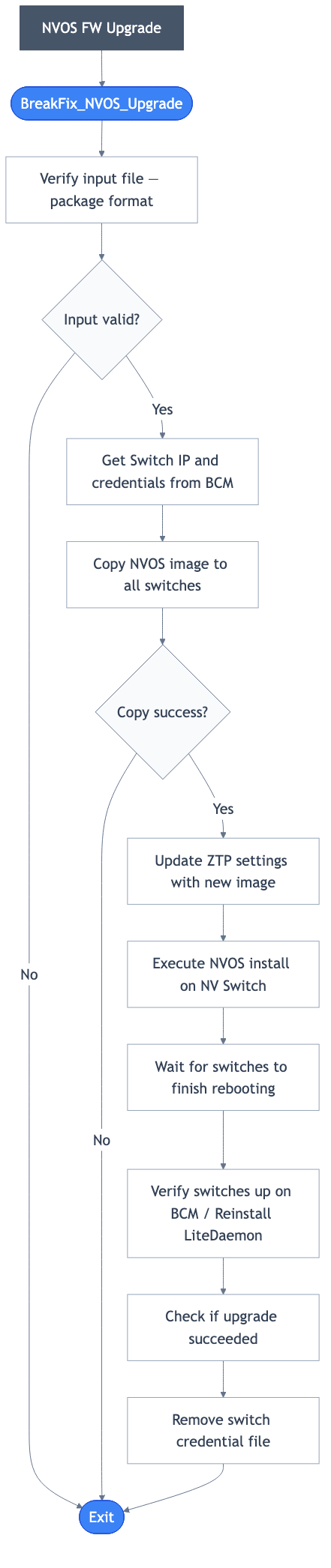
On VR the NVOS image is installed directly on each switch. BreakFix_NVOS_Upgrade copies the image to every NVLink switch with scp, runs nv action install system image files over SSH, waits for the switches to reboot, and reads back the running version. NetQ is not involved, so a NetQ deployment is not required for a VR NVOS upgrade.
Prerequisites
Every NVLink switch answers SSH from the BCM head node with the credentials stored in BCM
accesssettings, which is the switch-OS account, not thebmcsettingsaccount used for compute nodes.Each switch has enough free space for the NVOS image, which is copied to the switch before it is installed.
Each switch is contacted with its own credentials, so NVLink switches on a VR rack are not required to share an NVOS account and password.
Upgrade sequence
Step |
Timeout |
|---|---|
Confirm the NVOS image is a |
1m |
Resolve the NVLink switches for the rack |
— |
Read switch IPs and credentials from BCM into a per-run credential file |
10m |
Copy the NVOS image to every switch with |
10m |
Stage the image in BCM |
1m |
Update each switch ZTP image setting |
10m |
Install the image on each switch over SSH |
20m |
Wait for the switches to reboot |
25m |
Confirm each switch answers SSH again, retrying every 20 seconds |
15m |
Reinstall the BCM LiteDaemon on each switch |
10m |
Verify the running NVOS version on each switch |
30m |
Remove the credential file |
1m |
The run fails if any switch does not return to service after the reboot or reports an NVOS version other than the one supplied. A failure reports its exit code to FIRMWARE_UPGRADE_SWITCH, which fails the parent run rather than continuing as though the flash had succeeded.
Note
After issuing the install, the runbook waits a fixed 20 minutes before it begins checking the switches. Allow at least that long for a VR NVOS upgrade when planning a maintenance window.
Important
The image is staged in BCM and each switch ZTP image setting is updated before the install is attempted, and neither is reverted if the install does not succeed. After a failed or partial upgrade, verify the ZTP image setting on the affected switches before you reprovision them, otherwise a reprovision installs the image that did not complete.
On every platform, switch NVOS and NMX component versions are validated after the upgrade by SINGLENODE_HEALTHCHECK_FIRMWARE_SWITCH against the SOT.
Rack-scale firmware flow#
This flow applies to GB300, GB200, and VR. On all three platforms the parent invokes the compute child when FWPKG_DIR_PATH_COMPUTE or FWPKG_BF_FILE_PATH is not none, so a BlueField-only run reaches the network child without a compute package. On GB300 and GB200, FWPKG_CX_FILE_PATH invokes the compute child in the same way; VR has no ConnectX leg and does not expose that parameter. The switch child still requires FWPKG_DIR_PATH_SWITCH, so an NVOS-only parent run is not supported.
Node-scale firmware flow#
This flow applies to B200 and B300. B200 exposes MELLANOX_FIRMWARE_PATH; B300 exposes BF3_FIRMWARE_PATH instead because CX-8 is upgraded with the GPU tray. The parent runs selected children sequentially. Each child owns its maintenance tag, drain, and end-of-run undrain and untag. On B300 the parent suppresses the HGX and BF-3 children’s power cycles and performs a single platform AC cycle after the selected children return, then waits for the hosts and their agents. The BMC child still performs its own BMC cold reset, which is required between its BMC and motherboard passes. Firmware validation is not platform-specific: every child runs with validation disabled, and the parent runs SINGLENODE_HEALTHCHECK_FIRMWARE once at the end for both B200 and B300.
Firmware Upgrades
Overview
VR uses the rack-scale FIRMWARE_UPGRADE parent workflow. This tab repeats the complete operator process and then documents the VR-specific BF4 path in detail. Supported component paths are:
Compute DGX and HGX packages through FIRMWARE_UPGRADE_COMPUTE.
NVLink-switch BMC/ERoT/FPGA, CPLD, BIOS, and optional NVOS through FIRMWARE_UPGRADE_SWITCH.
BlueField-4 through the VR-specific BreakFix_Firmware_Upgrade_Mellanox_BF4 child.
Power-shelf PMC and PSU through FIRMWARE_UPGRADE_POWERSHELF.
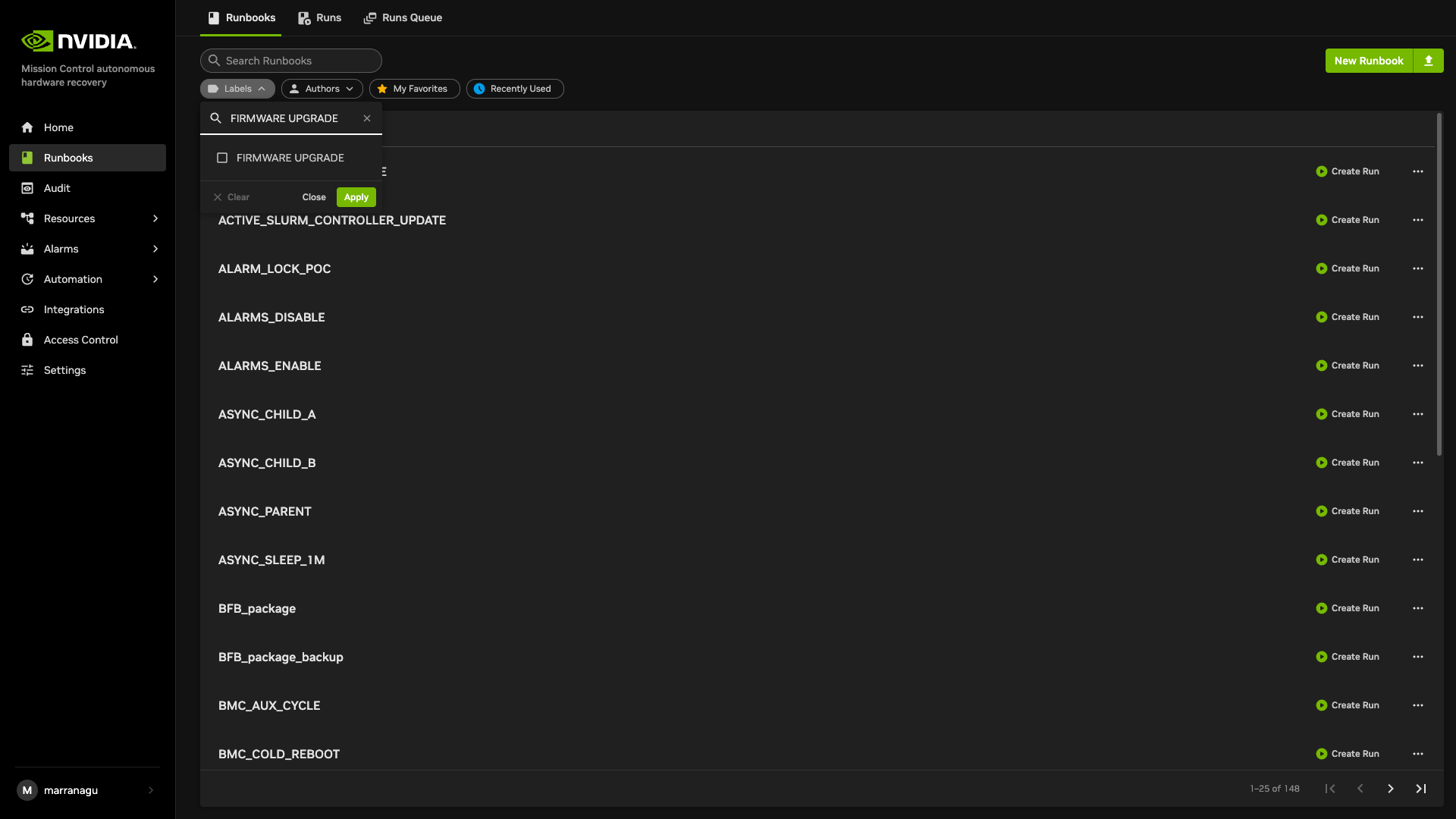
Find the Runbook
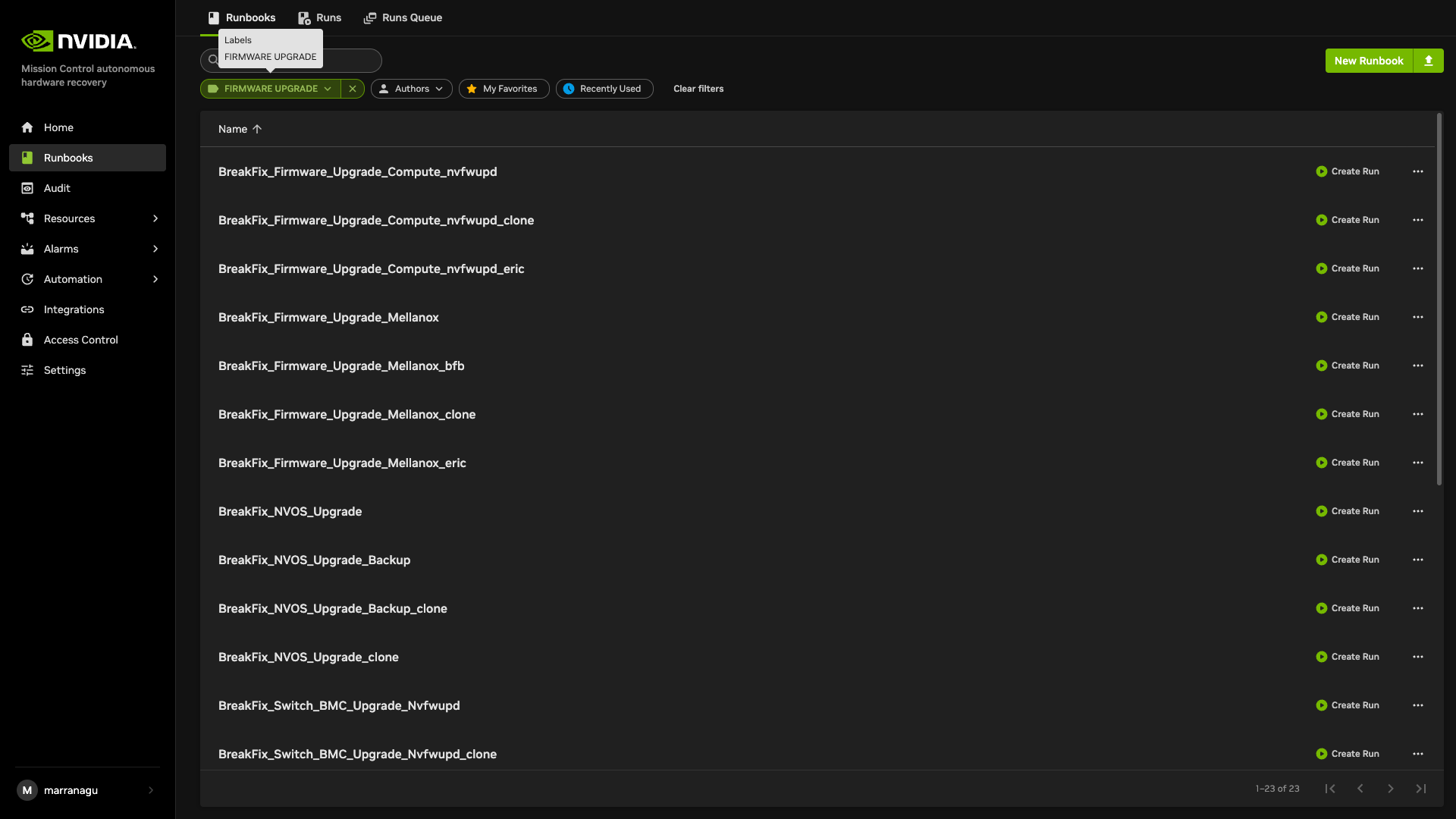
Search the Runbooks view for FIRMWARE_UPGRADE and create a run from the parent. The GB300 Runbooks screenshots are also valid for locating the VR parent and its component runbooks.
Preparing the Upgrade
Obtain the VR compute, switch, NVOS, BF4, PSU, and PMC packages required by the release plan, plus the matching VR SOT JSON.
Place all files on the BCM head node under a path readable by AHR, such as
/cm/shared/apps/autonomous-hardware-recovery/var/firmware/.Confirm compute-node BMC reachability, AHR-agent connectivity, switch credentials in BCM, and sufficient access to the DPU BMCs for BF4 Redfish operations.
Review the SOT before enabling validation. Use the VR SOT supplied with the release.
Source of Truth Structure (Illustrative)
No certified VR SOT is checked into the repository. This block shows only the structure consumed by fw_vr_golden_config_update.sh; use release-supplied component names and versions.
{
  "Milestones": [
    {
      "BoardSKUs": [
        {
          "Components": {
            "Firmware": [
              {
                "Component": "<VR component name from certified SOT>",
                "Version": "<certified version>",
                "SubComponents": []
              }
            ],
            "Software": []
          }
        }
      ]
    }
  ]
}
VR validation intentionally omits GB300-only compute HMC-FPGA/backplane-CPLD and switch FPGA/CPLD3/CPLD4 checks. The switch ASIC expectation is EXPECTED_SWITCH_ASIC_VER (Quantum-X4/QM4) loaded from the runtime SOT.
Coordination and Maintenance
The parent resolves the compute scope with resource_tag, resource_value, and IGNORE_LIST; separately resolves NVLink switches and power shelves; rejects a scope in which every compute node is already in maintenance; creates BMC credentials; filters unreachable compute nodes; tags reachable nodes maintenance=true; and drains them through BCM. It then starts the selected compute, switch, and power-shelf branches asynchronously. The parent waits up to seven hours for compute, two hours for switch, and three hours for power shelf before activation and cleanup. These are timeout ceilings, not expected durations: a successful compute upgrade normally completes in about two hours. A run still going as it approaches the seven-hour limit indicates a stalled component rather than normal progress, and is worth investigating before the timeout fires.
A switch-only, NVOS-associated, or power-shelf-only parent run still executes the parent compute-node scoping, maintenance, and drain stages. Review the resolved compute, switch, and power-shelf resources before starting.
Ordering Constraints
The runbooks automatically determine the ordering of applicable packages and AUX cycle nodes when appropriate. The following is informational only; there is no requirement for the operator to enforce it.
For the compute tray, older firmware packages require the BMC to be upgraded prior to HMC, but this is no longer the case with modern firmware. Both BMC and HMC can be upgraded within a single AC cycle. For the switch tray, the BMC firmware is updated first; SBIOS and CPLD packages may be upgraded within the same AC cycle. For the BF4 DPU, the single PLDM bundle stages the DPU BMC, Grace SBIOS, and ERoT together; activation is deferred to the parent’s consolidated AUX cycle, which also activates any staged compute and switch images. The runbooks take care of this ordering for you.
Parent Parameters
Create a run for FIRMWARE_UPGRADE. Required path fields must use the literal none when unused; an empty value is not a skip value.
Refer to Rack-scale firmware flow for the current parent workflow diagram, which includes the BF4-triggered compute branch and the power-shelf branch.
resource_tag – Resource attribute, normally
rack_name.resource_value – Matching value or expression, for example
A01orA01|A02.IGNORE_LIST – Compute and power-shelf exclusions; default
none. Verify switch scope separately because the switch query is resolved independently.FW_SOURCE_JSON_PATH – Path to the certified VR SOT JSON, or
NAonly when validation data is intentionally unavailable.FWPKG_DIR_PATH_COMPUTE – Compute package directory, or
none.FWPKG_DIR_PATH_SWITCH – Switch package directory, or
none. This path is required to reach the switch child, including an NVOS upgrade through the parent.NVOS_FILE_PATH – NVOS
.binimage, ornone.FWPKG_BF_FILE_PATH – Readable BF4 Redfish/PLDM
.fwpkgbundle, ornone. On VR this is the BlueField-4 field; on GB200 and GB300 the same parameter is the in-band BlueField.binor.bfbpackage.BF4_OS_ISO_PATH – Absolute path to a DPU OS ISO on the BCM head node, or
none. Leave it atnoneunless the release plan calls for a DPU re-image, as described in the following warning.FWPKG_PSU_FILE_PATH and FWPKG_PMC_FILE_PATH – Power-shelf packages, each set to a real path or
none.FORCE_UPGRADE – Default
false; on BF4,truesendsForceUpdateto Redfish.ENABLE_RETRY – Default
true, up to three attempts total for supported compute, switch, and BF4 operations.AUX_CYCLE and VALIDATE_FW_UPG – Defaults
true; leave enabled for normal parent runs.
Warning
Setting BF4_OS_ISO_PATH to a path chains BF4_OS_INSTALL onto the end of a successful BF4 firmware upgrade, which destructively re-images the DPU operating system on every DPU whose firmware upgrade succeeded. Leave the parameter at none for a firmware-only run.
Supported Parent Scenarios
Scenario |
Set these paths |
Important behavior |
|---|---|---|
Compute only |
|
Keep switch, NVOS, BF4, PSU, and PMC paths at |
Switch with optional NVOS |
|
NVOS is upgraded as part of a switch run. Set FWPKG_DIR_PATH_SWITCH and NVOS_FILE_PATH together; an NVOS-only parent run is not supported. |
BF4 only |
|
VR invokes the compute child even when the compute directory is |
BF4 with a DPU OS re-image |
|
After a successful firmware upgrade the BF4 child chains |
Power shelf |
PSU and/or PMC path |
The power-shelf child runs asynchronously with compute and switch; PMC runs before PSU inside the child. |
What the parent does
Resolve compute, NVLink-switch, and power-shelf resources; create compute BMC credentials; tag and drain reachable compute nodes.
Start FIRMWARE_UPGRADE_SWITCH when the switch directory is set.
Start FIRMWARE_UPGRADE_COMPUTE when the compute directory or BlueField path is set. Inside it, DGX and HGX packages run asynchronously; the BF4 child starts when FWPKG_BF_FILE_PATH is not
none.Start FIRMWARE_UPGRADE_POWERSHELF when either power-shelf path is set. It upgrades PMC first and PSU second.
Wait for all selected branches and collect compute debug logs when a compute directory was supplied.
Perform BMC_AUX_CYCLE only when AUX_CYCLE is not
false, at least one DGX/HGX result isPASSor a BF4 path was supplied, and no DGX, HGX, or Mellanox result isFAIL. Switch-only and power-shelf-only parent runs do not AUX-cycle compute nodes.Wait for servers and AHR agents, undrain compute nodes, remove the maintenance tag, then run VR-specific compute and switch validation and, when selected, power-shelf validation.
Compute Firmware
Prerequisites
Stage the VR DGX/HGX package directory and certified SOT on the BCM head node, confirm BMC credentials and reachability for every selected compute node, and leave legacy GB BlueField fields at none.
Upgrading
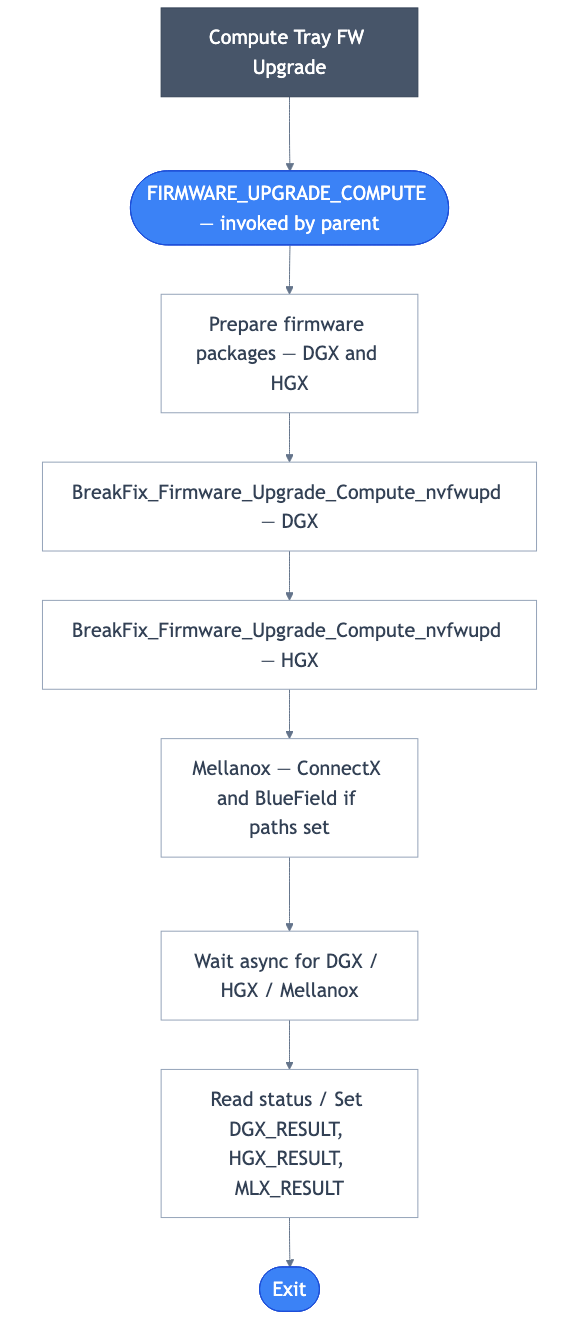
The compute child cannot be run directly because it requires a parent run ID. It prepares the compute directory, discovers DGX and HGX packages, starts those upgrades asynchronously with a short sequencing delay, and returns component results to the parent.
Switch Firmware and NVOS
Prerequisites
Stage the switch package directory and optional NVOS .bin, confirm the NVLink-switch scope, and verify that the switch management IPs answer nvfwupd from the BCM head node with the switch-OS credentials stored in BCM accesssettings. When the run includes an NVOS image, also confirm both of the following; a missing item fails the run before any switch is touched.
Every NVLink switch answers SSH from the BCM head node with the switch-OS credentials stored in BCM
accesssettings. NetQ is not used on VR.Each switch has enough free space for the NVOS image, which is copied to the switch before it is installed.
Upgrading
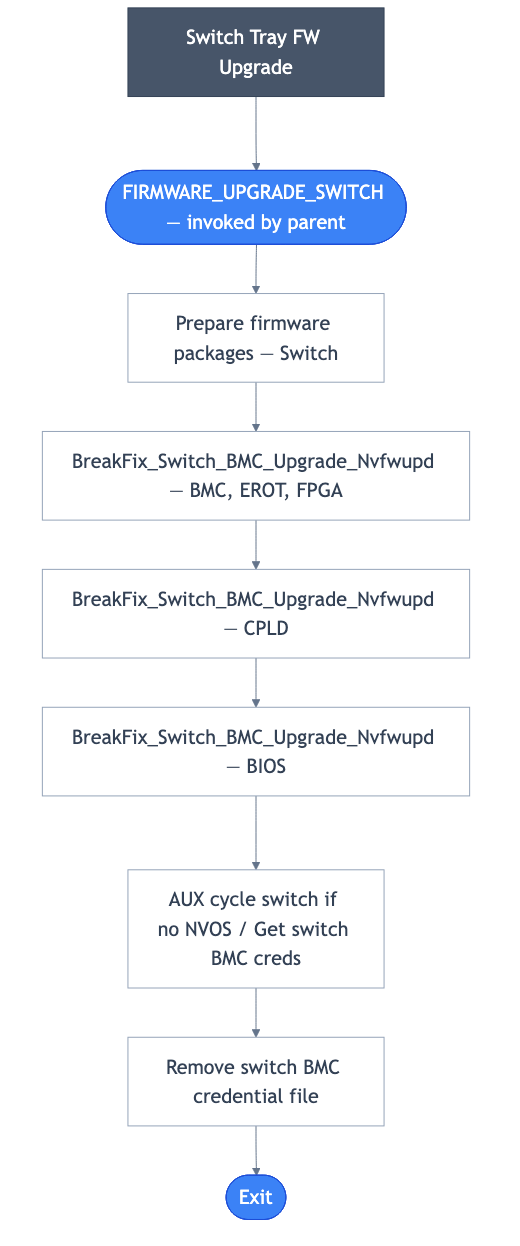
The switch child cannot be run directly. It prepares the package directory and upgrades discovered BMC/ERoT/FPGA packages first, CPLD packages next, and BIOS packages next. When NVOS_FILE_PATH is set it then calls BreakFix_NVOS_Upgrade; otherwise it reads the switch IP and switch-OS credentials from BCM and AUX-cycles the switch with nvfwupd activate_fw. A failure in any child stage stops the switch branch.
BlueField-4 Firmware
Prerequisites
Stage a BF4 PLDM .fwpkg, verify the companion <host>-dpu BCM devices and DPU-BMC credentials, and decide whether the release plan requires Redfish ForceUpdate.
Upgrading
BreakFix_Firmware_Upgrade_Mellanox_BF4 runs the following sequence:
Validate the supplied path. BF4 must be an existing
.fwpkg. If the path isnone, the child fails immediately.Create a timestamped DPU-BMC credential file, record pre-upgrade versions through Redfish, upload the PLDM bundle through the DPU BMC
update-multipartservice with optionalForceUpdateand retry, then record the staged versions and remove the credential file.The single BF4 bundle covers DPU BMC, Grace SBIOS, and ERoT. The child does not power-cycle the node; the parent performs the consolidated BMC_AUX_CYCLE only after the child reports success.
When BF4_OS_ISO_PATH is set, the child then runs
BF4_OS_INSTALLagainst the DPUs whose firmware upgrade passed, destructively re-imaging the DPU operating system.
The BF4 updater adopts an already-running Redfish task instead of uploading a second update. Redfish does not support canceling that task; if it remains active or stalls, stop and follow the approved DPU-BMC recovery/activation procedure rather than starting another concurrent update.
A direct BF4 child run receives INPUT_COMPUTE directly and does not reproduce parent resource selection, maintenance tagging, BCM drain, activation, undrain, or final SOT validation. Use it only within an explicitly reviewed component-only procedure.
Power-shelf Firmware
Prerequisites
Stage the VR PSU and/or PMC packages and certified SOT, then verify the selected power shelves and any IGNORE_LIST exclusions.
Upgrading
The parent selects power shelves with the same resource selector and IGNORE_LIST, then calls FIRMWARE_UPGRADE_POWERSHELF asynchronously. The child upgrades PMC first and PSU second. After parent cleanup, SINGLENODE_HEALTHCHECK_FIRMWARE_POWERSHELF validates against the VR SOT, including VR’s LiteOn PMC naming.
Troubleshooting
Do not assume that every component failure reaches the same cleanup path. Inspect the parent and child run histories to determine whether activation, validation, undrain, and untag completed before returning resources to service.
1. Excluding a node from an upgrade
Set IGNORE_LIST on the parent for compute and power-shelf exclusions. The switch query is independent and does not apply IGNORE_LIST, so verify the resolved switch scope separately before starting.
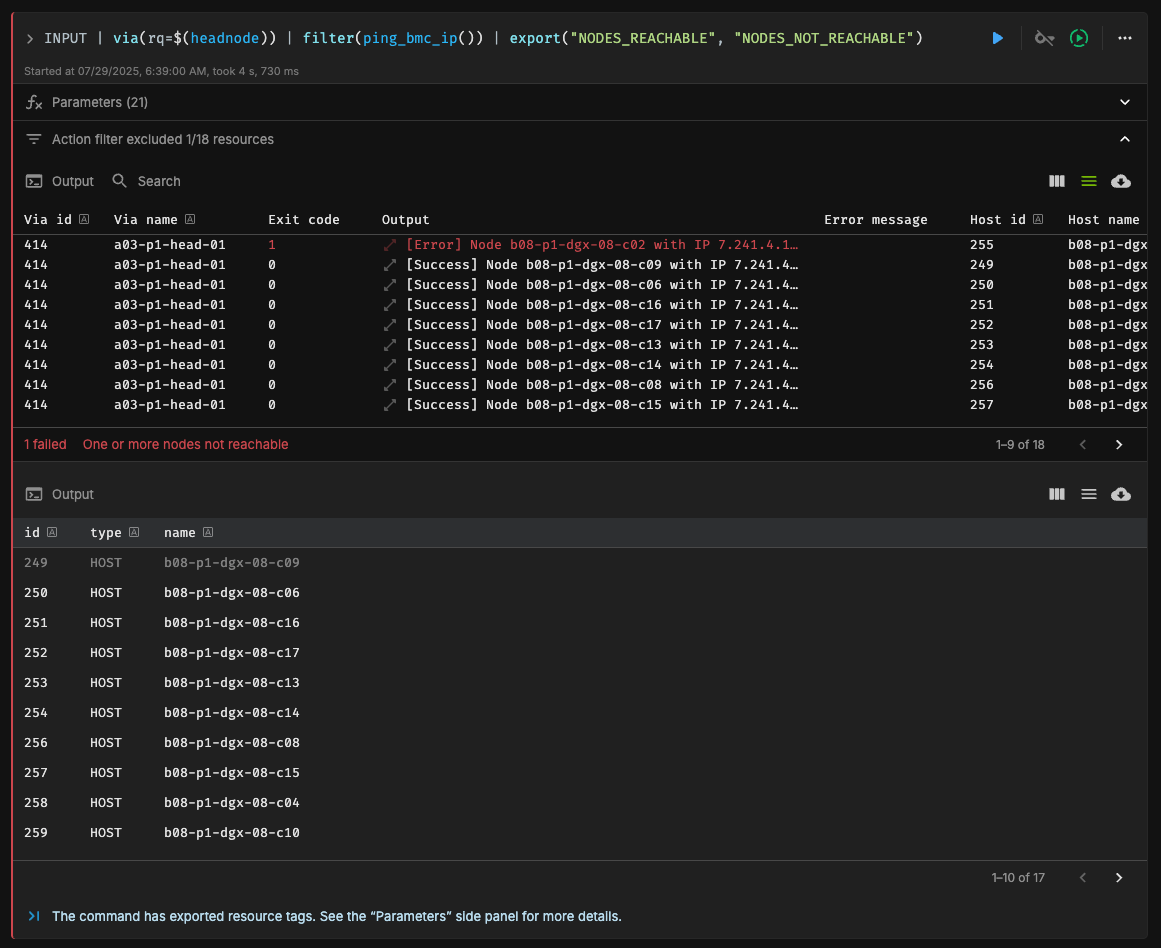
2. Nodes not reachable from BCM head node
To upgrade firmware, the compute-node BMC IP must be accessible from the BCM head node. The parent verifies compute-node accessibility with ping_bmc_ip and automatically removes unreachable nodes from the upgrade scope.
Action: Verify BCM credentials and BMC access from the BCM head node, ensure the node is online, then rerun the FIRMWARE_UPGRADE runbook.
3. Failed firmware upgrade
The firmware upgrade failed to complete successfully. Possible causes include nvfwupd failures on the compute and switch packages, failures on an NVOS upgrade, or BF4 Redfish/PLDM update failures, depending on the selected packages. A BF4 package is rejected unless the path exists as a regular file on the BCM head node and ends in .fwpkg; the check tests the filename and existence only, not the contents of the bundle. Inspect the per-node pass/fail output, because a single failed node sets the Mellanox branch result to FAIL and suppresses the parent’s AUX activation cycle for the entire scope, leaving successfully staged nodes un-activated.
Action: Verify logs by clicking on the Output, which includes the command’s stdout and stderr.
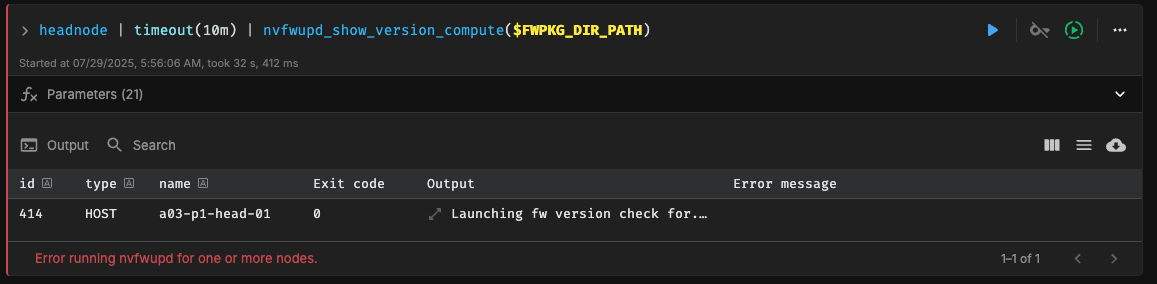
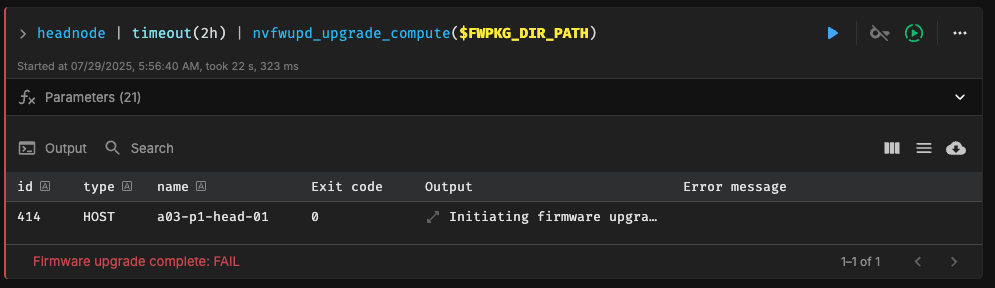
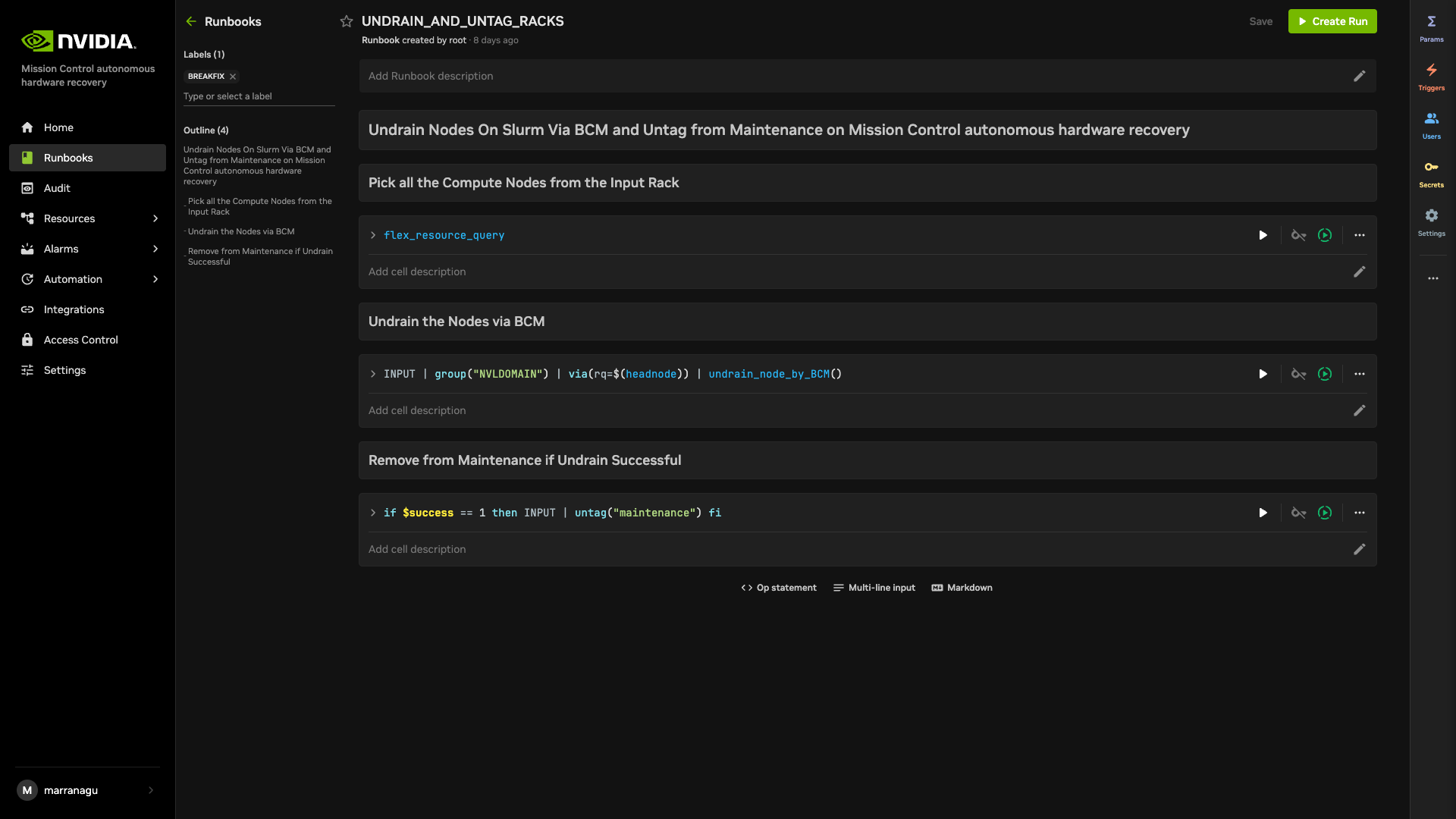
A failed compute or BF4 branch prevents the result-gated AUX activation cycle, so staged firmware is not applied. Switch and power-shelf results are not part of that condition, so a failed switch or power-shelf branch does not by itself prevent activation. Cleanup is not guaranteed: a run that stops early may leave nodes drained or tagged, and the tag can be removed even when the BCM undrain failed. Before returning any node to service, check its BCM drain state and its maintenance tag in the parent and child run histories. If either is still set, confirm the node is healthy, then run UNDRAIN_AND_UNTAG_RACKS with the same resource_tag, resource_value, and any required IGNORE_LIST.
4. Switch upgrade connectivity failures
The switch upgrade does not use SSH. The runbook stages the packages locally on the BCM head node, then upgrades the NVLink-switch BMC, ERoT, FPGA, BIOS, and CPLD with nvfwupd over Redfish using servertype=vrnvl72switch, and activates the new images with nvfwupd activate_fw. When NVOS_FILE_PATH is set, the NVOS upgrade is run against the switches directly: the image is copied with scp and installed over SSH. Switch credentials are read from BCM with cmsh accesssettings — the switch-OS (NVOS) account, not the bmcsettings account used for compute nodes — and passed to nvfwupd as command-line arguments.
Action: From the BCM head node, verify that the switch management IP answers nvfwupd with the BCM accesssettings credentials. For an NVOS upgrade, also verify that each switch answers SSH with those same credentials, since the NVOS leg copies the image with scp and installs it over SSH.
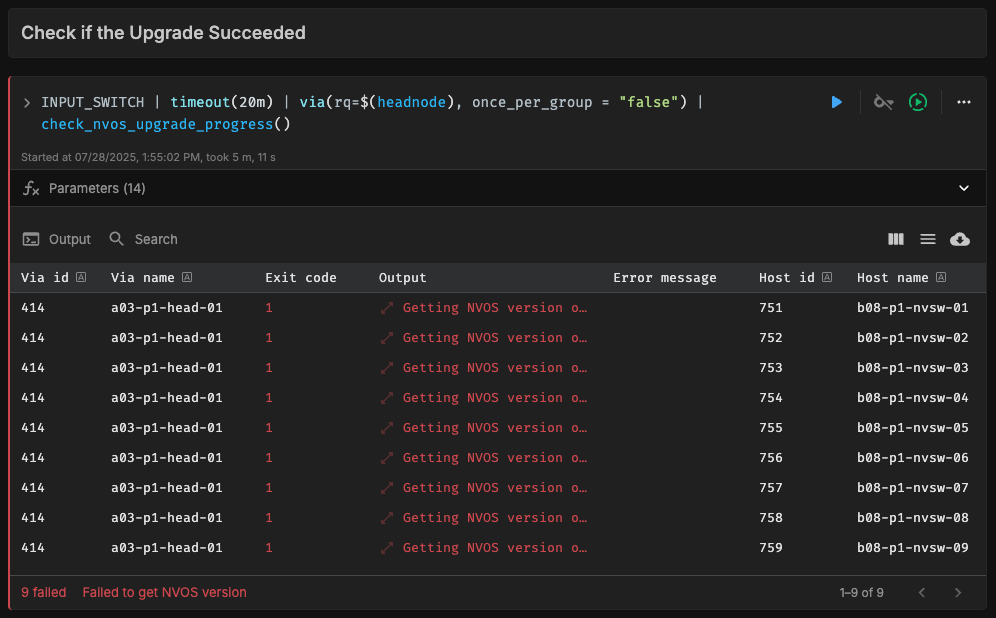
5. Failed validation stage
The final step in every firmware upgrade is validation. The parent runs SINGLENODE_HEALTHCHECK_FIRMWARE_COMPUTE, SINGLENODE_HEALTHCHECK_FIRMWARE_SWITCH, and, when selected, SINGLENODE_HEALTHCHECK_FIRMWARE_POWERSHELF to verify the current firmware versions against the certified VR SOT. Failures may result from upgrade issues, an incorrect SOT JSON, or command failures when fetching component versions. Validation may also include components that were not upgraded in the firmware release.
Action: Compare the expected and actual versions in the logs and check for any other errors before returning resources to service.
Notes
Netcat is used to check if nodes are back online after a reboot.
Use IGNORE_LIST to exclude a planned subset of compute and power-shelf nodes; the switch query is resolved independently, so verify switch scope separately. The
ping_bmc_ipreachability check separately removes unreachable compute nodes from the upgrade scope.Multiple racks cannot be upgraded simultaneously.
If
nvfwupdfinds nothing to upgrade (for example, the component is already at the target version) and FORCE_UPGRADE isfalse, the compute child exits without upgrading and recordsNO_UPDATES. It does not remove themaintenancetag: the parent owns the tag and removes it during its own cleanup. ANO_UPDATESresult on both compute branches also skips the AUX activation cycle, and the BF4 path is what keeps activation eligible on a network-only VR run.
Links
Refer to Firmware Reports for more information about firmware reports.
Firmware Upgrades with NVIDIA Mission Control autonomous hardware recovery
Overview
NVIDIA Mission Control autonomous hardware recovery provides functionality for upgrading, cycling, and verifying firmware and the corresponding OS within your GB300 racks. The distinct components for which firmware can be upgraded using this process are:
Compute trays
Switches
Mellanox
NVOS
Powershelf (PSU and PMC)
Asynchronous component workflows: The parent starts selected compute, switch, and power-shelf branches asynchronously and waits for each one before cleanup. Within the compute branch, DGX, HGX, and applicable Mellanox work also run asynchronously. Use run history and Firmware Reports to track each branch; the power-shelf path now runs in parallel with compute and switch rather than as a separate serial-only workflow.
The workflow invocation is performed via autonomous hardware recovery’s Runbooks. To view all Firmware upgrade related runbooks, you can search by the FIRMWARE_UPGRADE label, as shown in the following figure.
Using the filter will reduce the runbooks displayed to a list. In general, you will use these runbooks to upgrade the compute trays, switches, or switch NVOSes by following the steps in the next section.
Preparing the Upgrade
In the firmware upgrade runbook, nvfwupd and nv action are used with the upgrade package file to determine the versions needing upgrade. You will need to obtain the firmware package and the Source of Truth (SOT) JSON file, the latter of which defines the referenced settings used for validation.
The SOT JSON may be obtained from the NVIDIA Enterprise Support representative, whereas the firmware packages may be downloaded from the NVIDIA Application Hub.
Source of Truth Snippet (truncated)
{
    "ProductName": "DGX-GB300-NVL72",
    "SOTUniqueID": "1",
    "SOTType": "Release",
    "Milestones": [
        {
            "TemplateVersion": "0.5",
            "Id": "f32d9ee4-2df4-4544-9f2a-e4e19d7cd894",
            "Name": "1.0.00GA",
            "State": "Onboarded",
            "ReleaseDate": "2025-09-04T16:49:58.186442",
            "ReleaseCustomers": [],
            "Tests": [],
            "Packages": [],
            "BoardSKUs": [
                {
                    "SKUID": "699-24764-0001-TS3,699-24764-0001-TS1,692-24764-0001-000",
                    "Name": "P4059",
                    "Components": {
                        "Software": [
                            {
                                "Component": "DOCA_Host",
                                "Version": "3.1.0-091513",
                                "External": true,
                                "Sideload": true,
                                "Informational": false,
                                "Type": "Prod",
                                "Locations": [
                                    {
                                        "Location": "https://linux.mellanox.com/public/repo/doca/3.1.0-091513/ubuntu24.04/arm64-sbsa/doca-ofed_3.1.0-091513_arm64.deb",
                                        "LocationType": "HTTP",
                                        "Distro": "Ubuntu",
                                        "Architecture": "All",
                                        "PackageName": "GB300NVL72_DOCA_MFT",
                                        "PackageSubdirectory": "",
                                        "External": false
                                    }
                                ],
                                "SubComponents": []
Ordering Constraints
The runbooks used to perform upgrades automatically determine the ordering of applicable packages and will AUX cycle nodes when appropriate. The following paragraph describes this ordering, but is for informational purposes only, as there is no requirement for the user.
For the compute tray, older firmware packages require the BMC to be upgraded prior to HMC, but this is no longer the case with modern firmware. Both BMC and HMC can be upgraded within a single AC cycle.
For the switch tray, the BMC firmware should be updated first. SBIOS and CPLD packages may be upgraded within the same AC cycle. Our runbooks take care of this ordering for you.
Coordination with other jobs
To prevent other tasks from utilizing the nodes undergoing the upgrade process, AHR will do two things:
It will tag the nodes with a special
maintenancetag.Subsequently, it will drain the node via Slurm on BCM.
This prevents other upgrade processes from interfering and bypasses AHR’s breakfix workflow while the parent is active. A failed compute, CX, BF, or BF4 branch normally suppresses the final AUX activation cycle, but the rack-scale parent’s undrain and untag cells are unconditional and still run if execution reaches cleanup. Do not assume that failure always leaves the nodes in maintenance.
Confirm in run history that cleanup completed. If a run was canceled, aborted, or otherwise stopped before cleanup, first verify that the affected nodes are safe to return to service, then run UNDRAIN_AND_UNTAG_RACKS with resource_tag (for example, rack_name), resource_value (for example, B05 or m06|m07), and any required IGNORE_LIST. The runbook removes the maintenance tag only after BCM undrain succeeds.
Performing the Upgrade
Entry-point runbook: FIRMWARE_UPGRADE
The FIRMWARE_UPGRADE runbook is the entry point for integrated compute, switch, NVOS, Mellanox, and power-shelf work. It performs resource scoping, maintenance tagging, and drain, then starts FIRMWARE_UPGRADE_COMPUTE, FIRMWARE_UPGRADE_SWITCH, and/or FIRMWARE_UPGRADE_POWERSHELF when their trigger paths are set. After all selected asynchronous branches return, it performs the required AUX cycle, waits for the hosts and agents, undrains nodes, removes the maintenance tag, and runs component-specific firmware validation.
Refer to Rack-scale firmware flow for the current parent workflow diagram, which covers the compute and switch path, the power-shelf branch, and the VR BF4 trigger.
This section details the steps and parameters for each component. The runbooks take care of invoking the process, performing the upgrade, calling any ancillary runbooks, and ultimately performing validation of the upgraded component once complete.
Compute Tray
Prerequisites
Download the firmware upgrade packages.
Obtain the SOT JSON file from the NVIDIA Enterprise Support representative.
On the BCM head node, place the JSON and packages in a subdirectory of
/cm/shared/apps/autonomous-hardware-recovery/var/firmware/, which is accessible to AHR.Upgrade packages use the following naming convention:
nvfw_DGX*
nvfw_HGX*
Upgrading
From the Runbooks view, select Create Run for the FIRMWARE_UPGRADE runbook (entry point for compute and switch). To upgrade compute firmware, provide the following parameters. The parent runbook invokes FIRMWARE_UPGRADE_COMPUTE when FWPKG_DIR_PATH_COMPUTE is set.
Required fields (including fields with default skip values):
resource_tag – Tag for flex resource query (use
rack_namefor rack filtering).resource_value – Value for the flex resource query, for example a rack name or a regular expression such as
A01orm06|m07.FW_SOURCE_JSON_PATH – Path to the golden configuration JSON file included in the firmware package. This file defines the reference settings used for validation. If the file is not available, set this parameter to NA.
FWPKG_DIR_PATH_COMPUTE – Directory containing the compute firmware upgrade packages (nvfw_DGX*, nvfw_HGX*). Retain the literal default
noneto skip compute upgrade.
Other required fields with defaults:
FWPKG_DIR_PATH_SWITCH – Directory of the switch firmware packages. Retain
nonefor compute-only.NVOS_FILE_PATH – Full path to the NVOS bin file, or
nonewhen NVOS is not being upgraded.FWPKG_CX_FILE_PATH – Full path to the ConnectX firmware package, or
none. Set this and FWPKG_BF_FILE_PATH only with a compute run.FWPKG_BF_FILE_PATH – Full path to the BlueField firmware package, or
none.FORCE_UPGRADE –
trueforces the upgrade regardless of version checks; the defaultfalsefollows standard upgrade rules.IGNORE_LIST – List of nodes to exclude from scope, for example
node01, ornone.AUX_CYCLE – When true (default), performs an AUX power cycle after upgrade; set to false to skip.
FWPKG_PSU_FILE_PATH – Full path to the PSU package, or
none.FWPKG_PMC_FILE_PATH – Full path to the PMC package, or
none.ENABLE_RETRY – Default
true; retries failed nvfwupd or Mellanox operations up to two additional times, three attempts total. Power shelf is out of scope.
When you need to upgrade compute and Mellanox together, set FWPKG_DIR_PATH_COMPUTE, FWPKG_CX_FILE_PATH, and FWPKG_BF_FILE_PATH to real paths. For compute-only, retain none for all switch, NVOS, and Mellanox paths. FIRMWARE_UPGRADE_COMPUTE cannot be run directly. The lower-level BreakFix_Firmware_Upgrade_Compute_nvfwupd runbook can be invoked only as an advanced component action; it does not reproduce the parent’s resource scoping, maintenance, drain, AUX-cycle, cleanup, or final validation safeguards.
Switch Tray
Prerequisites
Download the firmware upgrade packages.
Obtain the golden configuration JSON file from the NVIDIA Enterprise Support representative.
On the BCM head node, place the JSON and packages in a subdirectory of
/cm/shared/apps/autonomous-hardware-recovery/var/firmware/, which is accessible to AHR.Upgrade packages use the following naming convention:
nvfw0004*
nvfw0006*
nvfw0007*
Upgrading
When performing this upgrade, it should be noted that all of the rack’s 18 nodes will be drained from the Slurm pool, tagged with our maintenance tag, and subsequently AUX cycled.
To begin, from the Runbooks view, select Create Run for the FIRMWARE_UPGRADE runbook (entry point). To upgrade switch firmware, set FWPKG_DIR_PATH_SWITCH (and optionally NVOS_FILE_PATH for NVOS). The parent runbook invokes FIRMWARE_UPGRADE_SWITCH when FWPKG_DIR_PATH_SWITCH is set. Provide the same resource_tag, resource_value, and FW_SOURCE_JSON_PATH as for compute.
Required parameters (when upgrading switch):
resource_tag – Tag for flex resource query (use
rack_namefor rack filtering).resource_value – Value for the flex resource query, for example
A01.FW_SOURCE_JSON_PATH – Path to the golden configuration JSON file provided within the firmware package. If the file is not available, set this parameter to NA.
FWPKG_DIR_PATH_SWITCH – Directory of the switch firmware upgrade packages. Retain the literal default
noneto skip switch upgrade.
Optional: NVOS_FILE_PATH – Full path to the NVOS bin file if upgrading switch NVOS. FORCE_UPGRADE, AUX_CYCLE – same as for compute.
When you need to upgrade only switch firmware, set FWPKG_DIR_PATH_SWITCH to a real directory and retain none for FWPKG_DIR_PATH_COMPUTE and unused paths. The FIRMWARE_UPGRADE_SWITCH child runbook is invoked by the parent and is not intended to be run directly. For advanced scenarios you may run the BreakFix_Switch_BMC_Upgrade_Nvfwupd runbook directly.
Switch NVOS
Prerequisites
Download the NVOS upgrade package bin file.
Obtain the golden configuration JSON file from the NVIDIA Enterprise Support representative.
On the BCM head node, place the JSON and packages in a subdirectory of
/cm/shared/apps/autonomous-hardware-recovery/var/firmware/, which is accessible to AHR.
Upgrading
The FIRMWARE_UPGRADE parent reaches NVOS only through FIRMWARE_UPGRADE_SWITCH, and that child is invoked only when FWPKG_DIR_PATH_SWITCH is a real directory. Therefore an NVOS-only parent run is not supported. To upgrade NVOS with switch firmware, set both FWPKG_DIR_PATH_SWITCH and NVOS_FILE_PATH.
Required parameters:
resource_tag – Tag for flex resource query (use
rack_namefor rack filtering).resource_value – Value for the flex resource query, for example
A01.FW_SOURCE_JSON_PATH – Path to the golden configuration JSON file provided within the firmware package. If the file is not available, set this parameter to NA.
NVOS_FILE_PATH – Full path to the NVOS bin file including the file itself.
Required for the parent path: FWPKG_DIR_PATH_SWITCH – Set to the switch firmware package directory so that FIRMWARE_UPGRADE_SWITCH runs.
Mellanox
Prerequisites
Download the BlueField and ConnectX upgrade packages.
Obtain the golden configuration JSON file from the NVIDIA Enterprise Support representative.
On the BCM head node, place the JSON and packages in a subdirectory of
/cm/shared/apps/autonomous-hardware-recovery/var/firmware/, which is accessible to AHR.
Upgrading
The FIRMWARE_UPGRADE parent reaches Mellanox firmware only through FIRMWARE_UPGRADE_COMPUTE, and that child is invoked only when FWPKG_DIR_PATH_COMPUTE is a real directory. Set the compute directory together with FWPKG_CX_FILE_PATH and FWPKG_BF_FILE_PATH for a combined run. For Mellanox-only work, run BreakFix_Firmware_Upgrade_Mellanox directly.
Required parameters:
resource_tag – Tag for flex resource query (use
rack_namefor rack filtering).resource_value – Value for the flex resource query, for example
A01or a regular expression.FW_SOURCE_JSON_PATH – Path to the golden configuration JSON file provided within the firmware package. If the file is not available, set this parameter to NA.
FWPKG_CX_FILE_PATH – Full path to the ConnectX firmware package file.
FWPKG_BF_FILE_PATH – Full path to the BlueField firmware package file (either .bin or .bfb package).
Required for the parent path: FWPKG_DIR_PATH_COMPUTE – Set to the compute package directory. Retaining none skips the compute child even when the Mellanox paths are set.
For a direct Mellanox-only run, provide FWPKG_CX_FILE_PATH, FWPKG_BF_FILE_PATH, FW_SOURCE_JSON_PATH, and INPUT_COMPUTE to BreakFix_Firmware_Upgrade_Mellanox.
Powershelf
GB300 supports firmware upgrades for power shelves (LiteOn and Delta). Use the FIRMWARE_UPGRADE_POWERSHELF runbook. It upgrades PMC (Power Management Controller) first, then PSU, and finally runs SINGLENODE_HEALTHCHECK_FIRMWARE_POWERSHELF for validation.
Prerequisites
Obtain the PSU and PMC firmware packages and the golden configuration JSON file (from the NVIDIA Enterprise Support representative or firmware package).
On the BCM head node, place the JSON and packages in a subdirectory of
/cm/shared/apps/autonomous-hardware-recovery/var/firmware/, which is accessible to AHR.
Upgrading
From the Runbooks view, select Create Run for the FIRMWARE_UPGRADE_POWERSHELF runbook. Required parameters (per runbook):
The standalone child uses PSU_FILE_FULL_PATH and PMC_FILE_FULL_PATH. When power-shelf work is launched from the integrated parent, the corresponding parent fields are FWPKG_PSU_FILE_PATH and FWPKG_PMC_FILE_PATH.
resource_tag – Tag for flex resource query (use rack_name for rack filtering).
resource_value – Value for the flex resource query, for example
A01or a regular expression.IGNORE_LIST – List of nodes to ignore for baseline tests. Accepted formats: a single node such as
node01, an array such as["node01", "node02"], a pipe-delimited expression such asnode01|node02, ornonewhen no nodes are excluded.PSU_FILE_FULL_PATH – Full path to the directory and file name of the PSU firmware package.
PMC_FILE_FULL_PATH – Full path to the directory and file name of the PMC firmware package.
FW_SOURCE_JSON_PATH – Path to the golden configuration JSON file provided within the firmware package. This file defines the reference settings used for validation.
FORCE_UPGRADE – When set to true, forces the firmware upgrade to proceed regardless of version checks or validation; false follows standard upgrade rules.
The runbook invokes POWERSHELF_COMPONENT_UPGRADE for PMC first, then PSU, and finally SINGLENODE_HEALTHCHECK_FIRMWARE_POWERSHELF to verify the upgrade.
FIRMWARE_UPGRADE_POWERSHELF obtains the target power shelves through a flex query, then invokes POWERSHELF_COMPONENT_UPGRADE for PMC (Power Management Controller) first and PSU next, each with an optional exit on failure. The workflow concludes with SINGLENODE_HEALTHCHECK_FIRMWARE_POWERSHELF, which validates the upgrade against the golden configuration JSON.
BF Firmware Bundle Extraction Guide
This guide explains how to extract a BF firmware package provided as a BF Bundle (.bfb).
Important
Perform these steps on the compute node, which already has the bfb-tool utility installed.
Prerequisites
Ensure the following dependency is installed:
sudo apt install -y qemu-user-static
Extracting the BF Bundle
Note
The --bfb argument must use the complete (absolute) path to the .bfb file. A relative path can cause the extraction to fail.
bfb-tool extract \
  --bfb /path/to/bf-fwbundle-<version>-prod.bfb \
  --opn 900-9D3B6-00CN-P_Ax
Using the Extracted Firmware
After extraction, go to the folder created in /tmp (named after the .bfb file). Inside this folder, open the subfolder corresponding to your OPN, for example 900-9D3B6-00CN-P_Ax. In that subfolder, locate the .bin firmware file, which should be used as the input to the runbook.
Troubleshooting
1. Excluding a node from an upgrade
Set IGNORE_LIST on the parent FIRMWARE_UPGRADE run instead of editing runbook cells. It accepts a single node, a pipe-delimited expression, or an array. The parent applies the exclusion while resolving compute and power-shelf scope; also verify the resolved switch scope before starting the run.
Firmware upgrade includes a series of steps to ensure the nodes are removed from jobs being scheduled, complete the upgrade, and place the nodes back in service. The following are common issues you might encounter during the firmware upgrade:
2. Nodes not reachable from BCM head node
To upgrade firmware, the BMC IP must be accessible from the BCM head node. The runbook verifies node accessibility and automatically skips unreachable nodes.
Action: Ensure the node is online and accessible from the BCM head node, then rerun the firmware upgrade runbook.
3. Failed firmware upgrade
The firmware upgrade failed to complete successfully. Possible causes include nvfwupd, NVOS, or flint failures, depending on the package.
Action: Verify logs by clicking on the Output, which includes the command’s stdout and stderr.
A failed compute or Mellanox branch prevents the result-gated AUX activation cycle, so staged firmware is not applied. Switch and power-shelf results are not part of that condition, so a failed switch or power-shelf branch does not by itself prevent activation. Cleanup is not guaranteed: a run that stops early may leave nodes drained or tagged, and the tag can be removed even when the BCM undrain failed. Before returning any node to service, check its BCM drain state and its maintenance tag in the parent and child run histories. If either is still set, confirm the node is healthy, then run UNDRAIN_AND_UNTAG_RACKS with the same resource_tag, resource_value, and any required IGNORE_LIST.
4. Switch upgrade connectivity failures
The switch upgrade does not use SSH. The runbook stages the packages locally on the BCM head node, then upgrades the switch BMC, ERoT, FPGA, BIOS, and CPLD with nvfwupd over Redfish and activates the new images with nvfwupd activate_fw. When NVOS_FILE_PATH is set, the NVOS upgrade is driven through the NetQ NMX REST API over HTTPS rather than against the switch directly. Switch credentials are read from BCM with cmsh accesssettings — the switch-OS account, not the bmcsettings account used for compute nodes — and passed to nvfwupd as command-line arguments.
Action: From the BCM head node, verify that the switch management IP answers nvfwupd with the BCM accesssettings credentials, and, for an NVOS upgrade, that the NetQ NMX API is reachable. The NVOS upgrade does not use SSH on this platform; the direct BreakFix_NVOS_Upgrade runbook is used only on VR.
5. Failed validation stage
The last step in every firmware upgrade is validation. The runbook selects a subset of tests to verify upgrade success. Failures may result from upgrade issues, incorrect SOT JSON, or command failures when fetching component versions.
Action: Compare the expected and actual versions in the logs and check for any other errors.
Notes
Netcat is used to check if nodes are back online after a reboot.
Use IGNORE_LIST to exclude a planned subset. Independently, the BMC reachability check removes unreachable compute nodes from the upgrade scope.
Multiple racks cannot be upgraded simultaneously.
If
nvfwupdfinds nothing to upgrade, for example because the component is already at the target version, and FORCE_UPGRADE isfalse, the compute child exits without upgrading and recordsNO_UPDATES. It does not remove themaintenancetag: on this platform family the tag is owned by the parent, which removes it during its own cleanup. ANO_UPDATESresult on both compute branches also skips the AUX activation cycle.
Links
Firmware Upgrades with NVIDIA Mission Control autonomous hardware recovery
Overview
NVIDIA Mission Control autonomous hardware recovery provides functionality for upgrading, cycling, and verifying firmware and the corresponding OS within your GB200 racks. The five component paths supported by this process are:
Compute trays
Switches
Mellanox
NVOS
Powershelf (PSU and PMC)
Asynchronous component workflows: The parent starts selected compute, switch, and power-shelf branches asynchronously and waits for each one before cleanup. Within the compute branch, DGX, HGX, and applicable Mellanox work also run asynchronously. Use run history and Firmware Reports to track each branch; the power-shelf path now runs in parallel with compute and switch rather than as a separate serial-only workflow.
The workflow invocation is performed via autonomous hardware recovery’s Runbooks. To view all Firmware upgrade related runbooks, you can search by the FIRMWARE_UPGRADE label, as shown in the following figure.
Using the filter will reduce the runbooks displayed to a list. In general, you will use these runbooks to upgrade the compute trays, switches, or switch NVOSes by following the steps in the next section.
Preparing the Upgrade
In the firmware upgrade runbook, nvfwupd and nv action are used with the upgrade package file to determine the versions needing upgrade. You will need to obtain the firmware package and the Source of Truth (SOT) JSON file, the latter of which defines the referenced settings used for validation.
The SOT JSON may be obtained from the NVIDIA Enterprise Support representative, whereas the firmware packages may be downloaded from the NVIDIA Application Hub.
Source of Truth Snippet (truncated)
{
    "ProductName": "DGXGB200",
    "SOTUniqueID": "1",
    "SOTType": "Release",
    "Milestones": [
        {
            "TemplateVersion": "0.4",
            "Id": "272d4781-ed44-4579-b390-100aefcebcde",
            "Name": "1.0.00GA",
            "State": "Onboarded",
            "ReleaseDate": "2025-04-17T13:29:24.682615",
            "ReleaseCustomers": [],
            "Packages": [
                {
                    "Name": "GB200NVL72_Compute_Firmware",
                    "Type": "Tarball",
                    "Title": "Compute Firmware",
                    "Description": "Compute Firmware Package"
                },
                {
                    "Name": "GB200NVL72_Switch_Firmware",
                    "Type": "Tarball",
                    "Title": "Switch Tray Firmware",
                    "Description": "Switch Tray Firmware Package"
                },
                {
                    "Name": "GB200NVL72_drivers_cuda",
                    "Type": "Tarball",
                    "Title": "Drivers",
                    "Description": "Drivers Package"
                },
Ordering Constraints
The runbooks used to perform upgrades automatically determine the ordering of applicable packages and will AUX cycle nodes when appropriate. The following paragraph describes this ordering, but is for informational purposes only, as there is no requirement for the user.
For the compute tray, much older firmware packages require the BMC to be upgraded prior to HMC, but this is no longer the case with modern firmware. Both BMC and HMC can be upgraded within a single AC cycle.
For the switch tray, the BMC firmware should be updated first. SBIOS and CPLD packages may be upgraded within the same AC cycle. Our runbooks take care of this ordering for you.
Coordination with other jobs
To prevent other tasks from utilizing the nodes undergoing the upgrade process, AHR will do two things:
It will tag the nodes with a special
maintenancetag.Subsequently, it will drain the node via Slurm on BCM.
This prevents other upgrade processes from interfering and bypasses AHR’s breakfix workflow while the parent is active. A failed component branch normally suppresses the final AUX activation cycle, but the rack-scale parent still runs its unconditional undrain and untag cells if execution reaches cleanup.
Confirm cleanup in run history. If a run stopped before cleanup, first verify that the affected nodes are safe to return to service, then run UNDRAIN_AND_UNTAG_RACKS with resource_tag, resource_value, and any required IGNORE_LIST. The runbook removes the maintenance tag only after BCM undrain succeeds.
Performing the Upgrade
Entry-point runbook: FIRMWARE_UPGRADE
The FIRMWARE_UPGRADE runbook is the entry point for integrated compute, switch, NVOS, Mellanox, and power-shelf work. It scopes and protects the target resources, starts the selected component branches asynchronously, waits for them, performs activation and cleanup, and runs compute, switch, and power-shelf validation against the supplied SOT.
Refer to Rack-scale firmware flow for the current parent workflow diagram, which covers the compute and switch path, the power-shelf branch, and the VR BF4 trigger.
This section details the steps and parameters for each component. The runbooks take care of invoking the process, performing the upgrade, calling any ancillary runbooks, and ultimately performing validation of the upgraded component once complete.
Compute Tray
Prerequisites
Download the firmware upgrade packages.
Obtain the golden configuration JSON file from the NVIDIA Enterprise Support representative.
On the BCM head node, place the JSON and packages in a subdirectory of
/cm/shared/apps/autonomous-hardware-recovery/var/firmware/, which is accessible to AHR.Upgrade packages use the following naming convention:
nvfw_dgx*
nvfw_hgx*
Upgrading
From the Runbooks view, select Create Run for the FIRMWARE_UPGRADE runbook (entry point for compute and switch). To upgrade compute firmware, provide the following parameters. The parent runbook invokes FIRMWARE_UPGRADE_COMPUTE when FWPKG_DIR_PATH_COMPUTE is set.
Required fields (including fields with default skip values):
resource_tag – Tag for flex resource query (use
rack_namefor rack filtering).resource_value – Value for the flex resource query, for example a rack name or a regular expression such as
A01orm06|m07.FW_SOURCE_JSON_PATH – Path to the golden configuration JSON file included in the firmware package. This file defines the reference settings used for validation. If the file is not available, set this parameter to NA.
FWPKG_DIR_PATH_COMPUTE – Directory containing the compute firmware upgrade packages (nvfw_DGX*, nvfw_HGX*). Retain the literal default
noneto skip compute upgrade.
Other required fields with defaults:
FWPKG_DIR_PATH_SWITCH – Directory of the switch firmware packages. Retain
nonefor compute-only.NVOS_FILE_PATH – Full path to the NVOS bin file, or
nonewhen NVOS is not being upgraded.FWPKG_CX_FILE_PATH – Full path to the ConnectX firmware package, or
none. Set this and FWPKG_BF_FILE_PATH only with a compute run.FWPKG_BF_FILE_PATH – Full path to the BlueField firmware package, or
none.FORCE_UPGRADE –
trueforces the upgrade regardless of version checks; the defaultfalsefollows standard upgrade rules.IGNORE_LIST – List of nodes to exclude from scope, for example
node01, ornone.AUX_CYCLE – When true (default), performs an AUX power cycle after upgrade; set to false to skip.
FWPKG_PSU_FILE_PATH – Full path to the PSU package, or
none.FWPKG_PMC_FILE_PATH – Full path to the PMC package, or
none.ENABLE_RETRY – Default
true; retries failed nvfwupd or Mellanox operations up to two additional times, three attempts total. Power shelf is out of scope.
When you need to upgrade compute and Mellanox together, set FWPKG_DIR_PATH_COMPUTE, FWPKG_CX_FILE_PATH, and FWPKG_BF_FILE_PATH to real paths. For compute-only, retain none for all switch, NVOS, and Mellanox paths. For advanced scenarios you may run the BreakFix_Firmware_Upgrade_Compute_nvfwupd runbook directly (for example, a single rack).
Switch Tray
Prerequisites
Download the firmware upgrade packages.
Obtain the golden configuration JSON file from the NVIDIA Enterprise Support representative.
On the BCM head node, place the JSON and packages in a subdirectory of
/cm/shared/apps/autonomous-hardware-recovery/var/firmware/, which is accessible to AHR.Upgrade packages use the following naming convention:
nvfw0004*
nvfw0006*
nvfw0007*
Upgrading
When performing this upgrade, it should be noted that all of the rack’s 18 nodes will be drained from the Slurm pool, tagged with our maintenance tag, and subsequently AUX cycled.
To begin, from the Runbooks view, select Create Run for the FIRMWARE_UPGRADE runbook (entry point). To upgrade switch firmware, set FWPKG_DIR_PATH_SWITCH (and optionally NVOS_FILE_PATH for NVOS). The parent runbook invokes FIRMWARE_UPGRADE_SWITCH when FWPKG_DIR_PATH_SWITCH is set. Provide the same resource_tag, resource_value, and FW_SOURCE_JSON_PATH as for compute.
Required parameters (when upgrading switch):
resource_tag – Tag for flex resource query (use
rack_namefor rack filtering).resource_value – Value for the flex resource query, for example
A01.FW_SOURCE_JSON_PATH – Path to the golden configuration JSON file provided within the firmware package. If the file is not available, set this parameter to NA.
FWPKG_DIR_PATH_SWITCH – Directory of the switch firmware upgrade packages. Retain the literal default
noneto skip switch upgrade.
Optional: NVOS_FILE_PATH – Full path to the NVOS bin file if upgrading switch NVOS. FORCE_UPGRADE, AUX_CYCLE – same as for compute.
When you need to upgrade only switch firmware, set FWPKG_DIR_PATH_SWITCH to a real directory and retain none for FWPKG_DIR_PATH_COMPUTE and unused paths. The FIRMWARE_UPGRADE_SWITCH child runbook is invoked by the parent and is not intended to be run directly. For advanced scenarios you may run the BreakFix_Switch_BMC_Upgrade_Nvfwupd runbook directly.
Switch NVOS
Prerequisites
Download the NVOS upgrade package bin file.
Obtain the golden configuration JSON file from the NVIDIA Enterprise Support representative.
On the BCM head node, place the JSON and packages in a subdirectory of
/cm/shared/apps/autonomous-hardware-recovery/var/firmware/, which is accessible to AHR.
Upgrading
The FIRMWARE_UPGRADE parent reaches NVOS only through FIRMWARE_UPGRADE_SWITCH, and that child is invoked only when FWPKG_DIR_PATH_SWITCH is a real directory. Therefore an NVOS-only parent run is not supported. To upgrade NVOS with switch firmware, set both FWPKG_DIR_PATH_SWITCH and NVOS_FILE_PATH.
Required parameters:
resource_tag – Tag for flex resource query (use
rack_namefor rack filtering).resource_value – Value for the flex resource query, for example
A01.FW_SOURCE_JSON_PATH – Path to the golden configuration JSON file provided within the firmware package. If the file is not available, set this parameter to NA.
NVOS_FILE_PATH – Full path to the NVOS bin file including the file itself.
Required for the parent path: FWPKG_DIR_PATH_SWITCH – Set to the switch firmware package directory so that FIRMWARE_UPGRADE_SWITCH runs.
Mellanox
Prerequisites
Download the BlueField and ConnectX upgrade packages.
Obtain the golden configuration JSON file from the NVIDIA Enterprise Support representative.
On the BCM head node, place the JSON and packages in a subdirectory of
/cm/shared/apps/autonomous-hardware-recovery/var/firmware/, which is accessible to AHR.
Upgrading
The FIRMWARE_UPGRADE parent reaches Mellanox firmware only through FIRMWARE_UPGRADE_COMPUTE, and that child is invoked only when FWPKG_DIR_PATH_COMPUTE is a real directory. Set the compute directory together with FWPKG_CX_FILE_PATH and FWPKG_BF_FILE_PATH for a combined run. For Mellanox-only work, run BreakFix_Firmware_Upgrade_Mellanox directly.
Required parameters:
resource_tag – Tag for flex resource query (use
rack_namefor rack filtering).resource_value – Value for the flex resource query, for example
A01or a regular expression.FW_SOURCE_JSON_PATH – Path to the golden configuration JSON file provided within the firmware package. If the file is not available, set this parameter to NA.
FWPKG_CX_FILE_PATH – Full path to the ConnectX firmware package file.
FWPKG_BF_FILE_PATH – Full path to the BlueField firmware package file (either .bin or .bfb package).
Required for the parent path: FWPKG_DIR_PATH_COMPUTE – Set to the compute package directory. Retaining none skips the compute child even when the Mellanox paths are set.
For a direct Mellanox-only run, provide FWPKG_CX_FILE_PATH, FWPKG_BF_FILE_PATH, FW_SOURCE_JSON_PATH, and INPUT_COMPUTE to BreakFix_Firmware_Upgrade_Mellanox.
BF Firmware Bundle Extraction Guide
This guide explains how to extract a BF firmware package provided as a BF Bundle (.bfb).
Important
Perform these steps on the compute node, which already has the bfb-tool utility installed.
Prerequisites
Ensure the following dependency is installed:
sudo apt install -y qemu-user-static
Extracting the BF Bundle
Note
The --bfb argument must use the complete (absolute) path to the .bfb file. A relative path can cause the extraction to fail.
bfb-tool extract \
  --bfb /path/to/bf-fwbundle-<version>-prod.bfb \
  --opn 900-9D3B6-00CN-P_Ax
Using the Extracted Firmware
After extraction, go to the folder created in /tmp (named after the .bfb file). Inside this folder, open the subfolder corresponding to your OPN, for example 900-9D3B6-00CN-P_Ax. In that subfolder, locate the .bin firmware file, which should be used as the input to the runbook.
Powershelf
GB200 supports firmware upgrades for power shelves (LiteOn and Delta). Use the FIRMWARE_UPGRADE_POWERSHELF runbook. It upgrades PMC (Power Management Controller) first, then PSU, and finally runs SINGLENODE_HEALTHCHECK_FIRMWARE_POWERSHELF for validation.
Prerequisites
Obtain the PSU and PMC firmware packages and the golden configuration JSON file (from the NVIDIA Enterprise Support representative or firmware package).
On the BCM head node, place the JSON and packages in a subdirectory of
/cm/shared/apps/autonomous-hardware-recovery/var/firmware/, which is accessible to AHR.
Upgrading
From the Runbooks view, select Create Run for the FIRMWARE_UPGRADE_POWERSHELF runbook. Required parameters (per runbook):
The standalone child uses PSU_FILE_FULL_PATH and PMC_FILE_FULL_PATH. When power-shelf work is launched from the integrated parent, the corresponding parent fields are FWPKG_PSU_FILE_PATH and FWPKG_PMC_FILE_PATH.
resource_tag – Tag for flex resource query (use rack_name for rack filtering).
resource_value – Value for the flex resource query, for example
A01or a regular expression.IGNORE_LIST – List of nodes to ignore for baseline tests. Accepted formats: a single node such as
node01, an array such as["node01", "node02"], a pipe-delimited expression such asnode01|node02, ornonewhen no nodes are excluded.PSU_FILE_FULL_PATH – Full path to the directory and file name of the PSU firmware package.
PMC_FILE_FULL_PATH – Full path to the directory and file name of the PMC firmware package.
FW_SOURCE_JSON_PATH – Path to the golden configuration JSON file provided within the firmware package. This file defines the reference settings used for validation.
FORCE_UPGRADE – When set to true, forces the firmware upgrade to proceed regardless of version checks or validation; false follows standard upgrade rules.
The runbook invokes POWERSHELF_COMPONENT_UPGRADE for PMC first, then PSU, and finally SINGLENODE_HEALTHCHECK_FIRMWARE_POWERSHELF to verify the upgrade.
FIRMWARE_UPGRADE_POWERSHELF obtains the target power shelves through a flex query, then invokes POWERSHELF_COMPONENT_UPGRADE for PMC (Power Management Controller) first and PSU next, each with an optional exit on failure. The workflow concludes with SINGLENODE_HEALTHCHECK_FIRMWARE_POWERSHELF, which validates the upgrade against the golden configuration JSON.
Troubleshooting
1. Excluding a node from an upgrade
Set IGNORE_LIST on the parent FIRMWARE_UPGRADE run instead of editing runbook cells. It accepts a single node, a pipe-delimited expression, or an array. Verify the resolved resource scope before starting the run.
Firmware upgrade includes a series of steps to ensure the nodes are removed from jobs being scheduled, complete the upgrade, and place the nodes back in service. The following are common issues you might encounter during the firmware upgrade:
2. Nodes not reachable from BCM head node
To upgrade firmware, the BMC IP must be accessible from the BCM head node. The runbook verifies node accessibility and automatically skips unreachable nodes.
Action: Ensure the node is online and accessible from the BCM head node, then rerun the firmware upgrade runbook.
3. Failed firmware upgrade
The firmware upgrade failed to complete successfully. Possible causes include nvfwupd, NVOS, or flint failures, depending on the package.
Action: Verify logs by clicking on the Output, which includes the command’s stdout and stderr.
A failed compute or Mellanox branch prevents the result-gated AUX activation cycle, so staged firmware is not applied. Switch and power-shelf results are not part of that condition, so a failed switch or power-shelf branch does not by itself prevent activation. Cleanup is not guaranteed: a run that stops early may leave nodes drained or tagged, and the tag can be removed even when the BCM undrain failed. Before returning any node to service, check its BCM drain state and its maintenance tag in the parent and child run histories. If either is still set, confirm the node is healthy, then run UNDRAIN_AND_UNTAG_RACKS with the same resource_tag, resource_value, and any required IGNORE_LIST.
4. Switch upgrade connectivity failures
The switch upgrade does not use SSH. The runbook stages the packages locally on the BCM head node, then upgrades the switch BMC, ERoT, FPGA, BIOS, and CPLD with nvfwupd over Redfish and activates the new images with nvfwupd activate_fw. When NVOS_FILE_PATH is set, the NVOS upgrade is driven through the NetQ NMX REST API over HTTPS rather than against the switch directly. Switch credentials are read from BCM with cmsh accesssettings — the switch-OS account, not the bmcsettings account used for compute nodes — and passed to nvfwupd as command-line arguments.
Action: From the BCM head node, verify that the switch management IP answers nvfwupd with the BCM accesssettings credentials, and, for an NVOS upgrade, that the NetQ NMX API is reachable. The NVOS upgrade does not use SSH on this platform; the direct BreakFix_NVOS_Upgrade runbook is used only on VR.
5. Failed validation stage
The last step in every firmware upgrade is validation. The runbook selects a subset of tests to verify upgrade success. Failures may result from upgrade issues, incorrect SOT JSON, or command failures when fetching component versions.
Action: Compare the expected and actual versions in the logs and check for any other errors.
Notes
Netcat is used to check if nodes are back online after a reboot.
Use IGNORE_LIST to exclude a planned subset. Independently, the BMC reachability check removes unreachable compute nodes from the upgrade scope.
Multiple racks cannot be upgraded simultaneously.
If
nvfwupdfinds nothing to upgrade, for example because the component is already at the target version, and FORCE_UPGRADE isfalse, the compute child exits without upgrading and recordsNO_UPDATES. It does not remove themaintenancetag: on this platform family the tag is owned by the parent, which removes it during its own cleanup. ANO_UPDATESresult on both compute branches also skips the AUX activation cycle.
Links
Refer to Firmware Reports for more information about firmware reports.
Firmware Upgrades with NVIDIA Mission Control autonomous hardware recovery
Overview
NVIDIA Mission Control autonomous hardware recovery provides functionality for upgrading, cycling, and verifying firmware on B300 compute nodes. The three component paths in this runbook family are:
Motherboard Tray (CPU, PCH, BMC)
GPU Tray (GPU, NVSwitches, HMC)
BlueField-3 firmware; CX-8 firmware is included with the GPU tray package
The workflow invocation is performed via autonomous hardware recovery’s Runbooks. To view all Firmware upgrade related runbooks, you can search by the FIRMWARE_UPGRADE label, as shown in the following figure.
Using the filter reduces the displayed runbooks to the node-scale firmware workflows. Use these runbooks to upgrade the motherboard tray, GPU tray, and BlueField-3 firmware.
Preparing the Upgrade
The firmware upgrade runbook uses nvfwupd for the motherboard and GPU tray packages and the B300 BF-3 child runbook for the BlueField firmware. Obtain the firmware packages and the Source of Truth (SOT) JSON file used for validation.
The SOT JSON may be obtained from the NVIDIA Enterprise Support representative, whereas the firmware packages may be downloaded from the NVIDIA Application Hub.
Use the B300 SOT supplied with the target release. Do not reuse the B200 sample package paths or component inventory for B300.
Ordering Constraints
The runbooks automatically determine the ordering of applicable packages and will AUX cycle nodes when appropriate. The following paragraph describes this ordering, but is for informational purposes only, as there is no requirement for the user.
Verify
For the compute tray, much older firmware packages require the BMC to be upgraded prior to HMC, but this is no longer the case with modern firmware. Both BMC and HMC can be upgraded within a single AC cycle.
Coordination with other jobs
To prevent other tasks from utilizing the nodes undergoing the upgrade process, AHR will do two things:
It will tag the nodes with a special
maintenancetag.Subsequently, it will drain the node on BCM.
In particular, this will prevent other upgrade processes from interfering, and will also bypass AHR’s breakfix workflow. This tag will be automatically removed upon successful completion of the upgrade, and the node will be undrained. If there’s an issue during the upgrade process, this tag and drain state will remain for further investigation. At this point of failure, the user should review the failures, and return the nodes to undrained and remove the maintenance tag once the nodes are deemed healthy.
If a failure path exits before cleanup, first verify that the affected nodes are safe to return to service, then run UNDRAIN_AND_UNTAG with the affected node regex in NODES. The runbook removes the maintenance tag only after BCM undrain succeeds.
Performing the Upgrade
This section details the steps involved to upgrade each firmware type. The following runbooks take care of invoking the process, performing the upgrade, calling any ancillary runbooks, and ultimately performing validation of the upgraded component once complete.
Prerequisites
Download the firmware upgrade packages.
Obtain the golden configuration SOT JSON file.
On the BCM head node, place the JSON and packages in a subdirectory of
/cm/shared/apps/autonomous-hardware-recovery/var/firmware/, which is accessible to AHR.Upgrade packages contain motherboard, GPU and network components among others.
Upgrading
From the Runbooks view, select Create Run for the FIRMWARE_UPGRADE runbook. This will prompt you for the following required parameters, and perform the upgrade. It also selects the appropriate packages for the corresponding components, such as DGX and HGX.
NODES - Provide the node names using a regular expression. Examples:
node01,node01|node02, ornode-*.FORCE_UPGRADE - When set to true, forces the firmware upgrade to proceed regardless of version checks or validation; false follows standard upgrade rules.
BMC_FIRMWARE_PATH - Full path to the BMC/DGX package, or the literal
noneto skip it.HGX_FIRMWARE_PATH - Full path to the HGX/GPU tray package, or
noneto skip it. CX-8 firmware is upgraded with this package.BF3_FIRMWARE_PATH - Full path to the BF-3 firmware
.binfile, ornoneto skip it.FW_SOURCE_JSON_PATH - Path to the golden configuration JSON file provided within the firmware package. If the file is unavailable, set this parameter to
NA.ENABLE_RETRY - Default
true; failed nvfwupd or BF-3 operations are retried up to two additional times, three attempts total.
When running it will invoke other runbooks as necessary, but should you need to upgrade a single component, you may run the following runbooks directly.
BreakFix_Firmware_Upgrade_Compute_nvfwupd_BMC
BreakFix_Firmware_Upgrade_Compute_nvfwupd_HGX
BREAKFIX_FIRMWARE_UPGRADE_BF3_B300 with
FWPKG_BF3_FILE_PATH,FW_SOURCE_JSON_PATH,AUX_CYCLE, andENABLE_RETRY
AUX_CYCLE, which performs an AUX power cycle, is an additional parameter you can change in the individual runbooks.
Older BMC images: a starting BMC version earlier than 01.00.00 requires the release-procedure Background Copy/commit for HostBMC_0 and HostBIOS_0 after activation. The current parent does not automate this step, and newer BMCs do not require it.
The firmware upgrade automation follows the general outline described here. Check the firmware upgrade documentation and, if it differs from the preceding standard procedure, take the necessary steps for any additional components or requirements.
Troubleshooting
1. Nodes not reachable from BCM head node
To upgrade firmware, the BMC IP must be accessible from the BCM head node. The runbook verifies node accessibility and automatically skips unreachable nodes.
Action: Ensure the node is online and accessible from the BCM head node, then rerun the firmware upgrade runbook.
2. Failed firmware upgrade
The firmware upgrade failed to complete successfully. Possible causes include nvfwupd or BF-3 firmware update failures, depending on the selected package.
Action: Verify logs by clicking on the Output, which includes the command’s stdout and stderr.
Note that the runbook does not automatically undrain or untag maintenance when the firmware upgrade fails. After verifying that the failures are safe to ignore and the nodes are ready to return to the pool, undrain, and untag the nodes using the UNDRAIN_AND_UNTAG runbook:
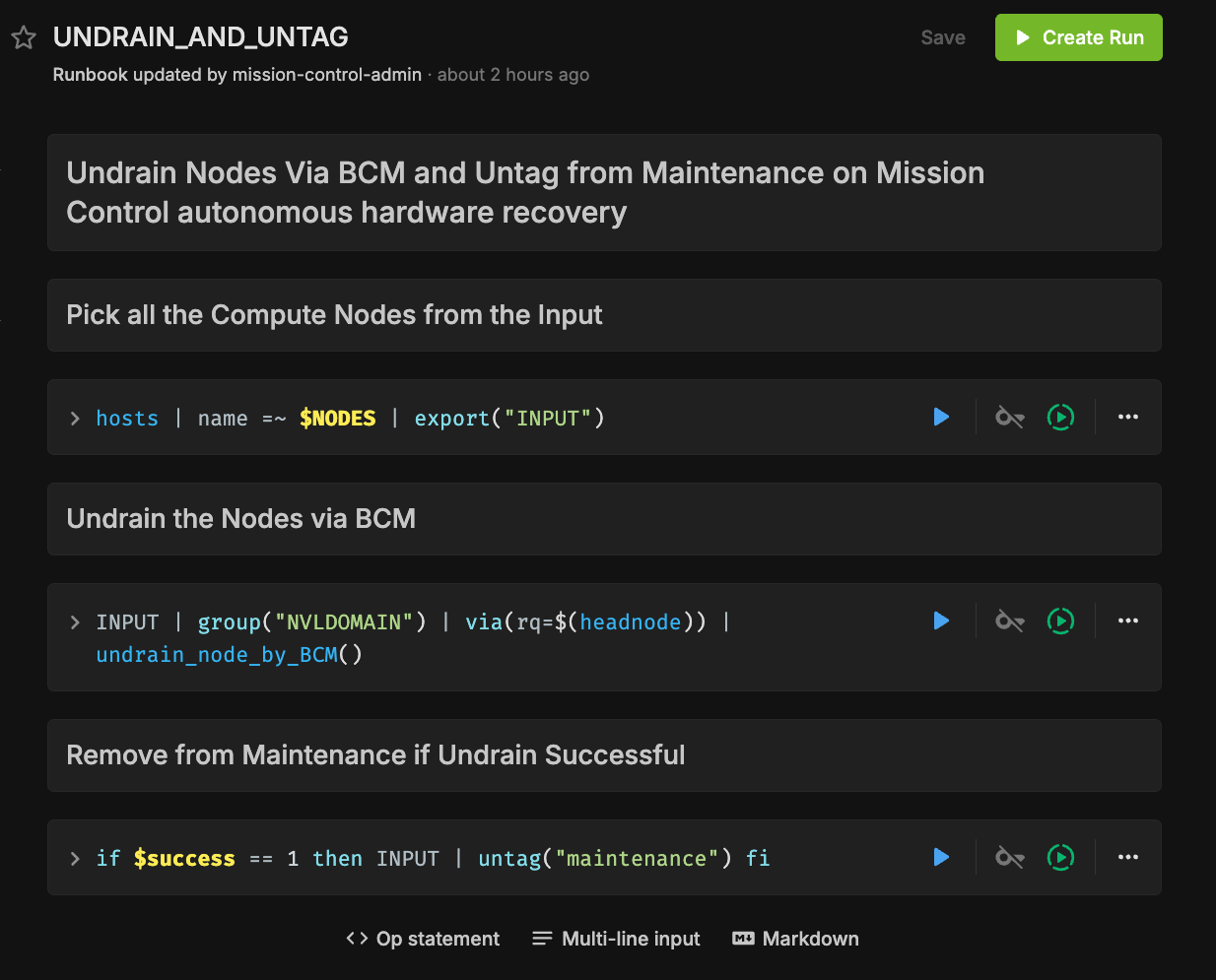
3. Failed validation stage
The final step in every firmware upgrade is validation. The runbook verifies the current firmware versions against the SOT. Failures may result from upgrade issues, an incorrect SOT JSON file, or command failures when retrieving component versions. Validation may also include components that were not upgraded in the firmware release.
Action: Compare the expected and actual versions in the logs and check for any other errors.
Notes
Netcat is used to check if nodes are back online after a reboot.
If
nvfwupdperforms no upgrade, for example because the component is already at the target version, and FORCE_UPGRADE is nottrue, the runbook exits after removing themaintenancetag.
Links
Refer to Firmware Reports for more information about firmware reports.
Firmware Upgrades with NVIDIA Mission Control autonomous hardware recovery
Overview
NVIDIA Mission Control autonomous hardware recovery provides functionality for upgrading, cycling, and verifying firmware and the corresponding OS on B200 compute nodes. The three distinct components for which firmware can be upgraded using this process are:
Motherboard Tray (CPU, PCH, BMC)
GPU Tray (GPU, NVSwitches, HMC)
Mellanox Devices
The workflow invocation is performed via autonomous hardware recovery’s Runbooks. To view all Firmware upgrade related runbooks, you can search by the FIRMWARE_UPGRADE label, as shown in the following figure.
Using the filter reduces the displayed runbooks to a list. In general, use these runbooks to upgrade the compute trays and Mellanox devices by following the steps in the next section.
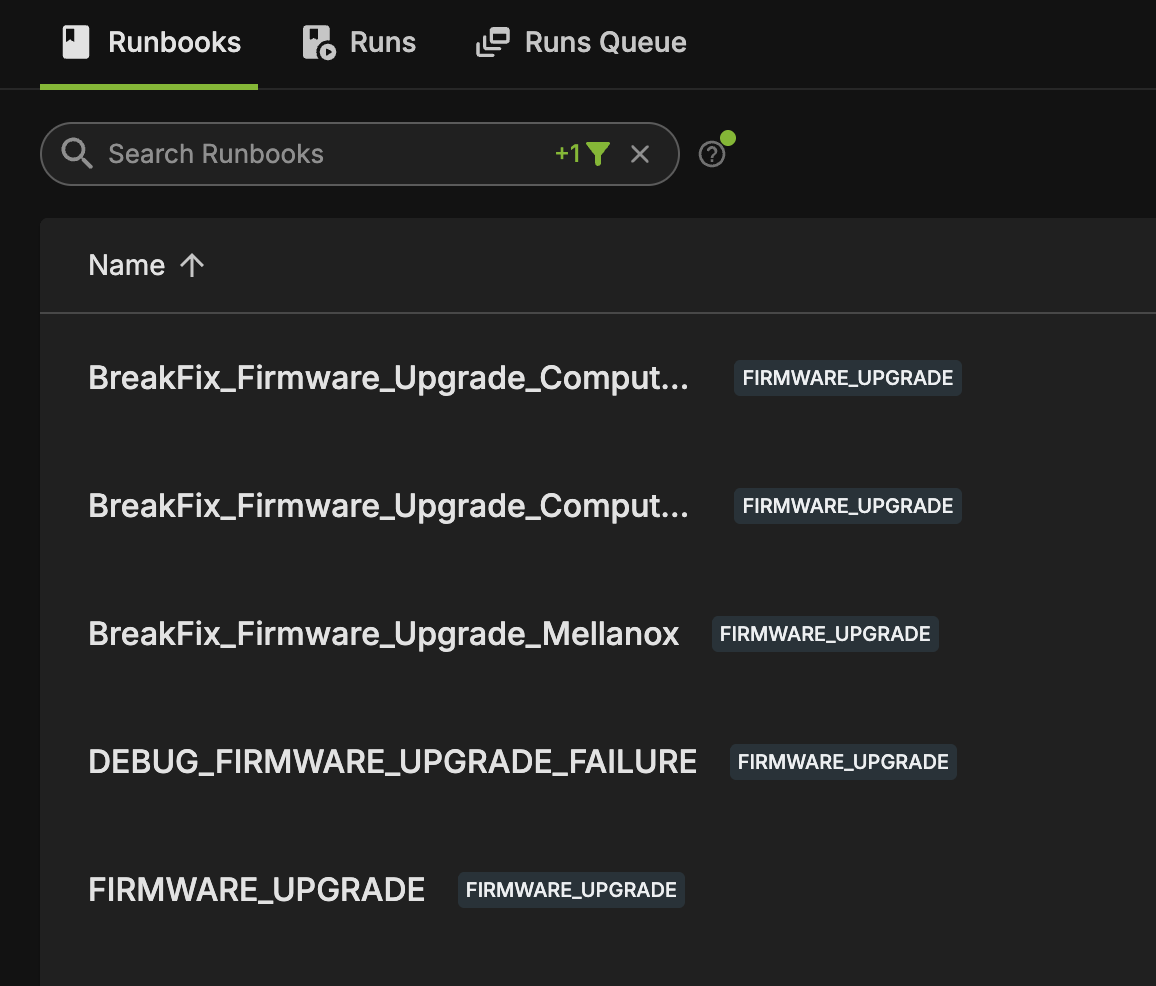
Preparing the Upgrade
In the firmware upgrade runbook, nvfwupd and mlxfwmanager are used with the upgrade package file to determine the versions needing upgrade. You will need to obtain the firmware package and the Source of Truth (SOT) JSON file, the latter of which defines the referenced settings used for validation.
The SOT JSON may be obtained from the NVIDIA Enterprise Support representative, whereas the firmware packages may be downloaded from the NVIDIA Application Hub.
Source of Truth Snippet (truncated)
{
  "TemplateVersion": "0.5",
  "Id": "8e755bd7-f6af-4621-96d3-d55a5f0fe45e",
  "Name": "Viking_Release_1.3.2 (25.09.1)",
  "State": "QA Tested",
  "ReleaseDate": "2025-07-01T06:28:08.398Z",
  "ReleaseCustomers": [],
  "Tests": [],
  "Packages": [],
  "BoardSKUs": [
    {
      "SKUID": "P4387 B200",
      "Name": "DGX B200",
      "Components": {
        "Software": [
          {
            "Component": "DGX OS",
            "Version": "7.0.2 RC6",
            "Comments": "Install ISO",
            "External": false,
            "Sideload": false,
            "Informational": false,
            "Locations": [
              {
                "Location": "",
                "LocationType": "HTTPS",
                "Distro": "All",
                "Architecture": "All",
                "PackageName": "",
                "External": false
              }
            ],
            "SubComponents": []
          }
        ],
        "Firmware": [
          {
            "Component": "DGX B200 Motherboard Tray FW ",
            "Version": "1.3.2",
            "SKUID": "",
            "Vendor": "",
            "Comments": "Subcomponents Parsed from FWPKG",
            "External": false,
            "Sideload": false,
            "Bundle": "nvfw_DGX_250629.1.0.fwpkg",
            "Type": "Prod",
            "Informational": false,
            "Locations": [
Ordering Constraints
The runbooks automatically determine the ordering of applicable packages and will AUX cycle nodes when appropriate. The following paragraph describes this ordering, but is for informational purposes only, as there is no requirement for the user.
Verify
For the compute tray, much older firmware packages require the BMC to be upgraded prior to HMC, but this is no longer the case with modern firmware. Both BMC and HMC can be upgraded within a single AC cycle.
Coordination with other jobs
To prevent other tasks from utilizing the nodes undergoing the upgrade process, AHR will do two things:
It will tag the nodes with a special
maintenancetag.Subsequently, it will drain the node on BCM.
In particular, this will prevent other upgrade processes from interfering, and will also bypass AHR’s breakfix workflow. This tag will be automatically removed upon successful completion of the upgrade, and the node will be undrained. If there’s an issue during the upgrade process, this tag and drain state will remain for further investigation. At this point of failure, the user should review the failures, and return the nodes to undrained and remove the maintenance tag once the nodes are deemed healthy.
If a failure path exits before cleanup, first verify that the affected nodes are safe to return to service, then run UNDRAIN_AND_UNTAG with the affected node regex in NODES. The runbook removes the maintenance tag only after BCM undrain succeeds.
Performing the Upgrade
This section details the steps involved to upgrade each firmware type. The following runbooks take care of invoking the process, performing the upgrade, calling any ancillary runbooks, and ultimately performing validation of the upgraded component once complete.
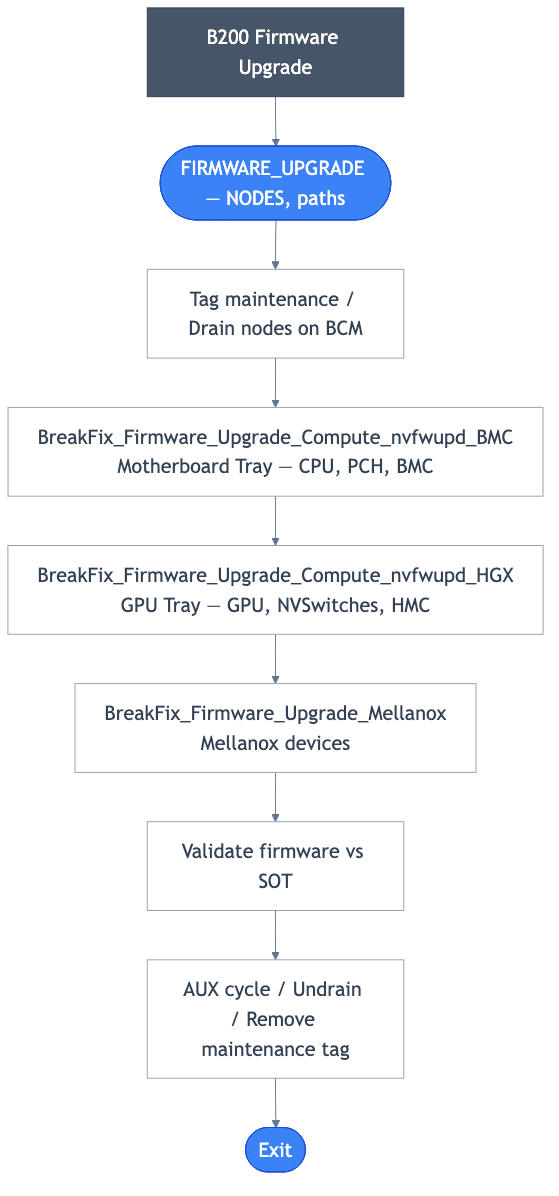
Prerequisites
Download the firmware upgrade packages.
Obtain the golden configuration SOT JSON file.
On the BCM head node, place the JSON and packages in a subdirectory of
/cm/shared/apps/autonomous-hardware-recovery/var/firmware/, which is accessible to AHR.Upgrade packages contain motherboard, GPU and network components among others.
Upgrading
From the Runbooks view, select Create Run for the FIRMWARE_UPGRADE runbook. This will prompt you for the following required parameters, and perform the upgrade. It also selects the appropriate packages for the corresponding components, such as DGX and HGX.
NODES - Provide the node names using a regular expression. Examples:
node01,node01|node02, ornode-*.FORCE_UPGRADE - When set to true, forces the firmware upgrade to proceed regardless of version checks or validation; false follows standard upgrade rules.
BMC_FIRMWARE_PATH - Full path to the BMC/DGX package, or the literal
noneto skip it.HGX_FIRMWARE_PATH - Full path to the HGX/GPU tray package, or
noneto skip it. If the current VBIOS is earlier than97.00.5E.00.xx, it cannot be updated directly to the latest package: run FIRMWARE_UPGRADE once with a transition package between97.00.5E.00.xxand97.00.7C.00.xx, then again with the target package. Skip the extra run when VBIOS is already at or above97.00.5E.00.xx.MELLANOX_FIRMWARE_PATH - Full path to the Mellanox firmware package, or
noneto skip it. This field is available on B200 only.FW_SOURCE_JSON_PATH - Path to the golden configuration JSON file provided within the firmware package. If the file is unavailable, set this parameter to
NA.ENABLE_RETRY - Default
true; failed nvfwupd or BF-3 operations are retried up to two additional times, three attempts total.
When running it will invoke other runbooks as necessary, but should you need to upgrade a single component, you may run the following runbooks directly.
BreakFix_Firmware_Upgrade_Compute_nvfwupd_BMC
BreakFix_Firmware_Upgrade_Compute_nvfwupd_HGX
BreakFix_Firmware_Upgrade_Mellanox
AUX_CYCLE, which performs an AUX power cycle, is an additional parameter you can change in the individual runbooks.
The firmware upgrade automation follows the general outline described here. Check the firmware upgrade documentation and, if it differs from the preceding standard procedure, take the necessary steps for any additional components or requirements.
Troubleshooting
1. Nodes not reachable from BCM head node
To upgrade firmware, the BMC IP must be accessible from the BCM head node. The runbook verifies node accessibility and automatically skips unreachable nodes.
Action: Ensure the node is online and accessible from the BCM head node, then rerun the firmware upgrade runbook.
2. Failed firmware upgrade
The firmware upgrade failed to complete successfully. Possible causes include nvfwupd or mlxfwmanager failures, depending on the package.
Action: Verify logs by clicking on the Output, which includes the command’s stdout and stderr.
Note that the runbook does not automatically undrain or untag maintenance when the firmware upgrade fails. After verifying that the failures are safe to ignore and the nodes are ready to return to the pool, undrain, and untag the nodes using the UNDRAIN_AND_UNTAG runbook:
3. Failed validation stage
The final step in every firmware upgrade is validation. The runbook verifies the current firmware versions against the SOT. Failures may result from upgrade issues, an incorrect SOT JSON file, or command failures when retrieving component versions. Validation may also include components that were not upgraded in the firmware release.
Action: Compare the expected and actual versions in the logs and check for any other errors.
Notes
Netcat is used to check if nodes are back online after a reboot.
If
nvfwupdperforms no upgrade, for example because the component is already at the target version, and FORCE_UPGRADE is nottrue, the runbook exits after removing themaintenancetag.
Links
Refer to Firmware Reports for more information about firmware reports.
Break/Fix#
NVIDIA Mission Control autonomous hardware recovery automates Break/Fix triage, recovery, validation, diagnostic collection, and support routing. Platform tabs in this topic describe only verified Break/Fix differences. Post-RMA is documented separately.
Warning
Scheduled execution is not enabled by default The Slurm/BCM, Run:ai, recovery-watchdog, and cycle-window-reset triggers are disabled by default. The hourly stale-review trigger is also disabled and is deployed only when Slack support is enabled. Enable Break/Fix automation before relying on any scheduled recovery.
Important
Maintenance and scheduler state are separate The maintenance tag is AHR bookkeeping only. The Slurm drain state is what prevents job scheduling. Both must be cleared before a node returns to the pool. On Run:ai clusters, the Kubernetes cordon state is the scheduling gate.
Control scheduled Break/Fix automation#
Use the following runbooks to control the complete Break/Fix trigger set:
BREAKFIX_TRIGGER_ENABLE– Enables the Slurm/BCM, Run:ai, recovery-watchdog, and cycle-window-reset triggersBREAKFIX_TRIGGER_DISABLE– Reports the count of nodes taggedmaintenance=true, then disables all four triggers
After you run BREAKFIX_TRIGGER_ENABLE, confirm that the output lists these four time triggers with Enabled set to true:
time_trigger_5mintime_trigger_5min_runaitime_trigger_5min_ahr_stuck_watchdogtime_trigger_5min_breakfix_cycle_window
Also confirm that the output lists the four bound bots with Enabled set to true. An enabled trigger does not run its workflow when the bound bot is disabled.
After you run BREAKFIX_TRIGGER_DISABLE, review the reported maintenance count and confirm that the output lists all four time triggers with Enabled set to false. Disabling the triggers prevents new Break/Fix claims but does not stop triage that is already running.
The controls update the Slurm/BCM, Run:ai, recovery-watchdog, and cycle-window-reset triggers as one set. This prevents a partially enabled configuration and keeps the watchdog and retry-window bookkeeping in step with Break/Fix automation.
Watchdogs and Slack notifications#
A watchdog is a recurring safety check that detects a recovery workflow which has stopped making progress or a node which has remained in manual review too long. It does not continuously execute the full recovery workflow. Instead, each enabled pass inspects AHR and scheduler state, advances bounded bookkeeping, and either routes a stuck node to terminal review or sends an operator notification when its threshold is reached.
Slack is the only notification destination supported by AHR in this release. Email, Microsoft Teams, PagerDuty, and other notification channels are not supported by this workflow.
AHR_RECOVERY_WATCHDOGstarts counting on the first enabled five-minute watchdog pass that observes the live BCM/Slurm drain reason(AHR in-progress). It advancesahr_stuck_ticksonce per pass and acts at 60 ticks, approximately five hours after that first observation.STALE_AHR_COMPLETE_ALERTnotifies once after a node has remained in manual review for 24 hourly passes. It does not change node state.
To deploy notification support, set the architecture deployment variable send_slack=true, create the AHR secret SLACK_WEBHOOK_URL, and redeploy the stack. Then enable the required time triggers in the AHR UI or deployment configuration. With the default send_slack=false, the Slack action, Slack-only cells, and STALE_AHR_COMPLETE_ALERT are not deployed.
Platform differences#
These tabs describe Break/Fix behavior only. Post-RMA workflows and parameters are documented in the separate Post-RMA topic.
GB300 uses the rack-scale triage path with BMC reachability, coolant-leak, DIMM/SRAM, GPU telemetry, power recovery, and GPU recovery checks. Validation runs PROLOG and HPL_MXP_TEST_MPIRUN.
GB200 uses the rack-scale triage path with BMC reachability, coolant-leak, DIMM/SRAM, GPU telemetry, power recovery, and GPU recovery checks. Validation runs PROLOG and HPL_TEST_MPIRUN.
B300 uses the node-scale triage path. Leak detection is skipped; down hosts proceed directly to cold-reboot recovery. Validation runs PROLOG and HPL_MXP_TEST_MPIRUN.
B200 uses the node-scale triage path. Leak detection is skipped; down hosts proceed directly to cold-reboot recovery. Validation runs PROLOG and HPL_TEST_MPIRUN.
VR uses the rack-scale triage path with coolant-leak handling and validates with PROLOG and HPL_MXP_TEST_MPIRUN.
Return to service after manual review#
After the underlying issue is fixed, run BREAKFIX_MANUAL_REVIEW_RESET for the affected hosts. It clears retry, cycle, watchdog, and stale-alert bookkeeping, restores a Break/Fix-eligible reason, and removes the maintenance tag last. Complete the subsequent validated Break/Fix pass before opening the node. For an interrupted non-Break/Fix workflow, use the platform’s approved UNDRAIN_AND_UNTAG or UNDRAIN_AND_UNTAG_RACKS cleanup only after verifying the hardware is safe.
Post-RMA#
Switch post-RMA#
GB300, GB200, and VR use BREAKFIX_SWITCH_POST_RMA to return a replaced NVLink switch to service. This is a separate workflow from compute post-RMA.
Physical replacement and workflow components#
Drain and maintenance-tag the compute nodes in the affected rack, power down the rack as required by the current switch service procedure, wait for cooling, label and disconnect switch cables, and use the required lifting and ESD controls to replace the tray.
Reconnect the tray and verify cable placement before power-on. For new hardware, run
BREAKFIX_POST_RMA_UPDATE_SWITCH_BCM_INVENTORYwith the switch hostname and BMC/COMe MAC addresses; skip the inventory update for a repaired tray whose identifiers did not change.Open
BREAKFIX_SWITCH_POST_RMAwith the affected rack scope, NVOS image, switch firmware package, and golden-configuration path. The workflow resolves credentials, verifies SSH, performs factory reset and ZTP, and validates firmware.Monitor switch health, NMX-C/NMX-T, compute reboot, agent recovery, NVLink state, and compute-tray validation. Keep the rack unavailable if any child fails; return it to service only after all validation passes.
Power-shelf post-RMA#
GB300, GB200, and VR use a separate power-shelf replacement workflow. For new hardware, first run BREAKFIX_POST_RMA_UPDATE_POWERSHELF_BCM_INVENTORY with the power-shelf hostname and BMC MAC address. Then run BREAKFIX_POWERSHELF_POST_RMA with the rack scope, replacement hostname, PSU and PMC firmware archives, and golden-configuration path.
Domain Triage#
BREAKFIX_DOMAIN_TRIAGE is the manual operator entry point for rack-level NVLink-domain investigation on GB300, GB200, and VR. It is not a B300 or B200 post-RMA stage. Use it when a failure spans multiple compute trays or points to an NVLink switch rather than to one isolated node.
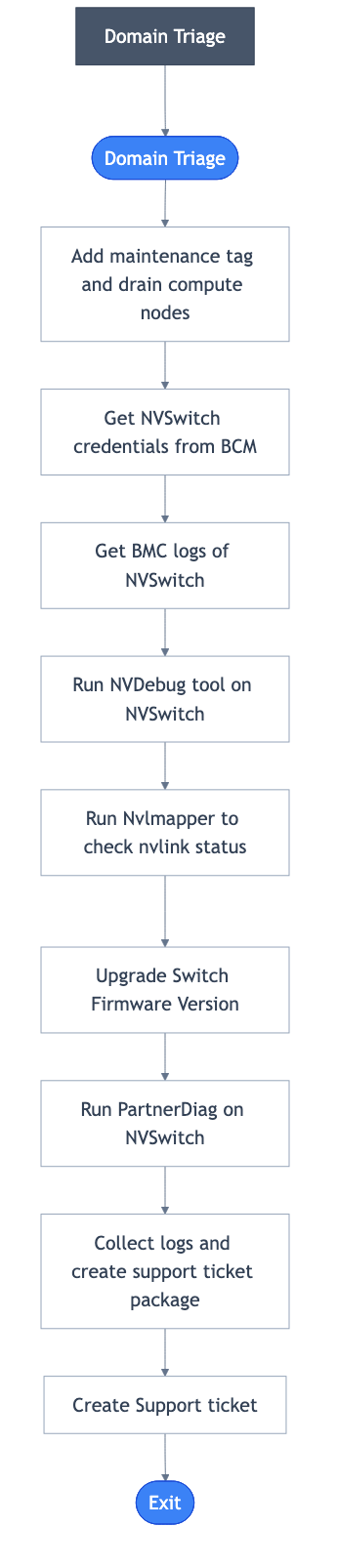
Figure 6 Domain Triage workflow.#
Workflow components#
Stage |
Operator-visible behavior |
|---|---|
Protect the domain |
The selected compute nodes receive the AHR maintenance tag and are drained in BCM/Slurm with reason |
Discover switches |
AHR resolves the selected NVLink domain, obtains switch management addresses and credentials from BCM, and verifies the switch BMC and operating-system paths needed by the diagnostic stages. |
Collect evidence |
The workflow collects switch BMC logs and NVDebug data, then runs the available Nvlmapper and PartnerDiag checks to correlate compute and switch failures across the domain. |
Remediate and validate |
The selected switch firmware package and golden configuration are applied through the approved switch path. The workflow then rechecks switch and compute connectivity before packaging the results. |
Support handoff |
Diagnostic artifacts are packaged and attached to the configured support workflow. The domain remains unavailable until the reported failure is resolved and an operator completes return-to-service. |
Run Domain Triage#
Open BREAKFIX_DOMAIN_TRIAGE and select the rack or NVLink domain with
resource_tagandresource_value. For the standard rack scope, useresource_tag=rack_nameand the exact rack value.Set
IGNORE_LISTto one hostname, a pipe-delimited no-space expression such asnode01|node02, an array, or the literalnone. A comma-delimited string is not the documented parser contract.Provide the certified
SWITCH_FWPKG_DIR_PATHandFW_SOURCE_JSON_PATH. Verify those paths are readable from the BCM head node before creating the run.Create the run and monitor each child stage. Stop on a failed selection, credential, diagnostic, firmware, or validation cell; do not manually advance to a later child.
Record the diagnostic archive and support-case reference from the completed run. Keep the affected nodes drained while the domain issue is investigated.
Results and return to service#
Completed: diagnostic collection and the configured switch checks finished, the artifact path and support handoff are visible, and all selected nodes remain intentionally drained.
Failed: open the first failed child, retain the maintenance and drain state, and use the emitted switch, compute, or credential evidence to correct the underlying issue.
Return to service: after the support case is resolved and the rack is verified healthy, run
UNDRAIN_AND_UNTAG_RACKSwith the same scope and ignore list. Confirm BCM/Slurm reports the nodes open and the AHRmaintenancetag is absent.
Important
Return to service is a separate operator step
Domain Triage does not undrain compute nodes or remove their maintenance tags. After the support case is resolved and the rack is verified healthy, run UNDRAIN_AND_UNTAG_RACKS with the same resource_tag, resource_value, and IGNORE_LIST. Confirm BCM/Slurm shows the nodes open and the AHR maintenance tag is absent.
Health checks and operations#
AHR 2.5 protects workloads at four points: before baseline acceptance, at scheduler job boundaries, through periodic alarms, and during automated recovery. The checks use the same action library, but each control point has a different scheduling and return-to-service contract.
Health protection model#
Control point |
Purpose |
Failure handling |
|---|---|---|
SUT and MUT baseline |
Qualifies a selected unit before it is accepted for production use. Refer to Baseline testing for the complete stage inventory, reports, and RCA procedure. |
The failed stage and child run identify the affected component; the selected unit is not considered qualified until the required stages pass. |
Slurm prolog and epilog |
Runs health validation before and after scheduled jobs so unhealthy nodes are isolated from future workloads. |
A failing job-lifecycle check drains the affected Slurm node and records a reason that can make it eligible for Break/Fix. |
Periodic alarms |
Evaluates host, GPU, network, storage, headnode, leak, and informational checks on the configured interval. |
The alarm records the resource and output. Configured automation can invoke a recovery runbook; otherwise an operator investigates from the alarm and run history. |
Run:ai prolog |
The |
|
NVLink health validation reads the complete multi-word Fabric Health Summary. Any value other than Healthy fails the check. A split NVLink clique also fails fabric validation and prevents NVBandwidth from being graded as a valid bandwidth result.
Run:ai health and recovery#
Run:ai support is available on GB300, GB200, B300, and B200; VR is not supported by Run:ai in this release. Support is disabled by default. Before you enable it, verify the deployment’s Kubernetes resource selection and recovery policy.
Part of that verification is the kubectl context the Run:ai actions use, deployed as the runai_k8s_context OpenTofu variable and defaulted to the fleet-standard kubernetes-admin@k8s-user. A BCM head node usually has more than one context configured, and these actions cordon and drain GPU nodes, so confirm that the deployed value names the context holding the Run:ai GPU nodes before you enable recovery. Compare it against sudo kubectl config get-contexts on the BCM head node; the actions run as root, whose kubeconfig may differ from yours.
prolog_runaievaluates the full prolog action against resources tagged for Run:ai.When validation fails,
K8S_CORDON_ALARM_INSTANCEcordons the node, records the failure reason, and labels it as a Break/Fix candidate. Cordon is the Kubernetes scheduling gate; the AHR maintenance tag prevents duplicate recovery ownership.The separately enabled
BREAKFIX_RUNAI_TRIGGERclaims one candidate, drains tenant workloads, and invokes the shared triage, recovery, validation, diagnostic, retry, and terminal-review path.A passing recovery uncordons the node and removes the cordon annotation and candidate label. For an approved manual return-to-service operation, use
UNCORDON_NODESafter verifying health and clearing AHR maintenance state.
Warning
Enable both halves intentionally Enabling the Run:ai alarm without the recovery trigger isolates unhealthy nodes but does not automatically process them. Enabling the recovery trigger without a validated candidate-labeling path can leave it with no eligible resources. Verify alarm, label, cordon, trigger, and uncordon behavior together.
Two deployed runbooks take an explicit node list so an external recovery engine, or an operator acting for one, can exclude named nodes on either scheduler. Both accept the node names in NODES and an optional REASON that defaults to Excluded by ARE:
CORDON_AND_DIAG_RECOVERY_ENGINEresolves the named nodes against the Run:ai resource set, cordons them with the supplied reason, and then collects the recorded cordon reason for each node as post-cordon diagnostics. It stops with a failure message if the name match selects no Run:ai node.DRAIN_AND_DIAG_RECOVERY_ENGINEis the Slurm-side equivalent: it drains the named hosts through BCM from the BCM head node with the supplied reason.
Neither runbook validates or recovers a node. Return a node to service through the Break/Fix path or the documented manual return-to-service steps.
Platform support#
Review platform-only limitations and initial-support details for the selected NMC-AHR revision.
Platform support status
Status: Active platform wiring is present in the reviewed NMC 2.5 runbook set.
No additional platform-only content was present in the migrated source, so the shared guidance applies. This tab is retained to keep the platform selector complete and synchronized.
Default deployment evidence: 4 production module sources and 106 runbooks for GB300. The raw maximum is 107 when the Slack-gated STALE_AHR_COMPLETE_ALERT runbook is included.
Platform support status
Status: Active platform wiring is present in the reviewed NMC 2.5 runbook set.
No additional platform-only content was present in the migrated source, so the shared guidance applies. This tab is retained to keep the platform selector complete and synchronized.
Default deployment evidence: 4 production module sources and 101 runbooks for GB200. The raw maximum is 102 when the Slack-gated STALE_AHR_COMPLETE_ALERT runbook is included.
Platform support status
Status: Active platform wiring is present in the reviewed NMC 2.5 runbook set.
No additional platform-only content was present in the migrated source, so the shared guidance applies. This tab is retained to keep the platform selector complete and synchronized.
Default deployment evidence: 4 production module sources and 83 runbooks for B300. The raw maximum is 84 when the Slack-gated STALE_AHR_COMPLETE_ALERT runbook is included.
Platform support status
Status: Active platform wiring is present in the reviewed NMC 2.5 runbook set.
No additional platform-only content was present in the migrated source, so the shared guidance applies. This tab is retained to keep the platform selector complete and synchronized.
Default deployment evidence: 4 production module sources and 82 runbooks for B200. The raw maximum is 83 when the Slack-gated STALE_AHR_COMPLETE_ALERT runbook is included.
NVIDIA Mission Control autonomous hardware recovery provides initial (early-access) support for the VR (Vera Rubin) NVL72 platform. VR is a Grace-class rack platform built on the Vera CPU and Rubin GPUs:
4 Rubin GPUs per compute node (HBM4, ~168 GB per GPU, 1800 W power limit)
Vera CPU — 88 cores (two sockets × 44), Arm architecture
36 InfiniBand devices (ConnectX-9 east-west plus BlueField-4 north-south, multi-PF)
NVLink6 fabric (8 ports per GPU)
BaseOS-Vera operating system
VR is deployed from CHIP/VR/Baseline. As with GB300, the validated operational focus for this release is firmware upgrade. Baseline-testing and health-check runbooks are deployed and reuse the rack-scale flows, but their performance thresholds and several firmware baselines are still being finalized against production VR hardware — refer to Initial-support scope.
Initial-support scope
VR support is in early access for this release:
Use the VR SOT supplied with the release for firmware validation. Benchmark thresholds are still being finalized against production VR hardware, so confirm them against your environment before relying on benchmark pass/fail results.
East-west ConnectX-9 cable-speed validation is not yet enabled; north-south BlueField-4 links are validated.
Default deployment evidence: 4 production module sources and 105 runbooks for VR. The raw maximum is 106 when the Slack-gated STALE_AHR_COMPLETE_ALERT runbook is included.
Additional deployed operator runbooks#
The baseline-stage tables intentionally list only active SUT/MUT children. The following deployed runbooks are separate operator or recovery tools and must not be inferred from those tables:
Runbook |
Deployment and use |
|---|---|
|
All platforms. Enable or disable the Slurm/BCM, Run:ai, recovery-watchdog, and cycle-window-reset triggers as one set. The enable runbook reports the final trigger and bound-bot states. The disable runbook reports the current maintenance count and final trigger states; it prevents new claims but does not stop triage already running. |
|
GB300, GB200, and VR through the rack-scale module. The trigger runbook is deployed but has no scheduler wiring at the selected revision; run it manually or add separately reviewed scheduling. |
|
GB300, GB200, and VR. Performs an on-demand leak-detector query in addition to the |
|
B300 and B200. Invoked by MUT1 when |
|
B200, B300, and VR. Deployed as a standalone runbook and not called by the active baseline graph. |
|
Deployed in both runbook families and used by firmware validation to load SOT values. |
|
Shared universal utility for returning recovered Run:ai nodes to service. |
|
Operator-run PartnerDiag workflows; they are separate from the PartnerDiag collection performed by |
|
VR only. Destructively re-images selected BF4 DPUs. Set |
|
All platforms. Operator-triggered recovery after the read-only |
|
All platforms. Lists valid NVRASTool tests for resources selected with |
|
All platforms. Runs one named NVRASTool test, selected with the required |
|
All platforms. Runs the NVSSVT diagnostic from the BCM head node against the selected scope at the certification level set in |
|
All platforms. Installs the EUD diagnostic on the selected hosts. The installer selects a package for Ubuntu 20.04, 22.04, or 24.04 on amd64 or arm64. For any other Ubuntu release, it reports the detected version and stops. Break/Fix diagnostic collection skips EUD evidence and reports that EUD is not installed when it is absent. Install EUD on nodes where you need that evidence. |
|
All platforms. Read-only NVLink state report for the hosts supplied in |
|
All platforms. Operator-driven reboots selected with |
|
All platforms. Reconfigures GFM and NMX-C on the NVLink switches for the selected scope. It claims the scope with the maintenance tag, drains and powers off the compute trays, resolves the switch credentials from BCM, performs the reconfiguration, then powers the trays back on, undrains them, and clears the maintenance tag and credential files. It is the deployed remediation path for a switch whose control plane must be rebuilt, including one reported by the |
|
GB300, GB200, and VR. Checks whether the BF3 devices on the selected hosts are in DPU mode and converts those that are to NIC mode. Only the nodes actually changed are power-reset and then checked for SSH connectivity and BCM device status; nodes already in NIC mode, or without BF3 devices, are skipped. It fails the run if a reset node does not return to the UP state in BCM. |
|
All platforms. Validates the point-to-point Ethernet connections on the spine, TOR, BTOR, and OOB switches. It resolves the switch list and credentials from BCM and runs the check from the BCM head node. |
|
All platforms. Clears AHR bookkeeping on the selected hosts that carry the maintenance tag: it removes the retry, Break/Fix entry, window-tick, stuck-tick, and stale-tick tags, then removes the maintenance tag itself so AHR resumes checks and jobs on the node. It changes AHR state only. The scheduler drain or cordon state is separate and must be cleared through the normal return-to-service path. |
|
All platforms. Post-deployment check that the AHR baseline installed correctly. It confirms the BCM head node received the version file, exercises the BCM client from the BCM head node so a certificate or TLS misconfiguration surfaces before remediation time, runs the full prolog validation, and calls each periodic check group, the BCM head node checks, a targeted subset of single-node checks, and the informational checks. Run it against one representative node, or a small set; it is not intended for cluster-wide execution. |
|
GB300 only. Operator-run PartnerDiag hardware scans that run the prolog, clear any stale alarm lock from an earlier run and take a fresh one, stop the NVIDIA services, run the scan, tag each host with the pass or fail result, and then run the epilog for the hosts that passed. |
Automated Health Checks with NVIDIA Mission Control autonomous hardware recovery#
All Platforms#
NVIDIA Mission Control autonomous hardware recovery provides a full suite of automated health checks to detect failures at the tray, rack, and system levels. In addition, system-wide health checks are performed by integrating with the UFM and NMX-M network control planes. Health check data is reported back to BCM’s BaseView and/or the in-cluster LGTM stack. These health checks are performed at two layers: BCM job invocation, and as periodic health checks via NVIDIA Mission Control autonomous hardware recovery.
Alarms Dashboard#
The alarms dashboard is an overview of all alarms and the state of your system. In this view, alarms are summarized by counts of alarms firing, alarms firing most frequently, and a configurable list of most frequently firing, canceled, or resolved alarms. This is meant to be a starting point for any investigations of possible issues with your systems, and you may click any alarm for further details.
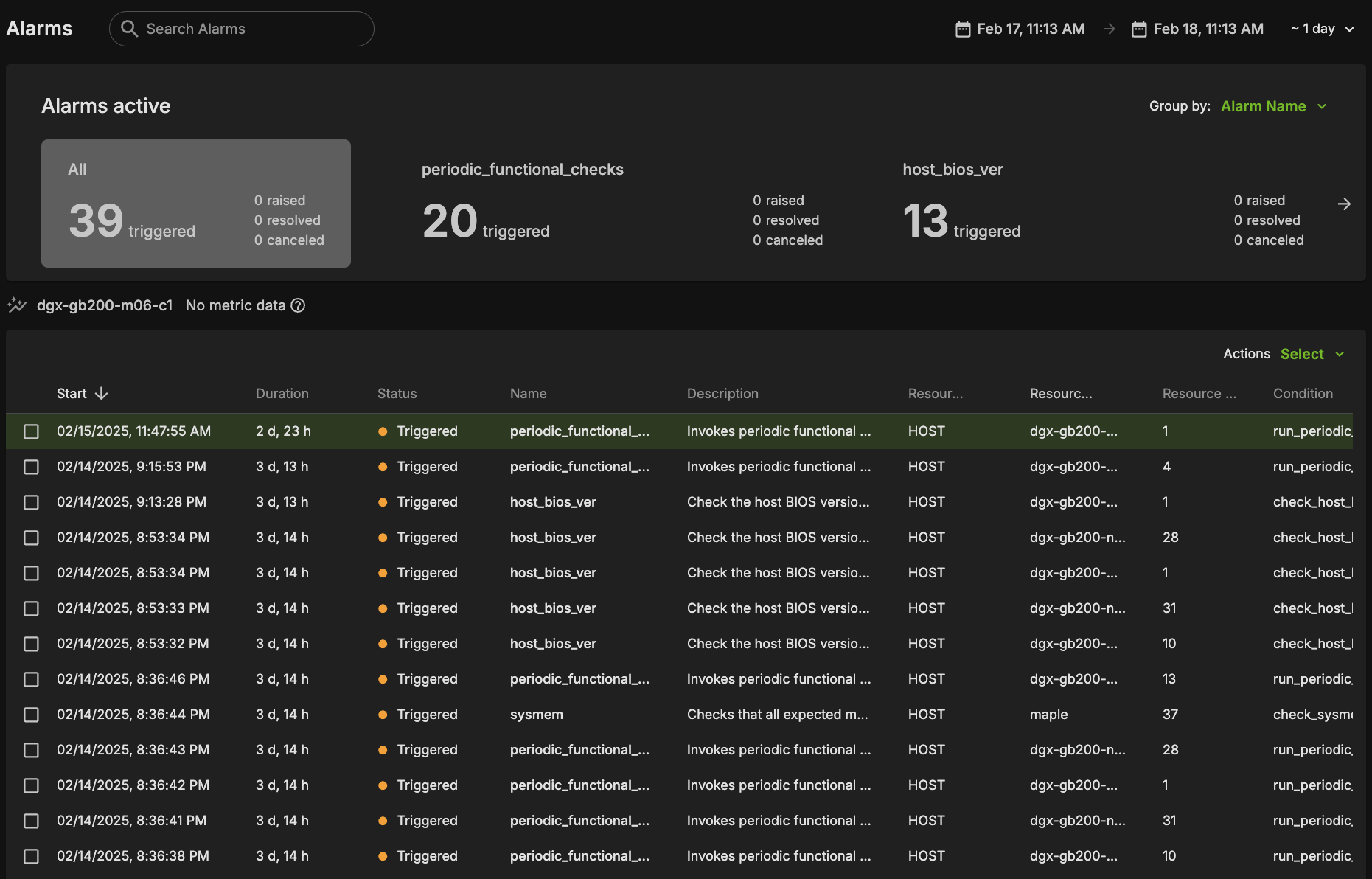
BCM Slurm Job Lifecycle Checks (Prolog and Epilog)#
When a Slurm job is submitted, the Autonomous Hardware Recovery Agent automatically runs a set of checks at the start and end of the job to validate node health and stability. These are known as Prolog and Epilog checks.
Prolog Checks (run before the job starts):
If a check fails, the node is marked as DRAIN, and the job is re-queued.
If it passes, the job proceeds normally.
Epilog Checks (run after the job finishes):
If a check fails, the node is also marked as DRAIN.
These scripts are automatically pushed to each node when the job runs, but they are not visible or configurable through the NVIDIA Autonomous Hardware Recovery UI. To review them, navigate to Shoreline_files/scripts/slurm in the NVIDIA Mission Control package.
On a platform whose Spectrum-X rails finish training after the node has booted, the prolog’s Ethernet link check re-polls a rail that is not yet up instead of failing it immediately. The SPX_LINK_BOOT_GRACE_SEC parameter in the platform’s defaults.yaml sets the window. It is set on VR and unset on every other platform, where the check continues to fail immediately. The value changes as rail-training time is re-measured. Refer to defaults.yaml for the current window. This is a bounded window, not a delay. The check returns as soon as the rails are up, and a node that has been running for longer than the window fails on its first pass, so a genuinely dead rail is still reported without waiting. Interfaces that fail are reported with the reason — administratively down, or up with no carrier — which distinguishes a node still inside its boot window from one with dead ports.
Note: Prolog and Epilog checks are disabled by default and should only be enabled after the nodes are confirmed to be healthy. Use the following runbooks to manage them:
SLURM_CHECKS_ENABLE– enables the checksSLURM_CHECKS_DISABLE– disables the checks
Unlike the Prolog and Epilog checks, Periodic Checks are defined within the NVIDIA Mission Control autonomous hardware recovery interface as Alarms, and are detailed in the next section. They are enabled for resources that pass Single Unit Testing and can also be managed with the ALARMS_ENABLE and ALARMS_DISABLE runbooks.
Periodic Health Checks (Alarms)#
Periodic Checks are separate from Prolog and Epilog and run at regular intervals to monitor system health. These are managed as Alarms in the NVIDIA Autonomous Hardware Recovery UI and perform the following:
Automatically enabled for racks that pass Single Unit Testing
Remain governed by their alarm resource queries during firmware upgrade and Break/Fix
Can be manually enabled or disabled at any time
The alarm_base is the Resource Query they run against. To control them manually, use the following runbooks:
ALARMS_ENABLE– enables periodic alarms for selected resources. Amaintenancetag does not override alarm selection in the 2.5 implementation.ALARMS_DISABLE– disables them
Periodic Checks are fully visible and configurable in the UI through the alarm section. The following is a list of the configured Alarms, grouped by their check interval:
Alarm Check Frequency (5m)#
The system runs the following checks every 5 minutes.
bmc_sensors#
Checks the sensors from the Baseboard Management Controller (BMC) to ensure the proper data is returned.
sysmem#
Checks that all expected memory DIMMs are present.
dns_host#
Checks the DNS configuration and resolution for the host.
switch_interface_link_down#
BCM head node only, all five platforms: fires when a provisioned swp port on a Spectrum-X Ethernet switch is not up/up, when the check times out, or when no Ethernet switch on the fabric can be read at all. Switches that individually cannot be read are logged and do not hold the alarm red. The check enumerates Ethernet switches from BCM and exits cleanly on a cluster with none, so it self-gates at runtime on a fabric without Spectrum-X switches. Cumulus and NVOS switches run no agent, so this check runs from the BCM head node rather than on the switch itself.
eth_state#
Checks the RDMA fabric NICs on the host, following either the InfiniBand or the RoCE/Spectrum-X path depending on which fabric the host presents. On a Spectrum-X host, the check verifies that every fabric interface is up and that the number present matches the expected count for the platform. On an InfiniBand host, it uses ibstat to verify that the expected number of devices is present and that every enabled port is Active/LinkUp, grading each device separately. Ports that are administratively disabled by design, such as mlx5_2, mlx5_6, and mlx5_7 on GB200, are reported as informational and are not graded.
ethernet_link_down#
Fires when a Spectrum-X Ethernet port is administratively up but carries no link, across every Spectrum-X naming convention the check recognizes (rail-first eth_rX_pY, port-first eth_pX_rY, eth_railN, roce_pN, roce_rN_nM, and enP<n>p<n>s<n>f<n>np<n>). The alarm names the affected interface. Ports that are administratively down by design, such as two of the four BlueField-4 ports on VR, are reported as informational and do not fire.
raid_count#
Checks that the RAID configuration matches the expected mdstat configuration.
gpu_temp_history#
Checks System Event Log (SEL) history looking for GPU temperature issues.
gpu_alloc_temp#
Checks if the GPU temperatures are above a threshold.
periodic_bmc_host_checks#
The following groups of periodic functional checks are a subset of the BCM Prolog checks that run at predefined intervals as NVIDIA Mission Control autonomous hardware recovery Alarms. These checks consist of:
check_bmc_ipmi_version : Checks BMC IPMI version against an expected value
check_nvidia_module_loaded : Verifies the NVIDIA module is loaded in the host OS
check_host_os_version : Verifies the DGX OS version matches the expected value
check_nvsm_status : Verify the NVSM service is currently active
periodic_cpu_mem_checks#
The following groups of periodic functional checks system memory:
check_cpu_health : Verifies CPU sockets and cores are present and online
check_dimm_count : Checks that all expected memory DIMMs are present
check_dimm_size : Checks that the size of each memory DIMM matches the expected values
check_memory_swap_size : Checks that the memory swap size matches the expected value
periodic_gpu_nvlink_checks#
The following groups of periodic functional checks perform NVLink related checks:
check_gpu_pci : Checks that all GPUs are present on the lspci interface and with the correct link width and speed
check_gpu_error : Checks GPUs for ECC errors, retired pages, and throttles present
check_gpu_powerstate : Checks the powerstate for each GPU and compares against an expected value
check_gpu_param : Checks that specified GPU parameters are present and correct for the host
check_nvlink_health : Checks that links are active for each GPU, the speed is correct, fabric registration has been completed, are running at full bandwidth, and belong to the same NVLink domain and partition.
check_gpu_topology : Checks that there are no issues with the p2p topology within the node
check_gpu_telemetry : Checks that various sensors can be successfully read from the GPU using nvidia-smi
check_gpu_power_limit : Checks that the power limit is correct for each GPU
check_nvidia_inforom_ver : Checks that the inforom version is correct for each GPU
check_gpu_clock_info : Checks that the maximum clock speed is correct for each GPU
check_remapped_row : Checks if any remapped row events have occurred
periodic_network_checks#
check_ib_ber_and_ro : Checks if the PCI_WR_ORDERING field is set to relaxed and also the bit error rate of the CX7 using mlxlink
check_ib_port_rcv_errors : Checks InfiniBand device port RCV errors
check_ib_cables : Checks the cable info using mlxcables
check_bf3_speed : Validates that the BlueField devices are operating at the correct speed and that the proper number of devices are in the “Up” state. This check will run, but never fail
periodic_storage_checks#
check_pex_switch_health : Checks that the PEX switches are present, have the correct PCIe link speed and width, and the downstream devices have enumerated to lspci
check_cx_config : Checks that the ConnectX devices have the correct PCIe link speed and width using lspci and ACS config using setpci
check_nvme_health : Checks that the PCIe link speed and width of each NVMe device matches the expected value
check_storage_dir : Checks that the host has functional access to the home storage
check_storage_util : Checks that the used local storage on the host is below a given threshold
periodic_error_checks#
Checks journald for machine check events, Xid, AER, CPER, I/O, GPU fell off the bus, and other generic errors.
headnode_disk_usage#
BCM head node only: fires when disk usage reaches 80% or inode usage reaches 90% on any non-virtual mount discovered from /proc/mounts.
headnode_ha_status#
All five platforms (GB300, GB200, B300, B200, and VR), BCM head node only: fires if cmha status reports [FAILED] for mysql, ping, or status on any HA node pair. The check exits without firing when cmha is not installed.
slurmctld_health#
All five platforms, BCM head node only: every 5 minutes, performs read-only detection of a local slurmctld whose systemd unit is active but whose scontrol ping state remains DOWN for three bounded samples taken 10 seconds apart. The alarm reports the wedged controller but does not restart it.
Recovery is operator-triggered. After confirming the peer-controller state, run RECOVER_SLURMCTLD. That runbook refuses to restart unless another controller is explicitly UP and no peer is DOWN; it also enforces restart caps, backoff, and post-restart verification.
cmsh_cmd_service#
BCM head node only: fires when BCM cmd.service is not running or cmsh fails.
leak_detectors#
GB300, GB200, and VR only. Runs on the BCM head node and fires when BCM reports a leaking host.
nmx_cluster_apps_health#
GB300, GB200, and VR only, BCM head node only. Evaluates every 5 minutes and reports the health of the nmx-controller and nmx-telemetry cluster applications on the NVLink switches. It is deployed with the rest of the alarm set and follows the deployment’s alarm-enable setting.
The check runs from the BCM head node. It enumerates NVLink switches from the BCM device list, selecting them by the nvswitch device type rather than by hostname, resolves their access credentials from BCM in one batched lookup, and then queries nv show cluster apps on each switch.
nmx-telemetryruns on every switch and is judged on every switch.nmx-controlleris judged only on the leader of each NVLink switch group, which is the switch that reportsCONTROL_PLANE_STATE_CONFIGURED. A standby reportsnot okwithGFM: UNHEALTHYas its normal resting state, so scoring standbys would fire the alarm on healthy fabrics.Each group must have exactly one leader. Two leaders in a group is split brain, and it is reported even when another switch in that group did not answer. A group with no leader is reported only when every switch in that group answered, because an unread switch may be the leader.
The alarm fires on any non-zero result and clears only when every per-switch check completes cleanly and each switch group has exactly one leader. A timed-out check is treated as actionable, not as a held state:
An unhealthy application, a control-plane fault, or a timed-out switch check fires the alarm and reports
Unhealthy NMX cluster apps,NVL switch groups without exactly one active nmx-controller, orTimed out checking NMX cluster apps.Health that cannot be determined also fires the alarm and reports
NMX cluster app health is indeterminate. This covers an unavailable BCM module environment, a failed switch enumeration or credential lookup, an empty NVLink switch list, an unreadable per-switch status, and an unreadable control-plane role.Every switch produces at least one result. Switches that are not reached before the run deadline are reported as timed out rather than dropped from the result, so a partial run cannot look clean.
The run is bounded so the alarm always has a result to evaluate: the check’s own deadline is below its action timeout, which is in turn below this alarm’s 5-minute interval. Switches are checked concurrently, and a new batch starts only when a full per-switch budget still fits inside the deadline.
Operator response. Open the firing alarm and read its message and log output. The message names the affected switch/application pairs, the reported status with its reason and control-plane role, and any group that does not have exactly one active nmx-controller. Confirm on the named switch with nv show cluster apps nmx-controller or nv show cluster apps nmx-telemetry. A domain’s active leader can be identified by hand with cmsh -c 'device; nvfabricinfo'; that query is slow on large fabrics, which is why the alarm derives the leader from the switches instead. Indeterminate and timed-out results are investigated as BCM head node-to-switch access problems, starting with BCM availability, the switch credentials in BCM, and switch reachability. For a switch that needs its control plane reconfigured, BreakFix_Switch_Reconfig_GFM_NMX is the deployed runbook.
The alarm declares fire and clear conditions only. No runbook automation is wired to it at the selected revision, so recovery is an operator decision.
prolog_runai#
Runs the full prolog validation against the runai resource and triggers Kubernetes cordon handling on failure. This alarm is disabled by default and must be enabled explicitly. It is wired for all five platforms (GB300, GB200, B300, B200, and VR), although Run:ai is not supported on VR in this release.
Hourly Checks#
nfs_mounts#
Verifies required mount points.
nvlink_errors#
Evaluates hourly. Fires when any GPU reports an NVLink fault counter — packet, CRC/symbol, link-integrity, discard, or recovery — above the configured threshold, or when NVLink information cannot be read for a GPU. The alarm names the affected GPU index and link number, or the GPU index alone when its NVLink information could not be read.
The check grades a named set of fault counters rather than every numeric value the driver reports. Most of that output is traffic volume and link-quality telemetry that is nonzero on every healthy link, and grading it produced thousands of failures on a healthy node, which buried the links that carried a real fault. A counter the check does not recognize is reported as informational rather than graded.
daily_informational#
This alarm evaluates hourly but invokes its informational checks only within the configured 1-hour daily window. Results may be viewed in the resulting runbook run.
check_sel_event : Read the SEL events from the BMC and ensure none are asserted
check_host_package_versions : Queries the installed packages on the host
nv_container_cli_info : Retrieves information about the NVIDIA container CLI (driver and devices)
A deployed automation runs the INFORMATIONAL_CHECKS runbook when this alarm fires. The runbook resolves the host from the firing alarm instance and re-runs the informational action, so the collected output is available in that runbook run. It reports only: the runbook carries no notification or remediation step at the selected revision.
Daily Checks#
cpu_stepping#
Checks that the CPU stepping parameter is correct for each CPU.
numa_node_count#
Checks that the correct count of Non-uniform memory access (NUMA) nodes are configured with the CPU cores.
cpu_microcode_version#
Node-scale systems only (B300 and B200): checks the x86 CPU microcode version and compares it with the configured expected value.
NVIDIA Mission Control autonomous hardware recovery Alarm Configuration#
There are several components to an alarm, with the key pieces being the Resource Query, Fire Query, Resolve Query, Check Interval, and Automation. An example configuration is shown in the following figure.
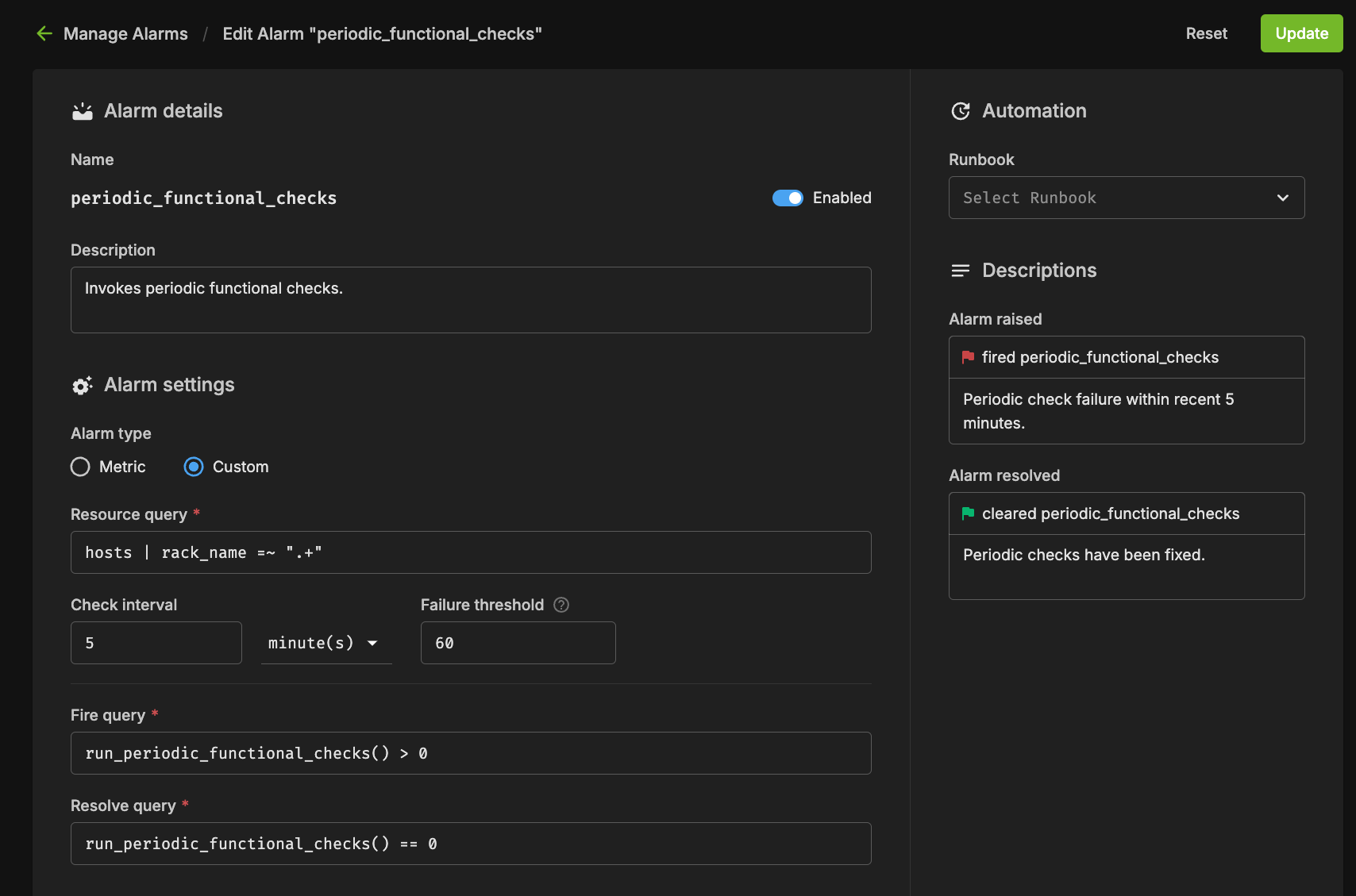
Resource Query#
The resource query allows you to customize the resources (hosts, pods, and GPUs) on which the checks are performed. In the preceding example, the resource query hosts | rack_name =~ ".*" checks alarms only on hosts that have a value set for the rack_name tag.
Fire Query#
The fire query is a condition that, when true, will cause the alarm to begin firing. It will be run at each interval.
Resolve Query#
Similar to the fire query, the Resolve query is a condition that will resolve the alarm when true. Resolving an alarm will cause firing to cease and the state to change to Resolved.
Check Interval#
The interval at which the fire and resolve queries are checked.
Automation#
You may use the Automation settings to have Runbooks triggered when an alarm fires, and you may also customize the informational messages that are displayed in the Alarm’s logs.
Alarm States#
If an Alarm has triggered, it will be in one of the following three states:
Triggered#
This state means the alarm is currently firing. Any automation (Break/Fix) will subsequently be invoked to remediate any issues, potentially resolving the alarm. Alternatively, you can cancel the alarm by selecting Cancel alarm.
Clicking into the triggering alarm will give you more details on what caused the alarm, metadata and resources relating to the alarm, and will also allow you to view log output from the check itself.
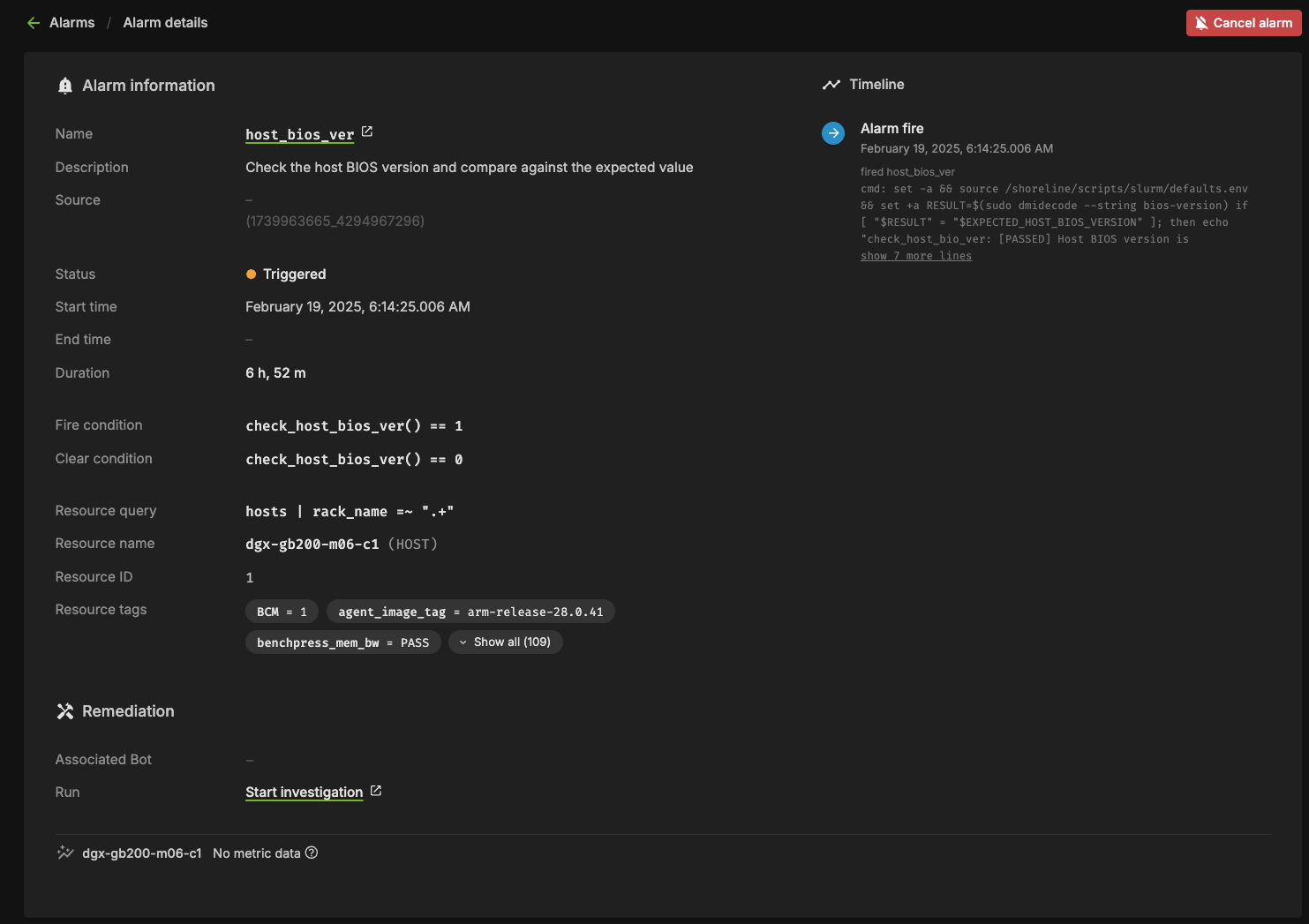
Resolved#
When the clear query of an alarm evaluates to true for a firing alarm, the status will be changed to Resolved. Automation triggered runbooks will invoke Break/Fix operations that should be configured to result in a resolved alarm.
Canceled#
When a user cancels an alarm from the dashboard, or from the triggered alarm itself, its state will become Canceled. Also, if an alarm configuration is changed for an alarm in the Triggered state, it will be canceled since it was triggered against a defunct configuration.
NVIDIA Mission Control autonomous hardware recovery Active Node Updates#
Applies to all platforms in this guide (GB300, GB200, B300, B200, and VR).
Active Node Updates Introduction#
The NVIDIA Mission Control autonomous hardware recovery Active Node Updates workflow provides a manual procedure for updating the active BCM head node designation when the primary BCM head node goes down. An administrator must execute the runbook to switch to a prepared backup node.
Important: These are manual procedures that must be initiated by administrators when primary nodes fail. The system does not fail over automatically; you must run these runbooks to designate new active nodes.
Key Features#
Manual Failover: Switch active node designations when primary nodes fail
Resource Tag Management: Manages the
ACTIVE_HEADNODEtagSystem Validation: Verifies updated node assignments after changes
Active Headnode Update#
The ACTIVE_HEADNODE_UPDATE runbook allows administrators to change which node is designated as the active BCM head node in the system. This workflow removes the ACTIVE_HEADNODE tag from the current BCM head node and assigns it to a new specified node.
Workflow Components#
Untag Current Headnode: Removes the ACTIVE_HEADNODE tag from the currently designated headnode
Tag New Headnode: Assigns the ACTIVE_HEADNODE tag to the specified new headnode
Update Resource Definition: Updates the headnode resource definition to point to the new active node
Validation: Verifies the new headnode assignment is correct
Running the Active Headnode Update#
To execute the Active Headnode Update workflow:
Navigate to the “ACTIVE_HEADNODE_UPDATE” runbook in the Runbooks section
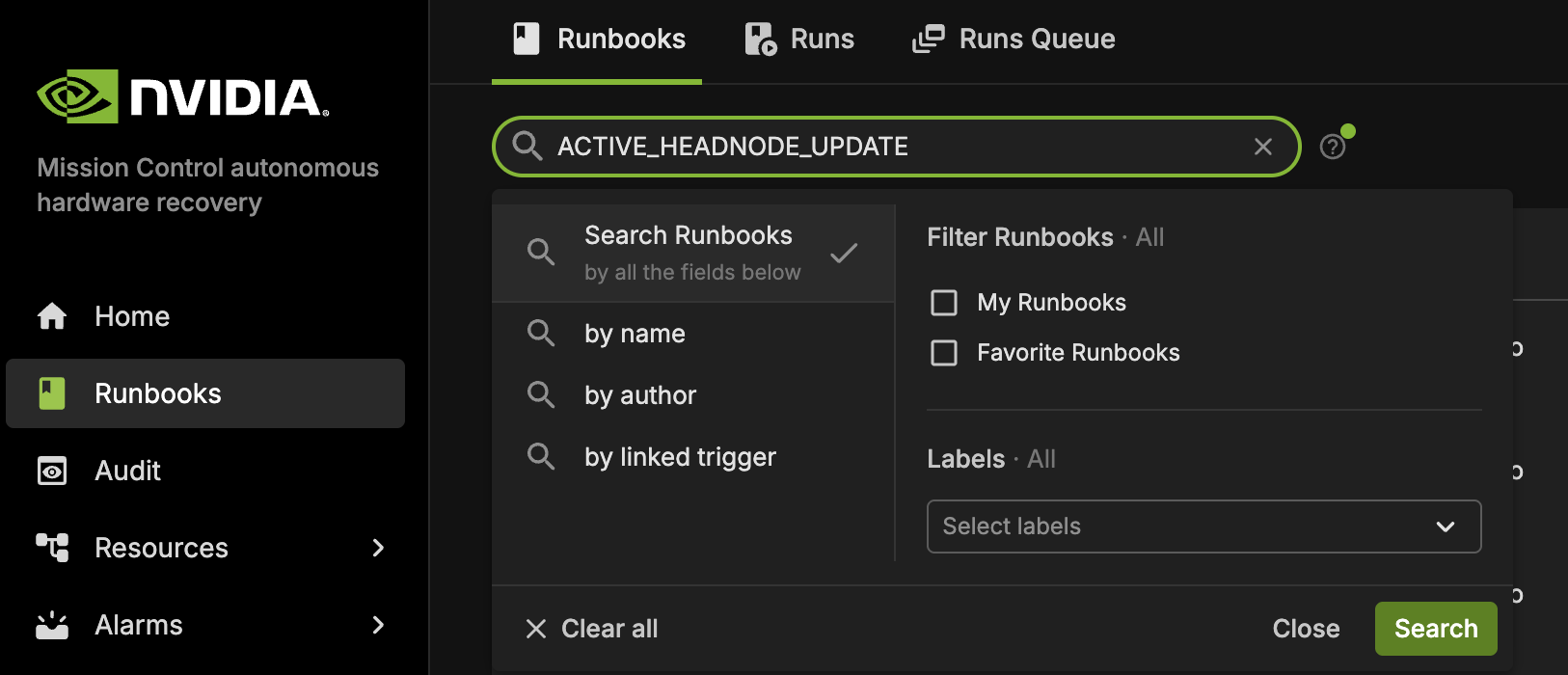
Configure the required parameter:
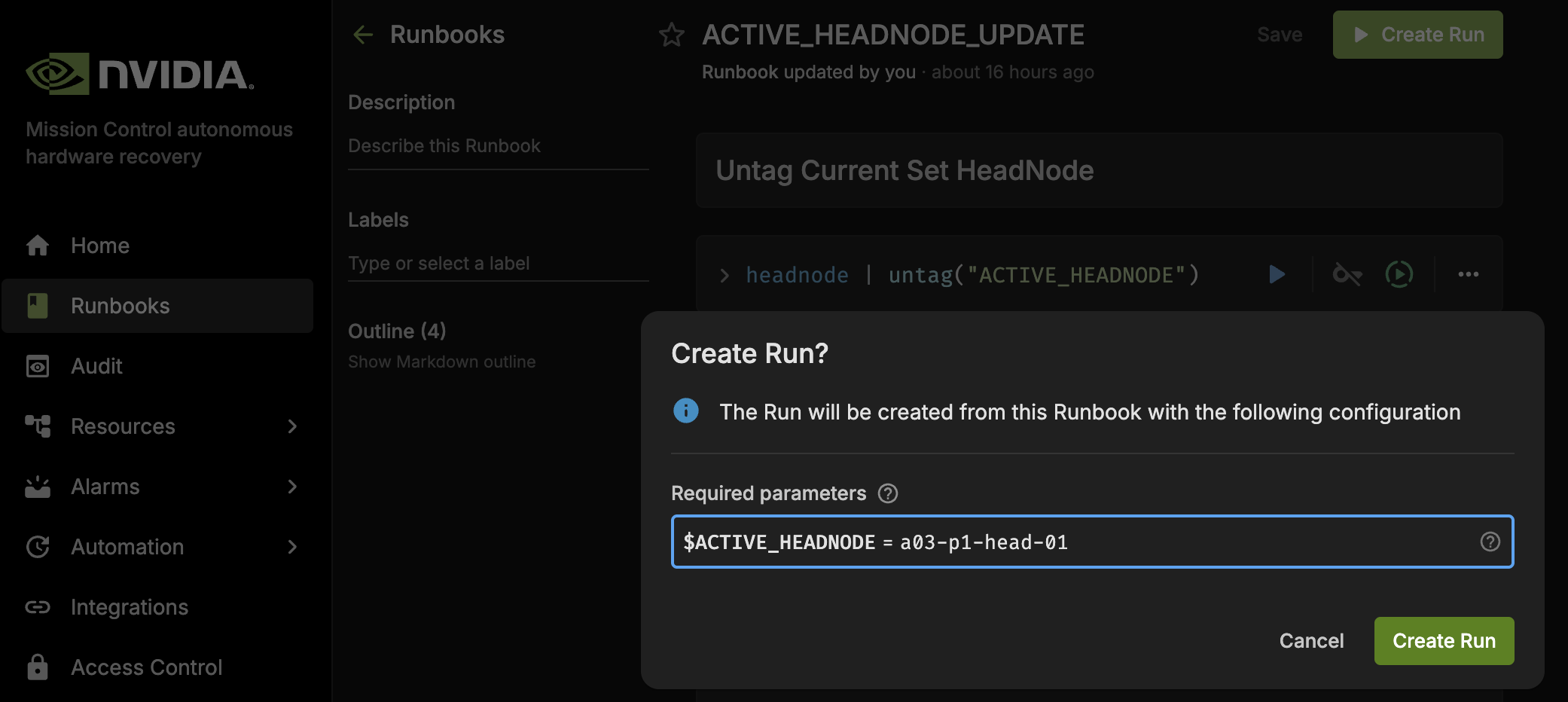
ACTIVE_HEADNODE: Input the hostname of the new active BCM head node
Select “Create Run” to initiate the workflow
Monitor the execution progress and results
The runbook will:
Remove the ACTIVE_HEADNODE tag from any currently tagged nodes
Apply the ACTIVE_HEADNODE tag with value “True” to the specified node
Update the headnode resource definition to reference the new active node
Display the updated headnode configuration for validation
Important Notes#
Manual Execution Required: Run
ACTIVE_HEADNODE_UPDATEmanually when the primary BCM head node fails; there is no automatic failover.2.5 Scope:
ACTIVE_SLURM_CONTROLLER_UPDATEand theslurm_controllerresource were removed before the selected 2.5 revision and are not available.AHR Tag Management Only: The runbook updates AHR’s understanding of the active BCM head node; it does not perform service migration.
Prerequisites: Ensure backup nodes are properly configured and accessible before running these workflows
Post-Execution: Verify that dependent systems recognize the new active node assignments
NVIDIA Mission Control autonomous hardware recovery UI Tips and Troubleshooting#
Selecting Attributes to Display#
You can customize parts of the UI, like Runbooks, to show only the attributes you’re interested in by using the column selector or attribute settings. This helps declutter the interface and focus on the most relevant data.
After executing a command (for example:
INPUT union headnode | export("INPUT_HEADNODE")
), you will see an output block like the following.
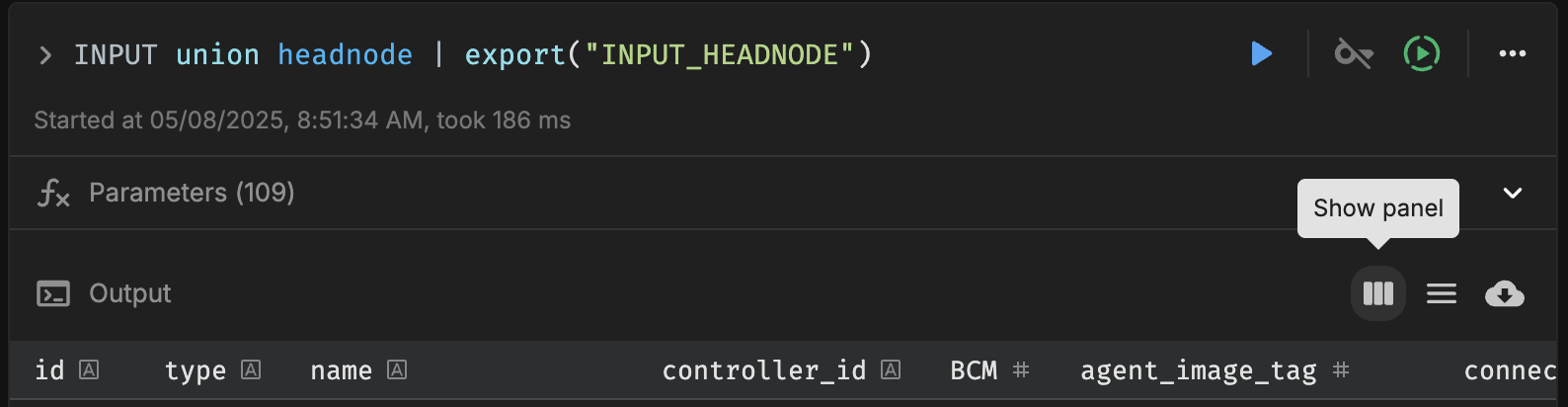
Click on the “Show panel” button in the Output section. This opens an interactive interface that allows you to select the attributes you’d like to view in the UI.
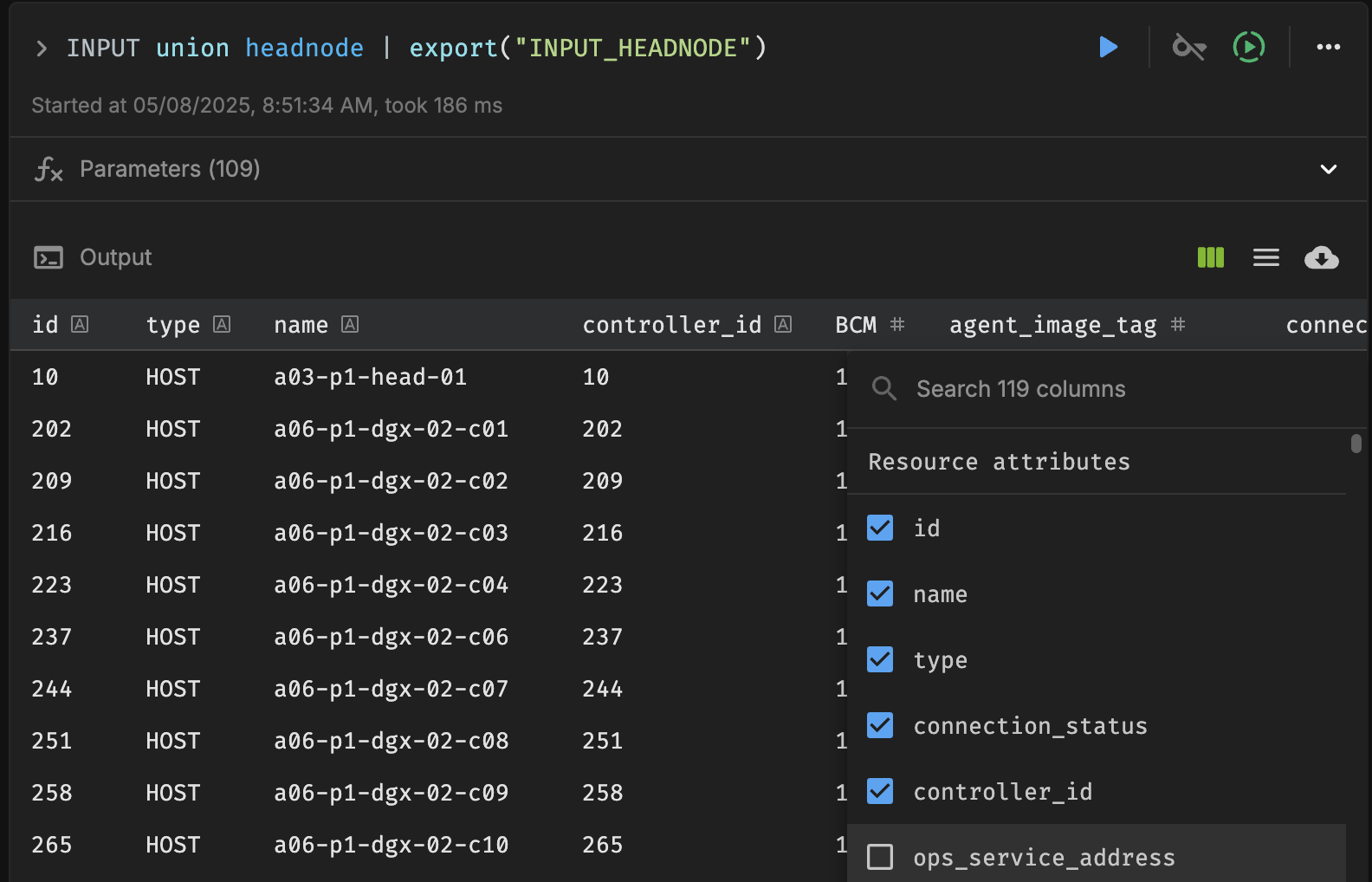
Viewing Logs for Excluded Resources#
To investigate why certain resources were excluded, open the Run associated with the Runbook, and click on the “Action filter excluded resources” section within the corresponding Cell. This will open a detailed log view explaining the reasons behind each exclusion.
For example, in the following screenshot, you can see that the action filter excluded 1 out of 16 resources:
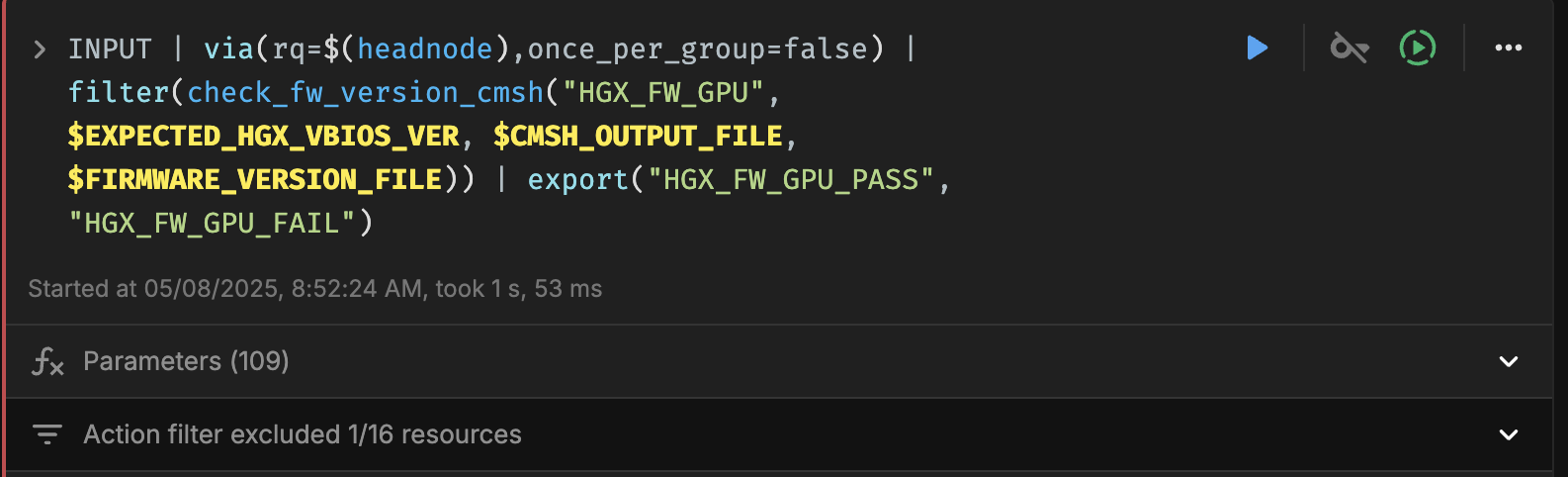
Once expanded, detailed logs will be visible, showing which resource was excluded and why, such as a version mismatch:
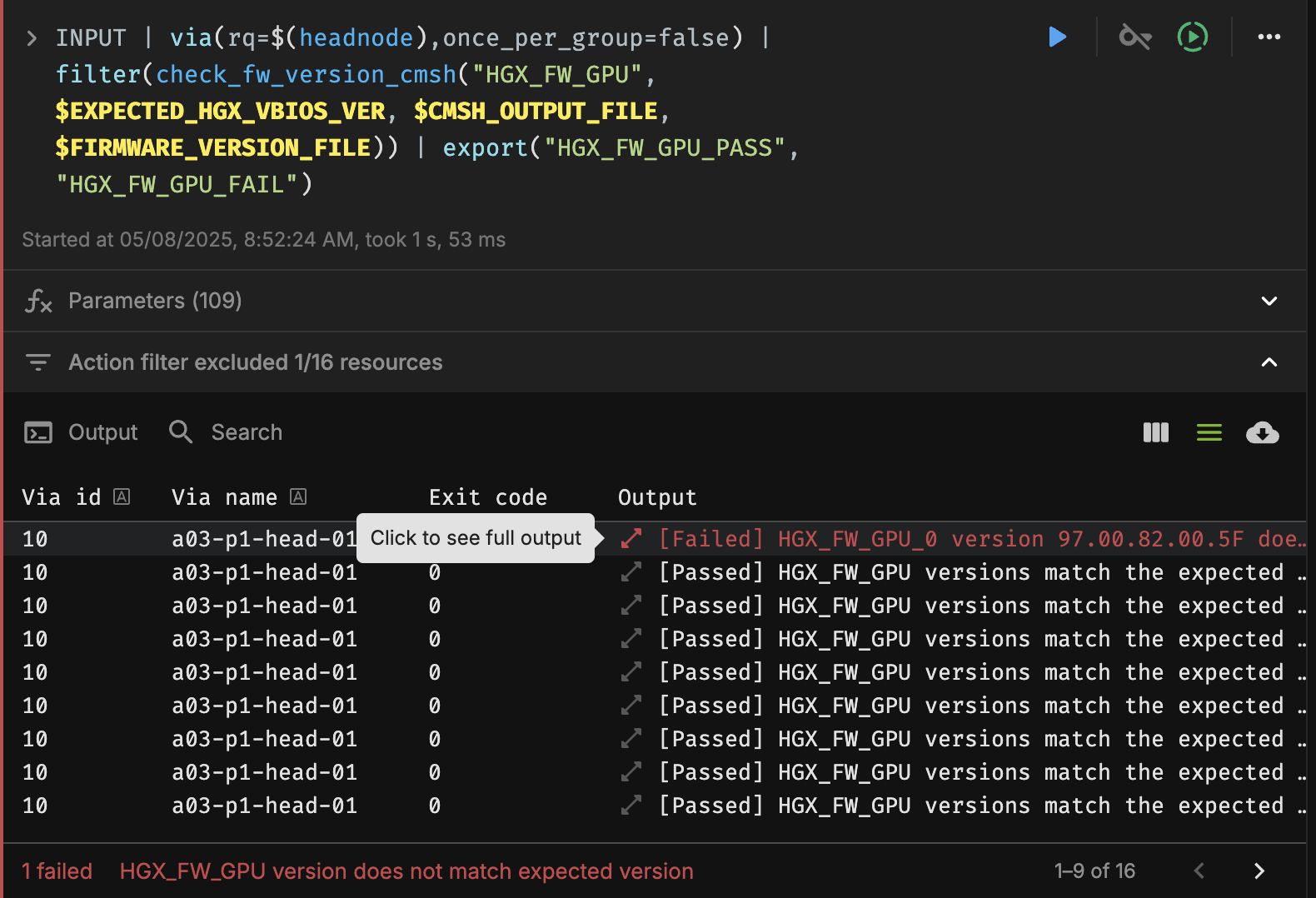
This log output helps in identifying failed checks, allowing targeted debugging.