

Observability Software#
Base Command Manager Monitoring#
NVIDIA Mission Control utilizes NVIDIA Base Command Manager’s built-in monitoring infrastructure for comprehensive system observability. This guide assumes administrators are familiar with BCM monitoring concepts, including metrics collection, measurable definitions, trigger and alert configurations, and health checks.
For detailed coverage of observability and monitoring in Base Command Manager, administrators should refer directly to:
Base Command Manager (BCM) Administrator Guide:
Monitoring Cluster Devices (Section 10)
Metrics, Health Checks, Enummetrics, and Actions (Appendix G)
For customizing monitoring alerts, health checks, and related configurations, consult these sections before proceeding.
Prometheus and Grafana#
Validate metric collection using Grafana#
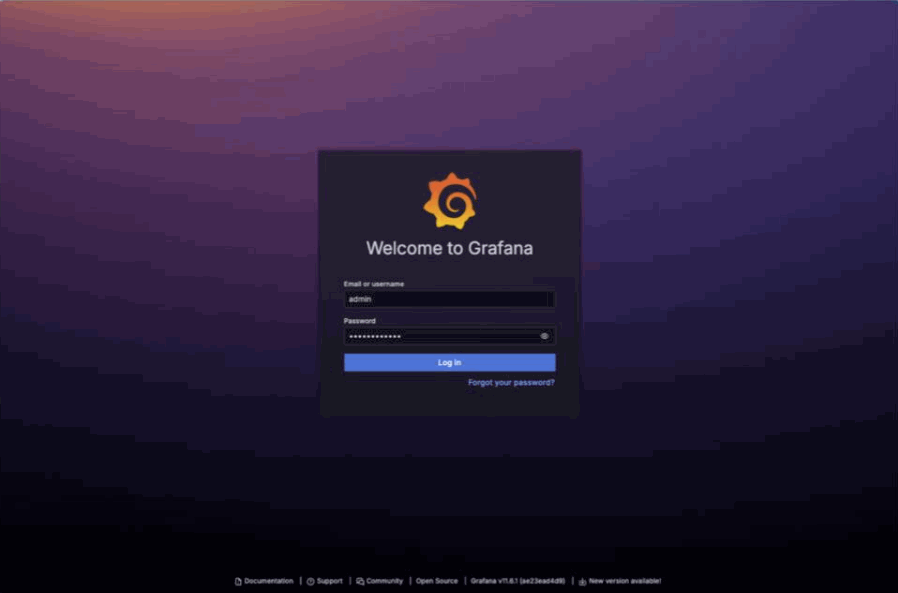
Grafana should be available on your head node listening on HTTPS on the /grafana page.
By default, the administrative account is admin with password prom-operator.
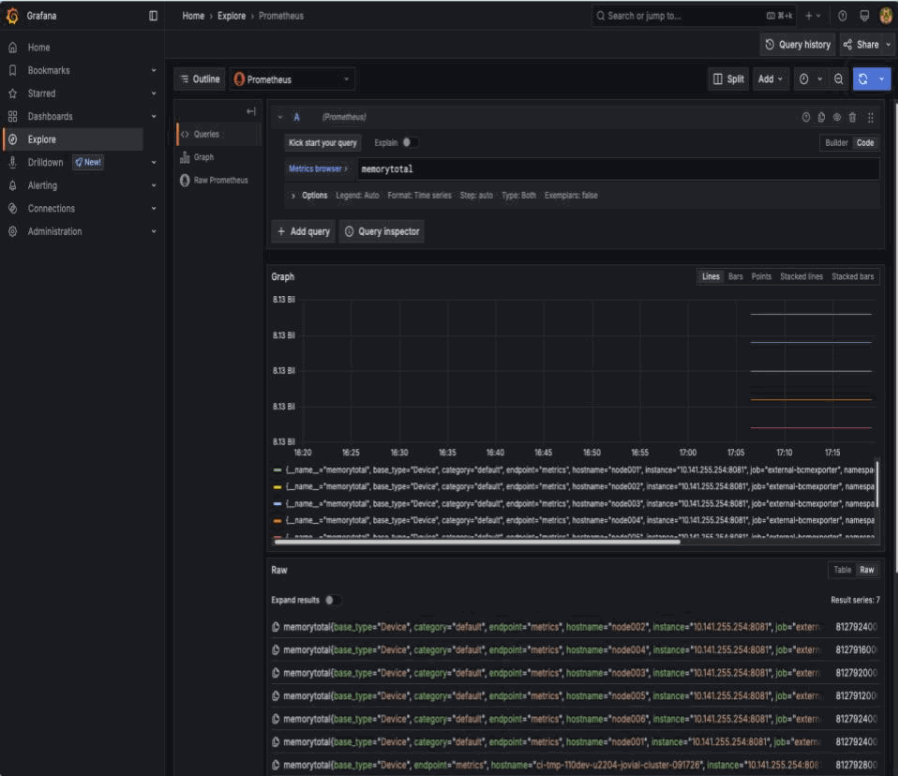
Once authenticated, click on Explore on the left. Once in the Explore interface, set the query editor to code and query the metric memorytotal.
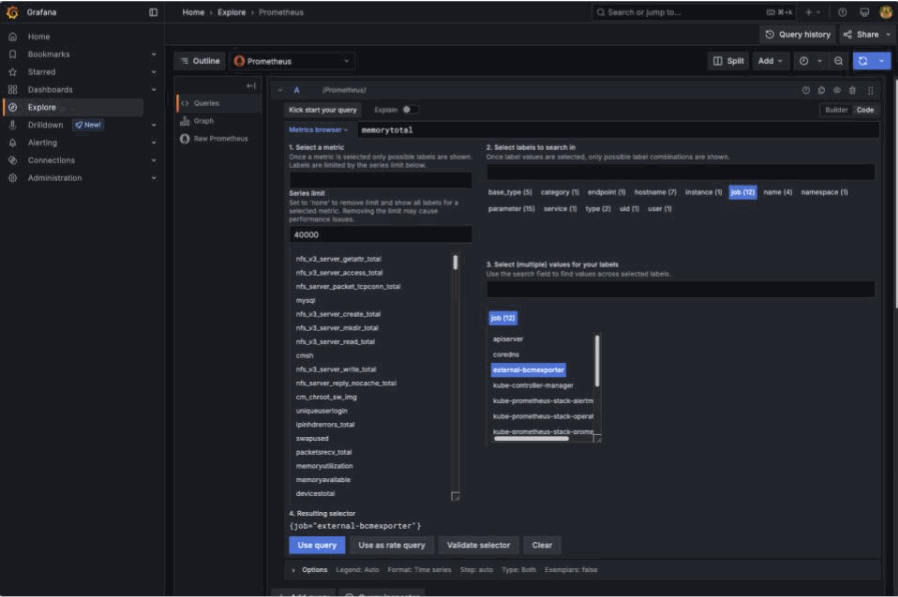
BCM provides many metrics out of the box, you can find a list of these in Grafana by using the Metric browser selecting all metrics which include the label job with the value external-bcmexporter.
This can also be found by inspecting the output of the BCM Prometheus exporter endpoint. Here using curl with some light processing.
curl -sk https://localhost:8081/exporter | grep -Ev '# HELP|# TYPE' | cut -d'{' -f1 | sort -u

alertlevel
...
writetime_total
Build a Grafana dashboard#
With BCM exporting metrics, you can create dashboards. In this example, you’ll build a device state history dashboard. To build this dashboard, follow these steps:
Select
Dashboardson the left panel, selectNewand selectNew dashboard.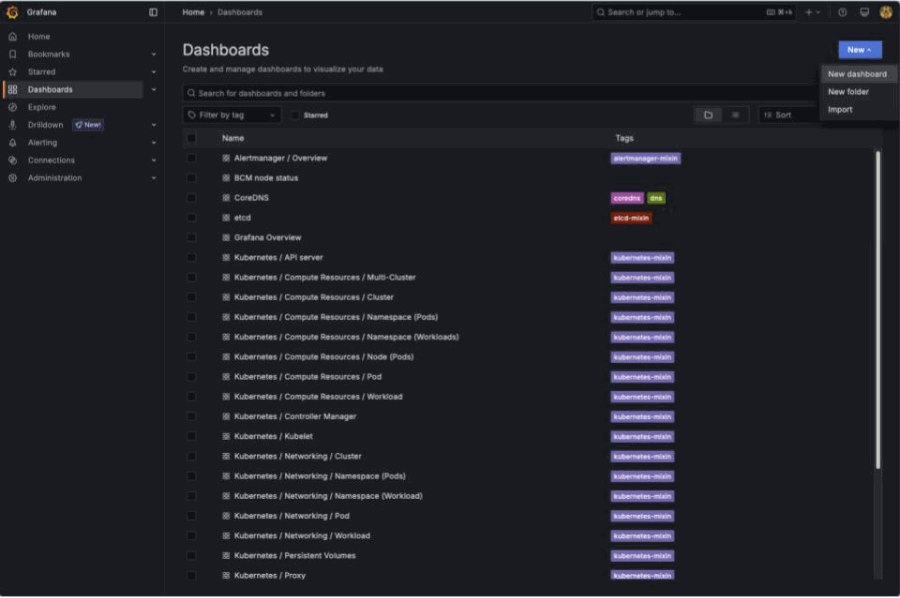
Click
Add visualization.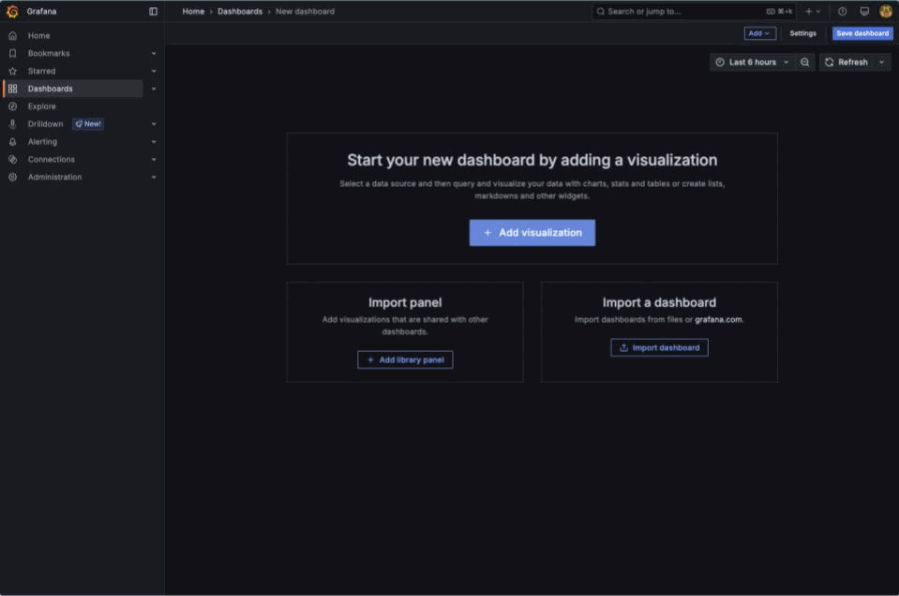
Select
Prometheusas your datasource.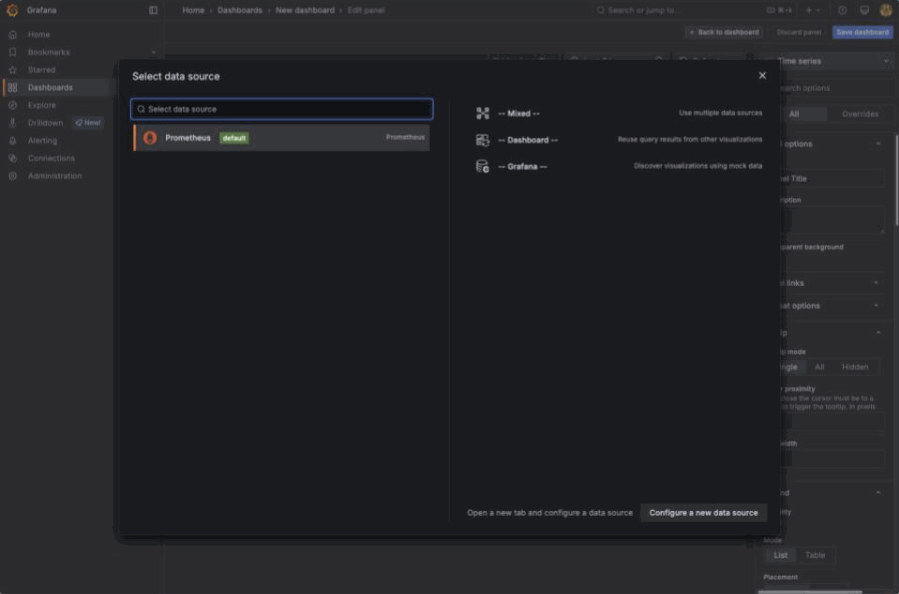
Start by setting the visualization to
Status history. Query the metricdevicestatus.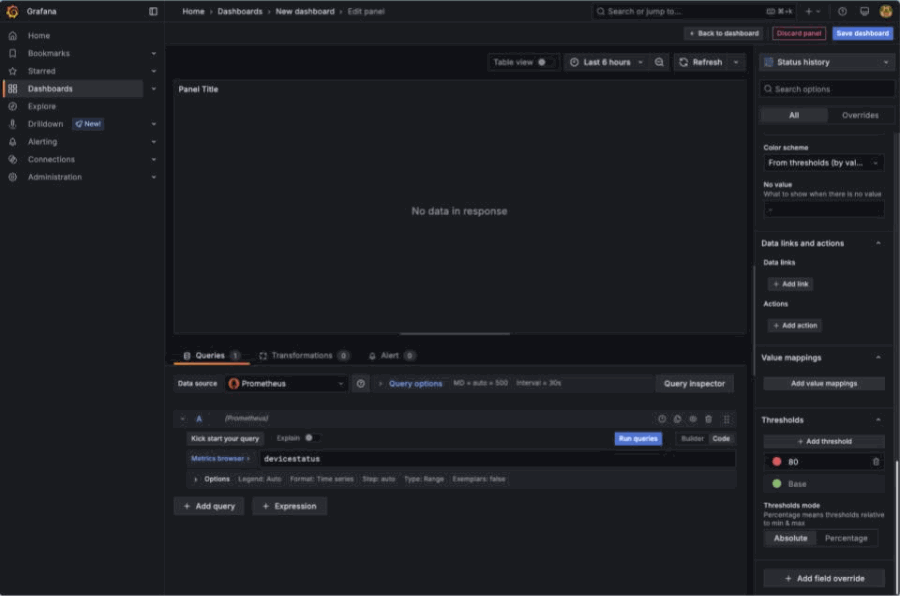
On the right pane, scroll down to
Value mappingsand click onAdd value mappings. This metric returns either0which maps toOKor1which maps toNOK. Add value conditions for these with a desired color. In this step, you’ll set0asgreenand1asred.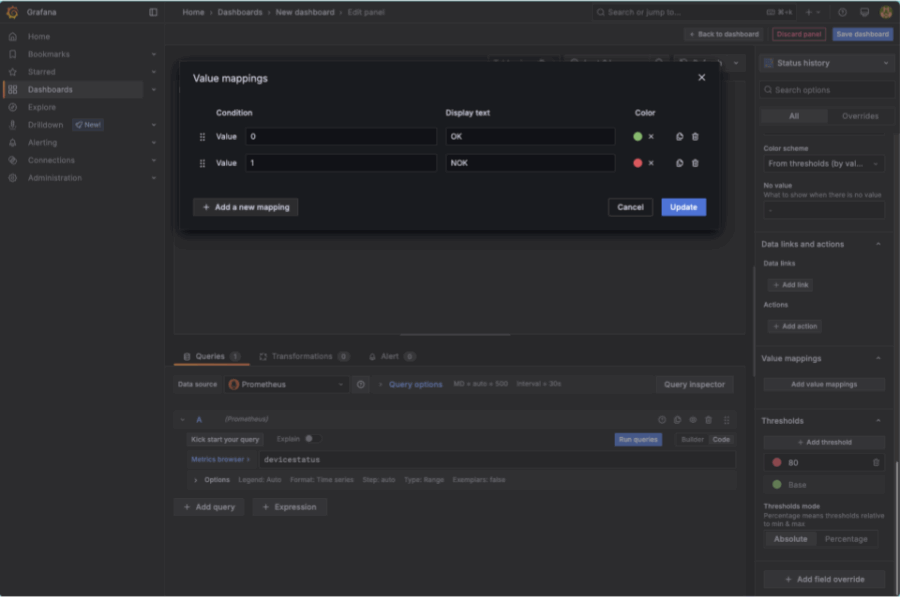
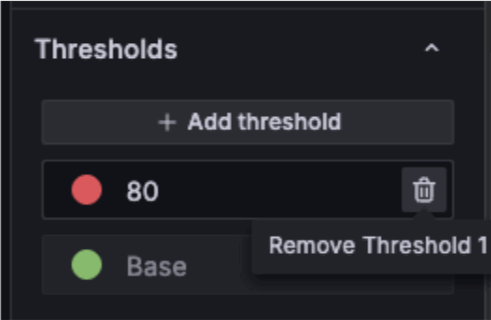
Delete the threshold for the value
80.
Expand options in the query window and set the Legend to
Customand set the value to{{hostname}}.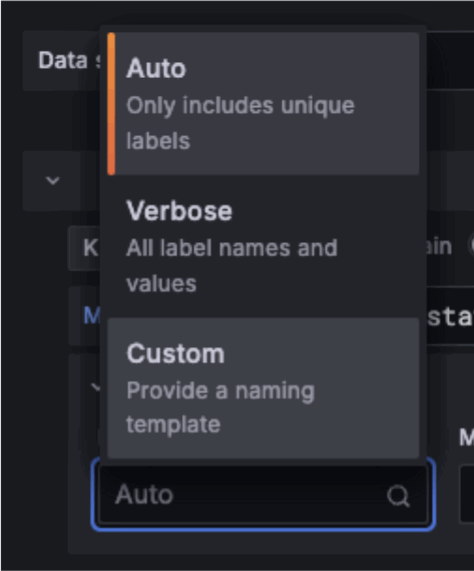
You may get this error:
Too many points to visualize properly.
You can work around this by setting the time window of the dashboard from
Last 6 hourstoLast 15 minutes.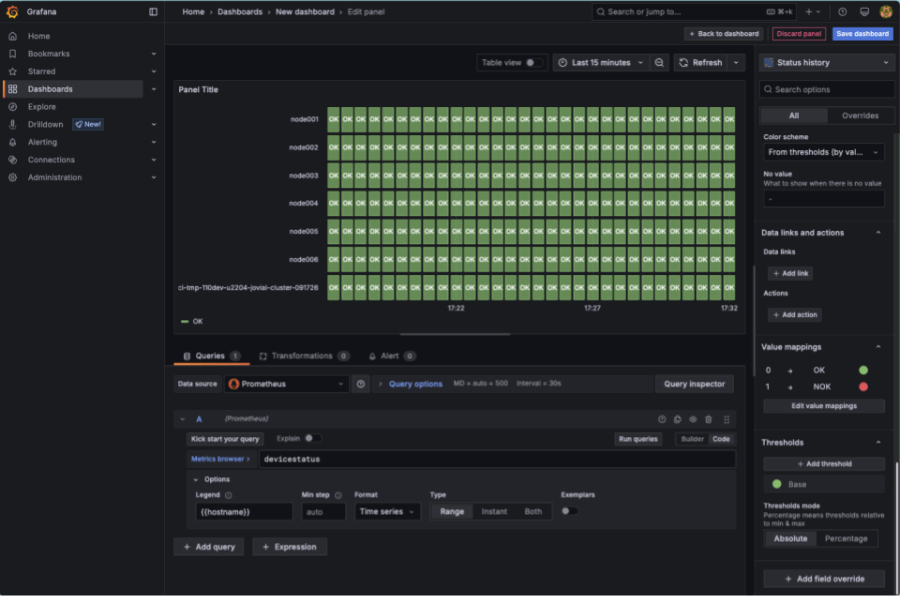
To allow for you to use this over a longer period of time, set the
Min stepfor the query to5m. Set theTitleof the panel toNode status.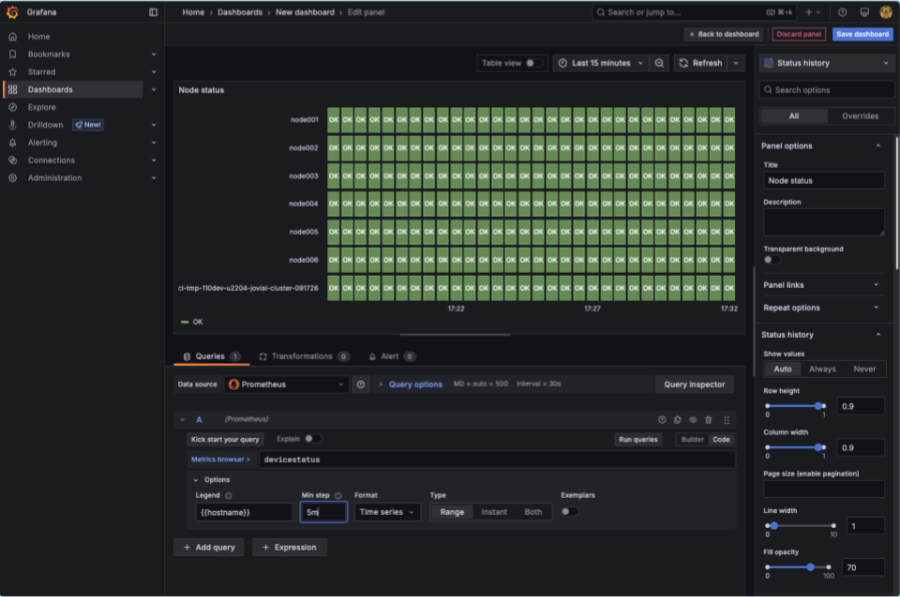
Click on
Back to dashboard. Resize the panel to a desired size.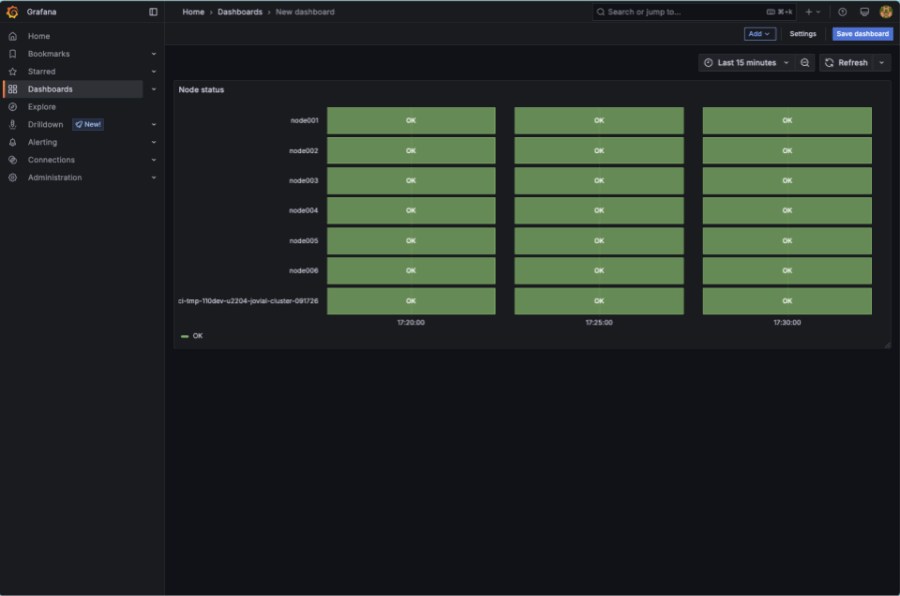
Set the window of time to the
Last 1 hour, take note that the dashboard rendered more status boxes.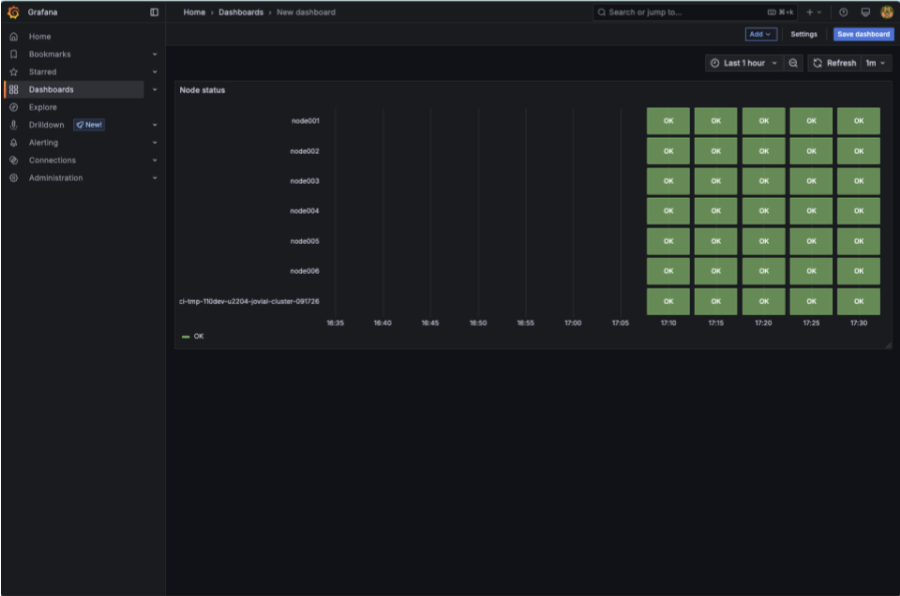
Select
Save dashboard. Set the Title toBCM node statusand click onSave.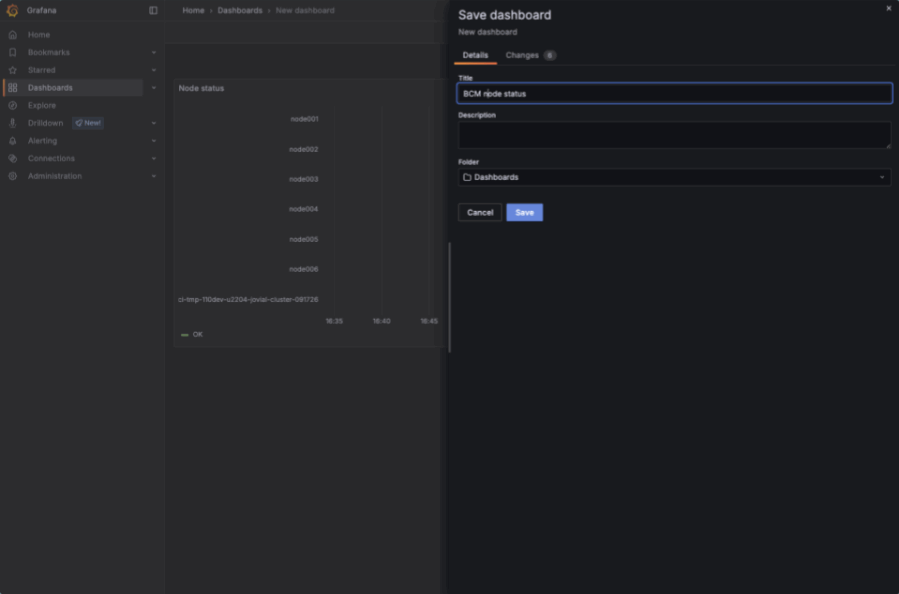
Configure email contact points for Grafana alerts#
Grafana defines an email contact point for alerts by default. Edit this contact point so that alerts reach the administrator’s email address.
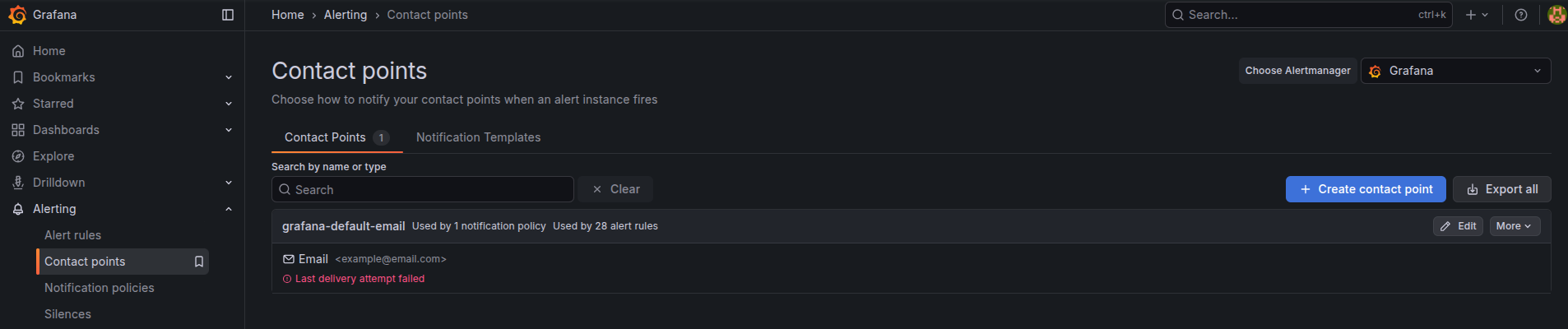
To change the default email address, follow these steps:
Get the current
kube-prometheus-stackHelm chart values.helm get values -n prometheus kube-prometheus-stack > /tmp/prometheus-kube-prometheus-stack-values.yaml
Add an
smtpsection to thegrafana.inivalues in the file. Replace thehost,from_address, andfrom_namevalues with the details of your SMTP relay.grafana.ini: analytics: check_for_updates: true log: mode: console paths: data: /var/lib/grafana/ logs: /var/log/grafana plugins: /var/lib/grafana/plugins provisioning: /etc/grafana/provisioning server: domain: '{{ if (and .Values.ingress.enabled .Values.ingress.hosts) }}{{ tpl (.Values.ingress.hosts | first) . }}{{ else if (and .Values.route.main.enabled .Values.route.main.hostnames) }}{{ tpl (.Values.route.main.hostnames | first) . }}{{ else }}''''{{ end }}' root_url: '%(protocol)s://%(domain)s:%(http_port)s/grafana/' serve_from_sub_path: true smtp: enabled: true from_address: admin@nmc-obs.cm.cluster from_name: nmc-obs host: 10.141.255.254:25 skip_verify: true unified_storage: index_path: /var/lib/grafana-search/bleve
Apply the updated values file to upgrade
kube-prometheus-stack.helm upgrade kube-prometheus-stack prometheus-community/kube-prometheus-stack -n prometheus -f /tmp/prometheus-kube-prometheus-stack-values.yaml --version 87.18.0 --wait --timeout 5m
In Grafana, click
Alertingon the left panel.Click
Notification configurationunderAlerting.Click the
Contact pointstab.Click
Editfor thegrafana-default-emailcontact point.
Enter the administrator’s email address in the
Addressesfield.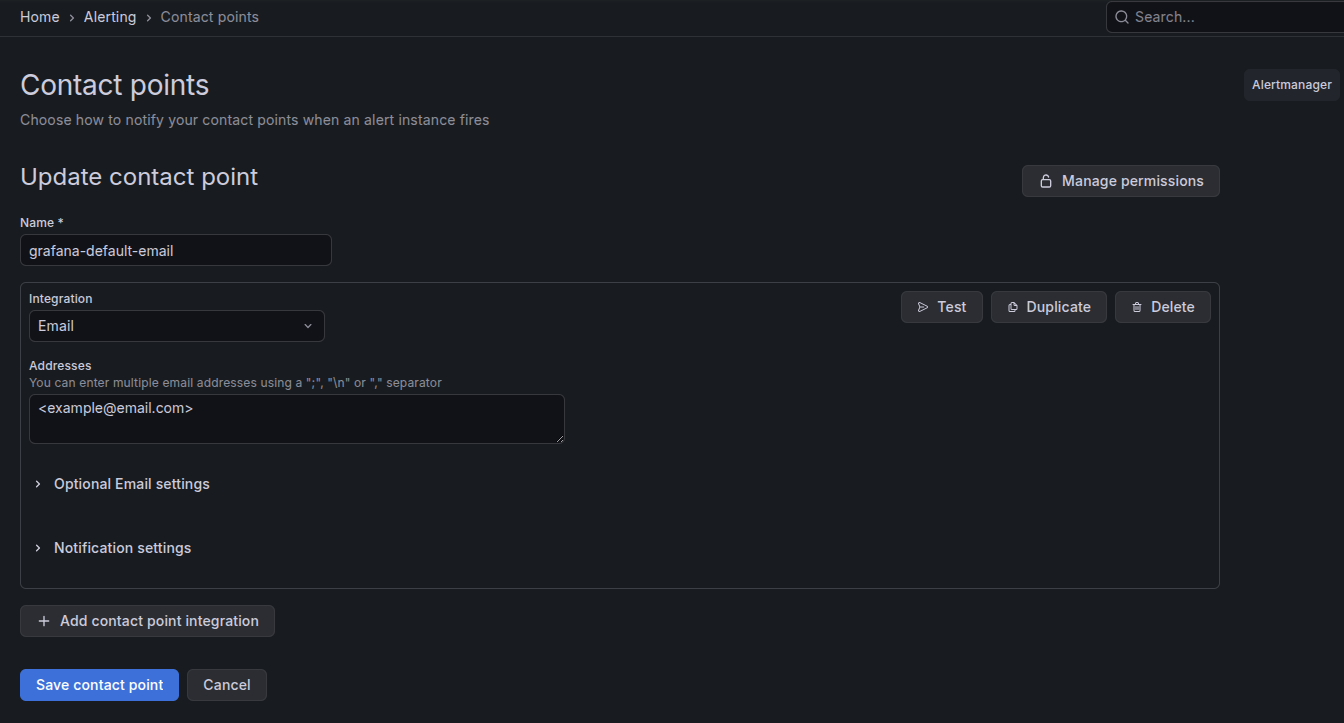
Click
Save contact pointto save the address before you test it.Click
Test.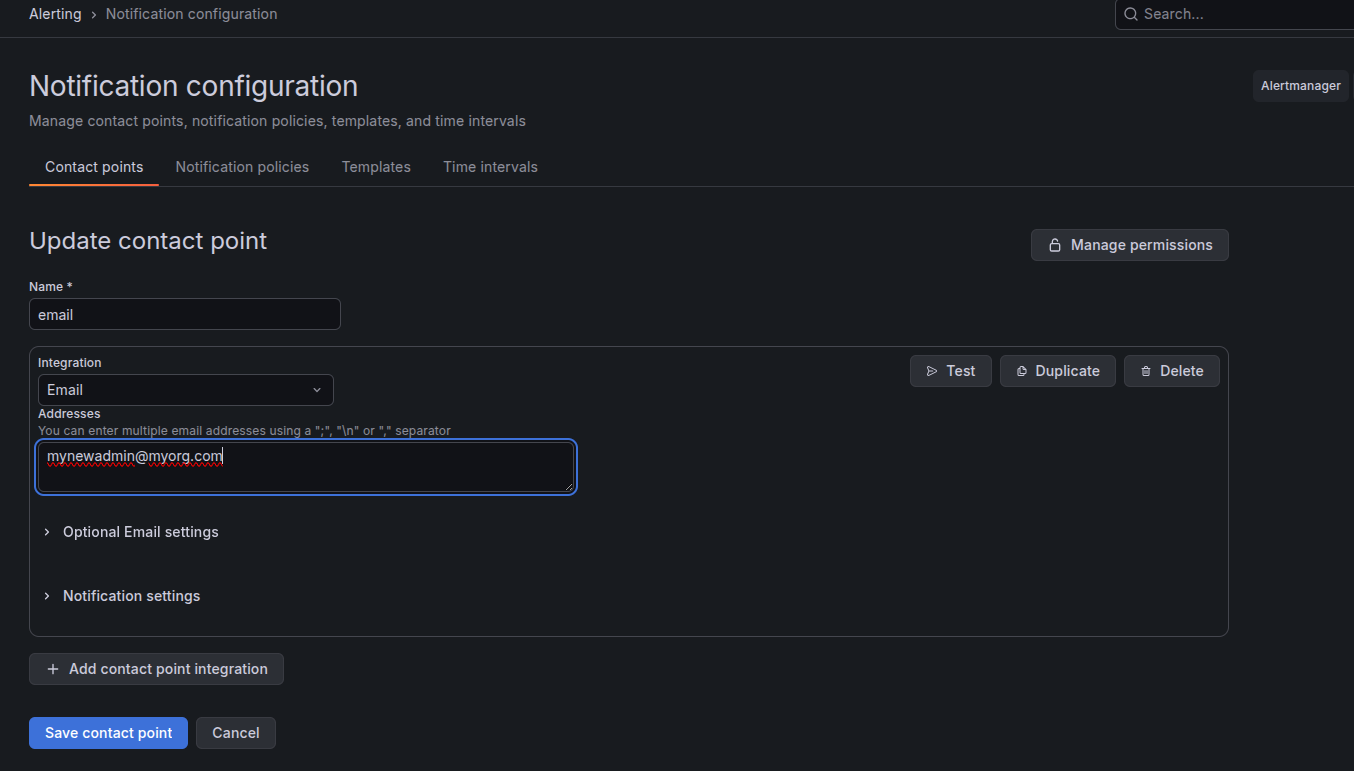
Click
Send test notification.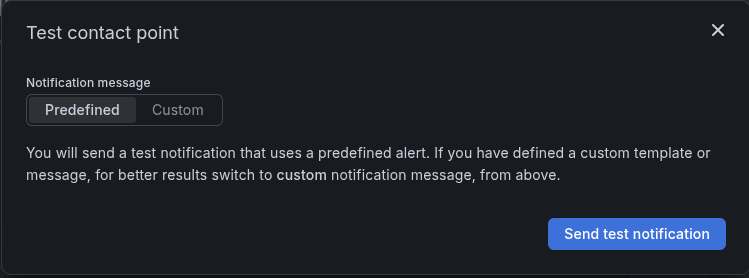
Confirm that a
Test notification sent successfullymessage appears and that the test email arrives.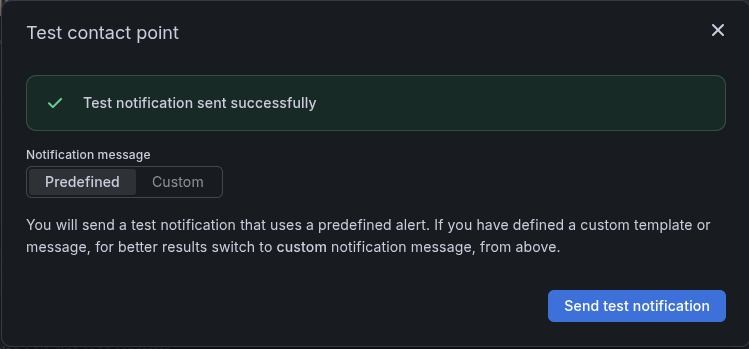
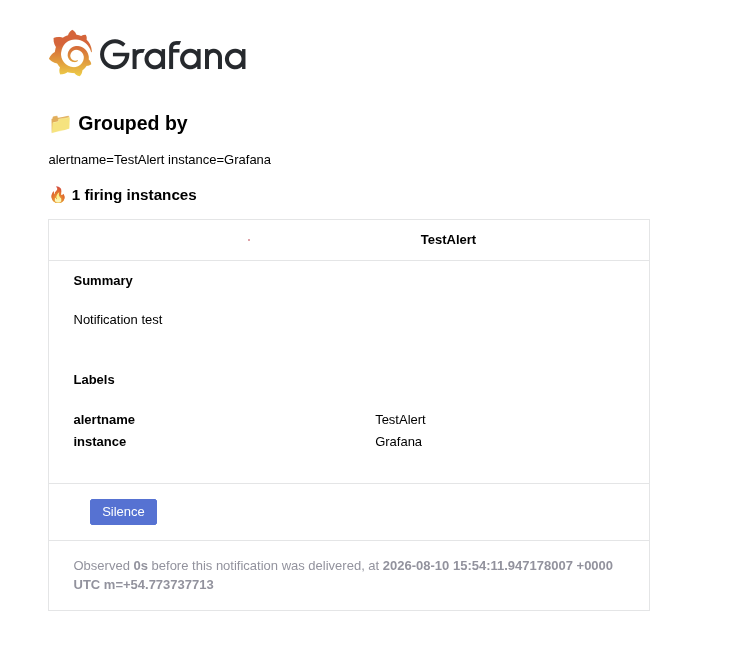
Click
Xin the top right corner to close the window.Click
Save contact point.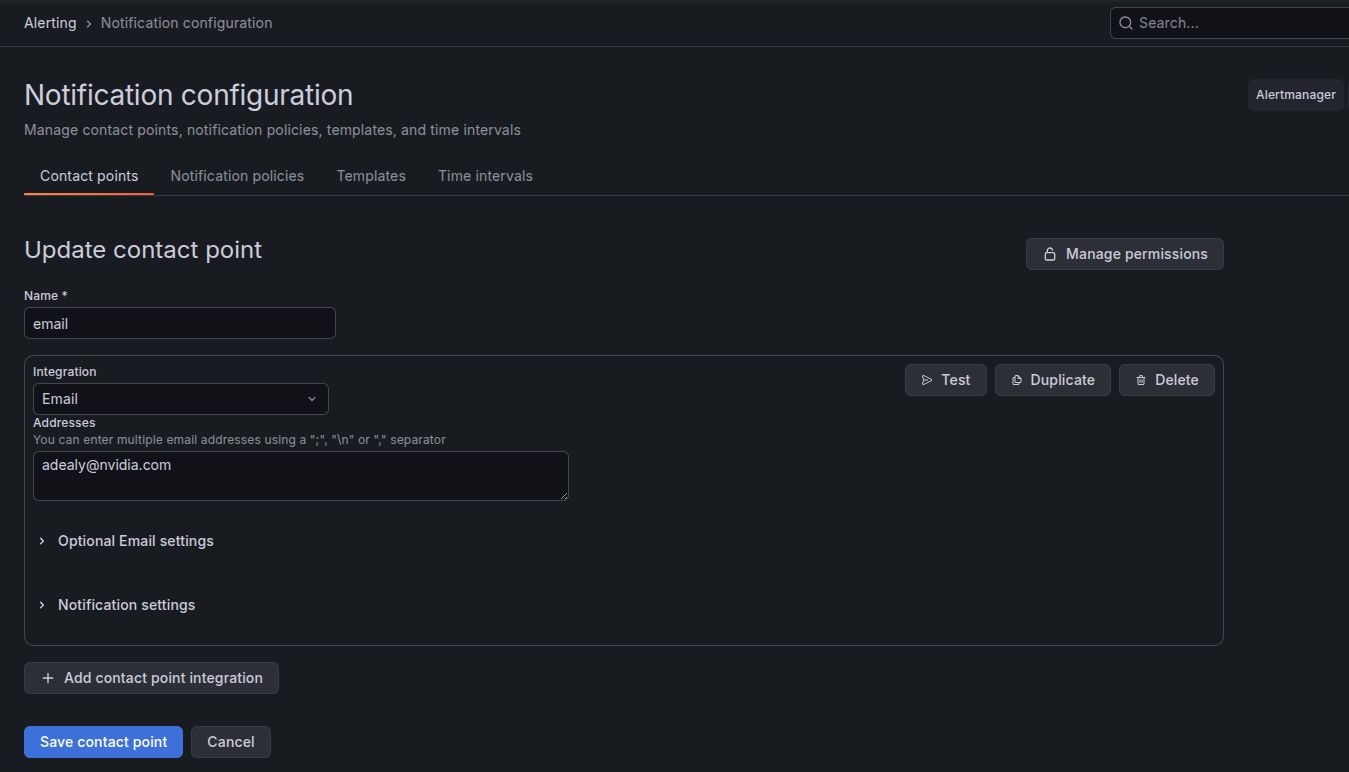
Configure Slack contact points for Grafana alerts#
To send alerts to a Slack channel, add a Slack contact point. Follow these steps:
In Grafana, click
Alertingon the left panel.Click
Notification configurationunderAlerting.Click the
Contact pointstab.Click
New contact point.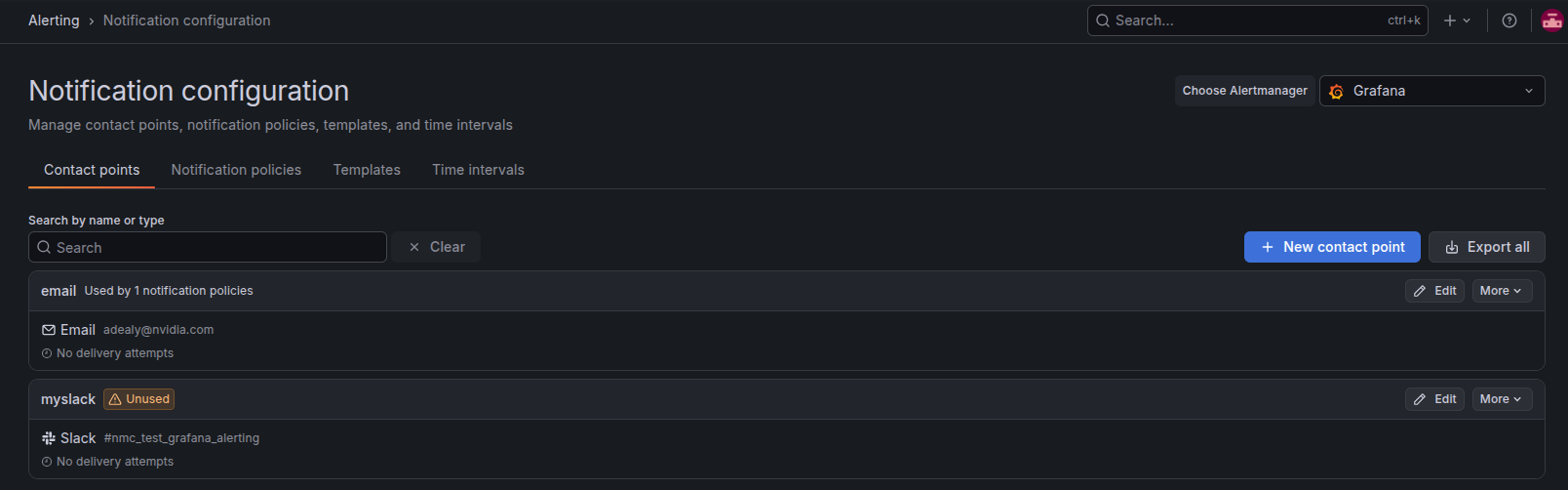
Enter a name for the contact point in the
Namefield.Select
Slackfrom theIntegrationdrop-down menu.Enter the Slack channel in the
Recipientfield.Enter the token for the Slack app.
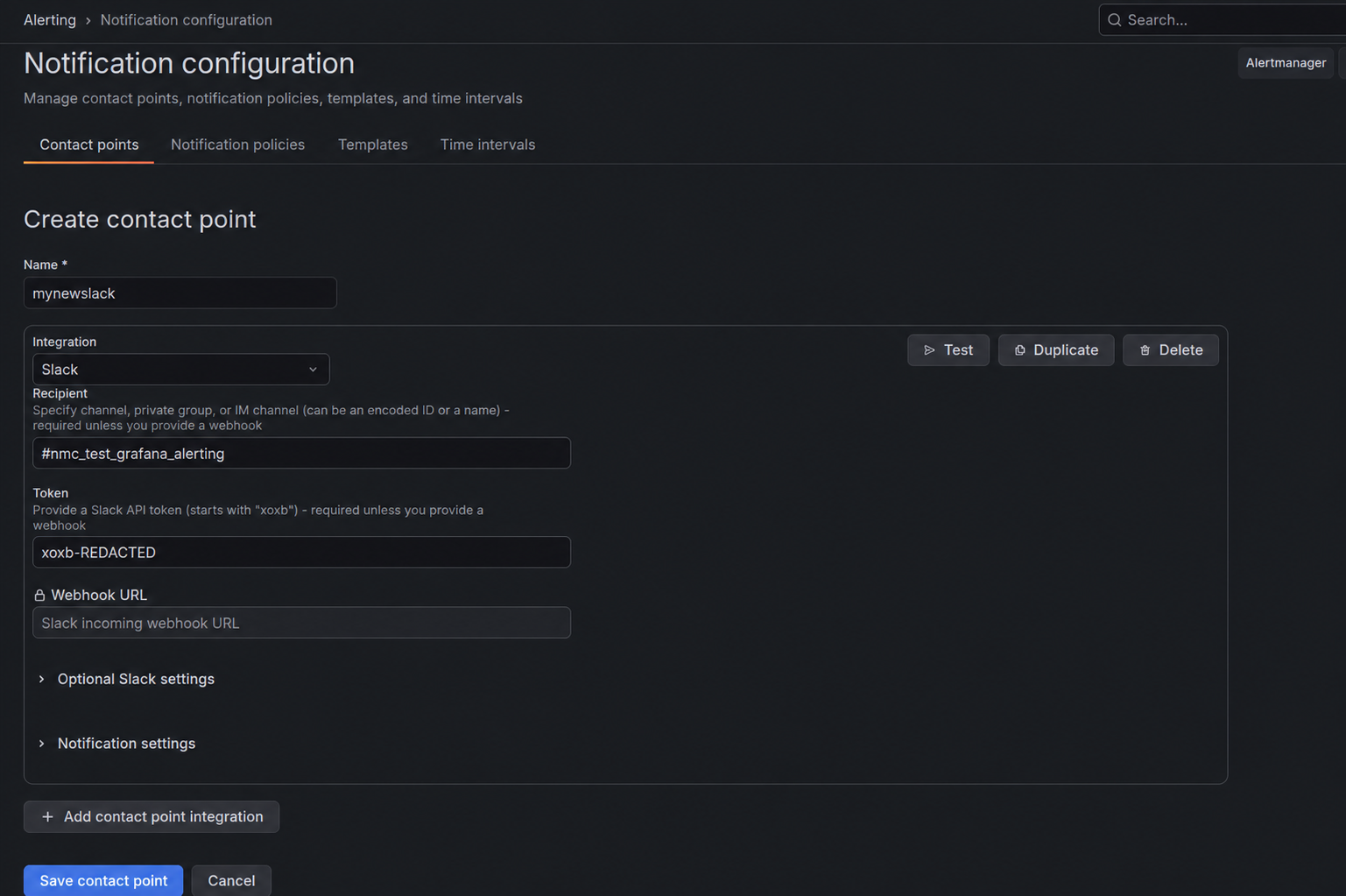
Click
Testto open the test window.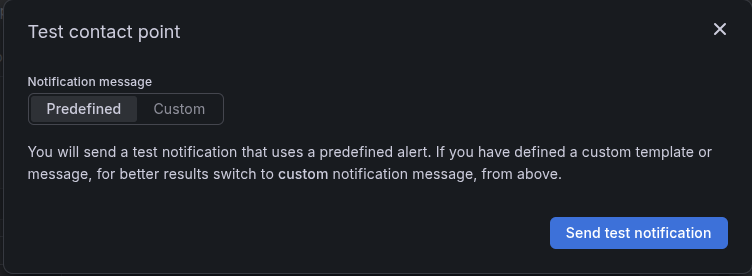
Click
Send test notificationand confirm that aTest notification sent successfullymessage appears in the same window.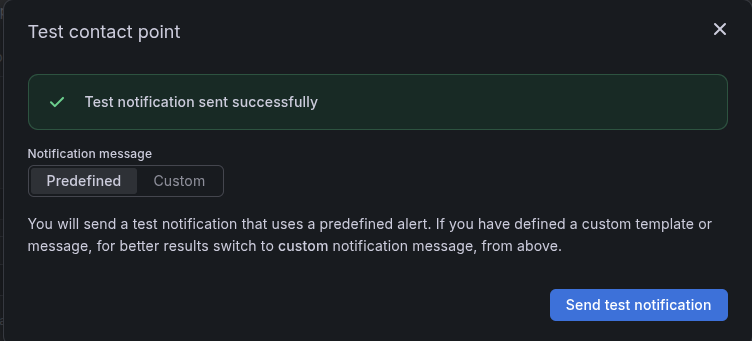
Click
Xin the top right corner to close the window.Click
Save contact point.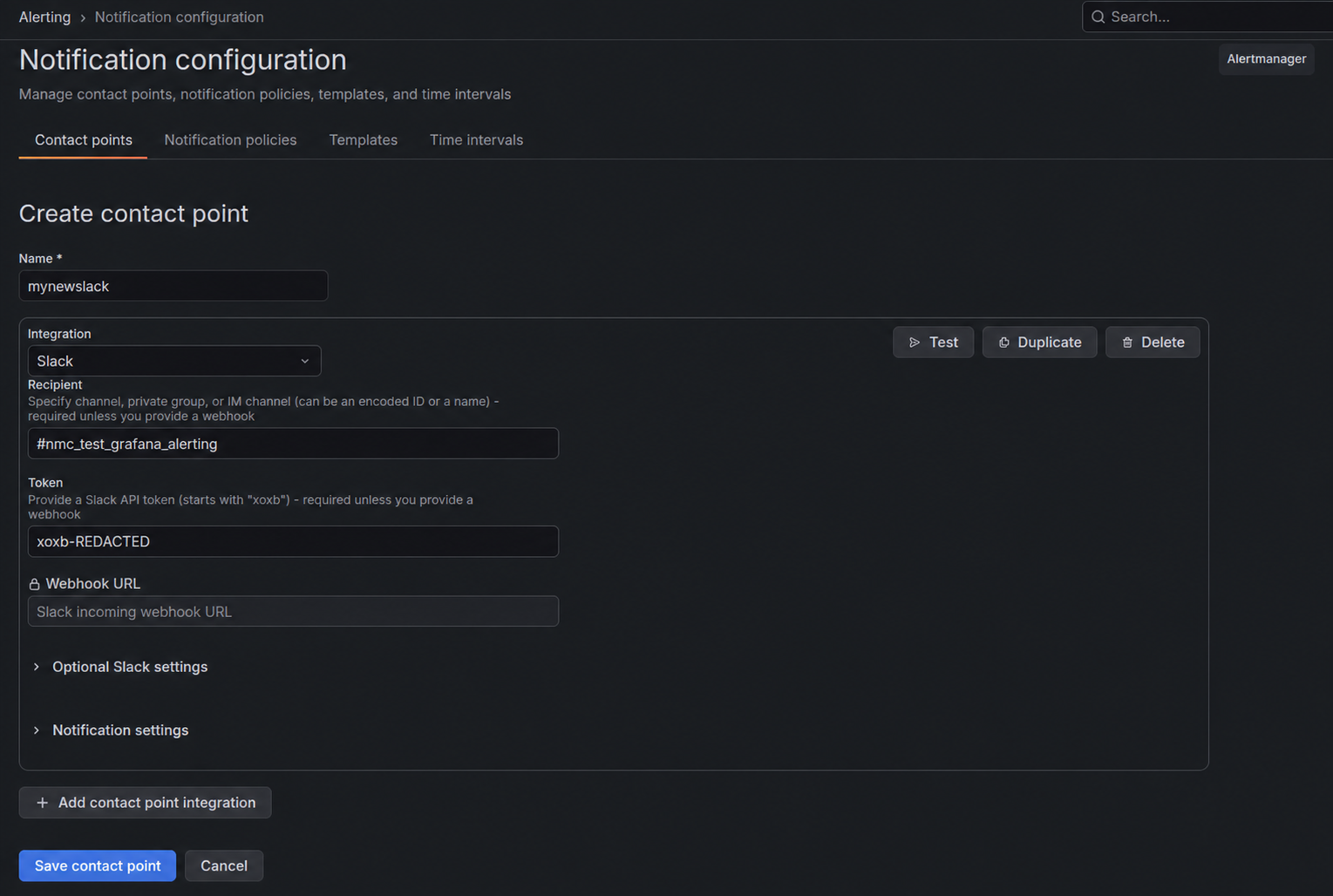
Note
For instructions on creating a Slack app, refer to Quickstart app settings in the Slack documentation.
Configure Grafana managed alerts#
After you configure contact points, configure the alert rules that send notifications to them. To configure an alert rule, follow these steps:
Open the Grafana panel you want to alert on and click
Edit. This example uses theStorage >= 80% usagepanel.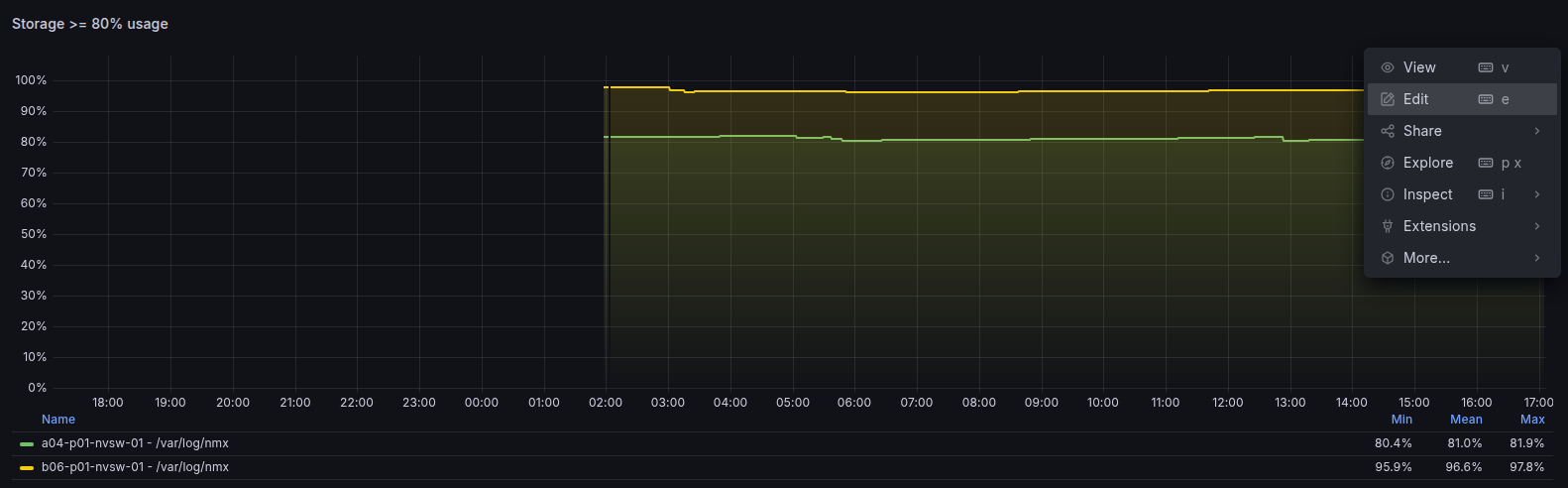
Click the
Alerttab, then clickNew alert rule.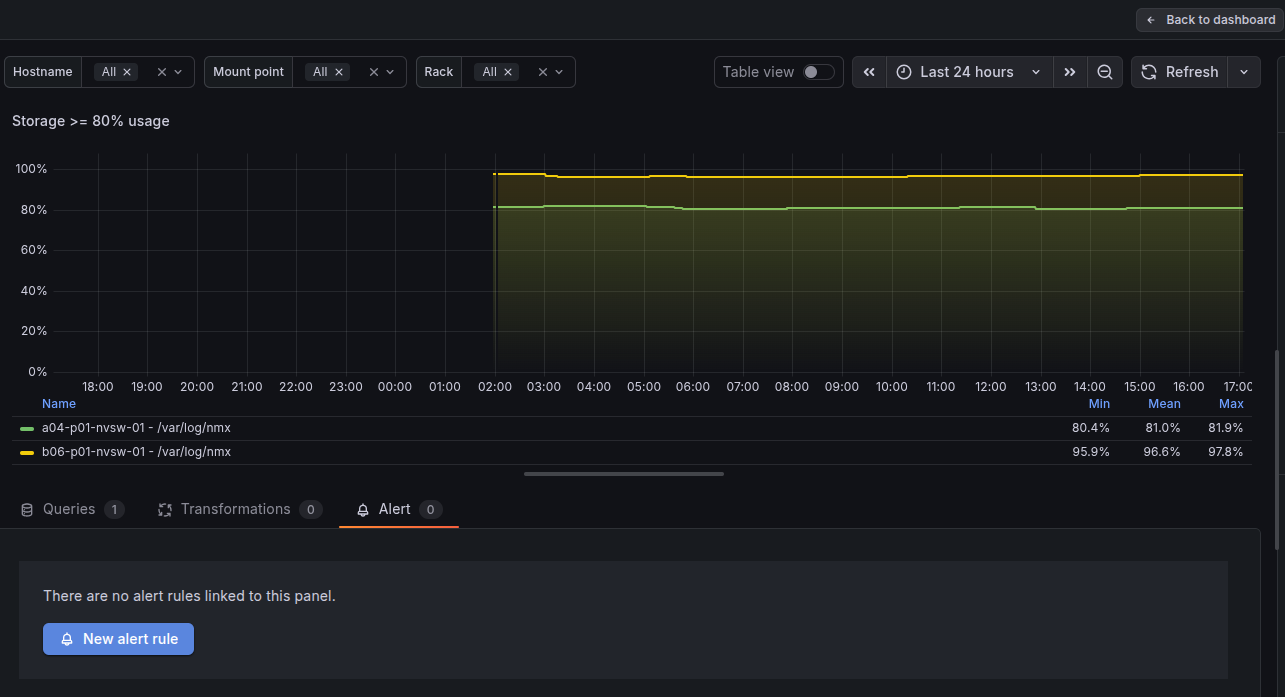
Enter or adjust the query that fires the alert, and set its condition.
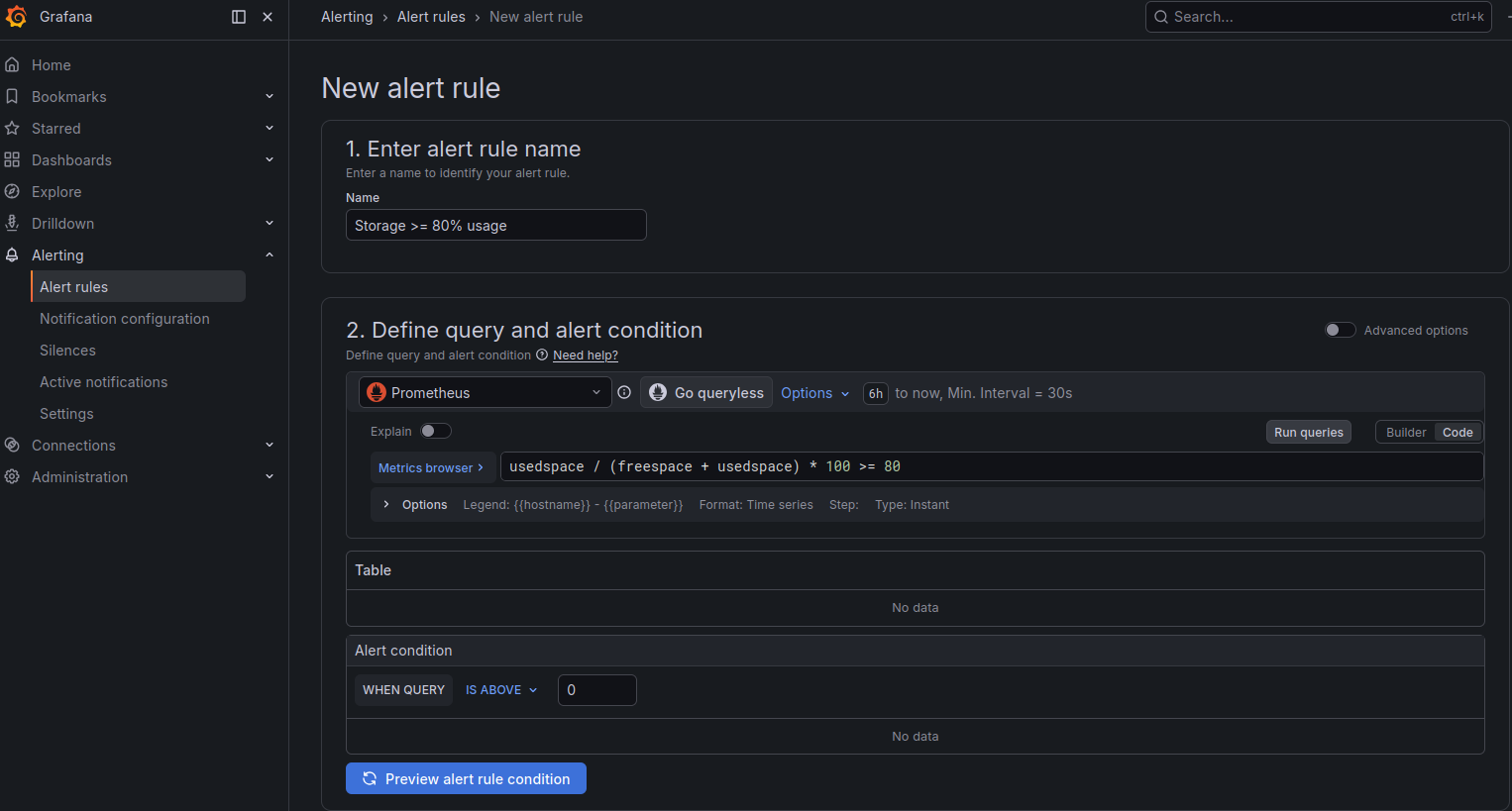
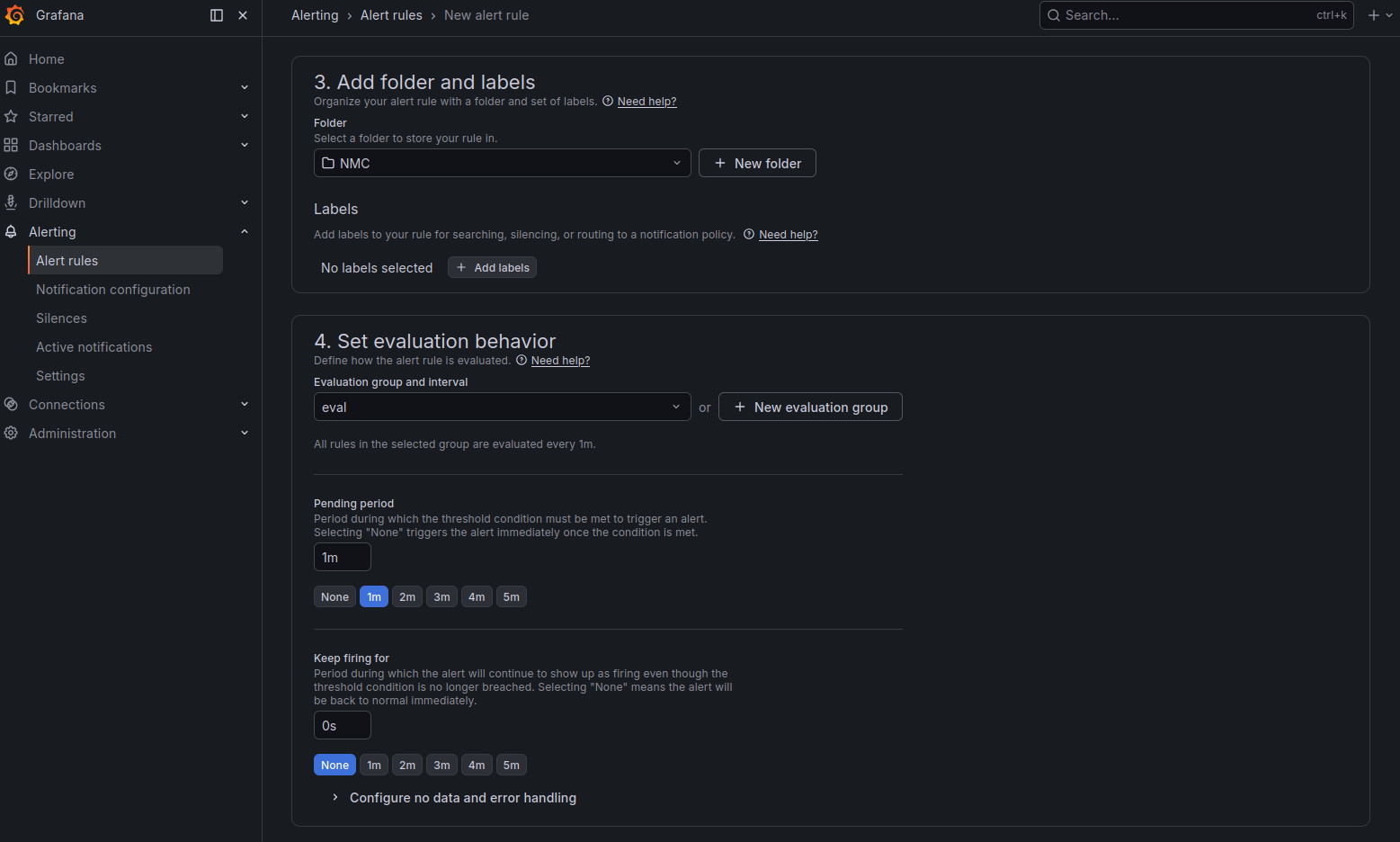
Select an existing folder and evaluation group for the alert, or create new ones.
Select the contact point for the alert, add a custom notification message if you need one, then click
Save.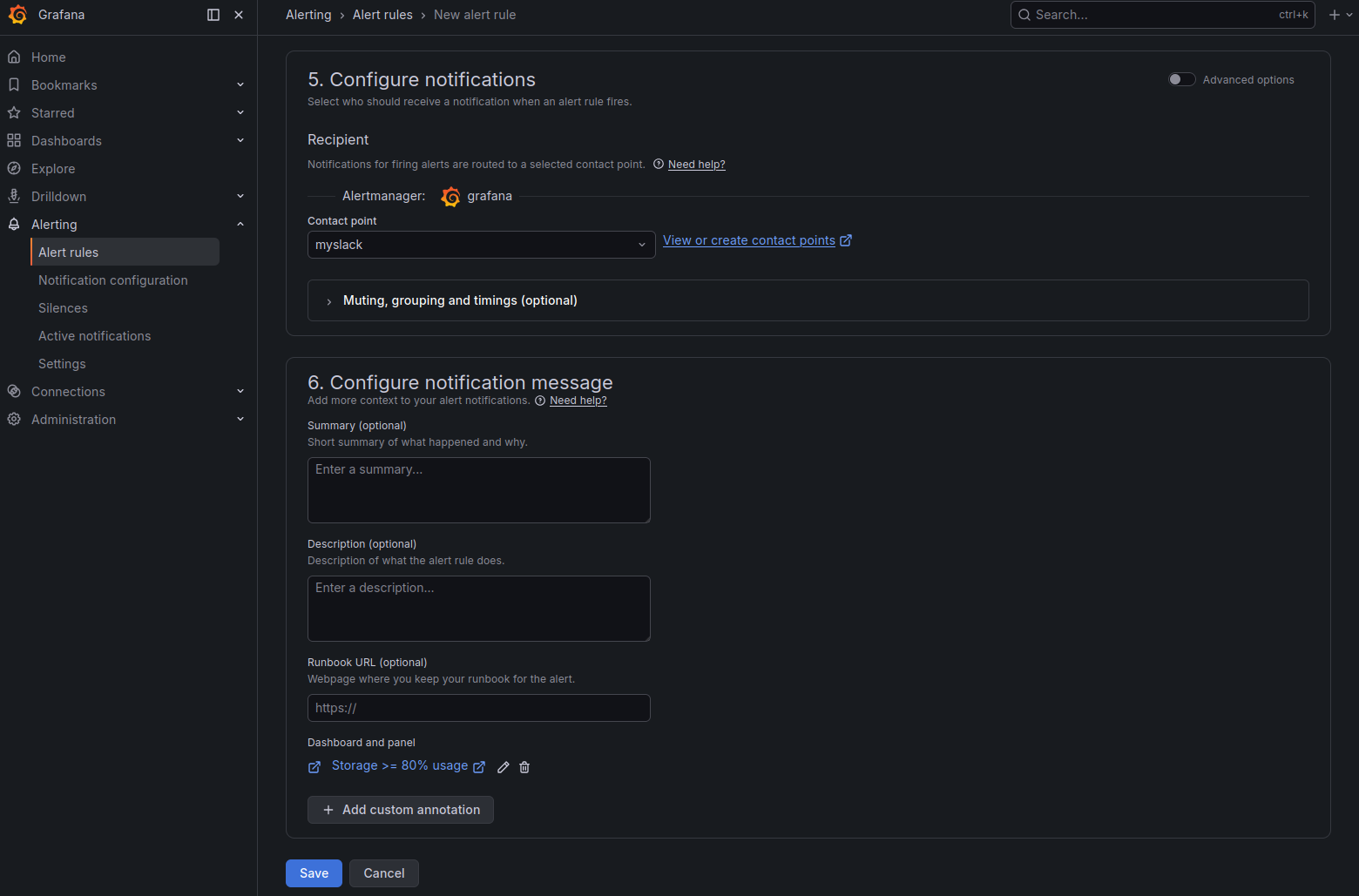
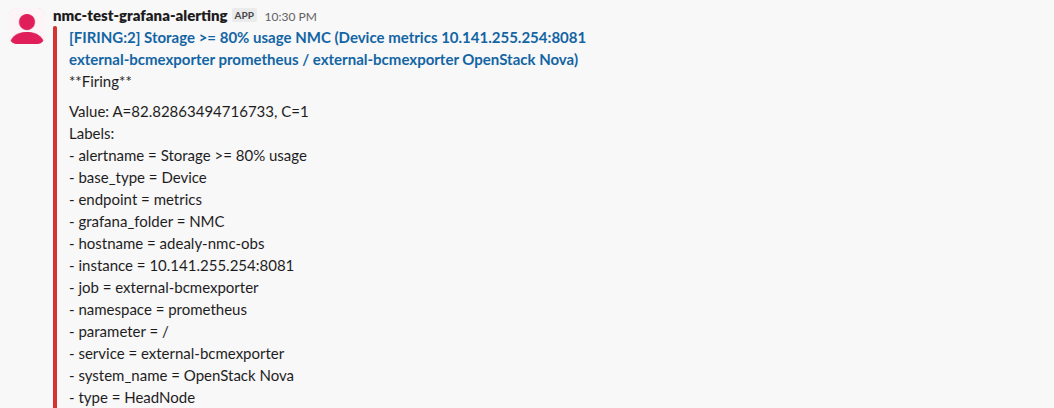
The following image shows an example Slack notification sent after the alert rule fires.
Logs#
With BCM, in-built logging aggregation comes out of the box. Each node that BCM deploys by default forwards logs to the BCM head nodes for centralization of logs. From a BCM head node, you can view these logs in /var/log/syslog.
Counting Xid errors#
When a GPU fault has occurred, these are logged to syslog. These can indicate user driven exceptions, errors with the driver, or in some circumstances a hardware fault. It’s good to understand the Xids encountered and the counts of these.
Xid values and descriptions can be found in this document: Xid errors
grep "Xid (PCI" /var/log/syslog | awk -v cutoff="$(date -d '12 hours ago' '+%b %d %H:%M:%S')" '
  $1 " " $2 " " $3 >= cutoff {
    split($4, host, ".");
    if (match($0, /Xid \(PCI:[^)]+\): ([0-9]+)/, id)) {
      print host[1], id[1]
    }
  }
' | sort | uniq -c | awk '{print $2 ":", $1, "occurrences of error ID", $3}'
Example output
a07-p1-dgx-03-c08: 10158 occurrences of error ID 143
b06-p1-dgx-06-c01: 4 occurrences of error ID 149
b06-p1-dgx-06-c01: 4 occurrences of error ID 154
b06-p1-dgx-06-c02: 4 occurrences of error ID 149
b06-p1-dgx-06-c02: 3 occurrences of error ID 154
b06-p1-dgx-06-c04: 4 occurrences of error ID 149
b06-p1-dgx-06-c04: 4 occurrences of error ID 154
b06-p1-dgx-06-c05: 4 occurrences of error ID 149
b06-p1-dgx-06-c05: 4 occurrences of error ID 154
b06-p1-dgx-06-c06: 4 occurrences of error ID 149
b06-p1-dgx-06-c06: 4 occurrences of error ID 154
b06-p1-dgx-06-c07: 4 occurrences of error ID 149
b06-p1-dgx-06-c07: 2 occurrences of error ID 154
b06-p1-dgx-06-c08: 4 occurrences of error ID 149
b06-p1-dgx-06-c08: 4 occurrences of error ID 154
b06-p1-dgx-06-c09: 4 occurrences of error ID 149
b06-p1-dgx-06-c09: 4 occurrences of error ID 154
b06-p1-dgx-06-c11: 4 occurrences of error ID 149
b06-p1-dgx-06-c11: 4 occurrences of error ID 154
b06-p1-dgx-06-c12: 4 occurrences of error ID 149
b06-p1-dgx-06-c12: 3 occurrences of error ID 154
b06-p1-dgx-06-c13: 4 occurrences of error ID 149
b06-p1-dgx-06-c13: 4 occurrences of error ID 154
b06-p1-dgx-06-c13: 112 occurrences of error ID 45
b06-p1-dgx-06-c14: 4 occurrences of error ID 149
b06-p1-dgx-06-c14: 4 occurrences of error ID 154
b06-p1-dgx-06-c14: 112 occurrences of error ID 45
b06-p1-dgx-06-c15: 4 occurrences of error ID 149
b06-p1-dgx-06-c15: 4 occurrences of error ID 154
b06-p1-dgx-06-c15: 112 occurrences of error ID 45
b06-p1-dgx-06-c16: 4 occurrences of error ID 149
b06-p1-dgx-06-c16: 4 occurrences of error ID 154
b06-p1-dgx-06-c16: 112 occurrences of error ID 45
b06-p1-dgx-06-c17: 4 occurrences of error ID 149
b06-p1-dgx-06-c17: 4 occurrences of error ID 154
b06-p1-dgx-06-c17: 112 occurrences of error ID 45
b06-p1-dgx-06-c18: 4 occurrences of error ID 149
b06-p1-dgx-06-c18: 4 occurrences of error ID 154