
About NVIDIA NeMo Studio#
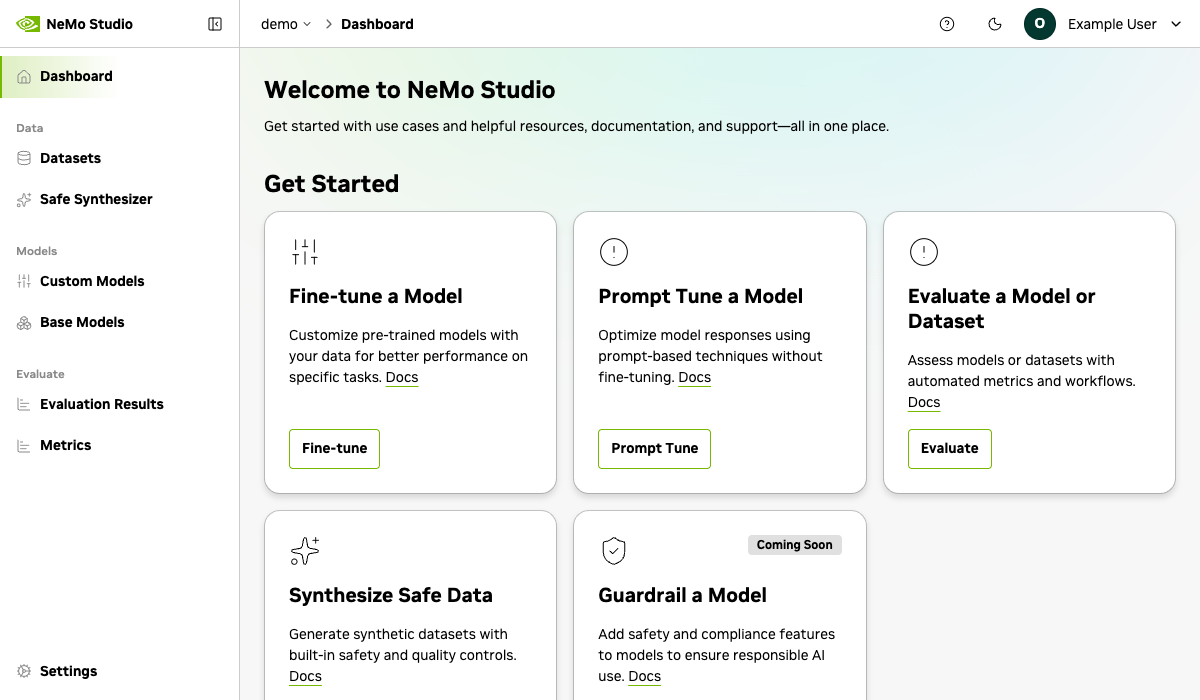
NeMo Studio is the web app for AI development with NVIDIA NeMo Microservices. It adds a user-friendly interface to NeMo Microservices, with time-saving features to enhance your workflow.
Getting Started#
NeMo Studio is included with the platform. Follow the Quickstart Installation to start NMP, then access Studio at /studio on your running server.
Features#
Workspaces#
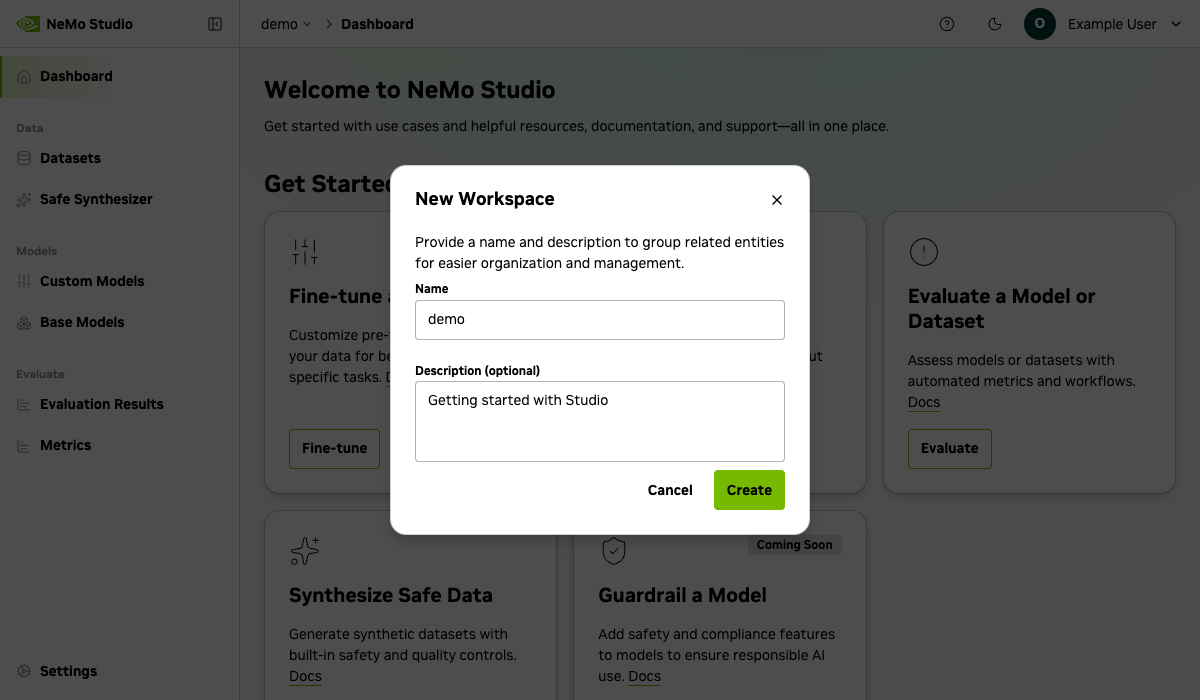
Keep models and data organized in dedicated workspaces.
Datasets#
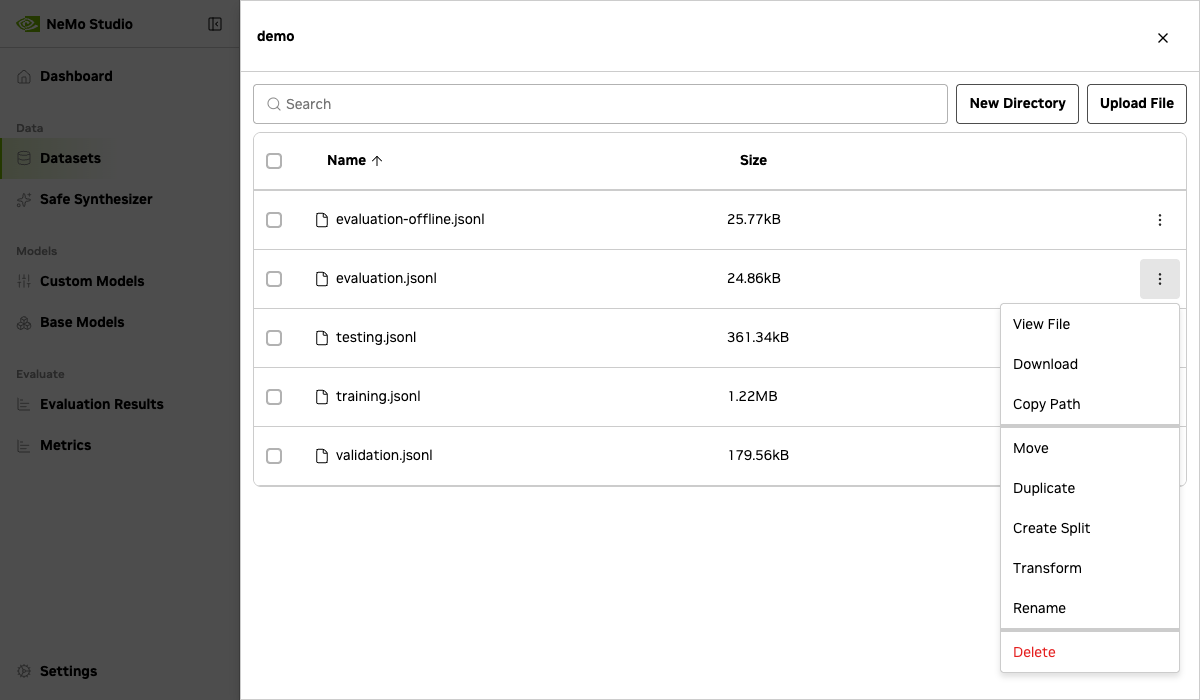
Add datasets to train and evaluate models. Use built-in tools to transform data schemas with LLM assistance or create train/test splits.
Supported file formats: JSONL (.jsonl), CSV (.csv), and Parquet (.parquet). PDF, image, and other binary formats are not currently supported.
You can upload any file type into a dataset. However, each service supports specific input file types:
Service |
Supported File Types |
|---|---|
|
|
|
|
|
Jobs#
Track and manage all platform jobs from a single view. The Jobs page aggregates jobs across services — Customizer, Evaluator, Safe Synthesizer, Data Designer, and more — so you can monitor progress, view logs, download artifacts, and cancel jobs in one place.
Navigate to Jobs in the workspace sidebar to see all jobs in the current workspace.
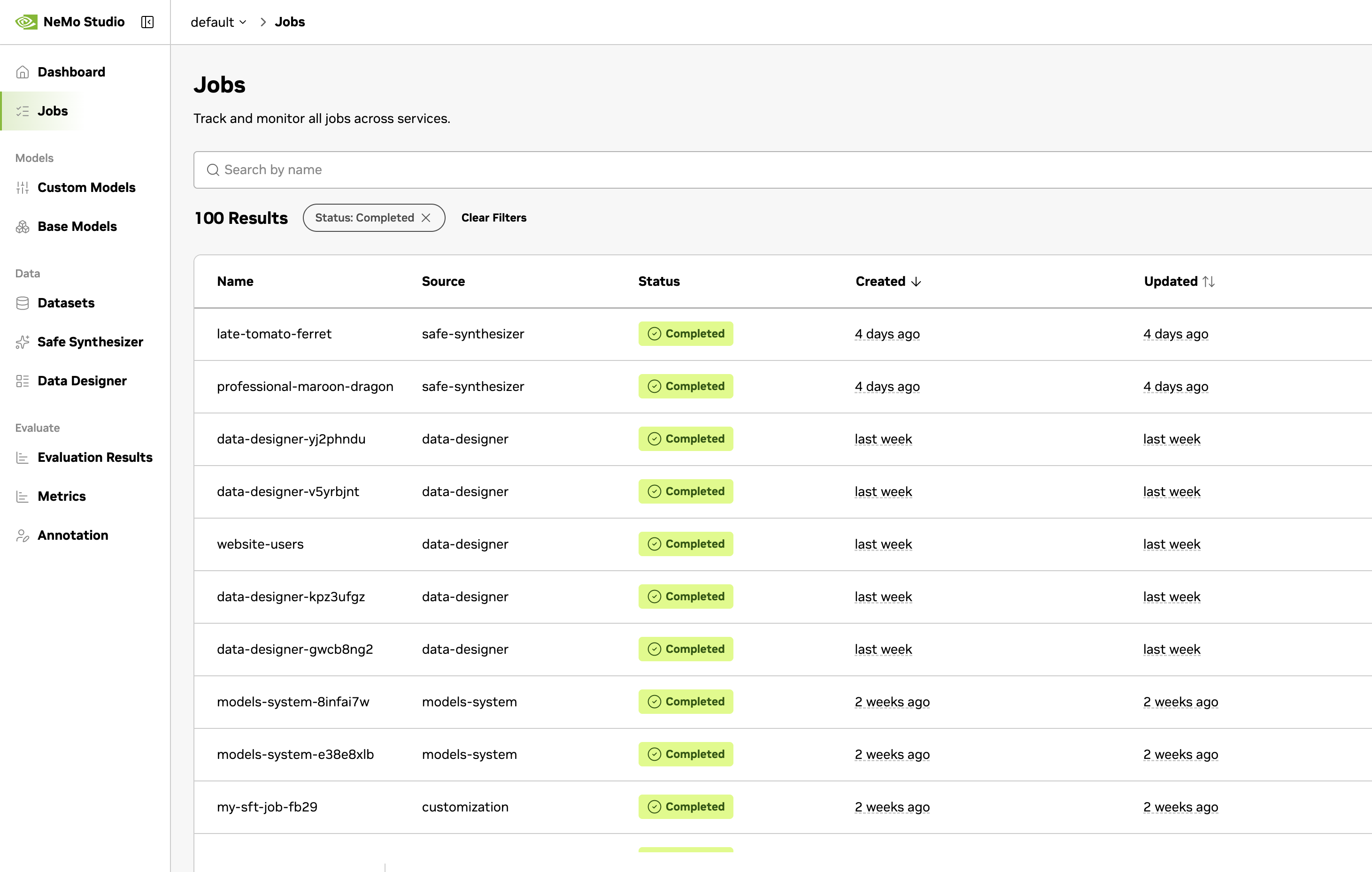
Search and filter — Find jobs by name, filter by status, or narrow results by creation or update date range.
Status tracking — Each job displays its current status:
Status |
Description |
|---|---|
Created |
Job has been created but not yet scheduled |
Pending |
Job is queued and waiting for resources |
Active |
Job is currently running |
Completed |
Job finished successfully |
Error |
Job encountered an error |
Cancelled |
Job was cancelled by a user |
Cancelling |
Cancellation is in progress |
Paused |
Job execution is paused |
Pausing |
Job is transitioning to paused |
Resuming |
Paused job is restarting |
Service routing — Clicking a job navigates to its service-specific detail view. For example, a customization job opens the Customizer detail page, and an evaluation job opens the Evaluator results page. Jobs from services that aren’t enabled fall back to the generic job detail view.
Job Details#
Select a job to see its full details:
Job Details — Name, ID, source service, status, description, workspace, and creation/update timestamps.
Artifacts — Download job outputs and result files produced during execution.
Progress — View streaming logs that update in real time while the job is running.
Cancelling a job — Active or pending jobs can be cancelled from the job list or the detail page. Cancelling a job permanently stops it and cannot be undone.
Safe Synthetic Data Generation#
Safe Synthesizer speeds up your workflow by generating synthetic datasets with built-in differential privacy controls. Create, monitor, and analyze generation jobs from a centralized interface.
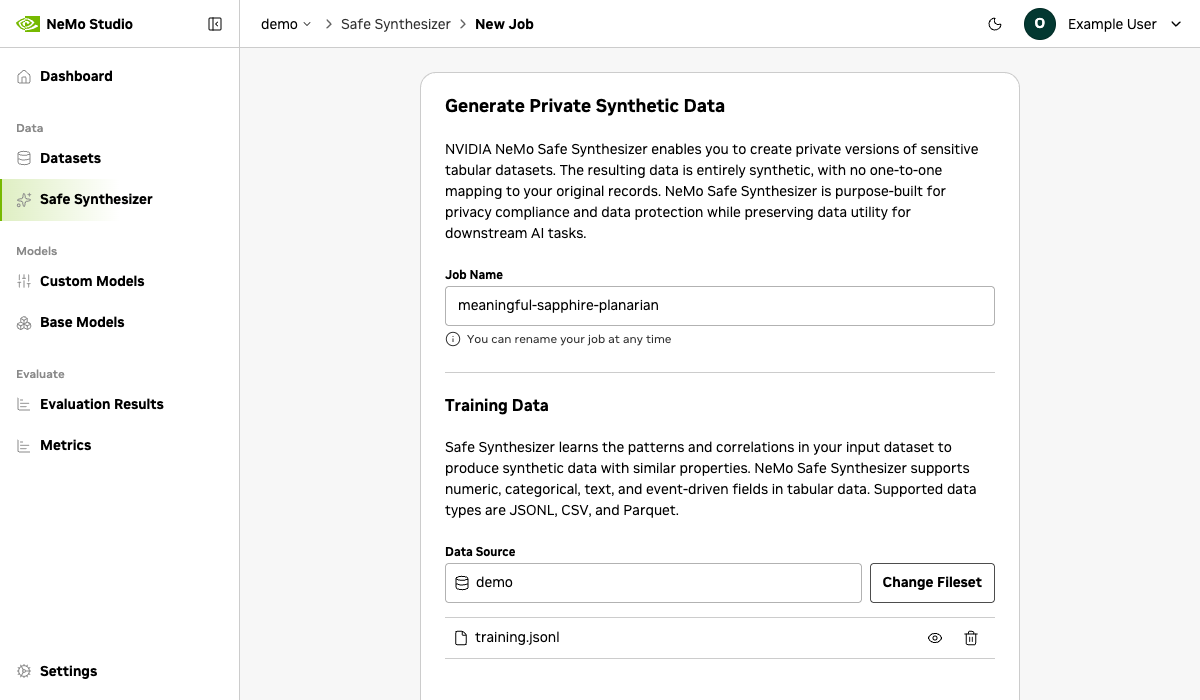
After a job completes, review quality and privacy scores to verify your synthetic data:
Column Correlation Stability — Analyze the correlation across every combination of two columns.
Column Distribution Stability — Compare the distribution for each column in the training data to the matching column in the synthetic data.
Deep Structure Stability — Uses Principal Component Analysis to compare the underlying structure of original and synthetic data.
Text Semantic Similarity — Compare the semantic meaning of text columns.
Text Structure Similarity — Compare sentence, word, and character counts across corresponding text columns in the training and synthetic datasets.
Membership Inference Protection — Test whether attackers can determine if specific records were in the training data.
Attribute Inference Protection — Test whether sensitive attributes can be inferred when other attributes are known.
Customized Models#
Adapt foundation models to your domain with two customization approaches:
Fine-Tuning#
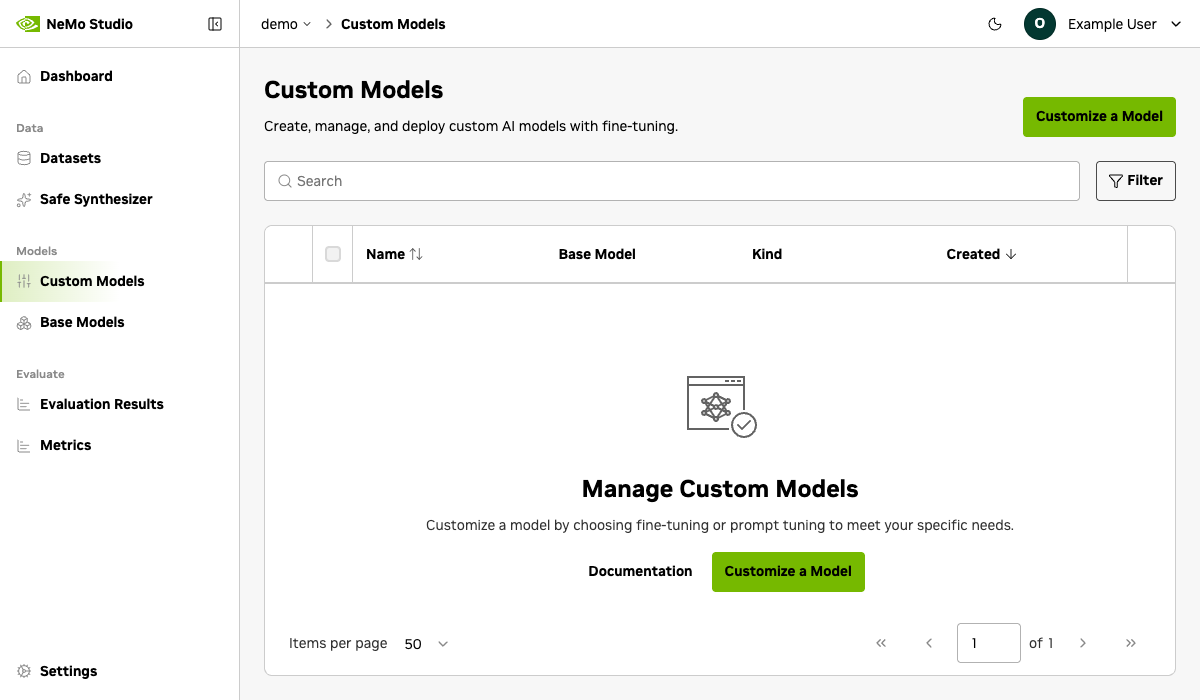
Train a model on your dataset using the Customizer service. Configure training parameters and monitor job progress in real time. Completed fine-tuned models are registered and ready to deploy.
Note
Before using Customize: A model must be deployed and available before you can fine-tune or prompt-tune it. If no models appear, deploy one first using the Models tutorial or check that your quickstart has inference providers configured.
Note
Fine-tuning requires a Model Entity backed by a FileSet containing the base model’s weights and configuration. See Manage Model Entities for Customization for setup instructions.
Prompt Tuning#
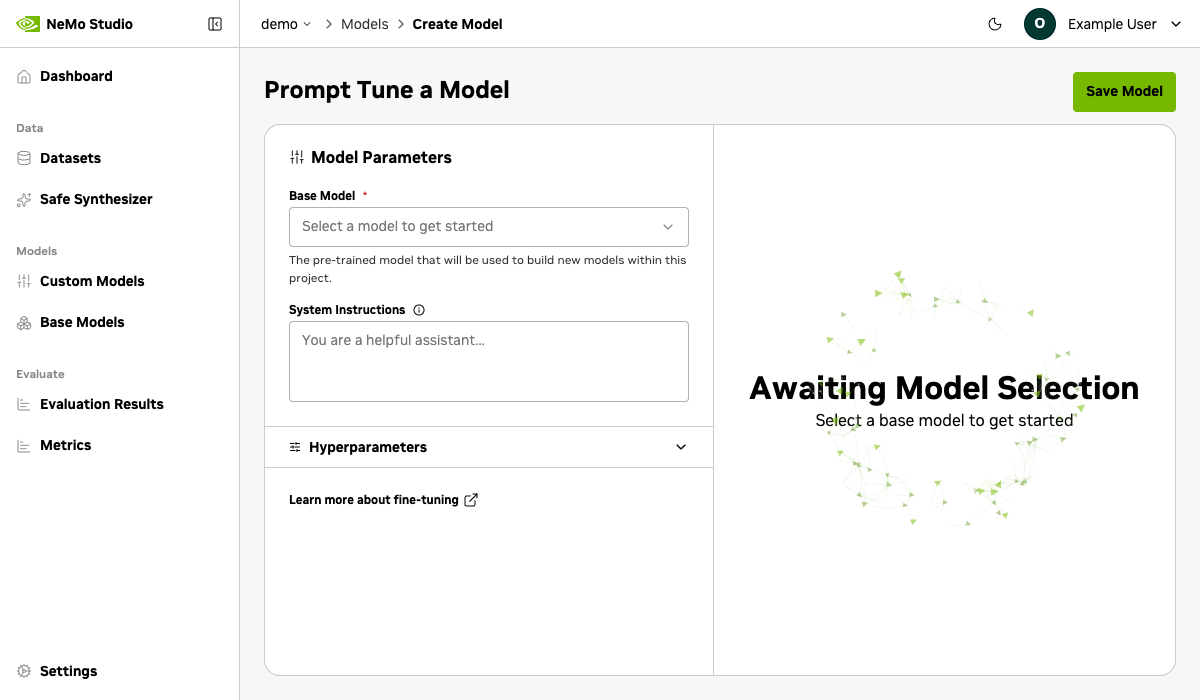
Build prompts into a model without modifying its weights. Configure prompt length, initialization, and training settings to steer model behavior for specific tasks, with lower compute cost than full fine-tuning.
Note
Prompt tuning requires a deployed NIM that is addressable via API. See About Models and Inference for details on model deployments and providers.
Evaluations#
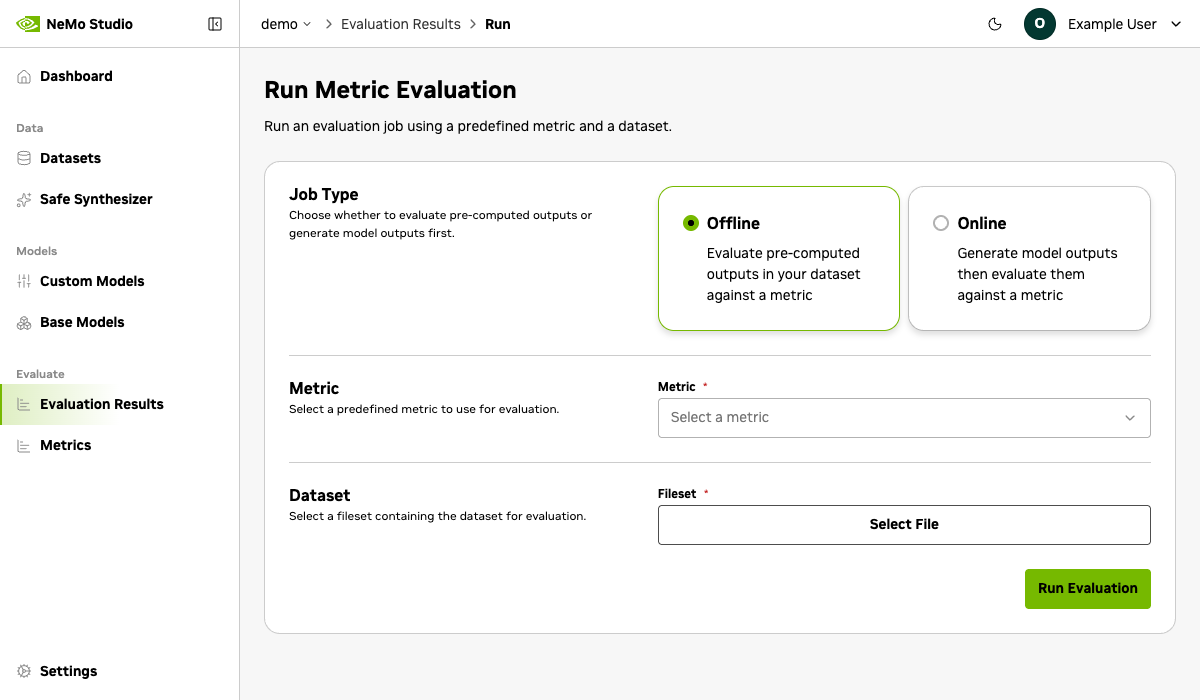
Assess model quality with automated evaluation jobs. NeMo Studio supports multiple evaluation modes and metrics via the Evaluator service:
LLM-as-a-Judge — Use a language model to score outputs with custom rubrics, scoring criteria, and system prompts. Define reusable metrics with configurable score ranges and types.
Standard Metrics — Run automated scoring with BLEU, ROUGE, F1, Exact Match, and String Check.
Online & Offline Modes — Evaluate live model inference or pre-generated outputs from a dataset.
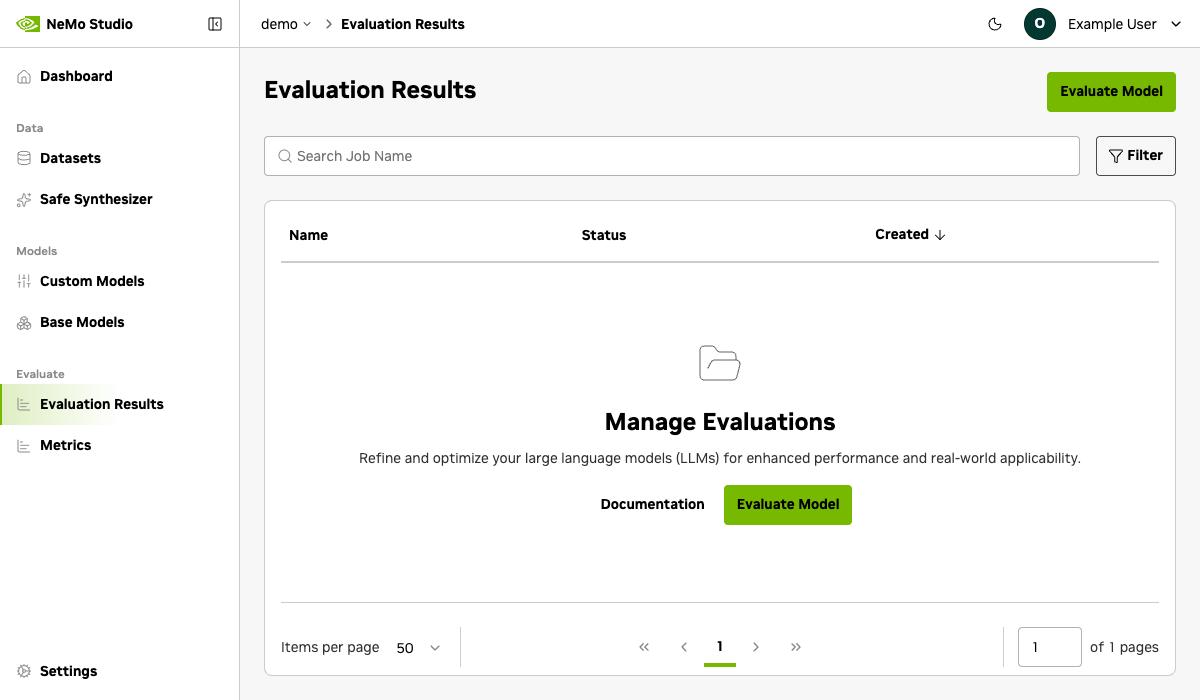
Create reusable evaluation configurations with multiple tasks and metrics, then track job progress and review aggregated scores from the results dashboard.
Initiating a New Evaluation Job#
Monitor Evaluation Job Results#
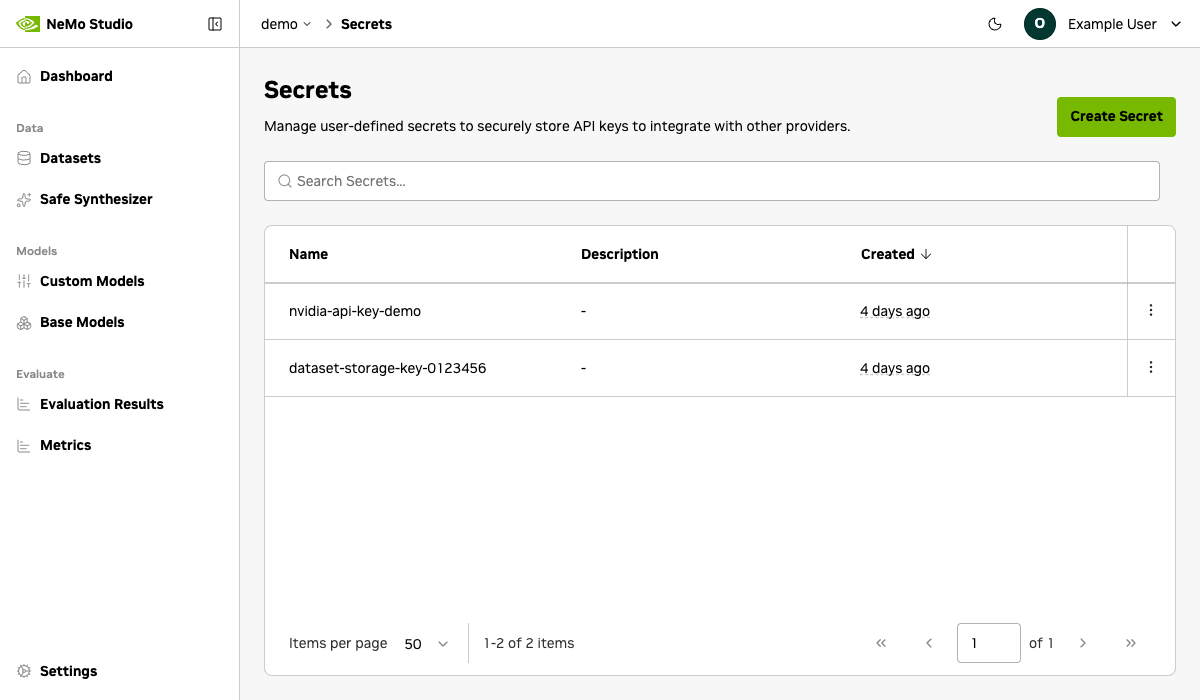
Secrets#
Store API keys and credentials to securely connect with external providers. See Manage Secrets for details.