

MeshGraphNet for Modeling Deforming Plate#
This example is a re-implementation of the DeepMind’s deforming plate example deepmind/deepmind-research in PyTorch. It demonstrates how to train a Graph Neural Network (GNN) for structural mechanics applications.
Problem overview#
Mesh-based simulations play a central role in modeling complex physical systems across various scientific and engineering disciplines. They offer robust numerical integration methods and allow for adaptable resolution to strike a balance between accuracy and efficiency. Machine learning surrogate models have emerged as powerful tools to reduce the cost of tasks like design optimization, design space exploration, and what-if analysis, which involve repetitive high-dimensional scientific simulations.
However, some existing machine learning surrogate models, such as CNN-type models, are constrained by structured grids, making them less suitable for complex geometries or shells. The homogeneous fidelity of CNNs is a significant limitation for many complex physical systems that require an adaptive mesh representation to resolve multi-scale physics.
Graph Neural Networks (GNNs) present a viable approach for surrogate modeling in science and engineering. They are data-driven and capable of handling complex physics. Being mesh-based, GNNs can handle geometry irregularities and multi-scale physics, making them well-suited for a wide range of applications.
Dataset#
We rely on DeepMind’s deforming plate dataset for this example. The dataset includes 1000 training, 100 validation, and 100 test samples that are simulated using COMSOL with irregular tetrahedral meshes, each for 400 steps. These samples vary in the geometry and boundary condition. Each sample has a unique mesh due to geometry variations across samples, and the meshes have 1271 nodes on average. Note that the model can handle different meshes with different number of nodes and edges as the input.
The datapipe from the vortex shedding example has been adapted to load this dataset.
Model overview and architecture#
The model is free-running and auto-regressive. It takes the prediction at the previous time step to predict the solution at the next step.
The model uses the input mesh to construct a bi-directional graph for each sample.
The output of the model is the mesh deformation between two consecutive steps.
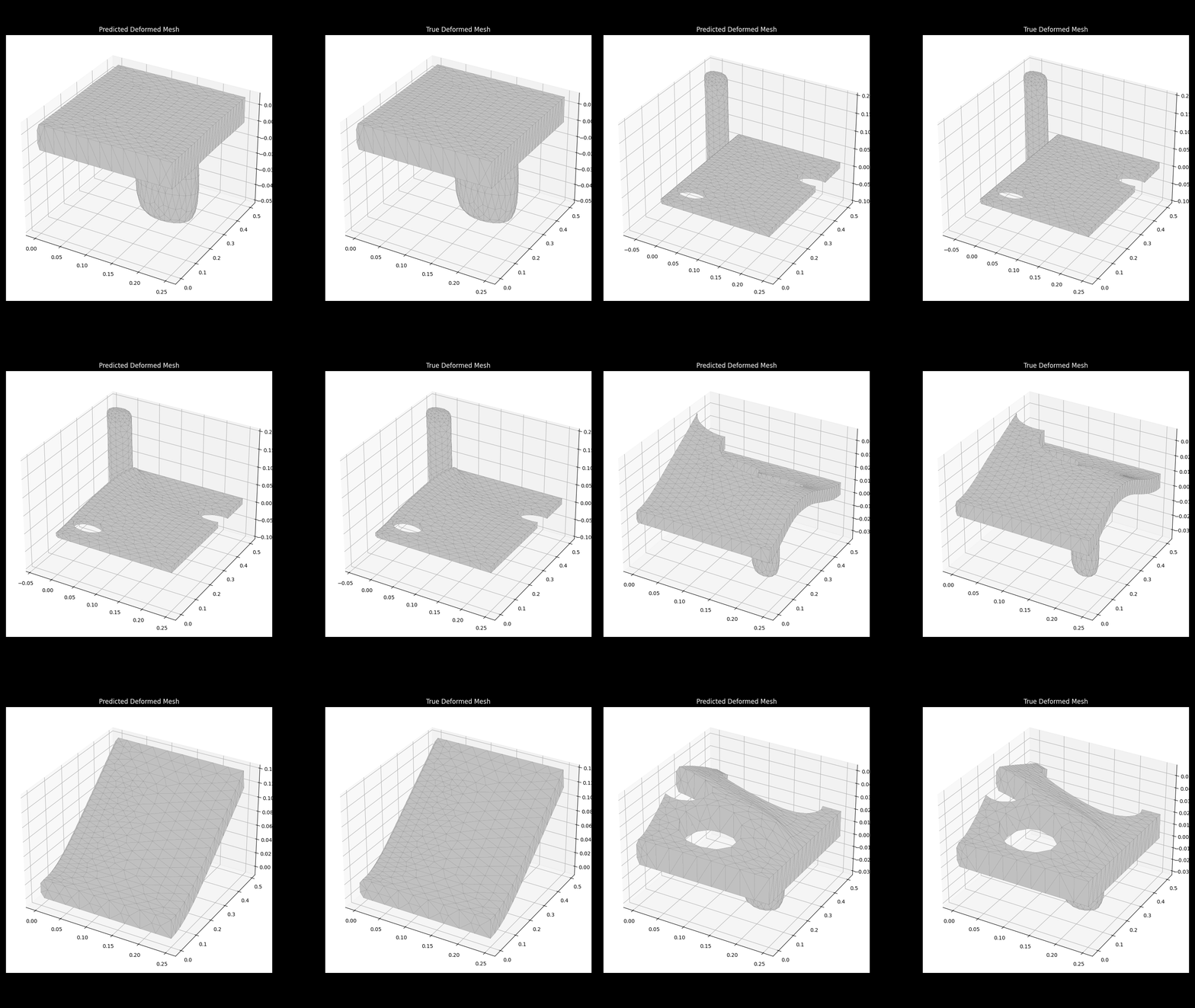
Comparison between the MeshGraphNet prediction and the ground truth for the deforming plate for different test samples.#
A hidden dimensionality of 128 is used in the encoder, processor, and decoder. The encoder and decoder consist of two hidden layers, and the processor includes 15 message passing layers. Batch size per GPU is set to 1. Summation aggregation is used in the processor for message aggregation. A learning rate of 0.0001 is used, decaying exponentially with a rate of 0.9999991. Training is performed on 8 NVIDIA H100 GPUs, leveraging data parallelism for 25 epochs. The total training time was 20 hours.
Prerequisites#
Install the requirements using:
pip install -r requirements.txt
Getting Started#
To download the data from DeepMind’s repo, run
cd raw_dataset
sh download_dataset.sh deforming_plate
Next, run preprocessing to process the data and prepare and save graphs
python preprocessor.py
Preprocessing can be also performed in parallel
mpirun -np <num_GPUs> python preprocessor.py
If running in a docker container, you may need to include the --allow-run-as-root in the multi-GPU run command.
To train the model, run
python train.py
Data parallelism is also supported with multi-GPU runs. To launch a multi-GPU training, run
mpirun -np <num_GPUs> python train.py
Once the model is trained, run
python inference.py
This will save the predictions for the test dataset in .gif format in the animations directory.
Logging#
We use TensorBoard for logging training and validation losses, as well as the learning rate during training. To visualize TensorBoard running in a Docker container on a remote server from your local desktop, follow these steps:
Expose the Port in Docker: Expose port 6006 in the Docker container by including
-p 6006:6006in your docker run command.Launch TensorBoard: Start TensorBoard within the Docker container:
tensorboard --logdir=/path/to/logdir --port=6006
Set Up SSH Tunneling: Create an SSH tunnel to forward port 6006 from the remote server to your local machine:
ssh -L 6006:localhost:6006 <user>@<remote-server-ip>
Replace
<user>with your SSH username and<remote-server-ip>with the IP address of your remote server. You can use a different port if necessary.Access TensorBoard: Open your web browser and navigate to
http://localhost:6006to view TensorBoard.
Note: Ensure the remote server’s firewall allows connections on port 6006 and that your local machine’s firewall allows outgoing connections.