

Long Video Summarization (LVS) Microservice#
Overview#
Long Video Summarization (LVS) is a comprehensive Long Video Summarization microservice that leverages Vision-Language Models (VLMs) to extract insights from video content. The system provides both REST API and Model Context Protocol (MCP) interfaces for video processing, and summarization capabilities.
LVS MS is a robust and flexible solution designed to efficiently process and distill insights from extensive video content. Its core capability lies in generating concise summaries and extracting crucial events and objects, providing users with a comprehensive overview of the video’s narrative and key happenings.
Key Features#
The LVS MS operates by analyzing the input video and generating a structured, machine-readable summary. The primary output format is a structured JSON object. This JSON meticulously details a list of timestamped events, allowing users to pinpoint precisely when and where specific actions, object appearances, or changes in scene occurred. Beyond the detailed event list, the service also provides an overall summary of the extracted events, offering a high-level narrative of the video’s main points.
High Customizability and Model Flexibility#
A defining feature of the LVS MS is its high degree of customization, particularly regarding the underlying language and vision models it employs. * OpenAI Compatibility: The service is designed for maximum interoperability, allowing users to select and integrate any OpenAI compatible Vision-Language Model (VLM) or Large Language Model (LLM). This flexibility ensures that users can leverage the latest and most suitable models for their specific summarization needs and quality requirements. * Inbuilt High-Speed VLM Support: For scenarios demanding faster inference and immediate processing, the LVS MS offers pre-configured, inbuilt support for highly optimized VLMs such as CR1, CR2, and Qwen. This dedicated support streamlines the deployment process and significantly reduces latency for real-time or near real-time applications.
Data Persistence and Management#
The integrity and accessibility of the processed data are managed through a configurable database layer. * Configurable Database: All processed video summaries, extracted events, and associated metadata are stored in a dedicated database. While the system utilizes Elasticsearch as the default database for its powerful search and analytical capabilities, this component is fully configurable. Users can integrate other preferred database solutions based on their existing infrastructure, scale, and performance needs.
Access and Integration Methods#
To ensure broad applicability and seamless integration into diverse workflows, the LVS MS exposes multiple methods for access and interaction. * REST API: The service provides a standard RESTful Application Programming Interface (API). This allows users to connect to the LVS MS using programmatical scripts and traditional software integrations, making it ideal for back-end systems and custom applications. * Message Control Protocol (MCP): In addition to the REST API, the LVS MS also exposes an MCP interface. This protocol is specifically designed to facilitate communication with AI agents and complex orchestration systems, enabling dynamic and intelligent control over the summarization process within larger AI ecosystems.
Architecture#
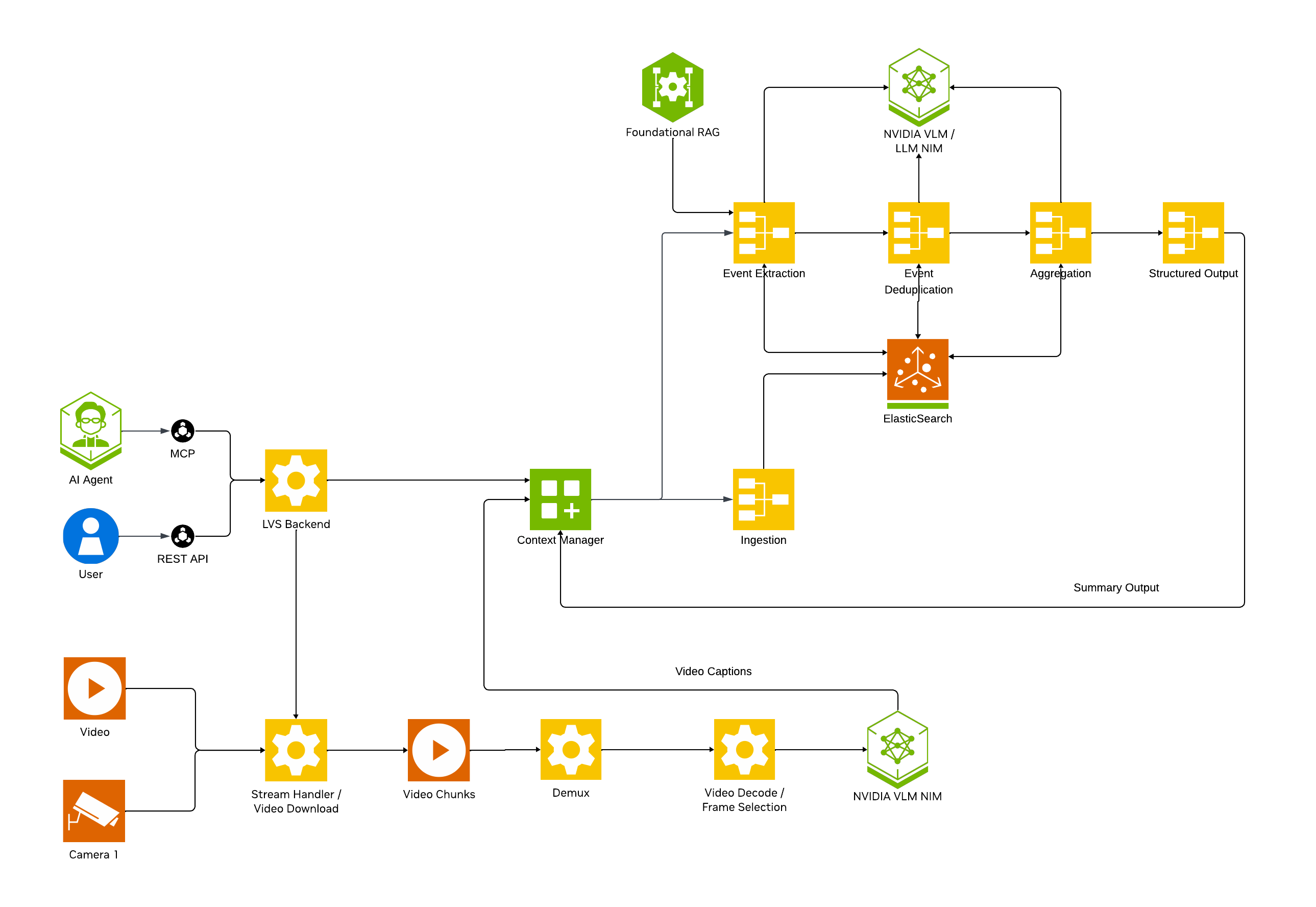
Note
[LVS Architecture Diagram]
The LVS MS consists of several core components:
LVS REST Server: FastAPI-based REST API server
LVS MCP Server: Model Context Protocol server for AI agent integration
VLM Processors: Parallel processing workers for video understanding
CA-RAG Pipeline: Context-aware retrieval and generation system
Vector Store: Elasticsearch for storing extracted events
NIMs: NVIDIA Inference Microservices for VLM and LLM
Getting Started#
Prerequisites#
Docker and Docker Compose
NVIDIA GPU(s) with appropriate drivers
NGC API Key (for NVIDIA NIMs)
Deployment#
Standalone Docker Deployment#
This deployment runs the LVS server as a standalone Docker container, assuming external services (Elasticsearch, LLM NIMs) are already running.
Prerequisites
Docker Engine 20.10+
NVIDIA Container Toolkit
NVIDIA GPU(s) with appropriate drivers
External services running:
Elasticsearch (for vector storage)
LLM NIM service (for summarization)
Environment Setup
Copy the example environment file to
.env:
touch .env
Edit
.envand fill in your configuration values:
# Environment variables for standalone LVS Server docker run
# Copy this file to .env and fill in the values

# Container Configuration
CONTAINER_IMAGE=nvcr.io/nvidia/vss-core/vss-long-video-summarization:3.0.0

# API Keys and Authentication
NGC_API_KEY=<your-ngc-api-key>
NVIDIA_API_KEY=<your-nvidia-api-key>
# OPENAI_API_KEY=<your-openai-api-key>

# S3 Configuration (required for S3 URLs)
# AWS_ACCESS_KEY_ID=<your-aws-access-key-id>
# AWS_SECRET_ACCESS_KEY=<your-aws-secret-access-key>
# AWS_ENDPOINT_URL_S3=<your-s3-endpoint-url>

# Port Configuration
BACKEND_PORT=38111
LVS_MCP_PORT=38112

# CA RAG Configuration
# This will be set via mount path - do not override here
# CA_RAG_CONFIG=/opt/nvidia/via/config/default_config.yaml

# Feature Flags
ENABLE_VIA_HEALTH_EVAL=false
LVS_ENABLE_MCP=true

# Database Configuration - Elasticsearch
# Update these to point to your external Elasticsearch service
ES_HOST=<elasticsearch-host-ip>
ES_PORT=9202
ES_TRANSPORT_PORT=9302

# GPU Configuration
# GPU_DEVICES: Comma-separated list of GPU device IDs to use (e.g., "2,3" or "0,1")
GPU_DEVICES=0
NVIDIA_VISIBLE_DEVICES=0
NUM_GPUS=1

# VLM (Vision-Language Model) Configuration
VLM_MODEL_TO_USE=vllm-compatible
VLLM_GPU_MEMORY_UTILIZATION=0.85
MODEL_PATH=git:https://huggingface.co/Qwen/Qwen3-VL-8B-Instruct
MODEL_ROOT_DIR=/opt/models/  # host path to mount in the container
NGC_MODEL_CACHE=/opt/models/  # path in the container to download the model

# OpenTelemetry Configuration (optional)
# VIA_ENABLE_OTEL=false
# VIA_OTEL_ENDPOINT=http://localhost:4318
# VIA_OTEL_EXPORTER=console
# VIA_CTX_RAG_ENABLE_OTEL=false
# VIA_CTX_RAG_EXPORTER=console
# VIA_CTX_RAG_OTEL_ENDPOINT=http://localhost:4318

# Logging and Debug
VSS_LOG_LEVEL=DEBUG

# LLM Configuration
# Update these to point to your external LLM NIM services
LVS_LLM_MODEL_NAME=openai/gpt-oss-120b
LVS_LLM_BASE_URL=http://<llm-nim-host-ip>:8002/v1

# Database Selection
LVS_DATABASE_BACKEND=elasticsearch_db
Run Script
Create a file named run-lvs-server.sh with the following content:
#!/bin/bash

# Standalone Docker run command for LVS Server
# This script runs only the lvs-server container, assuming other services are running separately

# Configuration
CONTAINER_NAME="lvs-server"
ENV_FILE="${ENV_FILE:-.env}"

# Check if .env file exists
if [ ! -f "$ENV_FILE" ]; then
    echo "Error: Environment file '$ENV_FILE' not found!"
    echo "Please copy .env to $ENV_FILE and fill in the values."
    exit 1
fi

# Load CONTAINER_IMAGE from env file
IMAGE=$(grep "^CONTAINER_IMAGE=" "$ENV_FILE" | cut -d'=' -f2)
if [ -z "$IMAGE" ]; then
    IMAGE="nvcr.io/nvidia/vss-core/vss-long-video-summarization:3.0.0"
    echo "Warning: CONTAINER_IMAGE not found in $ENV_FILE, using default: $IMAGE"
fi

# Load GPU_DEVICES from env file, default to "2,3" if not set
GPU_DEVICES=$(grep "^GPU_DEVICES=" "$ENV_FILE" | cut -d'=' -f2)
if [ -z "$GPU_DEVICES" ]; then
    GPU_DEVICES="2,3"
    echo "Warning: GPU_DEVICES not found in $ENV_FILE, using default: $GPU_DEVICES"
fi

# Load MODEL_ROOT_DIR from env file (optional)
MODEL_ROOT_DIR=$(grep "^MODEL_ROOT_DIR=" "$ENV_FILE" | cut -d'=' -f2)

# Load port values from env file
BACKEND_PORT=$(grep "^BACKEND_PORT=" "$ENV_FILE" | cut -d'=' -f2)
LVS_MCP_PORT=$(grep "^LVS_MCP_PORT=" "$ENV_FILE" | cut -d'=' -f2)

# Set defaults if not found
BACKEND_PORT=${BACKEND_PORT:-38111}
LVS_MCP_PORT=${LVS_MCP_PORT:-38112}

# Build port mapping arguments
PORT_ARGS="-p ${BACKEND_PORT}:${BACKEND_PORT} -p ${LVS_MCP_PORT}:${LVS_MCP_PORT}"

# Build volume mount for MODEL_ROOT_DIR if set
MODEL_VOLUME_ARG=""
if [ -n "$MODEL_ROOT_DIR" ]; then
    # Expand tilde and get absolute path if directory exists or can be created
    MODEL_ROOT_DIR_EXPANDED="${MODEL_ROOT_DIR/#\~/$HOME}"
    if [ -d "$MODEL_ROOT_DIR_EXPANDED" ] || mkdir -p "$MODEL_ROOT_DIR_EXPANDED" 2>/dev/null; then
        MODEL_ROOT_DIR_ABS="$(cd "$MODEL_ROOT_DIR_EXPANDED" && pwd)"
        MODEL_VOLUME_ARG="-v ${MODEL_ROOT_DIR_ABS}:${MODEL_ROOT_DIR_ABS}"
        echo "MODEL_ROOT_DIR will be mounted: $MODEL_ROOT_DIR_ABS"
    else
        echo "Warning: MODEL_ROOT_DIR '$MODEL_ROOT_DIR' could not be accessed or created, skipping mount"
    fi
else
    echo "MODEL_ROOT_DIR not set in $ENV_FILE, skipping model cache mount"
fi

# Docker run command
# Using bridge network (default) to enable port mapping
# If you need to connect to services on host, use host.docker.internal or host IP in .env file
# To use host network instead (ignores port mapping): add --network host and remove $PORT_ARGS
docker run -d \
    --name "$CONTAINER_NAME" \
    --gpus "device=${GPU_DEVICES}" \
    --env-file "$ENV_FILE" \
    $MODEL_VOLUME_ARG \
    $PORT_ARGS \
    --restart unless-stopped \
    "$IMAGE"

echo "LVS Server container started!"
echo "Container name: $CONTAINER_NAME"
echo "Container image: $IMAGE"
echo "GPU devices: $GPU_DEVICES"
echo "Backend port: $BACKEND_PORT"
echo "MCP port: $LVS_MCP_PORT"
if [ -n "$MODEL_ROOT_DIR_ABS" ]; then
    echo "Model cache mounted from: $MODEL_ROOT_DIR_ABS"
fi
echo ""
echo "To view logs: docker logs -f $CONTAINER_NAME"
echo "To stop: docker stop $CONTAINER_NAME"
echo "To remove: docker rm $CONTAINER_NAME"
Running the Container
Make the script executable:
chmod +x run-lvs-server.sh
Run the script:
./run-lvs-server.sh
Check the container status:
docker logs -f lvs-server
Verify service health:
curl http://localhost:38111/v1/ready
Testing the API
Test video summarization with a sample request:
curl --location 'http://localhost:38111/summarize' \
  --header 'Content-Type: application/json' \
  --data '{
  "id": null,
  "url": "http://<video-server-ip>:<port>/your-video.mp4",
  "model": "Qwen3-VL-8B-Instruct",
  "scenario": "law enforcement",
  "events": ["pulling over", "arrest", "chasing"]
}' | python3 -m json.tool
Note: Replace <video-server-ip> and <port> with your actual video server address and port.
Stopping the Container
# Stop the container
docker stop lvs-server

# Remove the container
docker rm lvs-server
Configuration Updates
To update environment variables:
Stop and remove the container:
docker stop lvs-server && docker rm lvs-server
Edit your
.envfile with the new valuesRestart the container:
./run-lvs-server.sh
Network Configuration
By default, the script uses Docker’s bridge network to enable port mapping. If your external services (Elasticsearch, LLM/VLM NIMs) are running on the same host, you can:
Use
host.docker.internalin your.envfile to reference the hostOr use the host’s IP address
Or switch to host network mode by editing the script (see comments in the script)
Troubleshooting
Container fails to start: Check
docker logs lvs-serverfor error messagesCannot connect to external services: Verify service URLs in
.envfile and network connectivityOut of memory: Reduce
VLLM_GPU_MEMORY_UTILIZATIONor use fewer GPUsPort conflicts: Change port numbers in
.envfileGPU not detected: Ensure NVIDIA Container Toolkit is properly installed
Configuration#
VIA uses YAML configuration files to customize behavior. The main configuration file is mounted at /opt/nvidia/via/config/default_config.yaml.
Configuration Structure#
The configuration file (config_update.yml) defines:
1. Tools - External service connections:
tools:

  elasticsearch_db:
    type: elasticsearch
    params:
      host: !ENV ${ES_HOST}
      port: !ENV ${ES_PORT}
    tools:
      embedding: nvidia_embedding

  summarization_llm:
    type: llm
    params:
      model: !ENV ${LVS_LLM_MODEL_NAME}
      base_url: !ENV ${LVS_LLM_BASE_URL}
      max_tokens: 10240
      temperature: 0.2
      top_p: 0.7
      api_key: !ENV ${NVIDIA_API_KEY}

  nvidia_embedding:
    type: embedding
    params:
      enable: !ENV ${LVS_EMB_ENABLE:false}
      model: !ENV ${LVS_EMB_MODEL_NAME}
      base_url: !ENV ${LVS_EMB_BASE_URL}
      api_key: !ENV ${NVIDIA_API_KEY}
2. Functions - Processing pipelines:
functions:
  summarization:
    type: vlm_structured_summarization
    params:
      time_overlap_threshold: 0.1
      max_events_per_batch: 50
    tools:
      db: !ENV ${LVS_DATABASE_BACKEND:elasticsearch_db}
      llm: summarization_llm
3. Context Manager - Active functions:
context_manager:
  functions:
    - summarization
Key Configuration Options#
Vector Database
type:elasticsearch(default)params.host,params.port: Connection parameterstools.embedding: Embedding model to use (reference to tool)
Summarization LLM
type:llm(default)params.model: LLM model name (e.g., from${LVS_LLM_MODEL_NAME})params.base_url: API endpoint (e.g., from${LVS_LLM_BASE_URL})params.max_tokens: Maximum output tokens (default: 10240)params.temperature: Sampling temperature (default: 0.2)params.top_p: Top-p sampling (default: 0.7)params.api_key: Authentication key
Nvidia Embedding
type:embedding(default)params.enable: Enable/disable embedding serviceparams.model: Embedding model nameparams.base_url: Embedding service endpointparams.api_key: NVIDIA API key
VLM Structured Summarization
type: Function type (vlm_structured_summarization(default))params.time_overlap_threshold: Threshold for overlapping time events (default: 0.1)params.max_events_per_batch: Maximum events per batch (default: 50)tools.db: Reference to database backend (from${LVS_DATABASE_BACKEND:elasticsearch_db})tools.llm: Reference to LLM tool
Example: Event Detection#
The default configuration is optimized for event detection in videos:
functions:
  summarization:
    type: vlm_structured_summarization
    params:
      time_overlap_threshold: 0.1
      max_events_per_batch: 50
    tools:
      db: !ENV ${LVS_DATABASE_BACKEND:elasticsearch_db}
      llm: summarization_llm
This extracts structured events with timestamps. You can customize this for specific use cases:
Environment Variables#
Configuration supports environment variable substitution using !ENV ${VAR_NAME}:
Database Configuration
ES_HOST,ES_PORT: Elasticsearch connectionLVS_DATABASE_BACKEND: Database backend to use (elasticsearch_db(default))
LLM Configuration
LVS_LLM_MODEL_NAME: LLM model nameLVS_LLM_BASE_URL: LLM API endpoint
API Keys
NVIDIA_API_KEY: API key for NVIDIA services
MCP Server Integration#
VIA includes a Model Context Protocol (MCP) server that exposes the same functionality as the REST API in a format consumable by AI agents and tools like Claude Desktop, Cursor, and other MCP-compatible clients.
Overview#
The MCP server (lvs_mcp.py) provides:
Stdio Transport: Default mode for direct integration with MCP clients
SSE Transport: HTTP-based Server-Sent Events transport for network access
Tool-based Interface: All REST endpoints exposed as MCP tools
Configuration#
The MCP server can be enabled/disabled and configured via environment variables:
LVS_ENABLE_MCP: Enable/disable MCP server (default:true)LVS_MCP_PORT: Port for SSE transport (if not set, uses stdio)
Example: Enable SSE transport on port 38112:
export LVS_ENABLE_MCP=true
export LVS_MCP_PORT=38112
Available MCP Tools#
The MCP server exposes the following tools:
Health & Status
health_ready: Check server readinesshealth_live: Check server livenessget_metrics: Get Prometheus metrics
File Management
add_file: Upload media filelist_files: List uploaded filesget_file_info: Get file metadatadelete_file: Delete a file
Video Processing
list_models: List available VLM modelssummarize_video: Generate video summarygenerate_vlm_captions: Generate timestamped VLM captionsget_recommended_config: Get recommended configuration
Using with MCP Clients#
Claude Desktop Configuration
Add to your Claude Desktop configuration:
{
  "mcpServers": {
    "via-engine": {
      "command": "docker",
      "args": [
        "exec",
        "-i",
        "lvs-server",
        "python",
        "/opt/nvidia/via/src/lvs_mcp.py"
      ]
    }
  }
}
Direct SSE Connection
When running with LVS_MCP_PORT set, connect to:
SSE Endpoint:
http://<host>:38112/sseMessages Endpoint:
http://<host>:38112/messages
Example Tool Call:
{
  "name": "summarize_video",
  "arguments": {
    "id": "<file_id>",
    "model": "vila-1.5",
    "scenario": "police body camera",
    "events": ["pulling over", "arrest", "chasing"]
  }
}
Best Practices#
Performance Optimization#
Chunk Duration: Use 30-60 second chunks for optimal GPU utilization
Batch Size: Set based on GPU memory (4-8 for 24GB GPUs)
Parallel Processes: Use
NUM_VLM_PROCS=2-4for multi-GPU setupsFrame Selection: Adjust
VLM_DEFAULT_NUM_FRAMES_PER_CHUNK(8-16 frames)
Error Handling#
Enable
stream: truefor long videos to receive progressive updatesSet appropriate
max_tokensto avoid truncationUse
chunk_overlap_durationto avoid missing events at boundaries
Troubleshooting#
Common Issues#
API Returns 503 Service Unavailable
Another video is being processed (VIA processes one video at a time)
Wait for current processing to complete
Out of Memory Errors
Reduce
VLM_BATCH_SIZEReduce
NUM_VLM_PROCSDecrease
chunk_durationLower
VLM_INPUT_WIDTHandVLM_INPUT_HEIGHT
Slow Processing
Increase
NUM_GPUSIncrease
batch_sizein configurationUse smaller VLM model
Reduce
num_frames_per_chunk
MCP Server Not Connecting
Check
LVS_ENABLE_MCP=trueVerify
LVS_MCP_PORTis accessibleCheck container logs:
docker logs lvs-server
Logs and Debugging#
# Set log level
export VSS_LOG_LEVEL=DEBUG

# View logs
docker-compose logs -f lvs-server

# Check specific component
grep "MCP" /var/log/via/via-server.log
FAQ#
Q: Can VIA process multiple videos simultaneously?
A: No, VIA processes one video at a time to ensure optimal GPU utilization. Use a queue system for batch processing.
Q: What video formats are supported?
A: VIA supports common formats: MP4, AVI, MOV, MKV, WebM. Install proprietary codecs via INSTALL_PROPRIETARY_CODECS=true for additional formats.
Q: How do I use a custom VLM model?
A: Set VLM_MODEL_TO_USE and provide model path via MODEL_ROOT_DIR volume mount.
Q: How can I change the VLM prompt for summarization?
A: You can customize the VLM prompt by using the following flags in your API request: override_vlm_prompt and prompt. Here is an example of how to use them in a curl command:
curl --location 'http://localhost:38111/summarize' \
  --header 'Content-Type: application/json' \
  --data '{
    "url": "<video url>",
    "model": "<model name>",
    "events": [
      <event list>
    ],
    "scenario": "<scenario>",
    "override_vlm_prompt": true,
    "prompt": "<Your prompt goes here>\n\nProvide the result in JSON format with \"seconds\" for time depiction for each event.\nUse the following keywords in the JSON output: '\''start_time'\'', '\''end_time'\'', '\''description'\'', \"type\".\nThe \"type\" field should correspond to an event type from the event list.\n\nExample output format:\n{\n  \"start_time\": t_start,\n  \"end_time\": t_end,\n  \"description\": \"EVENT1\",\n  \"type\": \"event_type from the event list\"\n}\n\nMake sure the answer contains correct timestamps."
  }'
Replace <Your prompt goes here> and <event list> with your custom values as needed.
You need to keep the output format as is for the VLM to generate the correct output that can beprocessed by the downstream pipeline.
API Error Codes#
400 Bad Request: Invalid input syntax
401 Unauthorized: Missing or invalid authentication token
409 Conflict: File is in use and cannot be deleted
422 Unprocessable Entity: Failed to process request (validation error)
429 Rate Limit Exceeded: Too many requests
500 Internal Server Error: Server-side error
503 Service Unavailable: Server is busy processing another file
Appendix#
Environment Variables Reference#
Complete list of available environment variables:
API Configuration
BACKEND_PORT: REST API port (default: 38111)LVS_MCP_PORT: MCP server port (default: 38112)VSS_API_ENABLE_VERSIONING: Enable /v1 prefix
API Keys
NGC_API_KEY: NVIDIA NGC API keyNVIDIA_API_KEY: NVIDIA AI API keyOPENAI_API_KEY: OpenAI API keyAZURE_OPENAI_API_KEY: Azure OpenAI API key
S3 Configuration
AWS_ACCESS_KEY_ID: AWS access key ID (required for S3 URL support)AWS_SECRET_ACCESS_KEY: AWS secret access key (required for S3 URL support)AWS_ENDPOINT_URL_S3: AWS S3 endpoint URL (required for S3 URL support)
VLM Configuration
VLM_MODEL_TO_USE: VLM backend (vllm-compatible,openai-compat,vila,nvila)VLM_BATCH_SIZE: Batch size for VLM inferenceNUM_VLM_PROCS: Number of parallel VLM processesVLM_INPUT_WIDTH,VLM_INPUT_HEIGHT: Input image dimensionsVLM_DEFAULT_NUM_FRAMES_PER_CHUNK: Frames per chunkVLLM_GPU_MEMORY_UTILIZATION: GPU memory utilization for vLLM (default: 0.85)MODEL_PATH: Path or git URL to the model (e.g., git:https://huggingface.co/…)MODEL_ROOT_DIR: Root directory for model storage (default: /opt/models/)NGC_MODEL_CACHE: Cache directory for NGC models (default: /opt/models/)VIA_VLM_OPENAI_MODEL_DEPLOYMENT_NAME: OpenAI model deployment name
Database Configuration
ES_HOST,ES_PORT: Elasticsearch connectionES_TRANSPORT_PORT: Elasticsearch transport port (default: 9302)
LLM Configuration
LVS_LLM_MODEL_NAME: LLM model name (e.g., openai/gpt-oss-120b)LVS_LLM_BASE_URL: LLM API base URL
Feature Flags
LVS_ENABLE_MCP: Enable MCP server (default: true)ENABLE_VIA_HEALTH_EVAL: Enable health evaluation (default: false)VSS_DISABLE_DECODER_REUSE: Disable decoder reuse (default: true)
Logging and Monitoring
VSS_LOG_LEVEL: Log level (DEBUG,INFO,WARNING,ERROR)VIA_LOG_DIR: Directory for VIA logsVIA_ENABLE_OTEL: Enable OpenTelemetryVIA_OTEL_ENDPOINT: OpenTelemetry endpoint (e.g., http://localhost:4318)VIA_OTEL_EXPORTER: OpenTelemetry exporter type (e.g., console)VIA_CTX_RAG_ENABLE_OTEL: Enable OpenTelemetry for context RAGVIA_CTX_RAG_EXPORTER: Context RAG exporter typeVIA_CTX_RAG_OTEL_ENDPOINT: Context RAG OpenTelemetry endpoint
Glossary#
CA-RAG: Caption-Augmented Retrieval-Augmented Generation
VLM: Vision-Language Model
NIM: NVIDIA Inference Microservice
MCP: Model Context Protocol
RAG: Retrieval-Augmented Generation
CV: Computer Vision
PPE: Personal Protective Equipment
API Reference