


Deploying NVIDIA NIM with Red Hat OpenShift AI#
Note
This section requires the deployment of Red Hat OpenShift AI. Refer to the official documentation for steps on installing OpenShift AI.
Red Hat OpenShift AI (RHOAI) is a flexible, scalable MLOps platform built on top of Red Hat OpenShift that provides a standardized environment for developing, training, and deploying artificial intelligence models. It integrates a set of open-source and NVIDIA technologies into a single, managed lifecycle. While the NIM Operator handles the optimization of NVIDIA microservices, OpenShift AI acts as the orchestration layer that organizes these services into functional data science projects.
By using Red Hat OpenShift AI with NVIDIA, organizations can move from managing disparate GPU resources to a structured MLOps workflow. Deploying your NVIDIA NIMs through the OpenShift AI interface offers several strategic advantages over a standard Kubernetes deployment:
Unified Control Plane: Manage your data connections, Jupyter notebooks, and NIM inference endpoints from a single, cohesive graphical user interface (GUI).
Serverless Efficiency: Utilize the built-in Knative integration to “scale-to-zero,” ensuring that expensive GPU resources are only consumed when active requests are hitting your NIM endpoints.
Production Guardrails: Easily implement Service Mesh (Istio) for secure, encrypted communication between your applications and your AI models without writing complex network policies.
Hardware Profiles: Standardize how data scientists access NVIDIA GPUs, ensuring that NIMs are always scheduled on nodes with the correct CUDA version and memory capacity.
While both the NIM Operator and OpenShift AI support KServe, OpenShift AI abstracts much of the complexity of KServe and adds annotations to resources under its management. This helps with integration across the full feature set of OpenShift AI across releases.
Refer to the official documentation that details the NIM integration in Red Hat OpenShift AI.
Prerequisites#
RHOAI Installed: Red Hat OpenShift AI 3.x must be installed on your cluster.
Hardware Profile: A hardware profile containing a GPU (e.g., resource identifier
nvidia.com/gpu) must be created in RHOAI settings.NGC API Key: You must have a valid NVIDIA NGC API Key with access to NVIDIA AI Enterprise.
NIM Operator: The NVIDIA NIM Operator should be installed from the OperatorHub for simplified lifecycle management.
NIM Model Serving Runtime: Enabled under Applications.
Step-by-Step Deployment Procedure#
Access the Dashboard:
Open the Red Hat OpenShift AI Dashboard from the Application Launcher in the top right of your OpenShift console.
Create or Select a Project:
Navigate to Data Science Projects in the left menu. Click Create Project or select an existing one where you wish to serve the model.
Configure Model Serving:
Under the Serve Models section of your project, select NVIDIA NIM to enable the specific serving feature. Click Deploy model.
Enter Deployment Details:
Model Name: Enter a descriptive name (e.g.,
Nemotron-Nano-30b-A3b). This name is used to generate the external route for the model.NVIDIA NIM: Select the specific model and version from the dropdown (e.g., Nemotron 3 Nano - latest).
NVIDIA NIM Storage Size: Set the recommended storage size, typically 100GB (using a storage class like
lvms-nvme).Hardware Profile: Select the GPU hardware profile you previously created (e.g., NVIDIA A100 or RTX 6000).
Configure Environment Variables (Recommended): Add the following variables to ensure stability and performance:
HOME: Set to/.cacheto provide a writable directory for the OpenShift service account.TRITON_CACHE_DIR: Set to/.cache/tritonto store model optimization files and prevent re-compilation on restarts.
Finalize Deployment:
Review your settings and click Deploy.
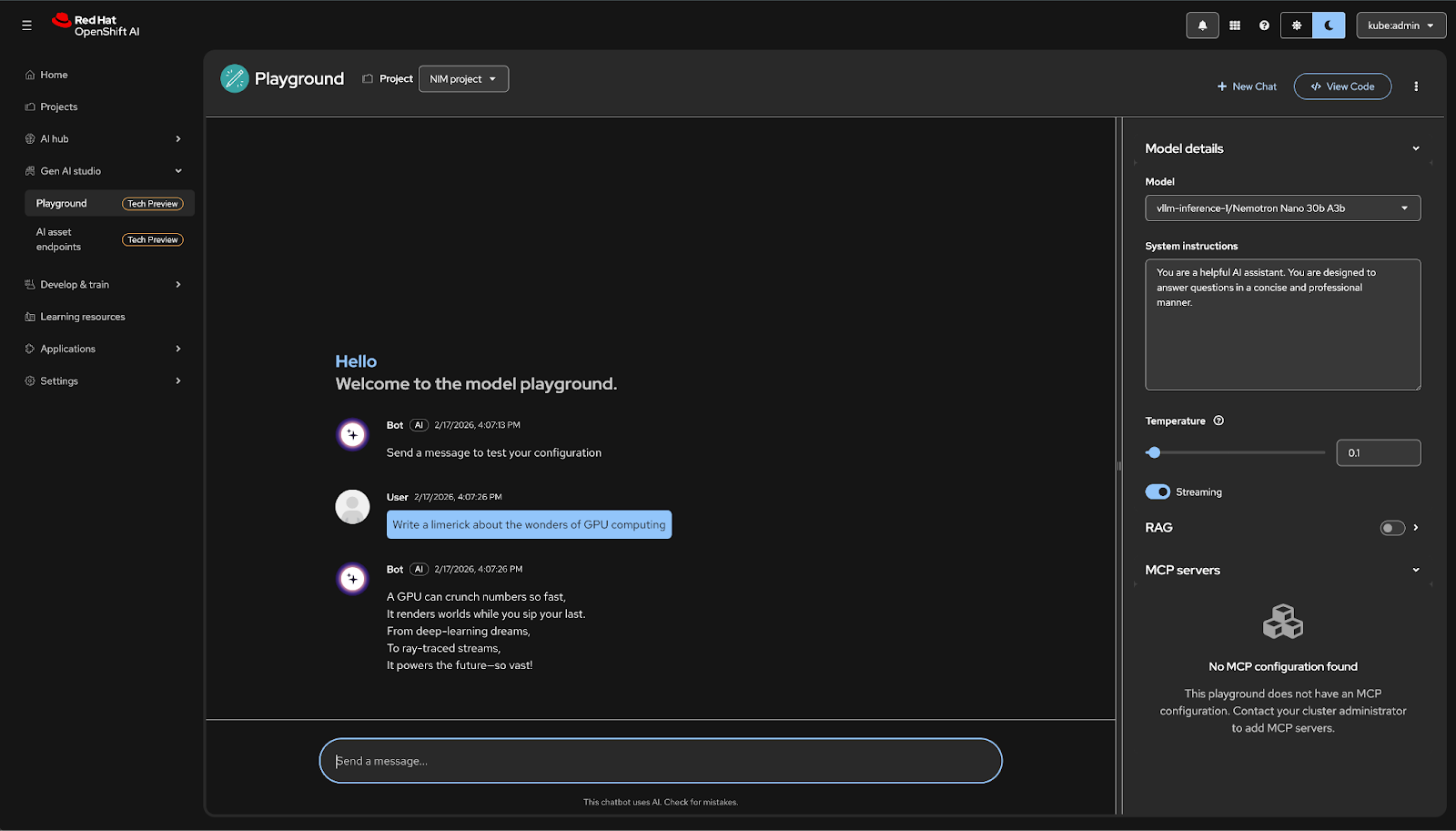
Deploying NIM Behind a Corporate Proxy#
When deploying NIM on Red Hat OpenShift AI in environments behind a corporate HTTPS proxy, the Istio sidecar injected by Service Mesh can interfere with proxy traffic. This section describes the additional configuration required for NIM pods to route external traffic through the proxy.
Background#
OpenShift AI uses Istio Service Mesh to manage traffic between components. By default, the Istio sidecar (Envoy) intercepts all outbound traffic from the pod. When an application uses HTTP CONNECT to tunnel HTTPS through a corporate proxy, the Istio sidecar treats the proxy port as an HTTP destination, and the CONNECT request fails with a 404 Not Found response from Envoy. This is general Istio behavior, documented in Using an External HTTPS Proxy.
Symptoms#
NIM pods running with an Istio sidecar fail to reach external services through the proxy. Verbose logs show:
> CONNECT api.ngc.nvidia.com:443 HTTP/1.1
< HTTP/1.1 404 Not Found
< server: envoy
Solution 1: TCP ServiceEntry (recommended)#
Create a ServiceEntry that registers the corporate proxy as a TCP service. This tells Istio to pass through TCP traffic to the proxy without HTTP-level processing.
apiVersion: networking.istio.io/v1
kind: ServiceEntry
metadata:
  name: corporate-proxy
  namespace: <your-namespace>
spec:
  hosts:
  - <proxy-hostname>
  ports:
  - number: <proxy-port>
    name: tcp
    protocol: TCP
  location: MESH_EXTERNAL
  resolution: DNS
Replace <proxy-hostname> and <proxy-port> with the corporate proxy’s address.
Solution 2: Exclude proxy port from sidecar interception#
As an alternative, add the traffic.sidecar.istio.io/excludeOutboundPorts annotation to the NIM InferenceService or ServingRuntime so the sidecar bypasses the proxy port entirely:
metadata:
  annotations:
    traffic.sidecar.istio.io/excludeOutboundPorts: "<proxy-port>"
This approach is simpler but bypasses Istio’s traffic policies for that port.
Experiment with NVIDIA NIM in the Playground in the GenAI Studio in Red Hat OpenShift AI#
Note
This section requires the deployment of Red Hat OpenShift AI. Refer to the official documentation for steps on installing the Red Hat OpenShift AI Operator.
Note
This feature is currently available in Red Hat OpenShift AI 3.2 as a Technology Preview feature
Refer to the official documentation that details the NIM integration in Red Hat OpenShift AI.
Once you have deployed an NVIDIA NIM through Red Hat OpenShift AI, you can validate and interact with your model using the Gen AI Playground. This integrated sandbox environment allows you to test model responses, adjust inference parameters, and experiment with different system prompts without writing any code. By providing a chat-based interface directly within the OpenShift AI dashboard, the playground simplifies the “inner loop” of AI development, helping you ensure that your NIM is correctly configured and responding as expected before it is integrated into a downstream application.
Enable the Playground feature in Gen AI studio#
If needed, this is a one-time setup performed by an administrator to activate the Gen AI Studio interface and the underlying Llama Stack required for the playground in an OpenShift AI deployment. RHOAI must be installed with a deployed DataScienceCluster.
Refer to the documented prerequisites to enable this feature and follow these steps to verify.
Update Dashboard Configuration#
You must update the OdhDashboardConfig to reveal the Gen AI Studio and AI asset endpoints in the RHOAI dashboard.
Via CLI:
oc patch odhdashboardconfig odh-dashboard-config -n redhat-ods-applications --type=merge -p '{"spec":{"dashboardConfig":{"genAiStudio":true,"modelAsService":true,"enablement":true}}}'Via Web Console:
Navigate to Operators > Installed Operators > Red Hat OpenShift AI.
Open the OdhDashboardConfig tab and edit
odh-dashboard-config.Under
spec.dashboardConfig, setgenAiStudio: true,modelAsService: true, andenablement: true.
Enable Llama Stack Operator#
The Gen AI Playground utilizes a unified API layer based on Llama Stack. This must be enabled within the DataScienceCluster resource.
Via CLI:
oc patch datasciencecluster default-dsc --type=merge -p '{"spec":{"components":{"llamastackoperator":{"managementState":"Managed"}}}}'Verification: Ensure the Llama Stack operator pod is running in the redhat-ods-applications namespace:
oc get pods -n redhat-ods-applications -l app.kubernetes.io/name=llama-stack-operator
Labeling Models as Gen AI Assets#
Models will only appear in the Gen AI Studio model list and Playground if they carry the specific discovery label. Include the following labels in the metadata section to ensure immediate registration as an AI asset.
Example YAML Snippet:
1metadata:
2  name: nim-llama3-8b
3  labels:
4    opendatahub.io/dashboard: "true"
5    opendatahub.io/genai-asset: "true"
Labeling Existing Models#
If a model has already been deployed via the UI without these labels, apply them using the CLI:
oc label inferenceservice <model-name> -n <project-namespace> opendatahub.io/genai-asset=true --overwrite
Troubleshooting#
The Gen AI Playground identifies models by their InferenceService name. If the NIM backend serves the model under a different internal ID (e.g., nvidia/nemotron-3-nano), the Playground may return a “404 Not Found” error.
Update ServingRuntime: Add the
NIM_SERVED_MODEL_NAMEenvironment variable to your NIMServingRuntimeso it matches theInferenceServicename.oc patch servingruntime <runtime-name> -n <project> --type=json -p '[{"op":"add","path":"/spec/containers/0/env/-","value":{"name":"NIM_SERVED_MODEL_NAME","value":"<runtime-name>"}}]'Restart Predictor: Restart the NIM deployment to pick up the new environment variable.
oc rollout restart deployment/<inferenceservice-name>-predictor -n <project>
Starting the Playground and Prompting NIM#
Once you have enabled Gen AI Studio and properly labeled your models, you can use the built-in Playground to verify the deployment and experiment with model behavior.
Access the Playground#
The playground is a web-based chat interface integrated directly into the OpenShift AI Dashboard, providing a “private ChatGPT-like” experience for your own hosted models.
Open the Red Hat OpenShift AI Dashboard.
From the side navigation menu, select Gen AI Studio → Playground.
Click Create playground
The Playground image needs to be downloaded the first time the Playground is opened so it may take longer than usual.
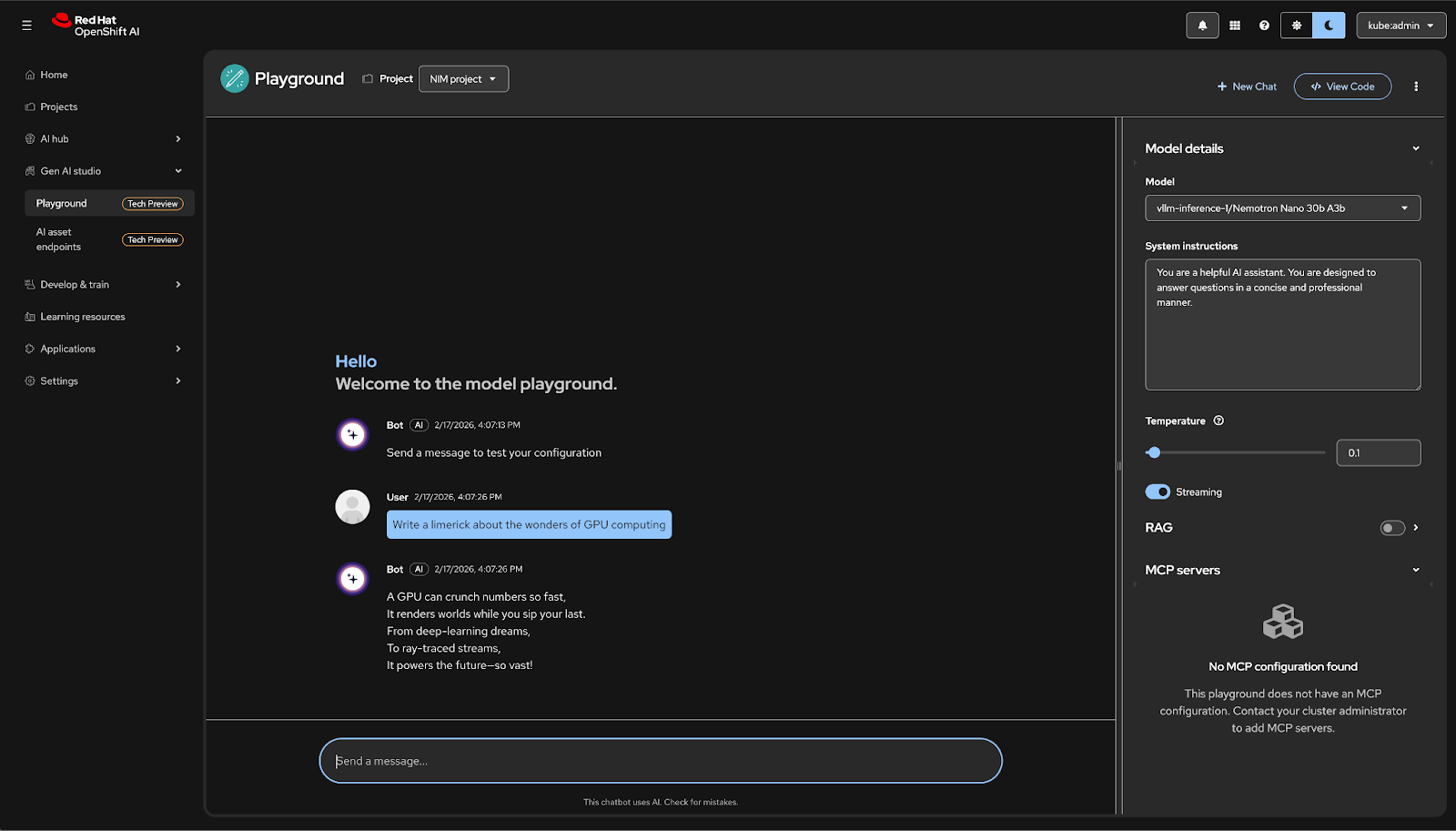
Configure the Chat Session#
Before prompting, you must select your specific NIM-backed model from the catalog of registered AI assets.
Select Project: Choose the Data Science Project containing your NIM deployment from the dropdown list.
Select Model: Choose your model from the Model list.
Note
If the model is greyed out, verify that both
opendatahub.io/genai-assetandopendatahub.io/dashboardlabels are applied to theInferenceService.Adjust Parameters: Fine-tune the generation settings as needed:
Temperature: Set between 0.1–0.3 for factual/deterministic responses, or higher (0.7+) for more creative outputs.
Streaming: Enable this to view the model’s response in real-time as it is generated.
You can now prompt the model and experiment using the other features of the Playground.
Troubleshooting: If you don’t receive a response or get a 404 Not Found, ensure you followed the steps to set the previous NIM_SERVED_MODEL_NAME environment variable to match your InferenceService name.