

Using Kubernetes
9.1 Introduction To Kubernetes Running Via NVIDIA Base Command Manager
Kubernetes is a system for managing containerized applications across multiple hosts in a cluster.
-
A container is an extremely lightweight virtualized operating system that runs without the unneeded extra emulated hardware components of a regular virtualized operating system.
-
A containerized application runs within a container, and it only accesses files, environment variables, and libraries within the container, unless volumes are mounted and used.
-
A containerized application provides services to other software or users. Kubernetes thus manages containerized applications as a service, and is aware of the container states and resources used.
Kubernetes provides mechanisms for application deployment, scheduling, updating, maintenance, and scaling. It actively manages the containers to ensure that the state of the cluster continually matches the user’s intentions. The user’s desired state is communicated to the Kubernetes API server, typically in the form of a YAML file. Kubernetes stores the YAML file in Etcd, and ensures it is reflected by the current state of the containers.
This chapter describes how Kubernetes works with BCM, which currently supports Kubernetes 1.31. For details on Kubernetes that are outside the scope of its use with BCM, the official Kubernetes documentation at https://kubernetes.io/docs/ can be consulted.
By default, in BCM the user is given access to containers only via Kubernetes. The administrator can however configure direct access if required. In this chapter, only container access via Kubernetes is described.
The kubectl utility is normally used to communicate with Kubernetes, although using the API directly instead of using kubectl is also possible. The kubectl utility can be used to get information about Kubernetes runtime, creation and management of resources, as well for other tasks. Resources are items such as pods (https://kubernetes.io/docs/concepts/workloads/pods/) and volumes (https://kubernetes.io/docs/concepts/storage/volumes/), that are consumed while containers are in use.
The official Kubernetes documentation has some introductory tutorials, including:
https://kubernetes.io/docs/tutorials/kubernetes-basics/
Familiarity with the concepts in those tutorials is recommended before continuing with the rest of this chapter.
9.2 Kubernetes User Privileges
The privileges (view-only, edit or admin) that a user has depends on the permissions granted to the user by the Kubernetes Administrator. Since BCM version 9.0 (known earlier as Bright Cluster manager 9.0), a custom namespace is created for each user, <user>, according to the following format:
<user>-restricted
This is intended to be a sandbox for the user.
The default setting in NVIDIA Base Command Manager version 9.0 is to have the PodSecurityPolicies (PSP) feature inactive. Users can check with their BCM administrator if that is indeed the case. If PSP is not active, then users have access to the default namespace.
In future versions of BCM, the default namespace will no longer be available for users by default.
If the Administrator enables the PSP features, then permissions to the default namespace are also not added by default for new users. Role bindings to the default namespace for existing users are also removed.
This “restricted” namespace is always created by default, and users are encouraged to use this namespace.
9.3 Kubernetes Quickstarts
This section provides quickstart recipes on some common tasks for an end user using Kubernetes.
Requirements:
-
A Kubernetes cluster on BCM. The administrator should have set this up as described in Chapter 4 of the Containerization Manual.
-
a dedicated user on the Kubernetes cluster
The simplest way for a user to use a BCM-managed Kubernetes cluster is if the cluster administrator has configured it for use via the head node. A user can then simply connect to the Kubernetes cluster via an ssh connection to the head node, and then load the environment via module load kubernetes. The remainder of this section can then be skipped.
An alternative way for a user to use a BCM-managed Kubernetes cluster avoids going via the head node, and uses a local PC.
9.3.1 Quickstart: Accessing The Kubernetes Dashboard
The Kubernetes Dashboard is a web browser-based way to manage Kubernetes tasks.
Requirements:
-
from the local PC it should be possible to access the Kubernetes Dashboard URL at:
https://dashboard.<kubernetes cluster name>:30443If that does not work, then the cluster administrator has probably modified the standard configuration, and should be consulted on how to access the Kubernetes Dashboard.
-
If the Dashboard is accessible, then the user needs a token to authenticate with the Kubernetes Dashboard.
9.3.1.1 Obtaining And Using The Token
A user test is assumed to have been created according to the procedure in section 4.11 of the Containerization Manual. For the user test, a token can be obtained from the head node with the following procedure, using the namespace and username of the user:
Example
If the username and related namespace are not known to the user, then the cluster administrator should be asked to provide these.
The created token can be pasted from the terminal into the web browser, at the place where the token is asked for (figure 9.1):

Figure 9.1: Kubernetes User Dashboard Authentication, Using Token Copy-Paste From A Terminal
After a successful authentication, the Dashboard displayed should appear as in figure 9.2:
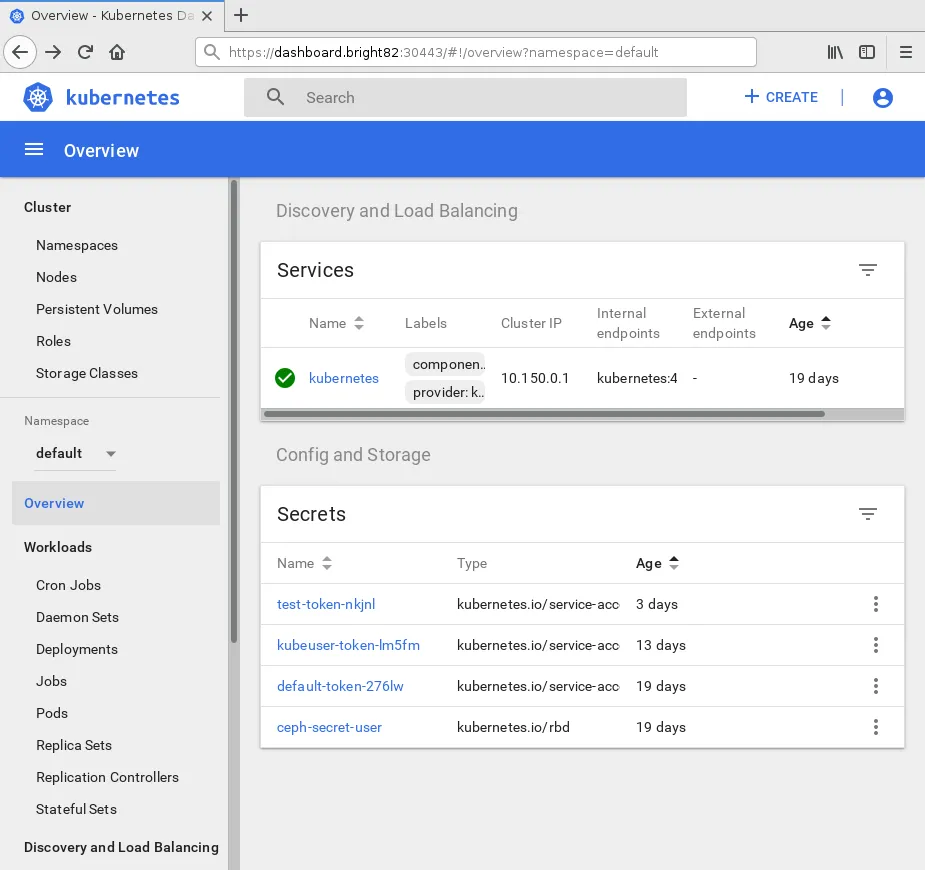
Figure 9.2: Kubernetes User Dashboard After Authentication
The user can now deploy a job using the previously-defined default namespace, as in the following example. The task can be submitted as a YAML file, via the Dashboard URL
https://dashboard. <kubernetes cluster name>:30443#!/deploy?namespace=default
The task could be the pi-job.yml job of section 9.3.3. The result—π to 4000 places—can be seen in the log associated with the jobs, accessible from the Dashboard URL
https://dashboard. <kubernetes cluster name>:30443#!/job?namespace=default
9.3.2 Quickstart: Using kubectl From A Local Machine
The advantage of connecting from a local PC is that there is no need to connect to the head node via SSH.
Requirements:
-
the local PC should be able to access the Kubernetes API server at
https://dashboard.<kubernetes cluster name>:30443. The URL that is actually used is set up by the cluster administrator, who should be contacted for details. -
The local PC should be Linux-based and run on an amd64 architecture.
Steps:
-
On the PC,
kubectlfor Kubernetes 1.31 should be downloaded from the head node <headnode>. It can be downloaded to a directory in the user path, such as/usr/binExample
-
The user can make a
.kubedirectory on the PC. The Kubernetes configuration for the user <username> can then be picked up from <headnode>. This includes the keys and the certificates: -
<cluster name> must be replaced with the fully qualified domain name of the Kubernetes cluster
-
The user can check if
kubectlis able to connect to the cluster by running the following commands:Example
9.3.3 Quickstart: Submitting Batch Jobs With kubectl
A batch job can be created in Kubernetes. It is simply referred to as a “job”. It is basically made up of non-persistent pods that run a one-off task.
A simple job to calculate π can be created by building a pi-job.yml file with the following content:
Example
This carries out a Perl-based calculation of π to 4000 places. Running it from the command line in Bash directly could be done with:
Example
However, the idea here is to demonstrate Kubernetes batch jobs firing up and scaling pods for this task instead, which is described next:
If the administrator has allowed the user access via Kubernetes policies, and has made the user a Kubernetes user, then the job can be submitted with:
If the job is horizontally scalable, then the number of replicas can be scaled with:
Information about the job can be obtained with (output truncated):
The jobs can be followed with (output truncated):
The logs of a pod can be viewed with:
An output is shown that starts with:
Further information on the following job topics can be found at the associated links:
-
job: https://kubernetes.io/docs/concepts/workloads/controllers/job/
-
job parallelism: https://kubernetes.io/docs/tasks/job/parallel-processing-expansion/
9.3.4 Quickstart: Persistent Storage For Kubernetes Using Ceph
Pods running on Kubernetes can use a distributed storage system such as Ceph for persistent data storage.
The following are assumed:
-
a working Ceph cluster
-
a Kubernetes StorageClass for Ceph RBD
A redis-persistent-storage.yml file can be created for the Persistent Volume Claim (PVC), with the following content:
Example
The Redis master deployment with PVC can then be created on Ceph persistent storage using:
Data can now be stored on Redis. After storing data data on Redis, if all the pods are then deleted, they can be recreated without any data loss.
9.3.5 Quickstart: Helm, The Kubernetes Package Manager
Helm (https://docs.helm.sh/) is a tool for managing charts. Charts are packages of pre-configured Kubernetes resources.
Helm is installed and properly configured by default as a Kubernetes add-on. It is initialized for every Kubernetes user when the Kubernetes module is loaded—there is no helm init or similar that needs to be carried out first. For example (some text elided):
Example
Choices can be made from among the charts at the official repository at https://github.com/kubernetes/charts. For example, GitLab and WordPress can be installed with:
A tutorial on using Helm is available at https://docs.helm.sh/using_helm/#using-helm