

Kubernetes
Kubernetes is an open-source platform for automating deployment, scaling, and operations of application containers across clusters of hosts. With Kubernetes, it is possible to:
-
scale applications on the fly
-
seamlessly update running services
-
optimize hardware usage by using only the resources that are needed
BCM provides the administrator with the required packages, allows Kubernetes to be set up on a cluster, and manages and monitors Kubernetes. More information about the design of Kubernetes, its command line interfaces, and other Kubernetes-specific details, can be found at the official online documentation at https://kubernetes.io/docs/.
To deploy most of Kubernetes, NVIDIA Base Command Manager from version 10.0 onwards uses kubeadm (https://kubernetes.io/docs/setup/production-environment/tools/kubeadm/).
BCM runs CoreDNS, the Kubelet component (https://kubernetes.io/docs/reference/command-line-tools-reference/kubelet/), and the entire control plane inside Kubernetes.
The distributed key-value store used for Kubernetes, etcd, is typically run inside of Kubernetes on control planes. However, in BCM etcd is run outside of Kubernetes.
Kubernetes integration with BCM is available for Kubernetes v1.28, 1.29, v1.30, v1.31, and v1.32 at the time of writing of this paragraph (April 2025). Kubernetes runs on the x86_64 and aarch64 architecture for all the BCM-supported Linux distributions. For a more up-to-date status, the features matrix at https://service.bcm.nvidia.com/feature-matrix/ can be checked.
The version that is running on a cluster can be found with:
Example
The versions that are available with BCM integration can be found with the cm-kubernetes-setup utility (section 4.2):
Example
4.1 Reference Architecture
A reference architecture for Kubernetes in BCM comprises:
-
etcd nodes: An etcd cluster—the Kubernetes distributed key-value storage—runs on an odd number (1, 3, 5 …) of nodes.
-
control plane nodes: typically run on head nodes or on dedicated nodes. 2 or 3 are recommended.
-
worker nodes: typically run on regular nodes that are designated to run user workloads.
To avoid single point of failure and to achieve high availability, a minimum of three nodes is recommended for etcd, and a minimum of two control plane nodes is recommended.
Load Balancing An NGINX server is configured on the head node(s) and on all other nodes involved in the Kubernetes cluster (control plane or worker nodes). This NGINX server takes care of exposing the Kubernetes API server on a specific port, and load balances requests to the control plane nodes. Should one of those nodes go down it can detect this and stop sending requests until the node comes back up.
Since BCM version 8.2, multiple clusters of Kubernetes can be deployed. In such a configuration, the same nodes cannot be shared across different Kubernetes clusters. Because of the NGINX server, a port is reserved on the head node(s) for every Kubernetes cluster. This is required for Kubernetes HA , and it also allows kubectl and other tools such as Helm to be used from the head node, to access each Kubernetes cluster.
The same NGINX server is also used to similarly expose the NGINX Ingress Controller, if this has been chosen during setup. Alternatively, MetalLB (https://metallb.universe.tf/) is also supported, and provides a different approach towards load balancing for Kubernetes that is more similar to managed cloud solutions.
4.1.1 Hardware Requirements
To run properly, Kubernetes deployment requires a per-node minimum of
-
16 GB RAM
-
two CPU cores
Without these minimum requirements, deployment may succeed, but further configuration, such as starting up Jupyter kernels, may fail with problems that are hard to diagnose. For example, error reporting may not show a lack of resources because some components are automatically deleted.
4.2 Kubernetes Setup
The usual, and recommended way, to install Kubernetes with BCM is to install it interactively from a TUI session (section 4.2.6).
An alternative way, typically used for automated non-interactive setups, is to use a plain command line specification (section 4.2.5), which usually results in a long command line.
BCM deploys Kubernetes with the cm-kubernetes-setup utility, which is part of the cm-setup package. Several recent versions of Kubernetes are offered (figure 4.1):

Figure 4.1: Kubernetes setup TUI session (section 4.2.6): version selection screen
BCM provides or uses the following Kubernetes-related packages:
-
conntrack(conntrack-toolson RHEL-based distributions) andnginx: These distribution packages are always installed on the head node(s) and on the master and worker node(s). -
cm-etcd: This BCM package is installed on the nodes selected for etcd. In a similar way to the case of Harbor or Docker Registry (section 3.2), the nodes that run etcd are protected by BCM with thedatanodeoption (here). For etcd nodes, the option is added during thecm-kubernetes-setupinstallation. As in the case for the registries, the datanode option is set in order to help prevent the administrator from wiping out the existing state of etcd nodes. Wiping out the state of etcd nodes means that the Kubernetes cluster becomes incoherent and that it cannot be restored to where it was just before the etcd nodes were wiped. The etcd version installed by the BCM package is 3.5.8. -
cm-containerd: This BCM package has the containerd runtime. -
cm-nvidia-container-toolkit: This BCM package has the NVIDIA container toolkit (includes NVIDIA container runtime). -
cm-kube-diagnose: This BCM package has Helper tools to diagnose malfunctioning Kubernetes clusters.
Kubernetes .rpm and .deb packages themselves are installed from the Kubernetes community-owned software repositories (https://kubernetes.io/blog/2023/08/15/pkgs-k8s-io-introduction/). These repositories host Kubernetes versions starting from v1.24.0 at the time of writing of this paragraph (March 2024).
4.2.1 Kubernetes Networking
Early on during the wizard session (figure 4.2), a name for the cluster is requested. The wizard pre-fills it with default, but this should not be confused with the Kubernetes default namespace. Here, the name is used instead, inside BCM, to identify the cluster, configuration files, and other resources such as module files.
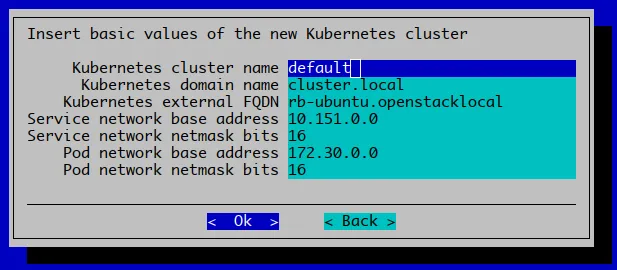
Figure 4.2: Kubernetes setup TUI session: networking selection screen
This screen also allows the following important choices:
-
Kubernetes external FQDN: This is the FQDN that is placed as one of the entries in the public-facing certificates generated for this Kubernetes cluster.Configuring the public-facing certificate of the NGINX Ingress Controller is discussed further in section 4.22.12.
-
Service network base addressandService network netmastk bits: These define the CIDR for the service network. The wizard pre-fills the fields. It also tries to avoid pre-filling them with overlapping network ranges, by taking any existing network known to BCM into account. -
Pod network base addressandPod network netmask bits: These define the CIDR for the pod network. The wizard pre-fills these. It also tries to avoid pre-filling them with overlapping network ranges, by taking any existing network known to BCM into account. By default, entire /24 network ranges are assigned to individual Kubernetes nodes from the pod CIDR.
The packages are installed automatically from the repository when the administrator runs cm-kubernetes-setup from the command line.
The log file produced by the setup can be found in /var/log/cm-kubernetes-setup.log.
4.2.2 Kubernetes Core Add-ons
During setup, some critical add-on components such as the Networking Component for Kubernetes are automatically deployed. Most components are in the kube-system namespace, but others have their own namespaces. In BCM some add-ons are treated as Kubernetes applications (Chapter 5), and belong to the default app group, system. In the future Helm is expected to manage most, if not all, components instead of BCM Kubernetes applications.
The user is prompted for a Networking Component, Kubernetes operators (managed via Helm), Kubernetes add-ons (managed via Kubernetes applications), and more. They all result in either Helm charts being deployed, or in Kubernetes applications being managed from BCM.
A cmsh treeview illustrating the hierarchy to access these applications is:
Helm charts can be found using the helm command. For example using helm list -A -a on a cluster (after loading the correct module file).
In the past the DNS component was also provided as an add-on. However since BCM version 10.0, kubeadm is used to bundle CoreDNS as part of the default control plane.
Kubernetes apps are discussed further in Chapter 5. Kubernetes operators are discussed further in Chapter 6.
4.2.2.1 Kubeadm Components
Components deployed as part of the default Kubernetes control plane are:
-
Kubernetes API server
-
Kubernetes Scheduler
-
Kubernetes Controller Manager
-
Kubernetes Proxy
-
Core DNS
These are deployed through the “static pod” mechanism (https://kubernetes.io/docs/tasks/configure-pod-container/static-pod/). Kubernetes control plane components are described at: https://kubernetes.io/docs/concepts/overview/components/.
CoreDNS CoreDNS is the DNS server add-on for internal service discovery. It reads the IP addresses of services and pods from etcd, and resolves domain names for them. If a domain name is not found because the domain is external to the Kubernetes cluster, then CoreDNS forwards the request to the main DNS server. BCM uses CoreDNS version 1.11.1 with Kubernetes version 1.31.
4.2.2.2 Networking Component
An important component managed through BCM’s Kubernetes Apps is the Networking component. This adheres to the Container Networking Interface, or CNI interface. At the time of writing the available CNIs in the setup wizard are either Calico or Flannel. However BCM does support other CNIs, for example Cilium, as described in the knowledge base article at https://enterprise-support.nvidia.com/s/article/installing-cilium-networking-for-kubernetes.
Flannel
Flannel is a simple and easy way to configure a layer 3 network fabric designed for Kubernetes.
Calico
Calico is a popular open source networking and network security solution for Kubernetes. It provides network connectivity between workloads and security policies features. It can be configured to use eBPF. BCM uses Calico version 3.26.
Further details on Calico can be found at https://docs.projectcalico.org/.
If the Kubernetes cluster is composed of more than 50 nodes, then the Calico component Typha is also automatically deployed for better scalability. The number of Typha replicas is calculated by allocating one Typha replica per 150 nodes, with a minimum of 3 (above 50 nodes) and a maximum of 20.
If an initial deployment of the Kubernetes cluster has fewer than 50 nodes, but nodes are then added to the Kubernetes cluster so that the 50 node threshold is exceeded, then Typha is not automatically enabled. In this case, Typha can be enabled manually via cmsh as follows:
Example
Cilium
Cilium (https://cilium.io/) is a networking, observability, and security solution with an eBPF-based dataplane.
4.2.3 Kubernetes Optional Add-ons
The following add-ons are installed by default unless otherwise noted. However, the user can choose to skip some or all of them during the setup.
4.2.3.1 NGINX Ingress Controller
The official Kubernetes Ingress controller add-on is built around the Kubernetes Ingress resource, using a ConfigMap to store the NGINX configuration. Ingress provides HTTP and HTTPS routes from outside a Kubernetes cluster to services within the cluster. Traffic routing is controlled by rules defined in the Ingress resource. BCM uses NGINX Ingress Controller version 1.5.1.
By default, BCM suggests the following ports for Ingress: 30080 is the default that is set for the HTTP, and port 30443 is the default that is set for HTTPS.
These 2 ports are exposed on every Kubernetes node, both masters and workers.
The Ingress Controller is deployed as a NodePort service, which means that it comes with a default range of possible port values of 30000-32767.
4.2.3.2 Kubernetes Dashboard
Kubernetes Dashboard is the web user interface add-on for GUI cluster administration and metrics visualization. BCM uses Kubernetes Dashboard version 2.7.0.
There are two ways to access the dashboard:
-
Using
kubectl proxyand accessing http://localhost:8001/api/v1/namespaces/kubernetes-dashboard/services/https:kubernetes-dashboard:/proxy/ To use the proxy,kubectlmust be set up locally (section 9.3.2 of the User Manual). -
Users on an external network can log in to
kubectlor Kubernetes Dashboard by following the procedures described in section 4.16.
If NGINX Ingress Controller is deployed, then a link pointing to the Kubernetes dashboard can also found on the BCM landing page.
4.2.3.3 Kubernetes Metrics Server
The Kubernetes Metrics Server is an add-on that is a replacement for Heapster. It aggregates metrics, and provides container monitoring and performance analysis. It exposes metrics via an API. BCM runs Metrics server version 0.6.3.
4.2.3.4 Kubernetes State Metrics
kube-state-metrics is an add-on agent to generate and expose cluster-level metrics for Kubernetes objects. The project is not focused on the health of the individual Kubernetes components, but rather on the health of the various objects inside, such as deployments, nodes and pods.
4.2.4 Helm Kubernetes Package Manager
Helm is an add-on that manages charts, which are packages of pre-configured Kubernetes resources. The Helm component is installed and properly configured with BCM’s Kubernetes installation by default. It is initialized and ready for use by every Kubernetes user when the Kubernetes module is loaded. BCM uses Helm version 3.
When the Helm binary is installed during the Kubernetes setup, an offer is made to deploy charts during the setup process. Most operators are documented in Chapter 6.
Other parts of the wizard also determine which Helm charts are deployed as part of the setup for the following:
-
Kyverno and Kyverno Policies (section 4.10.1)
-
BCM Permissions Manager (section 4.15)
-
BCM Local Path Provisioner (section 4.19)
Example
4.2.5 Kubernetes Setup From The Command Line
The cm-kubernetes-setup command line utility has the following usage synopsis:
The cm-kubernetes-setup utility should be executed on the console.
4.2.5.1 Dealing With A Pre-existing Docker Installation
Docker (Chapter 2) is no longer a requirement for Kubernetes configured by BCM. This is because Kubernetes can directly interface with containerd through its Container Runtime Interface (CRI). Docker can co-exist with Kubernetes, and can be set up as discussed in section 2.1.
4.2.6 Kubernetes Setup From A TUI Session
When the Kubernetes installation is carried out using cm-kubernetes-setup without any options, a TUI wizard starts up. The administrator can answer several questions in the wizard. Questions that are asked include questions about which of the node categories or which of the individual nodes should be configured to run the Kubernetes services. There are also questions about the service and pod networks parameters, the port numbers that will be configured for the daemons, whether to install specific add-ons, and so on. After the wizard has been completed, a configuration file can be saved that can be used to set up Kubernetes.
The configuration file can be deployed immediately from the wizard, or it can be deployed later by specifying it as an option to cm-kubernetes-setup, in the form -c <file>.
If no deployment has been carried out earlier, then the main operations screen of the wizard shows just two options, Deploy and Exit.
If deployment has already been carried out, then the further options that are available are also displayed (figure 4.3):
Example
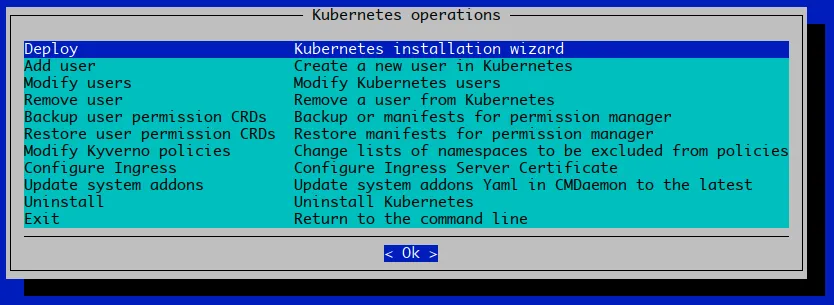
Figure 4.3: Kubernetes setup TUI session: main operations screen after a deployment
The deployment via CLI or via TUI assigns the appropriate roles, and adds the new Kubernetes cluster. The deployment adds health checks to the monitoring configuration, and it generates certificates for the Kubernetes daemons.
Calico is set as the Kubernetes network plugin by default. Flannel is an option.
The master, worker, and etcd nodes can be assigned to specific nodes or categories.
The network configuration settings for the Kubernetes cluster can be specified. Ports have default assignments, but can be re-assigned as needed. The etcd spool file path can be set.
The following options are also possible:
-
a registry mirror from DockerHub can be specified
-
the Kubernetes API server can be exposed to the external network
-
the internal network used by Kubernetes nodes can be selected
Add-ons that are available are:
-
Ingress Controller (Nginx)
-
Kubernetes Dashboard
-
Kubernetes Metrics Server
-
Kubernetes State Metrics
Operator packages are application managers, and are described further in Chapter 6. Operators that can be installed are:
-
cm-jupyter-kernel-operator -
cm-kubernetes-postgresql-operator -
cm-kubernetes-spark-operator
The permission manager—an application for role-based access control—can also be configured.
4.2.7 Testing Kubernetes
To test that Kubernetes works, the cluster-info command can be run. For example, on the head node, basecm10:
Example
After cm-kubernetes-setup finishes, and the regular nodes have been rebooted, the state of the nodes can be found by running the get nodes command:
Example
A six node cluster should show the following Kubernetes installed add-ons, when using kubectl with the get all -n kube-system option (some lines truncated):
Example
The administrator can now configure the cluster to suit the particular site requirements.
4.3 Using GPUs With Kubernetes: NVIDIA GPUs
4.3.1 Prerequisites
The GPUs have to be recognized by the nodes, and have the appropriate drivers (such as cuda-driver) installed. Details on how to do this are given in section 9 of the Installation Manual.
To verify the GPUs are recognized and have drivers in place, the nvidia-smi command can be run. The response displayed for a GPU should look similar to the following:
Example
If a non-BCM Containerd has already been deployed before Kubernetes is deployed, then cm-kubernetes-setup may replace an existing Containerd configuration file in order to enable NVIDIA GPU integration via a Kubernetes CNI plugin. This is because Containerd is configured by cm-kubernetes-setup, overwriting any previous configuration.
4.3.2 New Kubernetes Installation
As part of the setup, cm-kubernetes-setup assigns a new role to the Kubernetes worker nodes: generic::containerd.
The role has a Configurations submode, in which the containerd-cri object can be configured. The entry for Filename specifies the path to the cri.toml file, which contains content used by the container runtime interface on the Kubernetes worker nodes that have been assigned the role.
Example
The file with the CRI (Container Runtime Interface) configuration is created in directory:
and included into the main Containerd configuration file:
with the imports statement:
Whatever the container runtime that is selected, if NVIDIA GPU integration is required then the NVIDIA container toolkit is taken care of by the installer. The configuration for Containerd is added as a separate configuration file in the configurations submode, as nvidia-cri.
NVIDIA GPUs are integrated into Kubernetes using the NVIDIA GPU operator. This is discussed further in section 6.4.
4.3.3 Existing Kubernetes Installation
The NVIDIA GPU operator can always be deployed through Helm. The official documentation for the NVIDIA GPU operator is at
https://docs.nvidia.com/datacenter/cloud-native/gpu-operator/latest/overview.html
4.3.4 An Example Of Running A Workload Using NVIDIA GPUS: LLM Via NIM
NIM originally stood for NVIDIA Inference Microservices, but does not stand for anything now. This is because inference engines—the “I” in NIM—are not the only workloads that are intended to run on GPUs that use pod microservices.
NIM is now a product name, for a platform that hosts multiple GPU-based microservices. With NIM as a product name, “NVIDIA NIM microservices” is now regarded as a valid phrase, instead of standing for the excessively redundant phrase “NVIDIA NVIDIA Inference Microservices microservices”.
Once GPUs are configured and available for pods, then it is easy to deploy NVIDIA NIM microservices.
4.3.4.1 Requirements For NIM
A minimal setup to run NIM has the following requirements:
-
A
gitCLI installed on the cluster node where the Kubernetes API and Kubernetes CLI are available. -
Access to the NGC catalog. This is used to acquire a personal API key to download the container image and model. The key must have access to the following services (figure 4.4):
-
AI Foundation Models and Endpoints -
NGC Catalog -
Private Registry
-
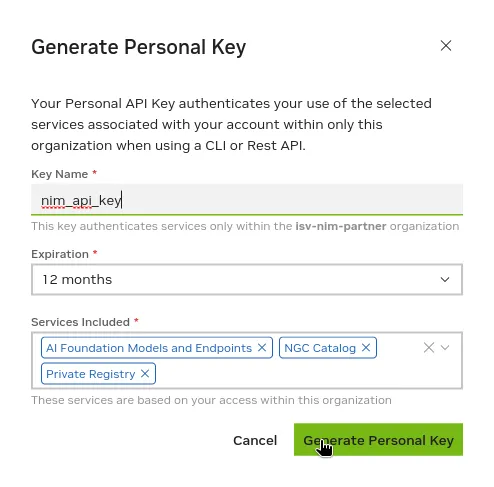
Figure 4.4: NIM personal key generation
-
If the image repository does not provide a Helm chart with a container and model already, then
nvcr.io/nim/meta/llama3-8b-instructis used by default. Supported GPU configurations for Llama 3 8B are specified at:
https://docs.nvidia.com/nim/large-language-models/latest/support-matrix.html#llama-3-8b-instruct
GPU support configuration for the various LLMs is described at:
https://docs.nvidia.com/nim/large-language-models/latest/support-matrix.html
4.3.4.2 Setting Up And Running The LLM Via NIM
A running LLM, llama3-8b-instruct, can be created and hosted as a service as follows:
The preceding sets up a namespace nim with the name my-nim, deployed with the personal API key from NGC.
The existence of the service (sometimes called a microservice) can be checked with:
The API can be tested with:
A typical response is:
4.3.4.3 More About NIM
More documentation on NIM can be found at:
https://docs.nvidia.com/nim/large-language-models/latest/getting-started.html
and
https://github.com/NVIDIA/nim-deploy/tree/main
4.4 Using GPUs With Kubernetes: AMD GPUs
4.4.1 Prerequisites
The GPUs have to be recognized by the node. One way to check this from within BCM is to run sysinfo for the node:
Example
In order to make Kubernetes aware of nodes that have AMD GPUs, the AMD GPU device plugin has to be deployed as a DaemonSet inside Kubernetes. The official GitHub repository that hosts this plugin can be found at:
https://github.com/RadeonOpenCompute/k8s-device-plugin
The device plugin requires Kubernetes v1.16+, which has been around since BCM version 9.0. With some extra instructions, the plugin can also be made a part of BCM version 8.2.
The DaemonSet YAML file can be deployed with:
Example
4.4.2 Managing The YAML File Through CMDaemon
The plugin can be added by the user via the Kubernetes appgroups as an application. In the session that follows, it is given the arbitrary name device-plugin:
Example
The configuration of the plugin can be set to the YAML file, by setting the config parameter to take the value of the YAML file path.
Example
The YAML file can also be edited within cmsh after it has been set, by running set config without a value.
There are older releases available, starting from Kubernetes v1.10, if needed. Saving this device-plugin YAML should result in pods being scheduled on all the non-tainted nodes, as seen by listing the pods (some columns elided):
4.4.3 Including Head Nodes as part of the DaemonSet:
BCM taints head nodes, so that they do not run non-critical pods. The taint can be removed with the “-” operator to allow non-critical pods to run:
Example
However, a more specific exception can be configured in the DaemonSet itself.
Within the YAML file, the following existing tolerations definition has to be modified, from:
to:
The modified toleration tolerates this taint, and therefore has the device plugin run on such tainted nodes.
4.4.3.1 Verifying That AMD GPUs Are Recognized By Kubernetes
If Kubernetes is aware of the AMD GPUs for a node then several mentions of amd.com/gpu are displayed when running the kubectl describe node command for the node. The following session shows output for a node gpu01, ellipsized for clarity:
Example
4.4.4 Running The DaemonSet Only On Specific Nodes
The AMD GPU device plugin, unlike the NVIDIA GPU device plugin Daemonset, is scheduled to run on each Kubernetes host. This means that it runs even if the host has no GPU.
This can be prevented with the following steps:
A LabelSet can be created via cmsh, and the nodes or categories that have GPUs are assigned within the labelsets mode:
Example
This assigns the labels to the nodes with GPUs. This can be verified with:
Example
The DaemonSet YAML can now be adjusted to only run the device plugin on nodes with this new label. This can be done by adding an affinity block after the tolerations block:
Example
This results in the device plugin pods being removed immediately from all nodes that do not have the label.
4.4.5 Running An Example Workload
An example workload can be run as described in the official AMD GPU Kubernetes device plugin documentation at:
https://github.com/RadeonOpenCompute/k8s-device-plugin/tree/v1.16#example-workload
Thus it should now be possible to run:
The YAML requests only one GPU at the bottom of the YAML file:
Container creation might take a while due to the image size. Once scheduled, it prints out that it found exactly one GPU, and proceeds to run a TensorFlow workload.
Example
Had more GPUs been requested, more would have been made available to the container.
For comparison, a CPU version of the container is also available. The official instructions can be referred to for these, too.
4.5 Kubernetes Configuration Overlays
A list of configuration overlays can be seen from within configurationoverlay mode:
Example
The NetQ configuration overlay is only normally displayed if NetQ is deployed.
Configuration overlays can be used to manage the Kubernetes services used with a particular configuration. For example, when managing the Kubernetes services used for a Kubernetes engine within an Auto Scale tracker (section 8.4.9 of the Administrator Manual).
4.6 Removing A Kubernetes Cluster
A Kubernetes cluster can be removed using cm-kubernetes-setup with the --remove and --yes-i-really-mean-it options. Also, if there more than one cluster present, then the cluster name must be specified using the --cluster parameter.
A removal run looks as follows (some output ellipsized):
Example
Using the --remove option removes the Kubernetes cluster configuration from BCM, unassigns Kubernetes-related roles—including the EtcdHost role—and removes Kubernetes health checks. The command does not remove packages that were installed with a cm-kubernetes-setup command before that.
After the disabling procedure has finished, the cluster has no Kubernetes configured and running.
4.7 Kubernetes Cluster Configuration Options
Kubernetes allows many Kubernetes clusters to be configured. These are separated sets of hosts with different certificates, users and other global settings.
When carrying out the Kubernetes setup run, a Kubernetes cluster name is asked, and a new object with the cluster settings is then added into the CMDaemon configuration. The administrator can change the settings of the cluster from within the kubernetes mode of cmsh, or within the Kubernetes Clusters options window of Base View accessible via the navigation path Containers > Kubernetes Clusters.
The cmsh equivalent looks like:
Example
The preceding kubernetes mode parameters are described in table 4.1:
Table 4.1: kubernetes mode parameters
4.8 EtcdCluster
The EtcdCluster mode sets the global etcd cluster settings. It can be accessed via the top level etcd mode of cmsh.
* Boolean (takes yes or no as a value)
Table 4.2: EtcdCluster role parameters and etcd options
4.9 Kubernetes Roles
Kubernetes roles include the following roles:
-
EtcdHost(here) -
KubernetesApiServerProxy(here) -
Kubelet(here) -
generic::containerd(here) -
generic::netq(here)
When nodes are configured using Kubernetes roles, then settings in these roles may sometimes use the same values (pointer variables).
Example
and
Pointer variables such as these have definitions that are shared across the roles, as indicated by the parameter description tables for the roles, and which are described in the following pages.
In cmsh, the roles can be assigned:
-
for individual nodes via the
rolessubmode ofdevicemode -
for a category via the
rolessubmode of a category -
for a configuration overlay via the
rolessubmode ofconfigurationoverlaymode
4.9.1 EtcdHost Role
The EtcdHost role is used to configure and manage the etcd service for a node.
The etcd service manages the etcd database, which is a hierarchical distributed key-value database. The database is used by Kubernetes to store its configurations. The EtcdHost role parameters are described in table 4.3:
* Boolean (takes yes or no as a value)
Table 4.3: EtcdHost role parameters and etcd options
The etcd settings are updated by BCM in /cm/local/apps/etcd/current/etc/cm-etcd.conf.
4.9.2 The KubernetesAPIServerProxy Role
The KubernetesApiServerProxy role sets up a proxy that provides the entry point for one or more instances of the Kubernetes API server. The proxy runs on every node of a Kubernetes cluster instance, including the head node.
If multiple Kubernetes master nodes are present, then it enables HA for the Kubernetes master components (section 4.1).
This means that local port 10443 on all these nodes load balances over all control-plane node API servers.
Port 10443 can also be opened up for external access. The cm-kubernetes-setup wizard (section 4.2) in one of its screens (figure 4.5) prompts for this.
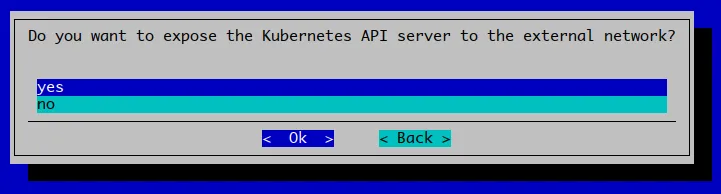
Figure 4.5: Wizard question
If the prompt is answered with no, then the firewall role on the head node can still be customized with cmsh later on:
Example
4.9.2.1 Ingress Server Proxying Using The Default HTTPS Port 443
In BCM 11 a new KubernetesIngressServerProxy role is introduced to allow Ingress Server Proxying.
In BCM 10, to maintain backward compatibility, new roles cannot be introduced. The proxying functionality of the Ingress server is therefore partly dealt with using the KubernetesApiServerProxy role.
The proxy provides the entry point for one or more instances of the Kubernetes Ingress server, and runs on every node of a Kubernetes cluster instance, including the head node. If multiple Kubernetes master nodes are present, then the role enables HA for the Kubernetes master components (section 4.1).
Before BCM 10.24.11, the Kubernetes Ingress Server bundled NGINX Ingress server as an option, and used non-standard HTTPS ports. The defaults have always been 30080 for HTTP, and 30443 for HTTPS as NodePort services (https://kubernetes.io/docs/concepts/services-networking/service/#type-nodeport). These ports are customizable, but a limitation of NodePort services is that they may only use the port range 30000–-32767.
Starting with BCM 10.24.11, during the cm-kubernetes-setup session to install Kubernetes, there is a screen which asks if the Ingress Server should be available on the default HTTPS port 443 (figure 4.6).
It is recommended to respond with yes, because nowadays services running inside Kubernetes are commonly run on the default HTTPS port. This in turn results in user redirects from the non-standard port (for example, 30443) to port 443. Using the default port is also more in line with how Ingress is offered by cloud-based solutions that provide Kubernetes.

Figure 4.6: Wizard question
Setting 443 for the proxy ensures that local port 443 on all the concerned nodes carries out loadbalancing over all the control-plane node Kubernetes Ingress Servers. It also ensures that the port is opened in the firewall.
Setting no means that an open port can still be configured later on by carrying the 4 steps that follow shortly. The discerning cluster administrator should be able to see from these steps how the Ingress server proxying functionality is implemented without the additional role.
The extra parameters are set per KubeCluster entity inside BCM. This is because Ingress ports can differ between multiple installations of Kubernetes.
The steps:
-
Ensuring HTTPS is not already in use: If port 443 it is already in use by BCM (for example, if the BCM landing page is served on port 443 via
apache2orhttpd), then that port must be changed or disabled.For Ubuntu-based systems, this means commenting out
Listen 443in/etc/apache2/ports.conf. For RHEL-based systems, that line is located in/etc/httpd/conf.d/ssl.conf.The web service should then be restarted (
apache2for Ubuntu,httpdfor RHEL and Rocky). -
Assigning the configuration to the KubeCluster entities:
This can be done as follows in
cmsh:Example
This is the KubeCluster entity that the parameters are added to:
The following parameters are set next:
-
ingress_proxy_backend_port: a fallback port in case the NGINX NodePort cannot be read from the applications -
ingress_proxy_listen_port: the port the proxy should listen on (default HTTPS port is 443) -
ingress_proxy_enable: a flag to enable the proxying functionality
In
cmshthis can be carried out with special-e|--extraoptions as follows, which set up new parameters in the kubernetes instance:Example
In BCM 10, back in the KubernetesApiServerProxy role, a commit then triggers the NGINX configuration reload:
As the preceding session implies, the
/etc/nginx/nginx.conffile andnginxservice are affected.Local port 443 should now load balance the Kubernetes Ingress service to all control-plane nodes.
-
-
Opening the HTTPS port in the firewall:
The port in the default firewall, Shorewall (section 7.2 of the Installation Manual), can be modified using the
firewallrole incmsh.For historic reasons, ports 30080 and 30443 are still opened up by default in BCM 10. These ports can also be removed from the entries for the Ingress controller, as shown in the following session:
As seen in the preceding session, this immediately affects the
/etc/shorewall/rulesfile andshorewallservice. -
Fixing the BCM landing page: Finally the landig page YAML file is applied. The file should be available on the head nodes for BCM version 10.24.11 and beyond.
In the preceding session, a simple Deployment (https://kubernetes.io/docs/concepts/workloads/controllers/deployment/) is deployed. The Deployment manages a single pod that runs an NGINX container with the configuration provided as a ConfigMap (https://docs.nginx.com/nginx-ingress-controller/configuration/global-configuration/configmap-resource/). This configuration sets a redirect to the single
http://masterbackend, where the BCM landing page (section 2.4.1 of the Administrator Manual) is running, and running with the HTTP rather than the HTTPS protocol.The service exposes the pod, and an Ingress rule is created and used as a fallback/default handler for the Kubernetes NGINX Ingress server. This way, if no other Ingress rule matches, then the BCM landing page is served via the HTTPS port. In other words, the page is served when there is no other matching domain name or other path-based Ingress rule to take priority over the landing page. This means that the landing page is still served when the head node IP address is entered directly in the browser.
4.9.3 The Kubelet Role
The Kubelet role is used to configure and manage the kubelet service. BCM takes care of joining these nodes with kubeadm join when needed.
Control Plane The Kubelet role has a parameter Control plane that is set to the value yes for control plane nodes. In that case it also runs Kubernetes control plane services, such as:
Workers The Kubelet role has a parameter worker that is set to yes for worker nodes. In that case, the control plane pods will not be running on the node.
The Kubelet role parameters are described in table 4.4:
* Boolean (takes yes or no as a value)
Table 4.4: Kubelet role parameters and kubelet options
Further details on the Kubelet service can be found at https://kubernetes.io/docs/reference/command-line-tools-reference/kubelet/.
4.9.3.1 The options Submode
The full path to the files should be specified for the options command. For example, kube-apiserver.yaml may be specified as /etc/kubernetes/manifests/kube-apiserver.yaml.
4.9.4 Containerd Role
The Containerd role is used to configure and manage the containerd daemon. This is done through a generic role in BCM. Generic roles under Kubernetes are found under the cmsh path indicated by: cmsh > configurationoverlay[kube-object] > roles[generic::role]
Example
The role has several submodes:
-
The
configurationssubmode: This contains various configuration drop-ins.Configuration drop-ins that BCM may manage in the
generic::containerdrole are:-
NVIDIA Container Toolkit configuration.
-
Docker registry certs directory configuration.
-
Docker Hub credentials configuration.
-
Harbor Registry Mirror configuration.
-
CRI cgroup configuration.
-
CNI bin dir configuration.
-
CRI registry configuration.
-
CRI custom sandbox image configuration.
The drop-ins that are actually available depend on choices made by the cluster administrator during deployment.
-
-
The
environmentsubmode: This has optional environment variables that are made available to the configuration files and that are to be used as templates. -
The
excludelistsnippetssubmode: This has files related to containerd that need to be excluded, such as the most obvious directory/var/lib/containerd.
4.10 Security Model
The Kubernetes security model allows authentication using a certificate authority (CA), with the user and daemon certificates signed by a Kubernetes CA. The Kubernetes CA should not be confused with the BCM CA.
BCM lets kubeadm create a CA specifically for issuing all Kubernetes-related certificates. The certificates are put into /etc/kubernetes/pki/<kube cluster label>/ by default.
In Kubernetes terminology a user is a unique identity accessing the Kubernetes API server. The user may be a human or an automated process. For example an admin or a developer are human users, but kubelet represents an infrastructure user. Both types of users are authorized and authenticated in the same way against the API server.
Kubernetes uses client certificates, tokens, or HTTP basic authentication methods to authenticate users for API calls. BCM configures client certificate usage by default. The authentication is performed by the API server which validates the user certificate using the common name part of the certificate subject.
In Kubernetes, authorization happens as a separate step from authentication. Authorization applies to all HTTP accesses on the main (secure) API server port. BCM by default enables RBAC (Role-Based Access Control) combined with Node Authorization. The authorization check for any request thus takes the common name and/or organization part of the certificate subject to determine which roles the user or service has associated. Roles carry a certain set of privileges for resources within Kubernetes.
4.10.1 Kyverno
BCM has support for the Kyverno policy engine (https://kyverno.io/). If Kyverno is installed, then Kubernetes Permissions Manager (section 4.15) creates policy manifests packed as a Helm chart for every user added to Kubernetes via cm-kubernetes-setup. In addition, a kyverno-policy chart is installed in enforce mode to implement Pod Security Standards (https://kyverno.io/policies/). During installation, some exclusions are added to the policies automatically to make chosen features of Kubernetes cluster work.
For every created user the following defaults are applied:
-
The user has an associated service account with the same name
-
A <username>-restricted namespace is created. So, for a user
johnthe namespace isjohn-restricted. -
An
editcluster role is bound to the service account in <username>-restricted namespace. The user is allowed to create pods, services, configmaps, etc. in the namespace -
The user is allowed to list nodes in the cluster
-
Kyverno policies are applied to the resources in <username>-restricted namespace or to pod created or updated by the associated user
-
If hostPath is not the home directory of the user (of the format
/home/<username>) then the creation of the resource is denied -
The UID and GID of the running process are set to the same value as the UID and GID of the PAM user
-
Modifications from the defaults are:
-
If the
Allow any UID process in podscheckbox is ticked, or if the--allow-all-uidsargument is specified, then the UID and GID of the running process becomes the user’s UID and GID only if the hostPath volume is specified. Otherwise it can be set to any UID and GID. -
Cluster roles can be set not only to
edit
but also to
-
view -
admin -
cluster-admin
More details on these roles can be found at:
https://kubernetes.io/docs/reference/access-authn-authz/rbac/#user-facing-roles. -
In addition, the user can be given access to custom CRDs, such as Postgres Operator, Jupyter Operator or Google Spark Operator
4.10.2 PodSecurityPolicy
PodSecurityPolicy (PSP) was available in older versions of BCM. However, PSP support was completely removed in Kubernetes v1.25. BCM therefore now uses Kyverno (section 4.10.1) for an equivalent functionality.
4.11 Addition Of New Kubernetes Users
BCM users can use Kubernetes by making them Kubernetes users. This means having Kubernetes configuration and access set up for them. This can be carried out a via the cm-kubernetes-setup TUI utility, and choosing the Add user option (figure 4.3). The utility then prompts for
-
a Kubernetes cluster
-
a user name
-
a namespace that the privileges are to be assigned to
-
a role for the user, with choices provided from:
-
cluster-admin: cluster-wide administrator -
admin: administrator -
edit: regular user -
view: read-only user
-
-
a switch if the user is allowed to run as any user, including root, inside pods
-
a comma-separated list of paths that the user is able to mount to pods
-
the UIDs and GIDs for user processes in pods
-
a list of the Kubernetes operators that a user can use
Based on the input, a YAML for the Kubernetes Permission Manager is generated. This in turn, creates a Helm chart with all the required roles, role bindings, and Kyverno rules.
Creation of the user also triggers CMDaemon to create certificate and configuration files in the ~/.kube directory
4.11.1 Adding Users Non-Interactively With cm-kubernetes-setup
The cm-kubernetes-setup CLI wizard provides the following options:
The user has to be a user that exists on the cluster already and available via PAM.
If --add-to-namespace is specified, then the namespace has to exist on the Kubernetes cluster already.
Example
The preceding example creates a user john for the default john-restricted namespace. It also assigns the edit role, and gives permission to run processes in the pod with the current UID/GIDs of the user. The ability to mount ~/john as a hostPath is also provided.
A way to assign any of the default Kubernetes user-facing roles is also provided by using --role key, as documented at https://kubernetes.io/docs/reference/access-authn-authz/rbac/#user-facing-roles
The possible roles are: view, edit, admin, and cluster-admin.
Example
The preceding example creates a user john with view privileges only, for the default john-restricted namespace.
Example
The preceding example creates a user john with the following privileges:
-
editprivileges -
able to mount
/home/johnand/scratchas hostPath volume, when the process runs with UID/GIDs taken from the PAM subsystem on the moment of creation -
able to run as any user, including root (attempts to mount any hostPath volume will be rejected)
-
access to the Jupyter Kernel Operator, i.e. with access to the resource
kind: CmKubernetesOperatorPermissionsJupyterKernel
4.12 Getting Information And Modifying Existing Kubernetes Users
It is possible to edit user properties and permissions. cm-kubernetes-setup provides 2 ways of doing it: interactively or via CLI options.
Modifying users can be done interactively by choosing Modify User in the cm-kubernetes-setup main menu. Guidance is then given on choosing the cluster, users, and on modifying permissions.
Modifying users can also be done via CLI options, by specifying the --modify-user argument:
Example
The default john-restricted namespace is created as user john is added, along with the settings specified by the other options. The following example then adds permission to mount the /scratch hostPath into pods, and gives access to the Postgres Operator:
Information about existing users can be found with:
Example
Permission for user john to operate in the dev namespace can be added with:
Example
Permission for the user john to operate in the dev namespace can be revoked with:
Example
4.13 List Of Resources Defined For Users
These resources are rendered by the Permission Manager Operator, and can therefore be found inside Kubernetes.
4.13.0.1 The Role Bindings Deployed For Every User By Default
By default, the role bindings deployed for the user john created in the preceding section are:
-
ClusterRole/john-nodes(in namespacejohn-restricted) -
ClusterRoleBinding/john-nodes(in namespacejohn-restricted)
User john is given read-only rights for the Nodes resource (for kubectl get nodes).
4.13.0.2 The Secure Namespace Related Resources
The secure namespace for user john is:
Namespace/john-restricted
The service account used by john:
ServiceAccount/john(in namespacejohn-restricted)
This is found referenced, for example, in john’s $HOME/.kube/config.
The PodSecurityPolicy that defines the user can run non-privileged pods, and use only ports above 1024, and so on:
PodSecurityPolicy/john-restricted(in namespacejohn-restricted)
More details on this can be found in section 4.10, here. This policy will only do something as soon as the PodSecurityPolicy Admission Controller is enabled in the API server.
A PodSecurityPolicy that defines the user can run as root as well, but without hostPath volumes:
PodSecurityPolicy/john-restricted-root(in namespacejohn-restricted)
To give the aforementioned privileges to john’s secure namespace, so that john can run workloads, execute kubectl get all, and more:
-
Role/john-restricted(in namespacejohn-restricted) -
RoleBinding/john-restricted(in namespacejohn-restricted)
The RoleBinding assigns it to the user john and ServiceAccount account for john. The upstream documentation at https://kubernetes.io/docs/reference/access-authn-authz/service-accounts-admin has more details on this.
The user john can be given the ability to use the PodSecurityPolicy defined earlier in his secure namespace, but also in other namespaces:
-
ClusterRole/john-psp(in namespacejohn-restricted) -
ClusterRoleBinding/john-psp(in namespacejohn-restricted)
The same ability can be given for the second root but no hostPath PodSecurityPolicy:
-
ClusterRole/john-psp-root(in namespacejohn-restricted) -
ClusterRoleBinding/john-psp-root(in namespacejohn-restricted)
If the Kyverno engine is installed then several policies are added:
-
clusterpolicies.kyverno.io/john-*-drop-privs-w-hostpath*: Policy to modify pod manifests to run process with specified UID/GID -
clusterpolicies.kyverno.io/john-*-limit-hostpath-vols: Policy to deny pods if hostPath volumes does not match specified paths
The full content of all the documents created for the user can be viewed by checking the generated Helm manifest:
Example
4.14 Kyverno
Kyverno (https://kyverno.io/) is a policy engine designed for Kubernetes. With Kyverno, policies are managed as Kubernetes resources, and no new language is required to write policies. This allows the use of familiar tools such as kubectl, git, and kustomize to manage policies. Kyverno policies can validate, mutate, and generate Kubernetes resources, as well as ensure OCI image supply chain security.
4.14.1 Kyverno Installation
Kyverno engine and Kyverno policy Helm charts can be installed as a part of cm-kubernetes-setup:
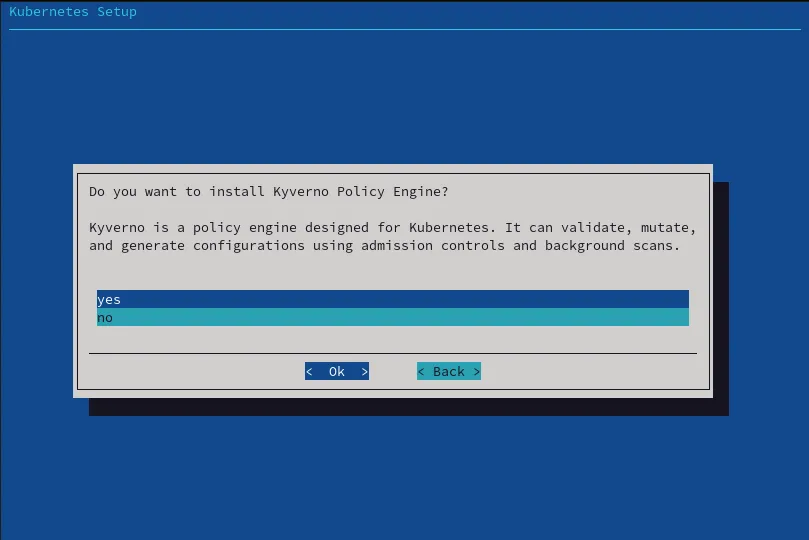
Figure 4.7: Choosing Kyverno installation
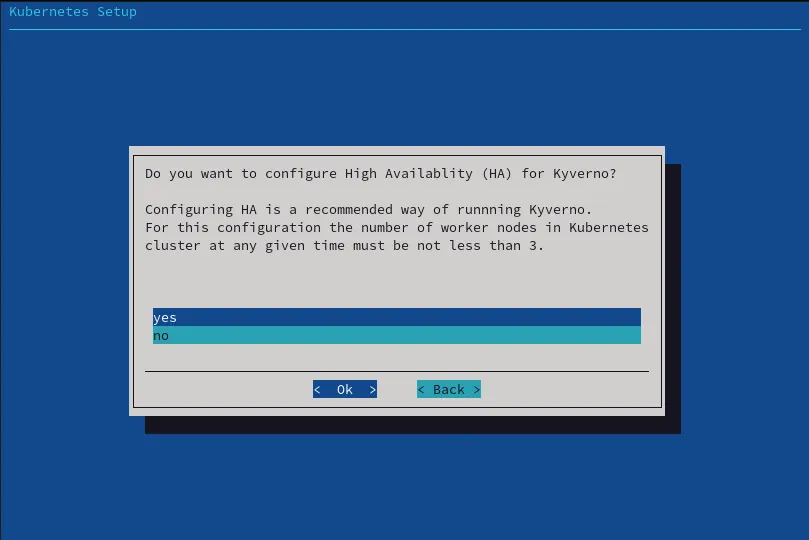
Figure 4.8: Kyverno high availability setup
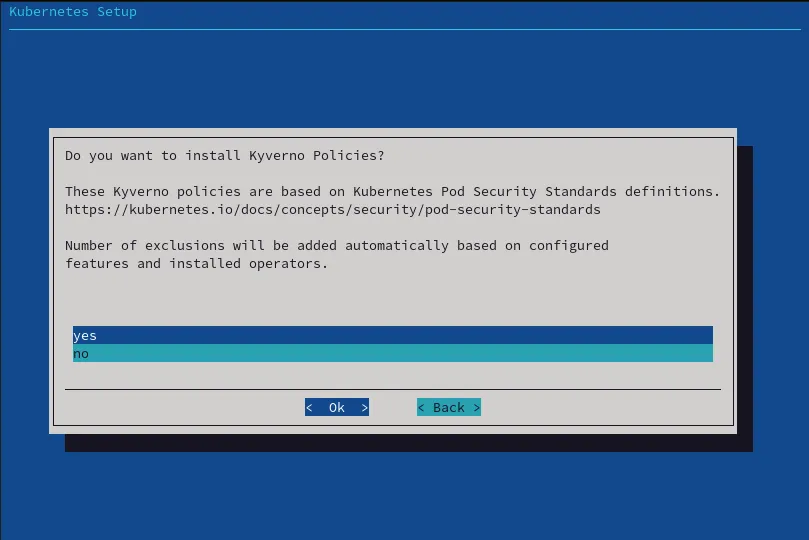
Figure 4.9: Kyverno policy setup
The installation adds 2 Helm charts in the namespace ’kyverno’:
If the HA option is chosen, then the replica count value is set to 3.
This means that at any given time Kubernetes scheduler tries to run 3 pods at the same time:
4.14.2 Kyverno Policies
It is also recommended to install Kyverno policies in order to enforce Pod Security Standards https://kyverno.io/policies/. BCM configures Kyverno policies in ’enforce’ mode, adding service namespaces as exclusions. The list of namespaces to be excluded from particular policies depend on the selected features during install:
In the preceding output, all namespaces that match the wildcard *-restricted are excluded from the policy named ’disallow-host-path’ (https://kyverno.io/policies/pod-security/baseline/disallow-host-path/disallow-host-path/). This means that, without additional restrictions, all pods in the user namespaces can mount any host path from an underlying node.
To prevent that Kubernetes Permission Manager creates a Kyverno Cluster Policy for every newly-created user, and restricts the hostPath to only the home directory of the user:
4.15 Kubernetes Permission Manager
The Kubernetes permission manager is a custom operator based on Helm. It helps to manage user and system account permissions, roles, role bindings and pod security policies. The operator itself is packed and distributed as a Helm chart, so it can be installed during Kubernetes cluster creation via the cm-kubernetes-setup TUI. The Helm chart for the operator is located in /cm/shared/apps/kubernetes-permissions-manager/current/helm. The output to the following command shows if it is installed:
The Helm chart of the operator includes custom resource definitions (CRD), and makes it possible for the administrator to manage resources using the kubectl tool:
Example
At the time of writing of this section (December 2021), the permission manager handles these 4 CRDs:
-
cmkubernetespermissionusersto manage user access to generic resources of the cluster, such as pods, services, secrets, configmaps, etc. -
cmkubernetesoperatorpermissionsjupyterkernelsto manage access to the Jupyter Kernels. -
cmkubernetesoperatorpermissionspostgresqlsto manage access to the Postgres operator (https://github.com/zalando/postgres-operator). -
cmkubernetesoperatorpermissionssparksto manage access to the Google Spark operator (https://github.com/GoogleCloudPlatform/spark-on-k8s-operator).
Providing access to third party operators is necessary if pod security policy is enabled. This is because, by default, not only does the user have no access to CRDs, but also the service accounts of the third party operators have no access to the user namespace.
The following example is a YAML document that provides access to the Jupyter Kernel Operator:
Every installed CRD document triggers the Kubernetes permission operator to create a corresponding Helm chart:
It is also possible to customize the resulting Helm chart by specifying additional values to specify a section of the CRD. Available values for the Jupyter kernel can be checked using the following command:
Similarly, tunables for the generic user permissions of the user are available via:
The output should be similar to:
4.16 Providing Access To External Users
To provide access to users on an external network, the requirements are:
-
for
kubectl, an entry in the company/internal DNS server should resolve the external FQDN to the head node or to one of the nodes where Kubernetes is running; -
for the Kubernetes Dashboard,
dashboardis a subdomain that must be included as a DNS entry under the external FQDN.
The external FQDN, which is set during the Kubernetes cluster setup, is the first item in the list of trusted domains. This can be retrieved from the Kubernetes cluster entity with cmsh as follows:
Example
In the preceding example, the FQDN of the cluster is basecm10.example.com. The cluster administrator managing their own cluster will have another FQDN, and not this FQDN.
For kubectl, the Kubernetes API server proxy port should be open to the external network. The proxy port can be retrieved from the Kubernetes cluster entity as follows:
For the Kubernetes Dashboard, the Ingress Controller HTTPS port should be open to the external network. This port, by default with a value of 30443, can be retrieved from the ingress_controller add-on environment:
Example
If exposing the Kubernetes API server to the external network is selected during setup with cm-kubernetes-setup, then the HTTPS and HTTP ports in the preceding example are opened on the Shorewall service that runs on the head node. Exposure to the external network is enabled by default.
4.16.0.1 Convention Of Using A Domain Name As A Prefix Label
In the preceding example, the brightcomputing.com prefix that is part of the value for ingress_controller_label is just a label rather than a domain. The reason that prefix is used is that it simply follows the convention of using domain names as labels, such as is done by the Kubernetes community (domain: kubernetes.io) and RHEL OpenShift (domain: openshift.io). The prefix brightcomputing.com could equally well have been the prefix brightaccess instead. However it is probably less confusing now to follow the established convention. So that is what is done here for the label.
4.16.0.2 Users Can Access The Kubernetes Dashboard
Users can access the Kubernetes Dashboard using dashboard. By default, the URL takes the FQDN and the port value along with the dashboard subdomain, and has the form:
https://dashboard. <CM_KUBE_EXTERNAL_FQDN>:<CM_KUBE_INGRESS_HTTPS_PORT>
So, for example, it could be something like:
Example
4.16.0.3 Ingress Configuration For Dashboard In cmsh
The default Ingress rule described earlier can be found as an object within cmsh:
Using kubectl, the Ingress resource can be found with:
The official documentation for Ingress, at https://v1-16.docs.kubernetes.io/docs/concepts/services-networking/ingress/, explains it well. Path rewrites without domain names can also be used to set up Ingress with multiple backends (serviceName and servicePort pairs), without having to deal with setting up a DNS.
4.16.0.4 Ingress Controller Running On Compute Nodes
For scenarios where the head node is not involved in a Kubernetes setup, BCM does not currently set up any forwarding for the Ingress Controller. BCM does set up an NGINX proxy to expose the Kubernetes API Server in such cases, and accessing the Dashboard can then be done with the kubectl proxy approach.
For now a workaround to forward Ingress to a compute node can be achieved with port-forwarding, for example by adding the following line to /etc/shorewall/rules in Shorewall (section 7.2 of the Installation Manual):
Example
4.16.0.5 Using One Ingress Controller For Multiple Kubernetes Clusters
BCM does not offer an out-of-the-box solution for one Ingress Controller with multiple Kubernetes clusters. This configuration can be achieved by configuring software such as NGINX to proxy, based on the domain name to the appropriate backend(s).
4.17 Networking Model
Kubernetes expects all pods to have unique IP addresses, which are reachable from within the cluster. This can be implemented in several ways, including adding pod network interfaces to a network bridge created on each host, or by using 3rd party tools to manage pod virtual networks.
With BCM the default pod network provider is Calico (https://www.projectcalico.org/). Calico uses the Border Gateway Protocol (BGP) to distribute routes for every Kubernetes pod. This allows the Kubernetes cluster to be integrated without the need for overlays (IP-in-IP). Calico is particularly suitable for large Kubernetes deployments on bare metal, or in private clouds. This is because for larger deployments the performance and complexity costs of overlay networks can become significant.
4.18 Kubernetes Monitoring
When cm-kubernetes-setup is run, it configures the following Kubernetes-related health checks:
-
KubernetesChildNode: checks if all the expected agents and services are up and running for active nodes -
KubernetesComponentsStatus: checks if all the daemons running on a node are healthy -
KubernetesNodesStatus: checks if Kubernetes nodes have a status ofReady -
KubernetesPodsStatus: checks if all the pods are in one of these states:Running,Succeeded, orPending
4.19 Local Path Storage Class
For storage, instead of creating Kubernetes PersistentVolumes every time, a modern and practical way is to use the StorageClass feature.
Further documentation on StorageClass is available at:
-
http://blog.kubernetes.io/2016/10/dynamic-provisioning-and-storage-in-kubernetes.html
-
https://kubernetes.io/docs/concepts/storage/persistent-volumes/#storageclasses
As a part of initial installation it is possible to choose a Local Path Storage class to utilize the shared storage mounted on every node of the Kubernetes cluster. Possible options include any POSIX shared filesystems, such as NFS, BeeGFS, LustreFS, etc.
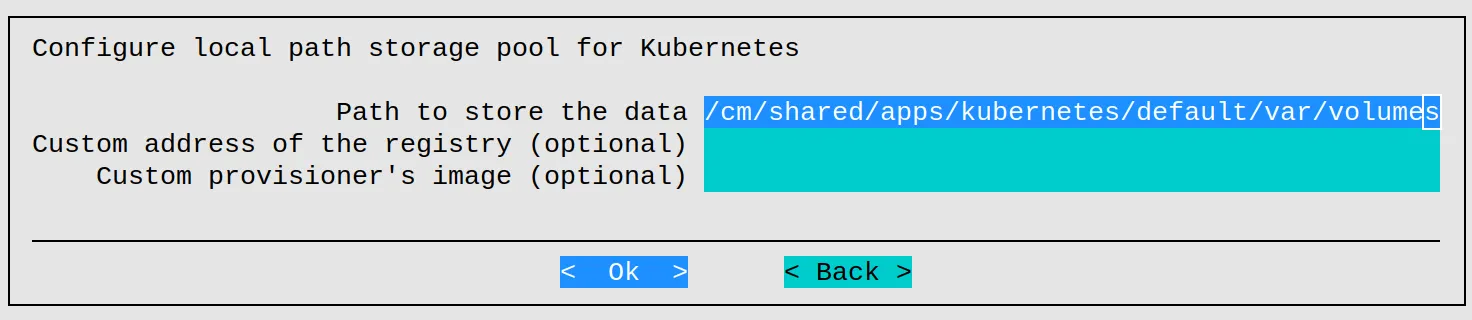
Figure 4.10: Kubernetes setup TUI session: local storage configuration
During setup, the installation wizard asks for a path for where Kubernetes physical volumes (PV) will be physically located. This path should be located on a shared filesystem accessible from all nodes.
After installation, the storage class can be seen to be available with:
Users of the cluster can then freely create persistent volume claims (PVC) resources and use them in running pods.
4.20 Setup Of A Storage Class For Ceph
Pods running on Kubernetes can use Ceph as a distributed storage system to store data in a persistent way.
This section assumes a working Ceph cluster. Ceph installation for BCM is covered in Chapter 9 of the Administrator Manual.
A new pool kube can be created with a replication factor of 3:
Example
The parameters settings in the preceding example are documented at the Ceph website, at
-
http://docs.ceph.com/docs/master/rados/operations/pools/ for documentation on Ceph operations
-
http://docs.ceph.com/docs/master/rados/configuration/pool-pg-config-ref/ for documentation on Ceph pool and PG (placement group) configuration
The pods of a given namespace have to have access to the Ceph RBD images created to back the volumes.
A kube client can be created with:
Example
A list of the current users, and their access control can be viewed with (some output elided):
Example
The kube user must be able to map images. The kube configuration must therefore look similar to the section for client.kube in the preceding example.
A Kubernetes secret must be created in the default namespace, and in every Kubernetes namespace that needs storage, using the Ceph user key:
Example
The Ceph cluster ID can be retrieved by running Ceph’s fsid command. The fsid command was given its name because it originally retrieved a file system ID. However, Ceph has evolved since that time, and a file system is not required for the ID to be retrieved for Ceph storage. The ID is now a general ID for the Ceph storage system:
Example
Ceph monitor <IP address>:<port> values can be found by running ceph mon stat:
Example
The Helm repository ceph-csi has the container storage interface drivers for Ceph. It can be added with:
Example
A request can be made to add a chart ceph-csi-rbd for a RADOS block device image that provides default information for the pods to come up:
Example
The configmap has to be adjusted to add the Ceph cluster that is used for the storageclass in config.json. The cluster ID, as well as the Ceph monitor IP addresses and ports match the Ceph information from earlier on.
Example
At this point, a storage-class.yml file can then be created, similar to:
Example
In the preceding YAML file clusterID and pool must be set to the appropriate values.
Details about the StorageClass parameters can be found at: https://github.com/ceph/ceph-csi/blob/devel/examples/rbd/storageclass.yaml
The Kubernetes storage class for Ceph RBD can now be created:
Example
To verify that it has been created, the new StorageClass can be listed with:
Example
4.21 Integration With Harbor
In order to spawn pods that use images from the Harbor registry, a secret must first be created with the credentials:
The secret must then be referenced from the pod:
Further information on this is available at https://kubernetes.io/docs/concepts/containers/images/#specifying-imagepullsecrets-on-a-pod.
4.22 Kubernetes Upgrades
This section assumes that an upgrade to a BCM Kubernetes is being considered. This means that it is assumed to have been set up with cm-kubernetes-setup.
Upgrades to Kubernetes can be done by following the principles behind the official upstream documentation at https://kubernetes.io/docs/tasks/administer-cluster/kubeadm/kubeadm-upgrade/.
The following points must be kept in mind when upgrading a BCM Kubernetes cluster:
-
Nodes that are part of the cluster may be provisioned through their software image.
-
The Kubernetes version in BCM must manually be updated to match the version of the upgrade.
-
Only some Kubernetes versions are supported. A list of supported available versions can be retrieved with:
Example
In the example that follows, a BCM cluster is upgraded from Kubernetes 1.27.13 to Kubernetes 1.28.9.
At the time of writing (May 2024) the URL for the upstream documentation redirects the readers to the upgrade instructions for, among others, 1.27 to 1.28.
4.22.1 Upgrade Prerequisites
Kubernetes is not a single entity for upgrade purposes. There is a single driver, the kubeadm program, which is used to plan and execute the upgrade, but it does it only for itself and a handful of components central to Kubernetes’ functionality. Kubernetes does not have ways to manage its third-party components with kubeadm’s upgrade planning and execution. This means that multiple Kubernetes components that are essential to Kubernetes are not involved in the upgrade process. If these components are neglected during an upgrade, then they can either prevent successful completion of the upgrade, or can themselves fail as a result of the upgrade.
Some noteworthy components that are excluded by upgrades are the etcd database, CNIs, CSIs, container runtimes, as well as individual pods not managed by higher-level entities such as Deployment, ReplicaSet and so on. The Kubernetes documentation at
https://kubernetes.io/docs/concepts/workloads/pods/disruptions/#pod-disruption-budgets
describes the workings of the eviction process in greater detail.
Kubernetes upgrades assume that various entities, in particular, pods, can migrate away from the node being upgraded. This assumption may not be true because of various constraints on pod scheduling. The constraints need to be satisfied or worked around in order for migration to work. Particular care has to be taken when dealing with persistent volumes or physical resources such as GPUs that cannot migrate, but are needed for a pod to be deployed.
4.22.1.1 Hot And Cold Upgrades
-
A hot upgrade is one that allows the system to stay online at all times.
-
A cold upgrade is one that requires at least a brief service interruption.
Since Kubernetes is aimed at providing 100% system uptime, the upgrade process is designed to be hot. The cluster administrator carrying out the hot upgrade does however need to make an effort for the instances where Kubernetes cannot ensure service uptime.
Upgrading components that cannot be stopped in a regular manner: One common problem with hot upgrades is the need to migrate or to stop DaemonSet pods. These are intended to run on all Kubernetes nodes, even those being drained. Kubernetes can be told to ignore DaemonSet pods by using the --ignore-daemonsets option. The problem with doing that is that it avoids upgrading those pods, and also typically avoids upgrading the third-party component that created them. To ensure upgrade completion, the administrator has to carry out a separate upgrade action, appropriate for each component ignored in this way.
Upgrading gradually: Kubernetes upgrades come without any tools to perform upgrades at scale. The available tools can only upgrade a single node at a time. This means that, especially for larger clusters, the administrator needs to carry out the upgrade gradually, and has to plan and allocate extra capacity to accommodate pods migrated from nodes being upgraded. Special precautions need to be taken when dealing with deployments which require larger replica counts. Administrators may need to perform special procedures. Third-party components in particular may require the simultaneous presence of multiple entities across multiple nodes, in order to be able to upgrade those components without a service interruption.
Finally, it is possible that some components are simply not designed for hot upgrades. In that case, administrators have to remove those components from the system, and install the newer version, with the downtime depending on each individual case.
4.22.2 Example RHEL9 Cluster
A cluster with 3 nodes that run the control plane, and based on RHEL9, is considered as a reference example. One control plane node is the single head node, and the other two control plane nodes are two regular (compute) nodes. There are four additional worker-only nodes, and all the non-head nodes share the same category and software image.
4.22.3 Before Starting The Upgrade
The upstream instructions at https://v1-28.docs.kubernetes.io/docs/tasks/administer-cluster/kubeadm/kubeadm-upgrade/#before-you-begin, on preparing for the upgrade should be read. A node that is to be upgraded must be drained.
4.22.4 Updating The First Control Plane Node
The first control plane node is upgraded in this section.
Instead of going into much detail on upgrades—the official documentation at https://kubernetes.io/docs/tasks/administer-cluster/kubeadm/kubeadm-upgrade/ does a good job—an example covering an upgrade to a Rocky cluster running Kubernetes version 1.27 is shown that uses the official documentation for guidance. Instructions for Ubuntu differ slightly but can be carried out in a similar way.
Typically the control plane is on the head node, so that the cluster administrator starts with updating the control plane being run by the head node. However, for completeness, the two subsections that follow describe updating the control plane if starting with:
-
either the head node
-
or a compute node
4.22.4.1 Upgrading A Control Plane Node Starting With The Head Node
To upgrade the control plane when the head node is the first node to be upgraded, the repository entry for picking up packages from the Kubernetes repository should have the new version set.
Example
The grep outputs confirm there is a repository file, and that it is set to pick up Kubernetes version 1.27. The .27 indicates what is called the minor version in Kubernetes. To instead pick up version 1.28, the upstream documentation instructs changing the minor version in the repository file to the next minor version upgrade number, so here from v1.27 to v1.28. Skipping minor versions for upgrades is unsupported.
An additional check to confirm the running version is:
The minor version in kubernetes.repo is changed from v1.27 to v1.28 using a text editor. The installation for a new kubeadm can then be carried out with:
The upgrade plan can be inspected:
In this case it gives a recommended upgrade command to run on the head node:
The upgrade is now made to version 1.28.9, as suggested. The curious cluster administrator can view the list of available versions can be viewed with the --showduplicates option to yum:
Example
Most cluster administrators stick to the recommendation.
The host should now be drained, if it has not already been drained:
As suggested, the kubelets are now upgraded. Updating the kubectl version at the same time is also a good idea:
The kubelets can be restarted so that the new versions run:
This ends the procedure of upgrading the control plane by first starting on a head node. Upgrading the control plane by first starting with a regular node instead is described next.
4.22.4.2 Upgrading The Control Plane Node Starting With A Compute Node
This section describes the list of commands for upgrading the control plane when it is the first control plane node to be upgraded. For example node001, rather than a head node.
The appropriate software image and related information for the node must first be found. For node001 this can be done with:
The software image is then entered and modified via a chroot jail.
The repository file of the image, with an absolute path outside the chroot jail of /cm/images/default-image/etc/yum.repos.d/kubernetes.repo, has its minor version changed appropriately:
The package versions available for installation in the image can be checked with:
In this case versions 1.28.9 are seen to be available.
The kubeadm, kubelet and kubectl packages are upgraded in advance, and the chroot environment is then exited:
The following set of commands then carries out the update on node001:
4.22.5 Updating Subsequent Control Plane Nodes
If there is only one control plane node, then this section can be skipped.
If there is more than one control plane node, and if the first control plane node is a head node that has been updated, then the remaining control plane nodes should be updated. The kubectl command can be used to orient the cluster administrator, by displaying the state of the upgrade, roles, and Kubernetes versions per node:
Example
The remaining control plane nodes can now be updated. In the reference example case, these control plane nodes are node001 and node002 as seen in the preceding example. The commands in the section on Upgrading The Control Plane Node Starting With A Compute Node (here) should be followed, but with one small difference. Instead of running:
kubeadm upgrade apply v1.28.9
the command
kubeadm upgrade node
is run.
The software image should also be prepared with the new packages before exiting the chroot jail. After exiting the chroot jail the remaining control plane nodes can then be updated with the following set of commands:
Example
Output after this should now look similar to:
The procedure can be repeated for node002 in the reference example system. After that, the control plane nodes are all in an updated state. The worker nodes still need updating.
4.22.6 Updating The Worker Nodes
The commands for the worker nodes follow a similar pattern. They are updated one by one, and the software images must also be updated, if it has not already been done. The software image update follows the procedure described in the section on Upgrading The Control Plane Node Starting With A Compute Node (here), where a chroot jail is entered, the updates are carried out, and the chroot jail is left.
Since nodes are drained as part of their update procedure, it is best to do them one by one, or at most in limited batches to avoid doing too many at once.
The set of commands to update a single worker is:
The kubectl drain command might complain for other reasons. The administrator can decide on proceeding further by adding additional flags.
For example:
kubectl drain $host --ignore-daemonsets --delete-emptydir-data
forces the drain even if some pods have stateful data in emptyDir volumes.
Multiple nodes can be updated as follows:
Example
Output after all the worker nodes are updated too should look similar to:
4.22.7 Updating The Status In BCM
At the time of writing of this section (May 2024), the following change is not yet carried out automatically by BCM. It is however necessary in order to get the correct version of Kubernetes reflected in the module file. The procedure to update the old version can be as follows:
4.22.8 Notes For Upgrading To Kubernetes v1.31.x
The kubeadm-init files generated by BCM for Kubernetes clusters older than v1.31, contain an incompatibility with v1.31 that cannot be solved automatically by kubeadm config migrate.
To prevent errors while executing the kubeadm config migrate command, the whole JoinConfiguration block needs to be removed from the kubeadm init file. The part to remove looks like this:
4.22.9 Notes For Ubuntu
The upstream documentation covers Ubuntu upgrades when it diverges from RHEL procedures. As an aid, the following commands, discussed in the procedure for RHEL within section 4.22 are followed by the corresponding commands for Ubuntu:
4.22.10 Notes For SLES
The upstream documentation does not provide explicit instructions for distributions other than RHEL-based and Ubuntu-based for v1.28. However, starting with v1.29, SLES-based distributions are included.
For v1.28, for SLES, BCM uses the “tarball” approach. The installation of such non-package-manager packages is documented at https://kubernetes.io/docs/setup/production-environment/tools/kubeadm/install-kubeadm/, in the “Without a package manager” section. The commands in that section there can be used as a guide to find alternatives for the yum and apt commands used so far.
For example, the following command from the installation instructions documentation can be used to get the binaries for the same Kubernetes version used so far in the reference example: This is the “Without a package manager” equivalent of the previous yum install and apt install commands:
4.22.11 Other Approaches
When carrying out the steps described in this chapter, some things may in practice end up being done differently from what is suggested.
For example: control plane nodes often have different categories and software-images compared to the workers. For example, perhaps the master nodes do not have GPUs, and need different packages. In that case, multiple software images have to be prepared with new packages.
Earlier on, a process to update nodes one at a time was described. However, when a software image is updated, and multiple nodes are tied to that software image, then those nodes can all be provisioned at the same time. The binaries in the updated software image can therefore also be provisioned to all the nodes using that image.
The problem with this is that it could result in nodes getting the new binaries prematurely if they happen to reboot during the update. If this is an unwanted risk, then it can be avoided in several ways, described next.
4.22.11.1 Additional Software Images
A separate software image can be introduced. Nodes can be moved to the new software image one at a time. A software image can also be overruled at the level of a node.
Example
The cluster administrator should remember to undo the preceding settings, or should move the new software image to the appropriate category, and then clear the node-level override again. This is so that, after the upgrade, the system is organized as before.
4.22.11.2 Using NOSYNC
The other option is to configure the nodes with NOSYNC for their Next install mode. This prevents them from syncing with their software image when rebooting (in the case that they still reboot):
Example
Both these approaches make updating slightly more tedious, but also more straighforward.
During testing by BCM developers, nodes getting their binaries updated prematurely due to an unexpected reboot was not seen to be a significant issue. This is presumably because as long as the first control plane node is updated successfully, and the reboot of the extra node is by accident, there is an interruption anyway. The kubelet simply comes back up with the new version. However this is not the official recommended approach.
4.22.12 Configuring The Ingress HTTPS Server Certificate
Kubernetes applications that are exposed via the Kubernetes Ingress server on BCM use HTTPS on port 30443 by default. This port number is not the default value of 443 that is typically used by Kubernetes Ingress. Some Kubernetes applications may have issues with this, due to hard-coding of the value of 443. An example is an HTML page with a hyperlink that points to port 443 instead of 30443, which in turn leads to a non-existent page. Keeping an eye out for this and related issues is a good idea.
For Ingress, it is assumed that
-
the cluster administrator has provided the cluster with a domain name, for example
my-cluster.nvidia.local -
there is a DNS entry present that makes this domain name resolve to the cluster IP address
-
a matching
server.keyandserver.crtserver certificate key pair file has been provided
4.22.12.1 Ingress Self-signed Certificate
For Kubernetes Ingress testing purposes it is possible to create a self-signed certificate with a private certificate authority (CA) owned by the cluster administrator for its HTTPS protocol. That is, using that instead of a trusted (third-party) CA. However the effort needed to configure this means that the procedure is not generally recommended. Reasons to avoid using a self-signed certificate are:
-
each user needs the self-signed CA certificate pairs working on their system between the appropriate applications
-
each user also needs to override a warning about the untrusted certificate by accepting the self-signed certificate on browsers such as Chrome.
-
it is very easy to run into subtle issues later on that are hard to uncover
That said, appendix A has instructions on setting up a self-signed certificate for testing purposes. The steps that are needed to also make the certificates trusted on any given subsystem or application such as the web browser, are outside the scope of the manuals and BCM support. It is assumed that this has already been set up by the organization.
4.22.12.2 Ingress Trusted CA Certificate
In case no self-signed certificate is to be used—for example if there is already a trusted CA certificate to use for this purpose—then another Kubernetes wizard session can be run from the active head node to help make the necessary changes to the Ingress controller. The cluster administrator carries out the following procedure:
-
uses SSH to get into the active head node
-
copies certificate pair files,
server.crtandserver.key, over to the head node (e.g., to the/rootdirectory) -
invokes
cm-kubernetes-setupand chooses (figure 4.11):
Configure Ingress (Configure Ingress Server Certificate) -
answers
yeswhen the wizard prompts:Do you want to configure an existing, properly signed Server certificate pair? -
sets paths to the certificate pair files, so that the Ingress controller then uses the trusted CA certificate pair, instead of generating a self-signed pair
-
goes along with other steps such as Kubernetes secret creation, patching the appropriate YAML, and so on
-
waits for the configuration change (a minute or so) to restart the Ingress controller
-
confirms that the HTTPS certificate is working correctly, via the SAN check (described shortly)

Figure 4.11: Option to configure Server Certificate for Ingress Controller
The SAN check: The following command can be used to inspect the SAN (Subject Alternative Name) part of the certificate currently running on the Ingress port:
Example
4.23 Air-gapped Kubernetes Upgrade
An air-gapped cluster environment is one where the cluster is not directly connected to the internet.
A BCM cluster that runs Kubernetes that is air-gapped can be upgraded with the procedure outlined in this section.
4.23.1 Prerequisites
Before beginning the upgrade, the following general prerequisites and version considerations must be carried out:
-
The cluster version must be at a sufficiently high point release number (section 11.1.2 of the Administrator Manual):
- for BCM version 10 the point release version number must be 10.31.0 or higher
-
The upgrade path should take into account the Kubernetes version skew policy, as defined at https://kubernetes.io/releases/version-skew-policy/. The principles to take into account are:
-
Only two adjacent minor releases may exist in the cluster at any time. So, v1.34 and v1.35 are acceptable; but v1.33, v1.34, and v1.35 are not acceptable.
-
The target version must not violate the skew values. So, if the cluster nodes are currently on two different adjacent minor releases, then the only valid upgrade path is to the newest of the two minor releases. For example if some nodes are running v1.34 and some are running v1.35, then the only valid upgrade path is to upgrade the v1.34 nodes to v1.35. This ensures that the cluster remains functional and compliant with the Kubernetes version skew policies during the rolling upgrade process.
-
-
The upgrade path should also take into account the NVIDIA BCM Release Notes and Compatibility Matrix corresponding to the BCM version that is running. This must be consulted, to see if there is support for the desired target Kubernetes version (for example v1.35.x).
-
An upgrade path preference, for minor or patch, must be decided on for the case where all the nodes are on the same minor version:
-
Minor release upgrade: the latest release of the next minor release (for example: v1.34 to v1.35)
-
Patch release upgrade: the latest patch release of the current minor release (for example: v1.35.3 to v1.35.4)
-
-
The current Kubernetes cluster must already be operational, with healthy and ready nodes.
-
A local registry must already be deployed, and its FQDN must be retrievable (for example: master.cm.cluster:5000)
-
The upstream instructions on preparing for the upgrade (https://kubernetes.io/docs/tasks/administer-cluster/kubeadm/kubeadm-upgrade/#before-you-begin) should be read.
-
A node that is to be upgraded must be drained.
4.23.2 Airgap Preparation Steps
The initial steps must be performed on a host with Internet access. This machine requires:
-
Internet access
-
An OS that matches the air-gapped cluster: Ubuntu 22.04, Ubuntu 24.04, Rocky Linux 9u3, or RHEL 9u3.
-
An architecture that matches that of the cluster
- Currently, the tarball supports one architecture at a time. So if the cluster has a mixed architecture, for example head node being x86, but kubernetes control plane nodes being arm64 then more manual effort is needed. This is not covered by this guide at this time.
-
The BCM package repositories must be configured on the machine
-
The BCM
airgap-scriptsdirectory from the matching BCM version must be on the machine
4.23.2.1 Machine Has cm-setup Installed
If the cm-setup is already installed on the machine, then for BCM version 10, the airgap scripts are at:
/cm/local/apps/cm-setup/lib/python3.9/site-packages/cmsetup/plugins/kubernetes/airgap-scripts/
If the cm-setup module is loaded (enabled by default) then the environment variable K8S_AG_SCRIPTS has the path already defined.
4.23.2.2 Machine Does Not Have cm-setup Installed
If the cm-setup package is not already installed on the machine, then
-
The administrator must add the airgap scripts to the PATH environment:
Example
-
helm 3.x(not 4.x at the time of writing, March 2026) must be added to/usr/local/bin/helmas per the instructions at https://helm.sh/docs/intro/install/.Alternatively, the following helper script, that BCM ships with
cm-setup, can be used:Example
Optionally, a Helm check can be carried out with:
Example
-
Skopeo, an image manager, is installed:
Example
-
To work around a potential Docker Hub pull rate limit issue (https://docs.docker.com/docker-hub/usage/pulls/) the administrator can now sign up for an account at https://app.docker.com/signup, and authenticate with
skopeo login docker.io. This is to help with running the airgapped installation scripts in the next bullet point.Any credentials are fine—the credentials will not end up in the air-gapped tarball or environment. They are only needed for authentication to conveniently pull images from Docker Hub. This is because unauthenticated pulls are limited to a rate of 100 per 6 hours. Authenticated pulls, on the other hand, are allowed at a rate of 200 per 6 hours, which should be sufficient for preparing the airgapped tarball.
-
-
A working directory, for example
/root/airgapped, can then be created, and installation scripts within the airgapped directory can then be run:Example
The preceding scripted downloads specify the
--kube-version, and should be adjusted to match the required upgrade version. For Kubernetes v1.35, the--kube-versionflags are optional.To ensure the commands all succeed, it is best to execute them in sequence and let them complete. The download scripts all write their output to the current working directory.
-
The
airgappeddirectory can now be tarred:Example
The
airgapped.tarfile should be saved to some transfer media (for example: a USB stick), and should be copied over to the active head node of the air-gapped cluster.
4.23.3 Head Node Preparation Steps
On the active head node of the air-gapped cluster
-
The
airgapped.tarfile is extracted:The remaining steps are carried out inside the
airgappeddirectory that is untarred.For Ubuntu systems, the
airgappeddirectory should be moved to/tmp/airgapped. This is necessary becauseaptruns as theaptuser, which lacks permissions to access packages in/root. If the move is not carried out, thenFile not founderrors show up during package installation. A future update is planned to automate this, but for now, on Ubuntu head nodes,/tmpis used:Example
-
The
airgappeddirectory is entered:Example
-
The
airgappedhelper scripts are added toPATH:Example
-
The packages are installed on the head node and the required software images. For BCM HA clusters, these steps must be repeated on the secondary head node.
Example
Examples:
Ubuntu Linux with two software images for Kubernetes installation:
Example
Rocky or RHEL 9u3 Linux with one software image:
Example
For HA BCM clusters, these examples must be carried out on the secondary head node too.
4.23.4 Pushing All Container Images And Helm Charts
-
All Docker images are now pushed to the Docker registry:
Example
The same
--kube-versionflag must be chosen as in the download procedure earlier (1.35, 1.34 or 1.33). If the default value of 1.35 is used, then the flag can be left out completely. -
The Helm charts can now be pushed too:
Example
Other options can be viewed with the
-h|--helpoption.
4.23.5 Upgrading The Kubernetes Cluster
The upgrade steps start with the control plane nodes.
4.23.5.1 Updating The First Control Plane Node
The node that is to be upgraded should first be updated to the latest binaries. This can be done with an imageupdate run from cmsh on the head node (section 5.6.2 of the Administrator Manual).
For example for a node with the arbitrary name of controlplane01:
Example
If the -w|--write flag is not used, then a dry-run is carried out.
After the image update is done, the kubeadm upgrade plan command is run from the node itself:
Example
Explicitly providing the kubeconfig for the correct Kubernetes cluster is a good practice. This is important if the BCM cluster has multiple Kubernetes clusters.
The following session shows output from an upgrade plan from 1.32.10 to 1.33.11. The plan shows that there is indeed a newer 1.32.11 available already:
Example
The upgrade plan suggests that an upgrade to v1.32.11 must be done first.
However, the skew versions policies (here) allow jumping to v1.33.6.
A check of the changelogs through the appropriate versions should be done. The changelogs are located under: https://github.com/kubernetes/kubernetes/blob/master/CHANGELOG/ and are well-organized. After studying these, if the cluster administrator decides it makes sense to just jump ahead to v1.33.6, then that can be carried out as follows:
Instead using v1.32.11 as suggested in the preceding session plan, the value v1.33.6 is used. The --kubeconfig flag is also set as a matter of best practice:
Example
The following should then show in the output:
Example
-
checking that the first control plane node is in the
Readystate, and running the target Kubernetes versionExample
-
checking that all critical pods are running and in the
Readystate, especially those inkube-systemnamespace:Example
An extra check is to see if the appropriate kube-apiserver version image, v1.33.6, is being used by the upgraded controlplane01 node, by executing:
Example
4.23.5.2 Updating Subsequent Control Plane Nodes
The following commands can be repeated on the other control plane nodes.
From the head node:
Example
From the node itself:
Example
In the preceding, an upgrade apply with version does not need to be provided.
The validation steps from before (here) should be repeated.
If all control-plane nodes are running without issues, then the worker nodes can also be updated.
4.23.5.3 Updating The Worker Nodes In The Airgapped Update
Updating worker nodes is done in a similar way to updating control plane nodes, but usually with some additional care, since worker nodes can be running user workloads.
Section 4.22.6, about updating the worker nodes in a non-airgapped cluster, has more on being careful during worker node updates. In particular, it explains how to drain nodes beforehand, so that end users do not get upset by lost jobs.
The upgrade step itself is carried out with:
Example
The --kubeconfig flag should be provided in the preceding command.
To summarize, a node that needs to be drained requires the following commands:
On the head node:
Example
On the non-head node:
Example
Validation can be done, as before (here), by:
-
checking that all critical pods are running and in the
Readystate, especially those inkube-systemnamespace, by running:kubectl get nodes -
checking that all critical pods are running and in the Ready state (especially those in
kube-systemnamespace, but not only those), by running:kubectl get pod -A