

NVIDIA Base Command Manager Auto Scaler
8.1 Introduction
NVIDIA Base Command Manager Auto Scaler can be used by an administrator to reduce the energy costs, and the costs associated with (cloud) storage, by compute nodes. This can be done by changing their power state, or their existence state, according to workload demands. The idea behind Auto Scaler is that it automatically scales a cluster up or down, on-demand, by powering up physical nodes or cloud nodes.
On the cluster itself, Auto Scaler is implemented by the cm-scale service. The scaling is carried out according to settings in the ScaleServer role which set the nodes that are to use the cm-scale service.
The cm-scale service runs as a daemon. It collects information about workloads from different workload engines, and it uses knowledge of the nodes in the cluster. In the case of HPC jobs, the daemon also gathers knowledge of the queues that the jobs are to be assigned to, and also gathers knowledge on which of the HPC jobs are requesting exclusive node access.
NOTE: HPC GE jobs have no queue assignment by default, and are therefore ignored by default. Adding a line such as:
-q all.q
to the var/ <instance name>/common/sge_request file, under /cm/shared/apps/uge/, assigns GE jobs to the all.q queue by default, so that cm-scale considers them.
Based on the workload engine information and queues knowledge, the cm-scale service can clone and start compute nodes when the workloads are ready to start. The service also stops or terminates compute nodes, when no queued or running workloads remain on the managed nodes.
8.1.1 Use Cases
The cm-scale service can be considered as a basis for the construction of different kinds of dynamic data centers. Within such centers, nodes can be automatically re-purposed from one workload engine setup to another, or they can be powered on and off based on the current workload demand.
A few use cases are discussed next, to show how this basis can be built upon:
-
An organization wants to run PBS Professional and Slurm on the same cluster, but how much one workload engine is used relative to the other varies over time. For this case, nodes can be placed in the same pool and shared. When a node finishes an existing job, the
cm-scaleservice can then re-purpose that node from one node category to another if needed, pretty much immediately. The re-purposing decision for the node is based on the jobs situation in the PBS Professional and Slurm queues. -
An organization would like to use their cluster for both Kubernetes and for Slurm jobs. For this case, the admin adds Kubernetes- and Slurm-related settings to the
ScaleServerrole. Using these settings, thecm-scaleservice then switches nodes from one configuration overlay to another. For example, if Slurm jobs are pending and there is a free Kubernetes node, then the node is turned into a Slurm node pretty much immediately. A configuration example for this case is given in section 8.4.9. -
An organization has a small cluster with Slurm installed on it, and would like to be able to run more jobs on it. This can be carried out using BCM’s Cluster Extension cloudbursting capability (Chapter 3 of the Cloudbursting Manual) to extend the cluster when there are too many jobs for the local cluster. The extension to the cluster is made to a public cloud provider, such as AWS or Azure. For this case, the users can use the
cmjobutility (section 4.7 of the User Manual, and section 4.3 of the Cloudbursting Manual) to submit their cloud jobs, and Slurmsbatchfor their regular jobs. Thecm-scaleservice then tracks the Slurm queues, and decides whether or not new cloud nodes should be added from the cloud as extensions to the local network and queues. When the jobs are finished, then the cloud nodes are terminated automatically. Cluster extension typically takes several minutes from prepared images, and longer if starting up from scratch, but in any case this change takes longer than simple re-purposing does. -
An organization runs PBS Professional only and would like to power down free, local, physical nodes automatically, and start up such nodes when new jobs come in, if needed. In this case,
cm-scalefollows the queues and decides to stop or to start the nodes automatically depending on workload demand. Nodes typically power up in several minutes, so this change takes longer than simple re-purposing does.
8.1.2 Resource Constraints
-
Two workload manager engines of the same kind cannot be served by
cm-scaleon the same cluster. For example, two Slurm instances cannot be managed, but Slurm and LSF can. Two different Kubernetes instances count as two engines of a different kind. -
When the service considers whether or not the node is suited for the workload, it considers the following requested resources:
-
the number of CPU cores;
-
the number and type of GPUs;
-
the amount of memory.
-
-
and, for Kubernetes, the following additional resources:
-
pods;
-
ephemeral storage;
-
extended resources.
Other types of resources are not considered.
An extended resource is considered by
cm-scaleif the administrator adds it to theKUBE_EXTENDED_RESOURCESlist inconfig.py. For example:Example
For HPC workload engines that are unsupported by
cm-scale, the resources validation is carried out by the HPC engine. If a resource that is requested by the workload cannot be provided by the node, then the HPC engine specifies a pending reason. The pending reason is used bycm-scaleto decide on node operations.For Kubernetes, all the used resources must explicitly be specified as extended resources.
When the Kubernetes engine is configured, then
cm-scaleuses themaxPodsvalue from the kubelet role as a maximum for the available pod slots per node.The
parallelismparameter in the job definition YAML sets the number of pod copies to start. If a Kubernetes job sets theparallelismparameter, thencm-scaletries to find nodes to satisfy the number of pod copies for the job. The metrickube_job_spec_parallelism(here) tracks theparallelismvalue for a job. -
In cmsh, the wlmresources command displays the resources that Auto Scaler considers.
Example
These resources are taken from the workload managers, and are not necessarily equal to the available physical resources on the nodes.
8.1.2.1 Number Of CPU Cores Calculation
The cm-scale service uses the number of CPU cores on a node in order to decide on whether a workload should run on the node. The calculation of this number is optimized for many node scenarios.
For each node, at the beginning of each cm-scale iteration, the following procedure is followed step-by-step to determine the CPU cores number. The procedure for the current iteration stops when a step yields a non-zero value, otherwise the next step is tried.
-
If the engine is a workload manager, then the workload manager client role is considered and its slots parameter is used. In the very unusual case of several workload manager roles assigned to the node at the same time, then the minimum number of slots is calculated.
-
If the node is a cloud node, then its flavor
Typeparameter in the case of EC2, orVMSizein case of Azure, is used. These parameters are accessible viacmsh, withindevicemode for the cloud node, within thecloudsettingssubmode. For EC2 nodes the flavor value (Type) can be set to a long statement such as: “62 EC2 Compute Units (16 virtual cores with 3.00 EC2 Compute Units each)”, and for this statement 16 is used as the number of CPU cores. If the flavor is not defined on the node, then its cloud provider is considered. -
If a template node (here) is defined in the dynamic node provider, and it is a cloud node, then the template node flavor is used for the CPU core number in the same way as shown in the preceding step.
-
If the
Default Resourcesparameter (in a resource provider) containscpus=N, whereNis a number of CPU cores, thenNis used. -
If the node exists at this moment (for example, it is not just cloned in BCM), then the CPU cores number is requested from CMDaemon, which collects nodes system information. This is used as one of the last methods because it is slow.
-
If the node is defined in the
ScaleServerrole via the dynamic resource provider, then the CPU cores number is retrieved from its template node. This method is as slow as the preceding method. It is therefore not recommended when many nodes are managed bycm-scale, otherwise the iteration can take several minutes. In such a case, setting the slots parameter manually is typically wiser, so that step 1 is the step that decides the CPU cores number.
If cm-scale does not manage to find a value for the node, then it prints a warning in the log file and does not make use of the node during the iteration. It is usually wise for the administrator to set the slots parameter manually for nodes that otherwise persistently stay unused, so that resources are not wasted.
8.1.2.2 Requested GPUs
When a user of a workload manager requests a number of GPUs for the job that is to be run, then Auto Scaler presents nodes that have enough available GPUs for this job. For Slurm, in addition to the number of GPUs, Auto Scaler recognizes the GPU type if the user specifies it. For other workload managers only the number of GPUs is counted.
Auto Scaler knows from CMDaemon via the workload manager what GPUs and what types are available for that workload manager. Auto Scalar tracks the number of GPUs in use, or whether the administrator has configured fewer GPUs than the node actually has. Auto Scaler is therefore aware of what GPUs the workload managers can use during their job scheduling.
If debug messages are enabled in ScaleServer role. then the number and type of requested GPUs, as well as the number and types of available GPUs, can be found in the log file at /var/log/cm-scale.log
8.1.2.3 Requested Memory
A memory request is considered by Auto Scaler if a user specifies this request when the job is submitted.
For Kubernetes, if a job or a pod defines a limit, then cm-scale uses that limit. If a limit is not set, then Kubernetes limits are followed.
For Slurm, if no memory requirement is specified by the job, then Slurm often sets its own defaults, and cm-scale then uses those implicit values.
GE does not provide the amount of memory requested by a user per node, but allocates memory per CPU core. Thus, Auto Scaler by default operates with a memory amount per CPU core, which can also be seen in the logs.
8.1.2.4 Default Resources Specification
Sometimes the available consumable resources must be defined explicitly by the administrator. This is needed in the case of LSF, because when a node is down, LSF does not provide the available consumable resources configured for the node. Therefore in this case Auto Scaler does not know if the node actually has any of the resources known to LSF. The mechanism used for defining explicitly can also be used for other workload managers, for testing purposes.
For now, only the following types of consumable resources can be specified as default resources to the Default Resources setting, under the Resource Provider parameter. The setting is a list of strings, where each string specifies one of the following resources:
-
cpus: the number of CPU cores that will be used, if other sources for this information do not provide a value (the calculation for the number of CPU cores is described here) -
mem_free: the amount of available memory. If no units are specified, then bytes are assumed. It is also possible to append one of the following units:-
KB or K (kilobytes), KiB (kibibytes)
-
MB or M (megabytes), MiB (mebibytes)
-
GB or G (gigabytes), GiB (gigibytes)
-
TB or T (terabytes), TiB (tebibytes)
-
PB or P (petabytes), PiB (pebibytes)
The format of the memory specification is the following:
mem_free:<engine>=<amount>where <engine> is the name of the workload engine which “provides” this value, and <amount> is the amount of memory.
Example
mem_free:lsf1=32GB -
-
gpu_free: the number of available GPUs. The format of the GPUs specification is:gpu_free[:<type>]:<engine>= <number>where <
type> is a string that specifies the GPUs type (available only for Slurm). Only a single GPU type per node is currently supported. <number> is a number of GPUs, and <engine> is the name of the workload engine which “provides” this value.Example
gpu_free:a100:slr=8or
gpu_free:lsf=1
8.1.3 Setup
In order to set up Auto Scaler the administrator can run the cm-auto-scaler-setup script. The setup allows one of the three base scenarios to be configured. This is possible in express mode as well as in step-by-step mode. When the setup is complete, the administrator can further tune the behaviour of Auto Scaler within the ScaleServer role. The Scaleserver role is always assigned to the head nodes, via a new configuration overlay named autoscaler.
The setup tool assigns the role. The role, in turn, starts the cm-scale system service (Auto Scaler). Auto Scaler can be disabled by running cm-auto-scaler-setup again, and selecting the menu item Disable. When Auto Scaler is disabled, the configuration overlay is removed.
The service writes logs to /var/log/cm-scale.log. Running the cm-scale daemon in the foreground for debugging or demonstration purposes is also possible, using the -f option. Other additional options that may be used, including at the same time, are:
-
-d: debug logs -
-i <N>: number (<N>) of iterations
The logs are then duplicated to STDOUT:
Example
When cm-auto-scaler-setup is started the administrator can select from one of the following setup operations (figure 8.1):
-
express setup,
-
step-by-step setup,
-
disable.
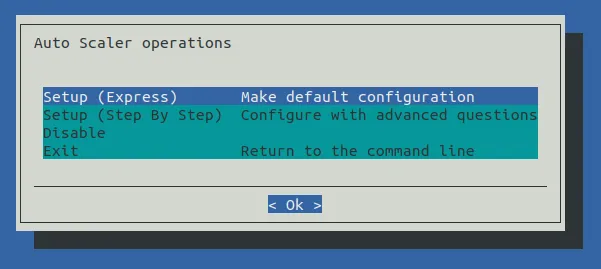
Figure 8.1: Auto Scaler Setup Operations
-
Express setup allows an initial setup to be carried out, without many questions being asked. It applies default values whereever possible. Some inputs that do not have default values are still needed. Express setup is a good start for the administrators who have never used Auto Scaler before.
-
Step-by-step setup allows an initial setup to be carried out too, but with some more questions to help tune the cluster to the needs of the administrator. This is more suitable for administrators with some experience in Auto Scaler configuration.
After the wizard has carried out the deployment, both the express and the step-by-step configuration can have their configurations tuned further via cmsh, within the scaleserver role.
Express setup and step-by-step setup both allow one of the 4 pre-defined use case scenarios to be selected (figure 8.2):
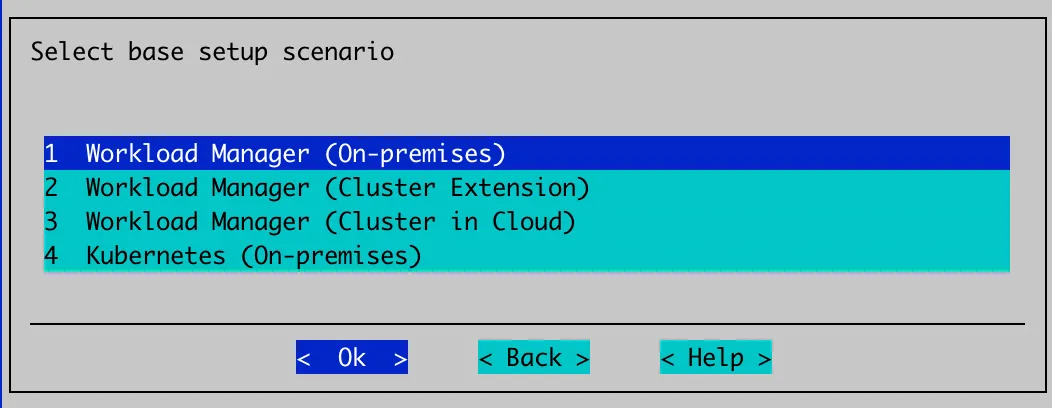
Figure 8.2: Auto Scaler Setup Scenario Selection
These use cases are:
-
Workload Manager (On-premises): Auto Scaler tracks selected workload manager queues, and starts or stops specified on-premises nodes on demand. A static node provider is automatically added to the role for this scenario.
-
Workload Manager (Cluster Extension): Auto Scaler dynamically clones nodes from a cloud template node, on demand. The nodes can be terminated or stopped when idle. This scenario is used when cloudbursting is set up, and there is a cloud director. A dynamic node provider is added automatically to the role for this scenario.
-
Workload Manager (Cluster in Cloud): As in the preceding use case, Auto Scaler dynamically clones nodes from a cloud template node, on demand. In this scenario, there is no cloud director, and the entire cluster must reside in the cloud.
-
Kubernetes (On-premises): Auto Scaler tracks Kubernetes jobs or individual pods, and starts or stops the nodes on demand. A static node provider is automatically added to the role for this scenario.
Static nodes and dynamic nodes providers are discussed in section 8.2.2.
In step-by-step mode, for the next step, the dialog suggests specifying Auto Scaler base options (figure 8.3):
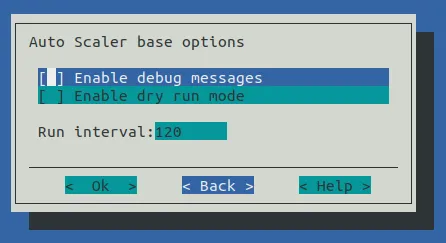
Figure 8.3: Auto Scaler Setup Base Options
The Auto Scaler base options are:
-
Enable debug messages: Auto Scaler adds debug messages to its log file (default:/var/log/cm-scale). -
Dry run mode: Disables actual execution of any operation on the cluster. Auto Scaler decisions are still all written to the log file. -
Run interval: Number of seconds that Auto Scaler waits before making new decisions regarding cluster auto scaling.
8.1.3.1 Use Case: Workload Manager (On-premises)
When this scenario is selected, then the next step is to configure the static nodes provider. First, categories and individual nodes to be managed by Auto Scaler are selected. The nodes of a selected category, or individual nodes, are added to the node provider (figures 8.4 and 8.5):
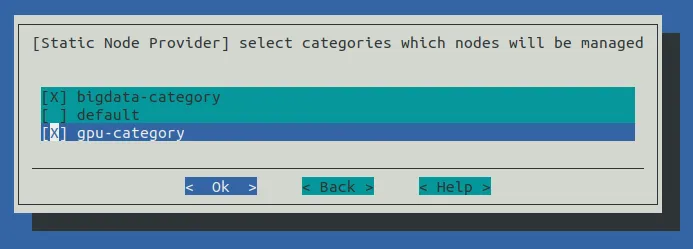
Figure 8.4: Auto Scaler Setup Categories Selection For Static Node Provider
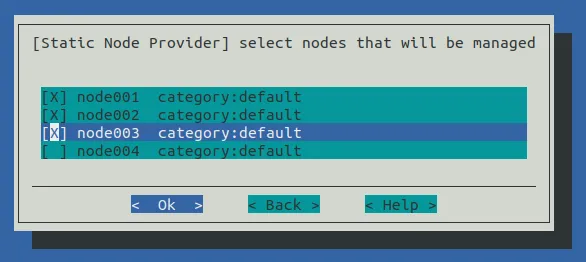
Figure 8.5: Auto Scaler Setup Individual Nodes Selection For Static Node Provider
The next step is to pick the workload manager cluster (figure 8.6):
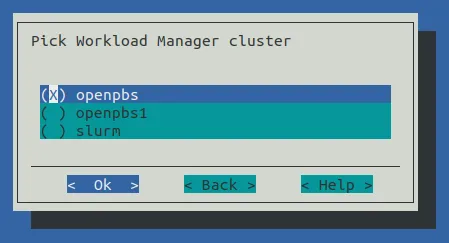
Figure 8.6: Auto Scaler Setup Workload Manager Selection
If only one workload manager instance exists, then the screen is skipped. The screen provides a list of workload manager names that cm-wlm-setup has set up. The cm-auto-scaler-setup wizard only configures one workload manager cluster, but others can be added later as separate workload engines with the ScaleServer role.
If running express mode, then the summary screen is displayed. The summary screen includes options to just show the configuration file, or to save the configuration and deploy the setup (figure 8.7):
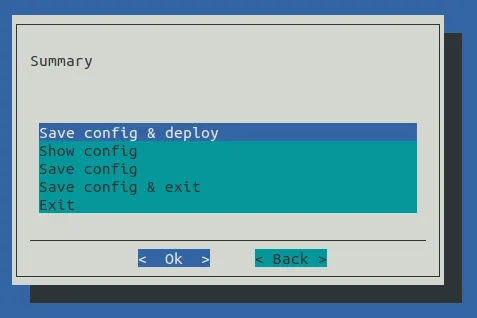
Figure 8.7: Auto Scaler Setup Summary
If running step-by-step mode for the workload manager, then there are some additional tune up screens:
Values can be set for resources in the default node resources screen (figure 8.8):
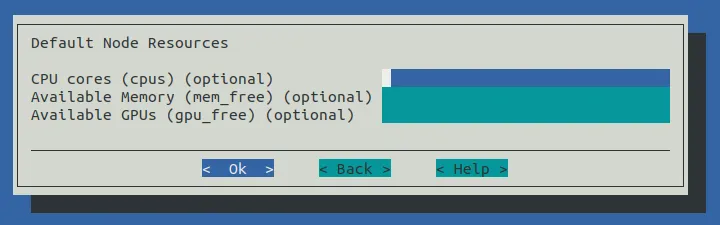
Figure 8.8: Auto Scaler Setup Default Resources
Resources that can be set are:
-
number of CPU cores per node. Format: <number>
-
number (and optionally, type) of GPUs per node. Format:
[<type>]:<number> -
available memory for jobs per node. Units can be specified as: KB, K, KiB, MB, M, MiB, GB, G, GiB, TB, T, TiB, PB, P, PiB. Format: <amount>
[<unit>]. If no units are specified, then bytes are assumed.
When Auto Scaler considers whether or not the node is suited for the workload, it considers the following requested resources:
In cmsh, the wlmresources command, executed in devices mode, displays the resources that Auto Scaler considers. These resources are taken from the corresponding workload manager, and are not necessarily equal to the available physical resources on the nodes. Sometimes the available consumable resources must be defined explicitly by the administrator. This is needed if the node never started, or if the WLM (such as in the case of LSF) does not provide node resource information when the node is down. It is recommended that these values are always defined. If nodes vary in their resource requirements, then, after setup, an administrator can add new resource providers (within the ScaleServer role) and set the various default resources for the various groups of nodes.
In the next screen the administrator can specify some WLM engine settings (figure 8.9):
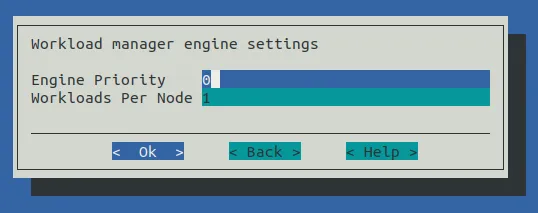
Figure 8.9: Auto Scaler Setup Engine Settings
The settings are:
-
Engine Priority: The workload engine priority. This value is used when the final (global) workload priority is calculated by Auto Scaler. If0, then this priority is not taken into account. -
Workloads Per Node: The maximum number of WLM jobs that can be started on a node.
Auto Scaler fetches the workload priority values from the settings specified in the next screen (figure 8.10):
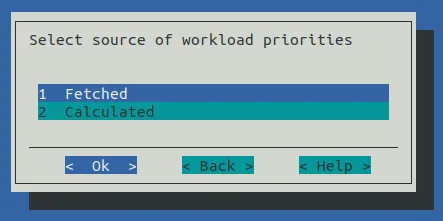
Figure 8.10: Auto Scaler Setup Workload Priorities Source Selection
The settings are:
-
Fetched: Priorities are fetched from workload engine. Age and engine priorities are ignored. This option sets the age factor to0.0, and engine priority to0 -
Calculated: Priorities are calculated from the workload age and engine priority. Both can be tuned by the administrator inScaleServerrole. This option sets the age factor to1.0, and the external priority factor to0.0
Workload trackers settings can be set in the next screen (figure 8.11):
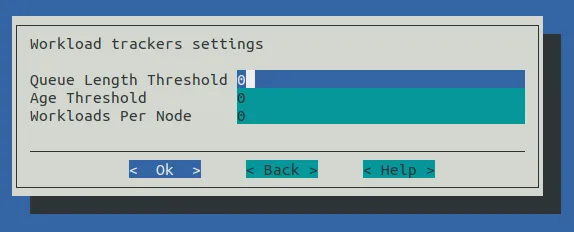
Figure 8.11: Auto Scaler Setup Tracker Settings
The settings are:
-
Queue Length Threshold: Number of pending workloads. If this number is reached, then nodes are triggered to start up. -
Age Threshold: Workload pending time threshold, in seconds. If a workload reaches this age while pending, then nodes are triggerd to start up for that workload. -
Workloads Per Node: The maximum number of WLM jobs that can be started on a node for that tracker. A value of0means no limit is set.
The settings are applied to all configuring queue trackers. The values can be tuned further afterwards in the ScaleServer role.
8.1.3.2 Use Case: Workload Manager (Cluster Extension)
In the case of workload manager cluster extension scenario, a dynamic node provider with a template node is configured. In this scenario the administrator should expect cloud nodes to be triggered, which run in a previously configured and deployed cluster extension.
Cluster extension configuration and deployment in BCM is described in Chapter 3 of the Cloudbursting Manual, and can be carried out, for example, for a particular cloud provider. For command line deployment, the cm-cluster-extension setup script can be run.
Cloud nodes are thus cluster nodes that extend into a cloud provider, and which are cloned and terminated depending on workload demand.
To configure a cluster extension with Auto Scaler, the administrator is asked to pick a cloud provider (figure 8.12):
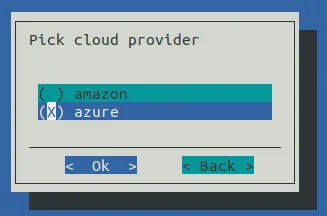
Figure 8.12: Auto Scaler Setup Cloud Provider
With the express setup, the next screen asks for workload manager selection (figure 8.6).
With the step-by-step setup, however, some additional screens are presented before getting to the workload manager selection screen. These extra screens are described next.
The Auto Scaler template node selection screen (figure 8.13) prompts for the selection of a template node that is to be used for cloud node cloning.

Figure 8.13: Auto Scaler Setup Template Node
The selected template node is then set in the dynamic node provider.
The Auto Scaler incrementing network interface screen (figure 8.14) prompts the administrator to select the network interface on the template node that is automatically incremented when the node is cloned.
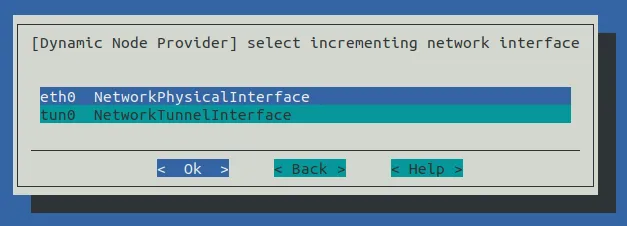
Figure 8.14: Auto Scaler Setup Incremented Network Interface Selection
The Auto Scaler node range specification screen (figure 8.15) prompts the administrator to specify a node range. Range format can be used. Nodes are automatically created by Auto Scaler on demand in the cloud according to the range specified.
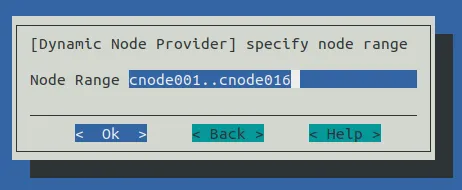
Figure 8.15: Auto Scaler Setup Node Range
The remaining screens in this use case have been covered in the earlier section (Use Case: Workload Manager (On-premises), here) , and are:
-
default node resources (figure 8.8),
-
engine settings (figure 8.9),
-
workload priorities (figure 8.10),
-
tracker settings (figure 8.11).
8.1.3.3 Use Case: Workload Manager (Cluster in Cloud)
If a workload manager (Cluster in Cloud) option is chosen from figure 8.2, then the screens that are displayed next follow the same steps as in the preceding case of a workload manager (Cluster Extension) (starting at here).
8.1.3.4 Use Case: Kubernetes (On-premises)
If a Kubernetes (On-premises) scenario is chosen from figure 8.2, and if Kubernetes has been set up (Chapter 4 of the Containerization Manual) then the screens that are displayed next are related to Kubernetes and Auto Scaler integration. Auto Scaler tracks Kubernetes jobs or individual pods, and can start or stop the on-premises nodes on demand.
The first screen displayed after the scenario is selected, is a screen that asks for node categories and individual nodes that are to be configured in the static resource provider. Such nodes are the only ones to be managed by Auto Scaler. Category and node selection screens are then displayed as in the earlier sections (figures 8.4 and 8.5).
The administrator is then prompted to select a Kubernetes cluster (figure 8.16).
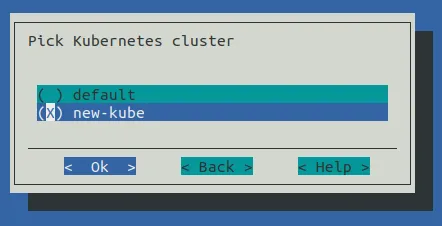
Figure 8.16: Auto Scaler Setup Kubernetes Cluster Selection
If there is only one Kubernetes cluster, then this screen is skipped, and the Kubernetes configuration is used for the integration with Auto Scaler.
The next screen prompts for the Kubernetes engine settings (figure 8.17):
-
Engine Priority: A workload engine priority. This value is used when the final (global) workload priority is calculated by Auto Scaler. If0, then this priority is not taken into account. -
Workloads Per Node: The maximum number of Kubernetes jobs, or individual Kubernetes pods without a controller, that can be started on a node. -
CPU Busy Threshold: The CPU load % that defines if node is too busy for new pods. -
Memory Busy Threshold: The Memory load % that defines if node is too busy for new pods.
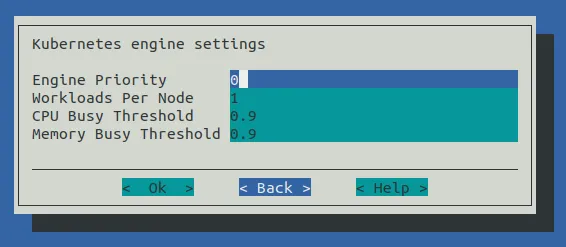
Figure 8.17: Auto Scaler Setup Kubernetes Engine Settings
The administrator is then prompted to pick the Kubernetes namespace that will be tracked by Auto Scaler (figure 8.18):
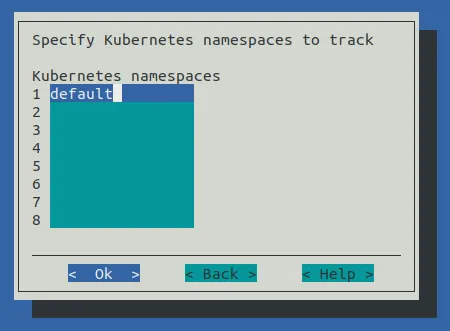
Figure 8.18: Auto Scaler Setup Kubernetes Namespace Selection
In step-by-step mode, the namespace tracker settings are then displayed (figure 8.18):
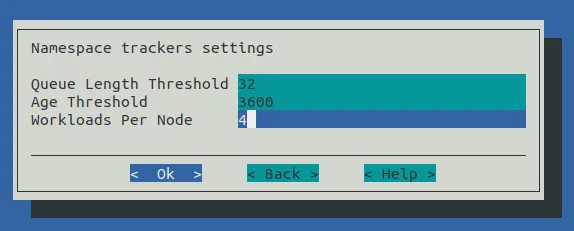
Figure 8.19: Auto Scaler Setup Kubernetes Namespace Tracker Settings
The settings are:
-
Queue Length Threshold: If this number of pending workloads is exceeded, then that triggers nodes starting up. -
Age Threshold: Workload pending time threshold, in seconds. If the age of the workload is greater than this, then nodes are triggered to start for this workload. -
Workloads Per Node: The maximum number of Kubernetes jobs, or individual Kubernetes pods without a controller, that can be started on a node for that namespace tracker. A value of0means no limit is set.
The settings are applied to all configuring namespace trackers. The values can be tuned further afterwards within the ScaleServer role.
The summary screen is displayed next (figure 8.7). Selecting Save config & deploy saves the configuration and starts the setup procedure.
8.1.4 Workload Roles Assignment Limitations Per Node With cm-scale
The cm-scale service allows multiple workload managers to be considered on the same cluster, and besides supporting HPC workload managers, also supports Kubernetes as a type of workload engine.
However, more than one engine role should not be assigned to a node at one time. Thus, for example, assigning a Slurm role and a PBS role at the same time to a node should not be done. Nor, for example, should there be a Kubernetes role and a workload management role assigned at the same time to a node.
8.2 Configuration
8.2.1 The ScaleServer Role
To configure cm-scale, the cluster administrator configures the ScaleServer role. The role is typically assigned to head nodes:
Example
The role is configured by setting values to its settings. There are some advanced settings for less common options:
The advanced settings are:
-
Debug2: Enable printing very low level debug messages in the log file. This setting must be used with caution because it leads to a rapid increase in the log file size. -
Max Threads: Maximum number of threads for sequential RPCs to CMDaemon. -
Power Operation Timeout: Power operation RPC timeout, in seconds. -
Connection Retry Interval: Connection to CMDaemon retry interval, in seconds. -
Log File: Path to the log file (Default/var/log/cm-scale.log). -
Pin Queues: Pin workloads to their queue nodes. -
Mix Locations: Allow workload to be be offered to different locations (cloud and local). -
Failed Node Is Healthy: Do not start a new node instead of a failed one. -
Azure Disk Image Name: Image name for Azure disks. -
Azure Disk Container Name: Container name for Azure disks. -
Azure Disk Account Prefix: Prefix for randomly-generated Azure disk account names. -
Node Selection: Type of node selection used by Auto Scaler. The values this can take are:-
Alphabetically: This means that Auto Scaler picks next node to start according the node name. -
Randomly: This means that the nodes are picked randomly, which helps make the node usage more even. -
Uptime: This means that the nodes that have been used the least amount of time are picked first.
-
-
Node Selection Uptime Period: IfNode Selectionis set touptime, then theNode Selection Uptime Periodis the time period from now into the past, over which Auto Scaler calculates the total uptime for nodes. So, with the default setting of2wthis means that the uptime of nodes is calculated over the last 2 weeks.
An overview of the parameters and submodes is given next. An example showing how they can be configured is given afterwards, in section 8.3.
8.2.1.1 ScaleServer Role Global Parameters
The ScaleServer role has the following global parameters for controlling the cm-scale service itself:
-
Debug: Print debug messages to the log. -
Dry Run: If set, then the service runs in dry run mode. In this mode it may claim that actions have been carried out on the nodes that use thecm-scaleservice, however, no action is actually carried out on nodes. This mode is useful for demonstration or debug purposes -
Run Interval: interval, in seconds, betweencm-scaledecision-making
8.2.1.2 ScaleServer Role Submodes
Within the ScaleServer role are the following three submodes:
-
advancedsettings: allows some advanced properties to be set forcm-scale, using the parameters displayed here. -
resourceproviders: defines the nodes used bycm-scale. More explicitly, this submode is used to define resource provider objects. The resource providers can be added asstaticordynamictypes, and can then have nodes and settings defined within them. The nodes allocated to these resource provider objects are what provide resources tocm-scalewhen that resource provider is requested. -
engines: define the engines used bycm-scale. This can be an instance of the typehpc,generic, orkubernetes(here).trackers(withinenginessubmode): define the trackers used bycm-scale(here)
The parameters are enforced only when the next decision-making iteration takes place.
8.2.2 Resource Providers
The cm-scale service allows nodes to change state according to the workload demand. These managed nodes are defined by the administrator within the resourceproviders submode of ScaleServer. NVIDIA Base Command Manager 10 supports two types of resource providers: static and dynamic node providers.
8.2.2.1 Static Node Provider
When managed nodes are well-known and will not be extended or shrunk dynamically, then a static node provider can be used. Specifying settings for the static node provider allows cm-scale to power on, power off, or re-purpose nodes, based on nodegroups or a list of nodes nodes specified with a node list syntax (here).
The static node provider supports the following properties:
-
Enabled: The static node provider is currently enabled. -
Nodes: A list of nodes managed bycm-scale. These can be regular local compute nodes (nodes) or cluster extension cloud compute nodes (cnodes). For the purposes of this section oncm-scale, these compute nodes can conveniently be called nodes and cnodes. Since compute nodes are typically the most common cluster nodes, significant resources can typically be saved by having thecm-scaleservice decide on whether to bring them up or down according to demand.-
cnodes can be cloned and terminated as needed. Cloning and terminating saves on cloud storage costs associated with keeping virtual machine images.
-
regular local compute nodes can be started and stopped as needed. This reduces power consumption.
-
-
Nodegroups: List of node groups (section 2.1.4) with nodes to be managed bycm-scale. Node groups are classed into types. The class of node group types is independent of the class of node types, and should not be confused with it.Node types are shown in the first column of the output of the default
listcommand indevicemode (here). The node types that can be managed bycm-scalearephysicalnodeandcloudnode. -
Priority: The provider priority. Nodes in the pool of a provider with a higher priority are used first by workloads. By default a resource provider has a priority value0. These priority values should not be confused with the fairsharing priorities here.
8.2.2.2 Dynamic Node Provider
When managed nodes can be cloned or removed from the configuration, then a dynamic node provider should be used. A compute node that is managed by cm-scale as a dynamic node provider is configured as a template node within the dynamic submode of the ScaleServer role.
The dynamic node provider supports the following properties:
-
Template Node: A node that will be used as a template for cloning other nodes in the pool. The following restrictions apply to the template node:-
A workload manager client role must be assigned with a positive number of slots.
-
New node names should not conflict with the node names of nodes in a
nodegroupdefined for the queue. -
A specific template node is restricted to a specific queue.
A template node only has to exist as an object in BCM, with an associated node image. A template node does not need to be up and running physically in order for it to be used to create clones. Sometimes, however, an administrator may want it to run too, like the other nodes that are based upon it, in which case the
Start Template NodeandStop Template Nodevalues apply.-
Start Template Node: The template node specified in theTemplate Nodeparameter is also started automatically on demand. -
Stop Template Node: The template node specified in theTemplate Nodeparameter is also stopped automatically on demand.
An alternative to a template node is to use a snapshot (Chapter 3.4 of the Cloudbursting Manual), for greater cloud node startup speed.
-
-
Never Terminate: Number of cloud nodes that are never terminated even if no jobs need them. If there are this number or fewer cloud nodes, thencm-scaleno longer terminates them. Cloud nodes that cannot be terminated can, however, still be powered off, allowing them to remain configured in BCM. As an aside, local nodes that are undercm-scalecontrol are powered off automatically when no jobs need them, regardless of theNever Terminatevalue. -
Never Terminate Nodes: A list of nodes specified with a node list syntax (here). These cloud nodes are never terminated, even if no jobs need them. Cloud nodes that cannot be terminated can, however, still be powered off. The nodes must already exist in the BCM configuration whenNever Terminate Nodesis configured. -
Enabled: Node provider is currently enabled. -
Priority: Node provider priority. -
Node Range: Range of nodes that can be created and managed bycm-scale. -
Network Interface: Which node network interface is changed on cloning (incremented). -
Remove Nodes: Should the new node be removed from BCM when the node terminates? If the node is not going to be terminated, but just stopped, then it is never removed. -
Leave Failed Nodes: If nodes are discovered to be in a state ofINSTALLER_FAILEDorINSTALLER_UNREACHABLE(section 5.5.4) then this setting decides if they can be left alone, so that the administrator can decide what do with them later on. -
Default Resources: List of default resources, in format [name=value].-
cpu: value is the number of CPUs -
mem: value is in bytes
These must be set when no real node instance is associated with a node defined in BCM.
-
8.2.2.3 Extra Nodes Settings For Node Providers
Both the dynamic and static node providers support extra node settings. If configured, then cm-scale can start the extra nodes before the first workload is started, and can stop them after the last job from the managed queue is finished.
The most common use case scenario for extra nodes in the case of cloud nodes is a cloud director node. The cloud director node provisions cloud compute nodes and performs other management operations in a cloud.
In the case of non-cloud non-head nodes, extra nodes can be, for example, a license server, a provisioning node, or an additional storage node.
The configuration settings include:
-
Extra Nodes: A list of extra nodes. -
Extra Node Idle Time: The maximum time, in seconds, that extra nodes can remain unused. Thecm-scaleservice checks for the existence of queued and active workloads using the extra node, when the time elapsed since the last check reachesExtra Node Idle Time. If there are workloads using the extra node, then the time elapsed is reset to zero and a time stamp is written into the filecm-scale.stateunder the directory set by theSpoolrole parameter. The time stamp is used to decide when the next check is to take place. SettingExtra Node Idle Time=0means the extra node is stopped whenever it is found to be idle, and started again whenever workloads require it, which may result in a lot of stops and starts. -
Extra Node Start: Extra node is started bycm-scalebefore the first compute node is started. -
Extra Node Stop: Extra node is stopped bycm-scaleafter the last compute node stops.
8.2.2.4 Additional Settings For Node Providers
All of the node providers include the following settings that allows the Auto Scaler behavior to be tuned:
-
Keep Running: Nodes that should not be stopped or terminated even if they are unused (range format). -
Shutdown Before Power Off: Shutdown nodes instead of just power off, and wait until a set timeout before doing a hard power off. -
Shutdown Timeout: Shutdown timeout before powering off. -
Allocation Prolog: Script that is executed when a node is allocated to a workload. -
Allocation Epilog: Script that is executed when a node is deallocated. -
Long starting node action: Action that is applied to a long starting node. A long starting node is a node that takes too long to start. Options:-
none(default) -
power off -
terminate(applied to dynamic node provider only)
-
-
Long starting node timeout: How long Auto Scaler should wait before the action is applied for a long starting node.
The following table summarizes the default attributes in cmsh for the resource providers, along the cmsh path cmsh->device[]->roles->scaleserver->resourceproviders[dynamic/static]:
In the preceding table, the entry N/A means that the parameter is not available for the corresponding resource provider.
8.2.3 Time Quanta Optimization
Time quanta optimization is an additional feature that cm-scale can use for further cost-saving with certain cloud providers.
For instance, a cloud provider may charge per whole unit of time, or time quantum, used per cloud node, even if only a fraction of that unit of time was actually used. The aim of BCM’s time quanta optimization is to keep a node up as long as possible within the already-paid-for time quantum, but without incurring further cloud provider charges for a node that is not currently useful. That is, the aim is to:
-
keep a node up if it is running jobs in the cloud
-
keep a node up if it is not running jobs in the cloud, if its cloud time has already been paid for, until that cloud time is about to run out
-
take a node down if it is not running jobs in the cloud, if its cloud time is about to run out, in order to avoid being charged another unit of cloud time
Time quanta optimization is implemented with some guidance from the administrator for its associated parameters. The following parameters are common for both static and dynamic node resource providers:
-
Whole time. A compute node running time (in minutes) before it is stopped if no workload requires it. For example, the cloud provider may have a time quantum of 60 minutes. By default, BCM uses a value ofWhole Time=0, which is a special value that meansWhole Timeis ignored. Ignoring it means that BCM does no time quanta optimization to try to optimize how costs are minimized, but instead simply takes down nodes when they are no longer running jobs. -
Stopping Allowance Period. A time (in minutes) just before the end of theWhole Timeperiod, prior to which all power off (or terminate) operations must be started. The parameter associated with time quanta optimization is theStopping Allowance Period. This parameter can also be set by the administrator. TheStopping Allowance Periodcan be understood by considering the last call time period. The last call time period is the period between the last call time, and the time that the next whole-time period starts. If the node is to be stopped before the next whole-time charge is applied, then the last call time period must be at least more than the maximum time period that the node takes to stop. The node stopping period in a cluster involves cleanly stopping many processes, rather than just terminating the node instance, and can therefore take some minutes. The maximum period in minutes allowed for stopping the node can be set by the administrator in the parameterStopping Allowance Period. By default,Stopping Allowance Period=0. Thus, for nodes that are idling and have no jobs scheduled for them, only if the last call time period is more thanStopping Allowance Period, doescm-scalestop the node.
The preceding parameters are explained next.
Figure 8.20 illustrates a time line with the parameters used in time quanta optimization.
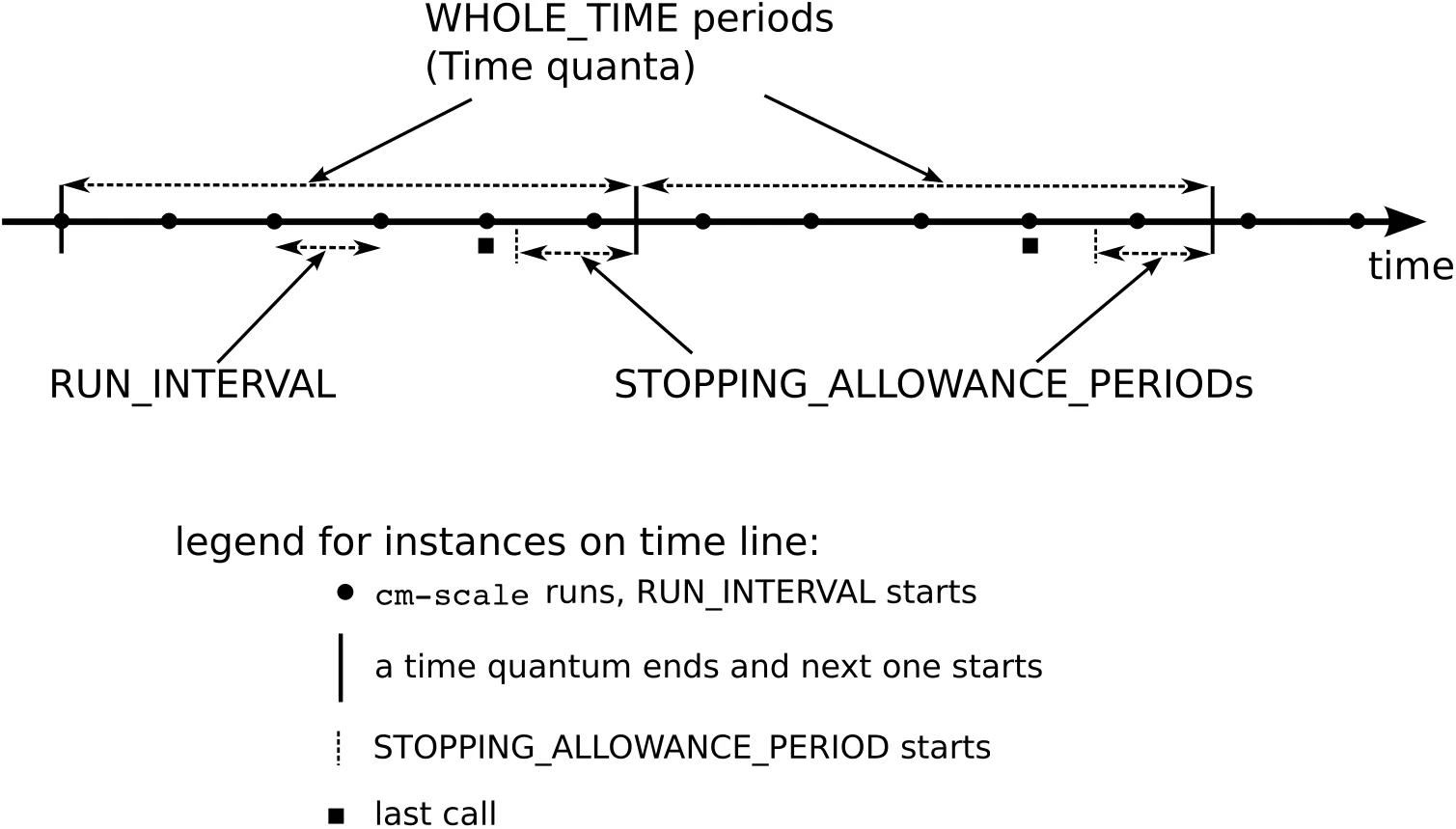
Figure 8.20: Time Quanta Optimization
The algorithm that cm-scale follows, with and without time quanta optimization, can now be described using the two parameters explained so far:
-
cm-scaleas part of its normal working, checks everyRun Intervalseconds to see if it should start up nodes on demand or shut down idling nodes. -
If it sees idling nodes, then:
-
If
Whole Timehas not been set, or is 0, then there is no time quanta optimization that takes place. Thecm-scaleservice then just goes ahead as part of its normal working, and shuts down nodes that have nothing running on them or nothing about to run on them. -
If a non-zero
Whole Timehas been set, then a time quanta optimization attempt is made. Thecm-scaleservice calculates the time period until the next time quantum from public cloud starts. This time period is the current closing time period. Its value changes each time thatcm-scaleis run. If-
the current closing time period is long enough to let the node stop cleanly before the next time quantum starts, and
-
the next closing time period—as calculated by the next
cm-scalerun but also running within the current time quantum—is not long enough for the node to stop cleanly before the next quantum starts
then the current closing time period starts at a time called the last call.
In drinking bars, the last call time by a bartender allows some time for a drinker to place the final orders. This allows a drinker to finish drinking in a civilized manner. The drinker is meant to stop drinking before closing time. If the drinker is still drinking beyond that time, then a vigilant law enforcement officer will fine the bartender.
Similarly, the last call time in a scaling cluster allows some time for a node to place its orders to stop running. It allows the node to finish running cleanly. The node is meant to stop running before the next time quantum starts. If the node is still running beyond that time, then a vigilant cloud provider will charge for the next whole time period.
The last call time is the last time that
cm-scalecan run during the current whole-time period and still have the node stop cleanly within that current whole-time period, and before the next whole-time period starts. Thus, whenWhole Timehas been set to a non-zero time:-
If the node is at the last call time, then the node begins with stopping
-
If the node is not at the last call time, then the node does not begin with stopping
-
The algorithm goes back again to step 1.
-
8.2.4 Fairsharing Priority Calculation And Node Management
At intervals of Run Interval, cm-scale collects workloads using trackers configured in the ScaleServer role, and puts all the workloads in a single internal queue. This queue is then sorted by priorities. The priorities are calculated for each workload using the following fairsharing formula:
where:
p[ij] is the global priority for the i-th workload of the j-th engine. Its value is used to re-order the queue.
k[1] is the age factor. This is the agefactor parameter that can be set via cmsh in the engine submode of the ScaleServer role. Usually it has the value 1.
a[i] is the age of the workload. That is, how long has passed since the i-th job submission, in seconds. This typically dominates the priority calculation, and makes older workloads a higher priority.
k[2] is the external priority factor. It is a floating point number in the range [0, 1], and is theExternal Priority Factor parameter that can be set via cmsh in the engine submode of the ScaleServer role.
b[i] is the workload priority retrieved from the engine.
k[3] is the engine factor. It is a floating point number in the range [0, 1], and is the enginefactor parameter in the engine submode of the ScaleServer role.
c[j] is the engine priority. This is the priority parameter in the engine submode of the ScaleServer role.
When all the workload priorities are calculated and the queue is re-ordered, then cm-scale starts to find appropriate nodes for workloads. The workloads are selected in order, from the top of the queue where the higher priority workloads are, to the bottom. This way a higher priority engine has a greater chance of getting nodes for its workloads than a lower priority engine.
The factors k[1], k[2] and k[3] in the equation 8.2.4 allow the significance of the related priority value in the final result to be controlled. For example if only the priority fetched from the engine should be taken into account, then k[1] and k[3] should be set to 0, and k[2] to 1. Or, for example, when both the age and engine priorities should be treated as equally important, then k[1] and k[3] can be set to 0.5 and k[2] to 0.
8.2.5 Engines
Each workload engine considered by cm-scale must be configured within the engines submode within the ScaleServer role. NVIDIA Base Command Manager 10 supports the following workload engines:
-
Slurm
-
PBS (OpenPBS and PBS Professional)
-
LSF
-
GE (Altair Grid Engine)
Engines can be of three types:
-
hpc: for all HPC (High Performance Computing) workload managers -
kubernetes: for Kubernetes -
generic: for a generic type
8.2.5.1 Common Parameters For The cm-scale Engines
All three engine types have the following parameters and submode in common, although their values may differ:
-
Workloads Per Node: The number of workloads, Kubernetes jobs, or individual Kubernetes pods without a controller, that can be scheduled to run on the same node at the same time.-
For a Kubernetes engine this parameter restricts the number of jobs or individual pods per node. It does not restrict the total number of pods that can be run per node by the
cm-scalescheduler. The parameter is taken into consideration by thecm-scalescheduler when it is searching for new nodes to start up, and does not configure Kubernetes itself.For example, a Kubernetes job, or Job with a capital ‘J’ in Kubernetes terminology, may consist of many pods. Then, if
Workload Per Nodeis, for example, 2, then only 2 Jobs are run on the node.The number of pods is also taken into account by
cm-scale, but this number is taken from thekubeletrole, where theMax Podsoption can be set. If the role is not assigned to a node, using a configuration overlay, cateogry, or node, thencm-scaleassumes that there is no possibility for any pods to run on the node.
-
-
Priority: The engine priority -
Age Factor: Fairsharing coefficient for workload age -
Engine Factor: Fairsharing coefficient for engine priority -
External Priority Factor: Fairsharing coefficient for external priority significance -
Trackers: Enters the workload trackers submode
8.2.5.2 Non-common parameters for the cm-scale engines:
-
For the
hpcengine:WLM Cluster: A workload manager cluster name. The name is set during workload manager setup as the instance name. Incmshthe WLM cluster names are listed underwlmmode. In Base View they can be seen along the navigation pathHPC>Wlm Clusters.
-
For the
kubernetesengine, the following parameters can be set:-
Cluster: These are the Kubernetes clusters for which pods are to be tracked. BCM allows multiple Kubernetes clusters to run on a single compute cluster. Kubernetes must be already set up before this setting is configured. -
CPU Busy Threshold: The CPU load is a value that can range from 0 to 1. TheCPU Busy Thresholdvalue defines if the node is too busy for new pods. Its default value is:0.9. -
Memory Busy Threshold: The Memory load is a value that can range from 0 to 1. TheMemory Busy Thresholddefines if the node is too busy for new pods. Its default value is:0.9.
-
The CPU and Memory thresholds configured in the Kubernetes engine help cm-scale to decide when more nodes are needed. But cm-scale also retrieves the number of pods that are already running on the node and compares it with the Max Pods parameter that is configured in the kubelet role assigned to the node via at the configuration overlay level, category level, or node level. If the number of running pods is already equal or greater than the value of Max Pods, then (from the cm-scale point of view) the node cannot fit more pods, which means that a new node is needed.
8.2.6 Trackers
A workload tracker is a way to specify the workload and its node requirements to cm-scale. For HPC, the tracker may be associated with a specific queue, and cm-scale then tracks the jobs in that queue.
One or more trackers can be named and enabled within the trackers submode, which is located within the engines submode of the ScaleServer role. A queue (for workload managers) can be assigned to each tracker.
Example
There are three types of tracker objects supported in NVIDIA Base Command Manager 10:
-
queue: Used with an HPC type engine, where each workload (job) is associated with a particular queue. The attributeTypetakes the valueScaleHpcQueueTracker, and the attributeQueueis set to the queue name for the job. -
namespace: Used with akubernetestype engine. -
generic: Used with agenerictype engine.
The following settings are common for both types of trackers:
-
Enabled: Enabled means that workloads from this tracker are considered bycm-scale. -
Allowed Resource Providers: Only the specified resource providers (in the scaleserver role) will be used for a workload of this tracker (if empty than all allowed). -
Assign Category: A node category name that should be assigned to the managed nodes. When a node is supposed to be used by a workload, thencm-scaleshould assign the node category to that node. If the node is already running, and has no workloads running on it, but its category differs from the category specified for the jobs of the queue, then the node is drained, stopped and restarted on the next decision-making iteration ofcm-scale, and takes on the assigned category. Further details on this are given in the section on dynamic nodes re-purposing, here. -
Primary Overlays: A list of configuration overlays.If a workload is associated with the tracker for which the overlays are specified by
Primary Overlays, then BCM-managed nodes are appended to those configuration overlays bycm-scale. This takes place after the node is removed from the previous overlays that it is associated with.If the node is already running, but has not yet been appended to the overlays specified for the workloads of the tracker, then the node is restarted when no other workloads run on the node, before going on to run the workloads with the new overlays.
-
When a workload is associated with the tracker that has
Primary Overlaysset, then the pool ofcm-scale-managed nodes is checked.The check is to decide on if a node is to be made available for the workload.
If the node is appended to the
Primary Overlaysalready and is not running workloads, thencm-scalesimply hands over a workload from the tracker to run on the node.If the node is not appended to the
Primary Overlaysalready, and is not running workloads, thencm-scaleprepares and boots the node as follows:-
the node is drained and rebooted if it is up, or
-
the node is undrained and merely booted if it is not up
The node is removed from any previous overlays that it was with, before booting up, and it is appended to the new overlays of
Primary Overlays. -
-
-
The threshold settings:
-
Queue Length Threshold: number of pending workloads that triggers cloudbursting. -
Age Threshold: workload pending time threshold, in seconds, that triggers cloudbursting for this workload.
The queue length and age thresholds allow the administrator to set when
cm-scalestarts or creates cloudbursting nodes. Both thresholds can be used at the same time, or just one of them can be used and the other can be ignored by setting it to0.If the queue length threshold is set, then
cm-scaleignores pending workloads that are located higher (added later) than the threshold in the managed queue.Example
Assuming there are 5 jobs in the queue, with job IDs 1, 2, 3, 4, and 5, where the 1st one is the first in the queue. If the queue length threshold is 3, then only jobs 1, 2 and 3 are taken into account, while jobs 4 and 5 are ignored.
Example
If the age threshold is set to
100, then only workloads older than 100 seconds are taken into account, while younger jobs are ignored. -
The queue type tracker has only one parameter specific to the tracker: Queue. This is set to the workload queue that is being tracked.
8.2.6.1 Namespace Tracker
The namespace tracker of cm-scale is used to track Kubernetes workloads. It tracks Kubernetes jobs (via its Job controllers) and tracks individual pods. It does not start new nodes for pending pods owned by other types of Kubernetes pod controllers, such as ReplicaSet, DaemonSet, and so on. If non-Job controllers are running, then cm-scale will not stop or terminate those nodes.
The tracker settings in cmsh or Base View include additional parameters that are in common with other trackers:
-
Controller Namespace: Tracks the Kubernetes namespace name. Only Kubernetes workloads from this namespace are tracked. To track more than one namespace, one tracker must be created per namespace. -
Object: Type of Kubernetes objects to track. BCM supports the following object types:-
Job: A Kubernetes Job controller type represents one or several pods that are expected to eventually terminate. The controller nature makes this type of Kubernetes workload very suited to dynamic data centers. -
Pod: Individual pod, without any controller.
-
If the specified namespace does not exist in Kubernetes, then the tracked jobs or individual pods in this namespace are ignored by cm-scale.
8.2.6.2 Generic Engine And Tracker
The cm-scale service is able to deal with workloads that use various workload types. In order to add suuport of a new type of workload, the administrator
-
adds an engine of type
generic -
adds one or more trackers of type
genericto the ScaleServer role -
implements Tracker and Workload classes in the Python programming language
When cm-scale starts a new iteration, it re-reads the engines and trackers settings from the ScaleServer role, and searches for the appropriate modules in its directories. In the case of a custom tracker, the module is always loaded according to the tracker handler path. When the tracker module is loaded, cm-scale requests a list of workloads from each of the tracker modules. So, the aim of the tracker module is to collect and provide the workloads to cm-scale in the correct format.
The path to the tracker module should be specified in the handler parameter of the generic tracker entity using cmsh or Base View as follows:
Example
In the preceding example, the handler file .../examples/tracker.py is an example that is provided with the cm-scale package. Another example module file provided with the package is .../examples/workload.py, which implements the ExampleWorkload class. Together, the two examples can be used to generate any amount of simple workloads during each cm-scale iteration. It is recommended to use the tracker and workload classes as templates for custom tracker and workload modules created by the administrator.
The generic engine does not have any specific parameters associated with its type. It only has parameters common to all of the engine types.
If the generic engine is configured with at least one generic tracker in its role, then cm-scale loads the handler module and uses two functions that are implemented in the class. The class name can be chosen arbitrarily, but should contain the string “Tracker”, without the quotes. The two class functions used are:
-
__init__: initializes the tracker object. This can be omitted if there are no additional data values to initialize. -
get_workloads: returns a list of objects belonging to a new class inherited from theWorkloadclass. This new class should be created by the administrator.
The new workload class must provide the following functions and properties. The class name can be chosen arbitrarily:
-
__init__: initializes the workload object. -
to_string: returns a string that identifies the workload. This is printed to the log file. -
begin_timestamp: property that returns a unix timestamp that should be >0 if the workload is not allowed to start before that time. If it is 0 then it is ignored bycm-scale.
For example, the following very simple tracker and workload classes can be implemented:
Example
The classes should be located in different files, as Python module files. It is recommended, but not required, to keep both the files in the same directory. The ExampleWorkload class initializes the workload object with a state, age, and required resources. These values are described next.
State: The state can be pending, running or failed, which can be set with these appropriate functions:
-
self._set_pending() -
self._set_running() -
self._set_failed()
If the state is running, then the workload is treated as one that occupies the nodes defined in the resources list. Each NodeResource object in the resources thus represents one occupied node.
If the state is pending, then the workload is treated as one that waits for free nodes. In this case cm-scale tries to find (start or clone) some more nodes in order to allow the workload engine to start this workload.
The failed workload state is considered by cm-scale as exceptional. Such a workload is logged in the log file, but is not considered when cm-scale decides what nodes to start or clone. Any other workload state is also ignored by cm-scale.
Age: The age defines how many seconds the workload is waiting for its resources since being added to the engine. Usually the engine can provide such information, so in the example age is set to 0, which means the workload has been added to the workload engine just now. The age is used in the fairsharing workload priority calculation (here). The value of age is not re-calculated by cm-scale after a while. This means that the number that the module sets in the class is used during the iteration, and then forgotten by cm-scale until the workload object is recreated from scratch on the next iteration.
Resources: The Workload class (a base class) includes the resources property with list types. This list includes resource objects that are used by cm-scale in order to find appropriate nodes for the workload. The top level resource type is always NodeResource. There can be one or several node resources requested by the workload.
If the node names are known, then one NodeResource object is created per compute node.
Otherwise a single NodeResource object is used as many times as the number of requested nodes, with the name set to *, which is treated by cm-scale as any suitable node. The number of nodes can be set in the NodeResource object with the set_amount(number) function of the resource.
In the preceding example one (any) node resource is added to the workload request, and the requirement for CPU (cores) number is set to 1. The engine resource is used in order to restrict the running of workloads from different engines to one node. Thus if a node has this resource assigned, then the node can take on the workload. If no engine resource is assigned to the node, then it can also take on the workload, but the engine resource of the workload is assigned to the node before other workloads are considered.
The resource types that can be added to the workload are defined in the Python module core/resource.py:
-
NodeResource: top level resource, contains all other resources. -
CpusResource: defines the number of cpu cores required or already used by the workload. -
CategoryResource: node category required by the workload. -
OverlayResource: required configuration overlay. -
QueueResource: HPC queue that the workload (job) belongs to. Used only with engines that support queues. -
EngineResource: engine name that the workload belongs to. -
FeatureResource: required node feature (node property, in other terminology) that should be supported by the engine.
Custom resource types are not supported for now.
In order to drain a node in the custom engine before the node is stopped, and to undrain it before the node is started, the administrator can write and configure three scripts:
-
Drain script: called before a node is drained by Auto Scaler. -
Undrain script: called before node is undrained by Auto Scaler. -
Drain status script: called when Auto Scaler retrieves information about the current node drain status.
Either all of the three scripts must be configured, or none of them.
It is useful to drain and undrain the nodes in order to ensure that the engine does not start new jobs in time period between the instant that Auto Scaler decides to stop the node, and the instant that the actual power operation is performed.
The scripts are configured in the file:
with the GENERIC_DRAIN_COMMANDS parameter appended to the opts dictionary:
Example
Here, for each generic engine, a new dictionary is created that includes three items that correspond to, and specify, the script paths. In the preceding example MyEngine is the engine name, and should be the same as that defined in the ScaleServer role. If more then one generic engine is used then all of them can be added to GENERIC_DRAIN_COMMANDS.
It should be noted that if GENERIC_DRAIN_COMMANDS is defined in config.py, then CMDaemon does not drain, or undrain, via cm-scale.
All three scripts accept the same set of parameters, following the form:
<script name> <engine name> <host name> [host name ... ]
Example
Each of those three scripts print the following information to standard output:
-
stdout: JSON structure that represents a map: hostname -> latest (new) drain status. For example:Example
Here the numbers are enum values defined in pythoncm in the DrainResult class.
-
stderr: debug logs that are appended tocm-scale.log.
8.2.6.3 Enabling Node Shutdown
By default, cm-scale powers off nodes belonging to a resource pool once there is no more workload for them. Resource providers can also enable shutdown, to allow the node to terminate gracefully. Shutdown has two options that set its behavior directly:
-
Shutdown Enable: If set toyes, then the shutdown command is run to terminate the system services first, and after that a command is run to power off the system. A waiting time ofShutdown Timeoutseconds takes place between the two commands. -
Shutdown Timeout: The number of seconds to wait before powering off a node that is in a shutdown state.
It may take more than Shutdown Timeout seconds for a node to power off, depending on the Run Interval setting. For example, if Shutdown Timeout is 60, and Run Interval 50, then effectively the Shutdown Timeout is 100, because the power off event only happens during an iteration execution of cm-scale.
8.2.6.4 Multi-partition Slurm jobs
Slurm allows a user to submit a job that requests multiple queues. Auto Scaler detects such jobs and tries to start nodes for the job. The queue with the maximum priority is first considered. If no nodes are found in that partition, then the next requested partition in order of priority, is considered.
The queue priority is taken from Slurm partition PriorityTier parameter, accessible via cmsh or Base View.
-
In
cmsh, the queue priorities can be seen from withinjobqueuemode. In the following example there are 3 queues with different priorities:Example
-
In Base View the navigation path for the queue
defqis:
HPC>Workload Management Clusters>slurm>Job Queues>defq>Priority Tier
If multiple queue trackers are configured, and if queues are requested by the Slurm job that are tracked by different trackers, then only one tracker sees the job—the tracker for which tracking queue priority is the highest.
If two queues have the same priority, then the next selection criterion is the order of placement of its trackers (section 8.2.6) in the trackers list.
For example, if the Auto Scaler (as defined by the scaleserver role) is running on the head node basecm10, and if the trackers are, for example, mytracker and secondtracker, and if the engine is, for example, myengine, then the order of placement can be listed in cmsh via the path indicated by:
Example
8.3 Examples Of cm-scale Use
8.3.1 Simple Static Node Provider Usage Example
The example session that follows explains how a static node provider (here) can be configured and used with cm-scale. The session considers a default cluster with a head node and 5 regular nodes which have been previously defined in the BCM configuration. 3 of the regular nodes are powered down at the start of the run. The power control for the nodes must be functioning properly, or otherwise cm-scale cannot power nodes on and off.
The head node has the Slurm server role by default, and the regular nodes run with the Slurm client role by default. So, on a freshly-installed cluster, the roleoverview command should show something like:
Example
A test user, fred can be created by the administrator (section 6.2), and an MPI hello executable based on the hello.c code (from section 3.5.1.6 of the User Manual) can be built:
Example
A batch file slurmhello.sh (from section 5.3.1 of the User Manual) can be set up. Restricting it to 1 process per node so that it spreads over nodes easier for the purposes of the test can be done with the settings:
Example
The user fred can now flood the default queue, defq, with the batch file:
Example
After putting enough jobs into the queue (a few thousand should be enough, and keeping it less than 5000 would be sensible) the flooding can be stopped with a ctrl-c.
The activity in the queue can be watched:
Example
The preceding indicates that node001 and node002 are being kept busy running the batch jobs, while the remaining nodes are not in use. The ST column is a status column, and indicates whether the job is CF (configuring), PD (pending), or R (running).
Abusing squeue in a loop like this is regarded as a bad practice, and doing it should be minimized.
The administrator can check on the job status via the job metrics of cmsh too, using the options to the filter command, such as --pending or --running:
Example
and eventually, when jobs are no longer running, it should show something like:
So far, the cluster is queuing or running jobs without cm-scale being used.
The next steps are to modify the behavior by bringing in cm-scale. The administrator assigns the ScaleServer role to the head node. Within the role a new static node provider, Slurm engine, and queue tracker for the defq are set as follows:
Example
The nodes node001..node005 should already be in the queue defq, as assigned to them by default when they were assigned the SlurmClient role. With these settings, they can now be powered up or down on demand by cm-scale service, depending on the number of jobs that are pending. When the new ScaleServer role is committed in cmsh or Base View, then the cm-scale service is started. If needed, the administrator can check the log file /var/log/cm-scale to see what the service is doing.
On each iteration cm-scale checks whether the node states should be changed. Thus after a while, the nodes node003..node005 are started. Once up, they can start to process the jobs in the queue too.
Watching the running jobs should show the newly-started nodes running too:
Example
Eventually, cm-scale finds that all jobs have been dealt with, and the nodes are then powered down.
8.3.1.1 High-availability And Using A Configuration Overlay For The ScaleServer Role
For high-availability clusters, where there are two head nodes, the scaleserver should run on the active head node. One labor-intensive way to set this up is to assign the service to both the head nodes, and match the scaleserver settings on both head nodes. A simpler way is to define a configuration overlay for the head nodes for the scaleserver. If the head nodes are basecm10-1 and basecm10-2, then a configuration overlay called basecm10heads can be created and assigned the service as follows:
Example
The scaleserver can then be configured within the configuration overlay instead of on a single head as was done previously in the example here. After carrying out a commit, the scaleserver settings modifications are then mirrored automatically between the two head nodes.
Outside the scaleserver settings, one extra modification is to set the cm-scale service to run on a head node if the head node is active. This can be done with:
Example
The result is a scaleserver that runs when the head node is active.
8.3.2 Simple Dynamic Node Provider Usage Example
The following example session explains how a dynamic node provider (here) can be configured and used with cm-scale. The session considers a default cluster with a head node and 2 regular nodes which have been previously defined in the BCM configuration, and also 1 cloud director node and 2 cloud compute nodes. The cloud nodes can be configured using cm-cluster-extension. Only the head node is running at the start of the session, while the regular nodes and cloud nodes are all powered down at the start of the run.
At the start, the device status shows something like:
Example
The power control for the regular nodes must be functioning properly, or otherwise cm-scale cannot power them on and off.
If the head node has the slurmserver role, and the regular nodes have the slurmclient role, then the roleoverview command should show something like:
Example
A test user, fred can be created by the administrator (section 6.2), and an MPI hello executable based on the hello.c code (from section 3.5.1.6 of the User Manual) can be built:
Example
A batch file slurmhello.sh (from section 5.3.1 of the User Manual) can be set up. Restricting it to 1 process per node so that it spreads over nodes easier for the purposes of the test can be done with the settings:
Example
A default cluster can queue or run jobs without cm-scale being used. The default behavior is modified in the next steps, which bring in the cm-scale service:
The administrator assigns the ScaleServer role to the head node.
Example
Within the assigned scaleserver role, a new dynamic node provider can be set, and properties for the dynamic pool of nodes can be set for the cloud compute nodes. Here the properties that are set are priority (here), templatenode (here), noderange (here), and extranodes (here).
Example
The regular compute nodes, node001..node002 should be specified as nodes in the static pool.
The administrator may notice the similarity of dynamic and static pool configuration. The BCM front end has deliberately been set up to present dynamic pool and static pool nodes to the cluster administrator as two different configuration methods. This is because separating the pool types as dynamic and static pools is simpler for the cluster administrator to deal with. This way, regular compute nodes are treated, not as a special case of a dynamic pool, but simply as static pool nodes. The fundamental reason behind this separate treatment is because physical nodes cannot “materialize” dynamically with properties in the way the cloud compute nodes–which are virtualized nodes—can, due to the need to associate a MAC address with a physical node.
Assigning regular compute nodes to a static pool can be done in a similar way to what was shown before in the example here.
Continuing with the current session, the nodes node001..node002 are added to the static pool of nodes, on-premises-nodes. For this example they are set to a lower priority than the cloud nodes:
Example
What this lower priority means is that a node that is not up and is in the static pool of nodes, is only powered on after all the cloud nodes are powered on and busy running jobs. If there happen to be nodes from the static pool that are already up, but are not running jobs, then these nodes take a job, despite the lower priority of the static pool, and irrespective of whether the dynamic pool nodes are in use.
Job priorities can be overridden in cm-scale by:
-
allowing locations by setting
Mix Locationstotrue(here) or -
pinning queues by setting
Pin Queuestotrue(here)
A Slurm engine, and queue tracker for the defq are set as follows:
Example
The nodes node001..node002 and eu-west-1-cnode001..eu-west-1-cnode002 should already be in the queue defq by default, ready to run the jobs:
Example
The roleoverview (here) command is also handy for an overview, and to confirm that the role assignment of these nodes are all set to the SlurmClient role:
With these settings, the nodes in the dynamic pool can now be powered up or down on demand by cm-scale service, depending on the number of jobs that are pending. When the new ScaleServer role is committed in cmsh or Base View, then the cm-scale is run periodically. Each time it is run, cm-scale checks whether the node states should be changed. If needed, the administrator can check the log file /var/log/cm-scale to see what the service is doing.
Job submission can now be carried out, and the scaleserver assignment carried out earlier scales the cluster to cope with jobs according to the configuration that has been carried out in the session.
Before submitting the batch jobs, the administrator or user can check the jobs that are queued and running with the squeue command. If there are no jobs yet submitted, the output is simply the squeue headers, with no job IDs listed:
Example
As in the previous example for the static pool only case (here), a way for user fred to flood the default queue defq is to run the batch file in a loop:
Example
After putting enough jobs into the queue (a few thousand should be enough, not more than five thousand would be sensible), the flooding can be stopped with a ctrl-c.
The changes in the queue can be watched by user fred:
Example
The head -4 and tail -4 filters here are convenient for showing just the first 4 rows and last 4 rows of the very long squeue output, and skipping the bulk of the queue.
The preceding output illustrates how, with the jobs queued up, nothing is being processed yet from jobs number 1 to 3559 due to the resources not yet being available.
At this point cm-scale should have noticed that jobs are queued and that resources are needed to handle the jobs.
It should be noted that, at the time of writing of this section (January 2023), Slurm job processing with Auto Scaler currently only works as expected if sbatch rather than srun is used for dynamic jobs. The reason behind this srun quirk is explained here.
At the start of this example session the cloud director is not up. So, cm-scale powers it up. This can be seen by running the ds command, or from CMDaemon info messages:
If the cloud director is yet to be provisioned to the cloud from the head node for the very first time (“from scratch”), then that can take a while. Then, because the cloud compute nodes are in turn provisioned from the cloud director, it takes a while for the cloud compute nodes to be ready to run the jobs. So, the jobs just have to wait around in the queue until the cloud compute nodes are ready, before they are handled. Fortunately, the startup of a cloud director is by default much faster after the very first time.
A quick aside about how provisioning is speeded up the next time around: The cloud compute nodes will be stopped if they are idle, and after there are no more jobs in the queue, because the jobs have all been dealt with. Then, when the extranodeidletime setting has been exceeded, the cloud director is also stopped. The next time that jobs are queued up, all the cloud nodes are provisioned from a stopped state, rather than from scratch, and so they are ready for job execution much faster. Therefore, unlike the first time, the jobs queued up the next time are processed with less waiting around.
Getting back to how things proceed in the example session after the cloud director is up: cm-scale then provisions the cloud compute nodes eu-west-1-node001 and eu-west-1-node002 from the cloud director.
Example
Once these cloud compute nodes reach the state of UP, they can start to process the jobs in the queue. The queue activity then would show something like:
Example
In cmsh, the priority can be checked with:
Example
Also in cmsh, the jobs can be listed via the jobs submode:
Example
Eventually, when the queue has been fully processed, the jobs are all gone:
Example
With the current configuration the cloud compute nodes in the dynamic pool pool2 are powered up before the regular compute nodes in the static pool on-premises-nodes. That is because the cloud compute nodes have been set by the administrator in this example to have a higher priority. This is typically sub-optimal, and is actually configured this way just for illustrative purposes. In a real production cluster, the priority of regular nodes is typically going to be set higher than that for cloud compute nodes, because using on-premises nodes is likely to be cheaper.
The administrator can also check on the job status via the job metrics of cmsh too, using the options to the filter command, such as --pending or --running:
Initially, before the jobs are being run, something like this will show up:
Example
Then, eventually, when the jobs are being run, the cloud nodes, which have a higher priority, start job execution, so that the output looks like:
Example
and eventually the regular on-site nodes which are originally down are started up by the ScaleServer and are also listed.
8.4 Further cm-scale Configuration And Examples
8.4.1 Dynamic Nodes Re-purposing
Sometimes it is useful to share the same nodes among several queues, and reuse the nodes for jobs from other queues. This can be done by dynamically assigning node categories in cm-scale. Different settings, or a different software image, then run on the re-assigned node after re-provisioning.
The feature is enabled by setting Assign Category parameter in the tracker settings.
For example, the following case uses Slurm as the workload engine, and sets up two queues chem_q and phys_q. Assuming in this example that jobs that are to go to chem_q require chemistry software on the node, but jobs for phys_q require physics software on the node, and that for some reason the softwares cannot run on the node at the same time. Then, the nodes can be re-purposed dynamically. That is, the same node can be used for chemistry or physics jobs by setting up the appropriate configuration for it. In this case the same node can be used by jobs that require a different configuration, software, or even operating system. The trackers configuration may then look as follows:
Example
Assuming that initially there are two nodes, node001 and node002, both in category chem_cat. Then, when cm-scale finds a pending job in queue phys_q, it may decide to assign category phys_cat to either node001, or to node002. In this way the number of nodes serving queue phys_q increases and number of nodes serving chem_q decreases, in order to handle the current workload. When the job is finished, the old node category is not assigned back to the node, until a new job appears in chem_q and requires this node to have the old category.
8.4.2 Pending Reasons
This section is related only to HPC engines (workload managers). In this section, the term job is used instead of workload.
If cm-scale makes a decision on how many nodes should be started for a job, then it checks the status of the job first. If the job status is pending, then it checks the list of pending reasons for that job. The checks are to find pending reasons that prevent the job from starting when more free nodes become available.
A pending reason can be one of the following 3 types:
Type 1:
allows a job to start when new free nodes become available
Type 2:
prevents a job from starting on particular nodes only
Type 3:
prevents a job from starting anywhere
Each pending reason has a text associated with it. The text is usually printed by the workload manager job statistics utilities. The list of pending reasons texts of types 1 and 2 can be found in the pending reasons exclude file, /cm/local/apps/cm-scale/lib/python3.12/site-packages/cmscale/trackers/hpc_queue/pending_reasons/WLM.exclude, where WLM is a name of workload manager specified in the configuration of the engine in ScaleServer role.
In the pending reasons exclude file, the pending reason texts are listed as one reason per line. The reasons are grouped in two sublists, with headers:
-
[IGNORE_ALWAYS] -
[IGNORE_NO_NODE]
The [IGNORE_ALWAYS] sublist lists the type 1 pending reason texts. If a job has only this group of reasons, then cm-scale considers the job as ready to start, and attempts to create or boot compute nodes for it.
The [IGNORE_NO_NODE] sublist lists the type 2 pending reason texts. If the reason does not specify the hostname of a new free node at the end of a pending reason after the colon (“:”), then the job can start on the node. If the reason does specify the hostname of a new free node after the colon, and if the hostname is owned by one of the managed nodes—nodes that can be stopped/started/created by cm-scale—then the job is considered as one that is not to start, when nodes become available.
If a job has a pending reason text that is not in the pending reasons exclude file, then it is assumed to be a type 3 reason. New free nodes for such a job do not get the job started.
If there are several pending reason texts for a job, then cm-scale checks all the pending reasons one by one. If all reasons are from the IGNORE_ALWAYS or IGNORE_NO_NODE sublists, and if a pending reason text matched in the IGNORE_NO_NODE sublist does not include hostnames for the managed nodes, only then will the job be considered as one that can be started just with new nodes.
8.4.2.1 Custom Pending Reasons
If the workload manager supports them, then custom pending reason texts are also supported. The administrator can add a pending reason text to one of the sections in the pending reasons exclude file.
The cm-scale service checks only if the pending reason text for the job starts with a text from the pending reasons file. It is therefore enough to specify just a part of the text of the reason in order to make cm-scale take it into account. Regular expressions are also supported. For example, the next two pending reason expressions are equivalent when used to match the pending reason text Not enough job slot(s):
Example
-
Not enough -
Not enough [a-z]* slot(s)
The workload manager statistics utility can be used to find out what custom pending reason texts there are, and to add them to the pending reasons file. To do this, some test job can be forced to have such a pending reason, and the output of the job statistics utility can then be copy-pasted. For example, LSF shows custom pending reasons that look like this:
Example
Here, <integer> is an identifier (an unsigned integer) for the pending reason, as defined by the administrator.
8.4.3 Locations
Sometimes it makes sense to restrict the workload manager to run jobs only on a defined subset of nodes. For example, if a user submits a multi-node job, then it is typically better to run all the job processes either on the on-premises nodes, or on the cloud nodes. That is, without mixing the node types used for the job. The locations feature of cm-scale allows this kind of restriction for HPC workload managers.
The cm-scale configuration allows one of these two modes to be selected:
-
forced location: when the workload is forced to use one of the locations chosen by
cm-scale, -
unforced location: when workloads are free to run on any of the compute nodes that are already managed (running, freed or started) by
cm-scale. This is the default if Auto Scaler is set up.
In NVIDIA Base Command Manager 10, for a forced location, cm-scale supports these two different locations:
-
local: on-premises nodes, -
cloud: AWS instances (Chapter 3 of the Cloudbursting Manual) or Azure instances (Chapter 5 of the Cloudbursting Manual)
To restrict the WLM location—that is to choose a forced location—the mixlocations advanced setting in the scaleserver role for the node must be set to no
Example
The location is automatically configured by BCM when the node is added to the workload manager. Details per workload manager are described next.
8.4.3.1 Slurm
Slurm does not allow the assignment of node properties—features, in Slurm terminology—to jobs if no node exists that is labeled by this property. Thus any property used must be added to some node. This can be the template node if a dynamic resource provider is used, or it can be an appropriate off-premises node if a static resource provider is used. If the slurmclient role is assigned to a node—for example, a template node—then the location value for this node is automatically configured by BCM.
The current location value can be found using the scontrol command. For example, for node001:
Example
8.4.3.2 PBS
A new generic resource, resources_available.location, lets the administrator decide the locations where cm-scale can run PBS jobs.
If the pbsproclient role is assigned to a node, then the location value for this node is automatically configured by BCM.
The current location value for a node can be found using the qmgr command. For example, for node001:
Example
8.4.3.3 GE
A new generic resource, location, lets the administrator use cm-scale to restrict GE jobs. The resource is added automatically as a string type complex attribute. The exec host locations can be found with the qhost command.
If the ugeclient role is assigned to a node, then the location value for this node is automatically configured by BCM.
The current location value for a node can be found using the qhost -F command. For example, for node001:
Example
8.4.3.4 LSF
In order to allow cm-scale to restrict LSF jobs, BCM configures a generic resource called location per node. The resource is added as a string resource in lsf.cluster.<CLUSTER_NAME:> configuration file.
The location value for this node is automatically configured by BCM.
To verify that the resource is added, the lshosts -s command can be run:
Example
8.4.4 Azure Storage Accounts Assignment
If an Azure node is cloned manually from some node or node template, then the Azure node gets the same storage account as the node it has been cloned from. This may slow the nodes down if too many nodes use the same storage account. The cm-scale utility can therefore assign different storage accounts to nodes that are cloned like this.
The maximum number of nodes for such a storage account is defined by the AZURE_DISK_ACCOUNT_NODES parameter. This parameter has a value of 20 by default, and can be changed in the configuration file /cm/local/apps/cm-scale/lib/python3.9/site-packages/cmscale/config.py. The cm-scale utility must be restarted after the change.
The newly-cloned-by-cm-scale Azure node gets a randomly-generated storage account name if other storage accounts already have enough nodes associated with them. That is, if other storage accounts have AZURE_DISK_ACCOUNT_NODES or more nodes.
The storage account name is assigned in the node cloud settings in storage submode. For example, in cmsh, the assigned storage accounts can be viewed as follows:
Example
If a node is terminated and removed from the BCM configuration, then the storage account remains in Azure. It has to be explicitly manually removed by the administrator.
8.4.5 Uptake of HPC Jobs By Particular Types Of Nodes
By default, cm-scale assumes that an HPC job submitted to a particular queue can take a node from outside the queue. This is because by assigning a category, or moving the node to a configuration overlay, the node will be moved to the appropriate queue eventually. From this point of view, the nodes form a single resource pool, and the nodes in the pool are re-purposed on demand.
In some scenarios there is a need for certain types of HPC jobs run only on particular types of nodes, without the nodes being re-purposed. A typical example: jobs with GPU code require cloud nodes that have access to GPU accelerators, while jobs that do not have GPU code can use the less expensive non-GPU cloud nodes. For this case then, the GPU cloud node is started when the GPU job requires a node, and otherwise a non-GPU node is started.
Job segregation is achieved in cm-scale as follows:
-
The
Pin Queuessetting, which is an advanced setting in thescaleserverrole for the node, is enabled: -
A new queue is created, or an existing one is used. The queue is used for the jobs that require a particular node type.
-
The particular node type is added to this queue. If the node is already defined in BCM, then the administrator can assign the queue to the node in the workload manager client role. For example, if the workload manager is Slurm, then the queue is assigned to the nodes in the
slurmclientrole. If the node has not been defined yet and will be cloned on demand (according to the dynamic resource provider settings, here), then its template node is assigned to the queue. When a new node is cloned from the template, the queue is then inherited from the template node. -
The previous two steps are repeated for each job type.
After that, if a user submits a job to one of the queues, then cm-scale starts or clones a node that is linked with the job queue.
The following cmsh session snippet shows a configuration example:
Example
Using the preceding configuration, the user may submit a job with a regular workload manager submission utility specifying the queue q1 or q2, depending on whether the job requires nodes that should be cloned from tnode1 or from tnode2.
8.4.6 How To Exclude Unused Nodes From Being Stopped
If a node is idle, then by default cm-scale automatically stops or terminates the node.
However, in some cases there may be a need to start a node on demand, and when it becomes idle, there may be a need to keep the node running. This can be useful if the administrator would like to investigate the performance of an application, or to debug some issues. After completing the investigation or debug session, the administrator can stop the node manually.
The parameter KEEP_RUNNING_RANGES keeps such nodes from being stopped or terminated. The parameter should be added to the configuration file /cm/local/apps/cm-scale/lib/python3.9/site-packages/cmscale/config.py. To have the changed setting take effect, the cm-scale service must be restarted.
KEEP_RUNNING_RANGES defines a map of resource provider names to node name ranges.
Extra nodes can be added to the range of the nodes. However, if the extra node must not be stopped or terminated by cm-scale, then for each resource provider that has such an extra node, the value of extranodestop must be set to yes.
In the following example, nodes cnode002, cnode003, cnode004, and cnode010, are associated with the azurenodes1 resource provider. They are therefore never stopped or terminated by cm-scale. They are only started on demand by cm-scale.
The nodes cnode012 and cnode014 are associated with the azurenodes2 resource provider. They are therefore also not stopped or terminated by cm-scale.
Example
8.4.7 Prolog And Epilog Scripts With Auto Scaler
Sometimes the administrator would like some actions to be performed for a workload when the Auto Scaler allocates and starts using a node, or when the Auto Scaler deallocates and stops using a node. The administrator can arrange such actions by configuring prolog and epilog scripts (section 7.3.4) in the resource provider. The scripts are then executed on the nodes running the Auto Scaler service, i.e. with the ScaleServer role.
Both the dynamic and the static resource providers (section 8.2.2) support the following options:
-
allocationProlog: path to a shell script that is executed just before a node is started up by Auto Scaler -
allocationEpilog: path to a shell script that is executed just before a node is powered off by Auto Scaler -
allocationScriptsTimeout: the prolog and epilog scripts timeout (the script that is running is killed if the timeout is exceeded).
The prolog script runs when an existing node is about to start, and also runs when a node has just been cloned and is also about start.
The epilog script runs when a node is stopped or when a cloud node is terminated.
The prolog and epilog scripts are run per node, and can run in parallel. Thus if synchronization between them is needed, then it should be implemented by the scripts themselves.
The standard output and error messages of the executed scripts are mixed and added to the Auto Scaler as debug2 log messages (the debug2 logs can be enabled in the AdvancedSettings submode of the ScaleServer role). It therefore makes sense to keep the output reasonably small, informative, and human readable.
When the scripts are run, Auto Scaler passes environment variables that can be used inside the scripts in order to decide what to do. These environment variables are:
-
AS_NODE: node short hostname which the script started for; -
AS_SCRIPT_TYPE: either “epilog” or “prolog”; -
AS_RESOURCE_PROVIDER: name of the resource provider where this script is configured; -
AS_ENGINE: workload engine name, which workload requires the node (“unknown” if no workload requires the node).
By default the scripts are not defined, and therefore nothing is executed by default when nodes are stopped, terminated or started.
8.4.8 Queue Node Placeholders
A queue node placeholder is a node that does not yet exist, but has a corresponding object that exists, and the object has queues defined, amongst other properties. It can be used to plan resource use.
8.4.8.1 Job Rejection For Exceeding Total Cluster Resources
At the time of job submission, the workload manager checks the total available number of slots (used and unused) in a queue. This is the sum of the available slots (used and unused) provided by each node in that queue.
-
Jobs that require less than the total number of slots are normally made to wait until more slots become available.
-
Jobs that require more than this total number of slots are normally rejected outright by the workload manager, without being put into a wait state. This is because workload managers normally follow a logic that relies on the assumption that if the job demands more slots than can exist on the cluster as it is configured at present, then the cluster will never have enough slots to allow a job to run.
8.4.8.2 Assuming The Resources Can Never Be Provided
The latter assumption, that a cluster will never have enough slots to allow a job to run, is not true when the number of slots is dynamic, as is the case when cm-scale is used. When cm-scale starts up nodes, it adds them to a job queue, and the workload manager is automatically configured to allow users to submit jobs to the enlarged queue. That is, the newly available slots are configured as soon as possible so that waiting jobs are dealt with as soon as possible. For jobs that have already been rejected, and are not waiting, this is irrelevant, and users would have to submit the jobs once again.
Ideally, in this case, the workload manager should be configured to know about the number of nodes and slots that can be started up in the future, even if they do not exist yet. Based on that, jobs that would normally be rejected, could then also get told to wait until the resources are available, if it turns out that configured future resources will be enough to run the job.
8.4.8.3 Slurm Resources Planning With Placeholders
Slurm allows nodes that do not exist yet to be defined. These are nodes with hostnames that do not resolve, and have the Slurm setting of state=CLOUD for cloud nodes, and state=FUTURE for other nodes. BCM allows Slurm to add such “fake” nodes to Slurm queues dynamically, when not enough real nodes have yet been added. BCM supports this feature only for Slurm at present.
This feature is not yet implemented for the other workload managers because they require the hostname of nodes that have been added to the workload manager configuration to be resolved.
Within the Slurm WLM instance it is possible to set a list of placeholder objects. In cmsh this can be done within the main wlm mode, selecting the Slurm instance, and then going into the placeholders submode. Each placeholder allows the following values to be set:
-
queue: the queue name, used as key -
maxnodes: the maximum number of nodes that this queue allows -
basenodename: the base node name that is used when a new node name is generated -
templatenode: a template node that is used to provide user properties taken from its slurmclient role when new fake nodes are added.
For example, the following cmsh session uses the head node with an existing slurm instance to illustrate how the Slurm queue defq could be configured so that it always has a maximum of 32 nodes, with the nodes being like node001:
Example
If a new real node is added to the queue, then the number of placeholder nodes is decreased by one.
The placeholders can also be configured in Base View via the HPC resource, using the navigation path:
HPC > Workload Management Clusters > <Slurm instance> > JUMP TO Placeholders
8.4.8.4 Preventing slurmctld From Restarting
If the number of nodes is changed, or if their names are changed in slurm.conf, then CMDaemon restarts the Slurm server daemon, slurmctld, to apply the changes. If the administrator needs to prevent slurmctld from restarting each time that a new node is added to Slurm, then the nodes can be added, or cloned, to the BCM configuration manually, even if they do not have any IP address assigned yet. This is assuming that they get their IP addresses assigned over DHCP later on.
If the nodes are added to the configuration manually, then CMDaemon restarts slurmctld only once. This means that, when cm-scale starts the nodes, CMDaemon does not restart slurmctld.
8.4.9 Auto Scaling A Job On-premises To A Workload Manager And Kubernetes
In the session for this section, a cluster with 4 nodes is assumed. A workload manager such as Slurm is assumed to be already set as the engine (Use Case: Workload Manager (On-premises), here).
If the cluster administrator now would also like to make a Kubernetes engine available to jobs, as suggested in the use case 2 here, then it can be added within the scaleserver role as follows:
Example
In the trackers for each engine, the overlay to move to must be specified:
Example
Since the cluster is entirely on-premises, and no cloud nodes are to be used, there is no need to configure a dynamic provider (section 8.3.2).
To allow movement of jobs from one queue to another, queue pinning must be disabled:
Example
Auto scaler normally takes the amount of memory into account from the workload manager. However, Slurm does not know about the memory of nodes that are not managed by it. A default memory size should therefore be set for when a job requirement is matched to Slurm, using the default resources specification (here):
Example
The nodes reboot when a job requires it:
Example
8.4.10 AWS Spot Instances And Availability Zones
Amazon cloud regions consist of multiple, isolated, availability zones. The number of spot instances that can be started in each zone is limited by the capacity of a zone. If the spot instances are configured to start in several different availability zones, then Auto Scaler detects this and tries to start nodes in those various different availability zones. At the start of each iteration of cm-scale, if cm-scale sees that the capacity of a zone is exhausted, then all nodes in that zone are considered to be unavailable for starting up by cm-scale.
Configuring several sets of spot instances in availability zones allows running nodes to be started up, even if the capacity in one or more zones is exhausted. For this configuration, the cluster administrator has two options:
-
Configuring the nodes from different availability zones in one workload manager job queue or Kubernetes namespace.
-
Having the nodes in different queues/namespaces, and letting users submit the jobs to multiple queues at the same time, so that
cm-scalegoes through the queues when selecting a node to start. This option requires multi-queue support in the workload manager. In this case, theallowedresourceprovidersparameter should not be set within thetrackerssubmode (section 8.2.6) for the engine.
If cloud nodes (spot instances) from different availability zones are added to the scaleserver role, then the lack of capacity is recognized by cm-scale automatically, and no additional configuration is needed.
The cluster administrator can however still override the availability zones information for cm-scale. This can be carried out by modifying the cm-scale configuration file:
/cm/local/apps/cm-scale/lib/*/site-packages/cmscale/config.py
In the file, a new parameter AVAILABILITY_ZONES must be added to the opts dictionary. The format the parameter takes is as follows:
Example
For example, for the us-west-* availability zones:
Example
Currently, availability zones are supported by Auto Scaler only for AWS. Auto Scaler ignores any lack of capacity in the availability zones of other cloud providers.