

Ceph Installation
9.1 Ceph Introduction
Ceph is a storage software designed for distributed computing. The official Ceph documentation can be found at http://docs.ceph.com/en/latest/start/intro/.
Integration of Ceph with BCM is an option, and it is discussed in this chapter.
NVIDIA Base Command Manager version 10 comes with the Quincy (Ceph 17 series) release of Ceph. Ceph Quincy is properly supported for the RHEL8 and Rocky Linux 8 distributions.
The current chapter discusses
-
The concepts and required hardware for Ceph (section 9.1)
-
Ceph installation with
cm-ceph-setup(section 9.2) -
Ceph installation with Base View (section 9.3)
-
Ceph settings checks, and management with BCM (section 9.4)
9.1.1 Ceph Object And Block Storage
Ceph is a distributed storage software. It is based on an object store layer called RADOS (Reliable Autonomic Distributed Object Store), which consists of Ceph components called OSDs (Object Storage Daemons) and MONs (Monitoring Servers). These components feature heavily in Ceph. OSDs deal with storing the objects to a device, while MONs deal with mapping the cluster. OSDs and MONs, together carry out object storage and block storage within the object store layer. The Ceph Manager daemon (MGR) runs alongside monitor daemons, to provide additional monitoring and interfaces to external monitoring and management systems. The stack diagram of figure 9.1 illustrates these concepts.
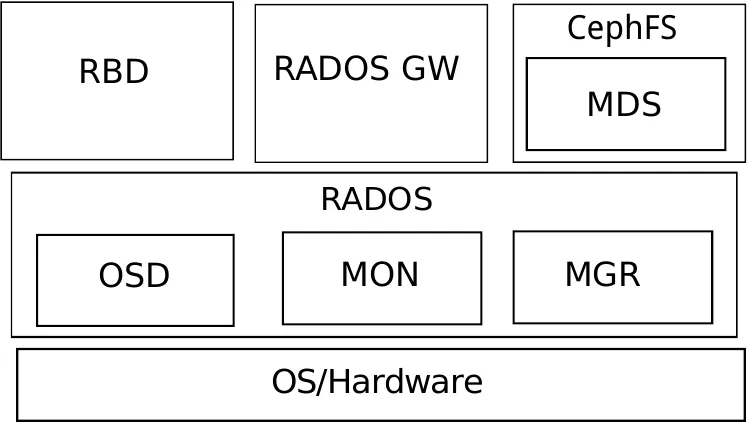
Figure 9.1: Ceph Concepts
On top of the object store layer are 3 kinds of access layers:
-
Block device access: RADOS Block Device (RBD) access can be carried out in two slightly different ways:
-
via a Linux kernel module based interface to RADOS. The module presents itself as a block device to the machine running that kernel. The machine can then use the RADOS storage, that is typically provided elsewhere.
-
via the
librbdlibrary, used by virtual machines based onqemuorKVM. A block device that uses the library on the virtual machine then accesses the RADOS storage, which is typically located elsewhere.
-
-
Gateway API access: RADOS Gateway (RADOS GW) access provides an HTTP REST gateway to RADOS. Applications can talk to RADOS GW to access object storage in a high level manner, instead of talking to RADOS directly at a lower level. The RADOS GW API is compatible with the APIs of Swift and Amazon S3.
-
Ceph Filesystem access: CephFS provides a filesystem access layer. A component called MDS (Metadata Server) is used to manage the filesystem with RADOS. MDS is used in addition to the OSD and MON components used by the block and object storage forms when CephFS talks to RADOS.
9.1.2 Ceph Storage Backends
OSDs have a choice of two storage backends for managing their data. These are BlueStore and FileStore.
9.1.2.1 BlueStore
BlueStore is a special-purpose storage backend designed specifically for managing data on disk for Ceph OSD workloads. It is the default, and recommended, backend for Ceph from version 13.2.x onward.
BlueStore consumes raw block devices or partitions. In contrast to the legacy FileStore approach, BlueStore avoids any intervening layers of abstraction that may limit performance or add complexity. BlueStore does however, by its design, in contrast to FileStore, require at least an extra volume on the node the OSD runs on.
9.1.2.2 FileStore
FileStore is the legacy approach to storing objects in Ceph. It relies on a standard file system, which is normally XFS. FileStore is well-tested and widely used in production. However it does suffer from many performance deficiencies due to its overall design and reliance on a traditional file system for storing object data.
Though it is technically possible to store Ceph data alongside other data when using FileStore, it is preferred that dedicated block devices (disks) are used.
BCM supports both storage backends. In the following sections the storage backends are described in some more detail.
9.1.3 Ceph Software Considerations Before Use
9.1.3.1 Recommended Filesystem For Legacy FileStore
BlueStore is the recommended storage backend for Ceph. BlueStore requires dedicated block devices (disks) that are fully managed by ceph-volume. The legacy FileStore backend, on the other hand, stores the data directly on a regular file system.
If using FileStore, then recommended file system is XFS, due to its stability, ability to handle extreme storage sizes, and its intrinsic ability to deal with the significant sizes of the extended attributes required by Ceph.
The nodes that run OSDs are typically regular nodes. Within the nodes, the storage devices used by FileStore OSDs automatically have their filesystems configured to be of the XFS type during the installation of Ceph with BCM.
9.1.3.2 Use Of datanode For The Protection Of Ceph Data
OSD nodes store the actual data contents of the Ceph cluster. Ceph Monitor nodes also store some data content that is essential for the operation of the Ceph cluster. The devices of these nodes that store such content need protection from being wiped during the reprovisioning that takes place during a reboot of regular nodes.
The recommended way to protect storage devices from being wiped is to set the datanode property of their node to yes (here).
The datanode property is automatically set for Monitor and OSD nodes during installation of Ceph with BCM.
9.1.3.3 Use Of Slurm On OSD Nodes
Ceph can be quite demanding of the network and I/O. Running Slurm jobs on an OSD node is therefore not recommended. In addition, if Slurm roles are to be assigned to nodes that have OSD roles, then the default ports 6817 and 6818 used by Slurm can conflict with the default range 6800-7300 used by the Ceph OSD daemons. If there is a need to run Slurm on an OSD node then it is necessary to arrange it so that the ports used do not conflict with each other. During installation, a warning is given when this conflict is present.
9.1.4 Hardware For Ceph Use
An absolute minimum installation: can be carried out on two nodes, where:
-
1 node, the head node, runs one Ceph Monitor and the first OSD.
-
1 node, the regular node, runs the second OSD.
This is however not recommended, or even supported by BCM. Reasons for why this is not recommended are:
-
If the Ceph monitor crashes, and there is no other Ceph monitor running, then Ceph cannot function, and data could be lost.
-
The first OSD on the head node requires its own Ceph-compatible filesystem. If that filesystem is not provided, then Ceph on the cluster will run, but in a degraded state.
-
Running a monitor service on the same host as an OSD may impair performance due to fsync issues with the kernel.
Using such a system to try to get familiar with how Ceph behaves in a production environment with BCM is unlikely to be worthwhile.
A more useful minimum: if there is a node to spare, then it is possible to install Ceph over 3 nodes as follows:
-
1 node, the head node, runs one Ceph Monitor.
-
1 node, the regular node, runs the first OSD.
-
1 more node, also a regular node, runs the second OSD.
In this case the OSD pool default size should be set to 2 in the Global OSD Settings (figure 9.9).
Although useful for some testing purposes, this is again not a production system, due to the possible loss of data as well as loss of service if the single Ceph Monitor has issues. This can therefore also not be regarded as a good test cluster.
For production use: a redundant number of Ceph Monitor servers is recommended. This is because Ceph Monitors are crucial to Ceph operations. Since the number of Ceph Monitoring servers must be odd, then at least 3 Ceph Monitor servers, with each on a separate node, are recommended for production purposes. The recommended minimum of nodes for production purposes is then 5:
-
2 regular nodes running OSDs.
-
2 regular nodes running Ceph Monitors.
-
1 head node running a Ceph Monitor.
Drives usable by Ceph: Ceph OSDs can use any type of disk that presents itself as a block device in Linux. This means that a variety of drives can be used.
9.2 Ceph Installation With cm-ceph-setup
Ceph installation for BCM can be carried out in a TUI session using the cm-ceph-setup utility. The utility installs x86_64 Ceph for RHEL 8 and Rocky 8 only, and is part of the cm-setup package that comes with BCM. If the Ceph packages are not already installed, then the utility is able to install them for the head and regular nodes, assuming the repositories are accessible, and that the package manager priorities are at their defaults.
9.2.1 Ceph Installation: The Configuration Stage
The cm-ceph-setup utility can be run as root from the head node to open up a TUI screen (figure 9.2):
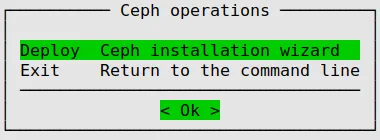
Figure 9.2: Ceph Installation Welcome
Here the administrator may choose to
-
Deploy Ceph
-
Uninstall Ceph if it is already installed.
Ceph public network selection:
If the deploy option is chosen, then a screen opens up that allows the selection of the Ceph network used to connect Monitor, OSD and client nodes (figure 9.3):
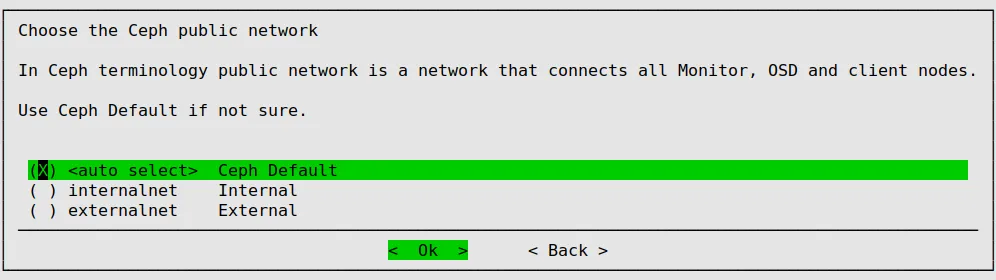
Figure 9.3: Ceph Installation: Public Network Selection
For a cluster that is configured in a standard default BCM Type 1 architecture, the network that is chosen is internalnet. In Ceph terminology this is called the public, or front-side, network. This should not be confused with the informal terminology a BCM administrator may sometimes use for a Type 1 architecture, where externalnet is sometimes called the public network.
Network architecture types for cluster are discussed in section 3.3.9 of the Installation Manual.
Ceph cluster network selection:
The next screen allows the Ceph cluster, or back-side, network to be selected (figure 9.4):
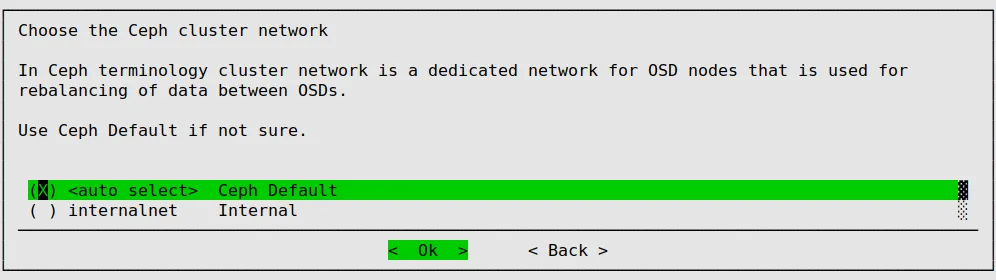
Figure 9.4: Ceph Installation: Ceph Cluster Network Selection
The OSDs use this network to rebalance storage.
In a Type 1 architecture this is also typically internalnet.
Ceph documentation suggests just using a single public network. In the Type 1 architecture case this is achieved by using the same network, internalnet, for the Ceph cluster network as for the Ceph public network.
Ceph Monitor role assignment to categories: The OK button in figure 9.3 then brings up a screen that allows the Ceph Monitor role to be assigned to zero or more categories (figure 9.5).
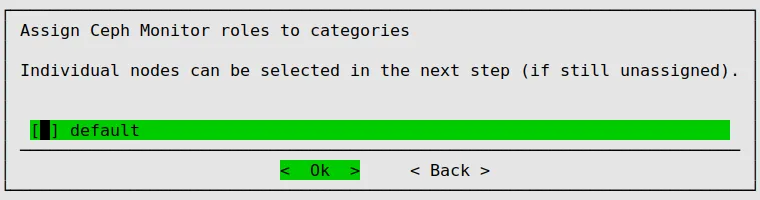
Figure 9.5: Ceph Installation: Monitors Assignment To Categories
Ceph Monitor role assignment to nodes: The next screen is similar, and allows Ceph Monitor roles to be assigned to the remaining individual nodes (figure 9.6):
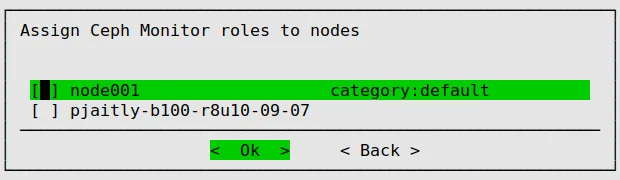
Figure 9.6: Ceph Installation: Monitors Assignment To Nodes
Ceph OSD role assignment to categories: OSD Roles can then be assigned to zero or more categories (figure 9.7):
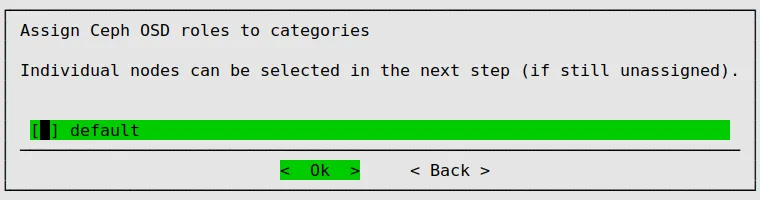
Figure 9.7: Ceph Installation: OSDs Assignment To Categories
Ceph OSD role assignment to nodes: OSD roles can then be assigned individually to the remaining nodes (figure 9.8):
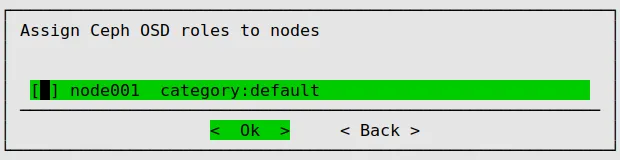
Figure 9.8: Ceph Installation: OSDs Assignment To Nodes
Global Ceph OSD settings: After OSD role assignment is completed, the next screen displayed is the Global Ceph OSD settings screen, (figure 9.9) which allows the OSD pool default size to be set. The OSD pool default size is the default number of replicas for objects in the pool. It should be less than or equal to the number of OSD nodes. If unsure the administrator can just leave it at the default value.

Figure 9.9: Ceph Installation OSD Global Settings: OSD Pool Default Size
BlueStore device settings: The next screen is the BlueStore configuration screen, which requires that block devices be specifed for the OSDs (figure 9.10).
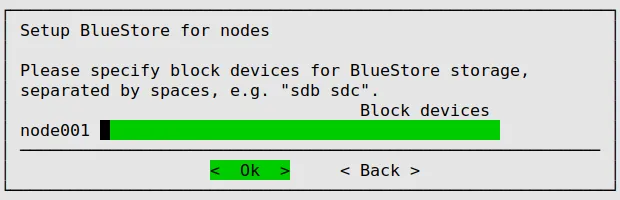
Figure 9.10: Ceph Installation: Block Devices For BlueStore
Typically, the administrator would have prepared the nodes that will be taking care of file storage with one or more block devices for BlueStore to use. If these are not there during deployment, then deployment will fail.
Ceph removal of OSD pools: The next screen asks if Ceph is to be allowed to remove OSD pools (figure 9.11):
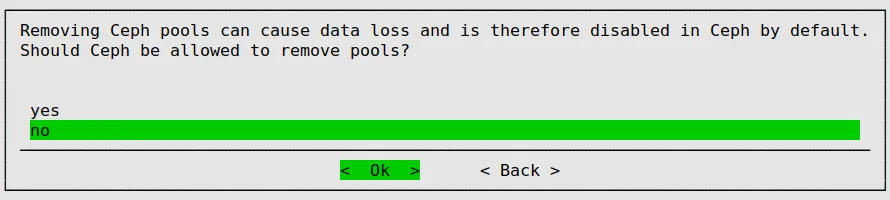
Figure 9.11: Ceph Installation: Option To Have Ceph Allowed To Remove OSD Pools
Cep dashboard screen:
The Ceph dashboard settings can then be specified:
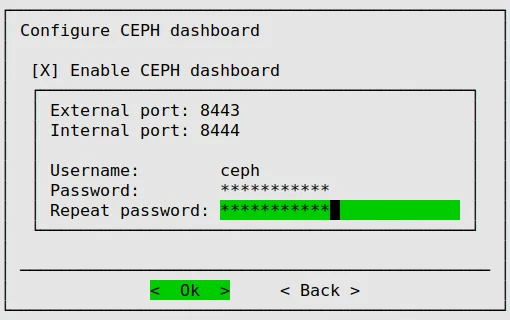
Figure 9.12: Ceph Installation: Dashboard Configuration
The Ceph dashboard is a web frontend to manage and monitor Ceph cluster resources.
Summary screen: The summary screen (figure 9.13) allows the configuration to be viewed, saved, or deployed in various combinations.
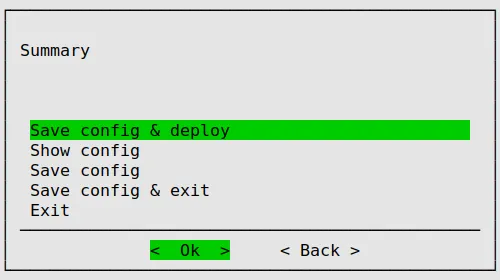
Figure 9.13: Ceph Installation: Save Configuration Options
If a save option is chosen, then by default, the configuration is saved to /root/cm-ceph-setup.conf.
To deploy, the administrator should choose the Save config & deploy option:
9.2.2 Ceph Installation: The Deployment Stage
Deployment session output: If deployment is carried out, then the TUI screen ends, and session output similar to the following appears:
A log of the session is kept at /var/log/cm-ceph-setup.log as well as other relevant logs of installation process.
9.3 Installation Of Ceph From Base View
Ceph can be installed from BCM in the following two ways:
-
Using the text-based
cm-ceph-setuputility (section 9.2). The utility is part of thecm-setuppackage. -
Using the Base View Ceph Wizard Installer (this section). This is the recommended installation method.
The Ceph Wizard Installer method can be accessed via the web browser as follows:
-
using the Base View navigation path
Storage > Ceph > Ceph wizard -
using the head node landing page (figure 2.1). A greytoned Ceph block with a ⊕ clickable link indicates that Ceph has not yet been installed by BCM. Clicking on that link then also leads to the Ceph Wizard Installer from within Base View.
9.3.1 Base View Ceph Install: Main Details Screen
The Base View navigation path Storage > Ceph > Ceph Wizard brings the browser to the Ceph main details screen, (figure 9.14), if Ceph has not yet been installed by BCM. This screen is beginning of the Ceph installation process, and the page displayed asks for details of the main Ceph configuration settings:
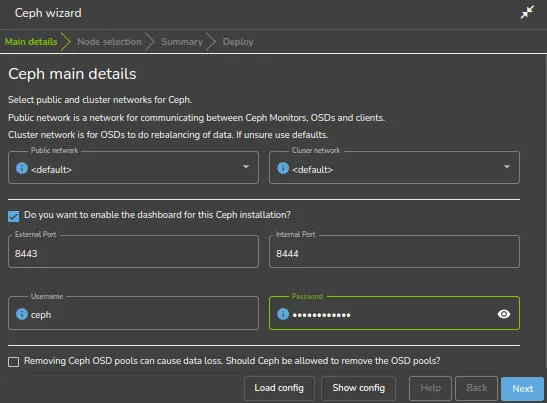
Figure 9.14: Ceph Wizard Installation: General Cluster Settings
The GUI screen of figure 9.14 is a combination of the following TUI screens:
The settings of the Base View screen are explained in the accompanying texts for figures 9.3, 9.4, and 9.12.
9.3.2 Base View Ceph Install: Nodes Selection Screen
The next screen is the Ceph Nodes selection screen (figure 9.15). This allows items to be selected for use as Ceph Monitors and OSDs. The items to be selected can be categories or nodes:
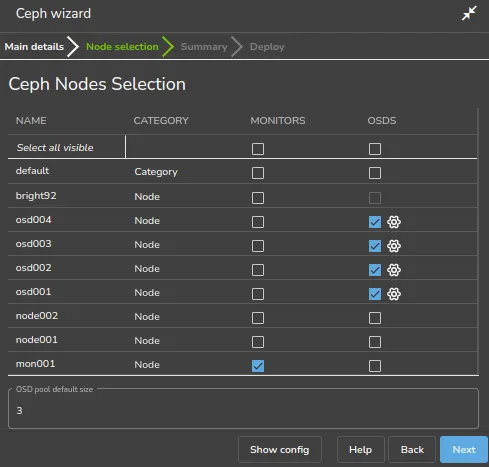
Figure 9.15: Ceph Wizard Installation: Ceph Nodes Selection Screen
For every selected OSD category or node, the corresponding block devices need to be configured. Clicking on the small settings icon next to the checkbox opens the block device selection dialog (figure 9.16):
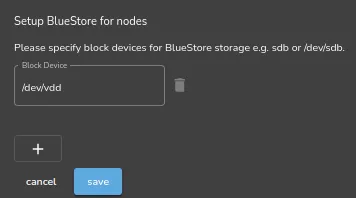
Figure 9.16: Ceph Wizard Installation: Ceph Block Devices Selection Screen
Validation checks are carried out on the selection of monitoring nodes and OSDs is done, and on the specification of the OSD block devices. If the checks for these inputs are cleared, then the Next button becomes active.
9.3.3 Base View Ceph Install: Summary Screen
The next screen is the Summary screen (figure 9.17). This summarizes the choices that have been made. The Show config button displays the underlying raw YAML configuration in a popup window.
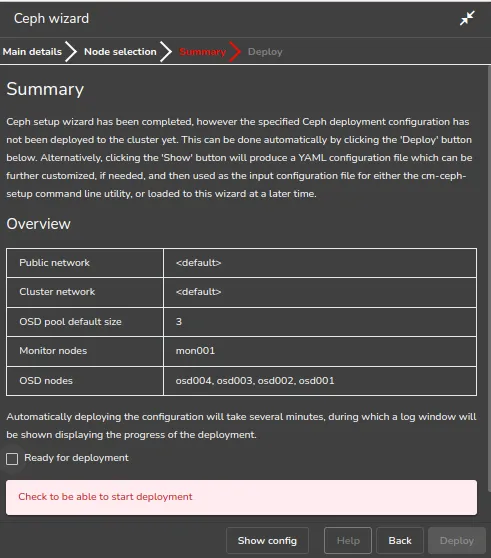
Figure 9.17: Ceph Wizard Installation: Configuration Summary
In figure 9.17 after the Ready for deployment checkbox is checked, the Deploy button proceeds with deploying Ceph according to the configuration specified in the wizard.
9.3.4 Base View Ceph Install: Deployment Screen
During the deployment process, the progress is displayed (figure 9.18).
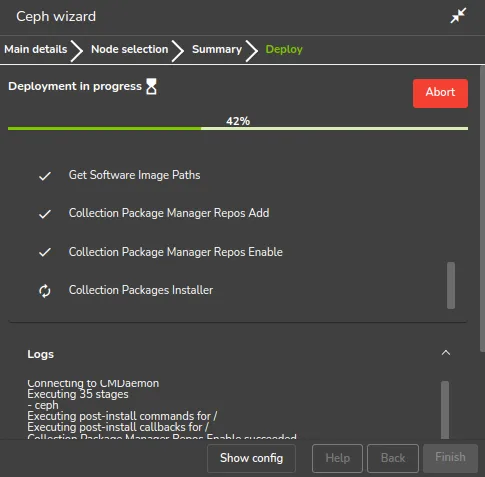
Figure 9.18: Ceph Wizard Installation: Deployment Progress
The event viewer in Base View also shows the changes taking place. When deployment is complete, the Finish button ends the wizard.
The state of the deployed system can be checked as shown in section 9.4.1.
9.4 Checking And Getting Familiar With Ceph Items After cm-ceph-setup
9.4.1 Checking On Ceph And Ceph-related Files From The Shell
After deployment, the OSD and Monitor services take some time be created and to start up. When all is up and running, the status of a healthy system, according to the output of the ceph -s command, should look something like the following:
Example
The -h option to ceph lists many options. Users of BCM should usually not need to use these, and should find it more convenient to use the Base View or cmsh front ends instead.
9.4.1.1 Generated YAML Configuration File
A YAML configuration file, by default cm-ceph-setup.conf, is generated after a run by the cm-ceph-setup utility.
9.4.1.2 Using A YAML Configuration File
The -c option to cm-ceph-setup allows an existing YAML configuration file to be used.
Example
9.4.1.3 A Sample YAML Configuration File
Example
For legacy FileStore configurations, the partitioning of Ceph OSD storage devices is done using the disk setup functionality as described in section 3.12.3. For BlueStore, the corresponding devices are listed in the CephOSDBlueStoreConfig of the CephOSDRole only, and no entries are added to the XML disk layout.
9.4.1.4 Installation Logs
Installation logs to Ceph are kept at:
9.4.2 Ceph Management With Base View And cmsh
Only one instance of Ceph is supported at a time. Its name is ceph.
9.4.2.1 Ceph Overview
From within cmsh, ceph mode can be accessed:
Example
From within ceph mode, the overview command lists an overview of Ceph OSDs, MONs, and placement groups for the ceph instance:
Example
The Base View equivalent of the overview command is the Ceph Overview window, accessed via the navigation path Storage > Ceph > Ceph Settings > Overview.
9.4.2.2 Ceph General Property Settings
Some of the major Ceph configuration parameters can be viewed and their values managed by CMDaemon from ceph mode. The show command shows parameters and their values for the ceph instance:
Example
The Base View equivalent of these settings is in the Settings window, accessed via a navigation path of Storage > Ceph > Ceph Settings > Overview > Settings.
Ceph extraconfigparameters setting:
The Extra config parameters property of a ceph mode object can be used to customize the Ceph configuration file. The Ceph configuration file is typically in /etc/ceph.conf, and using extraconfiparameters settings, Ceph can be configured with changes that CMDaemon would otherwise not manage. After the changes have been set, CMDaemon manages them further.
Thus, the following configuration section in the Ceph configuration file:
could be placed in the file via cmsh with:
Example
If a section name, enclosed in square brackets, [], is used, then the section is recognized at the start of an appended line by CMDaemon.
If a section that is specified in the square brackets does not already exist in /etc/ceph.conf, then it will be created. The `n` is interpreted as a new line at its position. After the commit, the extra configuration parameter setting is maintained by the cluster manager.
If the section already exists in /etc/ceph.conf, then the associated key=value pair is appended. For example, the following appends host2=bunny to an existing mds.2 section:
If no section name is used, then the key=value entry is appended to the [global] section.
The /etc/ceph.conf file has the changes written into it about a minute after the commit, and may then look like (some lines removed for clarity):
As usual in cmsh operations (section 2.5.3):
-
The
setcommand clearsextraconfigparametersbefore setting its value -
The
removefromcommand operates as the opposite of theappendcommand, by removing key=value pairs from the specified section.
There are similar extraconfigparameters for Ceph OSD filesystem associations (here) and for Ceph monitoring (here).
9.4.2.3 Ceph OSD Properties
From within ceph mode, the osdinfo command for the Ceph instance displays the nodes that are providing OSDs along with their OSD IDs:
Example
Within a device or category mode, the roles submode allows parameters of an assigned cephosd role to be configured and managed.
Example
Within the cephosd role the templates for OSD filesystem configurations, osdconfigurations, can be set or modified:
Example
The Base View equivalent to access the preceding cmsh OSD configuration settings is via the role for a particular node or category. The navigation path that brings up these configuration options for node node001 is, for example:
Devices > Physical Nodes > node001 > Edit > Settings > Roles > cephosd > Edit > osd0 > Edit
OSD filesystem association extraconfigparameters setting: Extra configuration parameters can be set for an OSD filesystem association such as osd0 by setting values for its extraconfigparameters option. This is similar to how it can be done for Ceph general configuration (here):
Example
9.4.2.4 Ceph Monitoring Properties
Similarly to Ceph OSD properties, the parameters of the cephmonitor role can be configured and managed from within the node or category that runs Ceph monitoring.
Example
Ceph monitoring extraconfigparameters setting:
Ceph monitoring can also have extra configurations set via the extraconfigparameters option, in a similar way to how it is done for Ceph general configuration (here).
The Base View equivalent to access the preceding cmsh Monitor configuration setting is via the role for a particular node or category. The navigation path that brings up these configuration options for node node004 is, for example:
Devices > Physical Nodes > node004 > Edit > Settings > Roles > cephmonitor > Edit
9.4.2.5 Ceph bootstrap
For completeness, the bootstrap command within ceph mode can be used by the administrator to initialize Ceph Monitors on specified nodes if they are not already initialized. Administrators are however not expected to use it, because they are expected to use the cm-ceph-setup installer utility when installing Ceph in the first place. The installer utility carries out the bootstrap initialization as part of its tasks. The bootstrap command is therefore only intended for use in the unusual case where the administrator would like to set up Ceph storage without using the cm-ceph-setup utility.
9.5 The Ceph Dashboard
During Ceph installation, the Ceph Dashoard can also be installed
-
by ticking a checkbox in the screen of figure 9.12 during the TUI
cm-ceph-setupinstallation -
by ticking a checkbox in the screen of figure 9.14 during the use of the Base View Ceph Wizard Installer
After installation, the Dashboard can be accessed via the link in the Ceph block in the head node landing page (figure 2.1, here).
If the Dashboard is installed with the default user and port setting, then it can be logged into as the user ceph via a URL of the form:
https:// <host name or IP address>:8443
On logging in, the Dashboard screen comes up (figure 9.19):
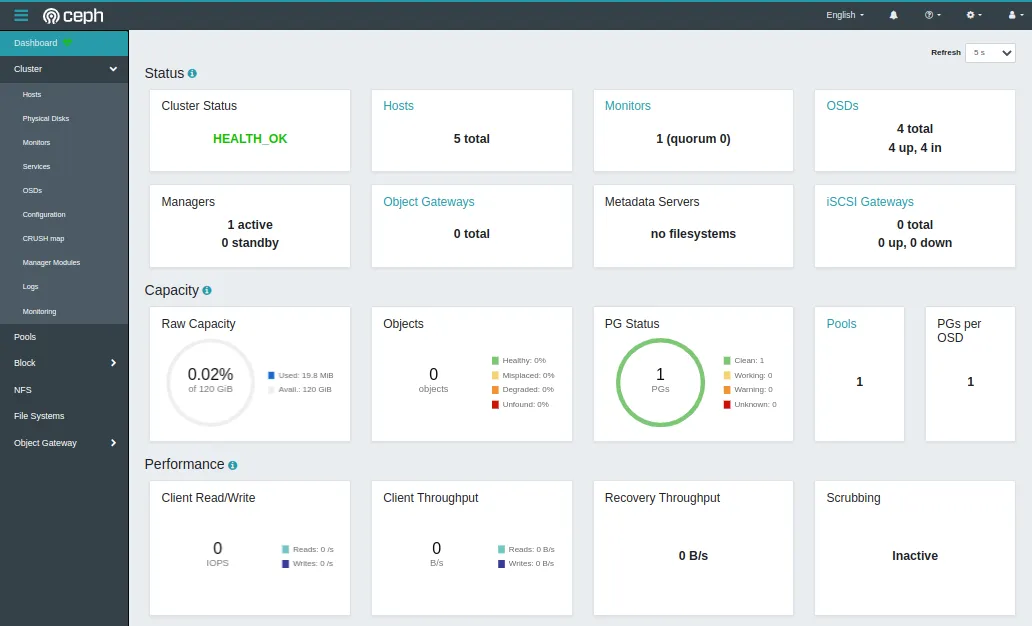
Figure 9.19: Ceph Dashboard