

The Jupyter Notebook Environment Integration
18.1 Introduction
This chapter covers the installation and usage of the Jupyter Notebook environment in BCM.
An updated list of the supported Linux distributions and Jupyter functionalities can be found in the feature matrix at https://service.bcm.nvidia.com/feature-matrix/, under the Feature column, in the section for Jupyter features.
An overview of the concepts and terminology follows.
18.1.0.1 What Is Jupyter Notebook?
Jupyter Notebook (https://jupyter-notebook.readthedocs.io/), or Jupyter, is a client-server open-source application that provides a convenient way for a cluster user to write and execute notebook documents in an interactive environment.
In Jupyter, a notebook document, or notebook, is content that can be managed by the application. Notebooks are organized in units called cells and can contain both executable code, as well as items that are not meant for execution.
Items not meant for execution can be, for example: explanatory text, figures, formulas, or tables. Notebooks can also store the inputs and outputs of an interactive session.
Notebooks can thus serve as a complete record of a user session, interleaving code with rich representations of resulting objects.
These documents are encoded as JSON files and saved with the .ipynb extension. Since JSON is a plain text format, notebooks can be version-controlled, shared with other users and exported to other formats, such as HTML, LaTeX, PDF, and slide shows.
18.1.0.2 What Is A Notebook Kernel?
A notebook kernel (often shortened to kernel) is a computational engine that handles the various types of requests in a notebook (e.g. code execution, code completions, inspection) and provides replies to the user (https://jupyter.readthedocs.io/en/latest/projects/kernels.html). Usually kernels only allow execution of a single language. There are kernels available for many languages, of varying quality and features.
18.1.0.3 What Is JupyterHub?
Jupyter on its own provides a single user service. JupyterHub (https://jupyterhub.readthedocs.io/) allows Jupyter to provide a multi-user service, and is therefore commonly installed with it. JupyterHub is an open-source project that supports a number of authentication protocols, and can be configured in order to provide access to a subset of users.
18.1.0.4 What Is JupyterLab?
JupyterLab (https://jupyterlab.readthedocs.io/) is a modern and powerful interface for Jupyter. It enables users to work with notebooks and other applications, such as terminals or file browsers. It is open-source, flexible, integrated, and extensible.
JupyterLab works out of the box with JupyterHub. It can be used to arrange the user interface to support a wide range of workflows in data science, scientific computing, and machine learning.
JupyterLab is extensible with plugins that can customize or enhance any part of the interface. Plugins exist for themes, file editors, keyboard shortcuts, as well as for other components.
18.1.0.5 What Is A Jupyter Extension?
Several components of the Jupyter environment can be customized in different ways with extensions. Some types of extensions are:
-
IPython extensions (https://ipython.readthedocs.io/en/stable/config/extensions/#ipython-extensions)
-
Jupyter Notebook server extensions (https://jupyter-notebook.readthedocs.io/en/stable/extending/index.html)
-
JupyterLab extensions (https://jupyterlab.readthedocs.io/en/stable/user/extensions.html)
Extensions are usually developed, bundled, released, installed, and enabled in different ways.
Each extension provides a new functionality for a specific component. For example, JupyterLab extensions can customize or enhance any part of the JupyterLab user interface. Extensions can provide new themes, file viewers, editors and renderers for rich output in notebooks. They can also add settings, add keyboard shortcuts, or add items to the menu or command palette.
18.1.0.6 What Is Jupyter Enterprise Gateway?
By default, Jupyter runs kernels locally, which can exhaust server resources. A resource manager can be used to deal with this issue. Jupyter Enterprise Gateway (https://jupyter-enterprise-gateway.readthedocs.io/) (JEG) is a pluggable open-source framework that leverages local underlying resource managers, such as Slurm or Kubernetes, to distribute kernels across the compute cluster. In addition to scalability, JEG also provides an improved multi-user support, and more granular security for Jupyter. This makes Jupyter more useful for enterprise, scientific, and academic implementations.
In BCM, all the technologies mentioned in these sections are combined to provide a powerful, customizable and user-friendly Jupyter Notebook web interface running on a lightweight, multi-tenant, multi-language, scalable and secure environment, ready for a wide range of enterprise scenarios.
For convenience, in the following sections, Jupyter is generally used to collectively refer to Jupyter Notebook, JupyterHub, JupyterLab and Jupyter Enterprise Gateway.
18.2 Jupyter Environment Installation
BCM distributes Jupyter via two packages: cm-jupyter and cm-jupyter-local. They are typically installed via the cm-jupyter-setup script (section 18.2.1).
cm-jupyter is installed in the /cm/shared directory, which is by default exported over NFS. As a result, Jupyter kernels can run on all the compute nodes, without a separate installation to those nodes. cm-jupyter provides Jupyter Notebook, JupyterHub, JupyterLab, Jupyter Enterprise Gateway and some extensions.
cm-jupyter-local provides the JupyterHub system service (cm-jupyterhub.service), and is therefore designed to be installed only on the node exposing users to the web login page for Jupyter. For convenience, this node is called the login node. A login node is typically the head node, but any cluster node can be used.
Since compute nodes are not reachable via a web interface by default, it is the responsibility of the cluster administrator to configure access to these nodes if they are configured to be login nodes while Jupyter runs. That is, login nodes that are compute nodes must have their access configured by assigning IP addresses, configuring the firewall, opening Jupyter ports, and so on. However, if the Jupyter login node is the head node, then BCM takes care of configuring the firewall to open the required ports and of ensuring that the resulting environment is working out of the box.
18.2.0.1 BCM Jupyter Extensions
For a default deployment of Jupyter, BCM installs and enables the following extensions to the Jupyter environment:
-
Jupyter Addons: A Jupyter Notebook server extension that performs API calls to CMDaemon and manages other server extensions;
-
Jupyter Kernel Creator (section 18.5): A Jupyter Notebook server extension that provides a new interactive and user-friendly way to create kernels;
-
Jupyter VNC (section 18.7): A Jupyter Notebook server extension that enables remote desktops with VNC from notebooks;
-
JupyterLab Tools: A JupyterLab extension that exposes BCM server extensions functionalities to the users and shows the Cluster View section;
-
Jupyter WLM Magic (section 18.8): An IPython extension that simplifies scheduling of workload manager jobs from the notebook;
-
Jupyter Kubernetes Operators Manager (section 18.9): An extension that integrates with Kubernetes clusters, and for which it provides basic overview and management features.
18.2.1 Jupyter Setup
The cm-jupyter-setup script can be run on the head node of the cluster to deploy a working Jupyter environment with minimal effort. The script comes with BCM’s cm-setup package. It has no prerequisites, and can be run before or after configuring any resource manager, such as Kubernetes or Slurm.
The cm-jupyter-setup script installs the two packages cm-jupyter and cm-jupyter-local. By default, the Jupyter environment initially contains only Jupyter’s default Python 3 kernel, which runs on the login node.
During setup, an administrator can deploy the Jupyter login interface on multiple nodes to evenly distribute the load across them. In this case the administrator must configure a load balancer to route users’ requests across those nodes.
These login nodes become members of the same configurationoverlay, and therefore share the same Jupyter configuration, such as port numbers, authenticator, and so on.
By default, the Jupyter configuration file points to local SSL certificates. This means that if there are multiple Jupyter login interfaces, then each node uses its own SSL certificate.
18.2.2 Jupyter Architecture
The default Jupyter architecture deployed by cm-jupyter-setup is shown in figure 18.1.
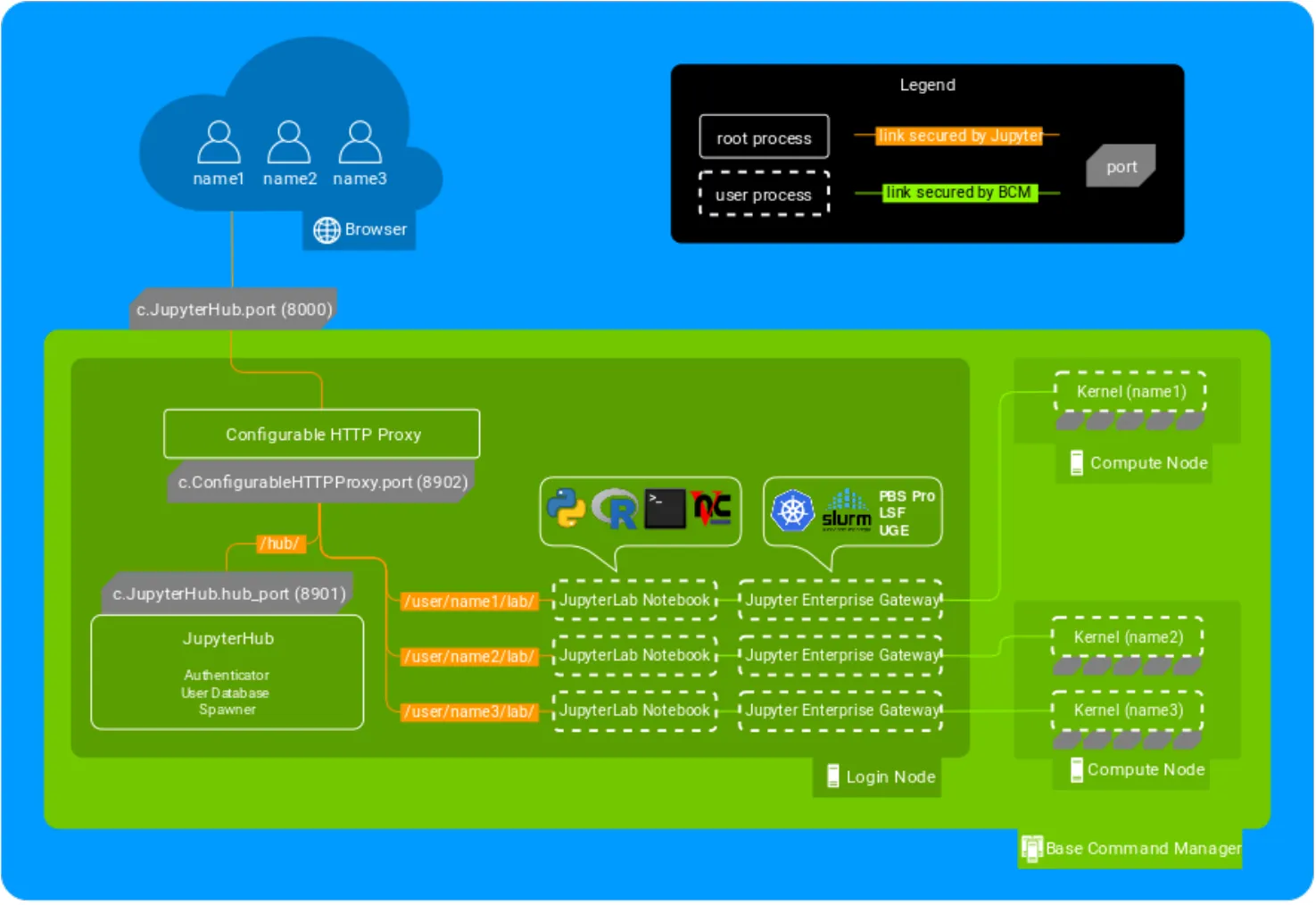
Figure 18.1: Jupyter architecture
In this architecture, the cm-jupyterhub.service provided by cm-jupyter-local starts JupyterHub on the port specified by c.JupyterHub.hub_port (default: 8901) on a login node (typically the head node).
JupyterHub then automatically spawns a dynamic proxy to route HTTP requests via BCM’s cm-npm-configurable-http-proxy package.
The proxy is the only process that listens for clients’ requests on Jupyter’s public interface, as specified by c.JupyterHub.port (default: 8000).
JupyterHub instructs the proxy on how requests should be dispatched by using its REST API. This is exposed at the port specified by c.ConfigurableHTTPProxy.port (default: 8902), typically defined within c.ConfigurableHTTPProxy.api_url.
At this stage, users accessing Jupyter with their browsers are either redirected to the shared Hub (e.g. for authentication), or to their dedicated single-user servers to run notebooks.
By default, single-user servers are accessed at /user/ <username>, while JupyterHub is accessed at /hub (https://jupyterhub.readthedocs.io/en/stable/reference/technical-overview.html).
The cm-jupyter-setup script automatically installs JupyterLab and sets /lab as the default URL (c.Spawner.default_url) to redirect users to the new interface.
Finally, Jupyter Enterprise Gateway is integrated to spawn kernels on different nodes by configuring jupyterhub.spawner.LocalProcessSpawner as the default spawning mechanism (c.JupyterHub.spawner_class), and jupyterhub-singleuser-gw as the default spawning command (c.Spawner.cmd). When a new notebook is started, JEG scans for an available port, and spawns a kernel chosen by the user on an appropriate cluster node. This process is then connected to JupyterLab.
JupyterHub and its HTTP proxy are run as two root processes, while JupyterLab and Jupyter Enterprise Gateway are run as user processes.
The privileges of the kernels spawned by Jupyter Enterprise Gateway can be configured by cluster administrators, and depend on the underlying computational engine (e.g. Kubernetes). By default, all the kernels configurable by BCM are run as user processes, and no privilege escalation is possible.
Communication between users’ browsers, JupyterHub, its HTTP proxy, and JupyterLab, is secured by default by JupyterHub. On the other hand, communication between JupyterLab, Jupyter Enterprise Gateway, and kernels, is secured by BCM.
Administrators can customize their Jupyter integration by setting some of the aforementioned options when the cm-jupyter-setup script runs. New values are automatically handled by BCM and written to Jupyter configuration files.
Other configuration options can be found in /cm/local/apps/jupyter/current/conf/jupyterhub_config.py.
18.2.3 Verifying Jupyter Installation
The cm-jupyter-setup script automatically starts the cm-jupyterhub service.
Any user (not necessarily root) can then verify the installation is working as expected. Here an ordinary user, jupyterhubuser runs the checks.
It can take some time until the service is fully up and running, even if systemctl status cm-jupyterhub -l shows that the service is active:
Example
A check can then be done to see that the Jupyter extensions provided by BCM are installed and enabled:
Example
18.2.4 Login Configuration
18.2.4.1 User Access To JupyterHub With The Default Configuration
Once JupyterHub is functioning, its web login interface is accessible with a browser using the HTTPS protocol on the specified port (figure 18.2):
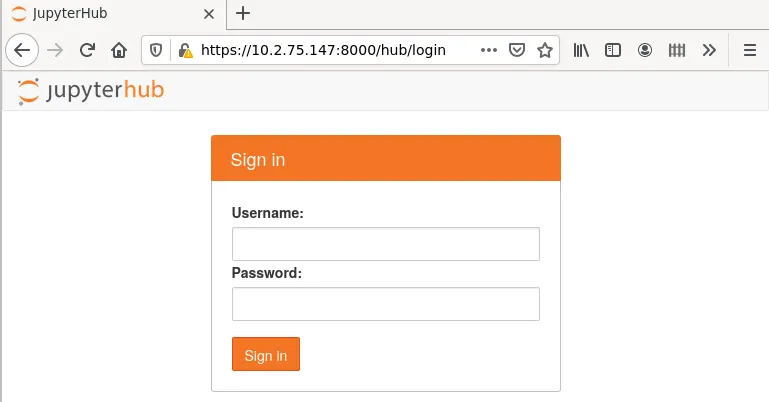
Figure 18.2: JupyterHub login screen
Running as root under JupyterHub is not recommended, so logging in to JupyterHub as root is not allowed by default.
Any other PAM user can log in to JupyterHub.
If needed, a test user jupyterhubuser with password jupyterhubuser can be created with, for example:
Example
18.2.4.2 Restricting User Access To JupyterHub
JupyterHub logins can be limited to members of particular groups.
For example, alice could be made a member of the group jupyterusers:
Example
The group jupyterusers could then be set to be allowed to authenticate to JupyterHub with an authentication policy:
Example
Similarly, restricting authentication to JupyterHub to a specific group of users can be done by configuring c.BrightAuthenticator.groups_deny.
Another way to restrict user access is based on the CMDaemon profile set for the user. In that case the JupyterHub configuration settings are c.BrightAuthenticator.cmd_profiles_allow and c.BrightAuthenticator.cmd_profiles_deny.
In the following example, users with a readonly profile are not allowed to authenticate for JupyterHub.
Example
A table summarizing the authentication policies is:
18.2.5 JupyterHub Screen After Login
After the first login, a new single-user server is spawned (figure 18.3):
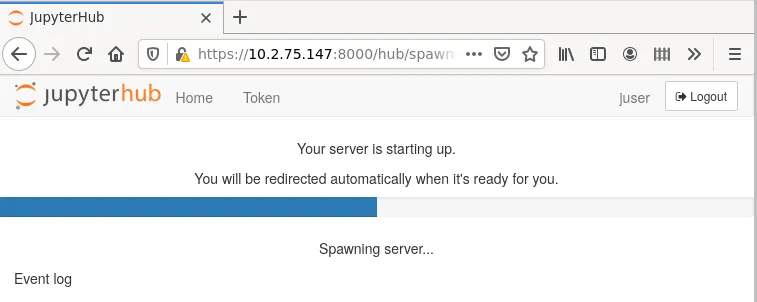
Figure 18.3: JupyterHub starting single-user server
Users are redirected to the JupyterLab interface and have access to Jupyter’s default Python 3 kernel (figure 18.4):
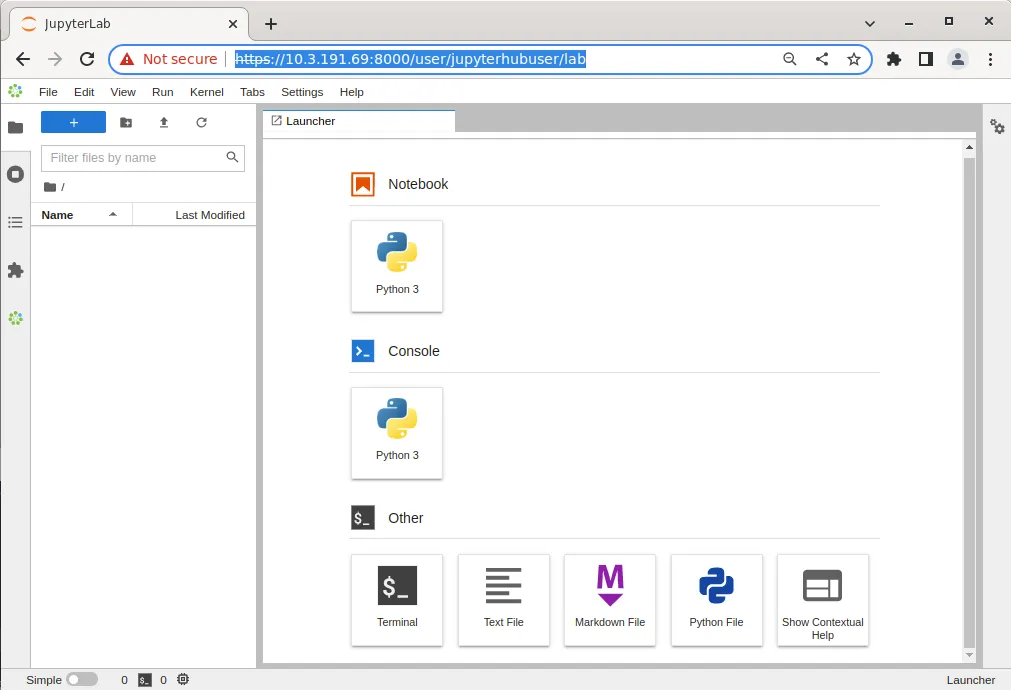
Figure 18.4: JupyterLab Launcher
If using Kubernetes under Jupyter, then a user registered under the Linux-PAM system must be added separately via Kubernetes with cm-kubernetes-setup. (section 4.11 of the Containerization Manual).
18.3 Jupyter Notebook Examples
The cm-jupyter package (section 18.2.1) provides a number of machine learning notebook examples that can be executed with Jupyter.
The notebooks include some applications developed with TensorFlow, PyTorch, MXNet, and other frameworks. The applications can be found in the /cm/shared/examples/jupyter/notebooks/ directory:
The datasets needed to execute these notebooks can be found in the /cm/shared/examples/jupyter/datasets/ directory:
Users can copy these examples to their home directories, create or choose appropriate kernels to execute them, and interactively run them from Jupyter. In order to edit notebooks, the write permissions must be kept during the copy.
The distributed examples typically only require the packages provided by BCM, such as TensorFlow and PyTorch.
It is the responsibility of users to make sure that the required modules are loaded by their Jupyter kernels. The list of frameworks and libraries required to run an example is usually available at the beginning of each notebook.
18.4 Jupyter Kernels
In Jupyter, kernels are defined as JSON files.
Any user that the cluster administrator has registered in the Linux-PAM system can list the available Jupyter kernels via the command line. The following example is run in the initial Jupyter environment:
Example
Each kernel directory contains a kernel.json file describing how Jupyter spawns that kernel:
Example
In addition to specifications for shared kernels, each user can define new personal ones in the home directory. By default, the Jupyter data directory for a user is located at $HOME``/.local/share/jupyter.
This path can be verified with Jupyter by using the --paths option:
Example
The simplest definition for a Python3 kernel designed to run on the login node is:
In the preceding kernel definition:
-
argv: is the command to be executed to locally spawn the kernel -
"display_name”: is the name to be displayed in the JupyterLab interface -
"language": is the supported programming language ("language") -
"{connection_file}"(https://jupyter-client.readthedocs.io/en/stable/kernels.html#connection-files) is a placeholder, and is replaced by Jupyter with the actual path to the connection file before starting the kernel.
The following kernel is Jupyter’s default Python 3 kernel distributed by BCM in the initial environment:
Example
The two kernels are not very different. They differ from each other in the Python 3 binary path, the IPython extension (Jupyter WLM Magic), and the exported PYTHONPATH environment variable ("env").
18.4.1 Jupyter Enterprise Gateway Kernels
Jupyter is designed to run both the kernel processes, as well as the user interface (JupyterLab or Jupyter Notebook) on the same host. The kernel {connection_file} is therefore stored in the ~/.local/share/jupyter/runtime directory, or in the /run directory.
JupyterLab can delegate the task of spawning kernels to another component. During the BCM installation it is Jupyter Enterprise Gateway (JEG) that takes on this role, performing a complete lifecycle management of the kernel. That is: start, status monitoring, and termination.
JEG requires an extended kernel.json definition to describe a particular process-proxy module to handle the kernel.
A simple definition for a Python3 kernel designed to be scheduled via JEG is:
In this example, the "metadata" entry has been added. It includes "class_name", which defines a path to a Python class compatible with the JEG API; and "config", an initial arguments dictionary passed to the JEG process.
JEG can use several pluggable modules that are included in the BCM environment to interact with a wide range of resource managers, such as Kubernetes or Slurm. By doing so, kernels can be scheduled across compute nodes.
BCM recommends that JEG kernels are created and used with the Jupyter Kernel Creator (section 18.5) extension.
18.5 Jupyter Kernel Creator Extension
Creating or editing kernels can be cumbersome and error-prone for users, depending on the features of the execution context desired for their notebooks.
To provide a more user-friendly experience, BCM includes the Jupyter Kernel Creator extension in JupyterLab. This extension is accessed from the navigation pane in the JupyterLab interface, by clicking on the BCM icon.
Jupyter Kernel Creator allows users to create kernels using the JupyterLab interface, without the need to directly edit JSON files. With this interface users can create kernels by customizing an available template according to their needs.
A template can be considered to be the skeleton of a kernel, with several preconfigured options, and others options that are yet to be specified. Common customizations for templates include environment modules to be loaded, workload manager queues to be used, number and type of GPUs to acquire, and so on.
Templates are usually defined by administrators according to cluster capabilities, programming languages and user requirements. Each template can provide different options for customizations.
Administrators often create different templates to take advantage of different workload managers, programming languages and hardware resources. For example, an administrator may define a template for scheduling Python kernels via Kubernetes, another one for R kernels via Slurm, and yet another one for Bash kernels via Platform LSF.
18.5.1 BCM Predefined Kernel Templates
To simplify Jupyter configuration for administrators, BCM distributes a number of pre-defined templates with Jupyter Kernel Creator. These templates can be used for default configurations of BCM workload managers, and can be customized and extended for more advanced use. Kernel templates defined by BCM can be found in the Jupyter Kernel Creator installation directory, under the kerneltemplates directory:
18.5.1.1 BCM Predefined Kernel Templates Seen By Users
Users can view the available predefined kernel templates in the Jupyter web browser interface, within the KERNEL TEMPLATES section of the dedicated BCM extensions panel (figure 18.5):
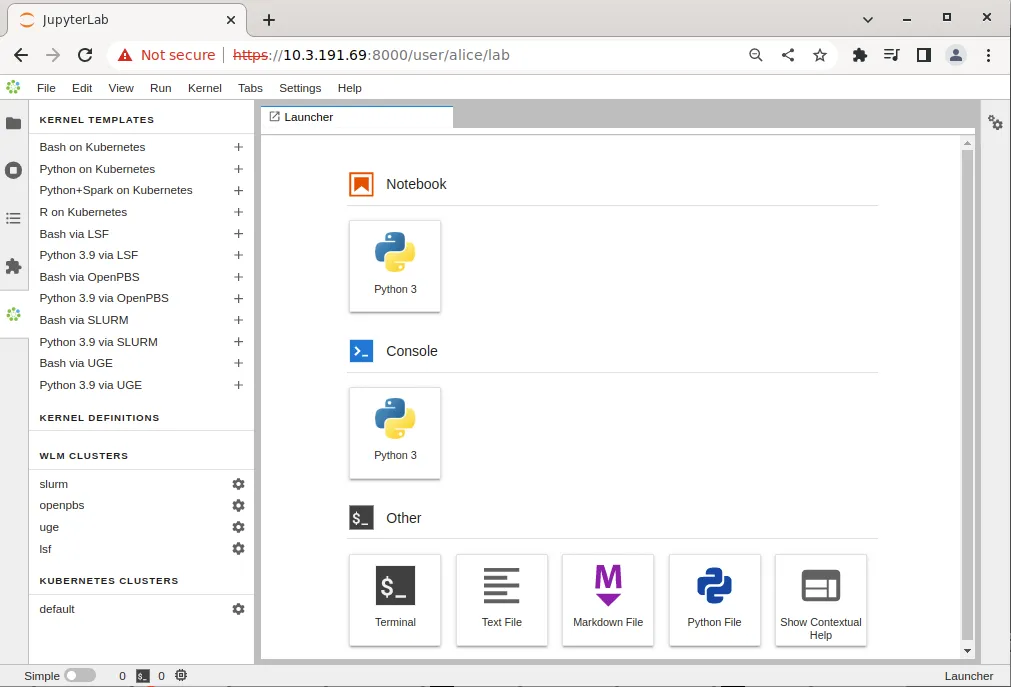
Figure 18.5: JupyterLab BCM extensions section with kernel templates
However, the templates provided by BCM are listed in the panel only if they can be used on the cluster. This means that the templates are listed only after the associated workload manager instance, or associated Kubernetes configuration (such as a Kubernetes operator), have been deployed by cluster manager utilities. For example:
-
After running the
cm-wlm-setupcluster manager utility to deploy an OpenPBS workload manager, thejupyter-eg-kernel-openpbs-bashandjupyter-eg-kernel-openpbs-py39templates become available. The templates are listed as:-
Bash via OpenPBS -
Python 3.9 via OpenPBS
and accessed via the navigation path: menu > dedicated BCM extension panel > kernel templates section.
-
-
After running the
cm-kubernetes-setupcluster manager utility to deploy a Kubernetes cluster, the Kubernetes cluster instance is displayed (navigation path: menu > dedicated BCM extension panel > Kubernetes clusters section)Then, after running the
cm-jupyter-kernel-operatorcluster manager utility to deploy a Jupyter kernel operator package, and configuring a user (section 6.3 of the Containerization Manual), the templatesjupyter-eg-kernel-k8s-cmjkop-julia,jupyter-eg-kernel-k8s-cmjkop-py, andjupyter-eg-kernel-k8s-cmjkop-py-sparkbecome available.The templates are listed as:
-
Julia on Kubernetes Operator -
Python on Kubernete Operator -
Python+Spark on Kubernetes Operator
and accessed via the navigation path: menu > dedicated BCM extension panel > kernel templates section.
-
Users can instantiate a kernel template to create an actual kernel from the dedicated BCM extensions section using the + button of the template. A dialog is dynamically generated for the template being instantiated, and users are asked to fill a number of customization options defined by administrators (figure 18.6):
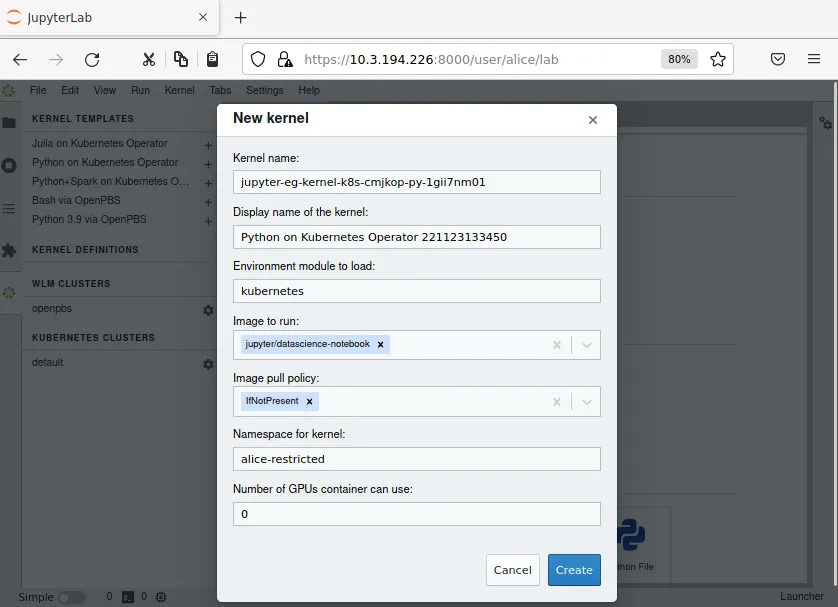
Figure 18.6: Jupyter kernel template customization screen
Once the template is completely customized, the kernel can be created. It automatically appears in the JupyterLab Launcher screen (figure 18.7) and can be used to run notebooks or a console session (figure 18.7):
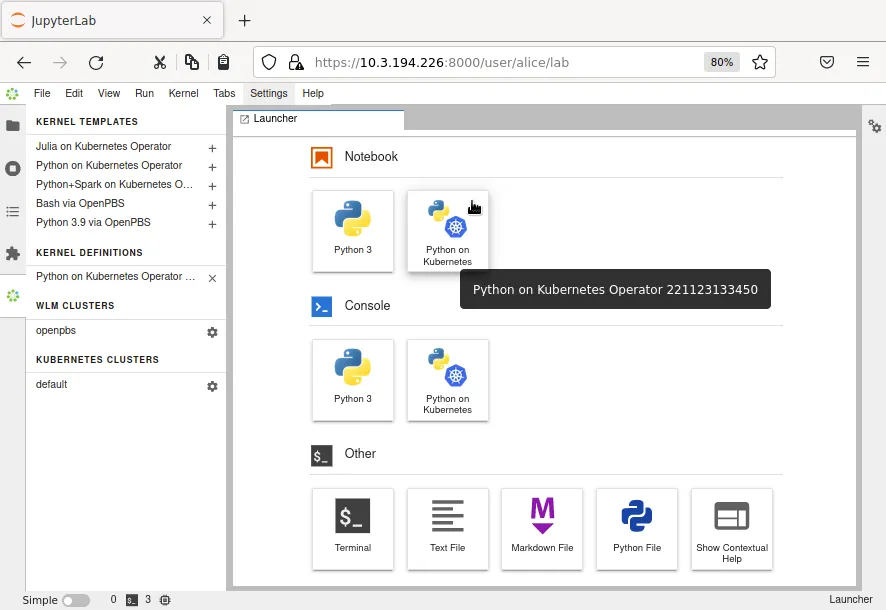
Figure 18.7: JupyterLab Launcher screen with new custom kernel
A user who lists available Jupyter kernels via the command line now sees the newly-created kernel:
The new kernel directory will contain the JSON definition generated by the Jupyter Kernel Creator:
Jupyter kernel names need not be unique. Users should therefore choose meaningful and distinguishable display names for their kernels. Doing so makes the JupyterLab Launcher screen easier to use.
For convenience, a summary of the available kernel templates and their requirements is shown in table 18.1:
Table 18.1: Available Jupyter kernel templates for BCM and their requirements
¹ Docker image: brightcomputing/jupyter-kernel-sample:k8s-py36-1.1.1
² Docker image: brightcomputing/jupyter-kernel-sample:k8s-spark-py37-1.2.1
³ Docker image: brightcomputing/jupyter-kernel-sample:k8s-r-1.0.0
DockerHub kernels page: https://hub.docker.com/r/brightcomputing/jupyter-kernel-sample/tags
18.5.2 Running Jupyter Kernels With Two Factor Authentication
If PAM and CMDaemon are configured with two-factor authentication (2FA), then JupyterHub needs to be instructed to support it. This can be done using cmsh as follows:
18.5.3 Running Jupyter Kernels With Kubernetes
The Jupyter Kernel Operator (section 6.3 of the Containerization Manual) is the recommended way to run kernels in Kubernetes in BCM. It allows users to run unmodified images; it takes care of communication with Jupyter Enterprise Gateway; and it manages the Jupyter kernel life-cycle, including cleaning up dead or orphaned kernels.
After installation and configuration by cm-kubernetes-setup, Jupyter Kernel Operator kernels (jupyter-eg-kernel-k8s-cmjkop-*) appear in the JuputerLab interface in the template section.
Kernels which do not support Jupyter Kernel Operator are hidden.
The following BCM templates allow users to create and run Jupyter Enterprise Gateway kernels on compute nodes via Kubernetes:
Table 18.2: BCM templates for creating and running Jupyter Enterprise Gateway kernels on cluster nodes via Kubernetes
By default, templates that do not support Jupyter Kernel Operator appear only if Kubernetes Jupyter Kernel Operator is not installed.
The administrator has to make sure that Kubernetes is correctly configured on the cluster, and that Pod Security Policy (PSP) or Kyverno is enabled (section 4.10.2 of the Containerization Manual).
Details on Kubernetes installation are provided in Chapter 4 of the Containerization Manual.
The default configuration proposed by cm-kubernetes-setup is usually sufficient to run Kubernetes kernels created from BCM’s templates. However, it is the responsibility of the administrator to add users registered in the Linux-PAM system to Kubernetes.
For example, a test user jupyterhubuser can be added to Kubernetes with:
Example
For every new user added, cm-kubernetes-setup automatically generates a dedicated namespace with a name in the form <user>-restricted. For instance, the command in the example above, creates the namespace: jupyterhubuser-restricted.
Cluster administrators are strongly recommended to review pods security policies for these dedicated namespaces.
In order to speed up kernel creation for the first user logging into JupyterLab when using BCM, it is recommended that all the relevant Kubernetes images are pre-loaded on the compute nodes that Jupyter Enterprise Gateway can contact.
Jupyter notebooks using Kubernetes kernels cannot natively use machine learning libraries and frameworks provided by BCM, even if installed on the software image used by Kubernetes. The machine learning libraries and frameworks have to be included in the chosen Kubernetes image.
18.5.4 Running Jupyter Kernels Based On NGC Containers
Jupyter NGC templates are available in the list of templates if:
-
Kubernetes is set up
-
NVIDIA GPUs are available on the Kubernetes cluster
-
Jupyter Kernel Operator (section 6.3 of the Containerization Manual) is installed

Jupyter Kernel Operator selection with cm-kubernetes-setup
It is also strongly advised to enable Kyverno or PSP (Pod Security Policy).
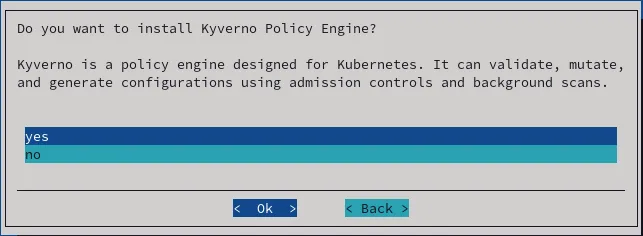
Kyverno policy engine selection in cm-kubernetes-setup
The user needs to be given permission to access to the Jupyter Kernel Operator. This can be done via the cm-kubernetes-setup TUI, by adding a user, and then setting the permissions in the permissions screen that shows up (figure 18.10):

Figure 18.10: User permissions in cm-kubernetes-setup
The permissions can also be configured using the CLI:
Once Jupyter kernel Operator is available, then kernel templates appear in the list:
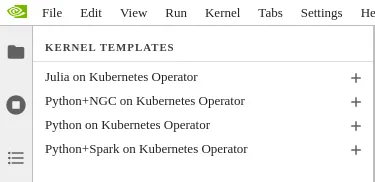
Jupyter Kernel Operator templates
A kernel can be created from the template:
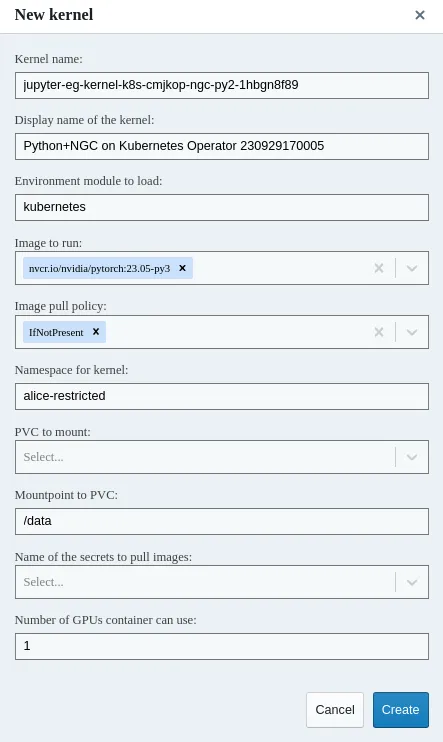
Creating kernel from template
If authentication is required to access container images from the private registry, then the template can be modified as described in section 6.3.8.2 of the Containerization Manual.
18.5.5 Running Jupyter Kernels With Workload Managers
BCM’s Jupyter Enterprise Gateway kernels can be created and run by users on compute nodes via workload managers (WLMs). For convenience, Slurm is used as an example in this section. However, the same instructions are valid for the other WLMs listed in table 18.1.
The templates used to create Slurm kernels are BCM’s
-
jupyter-eg-kernel-slurm-bashand -
jupyter-eg-kernel-slurm-py39,
which offer a Bash and a Python 3.9 environment respectively.
The administrator has to make sure that Slurm is correctly configured on the cluster. Slurm installation is described in section 7.3.
The default configuration that cm-wlm-setup suggests in Express mode is usually sufficient to run Slurm kernels created from BCM’s templates. If Slurm is configured to automatically detect GPUs, they will be listed as available resources while instantiating Slurm templates.
The Jupyter login node must be authorized to submit Slurm jobs. This is typically the case, since the JupyterHub login node is by default the head node, and cm-wlm-setup by default assigns the slurmsubmit role to the head node.
Finally, the administrator must make sure that relevant dependency packages are installed on the software image used by Slurm clients. The image used is typically for the compute nodes. Missing packages may cause kernels to fail at startup or at run time.
In particular, administrators need to install cm-python39 to use kernels based on the jupyter-eg-kernel-slurm-py39 template.
Jupyter notebooks using Slurm kernels can natively use the machine learning libraries and frameworks provided by BCM on Slurm clients, if these are available. Further details on machine learning packages installation on both the head node and the compute nodes are given in section 1.4 of the Machine Learning Manual.
18.6 Jupyter Kernel Creator Extension Customization
The Jupyter kernel templates described in section 18.5 are stored under the directory /cm/shared/apps/jupyter/current/lib/python3.9/site-packages/cm_jupyter_kernel_creator/kerneltemplates/.
The template of a particular Jupyter kernel in BCM’s Jupyter Kernel Creator extension is a directory containing at least two files: meta.yaml and kernel.json.j2. The kernel template can also require other files placed in the same directory, such as icons. These files are copied to the target user kernels directory upon kernel creation, after the template is instantiated.
The meta.yaml file includes all the parameters that can be substituted into kernel.json.j2 and is defined with the YAML format (https://yaml.org/).
The kernel.json.j2 file is a skeleton of the kernel.json file to be generated. It can contain some placeholders, and is defined with the Jinja2 format (https://jinja.palletsprojects.com/).
18.6.1 Kernel Template Parameters Definition
The kernel template meta.yaml file defines all the parameters that can be used in kernel.json.j2.
It should contain three entries:
-
display_name: the name that will be displayed for the kernel in the JupyterLab Launcher; -
features: a list of features that must be available on the cluster to show this kernel template to JupyterLab users in the BCM extensions panel; -
parameters: the variables forkernel.json.j2.
The display_name entry is an arbitrary string:
The features entry is a list of strings. The only possible values for these strings are:
-
"kubernetes" -
"lsf" -
"pbspro" -
"slurm" -
"uge"
For example, a kernel template that only requires Kubernetes to work contains this line in its meta.yaml:
The same principle applies to the other workload managers. If multiple features are listed, then the kernel template is displayed if at least one of them is available.
Finally, the parameters entry contains a dictionary of kernel parameters. The keys of the dictionary are parameter names that are used in kernel.json.j2. The values of the dictionary are options that help users choose a correct value for the parameter. Parameter options are also dictionaries.
A kernel template meta.yaml is thus structured as:
Parameter names are arbitrary strings.
Option keys are strings. The only possible values for these strings are:
-
type -
definition -
limits
The option keys type and definition are mandatory. The option key limits is optional.
For example, a kernel template with two parameters foo and bar looks as follows:
Example
18.6.1.1 The type Option
The type option key defines the type of the kernel parameter.
The type option key only accepts one of the following string values:
-
num: for numeric values (both float and integer are supported); -
str: for arbitrary strings; -
bool: for boolean values (a checkbox is presented in the user interface); -
list: for lists of pre-defined or dynamically-generated settings; -
uri: for interactive RESTful endpoints (only/kernelcreator/envmodulesis currently supported).
18.6.1.2 The definition Option
The definition option key defines how the parameter value is retrieved and displayed.
The definition option key accepts dictionary-like values. Allowed string keys for the dictionary are:
-
display_name: the name that is displayed for the parameter in the kernel customization dialog. It accepts an arbitrary string as a value; -
getter: how parameter values are retrieved. It only accepts as value one of the following strings:-
static: the values for the parameter are pre-defined; -
shell: the values for the parameter are the output of the shell script; -
python: the values for the parameter are the output of a Python script;
-
-
values: possible values for the parameter that are displayed in the kernel customization dialog. It accepts a list of arbitrary values; -
default: default value for the parameter. It accepts a value fromvalues; -
exec: the script to be executed to fillvalueswhengetterisshellorpython. It accepts a shell/Python script.
If type option value is list, then every line of getter with a setting of shell or python is treated as an element of the list.
18.6.1.3 The limits Option
The limits option key offers a way to apply bounds on values provided by users. This usually reduces the chances of making mistakes and helps users defining correct kernels before actually running them.
The limits option key accepts dictionary-like values according to the value chosen for the type option key.
If num is the type, then limits can contain:
-
min: the minimum numeric value; -
max: the maximum numeric value.
If str or list is the type, then limits can contain:
-
min_len: the minimum length of the string or the list; -
max_len: the maximum length of the string or the list.
For example, if every node in the cluster has no more than 4 GPUs, then the upper limit on the requested GPU number can be set to 4:
These limits are not a security measure. They should be considered as convenient sanity checks for values entered while instantiating a kernel template. This is because users are always able to later directly edit the generated kernel.json, thereby ignoring such limits.
18.6.2 Kernel Template Parameters Usage
In the kernel.json.j2 file of a kernel template, two types of variables can be defined: Jinja2 variables (https://jinja.palletsprojects.com/en/master/templates/#variables) and Python formatted string literals (also known as f-strings) (https://docs.python.org/3/reference/lexical_analysis.html#f-strings).
They should not be mixed as they work on different steps of the template lifecycle:
-
{{..}}and{%..%}: These formats are used to specify Jinja2 expressions and statements. Jinja2 expressions and statements are substituted or computed once, when the user creates a kernel with BCM’s Jupyter Kernel Creator extension. The actual values will be those specified in the kernel customization dialog; -
{..}: This format is used to specify Python f-strings. F-strings are substituted every time a user starts the kernel for a Jupyter notebook. The actual values will be a path to the kernel connection file, a job ID in a WLM, a UID of the running kernel process, a unique name for a Kubernetes pod, etc.
Some process-proxies in Jupyter Enterprise Gateway may require another type of variables template. For example, the Kubernetes process-proxy requires multiple objects to be set up in its API. Several unique configuration files need to be created at runtime. Templates for such objects are located in the templates/ directory, along with the meta.yaml and kernel.json.j2 files. These templates are rendered every time a Kubernetes kernel is started for a Jupyter notebook. Variables for these templates are located inside the config section of the kernel.json file.
18.6.3 Kernel Template Creation Example
To illustrate the kernel variables syntax described in sections 18.6.1 and 18.6.2, a kernel template is now created from Jupyter’s default Python 3 kernel.
The new kernel template has to be placed in a suitable directory for BCM’s Jupyter Kernel Creator extension. This directory is the kerneltemplates/ directory in the extension’s Python module:
The content of the original Jupyter kernel directory, including its images, is copied. The kernel.json file is then renamed to kernel.json.j2 to make it a Jinja2 template:
The next step is to create the meta.yaml file with the kernel template parameters. In this example a request is made to have Slurm deployed on the cluster:
The new kernel template is now available in JupyterLab (figure 18.13):
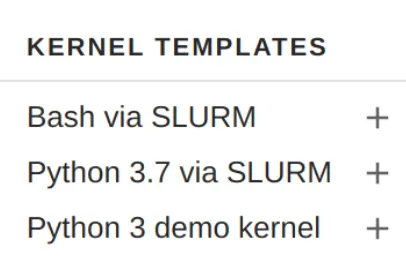
Figure 18.13: New kernel template in the JupyterLab interface
The next step is to define kernel template parameters. The first one being added is kernel_name, which is the name of the kernel in the JupyterLab Launcher. The meta.yaml file is updated:
The display_name definition in the kernel.json.j2 is now changed to a Jinja2 placeholder matching this meta.yaml parameter with the appropriate Jinja2 syntax:
The JupyterLab interface changes and now prompts the user to enter a value, while providing a default option (figure 18.14):
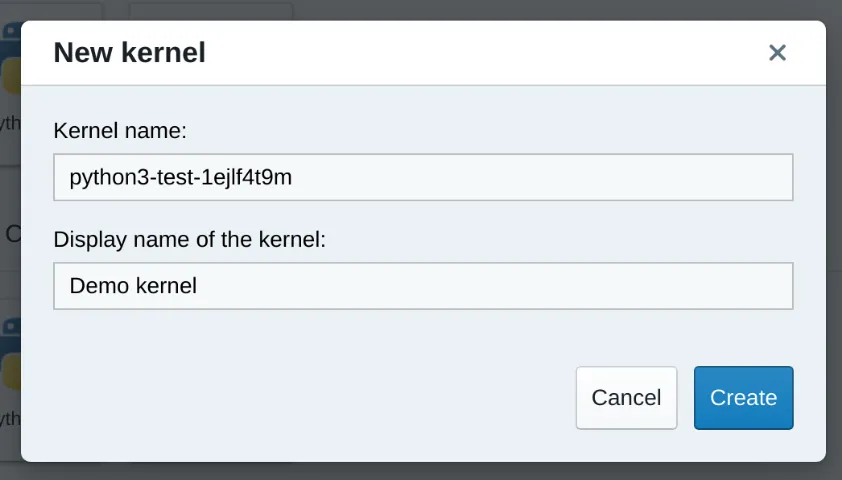
Figure 18.14: New kernel template dialog during template instantiation
If the user clicks on the Create button, then a new directory is created in ~/.local/share/jupyter/kernels. The content of the kernel template directory, except for the meta.yaml and kernel.json.j2 files, is copied into this new directory. The kernel name provided by the user is substituted into the kernel.json.j2 template, and the resulting kernel.json file is written into the new user kernel directory.
As a result, the new kernel then appears in the JupyterLab Launcher.
18.6.4 Extending Kubernetes Kernel Templates
BCM’s JEG kernel templates for Kubernetes can be extended with additional parameters.
In the following example, a Kubernetes kernel template is extended, to show a dropdown menu with additional environment variables in the kernel customization dialog. The selected variables are exported to the context of the running kernel and made available in the Jupyter notebook.
In order to preserve the original kernel template, the existing jupyter-eg-kernel-k8s-py template is copied to a user directory. The new customized kernel template directory could be later copied back to the original BCM Jupyter Kernel Creator extension templates directory, to make it available for all the users.
To distinguish the new kernel template from the original one, it is convenient to change the display name:
The next step is to add a new parameter in the meta.yaml file:
Now, if the kernel template is instantiated, then a new parameter is displayed in the kernel customization dialog (figure 18.15):
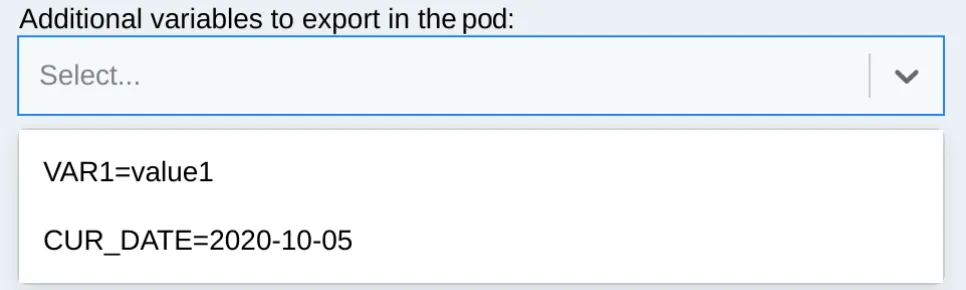
Figure 18.15: New environment variables dropdown menu
The kernel customization dialog also shows that every output line of the script was rendered as an item of the menu.
To pass the selected environment variables to the actual container in the running pod, the kernel.json.j2 and templates/pod.yaml.j2 files must both be modified. This is due to the two-step template rendering mechanism:
-
the first rendering takes place when the user instantiates the kernel template. The
kernel.json.j2file becomeskernel.json, and kernel parameters are replaced with the values specified in the dialog; -
the second rendering takes place when the user starts the kernel for a Jupyter notebook. The
pod.yaml.j2file and other Jinja2 files in thetemplates/directory are rendered to the actual YAML representations of the Kubernetes objects.
In the example that follows, the kernel.json.j2 file is extended with the “additional_vars” kernel parameter:
The last step requires the use of the Jinja2 loop syntax in the templates/pod.yaml.j2 file:
Now, if a kernel is instantiated with both the environment variables (figure 18.16) and then started from a notebook, then the variables are available in the process (figure 18.17):
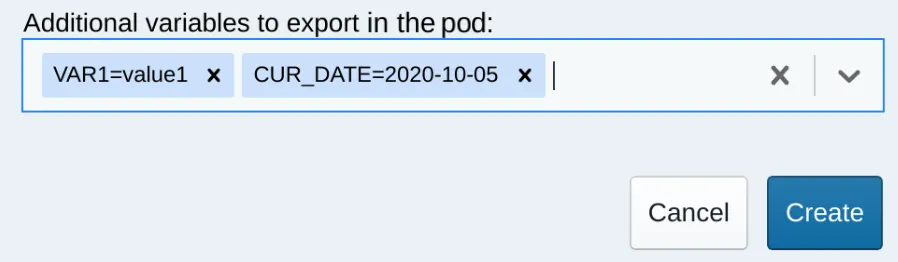
Figure 18.16: Environment variables are chosen in the kernel customization dialog
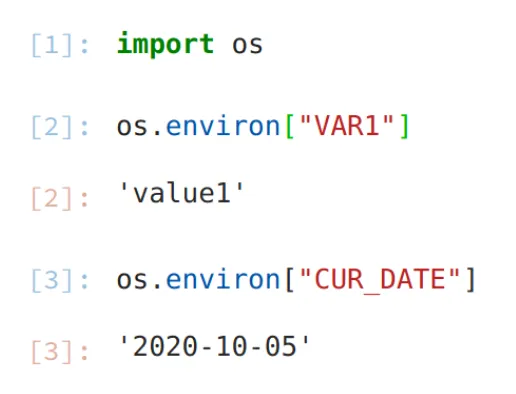
Figure 18.17: Environment variables are available in the running kernel
18.6.5 Extending Workload Managers Kernel Templates
BCM’s JEG kernel templates for workload managers can be extended with additional parameters. For convenience, Slurm is used as example in this section. However, the same instructions are valid for the other WLMs listed in table 18.1.
In the following example, a Slurm kernel template is extended, to show a dropdown menu with additional environment variables in the kernel customization dialog. The selected variables are exported to the context of the running kernel and made available in the Jupyter notebook.
In order to preserve the original kernel template, the existing jupyter-eg-kernel-slurm-py39 template is copied to a user directory. The new customized kernel template directory could be later copied back to the original BCM Jupyter Kernel Creator extension templates directory, to make it available for all users.
To distinguish the new kernel template from the original one, it is convenient to change the display name:
The next step is to add a new parameter in the meta.yaml file:
Now, if the kernel template is instantiated, then a new parameter is displayed in the kernel customization dialog (figure 18.18):
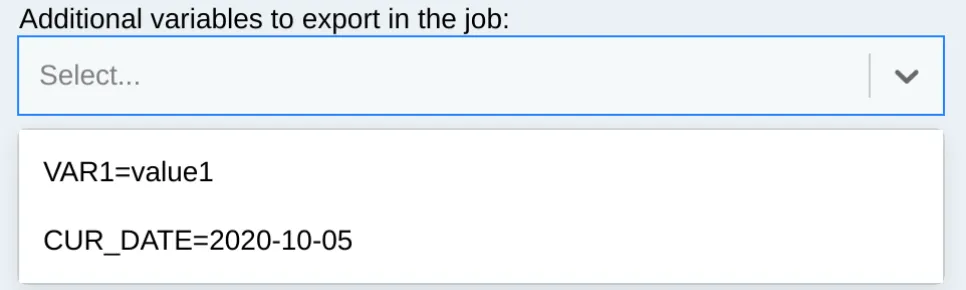
Figure 18.18: New environment variables dropdown menu
The kernel customization dialog also shows that every output line of the script was rendered as an item of the menu.
To pass the selected environment variables to the actual workload manager job, the "submit_script" section inside the kernel.json.j2 file must be modified to take into account the new “additional_vars” kernel parameter:
Now, if a kernel is instantiated with both the environment variables (figure 18.19) and then started from a notebook, then the variables are available in the process (figure 18.20):
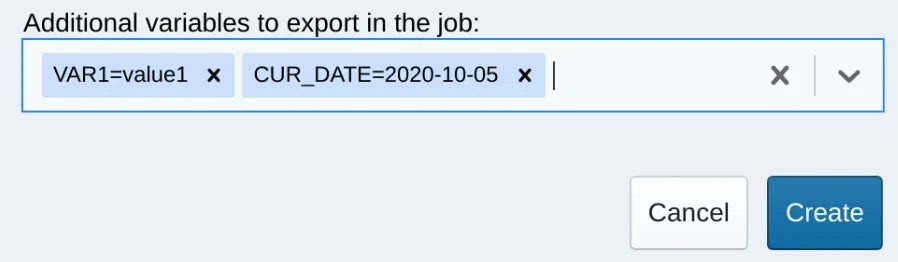
Figure 18.19: Environment variables are chosen in the kernel customization dialog
Figure 18.20: Environment variables are available in the running kernel
18.6.6 Filtering Out Irrelevant Templates From The Interface For Users
The list of kernel templates that are available for users of the Jupyter Kernel Creator can be modified as follows:
In the parent directory of the templates, the file filter.yaml describes items called features. These can be statically defined or they can represent scripts to be executed. The result of an executed script can be true or false. If the script code exits with zero, then the result is true.
Every kernel template can have the feature field, which is a boolean expression that is calculated when the JupyterLab extension is started.
Example
In the preceding example, above jupyter-eg-kernel-slurm-py39 template is shown in the JupyterLab interface if the script in the exec: section is able to finish successfully.
It is also possible to define more complicated rules:
Example
In the preceding example, jupyter-eg-kernel-k8s-py is shown when Kubernetes is installed, and is hidden if Jupyter Kubernetes Operator is available for the user.
The filter.yaml file also supports statically defined features:
Example
and supports Python code:
Example
The Kubernetes Jupyter Kernel Operator is discussed in section 6.3 of the Containerization Manual.
18.7 Jupyter VNC Extension
18.7.1 What Is Jupyter VNC Extension About?
VNC (Virtual Network Computing) is a screen sharing service that can work in a browser.
If VNC is allowed by the cluster administrator, then the Jupyter environment configured by BCM can be used to start and control remote desktops via VNC with the Jupyter VNC extension.
Several kernels created from BCM’s templates are capable of running VNC sessions so that users can run GUI applications. In order to do so, the cluster nodes where kernels are executed must support VNC.
During the cm-jupyter-setup run, the TUI prompts for installation of VNC servers on the nodes. The cluster administrator can select the nodes on which it installs. On these nodes Jupyter kernels can work with several types of VNC clients.
18.7.2 Enabling User Lingering
User lingering is a systemd setting that sets a user manager for a user at boot and keeps it around after logout. This allows that user to run long-running sessions despite not being logged in. Enabling user lingering may be required for Jupyter VNC extension to run for a relatively complicated desktop such as KDE or GNOME.
For each user on each machine where these environments are installed, the following command must be run:
The command may also be carried out using prolog/epilog scripts in the chosen WLM.
18.7.3 Starting A VNC Session With The Jupyter VNC Extension
Users can start a VNC session with the button added by Jupyter VNC (figure 18.21). Additional VNC parameters can be optionally specified.
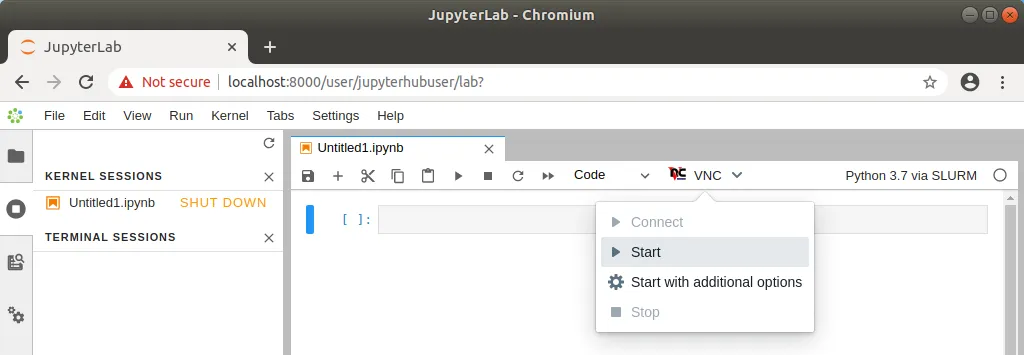
Figure 18.21: Starting Jupyter VNC session from kernel
If VNC is available and correctly configured on the node where the kernel is running, then a new tab is automatically created by Jupyter VNC containing the new session (figure 18.22). A user can now freely interact in JupyterLab both with the notebook and with the desktop environment.
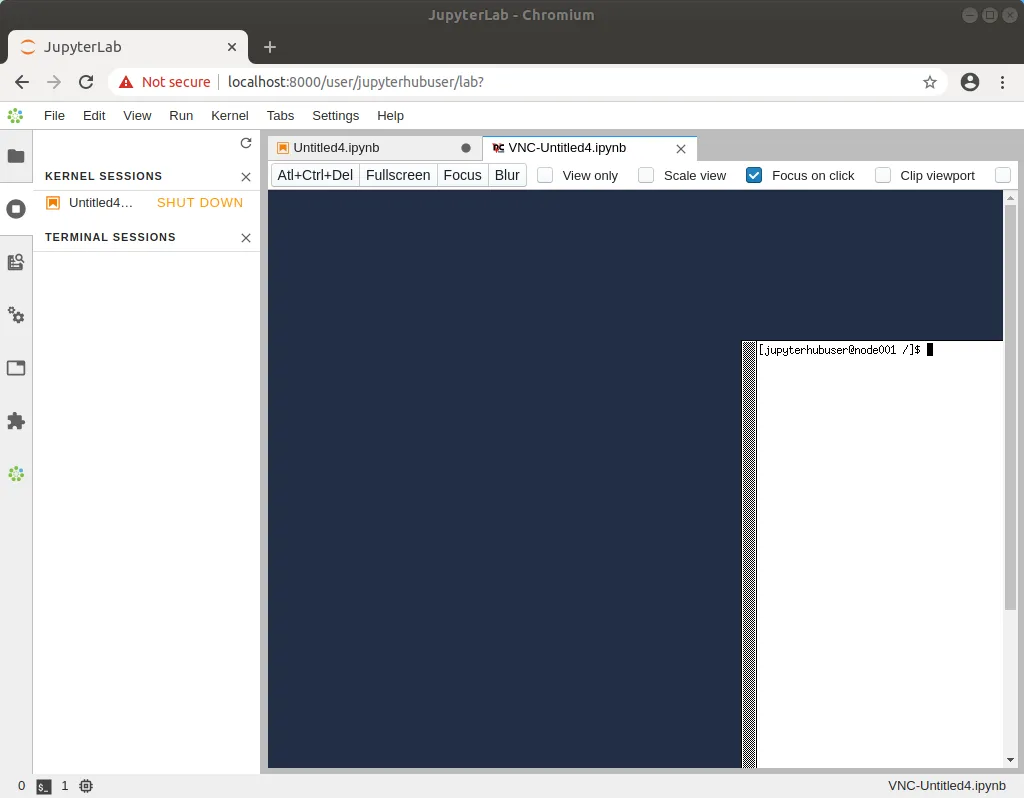
Figure 18.22: Running Jupyter VNC session from kernel
To provide a user-friendly experience, Jupyter VNC also allows the graphical viewport to be resized, so that the desktop application can run full-screen (figure 18.23).
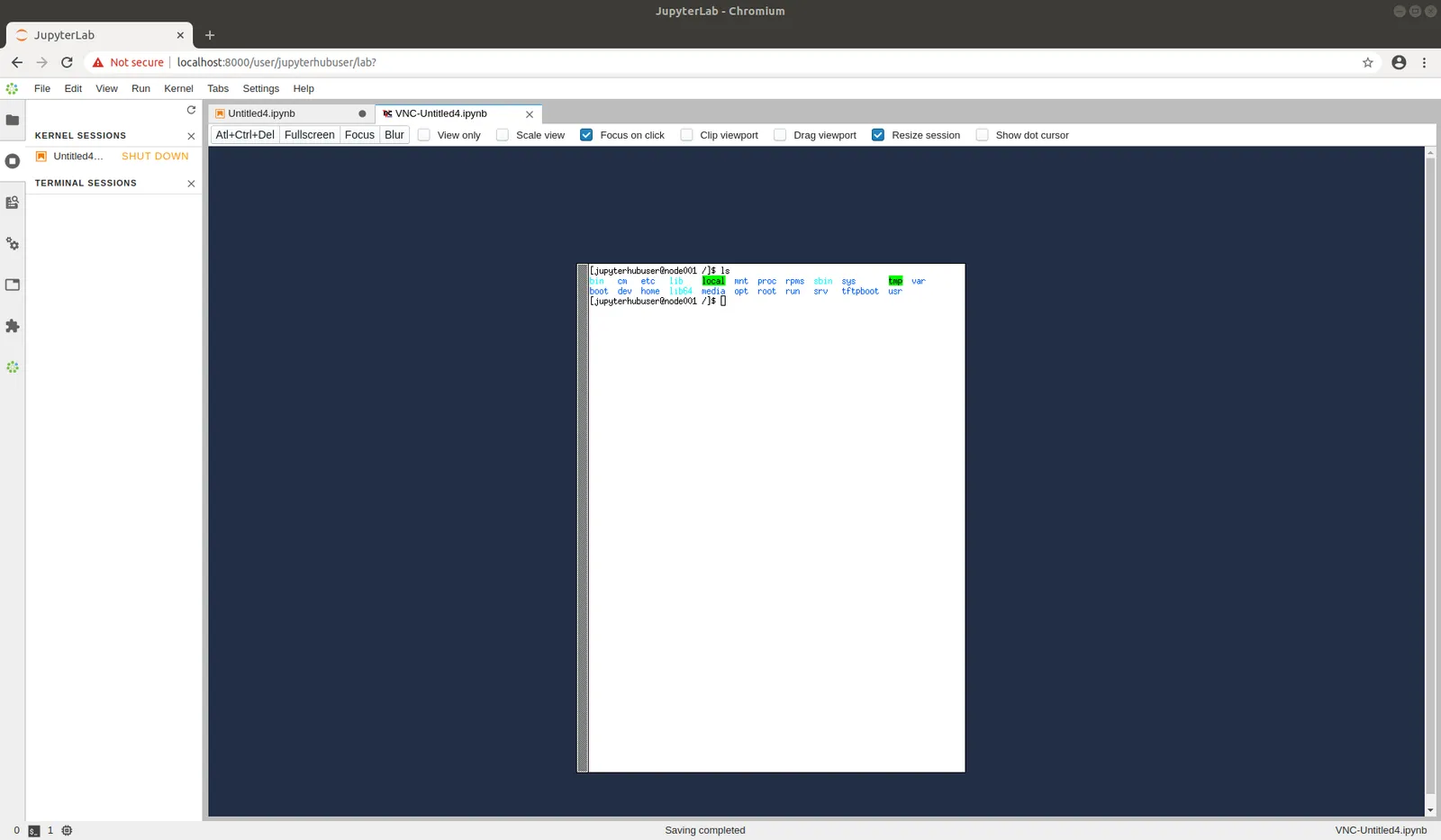
Figure 18.23: Running Jupyter VNC session from kernel (full-screen)
18.7.4 Running Examples And Applications In The VNC Session With The Jupyter VNC Extension
Once the VNC session is correctly started and the new JupyterLab tab has been created, Jupyter VNC automatically exports the DISPLAY environment variable to the running notebook (figure 18.24). Doing so means that any application or library running in the notebook can make use of the freshly created desktop environment. An example of such a library is OpenAI Gym, a toolkit for developing and comparing reinforcement learning algorithms, that is distributed by BCM.
Among the examples distributed by BCM (section 18.3), a notebook running PyTorch in the OpenAI Gym CartPole environment can be found. If executed after a VNC session has been started, a user can then observe the model being trained in real time in the graphical environment.
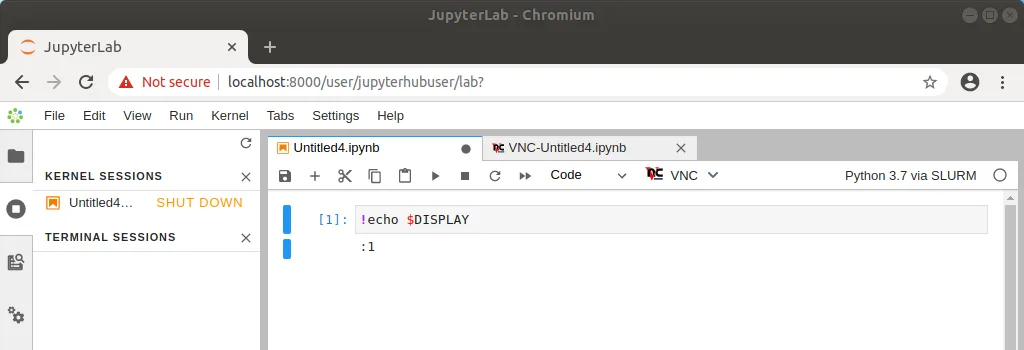
Figure 18.24: Automatic configuration of DISPLAY environment variable
18.8 Jupyter WLM Magic Extension
In the Jupyter environment configured by BCM, the Jupyter WLM Magic extension can be used to schedule workload manager jobs from notebooks.
The Jupyter WLM Magic extension is an IPython extension. It is designed to improve the capabilities of Jupyter’s default Python 3 kernel, which runs on the login node.
The Jupyter WLM Magic extension should therefore not be used from kernels running on compute nodes, such as those typically created with BCM’s Jupyter Kernel Creator extension (section 18.5), and submitted via Jupyter Enterprise Gateway. Indeed, compute nodes running these kernels are often incapable of starting workload manager jobs in many default WLM configurations.
Jupyter WLM Magic extension makes it possible for users to programmatically submit WLM jobs, and then interact with their results. This can be done while using the Python programming language and its libraries, which are available in the notebook.
Users submit jobs and check their progress from the login node. The actual computation is distributed by the underlying workload manager across compute nodes, which means that server resources are spared.
Jupyter WLM Magic commands are available in the IPython kernel as magic functions (https://ipython.readthedocs.io/en/stable/interactive/tutorial.html#magic-functions). A new line magic (%) and a new cell magic (%%) are now added in the kernel, according to the workload manager:
-
Platform LSF:
%lsf_joband%%lsf_job -
PBS Professional:
%pbspro_joband%%pbspro_job -
Slurm:
%slurm_joband%%slurm_job -
GE:
%uge_joband%%uge_job
A user can list the magic functions in the kernel to see if they are available, with Jupyter’s builtin command %lsmagic (https://ipython.readthedocs.io/en/stable/interactive/magics.html#magic-lsmagic):
Example
The magic functions introduced by this BCM extension share a similar syntax. For convenience, Slurm is used as an example in this section. However, the same instructions are valid for the other WLMs.
Users can check which options are available for a WLM function with the line magic helper:
Example
Line magic functions are typically used to set options with a global scope in the notebook. By doing so, a user will not need to specify the same option every time a job will be submitted via cell magic. For example, if two Slurm instances are deployed on the cluster and their associated environment modules are slurm-primary and slurm-secondary, a user could run the following line magic once to configure the Jupyter WLM Magic extension to always use the second deployment:
Example
Now, jobs will always be submitted to slurm-secondary. This is more convenient than repeatedly defining the same module option for every cell magic upon scheduling a job:
Example
It should be noted that line magic functions cannot be used to submit WLM jobs. Cell magic functions have to be used instead.
A well-defined cell contains the WLM cell magic function provided by the extension, followed by the traditional job definition. For example, a simple MPI job running on two nodes can be submitted to Slurm by defining and running this cell:
Example
Users can take advantage of the Jupyter WLM Magic extension to store some information into Python variables about the job being submitted. The information could be the ID or the output file name, for example. Users can then later programmatically interact with them in Python. This feature is convenient when a user wants to, for example, programmatically carry out new actions depending on the job output:
Example
Users can also exploit Python variables to define the behavior of the Jupyter WLM Magic extension. For example, they can define a Python boolean variable to submit a WLM job only if a condition is true:
Example
18.9 Jupyter Kubernetes Operators Manager
The Jupyter Kubernetes Operators Manager tool is designed to make it easier to handle everyday tasks involving Kubernetes.
Some of the items that the tool can manage are:
-
Pods
-
PostgreSQL databases
-
Spark tasks (jobs that process a lot of data)
-
Persistent Volume Claims (requests for specific storage space). Particularly handy is the ability to move data between user folders and Persistent Volumes (special types of storage space in Kubernetes).
Jupyter Kubernetes Operators Manager can be accessed as follows in the Jupyter Notebooks web interface (figure 18.25):
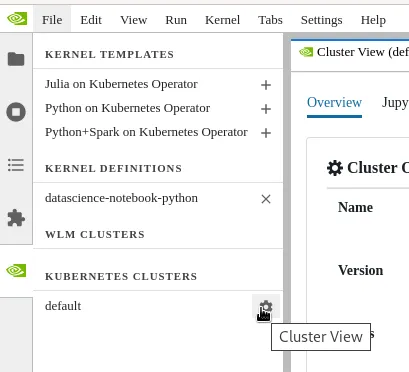
Figure 18.25: Jupyter Kubernetes Operators Manager: Kubernetes cluster list and selection
-
The NVIDIA Base Command Manager logo (on the left side of the screen,
 ) is clicked. A list of Kubernetes clusters is then displayed.
 -
The
Cluster Viewbutton is used to select the cluster that is to be worked with.
Jupyter Kubernetes Operators Manager displays resources and objects via a tabbed view. This view is for the restricted namespace to which the user has access. With Kubernetes as set up by BCM, this is the namespace of the form <user>-restricted.
18.9.1 Overview Tab
The Overview tab (figure 18.26) provides a high-level overview of the current state of the selected Kubernetes cluster.
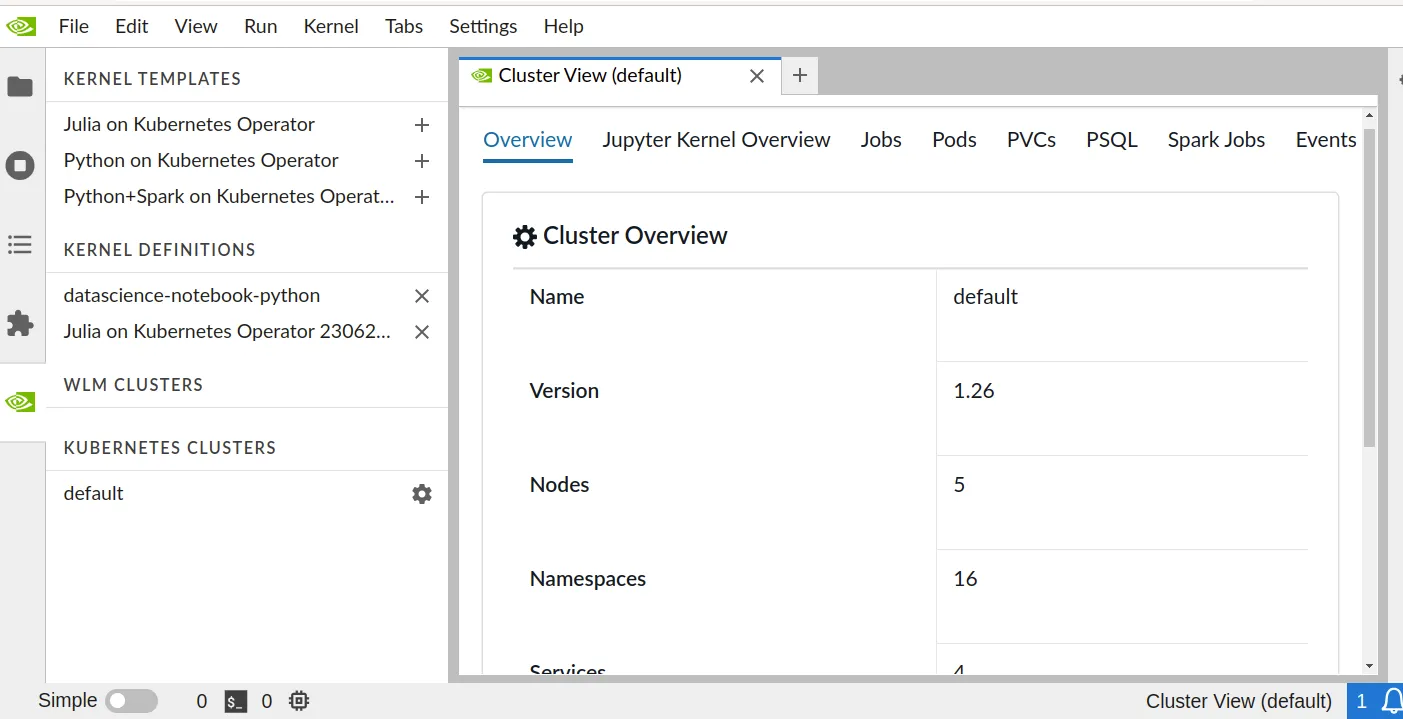
Figure 18.26: Jupyter Kubernetes Operators Manager: overview
Among other useful details, it displays:
-
the cluster name
-
the Kubernetes version that is running
-
the number of namespaces and pods
18.9.2 Jupyter Kernel Overview Tab
The Jupyter Kernel Overview tab (figure 18.27) lists active Jupyter kernel instances along with their associated events.
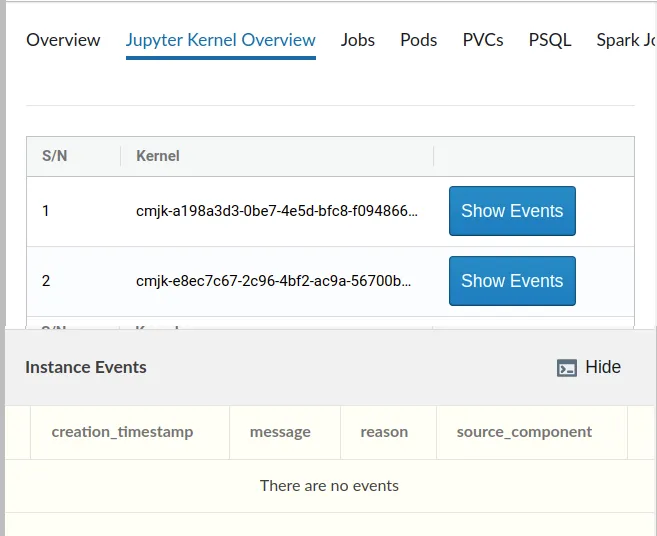
Figure 18.27: Jupyter Kubernetes Operators Manager: Jupyter kernel overview tab
After a kernel is stopped or removed, these events can be found under the Events tab. Events are discussed later on.
18.9.3 Jobs Tab
The Jobs tab (figure 18.28) allows a data migration job to be run. A data migration job manages the transfer of data between the user-accessible directories of the filesystem and the Persistent Volumes. The transfer can be managed in either direction.
The data transfer is needed to enable access to the data for Spark instances, and for situations where pods need to be run under a different user ID/group ID (UID/GID) from the original user.
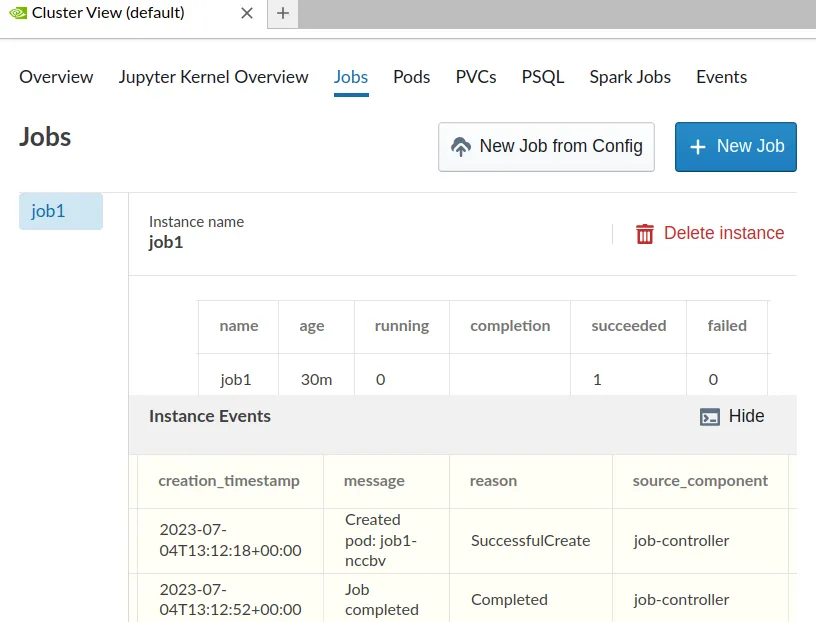
Figure 18.28: Jupyter Kubernetes Operators Manager: Jupyter data migration jobs tab
To initiate a data migration job, several fields must be set. This can be done via a pop-up dialog, that comes up on clicking either of these buttons:
-
New job from Config: allows a YAML file configuration to be submitted -
New Job: allows direct configuration (figure 18.29)
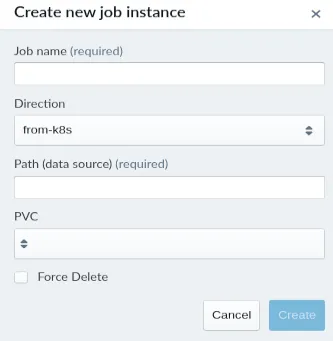
Figure 18.29: Jupyter Kubernetes Operators Manager: data migration jobs creation
Fields that may be set include:
-
Job name: specifies the name of the migration job.
-
Direction: sets the direction of the data migration.
-
to-k8s: copies data to the Persistent Volume Claim (PVC) from the file system -
from-k8s: copies data from the PVC back to the file system
-
-
Path: provides the path on the filesystem to/from where the data is migrated
-
PVC: sets the name of the Persistent Volume Claim that is involved in the data migration.
Optionally, the Force Delete checkbox can be ticked. If ticked, then the migration job deletes data from the target location if the corresponding file or directory does not exist in the source location.
In particular, if the source location is completely empty, then setting Force Delete results in the removal of all target data. Setting Force Delete should therefore be done with caution due to the significant data loss that it can cause.
The execution status of a job can be monitored in the status and events area. This section displays the number of worker pods and their respective statuses, which include:
-
Running: the number of pods currently in operation.
-
Completion: the desired number of pods that should successfully complete the job. Not applicable for migration jobs, but it can be used if a custom manifest is specified, as described later.
-
Succeeded: The number of pods that have successfully completed their tasks.
-
Failed: The number of pods that have failed to complete their tasks.
Additionally, a custom job manifest can be uploaded from the user’s workstation if required.
18.9.4 Pods Tab
The Pods tab (figure 18.30) displays user pods, reads stdout, and shows associated events from pods.
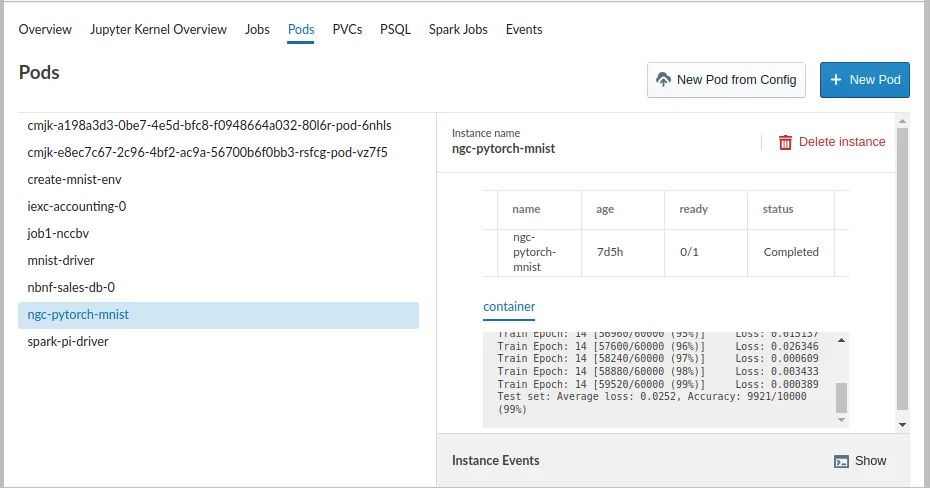
Figure 18.30: Jupyter Kubernetes Operators Manager: pods overview tab
The tab also allows pod creation from a custom definition manifest uploaded from the user’s workstation, or by filling out a simplified form with commonly used fields:
-
Name: name of the Pod.
-
Command: program and its arguments that are to run inside the Pod.
-
Image: container image.
-
Host Path (Optional): path to mount from the filesystem. If used, the UID/GID of the running process matches the UID/GID of the user.
-
Environment Variables (Optional): These variables are set for the process inside the running Pod.
-
PVCs (Optional): A list of Persistent Volume Claims and the path to mount them inside the Pod.
In figure 18.31 main.py has been downloaded earlier from the official PyTorch repository and placed in the user’s home directory using wget:
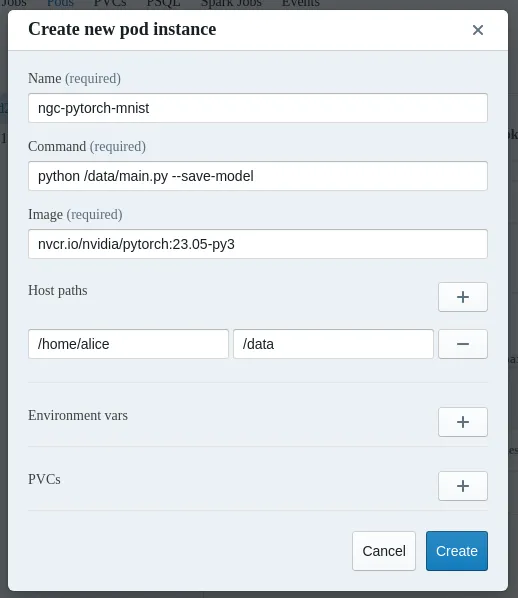
Figure 18.31: Jupyter Kubernetes Operators Manager: pod creation
18.9.5 PVCs Tab
A Persistent Volume Claim (PVC) is a user’s request for a specific amount of storage space within a Kubernetes cluster with defined characteristics.
The PVCs tab (figure 18.32) displays an overview of the PVCs.
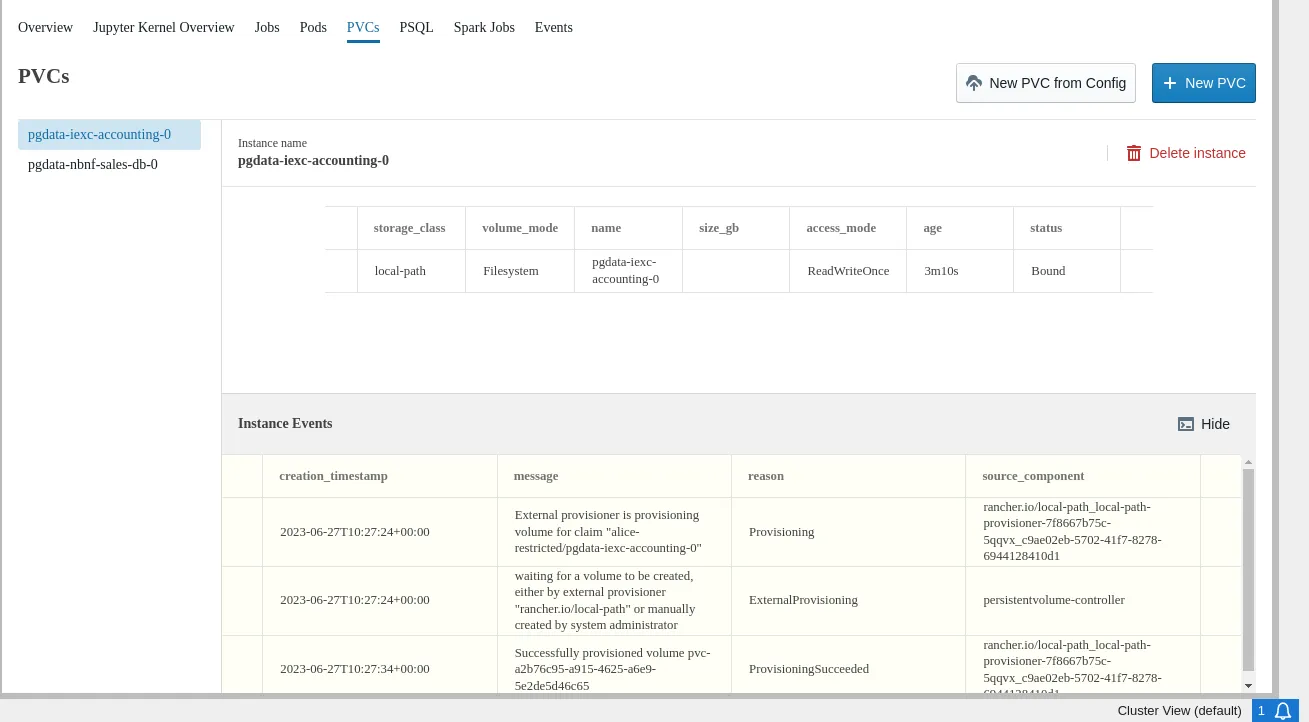
Figure 18.32: Jupyter Kubernetes Operators Manager: PVCs overview tab
The tab allows users to manage existing PVCs or create new ones via a dialog.
To create a new PVC, several fields must be set. This can be done via a pop-up dialog, that comes up on clicking either of these buttons:
-
the
New PVC from Configbutton: This allows a YAML file configuration to be submitted to set the fields. -
the
New PVCbutton: This allows the configuration to be set directly (figure 18.33).
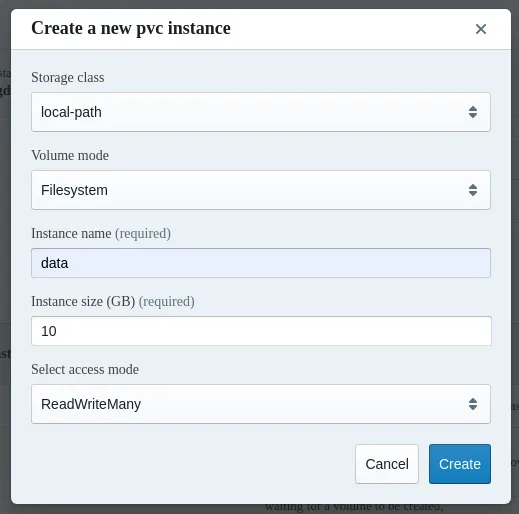
Figure 18.33: Jupyter Kubernetes Operators Manager: PVC creation
To create a new PVC directly, the following fields need to be set in the form:
-
Storage class: Storage classes need to be configured cluster-wide during installation, and can be either
-
local-path, or -
bright-ceph
-
-
Volume mode: can be either
-
Filesystem, where the requested space is accessible as a formatted filesystem, or -
Block, where the space is accessible as a raw block device.
For the
local-pathstorage class, onlyFilesystemis available. -
-
Instance name: arbitrary name of the PVC.
-
Instance size (GB): requested size. It can be ignored for
local-path, as quotas are not supported for shared filesystems. The resulting volumes for a cluster <cluster_name> are located under/cm/shared/apps/kubernetes/<cluster_name>/var/volumesand are configurable during cluster setup. -
Select access mode:
-
ReadWriteOnce: The volume can be mounted as read-write by a single node. Multiple pods can still access the volume if they are running on the same node.
-
ReadOnlyMany: The volume can be mounted as read-only by many nodes.
-
ReadWriteMany: The volume can be mounted as read-write by many nodes.
-
18.9.6 PSQL Tab
The PSQL tab (figure 18.34) provides a simplified interface for interacting with the Zalando PostgreSQL Operator. It offers an overview of instances running on the cluster, it displays associated events, and provides credentials and access points for running PSQL databases. This information can be used later in Jupyter Notebooks or other PSQL clients.
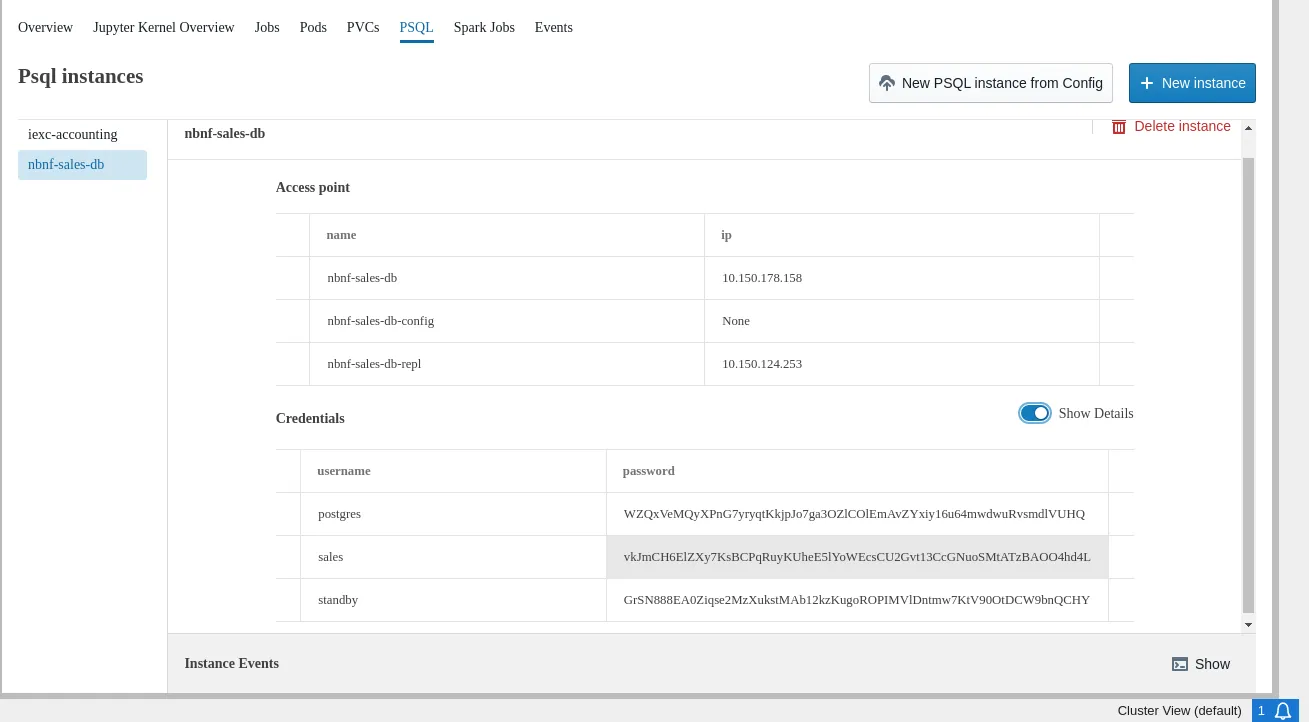
Figure 18.34: Jupyter Kubernetes Operators Manager: PSQL overview
The tab allows users to manage existing PostgreSQL databases or to create new ones via a dialog.
An example notebook is located at /cm/shared/examples/jupyter/notebooks/psql-example.ipynb (figure 18.35).
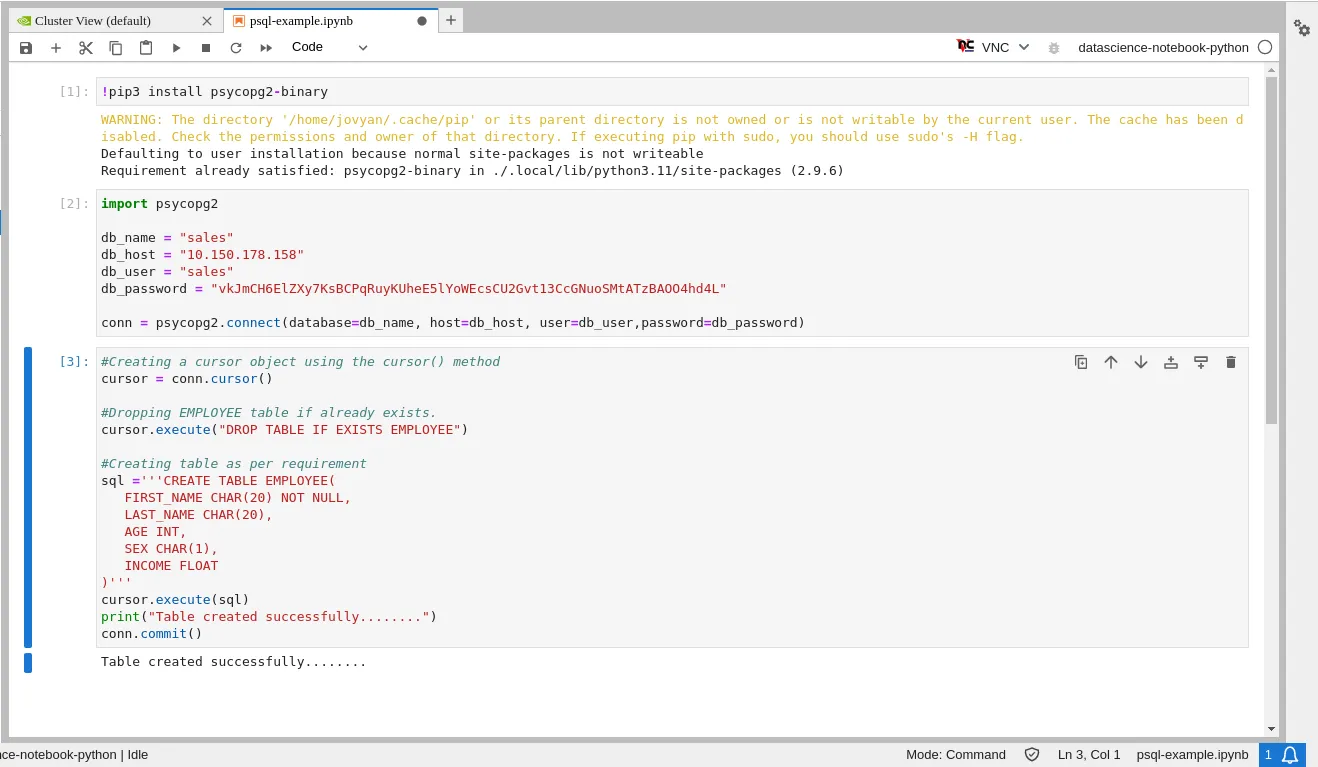
Figure 18.35: Jupyter Kubernetes Operators Manager: PSQL notebook
There are two buttons in figure 18.34:
-
New PSQL instance from Config: allows a YAML file configuration that sets the fields to be submitted -
New instance: allows the fields to be set directly (figure 18.36)
Clicking either button displays a pop-up dialog for creating a new PostgreSQL instance. For example, the New instance button displays the creation form in figure 18.36.
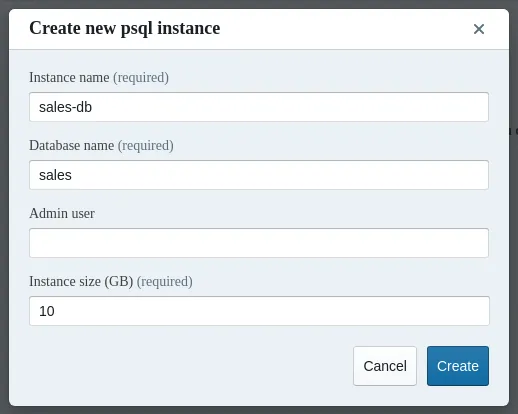
Figure 18.36: Jupyter Kubernetes Operators Manager: PSQL instance creation
The creation form accepts the following values:
-
Instance name: PSQL instance name. An auto-generated team name is prefixed to this name
-
Database name: arbitary database name
-
Admin user (Optional): if not set, the name of the admin user is set to the database name
-
Instance size (GB): data storage size requirement for the volumes
18.9.7 Spark Tab
The Spark Jobs tab (figure 18.37) simplifies dealing with Spark clusters managed by the Google Spark Operator. The tab lets users list, remove, and create Spark instances using a simplified interface. If a particular option is not available in the simplified form, then a custom manifest can be uploaded.
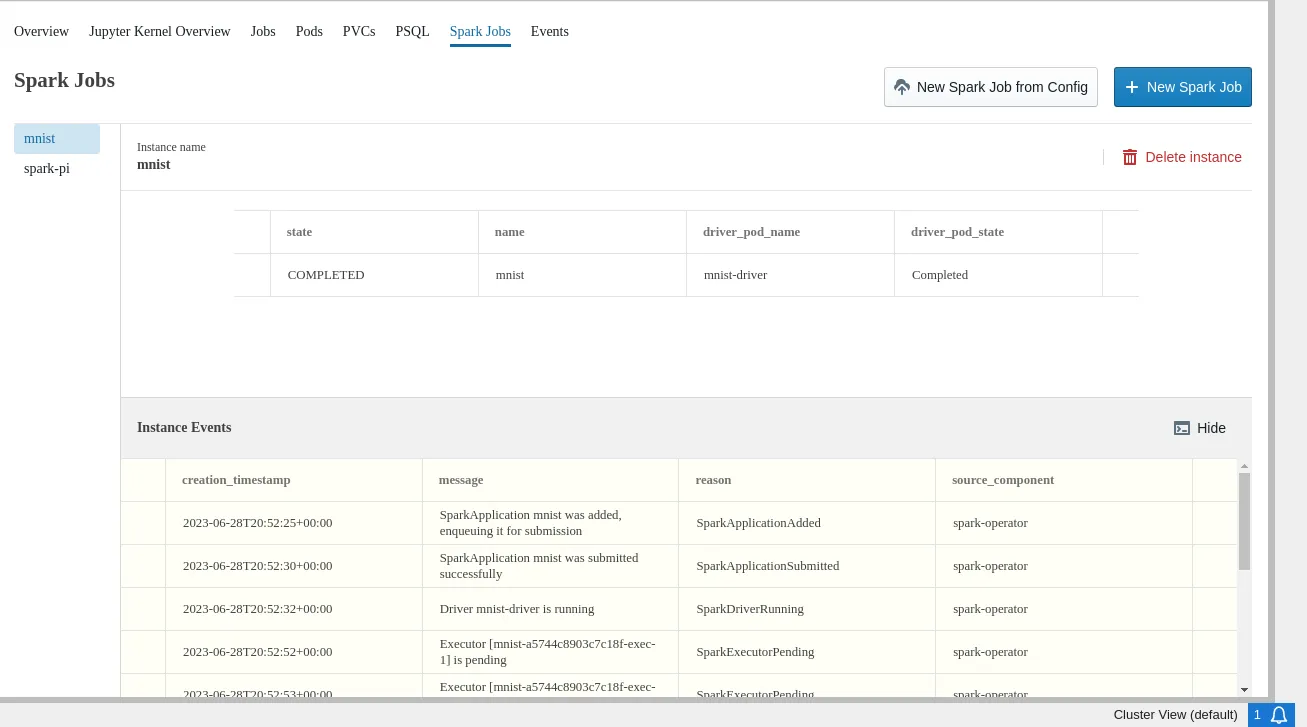
Figure 18.37: Jupyter Kubernetes Operators Manager: Spark overview
There are two buttons in figure 18.37:
-
New Spark Job from Config: allows a YAML file configuration that sets the fields to be submitted -
New Spark Job: allows the fields to be set directly (figure 18.38)
Clicking either button displays a pop-up dialog for creating a new Spark instance. For example, the New Spark Job button displays the creation form in figure 18.38. The creation form requires the following values:
-
Name: Arbitrary name of the Spark instance.
-
Image: Container image for the driver and executor.
-
Spark Version: Version of Spark used by the application.
-
Command: Application’s command with arguments.
-
Executor Instances: Number of executors.
-
PVCs (Optional): List of Persistent Volume Claims with mountpoints where these volumes are mounted. Used to store the application and datasets, as well as packed virtual environment archives.
-
Virtual Environment (Optional): Configuration for the ’spark.archives’ configuration variable for the Python virtual environment.
-
PVC: Name of the Persistent Volume Claim with empty Volume which are used to store the unpacked archive.
-
Archive: Full path to the archive.
-
Python Path (Optional): Python path (default
/bin/python).
-
-
Driver Resources (Optional):
-
Memory: Amount of memory to request for the pod.
-
GPU: List of key-value pairs such as
nvidia.com/gpu, 3. -
Cores: Number of cores to use for the driver process.
-
Environment: List of key-value pairs for environment variables.
-
-
Executor Resources (Optional): Same as
Driver Resources. -
Spark Config (Optional): Custom configuration parameters if necessary. They are key-value pairs, documented in the Spark documentation at https://spark.apache.org/docs/latest/configuration.html.
18.9.7.1 Example: Calculating Pi
The simplest way to run Spark involves specifying just three values: the name, the script to execute, and the Spark version. For example, the container registry image docker.io/apache/spark:3.5.1-python3 published by the Apache Spark project can be used, and an application to calculate the value for π is located at /opt/spark/examples/src/main/python/pi.py inside the image.
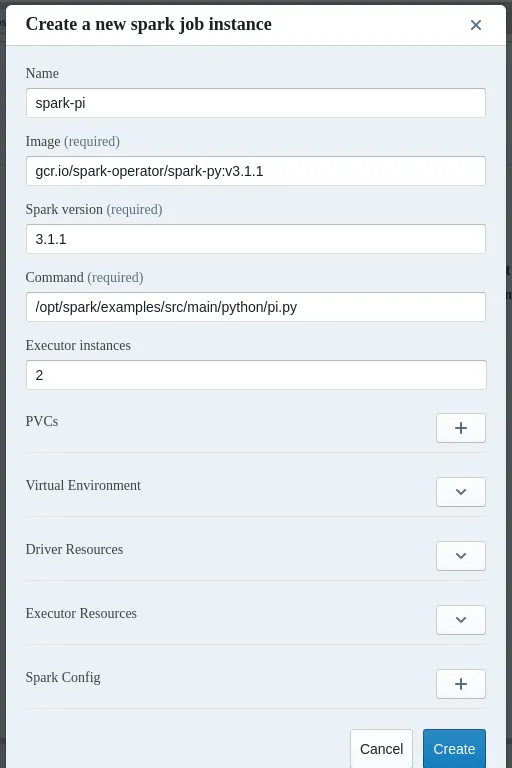
Figure 18.38: Jupyter Kubernetes Operators Manager: Spark creation
The progress of execution can be monitored in the Pods tab (figure 18.39):
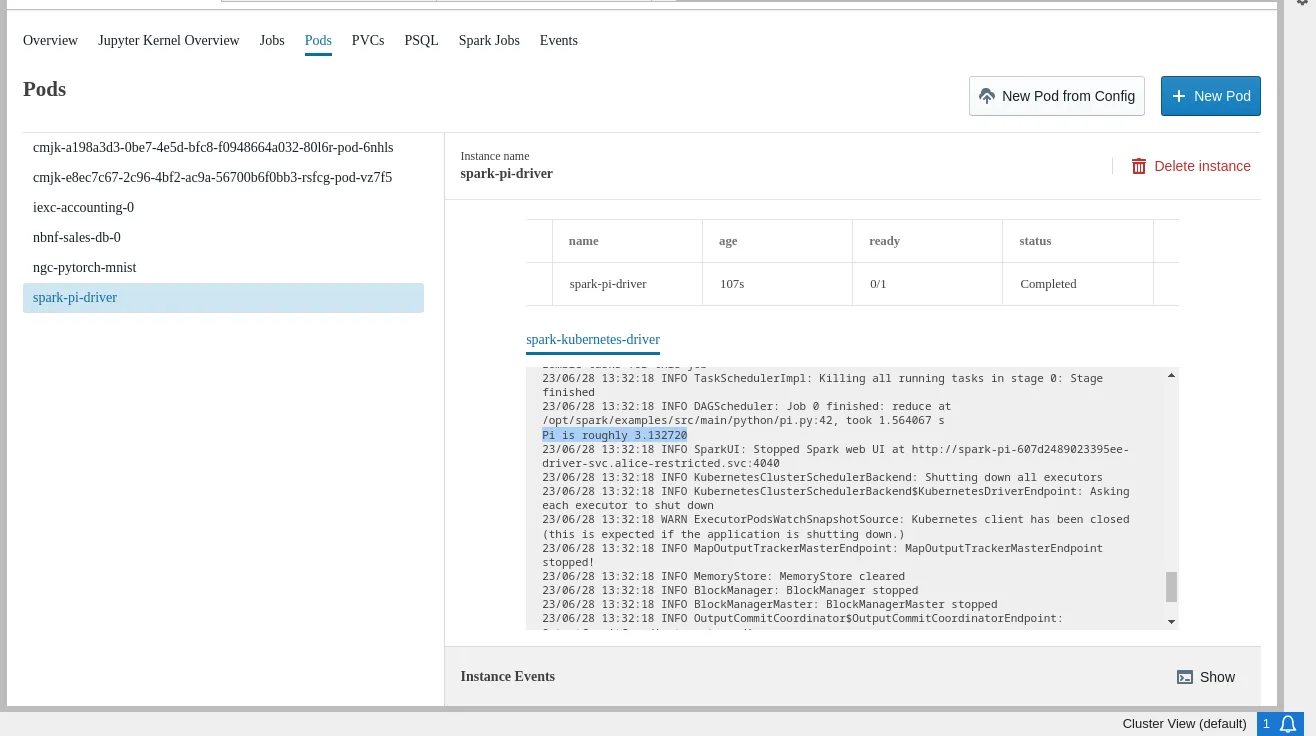
Figure 18.39: Jupyter Kubernetes Operators Manager: pods tab Spark example execution status
When the job is completed, the overview page is updated (figure 18.40):
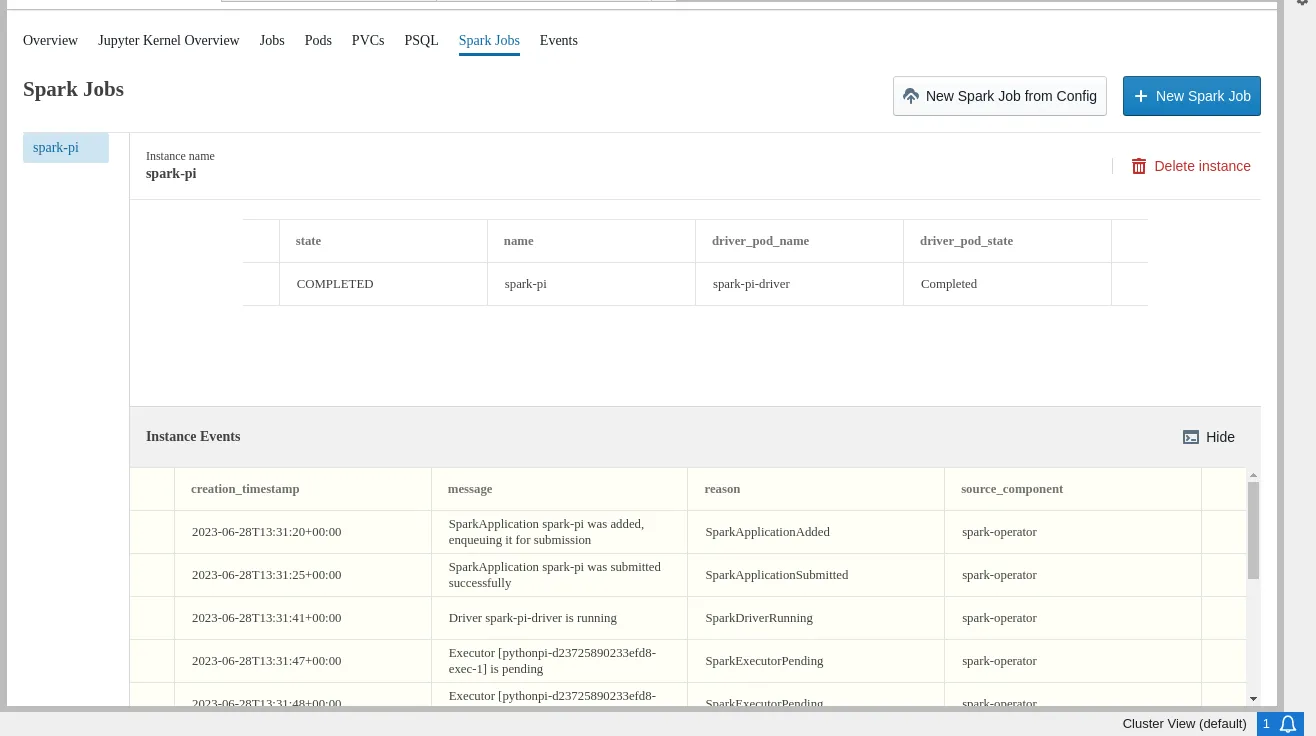
Figure 18.40: Jupyter Kubernetes Operators Manager: pods tab Spark example completed status
18.9.7.2 Example: Running MNIST
The source files for the MNIST example are located in the /cm/shared/examples/jupyter/spark-operator-mnist directory
Example
In the example the user is unable to train the model defined in mnist.py right away, as the image docker.io/apache/spark:3.5.1-python3 does not have the required NumPy library. So, before running the Spark job, the virtual environment archive needs to be created.
The safest way to create the Python environment is to use the same context as where the archive is to be used later on. That way there are no missing or conflicting libraries and paths, and the Python version matches. The docker.io/apache/spark:3.5.1-python3 image itself can therefore be used to create the archive. The script create-venv.sh creates the create archive from requirements.txt file and packs it.
In this example, a newly persistent volume (PV) is used as an intermediate storage for all the data and scripts, because using a file system where all the files are located would be a security concern. The reason for this is that once the hostPath is used for the pod, the running process UID/GID is dropped, and becomes the same as the original user (section 4.10.1 of the Containerization Manual). Spark images are usually not designed with this assumption in mind, and use UID 185 to run the application (https://spark.apache.org/docs/3.1.1/running-on-kubernetes.html#user-identity).
With these criteria in mind, the steps to run the MNIST example are:
- Create a PVC for storing scripts and datasets (figure 18.41). Since the resulting persistent volume is expected to be mounted to all pods (driver and executors), its mode is set to
ReadWriteMany.
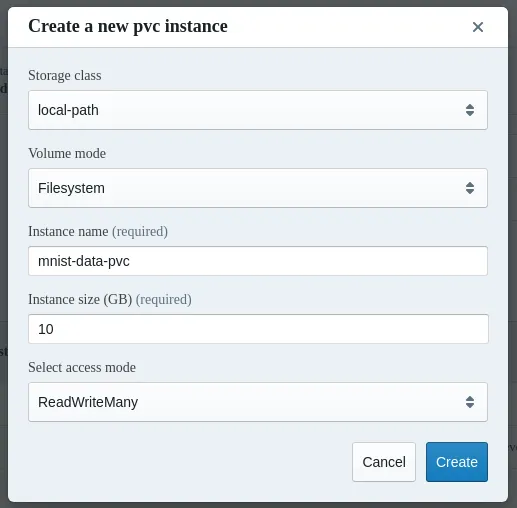
Figure 18.41: Jupyter Kubernetes Operators Manager: PVC creation for Spark example
- Migrate data from the home folder to the volume. To do this, a migration job is created (figure 18.42), and allowed to finish (figure 18.43).
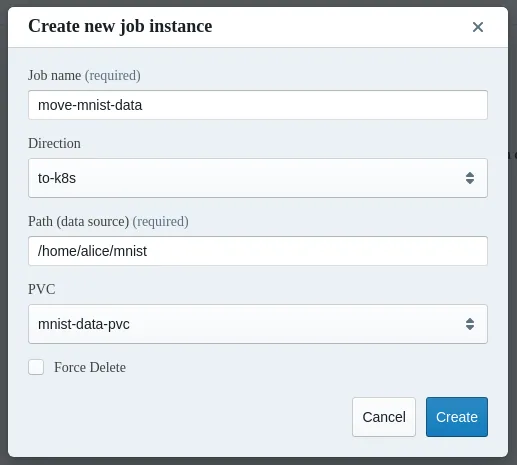
Figure 18.42: Jupyter Kubernetes Operators Manager: Data migration job creation for Spark example
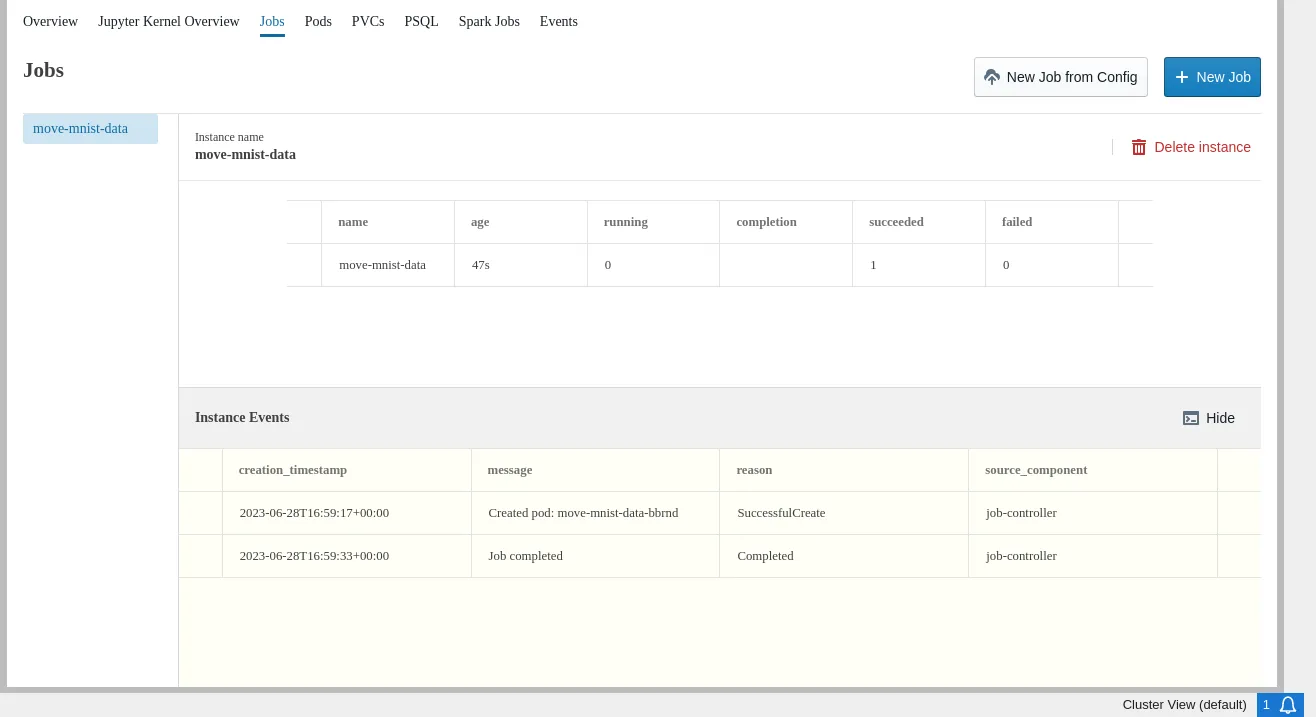
Figure 18.43: Jupyter Kubernetes Operators Manager: Data migration job for Spark example successfully finished
- Create a pod to build a packed virtual environment (figure 18.44). For this,
mnist-data-pvcis mounted by the user as the/mnistdirectory inside the pod. The command/mnist/create-venv.sh /mnist/requirements.txt /mnist/venv.tar.gzis then executed. This places thevenv.tar.gzarchive next to the other files in the volume.
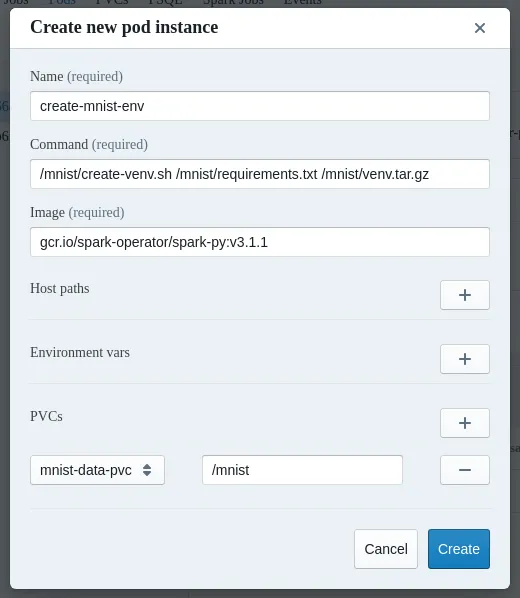
Figure 18.44: Jupyter Kubernetes Operators Manager: pod creation for virtual environment
- (Optional) If necessary, data can be downloaded from the volume back to the user’s home directory, to save the
venv.tar.gzfor future use (figure 18.45):
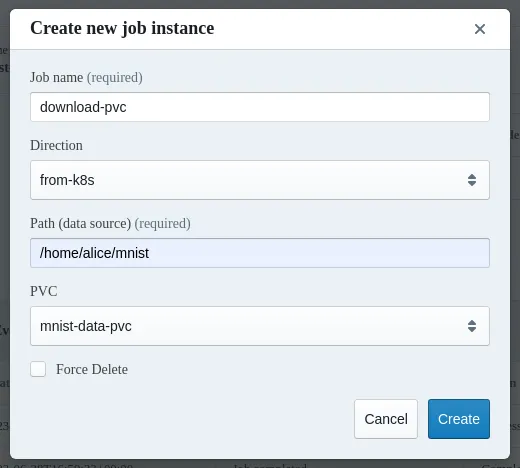
Figure 18.45: Jupyter Kubernetes Operators Manager: migrate venv to PVC
The venv.tar.gz file is placed in the /home/alice/mnist directory.
- Another volume is created to store the unpacked virtual environment files (figure 18.46). This is mounted to all pods (driver and executor). The driver unpacks the archive, and the content is used by the executors.
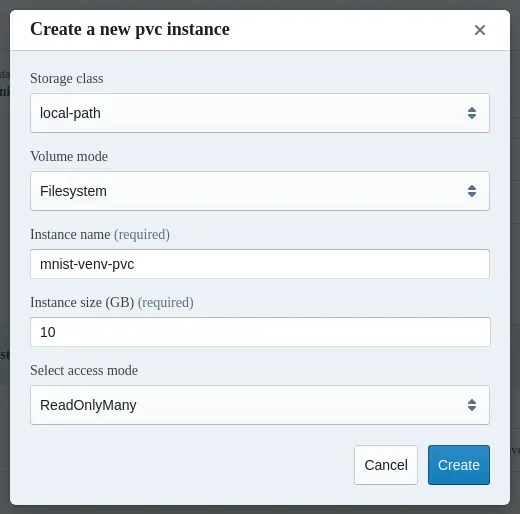
Figure 18.46: Jupyter Kubernetes Operators Manager: volume creation for unpacked virtual environment files
- The Spark job can now be created (figure 18.47):
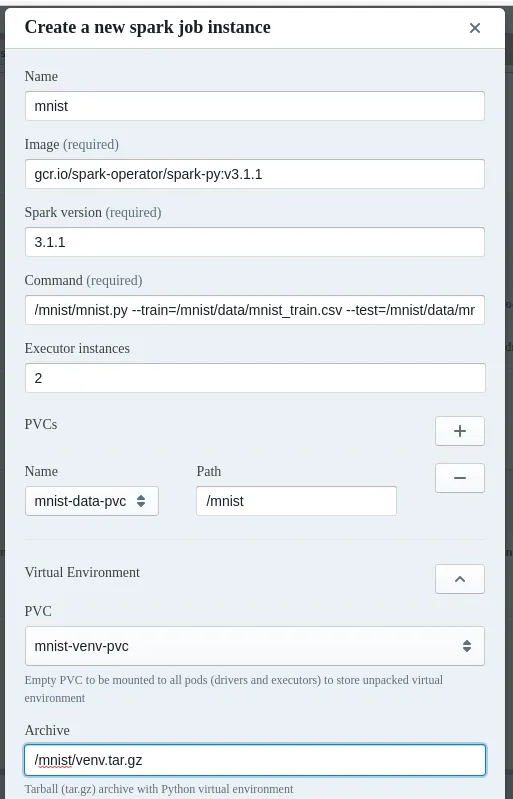
Figure 18.47: Jupyter Kubernetes Operators Manager: create Spark job
The execution progress can be monitored in the Pods tab (figure 18.48):
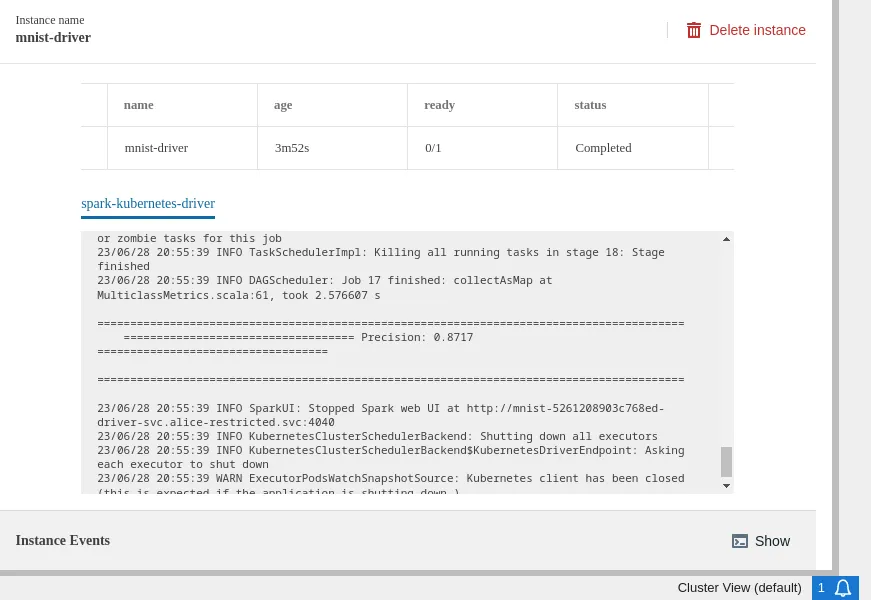
Figure 18.48: Jupyter Kubernetes Operators Manager: monitoring the Spark instance in the Pods tab
18.9.8 Events Tab
The Events tab lists all events from the user’s namespace (figure 18.49):
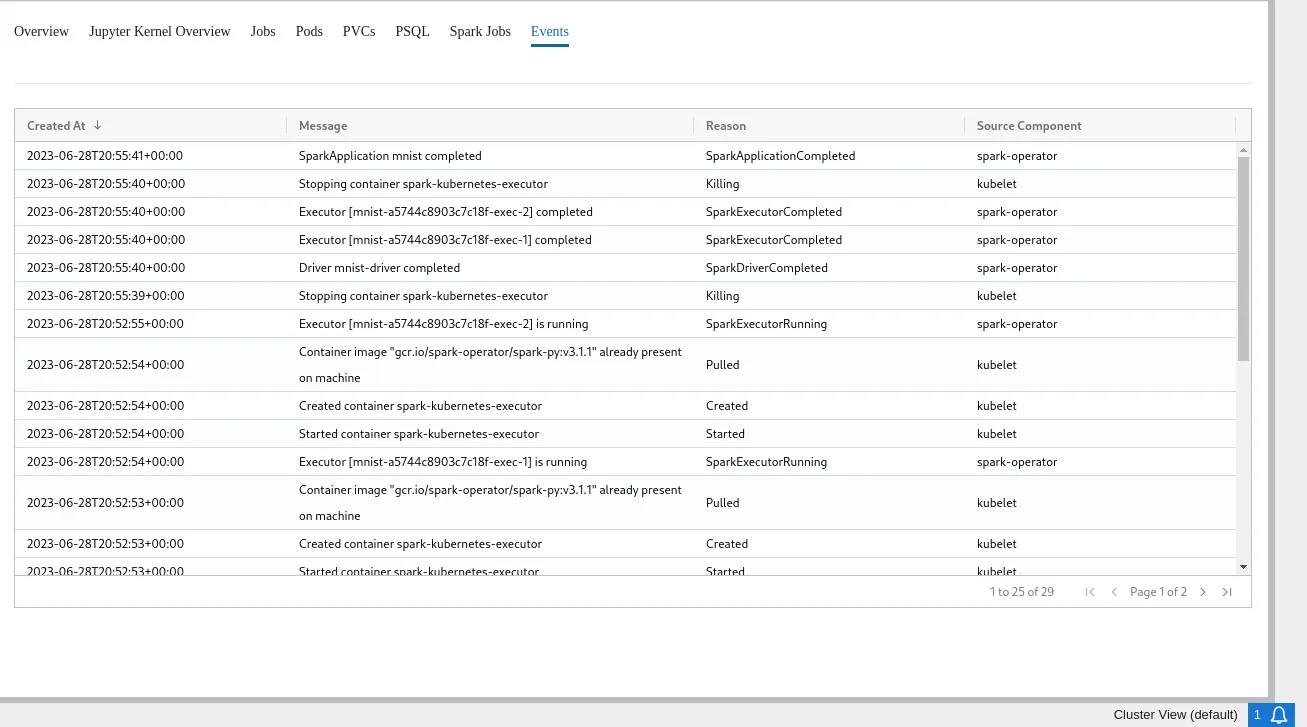
Figure 18.49: Jupyter Kubernetes Operators Manager: events overview
18.10 Jupyter Environment Removal
Before removing Jupyter, the administrator should ensure that all kernels have been halted, and that no user is still logged onto the web interface. Stopping the cm-jupyterhub service with users that are still logged in, or with running kernels, has undefined behavior.
To remove Jupyter, the script cm-jupyter-setup must be run, either in interactive mode, or with the option --remove.
Removing Jupyter does not remove or affect Kubernetes or WLM deployments.
For a more complete cleanup, the following packages must be manually removed from the nodes involved in the Jupyter deployment: cm-jupyter, cm-jupyter-local, and cm-npm-configurable-http-proxy.