

Kubernetes Operators
Kubernetes operators are the modern way to manage Kubernetes cluster applications (https://kubernetes.io/docs/concepts/extend-kubernetes/operator/). It is usually recommended that Kubernetes operators are used instead of the legacy applications.
At the time of writing of this section (March 2024), NVIDIA Base Command Manager provides and packages several operators which are validated to perform basic functionalities on a Kubernetes BCM setup.
-
the NVIDIA GPU Operator (section 6.4)
-
the NVIDIA Network Operator (section 6.5)
-
the NVIDIA NetQ Operator (section 6.6)
-
the Prometheus Operator Stack (section 6.7)
-
the Prometheus Adapter Operator
-
the Jupyter Kernel Operator (section 6.3)
-
the Spark Operator (section 6.9)
-
the Postgres Operator (section 6.10)
-
the MPI Operator
-
the MetalLB Operator
-
the Kubeflow Training Operator
Run:ai is no longer one of them. Section 6.8 describes what changed, and how Run:ai can still be deployed on top of a BCM 10 Kubernetes cluster.
6.1 Versions Of Operators Available
The versions of the operators that are available can be listed with the cm-kubernetes-setup --list-operators-versions command.
The versions available at the time of writing (November 2024) for the operators are shown in the following table:
(E) NVAIE-certified
During the initial setup, the installation wizard displays a menu to select which operators are to be installed (figure 6.1).

Figure 6.1: Kubernetes setup TUI session: selection of operator packages to be installed
After selecting the operators to be used, the actual operator versions available depend on package management resolution.
In the case of BCM operators, the installation wizard uses a Helm chart from the OS package manager for some of the .deb or .rpm packages being deployed. In the case of cloud operators, the installation wizard uses a Helm chart from the Helm repository for deployment.
6.2 Helm Charts For The BCM Operators
Based on the operators that are to be installed, the wizard asks for configuration options to the Helm charts that are to be installed (figure 6.2):

Figure 6.2: Kubernetes setup TUI session: prompting for Helm chart configuration options
The Helm charts that are selected are installed with sensible defaults. If additional tuning is needed, then the charts can be installed manually after cm-kubernetes-setup finishes:
If additional tuning is required then tunable values can be set with a command line similar to the following:
Possible values can be displayed as follows:
Installed operators can be listed by using the CLI option --list-operators:
6.3 The Jupyter Kernel Operator
6.3.1 Installing The Jupyter Kernel Operator
The Kubernetes Jupyter Kernel Operator can be installed as a part of the cm-kubernetes-setup procedure (section 4.2.6), which eventually leads to the selection screen displayed in figure 6.1.
The Kubernetes Jupyter Kernel Operator can alternatively be installed later on using the OS package manager and Helm:
The chart installs into the Helm release namespace given with -n rather than shipping its own hardcoded namespace, so a namespace must be specified. Installations done through cm-kubernetes-setup are unaffected by this, since it already passes --namespace cm --create-namespace. When upgrading an existing installation with helm upgrade, the namespace given must be the release’s existing namespace, and not a hardcoded cm-jupyter-kernel-operator-system: an older chart version shipped its own Namespace object, and upgrading with a mismatched -n deletes the entire release, because the old chart’s Namespace object is pruned. If the target namespace is not known, the release should be uninstalled first, then installed again into the new namespace.
The Jupyter Kernel Operator can be removed with:
Example
It is recommended to enable a pod security policy using Kyverno (section 4.10.1) for the cluster before allowing a user, for example alice, to create resources in the Kubernetes cluster.
The Kubernetes Jupyter Kernel Operator Helm chart creates a CRD that can be used in the Kubernetes API. To check the availability of the CRD, the following command can be run:
Example
6.3.2 Architecture Overview
The Kubernetes Jupyter Kernel Operator has two main components:
-
the operator itself
-
the sidecar. This is attached to every user-defined kernel pod, and communicates with Jupyter Enterprise Gateway, acting as a proxy for the kernel process.
The following is an overview of the kernel setup and pod lifecycle when the user runs the Kubernetes Jupyter Kernel Operator:
-
User initiates creating kernel in JupyterLab.
-
JupyterLab delegates this task to Jupyter Enterprise Gateway (JEG).
-
JEG opens a service TCP/IP socket and creates a CRD in Kubernetes specifying this port.
-
KubeApi notifies Jupyter Kernel Operator about the newly created CRD.
-
Jupyter Kernel Operator creates services, configmaps, secrets.
-
Jupyter Kernel Operator creates pod to run Jupyter kernel based on the specification. The sidecar is added to the kernel pod during this step.
-
The sidecar waits for the connection file created by the kernel. Alternatively, it relies on the connection file created by the operator (if requested), as not all kernels create a connection file.
-
The sidecar runs a proxy to forward kernel communications to JEG (stdin, shell, iopub, etc).
-
The sidecar notifies JEG about connection parameters and handles kernel communications.
-
If JEG disappears, or if communication drops, then the sidecar stops. This causes the kernel operator to get a notification via the KubeApi service.
-
The Kubernetes Jupyter Kernel Operator removes the unneeded pod, service, configmap and secrets. It also tries to gather stdout and std error of the kernel pod for debug purposes.
The pod created in step 6 is heavily customized by the kernel operator. For security reasons, running a process inside the pod must be carried out as an unprivileged user.
For the convenience of the Jupyter user, the UID/GID of the process inside the pod should match the UID/GID of the Jupyter user. If that is not the case, then the files created in the container are inaccessible for the Jupyter user.
To achieve matching UID/GIDs, the operator dynamically creates /etc/passwd and /etc/group files inside the pod and populates them with the data from corresponding templates. At the same time the operator can create a kernel communication file, if requested—some kernels rely on that.
6.3.3 Running Jupyter Kernel Using The Operator
An example of a basic YAML definition for the CMJupyterKernel is:
This can be submitted, but the operator removes it in approximately 1 minute:
The logs of the operator can be checked for debug purposes:
This indicates that the sidecar was stopped because there was no connection from Jupyter Enterprise Gateway to the kernel. This is expected, since the kernel has been run manually, and not using Jupyter. After the sidecar shutdown, the kube-api server notifies the operator, which, in turn, removes objects such as CMJupyterKernel, pods, and services.
6.3.4 Jupyter Kernel Operator Tunables
Table 6.1: Tunable Options for Jupyter Kernel Operators
Legend:
O: Optional
R: Required
6.3.5 Sidecar Arguments And Environment Variables
6.3.5.1 Sidecar Arguments
A timeout can be set as an argument for the sidecar.
--timeout: Defines how long, in seconds, that the sidecar waits for the Jupyter Enterprise Gateway proxy to connect before shutdown. Default:60
6.3.5.2 Environment Variables
The following environment variables can be used by the sidecar:
Table 6.2: Environment Variables For The Sidecar
6.3.6 Running Spark-based Kernels In Jupyter Kernel Operator
Jupyter integration for BCM provides a kernel template (jupyter-eg-kernel-k8s-cmjkop-py-spark) and a sample container image (brightcomputing/jupyter-kernel-sample:k8s-spark-py39-2.0.0) to run Jupyter kernels in a Spark environment. The image can be altered or created from scratch based on the scripts provided in /cm/shared/examples/jupyter/kubernetes-kernel-image-spark-py39/.
The Jupyter kernel is not run directly. Instead, the kernel process is run and controlled by the spark-submit executable inside the container.
Jupyter Kernel Operator alters the provided image based on the CRD definition.
Spark-specific tunables are spark_pod_template_path and spark_pod_template. The operator creates a file inside of the Spark driver pod and puts the content of spark_pod_template in it. After that, spark-submit uses this file, via the --spark.kubernetes.executor.podTemplateFile configuration option, to create executor pods.
6.3.7 Example: Creating An R Kernel From The Kernel Template
The Jupyter Kernel Operator can be used out-of-the-box to support more kernels.
For example, an R kernel can be added.
The official jupyter/r-notebook R image can be taken from the Jupyter project, from https://jupyter-docker-stacks.readthedocs.io/en/latest/using/selecting.html#jupyter-r-notebook.
The default entry point cannot be used as that would start Jupyter notebook, while the aim for this section is to use the kernel only.
Some exploratory investigation should reveal the command to start the kernel:
The pod can be run interactively in a Jupyter notebook terminal by a user:
The kernel specifications can then be investigated:
The ir kernel is what is of interest here. The command line that is used to start the kernel can be found:
Based on this information the Jupyter Kernel Operator CRD can be created for the user:
There are several changes from the previous (section 6.3.3) YAML, and from the IR command line:
-
create_connection_file: trueIf this is not specified then the kernel complains with the following message during startup:
kernel: cannot open file '/var/tmp/kernel-parm.json': No such file or directoryThis means that the kernel expected this file to be created before the start.
-
image: jupyter/r-notebookAnother image needs to be used.
-
args: ... "/var/tmp/kernel-parm.json"The spec file has a fixed path and name, instead of
"connection_file``"as inkernel.jsonearlier
The resulting cmjk-ir.yaml file can be submitted to Kubernetes, but it will be removed by the operator after one minute, as it is not being started from the Jupyter Enterprise Gateway.
The next step is to create a kernel template. The Python kernel can be used as a reference:
The files meta.yaml, kernel.json, and templates/cmjk.yaml.j2 need to be changed in order to able to provide the correct image and command:
The changes that are applied should look similar to the following:
After instantiating a kernel spec from the template, the R kernel is ready for use:
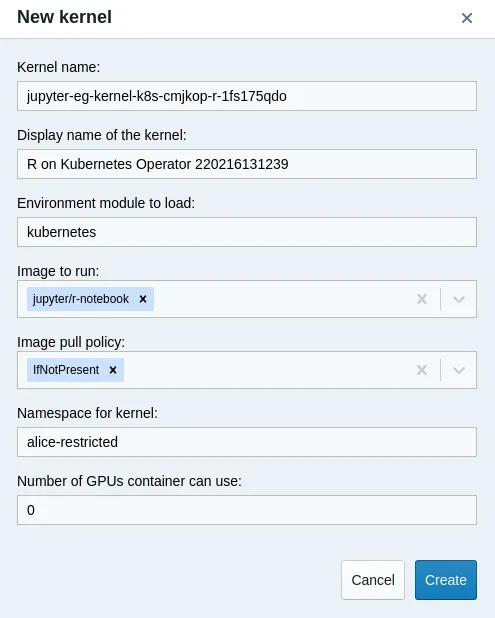
Jupyter Kernel Creator: creating the IR kernel spec
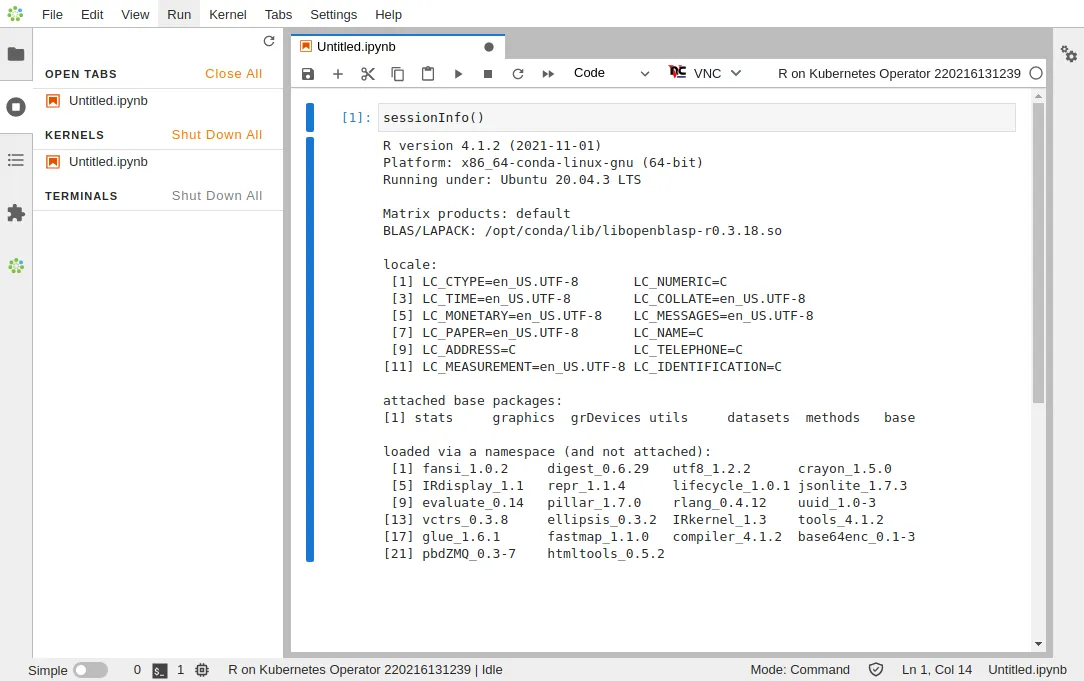
JupyterLab: running the IR kernel
6.3.8 Example: Letting Kubernetes Access Private Registries From The Kernel Template
To be able to pull images from private registries, Kubernetes needs to be instructed about the credentials to use.
6.3.8.1 Creating The Secret
This can be achieved by specifying the secret to spec.imagePullSecrets of the pod definition.
For Jupter Kernel Operator this is spec.pod.imagePullSecrets:
Example
Creating secrets can be carried out with kubectl
Example
More details about managing certificates can be found in the Kubernetes documentation at:
https://kubernetes.io/docs/tasks/configure-pod-container/pull-image-private-registry/
6.3.8.2 Parameterizing The Secret
The name of the secret can be parameterized, so that users are allowed to select from secrets in their namespaces.
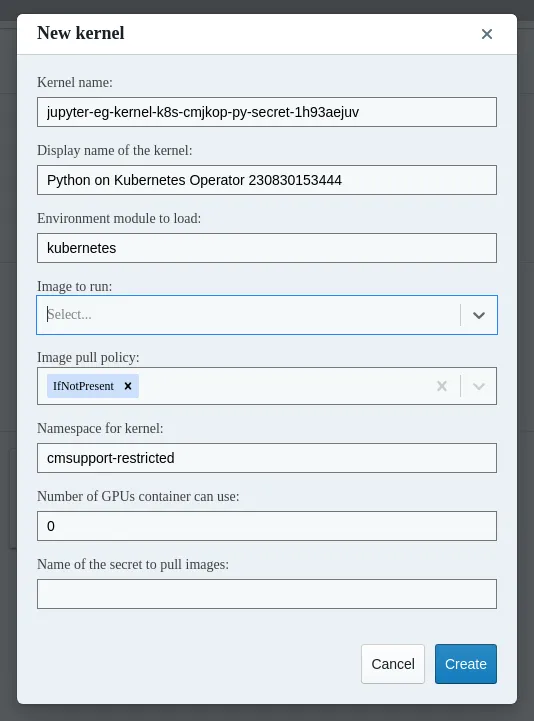
Jupyter Kernel Creator: secret selection
For parameterization, the meta.yaml and kernel.json.j2 files must also then be modified:
Example
6.3.9 Example: Adding The PVC Parameter To The Kernel Template
The PVC that is to be mounted can be set in the template:
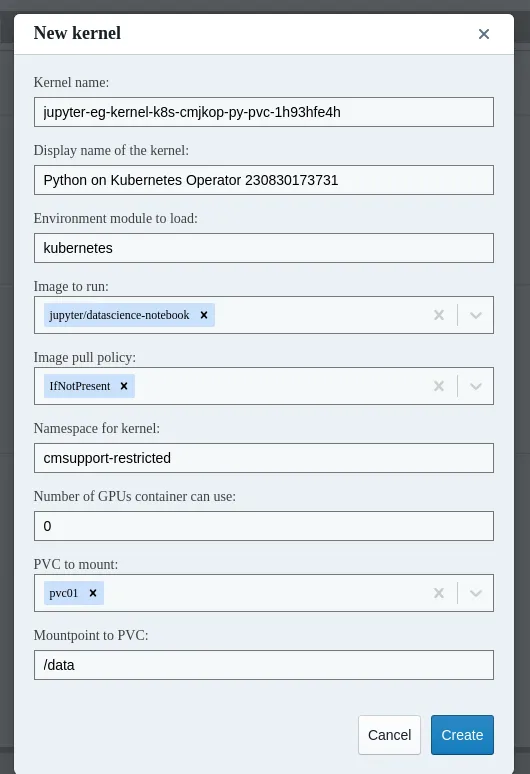
Jupyter Kernel Creator, PVC selection.
The settings in meta.yaml, kernel.json.j2 and templates/cmjk.yaml.j2 for this are:
Example
6.4 The NVIDIA GPU Operator
6.4.1 Installing The NVIDIA GPU Operator
The NVIDIA GPU operator can be installed as a part of the installation session by the cm-kubernetes-setup wizard (section 4.2.6). During the setup session, a checkbox can be checkmarked to install and enable the GPU operator (figure 6.1). Nodes that run DGX OS are also supported by the wizard.
A specific version can be selected for the installation (figure 6.7):

Figure 6.7: GPU operator version selection screen
The NVIDIA GPU operator can also be deployed on an existing BCM Kubernetes cluster, as described next.
6.4.2 Installing The NVIDIA GPU Operator On An Existing Kubernetes Cluster
If the NVIDIA GPU Operator (https://docs.nvidia.com/datacenter/cloud-native/gpu-operator) is to be installed within an existing BCM Kubernetes cluster, then it must always be deployed using Helm.
Prerequisites:
If the existing cluster uses the NVIDIA device plugin add-on, even if configured by NVIDIA Base Command Manager, then it may be necessary to disable the add-on. This add-on is now deprecated, and will be removed in a future release.
One of the prerequisites for the preceding add-on is that it uses labels to identify the nodes to be managed by the add-on. These labels are unnecessary for the GPU operator, and may be removed:
Installing The NVIDIA GPU Operator: Validation methods are described for each step of the deployment.
-
For
containerd, Helm installation is carried out by the root user with the following options: -
For
docker, Helm installation is carried out by the root user with the following options:
Helm chart options are documented at https://docs.nvidia.com/datacenter/cloud-native/gpu-operator/latest/getting-started.html#common-chart-customization-options.
NVIDIA GPU Operator containerd configuration:
The operator provides the toolkit binaries and containerd configuration (nvidia-cri.toml) on each host where a GPU is auto-detected via a host-mount.
The flag that enables this is --set toolkit.enabled=true. The path for the configuration file should be set to: /cm/local/apps/containerd/var/etc/conf.d/nvidia-cri.toml, which is where BCM’s cm-containerd package expects to find it.
The operator provides a similar configuration functionality for the CUDA drivers. However this is not used in BCM, and it is disabled with the --set driver.enabled=false flag. This is because BCM supports CUDA on more Linux distributions and kernel versions than the NVIDIA GPU Operator does. CUDA drivers are therefore expected to already be present on the relevant nodes that have GPUs.
NVIDIA GPU Operator Docker configuration:
This is only relevant for older Kubernetes deployments that are deployed on top of Docker or BCM Docker.
Default paths are used, so nothing particularly special has to be done for the operator to deploy properly.
6.4.3 Removing The NVIDIA GPU Operator
The NVIDIA GPU Operator can be found in the gpu-operator namespace inside Helm and Kubernetes.
A helm uninstall gpu-operator command can be used to uninstall the operator.
6.4.4 Validating The NVIDIA GPU Operator
A pragmatic way to validate the NVIDIA GPU Operator is to check if the validator pods can be run. A Running status for the pods that are to have a GPU on them can be seen with:
Example
The preceding shows successfully-running pods. The log output should show all validations are successful:
Example
6.4.5 Validating The NVIDIA GPU Operator In Detail
The set of pods associated with the NVIDIA GPU Operator can be examined in more detail. The following shows outputs from a GPU operator deployment that is working correctly:
Example
On this particular example cluster, there are two compute nodes with GPUs, and there is one control plane node without a GPU:
Feature discovery pods: Node Feature Discovery (NFD, https://intel.github.io/kubernetes-docs/nfd/index.html) is an add-on that is initiated after the operator is installed. A master pod collects discovery information from the worker pods, and schedules more pods in case GPUs have been detected.
In the preceding GPU operator output,
-
the master pod is running on
node001with the name:
gpu-operator-node-feature-discovery-master-6c65c99969-wtzcx -
the worker pods run on each node. For example, the worker pod for
node002is:
gpu-operator-node-feature-discovery-worker-z4skv
The output for the pods is not very verbose by default, but if more pods under the nvidia- namespace are scheduled on a node, besides the gpu-operator-node-feature-discovery-* pods, then that means that NFD has detected one or more GPUs.
For example, a GPU discovered on node001 results in a scheduling of the following pods on that node:
-
container toolkit
-
device plugin
-
validator
Container toolkit pods: For nodes that have GPUs, the NVIDIA container toolkit installation pods are started. Pod logs show exactly what is being installed.
One of the requirements for the NVIDIA container toolkit installation pods is that the driver has to be in working order, or the init container driver-validation will fail. The following is the log from a successful installation:
Example
Device plugin pods: The device plugin pods are started up next. These have the toolkit as a requirement. If the toolkit is not in working order, then the init container toolkit-validation fails. The following is the log from a successful startup:
Example
The pod log output suggests that the GPU is now registered with the Kubelet as a resource. This can be checked by querying the Node resource:
Example
Validator pods: If anything goes wrong with either the driver, toolkit, CUDA, or the plugin, then validator pods are a good place to start looking.
If all goes well, the main container outputs all validations are successful:
Example
It is possible for an init container to fail. The output for the container should then be checked.
The following shows output from successful init containers:
This also explains where the pods earlier on came from, the ones marked with status Completed. They are used as part of certain validation steps.
Which init container prints out error messages should indicate where the problem lies—either with the CUDA drivers, or the toolkit, and so on. If the driver or toolkit is not validating correctly, then it may result in a lot of pods stuck in a Pending or an Init stage. Looking at what init container is associated with the stuck pod helps in diagnosing the problem.
DCGM exporter pods: These pods expose metrics endpoints for scraping, and can be considered less critical. They are involved in GPU metrics collection, and can be utilized with, for example, Prometheus Operator Stack, or the Prometheus Adapter, for horizontal pod autoscaling based on GPU metrics.
6.4.6 Running A GPU Workload
A GPU workload can be run with the following configuration:
Example
On a cluster with GPUs available, this pod should get scheduled, and should not stay stuck in the Pending phase.
The preceding example just invokes nvidia-smi in the container. The output can be viewed to confirm that it worked:
Example
6.5 The NVIDIA Network Operator
6.5.1 Installing The NVIDIA Network Operator
The upstream documentation for the NVIDIA Network Operator is quite extensive, and available at https://docs.nvidia.com/networking/software/cloud-orchestration/index.html#network-operator.
6.5.1.1 Going Through The Kubernetes Setup Wizard
The Network operator installation is also part of the initial Kubernetes cluster setup. One of the steps in the wizard asks the cluster administrator to select operators from a list. The Network operator is one of them. If the Network operator is selected (figure 6.8), then the setup wizard continues with some follow-up checks and questions.

Figure 6.8: Kubernetes operators selection, with Network operator selected
The wizard then asks which version of the operator should be installed (figure 6.9):

Figure 6.9: Network operator version selection screen
The wizard then prompts for a custom YAML configuration file to use for the Helm chart deployment (figure 6.10):

Figure 6.10: Network operator prompt for custom YAML configuration for Helm
If a custom YAML configuration file is not chosen, then options for a Helm chart can be set (figure 6.11):
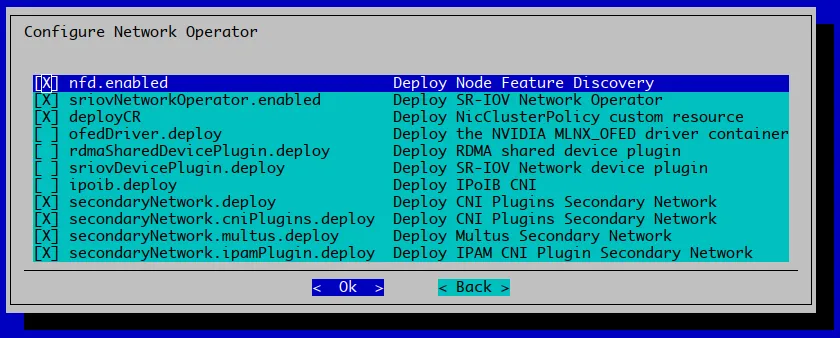
Figure 6.11: Network operator options for Helm chart prompt.
6.5.1.2 Result Of The Network Operator Helm Chart
If all goes well, then the Helm chart should be deployed successfully:
Example
6.6 The NVIDIA NetQ Operator
6.6.1 NVIDIA NetQ Operator Installation
6.6.1.1 Prerequisites
-
The only supported OS is Ubuntu 20.04.
-
The number of NetQ nodes can be 1 or 3 nodes only. These must be regular compute nodes.
-
The NetQ nodes require at least 250 GiB of diskspace to be available.
-
The NetQ nodes require at least 64 GiB of memory.
-
The NVIDIA Base Command Manager default ports cannot be used.
-
Kyverno is not supported in combination with NetQ at the time of writing (March 2024) of this section.
The default ports can be changed on the pctive and passive head nodes as follows.
6.6.1.2 Going Through The Kubernetes Setup Wizard
The NetQ installation is part of the initial Kubernetes cluster setup. One of the steps in the wizard asks the cluster administrator to choose operators from a list of operators. NetQ is one of the possible operators. If the NetQ operator is selected (figure 6.12), then the setup wizard continues with some follow-up checks and questions.

Figure 6.12: Kubernetes NetQ Operator Selection
Node selection asks which nodes are to be assigned to NetQ (see figure 6.13). The options are:
-
for a single-deployment (this is NetQ terminology), one node should be selected
-
For a cluster-deployment (also NetQ terminology), three nodes should be selected
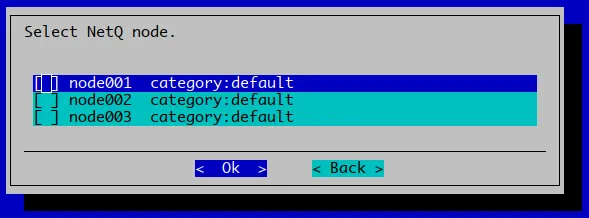
Figure 6.13: NetQ nodes selection
After node selection, the nodes are inspected to see if they meet the prerequisites for running NetQ. One potential issue it detects is if NVIDIA Base Command Manager is already running on the default ports. It suggests the commands to execute to fix that, (figure 6.14). NetQ prerequisites and how to carry out changing the default ports is described further in section 6.6.1.1. After carrying out the port changes, the wizard must be restarted from the beginning.
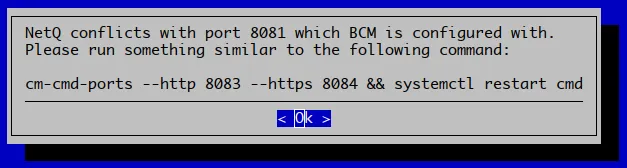
Figure 6.14: Warning presented if NVIDIA Base Command Manager still uses default port 8081.
lf all prerequisites are met, then the next dialog asks for a few files. These have to be provided by NetQ and stored somewhere on the active head node (figure 6.15).
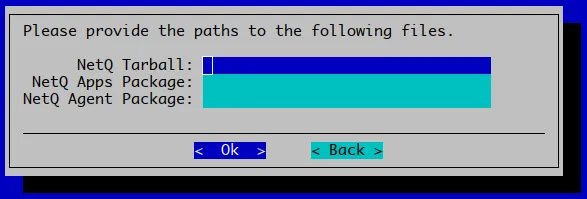
Figure 6.15: Dialog asking for NetQ tarball and packages for agent and apps.
When the required files are downloaded, and saved to, for example, /root:
Example
the dialog can then be filled in (figure 6.16):
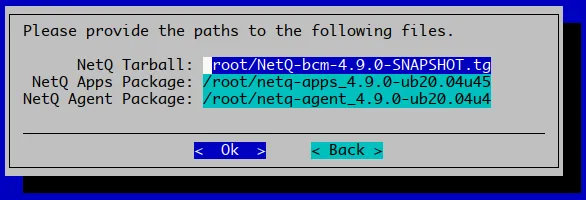
Figure 6.16: Filled-in dialog asking for NetQ files.
Depending on whether a single-node or cluster (three-node) setup is being done, the next dialog will only be shown in the case of a cluster install, and asks for a virtual IP to be used for the NetQ LoadBalancer (figure 6.17).
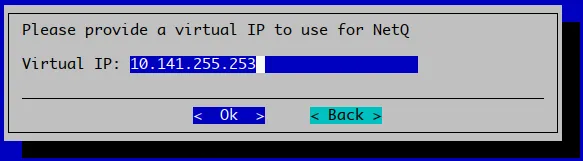
Figure 6.17: NetQ prompt for virtual IP to use for load balancing
The dialog by default suggests an IP address that is not in use, according to NVIDIA Base Command Manager’s internal database. The address is part of the chosen internal network for the Kubernetes pod network.
After the wizard completes it input stage, the actual setup is executed. The setup can take significantly more time than the wizard input stage. The amount of time taken is largely dependent on file I/O speed—bigger files require some time to be synchronized to the appropriate nodes. In addition, NetQ installation itself can take around an hour to finish deploying. The deployment of NetQ is almost the very last step of the setup process. For a successful installation, the last stage of the output displayed looks similar to figure 6.18:
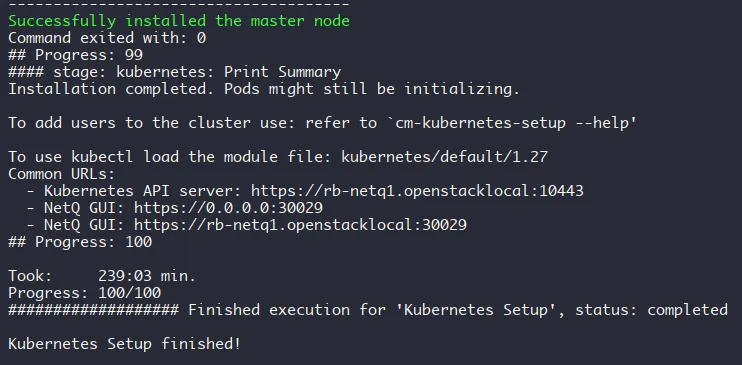
Figure 6.18: Kubernetes with NetQ installation finished, and relevant URLs on display
6.6.2 Accessing The NVIDIA NetQ Operator UI
In section 6.6.1 a NetQ deployment is described.
If the setup is for a single-node deployment, then a NodePort service is used to expose the NetQ UI. The URL is printed at the end of the setup (figure 6.18), but it can also be found by one of the following methods:
-
via kubectl
-
via searching back in the Kubernetes setup file:
If the setup is for a cluster deployment, then the virtual IP address also exposes the NetQ GUI on the default HTTPS port. For the cluster, that is: https://10.141.255.253. This virtual IP address is the one that is set during installation (figure 6.17). Figure 6.19 shows that IP address in use:
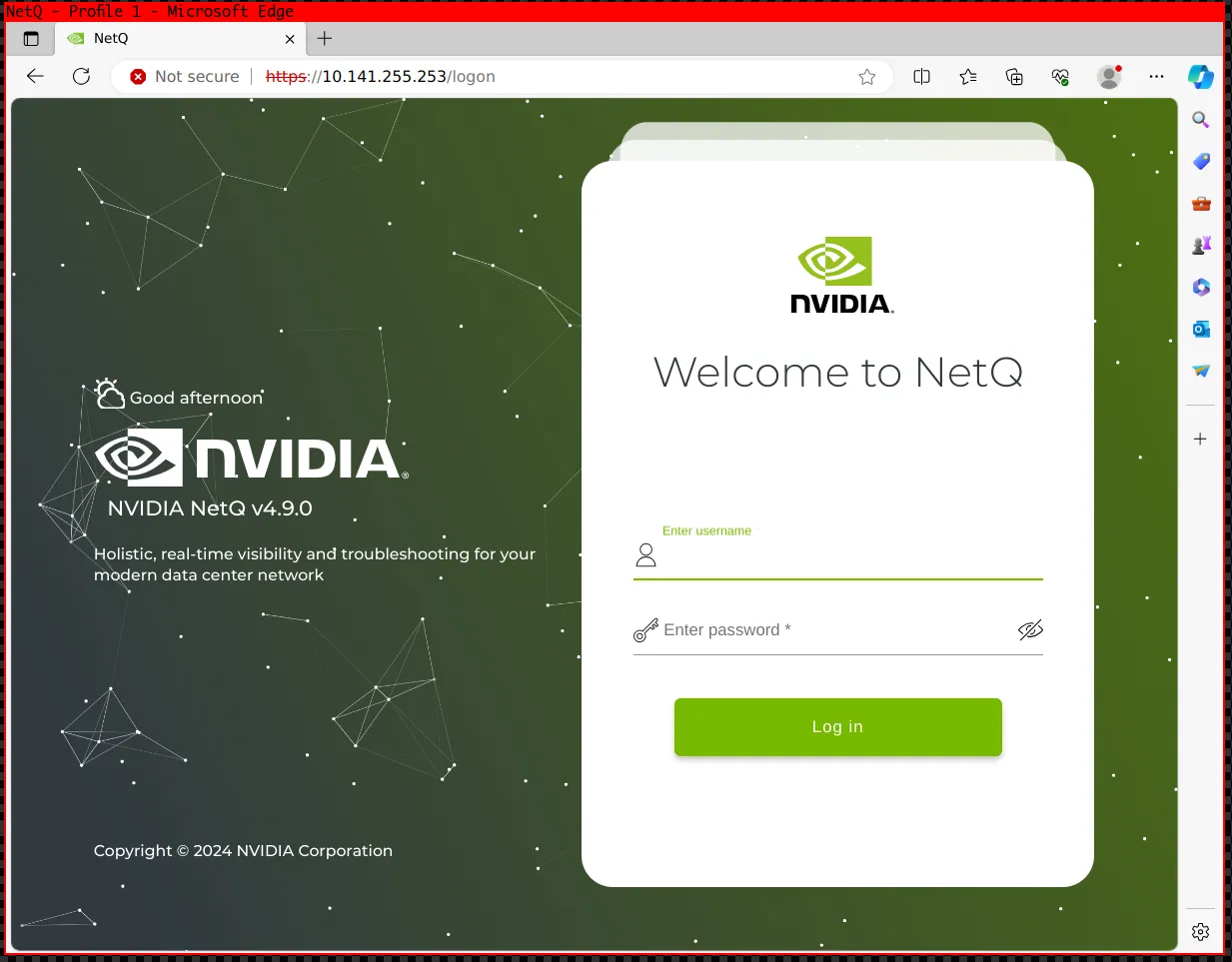
Figure 6.19: NetQ GUI screenshot
6.7 The Prometheus Operator Stack
6.7.1 Logging Into The Grafana Dashboard
Grafana’s admin credentials are not the cluster root password. When Grafana is deployed using the kube-prometheus-stack Helm chart, a random admin password is generated and stored, along with the admin username (admin by default), in a Kubernetes Secret. There is no cm-kubernetes-setup wizard screen for setting these credentials — they can be retrieved with:
Example
If no ingress controller was set up for the cluster, the Grafana dashboard can be reached by forwarding its service port to the local machine:
Example
The dashboard is then available in a browser at http://localhost:3000, using the credentials retrieved in the preceding step.
If an ingress controller was enabled during the Kubernetes cluster setup, the dashboard may instead be reachable directly at a proxied URL configured for the cluster.
6.7.2 Exporting And Reusing Grafana Dashboards
After a dashboard has been created, the user may wish to export it for backup purposes, or to reuse it in another Grafana instance.
6.7.2.1 Exporting A Dashboard
Exporting the dashboard as a JSON file can be carried out by following the Grafana documentation instructions at:
6.7.2.2 Storing A Dashboard
The exported JSON file can be added to a Git repository, or stored in a ConfigMap. A ConfigMap can be created and labeled for Grafana with:
Example
By default, Grafana automatically loads dashboards when using ConfigMaps containing the
grafana_dashboard='1'
label in any namespace.
6.8 Run:ai
BCM dropped support for deploying Run:ai in version 10.32.0. Earlier BCM 10 releases packaged a Run:ai operator and integrated it into the cm-kubernetes-setup wizard. That operator and that integration have been removed, and the wizard no longer offers Run:ai as an option.
The reason is that the Run:ai deployment strategies have changed. They have been re-implemented for BCM 11, and that work has not been backported to BCM 10. BCM 11 therefore does have wizard integration for Run:ai, while BCM 10 does not.
Run:ai can still be installed on top of a BCM 10 Kubernetes cluster. It is then installed directly, by following the official Run:ai documentation rather than by using the BCM wizard:
-
SaaS: https://run-ai-docs.nvidia.com/saas/getting-started/installation/install-using-helm
-
Self-hosted: https://run-ai-docs.nvidia.com/self-hosted/getting-started/installation/install-using-helm
6.9 Kubernetes Spark Operator
Using the Kubernetes Spark Operator is a simpler alternative to using the spark-submit tool for job submission.
6.9.1 Installing The Kubernetes Spark Operator
The Kubernetes Spark Operator can be installed as a part of the cm-kubernetes-setup procedure (section 4.2.6), which eventually leads to a display listing the operator packages that may be installed (figure 6.1).
The Kubernetes Spark Operator can alternatively be installed later on using the OS package manager and Helm:
The Kubernetes Spark Operator can be removed with:
Example
The operator installation state can be verified with --list-operators:
Example
The Helm status can be checked with, for example:
Example
The Permission Manager (section 4.15) and PodSecurityPolicy (PSP, section 4.10.2) must both be enabled for the cluster, before allowing a user to create resources in the Kubernetes cluster in their namespace:
Example
The user alice can be allowed to use the Spark operator, and allowed to run a process as any UID in the pod:
Example
The Kubernetes Spark operator Helm chart creates a CRD that can be used in the Kubernetes API.
For Alice, the CRD is available and can be used with a Spark operator YAML, to build a Spark application carry out a pi run in the restricted namespace.
6.9.2 Example Spark Operator Run: Calculating Pi
Continuing on with the user alice of the preceding section, a YAML file based on the specification at https://github.com/kubeflow/spark-operator/blob/v1beta2-1.6.2-3.5.0/examples/spark-py-pi.yaml can be used:
Example
Instead of tracking the pod with:
kubectl get pods
as in the preceding session, or with the more convenient:
watch kubectl get pods
the pod could be tracked with the -f| --follow option to stream the driver logs:
Example
To get intended output of the pi run—the calculated value of pi—it is sufficient to grep the log as follows:
Example
After the pi run has completed, the resources can be removed from the namespace:
6.10 The NVIDIA Postgres Operator
6.10.1 Installing The NVIDIA Postgres Operator
The upstream documentation for the Postgres Operator is at https://operatorhub.io/operator/postgres-operator.
6.10.1.1 Going Through The Kubernetes Setup Wizard
The Postgres operator installation is part of the initial Kubernetes cluster setup. Its installation is one of the options made available to the cluster administrator during the selection of operator packages (figure 6.1).
The wizard later asks which version of the Postgres operator should be installed (figure 6.20):

Figure 6.20: Postgres operator version selection screen