

Kubernetes Operators
Kubernetes operators are the modern way to manage Kubernetes cluster applications (https://kubernetes.io/docs/concepts/extend-kubernetes/operator/). It is usually recommended that Kubernetes operators are used instead of the legacy applications.
At the time of writing of this section (July 2026), NVIDIA Base Command Manager provides and packages several operators which are validated to perform basic functionalities on a Kubernetes BCM setup.
-
the Argo CD Operator (section 6.3)
-
the Grafana Alloy Operator (section 6.4)
-
the Grafana Loki Operator (section 6.5)
-
the NVIDIA GPU Operator (section 6.7)
-
the NVIDIA Network Operator (section 6.8)
-
the NVIDIA NetQ Operator (section 6.9)
-
the Prometheus Operator Stack (section 6.10)
-
the Prometheus Adapter Operator
-
the Run:ai Operator (section 6.11)
-
the Jupyter Kernel Operator (section 6.6)
-
the Spark Operator (section 6.12)
-
the PostgreSQL Operator (section 6.13)
-
the Kubernetes MPI Operator
-
the MetalLB Operator
-
the Kubeflow Training Operator
-
the NVIDIA NIM Operator (section 6.14)
6.1 Versions Of Operators Available
The versions of the operators that are available can be listed with the cm-kubernetes-setup --list-operators-versions command.
The versions available at the time of writing of this section (July 2026) for an installation in Ubuntu 24.04 are shown in the following table:
(E) NVAIE-certified
During the initial setup, the installation wizard displays a menu to select which operators are to be installed (figure 4.16).
After selecting the operators to be used, the actual operator versions available depend on package management resolution.
In the case of BCM operators, the installation wizard uses a Helm chart from the OS package manager for some of the .deb or .rpm packages being deployed. In the case of cloud operators, the installation wizard uses a Helm chart from the Helm repository for deployment.
6.2 Helm Charts For The BCM Operators
Based on the operators that are to be installed, the wizard asks for configuration options to the Helm charts that are to be installed (figure 6.1):

Figure 6.1: Kubernetes setup TUI session: prompting for Helm chart configuration options
The Helm charts that are selected are installed with sensible defaults. If additional tuning is needed, then the charts can be installed manually after cm-kubernetes-setup finishes:
If additional tuning is required, then tunable values can be set with a command line similar to the following:
Possible values can be displayed as follows:
Installed operators can be listed by using the CLI option --list-operators:
6.3 The Argo CD Operator
Argo CD (https://argo-cd.readthedocs.io/) is a declarative, GitOps continuous delivery (hence “CD”) tool for Kubernetes. It synchronizes the state of the applications that are running in the cluster with the manifests that are held in one or more repositories.
6.3.1 Installing The Argo CD Operator
6.3.1.1 Going Through The Kubernetes Setup Wizard
The Argo CD operator installation is part of the initial Kubernetes cluster setup that is carried out with the cm-kubernetes-setup wizard. The installation is made available during the selection of operator packages (section 4.2.8, figure 4.16).
6.3.1.2 Choosing Whether To Carry Out An Initial Argo CD Configuration
If Argo CD has been selected, then when the wizard considers configuring Argo CD, it first asks whether an initial Argo CD configuration should be carried out (figure 6.2):
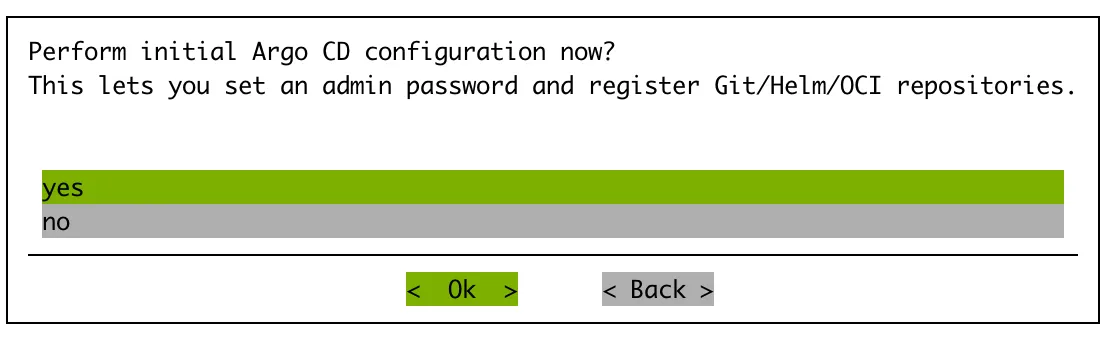
Figure 6.2: Argo CD operator: whether to carry out an initial Argo CD configuration
If this is declined, then a default configuration of Argo CD is installed, and special Argo CD configuration steps in the wizard are skipped.
If it is accepted, then the wizard continues by prompting for the Argo CD admin password (section 6.3.1.3), and for the repositories that Argo CD should track (section 6.3.1.4).
6.3.1.3 Setting The Argo CD Admin Password
After Argo CD has been fully set up with the wizard, the Argo CD admin password is the login password used for:
-
the Argo CD web UI
-
the
argocdCLI
The wizard, during its run, helps configure the Argo CD admin password (figure 6.3):
-
manually to one that is set by the user, or
-
automatically to a random initial password. The random value is stored in
argocd-initial-admin-secret, and retrievable after setup with:Example

Figure 6.3: Argo CD operator: setting the initial admin password
6.3.1.4 Configuring Argo CD Repositories
The wizard also allows one or more repositories to be registered with Argo CD as part of the initial configuration. Registering a repository here means that Argo CD is able to reach it, and can track the manifests in it, without the administrator having to add it manually after setup.
The main repository screen offers the option to add a repository (figure 6.4):
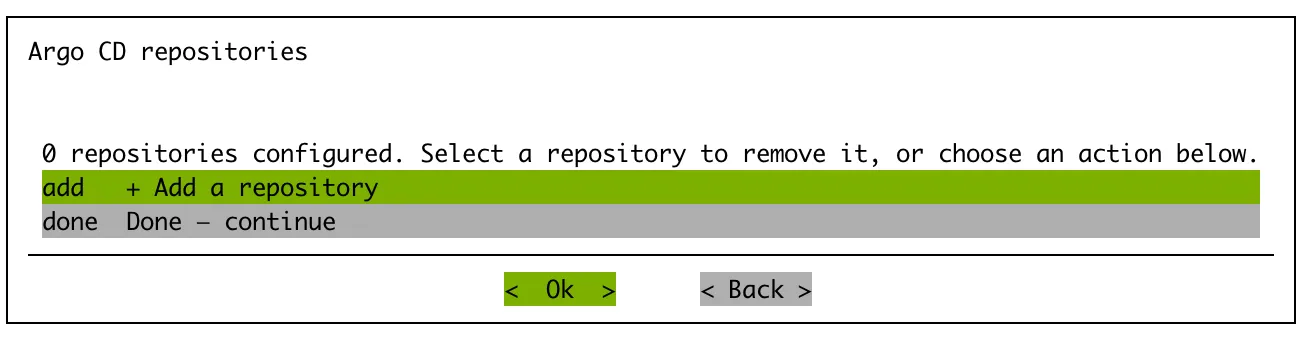
Figure 6.4: Argo CD operator: main repository screen
If the option to add a repository is selected, then the wizard prompts for the repository type out of Git, Helm, or OCI (figure 6.5):
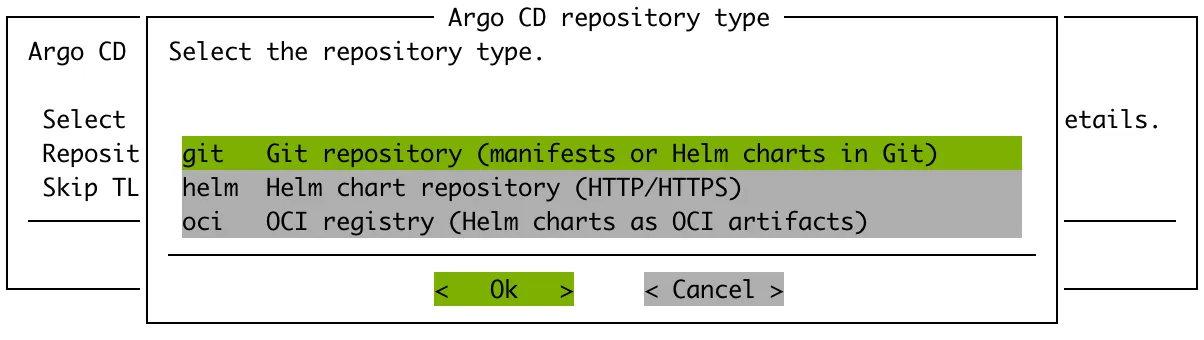
Figure 6.5: Argo CD operator: selecting the repository type
After the type is chosen, a further screen (figure 6.6) prompts for:
-
the repository URL,
-
a name,
-
the Argo CD project that the repository belongs to
-
the credentials needed to access it
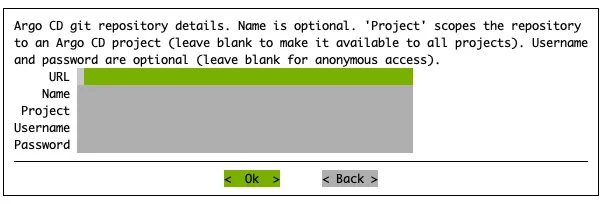
Figure 6.6: Argo CD operator: entering the repository URL, name, project, and credentials
More than one repository can be added by repeating this. This step can be skipped if no repositories are to be configured during setup; repositories can always be added later from the Argo CD web UI or with the argocd repo add command.
6.4 The Grafana Alloy Operator
Grafana Alloy is a log collector. It gathers logs from within the Kubernetes cluster and forwards them to a Grafana Loki instance, which stores them and makes them available for querying. The operator that NVIDIA Base Command Manager packages manages the lifecycle of the Alloy instances (https://github.com/grafana/alloy-operator).
Alloy is a collector and not a store, so it is of no use on its own. It therefore depends on the Grafana Loki operator (section 6.5), and selecting Alloy always installs Loki alongside it. The reverse does not hold: Loki can be installed without Alloy.
6.4.1 Installing The Grafana Alloy Operator
6.4.1.1 Going Through The Kubernetes Setup Wizard
The Grafana Alloy operator is installed as part of the initial Kubernetes cluster setup. It is one of the operator packages that can be selected by the cluster administrator during the operator selection screen (figure 4.16).
Grafana Loki must be selected on that screen as well. Selecting Grafana Alloy on its own is rejected by the wizard, which reports the unmet dependency and returns to the selection screen so that it can be corrected.
Because Loki is a dependency, the Loki configuration screens (section 6.5) are presented first. The Alloy operator itself then adds one screen, Configure logs to collect by Grafana Alloy (figure 6.7). The screen is a checklist of the log sources that Alloy is to collect:
-
pod_logs: the logs of the containers running in the Kubernetes cluster. Selected by default. -
kube_events: the Kubernetes events of the cluster. Selected by default. -
varlog: the contents of/var/logon the Kubernetes worker nodes. This covers logs that are produced outside of any container, such as those of the kubelet and of the operating system itself. Not selected by default.

Figure 6.7: Kubernetes setup TUI session: choosing the logs that Grafana Alloy collects
The sources that are selected here decide what can be queried from Loki afterwards. A source that is left unselected is simply not collected, so its logs are absent from Loki rather than merely hidden. The selection is not permanent, however. Alloy can be removed and reinstalled with a different selection from the Modify operators item of the cm-kubernetes-setup TUI session (section 6.15).
6.5 The Grafana Loki Operator
Grafana Loki is a log store. It receives the logs that Grafana Alloy collects from the Kubernetes cluster (section 6.4), retains them, and makes them available for querying (https://github.com/grafana/loki).
Loki is the dependency of the Alloy operator, so it is installed whenever Alloy is installed. It can also be installed on its own.
6.5.1 Installing The Grafana Loki Operator
6.5.1.1 Going Through The Kubernetes Setup Wizard
The Grafana Loki operator is installed as part of the initial Kubernetes cluster setup. It is one of the operator packages that can be selected by the cluster administrator during the operator selection screen (figure 4.16).
Loki adds up to four configuration screens. How many of them are presented depends on the size of the cluster, on its storage configuration, and on the answers that are given, so a smaller cluster is expected to see fewer screens than the four that follow.
Choosing the deployment mode:
The first screen, Loki deployment mode (figure 6.8), chooses how Loki itself is deployed. The scale factor is adjusted to the defaults of whichever mode is chosen:
-
SingleBinary: all Loki components run in a single process. This is the appropriate choice for a cluster that is not dedicated to log storage. -
SimpleScalable: the read, write, and backend paths are separated, so that each can be scaled on its own. -
Distributed: each Loki component is deployed separately, for the largest installations.
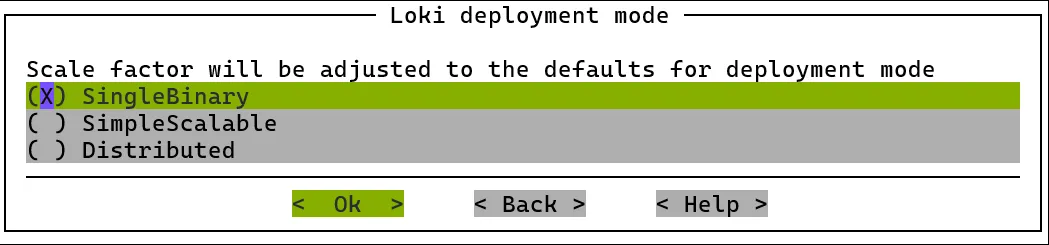
Figure 6.8: Kubernetes setup TUI session: choosing the Grafana Loki deployment mode
This screen appears only if the cluster has at least three Kubernetes worker nodes and has a default storage class set (figure 4.23). The other modes cannot be run sensibly without those, so if either is missing, then the wizard selects SingleBinary without asking and moves on.
Basic configuration:
The Basic Loki configuration screen (figure 6.9) configures where the logs are kept:
-
Enable MinIO storage: deploys a MinIO instance alongside Loki, to provide the S3-compatible object storage that Loki uses as its backend. -
Storage: eitherS3, for object storage, orFileSystem, for storage on the filesystem of the node. -
Replica factor: how many copies of the data Loki keeps.
This screen is shown only if SingleBinary was chosen as the deployment mode. If SimpleScalable or Distributed was chosen, then MinIO storage is enabled with S3 storage, and the screen is skipped, so that these settings are not offered as choices.
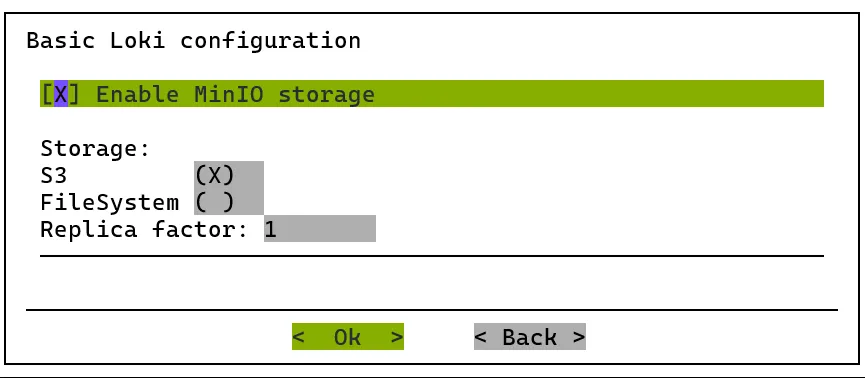
Figure 6.9: Kubernetes setup TUI session: the basic Grafana Loki configuration
Exposing the Loki API:
The Configure Loki access screen (figure 6.10) decides whether the Loki API is reachable from outside the Kubernetes cluster. Selecting Gateway HTTPRoute creates a route for Loki on the gateway, so that the API can be queried over HTTP. Leaving it unselected keeps Loki reachable only from within the cluster.

Figure 6.10: Kubernetes setup TUI session: choosing whether to expose the Grafana Loki API
Credentials for the route:
If, and only if, the route was enabled on the previous screen, then the Gateway HTTPRoute credentials for Loki access screen (figure 6.11) asks for the username and password that the route is to be protected with. The route is exposed outside the cluster, so the credentials are not optional: the wizard does not accept empty fields, and asks again until both are supplied.
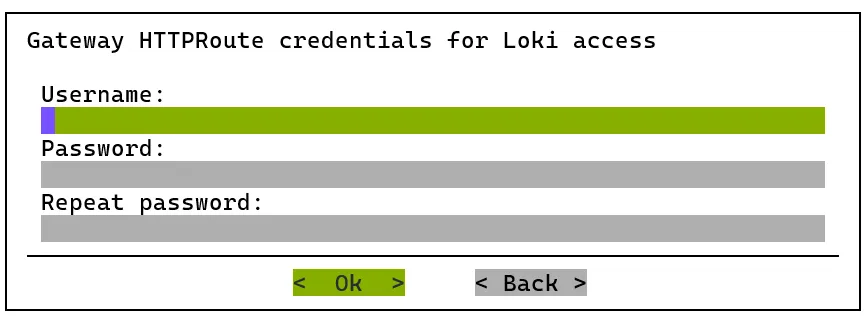
Figure 6.11: Kubernetes setup TUI session: setting the credentials for the exposed Grafana Loki route
6.6 The Jupyter Kernel Operator
6.6.1 Installing The Jupyter Kernel Operator
The Kubernetes Jupyter Kernel Operator can be installed as a part of the cm-kubernetes-setup procedure (section 4.2.8), which eventually leads to the selection screen displayed in figure 4.16.
The Kubernetes Jupyter Kernel Operator can alternatively be installed later on using the OS package manager and Helm:
The chart installs into the Helm release namespace given with -n rather than shipping its own hardcoded namespace, so a namespace must be specified. Installations done through cm-kubernetes-setup are unaffected by this, since it already passes --namespace cm --create-namespace. When upgrading an existing installation with helm upgrade, the namespace given must be the release’s existing namespace, and not a hardcoded cm-jupyter-kernel-operator-system: an older chart version shipped its own Namespace object, and upgrading with a mismatched -n deletes the entire release, because the old chart’s Namespace object is pruned. If the target namespace is not known, the release should be uninstalled first, then installed again into the new namespace.
The Jupyter Kernel Operator can be removed with:
Example
It is recommended to enable a pod security policy using Kyverno (section 4.10.1) for the cluster before allowing a user, for example alice, to create resources in the Kubernetes cluster.
The Kubernetes Jupyter Kernel Operator Helm chart creates a CRD that can be used in the Kubernetes API. To check the availability of the CRD, the following command can be run:
Example
6.6.2 Architecture Overview
The Kubernetes Jupyter Kernel Operator has two main components:
-
the operator itself
-
the sidecar. This is attached to every user-defined kernel pod, and communicates with Jupyter Enterprise Gateway, acting as a proxy for the kernel process.
The following is an overview of the kernel setup and pod lifecycle when the user runs the Kubernetes Jupyter Kernel Operator:
-
User initiates creating kernel in JupyterLab.
-
JupyterLab delegates this task to Jupyter Enterprise Gateway (JEG).
-
JEG opens a service TCP/IP socket and creates a CRD in Kubernetes specifying this port.
-
KubeApi notifies Jupyter Kernel Operator about the newly created CRD.
-
Jupyter Kernel Operator creates services, configmaps, secrets.
-
Jupyter Kernel Operator creates pod to run Jupyter kernel based on the specification. The sidecar is added to the kernel pod during this step.
-
The sidecar waits for the connection file created by the kernel. Alternatively, it relies on the connection file created by the operator (if requested), as not all kernels create a connection file.
-
The sidecar runs a proxy to forward kernel communications to JEG (stdin, shell, iopub, etc).
-
The sidecar notifies JEG about connection parameters and handles kernel communications.
-
If JEG disappears, or if communication drops, then the sidecar stops. This causes the kernel operator to get a notification via the KubeApi service.
-
The Kubernetes Jupyter Kernel Operator removes the unneeded pod, service, configmap and secrets. It also tries to gather stdout and std error of the kernel pod for debug purposes.
The pod created in step 6 is heavily customized by the kernel operator. For security reasons, running a process inside the pod must be carried out as an unprivileged user.
For the convenience of the Jupyter user, the UID/GID of the process inside the pod should match the UID/GID of the Jupyter user. If that is not the case, then the files created in the container are inaccessible for the Jupyter user.
To achieve matching UID/GIDs, the operator dynamically creates /etc/passwd and /etc/group files inside the pod and populates them with the data from corresponding templates. At the same time the operator can create a kernel communication file, if requested—some kernels rely on that.
6.6.3 Running Jupyter Kernel Using The Operator
An example of a basic YAML definition for the CMJupyterKernel is:
This can be submitted, but the operator removes it in approximately 1 minute:
The logs of the operator can be checked for debug purposes:
This indicates that the sidecar was stopped because there was no connection from Jupyter Enterprise Gateway to the kernel. This is expected, since the kernel has been run manually, and not using Jupyter. After the sidecar shutdown, the kube-api server notifies the operator, which, in turn, removes objects such as CMJupyterKernel, pods, and services.
6.6.4 Jupyter Kernel Operator Tunables
Table 6.1: Tunable Options for Jupyter Kernel Operators
Legend:
O: Optional
R: Required
6.6.5 Sidecar Arguments And Environment Variables
6.6.5.1 Sidecar Arguments
A timeout can be set as an argument for the sidecar.
--timeout: Defines how long, in seconds, that the sidecar waits for the Jupyter Enterprise Gateway proxy to connect before shutdown. Default:60
6.6.5.2 Environment Variables
The following environment variables can be used by the sidecar:
Table 6.2: Environment Variables For The Sidecar
6.6.6 Running Spark-based Kernels In Jupyter Kernel Operator
Jupyter integration for BCM provides a kernel template (jupyter-eg-kernel-k8s-cmjkop-py-spark) and a sample container image (brightcomputing/jupyter-kernel-sample:k8s-spark-py39-2.0.0) to run Jupyter kernels in a Spark environment. The image can be altered or created from scratch based on the scripts provided in /cm/shared/examples/jupyter/kubernetes-kernel-image-spark-py39/.
The Jupyter kernel is not run directly. Instead, the kernel process is run and controlled by the spark-submit executable inside the container.
Jupyter Kernel Operator alters the provided image based on the CRD definition.
Spark-specific tunables are spark_pod_template_path and spark_pod_template. The operator creates a file inside of the Spark driver pod and puts the content of spark_pod_template in it. After that, spark-submit uses this file, via the --spark.kubernetes.executor.podTemplateFile configuration option, to create executor pods.
6.6.7 Example: Creating An R Kernel From The Kernel Template
The Jupyter Kernel Operator can be used out-of-the-box to support more kernels.
For example, an R kernel can be added.
The official jupyter/r-notebook R image can be taken from the Jupyter project, from https://jupyter-docker-stacks.readthedocs.io/en/latest/using/selecting.html#jupyter-r-notebook.
The default entry point cannot be used as that would start Jupyter notebook, while the aim for this section is to use the kernel only.
Some exploratory investigation should reveal the command to start the kernel:
The pod can be run interactively in a Jupyter notebook terminal by a user:
The kernel specifications can then be investigated:
The ir kernel is what is of interest here. The command line that is used to start the kernel can be found:
Based on this information the Jupyter Kernel Operator CRD can be created for the user:
There are several changes from the previous (section 6.6.3) YAML, and from the IR command line:
-
create_connection_file: trueIf this is not specified then the kernel complains with the following message during startup:
kernel: cannot open file '/var/tmp/kernel-parm.json': No such file or directoryThis means that the kernel expected this file to be created before the start.
-
image: jupyter/r-notebookAnother image needs to be used.
-
args: ... "/var/tmp/kernel-parm.json"The spec file has a fixed path and name, instead of
"connection_file``"as inkernel.jsonearlier
The resulting cmjk-ir.yaml file can be submitted to Kubernetes, but it will be removed by the operator after one minute, as it is not being started from the Jupyter Enterprise Gateway.
The next step is to create a kernel template. The Python kernel can be used as a reference:
The files meta.yaml, kernel.json, and templates/cmjk.yaml.j2 need to be changed in order to able to provide the correct image and command:
The changes that are applied should look similar to the following:
After instantiating a kernel spec from the template, the R kernel is ready for use:
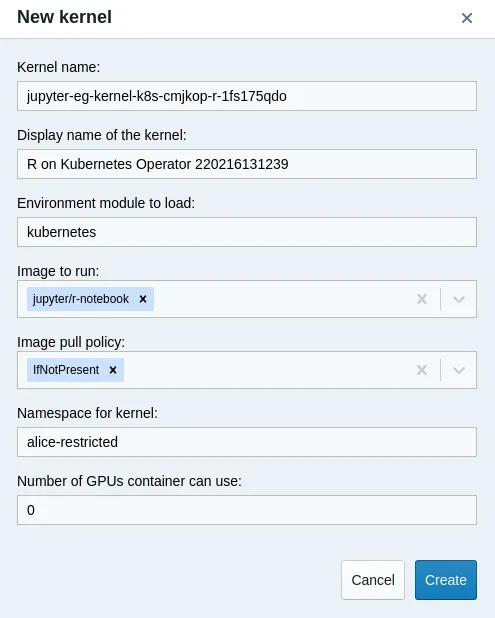
Jupyter Kernel Creator: creating the IR kernel spec
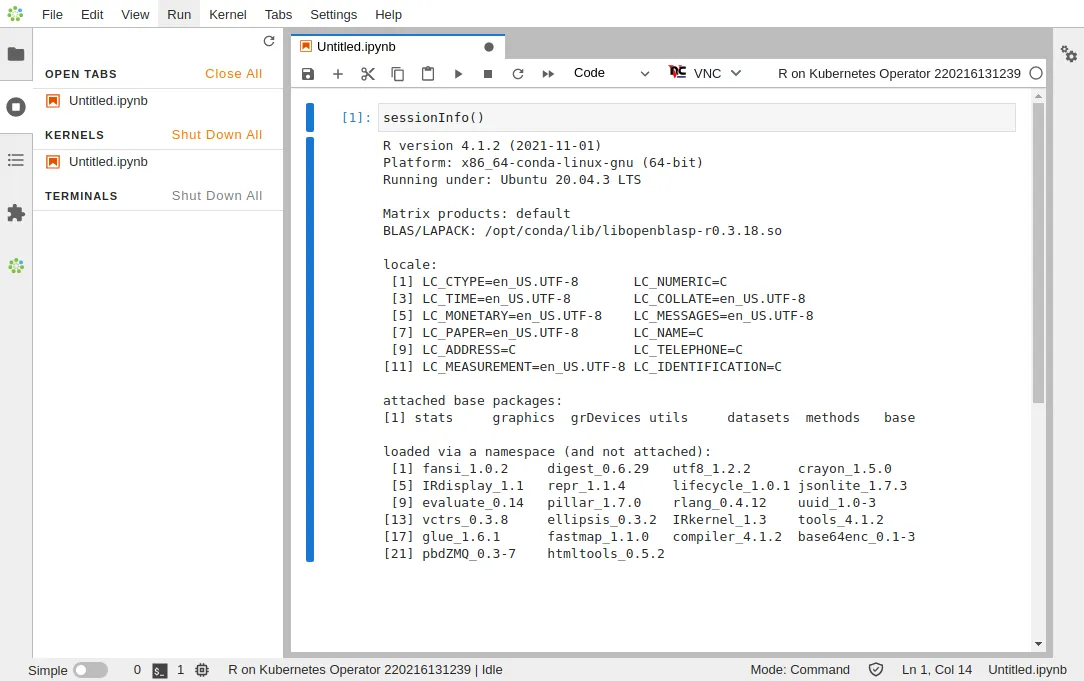
JupyterLab: running the IR kernel
6.6.8 Example: Letting Kubernetes Access Private Registries From The Kernel Template
To be able to pull images from private registries, Kubernetes needs to be instructed about the credentials to use.
6.6.8.1 Creating The Secret
This can be achieved by specifying the secret to spec.imagePullSecrets of the pod definition.
For Jupter Kernel Operator this is spec.pod.imagePullSecrets:
Example
Creating secrets can be carried out with kubectl
Example
More details about managing certificates can be found in the Kubernetes documentation at:
https://kubernetes.io/docs/tasks/configure-pod-container/pull-image-private-registry/
6.6.8.2 Parameterizing The Secret
The name of the secret can be parameterized, so that users are allowed to select from secrets in their namespaces.
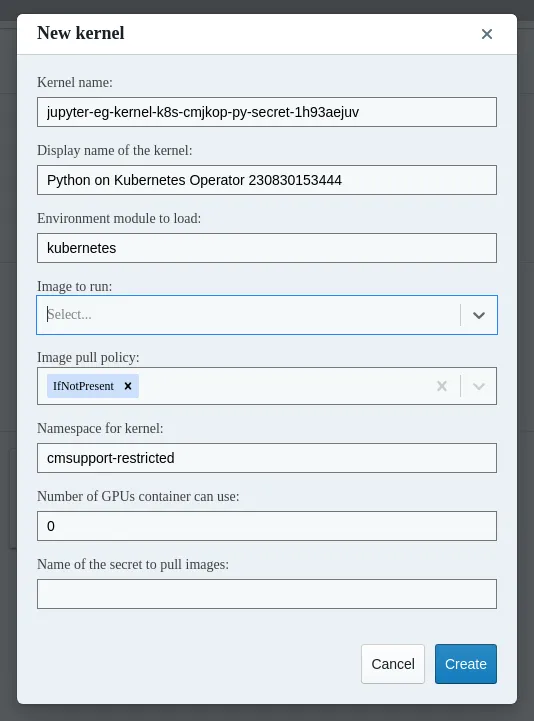
Jupyter Kernel Creator: secret selection
For parameterization, the meta.yaml and kernel.json.j2 files must also then be modified:
Example
6.6.9 Example: Adding The PVC Parameter To The Kernel Template
The PVC that is to be mounted can be set in the template:
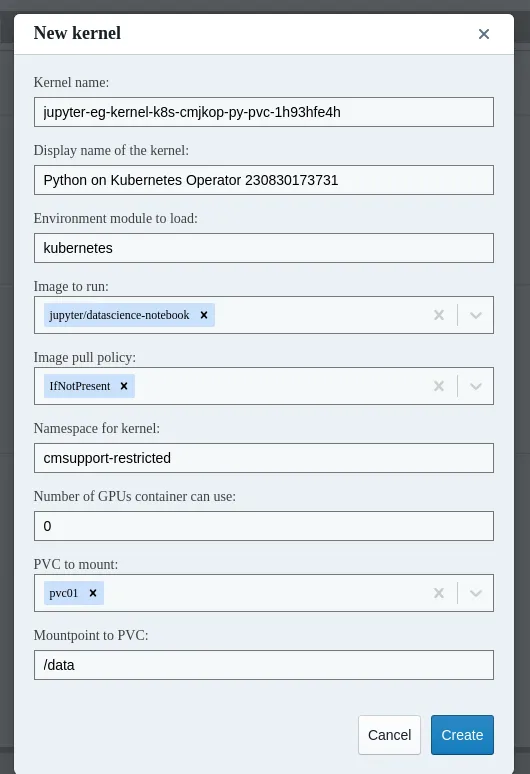
Jupyter Kernel Creator, PVC selection.
The settings in meta.yaml, kernel.json.j2 and templates/cmjk.yaml.j2 for this are:
Example
6.7 The NVIDIA GPU Operator
The NVIDIA GPU Operator (https://docs.nvidia.com/datacenter/cloud-native/gpu-operator/) deploys and manages the software stack that exposes NVIDIA GPUs as first-class (standard) resources to a Kubernetes cluster. The components it manages include the NVIDIA Container Toolkit, the Kubernetes device plugin for NVIDIA GPUs, Node Feature Discovery, GPU Feature Discovery, the DCGM exporter, and the operator validator daemonsets that tie those pieces together.
The NVIDIA driver itself
-
can either be installed by the operator as a container
-
or be provisioned on the host by BCM. On DGX OS images the driver is always provisioned by the host.
In BCM 11.0 the NVIDIA GPU Operator is usually installed and configured using the cm-kubernetes-setup wizard (section 6.7.1).
However, it can also be installed directly with Helm on an already-running BCM Kubernetes cluster, as described in section 6.7.2. A more precise Helm installation might be preferred in order to avoid possible Kubernetes disruptions. The cm-kubernetes-setup wizard can, for example, cause such disruptions due to image updates and node reboots during its run.
For air-gapped clusters, the operator’s container images and Helm chart are staged into the local Kubernetes container registry as part of the Kubernetes air-gapped installation. An air-gapped installation procedure for Kubernetes is described in Appendix B. The cm-kubernetes-setup wizard can then be used as described in section 6.7.1 to install the operator.
6.7.1 Installing The NVIDIA GPU Operator Using The Wizard
The cm-kubernetes-setup wizard (section 4.2.8) installs and configures the NVIDIA GPU Operator as part of the larger Kubernetes installation.
Enabling the GPU Operator is done in the Operators installation screen (figure 4.16).
Version selection, custom Helm values, and some basic configuration checklist options are carried out next:
6.7.1.1 Version Selection
After the operator-selection screen, the wizard presents a version-selection screen (figure 6.16) that lists the GPU Operator chart versions known to this release of BCM.

Figure 6.16: GPU operator version selection screen
Versions that are certified for NVIDIA AI Enterprise are flagged with an asterisk. A latest entry is always available at the top of the list and tracks the newest version the chart repository publishes at install time.
6.7.1.2 Custom Helm Values (Optional)
The wizard then asks for an optional path to a YAML file that contains Helm values for the GPU Operator chart (https://github.com/NVIDIA/gpu-operator/blob/main/deployments/gpu-operator/values.yaml for the upstream reference).
If a valid path is supplied, then the contents of that file are merged into the values that the wizard deploys with, and the next screen (the basic configuration checklist) is skipped. This is the escape hatch for any configuration that the basic checklist does not expose, such as:
-
MIG (Multi-Instance GPU) partitioning strategy and configuration
-
time-slicing configuration for the device plugin
-
custom resource-name labels for heterogeneous GPU fleets
-
mirror or registry overrides beyond what the air-gapped deployment flow already handles
-
any other chart value not surfaced as a checkbox in the wizard
If the path is left empty, the wizard proceeds to the basic configuration checklist, described next.
6.7.1.3 Basic Configuration Checklist Options
When no custom values YAML has been provided, the wizard presents a 3-item checklist for the most common configuration choices:
-
Deploy and Manage the NVIDIA Container Toolkit using the operator (
toolkit.enabled, default:on)-
on: The operator’s toolkit daemonset installs and manages the NVIDIA Container Toolkit on GPU nodes. In turn, it uses CDI (Container Device Interface) Plugins, to hook the toolkit into the container runtime.- With older operator versions, or if CDI is explicitly disabled in the
cm-kubernetes-setupconfiguration file, the containerd runtime class drop-ins are used instead of CDI for device injection.
- With older operator versions, or if CDI is explicitly disabled in the
-
off: The operator does not manage the toolkit and BCM provides the toolkit as a system package, and provides workload GPU access via containerd runtime-class drop-in configuration files.
-
-
Deploy NVIDIA drivers as a container on the system (
driver.enabled, default:off)-
off: CUDA drivers are expected to be present on the GPU node itself in order to present kernel devices for this hardware, and enable userspace/containerized-interactions with this hardware. -
on: The operator deploys a driver container on each GPU node, installing the indicated kernel drivers onto the host, and maintaining dynamic provisioning of the hardware.
-
-
Deploy Node Feature Discovery (NFD) plugin as a daemonset (
nfd.enabled, default:on)-
on: The operator deploys NFD, which labels nodes based on detected hardware so that the operator’s daemonsets schedule only to the nodes that they apply to. -
off: This should likely be lefton, unless this is undesirable in the Kubernetes deployment, or if a separately-managed NFD is already deployed in the cluster.
-
These 3 options are independent: any combination may be selected.
6.7.1.4 Post-install Configuration State
Once the wizard completes, the GPU Operator can be seen to be deployed with helm:
Example
The wizard does not provide a dedicated way to reconfigure the GPU Operator. To change a configuration value after installation, either
-
cm-kubernetes-setupis run again, but with a saved configuration file that reflects the new selections -
or the application’s
configattribute is edited directly and committed -
or
helm upgradeis used against the running release.
Section 6.7.3 gives details on removing the NVIDIA GPU Operator.
6.7.2 Installing The NVIDIA GPU Operator On An Existing Kubernetes Cluster
Using cm-kubernetes-setup (section 6.7.1) is the recommended way to install the NVIDIA GPU Operator on both new and existing BCM Kubernetes clusters. Re-running cm-kubernetes-setup against an existing cluster with a configuration file that adds the operator is supported.
When re-running the wizard is not desired, for example because the cluster is already running production workloads and a direct Helm deployment is preferred, then the operator can be installed by the root user with Helm:
Example
The values used in the preceding Helm session correspond to the defaults that the wizard applies.
Helm chart options for the NVIDIA GPU Operator are documented upstream at:
Deploying the Prometheus Operator Stack and Prometheus Adapter for scraping GPU metrics is optional and is covered separately in section 6.10.
The --version used in the preceding Helm session should be adjusted to match a version that is certified for NVIDIA AI Enterprise. The set of certified versions is the same as that offered in the wizard’s version-selection screen (figure 6.16).
6.7.3 Removing The NVIDIA GPU Operator
Whether the GPU operator has been installed using the BCM cm-kubernetes-setup wizard or whether it has been set with Helm directly, it must always be removed with Helm directly.
The GPU operator occupies the gpu-operator namespace:
Example
Removal is complete once the gpu-operator namespace no longer contains operator-managed pods:
Example
6.7.4 Validating The NVIDIA GPU Operator
A pragmatic way to validate the NVIDIA GPU Operator is to check if the validator pods can be run. A Running status for the pods that are to have a GPU on them can be seen with:
Example
The preceding shows successfully-running pods. The log output should show all validations are successful:
Example
6.7.5 Validating The NVIDIA GPU Operator In Detail
The set of pods associated with the NVIDIA GPU Operator can be examined in more detail. The following shows outputs from a GPU operator deployment that is working correctly:
Example
On this particular example cluster, there are two compute nodes with GPUs, and there is one control plane node without a GPU:
Feature discovery pods: Node Feature Discovery (NFD, https://intel.github.io/kubernetes-docs/nfd/index.html) is an add-on that is initiated after the operator is installed. A master pod collects discovery information from the worker pods, and schedules more pods in case GPUs have been detected.
In the preceding GPU operator output,
-
the master pod is running on
node001with the name:
gpu-operator-node-feature-discovery-master-6c65c99969-wtzcx -
the worker pods run on each node. For example, the worker pod for
node002is:
gpu-operator-node-feature-discovery-worker-z4skv
The output for the pods is not very verbose by default, but if more pods under the nvidia- namespace are scheduled on a node, besides the gpu-operator-node-feature-discovery-* pods, then that means that NFD has detected one or more GPUs.
For example, a GPU discovered on node001 results in a scheduling of the following pods on that node:
-
container toolkit
-
device plugin
-
validator
Container toolkit pods: For nodes that have GPUs, the NVIDIA container toolkit installation pods are started. Pod logs show exactly what is being installed.
One of the requirements for the NVIDIA container toolkit installation pods is that the driver has to be in working order, or the init container driver-validation will fail. The following is the log from a successful installation:
Example
Device plugin pods: The device plugin pods are started up next. These have the toolkit as a requirement. If the toolkit is not in working order, then the init container toolkit-validation fails. The following is the log from a successful startup:
Example
The pod log output suggests that the GPU is now registered with the Kubelet as a resource. This can be checked by querying the Node resource:
Example
Validator pods: If anything goes wrong with either the driver, toolkit, CUDA, or the plugin, then validator pods are a good place to start looking.
If all goes well, the main container outputs all validations are successful:
Example
It is possible for an init container to fail. The output for the container should then be checked.
The following shows output from successful init containers:
This also explains where the pods earlier on came from, the ones marked with status Completed. They are used as part of certain validation steps.
Which init container prints out error messages should indicate where the problem lies—either with the CUDA drivers, or the toolkit, and so on. If the driver or toolkit is not validating correctly, then it may result in a lot of pods stuck in a Pending or an Init stage. Looking at what init container is associated with the stuck pod helps in diagnosing the problem.
DCGM exporter pods: These pods expose metrics endpoints for scraping, and can be considered less critical. They are involved in GPU metrics collection, and can be utilized with, for example, Prometheus Operator Stack, or the Prometheus Adapter, for horizontal pod autoscaling based on GPU metrics.
6.7.6 Running A GPU Workload
A GPU workload can be run with the following configuration:
Example
On a cluster with GPUs available, this pod should get scheduled, and should not stay stuck in the Pending phase.
The preceding example just invokes nvidia-smi in the container. The output can be viewed to confirm that it worked:
Example
6.8 The NVIDIA Network Operator
6.8.1 Installing The NVIDIA Network Operator
The upstream documentation for the NVIDIA Network Operator is quite extensive, and available at https://docs.nvidia.com/networking/software/cloud-orchestration/index.html#network-operator.
6.8.1.1 Going Through The Kubernetes Setup Wizard
The Network operator installation is also part of the initial Kubernetes cluster setup. One of the steps in the wizard asks the cluster administrator to select operators from a list. The Network operator is one of them. If the Network operator is selected (figure 6.17), then the setup wizard continues with some follow-up checks and questions.

Figure 6.17: Kubernetes operators selection, with Network operator selected
The wizard then asks which version of the operator should be installed (figure 6.18):
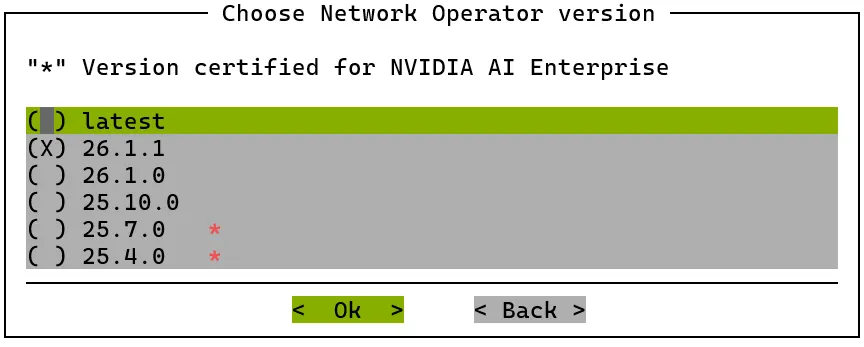
Figure 6.18: Network operator version selection screen
The wizard then prompts for a custom YAML configuration file to use for the Helm chart deployment (figure 6.19):

Figure 6.19: Network operator prompt for custom YAML configuration for Helm
If a custom YAML configuration file is not chosen, then options for a Helm chart can be set (figure 6.20):

Figure 6.20: Network operator options for Helm chart prompt.
6.8.1.2 Result Of The Network Operator Helm Chart
If all goes well, then the Helm chart should be deployed successfully. Helm output for Kubernetes 1.35 should show something similar to, with the network-operator release present:
Example
6.9 The NVIDIA NetQ Operator
An external NetQ server can be configured outside of Kubernetes (section 3.11 of the Administrator Manual) or it can be configured with Kubernetes (section 6.9.1 in the current manual).
6.9.1 NVIDIA NetQ Operator Installation
6.9.1.1 Prerequisites
-
Only NetQ 4.15 and later NetQ 4 versions are supported, and only for Ubuntu 24.04 and later.
- For BCM 11, installation using the
cm-kubernetes-setupwizard for NetQ 5 versions is not supported at the time of writing (November 2025). If a NetQ 5 installation is required, then it can be carried out with the help of BCM support. Getting support is described in section 14.2 of the Administrator Manual.
- For BCM 11, installation using the
-
The number of NetQ nodes can be 1 or 3 nodes only. These must be regular compute nodes.
-
The NetQ nodes require at least 250 GiB of diskspace to be available.
-
The NetQ nodes require at least 64 GiB of memory.
-
The NVIDIA Base Command Manager default ports cannot be used.
-
Kyverno is not supported in combination with NetQ at the time of writing (March 2024) of this section.
The default ports can be changed on the active and passive head nodes as follows.
6.9.1.2 Going Through The Kubernetes Setup Wizard
The NetQ installation is part of the initial Kubernetes cluster setup. One of the steps in the wizard asks the cluster administrator to choose operators from a list of operators. NetQ is one of the possible operators. If the NetQ operator is selected (figure 6.21), then the setup wizard continues with some follow-up checks and questions.

Figure 6.21: Kubernetes Operator Selection
Node selection asks which nodes are to be assigned to NetQ (figure 6.22). The options are:
-
for a single-deployment (this is NetQ terminology), one node should be selected
-
For a cluster-deployment (also NetQ terminology), three nodes should be selected
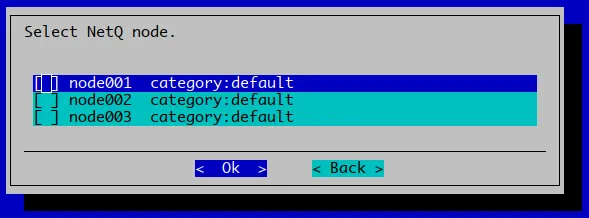
Figure 6.22: NetQ nodes selection
After node selection, the nodes are inspected to see if they meet the prerequisites for running NetQ. One potential issue it detects is if NVIDIA Base Command Manager is already running on the default ports. It suggests a cm-cmd-ports command to execute to fix that, (figure 6.23). NetQ prerequisites and how to carry out changing the default ports is described further in section 6.9.1.1. After carrying out the port changes, the wizard must be restarted from the beginning.
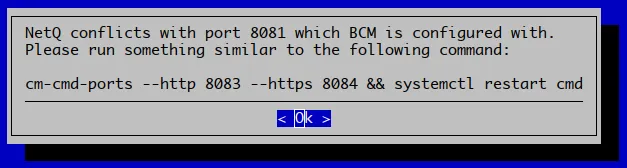
Figure 6.23: Warning presented if NVIDIA Base Command Manager still uses default port 8081.
If all prerequisites are met, then the next dialog asks for a few files. These have to be provided by NetQ and stored somewhere on the active head node (figure 6.24).
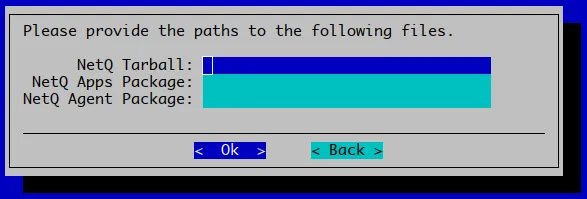
Figure 6.24: Dialog asking for NetQ tarball and packages for agent and apps.
When the required files are downloaded, and saved to, for example, /root:
Example
the dialog can then be filled in (figure 6.25):
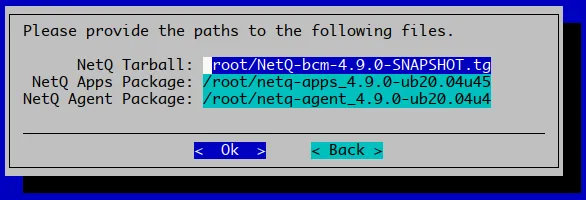
Figure 6.25: Filled-in dialog asking for NetQ files.
Depending on whether a single-node or cluster (three-node) setup is being done, the next dialog will only be shown in the case of a cluster install, and asks for a virtual IP to be used for the NetQ LoadBalancer (figure 6.26).
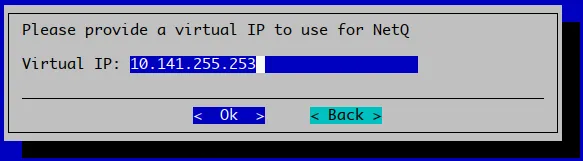
Figure 6.26: NetQ prompt for virtual IP to use for load balancing
The dialog by default suggests an IP address that is not in use, according to NVIDIA Base Command Manager’s internal database. The address is part of the chosen internal network for the Kubernetes pod network.
After the wizard completes its input stage, the actual setup is executed. The setup can take significantly more time than the wizard input stage. The amount of time taken is largely dependent on file I/O speed—bigger files require some time to be synchronized to the appropriate nodes. In addition, NetQ installation itself can take around an hour to finish deploying. The deployment of NetQ is almost the very last step of the setup process. For a successful installation, the last stage of the output displayed looks similar to figure 6.27:
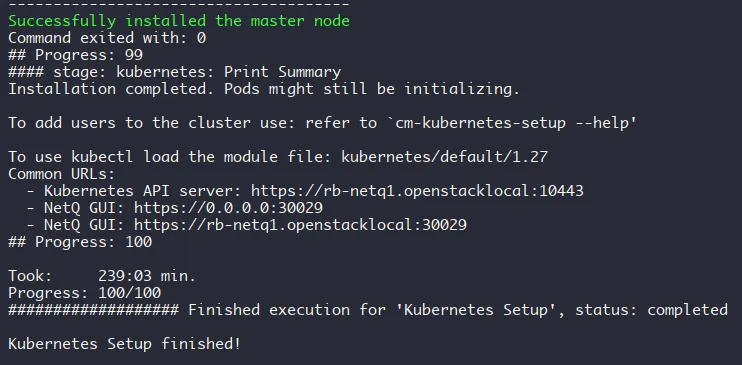
Figure 6.27: Kubernetes with NetQ installation finished, and relevant URLs on display
6.9.2 Accessing The NVIDIA NetQ Operator UI
In section 6.9.1 a NetQ deployment is described.
If the setup is for a single-node deployment, then a NodePort service is used to expose the NetQ UI. The URL is printed at the end of the setup (figure 6.27), but it can also be found by one of the following methods:
-
via kubectl
-
via searching back in the Kubernetes setup file:
If the setup is for a cluster deployment, then the virtual IP address also exposes the NetQ GUI on the default HTTPS port. For the cluster, that is: https://10.141.255.253. This virtual IP address is the one that is set during installation (figure 6.26). Figure 6.28 shows that IP address in use:
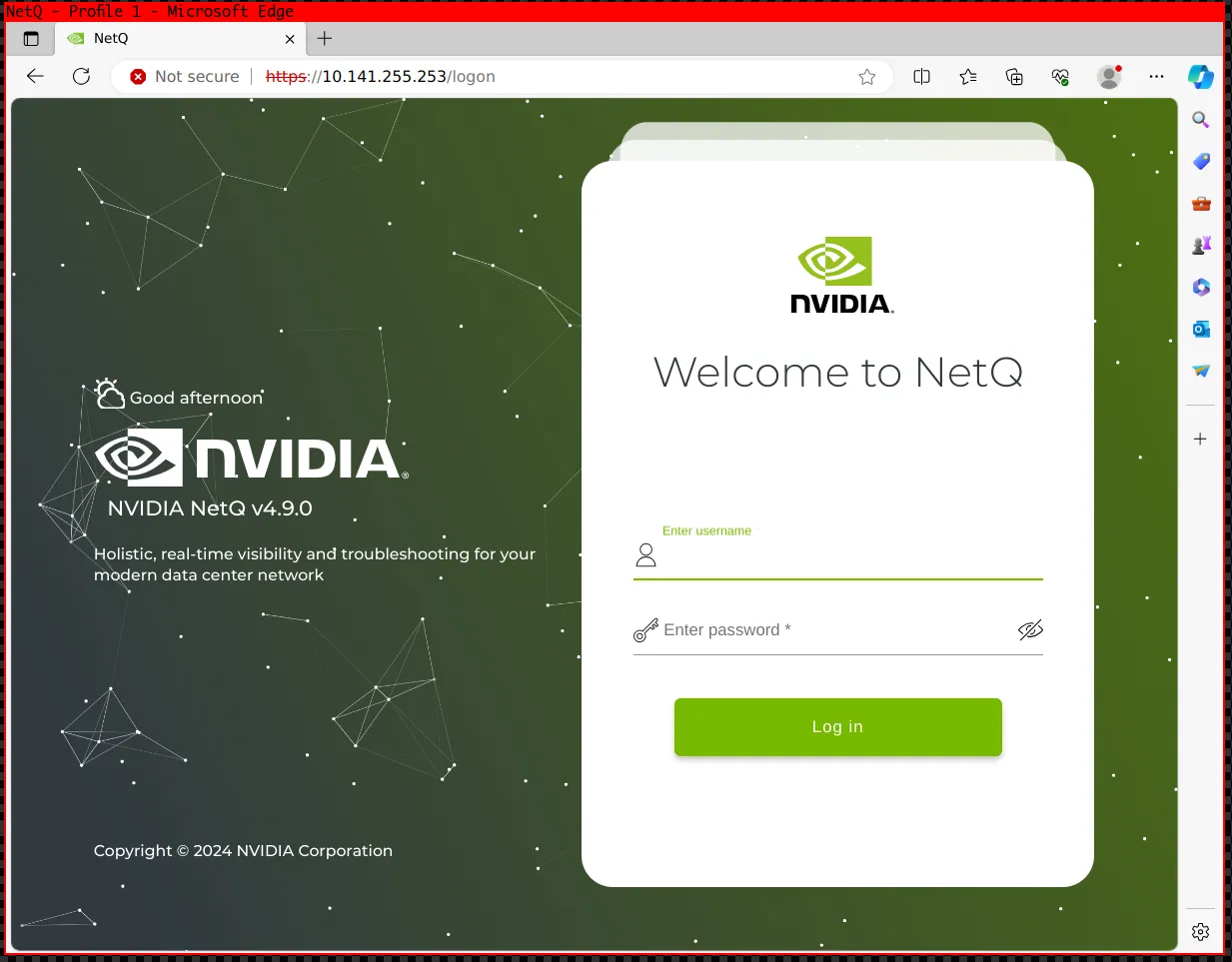
Figure 6.28: NetQ GUI screenshot
6.10 The Prometheus Operator Stack
6.10.1 Logging Into The Grafana Dashboard
Grafana’s admin credentials are not the cluster root password. When Grafana is deployed using the kube-prometheus-stack Helm chart, a random admin password is generated and stored, along with the admin username (admin by default), in a Kubernetes Secret. There is no cm-kubernetes-setup wizard screen for setting these credentials — they can be retrieved with:
Example
If no ingress controller was set up for the cluster, the Grafana dashboard can be reached by forwarding its service port to the machine running kubectl:
Example
The dashboard is then available in a browser at http://localhost:3000 on that same machine, using the credentials retrieved in the preceding step.
If an ingress controller was enabled during the Kubernetes cluster setup, the dashboard may instead be reachable directly at a proxied URL configured for the cluster. If the cluster uses kgateway, an externally-reachable IP address is typically provided by the bcm-gateway Gateway resource:
Example
If that IP address is reachable from the browser’s machine, the dashboard can be accessed directly at https:// <Gateway IP address>/grafana/.
6.10.2 Exporting And Reusing Grafana Dashboards
After a dashboard has been created, the user may wish to export it for backup purposes, or to reuse it in another Grafana instance.
6.10.2.1 Exporting A Dashboard
Exporting the dashboard as a JSON file can be carried out by following the Grafana documentation instructions at:
6.10.2.2 Storing A Dashboard
The exported JSON file can be added to a Git repository, or stored in a ConfigMap. A ConfigMap can be created and labeled for Grafana with:
Example
6.10.2.3 Loading A Dashboard
By default, Grafana automatically loads dashboards when using ConfigMaps containing the
grafana_dashboard='1'
label in any namespace.
6.11 The Run:ai Operator
Run:ai (https://run.ai) is a way to manage resources and workloads on GPUs that are in a cluster.
Run:ai can be installed in two ways:
-
SaaS (or Classic): where the Run:ai control plane is in a cloud
-
self-hosted: where the Run:ai control plane is on-premises.
These installation types are described at https://docs.run.ai/latest/admin/runai-setup/installation-types/.
The method for installing Run:ai depends on the BCM version:
-
Prior to BCM 11.33: Run:ai is installed as part of
cm-kubernetes-setup. The installation type (SaaS or self-hosted) and credentials are configured within that wizard, at the operator package selection screen (figure 4.17). Installation can also be carried out using the Kubernetes wizard GUI in Base View using the navigation path:Containers > Kubernetes > Kubernetes Management > Launch Wizard -
From BCM 11.33 onwards: Run:ai is deployed in two sequential steps. First,
cm-kubernetes-setupis run to deploy Kubernetes together with the operator packages that Run:ai depends on—these are selected during thecm-kubernetes-setupsession using a package selection screen (figure 4.16). Second, oncecm-kubernetes-setuphas completed,cm-runai-setupis run separately to deploy Run:ai itself. The installation type (SaaS or self-hosted) and Run:ai credentials are configured during thecm-runai-setupstep.
The Run:ai deployment is carried out on top of BCM Kubernetes. Run:ai consists of two components: the datascience GPU cluster (BCM cluster in BCM terms) and the control plane.
-
For a SaaS deployment, the control plane runs in the Run:ai cloud.
-
For a self-hosted deployment, the control plane is installed on the BCM cluster. The self-hosted deployment comes in two variants:
-
Connected: with this, download is allowed from the internet, but upload is not allowed.
-
Air-gapped: with this, the cluster is completely disconnected from the internet.
-
All installation options are possible on top of a BCM Kubernetes cluster.
6.11.1 Run:ai Operator Installation Prerequisites
Run:ai can be installed as a SaaS installation or as a self-hosted installation. Prior to BCM 11.33, installation is carried out as part of the cm-kubernetes-setup procedure (section 4.2.8). From BCM 11.33, installation is carried out using the cm-runai-setup wizard, which is run after cm-kubernetes-setup has deployed Kubernetes and the required operator dependencies. Credentials appropriate for the installation are needed.
-
here covers prerequisites and credentials for the SaaS installation.
-
here covers prerequisites and credentials for the self-hosted installation.
6.11.1.1 Prerequisites For SaaS Installation
The following prerequisites must be met for a Run:ai SaaS installation:
-
The cluster must be running an updated BCM. For guidance on updating packages on the head node, refer to the section “Updating/Installing Packages On The Head Node” in the BCM Admin Manual.
-
The cluster must allow outbound traffic to the Run:ai cloud.
-
The user must have the following Run:ai credentials:
-
tenant name
-
application secret
-
username and password for the admin user
-
-
A hostname must be available that can be used instead of the cluster IP external address
-
A DNS entry for the hostname must exist that resolves to the cluster IP address.
-
There must be a trusted certificate and key file for the hostname
The hostname is used by clients, such as the primary Run:ai web interface, to connect to Run:ai APIs on the cluster through a Gateway (served by Kgateway) over HTTPS.
6.11.1.2 Prerequisites For Self-hosted Installation
The following prerequisites must be met for a Run:ai self-hosted installation:
-
The cluster must be running an updated BCM. For guidance on updating packages on the head node, refer to the section “Updating/Installing Packages On The Head Node” in the BCM Admin Manual.
-
Run:ai JFrog credentials must be available. These can be as a base64 format string or as a file
-
The local CA certificate path (a .crt file) is optional, but required for self-signed domain certificates. The CA certifies the control plane domain is trusted.
-
A hostname must be available that can be used instead of the cluster IP external address.
-
A DNS entry for the hostname must exist that resolves to the cluster IP address.
-
The domain certificate (a .crt or .pem file) must be available.
-
The domain key (a .key file) must be available.
By default, the Run:ai dashboard and the Run:ai APIs can be accessed with the browser at the domain over HTTPS.
6.11.1.3 Validation Checks During Run:ai Setup
Prior to BCM 11.33, the following validation checks are carried out by the cm-kubernetes-setup wizard. From BCM 11.33, they are carried out by the cm-runai-setup wizard. The checks take place during both the questions phase and during the actual deployment (setup phase).
Required field validation: The wizard checks that the following fields are not empty:
-
Run:ai JFrog credentials: These must be provided as a file or as a base64 encoded string.
-
Run:ai Control plane domain name: This is in the form of an FQDN.
-
Run:ai Domain certificate path pair: These are .crt/.pem and .key files.
Note: The wizard allows the local CA certificate field to be empty, but this should be used with caution. A local CA is mandatory in almost all cases when dealing with self-signed certificates. The system will work without a local CA certificate only for publicly-signed domain certificates (that is, of the kind used for public websites).
Question phase validation: During the questions phase, the wizard performs these additional checks:
-
Domain name resolution: The provided domain name is resolved to an IP address. A warning is displayed if resolution fails.
-
Certificate verification: If a local CA is provided, then the wizard executes:
openssl verify -CAfile<local CA .crt file><local .crt file>
A warning is displayed if verification fails. -
Domain FQDN validation: The wizard checks if the provided domain FQDN is present in the certificate’s Subject Alternative Name (SAN) list, including any wildcards present in the SAN list.
-
IP routability check: The wizard verifies if the IP address that the FQDN resolved to is routable to one of the nodes within the BCM cluster.
Note: The IP routability check is present since BCM 11.25.08. It is however disabled if MetalLB is used with Run:ai, because it is inappropriate. This is because the IP address is not yet in use during the questions phase in that case.
Consistency validation: Starting with BCM 11.25.08, a consistency check ensures that:
-
If a local CA certificate is provided, but a custom CA is not enabled in the Helm values, then the setup aborts.
-
If a local CA certificate is NOT provided but a custom CA is enabled in the Helm values, then the setup aborts.
6.11.2 Installing Run:ai Operator
6.11.2.1 Prior To BCM 11.33: Using cm-kubernetes-setup
Run:ai is installed as part of the cm-kubernetes-setup wizard session. When the operator package selection screen appears (figure 4.17), select the Run:ai package corresponding to the desired installation type (SaaS or self-hosted). The wizard prompts for the Run:ai credentials and certificates listed in section 6.11.1 before deploying.
When cm-kubernetes-setup completes, a summary is shown at the end of the Run:ai operator installation:
Example
Whether SaaS or self-hosted has been chosen as an operator is indicated in the preceding session by the line:
Installing Run:ai (SaaS)...
or
Installing Run:ai (self-hosted)...
The Run:ai operator can be removed via Helm:
Example
Uninstalling the Kubernetes cluster automatically cleans up everything associated with it.
6.11.2.2 From BCM 11.33: Using cm-runai-setup
Run:ai is deployed by running the cm-runai-setup wizard on the head node. It is recommended to run this in a persistent terminal session (for example using screen or tmux) to prevent interruption during the extended deployment process.
cm-runai-setup is available on Ubuntu 24.04 and 26.04, and on RHEL9-based distributions. Support for RHEL10 is planned. For the most up-to-date list of supported distributions, the feature matrix should be consulted at https://service.bcm.nvidia.com/feature-matrix/.
Example
The wizard proceeds as follows:
-
Select Deploy and confirm.
-
Select the deployment mode: SaaS or self-hosted.
-
Provide the Run:ai configuration. The fields vary by deployment mode:
-
SaaS: The wizard prompts for the credentials listed in section 6.11.1.1 (tenant name, application secret, and administrator credentials).
-
Self-hosted: The wizard prompts for the following fields:
-
Run:ai registry credentials: path to a file containing a base64-encoded NVIDIA token, or paste the value directly.
-
Control plane FQDN: the fully qualified domain name for the Run:ai control plane (for example,
runai.example.com). This must differ from the Kubernetes FQDN. -
Local CA certificate path: optional
.crtor.pemfile if a local CA is used. -
Domain certificate path: full-chain certificate in
.crtor.pemformat. -
Domain certificate key path: private key matching the domain certificate.
-
Tenants manager admin email: email address for the initial administrator account.
-
Tenants manager admin password: password for the administrator account.
-
-
-
Select yes to proceed with cluster deployment.
-
Select the node category for Run:ai control plane nodes (typically the same category as the Kubernetes control plane nodes).
-
Select the Run:ai version to deploy (for example,
v2.25.x, wherexis the latest patch version). -
The wizard validates the control plane DNS configuration.
-
Provide an unused IP address for the Run:ai inference load balancer (Kourier).
-
At the summary screen, select Save & Exit.
In the final summary screen, as with other scripts that come with the cm-setup package, the configuration setting can be one of the following kinds:
-
minimal config: For this minimal kind of configuration setting, the configuration consists only of the settings that differ from the default application configuration. The remaining default application configuration settings are not included in the configuration. -
config: For this non-minimal kind of configuration setting, the configuration consists of the minimal configuration settings (the ones changed by BCM), as well as the remaining default configuration settings (the ones provided with the application). That is to say: the remaining default configuration application settings are included in the configuration. The default application configuration settings may change as the upstream packages change.
Selecting Save & Exit writes the configuration to /root/cm-runai-setup.conf without deploying. The actual deployment is then carried out in a second invocation:
Example
Note: /root/cm-runai-setup.conf contains sensitive credentials. Restrict it to root-only permissions (chmod 600 /root/cm-runai-setup.conf) and delete it after deployment is confirmed.
For SaaS deployments, Run:ai is accessible via the tenant URL provided by Run:ai. For self-hosted deployments, Run:ai is accessible at the control plane FQDN specified during configuration.
6.11.2.3 Verifying The Run:ai Operator
The Run:ai operator deploys the cluster-installer Helm chart package. The Helm status can be checked with:
Example
6.11.3 Post-installation
6.11.3.1 Prior To BCM 11.33
The SaaS OIDC configuration in NVIDIA Base Command Manager version 10.23.11 and later uses an interactive wizard. The wizard is accessed and run as follows:
-
An SSH connection is made to the active head node
-
cm-kubernetes-setupis run, and “Enable Run:ai Config (Configure Run:ai CLI binary and OIDC settings)” is chosen (figure 6.29). -
The steps of the wizard are followed. The wizard takes care of configuring the Kubernetes API server.
-
The configuration change may take a minute to restart the Kubernetes API server, and may result in a minute of downtime.
-
The HTTPS certificate can now be checked to see if it is working correctly

Figure 6.29: Option to automatically add Run:ai configuration to Kubernetes API server and installing the correct runai binary on the system
The most important aspect is configuring Researcher Access Control in BCM: https://docs.run.ai/latest/admin/runai-setup/authentication/researcher-authentication/.
This includes going to cmsh and configuring the Kubernetes API server with additional OIDC parameters.
The runai binary can be downloaded in various ways, the Run:ai environment has an option where the binary can be downloaded from the cluster itself. The binary can be copied to /usr/bin and made executable by the system administrator.
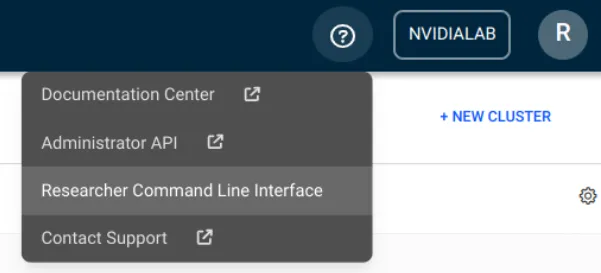
Figure 6.30: runai binary download
6.11.3.2 From BCM 11.33
When cm-runai-setup completes, the following post-installation steps should then be performed.
Load The Correct Kubernetes Module
In multi-cluster environments, load the appropriate Kubernetes module:
Example
Install The NVIDIA Dynamic Resource Allocation Driver
The NVIDIA Dynamic Resource Allocation (DRA) driver is required for secure Internode Memory Exchange on Multi-Node NVLink systems (DGX B200, GB200, B300, and GB300):
Example
Enable DRA Features
Modify the runaiconfig to expose DRA capabilities:
Example
Verify The Run:ai Command Line Tool
Validate that the runai CLI is installed:
Example
Windows users must additionally configure the control plane URL:
Example
Validate The Deployment
Confirm successful deployment by verifying the ingress configuration:
Example
Optional Post-Deployment Tasks
The following tasks may be performed after installation:
-
Security hardening: apply Kyverno and Calico policies.
-
Node pools: configure resource allocation across teams.
-
Additional users: set up accounts beyond the initial administrator.
-
SSO configuration: implement OpenID Connect authentication.
Further details on these tasks are available in the Run:ai documentation at https://run-ai-docs.nvidia.com/self-hosted/2.25/getting-started/installation/bcm-install/deployment.
6.12 Kubernetes Spark Operator
Using the Kubernetes Spark Operator is a simpler alternative to using the spark-submit tool for job submission.
6.12.1 Installing The Kubernetes Spark Operator
The Kubernetes Spark Operator can be installed as a part of the cm-kubernetes-setup procedure (section 4.2.8), which eventually leads to a display listing the operator packages that may be installed (figure 4.16).
The Kubernetes Spark Operator can alternatively be installed later on using the OS package manager and Helm:
The Kubernetes Spark Operator can be removed with:
Example
The operator installation state can be verified with --list-operators:
Example
The Helm status can be checked with, for example:
Example
The Permission Manager (section 4.15) and PodSecurityPolicy (PSP, section 4.10.2) must both be enabled for the cluster, before allowing a user to create resources in the Kubernetes cluster in their namespace:
Example
The user alice can be allowed to use the Spark operator, and allowed to run a process as any UID in the pod:
Example
The Kubernetes Spark operator Helm chart creates a CRD that can be used in the Kubernetes API.
For Alice, the CRD is available and can be used with a Spark operator YAML, to build a Spark application carry out a pi run in the restricted namespace.
6.12.2 Example Spark Operator Run: Calculating Pi
Continuing on with the user alice of the preceding section, a YAML file based on the specification at https://github.com/kubeflow/spark-operator/blob/v1beta2-1.6.2-3.5.0/examples/spark-py-pi.yaml can be used:
Example
Instead of tracking the pod with:
kubectl get pods
as in the preceding session, or with the more convenient:
watch kubectl get pods
the pod could be tracked with the -f| --follow option to stream the driver logs:
Example
To get intended output of the pi run—the calculated value of pi—it is sufficient to grep the log as follows:
Example
After the pi run has completed, the resources can be removed from the namespace:
6.13 The Zalando Postgres Operator
6.13.1 Installing The Zalando Postgres Operator
The upstream documentation for the Postgres Operator is at https://operatorhub.io/operator/postgres-operator.
6.13.1.1 Going Through The Kubernetes Setup Wizard
The Postgres operator installation is part of the initial Kubernetes cluster setup. Its installation is one of the options made available to the cluster administrator during the selection of operator packages (figure 4.16).
The wizard later asks which version of the Postgres operator should be installed (figure 6.31):
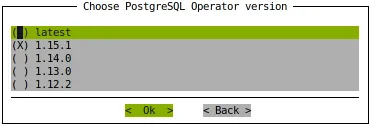
Figure 6.31: Postgres operator version selection screen
6.14 The NVIDIA NIM Operator
6.14.1 Installing The NVIDIA NIM Operator
The upstream documentation for the NIM Operator is at https://docs.nvidia.com/nim-operator/2.0.0/
6.14.1.1 Going Through The Kubernetes Setup Wizard
The NIM operator installation is part of the initial Kubernetes cluster setup. Its installation is one of the options made available to the cluster administrator during the selection of operator packages (figure 4.16).
6.15 Adding And Removing Operators On An Existing Cluster
Operators do not have to be selected once and for all during the initial cluster deployment. From BCM 11.34 onwards, the set of operators on an existing cluster can be changed at any time from the cm-kubernetes-setup TUI session (section 4.2.8), by using the Modify operators item from the main operations screen. The item becomes available after a Kubernetes cluster deployment. Selecting the item then allows adding or removing operators from the current deployment (figure 6.32):

Figure 6.32: Kubernetes setup TUI session: choosing whether to add or remove operators
6.15.1 Adding Operators
Adding operators reuses the same operator installation path as the initial setup did. It presents the operator-package selection screen (figure 6.33), applies the same dependency resolution and conflict detection between operators, and then walks through the same per-operator Helm chart configuration screens (figure 6.1). Operators that are already installed are shown pre-selected, and cannot be toggled. Only the newly selected operators, together with any dependencies that they pull in, are installed on the existing cluster.

Figure 6.33: Kubernetes setup TUI session: selecting operators to add, with already-installed operators pre-selected and greyed out
If a selection would leave a dependency unmet, or would enable operators that conflict, then the wizard reports the problem and asks for the selection to be corrected before it continues (figure 6.34).
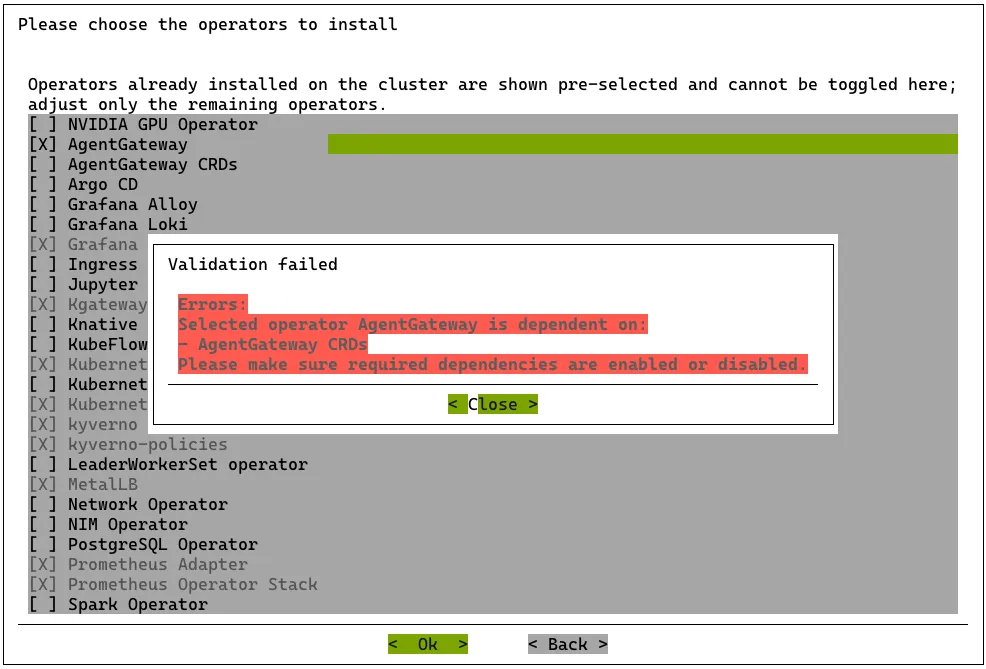
Figure 6.34: Kubernetes setup TUI session: dependency validation when adding operators
6.15.2 Removing Operators
Removing operators leads to a checklist of the operators that are currently installed (figure 6.35). The operators that are selected have their Helm releases uninstalled in reverse dependency order, and each removal is verified before the next one proceeds. The same dependency validation is applied, so an operator that others still depend on cannot be removed on its own.

Figure 6.35: Kubernetes setup TUI session: selecting operators to remove
Uninstalling an operator removes its Helm release. As is usual for Helm, the CRDs, namespaces, and other artifacts that the operator created (such as DaemonSets, node labels, and taints) are not removed. These can be cleaned up manually if they are no longer wanted.
6.15.3 Modifying Operators Non-interactively
As with the rest of cm-kubernetes-setup, adding and removing operators can be driven by configuration and not require the interactive menus. A configuration file can be applied to an existing cluster by passing it to cm-kubernetes-setup with the -c option, so that the desired operator configuration is passed on. The same add and remove logic (dependency resolution, per-operator configuration, and verified removal) is then applied without any prompts. This makes operator changes usable as an automated, repeatable post-installation operation.