

Docker Engine
Docker integration with NVIDIA Base Command Manager 11 for Docker version 28.0.4 is available at the time of writing of this paragraph (October 2024) on the x86_64 architecture for all the BCM-supported Linux distributions. For a more up-to-date status, the feature matrix at https://service.bcm.nvidia.com/feature-matrix/ can be checked.
Docker Engine (or just Docker) is a tool for container management. Docker allows containers and their images to be created, controlled, and monitored on a host using Docker command line tools or the Docker API.
Swarm mode, which allows containers to spawn on several hosts, is not formally supported by NVIDIA Base Command Manager 11. This is because NVIDIA Base Command Manager 11 provides Kubernetes for this purpose instead.
Docker provides a utility called docker, and two daemons: one called containerd (the default provided by BCM), and the other called dockerd. Additional functionality includes pulling the container image from a specific image registry (Chapter 3), configuring the container network, setting systemd limits, and attaching volumes.
2.1 Docker Setup
BCM provides the cm-docker package. The package includes the following components:
-
Docker itself, that provides an API and delegates the container management to Containerd;
-
Containerd runtime, that manages OCI (Open Container Initiative) images and OCI containers (using runC);
-
runC, a CLI tool for spawning and running containers according to the OCI runtime specification;
-
docker-py, a Python library for the Docker API.
Typically, however, the administrator is expected to simply run the cm-docker-setup utility, which is provided by BCM’s cm-setup package. Running cm-docker-setup takes care of the installation of the cm-docker package and also takes care of Docker setup. If run without options, then the utility starts up a TUI dialog (figure 2.1).
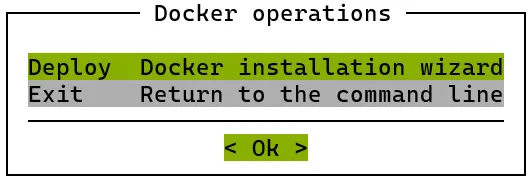
Figure 2.1: cm-docker-setup TUI startup
The cm-docker-setup utility asks several questions, such as which Docker registries are to be used, what nodes Docker is to be installed on, whether the NVIDIA container runtime should be installed, and so on. If cm-docker-setup is used with the -c option, and given a YAML configuration file <YAMLfile>, then a runtime configuration is loaded from that file. The YAML file is typically generated and saved from an earlier setup run.
The setup run displays a summary as its final TUI screen. In the final summary screen, as with other scripts that come with the cm-setup package, the configuration setting can be one of the following kinds:
-
minimal config: For this minimal kind of configuration setting, the configuration consists only of the settings that differ from the default application configuration. The remaining default application configuration settings are not included in the configuration. -
config: For this non-minimal kind of configuration setting, the configuration consists of the minimal configuration settings (the ones changed by BCM), as well as the remaining default configuration settings (the ones provided with the application). That is to say: the remaining default configuration application settings are included in the configuration. The default application configuration settings may change as the upstream packages change.
When the questions in the TUI dialog have been answered and the deployment is carried out, the utility:
-
installs the
cm-dockerpackage, if it has not been installed yet -
then assigns the DockerHost role to the node categories or head nodes that were specified
-
adds health checks to the BCM monitoring configuration
-
performs the initial configuration of Docker.
The regular nodes on which Docker is to run, are restarted by the utility, if needed. The restart operation provisions the updated images from the image directory onto the nodes.
The cm-docker package also includes a modules environment file, which must be loaded in order to use the docker command. The modules environment and modules are introduced in section 2.2 of the Administrator Manual.
By default only the administrator can run the docker commands after setup (some output ellipsized):
Example
and the hello-world image can be run as usual with:
Example
Or, for example, importing and running Apache containers with Docker may result in the following output:
Example
Using Docker directly means being root on the host. It is rarely sensible to carry out regular user actions as the root user at all times.
So, to make Docker available to regular users, Kubernetes provides a user management layer and restrictions.
After Docker has been installed, Kubernetes can be set up to allow regular user access to the Docker containers as covered in Chapter 4. It is a best practice for regular users to use Kubernetes instead of Docker commands directly.
2.2 Integration With Workload Managers
BCM does not provide integration of Docker with workload managers. The administrator can however tune the workload managers in some cases to enable Docker support.
- LSF – An open beta version of LSF with Docker support is available from the IBM web site. This LSF version allows jobs to run in Docker containers, and monitors the container resources per job.
2.3 DockerHost Role
When cm-docker-setup is executed, the DockerHost role is assigned to nodes or categories. The DockerHost role is responsible for Docker service management and configuration.
From cmsh, the configuration parameters can be managed from the Docker::Host role:
Example
The Docker host parameters that CMDaemon can configure in the DockerHost role, along with a description, are shown in table 2.1:
* Boolean (takes yes or no as a value)
Table 2.1: Docker::Host role options
2.4 Iptables
By default iptables rules have been added to nodes that function as a Docker host, to let network traffic go from the containers to outside the pods network. If this conflicts with other software that uses iptables, then this option can be disabled. For example, if the docker::host role has already been assigned to the nodes using the default category, then the iptables rules that are set can be disabled by setting the iptables parameter in the Docker::Host role to no:
Example
2.5 Storage Backends
A core part of the Docker model is the efficient use of containers based on layered images. To implement this, Docker provides different storage back ends, also called storage drivers. These storage back ends rely heavily on various filesystem features in the kernel or volume manager. Some storage back ends perform better than others, depending on the circumstances.
For BCM 11.0 the storage backend configured by cm-docker-setup is overlay2.
The docker info command, amongst many other items, shows the storage driver and related settings that are being used in Docker:
Example
Docker data volumes are not controlled by the storage driver. Reads and writes to data volumes bypass the storage driver. It is possible to mount any number of data volumes into a container. Multiple containers can also share one or more data volumes.
More information about Docker storage back ends is available at https://docs.docker.com/engine/storage/drivers/.
For overlay2 back end driver storage, settings can be added as options if needed. In cmsh this can be done by setting the options parameter in the storagebackend submode under the docker::host role.
2.6 Docker Monitoring
When cm-docker-setup runs, it configures and runs the following Docker health checks:
-
makes a test API call to the endpoint of the Docker daemon
-
checks containers to see that none is in a
deadstate
The Docker daemon can be monitored outside of BCM with the usual commands directly.
BCM ways to manage or check on Docker include the following:
In CMDaemon, the docker service can be checked:
Example
The docker0 interface statistics can be checked within the nodeoverview output:
Example
The health check measurable Docker checks if the docker service is healthy.
Example
2.7 Docker Setup For NVIDIA
NVIDIA GPU Cloud (NGC) is a cloud platform that runs on NVIDIA GPUs. NGC containers are lightweight containers that run applications on NVIDIA GPUs. The applications are typically HPC, machine learning, or deep learning applications.
An NGC can be set up to run NGC containers from the registry http://ngc.nvidia.com.
Docker can be configured as an NGC running NGC containers by using the NVIDIA Container Toolkit.
The BCM package provided for this is: cm-nvidia-container-toolkit.
One way to install and deploy this package is as part of the Docker installation, when running cm-docker-setup (section 2.1), where the cluster administrator selects yes as the answer to the request: “Do you want to install the NVIDIA Runtime for Docker”.
Alternatively, if Docker has already been installed via cm-docker-setup, and if the package has not been installed, then it can be installed via the package manager, yum or apt. The toolkit has to be running on the compute nodes that have GPUs, which means that the installation must go to the appropriate node image (section 9.4 of the Administrator Manual). For example, if the appropriate image is gpu-image, then the package manager command for RHEL-based distributions would be:
Example
The nodes that use that GPU image can then be rebooted to pick up the new package.
The GPU status can then be printed with the NVIDIA system management interface command. For example, if the image has been picked up by node001:
Example
The available CUDA Docker images can be found at https://hub.docker.com/r/nvidia/cuda.