

Cluster Management With NVIDIA Base Command Manager
This chapter introduces cluster management with NVIDIA Base Command Manager. A cluster running BCM exports a cluster management interface to the outside world, which can be used by any application designed to communicate with the cluster.
Section 2.1 introduces a number of concepts which are key to cluster management using BCM.
Section 2.2 gives a short introduction on how the modules environment can be used by administrators. The modules environment provides facilities to control aspects of a users’ interactive sessions and also the environment used by compute jobs.
Section 2.3 introduces how authentication to the cluster management infrastructure works and how it is used. Section 2.4 and section 2.5 introduce the cluster management GUI (Base View) and cluster management shell (cmsh) respectively. These are the primary applications that interact with the cluster management daemon.
Section 2.6 describes the basics of the cluster management daemon, CMDaemon, running on all nodes of the cluster.
2.1 Concepts
In this section some concepts central to cluster management with BCM are introduced.
2.1.1 Devices
A device in BCM infrastructure represents components of a cluster. A device can be any of the following types:
-
Head Node
-
Physical Node
-
Virtual Node
-
Cloud Node
-
GPU Unit
-
Chassis
-
Switch (ethernet, InfiniBand, Myrinet)
-
Lite Node
-
Power Distribution Unit
-
Rack Sensor Kit
-
Generic Device
A device can have a number of properties (e.g. rack position, hostname, switch port) which can be set in order to configure the device. Using BCM, operations (e.g. power on) may be performed on a device. The property changes and operations that can be performed on a device depend on the type of device. For example, it is possible to mount a new filesystem to a node, but not to an Ethernet switch.
Every device that is managed by BCM has a device state associated with it. The table below describes the most important states for devices:
These, and other states are described in more detail in section 5.5.
[ DOWN ] and [ CLOSED ] (DOWN) states have an important difference. In the case of [ DOWN ], the device is down, but is typically intended to be available, and thus typically indicates a failure. In the case of [ CLOSED ] (DOWN), the device is down, but is intended to be unavailable, and typically indicates that the administrator deliberately brought the device down, and would like the device to be ignored.
2.1.2 Software Images
A software image is a blueprint for the contents of the local filesystems on a regular node. In practice, a software image is a directory on the head node containing a full Linux filesystem.
The software image in a standard BCM installation is based on the same parent distribution that the head node uses. A different distribution can also be chosen after installation, from the distributions listed in section 2.1 of the Installation Manual for the software image. That is, the head node and the regular nodes can run different parent distributions. However, such a “mixed” cluster can be harder to manage and it is easier for problems to arise in such mixtures. Such mixtures, while supported, are therefore not recommended, and should only be administered by system administrators that understand the differences between Linux distributions.
RHEL 8 and Rocky Linux 8 mixtures are completely compatible with each other on the head and regular nodes. The same applies to RHEL9 and Rocky Linux 9. That is because Rocky Linux is designed to be a binary-compatible derivative of its RHEL parents. On the other hand, SLES and Ubuntu need quite some effort to work in a mixture.
When a regular node boots, the node provisioning system (Chapter 5) sets up the node with a copy of the software image, which by default is called default-image.
Once the node is fully booted, it is possible to instruct the node to re-synchronize its local filesystems with the software image. This procedure can be used to distribute changes to the software image without rebooting nodes (section 5.6.2).
It is also possible to “lock” a software image so that no node is able to pick up the image until the software image is unlocked. (section 5.4.7).
Software images can be changed using regular Linux tools and commands (such as rpm and chroot). More details on making changes to software images and doing image package management can be found in Chapter 9.
2.1.3 Node Categories
2.1.3.1 Reasons For Categories
The collection of settings in BCM that can apply to a node is called the configuration of the node. The administrator usually configures nodes using the Base View (section 2.4) or cmsh (section 2.5) front end tools, and the configurations are managed internally with a database.
A node category is a group of regular nodes that share the same configuration. Node categories allow efficiency, allowing an administrator to:
-
configure a large group of nodes at once. For example, to set up a group of nodes with a particular disk layout.
-
operate on a large group of nodes at once. For example, to carry out a reboot on an entire category.
A regular node is in exactly one category at all times, which is default by default. The default category can be changed by accessing the base object of partition mode (here), and setting the value of defaultcategory to another, existing, category.
Nodes are typically divided into node categories based on the hardware specifications of a node or based on the task that a node is to perform. Whether or not a number of nodes should be placed in a separate category depends mainly on whether the configuration—for example: monitoring setup, disk layout, role assignment—for these nodes differs from the rest of the nodes.
2.1.3.2 Corresponding Category Values And Node Values
-
For non-Boolean values, a node inherits values from the category it is in. Each value is treated as the default property value for a node, and can be overruled by specifying the node property value for a particular node.
-
For Boolean values, such as
datanode(here) andinstallbootrecord(here), a node does not inherit the value from the category it is in. Instead the category Boolean value has the Booleanoroperation applied to the node Boolean value, and the result is the Boolean value that is used for the node. Since by default the values for these Booleans are zero, the result is initially similar to the non-Boolean values behavior.
2.1.3.3 Category And Software Image Do Not Necessarily Map One-To-One
One configuration property value of a node category is its software image (section 2.1.2). However, there is no requirement for a one-to-one correspondence between node categories and software images. Therefore multiple node categories may use the same software image, and conversely, one variable image—it is variable because it can be changed by the node setting—may be used in the same node category.
Software images can have their parameters overruled by the category settings. By default, however, the category settings that can overrule the software image parameters are unset.
By default, all nodes are placed in the default category. Alternative categories can be created and used at will, such as:
Example
2.1.4 Node Groups
A node group consists of nodes that have been grouped together for convenience. The group can consist of any mix of all kinds of nodes, irrespective of whether they are head nodes or regular nodes, and irrespective of what category they are in. A node may be in 0 or more node groups at one time. I.e.: a node may belong to many node groups.
Node groups are used mainly for carrying out operations on an entire group of nodes at a time. Since the nodes inside a node group do not necessarily share the same configuration, configuration changes cannot be carried out using node groups.
Example
One important use for node groups is in the nodegroups property of the provisioning role configuration (section 5.2.1), where a list of node groups that provisioning nodes provision is specified.
2.1.5 Roles
A role is a task that can be performed by a node. By assigning a certain role to a node, an administrator activates the functionality that the role represents on this node. For example, a node can be turned into provisioning node, or can be turned into a storage node, by assigning the corresponding roles to the node. Roles typically have services (section 3.15) that are associated with them. For example, the dhcpd service is associated with the boot role, which means that nodes assigned a boot role can then provide netbooting using dhcpd to other nodes.
Roles can be assigned to individual nodes or to node categories. When a role has been assigned to a node category, it is implicitly assigned to all nodes inside the category.
A configuration overlay (section 2.1.6) is a group of roles that can be assigned to designated groups of nodes within a cluster. This allows configuration of a large number of configuration parameters in various combinations of nodes.
Some roles allow parameters to be set that influence the behavior of the role. For example, the Slurm Client Role (which turns a node into a Slurm client) uses parameters to control how the node is configured within Slurm in terms of queues and the number of GPUs.
When a role has been assigned to a node category with a certain set of parameters, it is possible to override the parameters for a node inside the category. This can be done by assigning the role again to the individual node with a different set of parameters. Roles that have been assigned to nodes override roles that have been assigned to a node category.
Roles have a priority setting associated with them. Roles assigned at category level have a fixed priority of 250, while roles assigned at node level have a fixed priority of 750. The configuration overlay priority is variable, but is set to 500 by default. Thus, for example, roles assigned at the node level override roles assigned at the category level. Roles assigned at the node level also override roles assigned by the default configuration overlay.
A role can be imported from another entity, such as a node, a category, or a configuration overlay.
Roles are assigned only from existing roles. A custom role cannot be created by the cluster administrator, which means that the add command (here) does not work in role mode, by design. Instead, only the assign command (here) can be used for roles.
Examples of role assignment are given in sections 5.2.2 and 5.2.3.
2.1.6 Configuration Overlay
A configuration overlay assigns roles (section 2.1.5) for groups of nodes. The number of roles can be quite large, and priorities can be set for these.
Multiple configuration overlays can be set for a node. A priority can be set for each configuration overlay, so that a configuration overlay with a higher priority is applied to its associated node instead of a configuration overlay with a lower priority. The configuration overlay with the highest priority then determines the actual assigned role.
A configuration overlay assigns a group of roles to an instance. This means that roles are assigned to nodes according to the instance configuration, along with a priority. Whether the configuration overlay assignment is used, or whether the original role assignment is used, depends upon the configured priorities.
Configuration overlays can take on priorities in the range 0-1000, except for 250 and 750, which are forbidden. Setting a priority of -1 means that the configuration overlay is ignored.
The priorities of 250, 500, and 750 are also special, as indicated by the following table:
A custom configuration overlay can be created by the cluster administrator in configurationoverlay mode, which means that the add command (here) does work for it. This can be used to achieve a functional equivalent to creating custom roles. The creation of custom roles in role mode is a function that is missing by design.
2.2 Modules Environment
The modules environment is the shell environment that is set up by a third-party software (section 7.1 of the Installation Manual) called Environment Modules. The software allows users to modify their shell environment using pre-defined modules. A module may, for example, configure the user’s shell to run a certain version of an application.
Details of the modules environment from a user perspective are discussed in section 2.3 of the User Manual. However some aspects of it are relevant for administrators and are therefore discussed here.
2.2.1 Adding And Removing Modules
Modules may be loaded and unloaded, and also be combined for greater flexibility.
Modules currently installed are listed with:
The modules available for loading are listed with:
Loading and removing specific modules is done with module load and module remove, using this format:
For example, loading the shared module (section 2.2.2), the gcc compiler, the openmpi parallel library, and the openblas library, allows an MPI application myapp.c to be compiled with OpenBLAS optimizations:
Example
The exact versions used can be selected using tab-completion. In most cases, specifying version numbers explicitly is typically only necessary when multiple versions of an application are installed and available. When there is no ambiguity, module names without a further path specification may be used.
2.2.2 Using Local And Shared Modules
Applications and their associated modules are divided into local and shared groups. Local applications are installed on the local filesystem, whereas shared applications reside on a shared (i.e. imported) filesystem.
It is recommended that the shared module be loaded by default for ordinary users. Loading it gives access to the modules belonging to shared applications, and allows the module avail command to show these extra modules.
Loading the shared module automatically for root is not recommended on a cluster where shared storage is not on the head node itself. This is because root logins could be obstructed if this storage is not available, and if the root user relies on files in the shared storage.
On clusters without external shared storage, root can safely load the shared module automatically at login. This can be done by running the following command as root:
Other modules can also be set to load automatically by the user at login by using “module initadd” with the full path specification. With the initadd option, individual users can customize their own default modules environment.
Modules can be combined in meta-modules. By default, the default-environment meta-module exists, which allows the loading of several modules at once by a user. Cluster administrators are encouraged to customize the default-environment meta-module to set up a recommended environment for their users. The default-environment meta-module is empty by default.
The administrator and users have the flexibility of deciding the modules that should be loaded in undecided cases via module dependencies. Dependencies can be defined using the prereq and conflict commands. The man page for modulefile gives details on configuring the loading of modules with these commands.
2.2.3 Setting Up A Default Environment For All Users
How users can set up particular modules to load automatically for their own use with the module initadd command is discussed in section 2.2.2.
How the administrator can set up particular modules to load automatically for all users by default is discussed in this section (section 2.2.3). In this example it is assumed that all users have just the following modules as a default:
Example
The slurm and gdb modules can then be set up by the administrator as a default for all users in the following 2 ways:
-
Creating and defining part of a
.profileto be executed for login shells. For example, a fileuserdefaultmodules.shcreated by the administrator:Whenever users now carry out a bash login, these modules are loaded.
-
Instead of placing the modules directly in a script under
profile.dlike in the preceding item, a slightly more sophisticated way is to set the modules in the meta-module/cm/shared/modulefiles/default-environment. For example:The script
userdefaultmodules.shscript underprofile.dthen only needs to have thedefault-environmentmodule loaded in it:The
-soption is used to load it silently, because otherwise a message is displayed on the terminal informing the person logging in that thedefault-environmentmodule has been loaded.Now, whenever the administrator changes the
default-environmentmodule, users get these changes too during login.
The lexicographical order of the scripts in the /etc/profile directory is important. For example, naming the file defaultusermodules.sh instead of userdefaultmodules.sh means that the modules.sh script is run after the file is run, instead of before, which would cause an error.
2.2.4 Creating A Modules Environment Module
All module files are located in the /cm/local/modulefiles and /cm/shared/modulefiles directories. A module file is a Tcl or Lua script in which special commands are used to define functionality. The modulefile(1) man page has more on this.
Cluster administrators can use the existing modules files as a guide to creating and installing their own modules for module environments, and can copy and modify a file for their own software if there is no environment provided for it already by BCM.
2.2.5 Lua Modules Environment (Lmod)
By default, BCM uses traditional Tcl scripts for its environment modules files, or Tmod in BCM shorthand. Lua modules, or Lmod, provide alternative environment modules files, where the files are typically written in Lua. Lmod can be used as a replacement for Tmod.
Conceptually Lmod works in the same way as Tmod, but provides some extra features and commands.
For Lmod, the module files are typically written in Lua, but Lmod is also capable of reading Tcl module files. It is therefore not necessary to convert all existing Tcl modules manually to the Lua language.
On a BCM cluster, both Lmod and Tmod are installed by default. However only one of them is active, depending on which one is enabled. Switching between Lmod and Tmod for a node can be done by setting an environment variable, $ENABLE_LMOD in the cm-lmod-init.sh shell script.
2.2.5.1 Switching For The Head Node
For example, for the head node:
Example
In the preceding example, Lmod is enabled, and Tmod is disabled because $ENABLE_LMOD is set to 1.
Example
In the preceding example, Lmod is disabled, and Tmod is enabled because $ENABLE_LMOD is set to 0.
A change in the file on the node is effective after having logged out, then logged into the shell again.
2.2.5.2 Switching For The Regular Nodes
A node image is a directory and contents of that directory. It is used as the template for a regular node when the node is provisioned (Chapter 5). For a node image with the name <image name>, the cm-lmod-init.sh file is located at /cm/images/<image name>/etc/sysconfig/modules/lmod/cm-lmod-init.sh. For switching between Lmod and Tmod on a regular node, the file is changed on the image, and the file on the image is then updated to the node. The update from the image to the node is typically carried out with the imageupdate command in cmsh (section 5.6.2) or the Update node command in Base View (section 5.6.3).
2.3 Authentication
2.3.1 Changing Administrative Passwords On The Cluster
How to set up or change regular user passwords is not discussed here, but in Chapter 6 on user management.
Amongst the administrative passwords associated with the cluster are:
-
The root password of the head node: This allows a root login to the head node.
-
The root passwords of the software images: These allow a root login to a regular node running with that image, and is stored in the image file.
-
The root password of the node-installer: This allows a root login to the node when the node-installer, a stripped-down operating system, is running. The node-installer stage prepares the node for the final operating system when the node is booting up. Section 5.4 discusses the node-installer in more detail.
-
The root password of MySQL: This allows a root login to the MySQL server.
To avoid having to remember the disparate ways in which to change these 4 kinds of passwords, the cm-change-passwd command runs a dialog prompting the administrator on which of them, if any, should be changed, as in the following example:
For a high-availability—also called a failover—configuration, the passwords are copied over automatically to the other head node when a change is made in the software image root password (case 2 here).
For the remaining password cases (head root password, MySQL root password, and node-installer root password), the passwords are best “copied” over to the other head node by simply rerunning the script on the other head node.
Also, in the case of the password for software images used by the regular nodes: the new password that is set for a regular node only works on the node after the image on the node itself has been updated, with, for example, the imageupdate command (section 5.6.2). Alternatively, the new password can be made to work on the node by simply rebooting the node to pick up the new image.
The LDAP root password is a random string set during installation. Changing this is not done using cm-change-password. It can be changed as explained in Appendix I.
If the administrator has stored the password to the cluster in the Base View front-end, then the password should be modified there too (figure 2.2).
2.3.2 Logins Using ssh
The standard system login root password of the head node, the software image, and the node-installer, can be set using the cm-change-passwd command (section 2.3.1).
In contrast, ssh logins from the head node to the regular nodes are set by default to be passwordless:
-
For non-root users, an
sshpasswordless login works if the/homedirectory that contains the authorized keys for these users is mounted. The/homedirectory is mounted by default on the head node as well as on the regular node, so that by default a passwordless login works from the head node to the regular nodes, as well as from the regular nodes to the head node. -
For the root user, an
sshpasswordless login should always work from the head node to the regular nodes since the authorized keys are stored in/root. Logins from the regular node to the head node are configured by default to request a password, as a security consideration.
Users can be restricted from ssh logins
-
on regular nodes using the
cmshusernodeloginoption (section 7.2.1) or the Base ViewUser node login(section 7.2.2) settings -
on the head node by modifying the sshd configuration on the head node. For example, to allow only root logins, the value of
AllowUserscan be set in/etc/ssh/sshd_configtoroot. The man page forsshd_confighas details on this.
2.3.3 Certificates
2.3.3.1 PEM Certificates And CMDaemon Front-end Authentication
While nodes in the cluster accept ordinary ssh-based logins, the cluster manager accepts public key authentication using X509v3 certificates. Public key authentication using X509v3 certificates means in practice that the person authenticating to the cluster manager must present their public certificate, and in addition must have access to the private key that corresponds to the certificate.
BCM uses the PEM format for certificates. In this format, the certificate and private key are stored as plain text in two separate PEM-encoded files, ending in .pem and .key.
Using cmsh and authenticating to BCM: By default, one administrator certificate is created for root for the cmsh front end to interact with the cluster manager. The certificate and corresponding private key are thus found on a newly-installed BCM cluster on the head node at:
The cmsh front end, when accessing the certificate and key pair as user root, uses this pair by default, so that prompting for authentication is then not a security requirement. The logic that is followed to access the certificate and key by default is explained in detail in item 2 here.
Using Base View and authenticating to BCM: When an administrator uses the Base View front end, a login to the cluster is carried out with username password authentication (figure 2.2), unless the authentication has already been stored in the browser, or unless certificate-based authentication is used.
-
Certificate-based authentication can be carried out using a PKCS#12 certificate file. This can be generated from the PEM format certificates. For example, for the root user, an
opensslcommand that can be used to generate theadmin.pfxfile is:-
In Chrome, the
IMPORTwizard at chrome://settings/certificates can be used to save the file into the browser. -
For Firefox, the equivalent navigation path is:
about:preferences#privacy>Certificates>View Certificates>Your Certificates>Import
The browser can then access the Base View front end without a username/password combination.
-
If the administrator certificate and key are replaced, then any other certificates signed by the original administrator certificate must be generated again using the replacement, because otherwise they will no longer function.
Certificate generation in general, including the generation and use of non-administrator certificates, is described in greater detail in section 6.5.
2.3.3.2 Replacing A Temporary Or Evaluation License
In the preceding section, if a license is replaced, then regular user certificates need to be generated again. Similarly, if a temporary or evaluation license is replaced, regular user certificates need to be generated again. This is because the old user certificates are signed by a key that is no longer valid. The generation of non-administrator certificates and how they function is described in section 6.5.
2.3.3.3 Checking Certificates Validity With cm-check-certificates.sh
A BCM script that checks whether certificates are current or expired is /cm/local/apps/cmd/scripts/cm-check-certificates.sh:
Example
2.3.4 Profiles
Certificates that authenticate to CMDaemon contain a profile.
A profile determines which cluster management operations the certificate holder may perform. The administrator certificate is created with the admin profile, which is a built-in profile that allows all cluster management operations to be performed. In this sense it is similar to the root account on unix systems. Other certificates may be created with different profiles giving certificate owners access to a pre-defined subset of the cluster management functionality (section 6.5).
2.4 Base View GUI
This section introduces the basics of the cluster management GUI (Base View). Base View is the web application front end to cluster management in BCM.
is supported to run on the last 2 versions of Firefox, Google Chrome, Edge, and Safari. “Last 2 versions” means the last two publicly released versions (https://browserl.ist/?q=last+2+versions) at the time of release of . For example, at the time of writing of this section, July 2026, the last 2 versions were:
should run on more up-to-date versions of the browsers in the table without issues.
should run on other recent browsers without issues too, but this is not supported. Browsers that run on mobile devices are also not supported.
2.4.1 Installing The Cluster Management GUI Service
In a default installation, accessing the head node hostname or IP address with a browser leads to the landing page (figure 2.1).
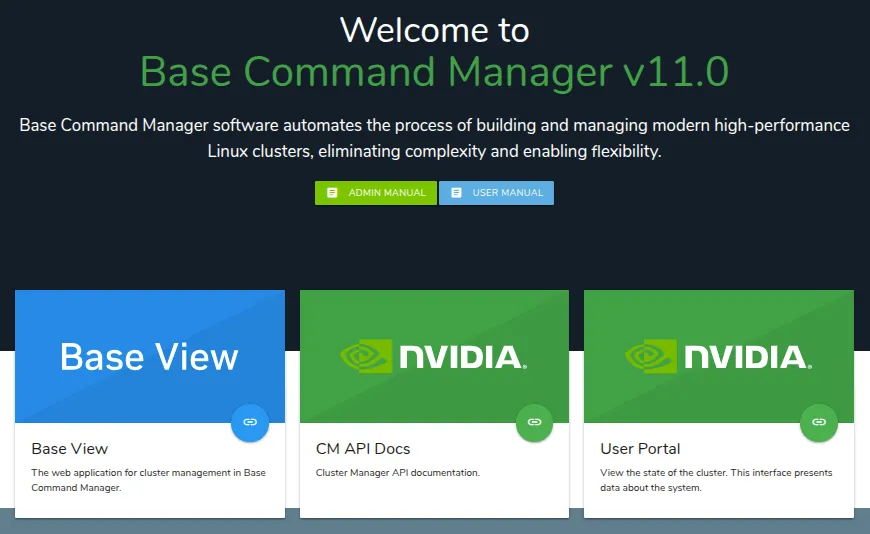
Figure 2.1: Head node hostname or IP address landing page at https://<host name or IP address>
The landing page is served by the Apache web server from the distribution, and can be served over the HTTP (unencrypted) or HTTPS (encrypted) protocols.
The certificates used to ensure an encrypted connection are set within:
-
/etc/httpd/conf.d/ssl.conffor the RHEL family of distributions. The PEM-encoded certificate at/etc/pki/tls/certs/localhost.crtis set by default. -
/etc/apache2/sites-available/default-ssl.conffor Ubuntu. The PEM-encoded certificate at/etc/ssl/certs/ssl-cert-snakeoil.pemis set by default.
The system administrator may wish to consider the security aspects of using the default distribution certificates, and may wish to replace them.
Within the landing page are several blocks, one of which is the Base View block. Base View is the BCM GUI. Within the Base View block is a clickable link, which is a circle with a chain-link symbol inside it.
Base View connects by default to the encrypted web service on port 8081. This is served from the head node cluster manager, rather than from Apache, to the browser. The direct URL for this is of the form:
The BCM package that provides the service is base-view and it is installed by default with BCM. The service can be disabled by removing the package with, for example, yum remove base-view.
2.4.1.1 NVIDIA Base Command Manager Base View Login Window
Figure 2.2 shows the login dialog window for Base View.
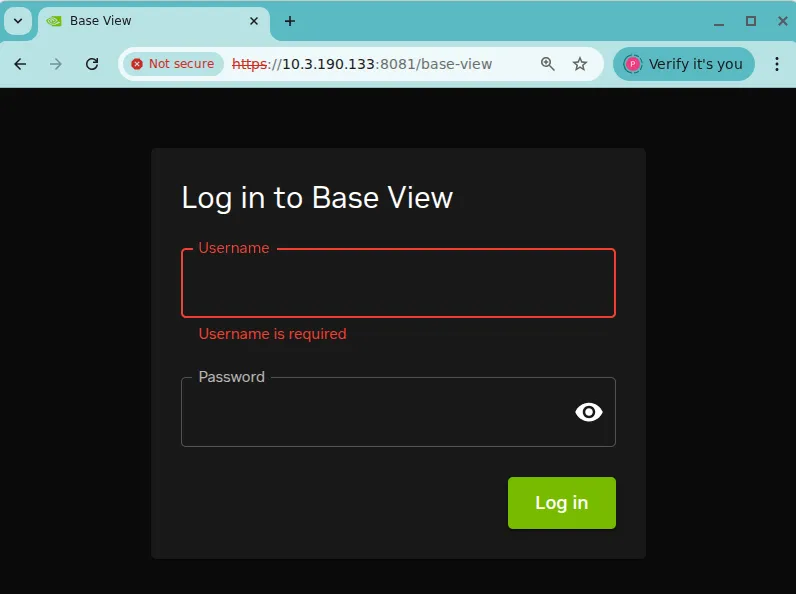
Figure 2.2: Base View Login via https://<host name or IP address>:8081/base-view
2.4.1.2 NVIDIA Base Command Manager Base View Default Display On Connection
Clicking on the Login button logs the administrator into the Base View service on the cluster. By default an overview window is displayed, corresponding to the navigation path Cluster > Overview (figure 2.3).
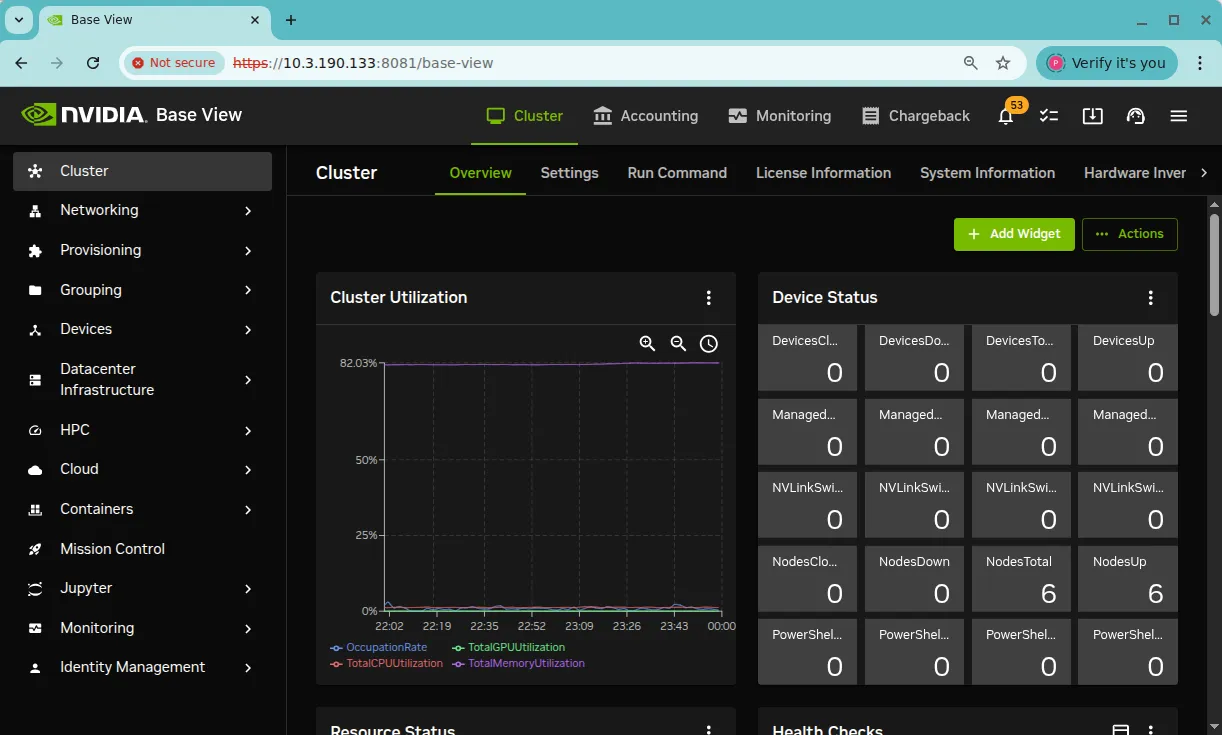
Figure 2.3: Cluster Overview
2.4.2 Navigating The Cluster With Base View
Aspects of the cluster can be managed by administrators using Base View (figure 2.3).
2.4.2.1 Navigating The Cluster With Base View: Getting Around
The resource tree, displayed on the left side of the window, consists of representations of cluster usage resources that are viewable or configurable, such as Networking, Provisioning, Grouping, and Devices, Cloud, and Containers.
Selecting a resource opens a window that allows parameters related to the resource to be viewed and managed.
As an example, the Cluster resource can be selected. On the first session this opens up the Overview window, which allows the cluster administrator to see the main characteristics of the cluster quickly. The characteristics can be explored further by clicking through on widgets that open up new windows, or clicking on tabs. Clicking on the BCM NVIDIA logo in the top left corner of the page conveniently brings the user back to Cluster > Overview.
Within the main content window, there are a variety of widgets that are used. A helpful nuance of widget behavior to note is that
-
the ↗ widget is for opening up an existing object, and
-
the
+widget is for opening up a new object.
Both widgets open up a subwindow in which values can be viewed, and perhaps modified.
Also useful to know is the following: going back to a previous window is possible by scrolling back up to the top of the subwindow and clicking on the appropriate item in the breadcrumbs trail. For example: A user has navigated down the path: Cluster > Settings > Time zone > , and has reached a configuration screen to set the time zone, as in figure 2.4:
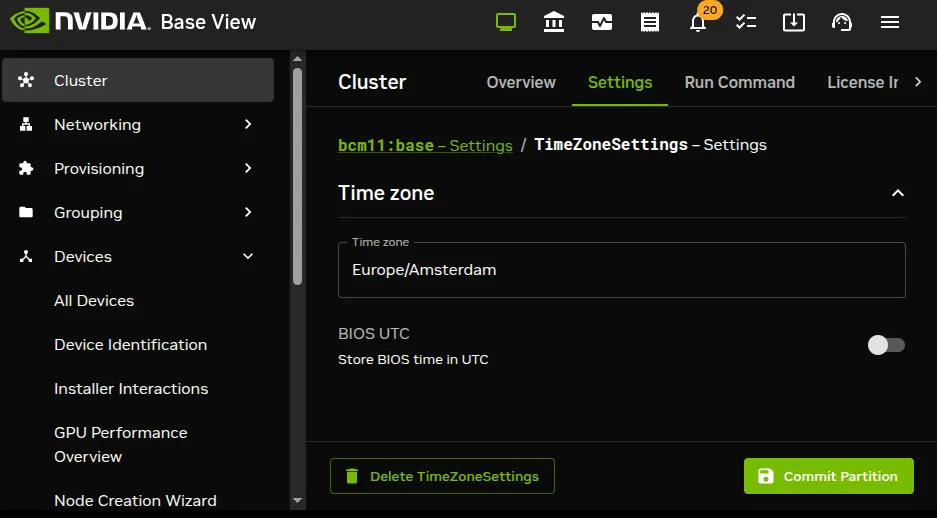
Figure 2.4: Base View Time Zone Breadcrumb
If the user wishes to return to the earlier Cluster > Settings screen without changing any values in the current time zone screen, then it can be done by clicking on the appropriate breadcrumb. In this case it is the breadcrumb associated with the navigation path to that earlier screen, which in figure 2.4 is bcm11:base - Settings.
2.4.2.2 Navigating The Cluster With Base View: A Tree Map Of Locations From The Cluster Resource
The tabs within the Cluster resource window are mapped out in the tree figure displayed next, and the tree is followed by a brief description of its items:
2.4.2.3 Overview
The Overview tab window in the tree map has sections that show:
-
Cluster Utilizationgraphs, which includesOccupation rate(here). -
The number of devices in various states (
UP,DOWN…) and their total number. Devices states are covered in sections 5.5.3 and 5.5.4. -
The number of resources (Cores, DPUs, and GPUs) in various states (
UP,DOWN, …) and their total number. -
GPU usage information (includes temperature, power).
-
Workload scheduling. Workload management is described in Chapter 7.
-
Uptime.
-
Disks status.
-
The license information. This shows the number of nodes and accelerators (such as GPUs) that have been used, out of the number that are licensed to be used. In addition, the license information section shows whether particular license features are enabled, such as for features available in NVIDIA Mission Control (section 1.2 of the NVIDIA Mission Control Manual).
2.4.2.4 Settings
The Settings window has a number of global cluster properties and property groups. These are loosely grouped as follows:
-
Cluster name: This section can also manage the cluster administrator email, partition name, and head node name. -
Name servers: This section also manages the time servers. -
Search domains: A relay host can also be set in this section. -
Externally visible IP -
Time zone -
BMC settings: This section is also used to manage SNMP, DPU, SELinux, Access, Provisioning, ZTP, NetQ, UFM, and NMX Manager settings. -
Default burn configuration: Sets the default burn configuration, and values in the burn configuration settings. -
External network: The management network can be defined from this section. -
Default category: Sets the default category -
Sign installer certificates: This section manages the manual or automatic signing of the node-installer certificates (section 5.4.1). -
Failover: Opens up a window to manage failover properties. -
Failover groups: Opens up a window to manage failover groups properties. -
Notes -
Wlm job power usage settings: Opens up a new window to add settings -
Leak action policies: Opens up a new window to manage settings. -
Building Management System -
Prometheus metric forwarders: Opens up a new window to manage settings.
2.4.2.5 Run Command
The Run command tab window allows a specified command to be run on a selected node of the cluster.
2.4.2.6 License Information
The License Information section of the License Information tab window shows some further information to do with cluster licensing; it is the Base View version of verify-license info (section 4.2.2 of the Installation Manual).
A slightly obscure property within this pane is Version, which refers to the version type of the license, rather than the BCM version. The license for NVIDIA Base Command Manager, with a value for version of 10.0 and above, is of a type that is incompatible with versions before 10.0. This means that an upgrade from before 9.2, to 10.0 or beyond, requires a license upgrade. The BCM support team must be contacted to arrange the license upgrade.
The Mission Control section of the License Information window lets NVIDIA Mission Control features be managed with the Manage Mission Control URL. Other parts of the section show which features of the NVIDIA Mission Control license are currently active.
2.4.2.7 System information
The System information tab window shows the main hardware specifications of the devices in the cluster (CPU, memory, BIOS), along with the operating system version that each device runs.
2.4.2.8 Hardware Inventory
The Hardware Inventory tab window displays a table of hardware identifiers. It is the Base View version of the hardwareinventoryinfo command in the device mode of cmsh.
2.4.2.9 Version Information
The Version Information tab window shows version information for important cluster software components, such as the CMDaemon database version, BCM version and builds.
2.4.2.10 Port Forwarding
The Port Forwarding tab window shows ports that have been forwarded from the head node to the regular nodes. It is the Base View version of the portforward list command (section 3.2.3.7) in the device mode of cmsh.
2.4.2.11 IMEX Configuration
The IMEX configurations tab window lists the state of IMEX mappings per node.
2.4.2.12 Workload Utilization
The Workload Utilization tab window displays a chart of nodes running a job or not.
2.5 Cluster Management Shell
This section introduces the basics of the cluster management shell, cmsh. This is the command-line interface to cluster management in BCM. Since cmsh and Base View give access to the same cluster management functionality, an administrator need not become familiar with both interfaces. Administrators intending to manage a cluster with only Base View may therefore safely skip this section.
The cmsh front end allows commands to be run with it, and can be used in batch mode. Although cmsh commands often use constructs familiar to programmers, it is designed mainly for managing the cluster efficiently rather than for trying to be a good or complete programming language. For programming cluster management, the use of Python bindings (Chapter 1 of the Developer Manual) is generally recommended instead of using cmsh in batch mode.
Usually cmsh is invoked from an interactive session (e.g. through ssh) on the head node, but it can also be used to manage the cluster from outside.
2.5.1 Invoking cmsh
From the head node, cmsh can be invoked as follows:
Example
By default it connects to the IP address of the local management network interface, using the default BCM port. If it fails to connect as in the preceding example, but a connection takes place using cmsh localhost, then the management interface is most probably not up. In that case, bringing the management interface up allows cmsh to connect to CMDaemon.
Running cmsh without arguments starts an interactive cluster management session. To go back to the unix shell, a user enters quit or ctrl-d:
2.5.1.1 Batch Mode And Piping In cmsh
The -c flag allows cmsh to be used in batch mode. Commands may be separated using semi-colons:
Alternatively, commands can be piped to cmsh:
2.5.1.2 Dotfiles And /etc/cmshrc File For cmsh
In a similar way to unix shells, cmsh sources an rc file from the /etc directory, and also dotfiles, if they exist. The sourcing is done upon start-up in both batch and interactive mode.
If /etc/cmshrc exists, then its settings are used, but the values can be overridden by user dotfiles. This is standard Unix behavior, analogous to how bash works with /etc/bashrc and .bashrc files.
In the following list of cmsh dotfiles, a setting in the file that is in the shorter path overrides a setting in the file with the longer path (i.e.: “shortest path overrides”):
-
~
/.cm/cmsh/.cmshrc -
~
/.cm/.cmshrc -
~
/.cmshrc
2.5.1.3 Defining Command Aliases In cmsh
Sourcing settings is convenient when defining command aliases. Command aliases can be used to abbreviate longer commands. For example, putting the following in .cmshrc would allow lv to be used as an alias for device list virtualnode:
Example
Besides defining aliases in dotfiles, aliases in cmsh can also be created with the alias command. The preceding example can be run within cmsh to create the lv alias. Running the alias command within cmsh lists the existing aliases.
Aliases can be exported from within cmsh together with other cmsh dot settings with the help of the export command:
Example
The dot settings can be taken into cmsh by running the run command from within cmsh:
Example
2.5.1.4 Built-in Aliases In cmsh
The following aliases are built-ins, and are not defined in any .cmshrc or cmshrc files:
The meanings are:
-
goto -: go to previous directory level ofcmsh -
exit: go up a directory level, or leavecmshif already at top level. -
home: go to the top level directory -
help: show help text for current level -
device status: show status of devices that can be accessed indevicemode
2.5.1.5 Automatic Aliases In cmsh
A cmsh script is a file that has a sequence of cmsh commands that run within a cmsh session.
The directory .cm/cmsh/ can have placed in it a cmsh script with a .cmsh suffix and an arbitrary prefix. The prefix then automatically becomes an alias in cmsh.
In the following example
-
the file
tablelist.cmshprovides the aliastablelist, to list devices using the|symbol as a delimiter, and -
the file
dfh.cmshprovides the aliasdfhto carry out the Linux shell commanddf -h
Example
The cmsh session in NVIDIA Base Command Manager does not need restarting for the alias to become active.
2.5.1.6 Default Arguments In cmsh Scripts
In a cmsh script, the parameters $1, $2 and so on can be used to pass arguments. If the argument being passed is blank, then the values the parameters take also remain blank. However, if the parameter format has a suffix of the form - <value>, then <value> is the default value that the parameter takes if the argument being passed is blank.
Example
The script can be run without an argument (a blank value for the argument), in which case it takes on the default value of node001 for the parameter:
The script can be run with an argument (node002 here), in which case it takes on the passed value of node002 for the parameter:
2.5.1.7 Options Usage For cmsh
The options usage information for cmsh is obtainable with cmsh -h:
Events can be suppressed in cmsh:
-
The
--hide-eventsflag suppresses the display of events in an interactivecmshsession. -
The
--disable-eventsflag disables event processing entirely and is intended for non-interactive scripted commands. It is compatible with--waitoptions for commands within acmshsession, allowing a script to suppress event output while still waiting for an operation to complete.
Example
2.5.1.8 Man Page For cmsh
There is also a man page for cmsh(8), which is a bit more extensive than the help text. It does not however cover the modes and interactive behavior.
2.5.2 Levels, Modes, Help, And Commands Syntax In cmsh
The top-level of cmsh is the level that cmsh is in when entered without any options.
To avoid overloading a user with commands, cluster management functionality has been grouped and placed in separate cmsh mode levels. Mode levels and associated objects for a level make up a hierarchy available below the top-level.
There is an object-oriented terminology associated with managing via this hierarchy. To perform cluster management functions, the administrator descends via cmsh into the appropriate mode and object, and carries out actions relevant to the mode or object.
For example, within user mode, an object representing a user instance, fred, might be added or removed. Within the object fred, the administrator can manage its properties. The properties can be data such as a password fred123, or a home directory /home/fred.
Figure 2.5 shows the top-level commands available in cmsh. These commands are displayed when help is typed in at the top-level of cmsh:
Figure 2.5: Top level commands in cmsh
All levels inside cmsh provide these top-level commands.
Passing a command as an argument to help gets details for it:
Example
In the general case, invoking help at any mode level or within an object, without an argument, provides two lists:
-
Firstly, under the title of
Top: a list of top-level commands. -
Secondly, under the title of the level it was invoked at: a list of commands that may be used at that level.
For example, entering session mode and then typing in help displays, firstly, output with a title of Top, and secondly, output with a title of session (some output ellipsized):
Example
2.5.2.1 Navigation Through Modes And Objects In cmsh
The major modes tree is shown in Appendix M.1.
The following notes can help the cluster administrator in navigating the cmsh shell:
-
To enter a mode, a user enters the mode name at the
cmshprompt. The prompt changes to indicate thatcmshis in the requested mode, and commands for that mode can then be run. -
To use an object within a mode, the
usecommand is used with the object name. In other words, a mode is entered, and an object within that mode is used. When an object is used, the prompt changes to indicate that that object within the mode is now being used, and that commands are applied for that particular object. -
To leave a mode, and go back up a level, the
exitcommand is used. Similarly, if an object is in use, theexitcommand exits the object. At the top level,exithas the same effect as thequitcommand, that is, the user leavescmshand returns to the unix shell. The string..is an alias forexit. -
The
homecommand, which is aliased to/, takes the user from any mode depth to the top level. -
The
pathcommand at any mode depth displays a string that can be used as a path to the current mode and object, in a form that is convenient for copying and pasting intocmsh. The string can be used in various ways. For example, it can be useful to define an alias in.cmshrc(here).In the following example, the
pathcommand is used to print out a string. This string makes it easy to construct abashshell command to run alistfrom the correct place withincmsh:Example
Pasting the string into a
bashshell, using thecmshcommand with the-coption, and appending thelistcommand to the string, replicates the session output of thelistcommand:The following example shows the path command can also be used inside the
cmshsession itself for convenience:Example
A command can also be executed in a mode without staying within that mode. This is done by specifying the mode before the command that is to be executed within that node. Most commands also accept arguments after the command. Multiple commands can be executed in one line by separating commands with semi-colons.
A cmsh input line has the following syntax:
<mode> <cmd> <arg> …<arg>; …; <mode> <cmd> <arg> …<arg>
where <mode> and <arg> are optional. More precisely, using standard command-synopsis notation, the synopsis is:
[<mode>] <cmd> [<arg> ... ] [; ... ; [<mode>] <cmd> [<arg> ... ]]
Example
In the preceding example, while in network mode, the status command is executed in device mode on the host name of the head node, making it display the status of the head node. The list command on the same line after the semi-colon still runs in network mode, as expected, and not in device mode, and so displays a list of networks.
Inserting a semi-colon makes a difference, in that the mode is actually entered, so that the list displays a list of nodes (some output truncated here for convenience):
Example
2.5.3 Working With Objects
Modes in cmsh work with associated groupings of data called objects. For instance, device mode works with device objects, and network mode works with network objects.
The commands used to deal with objects have similar behavior in all modes. Not all of the commands exist in every mode, and not all of the commands function with an explicit object:
Working with objects with these commands is demonstrated with several examples in this section.
2.5.3.1 Working With Objects: use, exit
Example
In the preceding example, use node001 issued from within device mode makes node001 the current object. The prompt changes accordingly. The status command, without an argument, then returns status information just for node001, because making an object the current object makes subsequent commands within that mode level apply only to that object. Finally, the exit command exits the current object level.
2.5.3.2 Working With Objects: add, commit, remove
The commands introduced in this section have many implicit concepts associated with them. So an illustrative session is first presented as an example. What happens in the session is then explained in order to familiarize the reader with the commands and associated concepts.
Example
add: The add command creates an object within its associated mode, and in cmsh the prompt drops into the object level just created. Thus, at the start in the preceding example, within device mode, a new object, named node100, is added. For this particular object properties can also be set, such as the type (physicalnode), and IP address (10.141.0.100). The node object level ([node100*]) is automatically dropped into from device mode when the add command is executed. After execution, the state achieved is that the object has been created with some properties. However, it is still in a temporary, modified state, and not yet persistent.
Asterisk tags in the prompt are a useful reminder of a modified state, with each asterisk indicating a tagged object that has an unsaved, modified property. In this case, the unsaved properties are the IP address setting, the node name, and the node type.
-
The
addcommand—syntax notes: -
In most modes the
addcommand takes only one argument, namely the name of the object that is to be created. However, indevicemode an extra object-type, in this casephysicalnode, is also required as argument, and an optional extra IP argument may also be specified. The response to “help add” while indevicemode gives details:
commit: The commit command is a further step that actually saves any changes made after executing a command. In this case, in the second line, it saves the node100 object with its properties. The asterisk tag disappears for the prompt if settings for that mode level and below have been saved.
Conveniently, the top level modes, such as the category mode, can be accessed directly from within this level if the mode is stated before the command. So, stating the mode category before running the add command allows the specified category test-category to be added. Again, the test-category object level within category mode is automatically dropped into when the add command is executed.
-
The
-w|--waitoption tocommit: -
The
commitcommand by default does not wait for a state change to complete. This means that the prompt becomes available right away. This means that it is not obvious that the change has taken place, which could be awkward if scripting withcmshfor cloning (discussed shortly) a software image (section 2.1.2). The-w|--waitoption to thecommitcommand works around this issue by waiting for any associated background task, such as the cloning of a software image, to be completed before making the prompt available.
remove: The remove command removes a specified object within its associated mode. On successful execution, if the prompt is at the object level, then the prompt moves one level up. The removal is not actually carried out fully yet; it is only a proposed removal. This is indicated by the asterisk tag, which remains visible, until the commit command is executed, and the test-category removal is saved. The remove command can also remove a object in a non-local mode, if the non-local mode is associated with the command. This is illustrated in the example where, from within category mode, the device mode is declared before running the remove command for node100. The proposed removal is configured without being made permanent, but in this case no asterisk tag shows up in the category mode, because the change is in device mode. To drop into device mode, the mode command “device” is executed. An asterisk tag then does appear, to remind the administrator that there is still an uncommitted change (the node that is to be removed) for the mode. The commit command would remove the object whichever mode it is in—the non-existence of the asterisk tag does not change the effectiveness of commit.
-
The
-d|--dataoption toremove: -
The
removecommand by default removes an object, and not the represented data. An example is if, insoftwareimagemode, a software image is removed with theremove(without options) command. As far as the cluster manager is concerned, the image is removed after runningcommit. However the data in the directory for that software image is not removed. The-d|--dataoption to theremovecommand arranges removal of the data in the directory for the specified image, as well as removal of its associated object. -
The
-a|--alloption toremove: -
The
removecommand by default does not remove software image revisions. The-a|--alloption to theremovecommand also removes all software image revisions.
2.5.3.3 Working With Objects: clone, modified, swap
Continuing on with the node object node100 that was created in the previous example, it can be cloned to node101 as follows:
Example
The modified command is used to check what objects have uncommitted changes, and the new object node101 that is seen to be modified, is saved with a commit. The device node100 is then removed by using the remove command. A commit executes the removal.
The “+” entry in the State column in the output of the modified command in the preceding example indicates the object is a newly added one, but not yet committed. Similarly, a “~” entry indicates an object that is to be removed on committing, while a blank entry indicates that the object has been modified without an addition or removal involved.
Cloning an object is a convenient method of duplicating a fully configured object. When duplicating a device object, cmsh will attempt to automatically assign a new IP address using a number of heuristics. In the preceding example, node101 is assigned IP address 10.141.0.101.
The attempt is a best-effort, and does not guarantee a sensibly-configured object. The cluster administrator should therefore inspect the result.
Sometimes an object may have been misnamed, or physically swapped. For example, node001 exchanged physically with node002 in the rack, or the hardware device eth0 is misnamed by the kernel and should be eth1. In that case it can be convenient to simply swap their names via the cluster manager front end rather than change the physical device or adjust kernel configurations. This is equivalent to exchanging all the attributes from one name to the other.
For example, if the two interfaces on the head node need to have their names exchanged, it can be done as follows:
2.5.3.4 Working With Objects: get, set, refresh
The get command is used to retrieve a specified property from an object, and set is used to set it:
Example
Here, the category property of the node101 object is retrieved by using the get command. The property is then changed using the set command. Using get confirms that the value of the property has changed, and the modified command reconfirms that node101 has local uncommitted changes.
The refresh command undoes the changes made. The modified command then confirms that no local changes exist. Finally the get command reconfirms that no local change took place.
Among the possible values a property can take on are strings and Booleans:
-
A string can be set as a revision label for any object:
Example
This can be useful when using shell scripts with an input text to label and track revisions when sending commands to
cmsh. How to send commands from the shell tocmshis introduced in section 2.5.1. -
For Booleans, the values “
yes”, “1”, “on” and “true” are equivalent to each other, as are their opposites “no”, “0”, “off” and “false”. These values are case-insensitive.
2.5.3.5 Working With Objects: clear
Example
The get and set commands are used to view and set the MAC address of node101 without running the use command to make node101 the current object. The clear command then unsets the value of the property. The result of clear depends on the type of the property it acts on. In the case of string properties, the empty string is assigned, whereas for MAC addresses the special value 00:00:00:00:00:00 is assigned.
2.5.3.6 Working With Objects: list, format, sort
The list command is used to list objects in a mode. The command has many options. The ones that are valid for the current mode can be viewed by running help list. The -f|--format option is available in all modes, and takes a format string as argument. The string specifies what properties are printed for each object, and how many characters are used to display each property in the output line. In following example a list of objects is requested for device mode, displaying the hostname, switchports and ip properties for each device object.
Example
Running the list command with no argument uses the current format string for the mode. Running the list command with the -f option, and without specifying a size for the column keeps the column 20 characters wide.
Running the format command without arguments displays the current format string, and also displays all available properties including a description of each property. For example (output truncated):
Example
The print specification of the format command uses the delimiter “:” to separate the parameter and the value for the width of the parameter column. For example, a width of 10 can be set with:
Example
Setting a width of 0 means that the column takes on the width of the widest entry.
A range of widths can be specified for a column, from a minimum to a maximum, using square brackets. When a range is set, then the column width matches at least the lower bound, and at most the upper bound. The text for the column is fitted into this range. If possible, the column width is shrunk to fit the text that is displayed. If the text is larger than the upper bound, then the text is truncated with a + to that width. For example:
Example
Here a node called largenamefornode is truncated to 14 characters, with the + replacing the 14th character.
The parameters to be viewed can be chosen from a list of valid fields by running the format command without any options, as shown earlier.
The format command can take as an argument a string that is made up of multiple parameters in a comma-separated list. Each parameter takes a colon-delimited width specification.
Example
The output of the format command without arguments shows the current list printing format string, with spaces. This can be used with enclosing quotes (").
In general, the string used in the format command can be set with enclosing quotes ("), or alternatively, with the spaces removed:
Example
The default parameter settings can be restored with the -r|--reset option:
Example
The sort command sorts output in alphabetical order for specified parameters when the list command is run. The sort is done according to the precedence of the parameters passed to the sort command:
Example
The preceding sort commands can alternatively be specified with the -s|--sort option to the list command:
The --json option outputs all matching objects in the current mode as a JSON array. Each array element is a full entity JSON object, using the same serialization as show --json (here) for that object. The list format string is not used when --json is specified.
Example
2.5.3.7 Working With Objects: append, removefrom
When dealing with a property of an object that can take more than one value at a time—a list of values—the append and removefrom commands can be used to respectively append to and remove elements from the list. If more than one element is appended, they should be space-separated. The set command may also be used to assign a new list at once, overwriting the existing list. In the following example values are appended and removed from the powerdistributionunits properties of device node001. The powerdistributionunits properties represent the list of ports on power distribution units that a particular device is connected to. This information is relevant when power operations are performed on a node. Chapter 4 has more information on power settings and operations.
Example
2.5.3.8 Working With Objects: usedby
Removing a specific object is only possible if other objects do not have references to it. To help the administrator discover a list of objects that depend on (“use”) the specified object, the usedby command may be used. In the following example, objects depending on device apc01 are requested. The usedby property of powerdistributionunits indicates that device objects node001 and node002 contain references to (“use”) the object apc01. In addition, the apc01 device is itself displayed as being in the up state, indicating a dependency of apc01 on itself. If the device is to be removed, then the 2 references to it first need to be removed, and the device also first has to be brought to the CLOSED state (here) by using the close command.
Example
2.5.3.9 Working With Objects: validate
Whenever committing changes to an object, the cluster management infrastructure checks the object to be committed for consistency. If one or more consistency requirements are not met, then cmsh reports the violations that must be resolved before the changes are committed. The validate command allows an object to be checked for consistency without committing local changes.
Example
2.5.3.10 Working With Objects: show
The show command is used to show the parameters and values of a specific object. For example for the object node001, the attributes displayed are (some output ellipsized):
The --json option outputs the object as a JSON object rather than a parameter table. The JSON uses the same field names and values as the underlying entity representation. This is the same serialization used for each element of a list --json array (here).
Example
2.5.3.11 Working With Objects: assign, unassign
The assign and unassign commands are analogous to add and remove. The difference between assign and add from the system administrator point of view is that assign sets an object with settable properties from a choice of existing names, whereas add sets an object with settable properties that include the name that is to be given. This makes assign suited for cases where multiple versions of a specific object choice cannot be used.
For example,
-
If a node is to be configured to be run with particular Slurm settings, then the node can be assigned an
slurmclientrole (section 2.1.5) with theassigncommand. The node cannot be assigned anotherslurmclientrole with other Slurm settings at the same time. Only the settings within the assigned Slurm client role can be changed. -
If a node is to be configured to run with added interfaces
eth3andeth4, then the node can have both physical interfaces added to it with theaddcommand.
The only place where the assign command is currently used within cmsh is within the roles submode, available under category mode, configurationoverlay mode, or device mode. Within roles, assign is used for assigning roles objects to give properties associated with that role to the category, configuration overlay, or device.
2.5.3.12 Working With Objects: import For Roles
The import command is an advanced command that works within a role. It is used to clone roles between entities.
A node inherits all roles from the category and configuration overlay it is a part of.
Example
If there is a small change to the default roles to be made, only for node001, in slurmclient, then the role can be imported from a category or overlay. Importing the role duplicates the object and assigns the duplicated value to node001.
This differs from simply assigning a slurmclient role to node001, because importing provides the values from the category or overlay, whereas assigning provides unset values.
After running import, just as for assign, changes to the role made at node001 level stay at that node level, and changes made to the category-level or overlay-level slurmclient role are not automatically inherited by the node001 slurmclient role.
Example
The preceding shows that a list of possible roles is prompted for via tab-completion after having typed import, and that the settings from the configuration overlay level are brought into node001 for the slurmclient role. The slurmclient values at node level then override any of the overlay level or category level settings, as suggested by the new list output. The Slurm client settings are then the same for node001 as the settings at the overlay level. The only change made is that a special queue, node1q, is configured just for node001.
The import command in roles mode can duplicate any role between any two entities. Options can be used to import from a category (-c|--category), or a node (-n|--node), or an overlay (-o|--overlay), as indicated by its help text (help import).
2.5.4 Accessing Cluster Settings
The management infrastructure of BCM is designed to allow cluster partitioning in the future. A cluster partition can be viewed as a virtual cluster inside a real cluster. The cluster partition behaves as a separate cluster while making use of the resources of the real cluster in which it is contained. Although cluster partitioning is not yet possible in the current version of BCM, its design implications do decide how some global cluster properties are accessed through cmsh.
In cmsh there is a partition mode which will, in a future version, allow an administrator to create and configure cluster partitions. Currently, there is only one fixed partition, called base. The base partition represents the physical cluster as a whole and cannot be removed. A number of properties global to the cluster exist inside the base partition. These properties are referenced and explained in remaining parts of this manual.
Example
2.5.5 Advanced cmsh Features
This section describes some advanced features of cmsh and may be skipped on first reading.
2.5.5.1 Command Line Editing
Command line editing and history features from the readline library are available. http://tiswww.case.edu/php/chet/readline/rluserman.html provides a full list of key-bindings.
For users who are reasonably familiar with the bash shell running with readline, probably the most useful and familiar features provided by readline within cmsh are:
-
tab-completion of commands and arguments
-
being able to select earlier commands from the command history using
<ctrl>-r, or using the up- and down-arrow keys
2.5.5.2 History And Timestamps
The history command within cmsh explicitly displays the cmsh command history as a list.
The --timestamps|-t option to the history command displays the command history with timestamps.
Example
This history is saved in the file .cm/.cmshhistory in the cmsh user’s directory. The timestamps in the file are in unix epoch time format, and can be converted to human-friendly format with the standard date utility.
Example
2.5.5.3 Mixing cmsh And Unix Shell Commands
It is often useful for an administrator to be able to execute unix shell commands while carrying out cluster management tasks. The cluster manager shell, cmsh, therefore allows users to execute commands in a subshell if the command is prefixed with a “!” character:
Example
Executing the ! command by itself will start an interactive login sub-shell. By exiting the sub-shell, the user will return to the cmsh prompt.
Besides simply executing commands from within cmsh, the output of operating system shell commands can also be used within cmsh. This is done by using the legacy-style “backtick syntax” available in most unix shells.
Example
2.5.5.4 Output Redirection
Similar to unix shells, cmsh also supports output redirection to the shell through common operators such as >, >>, and |.
Example
2.5.5.5 Input Redirection
Input redirection with cmsh is possible. As is usual, the input can be a string or a file. For example, for a file runthis with some commands stored in it:
Example
the commands can be run with the redirection operator as:
Example
Running the file with the -f option avoids echoing the commands
Example
2.5.5.6 The ssh Command
The ssh command is run from within the device mode of cmsh. If an ssh session is launched from within cmsh, then it clears the screen and is connected to the specified node. Exiting from the ssh session returns the user back to the cmsh launch point.
Example
An alternative to running ssh within cmsh is to launch it in a subshell anywhere from within cmsh, by using !ssh.
2.5.5.7 The time Command
The time command within cmsh is a simplified version of the standard unix time command.
The time command takes as its argument a second command that is to be executed within cmsh. On execution of the time command, the second command is executed. After execution of the time command is complete, the time the second command took to execute is displayed.
Example
2.5.5.8 The watch Command
The watch command within cmsh is a simplified version of the standard unix watch command.
The watch command takes as its argument a second command that is to be executed within cmsh. On execution of the watch command, the second command is executed every 2 seconds by default, and the output of that second command is displayed.
The repeat interval of the watch command can be set with the --interval|-n option. A running watch command can be interrupted with a <Ctrl>-c.
Example
Example
2.5.5.9 Looping Over Objects With foreach
It is frequently convenient to be able to execute a cmsh command on several objects at once. The foreach command is available in a number of cmsh modes for this purpose. A foreach command takes a list of space-separated object names (the keys of the object) and a list of commands that must be enclosed by parentheses, i.e.: “(” and “)”. The foreach command will then iterate through the objects, executing the list of commands on the iterated object each iteration.
Basic syntax for the foreach command: The basic foreach syntax is:
foreach <object1><object2>·s ( <command1>; <command2>·s )
Example
With the foreach command it is possible to perform set commands on groups of objects simultaneously, or to perform an operation on a group of objects. The range command (here) provides an alternative to it in many cases.
Advanced options for the foreach command: The foreach command advanced options can be viewed from the help page:
The options can be classed as: grouping options (list, type), adding options, conditional options, and looping options.
-
Grouping options:
-
-n|--nodes,-g|--group,-c|--category,-r|--rack,-h|--chassis,-e|--overlay,-l|--role,-m|--image,-u|--union,-i|--intersection -
-t|--type chassis|fabricresourcebox|fabricswitch|genericdevice|litenode|cloudnode| dpu|physicalnode|headnode|powerdistributionunit|racksensor|switch|unmanagednode
There are two forms of grouping options shown in the preceding text. The first form uses a list of the objects being grouped, while the second form uses the type of the objects being grouped. These options become available according to the
cmshmode used.In the
devicemode ofcmsh, for example, theforeachcommand has many grouping options available. If objects are specifed with a grouping option, then the specified objects can be looped over.For example, with the list form, the
--category(-c) option takes a node category argument (or several categories), while the--node(-n) option takes a node-list argument. Node-lists (specification here) can also use the following, more elaborate, syntax:
<node>,…,<node>,<node>..<node>Example
With the type form, using the
-t|--typeoption, the literal value to this option must be one ofnode,cloudnode,virtualnode, and so on.If multiple grouping options are used, then the union operation takes place by default.
Both grouping option forms are often used in commands other than
foreachfor node selection. -
-
Adding options:
-o|--clone,-a|--add
The--clone(-o) option allows the cloning (section 2.5.3.3) of objects in a loop. In the following example, fromdevicemode,node001is used as the base object from which other nodes fromnode022up tonode024are cloned:Example
To avoid possible confusion: the cloned objects are merely objects (placeholder schematics and settings, with some different values for some of the settings, such as IP addresses, decided by heuristics). So it is explicitly not the software disk image of
node001that is duplicated by object cloning to the other nodes by this action at this time.-
Overriding the default heuristics for IP address allocation: The default heuristics for IP address allocation choose the next free IP address if, among other conditions, the same base name is used for the clone. Thus, if the base name used differs from the original, then by default the next free IP address is not chosen. To override the heuristic, so that the next free IP address is chosen anyway, the
--next-ipoption can be used.For example, when creating nodes starting with
node02instead of the defaultnode002:Example
Conversely, IP addresses can be incremented by a specific amount when using the
addinterfacecommand (section 3.7.1), by using its--incrementoption.
The
--add(-a) option creates the device for a specified device type, if it does not exist. Valid types are shown in the help output, and includephysicalnode,headnode,switch. -
-
Conditional options:
-s|--status,-q|--quitonunknown
The--status(-s) option allows nodes to be filtered by the device status (section 2.1.1).Example
Since the
--statusoption is also a grouping option, the union operation applies to it by default too, when more than one grouping option is being run.The
--quitonunknown(-q) option allows theforeachloop to be exited when an unknown command is detected. -
Looping options:
*,-v|--verbose
The wildcard character*withforeachimplies all the objects that thelistcommand lists for that mode. It is used without grouping options:Example
Another example that lists all the nodes per category, by running the
listnodescommand within category mode:Example
bf The
--verbose(-v) option displays the loop headers during a running loop with time stamps, which can help in debugging.
Restrictions in execution of power-related commands for the foreach command: Some power-related commands are prevented from execution in a foreach loop.
Example
This is because the execution time-scale differences between the foreach command and the command executed by the foreach command can cause issues. The issues can be unacceptable delays in response, or an unacceptable stacking up of powering-on operations. If powering-on operations stack up and cause unfeasibly large power demands, then cloud instances and on-premises instances may not be able to start.
2.5.5.10 Node List Syntax
Node list specifications, as used in the foreach specification and elsewhere, can be of several types. These types are best explained with node list specification examples:
-
adhoc (with a comma, or a space):
example:node001,node003,node005,node006 -
sequential (with two dots or square brackets):
example:node001..node004
or, equivalently:node00[1-4]
which is:node001,node002,node003,node004 -
sequential extended expansion (only for square brackets):
example:node[001-002]s[001-005]
which is:
node001s001,node001s002,node001s003,node001s004,node001s005,\node002s001,node002s002,node002s003,node002s004,node002s005 -
rack-based:
This is intended to hint which rack a node is located in. Thus:-
example:
r[1-2]n[01-03]
which is:r1n01,r1n02,r1n03,r2n01,r2n02,r2n03
This might hint at two racks, r1 and r2, with 3 nodes each. -
example:
rack[1-2]node0[1-3]
which is:rack1node01,rack1node02,rack1node03,rack2node01,
rack2node02,rack2node03
Essentially the same as the previous one, but for nodes that were named more verbosely.
-
-
sequential exclusion (negation):
example:node001..node005,-node002..node003
which is:node001,node004,node005 -
sequential stride (every <stride> steps):
example:node00[1..7:2]
which is:node001,node003,node005,node007 -
mixed list:
The square brackets and the two dots input specification cannot be used at the same time in one argument. Other than this, specifications can be mixed:-
example:
r1n001..r1n003,r2n003
which is:r1n001,r1n002,r1n003,r2n003 -
example:
r2n003,r[3-5]n0[01-03]
which is:r2n003,r3n001,r3n002,r3n003,r4n001,r4n002,r4n003,r5n001,r5n002,r5n003 -
example:
node[001-100],-node[004-100:4]
which is: every node in the 100 nodes, except for every fourth node.
-
-
path to file that contains a list of nodes:
example:^/some/filepath/<file with list of nodes>
The caret sign is a special character incmshfor node list specifications. It indicates the string that follows is a file path that is to be read.
Node list syntax is a customized subset of device list syntax. As such, when using devices other than nodes, some of the syntax from node list syntax may not work as expected.
Setting grouping syntax with the groupingsyntax command: “Grouping syntax” here refers to usage of dots and square brackets. In other words, it is syntax of how a grouping is marked so that it is accepted as a list. The list that is specified in this manner can be for input or output purposes.
The groupingsyntax command sets the grouping syntax using the following options:
-
bracket: the square brackets specification. -
dot: the two dots specification. -
auto: the default. Settingautomeans that:-
either the
dotor thebracketspecification are accepted as input, -
the
dotspecification is used for output.
-
The chosen groupingsyntax option can be made persistent by adding it to the .cmshrc dotfiles, or to /etc/cmshrc (section 2.5.1).
Example
2.5.5.11 The range Command
The range command provides an interactive option to carry out basic foreach commands over a grouping of nodes. When the grouping option has been chosen, the cmsh prompt indicates the chosen range within braces ({}).
Example
In the preceding example, commands applied at device level will be applied to the range of 24 node objects.
Continuing the preceding session—if a category can be selected with the -c option. If the default category just has three nodes, then output displayed could look like:
Example
Values can be set at device mode level for the selected grouping.
Example
Values can also be set within a submode. However, staying in the submode for a full interaction is not possible. The settings must be done by entering the submode using a semi-colon (new command statement continuation on same line) syntax, as follows:
Example
The range command can be regarded as a modal way to carry out an implicit foreach on the grouping object. Many administrators should find it easier than a foreach:
Example
Commands can be run inside a range. However, running a pexec command inside a range is typically not the intention of the cluster administrator, even though it can be done:
Example
The preceding starts 100 pexec commands, each running on each of the 100 nodes.
Further options to the range command can be seen with the help text for the command (output truncated):
Example
2.5.5.12 The bookmark And goto Commands
Bookmarks: A bookmark in cmsh is a location in the cmsh hierarchy.
A bookmark can be
-
set with the
bookmarkcommand -
reached using the
gotocommand
A bookmark is set with arguments to the bookmark command within cmsh as follows:
-
The user can set the current location as a bookmark:
-
by using no argument. This is the same as setting no name for it
-
by using an arbitrary argument. This is the same as setting an arbitrary name for it
-
-
Apart from any user-defined bookmark names,
cmshautomatically sets the special name: “-”. This is always the previous location in thecmshhierarchy that the user has just come from.
All bookmarks that have been set can be listed with the -l|--list option.
Reaching a bookmark: A bookmark can be reached with the goto command. The goto command can take the following as arguments: a blank (no argument), any arbitrary bookmark name, or “-”. The bookmark corresponding to the chosen argument is then reached.
The “-” bookmark does not need to be preceded by a goto.
Example
Saving bookmarks, and making them persistent: Bookmarks can be saved to a file, such as mysaved, with the -s|--save option, as follows:
Example
Bookmarks can be made persistent by setting (.)cmshrc files (here) to load a previously-saved bookmarks file whenever a new cmsh session is started. The bookmark command loads a saved bookmark file using the -x|--load option.
Example
2.5.5.13 Renaming Nodes With The rename Command
Nodes can be renamed globally from within partition mode, in the Node basename field associated with the prefix of the node in Base View (section 3.1.1) or in cmsh (section 2.5.4, and also here).
However, a more fine-grained batch renaming is also possible with the rename command, and typically avoids having to resort to scripting mechanisms. Using rename is best illustrated by examples:
The examples begin with using the default basename of node and default node digits (padded suffix number length) of 3.
A simple rename that is a prefix change, can then be carried out as:
Example
The rename starts up its own numbering from 1, independent of the original numbering. The change is committed using the commit command.
Zero-padding occurs if the number of nodes is sufficiently large to need it. For example, if 10 nodes are renamed (some output elided):
Example
then 2 digits are used for each number suffix, in order to match the size of the last number.
String formatting can be used to specify the number of digits in the padded number field:
Example
The target names can conveniently be specified exactly. It requires an exact name mapping. That is, it assumes the source list size and target list size match:
Example
The hostnames are sorted alphabetically before they are applied, with some exceptions based on the listing method used.
A --dry-run option can be used to show how the devices will be renamed. Alternatively, the refresh command can clear a proposed set of changes before a commit command commits the change, although the refresh would also remove other pending changes.
Exact name mapping could be used to allocate individual servers to several people:
Example
Skipping by a number of nodes is possible using a colon (:). An example might be to skip by two so that twin servers can be segregated into left/right.
Example
2.5.5.14 Using CMDaemon Environment Variables In Scripts
Within device mode, the environment command shows the CMDaemon environment variables (section 3.3.2 of the Developer Manual) that can be passed to scripts for particular device.
Example
The environment variables can be prepared for use in Bash scripts with the -e|--export option:
Example
2.5.5.15 Creating JSON Format Output From A Table Format Output In cmsh
The list --json and show --json options (pages here and here) output complete entity objects as JSON. The approach described in this section is different: it converts the columns selected by the -f format string into JSON objects whose keys are the column headings.
A list of table entries can be converted to a JSON representation by using the delimiter specification option: -d
By default, the indentation value used is 2. Other values can be set by putting the value inside the braces.
Example
The color off setting is needed to remove the default console coloring. If the command is to run from the bash shell, the same output can be achieved with:
Example
2.6 Cluster Management Daemon
The cluster management daemon or CMDaemon is a server process that runs on all nodes of the cluster (including the head node). The cluster management daemons work together to make the cluster manageable. When applications such as cmsh and Base View communicate with the cluster, they are actually interacting with the cluster management daemon running on the head node. Cluster management applications never communicate directly with cluster management daemons running on non-head nodes.
The CMDaemon application starts running on any node automatically when it boots, and the application continues running until the node shuts down. Should CMDaemon be stopped manually for whatever reason, its cluster management functionality becomes unavailable, making it hard for administrators to manage the cluster. However, even with the daemon stopped, the cluster remains fully usable for running computational jobs using a workload manager.
The only route of communication with the cluster management daemon is through TCP port 8081. The cluster management daemon accepts only SSL connections, thereby ensuring all communications are encrypted. Authentication is also handled in the SSL layer using client-side X509v3 certificates (section 2.3).
On the head node, the cluster management daemon uses a MySQL database server to store all of its internal data. Raw monitoring data, on the other hand, is stored as binary data outside of the MySQL database (section [Managing Raw Monitoring Data]).
2.6.1 Managing And Inspecting The Cluster Management Daemon
2.6.1.1 Using systemctl To Manage The Cluster Management Daemon
It may be useful to shut down or restart the cluster management daemon. For instance, a restart may be necessary to activate changes when the cluster management daemon configuration file is modified.
The cluster management daemon operation can be controlled through the systemctl unit command options:
Example
The cluster management daemon can be restarted on all regular nodes that are up:
Example
This uses pdsh, the parallel shell command (section 14.1.0.1).
2.6.1.2 Using cmdaemonctl To Inspect The Cluster Management Daemon
The cmdaemonctl command is a way to run some CMDaemon-specific service-related commands:
Example
For performance reasons, CMDaemon should not normally be run in debug mode.
2.6.2 Configuring The Cluster Management Daemon
Many cluster configuration changes can be done by modifying the cluster management daemon configuration file. For the head node, the file is located at:
For regular nodes, it is located inside of the software image that the node uses.
Appendix C describes the supported configuration file directives and how they can be used. Normally there is no need to modify the default settings.
After modifying the configuration file, the cluster management daemon must be restarted to activate the changes.
2.6.3 CMDaemon Versions
2.6.3.1 Updating CMDaemon
CMDaemon can be updated on the head node with a package manager command such as:
and on a regular node image with a command such as:
Updating software on the cluster is covered in greater detail in Chapter9.
2.6.3.2 CMDaemon Version Extraction
For debugging an issue, knowing the version of CMDaemon that is in use on the cluster can be helpful. The cmdaemonversions command runs within the device mode of cmsh. It lists the CMDaemon version running on the nodes of the cluster
Example
A higher version index value indicates a more recent CMDaemon version.
The --join option is a formatting option that gathers together versions with the same value:
A cluster administrator is expected to keep the same version for all nodes, but sometimes updating nodes to the same version can take some time—for example, when waiting for a long job to finish on a node, before rebooting that node.
2.6.4 Configuring The Cluster Management Daemon Logging Facilities
CMDaemon generates log messages in /var/log/cmdaemon from specific internal subsystems, such as Workload Management, Service Management, Monitoring, Certs, and so on. By default, none of those subsystems generate detailed (debug-level) messages, as that would make the log file grow rapidly.
2.6.4.1 CMDaemon Logging Configuration Global Debug Mode
A global debug mode can be enabled in CMDaemon using cmdaemonctl:
Example
Stopping debug level logs from running for too long by executing cmdaemonctl debugoff is a good idea, especially for production clusters. This is important in order to prevent swamping the cluster with unfeasibly large logs.
2.6.4.2 CMDaemon Subsystem Logging Configuration Debug Mode
CMDaemon subsystems can generate debug logs separately per subsystem, including by severity level. This can be done by modifying the logging configuration file at:
Within this file, a section with a title of #Available Subsystems lists the available subsystems that can be monitored. These subsystems include MON (for monitoring), DB (for database), HA (for high availability), CERTS (for certificates), and so on.
2.6.4.3 CMDaemon Subsystem Logging Configuration Severity Levels
The debug setting is one of several severity levels. Other severity levels are info, warning, error, and all.
Further details on setting subsystem options are given within the logging.cmd.conf file.
For example, to set CMDaemon log output for Monitoring, at a severity level of warning, the file contents for the section severity might look like:
Example
2.6.4.4 CMDaemon Subsystem Logging Configuration Deployment
The new logging configuration can be reloaded from the file by restarting CMDaemon:
Example
or by triggering it using the event bucket (here)
Example
2.6.5 Configuration File Modification, And The FrozenFile Directive
As part of its tasks, the cluster management daemon modifies a number of system configuration files. Some configuration files are completely replaced, while other configuration files only have some sections modified. Appendix A lists all system configuration files that are modified.
-
A file that has been generated entirely by the cluster management daemon contains a header:
Such a file will be entirely overwritten, unless the
FrozenFileconfiguration file directive (Appendix C.69, here) is used to keep it frozen. -
A file that has had only a section of it generated by the cluster management daemon contains a header and ending sections in the following format:
Such a file has only the auto-generated sections entirely overwritten, unless the
FrozenFileconfiguration file directive is used to keep these sections frozen.
The FrozenFile configuration file directive in cmd.conf is set as suggested by this example:
Example
If the generated full file or generated section of a file has a manually modified part, and FrozenFile is not in use, then during overwriting an event is generated, and the original manually modified configuration file is backed up to:
Using FrozenFile can be regarded as a configuration technique (section 3.20.3), and one of various possible configuration techniques (section 3.20.1).
2.6.6 Configuration File Conflicts Between The Standard Distribution And BCM For Generated And Non-Generated Files
While BCM changes as little as possible of the standard distributions that it manages, there can sometimes be unavoidable issues. In particular, sometimes a standard distribution utility or service generates a configuration file that conflicts with what the configuration file generated by BCM carries out (Appendix A).
For example, the Red Hat security configuration tool system-config-securitylevel can conflict with what shorewall (section 7.2 of the Installation Manual) does, while the Red Hat Authentication Configuration Tool authconfig (used to modify the /etc/pam.d/system-auth file) can conflict with the configuration settings set by BCM for LDAP and PAM.
In such a case the configuration file generated by BCM must be given precedence, and the generation of a configuration file from the standard distribution should be avoided. Sometimes using a fully or partially frozen configuration file (section 2.6.5) allows a workaround. Otherwise, the functionality of the BCM version usually allows the required configuration function to be implemented.
Details on the configuration files installed and updated by the package management system, for files that are “non-generated” (that is, not of the kind in section 2.6.5 or in the lists in Appendixes A.1 and A.2.3), are given in Appendix A.3.
2.6.7 CMDaemon Lite
2.6.7.1 Introduction
As an alternative to the regular CMDaemon, BCM provides a lightweight CMDaemon, called CMDaemon Lite. This is intended as a minimal alternative to the regular CMDaemon for nodes that are not managed by CMDaemon. CMDaemon Lite is contained in the package cm-lite-daemon.
It can be installed on a device where the administrator considers the option of installing a regular, full-featured, CMDaemon to be overkill, but still wants an alternative that allows some basic monitoring, and (if available) GNSS measurements, to be carried out on the device.
CMDaemon Lite is a Python service, and can be run on a device such as a standalone desktop, running Windows, Linux, or MacOS. It uses up one node license per node that it is run on. It requires Python 3.7 or later.
CMDaemon Lite with the standard number of metrics is about 25% lighter on memory resources, and 50% lighter on CPU resources, than the regular CMDaemon.
2.6.7.2 Deployment
Deployment is typically carried out using the head node to place the zipped CMDaemon Lite packages onto the lite node. The lite node is the device that is to run cm-lite-daemon.
The zipped packages for the head node: can be picked up with:
Example
The package cm-lite-daemon is also available from the APT repositories, instead of cm-lite-daemon-dist. It should be used for Cumulus OS and for NVOS.
The package manager places the zip file and bootstrap certificate files under /cm/shared/apps/cm-lite-daemon-dist/:
Example
Placing the files on the lite node: In the following session the lite node is assumed to be running Ubuntu. The session details may differ a bit for other operating systems.
Example
The bootstrap.* files that were also copied over to the lite node should also be moved into the /opt/cm-lite-daemon/etc/ directory:
Example
A virtual Python environment on the lite node: is set up to provide consistency for the configuration scripts. For Ubuntu:
apt install python3-venv
should install the venv module if it is not already available.
The virtual environment directory for CMDaemon Lite, venv (the last argument in the following python3 -m line), can then be configured and activated by running:
Example
The installation requirements for the cm-lite-daemon software are then met with:
Example
Registering the lite node with CMDaemon on the head node: can be carried out on the lite node with:
Example
If the lite node is on the same network: as the regular nodes being managed by regular CMDaemon on the head node, then the CMDaemon Lite certificate is automatically issued for the lite node by the regular CMDaemon on the head node.
In this case, CMDaemon Lite is configured to run automatically on startup, and its status should show up the lite node as:
Example
If the lite node is on another network: compared to the regular nodes being managed by regular CMDaemon on the head node, then the CMDaemon Lite certificate must be issued manually for the lite node by the regular CMDaemon on the head node. This can be done as follows:
Using cmsh the certificate request ID can be found:
Example
After finding the correct value for the Request ID, the certificate can then be issued. For a certificate with a Request ID value of 1, it can be issued with, for example:
The days field can be used to set how long cm-lite-daemon is allowed to connect. Regular BCM node certificates have a lifetime of about 10,000 days (about 27 years).
The network of the lite node must also be set to be explicitly managed by CMDaemon. For example: if a lite node, lite02, is on another network internalnet2 that is not the management network, then it needs to have its management network explicitly set:
Example
After register_node has successfully finished its configuration in Linux, CMDaemon Lite runs as a service: so that the following commands work as expected:
On non-Linux operating systems, cm-lite-daemon can be run on startup automatically. For example with launchd in macOS, or as a scheduled task in Microsoft Windows. It can be tested by first running it manually. If successful, the lite node should show up as being in the UP state in Base View or cmsh.
2.6.7.3 CMDaemon Lite On Cumulus Switches
From NVIDIA Base Command Manager version 10 onwards, Cumulus switches (section 3.9) also support running CMDaemon Lite. In that case, the property hasclientdaemon must be set for the switch.
Example
The ZTP settings should be configured from ztpsettings mode, and a username and password must be set within the accesssettings mode for the Cumulus switch. Further details on configuring Cumulus switches are given in section 3.9.
2.6.7.4 Even Lighter Than CMDaemon Lite: Configuring A Device As A Generic Node
To put things in perspective: so far the options described have been:\
- CMDaemon running on the device\
- CMDaemon Lite running on the device
A third option that can be considered, is to have\ - no CMDaemon at all running on the device and to register the device as a generic node with the regular CMDaemon on the head node. A generic node is a generic network device (here) that happens to be a node.
This third option—the generic node option—then monitors the device for a basic state of UP/DOWN, but nothing else. In contrast to the first two cases, a node license is not used up.
Even lighter than generic nodes: configuring a device as unmonitored: Devices can alternatively be added to the BIND DNS entries of the zone file via the /var/named/*.include files (Appendix A.1). This is a feature of the Linux operating system rather than a feature of BCM, and so —perhaps rather obviously—a BCM node license is also not used up in this case.
After restarting the named service, the nodes are not seen on the head node, and the device is not monitored in any way. The cluster does however know how to reach it, which in some cases may be all that a cluster administrator wants.
For example, if a host 10.141.1.20 with hostname myotherhost01, is added to the internalnet network within the domain name eth.cluster, then the session may be run as follows:
Example