

Licensing NVIDIA Base Command Manager
This chapter explains how an NVIDIA Base Command Manager license is viewed, verified, requested, and installed. The use of a product key to activate the license is also explained.
Typically, for a new cluster that is purchased from a reseller, the cluster has BCM already set up on it.
-
BCM can be run with a temporary, or evaluation license, which allows the administrator to try it out. This typically has some restrictions on the period of validity for the license, or the number of nodes or GPUs in the cluster.
-
The default evaluation license comes with the online ISO download. The ISO is available for product key owners via http://customer.brightcomputing.com/Download. The license that is shipped with the ISO allows up to two nodes to be used. It can be used for a head node and up to one compute node, or it can be used with two head nodes. Clusters that run with this license do not qualify for support beyond the basic installation of Chapter 3. The idea behind this license is that the installed BCM software then allows installation of an evaluation license with greater privileges, or another full license.
-
A custom evaluation license can be set up by the NVIDIA sales team and configured for an agreed-upon number of GPUs and an agreed-upon validity period, typically from 1 to 3 months.
-
-
In contrast to an evaluation license, there is the full license. A full license is almost always a subscription license. Installing a full license allows BCM to function without the restrictions of an evaluation license. The administrator therefore usually requests a full license, and installs it. This normally only requires the administrator to:
-
Have the product key at hand
-
Run the
request-licensescript on the head node
-
The preceding takes care of the licensing needs for most administrators, and the rest of this chapter can then usually conveniently be skipped.
Administrators who would like a better background understanding on how licensing is installed and used in BCM can go on to read the rest of this chapter.
CMDaemon can run only with an unexpired evaluation or unexpired full license. CMDaemon is the engine that runs BCM, and is what is normally recommended for further configuration of the cluster. Basic CMDaemon-based cluster configuration is covered in Chapter 3 of the Administrator Manual.
Any BCM installation requires a license file to be present on the head node. The license file details the attributes under which a particular BCM installation has been licensed.
Example
-
The “
Licensee” details, which include the name of the organization, is an attribute of the license file that specifies the condition that only the specified organization may use the software. -
The “
Licensed tokens” attribute specifies the maximum number of GPUs that the cluster manager may manage. This is also the maximum number of nodes that the license covers. Head nodes are also regarded as nodes for this attribute. -
The “
Expiration date” of the license is an attribute that sets when the license expires. It is sometimes set to a date in the near future so that the cluster owner effectively has a trial period. A new license with a longer period can be requested (section 4.3) after the owner decides to continue using the cluster with BCM.
A license file can only be used on the machine for which it has been generated and cannot be changed once it has been issued. This means that to change licensing conditions, a new license file must be issued.
The license file is sometimes referred to as the cluster certificate, or head node certificate, because it is the X509v3 certificate of the head node, and is used throughout cluster operations. Its components are located under /cm/local/apps/cmd/etc/. Section 2.3 of the Administrator Manual has more information on certificate-based authentication.
4.1 Displaying License Attributes
Before starting the configuration of a cluster, it is important to verify that the attributes included in the license file have been assigned the correct values. The license file is installed in the following location:
and the associated private key file is in:
4.1.1 Displaying License Attributes Within Base View
Base View is typically accessed using a “home” URL in the form of:
https:// <head node address>:8081/base-view/
To verify that the attributes of the license have been assigned the correct values, the license details can be displayed with the navigation path Cluster > License Information (figure 4.1).
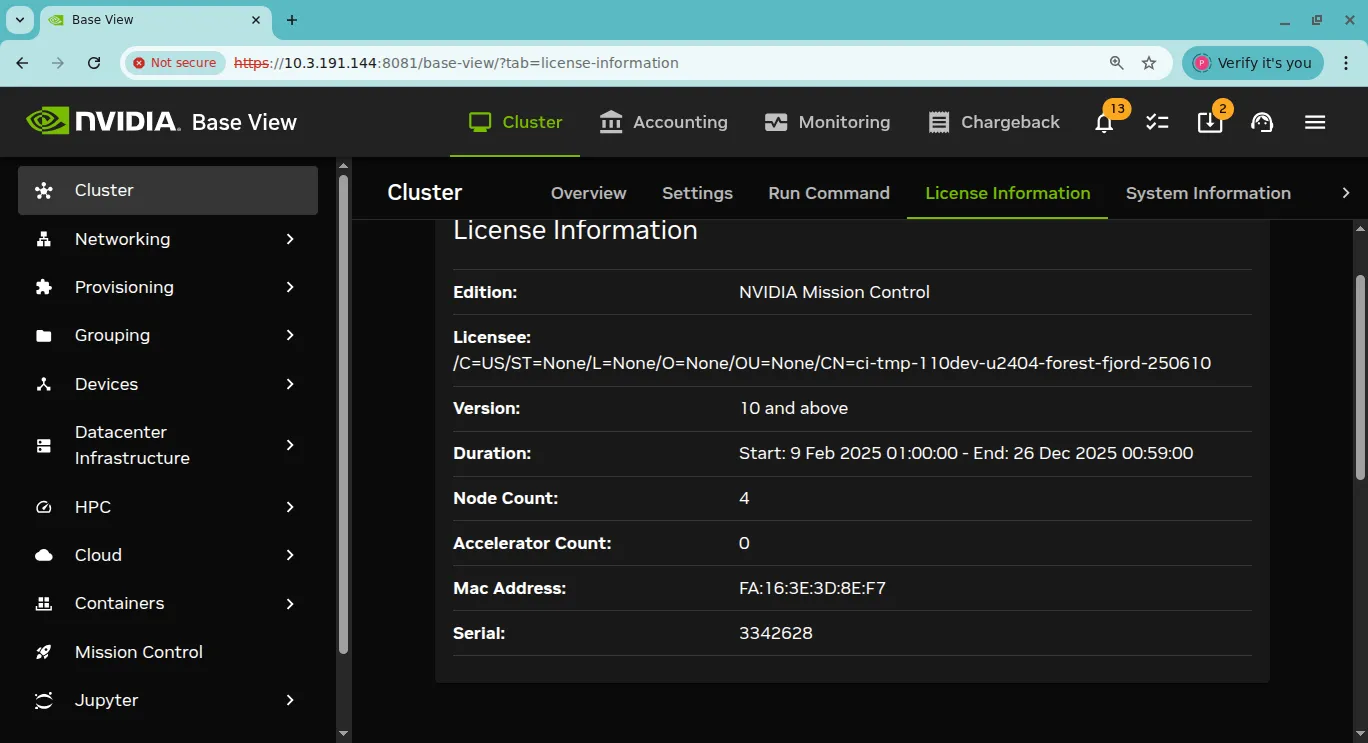
Figure 4.1: License information
4.1.2 Displaying License Attributes Within cmsh
Alternatively the licenseinfo command within the main mode of cmsh may be used:
Example
The license shown in the preceding example allows 8192 nodes and 8192 GPUs to be used.
The license is tied to a specific MAC address, or to 2 specific MAC addresses in the case of high-availability, so that it cannot simply be used elsewhere. For convenience, the Used tokens field in the output of licenseinfo shows the current number of nodes used.
4.2 Verifying A License—The verify-license Utility
4.2.1 The verify-license Utility Can Be Used When licenseinfo Cannot Be Used
Unlike the licenseinfo command in cmsh (section 4.1), the cluster administrator can run the verify-license utility to check licenses even if the cluster management daemon is not running.
When an invalid license is used, the cluster management daemon cannot start. The license problem is logged in the cluster management daemon log file:
Example
but further information cannot be obtained using Base View or cmsh, because these clients themselves obtain their information from the cluster management daemon.
In such a case, the verify-license utility allows the troubleshooting of license issues.
4.2.2 Using The verify-license Utility To Troubleshoot License Issues
There are four ways in which the verify-license utility can be used:
1. Using verify-license with no options: simply displays a usage text:
Example
2. Using verify-license with the info option: prints license details:
Example
3. Using verify-license with the verify option: checks the validity of the license:
-
If the license is valid, then no output is produced and the utility exits with exit code
0. -
If the license is invalid, then output is produced indicating what is wrong. Messages such as these are then displayed:
-
If the license is old:
Example
-
If the certificate is not from Bright Computing:
Example
-
4. Using verify-license with the monthsleft[= <value>] option:
-
If a number value is set for
monthsleft, then-
if the license is due to expire in more than that number of months, then the
verify-licensecommand returns nothing. -
if the license is due to expire in less than that number of months, then the
verify-licensecommand returns the date of expiry
-
-
If a number value is not set for
monthsleft, then the value is set to 12 by default. In other words, the default value means that if the license is due to expire in less than 12 months, then the date of expiry of the license is displayed.
A license, with just over 3 months validity left, is examined in the following example:
Example
4.2.3 Using The versioninfo Command To Verify The BCM Software Version
The license version should not be confused with the BCM software version. The license version is a license format version that rarely changes between cluster manager version releases. Thus a cluster can have a license version 10.0, which was the license format introduced during BCM 10.0, and BCM can be at software version 11.0.
The software version of a cluster can be viewed using the versioninfo command, which can be run from the main mode of cmsh as follows:
Example
In the preceding example, the version of the cluster manager is 11.0, while the license is for BCM 10 and above.
4.3 Requesting And Installing A License Using A Product Key
The license file is introduced at the start of this chapter (Chapter 4). As stated there, most administrators that have installed a new cluster, and who need to install a license on the cluster in order to make their BCM fully functional, only need to do the following:
-
Have their product key at hand
-
Run the
install-licensescript on the head node
The details of this section are therefore usually only of interest if a more explicit understanding of the process is required for some reason.
4.3.1 Is A License Needed?—Verifying License Attributes
Before installing a license, the license attributes should be verified (section 4.2) to check if installation is actually needed. If the attributes of the license are correct, the remaining parts of this section (4.3) may safely be skipped. Otherwise the product key (here) is used to install a license.
Incorrect license attributes will cause cluster configuration to fail or may lead to a misconfigured cluster. A misconfigured cluster may, for example, not have the ability to handle the full number of GPUs or nodes. In particular, the license date should be checked to make sure that the license has not expired. If the license is invalid, and it should be valid according to the administrator, then the BCM reseller that provided the software should be contacted with details to correct matters.
If BCM is already running with a regular license, and if the license is due to expire, then reminders are sent to the administrator e-mail address (here).
4.3.2 The Product Key
A product key is issued by an account manager for BCM. The product key allows a license to be obtained to run BCM.
An account manager is the person from BCM who checks that the product key user has the right entitlements to use the key before it is issued. The customer is informed who the account manager is when BCM is purchased. Purchasing and licensing period queries are normally dealt with by the account manager, while other technical queries that cannot be answered by existing documentation can be dealt with by BCM technical support (section 14.2 of the Administrator Manual).
The following product key types are possible:
-
Evaluation product key: An evaluation license is a temporary license that can be installed via an evaluation product key. The evaluation product key is valid for a maximum of 3 months from a specified date, unless the account manager approves a further extension.
If a cluster has BCM installed on it, then a temporary license to run the cluster can be installed with an evaluation product key. Such a key allows to the cluster to run with defined attributes, such as a certain number of nodes and features enabled, depending on what was agreed upon with the account manager. The temporary license is valid until the product key expires, unless the account manager has approved further extension of the product key, and the license has been re-installed.
Evaluation ISO downloads of BCM from the BCM website come with a built-in license that overrides any product key attributes. The license is temporary. An evaluation ISO product key allows the user to download the ISO with a temporary built-in license. The temporary built-in license then allows 2-node clusters to be tried out. Such a cluster can comprise 1 head node and 1 compute node, or it can comprise 2 head nodes. A 2-node cluster is a very limited cluster, and support for this is given accordingly.
-
Subscription product key: A subscription license is a license that can be installed with a subscription product key. The subscription product key has some attributes that decide the subscription length and other settings for the license. The length can be set to any value.
If a cluster has BCM installed on it, then a subscription license to run the cluster can be installed with a subscription product key. Such a key allows the cluster to run with defined attributes, such as a certain number of nodes and features enabled, depending on what was agreed upon with the account manager. The subscription license is valid until the subscription product key expires.
-
Hardware lifetime product key: This is a legacy product key that is supported for the hardware lifetime. It is no longer issued.
The product key looks like: the following pattern of digits:
If the product key has been used on the cluster already: then it can be retrieved from the CSR file (here) with the command:
The product key allows: the administrator to obtain and activate a license, which allows the cluster manager to function.
The following terminology is used: when talking about product keys, locking, licenses, installation, and registration:
-
activating a license: A product key is obtained from any BCM (re)seller. It is used to obtain and activate a license file. Activation means that NVIDIA records that the product key has been used to obtain a license file. The license obtained by product key activation permits the cluster to work with particular settings. For example, the subscription period, and the number of nodes. The subscription start and end date cannot be altered for the license file associated with the key, so an administrator normally activates the license file as soon as possible after the starting date in order to not waste the subscription period.
-
locking a product key: The administrator is normally allowed to use a product key to activate a license only once. This is because a product key is locked on activation of the license. A locked state means that product key cannot activate a new license—it is “used up”.
An activated license only works on the hardware that the product key was used with. This could obviously be a problem if the administrator wants to move BCM to new hardware. In such a case, the product key must be unlocked. Unlocking is possible for a subscription license via https://customer.brightcomputing.com/unlock.
Unlocking an evaluation license, or a hardware lifetime license, is possible by sending a request to the account manager at NVIDIA to unlock the product key.
Once the product key is unlocked, then it can be used once again to activate a new license.
-
license installation: License installation occurs on the cluster after the license is activated and issued. The installation is done automatically if possible. Sometimes installation needs to be done manually, as explained in the section on the
request-licensescript (here). The license can only work on the hardware it was specified for. After installation is complete, the cluster runs with the activated license.
4.3.3 Requesting A License With The request-license Script
If the license has expired, or if the license attributes are otherwise not correct, a new license file must be requested.
The request for a new license file is made using a product key (here) with the request-license command.
The request-license command is used to request and activate a license, and works most conveniently with a cluster that is able to access the internet. The request can also be made regardless of cluster connectivity to outside networks.
There are three options to use the product key to get the license:
-
Direct WWW access: If the cluster has access to the WWW port, then a successful completion of the
request-licensecommand obtains and activates the license. It also locks the product key.- Proxy WWW access: If the cluster uses a web-proxy, then the environment variable
http_proxymust be set before therequest-licensecommand is run. From a bash prompt this is set with:export http_proxy=<proxy>
where <proxy> is the hostname or IP address of the proxy. An equivalent alternative is that theScriptEnvironmentdirective here, which is a CMDaemon directive, can be set and activated here.
- Proxy WWW access: If the cluster uses a web-proxy, then the environment variable
-
Off-cluster WWW access: If the cluster does not have access to the WWW port, but the administrator does have off-cluster web-browser access, then the point at which the
request-licensecommand prompts “Submit certificate request to http://licensing.brightcomputing.com/licensing/index.cgi ?” should be answered negatively. CSR (Certificate Sign Request) data generated is then conveniently displayed on the screen as well as saved in the file/cm/local/apps/cmd/etc/cluster.csr.new. Thecluster.csr.newfile may be taken off-cluster and processed with an off-cluster browser.The CSR file should not be confused with the private key file,
cluster.key.new, created shortly beforehand by therequest-licensecommand. In order to maintain cluster security, the private key file must, in principle, never leave the cluster.At the off-cluster web-browser, the administrator may enter the
cluster.csr.newcontent in a web form at: http://licensing.brightcomputing.com/licensingA signed license text is returned. At NVIDIA the license is noted as having been activated, and the product key is locked.
The signed license text received by the administrator is in the form of a plain text certificate. As the web form response explains, it can be saved directly from most browsers. Cutting and pasting the text into an editor and then saving it is possible too, since the response is plain text. The saved signed license file, <
signedlicense>, should then be put on the head node. If there is a copy of the file on the off-cluster machine, the administrator should consider wiping that copy in order to reduce information leakage.The command:
install-license<signedlicense>installs the signed license on the head node, and is described further here. Installation means the cluster now runs with the activated certificate.
-
Fax or physical delivery: If no internet access is available at all to the administrator, the CSR data may be faxed or sent as a physical delivery (postal mail print out, USB flash drive/floppy disk) to any BCM reseller. A certificate will be faxed or sent back in response, the license will be noted by NVIDIA as having been activated, and the associated product key will be noted as being locked. The certificate can then be handled further as described in option 2.
Example
4.3.4 Installing A License With The install-license Script
Referring to the preceding request-license example output:
The administrator is prompted to enter the MAC address for eth0.
After the certificate request is sent to NVIDIA and approved, the license is granted.
If the prompt “Install license?” is answered with a “Y” (the default), the install-license script is run automatically by the request-license script.
If the prompt is answered with an “n” then the install-license script must be run explicitly later on by the administrator in order to complete installation of the license. This is typically needed for clusters that have no direct or proxy web access (here).
The decision that is made at the prompt also has consequences for the reboot requirements of nodes. These consequences are explained in detail in section 4.3.7.
The install-license script takes the temporary location of the new license file generated by request-license as its argument, and installs related files on the head node. Running it completes the license installation on the head node.
Example
Assuming the new certificate is saved as cluster.pem.new:
4.3.5 Re-Installing A License After Replacing The Hardware
If a new head node is to be run on new hardware then:
-
If the old head node is not able to run normally, then the new head node can have the head node data placed on it from the old head node data backup.
-
If the old head node is still running normally, then the new head node can have data placed on it by a cloning action run from the old head node (section 15.4.8 of the Administrator Manual).
If the head node hardware has changed, then:
-
a user with a subscription license can unlock the product key directly via https://customer.brightcomputing.com/unlock.
-
a user with a hardware license almost always has the license under the condition that it expires when the hardware expires. Therefore, a user with a hardware license who is replacing the hardware is almost always restricted from a license reinstallation. Users without this restriction may request the account manager at NVIDIA to unlock the product key.
Using the product key with the request-license script then allows a new license to be requested, which can then be installed by running the install-license script. The install-license script may not actually be needed, but it does no harm to run it just in case afterwards.
4.3.6 Re-Installing A License After Wiping Or Replacing The Hard Drive
If the head node hardware has otherwise not changed:
-
The full drive image can be copied on to a blank drive and the system will work as before.
-
Alternatively, if a new installation from scratch is done
-
then after the installation is done, a license can be requested and installed once more using the same product key, using the
request-licensecommand. Because the product key is normally locked when the previous license request was done, a request to unlock the product key usually needs to be sent to the account manager at NVIDIA before the license request can be executed. -
If the administrator wants to avoid using the
request-licensecommand and having to type in a product key, then some certificate key pairs must be placed on the new drive from the old drive, in the same locations. The procedure that can be followed is:-
in the directory
/cm/local/apps/cmd/etc/, the following key pair is copied over:-
cluster.key -
cluster.pem
Copying these across means that
request-licensedoes not need to be used. -
-
The
admin.{pem|key}key pair files can then be placed in the directory/root/.cm/cmsh/. Two options are:-
the following key pair can be copied over:
-
admin.key -
admin.pem
or
-
-
a fresh
admin.{pem|key}key pair can be generated instead via acmd -boption:Example
-
It is recommended for security reasons that the administrator ensure that unnecessary extra certificate key pair copies no longer exist after installation on the new drive.
-
-
4.3.7 Rebooting Nodes After An Install
The first time a product key is used: After using a product key with the command request-license during a cluster installation for the first time, and then running install-license, a reboot is required of all nodes in order for them to pick up and install their new certificates (section 5.4.1 of the Administrator Manual). The install-license script has at this point already renewed the administrator certificates on the head node that are for use with cmsh and Base View. The parallel execution command pdsh -g computenode reboot suggested towards the end of the install-license script output is what can be used to reboot all other nodes. Since such a command is best done by an administrator manually, pdsh -g computenode reboot is not scripted.
The subsequent times that the same product key, or another product key, is used: If a license has become invalid, a new license may be requested. On running the command request-license for the cluster, with the same product key, or another product key, the administrator is prompted on whether to re-use the existing keys and settings from the existing license:
Example
-
If the existing keys are kept, a
pdsh -g computenode rebootis not required. This is because these keys are X509v3 certificates issued from the head node. For these:-
Any node certificates (section 5.4.1 of the Administrator Manual) that were generated using the old certificate are therefore still valid and so regenerating them for nodes via a reboot is not required, allowing users to continue working uninterrupted. On reboot new node certificates are generated and used if needed.
-
User certificates (section 6.5 of the Administrator Manual) become invalid during certificate regeneration when CMDaemon restarts itself. It is therefore advised to install a permanent license as soon as possible, or alternatively, to not bother creating user certificates until a permanent license has been set up for the cluster.
-
-
If the existing keys are not re-used, then node communication ceases until the nodes are rebooted. If there are jobs running on BCM nodes, they cannot then complete.
After the license is installed, verifying the license attribute values is a good idea. This can be done using the licenseinfo command in cmsh, or by selecting the License info menu option from within the Partition base window in Base View’s Cluster resource (section 4.1).
4.3.7.1 The License Log File
License installation and changes are logged in
to help debug issues.
4.3.8 Getting Help With Licensing Issues
The customer portal at https://enterprise-support.nvidia.com/s/create-case allows support tickets to be submitted for licensing issues. Further details on this are in section 14.2.1 of the Administrator Manual.