

User Management
Users and groups for the cluster are presented to the administrator in a single system paradigm. That is, if the administrator manages them with BCM, then the changes are automatically shared across the cluster (the single system).
BCM runs its own LDAP service to manage users, rather than using unix user and group files. In other words, users and groups are managed via the centralizing LDAP database server running on the head node, and not via entries in /etc/passwd or /etc/group files.
Sections 6.1 and 6.2 cover the most basic aspects of how to add, remove and edit users and groups using BCM.
Section 6.3 describes how an external LDAP server can be used for authentication services instead of the one provided by BCM.
Section 6.5 discusses how users can be assigned only selected capabilities when using Base View or cmsh, using profiles with sets of tokens. For example, a regular BCM user may be assigned the set of tokens associated with the admin profile in order to avoid using the root account for BCM administration.
6.1 Managing Users And Groups With Base View
Within Base View:
-
users can be managed via the navigation path
Identity Management>Users -
groups can be managed via the navigation path
Identity Management>Groups.
For users (figure 6.1) the LDAP entries for users are displayed. These entries are editable and each user can then be managed in further detail.
There is already one user on a newly-installed BCM: cmsupport. This user has no password set by default, which means (section 6.2.2) no logins to this account are allowed by default. BCM uses the user cmsupport to run various diagnostics utilities, so it should not be removed, and the default contents of its home directory should not be removed.
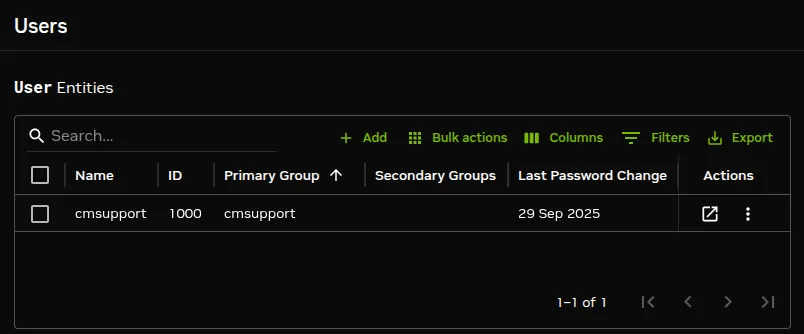
Figure 6.1: Base View User Management
The + Add button allows users to be added via a subwindow (figure 6.2). Parameter values can be committed for the users via the Commit User button in the subwindow.
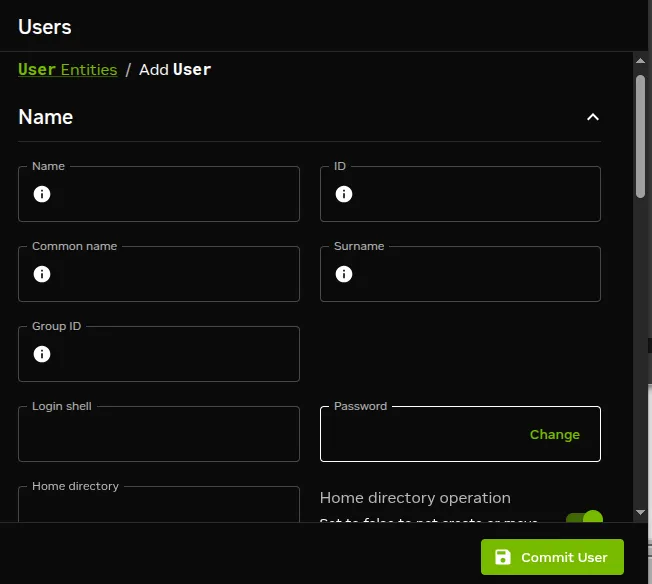
Figure 6.2: Base View User Management: Add Dialog
When saving an addition or modification:
-
User and group ID numbers are automatically assigned from UID and GID 1000 onward (500 onward on SLES).
-
A home directory is created and a login shell is set. Users with unset passwords cannot log in.
Group management in Base View is carried out via the navigation path Identity Management > Groups. Clickable LDAP object entries for regular groups then show up, similar to the user entries already covered. Management of these entries is done with the same functions as for user management.
6.2 Managing Users And Groups With cmsh
User management tasks as carried out by Base View in section 6.1, can be carried with the same end results in cmsh too.
A cmsh session is run here in order to cover the functions corresponding to the user management functions of Base View of section 6.1. These functions are run from within the user mode of cmsh:
Example
6.2.1 Adding A User
This part of the session corresponds to the functionality of the Add button operation in section 6.1. In user mode, the process of adding a user maureen to the LDAP directory is started with the add command:
Example
The cmsh utility helpfully drops into the user object just added, and the prompt shows the user name to reflect this. Going into user object would otherwise be done manually by typing use maureen at the user mode level.
Asterisks in the prompt are a helpful reminder of a modified state, with each asterisk indicating that there is an unsaved, modified property at that asterisk’s level.
The modified command displays a list of modified objects that have not yet been committed:
Example
Running show at this point reveals a user name entry, but empty fields for the other properties of user maureen. So the account in preparation, while it is modified, is clearly not yet ready for use:
Example
6.2.2 Saving The Modified State
This part of the session corresponds to the functionality of the SAVE button operation in section 6.1.
In the preceding section 6.2.1, user maureen was added. maureen now exists as a proposed modification, but has not yet been committed to the LDAP database.
Running the commit command now at the maureen prompt stores the modified state at the user maureen object level:
Example
If, however, commit were to be run at the user mode level without dropping into the maureen object level, then instead of just that modified user, all modified users would be committed.
When the commit is done, all the empty fields for the user are automatically filled in with defaults based the underlying Linux distribution used. Also, as a security precaution, if an empty field (that is, a “not set”) password entry is committed, then a login to the account is not allowed. So, in the example, the account for user maureen exists at this stage, but still cannot be logged into until the password is set. Editing passwords and other properties is covered in section 6.2.3.
The default permissions for file and directories under the home directory of the user are defined by the umask settings in /etc/login.defs, as would be expected if the administrator were to use the standard useradd command. Setting a path for the homedirectory parameter for a user sets a default home directory path. By default the default path is /home/<username> for a user <username>. If homedirectory is unset, then the default is determined by the HomeRoot directive (Appendix C.35).
6.2.3 Editing Properties Of Users And Groups
This corresponds roughly to the functionality of the Edit operation in section 6.1.
In the preceding section 6.2.2, a user account maureen was made, with an unset password as one of its properties. Logins to accounts with an unset password are refused. The password therefore needs to be set if the account is to function.
6.2.3.1 Editing Users With set And clear
The tool used to set user and group properties is the set command. Typing set and then either using tab to see the possible completions, or following it up with the enter key, suggests several parameters that can be set, one of which is password:
Example
Continuing the session from the end of section 6.2.2, the password can be set at the user context prompt like this:
Example
At this point, the account maureen is finally ready for use.
The converse of the set command is the clear command, which clears properties:
Example
6.2.3.2 Setting A Password With The LDAP Hash
Setting a password in cmsh is also possible by setting the LDAP hash (the encrypted storage format) that is generated from the password within cmsh. When setting passwords in cmsh, a string starting with {MD5}, {CRYPT} or {SSHA} is considered to be the hash of the password:
Example
Managing passwords in cmsh via direct LDAP hash entry is not normally done.
6.2.3.3 Forcing The User To Change A Set Password On Login
The AdvancedConfig AddUserPasswordReset (here) can be used to force a user password change. This can be for new users on first login, or for existing users.
6.2.3.4 Setting The Starting UID
The AdvancedConfig LowUserId (here) controls the starting point for auto-allocated UIDs and GIDs.
6.2.3.5 Editing Groups With append And removefrom
While the preceding commands set and clear also work with groups, there are two other commands available which suit the special nature of groups. These supplementary commands are append and removefrom. They are used to add extra users to, and remove extra users from a group.
For example, it may be useful to have a printer group so that several users can share access to a printer. For the sake of this example (continuing the session from where it was left off in the preceding), tim and fred are now added to the LDAP directory, along with a group printer:
Example
The context switch that takes place in the preceding session should be noted: The context of user maureen was eventually replaced by the context of group printer. As a result, the group printer is committed, but the users tim and fred are not yet committed, which is indicated by the asterisk at the user mode level.
Continuing onward, to add users to a group the append command is used. A list of users maureen, tim and fred can be added to the group printer like this:
Example
To remove users from a group, the removefrom command is used. A list of specific users, for example, tim and fred, can be removed from a group like this:
The clear command can also be used to clear members—but it also clears all of the extras from the group:
Example
The commit command is intentionally left out at this point in the session in order to illustrate how reversion is used in the next section.
6.2.4 Reverting To The Unmodified State
This corresponds roughly to the functionality of the Revert operation in section 6.1.
This section (6.2.4) continues on from the state of the session at the end of section 6.2.3. There, the state of group printers was cleared so that the extra added members were removed. This state (the state with no group members showing) was however not yet committed.
The refresh command (here) reverts an uncommitted object back to the last committed state.
This happens at the level of the object it is using. For example, the object that is being handled here is the properties of the group object printer. Running revert at a higher level prompt—say, in the group mode level—would revert everything at that level and below. So, in order to affect only the properties of the group object printer, the refresh command is used at the group object printer level prompt. It then reverts the properties of group object printer back to their last committed state, and does not affect other objects:
Example
Here, the user maureen reappears because she was stored in the last save. Also, because only the group object printer has been committed, the asterisk indicates the existence of other uncommitted, modified objects.
6.2.5 Removing A User
Removing a user using cmsh corresponds roughly to the functionality of the Delete operation in section 6.1.
The remove command removes a user or group. The useful “-d|--data” flag added to the end of the username removes the user’s home directory too. For example, within user mode, the command “remove user maureen -d; commit” removes user maureen, along with her home directory. Continuing the session at the end of section 6.2.4 from where it was left off, as follows, shows this result:
Example
6.3 Using An External LDAP Server
Sometimes, an external LDAP server is used to serve the user database. If, instead of just using the database for authentication, the user database is also to be managed, then its LDAP schema must match the BCM LDAP schema.
For RHEL8, the /etc/nslcd.conf, /etc/openldap/ldap.conf, and the certificate files under /cm/local/apps/openldap/etc/certs/ should be copied over. For RHEL9, /etc/sssd/sssd.conf is copied over instead of /etc/nslcd.conf.
Port 636 on Shorewall running on the head node should be open for LDAP communication over the external network, if external nodes are using it on the external network. In addition, the external nodes and the head node must be able to resolve each other.
By default, BCM runs an LDAP health check using the cmsupport user on the LDAP server. The LDAP health check may need to be modified or disabled by the administrator to prevent spurious health warnings with an external LDAP server:
6.3.0.1 Modifying Or Disabling The ldap Healthcheck
Modifying the ldap health check: To keep a functional ldap health check with an external LDAP server, a permanent external LDAP user name, for example ldapcheck, can be added. This user can then be set as the parameter for BCM’s ldap health check object that is used to monitor the LDAP service. Health checks and health check objects are discussed in Chapter 10.
-
If user management is not configured to work on CMDaemon for the external LDAP server, then the user management tool that is used with the external LDAP server should be used by the administrator to create the
ldapcheckuser instead. -
If user management is still being done via CMDaemon, then an example session for configuring the
ldapscript object to work with the new external LDAP user is (some prompt text elided):Example
Disabling the ldap health check:
Instead of modifying the ldap health check to work when using an external LDAP server, it can be disabled entirely via Base View or cmsh.
-
Base View: the
ldaphealth check is disabled via the navigation path:Monitoring>Data Producers>ldap>Edit -
cmsh: thedisabledparameter of theldaphealth check object is set toyes. Thedisabledparameter for theldaphealth check can be set as follows:
6.3.0.2 Configuring The Cluster To Authenticate Against An External LDAP Server
The cluster can be configured in different ways to authenticate against an external LDAP server.
For smaller clusters, a configuration where LDAP clients on all nodes point directly to the external server is recommended. An easy way to set this up is as follows:
-
On the head node:
-
In distributions that are
derived from the RHEL 8.x series: The files in which the changes need to be made are
/etc/nslcd.confand/etc/openldap/ldap.conf. To implement the changes, thenslcddaemon must then be restarted, for example withsystemctl nslcd restart.For the RHEL 9.x series,
/etc/nslcd.confis replaced by/etc/sssd/sssd.conf, and it is thesssddaemon that must be restarted, for example with:/bin/systemctl restart sssd. -
the
updateprovisionerscommand (section 5.2.4) is run to update any other provisioners.
-
-
Then, the configuration files are updated in the software images that the nodes use. If the nodes use the
default-image, and if the nodes are based on RHEL8 and derivatives, then the files to update are/cm/images/default-image/etc/nslcd.confand/cm/images/default/etc/openldap/ldap.conf.For RHEL9 and derivatives
/cm/images/default-image/etc/sssd/sssd.confis used instead/cm/images/default-image/etc/nslcd.conf.After the configuration change has been made, and the nodes have picked up the new configuration, the regular nodes can then carry out LDAP lookups.
-
Nodes can simply be rebooted to pick up the updated configuration, along with the new software image.
-
Alternatively, to avoid a reboot, the
imageupdatecommand (section 5.6.2) can be run to pick up the new software image from a provisioner.
-
-
The CMDaemon configuration file
cmd.conf(Appendix C) has LDAP user management directives. These may need to be adjusted:-
If another LDAP tool is to be used for external LDAP user management instead of Base View or
cmsh, then alteringcmd.confis not required, and BCM’s user management capabilities do nothing in any case. -
If, however, system users and groups are to be managed via Base View or
cmsh, then CMDaemon, too, must refer to the external LDAP server instead of the default LDAP server. This configuration change is actually rare, because the external LDAP database schema is usually an existing schema generated outside of BCM, and so it is very unlikely to match BCM LDAP database schema. To implement the changes:-
On the node that is to manage the database, which is normally the head node, the
LDAPHost,LDAPUser,LDAPPass, andLDAPSearchDNdirectives incmd.confare changed so that they refer to the external LDAP server. -
CMDaemon is restarted to enable the new configurations.
-
-
For larger clusters the preceding solution can cause issues due to traffic, latency, security and connectivity fault tolerance. If such occur, a better solution is to replicate the external LDAP server onto the head node, hence keeping all cluster authentication local, and making the presence of the external LDAP server unnecessary except for updates. This optimization is described in the next section.
6.3.1 External LDAP Server Replication
This section explains how to set up replication for an external LDAP server to an LDAP server that is local to the cluster, if improved LDAP services are needed. Section 6.3.2 then explains how this can then be made to work with a high availability setup.
Typically, the BCM LDAP server is configured as a replica (consumer) to the external LDAP server (provider), with the consumer refreshing its local database at set timed intervals. How the configuration is done varies according to the LDAP server used. The description in this section assumes the provider and consumer both use OpenLDAP.
6.3.1.1 External LDAP Server Replication: Configuring The Provider
It is advisable to back up any configuration files before editing them.
The provider is assumed to be an external LDAP server, and not necessarily part of the BCM cluster. The LDAP TCP ports 389 and 689 may therefore need to be made accessible between the consumer and the provider by changing firewall settings.
If a provider LDAP server is already configured then the following synchronization directives must be in the slapd.conf file to allow replication:
The openldap documentation (http://www.openldap.org/doc/) has more on the meanings of these directives. If the values for <ops>, <minutes>, and <size> are not already set, typical values are:
and:
To allow the consumer to read the provider database, the consumer’s access rights need to be configured. In particular, the userPassword attribute must be accessible. LDAP servers are often configured to prevent unauthorized users reading the userPassword attribute.
Read access to all attributes is available to users with replication privileges. So one way to allow the consumer to read the provider database is to bind it to replication requests.
Sometimes a user for replication requests already exists on the provider, or the root account is used for consumer access. If not, a user for replication access must be configured.
A replication user, syncuser with password secret can be added to the provider LDAP with adequate rights using the following syncuser.ldif file:
Here, <suffix> is the suffix set in slapd.conf, which is originally something like dc=example,dc=com. The syncuser is added using:
This prompts for the root password configured in slapd.conf.
To verify syncuser is in the LDAP database the output of ldapsearch can be checked:
To allow access to the userPassword attribute for syncuser the following lines in slapd.conf are changed, from:
to:
Provider configuration is now complete. The server can be restarted using
systemctl restart slapd.service
in RHEL8.x and RHEL9.x.
6.3.1.2 External LDAP Server Replication: Configuring The Consumer(s)
The consumer is an LDAP server on a BCM head node. It is configured to replicate with the provider by adding the following lines to /cm/local/apps/openldap/etc/slapd.conf:
Here:
-
The
rid=2value is chosen to avoid conflict with therid=1setting used during high availability configuration (section 6.3.2). -
The provider argument points to the external LDAP server.
-
The interval argument (format DD:HH:MM:SS) specifies the time interval before the consumer refreshes the database from the external LDAP. Here, the database is updated once a day.
-
The credentials argument specifies the password chosen for the
syncuseron the external LDAP server.
More on the syncrepl directive can be found in the openldap documentation (http://www.openldap.org/doc/).
The configuration files must also be edited so that:
-
The <suffix> and
rootdnsettings inslapd.confboth use the correct <suffix> value, as used by the provider. -
The
basevalue in/etc/ldap.confuses the correct <suffix> value as used by the provider. This is set on all BCM nodes including the head node(s). If the/etc/ldap.conffile does not exist, then the note here applies.
Finally, before replication takes place, the consumer database is cleared. This can be done by removing all files, except for the DB_CONFIG file, from under the configured database directory, which by default is at /var/lib/ldap/.
The consumer is restarted using systemctl restart slapd. This replicates the provider’s LDAP database, and continues to do so at the specified intervals.
6.3.2 High Availability
6.3.2.1 No External LDAP Server Case
If the LDAP server is not external—that is, if BCM is set to its high availability configuration, with its LDAP servers running internally, on its own head nodes—then by default LDAP services are provided from both the active and the passive node. The high-availability setting ensures that CMDaemon takes care of any changes needed in the slapd.conf file when a head node changes state from passive to active or vice versa, and also ensures that the active head node propagates its LDAP database changes to the passive node via a syncprov/syncrepl configuration in slapd.conf.
6.3.2.2 External LDAP Server With No Replication Locally Case
In the case of an external LDAP server being used, but with no local replication involved, no special high-availability configuration is required. The LDAP client configuration in /etc/ldap.conf simply remains the same for both active and passive head nodes, pointing to the external LDAP server. The file /cm/images/default-image/etc/ldap.conf, in each software image also point to the same external LDAP server. If the /etc/ldap.conf files referred to here in the head and software images do not exist, then the note here applies.
6.3.2.3 External LDAP Server With Replication Locally Case
In the case of an external LDAP server being used, with the external LDAP provider being replicated to the high-availability cluster, it is generally more efficient for the passive node to have its LDAP database propagated and updated only from the active node to the passive node, and not updated from the external LDAP server.
The configuration should therefore be:
-
an active head node that updates its consumer LDAP database from the external provider LDAP server
-
a passive head node that updates its LDAP database from the active head node’s LDAP database
Although the final configuration is the same, the sequence in which LDAP replication configuration and high availability configuration are done has implications on what configuration files need to be adjusted.
-
For LDAP replication configuration done after high availability configuration, adjusting the new suffix in
/cm/local/apps/openldap/etc/slapd.confand in/etc/ldap.confon the passive node to the local cluster suffix suffices as a configuration. If theldap.conffile does not exist, then the note here applies. -
For high availability configuration done after LDAP replication configuration, the initial LDAP configurations and database are propagated to the passive node. To set replication to the passive node from the active node, and not to the passive node from an external server, the provider option in the
syncrepldirective on the passive node must be changed to point to the active node, and the suffix in/cm/local/apps/openldap/etc/slapd.confon the passive node must be set identical to the head node.
The high availability replication event occurs once only for configuration and database files in BCM’s high availability system. Configuration changes made on the passive node after the event are therefore persistent.
6.4 Keycloak Integration
Keycloak (keycloak.org) is an open-source identity and access manager. BCM can install and configure it on the head node and federate BCM’s internal LDAP into a Keycloak realm, allowing other components to use Keycloak for single sign-on against BCM’s existing user database. The scripts that carry this out are provided by the cluster-tools package, available from BCM 11.34 onwards.
6.4.1 Prerequisites
-
A BCM 11.34 or later head node, with the setup carried out as
root. -
Ubuntu 24.04 or Ubuntu 26.04 on the head node. The scripts use
aptto install dependencies, and are not supported on RHEL or Rocky. -
MySQL or MariaDB already running, which is the case on a standard BCM head node.
-
BCM’s internal LDAP already running.
-
Free ports
9443(HTTPS) and9999(HTTP) on the head node. -
Outbound HTTPS access to GitHub, unless a Keycloak version is pre-staged locally.
Outbound HTTPS access to GitHub is used by cm-setup-keycloak.py to download and resolve the Keycloak version to install. This can be avoided by pre-staging a Keycloak release archive on the head node before running the script: keycloak-version.tar.gz should be placed under the directory given by --install-dir (which defaults to /opt), for example /opt/keycloak-26.5.5.tar.gz. The --version option must then be passed and must match the staged file’s version, or the script still calls the GitHub API to resolve the latest version, which is the outbound access this prerequisite refers to:
Example
The --db-password option sets the password for a MySQL user (named keycloak by default) that the script creates on the head node’s MySQL server. Keycloak’s own keycloak.conf then uses this password to connect to its keycloak database.
If /opt/keycloak (or the directory given by --install-dir) already exists from a previous installation, the download is skipped entirely regardless of --version. The --bcm option is a separate way to avoid the GitHub download: it fetches the Keycloak release from the internal BCM mirror instead of a locally pre-staged archive.
6.4.2 Installing Keycloak And Federating LDAP
The setup is carried out in two steps: installing Keycloak itself, then creating a realm that federates BCM’s LDAP into it.
Example
cm-setup-keycloak.py installs OpenJDK, creates a MySQL database and user for Keycloak, downloads and builds Keycloak into /opt/keycloak, generates a self-signed TLS certificate, and creates and starts the keycloak systemd service. The default administrator credentials are admin/system, and the default database credentials are keycloak/system; both passwords should be set explicitly with the --admin-password and --db-password options rather than left at their defaults.
cm-setup-keycloak-realm.py --ldap then creates a realm, named after the head node’s FQDN by default, creates the linux-ssh OpenID client, federates BCM’s LDAP into that realm, sets up LDAP mTLS, and runs an initial full LDAP sync. The --ldap option is what selects this BCM-LDAP federation path; without it, the script instead sets up Keycloak-backed SSH authentication, which is a different use case.
6.4.3 Verifying The Installation
Example
The --ready options exit 0 once Keycloak, and then the realm, are up. cm-keycloak-user.py --list should show the BCM LDAP users that were federated in. After adding a user in cmsh, running cm-keycloak-ldap-sync.py --full makes that user appear in the list; the first query after a sync can take up to around 30 seconds.
6.4.4 Related Commands
-
cm-keycloak-user.py --list,--add,--remove, or--modify: manage realm users. -
cm-keycloak-ldap-sync.py: sync changed users;--fullfor a full sync. -
cm-setup-keycloak-realm.py --usersor--realms: query realm state.
6.4.5 NVIDIA Mission Control Integration
NVIDIA Mission Control can federate its own LDAP into the Keycloak instance that the preceding steps install; this requires no additional BCM-side configuration. To connect NVIDIA Mission Control to it, provide the Keycloak URL (https://<head-fqdn>:9443), the realm name, the administrator credentials, and the Keycloak TLS certificate. If NVIDIA Mission Control is not running on the head node, port 9443/tcp must be open to it in the head node firewall. The NVIDIA Mission Control side federation procedure is documented in the NVIDIA Mission Control Manual.
6.5 Tokens And Profiles
Access to Base View and cmsh is based on user certificates (section 2.3.3).
Tokens can be assigned by the administrator to users so that users can carry out some of the operations that the administrator does with Base View or cmsh. Every cluster management operation requires that each user, including the administrator, has the relevant tokens in their profile for the operation.
The tokens for a user are grouped into a profile, and such a profile is typically given a name by the administrator according to the assigned capabilities.
For example:
-
The profile might be called
readmonitoringonlyif it allows the user to read the monitoring data only. -
The profile may be called
powerhandlerif the user is only allowed to carry out power operations. -
The preconfigured profile
admincan be assigned to a regular BCM user, to give that user administrator capablilities for BCM. Whileroothas theadminprofile by default, it can be wise to avoid using therootaccount directly in BCM.
Each profile thus consists of a set of tokens, typically relevant to the name of the profile, and is typically assigned to several users.
The profile is stored as part of the authentication certificate (section 2.3) which is generated for running authentication operations to the cluster manager for the certificate owner.
Profiles are handled with the profiles mode of cmsh, or from the Base View Profiles window, accessible via a navigation path of Identity Management > Profiles
The following preconfigured profiles are available from cmsh:
The last column in the preceding table indicates whether the preconfigured profile is a nonuser profile or not. A cmsh one-liner that indicates this is:
-
Most of the preconfigured profiles are
nonuserprofiles. Such a profile is used by cluster manager clients, and should never be modified by the cluster administrator. -
The preconfigured profiles that are not
nonuserprofiles areadmin,readonly, andportal. These can be modified by the cluster administrator and used for human users.
The cluster manager services that use the available preconfigured profiles can be viewed in cmsh the list command in profile mode.
The tokens, and other properties of a particular profile can be seen within profile mode as follows:
Example
For screens that are not wide enough to view the parameter values, the values can also be listed:
Example
A profile can be set with cmsh for a user within user mode as follows:
Example
Only a subset of the predefined profiles are available to users. The ones that are made available to users are readonly, admin, and portal.
6.5.1 Modifying Profiles
A profile can be modified by adding or removing appropriate tokens to it. For example, the readonly group by default has access to the burn status and burn log results. Removing the appropriate tokens stops users in that group from seeing these results.
In cmsh the removal can be done from within profile mode as follows:
Tab-completion after typing in removefrom tokens helps in filling in the tokens that can be removed.
In Base View (figure 6.3), the same removal action can be carried out via the navigation path: Identity Management > Profiles > Filters > readonly >
In the resulting display it is convenient to maximize the window. Also convenient is running a search for burn, which will show the relevant tokens:
BURN_STATUS_TOKEN and GET_BURN_LOG_TOKEN
as well as the subgroup they are in, which is the CMDevice subgroup.
The checkmarks can be removed from the BURN_STATUS_TOKEN and GET_BURN_LOG_TOKEN tags, and the changed profile can then be committed.
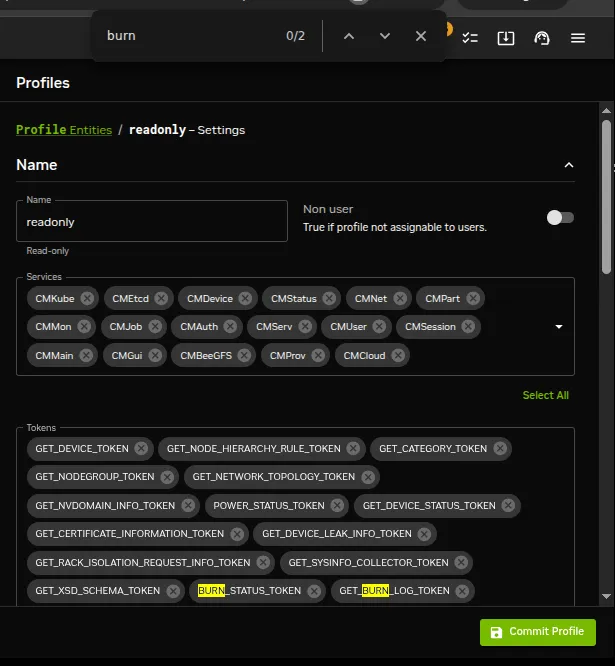
Figure 6.3: Base View Profile Token Management
6.5.2 Creation Of Custom Certificates With Profiles, For Users Managed By BCM’s Internal LDAP
Custom profiles can be created to include a custom collection of capabilities in cmsh and Base View. Cloning of profiles is also possible from cmsh.
A certificate file, with an associated expiry date, can be created based on a profile. The time of expiry for a certificate cannot be extended after creation. An entirely new certificate is required after expiry of the old one.
The creation of custom certificates using cmsh (here) or Base View (here) is described later on. After creating such a certificate, the openssl utility can be used to examine its structure and properties. In the following example most of the output has been elided in order to highlight the expiry date (30 days from the time of generation), the common name (democert), the key size (2048), profile properties (readonly), and system login name (peter), for such a certificate:
However, using the openssl utility for managing certificates is rather inconvenient. BCM provides more convenient ways to do so, as described next.
6.5.2.1 Listing Certificates
All certificates that have been generated by the cluster are noted by CMDaemon.
Listing certificates with cmsh: Within the cert mode of cmsh, the listcertificates command lists all cluster certificates and their properties:
Listing certificates with Base View: The Base View equivalent for listing certificates is via the navigation path Identity Management > Certificates (figure 6.4):
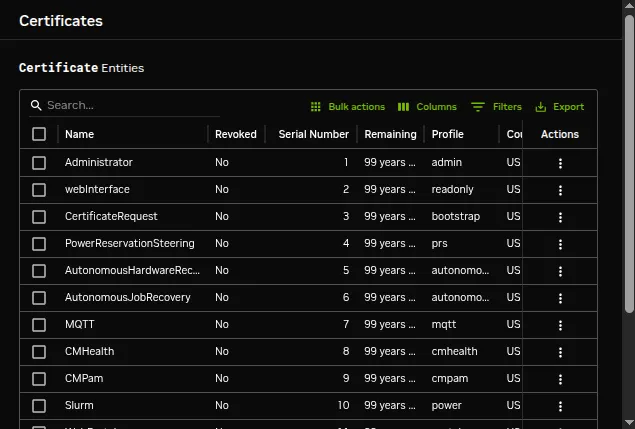
Figure 6.4: Base View Certificates List Window
6.5.2.2 Node Certificates
In the certificates list, node certificates that are generated by the node-installer (section 5.4.1) for each node for CMDaemon use are listed. These are entries with a node, and look like:
6.5.2.3 Creating A Custom Certificate
Custom certificates are also listed in the certificates list.
Unlike node certificates, which are normally system-generated, custom certificates are typically generated by a user with the appropriate tokens in their profile, such as root with the admin profile. Such a user can create a certificate containing a specified profile, as discussed in the next section, by using:
-
cmsh: with thecreatecertificateoperation from withincertmode -
Base View: via the navigation path
Identity Management > Users > > Profileto set theProfile.
Creating a new certificate for cmsh users: Creating a new certificate in cmsh is done from cert mode using the createcertificate command, which has the following help text:
Accordingly, as an example, a certificate file with a read-only profile set to expire in 30 days, to be run with the privileges of user peter, can be created with:
Example
The certificate list would show it as something like:
Setting the ownership of the new custom certificate: The certificates are owned by the owner generating them, so they are root-owned if root was running cmsh. This means that user peter cannot use them until their ownership is changed to user peter:
Example
Other users must have the certificate ownership changed to their own user names.
Associating users with paths to the new custom certificate: Users associated with such a certificate can then carry out cmdaemon tasks that have a read-only profile, and CMDaemon sees such users as being user peter. Two ways of being associated with the certificate are:
-
The paths to the
pemandkeyfiles can be set with the-iand-koptions respectively ofcmsh. For example, in the home directory ofpeter, for the files generated in the preceding session,cmshcan be launched with these keys with: -
If the
-iand-koptions are not used, thencmshsearches for default keys. The default keys forcmshare under these paths under$HOME, in the following order of priority: -
.cm/admin.{pem,key} -
.cm/cert.{pem,key}
Creating a custom certificate for Base View users: As in the case of cmsh, a Base View user having a sufficiently privileged tokens profile, such as the admin profile, can create a certificate and key file for themselves or another user. This is done by associating a value for the Profile parameter for the user (figure 6.2).
The certificate files, cert.pem and cert.key, are then automatically placed in the following paths and names, under $HOME for the user:
-
.cm/admin.{pem,key} -
.cm/cert.{pem,key}
Users that authenticate with their user name and password when running Base View use this certificate for their Base View clients, and are then restricted to the set of tasks allowed by their associated profile.
6.5.3 Creation Of Custom Certificates With Profiles, For Users Managed By An External LDAP
The use of an external LDAP server instead of BCM’s for user management is described in section 6.3. Generating a certificate for an external LDAP user must be done explicitly in BCM. This can be carried out with the external-user-cert script, which is provided with the cluster-tools package. The package is installed by default with BCM.
Running the external-user-cert script embeds the user and profile in the certificate during certificate generation. The script has the following usage:
Here,
-
<profile>should be a valid profile -
<user>should be an existing user -
is usually
/home -
<group>is a group, such aswheel -
<inputfile>is a file with each line having the syntax<profile> <user> [<user> ... ]
One or more external LDAP user certificates can be created by the script. The certificate files generated are cert.pem and cert.key. They are stored in the home directory of the user.
For example, a user spongebob that is managed on the external server, can have a read-only certificate generated with:
If the home directory of spongebob is /home/spongebob, then the key files that are generated are /home/spongebob/.cm/cert.key and /home/spongebob/.cm/cert.pem.
Assuming no other keys are used by cmsh, a cmsh session that runs as user spongebob with readonly privileges can now be launched:
If other keys do exist, then they may be used according to the logic explained in item 2 here.
6.5.4 Logging The Actions Of CMDaemon Users
The following directives allow control over the logging of CMDaemon user actions.
-
CMDaemonAudit: Enables logging -
CMDaemonAuditorFile: Sets log location -
DisableAuditorForProfiles: Disables logging for particular profiles
Details on these directives are given in Appendix C.
6.5.5 Creation Of Certificates For Nodes With cm-component-certificate
The cm-component-certificate utility can be used to generate or update SSL certificates for components of services. The cluster administrator is not expected to use this utility because the cluster manager manages the certificates without bothering the administrator about it during normal operations. If the utilty is to be used, then it should be used with caution, to avoid failure in the components that use these certificates.
One of the SSL client components for which this utility works is LDAP.
Options include setting a new CA and creating a new certificate or key for nodes.
Some examples of how it can be used are:
6.5.5.1 LDAP PEM And Key Creation For A Standalone Node
A standalone node (here) is a node that is not provisioned from the head node, but is configured to boot from its own drive. A standalone node <mynode> may have a PEM and key certificate created on the head node with:
Example
The certificates are saved to the working directory. They should be copied over manually to the location of the LDAP certificates on mynode. The nslcd daemon on mynode for RHEL8 (or the sssd daemon for RHEL9) should then be restarted.
6.5.5.2 LDAP PEM And Key Creation For A Regular Node
If a node node001 that is provisioned has a lost or corrupted LDAP key or certificate, then replacements for these can be made with:
Example
The ldap.{pem,key} files are automatically placed on node001, by default at the location specified by the CMDaemon LDAPCertificate and LDAPPrivateKey directives (here).
The files /cm/node-installer/certificates/<node001-mac>/ldap.{pem,key} should be removed on the head node.
The nslcd, sssd, and LDAP daemons should be restarted on node001, or more simply it can be rebooted if it is not in use. The reboot replaces the ldap.{pem,key} files on the head node with the newly-generated ones.
6.5.5.3 LDAP CA Certificate Creation
If a new LDAP CA certificate is needed, then a replacement can be made with:
The following steps must be done manually:
-
If there is another head node, then the CA files, by default ca.pem and
ca.keyunder/cm/local/apps/openldap/etc/certs/, should be copied over the other head node. -
The key/PEM certificate files on all the nodes should be recreated using:
cm-component-certificate --allnodes -
The old component PEM/key files for each regular node,
ldap.pemandldap.key, under thenode-installerdirectory of the head node(s), should be removed. These certificates are kept under a directory named for the MAC address of the regular node, and follow the pattern:
/cm/node-installer/certificates/<MAC address>/<LDAP.{pem,key}> -
The node CA files, by default
ca.pemandca.keyunder/cm/local/apps/openldap/etc/certs/should be copied to the nodes:Example
-
The
nslcd,sssdand LDAP daemons should be restarted on all nodes -
CMDaemon should be restarted on the active head node