

Workload Management
For clusters that have many users and a significant load, a workload manager (WLM) system allows a more efficient use of resources to be enforced for all users than if there were no such system in place. This is because without resource management, there is a tendency for each individual user to over-exploit common resources.
When a WLM is used, the end user can submit a job to it. This can be done interactively, but it is typically done as a non-interactive batch job.
The WLM assigns resources to the job, and checks the current availability as well as checking its estimates of the future availability of the cluster resources that the job is asking for. The WLM then schedules and executes the job based on the assignment criteria that the administrator has set for the WLM system. After the job has finished executing, the job output is delivered back to the user.
Among the hardware resources that can be used for a job are GPUs. Installing CUDA software to enable the use of GPUs is described in section 9 of the Installation Manual. Configuring GPU settings for BCM is described in section 3.17.2 of the Administrator Manual. Configuring GPU settings for an individual WLM is described in the section on getting that particular WLM up and running.
The details of job submission from a user’s perspective are covered in the User Manual.
Sections 7.1–7.5 cover the installation procedure to get a WLM up and running.
Sections 7.6 –7.7 describe how Base View and cmsh are used to view and handle jobs, queues and node drainage.
Section 7.8 shows examples of WLM assignments handled by BCM.
Section 7.9 describes the power saving features of WLMs.
Section 7.10 describes cgroups, a resources limiter, mostly in the context of WLMs.
Section 7.11 describes WLM customizations for settings other than the common settings covered by BCM.
7.1 Workload Managers Choices
Some WLM packages are installed by default, others require registration from the distributor before installation.
During cluster installation, a WLM can be chosen (figure 3.9 of the Installation Manual) for setting up. The choices are:
-
Slurm: Available as version 25.05 or 25.11. Slurm is a free (GPL) job scheduler, with commercial support.
-
LSF v10.1: IBM Spectrum LSF (Load Sharing Facility) version 10.1, is a further development of what used to be IBM Platform LSF.
-
None: For clusters that need no HPC job-scheduling.
The WLMs in the preceding list can also be chosen and set up later using the cm-wlm-setup tool (section 7.3).
After installation, if there are no major changes in the WLM for updated versions of the workload managers, then
-
WLMs that are packaged with BCM (Slurm) can have their packages updated using standard package update commands (
yum updateand similar). The installation and configuration of the WLM from the updated packages is carried out as described later on in this chapter. -
WLMs such as LSF that are installed by picking up software from the vendor can be updated by following vendor guidelines.
7.2 Forcing Jobs To Run In A Workload Management System
Another preliminary step is to consider forcing users to run jobs only within the WLM system. Having jobs run via a WLM is normally a best practice.
For convenience, BCM defaults to allowing users to log in via ssh to a node, using the authorized keys files stored in each users directory in /home (section 2.3.2). This allows users to run their processes without restriction, that is, outside the WLM system. For clusters with a significant load this policy results in a sub-optimal use of resources, since such unplanned-for jobs disturb any already-running jobs.
Disallowing user logins to nodes, so that users have to run their jobs through the WLM system, means that jobs are then distributed to the nodes only according to the planning of the WLM. If planning is based on sensible assignment criteria, then resources use is optimized—which is the entire aim of a WLM in the first place.
7.2.1 Disallowing User Logins To Regular Nodes Via cmsh
The usernodelogin setting of cmsh restricts direct user logins from outside the WLM, and is thus one way of preventing the user from using node resources in an unaccountable manner. The usernodelogin setting is applicable to node categories only, rather than to individual nodes.
In cmsh the attribute of usernodelogin is set from within category mode:
Example
The attributes for usernodelogin are:
-
always(the default): This allows all users tosshdirectly into a node at any time. -
never: This allows no user other than root to directlysshinto the node. -
onlywhenjob: This allows the user tosshdirectly into the node when a job is running on it. It typically also prevents other users from doing a directsshinto the same node during the job run, since typically the WLM is set up so that only one job runs per node. However, ansshsession that is already running is not automatically terminated after the job is done.-
Some cluster administrators may wish to allow some special user accounts to override the
onlywhenjobsetting, for example for diagnostic purposes. Before giving the details of how to override the setting, some background explanation is probably useful:The
onlywhenjobsetting works with the PAM system, and adds the following line to/etc/pam.d/sshdon the regular nodes:Nodes with the
onlywhenjobrestriction can be configured to allow a particular set of users to access them, despite the restriction, by allowing them with the PAM system, as follows: Within the software image <node image> used by the node, that is under/cm/images/<node image>, the administrator can add the set of user accounts to the fileetc/security/pam_bright.d/pam_allow.conf. This file is installed in the software image with a chroot installation (section 9.4) of thecm-libpampackage.Groups of users can be allowed using the file
etc/security/pam_bright.d/pam_allow_group.conf.Other adjustments to PAM configuration, such as the number of attempted logins and the associated wait time per login, can be carried by editing the
/etc/security/pam_bright.d/cm-check-alloc.conffile.The image can then be updated to allow the users, by running the
imageupdatecommand incmsh(section 5.6.2), or by clicking theUpdate nodeoption in Base View (section 5.6.3).
-
7.2.2 Disallowing User Logins To Regular Nodes Via Base View
In Base View, user node login access is set via a category setting, for example for the default category via the navigation path in figure 7.1: Grouping > Categories[default] > > Settings > User node login
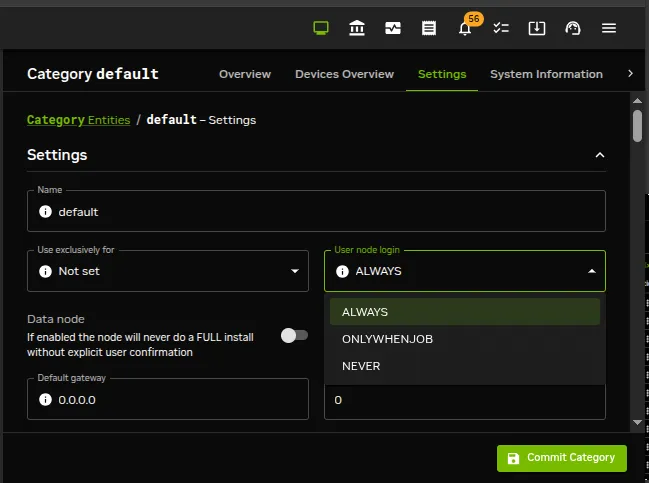
Figure 7.1: Disallowing user logins to nodes via Base View
7.2.3 Disallowing Other User Processes Outside Of Workload Manager User Processes
Besides disabling user logins, administrators may choose to disable interactive jobs in the WLM as an additional measure to prevent users from starting jobs on other nodes.
Administrators may also choose to set up scripts that run after job execution. Such scripts can terminate user processes outside the WLM, as part of a policy, or for general administrative hygiene. These are Epilog scripts and are part of the WLM.
The WLM documentation has more on configuring these options.
7.2.4 High Availability By Workload Managers
NVIDIA Base Command Manager uses the existing built-in high availability (HA) functionalities of workload managers as much as possible. A double server HA configuration with the existing built-in HA functionality can be carried out using the cm-wlm-setup utility (section 7.3), or using the Base View HA wizard (section 7.4.1). The built-in functionality makes use of the primary WLM server and secondary WLM server, which are placed on separate nodes.
The HA configuration aspect (section 15.1.3) in this case means that a WLM server role is assigned to both the WLM primary and the WLM secondary nodes. These primary WLM and secondary WLM servers can then:
-
both be on head nodes,
-
both be on regular (compute) nodes
It is not possible to configure a mixed setup—that is with one head node and one regular node—for the WLM servers on an HA setup.
In a non-HA cluster, the WLM primaryserver value is set to the head node by default.
Example
This is because NVIDIA Base Command Manager always configures the primary WLM server on the primary cluster head node.
If both the head nodes are configured with the WLM server roles, then the WLM primaryserver value is set to the primary cluster head node. This is because NVIDIA Base Command Manager always configures the primary WLM server on the primary cluster head node, and the backup WLM server on the secondary head node.
Example
If the parameter primaryserver is unset in wlm mode, and the Slurm server role is assigned to the head nodes, then the slurmctld service is always started on both head nodes. During a failover, the Slurm configuration is regenerated and both slurmctld services are restarted. The primary slurmctld is always on the active head node.
If two regular nodes are configured with the WLM server roles instead, then in the cluster entity configuration the primaryserver parameter is set to one of the compute nodes.
The cluster primary head node and the WLM primary server should not be confused. In particular, the active cluster head node and active workload manager server are not necessarily the same for the case of the Slurm or LSF workload managers. For these, if the passive cluster head node becomes an active cluster head node without a crash, then this does not trigger a passive WLM server on the newly active head node to also become an active WLM server. Thus, the WLM server can be active on a passive head node, and vice versa, because the WLM primary server is independent of the cluster primary head node.
7.2.4.1 Slurm High Availability, scontrol takeover And slurmstartpolicy
This section considers some Slurm high availability issues on running scontrol takeover with BCM integration.
Logical steps during the Slurm takeover between head nodes: Slurm high availability normally waits a short while with moving its control activity over to a passive head node that has just been made active. After a short delay, the Slurm failover algorithm is followed so that the Slurm controller (slurmctld) takes over operations on the newly active head node.
Slurm can speed up takeover by running scontrol takeover from the Bash shell on the node with the secondary slurmctld. Running scontrol takeover stops the primary slurmctld and triggers the Slurm failover algorithm.
This can be useful if the administrator wants to carry out maintenance on the usually active head node. Carrying out the takeover lets the Slurm service remain available, and stops the Slurm primary controller following the newly active head node.
The logic on how this works in BCM is:
-
The production state starts with
-
an active primary
-
a passive secondary
-
the primary head node set up as the primary Slurm controller
-
-
the administrator runs
cmha makeactiveon the secondary passive. This causes the following to happen:
-
scontrol takeoveris run by CMDaemon on the secondary passive -
CMDaemon goes into the passive state on the primary node, and
slurmctldon the primary node stops -
CMDaemon goes into the active state on the secondary node, and
slurmctldon the secondary node starts
-
there is no interruption in Slurm services, because with
scontrol takeoverCMDaemon has forced the backupslurmctldto take over -
the administrator can now carry out maintenance on the primary (now passive) head node
-
once maintenance has been completed, the administrator can optionally reboot the primary (passive) head node, and then make it active again with
cmha makeactiveto get back to the original production state
The problem with the preceding logic is that by default BCM automatically restarts a stopped slurmctld that it notices. This means that the results of scontrol takeover in steps 2 and 3 are unknown if carried out manually. That is, it is not practical to run the scontrol takeover command directly from Bash because it is possible to unintentionally configure the primary and backup slurmctld with an incorrect status.
To deal with this problem cleanly, CMDaemon provides the slurmctldstartpolicy parameter, described next.
The slurmctldstartpolicy parameter and Slurm takeover behavior: The slurmctldstartpolicy parameter can take the following values to decide the slurmctld behavior during scontrol takeover:
-
TAKEOVER: The default value on an HA cluster. -
ALWAYS: The default value on a non-HA cluster. -
ACTIVEONLY: Useful only if/cm/sharedis not mounted on both head nodes at the same time. For example, as in DAS (Direct Attached Storage), which should never be used anyway for shared storage in a production system.
-
If within NVIDIA Base Command Manager, in the
SlurmServerRole, theslurmctldstartpolicyparameter is set toTAKEOVER, then disabling the automatic restart of theslurmctldservice is unnecessary:The setting value can be cleared with:
-
If
cm-wlm-setupinstalls Slurm on an HA cluster, then theslurmctldstartpolicyparameter can be set in one of the TUI screens during the session. Before HA is configured, the parameter has a default value ofALWAYS. After HA is configured it has a default value ofTAKEOVER. The default value ofTAKEOVERcausesprefailoverscriptin thefailoversubmode (section 15.4.6) to take the value/cm/local/apps/cmd/scripts/slurm.takeover.sh -
If
cm-wlm-setupinstalls Slurm on a non-HA cluster, then theprefailoverscriptparameter must be set within thefailoversubmode ofpartitionmode:This ensures that the active head node is taken over by Slurm during a change of the active head node.
The takeover is temporary. If the head node which has the Slurm primary slurmctld on it is restarted, or if the service itself is restarted manually, then the primary slurmctld takes back its role, as per Slurm documentation.
For a Slurm cluster with a single slurmctld, where the Slurm server role is assigned to a single compute node or the BCM cluster has only one head node, the parameter slurmctldstartpolicy should be set to ALWAYS, which is the default.
Table 7.2.4.1 shows what slurmctld does when the slurmctldstartpolicy parameter is set to TAKEOVER and when in SlurmWlmCluster the parameter primaryserver is set. The detailed behavior per head node depends on whether the head nodes are active or primary:
* any value of yes or no
Table 7.2.4.1 slurmctldstartpolicy parameter and slurmctld
Slurm controller high availability on compute nodes: If the Slurm server role is assigned to two compute nodes, the TAKEOVER policy is configured automatically only when both nodes belong to a failover group. In this configuration, slurmctld does not start on the primary node while the secondary node is active.
7.3 Installation Of Workload Managers
Normally the administrator selects a WLM to be used during BCM installation (figure 3.9 of the Installation Manual). A WLM may however also be added and configured after BCM has been installed, by using cm-wlm-setup, which is part of the cm-setup package, or by using the Base View WLM wizard.
With most other objects, BCM front ends—cmsh and Base View—can be used to create a new object from scratch, or can clone a new object from another existing object. However, the front ends cannot do this for a WLM object. An attempt to create or clone a new WLM object using cmsh or Base View is prohibited by the front ends, because there are many pitfalls possible in configuration.
A new WLM object, and WLM instance, can therefore only be installed via cm-wlm-setup, the Base View WLM wizard, or by selecting a WLM during the initial BCM installation.
7.3.1 Running cm-wlm-setup In CLI Mode
The recommended way to run the cm-wlm-setup utility is without options or arguments, in which case a TUI dialog starts up. A TUI session run with cm-wlm-setup is covered in section 7.3.2.
However, the cm-wlm-setup utility can alternatively be used in a non-GUI, command-line, mode, with options and arguments. The utility has the following usage:
The help output from running cm-wlm-setup -h continues on beyond the preceding text output, and presents more options.
These options can be grouped as follows:
7.3.1.1 Optional Arguments
-
--setup: Helps set up a server, enable roles, and create the default queues/partitions -
--disable: Disable WLM services -
-h, --help: Displays the help screen
7.3.1.2 Common Arguments
-c<YAML configuration file>: Loads a runtime configuration for plugins, from a YAML configuration file.
7.3.1.3 Options For Installing Or Managing A WLM
-
--wlm<WLM name>: Specifies which WLM is to be set up. Choices for <WLM name> are:-
slurm -
lsf
-
-
--wlm-cluster-name<WLM cluster name>: Specifies the name for the new WLM cluster that is to be set up. -
--reboot: Reboot after install
7.3.1.4 Server Role Settings
-
--server-nodes<server nodes>: Sets the server roles of the WLM to the value set for <server nodes>, which is a comma-separated list of nodes. Default value:HEAD, which is a reserved name for the head node. -
--server-primary<primary server>: Sets the hostname used for the primary server to <primary server>. Default name:HEAD. -
--server-overlay-name<server overlay name>: Sets the server role configuration overlay name to <server overlay name>. Default name: <WLM name>-server, where <WLM name> is the name specified in the--wlmoption. -
--server-overlay-priority<server overlay priority>: Sets the server role configuration overlay priority to <server overlay priority>. Default value:500.
7.3.1.5 Client Role Settings
-
--client-categories<client categories>: Sets the client roles of the WLM to the value set for <client categories nodes>, which is a comma-separated list of node categories. Default value:default. -
--client-nodes<client nodes>: Sets the client roles of the WLM to the value set for <client nodes>, which is a comma-separated list of nodes. No value set by default. -
--client-overlay-name<client overlay name>: Sets the client role configuration overlay name to <client overlay name>. Default name: <WLM name>-client, where <WLM name> is the name specified in the--wlmoption. -
--client-overlay-priority<client overlay priority>: Sets the client role configuration overlay priority to <client overlay priority>. Default value:500. -
--client-slots<slots>: Sets the number of slots on the client to <slots>.
7.3.1.6 Submit Role Settings
-
--submit-categories<submit categories>: Sets the submit roles of the WLM to the value set for <submit categories nodes>, which is a comma-separated list of node categories that are submit nodes. Default value:default. -
--submit-nodes<submit nodes>: Sets the submit roles of the WLM to the value set for <submit nodes>, which is a comma-separated list of submit nodes. No value set by default. -
--submit-overlay-name<submit overlay name>: Sets the submit role configuration overlay name to <submit overlay name>. Default name: <WLM name>-submit, where <WLM name> is the name specified in the--wlmoption. -
--submit-overlay-priority<submit overlay priority>: Sets the submit role configuration overlay priority to <submit overlay priority>. Default value:500.
7.3.1.7 Disable Options
-
--reset-cgroups: Disable joining cgroup controllers with systemd setting JoinControllers -
--yes-i-really-mean-it: Required for additional safety
7.3.1.8 Workload Manager Specific Options
-
--archives-location<path>: Set the directory path for the archive files, only for LSF. This parameter is mandatory for LSF installation. -
--license<path>: Set the path to the LSF license. -
--purge: Remove the directories on disable, for LSF.
7.3.1.9 Slurm Accounting Role Settings
-
--accounting-overlay-name<accounting overlay name>: Sets the accounting role configuration overlay -
--accounting-overlay-priority<accounting overlay priority>: Sets the accounting role configuration overlay priority to <accounting overlay priority>. Default value:500.
7.3.1.10 Slurm Pyxis Settings
-
--add-pyxis: Add Pyxis to an existing cluster -
--reinstall-pyxis: Reinstall or upgrade Pyxis on all the clusters using it -
--remove-pyxis: Remove Pyxis from an existing cluster -
--with-pyxis: Enable Pyxis -
--pyxis-data-directory<path>: Sets directory where images will be stored
7.3.1.11 Slurm GPU Settings
-
--nvidia-gpus<NVIDIA GPUs specification>: Sets the NVIDIA GPUs that will be used in the configuration, specifying type and number of GPUs. For example:--nvidia-gpus=A100:4 -
--gpu-client-nodes<NVIDIA GPU client nodes>: Sets a comma-separated list of nodes assigned to the GPU overlay. -
--gpu-client-categories<NVIDIA GPU client categories>: Sets a comma-separated list of node categories assigned to the GPU overlay.
7.3.1.12 Advanced Options
-
-v, --verbose: This displays a more verbose output. It can be helpful in troubleshooting. -
--no-distro-checks: Disables distribution checks based on ds.json. -
--json: Use json formatting for logs printed to STDOUT. -
--output-remote-execution-runner: Format output for CMDaemon. -
--on-error-action {debug,remotedebug,undo,abort}: Upon encountering a critical error, instead of asking the user for choice, the setup will do the selected action. -
--skip-packages: Skip the stages which install packages. Requires packages to be already installed. -
--min-reboot-timeout<timeout>: How long to wait for nodes to finish reboot, in seconds. Minimum value:300. Default value:300. -
--allow-running-from-secondary: Allow the wizard to be run from the secondary when it is the active head node. -
--dev: Enables additional command line arguments for developers.
7.3.2 Running cm-wlm-setup As A TUI
Running cm-wlm-setup with no options and with no arguments brings up a TUI screen (figure 7.2).
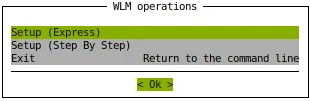
Figure 7.2: cm-wlm-setup TUI initial screen
7.3.2.1 Express Installation
The Setup (Express) menu option allows the administrator to select the workload manager in the next screen (figure 7.3), and to install it with a minimal number of configuration steps. If it has already been installed, but disabled using cm-wlm-setup, then it can also be re-enabled, instead of installed from scratch.
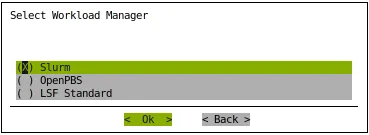
Figure 7.3: cm-wlm-setup TUI WLM selection screen
7.3.2.2 Step-by-step Installation
If the Setup (Step By Step) menu option is chosen instead of the express option, then this also allows the administrator to select the workload manager in figure 7.3. But after selection, there are a number of extra configuration steps that can be carried out which are not available in the express configuration. Guidance is given for these extra steps, and sensible default values are already filled in for many options.
One part of the step-by-step session involves assigning the WLM client role to the compute nodes of the cluster. Only the non-GPU compute nodes should be assigned the (standard, non-GPU) WLM client role. The GPU compute nodes are assigned a GPU WLM client role in the section of the TUI wizard that deals with GPU configuration.
The WLM client role is assigned to the entire category—the default category— of non-head nodes by default (figure 7.4):

Figure 7.4: Slurm with cm-wlm-setup: WLM Client role category configuration screen
The WLM client role can be assigned to selected nodes only by setting the default category checkbox to blank, and then selecting the non-GPU nodes in the following screen. For example, as illustrated in figure 7.4, where the standard, non-GPU nodes are node002 and node003:

Figure 7.5: Slurm with cm-wlm-setup: WLM client role node configuration screen
7.3.2.3 GPU Configuration Screens
The GPU configuration screens are extra steps available during a Setup (Step By Step) session. The GPU configuration steps are discussed summarily in the quickstart section for GPUs, here.
The GPU configuration steps are covered in this section in more detail:
After configuring the WLM server, WLM submission and WLM client roles for the nodes of the cluster, a screen that asks if GPU resources should be configured is displayed (figure 1.1):

Figure 1.1: Slurm With cm-wlm-setup: GPU Configuration Entry Screen
Following through brings up a GPU device settings configuration screen (figure 1.2):

Figure 1.2: Slurm With cm-wlm-setup: GPU Device Settings Configuration Screen
The help text option in the screen gives hints based on the descriptions at https://slurm.schedmd.com/gres.conf.html, and also as seen in Slurm’s man gres.conf.5.
Figure 1.2 shows 2 physical GPUs on the node being configured. The type is an arbitrary string for the GPU, and each CPU core is allocated an alias GPU device.
The next screen (figure 1.3) allows the NVIDIA CUDA MPS (Multi-Process Service) to be configured:

Figure 1.3: Configuring An NVIDIA GPU For Slurm With cm-wlm-setup: MPS Settings Configuration Screen
The help text for this screen gives hints on how the fields can be filled in. The number of GPU cores (figure 1.3) for a GPU device can be set.
Further screens allow:
-
the configuration overlay (section 2.1.6) name to be set for the GPU WLM clients. By default the name is set to
slurm-client-gpu. -
a GPU WLM client role to be assigned to a category, if, for example, all the GPU nodes have been given their own category.
-
the GPU WLM client role to be assigned to individual nodes instead of to a category.
-
a configuration overlay priority to be set for a GPU WLM client role. By default, this has a value of
450. -
automatic GPU detection, with the following options:
-
BCM autodetects GPUs -
Slurm autodetects NVIDIA GPU details -
Slurm autodetects AMD GPU details -
Slurm autodetects Intel GPU details -
Slurm autodetects AWS Trainium/Inferentia devices -
Manual GPU configuration in cm-wlm-setup -
Skip GPU configuration
-
7.3.2.4 Slurm Accounting Database Configuration
In the step-by-step configuration for the Slurm WLM, after the server and client parameters have been set, the Slurm accounting database configuration can be set.
This requires setting:
-
one or two accounting nodes
-
a primary accounting node
All nodes must be reachable from slurmctld.
The accounting nodes can be set with the Select accounting nodes screen (figure 7.9):
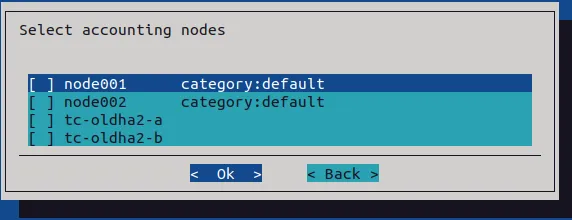
Figure 7.9: cm-wlm-setup selection of accounting nodes
Head nodes and compute nodes cannot be mixed for the accounting nodes. If two accounting nodes are set, then the slurmdbd high availability configuration is automatically set up.
The primary accounting node—that is, the node that is AccountingStorageHost in slurm.conf—can then be set in the Select the primary accounting server node screen (figure 7.10):
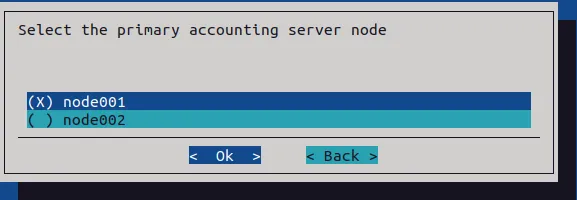
Figure 7.10: cm-wlm-setup selection of primary accounting node
The other accounting node is automatically set to be AccountingStorageBackupHost.
The type of node on which the slurmdbd database runs can then be set (figure 7.11):
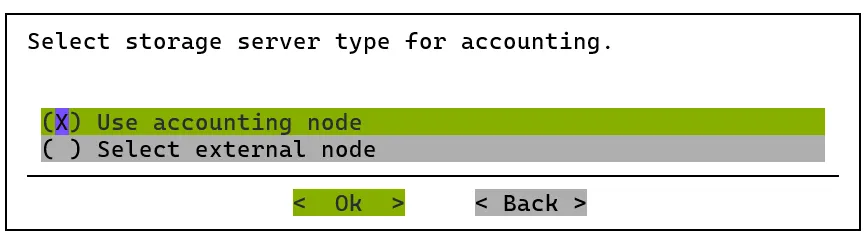
Figure 7.11: cm-wlm-setup selection of the type of node on which the Slurm accounting database runs
Only two of the three options are offered at a time. Which options are offered is determined by the accounting node selection made on the preceding screen. The accounting nodes are either all head nodes or all compute nodes. A mixed selection is rejected.
-
If
Use accounting nodeis selected, then the database is stored on the primary accounting node. This option is offered when the accounting nodes are head nodes -
If
Select cluster nodeis selected, then the next screen allows the selection of the BCM MySQL overlay which is used to manage the database (figure 7.12). This option is offered when the accounting nodes are compute nodes, that is, whenslurmdbdis offloaded from the head nodes. Whether the head nodes are configured for high availability makes no difference. If no MySQL configuration overlay is found, then the selection is rejected, and MySQL must first be installed withcm-mysql-setup. If the MySQL installation is running on more than one node (section 14.12), thenmysql-routeris automatically installed on all accounting nodes.
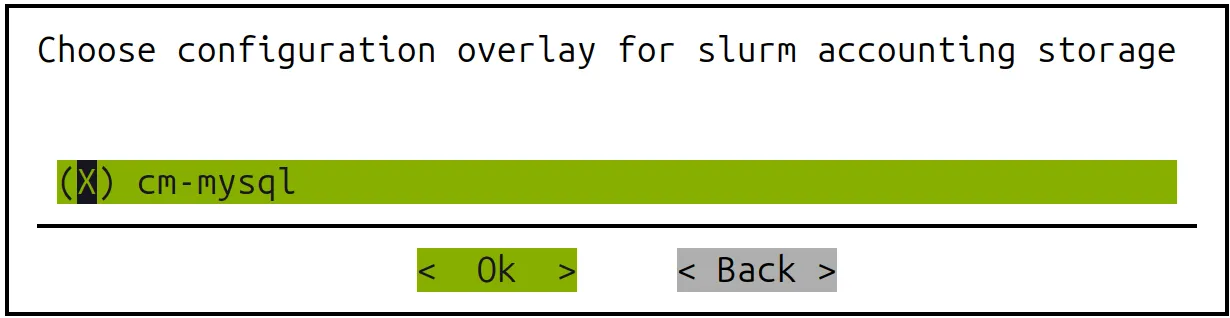
Figure 7.12: cm-wlm-setup Selection of host(s) for where the Slurm accounting database used by slurmdbd is stored
- If
Select external nodeis selected, then a non-BCM hostname is asked for, and the cluster administrator is responsible for the installation and configuration of the DBMS. This option is always offered
Modifying the settings after installation is discussed here.
7.3.2.5 Disabling An Installation
The Disable option in figure 7.2 allows the administrator to disable an existing instance.
7.3.2.6 Summary Screen
The screen that appears after the configuration steps are completed, is the Summary screen (figure 7.13). This screen allows the configuration to be viewed, saved, or saved and deployed.
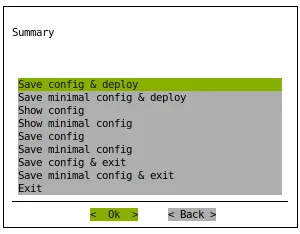
Figure 7.13: cm-wlm-setup TUI summary screen
In the final summary screen, as with other scripts that come with the cm-setup package, the configuration setting can be one of the following kinds:
-
minimal config: For this minimal kind of configuration setting, the configuration consists only of the settings that differ from the default application configuration. The remaining default application configuration settings are not included in the configuration. -
config: For this non-minimal kind of configuration setting, the configuration consists of the minimal configuration settings (the ones changed by BCM), as well as the remaining default configuration settings (the ones provided with the application). That is to say: the remaining default configuration application settings are included in the configuration. The default application configuration settings may change as the upstream packages change.
If deployment is carried out, then several screens of output are displayed. After the deployment is completed, the log file can be viewed at /var/log/cm-wlm-setup.log.
7.3.3 Installation And Configuration Of Enroot And Pyxis With Slurm To Run Containerized Jobs
7.3.3.1 What Is Enroot?
As the README file for Enroot says, Enroot is an open source tool to turn container images into unprivileged sandboxes. Enroot can be thought of as an enhanced unprivileged chroot. It uses user and mount namespaces, as well as other modern kernel features, in order to create such sandboxes. It uses the same underlying technologies as containers, but removes much of the isolation that they inherently provide, while preserving filesystem separation. Further details on Enroot can be found at https://github.com/NVIDIA/enroot.
Enroot can be used with different workload managers, but for now only Slurm has been tightly integrated.
7.3.3.2 What Is Pyxis?
Pyxis (https://github.com/NVIDIA/pyxis) is a SPANK plugin for Slurm. SPANK (Slurm Plug-in architecture for Node and job (K)control, man spank.8) is a generic interface for job launch code control in Slurm. The Pyxis plugin requires the Enroot utility, and allows the user’s jobs to be executed seamlessly over Enroot in unprivileged containers. The plugin enables the Slurm submission utilities to provide container-related command line options.
7.3.3.3 Enroot And Pyxis Packages
BCM provides two Enroot package flavors: standard and hardened. The standard binaries are compiled as follows:
-
Open file descriptors are inherited
-
Spectre variant 2 (IBPB/STIBP) mitigations are disabled
-
Spectre variant 4 (SSBD) mitigations are disabled
As a rule of thumb: the hardened flavor is slightly more secure but suffers a larger overhead.
-
The standard packages are already installed by default with BCM, and are:
-
enroot: provides the main utility and helper files. -
enroot+caps: a nearly empty package which runs a post-installation script to grant extra capabilities to unprivileged users. This allows them to import and convert container images. -
pyxis-sources: installs a tarball with the Pyxis plugin source files. The tarball is used bycm-wlm-setupto compile the Pyxis plugin on a cluster. The version of the package (section 9.1), found usingyum info pyxis-sourcesorapt-cache show pyxis-sources, implies the Pyxis source version that is provided. For example:pyxis-sources-0.20.0-[...].rpmprovides the Pyxis source for version 0.20.0.
-
-
The hardened packages that can be installed from the BCM repositories to replace the standard
enrootandenroot+capsare:-
enroot-hardened: provides hardened main utility and helper files. -
enroot-hardened+caps: Provides extra capabilities to unprivileged users so that they can import and convert containers themselves.
-
The package pyxis-sources installs the tarball at /cm/local/apps/slurm/var/pyxis/pyxis-sources.tar.gz. If the administrator needs a version of Pyxis other than the one provided by the package, then the archive can be replaced with a source tarball of the same name.
7.3.3.4 How Are Enroot And Pyxis Set Up In BCM?
Pyxis and Enroot can be set up or removed by the administrator by choosing the appropriate options when Slurm is set up. In order to choose the appropriate options, cm-wlm-setup can be run in step-by-step mode (here). Alternatively, Pyxis-related command line options can be specified for the cm-wlm-setup arguments --add-pyxis and --reinstall-pyxis.
The step-by-step mode eventually presents a screen where the Pyxis setup can be enabled using a plugin:
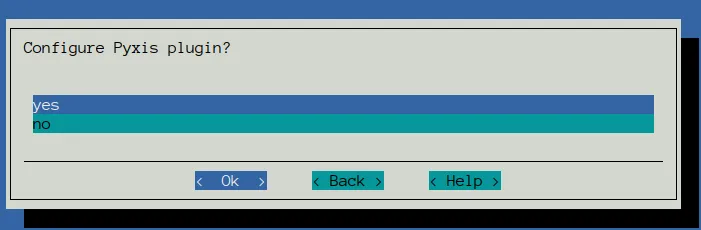
Figure 7.14: cm-wlm-setup Pyxis setup screen
The Pyxis screen is available for RHEL8-based systems and Ubuntu 20 and beyond. Older systems are not supported.
If the plugin is enabled in the Pyxis setup screen, then cm-wlm-setup installs the enroot and enroot+caps packages from https://github.com/NVIDIA/enroot/releases into the software images where the Slurm client role is to be assigned. The cm-wlm-setup uitility also installs them directly on the head node if the head node was selected to run jobs. Pyxis sources are downloaded from GitHub, compiled with the installed Slurm, and installed in the appropriate Slurm directory.
If the administrator enables the Pyxis plugin, then a new screen with Enroot settings is shown:
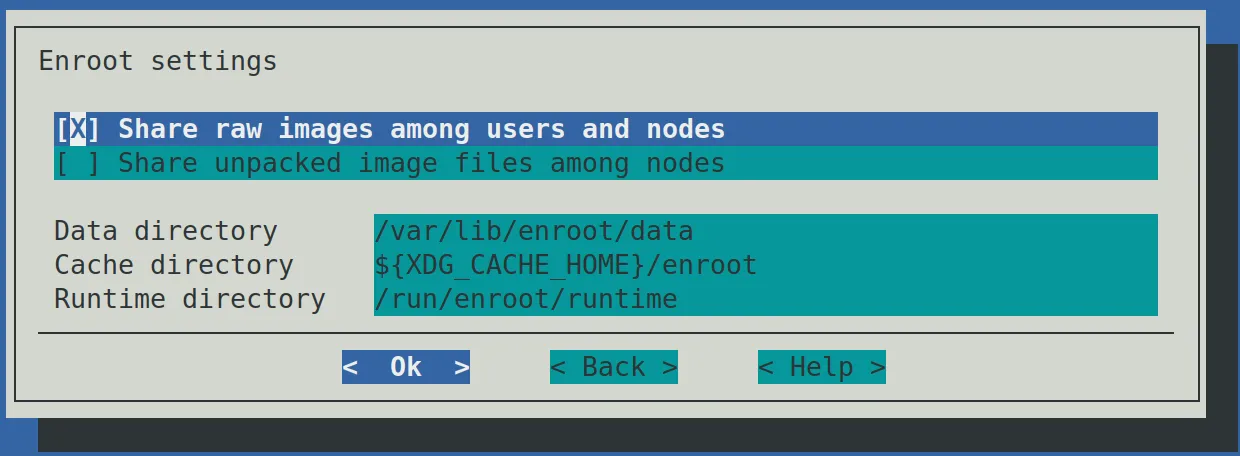
Figure 7.15: cm-wlm-setup Enroot settings screen
The Enroot settings have reasonable default values. The administrator can change these:
-
Share raw images among users and nodes: If enabled, then the raw container image is shared among users and nodes, and the administrator must ensure that the cache directory is shared among all the compute nodes. Enabling the option disables the creation of a UID subdirectory by the Enroot prolog script.The following points about implementing Enroot cache sharing should be considered by the administrator:
-
Enabling the checkbox for the option normally changes the default value of the Enroot cache directory, as defined in the TUI in the
Cache directoryfield, to${XDG_CACHE_HOME}/enroot. This field is normally evaluated by the Enroot installation to the home directory of the user:~/.cache/enrootwhen a job is executed.
The default value can also be changed in the TUI to any shared directory. If the specified directory does not exist, then
cm-wlm-setupcreates it with Unix directory permissions set tochmod 00777, which allows all users to share container images in the cache with each other on all the nodes. The extra0prefix is a non-POSIX-compliant GNU/Linux extension that clears the SUID and SGID bits so that users do not get elevated privileges simply through sharing the images. -
Restrictions can be placed on the ability of regular users to share images and to create files in the cache, by setting more restrictive permissions for the directory manually, after the
cm-wlm-setuprun.For example, the permissions can be set to 00770, while the ownership group of the directory is changed to a group with all the Pyxis users in it. In this case, only the users within the Pyxis users group can create the image layers in the cache.
-
An alternative to cache sharing of images among users and nodes is to save Squashfs images in a shared directory, outside the cache. Then the users can specify a full path to a shared Squashfs image on the cluster in the
srun/sbatchcommand line. In this case there is no need to share the cache among the nodes, as the Squashfs images are not copied over to cache before execution.
Only the administrator should have access to updating the image.
-
-
Share unpacked container images among nodes: Enables sharing of unpacked container images (image filesystems) among nodes. A user job can modify the filesystem, so it is not recommended to share this directory among users.Enabling the option disables removal of the Enroot data directory, if the container name is specified. This allows a user to keep the container filesystem between jobs run by the user. It is up to the user or the administrator to clean up the data directory if the option is enabled.
If the data directory is shared among nodes, then it is up to a user to ensure that the container filesystem is unpacked at least once before real jobs start. Otherwise, a race condition is possible when the images are extracted simultaneously on several nodes.
-
Cache directory: Path to the cache directory where raw container image layers are stored.If the directory is not shared, then the Slurm prolog script creates a subdirectory with a name that is the job user ID, while epilog cleans up that subdirectory. If the directory is shared, then neither prolog nor epilog touches the directory.
-
Data directory: Directory where the container filesystems (unpackaged images) are stored. If the directory is shared, then the epilog script checks if the container name is specified for the job, and skips removal of the container subdirectory. -
Runtime directory: A working directory with temporary files created by Enroot.
When Pyxis is set up, cm-wlm-setup also prepares the following configuration files for the compute nodes:
-
/etc/enroot/enroot.conf: This is a symlink to/cm/shared/apps/slurm/etc/enroot.conf. The configuration file provides reasonable default settings that allows Enroot to be used by many users. Important settings in the file are:-
ENROOT_RUNTIME_PATH: working directory for enroot, created per user. Default value:/run/enroot/runtime/$(id -u) -
ENROOT_CACHE_PATH: directory where container layers are stored. Default value:/run/enroot/cache/$(id -u) -
ENROOT_DATA_PATH: directory where the filesystems of running containers are stored. Default value:/run/enroot/data/$(id -u) -
ENROOT_SQUASH_OPTIONS: options passed tomksquashfsto produce container images. Default value:-noI -noD -noF -noX -no-duplicates -
ENROOT_MOUNT_HOME: mount the current user’s home directory by default. Default value:yes.
The administrator can change the symlink, or replace the file with a customized
enroot.conf, if other values are preferred. -
-
/etc/sysctl.d/80-enroot.conf: symlink to/cm/shared/apps/slurm/etc/enroot-sysctl.conf. The file tunessysctlparameters for Enroot. -
/cm/local/apps/slurm/var/prologs/50-prolog-enroot.sh: symlink to/cm/shared/apps/slurm/prologs/prolog-enroot.sh. This is theslurmdprolog that creates appropriate directories, with appropriate user permissions, that are used by Enroot. -
/cm/local/apps/slurm/var/epilogs/50-epilog-enroot.sh: symlink to/cm/shared/apps/slurm/epilogs/epilog-enroot.sh. Cleans the user directories used by Enroot.
When cm-wlm-setup finishes its Pyxis configuration run, then there is no need for the nodes to be rebooted. The plugin works immediately.
The new Slurm submission command option names start with either --container or --no-container. The full list of options can be displayed with the --help option. For example:
Example
Simple installation validation:
The simplest way to validate the Pyxis/Enroot setup after Slurm setup is to try out an srun command:
Example
A more thorough installation validation: In order to perform a more thorough test of Pyxis/Enroot, an NCCL-based test can be used. NCCL is the NVIDIA Collective Communications Library (https://docs.nvidia.com/deeplearning/nccl), which is a library of multi-GPU collective communication primitives. The test can be found at https://github.com/NVIDIA/nccl-tests. A prebuilt container image, with the NCCL test already installed, can be started as shown in the example that follows.
It should be noted that running a multi-tenant cluster with all the export flags enabled as in the example may compromise security. It is therefore not recommended as a standard configuration.
Example
The test demonstrates the usage of PMIX, MPI, and GPU in Enroot containers on multiple nodes. In the preceding example, 2 nodes with 1 GPU on each is requested by the job. For better results the cluster administrator can tune the test parameters.
It should be noted that the image is quite large, and requires enough free space under /var. Also, the transfer timeout (ENROOT_TRANSFER_TIMEOUT) in enroot.conf must be large enough to download such a large container image to the compute nodes. A value of at least 600 seconds is recommended.
If there are issues when executing MPI jobs with PMIX, then to help debug the issues the Pyxis documentation (https://github.com/NVIDIA/pyxis/wiki/Setup) suggests setting up the following environment variables:
-
PMIX_MCA_ptl=^usock -
PMIX_MCA_psec=none -
PMIX_SYSTEM_TMPDIR=/var/empty -
PMIX_MCA_gds=hash(as configured here)
This configuration change is typically carried out in the software image of the regular nodes. For example, for a node category called default:
7.3.4 Prolog And Epilog Scripts
7.3.4.1 What Prolog And Epilog Scripts Do
The workload manager runs prolog scripts before job execution, and epilog scripts after job execution. The purpose of these scripts can include:
-
checking if a node is ready before submitting a job execution that may use it
-
preparing a node in some way to handle the job execution
-
cleaning up resources after job execution has ended.
The administrator can run custom prolog or epilog scripts for the queues from CMDaemon for LSF, by setting such scripts in the Base View or cmsh front ends.
Example
For Slurm, there are global prolog and epilog scripts, but editing them is not recommended. Indeed, in order to discourage editing them, the scripts cannot be set using the cluster manager front ends. Instead the scripts must be placed by the administrator in the software image, and the relevant nodes updated from the image.
7.3.4.2 Detailed Workings Of Prolog And Epilog Scripts
Even though it is not recommended, some administrators may nonetheless wish to link and edit the scripts directly for their own needs, outside of the Base View or cmsh front ends. A more detailed explanation of how the prolog scripts work therefore follows:
When a workload manager is configured using cm-wlm-setup or using the Base View setup wizard, then the workload manager is configured to run the generic prolog located in /cm/local/apps/cmd/scripts/prolog, and the generic epilog located in /cm/local/apps/cmd/scripts/epilog. The generic prolog and epilog scripts call a sequence of scripts for a particular workload manager in special directories. The directories have paths in the format:
-
/cm/local/apps/<workload manager>/var/prologs/ -
/cm/local/apps/<workload manager>/var/epilogs/
In these directories, scripts are stored with names that have suffixes and prefixes associated with them that make them run in special ways, as follows:
-
suffixes used in the prolog/epilog directory:
-prejobscript runs prior to all jobs
-
prefixes used in the prolog/epilog directory:
-
00-to -
99-
Number prefixes determine the order of script execution, with scripts with a lower number running earlier.
-
The script names can therefore look like:
Example
-
01-prolog-prejob -
10-prolog-prejob
Return values for the prolog/epilog scripts have these meanings:
-
0: the next script in the directory is run. -
A non-zero return value: no further scripts are executed from the prolog/epilog directory.
Often, the script in a prolog/epilog directory is not a real script but a symlink, with the symlink going to a real file located in a different directory. The general script is then able to take care of what is expected of the symlink. The name of the symlink, and destination file, usually hints at what the script is expected to do.
For example, if any health checks are marked to run as prejob checks during cm-wlm-setup configuration, then Slurm uses the symlink 01-prolog-prejob within the prolog directory /cm/local/apps/ <workload manager>/var/prologs/. The symlink links to the script /cm/local/apps/cmd/scripts/prolog-prejob. In this case, the script is expected to run prior to the job.
Example
Epilog scripts (which run after a job run) have the location /cm/local/apps/ <workload manager>/var/epilogs/. Epilog script names follow the same execution sequence pattern as prolog script names.
It should be noted that the 01-prolog-prejob symlink is created and removed by BCM on each compute node where prejob is enabled in the workload manager entity. Each such entity provides a Enable Prejob parameter that affects the symlink existence:
Example
This parameter is set to yes by cm-wlm-setup when at least one health check is selected as a prejob one. If any healthcheck was configured as a prejob check before cm-wlm-setup execution, and the administrator had a checkmark for that health check, then the prejob is considered enabled.
7.3.4.3 Workload Manager Configuration For Prolog And Epilog Scripts
BCM configures generic prologs and epilogs during workload manager setup with cm-wlm-setup. The administrator can configure prologs and epilogs using appropriate parameters in the configuration of the workload managers, by creating the symlinks in the local prologs and epilogs directories.
Generic prologs and epilogs are configured by default to run on job compute nodes (one run per each node per job) for Slurm and LSF.
The following parameters for prologs and epilogs can be configured with cmsh or Base View:
-
Slurm
-
Prolog Slurmctld: the fully qualified path of a program to execute before granting a new job allocation. The program is executed on the same node where theslurmserverrole is assigned. The parth corresponds to thePrologSlurmctldparameter inslurm.conf. -
Epilog Slurmctld: the fully qualified path of a program to execute upon termination of a job allocation. The program is executed on the same node where theslurmserverrole is assigned. Corresponds with theEpilogSlurmctldparameter inslurm.conf. -
Prolog: the fully qualified path of a program to execute on job compute nodes before granting a new job or step allocation. The program corresponds to thePrologparameter, and by default points to the generic prolog. This prolog runs on every node of the job if theProlog flagsparameter contains the flagAlloc(the default value), otherwise it is executed only on the first node of the job. -
Epilog: the fully qualified path of a program to execute on job compute nodes when the job allocation is released.
-
-
LSF
-
Prolog: the fully qualified path of a program to execute on the LSF server node on job allocation. As an LSF queue parameter, it corresponds to thePRE_EXECparameter inlsb.queues. -
Epilog: the fully qualified path of a program to execute on the LSF server node on job allocation release. As an LSF queue parameter, it corresponds to thePOST_EXECparameter inlsb.queues -
Host prolog: the fully qualified path of a program to execute on each node of a job before the job is started. Corresponds to theHOST_PRE_EXECparameter inlsb.queues. By default it is configured to run the generic prolog -
Host epilog: the fully qualified path of a program to execute on each node of a job after the job is finished. Corresponds to theHOST_POST_EXECparameter inlsb.queues. By default it is configured to run the generic epilog.
-
7.4 Enabling, Disabling, And Monitoring Workload Managers
7.4.0.1 Enabling And Disabling A WLM
A WLM can be disabled for all nodes with cm-wlm-setup. Disabling the WLM means the workload management services are stopped by removing roles, and removing the WLM cluster object.
Alternatively, a WLM can be enabled or disabled by the administrator using role addition and role removal with Base View or cmsh. This is described further on in this section.
Multiple WLM instances of the same type: Versions of NVIDIA Base Command Manager prior to 9.0 already had the ability to have different workload managers run at the same time. However, NVIDIA Base Command Manager version 9.0 introduced the additional ability to run many workload managers of the same kind at the same time.
Example
Two WLM instances, Slurm and LSF, are already running at the same time in the cluster, with each WLM assigned to one category. Then, BCM can start up a third WLM instance, such as another Slurm WLM instance. These WLM instances are alternatively called WLM clusters, because they effectively allow one cluster to function as many separate clusters as far as running WLMs is concerned.
From the Base View or cmsh point of view a WLM consists of
-
a WLM server, usually on the head node
-
WLM clients, usually on the compute nodes
For the administrator, enabling or disabling the servers or clients is then simply a matter of assigning or unassigning a particular WLM server or client role on the head or compute nodes, as deemed appropriate.
The administrator typically also sets up an appropriate WLM environment module (slurm, lsf), so that it is loaded up for the end user (section 2.2.3).
7.4.1 Enabling And Disabling A WLM With Base View
A particular WLM package may be installed, but the WLM may not be enabled. This can happen, for example, if disabling a WLM that was previously enabled.
If a WLM instance exists, then the WLM client, submission, and server roles can be enabled or disabled from Base View by assigning or removing the appropriate roles to nodes, categories, or configuration overlays. Within the role, the properties of the WLM may be further configured by setting options.
7.4.1.1 Workload Manager Role Assignment To An Individual Node With Base View
Workload Manager Server The following roles are WLM roles that can be assigned to a node:
-
server -
submit -
accounting(for the Slurm WLM only, to configure and run theslurmdbdservice) -
client
Typically these roles are assigned using configuration overlays.
For example, if the default Slurm configuration is carried out with cm-wlm-setup, then the Slurm server role is assigned to the head node, basecm11, which can be viewed using the navigation path:
Devices > All Devices > Head Node > Settings > Roles > slurmserver
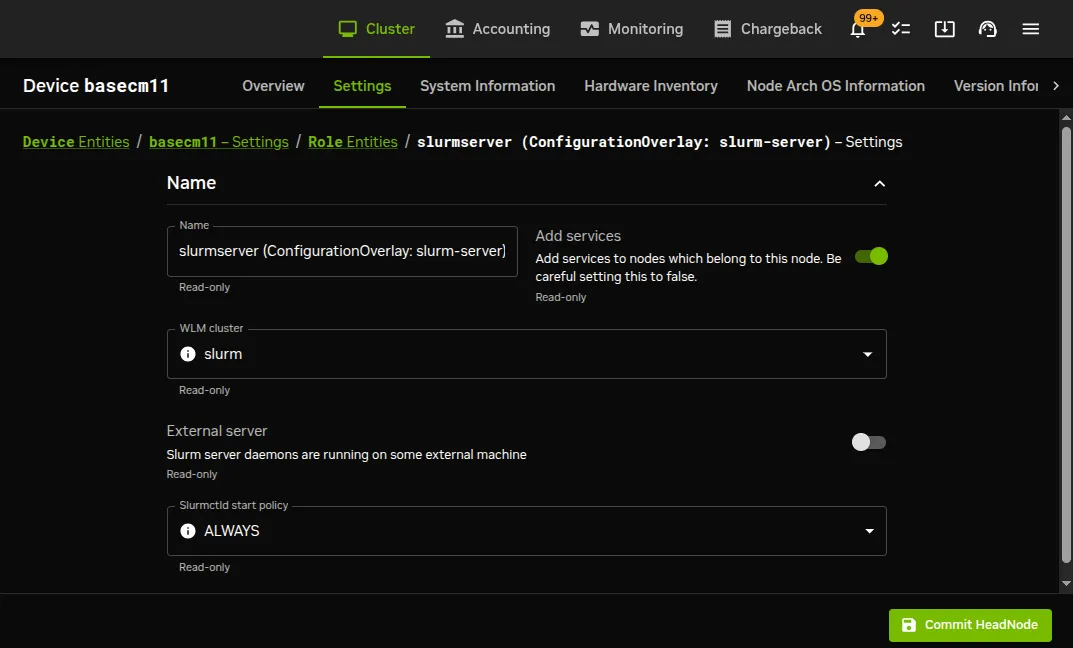
Figure 7.16: Workload management role assignment on a head node
Overriding the configuration overlay assignment is possible, at node or category level. For example at node level the role can be defined by assignment at node level, using the navigation path:
Devices > All Devices > Head Node > Settings > Roles > +Add > SlurmServerRole
This allows parameters to be changed within the role. For example, for the SlurmServerRole the Slurmctld start policy can then be modified at node level.
Workload manager options that are not regarded as server role options can be found under the workload manager object. For Slurm this is in the navigation path:
HPC > Workload Management Clusters
For example, for a Slurm instance in the Workload Management Clusters pane, a builtin or backfill option can be set for the Scheduler parameter (figure 7.17).
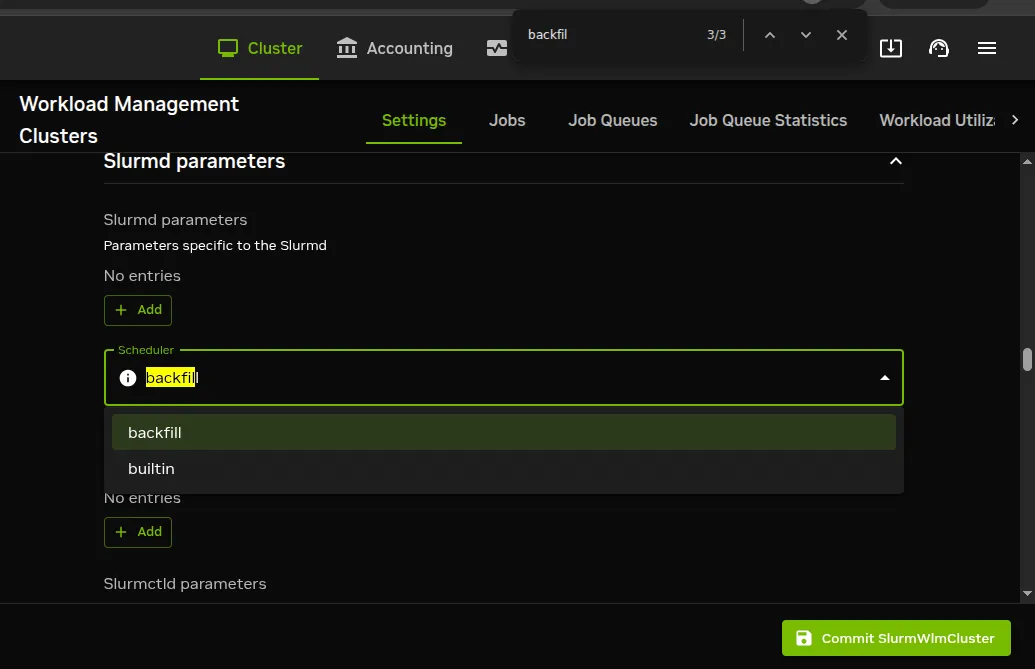
Figure 7.17: Workload management role assignment options on a head node
To have the server start up on non-head nodes (but not for a head node), the imageupdate command (section 5.6.2) can be run. The workload manager server process and any associated schedulers then automatically start up.
Workload Manager Client Similarly, the workload manager client process can be enabled on a node or head node by having the workload manager client role assigned to it at a node level. Some basic options can be set for the client role.
Saving the role, and then running imageupdate (section 5.6.2), automatically starts up the client process with the options chosen, and managed by CMDaemon.
7.4.1.2 Workload Manager Role Assignment To A Category With Base View
It is true that workload manager role assignment can be done as described in the preceding text for individual non-head nodes. However it is usually more efficient to assign roles using categories or configuration overlays, due to the large number of compute nodes in typical clusters.
For example, the case can be considered of all physical on-premises non-head nodes. By default these are in the default category. This means that, by default, roles in the category are automatically assigned to all those non-head nodes, unless, as an exception, an individual node configuration overrides the category setting and uses a role setting instead at node level.
The workload manager roles for the category default can be viewed by using the navigation path: Grouping > Categories[default] > Settings > Roles
If the role has been assigned at category level, then clicking through to the subpane for a role allows role options to be edited and saved.
However,the default configuration using cm-wlm-setup assigns the role at configuration overlay level, which means that the role options (role settings) can
-
either be configured using the navigation path from the configuration overlay level:
Grouping > Configuration Overlays[configuration overlay role] > Settings > Roles >role under configuration overlay role> Role settings -
or they can be configured by adding a role at category level (or node level), with the
+Addoption. For example, for category level using thedefaultcategory:Grouping > Categories[default] > Settings > Roles > + Add >category-level role
For compute nodes, the role assigned is usually a workload manager client. If the assigned role is that of a workload manager client, then the node with that role can have queues, GPUs, and other parameters specified for it.
For example, queues can then be assigned using the navigation path:
HPC > WLM Management Clusters[Slurm instance ] > Job Queues while GPUs, if using Slurm as the workload manager with default settings, with a default cm-wlm-setup installation, have a configuration overlay slurm-client-gpu that is specified using the navigation path:
Grouping > Configuration Overlays > slurm-client-gpu > Settings > roles > slurmclient > Generic Resources > gpu
The workload manager server role can also be assigned to a non-head node. For example, a Slurm server role can be taken on by a non-head node. This is the equivalent to the --server-nodes option of cm-wlm-setup.
Saving the roles with their options and then running imageupdate (section 5.6.2) automatically starts up the newly-configured workload manager.
7.4.1.3 Workload Manager Role Options With Base View
Each workload manager client role (sometimes loosely called a compute node role) has options that can be set for GPUs, Queues, and Slots. Generally, the value that is set for Slots is the number of jobs expected to run on a node simultaneously. This number can, for example, be set to the number of threads. Threads (virtual cores) in the x86_64 architecture are provided by Intel’s hyper-threading (HT), or by AMD’s simultaneous multithreading (SMT).
The physical CPU, the cores on the CPU, and the threads of a core (HT, SMT) should not be confused with each other. They are distinct concepts, and can all have different values.
-
Slots, in a workload manager, corresponds in BCM to:-
the
CPUssetting (aNodeNameparameter) in Slurm’sslurm.conf -
the
-nflag, or the total number of processor slots requested, in IBM Spectrum LSF -
the
nproc(orncpus) setting in PBS,
In LSF setting the number of slots for the client role to
0means that the client node does not run jobs on itself, but becomes a submit host, which means it is able to forward jobs to other client nodes.The default value for
SlotsisAUTO, which means that the value forSlotsis auto-detected. The parameter may be alternatively be set to a non-negative number. Each WLM has a different implementation on how this is done. For instance, for Slurm, BCM uses Slurm’s own auto-detection implementation. -
-
Queueswith a specified name are available in their associated role after they are created. The creation of queues is described in sections 7.6.2 (using Base View) and 7.7.3 (usingcmsh).
All server roles also provide the option to enable or disable the External Server setting. Enabling that means that the server is no longer managed by BCM, but provided by an external device.
The cmsh equivalent of enabling an external server is described here.
7.4.2 Enabling And Disabling A Workload Manager With cmsh
A particular workload manager package may be set up, but not enabled. This can happen, for example, if no WLM server or WLM client role has been assigned.
If a WLM instance exists, then the WLM client, server, or submit roles can be enabled from cmsh by assigning it from within the roles submode. Within the assigned role, the properties of the WLM may be further configured by setting options.
7.4.2.1 Workload Manager Role Assignment To A Configuration Overlay With cmsh
In cmsh, workload manager role assignment to a configuration overlay (section 2.1.5) can be done using configurationoverlay mode. By default cm-wlm-setup run as a TUI session creates some configuration overlays with suggestive names, and assigns roles to the configuration overlays according to what the names suggest. Thus, for example, with the cm-wlm-setup TUI session used to carry out an express setup for Slurm, the configuration overlays that get created are the following:
Example
Nodes in the default category can take on the slurmclient or slurmsubmit role by setting the nodes for the role using the associated configuration overlays slurm-client or slurm-submit.
The wlm-headnode-submit configuration overlay is a special overlay. It is applied only to the head node, and is shared among all installed workload managers. Setting this overlay means that the head node, by default, has a submit role for a given workload manager.
Example
All the head nodes can also be made to take on the configuration overlay role by setting its All head nodes value to yes. The union set of All head nodes with Nodes is the set of nodes to which the role is applied for that configuration overlay.
Values for the parameters in a role, such as the slurmclient role, can be set within the configuration overlay:
Example
After the workload manager roles are assigned or unassigned, and after running imageupdate (section 5.6.2) for non-head nodes, the associated workload manager services automatically start up or stop as appropriate.
The configuration overlay role values are inherited by categories and nodes, unless the categories and nodes have their own values set. Thus, for role properties, a value set at node level overrides values set at category level, and a value set at configuration overlay level overrides a value set at category level. This is typical of how properties of objects are inherited in BCM levels.
7.4.2.2 Workload Manager Role Assignment To A Category With cmsh
In cmsh, workload manager role assignment to a node category can be done using category mode, using the category name, assigning a role from the roles submode, setting the WLM instance for that role, and committing the modified role:
Example
Settings that are assigned in the slurmclient role of the category overrule the slurmclient role configuration overlay settings.
The role assignment at category level requires the value for a WLM instance to be specified for wlmcluster before the commit command is successful.
7.4.2.3 Workload Manager Role Assignment To An Individual Node With cmsh
In cmsh, assigning a workload manager role to a head node can be done in device mode. This can be done by using the head node name as the device, assigning the workload manager role to the device, setting the WLM instance value to the role within the role submode, and committing the modified role.
Example
For regular nodes, role assignment is done using device mode, using the node name. Th node name is assigned the workload manager role, the WLM instance value is set for that role in the role submode, and the modified role is committed.
Example
The role assignment at node level requires the value for a WLM instance to be specified for wlmcluster before the commit command is successful.
Role assignment values set in device mode have precedence over any role assignment values set in category mode for that node. This means, for example, that if a node is originally in a node category with a slurmclient role and queues set, then when the node is assigned a slurmclient role from device mode, its queue properties are empty by default.
7.4.2.4 Setting Options For Workload Manager Settings With cmsh
In the preceding text, it is explained how the workload manager client or server is assigned a role (such as slurmclient or slurmserver) within the roles submode. It is done from within a main mode of cmsh. The main modes from which role assignment can be done are: configurationoverlay, category or device.
Options for workload managers in general: Whatever main mode is used, the workload manager options for a role can then be set with the usual object commands introduced in section 2.5.3.
-
WLM client options: For example, the configuration options of a WLM client, such as the Slurm client, can be seen by using the
showcommand for the role.Here it can be seen in the
slurmclientrole, provided by the default configuration overlayslurm-client:Example
The
Slotsoption can be set in the roleExample
-
WLM server options: Similarly, WLM server options can be managed from an assigned server role. For Slurm, the
slurmserverrole for a device shows:Example
Option to set an external workload manager: A workload manager can be set to run as an external server from its slurmserver role, within a configuration overlay or within device mode :
Example
For convenience, setting the external server on the head node is recommended.
The Base View equivalent of configuring externalserver is described here.
7.4.3 Monitoring The State Of Workload Manager Services
By default, the workload manager services are monitored. BCM attempts to restart the services using the service tools (section 3.15), unless the role for that workload manager service is disabled, or the service has been stopped.
Workload manager roles and corresponding services can be disabled using cm-wlm-setup (section 7.3), Base View role configuration (section 7.4.1), or cmsh role configuration (section 7.4.2).
The daemon service states can be viewed for each node using the shell, cmsh, or Base View (section 3.15).
Queue submission and scheduling daemons normally run on the head node.
7.4.3.1 Viewing Services In Base View
From Base View services are viewable using the navigation path to the services running on the node. For example, on a head node basecm11, the navigation path:
Devices > All Devices > basecm11 > Settings > Services
leads to a display similar to figure 7.18:
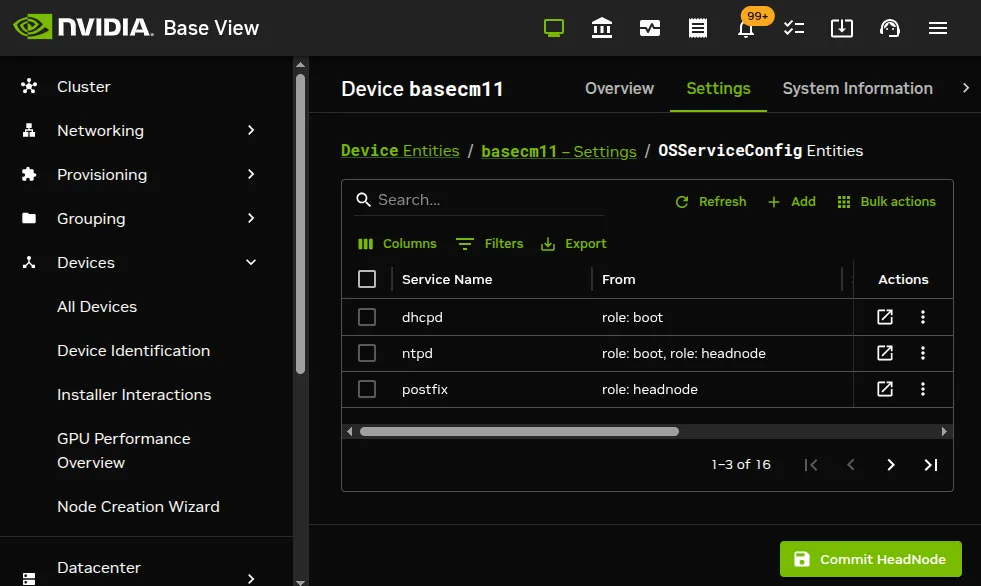
Figure 7.18: Services seen on head node in Base View
For a regular node, a similar navigation path for node001, for example, is:
Devices > All Devices > node001 > Settings > Services
and leads to a display similar to figure 7.19:
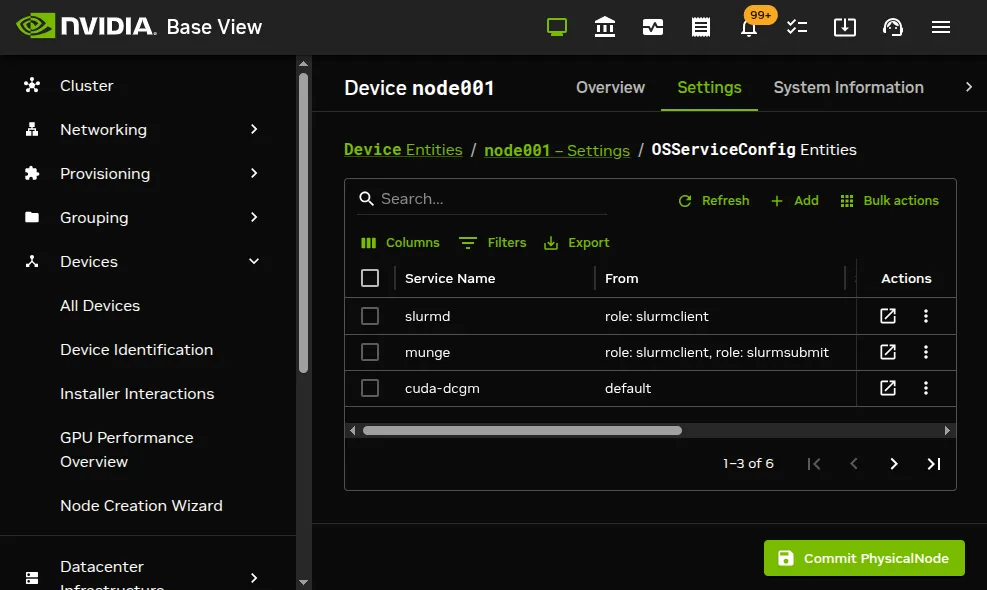
Figure 7.19: Services seen on regular node in Base View
7.4.3.2 Viewing Roles In Base View
Services are often set with BCM roles (section 2.1.5). The navigation path:
Devices > All Devices > basecm11 > Settings > Roles
shows the list of roles. Figure 7.20 shows some of the Slurm roles that result in Slurm services running on the head node:
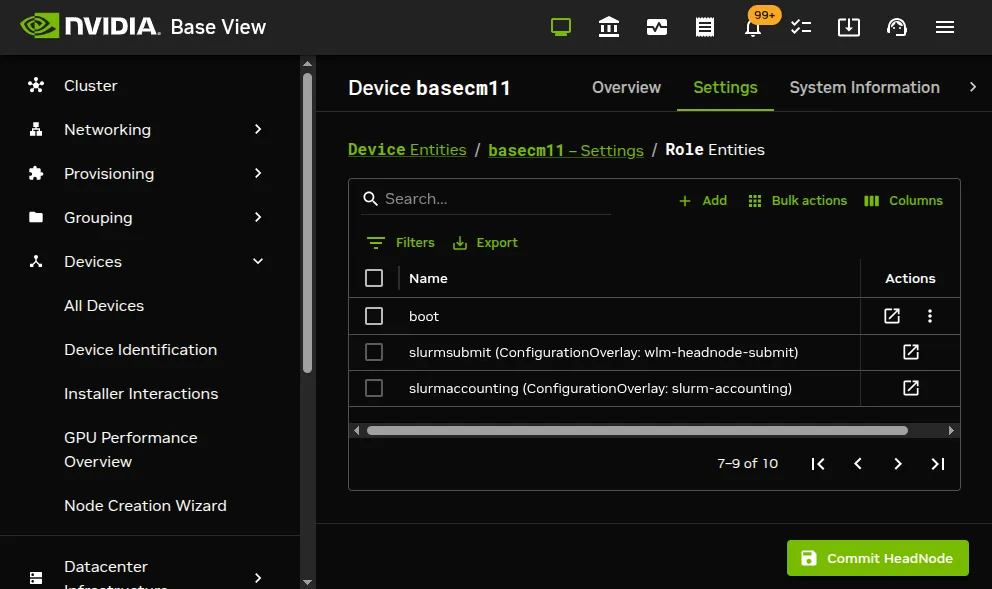
Figure 7.20: Roles seen on head node in Base View
Similarly, the navigation path:
Devices > All Devices > node001 > Settings > Roles
shows the list of roles for a regular node. Figure 7.21 shows some of the Slurm roles that result in Slurm services running on the regular nodes:
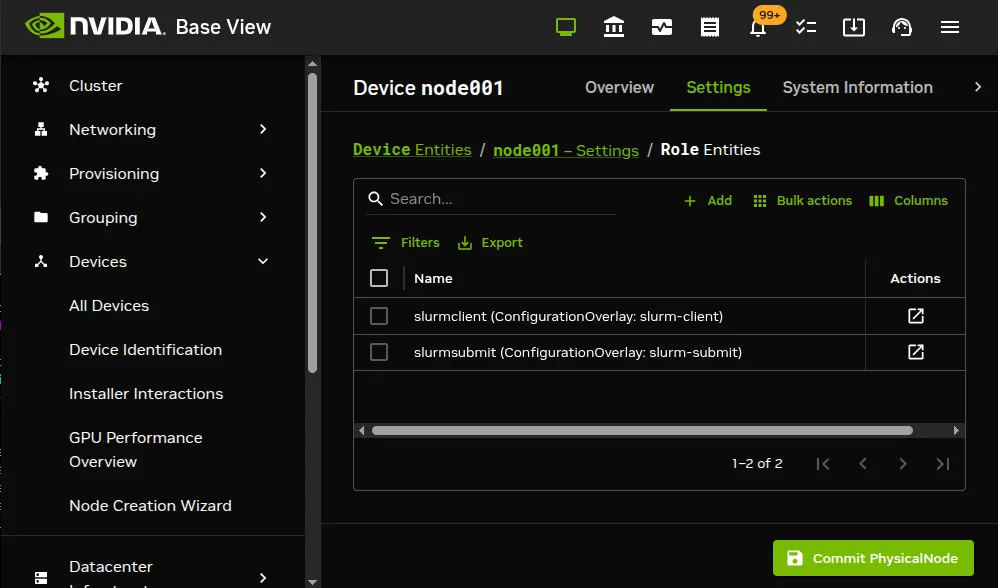
Figure 7.21: Roles seen on regular node in Base View
The roles seen in these figures are from the defaults that cm-wlm-setup provides in an express setup.
For regular nodes, the inheritance of roles from category level or configuration overlay level is indicated by the values in the parentheses alongside the role name. Thus, in figure 7.21, the slurmsubmit and slurmclient roles are decided by the default setting from the configuration overlay.
The assignment of roles can be varied to taste for WLMs. This allows WLM services to run on the head node or on the regular nodes.
7.4.3.3 Viewing Services And Roles In cmsh
From cmsh the services states are viewable from within device mode, using the services command. One-liners from the shell to illustrate this are (output elided):
Example
Roles can be viewed from within the main modes of configurationoverlay, category, or device. One-liners to view these are:
Example
The -p|--priority option displays of the list command the priority setting for the roles.
7.5 Configuring And Running Individual Workload Managers
BCM deals with the various choices of workload managers in as generic a way as possible. This means that not all features of a particular workload manager can be controlled, so that fine-tuning must be done through the workload manager configuration files. Workload manager configuration files that are controlled by BCM should normally not be changed directly because BCM overwrites them. However, overwriting by CMDaemon is prevented on setting the directive:
FreezeChangesTo <workload manager>Config = <true|false>
in cmd.conf (Appendix C), where <workload manager> takes the value of Slurm or LSF, as appropriate. The value of the directive defaults to false.
A list of configuration files that are changed by CMDaemon, the items changed, and the events causing such a change are listed in Appendix H.
A very short guide to some specific workload manager commands that can be used outside of the NVIDIA Base Command Manager 11 system is given in Appendix F.
7.5.1 Configuring And Running Slurm
7.5.1.1 Slurm Packages
At the time of writing of this section (July 2026), BCM is integrated with Slurm packages for Slurm versions 25.05, 25.11, and 26.05. Slurm version 25.11 is installed by default.
For Slurm version 25.05, the following packages are available from the BCM repositories for Ubuntu 24.04:
-
slurm25.05: Simple Linux Utility for Resource Management, Slurm Workload Management. -
slurm25.05-contribs: contributed utilities for Slurm -
slurm25.05-devel: Development package for Slurm. Includes the header files and static libraries for the SLURM API. -
slurm25.05-example-configs: Example configuration files for Slurm. -
slurm25.05-libpmi: Slurm’s implementation of the pmi libraries. -
slurm25.05-openlava: OpenLava/LSF wrappers for transition from OpenLava/LSF to Slurm. -
slurm25.05-pam: PAM module for restricting access to compute nodes via Slurm. -
slurm25.05-perlapi: Perl API to Slurm. -
slurm25.05-prs: Slurm PRS plugin. -
slurm25.05-sackd: Slurm authentication daemon. Used on login nodes that are not running slurmd daemons to allow authentication to the cluster. -
slurm25.05-slurmctld: Slurm control daemon. -
slurm25.05-slurmd: Slurm compute node daemon. -
slurm25.05-slurmdbd: Slurm database daemon. -
slurm25.05-slurmrestd: Slurm REST API translator. -
slurm25.05-torque: Torque/PBS wrappers for transition from Torque/PBS to Slurm.
For Slurm version 25.11, the value of 25.05 is simply replaced by 25.11 in the preceding list of packages.
Similarly, for Slurm version 26.05, the value of 25.05 is simply replaced by 26.05 in the preceding list of packages.
The distribution version of Slurm (package: slurm) is not integrated with BCM and conflicts with the preceding packages. It should not be used.
From BCM 11.34, BCM Slurm packages include the acct_gather_energy/ipmi plugin alongside the existing energy plugins (gpu, ibmaem, pm_counters, and rapl). This allows administrators to set AcctGatherEnergyType=acct_gather_energy/ipmi in slurm.conf to collect per-node power and energy data from IPMI-based baseboard sensors for job accounting and efficiency reporting. Configuration details can be found in the SchedMD documentation at https://slurm.schedmd.com/slurm.conf.html#OPT_AcctGatherEnergyType.
Important updates from upstream are patched into the BCM repositories. If updating Slurm packages, all the Slurm packages should be updated to the same version, on the compute nodes as well as on the scheduling node.
7.5.1.2 Building Custom Slurm Packages
The BCM Slurm packages can be rebuilt from source by the administrator, on the BCM cluster itself. Rebuilding allows important Slurm patches to be applied sooner than the standard BCM release cycle provides them, and allows the Slurm binaries to be optimized for a particular CPU or hardware configuration.
The build script, along with the RPM and DEB spec files that NVIDIA uses to build the packages, is shipped in a slurm<version>-builder package, for example slurm25.11-builder or slurm26.05-builder. Because the spec files are bundled in the package, no separate download of them is needed. The builder package is available from the BCM repositories, but is not installed by default. Installing it places the build script in /cm/local/apps/slurm/current/builder/, which is not in the standard $PATH.
Only Slurm version 25.11 and higher can be built with this script. The earlier Slurm version that BCM also ships, 25.05, cannot be built with it.
The script can be run on BCM clusters running RHEL 9, RHEL 10, Ubuntu 22.04, Ubuntu 24.04, or Ubuntu 26.04. SLES is not supported.
The script takes a required --version option, in X.Y.Z format:
The script downloads the Slurm source tarball and loads the modulefiles that are needed for the build. When the build finishes, the resulting packages are saved to /tmp/slurm<version>-<revision>-<release-tag>/, where <revision> is a build counter that increases with each run, and <release-tag> encodes the BCM version and a checksum of the source tarball.
Validating the build environment:
Adding the --validate option carries out a dry run that checks the prerequisites without building anything. Each check is reported as [PASS] or [FAIL], and the script exits with 0 if every check passed, or 1 if any check failed:
The checks cover the Slurm version, the distribution and its major version, the host tools (wget, tar, and jq), the build tool (dpkg-buildpackage on Ubuntu, or rpmbuild on RHEL), the build dependencies, the availability of the required modules, and whether at least 100MB of disk space is free.
Building inside a software image:
Packages that are intended for a particular software image should be built inside that image, so that the build uses the same operating system, libraries, and modules that the image provides. The image should be cloned first, using cmsh or Base View, and the build then run inside the clone with cm-chroot:
The build dependencies are installed automatically, driven by a dependencies.yaml file that ships with the builder package, whether the script is run on the host or inside a cm-chroot image. No manual dependency installation is required beforehand.
Building from a different source tarball:
A source tarball other than the one that the script downloads from upstream can be used by passing its path with --archive:
The contents of the tarball must be inside a directory that matches the version being built. So, for Slurm 25.11.5, the tarball contents must be inside a directory called slurm-25.11.5, in the same way as the upstream Slurm tarballs.
The packages that are built are installed in the same way as for a Slurm upgrade, except that the packages are taken from the local directory instead of from the package repositories.
7.5.1.3 Upgrading From Earlier Slurm Versions To slurm25.11
Upgrading between major versions of Slurm is generally possible. At the time of writing (December 2025) of this section, the upstream Slurm policy allows upgrades from three previous major release versions since version 24.11. Details on the upgrade compatibility can be seen at the SchedMD site at https://slurm.schedmd.com/upgrades.html#compatibility_window.
It is a good idea to upgrade one version at a time, rather than jumping too many versions ahead, which can require a full wipe of the Slurm configuration.
If Slurm is using Pyxis (section 7.3.3), then upgrading the Slurm version means that Pyxis needs to be reinstalled using cm-wlm-setup. The reinstallation run for Pyxis compiles Pyxis and recreates a plugin directory for the new Slurm version under /cm/local/apps/slurm/.
An upgrade from one major version of Slurm to another can be carried out according to the following example, which is for an update from major version 25.05 to version 25.11, and avoids total reconfiguration of the Slurm configuration:
-
It is recommended that no jobs are running. Draining nodes (section 7.7.4) is one way to arrange this over time. No new jobs run on a drained node, but old ones are allowed to finish.
-
When all running jobs are finished, then Slurm server services—
slurmctldandslurmdbd—should be stopped usingcmshor Base View (section 3.15.2):Example
-
The old Slurm packages should then be removed. There can be only one version of Slurm at a time, so there will be a package installation conflict if a new version is installed while an old one is still there.
Removal can be carried out on RHEL-based systems with, for example:
In Ubuntu the equivalent is carried out using
apt remove slurm25.05*.The old packages must also be removed from each software image that uses it:
Example
The
cm-chroot-sw-imgwrapper utility is discussed in section 9.4.1. -
The new packages can then be installed. For installation onto the RHEL head node, the installation might be carried out as follows:
The same packages as on the head node are installed by default in the software image when installing with
cm-wlm-setupin versions of Slurm from version 24 onward. The installation is carried out manually for the upgrade in each software image with:Example
-
The new Slurm version is then set in
cmshor Base View, in the Slurm WLM cluster configuration:Example
-
Slurm server services
slurmctldandslurmdbdshould then be started again usingcmshor Base View:Example
-
The nodes can then have their new image placed on them, and the new Slurm configuration can then be taken up. This can be done in the following two ways:
-
The regular nodes can then be restarted to supply the live nodes with the new image and get the new Slurm configuration running.
-
Alternatively, the
imageupdatecommand (section 5.6.2) can be run on the live nodes to supply them with the image.Running the
imageupdatecommand in dry mode (the default) first is recommended. Thesynclogcommand can then be run to check there are no unexpected changes that will take place due to the update. If all is well, thenimageupdate’s wet mode flag-wcan be used in order to really carry out the task.For example, the change can be checked, and then actually carried out, for the image on
node001with:The last
commitcommand triggers the reconfiguration of the file/etc/systemd/system/slurmd.service.d/99-cmd.confon the node. After a short time—around 30 seconds—the file is regenerated. Theslurmdservice on the node can then be restarted with:
-
7.5.1.4 IMEX
NVIDIA IMEX (Internode Memory Exchange Service) is a secure service that facilitates the mapping of GPU memory over NVLink between the GPUs in an NVLIink domain.
The imexctl command in device mode lists the status and other properties of the nodes.
Example
Pinning IMEX to a specific network (FQDN or IP in nodes_config.cfg):
By default, the autogenerated IMEX peer list in /etc/nvidia-imex/nodes_config.cfg uses the short hostname of each node. IMEX can instead be pinned to a particular network. When a network has the imex parameter enabled, the fully qualified domain name (FQDN) on that network is written to nodes_config.cfg for each peer. For example, for an IMEX network called imexnetwork:
The resulting config file uses the FQDN for each node:
The peers can be written as IP addresses instead of FQDNs by also enabling the imex ip parameter on the same network:
The resulting config file uses the IP address of each node on that network, with the node name retained as a comment:
For Slurm, BCM can enable the IMEX daemon either globally, or per job. Enabling the IMEX daemon globally for Slurm:
If IMEX is set globally, then it means that it is set to run on all nodes at runtime.
The advantage of this configuration is that it is easy to set up, and easy to test to see if it is all working.
A disadvantage is that a user running a job on one node can read memory from a job run by another user on another node. It requires overcoming difficult hurdles to carry out, but it is not impossible. The administrator should therefore weigh up if this seems a significant issue for the cluster being administered.
The IMEX global service can be run by setting the values for the service for the compute nodes. For example, nodes in a dgx-gb200 category can have the service added and set to:
Per-rack IMEX configuration can be forcibly created, regardless of domains and partitions, with:
Enabling and disabling the IMEX daemon per job for Slurm:
Configuring per job means that IMEX runs just before the job starts, and that the service runs only on a node that needs it for the job.
A disadvantage is that verifying that it actually works requires a job run.
Running the IMEX daemon per job has the advantage that one user running a job cannot read the memory of a job run by another user on another node.
To run IMEX per job, any global IMEX setting must first be cleared away. This can be done by first:
-
removing the
nvidia-imexservice configuration entirely from CMDaemonExample
-
stopping the service on the compute nodes, for example with
pdsshorpdexec, or simply carrying out a reboot
The value of imex in the slurmclient role can then be set:
Committing that imex setting configures Slurm prolog and epilog scripts in the backend as follows:
-
the prolog script configures the IMEX daemon with the nodes allocated to the GPU job and starts the IMEX daemon on the node
-
the epilog cleans up the configuration and stops the IMEX daemon on the node
The TCP port used by IMEX for peer communication is defined by SERVER_PORT in /etc/nvidia-imex/config.cfg.
For running IMEX per job, the port in the file is written in as a random port for that job, in the allowed range of 0 to 65535.
To use an IMEX that is not managed by BCM, the SERVER_PORT value needs to be changed manually for all nodes to suit that other IMEX. This can be done with the help of the pdcp command, which comes with the pdsh package (section 14.1). The pdcp command can copy the config.cfg file from the BCM software image to all nodes that no longer use BCM to run IMEX per job.
7.5.1.5 Workload Power Profile Settings
NVIDIA Blackwell GPUs support workload power profile settings (WPPS). The NVIDIA Mission Control System Administration Guide has more background information on WPPS at:
For WPPS to work as expected, a node that has a job allocated to it must have the job allocated exclusively to it, and oversubscribe (here) should not be set.
Each GPU in a job can have a specific workload power profile set for it. The profile can vary per GPU and per user. The gpuworkloadpowerprofiles command (here) can be used to configure the GPU workload power profiles.
BCM allows the user who is running a Slurm job to change the job power profiles in two ways:
-
Statically: the job prolog script switches the power profiles for all GPUs allocated to the job just before the job starts. That is, the power profile is managed at job submission time.
-
Dynamically: the job process sets power profiles for each allocated GPU during job execution. That is, the power profile is managed during the job runtime.
In both cases, when the job is finished, the epilog script resets the GPU power profiles back to the default.
Workload power profiles settings are a part of the slurmclient role, located within the Power profiles submode. They can be reached from within the configuration overlay, category, or node level:
Example
With Base View, the equivalent navigation path to the preceding is:
Grouping > Configuration Overlays > slurm-client-gpu > Settings > Roles > slurmclient > Power profiles
The Power profiles parameters as shown in cmsh are:
-
Disabled: forbids a job from changing workload power profiles (yesby default) -
Fail on error: allows prolog and epilog to fail if a workload power profiles change fails for any reason -
Job keyword: a keyword,wpps, in the JSON object, used by the WLM job, to specify a workload power profiles setting in the comment field. -
Jobs profiles directory: a top directory which includes job ID directories, and used by the job to change the workload power profiles -
Debug: setting it toyesenables prolog and epilog debug messages The prolog and epilog then write debug logs to the location set by theDebug log directoryparameter, -
Debug log directory: directory where prolog and epilog create debug log files per job. The logs take the format:/var/spool/cmd/wlm/wpps/<JOB ID>.logby default. The log files are not cleaned up automatically.
If WPPS is enabled then:
-
If a job requires static job profiles management, then special BCM prolog and epilog scripts are enabled in Slurm on compute nodes. The scripts parse the
SLURM_JOB_COMMENTenvironment variable that is passed by Slurm. The scripts search for a JSON object that includes the keywpps. The key used can be changed using theJob keywordparameter. The expected format of the JSON object is:Here,
PROFILESis either-
a JSON list of strings (workload profile names or their numbers) or
-
a single string (one workload profile name) or
-
a workload profile number.
The values that
PROFILEScan take are:-
max_p -
max_q -
llm_training -
llm_inference
On matching, the specified profiles are set for all the GPUs on the node that are allocated for the job when the job starts.
For example, the following job submission command instructs the prolog script to set the workload profiles to
max_pandcompute:All allocated GPUs on the node get the specified workload profiles, which means that job allocation must be configured to run on that node as a job that excludes other jobs running on it. If the cluster administrator has set oversubscribe (here) for Slurm, then that takes precedence over exclusivity, and must therefore be taken into account.
-
-
If a job requires dynamic profiles management, then the job process can notify BCM to update the power profiles of specific GPUs during job execution. The prolog creates a directory of the form
/var/run/nvidia/workload-power-profiles/<JOB_ID>/per job. The following files are created within the directory:-
username: read-only (for users) file that includes the current job user name. Used by BCM. -
uuids: read-only (for users) file that includes a list of GPU UUIDs (one per line) allocated for this job. -
profiles: file that can be used by the job process to set new profiles. The file is empty by default. An empty file means that BCM does not modify the profiles. If the job process writes two lines:then BCM reads this file almost immediately, and applies these two workload profiles to the GPUs whose UUIDs are specified in
uuidsfile.
-
What users are running in each workload power profile can be viewed with a PromQL query, as explained here.
Management of node workload profiles using gpuworkloadpowerprofiles, by regular users: The user, for example John, can be given access to checking and managing GPU power profiles by running the allowgpuworkloadpowerprofiles command.
Example
The gpuworkloadpowerprofiles command can then be run to check the current node profiles:
Example
This may be useful for debug purposes.
The BCM script cm-gpu-workload-power-profiles can then be used to change the profiles as follows:
-
The user first gets the GPU UUIDs:
Example
-
The user can then use the script to change the profile. For example, just for the GPUs 1 and 2:
Example
The script carries the profile change out with the help of CMDaemon in the back end.
Slurm’s prolog and epilog actually work with the script in BCM when carrying out dynamic profiles management, so that the user does not need to use the script manually.
Management of external users to allow them to use profiles: External users, that is users managed by an external LDAP and not managed by the BCM LDAP, can use the workload power profile settings if their user name or UID is added to the file:
/cm/local/apps/cmd/etc/allow-users-wpps.conf
The file must be created on the head node, or on both head nodes if the cluster has HA. The file should have its mode set to 0600. The user name or UID should be added on its own line in the file.
7.5.1.6 Advanced Slurm Job Accounting
PromQL queries can be run and then filtered by Slurm job labels with BCM. The labels are taken either from a job comment or from an account name used by the job. After the labels for the job are extracted, the labeled entity is stored in the monitoring data. The administrator can then run PromQL queries, and filter results by label. Examples of such PromQL queries are the job_gpu_wasted or job_gpu_utilization queries (section 12.4.1).
Extract accounting info must be set to yes to enable labels to be extracted from job comments or account names:
Example
In addition, the administrator must configure the job comment label format and the format of Slurm account names, if they exist. Without that configuration, BCM cannot parse the labels.
Job comment labels: A user running the job can specify the label for the job comment in a special format. Such a label could be, for example, a tag to indicate the artificial neural network model, where different groups of jobs use different models. The administrator (after having enabled accounting information extraction) can set a regex for the tag in a Job comment field parameter in accounting submode:
Example
In the preceding example, the label model is set in the monitoring data when the job comment includes a JSON object with model as a key. The value must be a string that will be a value for the label model. For example "model": "llm123". The JSON object may contain other information that will be ignored by BCM when it reads the labels from the comment.
Account name labels: Several labels can be assigned by BCM to a job parsed from an associated account name. The labels can be used to represent a hierarchy of organizational entities, such as department, project, team, and so on. The following configuration options allow this representation:
-
Managed hierarchy: representation of the account name as a list of organizational entity labels. -
Separator: a separator for the labels in the account names. By default this is the underscore character, _. The last entity is separated with double separator. This means that the last entity (and only the last entity) can have a single separator in the name itself.
For instance, if Slurm account names use the following format:
then Managed hierarchy values can be set as follows:
Example
It is up to the administrator to create the accounting hierarchy in Slurm, and set names as described by the Managed hierarchy parameter.
Example
In the preceding example two teams have been made. Team 1 is defined according to the full entities hierarchy (department, project, team), while Team 2 is defined only under a department. BCM correctly recognizes such “clipped” hierarchy locations for a team in the account names.
Similar to the Slurm command sshare, an administrator can display the Slurm account hierarchy with the fairshare command in cmsh:
Example
The following command options can be used:
-
-t|--table: print accounts fairshare parameters as a table -
-a|--account <name>: print information for specific account -
-f|--fields <PARAMETERS>: display only specified fairshare account parameters (comma-delimited) Format:where
MINandMAXare minimum and maximum value lengths. The parameter can be combined with others.
The following example uses labels from both job comment and account names:
Example
PromQL queries with these labels are run later on.
In cmsh the administrator can validate how BCM parses the job labels from both job comment and from the Slurm account name:
Jobs information can also be displayed by filtering using the labels (some output elided for clarity):
The following PromQL query (section 12.3) filters the team:
The following query filters the model name:
The following query shows what users are running in each WPPS profile:
7.5.1.7 Slurm PRS Settings
Power Reservation Steering (PRS) and its deployment is covered in Chapter 10 of the NVIDIA Mission Control Manual.
The prssettings submode in wlm mode configures the certificate paths used by the Slurm PRS plugin.
Example
The Certificate path and Private key path settings specify the TLS certificate and key used for secure communication with the PRS service. The ${WLM_NAME} variable is automatically substituted with the name of the WLM instance.
7.5.1.8 Configuring Slurm
After Slurm setup is configured and installed with cm-wlm-setup (section 7.3), the Slurm software components are installed in a symlinked directory /cm/local/apps/slurm/current. The same set of Slurm packages should be installed on the head nodes and in each software image where any of the Slurm services run.
Slurm clients and servers can be configured to some extent using role assignment (sections 7.4.1 and 7.4.2).
Using cmsh, advanced option parameters can be set under the slurmclient and slurmserver roles. The settings for the roles can be done at configuration overlay, category, or node level (sections 2.1.5, 2.1.6).
By default, the cm-wlm-setup utility configures Slurm using configuration overlays.
Example
The settings within the roles can be viewed and modified. For example, the slurmclient role of the slurm-client configuration overlay can be viewed:
Example
Assigning nodes to Slurm queues:
Slurm can configure nodesets (man slurm.conf.5). Nodesets are a way to conveniently group nodes under a unique arbitary name, so that features can be assigned to a group of nodes.
Starting with BCM version 11, BCM can be used to configure Slurm nodesets using the Nodesets and Nodeset features options within the slurmclient role options:
-
Nodesets: An arbitrary name can be set for theNodesetsparameter. Names that are set are automatically added toslurm.conf. Nodes with theslurmclientrole are then associated with this arbitrary nodeset name inslurm.conf. For example, if thenodesetsparameter is set tons1and the role is assigned only to nodenode001, then BCM translates this configuration after a short time into aslurm.confline that looks like:NodeSet=ns1 Nodes=node001In an express Slurm setup by
cm-wlm-setup(here), theslurmclientrole is set by default for all nodes using the configuration overlay. This means that setting thenodesetsparameter in theslurmclientrole there sets it for all nodes. After a short while, theNodeSetline inslurm.confchanges to match the parameter change:Example
-
Nodeset features: All values of theNodeset featuresparameter are added to nodes that have theslurmclientrole. They are added as Slurm node features, which means that there is no need to duplicate them in theFeaturesparameter of theslurmclientrole. The values that are set are a list of strings.The Slurm nodesets are added to
slurm.confwith the same name as these features. This is useful when the administrator needs to assign sets of nodes to queues based on the node features.For example, if the parameter has a value
bigmem, and theslurmclientrole is assigned to nodenode001, then BCM adds lines with:NodeName=node001 Features=bigmem ...
and
NodeSet=bigmem Feature=bigmem
toslurm.conf.For the 3-node case specified by the configuration overlay of earlier, the change is illustrated by the following:
Example
The
Nodeset featuresparameter does not automatically add the nodesets to any queues. The administrator must add the nodesets to the queues separately.
Specifying nodesets for Slurm using wlm mode with jobqueues, vs specifying nodes using the slurmclient role’s queues parameter: Specifying which nodes go into Slurm job queues can be specified using either nodesets or nodes.
-
The administrator can specify which nodesets are included in Slurm job queues by setting the
nodesetsparameter for a job queue, within ajobqueuesubmode.For example, the nodeset
ns1defined in theslurmclientrole earlier can be included indefqwith:Example
If the
nodesetsparameter is set for a queue, then BCM does not add any nodes that are specified by theCompute nodesparameter, but only adds the nodes in thenodesetsspecification to a line with the format:PartitionName=... Nodes=<nodesets>...in
slurm.conf. As a reminder, a queue in Slurm terminology is a partition. -
The administrator can specify the nodes that are associated with a job queue.
-
Prior to BCM version 11, job queues were specified for nodes only by using the
queuesparameter of theslurmclientrole at thedevice,category, orconfigurationoverlaymode level.For example, for the configuration overlay
slurm-clientthat defines the Slurm client configuration by default, the nodes for the Slurm client role are the nodes in the default categorydefault. Within the configuration overlay, within theslurmclientrole, the default queue to be used is set todefqby default:Example
-
Starting with BCM version 11, the administrator can also add nodes to queues directly from within
wlmmode for a particular WLM, within thejobqueuemode for a particular queue, by setting nodes for particular node grouping parameters. For example, for Slurm the following queue parameters are available:Example
Thus
defqis used by nodes that have been specified in the following groupings:-
Nodesets: nodes in these nodesets -
Overlays: nodes in these configuration overlays (including nodes of categories that are in this overlay) -
Categories: nodes in these categories -
Nodegroups: nodes in these node groups -
Compute nodes: nodes listed in this parameter
-
-
Slurm Hardware Autodetection (non-GPU): The setting Slurm hardware probe autodetect in the Slurm role enables automated hardware detection for Slurm for non-GPU hardware. (Specifically for GPUs is the related Slurm GPU auto detect setting (here)).
Slurm hardware probe autodetect enables detection for the following Slurm parameters:
-
corespersocket -
threadspercore -
boards -
socketsperboard -
sockets -
realmemory
The autodetected parameters are placed in the NodeName line in slurm.conf.
The Slurm client role parameters can be modified. For example Core Spec Count:
Example
As usual, values set at node level override the values set at categories and configuration overlays level.
For example, to set corespeccount to 4, only for node001 but not for other nodes, the session might run further as:
Example
In the preceding session, the role needs to be assigned at node level with assign slurmclient because it does not initially exist at node level. If it already existed, then use slurmclient could have been used to descend into that role.
Also in the preceding session, one of the values that the Slurm client needs to know is wlmcluster, which decides which WLM it is to work with on the cluster. The value is selected from the list of WLM instance names in wlm mode.
The level of the active role can be seen with the list command. For example, the Slurm client role assignment at node level is seen here:
Example
Removing the assignment has the list command display the configuration overlay Slurm client role assignment:
Example
Slurm Hardware Autodetection For GPUs: The Slurm GPU auto detect setting is a setting seen in the session output here. It manages Slurm GRES configuration (https://slurm.schedmd.com/gres.conf.html) automatically, and can be set:
-
globally, for all Slurm compute nodes in a Slurm instance, from within the
wlmmode ofcmsh -
for a particular role, such as in a device role, a category role, and a configuration overlay role for a Slurm client
Example
If GPU auto detect is assigned a value, then a corresponding value is assigned to the autodetect parameter in Slurm’s gres.conf file. One out of 7 values can be assigned to GPU auto detect:
-
bcm: to use BCM values, which are the values that CMDaemon automatically puts in for the vendor (NVIDIA, Intel, AWS, AMD) and for the number of GPUs. -
none: to not have theautodetectparameter exist ingres.conf. In this case, there is actually no corresponding value that can be assigned to theautodetectofgres.conf. -
nrt: to detect AWS Trainium/Inferentia devices. <— not yet, in October 2024, trunk, or bcm10.24.09 -
nvml: to detect NVIDIA GPUs. -
off: to turn Slurm GPU autodetection off. -
oneapi: to detect Intel GPUs. -
rsmi: to detect AMD GPUs
Slurm GPU autodetection is described further here.
Slurm accounting database configuration in cmsh: After package setup is carried out with cm-wlm-setup (section 7.3), cmsh can be used to modify the settings for the Slurm accounting database. Changes can be carried out in the slurm-accounting configuration overlay:
In the preceding overlay, slurmdbd runs on the accounting node(s). It is possible to run slurmdbd on both head nodes or on one or two compute nodes, as set in the configuration overlay. It is not possible to mix up head nodes and compute nodes for this configuration, and it is not possible to run slurmdbd on more than two nodes.
Further Slurm accounting changes can be carried out within the slurmaccounting role:
The primaryaccountingserver parameter defines which node is primary, that is, which one is AccountingStorageHost in slurm.conf. The other node setting in the configuration overlay is the AccountingStorageBackupHost.
StorageHost, StoragePort, StorageLoc and StorageUser are settings for connecting to the MySQL database, If these are for an external host, then they must be configured manually so that they are reachable by the nodes running slurmdbd.
The highavailability parameter sets the high availability mode for slurmdbd. If set to yes, then the service runs on both nodes at the same time.
Generic resources (gres) configuration in Slurm: In order to configure generic resources, the genericresources mode can be used to set a list of objects. Each object then represents one generic resource available on nodes.
Each value of name in genericresources must already be defined in the list of GresTypes. The list of GresTypes is defined in the wlm role for the instance.
Example
Several generic resources entries can have the same value for name (for example gpu), but must have a unique alias. The alias is a string that is used to manage the resource entry in cmsh or in Base View. The string is enclosed in square brackets in cmsh, and is used instead of the name for the object. The alias does not affect Slurm configuration.
For example, to add two GPUs for all the nodes in the default category which are of type k20xm, and to assign them to different CPU cores, the following cmsh commands can be run:
Example
Typically this configuration is done automatically during the GPU configuration process as outlined in the GPU Configuration Screens section here, where a configuration overlay for the GPUs is given the default name slurm-client-gpu.
In Base View, the navigation path:
Grouping > Configuration Overlays > slurm-client-gpu > Settings > Roles > slurmclient > Generic resources > + Add
provides the equivalent (figure 7.22):
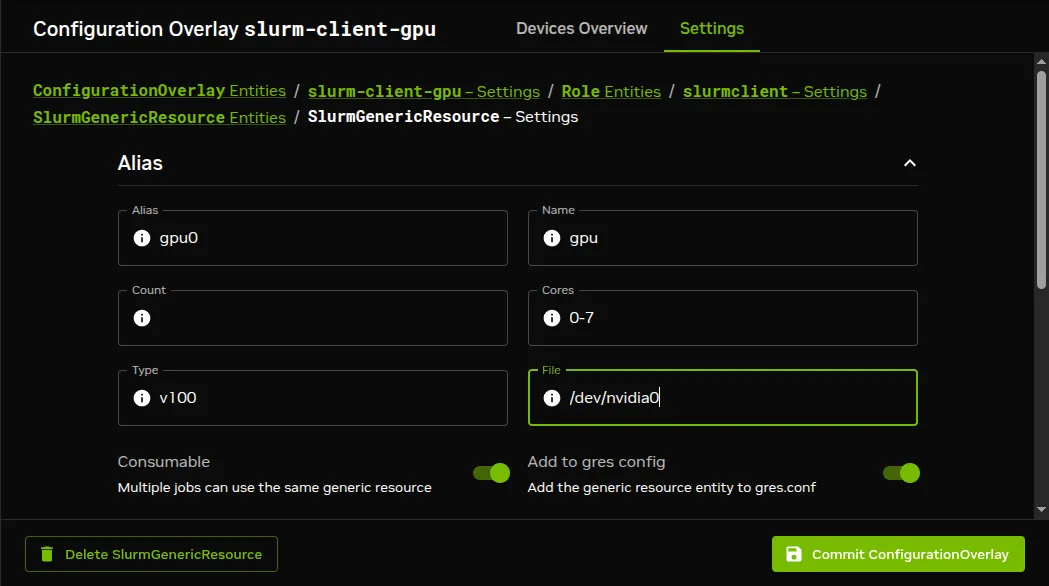
Figure 7.22: Base View access to NVIDIA GPU configuration options
After the generic resources are committed, BCM updates the gres.conf file.
Since NVIDIA Base Command Manager version 8.2, a single gres.conf configuration file, located at /cm/shared/apps/slurm/etc/slurm/gres.conf is used.
If the category consists of node001 and node002, then the entries to the gres.conf file in this case would look like:
Example
Slurm supports topology-aware resource allocation to optimize job performance. BCM supports configuration for the topology/tree and topology/block Slurm plugins using the topograph service (here):
-
topology/tree: models the cluster network as a hierarchical structure, where Slurm allocates resources to jobs to minimize network contention. Nodes are grouped under leaf switches, which connect to higher-level switches. The plugin helps to allocate nodes that are close together in the network hierarchy. The plugin requires all nodes for a single job be connected using switches. The configuration of the plugin is defined using switches and their relationships. -
topology/block: models the network as non-overlapping blocks of nodes. The plugin aims to keep jobs contiguous within blocks for better communication. The plugin does not require all nodes to be part of blocks. The configuration is defined using blocks of nodes and their groupings.
The network topology configuration for a Slurm instance <slurmcluster> is described by:
/cm/shared/apps/slurm/etc/ <slurmcluster>/topology.conf
The file is modified in an autogenerated section when the cluster administrator modifies the internal topology settings in BCM, or when the topology arrangement record is fetched from Topograph, the topology generation service (here). The topology settings can be modified in BCM via the topologysettings submode of the WLM instance in cmsh:
Example
A visualization (figure 7.23) of topologysettings, and its submodes and settings may be useful when reading the contents of this section:
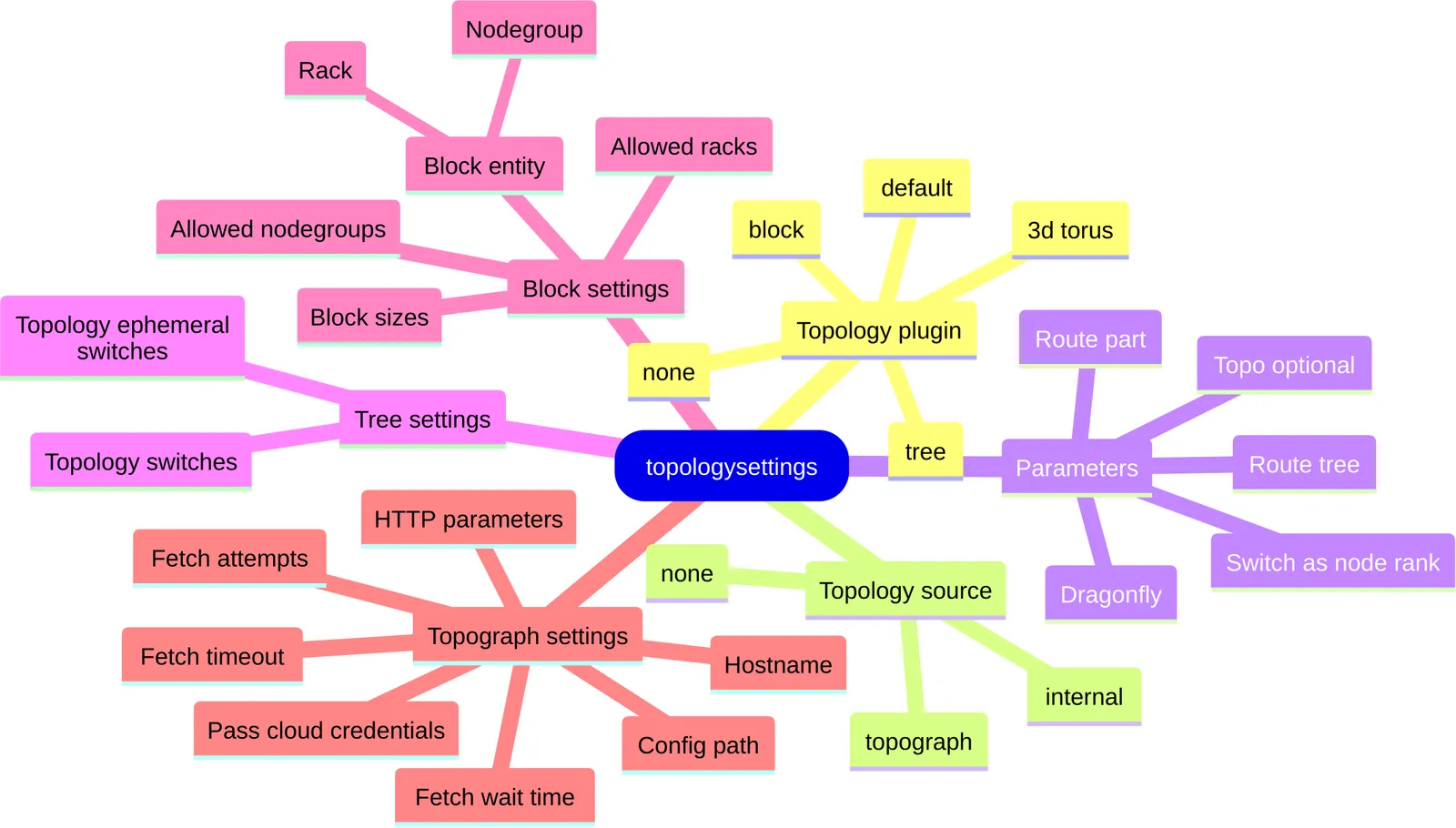
Figure 7.23: Visualization of settings under topologysettings
BCM allows a topology configuration to be generated for both the topology/tree and topology/block Slurm plugins. By default neither of these plugins is enabled. To enable topology generation, the administrator can select the plugin type within WLM mode using the Topology plugin parameter, and can select the Topology source:
By default, both Topology source and Topology plugin are set to none, which means that topology.conf is not updated by BCM.
Within topologysettings, the Topology plugin parameter configures plugins in the Slurm-related .conf files:
Example
-
none: no plugin is configured inslurm.conf -
default: thetopology/defaultplugin is set inslurm.conf -
3d torus: thetopology/3d_torusplugin is set inslurm.conf -
block: thetopology/blockplugin is set inslurm.confandtopology.confis updated -
tree: thetopology/treeplugin is set inslurm.confandtopology.confis updated
The topology settings can be configured in a similar way in Base View.
Within topologysettings, there are these 4 submodes: Parameters, Tree settings, Block settings, and Topograph settings:
-
The
parameterssubmode manages parameters that are common for all plugins:Example
These correspond to values of
TopologyParaminslurm.conf(man slurm.conf.5). -
The
treesettingssubmode allows access to some parameters that modify the topology for thetopology/treeplugin:Example
The
treesettingsparameters are:-
topologyephemeralswitches: A boolean to allow ephemeral switches to be added totopology.conf -
topology switches: A Slurm cluster configuration parameter that defines the list of switches used to write the topology file:Example
The switches-to-nodes mapping does not require the switch devices to exist. The mapping can be defined in one of the following ways:
-
Definitions using the
switchportsparameter: the port definitions (here) for a node or a switch must normally be configured to let BCM construct the topology tree intopology.conf. The definitions can be carried out using theirswitchportsparameter:Example
-
Definitions using the
SlurmTopologyparameter: the Slurm network topology can be configured without configuring the ports in BCM, by using theirSlurmTopologyparameter:Example
The preceding example populates the autogenerated section of
topology.confas follows:Example
The following
AdvancedConfigdirectives (here) can be used to control the topology parameters layout further.-
SlurmStraightExtraTopology: If set to a value of0, then the order of switches is reversed when setting the extra values. For example, to get the same content oftopology.confas in the preceding example, the following lines can then be committed:Example
In topology/plugin configuration, switches and nodes cannot both be connected to the same switch. This is consistent with the description in
man topology.conf.5. If the configuration in BCM has both nodes and switches connected to the same switch, then only the nodes-to-switch connection is written totopology.conf. -
SlurmConcatTopologySwitchName: If set to1, then it allows concatenation of the switch names in the topology defined using theSlurmTopologynode extra setting. TheSlurmTopologysetting is described earlier on. The concatenation starts in order of parent switches first. Thus, switchswitch02that is directly connected to switchswitch01is namedswitch01-switch02intopology.conf.Example
The preceding results in the following content within
topology.conf:Example
-
-
-
The
blocksettingssubmode undertopologysettingsis where thetopology/blockplugin settings are located:Example
The parameters of the
topology/blockplugin are:-
Block entity: what BCM entity type defines a block. Possible entity type values are:-
nodegroup: if a node is in several nodegroups then it goes to the first block -
rack: if a pair of racks is configured as twins, then nodes from both racks go to a single block
Nodes with a
slurmclientrole that belong to the specified entity are grouped in a single block. For instance, if two nodegroups are defined in BCM as:-
ng1: a nodegroup that includesnode001andnode002, both with theslurmclientrole
and -
ng2: a nodegroup that includesnode003andnode004, both with theslurmclientrole
then
topology.confis updated with the following lines:Example
-
-
Block sizes: corresponds to the parameter intopology.confwith the same name. It displays a list of the planning base block size, alongside any higher-level block sizes that would be enforced. More details can be found inman topology.conf.5.
-
-
Topograph settings can be found within the
topographsettingssubmode, undertopologysettings. The settings are described further on.
Topograph service integration: A topograph in real life can be a monument that shows important geographical properties (for example altitude, latitude, roads, and so on) in a very visible location (typically on a hilltop). In BCM, Topograph is used to mean the topological record that is visible to the cluster manager in BCM. Topograph runs as a system service, and BCM fetches topology information from the service when required, updating topology.conf as needed.
Currently, Topograph, when used with cloud services, supports only cloud GPU nodes that are supported by the topology API that the cloud providers provide. The nodes in the cloud must exist—that is, it must be possible to stop them—during topology generation. If Topograph cannot get the topology for a node, then the node in topology.conf is put under a special fake switch (if node is set to tree topology) or block (if the node is set to block topology).
Basic Topograph configuration with some default settings is carried out with cm-wlm-setup (here), as part of Topology configuration.
The integration between BCM and Topograph can then be further configured within the topographsettings submode:
Example
The Topograph settings are:
-
Hostname: the hostname where these settings run -
Config path: a path for the YAML configuration of the Topograph settings -
HTTP parameters: used to pass a string of HTTP parameters to the HTTP API service -
Pass cloud credentials: if set toyes, then cloud service provider credentials are passed on to the topology generator -
Fetch timeout: the Topograph API timeout value (in seconds) -
Fetch attempts: the number of attempts to carry out when trying to get a topology from Topograph -
Fetch waittime: the wait time between fetch attempts (in seconds)
and there are also extra settings, which are used with default values when configuring Topograph manually:
-
HttpPort: the tcp port used by Topograph to listen on (default:49021) -
HttpSSL: is Topograph using SSL? (default:true) -
RequestAggregationDelay: delay for request aggregation (default:15s) -
PageSize: number of results per API call (default:100) -
SSLCertPath: server certificate path (default:/etc/topograph/ssl/server-cert.pem) -
SSLCertKeyPath: server certificate key path (default:/etc/topograph/ssl/server-key.pem) -
SSLCACert: certificate authority certificate path (default:/etc/topograph/ssl/ca-cert.pem) -
version4: when set totrue, BCM uses the Topograph 4 API. This setting requires thetopograph4package (see “Using Topograph 4” below).
The service has its own configuration file, topography-config.yaml, which is managed by BCM. The administrator can modify it manually if necessary, to put in settings that are outside of the group of standard and extra topograph settings listed in the preceding text.
If standard or extra topography settings in the navigation path:
cmsh > wlm > topologysettings > topographsettings
are set, then the topography-config.yaml file synchronizes its values from there. That is, no manual changes are typically needed in BCM-managed clusters for the BCM-managed variables.
If the node running the Topograph service is not the node running the Slurm server, then all certificate paths must be in a shared location, such as /cm/shared, and the token UPDATE_TOPOLOGY_TOKEN must be added to the profile node. Profiles are described in section 6.5.
All certificates are managed by BCM and must share the same certificate authority file path.
BCM uses the script /cm/local/apps/cmd/scripts/topograph.certs.sh to generate all certificates. An alternative certificate generator can be set by the administrator using the AdvancedConfig directive (here) TopographCertificatesScript to set a custom script path, to use the same environment variables and options.
If no automatic script generation is wanted then it can be disabled by setting the AdvancedConfig directive TopographSkipCertificates to yes:
Topology configuration with cm-wlm-setup:
The topology source can be configured using cm-wlm-setup (figure 7.24), along with some settings:
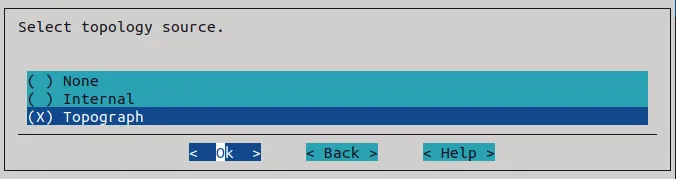
Figure 7.24: Topology source configuration in cm-wlm-setup
If the topology source is Topograph, then a specific node can be selected (figure 7.25):
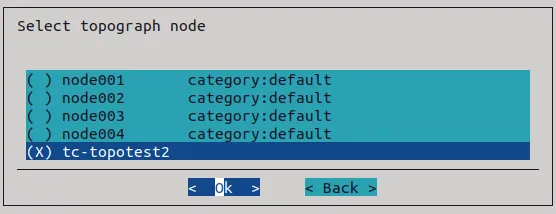
Figure 7.25: Topograph node configuration in cm-wlm-setup
The configuration sets all the extra values of section 7.5.1.8, it installs the Topograph service on the software image or in the node if necessary, and adds UPDATE_TOPOLOGY_TOKEN to the node profile in cmsh, if the Topograph node and Slurm server nodes are different.
The plugin can also be configured with cm-wlm-setup (figure 7.26):
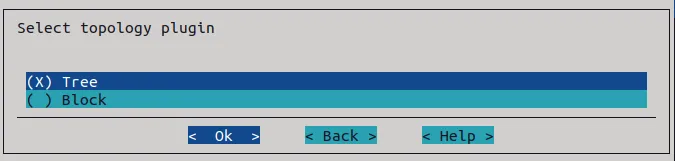
Figure 7.26: Topology plugin configuration in cm-wlm-setup
For more advanced and specific configurations, a further manual configuration is necessary.
Configuring topology manually:
The topograph package is available from the BCM repositories for Ubuntu 22.04 and later, and for RHEL9-compatible distributions:
Example
After picking up the package, the service can be set up on any node. The hostname parameter in topographsettings is set to localhost by default, which is taken from the node that has the slurmserver role assigned to it. The value should be the Topograph server hostname or IP address, which means that if the Topograph service is running on a node without the slurmserver role, then the value must be manually adjusted.
Typically, since slurmserver usually runs on the head node, topograph also runs on the head node, and if the cluster is an HA cluster (Chapter 15) then it should be set up on both head nodes.
The service can be set up on the head node(s) in BCM using the services submode of device mode:
Example
The certificates for the topograph service are generated automatically. The certificates are used by BCM to carry out service API calls.
After restarting CMDaemon on nodes with the slurmserver role with:
systemctl restart cmd
a topology.conf file is generated in /cm/shared/apps/slurm/etc/ <slurmcluster>/topology.conf.
A Slurm topology configuration for the Slurm topology/tree plugin (https://slurm.schedmd.com/topology.conf.html) is generated if a Slurm compute node is affected by:
-
poweroff, shutdown, or power up
-
creation or termination in cloud nodes
-
a Slurm-related configuration change due to a BCM configuration change
Using Topograph 4:
From BCM 11.34, Topograph 4 is available via the topograph4 package. The topograph4 and topograph packages conflict and cannot both be installed on the same software image or node. The topograph package (Topograph 3.x) is installed by default.
To use Topograph 4, both of the following steps are required:
-
The
topographpackage is removed andtopograph4is installed:For Ubuntu distributions:
Example
For RHEL-based distributions,
yumcan resolve the package conflict directly with the--allowerasingoption, which removestopographas part of installingtopograph4:Example
-
The
version4extra value is set intopographsettings:Example
Both steps are required. Installing topograph4 without setting version4 to true, or setting version4 to true while the topograph package is still installed, causes the Topograph service to fail.
The version4 extra value is a setting on the Slurm WLM instance, not a per-node setting, so it only needs to be set once, regardless of how many nodes run Topograph.
topograph4 must be installed on every node on which topograph is currently running. On an HA cluster (Chapter 15), that means both head nodes, matching the placement described in the preceding text. If Topograph runs from a software image rather than only on head nodes, topograph4 must be installed into the image (section 9.4.1) and the standard updateprovisioners (section 5.2.4.4) and imageupdate (section 5.6.2) commands must be used to propagate the change to the running nodes, rather than it being installed directly on a running node.
Installing topograph4 replaces the systemd unit that was installed by the topograph package. As with other BCM-managed services whose systemd unit changes (for example, the slurmd service after a Slurm software-image upgrade, section 7.5.1.3), the systemd unit files must be reloaded and the service restarted on every node where topograph4 was just installed, following the placement described in the preceding paragraph:
Example
The FakeNodes and FakeNodesPool extra settings, which were special values used in earlier versions of some Slurm clusters, are no longer needed in recent versions of Slurm, and are not supported in Topograph 4. If these settings are configured when version4 is active, BCM logs a warning and ignores them.
To revert to Topograph 3, the version4 extra value must be cleared, and the topograph package reinstalled on every node currently running topograph4 – directly on the node if it was installed there (for example, a head node), or in the software image, followed by updateprovisioners and imageupdate, if it was installed via a software image.
For cloud service providers
managed by BCM there are some extra considerations for the topograph service:
-
For AWS clouds the compute nodes must be running (exist), and must have a flavor that supports the AWS topology API (https://docs.aws.amazon.com/AWSEC2/latest/UserGuide/ec2-instance-topology.html). One of the supported flavors is the
p5.48xlargeinstance currently used by DGX Cloud.Requirements:
-
To access the AWS instance topology API using the
topographservice, a prerequisite for an IAM identity is to have permissions forec2:DescribeInstanceTopology. This permission can be enabled through an AWS-managed policy calledAmazonEC2ReadOnlyAccess. -
Topograph needs credentials to perform the AWS API call.
-
If the administrator sets the value of
Pass cloud credentialstoyes, then BCM sends the credentials to thetopographservice on each topology fetch. -
If the administrator sets the value of
Pass cloud credentialstonoin BCM, then the profile of the EC2 instance wheretopographruns has an IAM role with theAmazonEC2ReadOnlyAccesspolicy enabled. AWS EC2 instances support an IMDS API that provides metadata related to the instance itself. One of the features of this API is the support of a profile role for an instance.
-
-
-
For OCI clouds the nodes must exist in OCI, and
- the administrator can set the value of
Pass cloud credentialstoyes
or
-
the administrator can set the value of
Pass cloud credentialstonoand specify some named dynamic group (https://docs.oracle.com/en-us/iaas/Content/Identity/Tasks/managingdynamicgroups.htm) policies in the tenancy.Each named dynamic group must have permissions to inspect certain resources. Additionally, the special BCM
thebcmnonprod-topo-dgdynamic group must have various permissions set to use a variety of resources. The permissions can be set according to the OCI policy syntax (https://docs.oracle.com/en-us/iaas/Content/Identity/Tasks/callingservicesfrominstances.htm#Writing) as follows:
- the administrator can set the value of
-
For GCP clouds the requirement is that the placement policy for VMs should be
compact.
After the Topograph package is installed, the service started, and the administrator has met the requirements for the cloud topology API, then the topologyplugin and topologysource values must be set:
Example
If topologysource is set to a value of none, then topology.conf content is not updated by BCM. Setting a value of topograph causes the Slurm topology to be fetched from the topograph service. The topograph service currently supports only the tree and block plugins.
Two additional cmsh commands allow testing:
-
The
topology updatecommand starts a topology update in the background. -
The
topology printcommand prints the generated content for Slurmtopology.confto STDOUT. This is a synchronous operation, which means that it can freeze for 10-15 seconds when Topograph is in use.
Example
The topograph service logs can be seen with the systemd command: journalctl -u topograph -f
Prometheus exporter sampling
of the topograph service can be configured in CMDaemon. The topograph service sends out Prometheus metrics, which can be added to BCM as follows:
Example
If, in the following session, the number of measurables is not zero, then it is a confirmation that the metrics are consumed by BCM:
Example
Slurm drain reason policy: CMDaemon allows nodes to be drained:
-
either by user request, using the
draincommand (section 7.7.4) or -
automatically, when a monitoring trigger (section 10.4.5) is configured. For example, if some healthcheck fails, then the appropriate node can be drained automatically.
The administrator can also manually drain a node outside of cmsh, using the Slurm scontrol command from the terminal, as described in man scontrol.1.
In all these cases the drain reason can be specified. By default, if a node is already drained, then a second drain command with a new drain reason replaces the old drain reason.
The behavior can be configured with the parameter Drain reason policy, within the Slurm cluster settings. The Drain reason policy can take one of the following (case-insensitive) values:
-
REPLACE: the old drain reason(s) is replaced by a new one -
APPEND: the new drain reason is separated by a comma, and appended to the existing one(s). -
SKIP:-
If a drain reason already exists, then setting the new drain reason is skipped.
-
If no drain reason already exists, then the new drain reason is applied.
-
In the following example, the drain reason policy is set to APPEND. This means that CMDaemon always appends a new drain reason to any existing ones.
Example
It is also possible to temporarily set an append policy in cmsh when draining a node, by using the + operator as a prefix to the drain reason:
Example
Slurm services restart or reconfiguration conditions:
-
When parameters in the Slurm configuration files are changed by BCM using CMDaemon, typically by actions of
cmshor Base View, then Slurm services automatically restart, andscontrol reconfigureis automatically run, as required. -
When parameters in the Slurm configuration files are changed directly, then BCM does not detect a change automatically, and therefore does not automatically restart or reconfigure Slurm.
Slurm subsystems are restarted and reconfigured based on the following list of conditions:
-
slurmctldandslurmdare restarted if:-
any of the following global
slurm.confparameters managed by CMDaemon are changed:-
SelectType -
SelectTypeParameters -
GresTypes -
StateSaveLocation -
SchedulerType -
SchedulerParameters -
SlurmctldParameters
-
-
gres.confis changed (by CMDaemon) -
oci.conf(https://slurm.schedmd.com/oci.conf.html) is changed (by CMDaemon). Incmshthis typically happens using theocisettingssubmode under thewlmmode. -
nodes are changed (by CMDaemon) in
slurm.conf(nodes are renamed, added, or removed).
-
-
An
scontrol reconfigureis carried out if:-
any Slurm parameters managed by BCM, that are not mentioned in the preceding list of conditions, are changed. This is true also for the
PartitionandNodeparameters within theslurm.conffile, except for theNodeNameandPartitionNameparameters specifically. -
cgroups.confis changed (by CMDaemon) -
topology.confis changed (by CMDaemon)
-
A restart or a reconfigure is not done by CMDaemon under other conditions.
Slurm resource consumption monitoring configuration: Slurm allows the configuration of how consumable resources (core, CPU, memory, etc) are tracked and shared among jobs on a node. At the time of writing of this section (November 2022), cmsh or Base View can be used to configure the tracking and sharing of resources as in the following text.
-
SelectType: this plugin configures the algorithm used to select resources for jobs. By default, NVIDIA Base Command Manager configures theselect/cons_tresplugin. This is an advanced version ofselect/cons_resplugin, and it also allows GPUs to be tracked separately from other consumable resources.Further details on
cons_rescan be found in the Slurm documentation at https://slurm.schedmd.com/cons_res.html and https://slurm.schedmd.com/cons_res_share.html.The
SelectTypeparameter is configured incmshor Base View, from within the Slurm cluster configuration settings:Example
-
SelectTypeParameters: allows the configuration of the resource selection plugin that is specified for theSelectTypeparameter. The possible values depend on the plugin type. Forselect/cons_tres, the values follow the pattern:-
CR_Memoryor -
CR_<COMPUTE_UNIT>[_Memory]where <COMPUTE_UNIT> takes one of the following values:-
Core -
CPU -
Socket -
Board
-
The value of
SelectTypeParametersspecifies if the <COMPUTE_UNIT> resource is tracked, or if the <COMPUTE_UNIT> resource is tracked together with memory, or if only memory is tracked.There are also a few special values that can be applied to
SelectTypeParameters:-
CR_ONE_TASK_PER_CORE: allocate one task per core (used only with theselect/linearplugin) -
CR_CORE_DEFAULT_DIST_BLOCK: allocate cores within a node using a block distribution -
CR_LLN: schedule resources to jobs on the least loaded nodes -
CR_Pack_Nodes: if a job allocation contains more resources than will be used for launching tasks, then rather than distributing a job’s tasks evenly across its allocated nodes, pack them as tightly as possible on these nodes.
-
-
OverSubscribe(here):-
if the
select/linearplugin is used, then theOverSubscribeparameter controls whether or not the nodes are shared among jobs -
if the
select/cons_resorselect/cons_tresplugins are used, then theOverSubscribeparameter controls whether or not the configured consumable resources are shared among jobs. For these plugins, when a consumable resource such as a core, socket, CPU, or other, is shared, it means that more than one job can be assigned to it. The parameter is set per Slurm partition (queue) and accepts the following values:-
EXCLUSIVE: allocate entire node for a job; -
FORCE: makes all resources (except for GRES) in the Slurm partition available for oversubscription without any means for users to disable it (may be followed with a colon and maximum number of jobs in running or suspended state); -
YES: makes all resources (except for GRES) in the Slurm partition available for sharing upon request by the job (may be followed with a colon and maximum number of jobs in running or suspended state); -
NO: no resource is allocated to more than one job.
-
-
-
AccountingStorageTRES: A comma-separated list of resources that the administrator wants to track on the cluster. By default the following resources (TRES) are tracked:-
billing
-
CPU
-
energy
-
memory
-
node
-
fs/disk
-
pages
-
vmem
These default TRES cannot be disabled, but only appended to. Resources use is recorded when used on the cluster. If GPUs of different types are tracked, then job requests with matching type specifications are recorded.
Example
If:
AccountingStorageTRES=gres/gpu:tesla,gres/gpu:voltais set
then:
gres/gpu:teslaandgres/gpu:voltatrack only jobs that explicitly request those two GPU types. -
Slurm REST API: slurmrestd is Slurm’s REST API daemon. It is installed with the BCM package slurm25.05-slurmrestd, or slurm25.11-slurmrestd. The distribution package, slurm-slurmrestd, should not be installed, and indeed its installation is not suggested by the package manager in a cluster that is correctly configured.
Slurm REST API package installation and version matching: If installing the REST API package, then care must be taken to match the versions exactly to its sibling Slurm packages (here). For example, if the already-installed packages have version 25.05:
Example
and if the Slurm REST API package version to be installed is as indicated by the following:
Example
then it means that all already-installed Slurm packages must be upgraded to release 102530_cm11.0_f08198ecda too.
The reason behind matching versions exactly is that the upstream versions can have significant configuration changes between patch versions (here 25.05.8 changing to 25.05.9). These changes may result in a non-functioning workload manager. This is true, not only when considering the Slurm REST API package, but also true when considering the other Slurm packages.
The user daemon cannot be in the bin group for slurm25.05-slurmrestd on SLES15: Slurm 25.05 expects that the user daemon should be a member of only the group daemon. The groups command lists the groups that a user is in, so it can be used to check to see if the user daemon is in the group bin as well in the group daemon with:
Example
Here the user daemon is in the group bin and as well as in the group daemon. For slurmrestd to work properly, the group bin must have user daemon deleted from it. The gpasswd command can do that with:
Example
If slurmrestd is running on a compute node, then the gpasswd command must be run in the image of the compute node instead. For example, if the image is default-image:
Example
The imageupdate command can then be run so that the change is picked up by the node.
The gpasswd command should be run for any group, other than group daemon, that user daemon is a member of.
Slurm REST API and authentication: The slurmrestd service can be configured with JWT (JSON Web Token) authentication as follows:
-
The JWT key is generated in the Slurm cluster configuration directory, and its ownership and permissions are then changed:
Example
The location of the key can differ, but user
slurmmust have read access to the file. -
The JWT plugin is configured in
slurm.conffor the Slurm cluster instance. For example, for a Slurm cluster instance <cluster name>:Example
The
slurmctldservice is restarted to apply the plugin settings. For example, if it is running on the head node: -
A
systemddrop-in file is created for the newslurmrestdservice:Example
Future versions of BCM may automatically create or update the file
99-cmd.conf. It is therefore recommended to use that file name as a best practice for cluster administration. -
The
slurmrestdservice is configured withincmshso that it can be monitored by BCM:Example
-
A ping-like
curlcheck can be run with custom extra headers to ensure that the Slurm REST API service is running properly, as follows:Example
The slurmrestd daemon configuration is specified by its command line arguments. These can be made permanent in /etc/sysconfig/slurmrestd.
Slurm supports GPU autodetection from version 20 onward, using the AutoDetect flag in gres.conf.
Slurm GPU autodetection allows AMD, Intel, and NVIDIA GPUs to have their GPU parameters be set automatically, if autodetection is also enabled in gres.conf. Slurm GPU autodetection removes the need for explicit GPU configuration in gres.conf.
The number of GPUs must however still be specified explicitly by the administrator. This is because at the time of writing (October 2024) Slurm has no GPU autodetection by default.
In BCM, the Slurm GPU hardware detection setting has 7 options, as covered here.
-
Setting the
bcmoption for Slurm GPU autodetection removes the need to specify any further GPU autodetect option. -
Setting a GPU vendor (NVIDIA, Intel, AMD) option for Slurm GPU autodetection means that the
Gres=...parameter inNodeNamelines inslurm.confis still required in order to tellslurmctldhow many GRES to expect. This means that the administrator must define GPUs in BCM, in thegenericresourcesmode of theslurmclientrole, if that has not already been specified duringcm-wlm-setup.However there is no need in this case to specify all the details. It is enough to add a single generic resource named
gpu, and to specify the number of such GPUs. In order to skip adding the generic resources togres.conf, while still allowing GRES information to be added theslurm.conffile, the flagAddToGresConfigshould be set tonoin thegenericresourceentity. For example:Example
Initial generic resources configuration for Slurm GPU autodetection can also be done during Slurm setup by cm-wlm-setup. If GPU configuration is chosen in the TUI screen of cm-wlm-setup (figure 7.27):
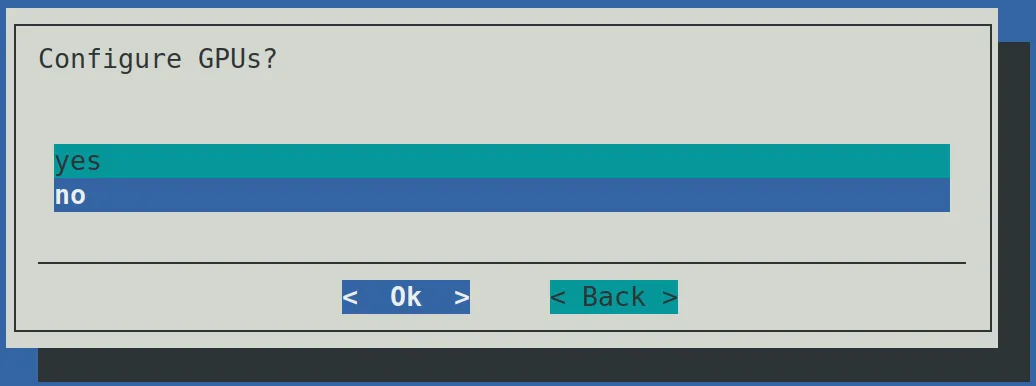
Figure 7.27: The screen prompting for GPU configuration in cm-wlm-setup
then the TUI allows Slurm GPU autodetection options to be selected (figure 7.28):
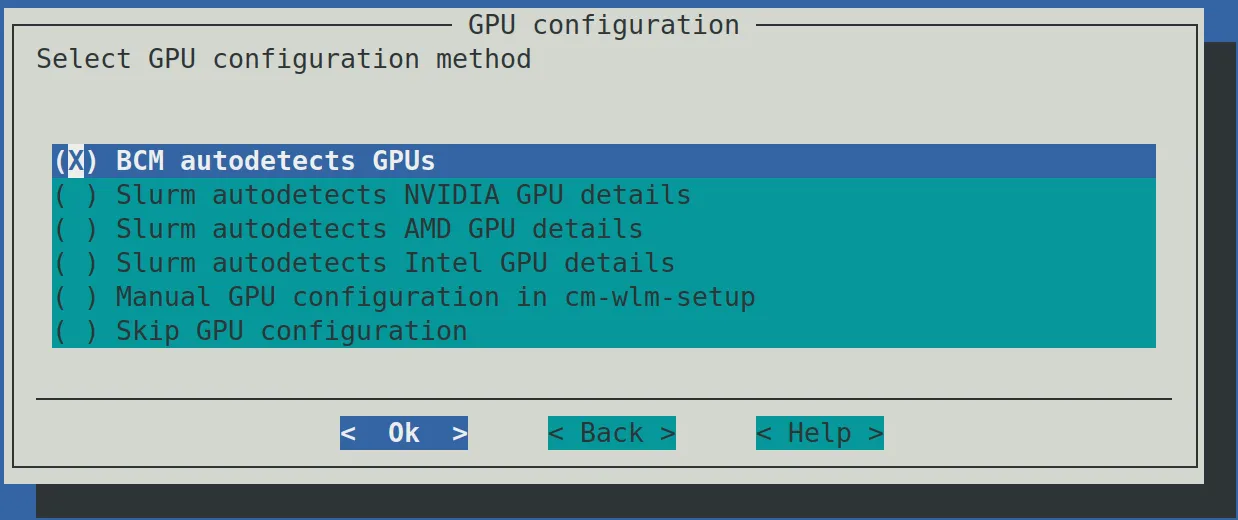
Figure 7.28: The GPU configuration screen of cm-wlm-setup
The options are the same as those described in the list of 7 options for GPU auto detect (here). The options result in the following actions:
-
BCM autodetects GPUs: BCM automatically detects numbers and types of GPUs on the selected nodes and configuresslurm.confappropriately. The administrator is not asked to configure anything. This option does not work if the nodes have GPUs from a mix of vendors. -
Slurm autodetects<vendor>GPU details: the administrator is prompted to specify numbers and types of GPUs later on. These values are then added to theGresparameter ofNodeNamelines inslurm.conf, while Slurm autodetects the rest of the GPU details. -
Manual GPU configuration in cm-wlm-setup: the administrator is prompted to enter the GPU parameters manually. The manual entries are then converted to appropriate lines ingres.conf.
Slurm GPU cluster settings: When a GPU is configured the following parameters can be configured with BCM:
Example
MIG and Slurm: NVIDIA’s Multi-Instance GPU (MIG) technology is a way to optimize GPU use. MIG allows a single GPU to be partitioned into up to 7 separate logical GPU instances, each providing separate GPU resources to user jobs. Slurm is MIG-capable since version 21.08.
BCM automates the configuration of MIG profiles as GPU generic resource types. This means that a user can request GPUs by type, and Slurm then tracks the MIG profiles usage.
MIG detection on Slurm compute nodes (nodes with the slurmclient role assigned) means that the slurm.conf and gres.conf files are automatically configured by CMDaemon as follows:
-
slurm.conf:-
For each node,
NodeNameparameter lines have aGresspecification (generic resource type specification) with the MIG profile names appended as strings. The strings take the format:gpu:<profile>:<number>where <number> is the number of instances with the profile name of
gpu:<profile>. For example:-
A GPU on
node001is partitioned into two MIG instances, one with a profile name of3g.40gb, and the other with a profile name of4g.40gb:Example
-
A GPU on
node001is partitioned into two MIG instances, both with same profile name3g.20gb. Also present is a regular GPU,a40, that is configured manually as a generic resource:Example
-
-
The
GresTypesparameter line has the MIG profiles from all the compute nodes.Example
-
The
AccountingStorageTRESparameter line includes the new generic resource per MIG profile.Example
-
-
gres.conf: theAutoDetectparameter is set toNVMLfor the nodes where MIGs are detected.Example
In this case Slurm detects the MIG details (links, file, cores, and so on) automatically.
If the GPUs are repartitioned by BCM, then the Slurm configuration is by default automatically updated with the new GPU types according to the new MIG profiles. The default value of yes can be modified with the configuremigs parameter in Slurm cluster settings:
Example
The administrator can validate that the MIG devices are correctly recognized by Slurm, by checking the Gres line output of the scontrol show node command:
Example
The presence of a socket value such as S:0 indicates that Slurm detected the MIG details on the node as expected.
Slurm node settings:
The parameter value for a Slurm option in slurm.conf is set by CMDaemon, if its value is not: 0.
A parameter value of 0 means that the default values of Slurm are used. These usually have the value: 0.
The advanced options that CMDaemon manages for Slurm are:
Further Slurm documentation is available:
-
in
manpages under/cm/local/apps/slurm/current/man/ -
as HTML documentation in the version dependent directory of the form:
/cm/local/apps/slurm/current/share/doc/slurm-<version>/html, or -
at the Slurm website at http://slurm.schedmd.com/documentation.html
Slurm is set up with reasonable defaults, but administrators familiar with Slurm can reconfigure the configuration file using a web browser. The web browser can be used with the HTML documentation of the installed Slurm version, in the version dependent directory of the form:
/cm/local/apps/slurm/current/share/doc/slurm- <version>/html/
The choice of JavaScript-based configuration generators is then:
-
configurator.easy.html: for a simplified configurator -
configurator.html: for a full version of the configurator.
If the configuration file becomes mangled beyond repair, the original default can be regenerated once again by re-installing the Slurm package, then running the script /cm/local/apps/slurm/current/scripts/cm-restore-db-password, and then running cm-wlm-setup. Care must be taken to avoid duplicate parameters being set in the configuration file—slurmd may not function correctly in such a configuration.
7.5.1.9 Running Slurm
Slurm can be disabled and re-initialized with the cm-wlm-setup tool (section 7.3) during package installation itself.
Alternatively, role assignment and role removal can be used to adjust what nodes, if any, run Slurm. The assignment and removal of roles can be carried out from Base View (section 7.4.1) or cmsh (section 7.4.2).
The Slurm workload manager runs these daemons:
-
as servers:
-
slurmdbd: The database that tracks job accounting. It is part of theslurmdbdservice. -
slurmctld: The controller daemon. Monitors Slurm processes, accepts jobs, and assigns resources. It is part of theslurmservice. -
munged: The authentication (client-and-server) daemon. It is part of themungeservice.
-
-
as clients:
-
slurmd: The compute node daemon that monitors and handles tasks allocated byslurmctldto the node. It is part of theslurmservice. -
slurmstepd: A temporary process spawned by theslurmdcompute node daemon to handle Slurm job steps. It is not initiated directly by users or administrators. -
munged: The authentication (client-and-server) daemon. It is part of themungeservice.
-
Logs for the daemons are saved on the node that they run on. Accordingly, the locations are:
-
/var/log/slurmdbd -
/var/log/slurmd -
/var/log/slurmctld -
/var/log/munge/munged.log
7.5.2 Installing, Configuring, And Running LSF
IBM prefers to make LSF available directly from their Passport Advantage Online website, which is why it is not available by direct selection in figure 3.9 of the Installation Manual.
IBM provides LSF in 2 ways.
Somewhat confusingly, the archived IBM Spectrum LSF Suite version 10.2.0.9 has LSF Standard edition 10.1 as a component. The component is supported, but installation from the suite is not supported by BCM. That is, installation using the official IBM method or by carrying out a manual installation are both not supported by BCM. A cluster administrator should therefore not try to install LSF Standard Edition 10.1 from a IBM Spectrum LSF Suite release.
7.5.2.1 Installing LSF
The workload manager LSF version 10.1 is installed and integrated into NVIDIA Base Command Manager 11 with the following steps:
-
The following LSF files should be downloaded from the IBM web site into a directory on the head node:
-
Installation package:
lsf<lsf_ver>_lsfinstall_linux_<cpu_arch>.tar.Z -
Distribution package:
lsf<lsf_ver>_linux<kern_ver>-glibc <glibc_ver>-<cpu_arch>.tar.Z -
Documentation package (optional):
lsf<lsf_ver>_documentation.tar.Z
Here:
-
<lsf_ver> is the LSF version, for example:
10.1 -
<kern_ver> is the Linux kernel version, for example:
2.6 -
<glibc_ver> is the glibc library version, for example:
2.3 -
<cpu_arch> is the CPU architecture, for example:
x86_64
A check should be done to ensure that the
tar.Zfiles have not been renamed or had their names changed to lower case during the download, in order to avoid installation issues. All the files must be in the same directory before installation.In case of an existing failover setup, the installation is done on the active head node.
A license file for LSF may also be needed for the installation, but it does not have to be in the same directory as the other
tar.Zfiles. -
-
The
cm-lsfpackage must be installed on the head node. Thecm-lsf-clientpackage must be installed on both the head node and within the software images. By default they should have been already installed. If not then they can be installed manually from the BCM repository. For RHEL-based distributions the procedure looks like:For SLES distributions the procedure looks like:
For Ubuntu distributions the procedure looks like:
The
cm-lsfandcm-lsf-clientpackages contain a template for an environment module file, an installation configuration file, and systemd unit files. The installation configuration file may be tuned by the administrator if required. It is passed to thelsfinstallscript distributed with LSF, which is executed bycm-wlm-setupduring setup. To change the default values in the installation configuration file, the administrator should change the template file:Values enclosed by a percentage sign, ‘%’, are replaced by
cm-wlm-setupduring installation. If such values are replaced by custom values, thencm-wlm-setupdoes not change them, and the custom values are used during installation.If
install.configis changed instead of the template file, thencm-wlm-setupreplaces it with the configuration file generated from the template. So, changinginstall.configdirectly should almost certainly not ever be done. -
cm-wlm-setupis run. The directory where the LSF files were downloaded is specified on one of the setup screens, or with the--archives-locationoption.Example
The same can be achieved by executing
cm-wlm-setupwithout any command line arguments. The required information can be specified within the TUI configuration screens in this case. Also the same can be achieved with the WLM Wizard in Base View. -
The nodes are then rebooted, and the LSF command
bhoststhen displays an output similar to:Example
The output in the preceding example has been truncated for this manual, for convenience.
The installation status can be checked with the service
lsfd(some output elided):while default queues can be seen by running:
The output in the preceding example has been truncated for this manual, for convenience.
If more than one instance of an LSF cluster is set up, then the full modulefile name should be specified. For example:
7.5.2.2 Configuring LSF
LSF server configuration: After LSF is set up with cm-wlm-setup, the following CMDaemon settings can be modified for the LSF server role:
External Server: a value ofyesmeans that LSF server daemons are running on an external server that is not managed by BCM.
The following settings are available in LSF cluster settings, and are applied to all the LSF roles of the LSF cluster:
-
Prefix: this sets the path to the root location of the LSF installation. The default value is/cm/shared/apps/lsf/current. -
Var: this sets the path to thevardirectory of LSF. The default value is/cm/shared/apps/lsf/var. -
Cgroups: this is a submode that contains LSF-related cgroups settings.
The cgroups settings that affect LSF behavior are available using the LSF instance. For example, for an instance lsf, the settings can be accessed within cmsh using cmsh->wlm[lsf]->cgroups. The settings available are:
-
Automount: ifyes, then the workload manager tries to mount a subsystem if it is not mounted yet. The default value isNo. -
Job Cgroup Template: this is the template relative job cgroup path. The token$CLUSTERspecified in this template path is replaced with the actual LSF cluster name, and$JOBIDis replaced by the job ID. The path is used by the BCM monitoring system in order collect job metrics from the cgroups. By default, the path is set to"lsf/$CLUSTER/job.$JOBID.*". -
Process Tracking: ifyes, then processes are tracked based on job control functions such as: termination, suspension, resume, and other signaling. These are used on Linux systems that support the freezer subsystem under cgroups. The parameter sets LSF_PROCESS_TRACKING inlsf.conf. -
Linux Cgroup Accounting: ifyes, then LSF tracks processes based on CPU and memory accounting. This is for Linux systems that support the memory and cpuacct subsystems under cgroups. Once enabled, this parameter takes effect for new jobs. The parameter sets LSF_LINUX_CGROUP_ACCT inlsf.conf.If this parameter and
Process Trackingare both enabled, then they take precedence over the parameters LSF_PIM_LINUX_ENHANCE and EGO_PIM_SWAP_REPORT inlsf.conf. -
Mount Point: specifies a path where cgroups is mounted. It only makes sense to set this when the location is not standard for the operating system. -
Resource Enforce: Ifyes, then resource enforcement is carried out through the Linux memory and cpuset subsystems under cgroups. This is for Linux systems with cgroup support. The parameter sets LSB_RESOURCE_ENFORCE inlsf.conf.
The server role settings can be modified as follows:
-
Within Base View: For example for a head node
basecm11, using a navigation path ofDevices > All Devices > Head Node > Settings > Roles > + Add > LsfServerRole -
Within
cmsh: For a particular category in thecategorymode, or a particular device in thedevicemode, therolessubmode is chosen. Within therolessubmode, thelsfserverobject can be assigned or used. The following example shows how to set the LSFprefixparameter for thedefaultcategory.Example
The global LSF cluster settings can be modified as follows:
-
Within Base View:
For example, for a head nodebasecm11, using a navigation path of:
HPC > Workload Management Clusters >WLM (LSF) instance -
Within
cmsh:
A particular LSF cluster instance can be chosen withinwlmmode, to set its global parameters. The following example shows how to set the LSFprefixparameter for thelsf1cluster.Example
LSF client configuration: After installation, the following CMDaemon settings can be specified for the LSF client role:
-
**Queues ** In
cmsh, queues can be added usingjobqueuemode. In LSF, the defaultqueueisnormal. More arbitrarily-named queues can be specified with:Example
The
jobqueuevalues can be set for the LSF client role:Example
Alternatively, queues can be managed using Base View (section 7.6.2).
-
**Specifying nodes for job queues for LSF ** The administrator can specify the nodes that are associated with a job queue.
-
Prior to BCM version 11, job queues were specified for nodes only by using the
queuesparameter of thelsfclientrole at thedevice,category, orconfigurationoverlaymode level.For example, for the configuration overlay
lsf-clientthat defines the LSF client configuration by default, the nodes for the LSF client role are the nodes in the default categorynormal. Within the configuration overlay, within thelsfclientrole, the default queue to be used is set tonormalby default:Example
-
Starting with BCM version 11, the administrator can also add nodes to queues directly from within
wlmmode for a particular WLM, within thejobqueuemode for a particular queue, by setting nodes for particular node grouping parameters. For example, for LSF the following queue parameters are available:Example
Thus
normalis used by nodes that have been specified in the following groupings:-
Overlays: nodes in these configuration overlays (including nodes of categories that are in this overlay) -
Categories: nodes in these categories -
Nodegroups: nodes in these node groups -
Compute nodes: nodes listed in this parameter
-
-
-
**Options ** A navigation path of:
Devices > All Devices > node001 > Settings > Roles > + Add > LSFClientRole
lets options be set for a regular nodenode001(figure 7.29):
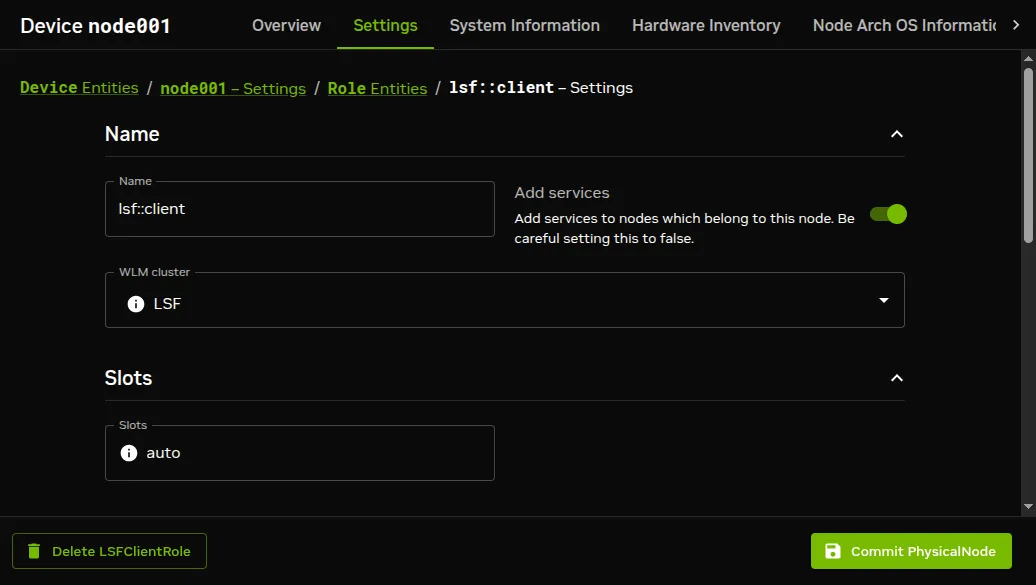
Figure 7.29: Base View access to LSF configuration options using roles window options
Available options are:
-
Slots: The number of CPUs per node. By default LSF tries to determine the value automatically with the
autosetting. If the number of slots is set to0, then the node becomes an LSF submit host, so that no jobs can run on the host, but users can submit their jobs from this host using the LSF utilities. -
Queues:
Allqueues can be set, or queues can be selected. -
Server: Whether the node is an LSF server
-
Host Model, Host Type: Possible values for these are defined in
lsf.shared -
GPUs: The number of GPUs per node.
-
Node Customizations: LSF node custom properties (section 7.11).
From cmsh these properties are accessible from within the appropriate node or category roles submode (section 7.4.2.4).
Submission hosts: By default, all compute nodes to which the lsfclient role is assigned, also become submission hosts. This means that LSF users can submit their jobs from those compute nodes. If the administrator wants to allow users to submit their jobs from a non-compute node—for example from a login node—then the lsfsubmit role should be assigned, for example:
Example
Configuring a node according to the preceding steps then allows users to submit their jobs from that node, without the submitted jobs getting scheduled to run on that node.
If more than one LSF cluster is set up, and they share the same submit host, then a single lsfsubmit role can be used. In this case, all the LSF cluster names should be appended to the lsfcluster parameter of the role.
Further configuration: For further configuration the Administering Platform LSF manual provided with the LSF software should be consulted.
7.5.2.3 Running LSF
Role assignment and role removal enables and disables LSF from Base View (sections 7.4.1) or cmsh (section 7.4.2).
An active LSF master service (typically, but not necessarily on a head node) has the following LSF-related processes running on it:
*These services/processes run on compute nodes.
Non-active LSF-masters running as compute nodes run the processes marked with an asterisk only.
LSF daemon logs are kept under /cm/local/apps/lsf/var/log/, on each of the nodes where LSF services run.
7.6 Using Base View With Workload Management
Viewing the workload manager services from Base View is described in section 7.4.3. The HPC (High Performance Computing) icon, which looks like a speedometer, is the Base View resource that allows the following items to be accessed:
-
WLM clusters: for WLM cluster settings for a WLM cluster instance to be viewed and managed
-
jobs: for jobs to be viewed and managed
-
queues: for queues to be viewed and managed
-
job queue stats: for job queue statistics to be viewed
These items are described next.
7.6.1 Jobs Display And Handling In Base View
The navigation path HPC > Jobs opens up the Job list window. This displays a list of recent job IDs, along with the user, status, scheduler used, and queue (figure 7.30).
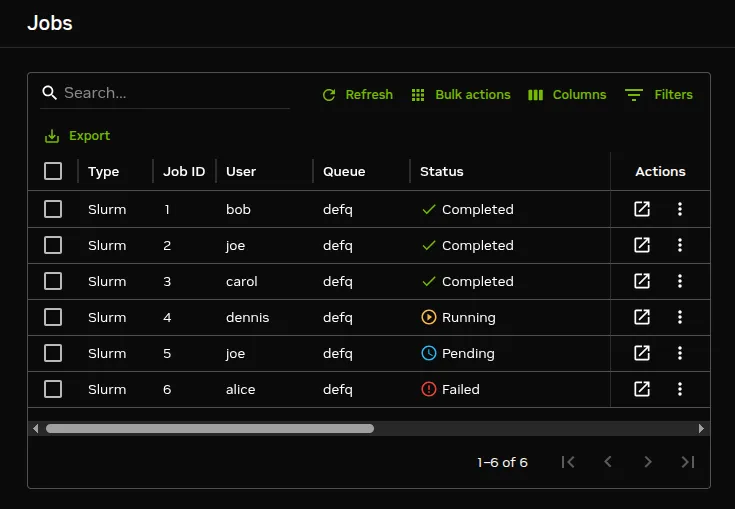
Figure 7.30: Workload manager job list window
- The ↗ in the
Actionscolumn opens up a screen that allows a particular job to be examined (figure 7.31):
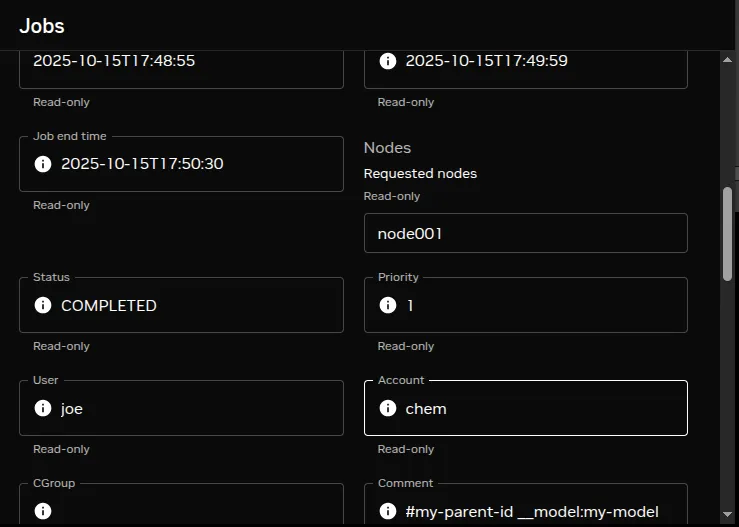
Figure 7.31: Workload manager job subwindow
- The ⋮ in the
Actionscolumn allows a particular job to be managed (figure 7.32):
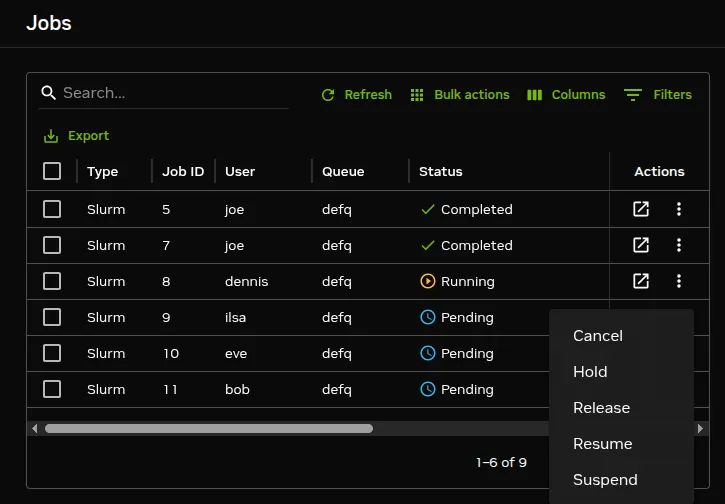
Figure 7.32: Workload manager job management window
The menu options allow the selected job to be managed as follows:
-
The
Holdoption stops selected queued jobs from being considered for running by putting them in aHoldstate (Hin theStatuscolumn). -
The
Releaseoption releases selected queued jobs in theHoldstate so that they are considered for running again. -
The
Suspendoption suspends selected running jobs (Sin theStatuscolumn). -
The
Resumeoption allows selected suspended jobs to run again. -
The
Canceloption removes selected jobs from the queue.
7.6.2 Queues Display And Handling In Base View
The navigation path HPC > Workload Management Clusters > Job Queues displays a list of queues available (figure 7.33).
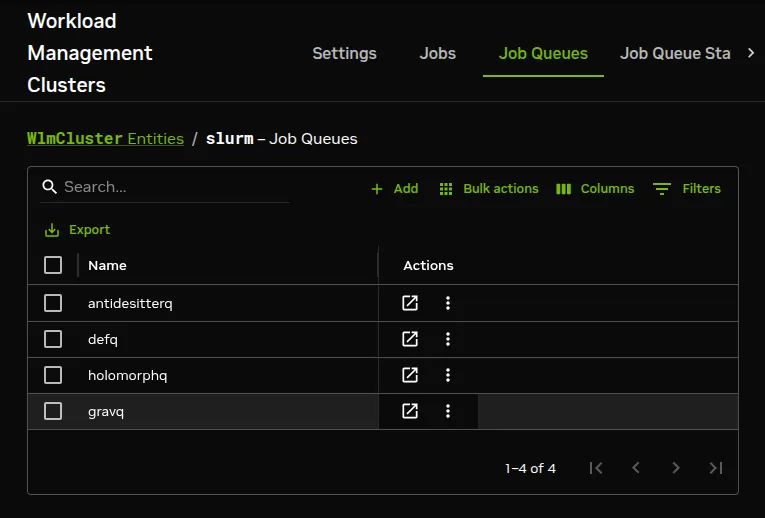
Figure 7.33: Workload manager queues
Queues can be added with the + Add option, or deleted with the ⋮ option. Opening a screen with the ↗ option allows queue parameters for an existing to be set, for example as in figure 7.34.
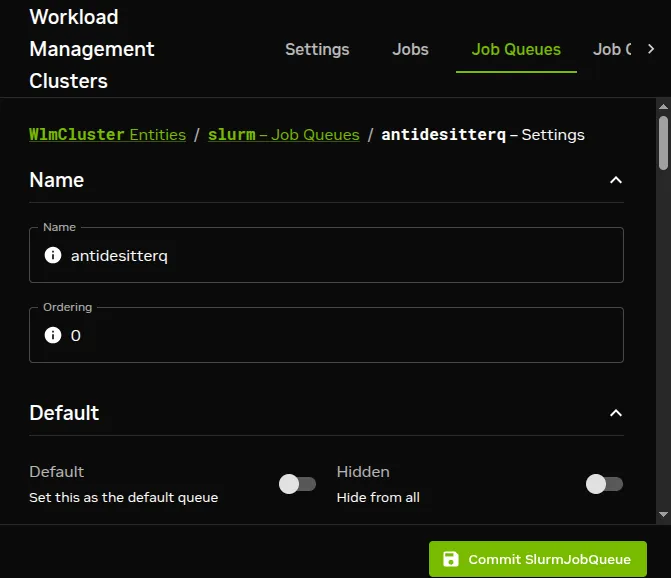
Figure 7.34: Workload manager queue parameters configuration
7.7 Using cmsh With Workload Management
The wlm mode in cmsh gives the administrator access to the WLM instances running on the cluster.
The cmsh tree (Appendix M) has the following submodes structure under the wlm mode:
-
accounting: provides ways to set some advanced Slurm job accounting properties (here) -
cgroups: provides ways to configure WLMs using the cgroup mechanism of the Linux kernel (section 7.10) -
chargeback: provides ways to measure the costs of requested IT resources for WLM jobs (Chapter 13) -
jobqueue: allows WLM job queues to be managed (section 7.7.3) -
jobs: allows WLM jobs to be viewed and managed (section 7.7.2) -
ocisettings: allows OCI settings (Chapter 2 of the Cloudbursting Manual) to be viewed and managed -
placeholders: allows nodes to be configured in advance, for planning resource use in WLMs (section 8.4.8)
In addition to these submodes, wlm mode provides several commands at the entity level:
-
activeservers: displays the active WLM server nodes (section 7.7.1) -
grid: shows a visual grid of historic job information (section 7.7.2.6) -
filter: filters job information across WLM instances (here) -
statistics: displays job statistics (here)
The monitoring commands healthoverview (here), samplenow (here), and monitoringactionhistory (here) are also available in wlm mode, and described in Chapter 10.
For basic WLM management using cmsh, the administrator is expected to use wlm mode with the jobs and jobqueue submodes.
If there is just one WLM instance running on the cluster, then an administrator that accesses wlm mode drops straight into the object representing that WLM instance, and can then access the submodes.
If there is more than one WLM running, then the administrator must select a WLM instance from the top level wlm mode, with the use command, in order to access the submodes.
While at the top level wlm mode, the instances can be listed. The list shows the nodes used by the instance, and the node roles assigned to the nodes.
Suppose BCM is being used to manage two WLM instances:
-
one Slurm WLM, named
slr -
one Slurm WLM, named
uc
with their nodes having been allocated roles as follows:
Example
Then one way to list all jobs running per WLM instance, queue, and user, is with the filter command:
The filter command can also be run within the jobs mode, for a particular WLM instance, and is described in more detail here.
An alternate way to list all jobs from wlm mode is with a foreach command to descend into jobs submode to list the jobs for each WLM instance:
Example
The jobs submode is now discussed further.
7.7.1 The activeservers Command
The activeservers command displays the nodes currently acting as active WLM servers. It helps a cluster administrator check which head or server node is actually handling the workload manager, particularly in high-availability configurations.
Example
The output shows the WLM instance name and the hostname of its active server node.
7.7.2 The jobs Submode In cmsh
Within the jobs submode of a WLM instance, the administrator can list jobs that are running or queued up for that particular instance. For example, the running and queued jobs listed for a Slurm instance may be displayed as:
Example
The number of jobs can be very large. The wait command in jobs mode can be used to provide a shorter running summary. The following wait command displays a running summary that regularly displays a tally of the running and pending jobs; waits for all of them to complete; and has the waiting-for-completion condition overruled by a timeout of 10 minutes:
Example
By default wait runs every minute until the specified timeout. Also, by default, as indicated by the missing 3rd and 4th minutes in the example, the outputs are only displayed with the tally changes. Further options to the wait command within jobs mode can be found in the help text display output when help wait is run.
In the foreach jobs listings for the two Slurm WLM instances shown earlier, the jobs are in a running, queued up, or completed state. They are also all being run by a user maud, who happens to be making use of both workload managers.
For Slurm, completed jobs are shown for a short time with the status COMPLETED.
7.7.2.1 Commands That Change The Status Of A Queued Or Running Job
Within a jobs submode, the following commands, used with a job ID, can change the status of a particular queued or running job:
-
hold: puts a queued job into aholdstate. This prevents the job from being considered for running. -
release: releases a job from aholdstate, putting it back in the queue, so that it can be considered for running. -
suspend: pauses a running job -
resume: resumes a suspended job -
remove: removes a job
For example, continuing the case earlier on of the cmsh session with the foreach listing (here):
The administrator can suspend the running job with job ID 57 on the Slurm instance as follows:
Example
The administrator can then resume the suspended job ID 57 as follows:
Example
7.7.2.2 Commands To Inspect Jobs:
Within the jobs submode, the following commands can be used to inspect a job:
-
show<job ID>: properties are shown for a running or pending job.The properties that are displayed are taken directly from commands associated with particular workload managers:
-
For Slurm:
scontrol show jobs -
For LSF:
bjobs
-
-
info<job ID>: details are shown about a particular job ID. The job can bepending,running, orcompletedjobs. The data is taken from the BCM database. -
statistics: statistics are shown for jobs. More detail on thestatisticscommand is given here. -
list: lists pending and running job IDs along with some other associated properties. Recently completed jobs are also displayed. Completed jobs do not remain listed for longer than a few minutes. Thefiltercommand (section 7.7.2.4) can be used instead to display all jobs for that WLM instance, using data taken from the BCM database. -
dumpmonitoringdata [OPTIONS] [<start-time><end-time>] <metric><job id>: Displays the monitoring data for a specific metric or healthcheck for a running or completed job. Example:dumpmonitoringdata CtxtSwitches 170More detail is given on the
dumpmonitoringdatacommand in section 10.6.4. -
latestmonitoringdata [OPTIONS]<job ID>: Displays the last measured job monitoring data for the job.-
latesthealthdata<job ID>: The subset of health checks within the last measured monitoring data. -
latestmetricdata<job ID>: The subset of metrics within the last measured monitoring data.
More detail is given on the
latest*datacommands in section 10.6.3. -
-
measurables<job ID>: The measurables used for job monitoring data.-
healthchecks<job ID>: The subset of health checks within the measurables used for job monitoring data. -
metrics<job ID>: The subset of metrics within the measurables used for job monitoring data. -
enummetrics<job ID>: The subset of enummetrics within the measurables used for job monitoring data.
-
7.7.2.3 The info Command Within jobs Submode
Within the jobs submode of wlm, the info <job ID> command shows job information details stored in the BCM database. BCM starts updating the job information in its database as soon as it detects a new job. When the job is completed BCM pulls a final job state and exit code from the workload manager.
Example
The power usage fields for WLM jobs in the preceding output: Total power usage, Total GPU power usage, Total CPU power usage, and Total power under allocation, are populated based on metrics configured in the wlmjobpowerusagesettings submode in partition mode (described later on in this section).
For the associated metrics, power usage is calculated per job, for completed jobs by computing the energy consumption (the sum of power consumed over time) from the job start time until the job end time.
If no metrics are configured, then the power usage fields remain < not set >.
When the metrics are configured, the info output for a completed job shows its energy consumption:
Example
The change from < not set > to values only show up some time after the job has completed, to allow values to be properly gathered.
The wlmjobpowerusagesettings submode under partition mode: has power usage parameters that can be associated with metrics:
Example
-
Job age: Minimum age of a job before power usage is calculated. -
Timeout: Timeout for power data collection. -
Disabled: Disables job power usage calculation when set toyes. -
Node power metrics: Metrics used for total node power usage. -
GPU power metrics: Metrics used for GPU power usage. -
CPU power metrics: Metrics used for CPU power usage. -
Power under allocation metrics: Metrics used for power consumption under allocation.
Metrics can be configured to be part of the power metrics by adding or appending them:
Example
7.7.2.4 The filter Command Within jobs Submode
If run at the top-level wlm mode, then the filter command lists jobs for all WLM instances.
It can also be run at the submode-level jobs mode, for a particular WLM instance, in which case it lists only the jobs for that instance (section 11.5).
The filter command without any options is a bit like an extension of the list command in that it lists currently pending and running jobs, although in a different format. However, in addition, it also lists past tasks, with their start and end times.
An example to illustrate the output format for a Slurm instance, somewhat simplified for clarity, is:
Example
In the preceding example, the start and end times for jobs 28 and 29 are not yet available because the jobs are still pending.
Because all jobs for that WLM instance—historic and present—are displayed by the filter command, it means that finding a particular job in the output displayed can be hard. The displayed output can therefore be filtered further.
The following options to the filter command are therefore available in order to find particular groupings of jobs:
-
-w|--wlm: by WLM instance -
-u|--user: by user -
-g|--group: by group -
--ended: by jobs that ended successfully, with a zero exit status -
--running: by jobs that are running -
--pending: by jobs that are pending -
--failed: by jobs that finished unsuccessfully, with a non-zero exit status
It may take about a minute for CMDaemon to become aware of job data. This means that, for example, a job submitted 10s ago may not show up in the output.
Further options to filter command can be seen by running the command help filter within the wlm or jobs modes.
7.7.2.5 The statistics Command
The statistics command without any options displays an overview of states for all past and present jobs:
Example
The options available include the following:
-
-w|--wlm<WLM instance>: by WLM instance -
-u|--user: by user -
-g|--group: by group -
-a|--account: by account -
-i|--accounting-info <field>[,<field>,...]: by free text accounting fields -
--hour: by hour -
--day: by day -
--week: by week -
--interval: by interval
The jobs statistics can be split across users. An example of the output format in this case, somewhat simplified for clarity, is:
Example
The job statistics can be displayed over various time periods, if there are jobs within the associated period. An example of the output format for an interval of 60s is:
Example
In the preceding example there are no jobs within the period associated with the time 15:01 and 15:02. For readability the statistics for those intervals are not displayed.
7.7.2.6 The grid Command
The grid command displays a color-coded visual grid of historic job information in the terminal. Its use is described in section 12.8.
Example
The following shows job allocation by user for the last hour, in 5-minute intervals, with values displayed as text:
The output is a color-coded terminal grid showing which users ran jobs on each node during each time interval, along with utilization percentages.
Additional options allow filtering by node, category, rack, or job attributes:
Example
The help text for the grid command (help grid) provides further details on all available options.
7.7.2.7 The trackedjobs Command Within jobs Submode
The trackedjobs command shows how many jobs are currently being tracked per node by CMDaemon:
Example
This is useful for verifying that CMDaemon is aware of job activity on each node.
7.7.2.8 The pidsgpus Command Within jobs Submode
The pidsgpus command shows the process IDs (PIDs) and GPU indices detected on each node that is running a particular job. This is useful for inspecting which processes a job has spawned and which GPUs they are using.
Example
Each line shows the node name, the GPU indices assigned to the job, and the PIDs of the job’s processes on that node. For multi-node jobs, one line per node is displayed.
If the job has completed and is no longer tracked, the output indicates this:
Example
7.7.2.9 The stdout, stderr, And stdin Commands Within jobs Submode
The stdout, stderr, and stdin commands display the standard output, standard error, and standard input of a job respectively:
Example
These commands retrieve the output files from the node where the job ran. The file paths for stdout, stderr, and stdin are shown in the info output for the job (the Stdout file, Stderr file, and Stdin file fields).
7.7.2.10 The persistent And forget Commands Within jobs Submode
The persistent command marks a job so that it is not automatically removed from the job information cache. This is useful for keeping a record of important jobs beyond the normal retention period configured by JobInformationKeepDuration (here) and JobInformationKeepCount (here):
Example
The persistent status of a job is shown in the info output as the Persistent field.
The forget command is the opposite: it removes a job from the cache immediately, regardless of whether it is marked as persistent:
Example
7.7.2.11 Job Directives
Job directives configure some of the ways in which CMDaemon manages job information processing.
The administrator can configure the following directives:
-
JobInformationKeepCount: The maximal number of jobs that are kept in the cache, default 8192, maximal value 65536 (here). -
JobInformationKeepDuration: How long to keep jobs in the CMDaemon database, default 28 days (here). -
JobInformationMinimalJobDuration: Minimal duration for jobs to place them in the cache, default 0s (here). -
JobInformationFlushInterval: Over what time period to flush the cache to storage (here). -
JobInformationDisabled: Disables job information processing (here).
7.7.3 Job Queue Display And Handling In cmsh: jobqueue Mode
The jobqueue submode under the top level wlm mode can be used to manage queues for a WLM instance. Queue properties can be viewed and set.
From the top level wlm mode, a list of queues can be seen for each WLM instance by descending into the WLM instance with a foreach:
Example
The usual object manipulation commands (show, get, set and others) of section 2.5.3 work in the jobqueue submode.
7.7.3.1 Job Queue Parameters For Slurm
For example, for a Slurm instance, the show command might display the following properties:
7.7.4 Nodes Drainage Status And Handling In cmsh
Sometimes a node needs to be drained. Draining a node means not allowing new jobs to run on a node, and letting running jobs finish (drain away).
Draining nodes can be for the purpose of:
-
planned maintenance
-
hardware troubleshooting
-
preventing new jobs during system changes
-
isolating problematic nodes
Running the device mode command drainstatus displays if a specified node is in a Drained state or not. In a Drained state jobs are not allowed to start running on that node.
Running the device mode command drain puts a specified node in a Drained state:
Example
The undrain command unsets the Drained state so that jobs may start running on the node again.
The drain, undrain, and drainstatus commands have the same grouping options. The grouping options can make the command apply to not just one node, but to a list of nodes, a group of nodes, a category of nodes, a rack, a chassis, an overlay, a role, or a status. Continuing the example:
The help text for each command indicates the syntax:
Example
A useful one-liner to reboot and reprovision a sequence of nodes could be in the following format:
Example
This drains the nodes and does a power reset action, which provisions the nodes. After the nodes are up again, they are undrained so that they are ready to accept jobs again. The command allows the sequence of nodes to be rebooted, for example for the purpose of upgrading a kernel, without needing to schedule a downtime for the cluster.
The cluster administrator should be aware that using the preceding one-liner is not a universal solution. For example, it is not a good solution if the drain takes a long time, because it means that nodes that drain early could be idle for a long time.
7.8 Examples Of Workload Management Assignment
7.8.1 Setting Up A New Category And A New Queue For It
Suppose a new node with processor optimized to handle Shor’s algorithm is added to a cluster that originally has no such nodes. This merits a new category, shornodes, so that administrators can configure more such new nodes efficiently. It also merits a new queue, shorq, so that users are aware that they can submit suitably-optimized jobs to this category.
Ways to configure the cluster manager for this are described next.
7.8.1.1 A New Category And A New Queue With Base View For An Existing Workload Manager Cluster
Queues can be added to a WLM cluster by running the WLM wizard (navigation path HPC > Wlm Wizard) if the WLM cluster does not yet exist. The wizard provides an option during WLM cluster creation for adding queues.
To create a new queue in an existing WLM cluster, the navigation path:
HPC > Workload Management Clusters > Job Queues > + Add
opens up a pop-up menu that allows queues to be added to the WLM cluster. The properties of the new queue can then be set in the dialog window of the queue (figure 7.33)
At least the queue name, shorq, must be set for the queue. The configuration for the queue properties is saved, and then the job queue scheduler configuration is saved.
Next, a new category can be added using
Grouping > Categories > + Add
Parameters settings in the new category can be set—at least the category name should be set—to suit the new machines The name shornodes can therefore be set here and it becomes part of the list of categories (figure 7.35). .
Figure 7.35: A new shornodes category created using Base View
Another option within the category is to set a workload manager queue. The queue, shorq, is therefore set here for this new category.
Setting a queue for the category means configuring the options of the queue scheduler role, for example the Slurm client role, for the category. So a Slurm client role must be assigned to the category. Continuing from within the shornodes category in figure 7.35, the relative navigation path to set a queue is:
> Settings > Roles > + Add > SlurmClientRole > Queues > shorq
The appropriate queue can be selected from the queue scheduler menu option (figure 7.36):
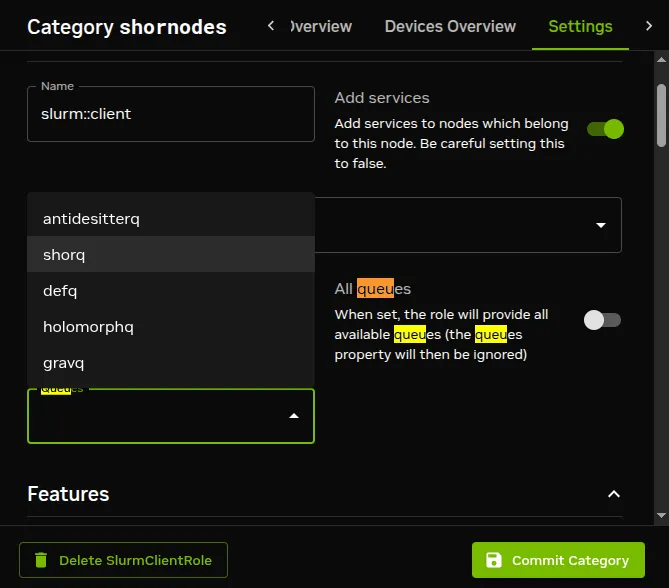
Figure 7.36: Setting a queue for a new category using Base View
In this case, the shorq created earlier on is presented for selection. After selection, the category configuration is committed.
Nodes that are to use the queue should be members of the shornodes category. The final step is then to allocate such nodes to the category. This can be done, for example for a node001, by using the navigation path:
Devices > All devices > node001 > Settings > Category
and setting the category to shornodes.
7.8.1.2 A New Category And A New Queue With cmsh
The preceding example can also be configured in cmsh as follows:
The new queue can be added from within jobqueue mode, for the workload manager. For example, if Slurm is the WLM cluster that is enabled:
The new category, shornodes, can be created by cloning an old category, such as default:
Then, going into the roles submode, appropriate workload manager roles can be assigned, and appropriate queues can be appended and committed for that category:
The nodes belonging to the shornodes category can then be placed by going into device mode to select the nodes to be placed in that category. For example:
7.8.2 Setting Up A Prejob Or Postjob Check
7.8.2.1 How It Works
Measurables such as health checks (section 10.2.4) by default run as scheduled tasks at timed intervals (here). They can independently be configured to run as prejob or postjob checks.
If a health check is configured as a prejob or postjob check, then its response means the same as that of a health check, that is:
-
If the response to a prejob or postjob health check is
PASS, then it shows that the node is displaying healthy behavior for that particular health check. -
If the response to a prejob or postjob health check is
FAIL, then it implies that the node is unhealthy at the time of the check, at least for that particular health check.
Sometimes the strain of running a job can itself cause a health issue on the node. If that is the case, then sometimes the issue can be spotted by an immediate check of the node health after a job has completed—which is what the postjob health check does. A postjob health check is otherwise the same as a regular health check.
-
If a postjob health check response is
FAIL, then the node is unhealthy, even though the job completed. What effect the unhealthy node had on the job may need consideration by the cluster administrator. -
If a prejob health check response is
FAIL, then the node is also unhealthy, but the job is prevented by the WLM from running on that node.
A node that has failed a prejob health check is not allowed to run a job. This is because an unhealthy node means that a job submitted to the node may fail, may not be able to start, or may even vanish outright. The way in which a job can vanish in some cases, without any information beyond the job submission “event horizon” leads to this behavior sometimes being called the Black Hole Node Syndrome.
Draining on a prejob or postjob health check failure: It can be troublesome for a system administrator to pinpoint the reason for such job failures, since a node may only fail under certain conditions that are hard to reproduce later on. It is therefore a good policy to disallow passing a job to a node which has just been flagged as unhealthy by a health check. Thus, a sensible action (section 10.2.6) taken by a prejob or postbjob health check on receiving a FAIL response would be to put the node in a Drained state (section 7.7.4). The drain state means that BCM arranges a rescheduling of the job so that the job runs only on nodes that are believed to be healthy.
A node that has been put in a Drained state with a health check is not automatically undrained. The administrator must clear such a state manually.
The failedprejob health check (here) is enabled by default, and logs any prejob health check passes and failures. By default there are no prejob health checks configured, so by default this health check should always pass.
7.8.2.2 Configuration Using cmsh
Prejob and postjob health checks can be enabled for a WLM instance:
Each health check can then be enabled individually within the monitoring setup mode.
Example
For example, for the ib health check:
To allow the healthcheck to run for the prejob with the workload manager, prejob must also be enabled appropriately for the associated workload manager:
Example
7.8.2.3 Configuration Using Base View
A similar configuration for prejob and postjob checks can be carried out with Base View.
For example, to configure the monitoring of nodes with a prejob check in Base View, the the Pre job value can be set for a data producer with the navigation path:
Monitoring > Data Producers > Monitoring data producers > Edit > Pre job
Prejob should also be enabled appropriately for the associated workload manager with the navigation path:
HPC > Workload Management Clusters > Settings > Enable prejob
7.8.2.4 Configuration Of Prejob Health Checks With cm-wlm-setup
To set a prejob health check up via cm-wlm-setup, cm-wlm-setup is run in step-by-step mode. During one of the steps the administrator is prompted to select, with a tick on a checkbox, which of the available health checks are to run as prejob health checks in BCM (figure 7.37):
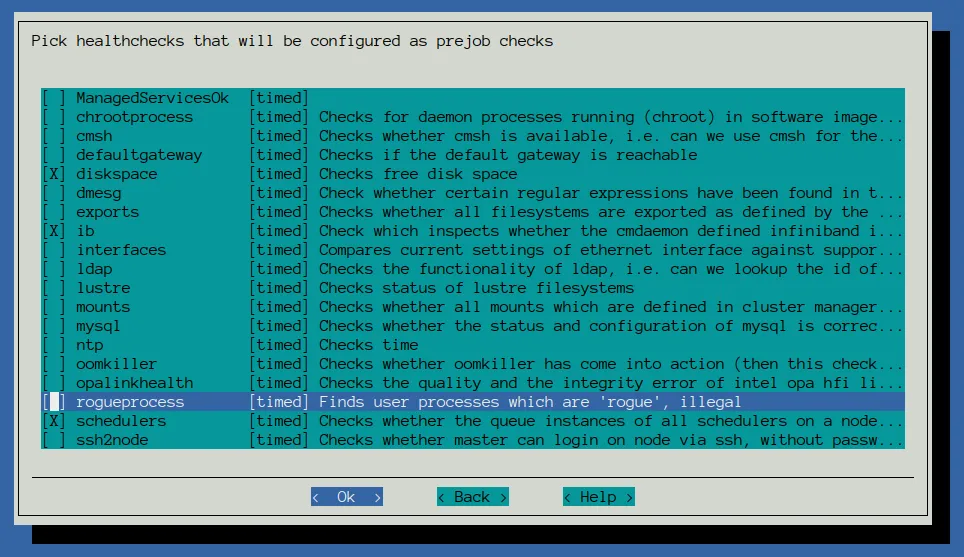
Figure 7.37: Prejob healthcheck selection in the cm-wlm-setup screen
If a selected health check was already set as a prejob—-that is, if the prejob parameter within the monitoring setup mode for that particular health check is already set to yes—then the checkbox is already ticked.
7.8.2.5 Custom Prejob Configuration
For more unusual prejob or postjob checking requirements, further details on how prologs and epilogs are configured are given in section 7.3.4.
7.9 Power Saving With cm-scale
The cm-scale service can be used by an administrator to reduce the energy and storage costs of compute nodes by changing their power state, or their existence state, according to workload demands. That is, cm-scale automatically scales a cluster up or down, on-demand, by powering up physical nodes, cloud nodes, or virtual nodes. The scaling is carried out according to settings in the ScaleServer role which set the nodes that are to use the cm-scale service.
The cm-scale service is covered extensively in Chapter 8.
7.10 Cgroups
Linux system processes and all their future children can be gathered into sets called process aggregations. These sets can be made into hierarchical groups with specialized behavior using the Control Groups (cgroups) mechanism. The behavior is controlled by different subsystems that are attached to the cgroup. A subsystem may, for example, allow particular CPU cores to be allocated, or it may restrict memory, or it may reduce swap usage by processes that belong to the group, and so on.
Details about Linux cgroups and their subsystems can be found at https://www.kernel.org/doc/Documentation/cgroup-v1/cgroups.txt.
As far as workload management is concerned, it makes sense to distinguish between workload manager cgroup settings and system-wide cgroup parameters. The workload manager cgroup settings allow the administrator to configure a workload manager to use cgroups in a particular way, whereas the system-wide cgroup settings allow the administrator to manage cgroups whether a workload manager is used or not.
7.10.1 Cgroups Settings For Workload Managers
If the workload manager allows cgroups usage, then BCM provides capabilities to manage the cgroup parameters within the workload manager.
7.10.1.1 Slurm Cgroups
Slurm supports 3 cgroups-related plugins. These are all enabled by default, and are:
-
proctrack/cgroup: enables process tracking and suspend/resume capability using cgroups. This plugin is more reliable for tracking and control than the formerproctrack/linux. -
task/cgroup: provides the ability to-
confine jobs and steps to their allocated cpuset
-
bind tasks to sockets, cores and threads
-
confine jobs and steps to specific memory resources and gres devices
-
-
jobacct_gather/cgroup: collects accounting statistics for jobs, steps and tasks using thecpuacct,memory, andblkiocgroups subsystems.
Slurm uses configuration files to store the parameters and devices used for cgroup support.
The file /cm/shared/apps/slurm/etc/ <cluster name>/cgroup.conf defines parameters used by Slurm’s Linux cgroup-related plugins. The file contains a section that is autogenerated by CMDaemon, with cgroups-related parameters defined in the SlurmServer role.
For Slurm, the administrator can set cgroups parameters using cmsh by going into the cgroups submode of the WLM instance.
Parameters that can be managed include:
* Boolean (takes yes or no as a value)
The options are always written in the cgroup.conf file. More details on these options can be found in the man page man cgroup.conf.5.
7.10.1.2 LSF
LSF allows resource enforcement to be controlled with the Linux cgroup memory and cpuset subsystems. By default, when LSF is set up with cm-wlm-setup, then both subsystems are enabled for LSF jobs. If job processes on a host use more memory than the defined limit, then the job is immediately killed by the Linux cgroup memory subsystem. The cgroups-related configuration options are available in cmsh or Base View, and can be found in the cgroups submode of the LSF cluster settings:
* Boolean (takes yes or no as a value)
7.11 Custom Node Parameters
NVIDIA Base Command Manager 11 allows the administrator to specify the most important node parameters when a node is configured in a workload manager. But sometimes the workload manager allows the configuration of other advanced or user-defined settings for the nodes. When an administrator clones a node in BCM, or creates it from scratch, then those advanced settings may need to be configured manually per node in the workload manager. Sometimes the nodes are created or cloned automatically, for example cm-scale (Chapter 8), in which case node parameters customization is not possible without manual intervention in the workload manager configuration.
Since NVIDIA Base Command Manager version 8.2, the administrator can configure the advanced node settings in the node customizations mode of cmsh or Base View. The customizations are available in the workload manager client roles, so they can be applied at the node, node category or configuration overlay levels.
In order to configure a custom node parameter for the workload manager, the administrator adds the node customization entry and sets its value to True or False. The entry is enabled by default, that is, an associated parameter Enabled is yes by default. The workload manager can take a minute to implement the new value.
For example, Slurm’s BcastExclude parameter specifies a list of paths to exclude when broadcasting files to nodes with sbcast. It is a NodeName parameter in slurm.conf but is not directly exposed in BCM’s slurmclient role, making it a typical candidate for node customizations. To add it as a customization entry, excluding /dev/shm from broadcast operations, the following cmsh commands can be used:
Example
The change would show up in slurm.conf within a minute:
Different workload managers allow different kinds of node settings to be set. When the administrator configures node customization entries, BCM configures them differently depending on the workload manager that is used.
Thus if the administrator creates a new customization entry with key name <KEY> and value <VALUE>, then this is applied to the workload managers as follows:
-
Slurm: The node customization entry is appended to the
NodeNameline of the particular nodes inslurm.confin the form <KEY>=<VALUE>. If the entry is removed or disabled in the BCM configuration, then the entry <KEY>=<VALUE> pair is removed from theNodeNameline. -
LSF: The entry is set in the
lsb.hostsfile, in theHostssection. If the <KEY> of the entry is defined as one of the section columns, then the parameter value is replaced by BCM to <VALUE>. When the customization entry is removed or disabled, then its value is replaced by()in the section.