

Power Reservation Steering
10.1 Introduction
Power reservation steering (PRS) is about automated speculative planning of power across groups of nodes used by Slurm. PRS is typically done for larger clusters, where minimising the number of idling nodes typically results in significant savings.
The planning is done over a period of time spent measuring existing resource consumption and observing the power consumed. The patterns that are seen in that period of time suggest a direction for the power allocation on the cluster (hence the word steering) for the next period of time. Based on the planned steering, a power cap is set for some groups of nodes (power domains) in the cluster. Setting the power cap for those power domains, means that a reservation of the remaining power is made for the rest of the cluster during the upcoming period of time.
PRS works using a PRS daemon. This tracks the power availability and manages power planning. A component is the PRS controller that connects to CMDaemon, and which during the time loop period controls the power domains.
DPS (Dynamic Power Software, Chapter 11) is a datacenter level software intended to optimally manage power allocation across the entire datacenter. By default, if a Slurm topology has PRS enabled, then DPS configures PRS with a power budget for nodes.
10.2 Deployment Of PRS
After a Slurm cluster has been configured and deployed (section 7.3.2 of the Administrator Manual), PRS can be deployed.
Deployment of PRS is started in BCM by running the cm-prs-setup script. This brings up a TUI wizard (figure 10.1):
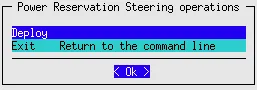
Figure 10.1: Starting deploying with cm-prs-setup
Categories can be selected for PRS (figure 10.2):
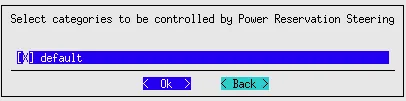
Figure 10.2: Selecting a category with cm-prs-setup
If selecting categories is too inclusive, then individual nodes can be selected instead in a following screen.
After categories or individual nodes have been selected, one or more power domains can be added (figure 10.3):
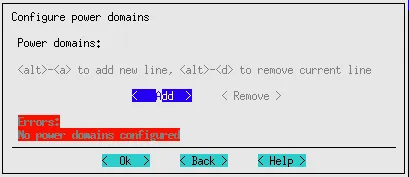
Figure 10.3: Setting a power domain with cm-prs-setup
Each power domain can be given an arbitrary name, and a domain grouping (figure 10.4):

Figure 10.4: Configuring the power domain budget and grouping with cm-prs-setup
The default domain group of all is simply one big power domain. Groups such as rack, row, room, and so on become new domains, each with the specified power budget.
The power budgets for the domains are set automatically if the nodes have been powered up. Otherwise the budgets must be specified manually.
The maximum power consumption per node is:
-
400W for A100 nodes
-
700W for H100 nodes
-
1000W for B200 nodes
-
2700W for GB200 nodes
The Static power is the power consumption when the node is shut down, and only the BMC is standing by. Typically it is about 20W.
The power draw factor can be set in the range from 0.0-1.0, in steps of 0.1.
The power consumption limits can then be set for the domain.

Figure 10.5: Setting power consumption limits with cm-prs-setup
After the configuration steps are completed, the configuration can be saved and PRS deployed (figure 10.6):

Figure 10.6: Saving the configuration and deploying it with cm-prs-setup
10.3 Changes Made On Deployment, And Managing Changes Post-Deployment With cmsh
10.3.1 PRS Values
PRS deployment creates the following configuration overlays:
-
prs-server: this has thePRSServerRolewith PRSDomain configurations -
prs-client: this has thePRSClientRolewith power usage configuration
The PRS server configuration overlay is always assigned to the head nodes, and the client overlay is assigned to the nodes and categories configured in the wizard.
PRS server configuration values can be managed in cmsh with their role under the configuration overlay:
Example
Similarly, the PRS client role values can be managed under their role:
Example
10.3.2 Slurm Values
On deployment of PRS, the selectType of the Slurm instance is changed from:
select/cons_tres
to
select/gnl_cons_tres
Example
The certificate paths for PRS for the Slurm instances are managed within the PRS settings (here) of the Slurm instances:
Example
10.3.3 PRS Removal
The cm-prs-setup script can be used to remove existing PRS domains.
10.4 Changes Made On Deployment, And Managing Changes Post-Deployment With Base View
10.4.1 Base View Power Reservation Steering Wizard
The Base View GUI PRS wizard takes the same inputs as the cm-prs-setup TUI PRS wizard of section 10.3.
The Base View wizard can be accessed using the navigation path:
Mission Control > Power Reservation Steering > Start Wizard
The navigation path is only available if Slurm has previously been installed. Slurm can be installed using the navigation path:
HPC > Workload Management Wizard
The Base View PRS wizard, on starting up, displays an introduction screen as in figure 10.7:
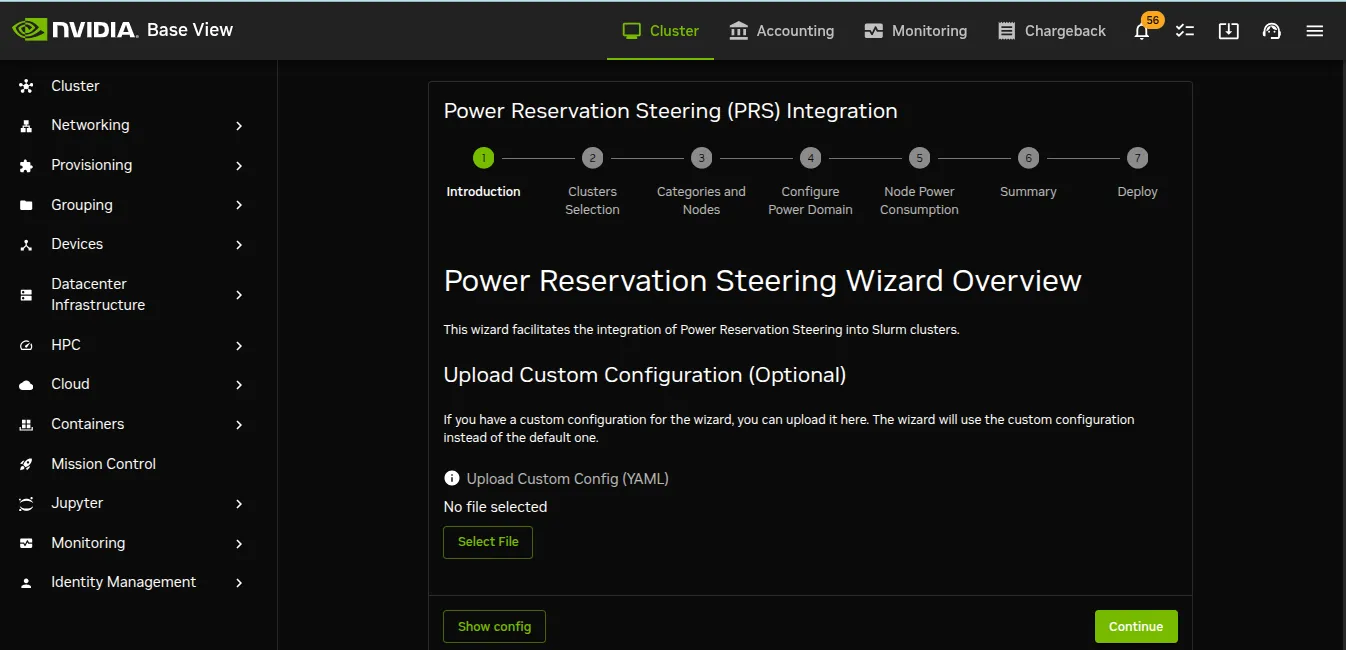
Figure 10.7: Running The PRS Installation Wizard From Base View
The steps that the PRS wizard goes through can be followed in the breadcrumb trail. The steps are:
-
Introduction: a custom YAML configuration can be uploaded here, and the existing YAML configuration can be viewed
-
Clusters Selection: Slurm instances can be selected here for PRS
-
Categories and Nodes: regular and head nodes can be chosen for PRS
-
Configure Power Domain: a power domain can be set, with settings as in the TUI version (figure 10.4)
-
Node Power Consumption: power consumption for the domain can be set
-
Summary: a summary of the settings is displayed
-
Deploy: the deployment stages are carried out and shown
10.4.2 Base View Power Reservation Steering Client And Server Configuration Overlays
With Base View, the values set for the PRS client and PRS server can be accessed using their roles at configuration overlay, category, and device level.
For example, for the PRS client as configured in the Base View PRS configuration overlay, the navigation path to the configuration pane (figure 10.8) is:
Configuration Overlay > prs-client > Settings > Roles > PRS-client
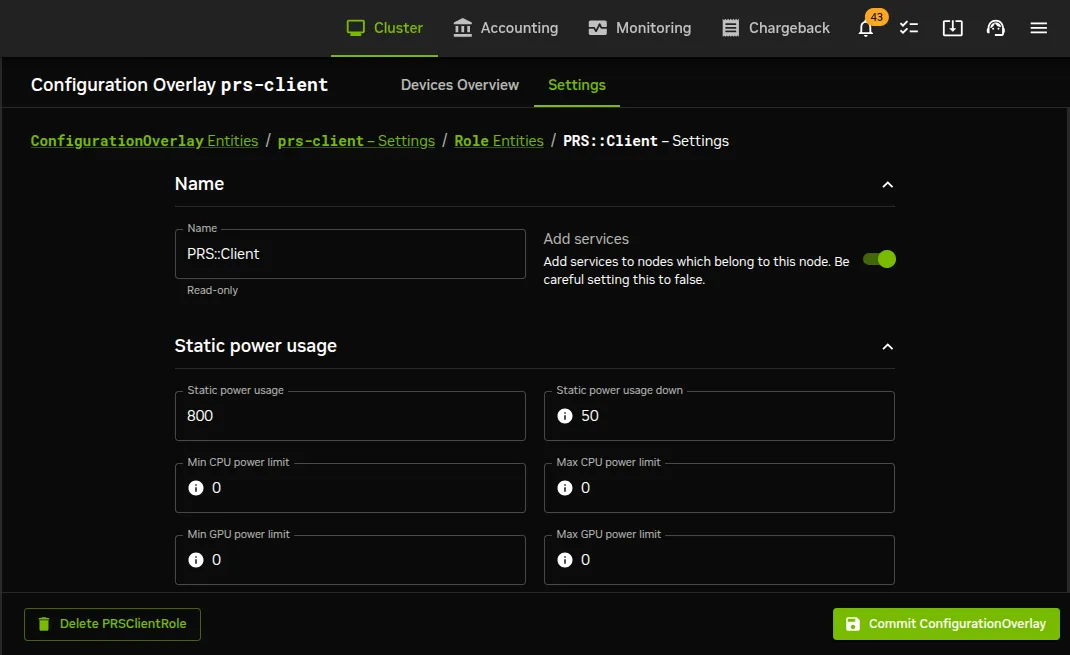
Figure 10.8: PRS Client Values Using The Configuration Role In Base View