

NetQ 5.0 Settings For NVLink Monitoring
NetQ is a scalable network monitoring and management tool for NVLink, Ethernet, or both. It can work with NVLink fabrics and Cumulus Linux switches. NetQ version 5.0 is unified with NMX-Manager, and uses NMX-Manager capabilities if used in NVLink mode.
2.1 NMX Settings For NVLink Monitoring
NMX is a product suite for HPC cluster network monitoring and management. The system is made up of:
-
NMX Telemetry
-
NMX Manager
-
NMX Controller
-
NMX Oasis
The NVIDIA Mission Control edition of BCM can monitor NMX telemetry services that run on:
-
NVLinks (direct GPU interconnection within a server)
-
NVLink switches (direct GPU interconnection across servers)
2.2 Installing NetQ 5.0 Using The Mission Control Wizard
2.2.1 Permanent License Generation And Application Guide
When installing NetQ, the system receives an evaluation license valid for 60 days. When the evaluation license expires, REST API access is blocked until a new license is applied.
2.2.1.1 Generating a License File
Before generating the license file, the following must be prepared:
-
A list of servers with the MAC address of each server on which the NetQ software is to be installed
-
Access to the NVIDIA Licensing Portal (NLP) with valid credentials
The following steps generate the license file:
-
The NLP is accessed, and logged into with the prepared credentials.
-
The
Network Entitlementstab is clicked. This displays a list of the serial licenses of all software products. For each software product, some license information details are shown, including the license status. -
The license can be selected from the list, and activated by clicking on the
Actionsbutton. -
The MAC addresses are configured.
-
In the MAC Address field, the MAC address of the delegated license-registered host is added.
-
If applicable, in the HA MAC Address field, the High Availability (HA) server MAC address is added.
-
Note: If there is more than one NIC installed on a UFM Server, then any of the MAC addresses can be used.
-
-
The license is then generated and downloaded:
-
Clicking on
Generate License Filecreates the license key file for the software. -
Clicking on
Download License Fileallows the license file to be saved on to a local computer.
-
2.2.1.2 License Regeneration Notes
If the cluster administrator regenerates a license, then the following must be considered:
-
If the NIC or server is replaced, then the steps to generate license file must be repeated for the new MAC address.
-
Regeneration of the license can only be carried out two times. For further regeneration, support should be contacted at enterprisesupport@nvidia.com.
2.2.2 Downloading The NetQ Installation Package
The NetQ installation package can be downloaded from the NVIDIA Licensing Portal (NLP).
2.2.2.1 Downloading NetQ
The following steps allow the package to be downloaded:
-
The NLP is accessed, and logged into with the prepared credentials.
-
Software Downloadsis clicked, the product family is filtered to NetQ, the relevant version is found, and the “Appliance” platform package is downloaded. -
Downloadis clicked. -
The file is saved to the local drive.
-
Closeis clicked.
The .tar.gz file is copied over to the BCM head node using scp or rsync.
The Debian packages can be downloaded from:
https://download.nvidia.com/cumulus/apps3.cumulusnetworks.com/repos/deb/pool/netq-5.0/
The relevant apps and agents package for ubuntu24 and the relevant CPU architecture (arm or amd) should be searched for. These three files are required:
-
The NetQ tarball
-
The
netq-agent.deb package -
The
netq-apps.deb package
2.2.2.2 Installation
Running cm-mission-control-setup brings up the TUI installation wizard for NetQ. Deployment of NetQ is done by the cluster administrator with the following steps:
- The NetQ installation is selected (figure 2.1):
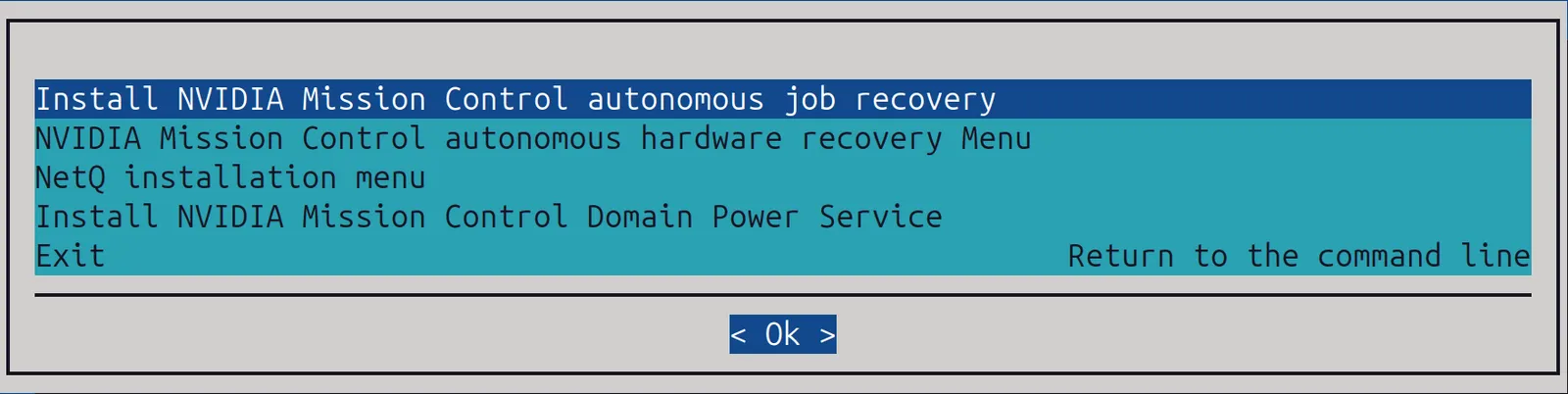
Figure 2.1: NetQ deployment: NetQ installation selection
- The Kubernetes cluster where NetQ is to be installed is chosen (figure 2.2):
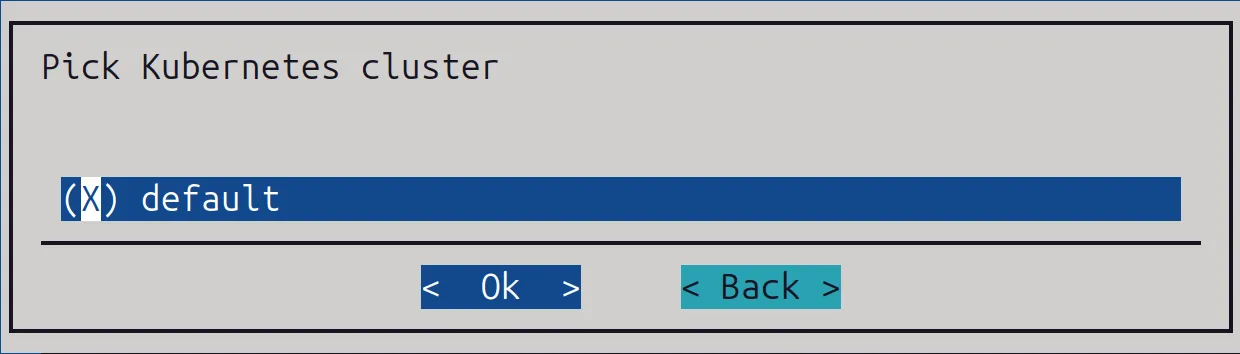
Figure 2.2: NetQ deployment: choosing a Kubernetes cluster
- The node category for the nodes where NetQ is to be installed is chosen (figure 2.3):
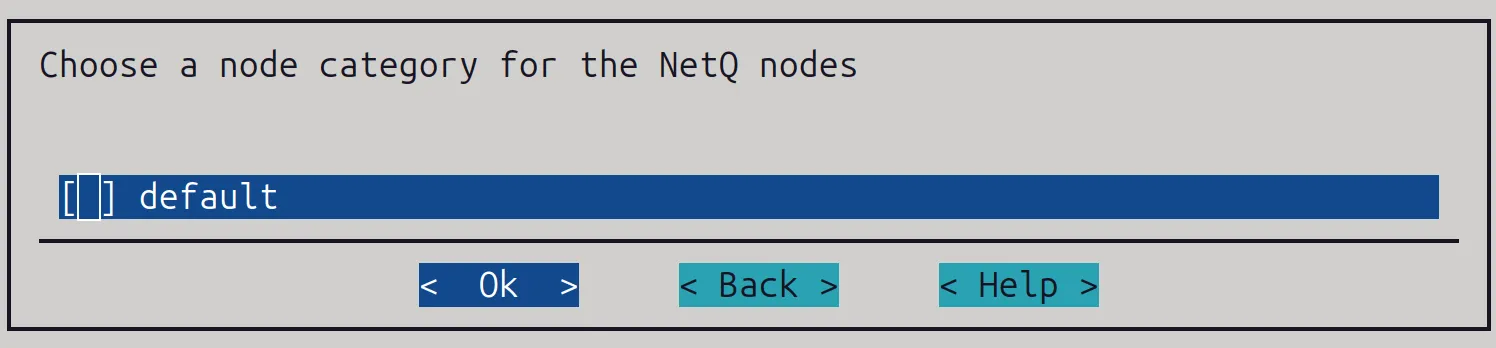
Figure 2.3: NetQ deployment: choosing a node category
- If no category is set, then 3 nodes can be chosen (figure 2.4):
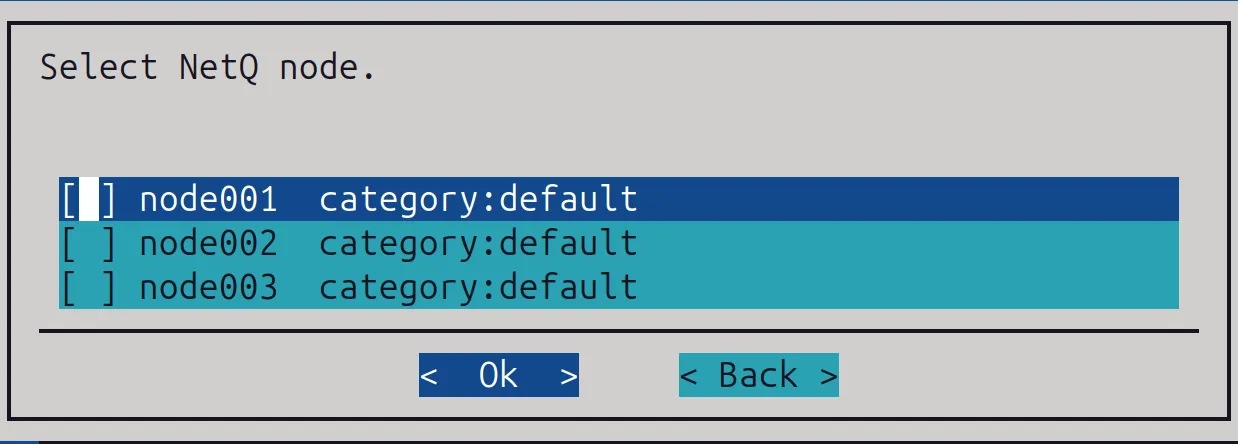
Figure 2.4: NetQ deployment: choosing 3 nodes
- The NetQ overlay name and priority are set. In most cases, there is no need to change the suggested values (figure 2.5):
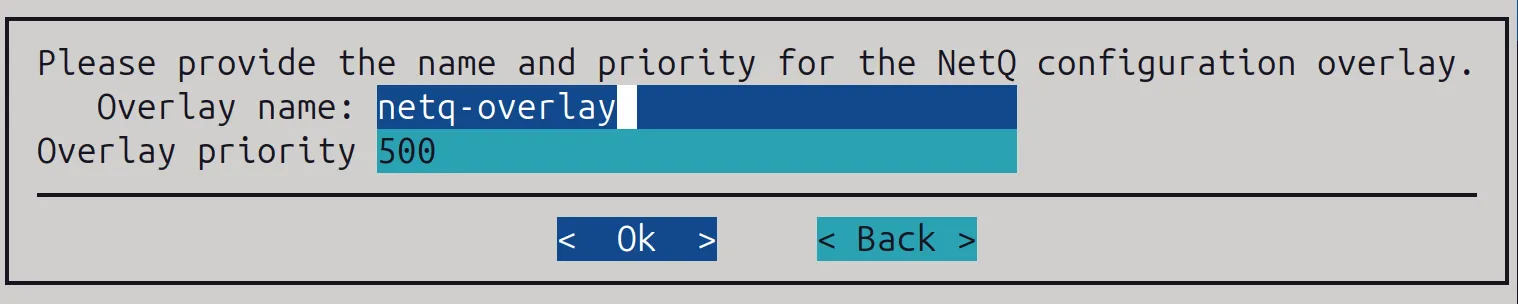
Figure 2.5: NetQ deployment: choosing an overlay
- A virtual IP address is set for NetQ access (figure 2.6):
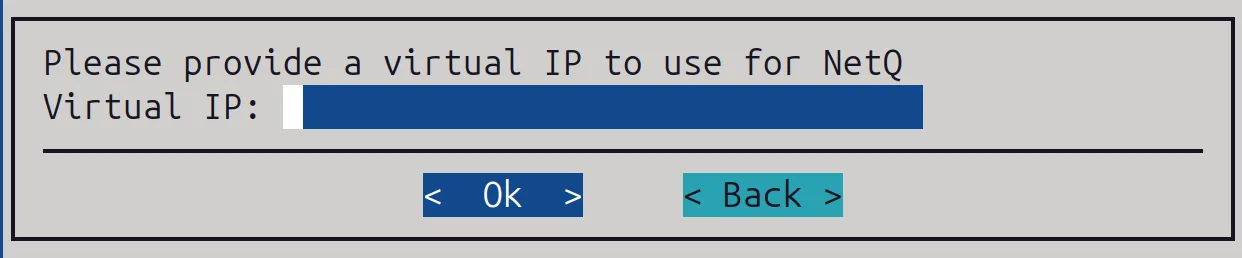
Figure 2.6: NetQ deployment: setting a virtual IP address
- The paths to the NetQ tarball and Debian packages are set (figure 2.7):
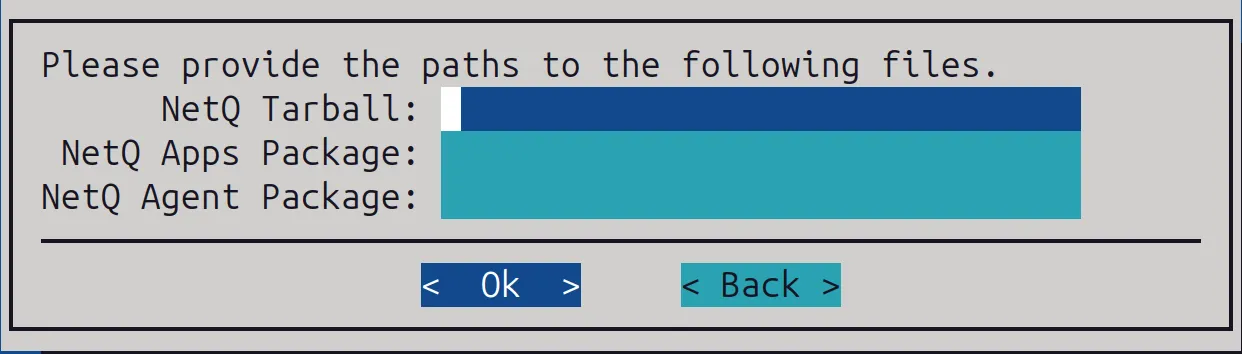
Figure 2.7: NetQ deployment: setting paths to the installation packages
- The NetQ deployment mode is set (figure 2.8):
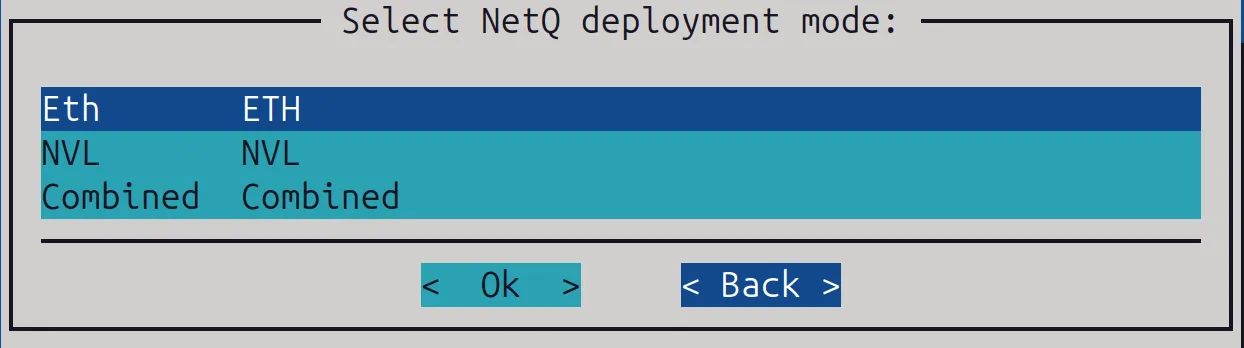
Figure 2.8: NetQ deployment: setting the NetQ deployment mode
- The Kong (NMX API) read/write password is set, if
NVL Modehas been chosen (figure 2.9):

Figure 2.9: NetQ deployment: setting the read/write password
- The Kong (NMX API) read-only password is set, if
NVL Modehas been chosen (figure 2.10):

Figure 2.10: NetQ deployment: setting the read-only password
- The storage path for Longhorn (a replicated block storage system for Kubernetes) is set (figure 2.11):

Figure 2.11: NetQ deployment: setting the storage path for Longhorn
- The configuration is saved and deployed (figure 2.12):
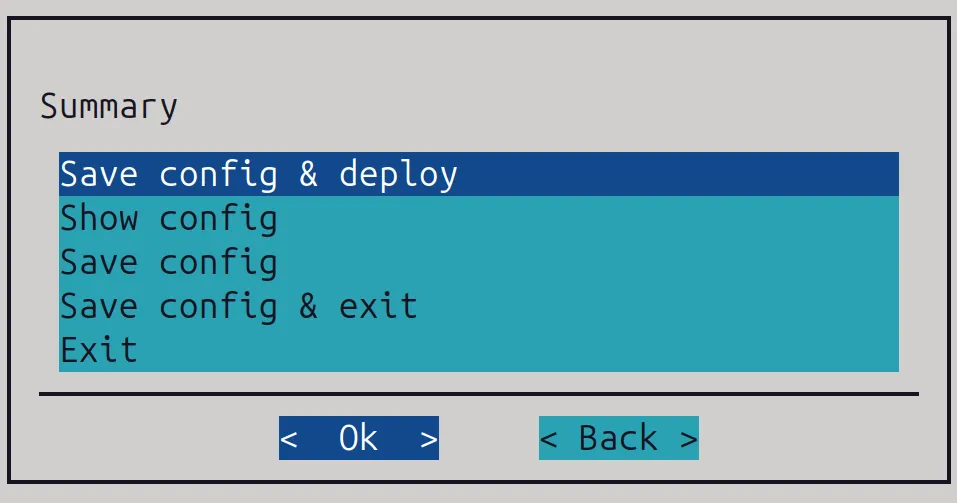
Figure 2.12: NetQ deployment: saving and deploying the configuration
Notes:
-
Three nodes must be selected for NetQ deployment.
-
If the selected nodes do not meet the necessary hardware requirement, then a warning is displayed.
-
Kong passwords must be at least 8 characters long.
2.2.2.3 Post Installation Validation
The pods can be examined to validate NetQ:
kubectl get pods -A
All pods should be in a Running or Complete state.
A connection can be made using the virtual IP address and a URL in the form:
https://<Virtual IP>/nmx/swag/index.html
To log in, the user name is rw-user for read/write access, or ro-user for read-only access. The password is the password that was set during the installation.
2.2.2.4 Uninstall NetQ
A NetQ installation can be uninstalled by running cm-mission-control-setup and selecting NVIDIA Mission Control NetQ uninstallation (figure 2.13):
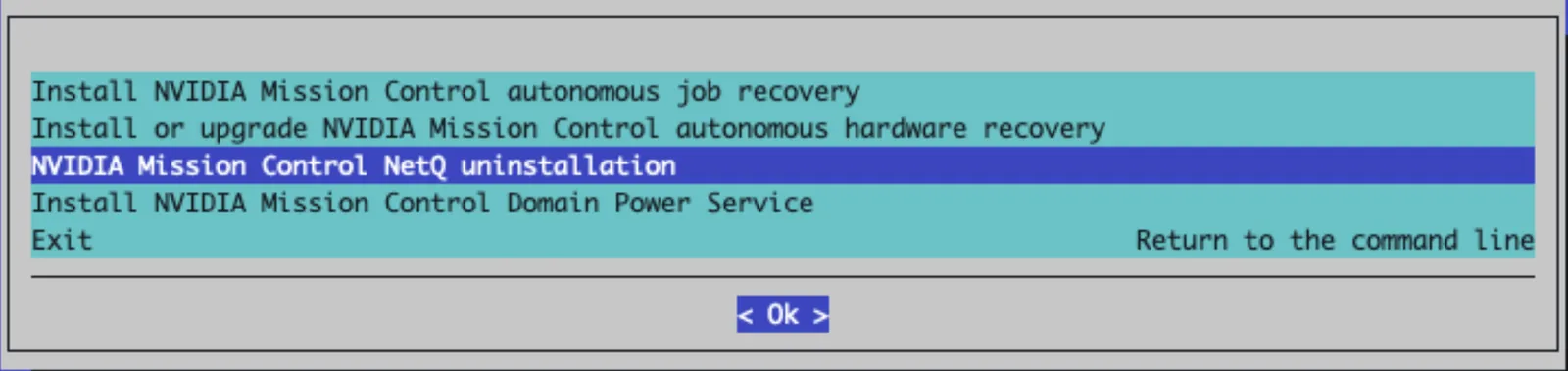
Figure 2.13: NetQ uninstallation: selecting the uninstallation
2.3 NMX Server Authentication Configuration In BCM
NMX service authentication settings can be configured from within partition mode, within the nmxmsettings submode:
The corresponding Base View navigation path for this is using:
Cluster > Settings > BMC Settings > NMX settings> +
After BCM has provisioned the NMX Controller and the NMX Telemetry services on the NVSwitches, then the sample_nmxm data producer produces the NMX measurables. These can be viewed from partition mode:
Example
2.3.1 NMX Manager Metrics Forwarding Via BCM And prometheusmetricforwarders
Prometheus servers can be used to pick up NMX Manager metrics via Prometheus exporters. However in a typical BCM configuration, such as in a BCM type 1 network (section 3.3.9 of the Installation Manual), the Prometheus exporter is behind the BCM head node firewall. This means that by default an external Prometheus server cannot reach the exporter endpoint.
In such a case the prometheusmetricforwarders submode can be used to define the endpoint URL and HTTP method that the exporter uses. This forwards the exporter endpoint to the external network interface of the head node. The external Prometheus server can then reach the forwarded exporter endpoint.
Example
The corresponding Base View navigation path for configuring Prometheus metrics forwarding is using:
Cluster > Settings > BMC Settings > NMX settings > > Prometheus metric forwarders >