

Post-installation Software Management
9.0.0.1 Introduction: What Is Post-installation Software Management?
After NVIDIA Base Command Manager has been installed, administrators are expected to manage and update the distribution software and the cluster software as updates are packaged and made available by the distribution and by the BCM software development team. Managing and updating means carrying out software management actions such as installation, removal, updating, version checking, and so on.
9.0.0.2 Security And Hardening
For security vulnerabilities in BCM packages, BCM support can be contacted directly (section 14.2). Vulnerabilities that are part of the underlying distribution are dealt with by the distribution itself.
By default, BCM aims to keep the distribution unchanged from its original release.
Security updates: Security updates are normally handled by package managers.
-
Security updates that the distributions provide as package updates are handled by updating the distribution that underlies BCM.
-
Security updates that BCM provides as package updates are handled by updating the BCM packages as usual.
In both cases the package managers (one of yum, zypper, or apt) are used to update the distribution (one of RHEL/Rocky, SUSE, or Ubuntu) that underlies BCM, or to update the BCM packages.
Security changes outside of BCM package management are normally outside the scope of BCM support.
Hardening: Hardening the distribution can include the following actions:
-
removing packages
-
blocking off ports
-
disabling input hardware (USB ports, keyboards, mice…) in software
-
adding disk encryption
-
configuring SELinux
-
adding binaries hardened in some way
Hardening is often possible but is not performed by default because BCM aims to keep the distribution as close to standard as possible.
Hardening can have unexpected side effects, including impacts on performance. Since hardening always involves balancing performance, usability, and security, it is the cluster administrator’s responsibility to decide what to harden. Any hardening measures outside of BCM software typically fall outside the scope of BCM support.
9.0.0.3 An Aside About Upgrading The OS Or BCM
Upgrading from an earlier major release of the OS upon which BCM runs, to the next major release of the OS (for example, RHEL8 to RHEL9) while keeping BCM as it is, is not supported due to the OS dependencies that BCM has. If the OS is to be upgraded, then the recommendation is to install BCM once again from scratch on the upgraded OS.
Upgrading packages is only possible within the existing major OS release or existing BCM release.
Upgrading and updating are often ambiguously used as synonyms:
-
When the OS upgrades to the next major release—for example, when the operating system is upgraded from RHEL8 to RHEL9—and the package is updated as part of that release, then updating the package is called a package upgrade or a release upgrade.
-
Within an operating system major release—for example, when the operating system is still at a particular major version such as RHEL8 or RHEL9—updating a package is called a package update, or somewhat confusingly, also called a package upgrade, with the latter term being used in the context of it being the complement of a release upgrade.
Release upgrade packages are typically incompatible with packages from other releases, as many system administrators typically discover early on in their careers when they try to put a package update into a release upgrade, or the other way round. Even minor version package differences can be incompatible, as shown by the documentation and policies explaining compatibility levels (https://access.redhat.com/articles/rhel8-abi-compatibility, https://access.redhat.com/articles/rhel9-abi-compatibility). Letting the package manager sort it all out is what the sensible cluster administrator does.
9.0.0.4 Post-installation Software Management Typically Uses The Default Package Managers
Since BCM is built on top of an existing Linux distribution, the administrator should use the package utilities that are specific for the distribution (such as YUM and rpm, APT and dpkg, or YaST and Zypper) for software package management.
Packages managed by the distribution are hosted by distribution repositories. SUSE and RHEL distributions require the purchase of their license in order to access their repositories. The other distributions do not.
DGX OS, which is Ubuntu-based, relies on Ubuntu repositories. While BCM manuals cover much of DGX OS management, package and release upgrades for DGX OS are covered in the dedicated DGX OS documentation at
-
https://docs.nvidia.com/dgx/dgx-os-7-user-guide/upgrading-the-os.html which covers upgrading an existing DGX OS 7.
-
https://docs.nvidia.com/dgx/dgx-os-7-user-guide/additional_software.html which covers upgrading other software on DGX OS 7.
Packages managed by BCM are hosted by the BCM repository. Access to the BCM repositories also requires a license (Chapter 4 of the Installation Manual). Available packages for a particular BCM version and distribution can be viewed via the package dashboard at https://service.bcm.nvidia.com/packages-dashboard/.
9.0.0.5 Software Outside Of Default Package Management
There may also be software that the administrator would like to install that is outside the default packages collection. These could be source files that need compilation, or packages in other repositories.
9.0.0.6 Software Image Management
A software image (section 2.1.2) is a filesystem that a node picks up from a provisioner (a head node or a provisioning node) during provisioning so that the node can run as a linux system after provisioning. A subtopic of software management on a cluster is software image management—the management of software on a software image. By default, a node uses the same distribution as the head node for its base image along with necessary minimal, cluster-mandated changes. A node may however deviate from the default, and be customized by having software added to it in several ways.
9.0.0.7 Techniques Of Software Management Covered
This chapter covers the techniques of software management for the cluster.
Section 9.1 describes the naming convention for a BCM RPM or .deb package.
Section 9.2 describes how an RPM or .deb package is managed for the head node.
Section 9.3 describes how an RPM or .deb kernel package can be managed on a head node or image.
Section 9.4 describes how an RPM or .deb package can be managed on a software image.
Section 9.5 describes how a software other than an RPM or .deb package can be managed on a software image.
Section 9.6 describes how custom software images are created that are completely independent of the existing software image distribution and version.
Section 9.7 describes how multi-architecture and multi-distribution images can be created.
9.1 NVIDIA Base Command Manager Packages, Their Naming Convention And Version
Like the distributions it runs on top of, BCM uses
-
either .rpm packages, managed by RPM (RPM Package Manager) or Zypper (ZYpp package manager)
-
or .deb (Debian) packages, managed by APT (Advanced Package Tool)
For example, the cmdaemon package built by BCM has the following .rpm and .deb packages:
The file name has the following structure:
package-version-revision_cmx.y_hash.architecture.rpm
and
package_version-revision-cmx.y-hash_architecture.deb
where:
-
package (
cmdaemon) is the name of the package -
version (
11) is the version number of the package -
revision (
152061) is the revision number of the package -
cmis used to indicate it is a package built by BCM for the cluster manager -
x.y (
11) is the version of BCM for which the RPM was built -
hash (
ec0ea0f4d1) is a hash, and is only present for BCM packages. It is used for reference by the developers of BCM. -
architecture (
x86_64for RPMs oramd64for APT) is the architecture for which the package was built. The architecture name ofx86_64oramd64refers the same 64-bit x86 physical hardware in either case.
The differences in .rpm versus .deb package names are just some underbar/hyphen (_/-) changes, the hash (only for BCM packages), and the architecture naming convention.
Among the distributions supported by BCM, only Ubuntu uses .deb packages. The rest of the distributions use .rpm packages.
9.1.0.1 Querying The Packages
To check whether BCM or the distribution has provided a file that is already installed on the system, the package it has come from can be found.
For RPM-based systems: rpm -qf can be used with the full path of the file:
Example
In the example, /usr/bin/zless is supplied by the distribution, while /cm/local/apps/cmd/sbin/cmd is supplied by BCM, as indicated by the “_cm” in the nomenclature.
For APT-based systems: A similar check can be done using dpkg -S to find the .deb package that provided the file, and then dpkg -s on the package name to reveal further information:
Example
As an aside, system administrators should be aware that the BCM version of a package is provided and used instead of a distribution-provided version for various technical reasons. The most important one is that it is tested and supported by BCM. Replacing the BCM version with a distribution-provided version can result in subtle and hard-to-trace problems in the cluster, and support cannot be provided for a cluster that is in such a state, although some guidance may be given in special cases.
More information about the RPM Package Manager is available at http://www.rpm.org, while APT is documented for Ubuntu at http://manpages.ubuntu.com/manpages/.
9.1.1 The packages Command
BCM also provides the packages command in the device mode of cmsh. This should not be confused with the packages command used by zypper. The packages command used by BCM in cmsh queries devices directly for the installed packages independent of rpm or deb package management. It displays an overview of the package with its name name, type version, architecture, size, and installation date.
-
The
-a|--alloption can be used to list all the packages installed on a particular node:Example
-
The
-c|--categoryoption can be used to list all the packages installed in a node category:Example
Running the
-aoption for many nodes can be user-unfriendly. That is because per node this command typically returns about 100KB of data. So, for a 1000 nodes this would output about 100MB and a table with nearly a million lines.When checking packages for many nodes, it is best to request the package by name.
-
Multiple
-f|--findoptions can be used in the command line to display several packages.Example
-
The
--outdatedoption lists cluster manager packages that have upgrades available.Example
In the preceding, the installed
cm-atftp-serverpackage is older than the publicly available version. -
The
--outdated -aoption lists all the installed cluster manager packages and the available upgrades for the installed cluster manager packages.Example
Further options include -r|--rack, --role, --latest, and -t|--type. Details and examples for these can be listed by running the help packages command within the device mode of cmsh.
9.1.2 BCM Package Point Release Versions And The cm-package-release-info Command
The cm-package-release-info command displays a precise package release version (package version) for each BCM package used in the cluster, and shows the BCM point release versions that should use that package version.
9.1.2.1 Background Information On BCM Version Nomenclature
Cluster manager version and release number: The cluster manager version is a release number with one decimal point—10.0 in the preceding example. This is recorded in the file /etc/cm-release, and can also be seen in the output of the versioninfo command:
The release number version is the main way to refer to the software release series for a version. It is a tag that is associated with the whole collection of packages that is released as BCM. The release number 10.0 can be abbreviated to 10, and the release number for 11.0 can be abbreviated to 11. The release number should not be confused with the point release number, which is a number sequence with two decimal points.
Point release numbers: If a package manager is used then there is usually no need to know about point release numbers.
Point releases are releases that are part of the software release series for a version. Moving up to a new point release can have dependency issues. The package manager typically resolves these issues by keeping BCM packages correctly updated during a point release change. This means that typically a cluster administrator does not need to track the exact point release, and that referring to a point release during regular cluster administration is therefore typically avoided. Indeed, referring to a specific point release is often inappropriate, as discussed in https://enterprise-support.nvidia.com/s/article/how-to-tell-what-bcm-version-are-you-running, where it is pointed out that different packages may be updated to different point releases.
Point release number values: A point release number based on 10.0 is a numbering sequence with two decimal points, and might look like:
10.23.09
Point releases are interim releases, based on the main release number version, but with fixes and updates.
A point release based on the 10.0 and 11.0 releases can take two kinds of formats.
-
Calendar-based versioning format:
For example, for
10.23.09, the.0from10.0is dropped for convenience, the year 2023 is indicated by23, and the month of September is indicated by09. Release numbers prior to 10.0 had other point release formats.Calendar-based versioning is used by
-
10.0release numbers up to and including release10.25.03 -
11.0release numbers up to and including release11.25.08
-
-
Semantic versioning format:
This follows the versioning method described in
and treats the prefixes 10 and 11 as major release numbers with incompatible APIs. The reason for switching from calendar versioning to semantic versioning is that it is hard to optimally synchronize the BCM release dates with the software release cycles of the other software that BCM has to work with. It meant that delays that were beyond the control of BCM development could happen, and result in release version numbers did not match with the calendar date.
The reorganization to semantic versioning means that at the time of writing of this section (September 2025), the version numbers for point releases that are based on
-
the
10.0release, and planned after10.25.03should be:10.30.0,10.31.0,10.32.0… -
the
11.0release, and planned after11.25.08should be:11.30.0,11.31.0,11.32.0…
With semantic versioning for BCM, the number after the second point is typically 0 for a public release, and if that number is greater than 0 it should be a backward-compatible bugfix release.
-
When BCM has its next major change after the 11.0 release number—by major, the implication is that its APIs change—the BCM release number should then change to 12.0, and the point release number should then roll over to 12.0.0.
One more addition to the point release number is a letter suffix, in lower case, alphabetical order. This is typically for a “hotfix” release, where an existing point release is deemed to need an important fix right away, instead of having the fix wait until it goes into one of the next point release. For example, if there is a 10.23.02 point release (itself a bugfix release), and it really needs a small change to its code to fix a significant problem a day after its initial release, then the release is given the label:
10.23.02a
In semantic versioning releases, letter suffixes are never used. In BCM they are ideally never used; however historically there have been hotfix releases.
9.1.2.2 Using The cm-package-release-info Command To Get A Point Release Version For A BCM Package
Yet, on some occasions it may be necessary to know the exact point release versions available for BCM packages. For example, in order to override dependencies if customizing a cluster in a non-standard way. Usually the point release information is needed for the main package, cmdaemon. Running the cm-package-release-info command displays the version of a BCM package, and for which point releases it is available for the current release number of the cluster.
Example
A package can be specified with the -f option:
Example
9.2 Managing Packages On The Head Node
9.2.1 Managing RPM Or .deb Packages On The Head Node
Once BCM has been installed, distribution packages and BCM software packages are conveniently managed using the yum, zypper or apt repository and package managers. The zypper tool is recommended for use with the SUSE distribution, the apt utility is recommended for use with Ubuntu, and yum is recommended for use with the other distributions that BCM supports. YUM is not set up by default in SUSE, and installing and using it with SUSE is not recommended, unless the administrator is familiar with configuring YUM.
9.2.1.1 Listing Packages On The Head Node With YUM and Zypper
For YUM and zypper, the following commands list all available packages:
yum list
or
zypper refresh; zypper packages
For zypper, the short command option pa can also be used instead of packages.
9.2.1.2 Listing Packages On The Head Node With APT
For Ubuntu, the apt-cache command is used to view available packages. To generate the cache used by the command, the command:
apt-cache gencaches
can be run.
A verbose list of available packages can then be seen by running:
apt-cache dumpavail
It is usually more useful to use the search option to apt-cache to search for the package with a regex:
apt-cache search <regex>
A similar, but slightly more verbose option is the search option for apt:
apt search <regex>
9.2.1.3 Updating/Installing Packages On The Head Node
To install a new package called <package name> into a distribution, the corresponding package managers are used as follows:
Installed packages can be updated to the latest by the corresponding package manager as follows:
An aside on the differences between the update, refresh/up, and update/upgrade options of the package managers: The update option in YUM by default installs any new packages. On the other hand, the refresh option in zypper, and the update option in APT only update the meta-data (the repository indices). Only if the meta-data is up-to-date will an update via zypper, or an upgrade via apt install any newly-known packages. For convenience, in the BCM manuals, the term update is used in the YUM sense in general—that is, to mean including the installation of new packages—unless otherwise stated.
Note for HA setups: In a high availability configuration, package updates that include cmdaemon must be applied to the active head node first, and only afterwards to the passive head node. This ordering, and the reason for it, is described in section 15.4.5.1.
The BCM repository has YUM and zypper repositories of its packages at:
and updates are fetched by YUM and zypper for BCM packages from there by default, to overwrite older package versions by default.
For Ubuntu, the BCM .deb package repositories are at:
Accessing the repositories manually (i.e. not using yum, zypper, or apt) requires a username and password. Authentication credentials can be provided upon request by opening a support ticket (section 14.2).
9.2.1.4 Cleaning Package Caches On The Head Node
The repository managers use caches to speed up their operations. Occasionally these caches may need flushing to clean up the index files associated with the repository. This can be done by the appropriate package manager with:
9.2.1.5 Signed Package Verification
As an extra protection to prevent BCM installations from receiving malicious updates, all BCM packages are signed with the Bright Computing GPG public key (0x5D849C16), installed by default in /etc/pki/rpm-gpg/RPM-GPG-KEY-cm for Red Hat and derivaties. The Bright Computing public key is also listed in Appendix B.
The first time YUM or zypper are used to install updates, the user is asked whether the Bright Computing public key should be imported into the local repository packages database. Before answering with a “Y”, yum users may choose to compare the contents of /etc/pki/rpm-gpg/RPM-GPG-KEY-cm with the key listed in Appendix B to verify its integrity. Alternatively, the key may be imported into the local RPM database directly, using the following command:
With APT, the BCM keyring is already imported into /etc/apt/trusted.gpg.d/brightcomputing-archive-cm.gpg if the cm-config-apt package, provided by the Bright Computing repository, has been installed. The cm-config-apt package is installed by default for the Ubuntu edition of BCM.
9.2.1.6 Third Party Packages
The third party packages in the following list may be repackaged for BCM for installation purposes. The packages are described in Chapter 7 of the Installation Manual:
-
Modules (section 7.1)
-
Shorewall (section 7.2)
-
GCC (section 7.3)
Exclusion of packages on the head node can be carried out as explained in section 9.3.2, where the kernel package is used as an example for exclusion.
9.2.2 Installation Of Packages On The Head Node That Are Not .deb And Not .rpm Packages
Sometimes a package is not packaged as an RPM or .deb package for BCM or for the distribution. In that case, the software can usually be treated as for installation onto a standard distribution. There may be special considerations on placement of components that the administrator may feel appropriate due to the particulars of a cluster configuration.
For example, for compilation and installation of the software, some consideration may be made of the options available on where to install parts of the software within the default shared filesystem. A software may have a compile option, say --prefix, that places an application <application> in a directory specified by the administrator. If the administrator decides that <application> should be placed in the shared directory, so that everyone can access it, the option could then be specified as: “--prefix=/cm/shared/apps/<application>”.
Other commonly provided components of software for the applications that are placed in shared may be documentation, licenses, configuration settings, and examples. These may be placed in the directories /cm/shared/docs, /cm/shared/licenses, /cm/shared/etc, and /cm/shared/examples. The placement may be done with a compiler option, or, if that is not done or not possible, it could be done by modifying the placement by hand later. It is not obligatory to do the change of placement, but it helps with cluster administration to stay consistent as packages are added.
Module files (section 2.2 of this manual, and 7.1 of the Installation Manual) may sometimes be provided by the software, or created by the administrator to make the application work for users easily with the right components. The directory /cm/shared/modulefiles is recommended for module files to do with such software.
To summarize the above considerations on where to place software components, the directories under /cm/shared that can be used for these components are:
9.3 Kernel Management On A Head Node Or Image
Care should be taken when updating a head node or a software image. This is particularly true when custom kernel modules compiled against a particular kernel version are being used.
A package can be managed in a software image and the image deployed to nodes. A careful administrator typically clones a copy of a working image that is known to work, before modifying the image.
9.3.1 Installing A Standard Distribution Kernel Into An Image Or On A Head Node
A standard distribution kernel is treated almost like any other package in a distribution.
This means that:
-
For head nodes, installing a standard kernel is done according to the normal procedures of managing a package on a head node (section 9.2).
-
For regular nodes, installing a standard distribution kernel is done according to the normal procedures of managing an package inside an image, via a changed root (chroot) directory (section 9.4), but with some special aspects that are discussed in this section.
When a kernel is updated or reinstalled (section 9.3.3), kernel-specific drivers, such as OFED drivers may need to be updated or reinstalled. OFED driver installation details are given in Chapter 10 of the Installation Manual.
9.3.1.1 Kernel Package Name Formats
For RHEL, individual kernel package names take a form such as:
kernel-3.10.0-327.3.1.el7.x86_64.rpm
The actual one suited to a cluster varies according to the distribution used. RPM Packages with names that begin with “kernel-devel-” are development packages that can be used to compile custom kernels, and are not required when installing standard distribution kernels.
For Ubuntu, individual Linux kernel image package names take a form such as:
linux-image-*.deb
or
linux-signed-image-*.deb
Running apt-cache search ^linux | grep 'kernel image' shows the various packaged kernel images in the distribution.
9.3.1.2 Other Extra Considerations
When installing a kernel, besides the chroot steps of section 9.4, extra considerations for kernel packages are:
-
The kernel must also be explicitly set in CMDaemon (section 9.3.3) before it may be used by the regular nodes.
-
If using the
chrootmethod to install the kernel rather than thecm-chroot-sw-imgmethod (section 9.4.1), some other warnings to do with missing/procpaths may appear. For RHEL and derivatives, these warnings can be ignored. -
The ramdisk of a regular node must be regenerated using the
createramdiskcommand (section 9.4.3). -
If the cluster is in a high availability configuration, then installing a new kernel on to the active head node may in some edge cases stop its network interface, and trigger a failover. It is therefore usually wiser to make the change on the passive head node first, or to disable automatic failover, before carrying out a change that could initiate a failover.
As is standard for Linux, both head or regular nodes must be rebooted to use the new kernel.
9.3.2 Excluding Kernels And Other Packages From Updates
9.3.2.1 Specifying A Kernel Or Other Package For Update Exclusion
Sometimes it may be desirable to exclude the kernel from updates on the head node.
-
When using
yum, to prevent an automatic update of a package, the package is listed after using the--excludeflag. So, to exclude the kernel from the list of packages that should be updated, the following command can be used:To exclude a package such as
kernelpermanently from all YUM updates, without having to specify it on the command line each time, the package can instead be excluded inside the repository configuration file. YUM repository configuration files are located in the/etc/yum.repos.ddirectory, and the packages to be excluded are specified with a space-separated format like this:exclude =<package 1><package 2>... -
The
zyppercommand can also carry out the task of excluding the kernel package from getting updated when updating. To do this, the kernel package is first locked (prevented from change) using theaddlockcommand, and theupdatecommand is run. Optionally, the kernel package is unlocked again using theremovelockcommand: -
One APT way to upgrade the software while excluding the kernel image package is to first
updatethe system, then to mark the kernel as a package that is to be held, and then to upgrade the system. Optionally, after the upgrade, theholdmark can be removed:The complementary way to carry out an upgrade in APT while holding the kernel back, is to use pinning. Pinning can be used to set dependency priorities during upgrades. Once set, it can hold a particular package back while the rest of the system upgrades.
9.3.2.2 Specifying A Repository For Update Exclusion
Sometimes it is useful to exclude an entire repository from an update on the head node. For example, the administrator may wish to exclude updates to the parent distribution, and only want updates for the cluster manager for the OS to be pulled in. In that case, in RHEL-derivatives a construction such as the following may be used to specify that only the repository IDs matching the glob cm* are used, from the repositories in /etc/yum.repos.d/:
In Ubuntu, repositories can be added or removed by editing the repository sources under /etc/apt/sources.list.d/. There is also the apt edit-sources command, which, unsurprisingly, also edits the repository sources. The add-apt-repository command (man add-apt-repository.1) edits the repository sources by line. Running add-apt-repository -h shows options and examples.
9.3.3 Updating A Kernel In A Software Image
A kernel is typically updated in the software image by carrying out a package installation using the chroot environment (section 9.4), or specifying a relative root directory setting.
Package dependencies can sometimes prevent the package manager from carrying out the update, for example in the case of OFED packages (Chapter 10 of the Installation Manual). In such cases, the administrator can specify how the dependency should be resolved.
Parent distributions are by default configured, by the distribution itself, so that only up to 3 kernel images are kept when installing a new kernel with the package manager. However, in a BCM cluster, this default distribution value is overridden by a default BCM value, so that kernel images are never removed during YUM updates, or apt upgrade, by default.
For a software image, if the kernel is updated by the package manager, then the kernel is not used on reboot until it is explicitly enabled with either Base View or cmsh.
-
To enable it using Base View, the
Kernel versionentry for the software image should be set. This can be accessed using the navigation path:Provisioning > Software images > Settings > Kernel version(figure 9.1).
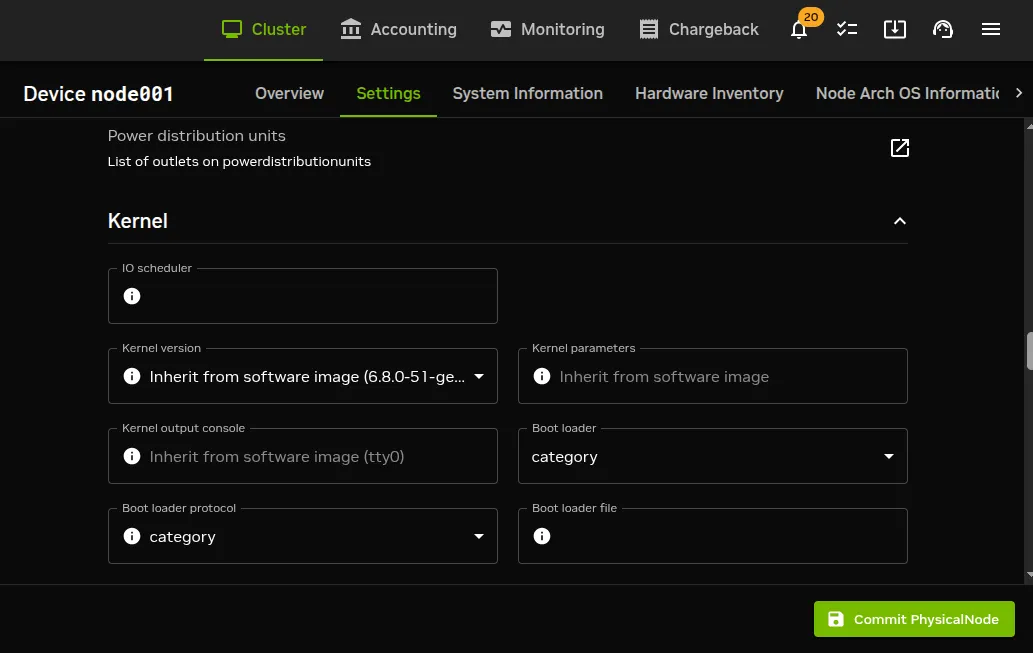
Figure 9.1: Updating A Software Image Kernel With Base View
-
To enable the updated kernel from
cmsh, thesoftwareimagemode is used. Thekernelversionproperty of a specified software image is thensetand committed:Example
Tab-completion suggestions for the set kernelversion command will display the available values for the kernel version.
9.3.4 Setting Kernel Options For Software Images
A standard kernel can be booted with special options that alter its functionality. For example, a kernel can boot with apm=off, to disable Advanced Power Management, which is sometimes useful as a workaround for nodes with a buggy BIOS that may crash occasionally when it remains enabled.
In Linux in general, kernel parameters such as apm=off can be viewed in /proc/cmdline on a running system.
In Base View, to enable booting with this kernel option setting, the navigation path Provisioning > Software images > Settings > Kernel parameters (figure 9.1) is used to set the kernel parameter to apm=off for that particular image.
In cmsh, the equivalent method is to modify the value of “kernel parameters” in softwareimage mode for the selected image:
Example
Often kernel options load up modules and their parameters. Making module loading persist after reboot and setting module loading order is covered in section 5.3.2
Some kernel options may require changes to be made in the BIOS settings in order to function.
9.3.5 Kernel Driver Modules
BCM provides some packages which install new kernel drivers or update kernel drivers. In RPM-based distributions, such packages generally require the kernel-devel package. In this section, the kernel-devel-check utility is first described, followed by the various drivers that BCM provides.
9.3.5.1 Kernel Driver Modules: kernel-devel-check Compilation Check
For RPM, the distribution’s kernel-devel package is required to compile kernel drivers for its kernel. It must be the same version and release as the kernel running on the node. For APT, the linux-header package corresponding to the kernel image is used.
In RPM-based distributions, to check the head node and software images for the installation status of the kernel-devel package, the BCM utility kernel-devel-check is run from the head node:
Example
As suggested by the output of kernel-devel-check, running a command on the head node such as:
installs a kernel-devel package, to the software image called default-image1 in this case. The package version suggested corresponds to the kernel version set for the image, rather than necessarily the latest one that the distribution provides.
9.3.5.2 Kernel Driver Modules: Improved Intel Wired Ethernet Drivers
Improved Intel wired Ethernet drivers—what they are:
The standard RHEL and SLES distributions provide Intel wired Ethernet driver modules as part of the kernel they provide. BCM provides an improved version of the drivers with its own intel-wired-ethernet-drivers package. The package contains more recent versions of the Intel wired Ethernet kernel drivers: e1000, e1000e, igb, igbvf, ixgbe and ixgbevf. They often work better than standard distribution modules when it comes to performance, features, or stability.
Improved Intel wired Ethernet drivers—replacement mechanism: The improved drivers can be installed on all nodes.
For head nodes, the standard Intel wired Ethernet driver modules on the hard drive are overwritten by the improved versions during package installation. Backing up the standard driver modules before installation is recommended, because it may be that some particular hardware configurations are unable to cope with the changes, in which case reverting to the standard drivers may be needed.
For regular nodes, the standard distribution wired Ethernet drivers are not overwritten into the provisioner’s software image during installation of the improved drivers package. Instead, the standard driver modules are removed from the kernel and the improved modules are loaded to the kernel during the init stage of boot.
For regular nodes in this “unwritten” state, removing the improved drivers package from the software image restores the state of the regular node, so that subsequent boots end up with a kernel running the standard distribution drivers from on the image once again. This is useful because it allows a very close-to-standard distribution to be maintained on the nodes, thus allowing better distribution support to be provided for the nodes.
If the software running on a fully-booted regular node is copied over to the software image, for example using the “Grab to image” menu item (section 9.5.2), this writes the improved driver module into the software image. Restoring to the standard version is then no longer possible with simply removing the improved drivers packages. This makes the image less close-to-standard, and distribution support is then less easily obtained for the node.
Thus, after the installation of the package is done on a head or regular node, for every boot from the next boot onward, the standard distribution Intel wired Ethernet drivers are replaced by the improved versions for fully-booted kernels. This replacement occurs before the network and network services start. The head node simply boots from its drive with the new drivers, while a regular node initially starts with the kernel using the driver on the software image, but then if the driver differs from the improved one, the driver is unloaded and the improved one is compiled and loaded.
Improved Intel wired Ethernet drivers—installation:
The drivers are compiled on the fly on the regular nodes, so a check should first be done that the kernel-devel package is installed on the regular nodes (section 9.3.5.1).
If the regular nodes have the kernel-devel package installed, then the following yum commands are issued on the head node, to install the package on the head node and in the default-image:
Example
For SUSE, the equivalent zypper commands are used (“zypper in” instead of “yum install”).
9.3.5.3 Kernel Driver Modules: CUDA Driver Installation
CUDA drivers are drivers the kernel uses to manage GPUs. These are compiled on the fly for nodes with GPUs in BCM. The details of how this is done is covered in the CUDA software section (Chapter 9 of the Installation Manual).
9.3.5.4 Kernel Driver Modules: OFED Stack Installation
By default, the distribution provides the OFED stack used by the kernel to manage the InfiniBand or RDMA interconnect. Installing an NVIDIA DOCA OFED stack to replace the distribution version is covered in Chapter 10 of the Installation Manual. Some guidance on placement into initrd for the purpose of optional InfiniBand-based node provisioning is given in section 5.3.3.
9.4 Managing A Package In A Software Image And Running It On Nodes
A package can be managed in a software image and the image deployed to nodes. A careful administrator typically clones a copy of a working image that is known to work, before modifying the image.
9.4.1 Installing From Head Into The Image: Changing The Root Directory Into Which The Packages Are Deployed
Managing packages (including the kernel) inside a software image is most easily done while on the head node, using a “change root” (chroot) mechanism. The easiest way to carry out the chroot mechanism in BCM is to use a wrapper provided by BCM, cm-chroot-sw-img, which works with all distributions.
The same can be carried out more laboriously using the distribution package managers, such as rpm, yum, zypper, or apt, by using the associated chroot package manager option, or invoking chroot as a standalone command.
9.4.1.1 Change Root As An Option In The Package Manager Command
Using the rpm command: The rpm command supports the --root flag. To install an RPM package inside the default software image while in the head node environment, using the repositories of the head node, the command can be used as follows:
Example
Using the yum command: The yum command allows more general updates with a change root option. For example, all packages in the default image can be updated using yum for RHEL and derivatives with:
Example
A useful option to restrict the version to which an image is updated, is to use the option --releasever. For example, to allow only updates up to RHEL9.1, the command in the preceding example would have --releasever=9.1 appended to it.
Using the zypper command: For SLES, zypper can be used as follows to update the image:
Example
9.4.1.2 Change Root With chroot, Then Running The Package Manager Commands
If the repositories used by the software image are the same as the repositories used by the head node, then the chroot command can be used instead of the --installroot|--root options to get the same result as the package manager options. That is, the same result is accomplished by first chrooting into an image, and subsequently executing the rpm, yum, or zypper commands without --root or --installroot arguments. Thus:
For RHEL and derivatives: For YUM-based update, running yum update is recommended to update the image, after using the chroot command to reach the root of the image:
Example
For SLES: For SLES, running zypper up is recommended to update the image, after using the chroot command to reach the root of the image:
Example
For Ubuntu: For Ubuntu and APT, for package installation into the software image, there is often a need for the /proc, /sys, /dev, and perhaps other directories to be available within the chroot jail. Additionally, the /proc namespace used should not be that of the head node due to namespace issues that affect decision-making in some of the pre- and post-installation script bundled with the package.
Pre-configuring all this with bind mounting before going into the chrooted filesystem is a little tedious. Therefore the BCM utility, cm-chroot-sw-img, is strongly recommended to take care of this.
Thus, for Ubuntu, if the cluster administrator would like to run apt update; apt upgrade to update the image, then the recommended way to do it is to start the process with the cm-chroot-sw-img command:
Example
The cm-chroot-sw-img wrapper is less needed in other distributions, with yum and zypper instead of apt. This is because the namespace issues are not so serious in with those other distributions. However even in those other distributions, it is cleaner to use the wrapper.
9.4.1.3 Excluding Packages And Repositories From The Image
Sometimes it may be desirable to exclude a package or a repository from an image.
-
If using
yum --installroot, then to prevent an automatic update of a package, the package is listed after using the--excludeflag. For example, to exclude the kernel from the list of packages that should be updated, the following command can be used:To exclude a package such as
kernelpermanently from all YUM updates, without having to specify it on the command line each time, the package can instead be excluded inside the repository configuration file of the image. YUM repository configuration files are located in the/cm/images/default-image/etc/yum.repos.ddirectory, and the packages to be excluded are specified with a space-separated format like this:exclude =<package 1><package 2>... -
The
zyppercommand can also carry out the task of excluding a package from getting updated when during update. To do this, the package is first locked (prevented from change) using theaddlockcommand, then theupdatecommand is run, and finally the package is unlocked again using theremovelockcommand. For example, for the kernel package: -
For Ubuntu, the
apt-mark holdcommand can be used to exclude a package. This is described in the particular case of excluding the kernel package earlier on, in section 9.3.2. -
Sometimes it is useful to exclude an entire repository from an update to the image. For example, the administrator may wish to exclude updates to the base distribution (the distribution packages used on the node, without the BCM packages), and only want BCM updates to be pulled into the image. In that case, a construction like the following may be used to specify that, for example, from the repositories listed in
/cm/images/default-image/etc/yum.repos.d/, only the repositories matching the patterncm*are used: -
For Ubuntu, excluding a repository can be carried out by removing the repository under
/etc/apt/sources.list.d/. Slightly handier may be to use theadd-apt-repositorycommand, or theapt edit-sourcescommand.
9.4.2 Installing From Head Into The Image: Updating The Node
If the images are in place, then the nodes that use those images cannot run those images until they have the changes placed on the nodes. Rebooting the nodes that use the software images is a straightforward way to have those nodes start up with the new images. Alternatively, the nodes can usually simply be updated without a reboot, using imageupdate (section 5.6), if no reboot is required by the underlying Linux distribution.
9.4.3 Installing From Head Into The Image: Possible Issues When Using rpm --root, yum --installroot Or chroot
-
The update process on an image, when using YUM, zypper, or APT, will fail to start if the image is being provisioned by a provisioner at the time. The administrator can either wait for provisioning requests to finish, or can ensure no provisioning happens by locking the image (section 5.4.7), before running the update process. The image can then be updated. The administrator normally unlocks the image after the update, to allow image maintenance by the provisioners again.
Example
-
The
rpm --rootoryum --installrootcommand can fail if the versions between the head node and the version in the software image differ significantly. For example, installation from a RHEL8 head node to a RHEL9 software image is not possible with those commands, and can only be carried out withchroot. -
While installing software into a software image with an
rpm --root,yum --installrootor with achrootmethod is convenient, there can be issues if daemons start up in the image, or if the distribution installation scripts exit with errors due to being in an image environment rather than a real instance.For example, installation scripts that stop and re-start a system service during a package installation may successfully start that service within the image’s chroot jail and thereby cause related, unexpected changes in the image. Pre- and post- (un)install scriptlets that are part of RPM or APT packages may cause similar problems.
BCM’s RPM and
.debpackages are designed to install under chroot without issues. However packages from other repositories may cause the issues described. To deal with that, the cluster manager runs thechrootprocesshealth check, which alerts the administrator if there is a daemon process running in the image. Thechrootprocessalso checks and kills the process if it is acrondprocess. -
For some package updates, the distribution package management system attempts to modify the ramdisk image. This is true for kernel updates, many kernel module updates, and some other packages. Such a modification is designed to work on a normal machine. For a regular node on a cluster, which uses an extended ramdisk, the attempt does nothing.
In such cases, a new ramdisk image must nonetheless be generated for the regular nodes, or the nodes will fail during the ramdisk loading stage during start-up (section 5.8.4).
The ramdisk image for the regular nodes can be regenerated manually, using the
createramdiskcommand (section 5.3.2). -
Trying to work out what is in the image from under chroot must be done with some care.
For example, under chroot, running “
uname -a” returns the kernel that is currently running—that is the kernel outside the chroot. This is typically not the same as the kernel that will load on the node from the filesystem under chroot. It is the kernel in the filesystem under chroot that an unwary administrator may wrongly expect to detect on running theunamecommand under chroot.To find the kernel version that is to load from the image, the software image kernel version property (section 9.3.3) can be inspected using the cluster manager with:
Example
9.4.4 Managing A Package In The Node-Installer Image
A special software image is the node-installer image. The node-installer image was introduced in NVIDIA Base Command Manager version 9.0, to make multiarch (section 9.7) possible.
The node-installer image is an image that, unsurprisingly, contains the node-installer (section 5.4). The default /cm/node-installer tree is a standalone image for that architecture. It requires updating just like the regular software image. So, for example, in YUM, the entire tree can be updated with:
or
while a particular package inside the image, such as util-linux, could be installed with:
Updating the node-installer is recommended whenever there are updates available, in order to fix possible bugs that might affect the node-installer operations.
9.5 Managing Non-RPM Software In A Software Image And Running It On Nodes
Sometimes, packaged software is not available for a software image, but non-packaged software is. This section describes the installation of non-packaged software onto a software image in these two cases:
-
copying only the software over to the software image (section 9.5.1)
-
placing the software onto the node directly, configuring it until it is working as required, and syncing that back to the software image using BCM’s special utilities (section 9.5.2)
In both cases, before making changes, a careful administrator typically clones a copy of a working image that is known to work, before modifying the image.
As a somewhat related aside, completely overhauling the software image, including changing the base files that distinguish the distribution and version of the image is also possible. How to manage that kind of extreme change is covered separately in section 9.6.
However, this current section (9.5) is about modifying the software image with non-RPM software while staying within the framework of an existing distribution and version.
In all cases of installing software to a software image, it is recommended that software components be placed under appropriate directories under /cm/shared (which is actually outside the software image).
So, just as in the case for installing software to the head node in section 9.2.2, appropriate software components go under:
9.5.1 Managing The Software Directly On An Image
The administrator may choose to manage the non-packaged software directly in the correct location on the image.
For example, the administrator may wish to install a particular software to all nodes. If the software has already been prepared elsewhere and is known to work on the nodes without problems, such as for example library dependency or path problems, then the required files can simply be copied directly into the right places on the software image.
The chroot command may also be used to install non-packaged software into a software image. This is analogous to the chroot technique for installing packages in section 9.4:
Example
Whatever method is used to install the software, after it is placed in the software image, the change can be implemented on all running nodes by running the updateprovisioners (section 5.2.4.4) and imageupdate (section 5.6.2) commands.
9.5.2 Managing The Software Directly On A Node, Then Syncing Node-To-Image
9.5.2.1 Why Sync Node-To-Image?
Sometimes, typically if the software to be managed is more complex and needs more care and testing than might be the case in section 9.5.1, the administrator manages it directly on a node itself, and then makes an updated image from the node after it is configured, to the provisioner.
For example, the administrator may wish to install and test an application from a node first before placing it in the image. Many files may be altered during installation in order to make the node work with the application. Eventually, when the node is in a satisfactory state, and possibly after removing any temporary installation-related files on the node, a new image can be created, or an existing image updated.
Administrators should be aware that until the new image is saved, the node loses its alterations and reverts back to the old image on reboot.
The node-to-image sync can be seen as the converse of the image-to-node sync that is done using imageupdate (section 5.6.2).
The node-to-image sync discussed in this section is done using the Grab to image menu option from Base View, or using the “grabimage” command with appropriate options in cmsh. The sync automatically excludes network mounts and parallel filesystems such as Lustre and GPFS, but includes any regular disk mounted on the node itself.
Some words of advice and a warning are in order here
-
The cleanest, and recommended way, to change an image is to change it directly in the node image, typically via changes within a chroot environment (section 9.5.1).
-
Changing the deployed image running on the node can lead to unwanted changes that are not obvious. While many unwanted changes are excluded because of the
excludelistgrab*lists during a node-to-image sync, there is a chance that some unwanted changes do get captured. These changes can lead to unwanted or even buggy behavior. The changes from the original deployed image should therefore be scrutinized with care before using the new image. -
For scrutiny, the
bashcommand:run from
/cm/images/shows the changed files for image directoriesimage1andimage2, with uninteresting parts folded away. The<(commands)construction is called process substitution, for administrators unfamiliar with this somewhat obscure technique.
9.5.2.2 Node-To-Image Sync Using Base View
In Base View, the software on the running node can be saved to an image. To do this for a particular node, for example, node001, the Grab to image screen options can be navigated to using:
Devices > All Devices > Physical Node[node001]⋮ >Software image > Grab to Image > options
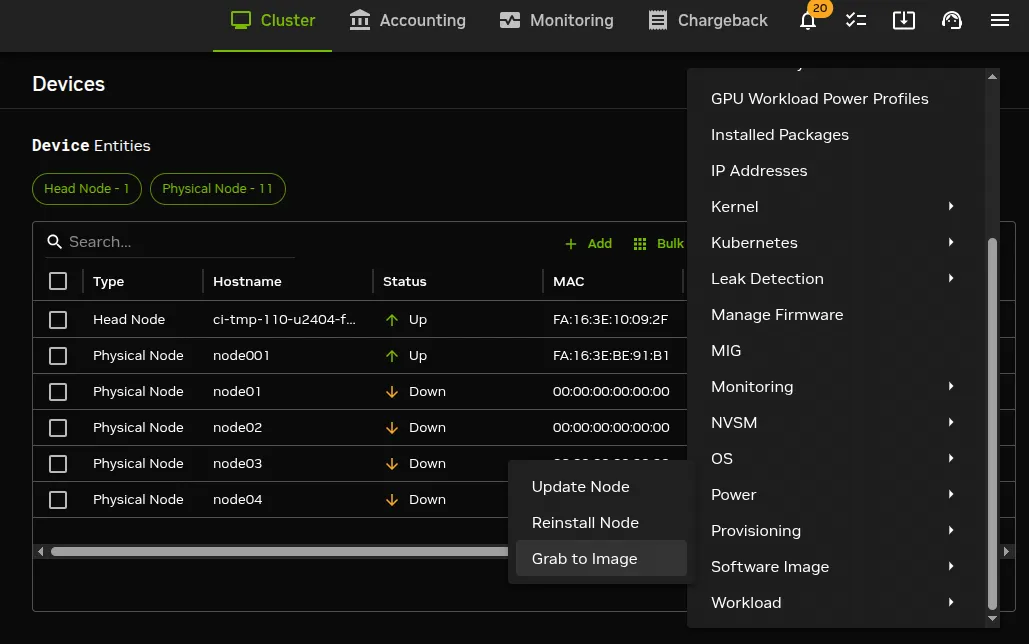
Figure 9.2: Synchronizing node-to-image: accessing Grab to image
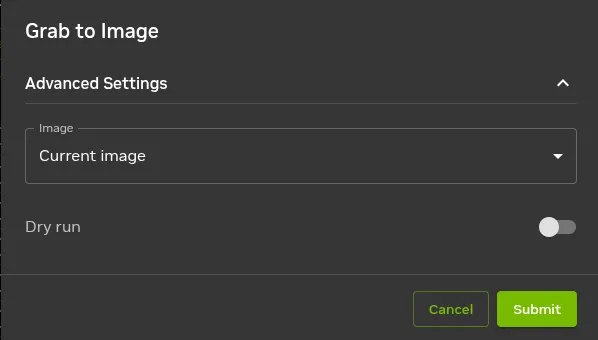
Figure 9.3: Synchronizing node-to-image: screen options for Grab to image
In the Grab to image screen (figure 9.3):
-
Current imagecan be selected. This is the image that the running node was provisioned from. Setting it synchronizes from the node back to the software image, using evaluation based on file change detection between the node and the image. It is thus a synchronization to the already existing software image that is currently in use by the node.The items that it excludes from the synchronization are specified in the
Exclude list image grabtext file, which is an exclude list originating in the category, and that can be viewed and edited using the navigation path:Grouping > Categories > Settings > Exclude list grab.This exclude list is known as
excludelistgrab(here) incmsh. -
Another image can be selected. The image selected must already exist, and may be other than the image that the running node was provisioned from. Selection grabs what is to go to the image from the node. It wipes out whatever (if anything) is in the selected image, except for a list of excluded items.
The excluded items can be viewed and edited in the
Exclude list grab newblock, navigated to usingGrouping > Categories > Settings > Exclude list grab new.This exclude list is known as
excludelistgrabnew(here) incmsh.
The synchronization carried out when using the current image is a bit more “gentle” in carrying out the node-to-image sync, compared to the what is done when using the other image. That is, it carries out a “gentler sync” to avoid wiping out existing files, versus a “violent grab” to another image that can wipe out existing files. This means that there is a difference between using Current image and using Other image when both destination software images are the same.
The exclude lists are there to ensure, among other things, that the configuration differences between nodes are left alone for different nodes with the same image. The exclude lists are simple by default, but they conform in structure and patterns syntax in the same way that the exclude lists detailed in section 5.4.7.2 do, and can therefore be quite powerful.
If existing images are known to work well with nodes, then overwriting them with a new image on a production system may be reckless. A wise administrator who has prepared a node that is to write an image would therefore follow a process similar to the following instead of simply overwriting an existing image:
-
A new image can be cloned from the old image using the navigation path:
Provisioning > Software Images >old image⋮ > Cloneand setting a name for the new image, for example:
newimage. The node state with the software installed on it would then be saved using theGrab to imageoption, and choosing the image namenewimageas the image to save it to. -
A new category is then cloned from the old category via the navigation path:
Grouping > Categories >the selected category>> Cloneand setting a name for the new category, for example
newcategory. The old image innewcategoryis changed to the new imagenewimageusing the navigation path:Grouping > Categories > newcategory > Settings > Software image > newimage -
A newly-cloned category has no nodes initially. Some nodes are set to the new category so that their behavior with the new image can be tested. The chosen nodes can be made members of the new category from within the
Settingsoption of each node, and saving the change. The navigation path for this is:Devices > All Devices >the chosen nodes> Settings > Category > newcategory -
The nodes that have been placed in the new category are now made to pick up and run their new images. This can be done with a reboot of those nodes.
-
After sufficient testing, all the remaining nodes can be moved to using the new image. The old image is removed if no longer needed, or perhaps kept around just in case for reference.
9.5.2.3 Node-To-Image Sync Using cmsh
The preceding Base View method can alternatively be carried out using cmsh commands. The cmsh equivalent to the Grab to image with the Current image option is the grabimage command, available from device mode. The cmsh equivalent to the Grab to image with another image is the grabimage -i command, where the -i option specifies the image it will write to. As before, that image must be created or cloned beforehand.
The following cmsh session shows how a image is cloned, how a category is set for nodes that are to use the image, and how the running node with the new software on it is synchronized to the provisioning node that has the new image:
The grabimage command without the -w option simply does a dry-run so that the user can see in the provisioning logs what should be grabbed, without having the changes actually carried out. Running grabimage -w instructs CMDaemon to really write the image.
When writing out the image, two exclude lists may be used:
-
excludelistgrabnew: This is used with thegrabimagecommande run with the-ioption. The list can be accessed and edited using the path:cmsh>category[image] >set excludelistgrabnewIt corresponds to the
Exclude list grab newexclusion list in Base View, on the navigation path:Devices > All Devices > Physical Node[node001] > Settings > Exclude list grab newwhich is associated with
Grab to image(figure 9.3) in Base View. -
excludelistgrab: This is used with thegrabimagecommand, run without the-ioption. The list can be accessed and edited using the path:cmsh>category[image] >set excludelistgrabIt corresponds to the
Exclude list grabexclusion list in Base View, on the navigation path:Devices > All Devices > Physical Node[node001] > Settings > Exclude list grabwhich is associated with
Grab to image(figure 9.3) in Base View.
9.6 Creating A Custom Software Image
By default, the software image used to boot non-head nodes is based on the same version and release of the Linux distribution as used by the head node. However, sometimes an image based on a different distribution or a different release from that on the head node may be needed.
A custom software image is created typically by building an entire filesystem image from a regular node. The node, which is never a head node, is then called the base host, with the term “base” used to indicate that it has no additional cluster manager packages installed. The distribution on the base host, is called the base distribution and is a selection of packages derived from the parent distribution (Red Hat, Scientific Linux etc.). A base distribution package is a package or rpm that is directly provided by the vendor of the parent distribution which the base distribution is based on, and is not provided by BCM.
Creating a custom software image consists of two steps. The first step (section 9.6.1) is to create a base (distribution) archive from an installed base host. The second step (section 9.6.2) is to create the image from the base archive using a special utility, cm-create-image.
An alternative to these steps is to use the cm-image tool (section 9.7.1), which is a wrapper to cm-create-image.
9.6.1 Creating A Base Distribution Archive From A Base Host
9.6.1.1 Structure Of The Base Distribution Archive
The step of creating the base distribution archive is done by creating an archive structure containing the files that are needed by the non-head node.
The filesystem that is archived in this way can differ from the special way that a Linux distribution unpacks and installs its filesystem on to a machine. This is because the distribution installer often carries out extra changes, for example in GRUB boot configuration. The creation of the base distribution archive is therefore a convenience to avoid working with the special logic of a distribution installer, which will vary across distributions and versions. Instead, the filesystem and contents of a node on which this parent distribution is installed—i.e. the end product of that logic—is what is dealt with.
The archive can be a convenient and standard tar.gz file archive (sometimes called the “base tar”), or, taking the step a little further towards the end result, the archive can be a fully expanded archive file tree. For convenience, a base tar is provided in the cluster installation ISO. For Ubuntu 24.04, the path on the ISO is /data/UBUNTU2404.tar.gz:
Example
9.6.1.2 Repository Access Considerations When Intending To Build A Base Distribution Archive
For convenience, the archive should be up-to-date. So, the base host used to generate the base distribution archive should ideally have updated files. If, as is usual, the base host is a regular node, then it should ideally be up to date with the repositories that it uses. Therefore running yum update or zypper up on the base host image, and then provisioning the image to the base host, is recommended in order to allow the creation of an up-to-date base distribution archive.
However sometimes updates are not possible or desirable for the base host. This means that the base host archive that is put together from the base host filesystem is an un-updated archive. The custom image that is to be created from the archive must then be also be created without accessing the repositories, in order to avoid dependency problems with the package versions. Exclusion of access to the repositories is possible by specifying options to the cm-create-image command, and is described in section 9.6.2.
9.6.1.3 Examples Of How To Build A Base Distribution Archive
In the following example, a base distribution tar.gz archive /tmp/BASEDIST.tar.gz is created from the base host basehost64. The archive that is created should normally have access control lists and extended attributes preserved too:
Example
Or alternatively, a fully expanded archive file tree can be created from basehost64 by rsyncing to an existing directory (here it is /cm/images/new-image):
Example
SELinux and file attributes:
To use SELinux on compute nodes, extended attributes must not be used.
The defaults can be modified, if needed, by adjusting attributes for partitions via cmsh, in fspart mode:
Example
Having built the archive by following the examples suggested, the first step in creating the software image is now complete.
9.6.2 Creating The Software Image With cm-create-image
The second step, that of creating the image from the base archive, now needs to be done. This uses the cm-create-image utility, which is part of the cluster-tools package.
The cm-create-image utility uses the base archive as the base for creating the image. By default, it expects that the base distribution repositories be accessible just in case files need to be fetched from a repository package.
Thus, when the cm-create-image utility is run with no options, the image created mostly picks up the software only from the base archive. However, the image picks up software from the repository packages:
-
if it is required as part of a dependency, or
-
if it is specified as part of the package selection file (here).
If a repository package file is used, then it should be noted that the repository package files may be more recent compared with the files in the base archive. This can result in an image with files that are perhaps unexpectedly more recent in version than what might be expected from the base archive, which may cause compatibility issues. To prevent this situation, the --exclude option (section 9.2) can be used to exclude updates for the packages that are not to be updated.
Repository access can be directly to the online repositories provided by the distribution, or it can be to a local copy. For RHEL, online repository access can be activated by registering with the Red Hat Network (section 5.1 of the Installation Manual). Similarly, for SUSE, online repository access can be activated by registering with SUSE (section 5.2 of the Installation Manual). An offline repository can be constructed as described in section 9.6.3 of this manual.
9.6.2.1 Usage Of The cm-create-image Command
The usage information for cm-create-image is:
The options in the preceding usage are described further in the help text.
9.6.2.2 Examples In Usage Of cm-create-image
Explanations of the usage text follow:
-
In the following, a base distribution archive file,
/tmp/ROCKY9.tar.gz, is written out to a software image namedrocky9-image:The image with the name
rocky9-imageis created in the CMDaemon database, making it available for use bycmshand Base View. If an image with the name already exists, thencm-create-imageexits and advises the administrator to provide an alternate name.By default, the image name specified sets the directory into which the software image is installed. Thus here the directory is
/cm/images/rocky9-image/. -
Instead of the image getting written into the default directory as in the previous item, an alternative directory can be specified with the
--imagediroption. Thus, in the following, the base distribution archive file,/tmp/ROCKY9.tar.gzis written out to the/cm/images/test-imagedirectory. The software image is given the namerocky9-image: -
If the contents of the base distribution file tree have been transferred to a directory, then no extraction is needed. The
--fromdiroption can then be used with that directory. Thus, in the following, the archive has already been transferred to the directory/cm/images/SLES15-image, and it is that directory which is then used to place the image under a directory named/cm/images/sles15-image/. Also, the software image is given the namesles15-image:-
skipping: Sometimes the installation of additional base distribution packages may need to be skipped.
For example, if the target image already has the required base distribution packages, as in DGX OS, which already includes Ubuntu. In that case the
--skipdistoption must be used to skip package installation: -
updating: If the software image already exists in CMDaemon, and if the target directory contents need to be updated, then the
--updateimageoption can be used: -
skipping and updating: Applying both options means skipping the installation of additional base distribution packages, and then updating the software image, which can be an efficient way to set up an up-to-date DGX image:
-
-
A software image can be created from a running node using the
--fromhostoption. This option makescm-create-imagebehave in a similar manner tograbimage(section 9.5.2) incmsh. It requires passwordless access to the node in order to work. Generic nodes, that is nodes that are not managed by BCM, can also be used. An image namednode001-imagecan then be created from a running node namednode001as follows:By default the image goes under the
/cm/images/node001-image/directory. -
The
--basedistrepoflag is used together with a.repofile. The file defines the base distribution repository for the image. The file is copied over into the repository directory of the image, (/etc/yum.repos.d/for Red Hat and similar, or/etc/zypp/repos.d/for SLES). -
The
--cmrepoflag is used together with a.repofile. The file defines the cluster manager repository for the image. The file is copied over into the repository directory of the image, (/etc/yum.repos.d/for Red Hat and similar, or/etc/zypp/repos.d/for SLES). -
A default node software image can be created with:
-
A default node-installer image can be created with:
-
A default DGX platform image can be created from a vanilla Ubuntu 24.04 basetar with:
-
The
--extra-pkg-groupoption lets some extra packages be specified for installation into an Ubuntu image.At the time of writing of this section (August 2025), the packages are DOCA OFED packages, as returned by the following
grepcommand on the head node:The XML file being grepped is a package selection file containing a list of extra packages. Package selection files (here) used for package selection with
cm-create-imageare XML files.Another way to install DOCA OFED is using the
cm-doca-ofed-install.shscript-based installation method (section 10.2 of the Installation Manual).If there is already a DOCA OFED package in the image, then the
cm-doca-ofed-install.shmethod reports the version that is already there. Only if the--forceoption is used, does installation continue. -
The
--dgx-typeoption can be set to one of the following:-
dgx_h100for the H100 GPU -
dgx_b200for the B200 GPU -
dgx_a100for the A100 GPU -
dgx_gb200for the GB200 GPU -
dgx_h200for the H200 GPU -
dgx_gb300for the GB300 GPU -
dgx_b300for the B300 GPU
This sets the correct kernel parameters for the DGX image in a standardized manner.
-
9.6.2.3 Package Selection Files In cm-create-image
In the preceding explanations text, the selection of packages on the head node is done using a package selection file.
Package selection files are available in /cm/local/apps/cluster-tools/config/. For example, if the base distribution of the software image being created is Rocky Linux 8, then the configuration file used is:
The package selection file is made up of a list of XML elements, specifying the image type of the package, its name, and architecture. For example:
The minimal set of packages in the list defines the minimal distribution that works with BCM, and is the base-distribution set of packages, which may not work with some features of the distribution or BCM. To this minimal set the following packages may be added to create the custom image:
-
Packages from the standard repository of the parent distribution. These can be added to enhance the custom image or to resolve a dependency of BCM. For example, in the (parent) Red Hat distribution, packages can be added from RHEL’s BaseOS and Appstream repositories to the base-distribution.
-
Packages from outside the standard repository, but still from inside the parent distribution. These can be added to enhance the custom image or to resolve a dependency of BCM. For example, within the RHEL8 and RHEL9 distribution, unsupported packages can be added from the CRB (CodeReady Linux Builder) and Supplementary repositories to the base-distribution to enhance the capabilities of the image or resolve dependencies of BCM. Section 9.1 of the Installation Manual considers an example of such a dependency for the CUDA package.
Unless the required distribution packages and dependencies are installed and configured, particular features of BCM, such as CUDA, cannot work correctly or cannot work at all.
The package selection file also contains entries for the packages that can be installed on the head (image="master") node. Therefore non-head node packages must have the image="slave" attribute.
9.6.2.4 Kernel Module Selection By cm-create-image
For an image created by cm-create-image, with a distribution <dist>, the default list of kernel modules to be loaded during boot are read from the file /cm/local/apps/cluster-tools/config/<dist>-slavekernelmodules.
<dist> can take the value RHEL8U10, RHEL9U6, RHEL9U7, RHEL9U8, ROCKY8U10, ROCKY9U6, ROCKY9U7, ROCKY9U8, SLES15, SLES15SP6, SLES15SP7, UBUNTU2204, UBUNTU2404, UBUNTU2604.
If custom kernel modules are to be added to the image, they can be added to this file.
9.6.2.5 Output And Logging During A cm-create-image Run
The cm-create-image run goes through several stages: validation, sanity checks, finalizing the base distribution, copying the BCM repository files, installing distribution packages, finalizing image services, and installing the BCM packages. An indication is given if any of these stages fail.
Further detail is available in the logs of the cm-create-image run, which are kept in logs of the form /var/log/cm-create-image-<image name>.log, where <image name> is the name of the built image.
9.6.2.6 Default Image Location
The default-image is at /cm/images/default-image, so the image directory can simply be kept as /cm/images/.
During a cm-create-image run, the --imagedir option allows an image directory for the image to be specified. This must exist before the option is used.
More generally, the full path for each image can be set:
-
With Base View, using the navigation path
Provisioning > Software Images >a chosen image> Settings > Path -
With
cmshwithinsoftwareimagemode, for example: -
At the system level, the images or image directory can be symlinked to other locations for organizational convenience
9.6.2.7 Removal Of doca.list Repositories List For DGX Images Created By cm-create-image Versions Earlier Than BCM 11.30.0
For versions of BCM prior to 11.30.0, for B200, GB200 and similar hardware, the repositories list for DOCA should be removed from the DGX image. If the file is kept in, then cm-kubernetes-setup (Chapter 4.2 of the Containerization Manual) fails at around progress precentage 22.
To remove the list of DOCA repositories, the following procedure can be carried out from the head node for a DGX image dgx-image:
The setup for Kubernetes can then be (re-)run.
9.6.3 Configuring Local Repositories For Linux Distributions, And For The BCM Package Repository, For A Software Image
Using local instead of remote repositories can be useful in the following cases:
-
for clusters that have restricted or no internet access.
-
for the RHEL and SUSE Linux distributions, which are based on a subscription and support model, and therefore do not have free access to their repositories.
-
for creating a custom image with the
cm-create-imagecommand introduced in section 9.6.2, using local base distribution repositories.
The administrator can choose to access an online repository provided by the distribution itself via a subscription as described in Chapter 5 of the Installation Manual. Another way to set up a repository is to set it up as a local repository, which may be offline, or perhaps set up as a locally-controlled proxy with occasional, restricted, updates from the distribution repository.
In the four procedures that follow, the first two procedures explain how to create and configure a local offline SLES zypper or RHEL YUM repository for the subscription-based base distribution packages. These first two procedures assume that the corresponding ISO/DVD has been purchased/downloaded from the appropriate vendors. The third procedure then explains how to create a local offline YUM repository from the BCM ISO for CentOS so that a cluster that is completely offline still has a complete and consistent repository access. The fourth procedure explains the equivalent APT-based approach for Ubuntu.
Thus, a summary list of what these procedures are about is:
-
Setting up a local repository for SLES (here)
-
Setting up a local repository for RHEL (here)
-
Setting up a local repository for CentOS and BCM from the BCM ISO for CentOS (here)
-
Setting up a local repository for Ubuntu and BCM from the BCM ISO for Ubuntu (here)
9.6.3.1 Configuring Local Repositories For SLES For A Software Image
For SLES15 the required packages are available in two ISOs. Assuming that the image directory is /cm/images/sles15sp5-image, while the names of the ISOs are SLE-15-SP5-Full-x86_64-GM-Media1.iso and SLE-15-SP5-Full-x86_64-GM-Media2.iso, then the contents of the ISOs can be copied as follows:
The two repositories can be added for use by zypper in the image, as follows:
9.6.3.2 Configuring Local Repositories For RHEL For A Software Image
For RHEL distributions, the procedure is almost the same. The required packages are contained in one DVD.
The repository is added to YUM in the image, by creating the repository file /cm/images/rhel-image/etc/yum.repos.d/rhel-base.repo with the following contents:
9.6.3.3 Configuring Local Repositories For CentOS And BCM For A Software Image
Mounting the ISOs
The variable $imagedir is assigned as a shortcut for the software image that is to be configured to use a local repository:
If the ISO is called basecom-centos.iso, then its filesystem can be mounted by the root user on a new mount, /mnt1, as follows:
The head node can then access the ISO filesystem.
The same mounted filesystem can also be mounted with the bind option into the software image. This can be done (from outside the chroot jail) inside the software image by the root user, in the same relative position as for the head node, as follows:
This allows an operation run under the $imagedir in a chroot environment to access the ISO filesystem too.
Creating YUM repository configuration files:
YUM repository configuration files can be created:
-
for the head node: A repository configuration file
can be created, for example, for a release tagged with a <
subminor> number tag, with the content: -
for the regular node image: A repository configuration file
can be created. This file is in the image directory, but it has the same content as the previous head node yum repository configuration file.
Verifying that the repository files are set up right: To verify the repositories are usable on the head node, the YUM cache can be cleaned, and the available repositories listed:
To carry out the same verification on the image, these commands can be run with yum --installroot=$imagedir substituted in place of just yum.
The ISO repository should show up, along with any others that are accessible. Connection attempts that fail to reach a network-based or local repositories display errors. If those repositories are not needed, they can be disabled from within their configuration files.
9.6.3.4 Configuring Local Repositories For Ubuntu For A Software Image
Mounting the ISO:
If the BCM Ubuntu ISO is called bcm-ubuntu.iso, then its filesystem can be mounted by the root user on a new mount, /mnt1, as follows:
Creating an APT repository list file:
Unlike YUM and zypper, which use .repo files under /etc/yum.repos.d/, APT repository sources are configured in .list files under /etc/apt/sources.list.d/. A list file can be created for the head node, for example /etc/apt/sources.list.d/cm-dvd.list, with content along the lines of:
The first line makes the BCM packages for that release available. As covered in section 9.6.3, the cm-config-apt package, which is installed by default on the Ubuntu edition of BCM, already imports the BCM keyring into /etc/apt/trusted.gpg.d/brightcomputing-archive-cm.gpg, so this line does not need trusted=yes to pass APT’s signature check.
The second line, for the base Ubuntu distribution packages carried on the same ISO, is optional if the cluster has online access to the standard Ubuntu repositories, but is recommended for an offline or air-gapped cluster so that dependencies required by BCM packages, such as cmdaemon, can also be resolved locally. Unlike the BCM packages on the first line, these base distribution packages are not covered by the BCM keyring, so trusted=yes is used here to accept them without a signature check. This is a deliberate risk acceptance for local, physically-controlled installation media, not a default that should be copied to a network-hosted repository.
Applying the repository to a software image:
To use the new repository inside a software image rather than just on the head node, the list file is copied into the image, and the ISO mount is bind-mounted into the image so that the image can reach the same files:
where $imagedir is the software image directory, as used in the preceding CentOS example. Both the /mnt1 mount and its bind mount into $imagedir/mnt1 are not persistent across a reboot. If the head node is rebooted, both mounts must be recreated before apt update is run again, in either the head node or the image, or the file:///mnt1/... paths in the .list file will fail to resolve.
Verifying that the repository is set up right:
To verify the repository is usable on the head node, the APT cache can be cleaned and refreshed:
Running apt update only refreshes package metadata. It does not install or change any packages. This confirms the repository is being read, in the same way that yum repolist -v checks the YUM repositories in the preceding examples without installing anything.
Note: apt upgrade is deliberately not run here. Like a YUM or zypper upgrade, it upgrades every eligible package on the system by default, not just the packages served by the new repository. So running it as part of a verification step risks pulling in unrelated, and potentially breaking, package changes. It should be run for a restricted number of packages, separately and deliberately, if the repository itself is working.
To carry out the same verification on the image, cm-chroot-sw-img can be used to enter the image first (section 9.4.1.2):
9.6.4 Creating A Custom Image From The Local Repository
After having created the local repositories for SLES, RHEL or CentOS/Rocky (section 9.6.3.1), a custom software image based on one of these can be created. For example, for CentOS, in a directory given the arbitrary name offlineimage:
The -e option prevents copying the default cluster manager repository files on top of the image being created, since they may have been changed by the administrator from their default status. The -s option prevents installing additional base distribution packages that might not be required.
9.7 Creating Images For Other Distributions And Architectures (Multidistro And Multiarch)
BCM can mix distributions in the cluster. This ability is called multidistro. However, it is often also loosely called multiOS.
BCM can also run on certain mixed architecture combinations. The ability to run on multiple architectures is called multiarch. For BCM, multiarch means that the node hardware can be based on either the x86-64 CPU architecture, or the ARMv8 CPU architecture, or on a mixture of both.
The Linux distributions and the hardware architectures supported by NVIDIA Base Command Manager 11.0 are shown in the following table 9.1:
Table 9.1: Images generated by cm-image that work with head nodes, per architecture and distribution
For example, a head node running Ubuntu 22.04, on x86-64 or ARMv8 hardware, can support Ubuntu 22.04, Ubuntu 24.04, Ubuntu 26.04, RHEL8, or RHEL9 distributions running on x86-64 and on ARMv8 hardware for the compute nodes. In addition, that same head node supports running SLES15 on the compute nodes, but only for x86-64 hardware.
9.7.0.1 The nodearchosinfo Command
The nodearchosinfo command helps the cluster administrator see what architectures and distributions are configured and reported on the nodes:
For the reported fields, attention should be paid to the timestamps. A reported state is only updated when CMDaemon on the node reports the OS and architecture. Until that event, the reported state reports the last known value. This means that if the node fails to run after a reboot attempt is made, then the reported states are not updated, and the timestamps do not change.
The nodearchosinfo command also warns if the reported OS and the configured OS of the node differ.
To configure multiarch and multidistro, the cm-image tool is used.
9.7.1 The cm-image Tool
The cm-image tool is essentially a wrapper for the cm-create-image (section 9.6) tool. The cm-image tool however has some extra features, including allowing the cluster administrator
-
to create a separate node-installer image as well as a separate software image
-
to create a directory under
/cm/sharedfor each image -
to select the architecture
-
to manage packages in an image more easily
When used to enable a distribution for the first time, multiple changes are made to critical files and paths that may put the regular nodes into an unstable state. This means that all regular nodes should be rebooted after cm-image has been used. It is also recommended to set the nextinstallmode (here) to FULL to get rid of the original file system properly, to prevent any software leftovers from the older file system from possibly interfering with a new OS image.
The nodearchosinfo (here) command helpfully warns if the reported OS and the configured OS of the node differ.
Example
The command options of cm-image are illustrated by the following modes and options tree:
Values that can be set are:
-
<architecture>:
aarch64,x86_64 -
<distribution>: this can be one of the distributions indicated in the following list:
-
rhel8u0,rhel8u1,rhel8u2,rhel8u3,rhel8u4,rhel8u5,rhel8u6,rhel8u7,rhel8u8,rhel8u9,rhel8u10 -
rhel9u0,rhel9u1,rhel9u2,rhel9u3,rhel9u4,rhel9u5,rhel9u6,rhel9u7,rhel9u8 -
sles15sp1,sles15sp2,sles15sp3,sles15sp4,sles15sp5,sles15sp6,sles15sp7 -
ubuntu2204,ubuntu2404,ubuntu2604
For
rhelin the preceding list:-
centosis automatically substituted in the case of CentOS distributions -
rockyis automatically substituted in the case of Rocky Linux distributions
-
-
<archive>: path to a base tar file (section 9.6.1), eg:
/root/basetar/data/UBUNTU2004.tar.gz -
<directory>: path to a filesystem, eg:
/root/basetar/data/untarred/ -
<host>: URL to a host, eg: http://10.141.255.254/x86-iso/data/packages/dist
-
<base repository>: repository file for base tar, eg:
/root/bright9.2-rocky8u5-iso.repo -
<base distribution repository url>: URL for base distribution repository, eg:
http://dl.rockylinux.org/$contentdir/$releasever/BaseOS/$basearch/os/ -
<cluster manager repository>: repository file for cluster manager, eg:
/root/cm-bright9.2-rocky8u5-iso.repo -
<image>: image to operate on when managing packages, for example:
/cm/images/default-image-rhel8-aarch64or/cm/node-installer-centos7-x86 -
<package to install>: eg:
cluster-tools -
<package to remove>: eg:
cluster-tools -
<package to update>: eg:
cluster-tools -
<GPU platform type>:
dgx_h100,dgx_b200,dgx_a100,dgx_gb200,dgx_h200,dgx_b300,dgx_gb300(the same options as described here) -
<extra packages group>:
doca_ofed_2.9.1-2,doca_ofed_2.9.1-3.0.2,doca_ofed_2.9.3,doca_ofed_2.10.0-093520,doca_ofed_3.0.0(the same options as described here)
9.7.2 Multidistro Examples: Provisioning From Rocky 8 Head Node To Ubuntu 24.04 Regular Nodes
9.7.2.1 Using ISO For Cluster Without Network Access
A base tar (section 9.6.1) can be used
As suggested by the output, a new category, default-ubuntu2404-x86_64, appears.
A node can be placed in the new category and restarted:
9.7.2.2 Adding Several Update Versions Alongside Each Other
In the following session, a Rocky9u3 x86 archived base tar is being added with cm-image. A Rocky9u2 software image is then being added with cm-create-image, using the same node-installer and /cm/shared/ images directory:
9.7.2.3 Configuring CMDaemon With The Software Image, Node-installer, Or Shared Filesystem
The cm-image tool can be used to add a CMDaemon configuration for a software image, node-installer, or shared filesystem to a CMDaemon database.
If a cm-image-generated image directory, for example default-image-ubuntu2404-x86_64, has been copied over from another cluster:
then the local CMDaemon can be configured for it with the --add-only option:
9.7.3 Multiarch Example: Creating An Image From A Centos 8 Head Node For ARMv8 Architecture Regular Nodes
This section explains how to configure a software image for a regular node that runs on ARMv8 hardware, assuming BCM is installed on a head node (Chapter 3 of the Installation Manual).
Assuming an ARMv8 ISO bright91-rhel8u2.aarch64.iso has been picked up, it can be mounted for web access with:
A repository file can be created with the following content:
This assumes that the head node has the IP address 10.141.255.254. It should be changed if needed.
It also assumes the 11 packages are in the 11 packages directory of the ISO. If it is not, then the corresponding baseurl string should be changed if needed. Thus, if, for example, after inspecting the loop-mounted paths under /var/www/html/, the relative path data/packages/9.1 has changed to data/packages/9.1-6, then the baseurl should be changed to end in 9.1-6 instead of 9.1 too.
The images can then be created with:
This takes a while to complete. At the end of the process the following ARMv8 images and entities are created by default:
-
The node-installer image:
/cm/node-installer-rhel8-aarch64 -
The
/cm/shared-...directory:/cm/shared-rhel8-aarch64 -
The node image:
/cm/images/default-image-rhel8-aarch64 -
The node category:
default-rhel8-aarch64
The preceding can be verified via cmsh:
The node settings should be updated. The new category can be assigned to any ARMv8 nodes:
Carrying out changes to primaryimage requires an associated category: The value defined for the property primaryimage decides the software image used to boot new nodes. The image also tracks what packages are used under its associated shared directory, via the RPM or APT database. The image for primaryimage and the associated shared directory can be set with cmsh from within the archos submode, under the top-level partition mode.
Example
If cm-image is used to generate a new architecture and operating system, then the primary image is automatically set. Otherwise, by default, the value of primaryimage is not set.
If the value of primaryimage is set, then it is strongly recommended that a category that has that image must exist.
If such a category does not exist, then CMDaemon uses the RPM or APT database of the new image to decide what the packages are on the shared directory.
If the value of primaryimage is set and multiple categories use the image, then the first category that is found is used.
Setting the bootloaderprotocol for ARMv8 hardware: The bootloaderprotocol should be set to tftp to work with ARMv8 hardware:
Example
Setting the kernelconsoleoutput for ARMv8 hardware: The kernelconsoleoutput should be changed to ttyAMA0 to work with the image running on the ARMv8 hardware:
The settings configured so far are for generic ARMv8 hardware.
9.7.3.1 Fujitsu ARMv8 Hardware Configuration
Nodes using Fujitsu ARMv8 hardware can have their configuration options modified further.
The BMC settings of the nodes should be updated with extra arguments:
Example
The configuration for fetching environmental metrics should also be updated. The ipmitool monitoring resource available for Fujitsu ARMv8 hardware is run via the a64fx resource.
The existence of the a64fx monitoring resource can be checked for on the ARMv8 node:
The monitoring settings for IPMI via the a64fx object can be enabled as follows: