

High Availability
15.0 Introduction
15.0.1 Why Have High Availability?
In a cluster with a single head node, the head node is a single point of failure for the entire cluster. It is often unacceptable that the failure of a single machine can disrupt the daily operations of a cluster.
High availability configuration for a head node is about configuring an extra head node to provide the head node services in a redundant manner. If one head node fails, then the other head node can take over, thus providing the same services with a minimum of downtime.
High availability can be set up for other types of nodes too.
15.0.2 High Availability—For What Nodes?
By default, in this and other chapters, HA is about a head node failover configuration. When it is otherwise, then it is made explicitly clear in the manuals that it is regular node HA, or edge director HA, or COD head node HA that is being discussed.
15.0.2.1 High Availability For Head Nodes
By default, the head node usually runs the most services. The high availability (HA) feature of BCM therefore allows clusters to be set up with two head nodes configured as a failover pair, with one member of the pair being the active head. The purpose of this design is to increase availability to beyond that provided by a single head node.
15.0.2.2 High Availability For Regular Nodes
Especially with smaller clusters, it is often convenient to run all services on the head node. However, an administrator may want or need to run a service on a regular node instead. For example, a workload manager, or NFS could be run on a regular node. If a service disruption is unacceptable here, too, then HA can be configured for regular nodes too (section 15.5). HA for regular nodes is a more recent feature in BCM, and is done differently compared with head nodes.
15.0.2.3 High Availability For Edge Directors
Edge directors manage edge nodes and manage them in a similar way to how head nodes manage regular nodes. Also similar to head nodes is that edge directors can also be configured for HA (section 2.1.1.1 of the Edge Manual). However, their HA design is based on that of HA for regular nodes.
15.0.2.4 High Availability For COD Head Nodes
Cluster On Demand (COD) head nodes are head nodes that run on a cloud service provider. COD HA head nodes are very similar to standard cluster HA (on-premises) head nodes. COD HA is discussed separately in section 2.14 of the Cloudbursting Manual.
15.0.3 High Availability Usually Uses Shared Storage
HA is typically configured using shared storage (section 15.1.5), such as from an NFS service, which typically provides the /home directory on the active (section 15.1.1) head, and on the regular nodes.
15.0.4 Organization Of This Chapter
The remaining sections of this chapter are organized as follows:
-
HA On Head Nodes
-
Section 15.1 describes the concepts behind HA, keeping the BCM configuration in mind.
-
Section 15.2 describes the normal user-interactive way in which the BCM implementation of a failover setup is configured.
-
Section 15.3 describes the implementation of the BCM failover setup in a less user-interactive way, which avoids using the ncurses dialogs of section 15.2
-
Section 15.4 describes how HA is managed with BCM after it has been set up.
-
-
HA On Regular Nodes
- Section 15.5 describes the concepts behind HA for regular nodes, and how to configure HA for them.
-
HA And Workload Manager Jobs
- Section 15.6 describes the support for workload manager job continuation during HA failover.
15.1 HA Concepts
15.1.1 Primary, Secondary, Active, Passive
Naming: In a cluster with an HA setup, one of the head nodes is named the primary head node and the other head node is named the secondary head node.
Mode: Under normal operation, one of the two head nodes is in active mode, whereas the other is in passive mode.
The difference between naming versus mode is illustrated by realizing that while a head node which is primary always remains primary, the mode that the node is in may change. Thus, the primary head node can be in passive mode when the secondary is in active mode. Similarly the primary head node may be in active mode while the secondary head node is in passive mode. As an aside: the definition for primary in HA for NVIDIA Base Command Manager should not be confused with the definition for primary that is used by workload managers such as Slurm when a failover mechanism is configured by the workload manager (section 7.2.4).
The difference between active and passive is that the active head takes the lead in cluster-related activity, while the passive follows it. Thus, for example, with MySQL transactions, CMDaemon carries them out with MySQL running on the active, while the passive trails the changes. This naturally means that the active corresponds to the master, and the passive to the slave, in the MySQL master-slave replication mode that MySQL is run as.
By default, only the cmdaemon and slurm_acct_db databases are cloned to the secondary head node. Other MySQL databases on the head node, such as those used by third-party applications, are not replicated (section 15.1.3.1).
15.1.2 Monitoring The Active Head Node, Initiating Failover
In HA the passive head node continuously monitors the active head node. If the passive finds that the active is no longer operational, it will initiate a failover sequence. A failover sequence involves taking over resources, services and network addresses from the active head node. The goal is to continue providing services to compute nodes, so that jobs running on these nodes keep running.
15.1.3 Services In BCM HA Setups
There are several services being offered by a head node to the cluster and its users.
15.1.3.1 Services Running On Both Head Nodes
One of the design features of the HA implementation in BCM is that whenever possible, services are offered on both the active as well as the passive head node. This allows the capacity of both machines to be used for certain tasks (e.g. provisioning), but it also means that there are fewer services to move in the event of a failover sequence.
On a default HA setup, the following key services for cluster operations are always running on both head nodes:
-
CMDaemon: providing certain functionality on both head nodes (e.g. provisioning)
-
DHCP: load balanced setup
-
TFTP: requests answered on demand, under xinetd
-
LDAP: running in replication mode (the active head node LDAP database is pulled by the passive)
-
MySQL: running in master-slave replication mode (the active head node MySQL database is pulled by the passive). By default only the
cmdaemonandslurm_acct_dbdatabases are replicated -
NTP
-
DNS
-
Workload Management: For each of the Slurm, LSF services, one WLM is fully active on one head node, while the other head node has WLM components on a passive standby
MySQL replication scope: By default, head node MySQL HA clones and replicates only the cmdaemon and slurm_acct_db databases to the secondary. Additional named databases can be included by listing them in extradbclone.xml. Third-party application databases that are not listed there, such as the AJR database, are not cloned, and are therefore missing from the new active head node after a failover.
From BCM point release version 11.34.0 onwards, cmha-setup can optionally replicate all non-system MySQL databases and users/grants, instead of just the default set described earlier on. In the TUI, after the MySQL root password is entered, a prompt asks: “Replicate all non-system MySQL databases?” Choosing Yes removes the default database filters so that all non-system databases, along with MySQL users and grants, are cloned to the secondary and then replicated.
Non-system databases means all user-created databases, excluding MySQL’s built-in schemas (mysql, information_schema, performance_schema, sys). For reference, the system and non-system databases distinguished in the preceding text are:
-
System MySQL databases (never replicated):
mysql(user accounts, privileges, and grants),information_schema(metadata about tables and columns; virtual, so not replicated in any case),performance_schema(runtime performance metrics), andsys(convenience views overperformance_schema). -
Non-system MySQL databases (replicated when
Replicate all non-system MySQL databases?is answeredYes):cmdaemon,slurm_acct_db, and any third-party application databases, such as the AJR database.
NOTE: In express mode the same behavior is selected with the --replicate-all-databases option (section 15.3).
When an HA setup is created from a single head node setup, the above services are automatically reconfigured to run in the HA environment over two head nodes.
Provisioning role runs on both head nodes
In addition, both head nodes also take up the provisioning role, which means that nodes can be provisioned from both head nodes. As the passive head node is then also provisioned from the active, and the active can switch between primary and secondary, it means both heads are also given a value for provisioninginterface (section 5.4.7.3).
For a head node in a single-headed setup, there is no value set by default. For head nodes in an HA setup, the value of provisioninginterface for each head node is automatically set up by default to the interface device name over which the image can be received when the head node is passive.
The implications of running a cluster with multiple provisioning nodes are described in detail in section 5.2. One important aspect described in that section is how to make provisioning nodes aware of image changes.
From the administrator’s point of view, achieving awareness of image changes for provisioning nodes in HA clusters is dealt with in the same way as for single-headed clusters. Thus, if using cmsh, the updateprovisioners command from within softwareimage mode is used, whereas if Base View is used, then the navigation path Provisioning > Provisioning requests > Update provisioning nodes can be followed (section 5.2.4.4).
15.1.3.2 Services That Migrate To The Active Node
Although it is possible to configure any service to migrate (become active) from one head node to another in the event of a failover, in a typical HA setup only the following services migrate:
-
NFS
-
The User Portal
-
Workload management:
-
The Slurm DBD accounting daemon (
slurmdbd) -
The LSF management batch daemon (
mbatchd), external load information managers (elim.*), external authentication (eauth), and batch scheduling manager (mbschd)
-
15.1.4 Failover Network Topology
A two-head failover network layout is illustrated in figure 15.1.
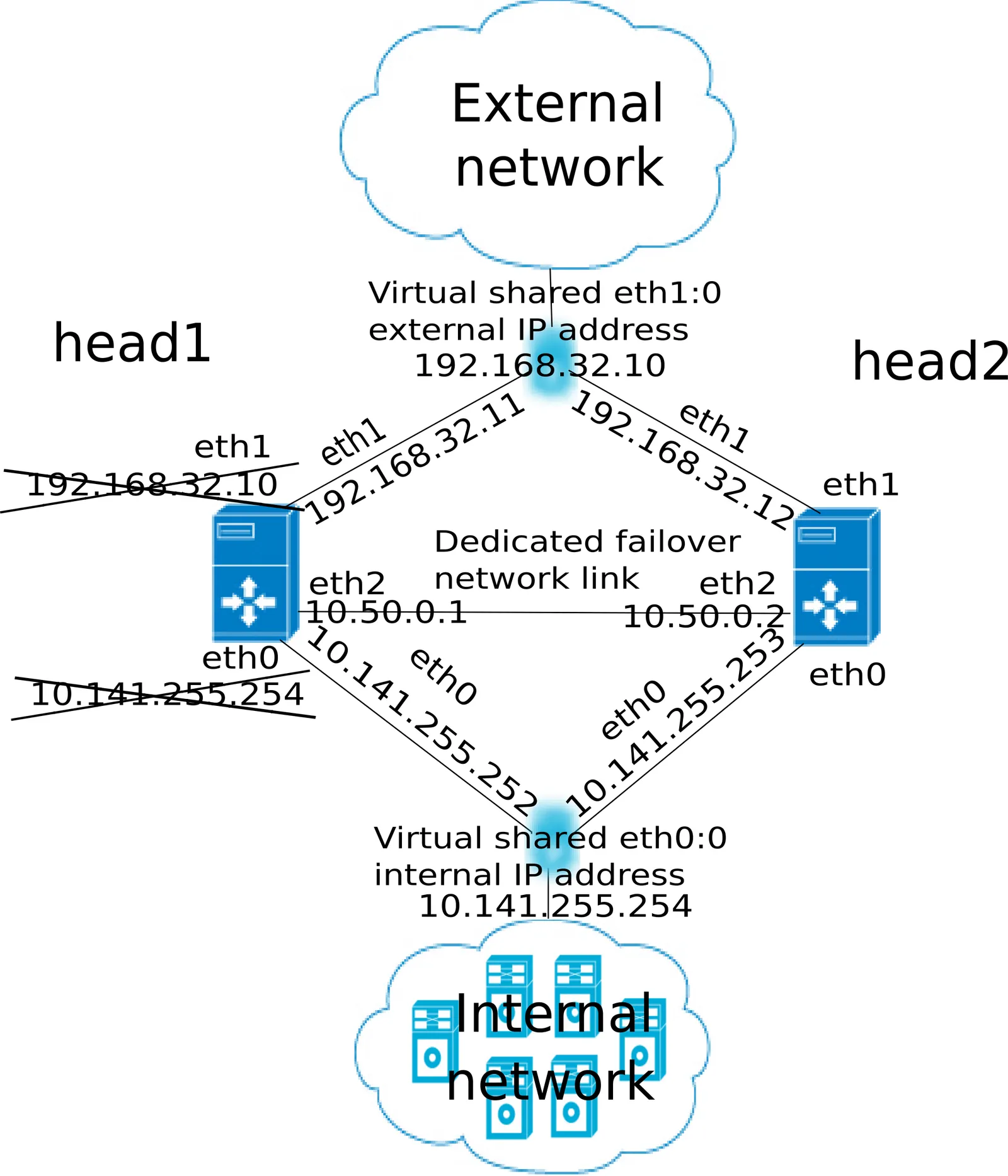
Figure 15.1: High Availability: Two-Head Failover Network Topology
In the illustration, the primary head1 is originally a head node before the failover design is implemented. It is originally set up as part of a Type 1 network (section 3.3.9 of the Installation Manual), with an internal interface eth0, and an external interface eth1.
When the secondary head is connected up to help form the failover system, several changes are made.
15.1.4.1 HA: Network Interfaces
Each head node in an HA setup typically has at least an external and an internal network interface, each configured with an IP address.
In addition, an HA setup uses two virtual IP interfaces, each of which has an associated virtual IP address: the external shared IP address and the internal shared IP address. These are shared between the head nodes, but only one head node can host the address and its interface at any time.
In a normal HA setup, a shared IP address has its interface hosted on the head node that is operating in active mode. On failover, the interface migrates and is hosted on the head node that then becomes active.
When head nodes are also being used as login nodes, users outside of the cluster are encouraged to use the shared external IP address for connecting to the cluster. This ensures that they always reach whichever head node is active. Similarly, inside the cluster, nodes use the shared internal IP address wherever possible for referring to the head node. For example, nodes mount NFS filesystems on the shared internal IP interface so that the imported filesystems continue to be accessible in the event of a failover.
Shared interfaces are implemented as alias interfaces on the physical interfaces (e.g. eth0:0). They are activated when a head node becomes active, and deactivated when a head node becomes passive.
15.1.4.2 HA: Dedicated Failover Network
In addition to the normal internal and external network interfaces on both head nodes, the two head nodes are usually also connected using a direct dedicated network connection, eth2 in figure 15.1. This connection is used between the two head nodes to monitor their counterpart’s availability. It is called a heartbeat connection because the monitoring is usually done with a regular heartbeat-like signal between the nodes such as a ping, and if the signal is not detected, it suggests a head node is dead.
To set up a failover network, it is highly recommended to simply run a UTP cable directly from the NIC of one head node to the NIC of the other, because not using a switch means there is no disruption of the connection in the event of a switch reset.
15.1.5 Shared Storage
Almost any HA setup also involves some form of shared storage between two head nodes to preserve state after a failover sequence. For example, user home directories must always be available to the cluster in the event of a failover.
In the most common HA setup, the following two directories are shared:
-
/home, the user home directories -
/cm/shared, the shared tree containing applications and libraries that are made available to the nodes
The shared filesystems are only available on the active head node. For this reason, it is generally recommended that users log in via the shared IP address, rather than ever using the direct primary or secondary IP address. End-users logging into the passive head node by direct login may run into confusing behavior due to unmounted filesystems.
BCM versions 11.0 and beyond use NAS (Network Attached Storage) for shared storage. Versions prior to 11.0 also allowed DAS (Direct Attached Storage) for shared storage. However, DAS by its very nature has drawbacks that make it significantly more fragile for shared storage purposes. DAS is therefore no longer suggested as a possible shared storage option for BCM.
15.1.5.1 NAS
In a Network Attached Storage (NAS) setup, both head nodes mount a shared volume from an external network attached storage device. In the most common situation this would be an NFS server either inside or outside of the cluster. Lustre or GPFS storage are other popular choices.
Because imported mounts can typically not be re-exported (which is true at least for NFS), nodes typically mount filesystems directly from the NAS device.
15.1.5.2 Custom Shared Storage With Mount And Unmount Scripts
The cluster management daemon on the two head nodes deals with shared storage through a mount script and an unmount script. When a head node is moving to active mode, it must acquire the shared filesystems. To accomplish this, the other head node first needs to relinquish any shared filesystems that may still be mounted. After this has been done, the head node that is moving to active mode invokes the mount script which has been configured during the HA setup procedure. When an active head node is requested to become passive (e.g. because the administrator wants to take it down for maintenance without disrupting jobs), the unmount script is invoked to release all shared filesystems.
By customizing the mount and unmount scripts, an administrator has full control over the form of shared storage that is used. Also an administrator can control which filesystems are shared.
Mount scripts paths can be set via cmsh or Base View (section 15.4.6).
15.1.6 Guaranteeing One Active Head At All Times
Because of the risks involved in accessing a shared filesystem simultaneously from two head nodes, it is vital that only one head node is in active mode at any time. To guarantee that a head node that is about to switch to active mode will be the only head node in active mode, it must either receive confirmation from the other head node that it is in passive mode, or it must make sure that the other head node is powered off.
15.1.6.1 What Is A Split Brain?
When the passive head node determines that the active head node is no longer reachable, it must also take into consideration that there could be a communication disruption between the two head nodes. Because the “brains” of the cluster are communicatively “split” from each other, this is called a split brain situation.
Since the normal communication channel between the passive and active may not be working correctly, it is not possible to use only that channel to determine either an inactive head or a split brain with certainty. It can only be suspected.
Thus, on the one hand, it is possible that the head node has, for example, completely crashed, becoming totally inactive and thereby causing the lack of response. On the other hand, it is also possible that, for example, a switch between both head nodes is malfunctioning, and that the active head node is still up and running, looking after the cluster as usual, and that the head node in turn observes that the passive head node seems to have split away from the network.
Further supporting evidence from the dedicated failover network channel is therefore helpful. Some administrators find this supporting evidence an acceptable level of certainty, and configure the cluster to decide to automatically proceed with the failover sequence, while others may instead wish to examine the situation first before manually proceeding with the failover sequence. The implementation of automatic vs manual failover is described in section 15.1.7. In either implementation, fencing, described next, takes place until the formerly active node is powered off.
15.1.6.2 Going Into Fencing Mode
To deal with a suspected inactive head or split brain, a passive head node that notices that its active counterpart is no longer responding, first goes into fencing mode from that time onward. While a node is fencing, it will try to obtain proof via another method that its counterpart is indeed inactive.
Fencing, incidentally, does not refer to a thrust-and-parry imagery derived from fencing swordplay. Instead, it refers to the way all subsequent actions are tagged and effectively fenced-off as a backlog of actions to be carried out later. If the head nodes are able to communicate with each other before the passive decides that its counterpart is now inactive, then the fenced-off backlog is compared and synced until the head nodes are once again consistent.
15.1.6.3 Ensuring That The Unresponsive Active Is Indeed Inactive
There are two ways in which “proof” can be obtained that an unresponsive active is inactive:
-
By asking the administrator to manually confirm that the active head node is indeed powered off
-
By performing a power-off operation on the active head node, and then checking that the power is indeed off to the server. This is also referred to as a STONITH (Shoot The Other Node In The Head) procedure
It should be noted that just pulling out the power cable is not quite the same as a power-off operation (section 15.2.4), because the power-off operation only powers off the main board, and not the BMC board. Both cases (pulling out the power cable or carrying out the power-off operation) trigger a failover, but for the case of the power cable being pulled out, the BMC board is no longer, the failover that is triggered needs to be confirmed manually.
There is also a distinction between a graceful shutdown and a power-off operation, in that a graceful shutdown does not power off the main board unless that is also specified. A failover is not triggered with a graceful shutdown because it is assumed that the shutdown is not intended to cause a failover.
Once a guarantee has been obtained that the active head node is powered off, the fencing head node (i.e. the previously passive head node) moves to active mode.
15.1.6.4 Improving The Decision To Initiate A Failover With A Quorum Process
While the preceding approach guarantees one active head, a problem remains.
In situations where the passive head node loses its connectivity to the active head node, but the active head node is communicating without a problem to the entire cluster, there is no reason to initiate a failover. It can even result in undesirable situations where the cluster is rendered unusable if, for example, a passive head node decides to power down an active head node just because the passive head node is unable to communicate with any of the outside world (except for the PDU feeding the active head node).
One technique used by BCM to reduce the chances of a passive head node powering off an active head node unnecessarily is to have the passive head node carry out a quorum procedure. All nodes in the cluster are asked by the passive node to confirm that they also cannot communicate with the active head node. If more than half of the total number of nodes confirm that they are also unable to communicate with the active head node, then the passive head node initiates the STONITH procedure and moves to active mode.
15.1.7 Automatic Vs Manual Failover
Administrators have a choice between creating an HA setup with automatic or manual failover.
-
In the case of an automatic failover, an active head node is powered off when it is no longer responding at all, and a failover sequence is initiated automatically.
-
In the case of a manual failover, the administrator is responsible for initiating the failover when the active head node is no longer responding. No automatic power off is done, so the administrator is asked to confirm that the previously active node is powered off.
For automatic failover to be possible, power control must be defined for both head nodes. If power control is defined for the head nodes, then automatic failover is attempted by default.
The administrator may disable automatic failover. In cmsh this is done by setting the disableautomaticfailover property, which is a part of the HA-related parameters (section 15.4.6):
With Base View it is carried out using the navigation path Cluster > Settings > Failover > Disable automatic failover
If no power control has been defined, or if automatic failover has been disabled, or if the power control mechanism is not working (for example due to inappropriate, broken or missing electronics or hardware), then a failover sequence must always be initiated manually by the administrator.
Sometimes, if automatic failover is enabled, but the active head is still slightly responsive (the so-called mostly dead state, described in section 15.4.2.2), then the failover sequence must also be initiated manually by the administrator.
15.1.8 HA And Cloud Nodes
As far as the administrator is concerned, HA setup remains the same whether a Cluster Extension (Chapter 3 of the Cloudbursting Manual) is configured or not, and whether a Cluster On Demand (Chapter 2 of the Cloudbursting Manual) is configured or not. Behind the scenes, on failover, any networks associated with the cloud requirements are taken care of by BCM.
15.1.9 HA Using Virtual Head Nodes
Two physical servers are typically used for HA configurations. However, each head node can also be a virtual machine (VM). The use case for this might be to gain experience with an HA configuration.
15.1.9.1 Failover Network Considerations With HA VMs
With physical head nodes in an HA configuration, the failover network, used for HA heartbeats, is typically provided by running a network cable directly between the ethernet port on each machine. Not having even a switch in between is a best practice. Since the head nodes are typically in the same, or adjacent racks, setting this up is usually straightforward.
With VMs as head nodes in an HA configuration, however, setting up the failover network can be more complex:
-
The cluster administrator may need to consider if HA is truly improved by, for example, connecting the failover network of the physical node to a switch.
-
Often a virtual switch would be used between the virtual head nodes, just because it is often easier.
-
Not using a failover network is also an option, just as in the physical case.
-
If one head node is on one hypervisor, and another is on a second hypervisor, then a standard BCM setup cannot have one head node carry out an automated failover STONITH because it cannot contact the other hypervisor. So powering off the VM in the other hypervisor would have to be done manually. An alternative to this, if automated failover is required, is to create custom power scripts.
There are no specific guidelines for the network configuration of HA with VMs in BCM. The process of configuration is however essentially the same as for a physical node.
15.1.9.2 Size Considerations With HA VMs
A virtual head node in practice may be configured with fewer CPUs and memory than a physical head node, just because such configurations are more common options in a VM setup than for a physical setup, and cheaper to run. However, the storage requirement is the same as for a physical node. The important requirement is that the head nodes should have sufficient resources for the cluster.
15.2 HA Setup Procedure Using cmha-setup
After installation (Chapter 3 of the Installation Manual) and license activation (Chapter 4 of the Installation Manual) an administrator may wish to add a new head node, and convert BCM from managing an existing single-headed cluster to managing an HA cluster.
15.2.0.1 Is An HA-Enabled License Required?
To convert a single-headed cluster to an HA cluster, the existing cluster license should first be checked to see if it allows HA. The verify-license command run with the info option can reveal this in the MAC address field:
Example
A cmsh-based check can also be used (cmsh -c "main licenseinfo"| grep ^MAC).
HA-enabled clusters display two MAC addresses in the output. Single-headed clusters show only one.
If an HA license is not active then it should first be specified and installed (Chapter 4 of the Installation Manual).
15.2.0.2 Existing User Certificates Become Invalid
Installing the new license means that any existing user certificates will lose their validity (here) on Base View session logout. This means:
-
If LDAP is managed by BCM, then on logout, new user certificates are generated, and a new Base View login session picks up the new certificates automatically.
-
For LDAPs other than that of BCM, the user certificates need to be regenerated.
It is therefore generally good practice to have an HA-enabled license in place before creating user certificates and profiles if there is an intention of moving from a single-headed to an HA-enabled cluster later on.
15.2.0.3 The cmha-setup Utility For Configuring HA
The cmha-setup utility is a special tool that guides the administrator in building an HA setup from a single head cluster. It is not part of the cluster manager itself, but is a cluster manager tool that interacts with the cluster management environment by using cmsh to create an HA setup. Although it is in theory also possible to create an HA setup manually, using either Base View or cmsh along with additional steps, this is not supported, and should not be attempted as it is error-prone.
A basic HA setup is created in three stages:
-
Preparation (section 15.2.1): the configuration parameters are set for the shared interface and for the secondary head node that is about to be installed.
-
Cloning (section 15.2.2): the secondary head node is installed by cloning it from the primary head node.
-
Shared Storage Setup (section 15.2.3): the method for shared storage is chosen and set up.
An optional extra stage is:
- Automated Failover Setup (section 15.2.4): Power control to allow automated failover is set up.
15.2.1 Preparation
The following steps prepare the primary head node for the cloning of the secondary. The preparation is done only on the primary, so that the presence of the secondary is not actually needed during this stage.
-
It is recommended that all nodes except for the primary head node are powered off, in order to simplify matters. The nodes should in any case be power cycled or powered back on after the basic HA setup stages (sections 15.2.1-15.2.3, and possibly section 15.2.4) are complete.
-
If bonding (section 3.5) is to be used on the head node used in an HA setup, then it is recommended to configure and test out bonding properly before carrying out the HA setup.
-
To start the HA setup, the
cmha-setupcommand is run from arootshell on the primary head node. -
Setupis selected from the main menu (figure 15.2).

Figure 15.2: cmha-setup Main menu
-
Configureis selected from theSetupmenu. -
A license check is done. Only if successful does the setup proceed further. If the cluster has no HA-enabled license, a new HA-enabled license must first be specified and activated during a
request-licensesession (section 4.3 of the Installation Manual). -
The virtual shared internal alias interface name and virtual shared internal IP alias address are set.
-
The virtual shared external alias interface name and virtual shared external IP alias address are set. For the external shared virtual IP address as well as for the external regular IP addresses, each head node external interface address must be a static IP addresses for the HA configuration. Attempting to use DHCP for external addresses in HA is not going to work.
-
The host name of the passive is set.
-
Failover network parameters are set. The failover network physical interface should exist, but the interface need not be up. The network name, its base address, its netmask, and domain name are set. This is the network used for optional heartbeat monitoring.
-
Failover network interfaces have their name and IP address set for the active and passive nodes.
-
The primary head node may have other network interfaces (e.g. InfiniBand interfaces, a BMC interface, alias interface on the BMC network). These interfaces are also created on the secondary head node, but the IP address of the interfaces still need to be configured. For each such interface, when prompted, a unique IP address for the secondary head node is configured.
-
The network interfaces of the secondary head node are reviewed and can be adjusted as required. DHCP assignments on external interfaces can be set by setting the value
DHCP. If the primary head node has a DHCP-assigned IP address, then the input field for the secondary head node is set by default to the valueDHCP. -
A summary screen displays the planned failover configuration. If alterations need to be made, they can be done via the next step.
-
The administrator is prompted to set the planned failover configuration. If it is not set, the main menu of
cmha-setupis re-displayed. -
If the option to set the planned failover configuration is chosen, then a password for the MySQL root user is requested.
-
After the MySQL password is entered, the administrator is asked whether to replicate all non-system MySQL databases. The default is to clone only the
cmdaemonandslurm_acct_dbdatabases to the secondary. ChoosingYesreplicates all non-system databases and MySQL users/grants (section 15.1.3.1). -
Setup progress for the planned configuration is displayed (figure 15.3).

Figure 15.3: cmha-setup Setup Progress For Planned Configuration
- Instructions on what to run on the secondary to clone it from the primary are displayed (figure 15.4).

Figure 15.4: cmha-setup Instructions To Run On Secondary For Cloning
15.2.2 Failover Cloning (Replacing A Passive Head)
In the IT industry, if an image is made of a computer, then it means making a copy of the drive. In BCM the word “image” is normally used for the software that can be placed on regular nodes. So, BCM uses the word “cloning” to describe making a very similar, or even identical, copy of a head node, using the /cm/cm-clone-install command.
There are actually two kinds of cloning possible with the /cm/cm-clone-install command:
-
Failover cloning: With this, a passive head node can be created from the active head node. This uses the
--failoveroption to create a copy that is very similar to the active head node, but with changes to make it a passive head, ready for failover purposes, and replacing a head that has just failed. -
Re-cloning: An active head node can be created from the active head node. This uses the
--cloneoption to create an exact copy (re-clone) of the head node. This might be useful if for some reason the administrator would like to take a snapshot of the head node at that moment. Using this snapshot to have a plug-in replacement head node—that is, a head node kept aside, and ready to replace a failed production head node later on—is not recommended, due to how impractical it is to update the snapshot.
The process described in this section PXE boots the passive from the active, thereby loading a special rescue image from the active that allows cloning from the active to the passive to take place. This section is therefore about failover cloning. How to carry out re-cloning is described in section 15.4.8.
After the preparation has been done by configuring parameters as outlined in section 15.2.1, the failover cloning of the head nodes is carried out. In the cloning instructions that follow, the active node refers to the primary node and the passive node refers to the secondary node. However this correlation is only true for when an HA setup is created for the first time, and it is not necessarily true if head nodes are replaced later on by cloning.
These cloning instructions may also be repeated later on if a passive head node ever needs to be replaced, for example, if the hardware is defective (section 15.4.8). In that case the active head node can be either the primary or secondary.
NOTE: On an AArch64 (ARM64) secondary head node, the PXE boot in the following steps, at step 1, can fail before the Cluster Manager PXE Environment menu even appears. The generated PXE configuration can advertise a nonexistent aarch64/syslinux.efi boot file—a PXELINUX artifact that is not part of the ARM64 TFTP payload—instead of the boot loader that ARM64 head nodes actually ship, aarch64/grub2.efi. The passive head node then receives a TFTP “file not found” error and never reaches the rescue environment.
If this occurs, the following cmsh commands, run against the secondary head node’s device object from the active head node, resolve it:
Example
Both properties must be set, in the same commit. Once committed, the PXE boot in step 1 proceeds as described.
-
The passive head node is PXE booted off the internal cluster network, from the active head node. It is highly recommended that the active and passive head nodes have identical hardware configurations. The BIOS clock of the head nodes should match and be set to the local time. Typically, the BIOS of both head nodes is also configured so that a hard disk boot is attempted first, and a PXE boot is attempted after a hard disk boot failure, leading to the
Cluster Manager PXE Environmentmenu of options. This menu has a 5s time-out. -
In the
Cluster Manager PXE Environmentmenu of the node that is to become a clone, before the 5s time-out, “Start Rescue Environment” is selected to boot the node into a Linux ramdisk environment. -
Once the rescue environment has finished booting, a login as root is done. No password is required (figure 15.5).

Figure 15.5: Login Screen After Booting Passive Into Rescue Mode From Active
-
The following command is executed (figure 15.6) on the node that is to become a failover clone:
/cm/cm--clone--install --failoverWhen doing a re-clone as in section 15.4.8, instead of a failover clone, then it is the
--cloneoption that is used instead of the--failoveroption.

Figure 15.6: Cloning The Passive From The Active Via A Rescue Mode Session
-
When prompted to enter a network interface to use, the interface that was used to boot from the internal cluster network (e.g.
eth0,eth1, …) is entered. There is often uncertainty about what interface name corresponds to what physical port. This can be resolved by switching to another console and using “ethtool -p <interface>”, which makes the NIC corresponding to the interface blink. -
If the provided network interface is correct, a
root@master's passwordprompt appears. The administrator should enter the root password. -
An opportunity to view or edit the master disk layout is offered.
-
A confirmation that the contents of the specified disk are to be erased is asked for.
-
The cloning takes place. The “syncing” stage usually takes the most time. Cloning progress can also be viewed on the active by selecting the “
Install Progress” option from theSetupmenu. When viewing progress using this option, the display is automatically updated as changes occur. -
After the cloning process has finished, a prompt at the console of the passive asks if a reboot is to be carried out. A “
y” is typed in response to this. The passive node should be set to reboot off its hard drive. This may require an interrupt during reboot, to enter a change in the BIOS setting, if for example, the passive node is set to network boot first. -
Continuing on now on the active head node,
Finalizeis selected from theSetupmenu ofcmha-setup. -
The MySQL root password is requested. After the password is entered, the administrator is asked whether to replicate all non-system MySQL databases (section 15.1.3.1). The progress of the
Finalizeprocedure is then displayed, and the cloning procedure continues. -
The cloning procedure of
cmha-setuppauses to offer the option to reboot the passive. The administrator should accept the reboot option. After reboot, the cloning procedure is complete. The administrator can then go to themainmenu andquitfrom there or go on to configure “Shared Storage” (section 15.2.3) from there.
A check can already be done at this stage on the failover status of the head nodes with the cmha command, run from either head node:
Example
Here, the asterisk indicates the active node, and the arrow direction indicates which node was carrying out the status check on the other. The [OK] states for mysql, ping and status indicate that HA setup completed successfully. The failoverping state uses the dedicated failover network route for its checks, and starts working as soon as the passive head node has been rebooted.
15.2.3 Shared Storage Setup
After cloning the head node (section 15.2.2), the last basic stage of creating an HA setup is setting up shared storage.
15.2.3.1 NAS
-
In the
cmha-setupmain menu, the “Shared Storage” option is selected. -
NASis selected. -
The parts of the head node filesystem that are to be copied to the NAS filesystems are selected. By default, these are
/homeand/cm/sharedas suggested in section 15.1.5. The point in the filesystem where the copying is done is the future mount path to where the NAS will share the shared filesystem.An already-configured export that is not shared is disabled in
/etc/exportsbycmha-setup. This is done to prevent the creation of stale NFS file handles during a failover. Sharing already-existing exports is therefore recommended. Storage can however be dealt with in a customized manner with mount and unmount scripts (here). -
The NFS host name is configured. Also, for each head node filesystem that is to be copied to the NAS filesystem, there is an associated path on the NAS filesystem where the share is to be served from. These NFS volume paths are now configured.
-
If the configured NFS filesystems can be correctly mounted from the NAS server, the process of copying the local filesystems onto the NAS server begins.
15.2.4 Automated Failover And Relevant Testing
A power-off operation on the active head node server does not mean the same as just pulling out the power cable to the active head node. These actions typically have different effects, and should therefore not be confused with each other. During the power-off operation, the power to the main system is switched off, but the BMC remains up. However, in the case of pulling out the power cable, the BMC is typically turned off too. If the BMC is not reachable, then it means that verifying that the active head has been terminated is uncertain. This is because the data that CMDaemon can access implies a logical possibility that there is a network failure rather than a head node failure. CMDaemon therefore does not carry out an automatic failover if the power cable is pulled out.
For automatic failover to work, the two head nodes must be able to power off their counterpart. This is done by setting up power control (Chapter 4).
15.2.4.1 Testing If Power Control Is Working
The “device power status” command in cmsh can be used to verify that power control is functional:
Example
15.2.4.2 Testing The BMC Interface Is Working
If a BMC (Baseboard Management Controller, section 3.7) such as IPMI or iLO is used for power control, it is possible that a head node is not able to reach its own BMC interface over the network. This is especially true when no dedicated BMC network port is used. In this case, cmsh -c "device power status" reports a failure for the active head node. This does not necessarily mean that the head nodes cannot reach the BMC interface of their counterpart. Pinging a BMC interface can be used to verify that the BMC interface of a head node is reachable from its counterpart.
Example
Verifying that the BMC interface of mycluster2 is reachable from mycluster1:
Verifying that the BMC interface of mycluster1 is reachable from mycluster2:
15.2.4.3 Testing Automated Failover Against A Simulated Crash
A normal (graceful) shutdown of an active head node, does not cause the passive to become active, because HA assumes a graceful failover means there is no intention to trigger a failover. To carry out testing of an HA setup with automated failover, it is therefore useful to simulate a kernel crash on one of the head nodes. The following command crashes a head node instantly:
After the active head node freezes as a result of the crash, the passive head node powers off the machine that has frozen and switches to active mode. A hard crash like this can cause a database replication inconsistency when the crashed head node is brought back up and running again, this time passively, alongside the node that took over. This is normally indicated by a FAILED status for the output of cmha status for MySQL (section 15.4). Database administration with the dbreclone command (section 15.4) may therefore be needed to synchronize the databases on both head nodes to a consistent state. Because dbreclone is a resource-intensive utility, it is best used during a period when there are few or no users. It is generally only used by administrators when they are instructed to do so by BCM support.
A passive node can also be made active without a crash of the active-until-then node, by using the “cmha makeactive” command on the passive (section 15.4.2.2). Manually running this is not needed in the case of a head node crash in a cluster where power management has been set up for the head nodes, and the automatic failover setting is not disabled.
15.3 Running cmha-setup Without ncurses, Using An XML Specification
15.3.1 Why Run It Without ncurses?
The ncurses-based TUI for cmha-setup is normally how administrators should set up a failover configuration.
The express mode of cmha-setup is the command-line interface (CLI) that allows an administrator to skip the TUI. This is useful, for example, for scripting purposes and speeding deployment. A further convenience is that this mode uses a human-editable XML file to specify the network and storage definitions for failover.
Running cmha-setup without the TUI still requires some user intervention, such as entering the root password for MySQL. The intervention required is scriptable with, for example, Expect, and is minimized if relevant options are specified for cmha-setup from the -x options.
15.3.2 The Syntax Of cmha-setup Without ncurses
The express mode (-x) options are displayed when “cmha-setup -h” is run. The syntax of the -x options is indicated by:
cmha-setup [ -x -c <configfile> [-s <type>] <-i|-f[-r]> [-p <mysqlrootpassword>] [-a] ]
The -x options are:
-
-c|--config<configfile>: specifies the location of <configfile>, which is the failover configuration XML file forcmha-setup. The file stores the values to be used for setting up a failover head node. The recommended location is at/cm/local/apps/cluster-tools/ha/conf/failoverconf.xml. -
-i|--initialize: prepares a failover setup by setting values in the CMDaemon database to the values specified in the configuration file. This corresponds to section 15.2.1. The administrator is prompted for the MySQL root password unless the-poption is used. The-ioption of the script then updates the interfaces in the database, and clones the head node in the CMDaemon database. After this option in the script is done, the administrator normally clones the passive node from the active, as described in steps 1 to 10 of section 15.2.2. -
-f|--finalize: After the passive node is cloned as described in steps 1 to 10 of section 15.2.2, the finalize option is run on the active node to run the non-TUI finalize procedure. This is the non-TUI version of steps 11 to 13 of section 15.2.2.-r|--finalizereboot: makes the passive reboot after the finalize step completes.
-
-p|--pass<mysqlrootpassword>: specifies the MySQL root password. Leaving this out means the administrator is prompted to type in the password during a run of thecmha-setupscript when using the-xoptions. -
-a|--replicate-all-databases: replicates all non-system MySQL databases and users/grants to the secondary head node, instead of onlycmdaemonandslurm_acct_db(section 15.1.3.1).
There is little attempt at validation with the express mode, and invalid entries can cause the command to hang.
15.3.3 Example cmha-setup Run Without ncurses
15.3.3.1 Preparation And Initialization:
After shutting down all nodes except for the active head node, a configuration is prepared by the administrator in /cm/local/apps/cluster-tools/ha/conf/failoverconf.xml. The administrator then runs cmha-setup with the initialization option on the active:
The preceding corresponds to the steps in section 15.2.1.
15.3.3.2 PXE Booting And Cloning The Passive:
The passive head node is then booted up via PXE and cloned as described in steps 1 to 10 of section 15.2.2.
15.3.3.3 Finalizing On The Active And Rebooting The Passive:
Then, back on the active head node the administrator continues the session there, by running the finalization option with a reboot option:
The preceding corresponds to steps 11 to 13 of section 15.2.2.
15.3.3.4 Adding Storage:
Continuing with the session on the active, setting up a shared storage could be done with:
The preceding corresponds to carrying out the NAS procedure of section 15.2.3.
15.4 Managing HA
Once an HA setup has been created, the tools in this section can be used to manage the HA aspects of the cluster.
15.4.1 Changing An Existing Failover Configuration
Changing an existing failover configuration is usually done most simply by running through the HA setup procedure of section 15.2 again, with one exception. The exception is that the existing failover configuration must be removed by using the “Undo Failover” menu option between steps 3 and 4 of the procedure described in section 15.2.1.
15.4.2 cmha Utility
A major command-line utility for interacting with the HA subsystem, for regular nodes as well as for head nodes, is cmha. It is part of the BCM cluster-tools package. Its usage information is:
Some of the information and functions of cmha can also be carried out via CMDaemon:
-
For
cmsh, the following commands can be run from within thebaseobject inpartitionmode:-
For the head node, the
statusandmakeactivecommands are run from within thefailoversubmode. -
For regular nodes the
nodestatusandmakeactive [node]commands are run from within thefailovergroupssubmode.
-
The dbreclone option cannot be carried out in Base View or cmsh because it requires stopping CMDaemon.
The cmha options status, makeactive, and dbreclone are looked at in greater detail next:
15.4.2.1 cmha status: Querying HA Status
Information on the failover status is displayed thus:
Example
The * in the output indicates the head node which is currently active. The status output shows 4 aspects of the HA subsystem from the perspective of each head node:
By default, BCM prepares to carry out the failover sequence (the sequence that includes a STONITH) when all three of ping, failoverping and status are not OK on a head node. If these three are not OK, then the active node is all dead according to cmha. One way of initiating failover is thus by causing a system crash (section 15.2.4.3).
It can typically take about 30s for the cmha status command to output its findings in the case of a recently crashed head node.
15.4.2.2 cmha makeactive: Initiate Failover
If automatic failover is enabled (section 15.1.7), then the failover sequence attempts to complete automatically if power management is working properly, and the cmha status shows ping, failoverping and status as failed.
If automatic failover is disabled, then a manual failover operation must be executed to have a failover operation take place. A manual failover operation can be carried out with the “cmha makeactive” command:
Example
To initiate a failover manually:
On successful execution of the command, the former active head node simply continues to run as a passive head node.
The cmha makeactive command assumes both head nodes have no problems preventing the execution of the command.
One possible problem that can halt manual failover is if nodes are being provisioned by the provisioning subsystem at that time (section 5.2.4). In that case, provisioning should be cancelled by the cluster administrator before the cmha makeactive command can continue, for example, with cmsh -c "softwareimage cancelprovisioningrequest -a" (here).
For automatic failover no such intervention takes place—provisioning requests are killed when the active head node is powered off.
Another slightly similar problem that can occur for automatic failover, as well as manual failover, is the “mostly dead” edge case. This case requires careful consideration before the Are you sure ? prompt is answered by the cluster administrator.
cmha makeactive edge case—the mostly dead active:
-
For a manual failover operation, if the execution of the
cmha makeactivecommand has problems, then it can mean that there is a problem with the initially active head node being in a sluggish state. That is, neither fully functioning, nor all dead. The active head node is thus in a state that is still powered on, but what can be called mostly dead. There is a big difference between mostly dead and all dead. Mostly dead means slightly alive (not all ofping,failoverping, andstatusare FAILED), while all dead means there is only one thing that can sensibly be done to make sure the cluster keeps running—that is, to make the old passive the new active.Making an old passive the new active is only safe if the old active is guaranteed to not come back as an active head node. This guarantee is set by a STONITH (here) for the old active head node, and results in a former active that is now all dead. STONITH thus guarantees that head nodes are not in conflict about their active and passive states. STONITH can however still fail in achieving a clean shutdown when acting on a mostly dead active head node, which can result in unclean filesystem or database states.
Thus, the mostly dead active head node may still be in the middle of a transaction, so that shutting it down may cause filesystem or database corruption. Making the passive node also active then in this case carries risks such as mounting filesystems accidentally on both head nodes, or carrying out database transactions on both nodes. This can also result in filesystem and database corruption.
It is therefore left to the administrator to examine the situation for corruption risk. The decision is either to power off a mostly dead head node, i.e. STONITH to make sure it is all dead, or whether to wait for a recovery to take place. When carrying out a STONITH on the mostly dead active head node, the administrator must power it off before the passive becomes active for a manual failover to take place with minimal errors. The
cmha dbrecloneoption may still be needed to restore a corrupted database after such a power off, after bringing the system back up. -
For an automated failover configuration, powering off the mostly dead active head node is not carried out automatically due to the risk of filesystem and database corruption. A mostly dead active node with automatic failover configuration therefore stays mostly dead either until it recovers, or until the administrator decides to do a STONITH manually to ensure it is all dead. Here, too, the
cmha dbrecloneoption may still be needed to restore a corrupted database after such a power off, after bringing the system back up.
15.4.2.3 cmha dbreclone: Cloning The CMDaemon Database
The dbreclone option of cmha clones the CMDaemon state database from the head node on which cmha runs to the head node specified after the option. It is normally run in order to clone the database from the active head node to the passive—running it from the passive to the active can cause a loss of database entries. Running the dbreclone option can be used to retrieve the MySQL CMDaemon state database tables, if they are, for example, unsalvageably corrupted on the destination node, and the source node has a known good database state. Because it is resource intensive, it is best run when there are few or no users. It is typically only used by administrators after being instructed to do so by BCM support.
Example
15.4.3 States
The state a head node is in can be determined in three different ways:
-
By looking at the message being displayed at login time.
Example
-
By executing
cmha status.Example
-
By examining
/var/spool/cmd/state.
There are a number of possible states that a head node can be in:
Especially when developing custom mount and unmount scripts, it is quite possible for a head node to go into the UNABLETOBECOMEACTIVE state. This generally means that the mount and/or unmount script are not working properly or are returning incorrect exit codes. To debug these situations, it is helpful to examine the output in /var/log/cmdaemon. The “cmha makeactive” shell command can be used to instruct a head node to become active again.
15.4.4 Failover Action Decisions
A table summarizing the scenarios that decide when a passive head should take over is helpful:
15.4.5 Keeping Head Nodes In Sync
15.4.5.1 Order Of Head Node Updates
When the cmdaemon package is updated in a high availability configuration, the update is applied to the active head node first. Once the active head node has been confirmed healthy with cmha status, the update is applied to the passive head node. Applying the update to the passive head node first causes the two head nodes to go out of sync.
Example
The same order applies when cmdaemon is restarted without a package update.
Note for Ubuntu: If the cmdaemon and mysql packages are updated together in the same apt operation, then the update can stall. This is because of a known bug based on CMDaemon waiting for the MySQL database to become available, while MySQL itself is not yet running because apt is still mid-upgrade. Until this known issue is resolved (internal reference BCM-31089), it is recommended that the mysql package be updated separately first, and only afterwards should cmdaemon and the remaining packages be updated.
15.4.5.2 What Should Be Kept In Sync?
-
It is a best practice to carry out a manual
updateprovisionerscommand on the active head node, immediately after a regular node software image change has been made.A successful run of the
updateprovisionerscommand means that in the event of a failover, the formerly passive head node already has up-to-date regular node software images, which makes further administration simpler.The background behind why it is done can be skipped, but it is as follows:
An image on the passive head node, which is a node with a provisioning role, is treated as an image on any other provisioning node. This means that it eventually synchronizes to a changed image on the active head node. By default the synchronization happens at midnight, which means images may remain out-of-date for up to 24 hours. The images being in an out-of-date state should be viewed as normal, because the timeout period associated with being in an updated state is only 5 minutes by default.
Since the passive head is a provisioning node, it also means that an attempt to provision regular nodes from it with the changed image will not succeed if it happens too soon after the image change event on the active head. “Too soon” means within the autoupdate period defined by the parameter
dirtyautoupdatetimeout(here).If on the other hand the autoupdate timeout is exceeded, then by itself this does not lead to the image on the passive head node becoming synchronized with an image from the active head node. Such synchronization only takes place as part of regular housekeeping (at midnight by default). Or it takes place if a regular node sends a provisioning request to the passive head node, which can take place during the reboot of the regular node.
This means that the
provisioningstatuscommand commonly shows that the passive head node image is “out of date”. This may sound alarming to a cluster administrator. However, before the image gets to be used, it is synced, so in practice the “out of date” warning is not something to be concerned about.The synchronization logic just described is followed to reduce the load on the head node. The only pitfall in this is the case when an administrator changes an image on the active head node, and then soon after that the passive head node becomes active as part of a failover, without the images having had enough time to synchronize. In that case the formerly passive node ends up with out-of-date software images. That is why it is a best practice to carry out a manual
updateprovisionerscommand on the active head immediately after a regular node software image change has been made. -
Changes controlled by CMDaemon are synchronized automatically between the CMDaemon databases to the required extent during failover to the active node.
If the output of
cmha statusis notOK, then it typically means that the CMDaemon databases of the active head node and the passive head node are not synchronized. This situation may be resolved by waiting, typically for several minutes. If the status does not resolve on its own, then this indicates a more serious problem which should be investigated further. -
By default, software images are not stored on shared storage, and are synchronized between the head nodes by CMDaemon.
However, if images are kept on shared storage, then, within the provisioning role (section 5.2.1), the image-related parameters such as
allimages,localimages, andsharedimages, must be adjusted according to the configuration used. -
If filesystem changes are made on an active head node without using CMDaemon (
cmshor Base View), and if the changes are outside the shared filesystem, then these changes should normally also be made by the administrator on the passive head node. For example:-
RPM installations/updates (section 9.2)
-
Applications installed locally
-
Files (such as drivers or values) placed in the
/cm/node-installer/directory and referred to byinitialize(section 5.4.5) andfinalizescripts (section 5.4.11) -
Any other configuration file changes outside of the shared filesystems
-
The reason behind not syncing everything automatically is to guarantee that a change that breaks a head node is not accidentally propagated to the passive. This way there is always a running head node. Otherwise, if automated syncing is used, there is a risk of ending up with two broken head nodes at the same time.
If the cluster is being built on bare metal, then a sensible way to minimize the amount of work to be done is to install a single head cluster first. All packages and applications should then be placed, updated and configured on that single head node until it is in a satisfactory state. Only then should HA be set up as described in section 15.2, where the cloning of data from the initial head node to the secondary is described. The result is then that the secondary node gets a well-prepared system with the effort to prepare it having only been carried out once.
15.4.5.3 Avoiding Encounters With The Old Filesystems
It should be noted that when the shared storage setup is made, the contents of the shared directories (at that time) are copied over from the local filesystem to the newly created shared filesystems. The shared filesystems are then mounted on the mountpoints on the active head node, effectively hiding the local contents.
Since the shared filesystems are only mounted on the active machine, the old filesystem contents remain visible when a head node is operating in passive mode. Logging into the passive head node may thus confuse users and is therefore best avoided.
15.4.5.4 Updating Services On The Head Nodes And Associated Syncing
The services running on the head nodes described in section 15.1.3 should also have their packages updated on both head nodes.
For services that have no package-update ordering constraint between the head nodes, such as DHCP, LDAP, NTP and DNS, their packages can be updated on both head nodes using the normal package manager commands, at about the same time.
CMDaemon and MySQL are treated differently. Package updates for these two services must follow the order described in section 15.4.5.1: the active head node is updated first and confirmed healthy with cmha status, and only then is the passive head node updated. This ordering exists because a CMDaemon package update can include a MySQL database schema migration, which needs to be applied on the active head node before it is replicated to the passive head node. Manually stopping the CMDaemon or MySQL service before an update is not recommended. The package manager itself handles restarting the service as part of the update.
The provisioning node service is part of the CMDaemon package. The service updates images from the active head node to all provisioning nodes, including the passive head node, if the administrator runs the command to update provisioners. How to update provisioners is described in section 15.1.3.1.
For services that migrate across head nodes during failover, such as NFS, or the sgemaster it is recommended (but not mandated) to carry out this procedure: the package on the passive node (called the secondary for the sake of this example) is updated to check for any broken package behavior. The secondary is then made active with cmha makeactive (section 15.4.2.2), which automatically migrates users cleanly off from being serviced by the active to the secondary. The package is then updated on the primary. If desired, the primary can then be made active again. The reason for recommending this procedure for services that migrate is that, in case the update has issues, the situation can be inspected somewhat better with this procedure.
15.4.6 High Availability Parameters
There are several HA-related parameters that can be tuned. Accessing these via Base View is described in section 15.4.7.1. In cmsh the settings can be accessed in the failover submode of the base partition.
Example
15.4.6.1 Dead time
When a passive head node determines that the active head node is not responding to any of the periodic checks for a period longer than the Dead time seconds, the active head node is considered dead and a quorum procedure starts. Depending on the outcome of the quorum, a failover sequence may be initiated.
15.4.6.2 Disable automatic failover
Setting this to yes disables automated failover. Section 15.1.7 covers this further.
15.4.6.3 Failover network
The Failover network setting determines which network is used as a dedicated network for the failoverping heartbeat check. The heartbeat connection is normally a direct cable from a NIC on one head node to a NIC on the other head node. The network can be selected via tab-completion suggestions. By default, without a dedicated failover network, the possibilities are nothing, externalnet and internalnet.
15.4.6.4 Init dead
When head nodes are booted simultaneously, the standard Dead time might be too strict if one head node requires a bit more time for booting than the other. For this reason, when a head node boots (or more exactly, when the cluster management daemon is starting), a time of Init dead seconds is used rather than the Dead time to determine whether the other node is alive.
15.4.6.5 Keep alive
The Keep alive value is the time interval, in seconds, over which the passive head node carries out a check that the active head node is still up. If a dedicated failover network is used, 3 separate heartbeat checks are carried out to determine if a head node is reachable.
15.4.6.6 Mount script
The script pointed to by the Mount script setting is responsible for bringing up and mounting the shared filesystems.
15.4.6.7 Postfailover script
The script pointed to by the Postfailover script setting is run by cmdaemon on both head nodes. The script first runs on the head that is now passive, then on the head that is now active. It runs as soon as the former passive has become active. It is typically used by scripts mounting an NFS shared storage so that no more than one head node exports a filesystem to NFS clients at a time.
15.4.6.8 Prefailover script
The script pointed to by the Prefailover script setting is run by cmdaemon on both head nodes. The script first runs on the (still) active head, then on the (still) passive head. It runs as soon as the decision for the passive to become active has been made, but before the changes are implemented. It is typically used by scripts unmounting an NFS shared storage so that no more than one head node exports a filesystem to NFS clients at a time. When unmounting shared storage, it is very important to ensure that a non-zero exit code is returned if unmounting has problems, or the storage may become mounted twice during the Postfailover script stage, resulting in data corruption.
15.4.6.9 Quorum time
When a node is asked what head nodes it is able to reach over the network, the node has Quorum time seconds to respond. If a node does not respond to a call for quorum within that time, it is no longer considered for the results of the quorum check.
15.4.6.10 Secondary headnode
The Secondary headnode setting is used to define the secondary head node to the cluster.
15.4.6.11 Unmount script
The script pointed to by the Unmount script setting is responsible for bringing down and unmounting the shared filesystems.
15.4.6.12 Warn time
When a passive head node determines that the active head node is not responding to any of the periodic checks for a period longer than Warn time seconds, a warning is logged that the active head node might become unreachable soon.
15.4.7 Viewing Failover Using Base View
15.4.7.1 Accessing cmsh HA Parameters (partition failover base) Using Base View
The Base View equivalents of the cmsh HA parameters in section 15.4.6 are accessed from the navigation path:
Cluster > Partition[base] > Settings > Failover
15.4.8 Re-cloning A Head Node
Some time after an HA setup has gone into production, it may become necessary to re-install one of the head nodes, for example if one of the head nodes were replaced due to hardware failure.
To re-clone a head node from an existing active head node, the head node hardware that is going to become the clone can be PXE-booted into the rescue environment, as described in section 15.2.2. Instead of running the cm-clone-install --failover command as in that section, the following command can be run:
The new host name can be the same as the original, because the clone is not run at the same time as the original anyway. The clone should not be run after cloning on the same network segment as the original, in order to prevent IP address conflicts.
If the clone is merely intended as a backup, then the clone hardware does not have to match the head node. For a backup, typically the most important requirement is then that a clone drive should not run out of space—that is, its drive should be as large as, or larger than the matching drive of the head node.
If the clone is to be put to work as a head node, then, if the MAC address of one of the head nodes has changed, it is typically necessary to request that the product key is unlocked, so that a new license can be obtained (section 4.3 of the Installation Manual).
Also, for a clone that is to be put to work as a head node, the CMDaemon database should first be synchronized from the active head node to the clone. This can be done by running cmha dbreclone on the active head node (here) before carrying out tasks with cmsh or Base View.
15.4.8.1 Exclude Lists And Cloning
Some files are normally excluded from being copied across from the head node to the clone, because syncing them is not appropriate.
The following exclude files are read from inside the directory /cm/ on the clone node when the cm-clone-install command is run (step 4 in section 15.2.2).
-
excludelistnormal: used to exclude files to help generate a clone of the other head node. It is read when running thecm-clone-installcommand without the--failoveroption. -
excludelistfailover: used to exclude files to help generate a passive head node from an active head node. It is read when running thecm-clone-install --failovercommand.
In a default cluster, there is no need to alter these exclude files. However some custom head node configurations may require appending a path to the list.
The cloning that is carried out is logged in /var/log/clone-install-log.
15.4.8.2 Exclude Lists In Perspective
The exclude lists excludelistfailover and excludelistnormal described in the preceding paragraphs should not be confused with the exclude lists of section 5.6.1.1. The exclude lists of section 5.6.1.1:
-
excludelistupdate -
excludelistfullinstall -
excludelistsyncinstall -
excludelistgrabnew -
excludelistgrab -
excludelistmanipulatescript
are Base View or cmsh options, and are maintained by CMDaemon. On the other hand, the exclude lists introduced in this section (15.4.8):
-
excludelistfailover -
excludelistnormal
are not Base View or cmsh options, are not modified with excludelistmanipulatescript, are not maintained by CMDaemon, but are made use of when running the cm-clone-install command.
15.4.8.3 Btrfs And cm-clone-install
If a partition with Btrfs (section 14.4.1) is being cloned using cm-clone-install, then by default only mounted snapshots are cloned.
If all the snapshots are to be cloned, then the --btrfs-full-clone flag should be passed to the cm-clone-install command. This flag clones all the snapshots, but it is carried out with duplication (bypassing the COW method), which means the filesystem size can increase greatly.
15.5 HA For Regular Nodes And Edge Director Nodes
HA for regular nodes is available from NVIDIA Base Command Manager version 7.0 onward. HA for edge director nodes follows a similar design to HA for regular nodes, and is available from NVIDIA Base Command Manager version 9.2 onward.
15.5.1 Why Have HA On Non-Head Nodes?
15.5.1.1 Why Have HA On Regular Nodes?
HA for regular nodes can be used to add services to the cluster and make them HA. Migrating the default existing HA services that run on the head node is not recommended, since these are optimized and integrated to work well as is. Instead, good candidates for this feature are other, extra, services that can run, or are already running, on regular nodes, but which benefit from the extra advantage of HA.
15.5.1.2 Why Have HA On Edge Director Nodes?
Edge director nodes manage edge nodes in a similar way to how head nodes manager regular nodes. Edge directors therefore benefit from HA for the same main that head nodes benefit from HA: avoiding a single point of failure (section 15.0.1).
15.5.2 Comparing HA For Head Nodes, Regular Nodes And Edge Director Nodes
Many of the features of HA for regular nodes and edge director nodes are as HA for head nodes. These include:
Some differences between head node HA and the other types of HA are:
15.5.2.1 Failover Groups
Regular nodes use failover groups to identify nodes that are grouped for HA. Two or more nodes are needed for a failover group to function. During normal operation, one member of the failover group is active, while the rest are passive. A group typically provides a particular service.
Edge directors also use failover groups for HA. However configuration of edge directors is generally best done during installation with cm-edge-setup (section 2.1.1.1 of the Edge Manual).
15.5.3 Setting Up A Regular Node HA Service
In cmsh a regular node HA service, CUPS in this example, can be set up as follows:
15.5.3.1 Making The Failover Group
A failover group must first be made, if it does not already exist:
Example
By default, CUPS is provided in the standard image, in a stopped state. In Base View a failover group can be added via the navigation path Cluster > Partition[base] > Settings > Failover groups > Add
15.5.3.2 Adding Nodes To The Failover Group
Regular nodes can then be added to a failover group. On adding, BCM ensures that one of the nodes in the failover group becomes designated as the active one in the group (some text elided):
Example
15.5.3.3 Setting Up A Server For The Failover Group
The CUPS server needs to be configured to run as a service on all the failover group nodes. The usual way to configure the service is to set it to run only if the node is active, and to be in a stopped state if the node is passive:
Example
The runif options are described in section 3.15.1.
15.5.3.4 Setting And Viewing Parameters And Status In The Failover Group
Knowing which node is active: The status command shows a summary of the various failover groups in the failovergroups submode, including which node in each group is currently the active one:
Example
Making a node active: To set a particular node to be active, the makeactive command can be used from within the failover group:
Example
An alternative is to simply use the cmha utility (section 15.4.2):
Example
Parameters for failover groups: Some useful regular node HA parameters for the failover group object, cupsgroup in this case, can be seen with the show command:
Example
15.5.3.5 Setting Up The Virtual Interface To Make The Server An HA Service
The administrator then assigns each node in the failover group the same alias interface name and IP address dotted quad on its physical interface. The alias interface for each node should be assigned to start up if the node becomes active.
Example
Optionally, each alias node interface can conveniently be assigned a common arbitrary additional host name, perhaps associated with the server, which is CUPS. This does not result in duplicate names here because only one alias interface is active at a time. Setting different additional hostnames for the alias interface to be associated with a unique virtual IP address is not recommended.
Example
The preceding can also simply be included as part of the set commands in the foreach statement earlier when the interface was created.
The nodes in the failover group should then be rebooted.
Only the virtual IP address should be used to access the service when using it as a service. Other IP addresses may be used to access the nodes that are in the failover group for other purposes, such as monitoring or direct access.
15.5.3.6 Service Configuration Adjustments
A service typically needs to have some modifications in its configuration done to serve the needs of the cluster.
CUPS uses port 631 for its service and by default it is only accessible to the local host. Its default configuration is modified by changing some directives within the cupsd.conf file. For example, some of the lines in the default file may be:
Corresponding lines in a modified cupsd.conf file that accepts printing from hosts on the internal network could be modified and end up looking like:
The operating system that ends up on the failover group nodes should have the relevant service modifications running on those nodes after these nodes are up. In general, the required service modifications could be done:
-
with an
initializeorfinalizescript, as suggested for minor modifications in section 3.20.4 -
by saving and using a new image with the modifications, as suggested for greater modifications in section 3.20.2.2, here.
15.5.3.7 Testing Regular Node HA
To test that the regular node HA works, the active node can have a simulated crash carried out on it like in section 15.2.4.3.
Example
A passive node then takes over.
15.5.4 The Sequence Of Events When Making Another HA Regular Node Active
The active head node tries to initiate the actions in the following sequence, after the makeactive command is run (here):
The actions are logged by CMDaemon.
The following conditions hold for the sequence of actions:
-
The remaining actions are skipped if the active
umountscript fails. -
The sequence of events on the initial active node is aborted if a STONITH instruction powers it off.
-
The actions for
Allnodes is done for that particular failover group, for all nodes in that group.
15.6 HA And Workload Manager Jobs
Workload manager jobs continue to run through a failover handover if conditions allow it.
The 3 conditions that must be satisfied are:
-
The workload manager setup must have been carried out
-
during initial installation
or
-
during a run of
cm-wlm-setup
-
-
The HA storage setup must support the possibility of job continuity for that workload manager. This support is possible for NAS for Slurm and LSF.
Jobs must also not fail due to the shared filesystem being inaccessible during the short period that it is unavailable during failover. This usually depends on the code in the job itself, rather than the workload manager, since workload manager clients by default have timeouts longer than the dead time during failover.
Already-submitted jobs that are not yet running continue as they are, and run when the resources become available after the failover handover is complete, unless they fail as part of the BCM prejob health check configuration.