

Cluster On Demand Cloudbursting With Azure, AWS, OCI, Or GCP
2.1 Introduction
Cluster On Demand (COD) cloudbursting is when a separate cluster is started up in a cloud, with the cluster head node that manages the cluster also in that cloud. A COD cluster is regarded as an independent virtual cluster (sometimes described as a ’pure’ cloud cluster), and not an extension of an existing physical cluster. This chapter describes how COD can run within the following cloud service providers:
-
Azure (COD-Azure)
-
AWS (COD-AWS)
-
Oracle Cloud Infrastructure (COD-OCI)
-
Google Cloud Platform (COD-GCP)
If the credential requirements for the cloud service providers are met (section 2.2), then COD clusters can be managed (created, deleted, and so on) on all cloud platforms by using the COD command line interface tool for that cloud provider. The COD CLI tool is provided by a Docker image or a Python package (section 2.3). After a COD head node has been launched in the cloud, then compute nodes are managed by using the various management interfaces provided by NVIDIA Base Command Manager running on the head node (section 2.12).
2.2 Requirements For COD Cloudbursting
The high level requirements for COD are:
-
a BCM product key. This key is later activated when the license is installed (Chapter 4 of the Installation Manual) on the head node.
-
Credentials for the COD cluster, as described in:
2.2.1 Credentials For Azure
To use COD on Azure, an Azure account subscription is needed from Microsoft. COD-Azure requires the following associated Azure credentials:
-
tenant ID
-
subscription ID
-
Client ID
-
Client Secret
These credentials allow the COD command line tool (section 2.3) to launch a COD with Azure.
A CLI-centric way to obtain these credentials requires logging into the Azure web portal using an account that has sufficient privileges. The Azure web bash console is then opened, and the subscription ID can then be listed for the account with:
Example
A service principal (sp) is now created for role-based access control create-for-rbac in Active Directory (ad), and the remaining 3 credentials can then be seen:
Example
The newly-created service principal is added to the desired subscription as a contributor. The value of appID must be used as the value to the --assignee option. This gives the application sufficient permissions for the cluster to run:
Example
The Microsoft documentation suggests that using the name instead of the subscription ID should also work. However in the version that was used at the time of writing (May 2019) this did not work, and an error 400 was displayed.
2.2.2 Credentials For AWS
To use COD AWS, an AWS subscription is needed from Amazon. COD-AWS requires the following associated AWS credentials:
-
Secret Access Key: Available only once, when first generated, as described at https://docs.aws.amazon.com/general/latest/gr/aws-sec-cred-types.html#access-keys-and-secret-access-keys
-
Access Key ID: as described at https://docs.aws.amazon.com/general/latest/gr/aws-sec-cred-types.html#access-keys-and-secret-access-keys
-
AWS Account ID, as described at https://docs.aws.amazon.com/general/latest/gr/acct-identifiers.html
-
AWS Username: This can be either the AWS account root user (the e-mail address of the root user), or it can be an IAM username with sufficient permissions to launch the cluster.
These credentials allow the COD command line tool (section 2.3) to launch a COD with AWS.
2.2.3 Credentials For OCI
To use COD on OCI, an OCI account subscription is needed from Oracle. COD-OCI requires the following OCI credentials:
-
API signing Key: This key can be either an uploaded public key from cod machine, or a downloaded private key, as described at https://docs.oracle.com/en-us/iaas/Content/API/Concepts/apisigningkey.htm#two, in the section
How to Generate an API Signing Key. After it is added, a configuration file is displayed. -
User’s OCID: This shows up in the configuration file with a format such as:
user=ocid1.user.oc1..<unique ID>
where <unique ID> may have a format such as: -
Fingerprint: This shows up in the configuration file with a format such as:
fingerprint=12:34:56:78:90:ab:cd:ef:12:34:56:78:90:ab:cd:ef -
Tenancy’s OCID: This shows up in the configuration file with a format such as:
tenancy=ocid1.tenancy.oc1..<unique ID> -
Compartment ID: In the OCI navigation menu, the compartment ID can be found using the navigation path:
Identity & Security>Identity>Compartments
Further information on finding the OCID of a compartment can be found at:
To use Oracle’s oci-cli utility, the configuration file has to be placed in ~/.oci/config. For the COD client, the credentials should be added to the COD configuration file as described in 2.6.1.
These credentials allow the COD command line tool (section 2.3) to launch a COD with OCI.
2.2.4 Credentials For GCP
To use COD on GCP, a GCP account (https://cloud.google.com) is needed. COD-GCP requires the following GCP credentials:
-
project_id: The GCP project ID -
head_node_service_accountThe head node service account ID -
ssh_pub_key_path: The public SSH key of the user. -
license_product_key: The product key of the BCM COD cluster. -
cod_prefix: An arbitrary prefix used to associate the cluster with the user. -
head_node_service_account: The Google service account. -
inbound_rule= IP address, port, and protocol specification for Ingress. -
ingress_icmp= Ingress IP ping address.
These credentials allow the COD command line tool (section 2.3) to launch a COD with GCP (section 2.7.2).
2.2.5 Mandatory Inbound Rules
By default, a COD cluster is no longer created open to the world. Unless an inbound rule is configured for the cluster, cluster creation fails validation. The user must specify one of the following for the cluster:
-
inbound_rule(and, for AWS,inbound_network_acl_rule) opening port 22 (SSH), or -
inbound_rule(and, for AWS,inbound_network_acl_rule) opening port 8081 (web management)
At least one of these two ports must be open. The port does not have to be open specifically to the IP address of the machine that runs the COD client. For example, creating a cluster on behalf of another user is a valid use case.
The value {CLIENT_IP} can be used in inbound_rule or inbound_network_acl_rule instead of a hardcoded IP address, and resolves to the public IP address of the machine running the COD client.
Examples for each cloud are given in the minimal configuration file examples in sections 2.4.1, 2.5.1, 2.6.1, and 2.7.1.
2.3 COD Using The COD Command Line Tool
There are two options for running the COD command line tool:
-
The COD command line tool can be run from a Docker image:
-
The Docker instance that runs from the image can be hosted on a standalone PC that is not part of a BCM cluster. It can also be hosted by a BCM node.
-
Section 2.3.1 describes the procedure for installing and configuring COD on Docker on a BCM node in more detail.
-
-
The COD command line tool can be run after installing a Python package in a local (virtual) environment:
-
The Python package can be installed on a standalone PC. It can also be installed on a BCM node.
-
Section 2.3.2 describes the procedure for installing and configuring the COD client using a Python package on a BCM node in more detail.
-
Once the COD client is installed and configured, the next stage is to launch the COD inside the cloud service. The following table shows the 4 cloud services that can run a COD launched from Docker, along with the utility that launches the COD:
2.3.1 COD Using A Docker Image
The following steps are an overview of how to start up the head node and regular nodes of the COD:
-
On a standalone machine or on a BCM node, a Docker host is used to pull a BCM COD (Cluster On Demand) image from the Docker registry.
-
The image is run in a Docker container.
-
From within the instance of the image running in the container, a cloudbursting request for a COD is carried out to a cloud service provider.
-
When the request completes successfully, a cluster that is running in the cloud is ready for use.
The COD Docker image is typically run from a standalone machine, such as, for example, a laptop that is not part of a BCM cluster. However, launching a COD Docker image from BCM is possible. In more detail, the procedure can be as follows:
-
Typically Docker on BCM is installed by the cluster administrator using
cm-docker-setupor using the Base View Docker setup wizard (section 2.1 of the Containerization Manual). Installing the distribution version of Docker should not be done, since it leaves out some integrations with BCM. -
After installation, the administrator should start the Docker service with:
systemctl start docker.service. -
To allow a regular user to run Docker, the user can be added to the
dockersystem group. For example, if BCM user management (section 6.2 of the Administrator Manual) has created a userjoe, then the cluster admiinistrator can add the user to the Docker system group with:Example
-
User
joecan then load the environment module (section 2.3 of the User Manual) for Docker, and pull a COD client:Example
The command line COD tools installed in the container image all have several command line arguments. Instead of the user having to specify many arguments on every invocation of a COD client, the options can conveniently be set in configuration files. To provide access to such configuration files it is recommended that the home directory of the user running the COD client is mounted into the container instance. The following shell aliases are recommended for each COD client:
Example
In the preceding aliases:
-
the
--rmoption ensures that the container instance created to run a command is also cleaned up on completion -
the
-itflags are required because some commands may present interactive prompts to the user -
the
--network hostoption gives the container network access -
the argument to the
-vflag has the form of <source>:<destination>, where-
<source> points to the home directory of the user invoking the command, and
-
<destination> is the path where the directory is mounted inside the running container instance. The path of <destination> should always be
/root.
-
-
for the
cm-cod-gcpalias, the extra GCP mounts are needed for authentication becuase the GCP boot procedure differs from the others, and requiresgcloud.
Once a COD cluster has been created, it is typically accessed using SSH. It is strongly recommended to use key-based authentication instead of password-based authentication. Since the home directory for users is mounted into the container, any existing SSH key pairs (stored in ~/.ssh) can be used. If no key pair exists, then ssh-keygen can be used to create one. To ensure the highest level of compatibility it is recommended to use RSA as the key type and a minimum of 2048 bits.
2.3.2 COD Using A Python Package
Instead of running the COD client in a Docker container it is also possible to install and run the client directly on the host system in a Python virtual environment. A minimum Python version of 3.12 is required for this. Loading a module as the default for users (section 2.2.3 of the Administrator Manual) for the Python version may be helpful.
The client can be run from BCM as follows:
-
A virtual environment is created to install the COD client. For example, on a regular node:
Example
-
Next, the required COD clients are installed. Possible packages that can be installed, and their associated executables, are:
For example, the COD client tool for AWS can be installed as follows:
More than one client can be installed.
-
After the COD client has been installed, it can be run whenever the virtual environment is activated, without having to install it again:
2.4 COD On Azure Using The Command Line
Launching a COD inside Azure is carried out by running cm-cod-azure from either the Docker image or the Python package. The cm-cod-azure command can take configuration options from one or more configuration files, environment variables, or command line options. More details on this are given in section 2.8.
Typically some of the more static options are configured in a configuration file, while some of the more variable options are specified on the command line.
Online help is also available: for example, running cm-cod-azure cluster create -h displays a list of options and explanations for the cluster create command.
2.4.1 Minimal Configuration File For COD On Azure
It is recommended to create a minimal configuration in ~/cm-cluster-on-demand.d/config.ini
The credentials and product key in the following example are dummy credentials, and must be replaced with the appropriate values for the Azure instance used by the cluster administrator. The value for ssh_pub_key_path is the key for connecting to the head node, which can be generated using ssh-keygen -b 4096.
Example
The inbound_rule setting shown opens SSH access to the machine running the COD client (section 2.2.5).
The credentials allow the COD command line tool (section 2.3) to launch a COD with Azure (section 2.4.2).
2.4.2 Cluster Creation Run With cm-cod-azure
An example of a cm-cod-azure command that can be run is then:
Example
The BCM Azure integration makes use of several node-installer images which are published in the Azure marketplace. In order to use those images, Azure requires the administrator to accept the legal terms for those images. The code automatically detects if the terms were already accepted in the past, in which case it proceeds and creates the cluster. If the terms still need to be accepted, then several links to the legal terms are presented, along with a prompt to accept them. The output looks similar to the following (some output ellipsized):
Example
If all is well, then something similar to the following is displayed (some output elided):
Example
The cluster can now be logged into by using the SSH keys generated earlier, and using the public IP address shown in the last few lines of the preceding output. The regular nodes running on Azure are configured for use, but are not powered on. They can be powered on using the cmsh or Base View front ends, just as in a regular cluster.
From cmsh, the first cloud node can be powered on with, for example:
More details can be found in section 2.12.
2.4.3 Listing Clusters With cm-cod-azure
The clusters that are running can be listed with the cluster list command option:
Example
Since all of the credentials are specified in the configuration file, no further command line options are needed.
2.4.4 Cluster Removal With cm-cod-azure
A cluster can be removed with a command in the form of: cluster delete <cluster name>:
Example
2.5 COD On AWS Using The Command Line
Launching a COD inside AWS is carried by running cm-cod-aws from either the Docker image or the Python package.
The cm-cod-aws command can take configuration options from one or more configuration files, environment variables, or command line options. More details on this are given in section 2.8.
Typically some of the more static options are configured in a configuration file, while some of the more variable options are specified on the command line.
Online help is also available. For example, running cm-cod-aws cluster create -h displays a list of options and explanations for the cluster create command.
2.5.1 Minimal Configuration File For COD On AWS
Creation of a minimal configuration file in ~/cm-cluster-on-demand.d/config.ini is recommended, with the following contents:
Example
The inbound_rule and inbound_network_acl_rule settings shown open SSH access to the machine running the COD client (section 2.2.5).
The example credentials and product key should be replaced with the appropriate values. The value for ssh_pub_key_path is the key for connecting to the head node, which can be generated using ssh-keygen -b 4096.
The credentials allow the COD command line tool (section 2.3) to launch a COD with AWS (section 2.5.2).
2.5.2 Cluster Creation Run With cm-cod-aws
An example of a cm-cod-aws command that can be run is then:
Example
If all is well, then something similar to the following is displayed (some output elided):
Example
At this point, the head node running on AWS is ready for use. It can be accessed using SSH, as suggested in the SSH string line of the preceding output.
The regular nodes running on AWS are configured for use, but are not powered on. They can be powered on using the cmsh or Base View front ends, just as in a regular cluster.
From cmsh, the first cloud node can be powered on with, for example:
More details can be found at section 2.12.
2.5.3 Listing Clusters With cm-cod-aws
The clusters that are running can be listed with the command option cluster list:
Example
Since all of the credentials are specified in the configuration file, no further command line options are needed.
2.5.4 Cluster Removal With cm-cod-aws
A cluster can be removed with a command in the form of: cluster delete <cluster name>:
Example
2.5.5 ARM64 Images Support In COD
COD supports arch64 images. This allows workloads to run on ARM-based infrastructure.
A cluster with arch64 images can be created with the --arch=aarch64 CLI parameter. An instance type that supports aarch64 images must be chosen for this to work.
Example
The text
...[other options]...
in the preceding example should be replaced with additional parameters required for the specific cluster configuration.
2.5.5.1 ARM64 Images Support Limitations
For COD:
-
aarch64image support is available only for COD-AWS, COD-OCI, and COD-GCP. Support for other COD providers may be added in future releases. -
Mixed-architecture clusters are not supported. The head node and all compute nodes must use the same architecture-—either all
x86_64or allaarch64.
2.6 COD On OCI Using The Command Line
Launching a COD inside OCI is carried out by running cm-cod-oci from either the Docker image or the Python package.
The cm-cod-oci command can take configuration options from one or more configuration files, environment variables, or command line options. More details on this are given in section 2.8.
Typically some of the more static options are configured in a configuration file, while some of the more variable options are specified on the command line.
Online help is also available. For example, running cm-cod-oci cluster create -h displays a list of options and explanations for the cluster create command.
2.6.1 Minimal Configuration File For COD On OCI
The creation of a minimal configuration file in ~/cm-cluster-on-demand.d/config.ini is recommended, with the following contents:
Example
The inbound_rule setting shown opens SSH access to the machine running the COD client (section 2.2.5).
The credentials should be replaced with the OCI credentials from 2.2. The value for ssh_pub_key_path is the key for connecting to the head node, which can be generated using ssh-keygen -b 4096.
The credentials allow the COD command line tool (section 2.3) to launch a COD with OCI (section 2.6.2).
2.6.2 Cluster Creation Run With cm-cod-oci
An example of a cm-cod-oci command that can be run is then:
Example
Note: Bare metal shapes with no local disks, such as BM.Standard3.64, are not supported yet.
If all is well, then something similar to the following is displayed (some output elided):
Example
At this point, the head node running on OCI is ready for use. It can be accessed using SSH, as suggested in the SSH string line of the preceding output. The regular nodes running on OCI are configured for use, but are not powered on. They can be powered on using the cmsh or Base View front ends, just as in a regular cluster.
In cmsh, the first cloud node can be powered on with:
Example
More details can be found in section 2.12.
2.6.3 Listing Clusters With cm-cod-oci
The clusters that are running can be listed with the cluster list command line option:
Example
Since all of the credentials are specified in the configuration file, no further command line options are needed.
2.6.4 Cluster Removal With cm-cod-oci
A cluster testcluster can be removed with a command such as:
Example
2.7 COD On GCP Using The Command Line
Launching a COD inside GCP is carried out by running cm-cod-gcp from either the Docker image or the Python package.
The cm-cod-gcp command can take configuration options from one or more configuration files, environment variables, or command line options. More details on this are given in section 2.8.
Typically some of the more static options are configured in a configuration file, while some of the more variable options are specified on the command line.
Online help is also available. For example, running cm-cod-gcp cluster create -h displays a list of options and explanations for the cluster create command.
2.7.0.1 The gcloud Application
The gcloud application is a CLI application provided by Google to run its GCP services. The GCP services can be integrated with BCM by using a gcp.ini file to set initial values. This file can be read by gcloud and by the cm-cod-gcp client. The application can be installed on a head node, or it can be installed within a regular node image.
The cluster administrator can set the credentials for COD in GCP in gcp.ini
How to set up gcloud and have it work with BCM using credentials is described next.
Installing gcloud: The gcloud application is distributed by Google from https://cloud.google.com/sdk/docs/install.
A general Linux tarball is available at that URL. This can be picked up, unpacked, and installed by a non-root user:
Example
A directory ~/google-cloud-sdk is created by the tarball extraction. The gcloud application is found in the bin directory inside that directory. An installation procedure is run in the main directory with install.sh script:
If the defaults are used during the preceding run, then the user’s .bashrc file is slightly modified to allow the gcloud binary to be included in $PATH. The gcloud binary can then be used if the user, joe in this case, logs into the system again.
2.7.1 Minimal Configuration File For COD On GCP
The gcp.ini file should be created by the user within the directory ~/.config/cm-cluster-on-demand/
Example
The project ID and service account are specific to the GCP account.
The machine types available for GCP are listed at https://cloud.google.com/compute/docs/machine-resource.
The commented-out password authentication and logging lines are not needed if certificate-based SSH authentication is used, with ssh_pub_key_path.
The inbound rules are Ingress rules, and are specific for the end user, which means that they should be replaced by appropriate rules for the user. The format is a CIDR IP address, with a port number and a protocol.
The value {CLIENT_IP} can be used instead of a hardcoded IP address, and at least one of port 22 or port 8081 must be opened for cluster creation to succeed (section 2.2.5).
The ICMP rule is to allow pings at that server IP address.
A value for cod_prefix is not needed, but is almost always useful.
2.7.1.1 Getting The Authentication Token With gcp.ini
The gcp.ini file is read by running an authentication session with a gcloud authentication command as follows:
The user is prompted to go to a long URL that uses the Google Auth Library. The library should be allowed access to what it requests.
A verification code is provided by the library. The code should be entered in the gcloud authentication session.
This then sets up an authentication token that is valid for 24 hours. After the token expires, then the gcloud authentication command can be run again to allow authentication again.
Authentication allows the COD command line tool (section 2.3) to launch a COD with GCP (section 2.7.2)
2.7.2 Cluster Creation Run With cm-cod-gcp
An example of a cm-cod-gcp command that can be run is then:
Example
2.7.3 Cluster Removal With cm-cod-gcp
A cluster testcluster can be removed with a command such as:
Example
2.8 COD Client Configuration And Command Line Options
All COD clients (cm-cod-azure (section 2.4), cm-cod-aws (section 2.5), and cm-cod-oci (section 2.6) cm-cod-gcp (section 2.7) ) have a similar command line structure. They can take many command line arguments. All of those arguments can also be specified in configuration files, or as environment variables. Options specified as environment variables override options specified in configuration files. Options specified on the command line override options defined as environment variables as well as options defined in configuration files.
2.8.1 Command Line Structure
The command line structure is similar for all the different COD clients. Each client offers a number of top-level commands, which each offer a number of sub-level commands. The top-level and sub-level commands are always the first two positional arguments. Each top-level as well as sub-level commands can have several optional arguments.
The syntax is indicated by:
2.8.1.1 Command Line Help
To find out which commands and options are available, the --help|-h option can be used. The following example shows how to display the top-level commands and options for the cm-cod-aws client:
Example
2.8.1.2 Command Line Help At Other Levels
The --help option can also be used to get the available options for a specific top-level command. For example:
cm-cod-aws cluster --help
The --help option can also be used to get the available options for a specific sub-level command. For example:
cm-cod-aws cluster create --help.
2.8.1.3 Command Line Parameter Explanations With --explain
More detailed information about a specific parameter can be obtained using the --explain flag.
The following example shows how to find out more about the --nodes parameter of the cluster create command of cm-cod-aws. The last parameter is specified as nodes, not --nodes.
Example
The detailed information includes what the default for the parameter is (if applicable), how to specify the parameter as an environment variable, and how to include it in a configuration file.
2.8.2 Configuration Files
By default, configuration files for setting up the COD are searched for in the following locations, and in the following sequence. Settings found earlier in the sequence are overwritten by settings later on in the sequence.
-
/etc/cm-cluster-on-demand.ini -
/etc/cm-cluster-on-demand.conf -
/etc/cm-cluster-on-demand.d/* -
~/.cm-cluster-on-demand.ini -
~/.cm-cluster-on-demand.conf -
~/.cm-cluster-on-demand/* -
a file location specified on the command line. For example, a file
mycodsettingscan be accessed using the--configoption of the COD client:Example
Typically, the administrator sets up configuration options in one of the first 3 locations, and the regular user modifies the options or adds other options in one of the last 4 locations. The configuration files are formatted as .ini files.
2.8.2.1 Viewing The Configuration File Options
A dump of the existing configuration can be viewed using the config dump command, for example:
cm-cod-azure config dump
To check what options have been applied, and their sequence, the log to STDOUT can be viewed if the -v|--verbose option has been applied.
A list of configuration options for a command can be seen with the --show-configuration option, for example (output elided):
Example
The table also indicates from which file a specific setting was taken.
Arguments to the cm-cod-{aws,azure} commands override the equivalent configuration file settings. This means that the configuration file settings of a working configuration can be used as a default template, and modifications to the template can conveniently be carried out using the command line.
2.8.2.2 Setting Configuration File Options And Corresponding Arguments
The configuration files are formatted as .ini files, which can contain multiple sections. The --explain flag can be used to find out how a certain command line parameter could be defined in a configuration file. Thus in the earlier example, in the case of the cm-cod-aws cluster create --node parameters, defining it as a configuration file would end up with a file looking like this:
2.9 Using The AWS EC2 Management Console
The recommended way of managing COD is using Base View with its public IP address, or by using cmsh with the head node (section 2.9.5). This section (section 2.9) describes how the Amazon management console can also be used, to manage some AWS aspects of the instance.
A login is possible from https://console.aws.amazon.com/console/ by using the e-mail address and password of the associated AWS root account, or AWS IAM user account.
The head node instance can be watched and managed without BCM in the following ways.
2.9.1 Status Checking Using Instance Selection From Instances List
Clicking the Instances menu resource item from the navigation pane opens up the “Instances” pane. This lists instances belonging to the account owner. An instance can be marked by ticking its checkbox. Information for the selected instance is then displayed in the lower main pane (figure 2.1).
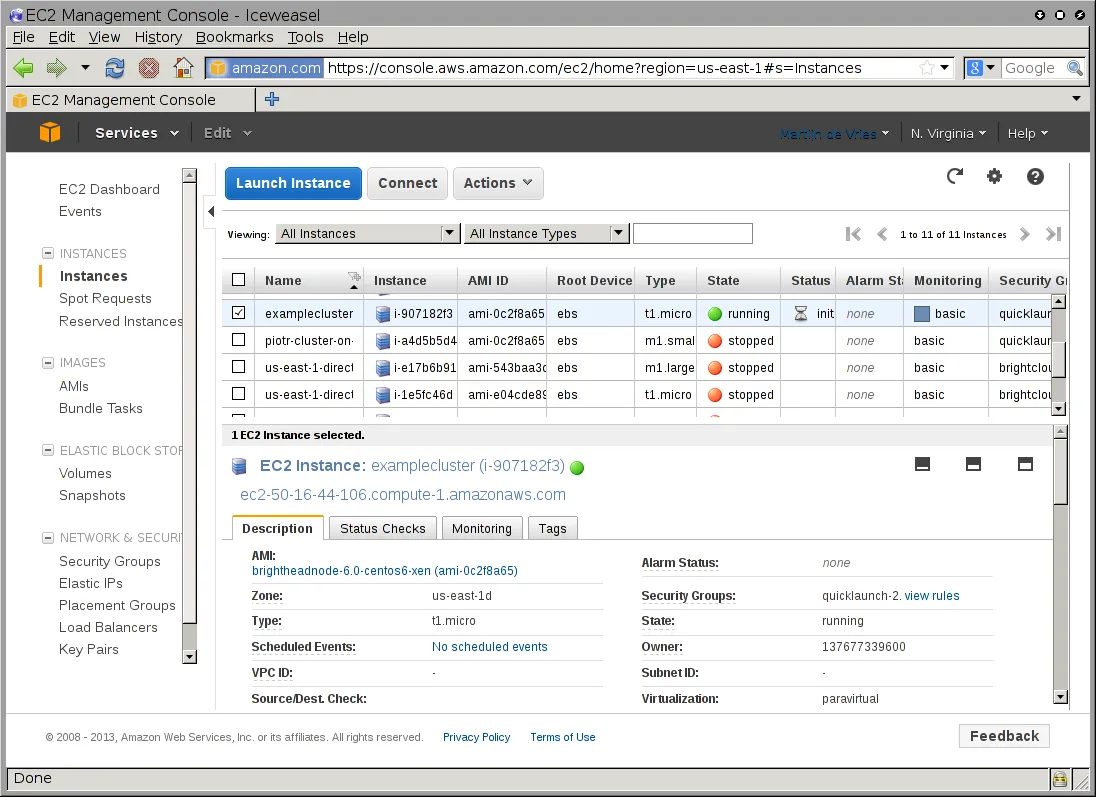
Figure 2.1: The EC2 Instances List
System (Amazon machine infrastructure) and instance (instance running under the infrastructure) reachabilities are similarly shown under the neighboring “Status Checks” tab (figure 2.2).
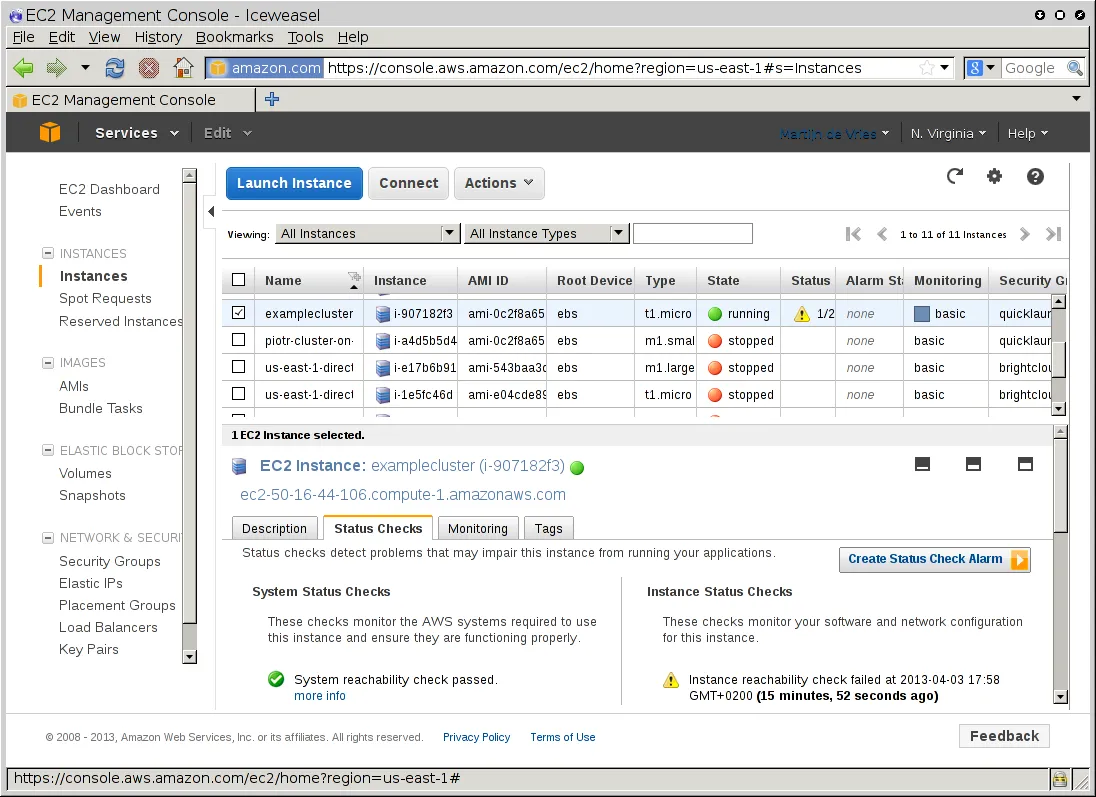
Figure 2.2: Reachability Status For An EC2 Instance
2.9.2 Acting On An Instance From The AWS EC2 Management Console
An instance can be marked by clicking on it. Clicking the Actions button near the top of the main center pane, or equivalently from a right-mouse-button click in the pane, brings up a menu of possible actions. These actions can be executed on the marked instance, and include the options to Start, Stop or Terminate the instance.
2.9.3 Connecting To An Instance From The AWS EC2 Management Console
A marked and running instance can have an SSH connection made to it.
As in the Azure case, for most users this means running ssh to the public IP address as suggested at the end of the AWS COD cluster creation run (section 2.5.2). This is assuming the private ssh key that was generated by the ssh-keygen command in the container is used for the ssh connection, which may mean that copying it out of the container is needed.
2.9.4 Viewing The Head Node Console
The head node takes about 2 minutes to start up. If, on following the instructions, an SSH connection cannot be made, then it can be worth checking the head node system log to check if the head node has started up correctly. The log is displayed on right-clicking on the “Actions” button, selecting the Instance Settings sub-menu, and selecting the “Get System Log” menu item (figure 2.3). A successful start of the system generates a log with a tail similar to that of figure 2.3.
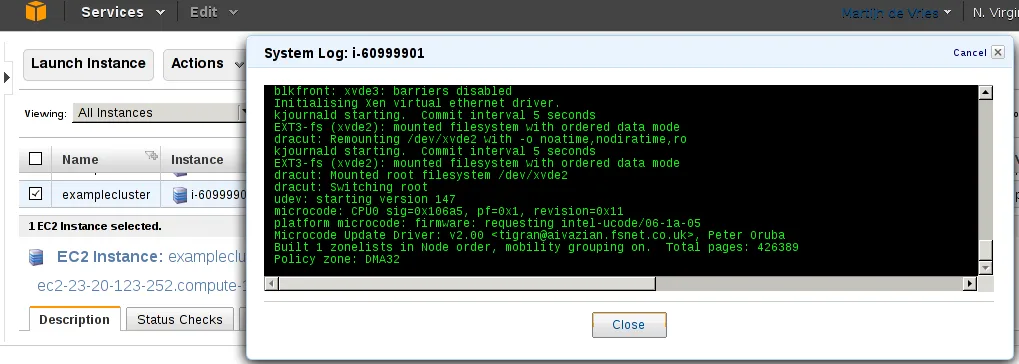
Figure 2.3: System Log Of The Checkboxed Instance
A screenshot of the instance is also possible by right-clicking on the selected instance, then following the navigation path Instance Settings > Get Instance Screenshot.
2.9.5 Security Group Configuration To Allow Access To The Head Node Using cmsh Or Base View
Amazon provides a security group to each instance, which controls network access according to the inbound_rule setting configured at cluster creation (section 2.2.5); the inbound_network_acl_rule setting configures the subnet’s network ACL separately. A new security group can be configured, or an existing one modified, using the Edit details button in figure 2.4. Security groups can also be accessed from the navigation menu on the left side of the EC2 Management Console.
2.9.5.1 COD With AWS: Access With Base View:
The security group defined by Amazon for the head node can be modified by the administrator to allow remote connections to CMDaemon running on the head node (figure 2.4).
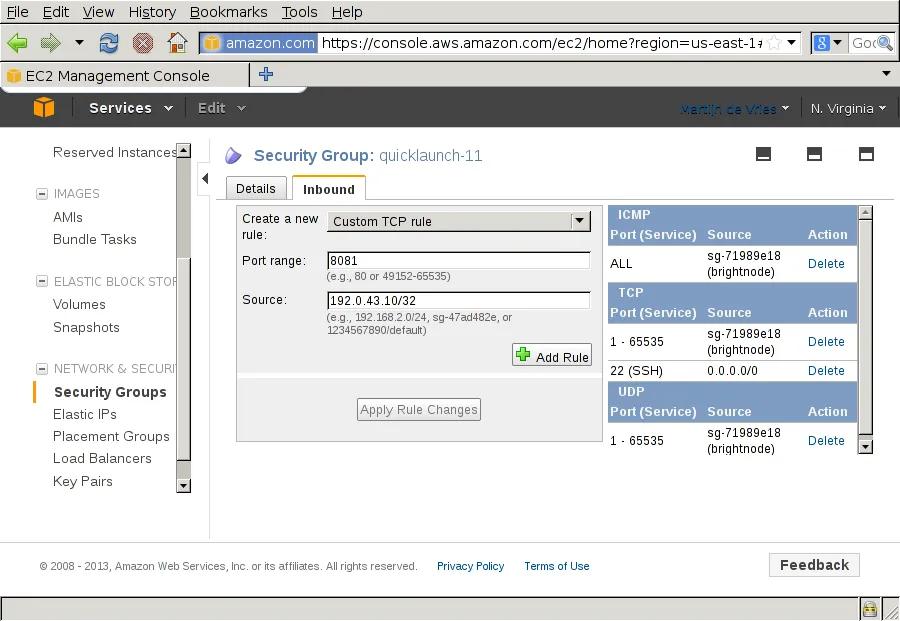
Figure 2.4: Security Group Network And Port Access Restriction
-
To allow only a specific network block to access the instance, the network from which remote connections are allowed can be specified in CIDR format.
-
If the cluster was created with an inbound rule opening port 8081, that allows Base View (section 2.4 of the Administrator Manual) to connect to the head node. This is because the Base View back end, which is CMDaemon, communicatesusing port 8081.
2.9.5.2 COD With AWS: Access With A Local cmsh:
If the cluster was created with an inbound rule opening port 22, the security group created by Amazon allows inbound SSH connections from outside the cloud to the instance running in the cloud, even if the incoming port 8081 is blocked. Launching a cmsh session within an SSH connection running to the head node is therefore possible, and should work without lag.
2.10 Using The Azure Dashboard
For Azure, as is the case for AWS, the cluster is normally expected to be managed using Base View or cmsh. Sometimes when carrying out some special configurations, there may be a need to manage the cluster objects directly using the portal at https://portal.azure.com. This requires an Azure login and password, which opens up the Azure dashboard, and allows the objects to be viewed and managed.
For example, the virtual machines of the COD can be viewed and managed using the Virtual machines resource (figure 2.5), and the virtual networks associated with the COD nodes can similarly be viewed and managed using the Virtual networks resource.
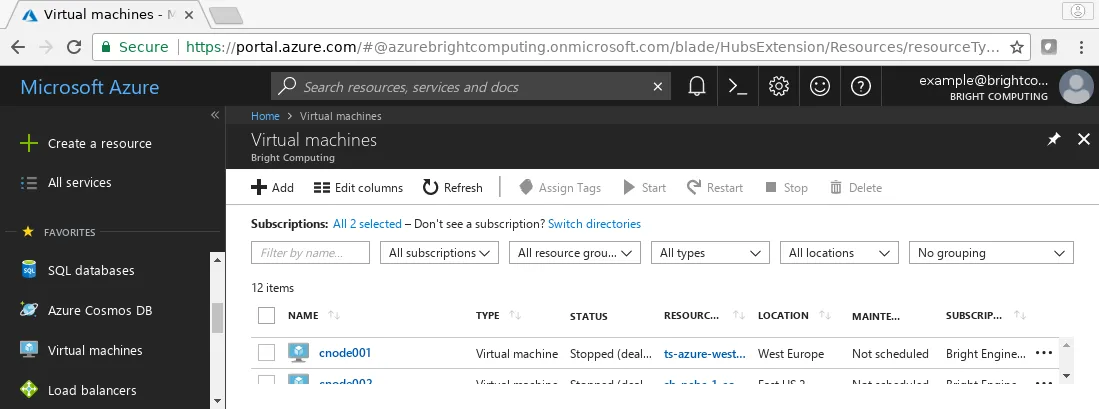
Figure 2.5: Viewing Virtual Machines In A Cluster On Demand In Azure
Some items that may be useful when accessing the portal:
-
An overview of the COD head node is possible using the navigation path:
Home>Virtual machines> <head node> >Overview -
Boot process diagnostics can be viewed using the navigation path:
Home>Virtual machines> <head node> >Boot diagnostics>Serial log -
A serial console can be accessed the navigation path:
Home>Virtual machines> <head node> >Serial consoleThe file
/etc/ssh/sshd_configshould have the parameterChallengeResponseAuthenticationset toyes, and the service restarted, for serial console login to work.
2.11 Using the OCI Console Dashboards
For OCI, the cluster is expected to be managed using cmsh. Sometimes when the cluster are corrupted or it needs special configurations, cluster objects can be directly controlled using the portal at https://www.oracle.com/cloud/. This requires cloud account, or SSO to sign in.
For example, all the instances can be viewed using Left Navigation > Compute > Instances (figure 2.6)
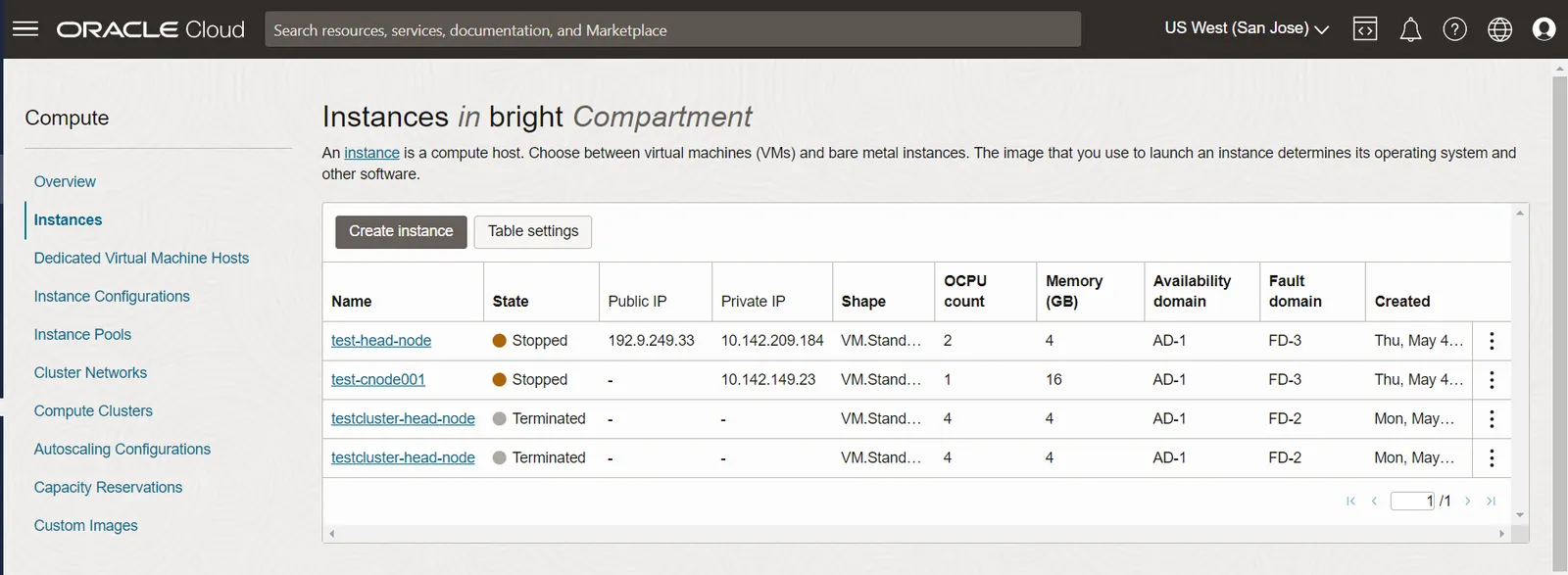
Figure 2.6: Viewing All Instances In A Cluster On Demand In OCI
2.12 COD: Cloud Node Start-up
Cloud nodes must be explicitly started up. This is done by powering them up, assuming the associated cloud node objects exist. The cloud node objects are typically specified in the cm-cod-aws or cm-cod-azure script which is run in the Docker instance. In the preceding example the cloud node objects are cnode001 and cnode002.
However, more cloud node objects can be created if needed after the scripts have run. The maximum number that may be created is set by the license purchased.
Large numbers of cloud node objects can be created with BCM as follows:
-
In Base View they can conveniently be cloned using the navigation path:
Devices>Cloud Nodes><cloud node >Clone> <number> -
In
cmsha large number of cloud node objects can conveniently be created with the “foreach --clone” command instead, as described in section 4.2.
After creation, an individual cloud node, <cloud node>, can be powered up from within Base View using the navigation path:
Devices > Cloud Nodes > <cloud node > Power > On
As with regular non-cloud nodes, cloud nodes can also be powered up from within the device mode of cmsh. The initial power status (section 4.1 of the Administrator Manual) of cloud nodes is FAILED, because they cannot be communicated with. As they start up, their power status changes to OFF, and then to ON. Some time after that they are connected to the cluster and ready for use. The device status (as opposed to the power status) remains DOWN until it is ready for use, at which point it switches to UP:
Example
Multiple cloud nodes can be powered up at a time in cmsh with the “power on” command using ranges and other options (section 4.2.3 of the Administrator Manual).
2.12.1 COD: IP Addresses In The Cloud
-
The IP addresses assigned to cloud nodes on powering them up are arbitrarily scattered over the 10.0.0.0/8 network
- No pattern should therefore be relied upon in the addressing scheme of cloud nodes
-
Shutting down and starting up head and regular cloud nodes can cause their IP address to change.
- However, BCM managing the nodes means that a regular cloud node re-establishes its connection to the cluster when it comes up, and will have the same node name as before.
2.13 COD With AWS: Optimizing AWS For High Performance Computing (HPC)
Optimization of cloud nodes for HPC in AWS is discussed in section 3.5.
2.14 COD And High Availability
2.14.1 Introduction
A COD head node, like a physical on-premises head node, can crash or somehow become non-operational. The possible reasons for this are pretty much the same in the case of a COD head node or a physical head node. The solution to reduce downtime due to these reasons is also the same: that is, to provide high availability (HA).
HA has always been available as a feature for BCM running on on-premises clusters (Chapter 15 of the Administrator Manual). Since 9.2, HA is also available for edge directors (section 2.1.1.1 of the Edge Manual) and for COD (this section 2.14).
The cluster administrator should have some familiarity with how HA for physical head nodes is implemented (Chapter 15 of the Administrator Manual) before implementing it on a COD. HA on COD is implemented very similarly to on a physical cluster, with a passive COD head node that takes over from a failing active COD head node.
COD with HA is deployed in a similar manner for AWS, Azure, and OCI.
The COD head nodes use shared storage for cm/shared and /home, just like the physical head nodes do. For COD HA head nodes, the shared storage needs to be a special filesystem in the cloud, just like the physical head HA nodes use a special filesystem.
Two shared IP addresses are also allocated––public and private. These shared IP addresses always point to the active head node, and are analogous to the external and internal IP address in the case of the physical head HA nodes (figure 15.1 of the Administrator Manual).
2.14.2 Deployment
2.14.2.1 COD HA Deployment Overview
A COD HA cluster is created by first creating a standard (that is: non-HA) COD cluster using cm-cod-aws (section 2.3), cm-doc-azure (section 2.4), or cm-cod-oci (section 2.6).
For AWS the following may be run:
Example
The procedures for Azure (with cm-cod-azure) and OCI (with cm-cod-oci) are very similar.
The standard COD cluster, which here has arbitrarily been given the name basecm11-ha in advance, can now be converted to an HA COD cluster.
For AWS, after the deployment of the converted cluster is complete, the original head node automatically gets the suffix -a, and the new head node that is brought up gets suffix -b.
2.14.2.2 Configuration For Deployment
The conversion is done by running the cm-cloud-ha-setup wizard, whch starts up a TUI for configuring the HA deployment. The Deploy item in the main menu starts the configuration (figure 2.7):

Figure 2.7: Cluster On Demand TUI Wizard: Deploy Selection
The deployment process has the cluster administrator:
- provide the product key, so that the MAC address of the secondary COD head node can be added to the license (figure 2.8):
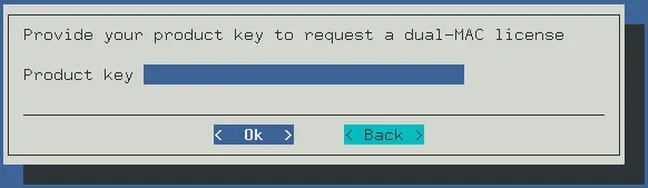
Figure 2.8: Cluster On Demand TUI wizard: deploy selection
- decide using using a screen on whether to auto-allocate a private IP address to be shared between the head nodes, or whether to specify the private address (figure 2.9):

Figure 2.9: Cluster On Demand TUI wizard: decide on how private IP address is a created
- if specifying the private address is chosen, then the private IP address can be set (figure 2.10):

Figure 2.10: Cluster On Demand TUI wizard: private IP address allocation
- decide on where to deploy shared storage (figure 2.11):

Figure 2.11: Cluster On Demand TUI wizard: decide on where the shared storage should be
-
If
yesis selected, then the shared storage is created by the wizard creating an AWS EFS instance and sharing the/homeand/cm/sharedpartitions among the cluster nodes using NFS -
If
nois selected, then the shared storage should be specified manually, or a preconfigured storage can be used -
decide on how to set up a NAT gateway (figure 2.12):
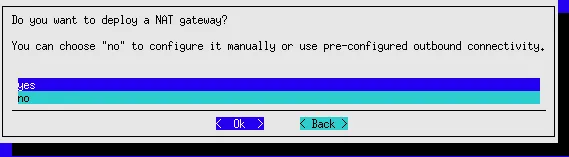
Figure 2.12: Cluster On Demand TUI wizard: decide on how to set up a NAT gateway
- decide on setting up the shared IP address as public or private (figure 2.13):

Figure 2.13: Cluster On Demand TUI wizard: decide on how to set up the shared IP address
- save the configuration and deploy the conversion (figure 2.14):

Figure 2.14: Cluster On Demand TUI wizard: saving the configuration, as part of deployment
2.14.2.3 Conversion To HA
The deployment that converts the cluster to HA then takes place by bringing up a second HA node in the cloud. Deployment typically takes about 50 minutes. The progress can be followed on the console, and in the logs /var/log/cmha.log and /var/log/failoversetup.log.
If the deployment is not yet complete, then the cmha setup command indicates that with, for example:
or later on, during the Finalizing HA stage, with:
2.14.3 COD HA Checks And Recovery
2.14.3.1 COD HA Head Status Check
Once the deployment using cm-cloud-ha-setup is complete, the HA status of the cluster can be checked:
2.14.3.2 COD Failover Session
If the active head node fails, then the passive head node is activated automatically by reassigning the shared public and private IP addresses to the passive head node, and marking the passive head node as active.
This process is called failover and can be triggered automatically or manually (section 15.1.7 of the Administrator Manual).
A manual failover can be carried out with cmha makeactive:
Managing HA and manual failover is described in more detail in section 15.4 of the Administrator Manual.
2.14.4 Recovery Of The Passive COD Head
Unlike with physical HA head nodes, the recovery of a passive head node in the cloud is automated.
Recovery can be carried out by running cm-cloud-ha-setup wizard, and selecting the Recovery item in the main menu (figure 2.15):

Figure 2.15: Cluster On Demand TUI Wizard: Recovery Selection
The product key is needed to license the new head node (figure 2.16):
Figure 2.16: Cluster On Demand TUI Wizard: Product Key Selection
The recovery process warns that all resources associated with the old head node are to be deleted (virtual machine, disks, IP addresses) (figure 2.17):
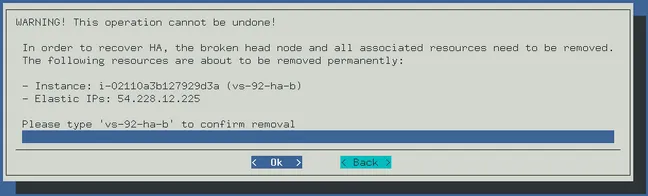
Figure 2.17: Cluster On Demand TUI Wizard: Cleanup
It then clones the active head node, configuring the clone to become the new passive head node, and the cluster then resumes normal HA operation.
When recovery is completed, the new passive head node elastic IP for the cluster called <cluster_name> can be obtained by running:
cm-cod-aws cluster list [ <cluster_name>]
The cm-cod-aws command in the preceding text can be replaced ty cm-cod-azure or cm-cod-oci in order to get a similar listing for COD Azure or COD OCI clusters.
The output from cmha status can be used to confirm recovery is complete.
2.14.5 COD HA Deletion
The COD clusters for AWS listing might show something like (some output truncated):
The COD cluster can be specified for removal with the delete option. For example, with AWS:
Example