

Cluster Extension Cloudbursting With Azure
5.1 Introduction To Cluster Extension Cloudbursting With Azure
Cluster extension cloudbursting with AWS is covered in Chapter 3, where a GUI approach is described, and is also covered in section 4.1, where a text interface approach is described,
Cluster extension cloudbursting with Microsoft Azure is covered in this chapter (Chapter 5). The procedure is somewhat similar to that for AWS:
-
The prerequisites to cloudburst into Azure are the same as those of cloudbursting into AWS, and are as previously described here.
In summary, the prerequisites are as follows:
-
an activated cluster license should be ensured
-
an Azure account should exist
-
BCM must be registered as an Azure AD application (here)
-
UDP port 1194 should be open
-
-
The techniques to cloudburst into Azure are also the same as that of cloudbursting into AWS, and are as previously described here.
In summary, the techniques are as follows:
-
a cloud director is set up in the cloud then started up
-
cloud nodes are then provisioned from the cloud director
-
-
The deployment of cluster extension cloudbursting for Azure is carried out in a similar way to how it is done for AWS.
In summary, the tools used to deploy cluster extension cloudbursting for Azure are as follows:
-
the TUI
cm-cluster-extensionutility, run from the command line (section 5.2) -
the
Azure Wizard, run from Base View.
-
5.2 Cluster Extension Into Azure
Section 4.1.1 introduces the cm-cluster-extension TUI wizard, which is run on the head node when configuring a cluster extension for Azure or AWS. After the cluster extension configuration is completed, the cluster is capable of extending into the cloud by having cloud nodes power up into the cloud. This section (section 5.2) covers how cm-cluster-extension can be run for Azure, and how clouds nodes can be deployed for Azure.
There is also a Base View browser-based wizard for cluster extension into Azure. The browser wizard is accessible via the navigation path: Cloud > Azure > Azure Wizard. If the browser wizard is used, then the documentation here (section 5.2) for cm-cluster-extension can be followed since it is a very similar procedure.
5.2.0.1 Running The cm-cluster-extension Command Line Options As A Shell Dialog
The cm-cluster-extension utility can be run as a dialog from the command line environment, as described in the section starting from here. Running it as a TUI session is however easier, and is described next.
5.2.0.2 Running The cm-cluster-extension TUI Dialog For Cluster Extension Into Azure
The cm-cluster-extension utility can be run as a more user-friendly TUI session within the text environment. In a session described starting from here, an AWS cluster extension configuration is generated and deployed. In the session that is now described here, an Azure cluster extension configuration is generated and deployed instead:
As in the AWS case, the cm-cluster-extension script is run without options, to bring up the TUI main screen (figure 5.1):

Figure 5.1: Configuration Processing With cm-cluster-extension: Azure Selection
After Azure is selected, a new Azure provider can be set if none is already set up. If an Azure region has been configured previously, then its configuration can be removed. Testing only the network connectivity to the various Azure regions is also possible (figure 5.2).

Figure 5.2: Configuration Processing With cm-cluster-extension: Add, Unconfigure, Or Test
If a new Azure provider is selected, then a screen comes up asking for the credentials for Azure (figure 5.3):

Figure 5.3: Configuration Processing With cm-cluster-extension: Azure Credentials
The inputs that are required here are Azure credentials, and exist for an activated Azure account which has had BCM registered as an application.
How BCM can be registered as an Azure application:
Registration of an Azure application can be carried out with the Azure portal at https://portal.azure.com. The portal is accessible with an active Azure account. After logging in, navigating to locations via the navigation paths described next is possible. The steps to ensure a registration are then as follows:
-
User settings should first be checked to see if users can register applications. A navigation path to view this is:
Azure Active Directory>User settings>Users can register applicationsThe state should be set to
yes. -
The subscriptions should be checked for permissions. The navigation path to view subscriptions is simply:
SubscriptionsWithin the subscription display the role can be viewed to determine if the account has adequate permissions to assign an AD application to a role. The account must have
Microsoft.Authorization/*/Writeaccess to assign an Azure AD application to a role. Assigning theContributorrole allows this access. Role-based access control (RBAC) is discussed at https://docs.microsoft.com/en-us/azure/active-directory/role-based-access-control-manage-access-rest -
The user, for example,
<fred>, should be checked for permissions. A suitable navigation path would be:Azure Active Directory>Users and groups><fred>>Azure resourcesThe Azure resources for the user, who is assigned the subscription, should show the role and assignment value. Suitable settings would be:
-
Network,Compute, andStoragenamespaces must be registered.A convenient way to check that this is the case, is to use the Azure CLI tool from the head node. Instructions for installing it are available at https://docs.microsoft.com/en-us/cli/azure/install-azure-cli.
After installation, a list of namespaces can be seen by running:
If the tool is run for the first time, then the tool gives the user a code and a URL. Using these, the user can authenticate the head node via a web browser.
The required namespaces can be registered, if needed, with:
-
Create Azure Active Directory application:
With all the permissions in place, the application can now be registered via the navigation path:
Azure Active Directory>App registrationsThe application name and application URL values can be arbitrary since they are not actually used by
cm-cluster-extension. The application type should be set to:Web app / API -
The
Client IDandClient Secretvalues are only available to Azure admin users, or the Azure application owners. Regular users cannot obtain these values.If the security settings allow Azure users to define their own Azure applications, then they can in theory create their own Azure application under the subscription, and use the data for that Azure application to get a
Client IDandClient Secret.
The credentials can now be picked up from the Azure portal account via the navigation paths shown in the following table:
The Provider Name in figure 5.3 can be set to any user-defined value. For Azure, a sensible, if unimaginative value, is simply azure.
To paste the credentials from the clipboard, the cluster administrator may find it helpful to know that a paste to the TUI can usually be carried out with a <shift><insert>.
After checking and accepting the credentials, legal terms may need to be accepted. The BCM Azure integration makes use of several node-installer images which are published in the Azure marketplace. In order to use those images, Azure requires the administrator to accept the legal terms for those images. The script automatically detects if the terms were already accepted in the past, in which case it proceeds to the next step. If the terms still need to be accepted, then several links to the legal terms are presented, along with a prompt to accept them. The output looks similar to the following (some output ellipsized):
Example
After checking and accepting the legal terms, the administrator is asked to choose a setup type for the wizard. This can be a default setup, or it can be an advanced setup (figure 5.4):

Figure 5.4: Configuration Processing With cm-cluster-extension: Default Setup Or Advanced Setup
The default setup is recommended for most use cases. The default setup configures an OpenVPN network connection to the cluster extension. The advanced setup allows the network connection to the cluster extension to use ExpressRoute (for Azure). or another hardware-based VPN.
After a default or advanced setup has been chosen, the initial number of cloud nodes to be set up in the cloud can be set (figure 5.5). A default of 3 is suggested.


Figure 5.5: Configuration Processing With cm-cluster-extension: Setting The Initial Number Of Cloud Nodes
After setting an initial number of cloud nodes, the major regions into which these can be deployed are displayed (figure 5.6):

Figure 5.6: Configuration Processing With cm-cluster-extension: Major Regions Selection
After selecting a major region, the available regions under it into which the cloud nodes can be deployed are displayed (figure 5.7):

Figure 5.7: Configuration Processing With cm-cluster-extension: Regions Selection
After selecting one or more regions, the default region into which the cloud nodes can be deployed can be set (figure 5.8):

Figure 5.8: Configuration Processing With cm-cluster-extension: Default Region Selection
Azure regions are regional data centers, and the cloud director for a region helps manage the regular cloud nodes in that region when the cluster is extended into there.
After setting the regions up, a default instance type must be set for the regular cloud nodes. The instance type family is first set. For example, the Dv3 type is an instance family type that can be set (figure 5.9):

Figure 5.9: Configuration Processing With cm-cluster-extension: Instance Type Family
Instance types with Azure: After selecting the instance type family, the specific default instance type can be set for the regular cloud nodes. The Standard_D2_v3 type, (2 cores, 8GB RAM) is a common default that can be used (figure 5.10):

Figure 5.10: Configuration Processing With cm-cluster-extension: Default Instance Type
Azure intance types are documented online at
-
https://docs.microsoft.com/en-us/azure/virtual-machines/windows/sizes and
-
https://docs.microsoft.com/en-us/azure/virtual-machines/vm-naming-conventions.
Eventually, when the wizard has finished deployment of the Azure instance, a summary listing of the supported types can be viewed in cmsh with:
or via the Base View navigation path:
Cloud > Azure > Azure VM Sizes
After setting the default instance type for the regular cloud nodes, screens (similar to figures 5.9 and 5.10) are displayed to guide the administrator into setting a default instance type screen for the cloud director node type. The same default instance type suggested for regular cloud nodes earlier, Standard_D2_v3, is typically adequate for cloud director nodes too, for small clusters.
Accelerated networking with Azure: NICs use hardware queues (ring buffers) to send and receive packets. Some NICs allow individual queues to be directly mapped from the physical host to a VM. The standard for doing this is called single root I/O virtualization (SR-IOV). This frees the host kernel from handling those packets, since, for example, network interrupts are delivered directly to the VM kernel. SR-IOV typically results in significantly lower latencies and ping times for the VM, similar to that of a bare metal machine.
On Azure, Accelerated Networking enables SR-IOV, if the VM type supports it. The VM types that support Accelerated Networking can be found using the
az vm list-skus
command from the Azure CLI, as described at https://learn.microsoft.com/en-us/azure/virtual-network/accelerated-networking-overview.
VPN configuration with Azure: After having set the default instance types for the regular and cloud director nodes. the VPN connection to the cluster extension is configured.
If the advanced setup (figure 5.4) was selected earlier in the wizard, then the administrator can select the type of VPN connection to the cluster extension (figure 5.11):

Figure 5.11: Configuration Processing With cm-cluster-extension: Custom VPN Configuration
-
This can be the OpenVPN option that is automatically configured if the
advancedsetup is not chosen. -
With the
advancedsetup it is also possible to configure-
ExpressRoute (for Azure)
-
or another hardware-based VPN
-
As part of VPN configuration, the wizard guides the administrator through the process of configuring the cluster extension so that the extension:
-
creates a resource group for each region by default. Alternatively, existing resource groups can be used instead.
-
creates a subnet per region by default. Alternatively, existing subnets can be used instead, but the cloud director must be able to contact the on-premises head node.
-
creates a storage account for each region by default. Alternatively, existing storage accounts can be used per region instead.
-
creates a security group for each region by default. Alternatively, existing security groups can be used instead.
After the VPN connection is configured, the summary screen (figure 4.13) is displayed. This lets the administrator look things over before deployment:

Figure 5.12: Configuration Processing With cm-cluster-extension: Azure Options Summary Screen
The summary screen allows the following:
-
An administrator can just go ahead, save the configuration, and deploy the cluster extension. This is usually the expected action.
-
The configuration settings YAML file can be viewed. To scroll, the PageUp and PageDown keys are used.
-
An advanced configuration settings screen can be accessed in addition to the standard settings. The advanced settings are usually left alone.
-
The configuration file, <configuration file>, can be saved and the TUI can be exited. By default, the value of <configuration file> is set to
cm-cluster-extension.confin the home directory of the user. On exiting the TUI, deployment with that configuration can be carried out manually by running:
5.2.0.3 Deployment Of An Azure Configuration Created With cm-cluster-extension
During configuration deployment, as the configuration is processed, text output indicates the progress. At the end of processing, the message
indicates that the cluster has been extended successfully.
No nodes are activated yet within Azure. To start them up, the components of the cluster extension service for Azure must be started up by
-
powering up the cloud directors, as introduced for AWS in section 3.2. The procedure for Azure is similar.
-
powering on the cloud nodes after the cloud directors are up. This may require first creating new cloud nodes, as introduced for AWS in section 3.3. The procedure for Azure is similar.
When powering up, the cloud director can be installed from scratch (section 3.2), or from a snapshot. For example, running the power on command from the device mode of cmsh on a head node shows amongst others the following states (some output elided or ellipsized):
Example
Example
5.2.0.4 Tracking Cloud Node Startup From cmsh
The provisioningstatus command in the softwareimage mode of cmsh can be used to view the provisioning status of cloud directors from the head node, or of cloud nodes from the cloud director (some output elided):
Example
In the preceding output, the absence of an entry for “Up to date images” shows that the cloud director does not yet have an image that it can provision to the cloud nodes. After some time, the last few lines of output should change to something like:
Example
This indicates the image for the cloud nodes is now ready. The image used for a device is defined by the value of image under cloudsettings for the cloud director, or cloud node:
Example
By default, this value is the Azure marketplace image for the current BCM version.
With the -a option, the provisioningstatus -a command gives details that may be helpful. For example, while the cloud director is having the default software image placed on it for provisioning purposes, the source and destination paths are /cm/images/default-image:
Example
After some time, when the shared filesystem is being provisioned, then an indication of progress is shown by the Request ID incrementing, and the source and destination paths changing to the /cm/shared directory:
After the shared directory and the cloud node software images are provisioned, the cloud director is fully up. Cloud node instances can then be powered up and provisioned from the cloud director. The instances can be started up from scratch (section 3.2), or from snapshot (section 3.4).
5.2.0.5 Cluster Extension Cloudbursting Logging
All Azure logging goes to the CMDaemon logs in /var/log/cmdaemon, where the CLOUD tag is used to indicate cloud-related operations.
5.3 Cluster Extension Into Azure: Cloud Node Startup From Scratch
This section discusses the configuration of regular cloud node startup from scratch.
NOTE: Cloud director and node startup from snapshot is also possible. Section 3.4 describes it for AWS. For Azure it is more involved, and is not covered here.
To configure regular cloud nodes in Azure from scratch does not require a working cloud director. However to boot up the regular cloud nodes does require that the cloud director be up, and that the associated networks to the regular cloud nodes and to the head node be configured correctly.
If needed, additional cloud provisioning nodes (section 5.2 of the Administrator Manual) can be configured by assigning the provisioning role to cloud nodes, along with appropriate nodegroups (here) values, in order to create a provisioning hierarchy.
Similarly to how it is done in AWS, the creation and configuration of regular cloud node objects in Azure is conveniently carried out by cloning another regular cloud node, from one of the default cloud nodes already created by the cluster extension wizard (section 5.2). A navigation path to do this cloning in Base View is:
Devices > Cloud Nodes > <cloud node hostname > Clone
Cloud node objects can also be created in cmsh as described in section 4.2.
5.4 Cluster Extension Into Azure: shutdown Vs power off
An Azure cloud node has two stopped states:
-
stopped: A node running within Azure can be set to this state by running theshutdowncommand:-
within the
devicemode ofcmsh -
with Base View, using the navigation path:
Devices>Cloud Nodes><cloud node hostname >OS>Shutdown -
Or by clicking the
stopbutton for that node within the Azure web portal, once.
-
-
stopped (deallocated): A node running within Azure can be set to this state by running thepower offcommand:-
within the
devicemode ofcmsh -
with Base View, using the navigation path:
Devices>Cloud Nodes><cloud node hostname >Power>Off -
Or by clicking on the
stopbutton within the Azure web portal, twice.
-
Carrying out a power off command is like a hard power off command, which can under some unusual conditions cause filesystem corruption. It is therefore safer to run the shutdown command first, wait for the node to shut down via the OS. After that, running the power off command ensures that the node is deallocated.
From a financial point of view when using Azure, a node that is shut down but not deallocated continues to incur costs. However, a node that is deallocated does not continue to incur costs.
5.5 Creating An Azure Cluster Extension Using ExpressRoute Or A Hardware VPN
For simple configurations, BCM recommends, and provides, OpenVPN by default for cluster extension cloudbursting VPN connectivity. If there is a wish to use Direct Connect or a hardware VPN (for example, an IPSec tunnel), then BCM can be configured to work with those.
The Azure cluster extension always runs in an Azure Virtual Network. In the default deployment scenario, the head node communicates with the cloud nodes using an OpenVPN connection between the head node and the cloud director. In the case of an ExpressRoute connection or a hardware VPN, the head node can be configured to communicate directly with the cloud director and cloud nodes.
Setting up ExpressRoute or a VPN for a cluster extension can be carried out according to these three steps:
-
Virtual network creation (section 5.5.1). This step can be skipped if an existing virtual network is to be used.
-
Connecting the local network to the virtual network (section 5.5.2). The connection can be with, for example, ExpressRoute, or a hardware VPN. This step can be skipped if the local network is already connected to an existing virtual network via an ExpressRoute or a hardware VPN connection.
-
Configuring and deploying the cluster extension (section 5.5.3).
5.5.1 Creating A Virtual Network
The Azure virtual network is the fundamental building block for building private networks in Azure. A virtual network allows the cloud director and cloud nodes to communicate with each other securely, and can be extended to the on-premises networks. Documentation for creating a virtual network can be found at:
https://docs.microsoft.com/en-us/azure/virtual-network/quick-create-portal
A new virtual network can be created and configured for the cluster extension as follows:
-
After logging in to the Azure portal, https://portal.azure.com, from the home page, https://portal.azure.com/#home, the following navigation path can be followed:
+ Create a resource>Azure Marketplace>Networking>Virtual network
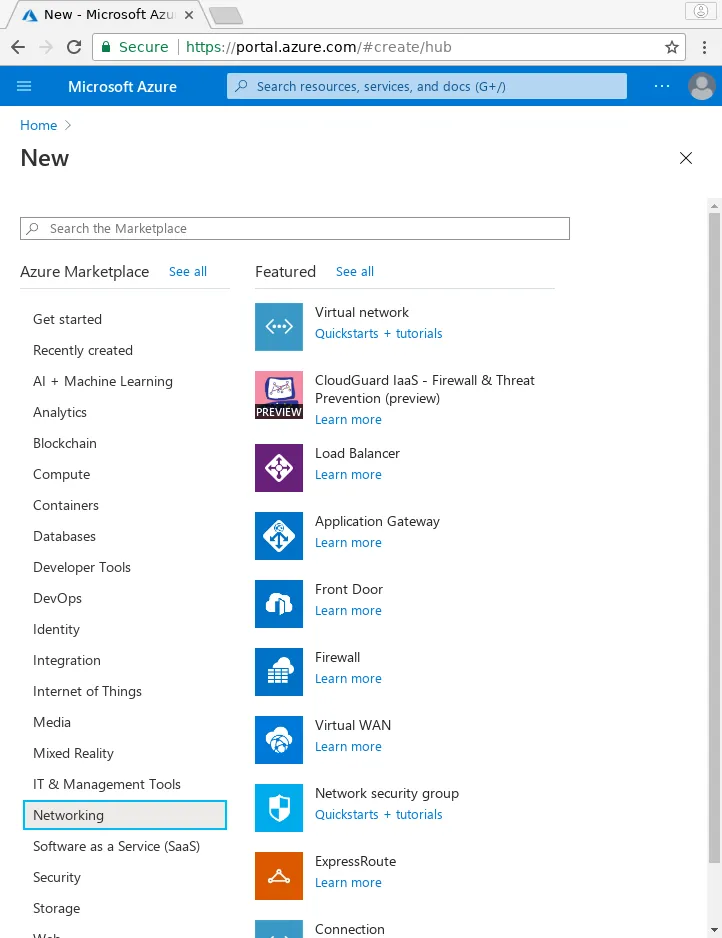
Figure 5.13: Azure Marketplace Networking Screen
- A resource group should be selected or a new resource group should be created for the virtual network in the
Basicstab:
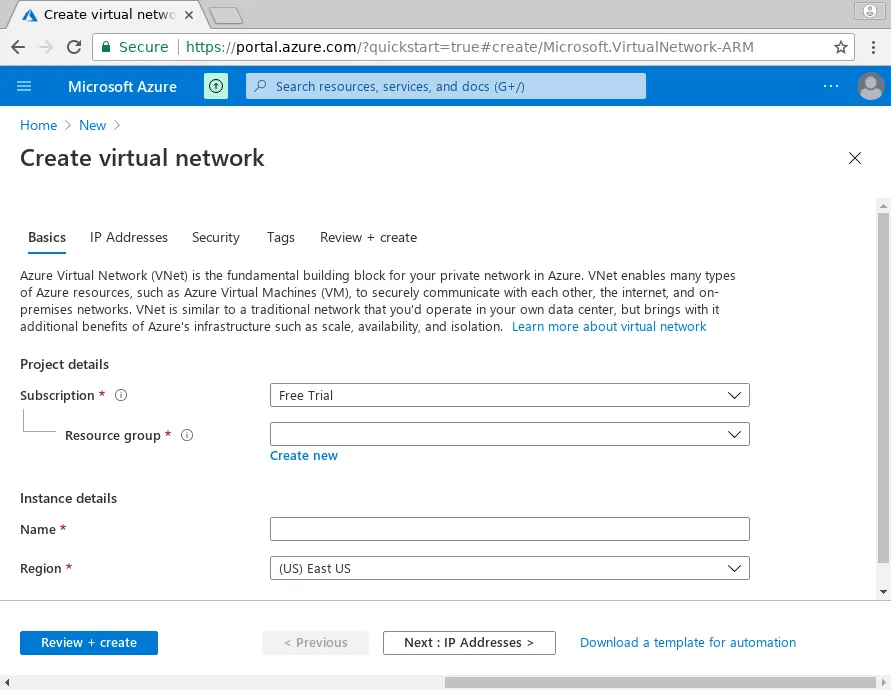
Figure 5.14: Creating A Resource Group In The Basics Tab
- An IPv4 CIDR block can be set to a desired range via the
IP Addressestab, reached by clicking on theNext: IP Addressesbutton:
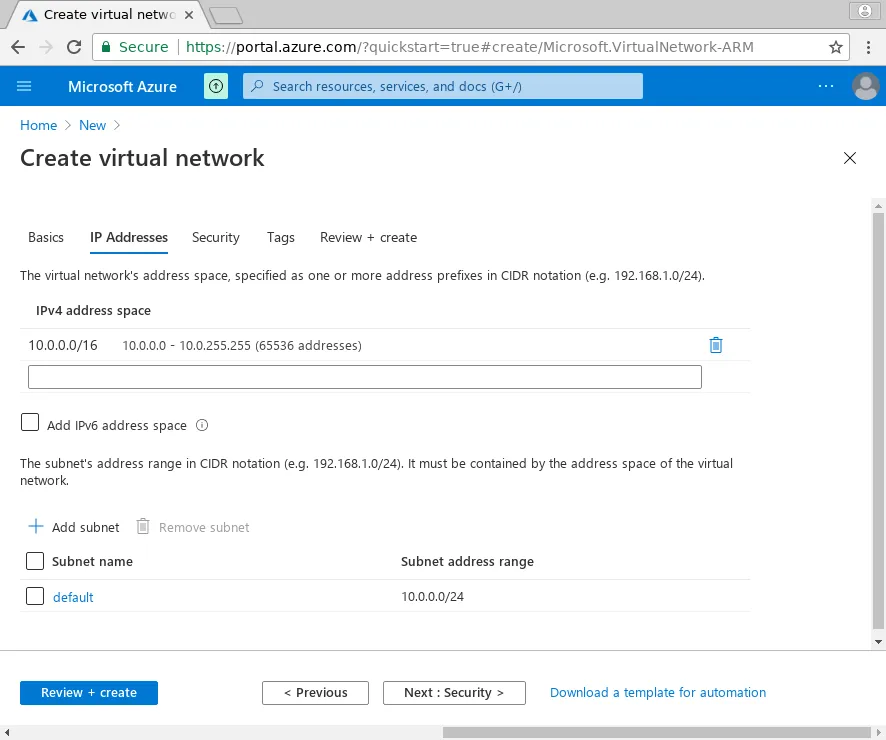
Figure 5.15: Creating IP Address Ranges In The IP Addresses Tab
This range should not conflict with the address space used on-premises. A possible range could be, for example, 10.77.0.0/16
- Once the virtual network range is set, a subnet can be entered via the
+ Add subnetoption, which opens up a dialog.
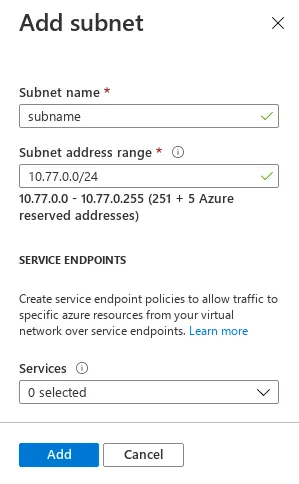
Figure 5.16: Creating IP Address Ranges In The IP Addresses Tab: Subnet Addition
A possible subnet could be, for example, 10.77.0.0/24. The Add button then adds it.
-
The navigation path:
Review + create>Creategoes on to deploy the virtual network.
5.5.2 Connecting The Local Network To The Virtual Network
Azure offers two virtual network gateway types to connect the local network to the virtual network: ExpressRoute and VPN.
5.5.2.1 Connecting Via ExpressRoute
To connect the local network to the virtual network via ExpressRoute requires using an ExpressRoute circuit connection. Azure’s instructions for this are at:
5.5.2.2 Connecting Via A Site-To-Site Connection Using A VPN
Connecting an on-premises network to the virtual network using a VPN requires an Azure site-to-site connection. Azure’s instructions for configuring a site-to-site IPsec VPN connection are at:
In Azure this consists of three components:
-
a virtual network gateway (routes traffic from local network to virtual network)
-
a local network gateway (routes traffic from virtual network to local network)
-
a connection
The local network gateway needs to define the address ranges of the local network. The default address ranges for the local network are: 10.141.0.0/16, 10.2.0.0/16, and 192.168.200.0/24.
The virtual network gateway requires a gateway subnet. The address range for the gateway subnet should be a subnet of the virtual network that does not overlap with the subnet address range for the cluster extension, for example: 10.77.1.0/24.
5.5.3 Configuring And Deploying The Cluster Extension
Once IP connectivity from on-prem to the Azure virtual network is running, the final step is creating the cluster extension using the newly created site-to-site connection.
5.5.3.1 Getting Through Shorewall
First, the firewall on the head node must be adjusted to accept traffic from the virtual network. Using the openports mode of the firewall role in cmsh, one rule must be added per port that must be reachable from the peer subnet, restricting the source address to that subnet where possible:
The add command must be repeated for each required port and protocol. The shorewall service is restarted automatically after commit.
5.5.3.2 Cluster Extension Advanced Settings Configuration
A cluster extension can now be created using the cm-cluster-extension utility in TUI mode as explained in section 5.2.
However, on reaching the summary screen (figure 5.12, here), the cluster administrator should not immediately select the Save config & deploy option, but should first go to the Advanced settings option, which opens up an Advanced plugin configuration screen (figure 5.17):

Figure 5.17: Cluster Extension Configuration Processing: Advanced Plugins Screen
The clusterextension option should be selected, which opens up an advanced options settings screen for Azure (figure 5.18):

Figure 5.18: Cluster Extension Configuration Processing: Advanced Plugins For ’clusterextension’, Azure Options Screen
In this screen:
-
the
Create tunnel networksoption should be set toFalse -
the
Subnet for region<region> should be set to the subnet that has been created for the cluster extension. The cluster extension is what is being connected to via ExpressRoute or via site-to-site connection
The TUI advanced settings screens can be backed out of by selecting Back twice. The option Save config & deploy can then be selected to create the cluster extension.
5.5.3.3 Cloud Node Certificate Autosigning
By default BCM does not issue certificates for nodes on the external network. This means that for cloud nodes the certificates need to be issued manually, once for every new cloud node.
Alternatively, to automatically sign certificate requests by cloud nodes, autosign can be enabled by the administrator for external networks. Autosigning may be a security concern, as this allows anyone on the external network to request a node certificate. Autosign can be enabled on externalnet in cmsh as follows:
The cluster extension can now be deployed as explained here.
5.6 Viewing And Setting Azure Generation 1 And Generation 2 Cloud Nodes
5.6.1 Introduction
Azure introduced Generation 2 (Gen2) VMs in 2019. These boast a number of new features, including increased memory, Intel Software Guard Extensions (Intel SGX), and virtualized persistent memory (vPMEM). Gen2 VMs use the new UEFI-based boot architecture rather than the BIOS-based architecture used by Gen1 VMs. Compared to Gen1 VMs, Gen2 VMs might have improved boot and installation times.
It is not possible to change the generation once a VM has been created. The generation to be used must therefore be specified before deploying a cloud instance.
More information on generation 2 VMs can be found at the feature documentation at https://docs.microsoft.com/en-us/azure/virtual-machines/generation-2.
5.6.2 Implementation Of Hyper-V Generation Choice In BCM
Additional fields were introduced in NVIDIA Base Command Manager 9.2 to allow the generation to be specified, for the Azure VMSize, CloudProvider, and CloudSettings entities.
Also introduced in 9.2 were new “hybrid” node-installer images, which support Gen1 (BIOS-based) and Gen2 (UEFI-based) VMs. The images are partitioned with GPT and contain an ESP partition for UEFI boot. The old, BIOS-only images cannot be used for Gen2 VMs.
In the Azure Marketplace BCM provides separate SKUs for Gen1 and Gen2 images, although internally they are the same.
If a cloud node instantiated from a non-Marketplace node-installer image VHD, then CMDaemon first creates a generation-specific Azure Image resource out of the VHD in the cluster extension resource group. That image resource is then used to create the VM.
Some Azure VM sizes support both Gen1 and Gen2, while others are generation-specific.
To see which VM size supports which generation of Hyper-V, cloud types can be listed in cmsh with the hypervgenerations parameter:
Example
Formats for the list command are discussed here.
Gen1 or Gen2 availability for a cloud is indicated by the tag V1 or V2 respectively.
For historical reasons, and because of the many VM sizes available, BCM currently (September 2022) creates Gen1 VMs by default. This is not expected to remain the case.
Switching to Gen2 from Gen1 is a matter of using a VM size that supports V2, and then changing the Hyper-V generation parameter.
For the cloud provider the change can be carried out as follows, and all cloud nodes then become Gen2:
Example
Alternatively, each VM can have its Hyper-V generation setting changed within the cloudsettings submode:
Example
5.7 Running NVIDIA A100 GPUs On Cloud Nodes
GPU hardware detection by the Linux kernel may be very delayed, or even be unsuccessful, on cloud nodes that run NVIDIA A100 GPUs. A100 hardware is made available on some instance types such as, for example, Standard_NC96ads_A100_v4. To work around this issue, the pci-hyperv and pci-hyperv-intf kernel modules must be loaded to the kernel used by cloud node images.
In a default Azure setup, this can typically be carried out by adding the kernel modules to the existing kernel modules used by the cloud node category:
Example
Booting the cloud nodes with these kernel modules configured allows the GPUs to be detected correctly.