

Node Provisioning
This chapter covers node provisioning. Node provisioning is the process of how nodes obtain an image. Typically, this happens during their stages of progress from power-up to becoming active in a cluster, but node provisioning can also take place when updating a running node.
Section 5.1 describes the stages leading up to the loading of the kernel onto the node.
Section 5.2 covers configuration and behavior of the provisioning nodes that supply the software images.
Section 5.3 describes the configuration and loading of the kernel, the ramdisk, and kernel modules.
Section 5.4 elaborates on how the node-installer identifies and places the software image on the node in a 13-step process.
Section 5.5 explains node states during normal boot, as well node states that indicate boot problems.
Section 5.6 describes how running nodes can be updated, and modifications that can be done to the update process.
Section 5.7 explains how to add new nodes to a cluster so that node provisioning will work for these new nodes too. The Base View and cmsh front ends for creating new node objects and properties in CMDaemon are described.
Section 5.8 describes troubleshooting the node provisioning process.
5.1 Before The Kernel Loads
Immediately after powering up a node, and before it is able to load up the Linux kernel, a node starts its boot process in several possible ways:
5.1.1 PXE Booting
By default, nodes boot from the network when using BCM. This is called a network boot. On the x86_64 (amd64) architecture it is known as a PXE boot (often pronounced as “pixie boot”). It is recommended as a BIOS setting for nodes. The head node runs a tftpd server that is managed by systemd. The tftpd server supplies the boot loader from within the default software image (section 2.1.2) offered to nodes.
The boot loader runs on the node and displays a menu (figure 5.1) based on loading a menu module within a configuration file. The default configuration files offered to nodes are located under /tftpboot/pxelinux.cfg/ on the head node. To implement changes in the files, CMDaemon may need to be restarted, or the updateprovisioners command (here) can be run.
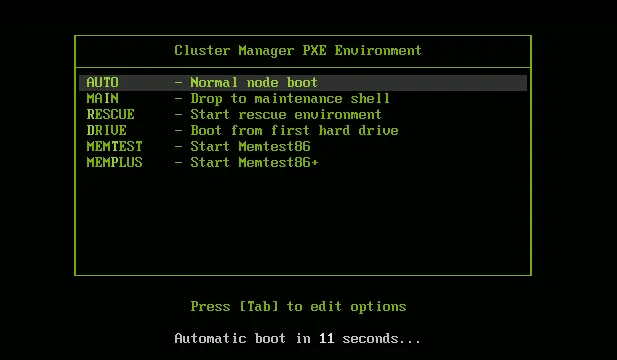
Figure 5.1: PXE boot menu options
The default configuration files give instructions to the menu module of PXElinux. The instruction set used is documented at http://www.syslinux.org/wiki/index.php/Comboot/menu.c32, and includes the TIMEOUT, LABEL, MENU LABEL, DEFAULT, and MENU DEFAULT instructions.
5.1.1.1 The PXE TIMEOUT Instruction
During the display of the PXE boot menu, a selection can be made within a timeout period to boot the node in a several ways. Among the options are some of the install mode options (section 5.4.4). If no selection is made by the user within the timeout period, then the AUTO install mode option is chosen by default.
In the PXE menu configuration files under pxelinux.cfg/, the default timeout of 5 seconds can be adjusted by changing the value of the “TIMEOUT 50” line. This value is specified in deciseconds.
Example
5.1.1.2 The PXE LABEL And MENU LABEL Instructions
LABEL:
The menu configuration files under pxelinux.cfg/ contain several multiline LABEL statements.
Each LABEL statement is associated with a kernel image that can be loaded from the PXE boot menu along with appropriate kernel options.
Each LABEL statement also has a text immediately following the LABEL tag. Typically the text is a description, such as linux, main, RESCUE, and so on. If the PXE menu module is not used, then tab completion prompting displays the list of possible text values at the PXE boot prompt so that the associated kernel image and options can be chosen by user intervention.
MENU LABEL:
By default, the PXE menu module is used, and by default, each LABEL statement also contains a MENU LABEL instruction. Each MENU LABEL instruction also has a text immediately following the MENU LABEL tag. Typically the text is a description, such as AUTO, RESCUE and so on (figure 5.1). Using the PXE menu module means that the list of the MENU LABEL text values is displayed when the PXE boot menu is displayed, so that the associated kernel image and options can conveniently be selected by user intervention.
5.1.1.3 The PXE DEFAULT And MENU DEFAULT Instructions
DEFAULT: If the PXE menu module is not used and if no MENU instructions are used, and if there is no user intervention, then setting the same text that follows a LABEL tag immediately after the DEFAULT instruction, results in the associated kernel image and its options being run by default after the timeout.
By default, as already explained, the PXE menu module is used. In particular it uses the setting: DEFAULT menu.c32 to enable the menu.
MENU DEFAULT: If the PXE menu module is used and if MENU instructions are used, and if there is no user intervention, then setting a MENU DEFAULT tag as a line within the multiline LABEL statement results in the kernel image and options associated with that LABEL statement being loaded by default after the timeout.
5.1.1.4 The CMDaemon PXE Label Setting For Specific Nodes
The MENU DEFAULT value by default applies to every node using the software image that the PXE menu configuration file under pxelinux.cfg/ is loaded from. To override its application on a per-node basis, the value of PXE Label can be set for each node.
-
Some simple examples of overriding the default
MENU DEFAULTvalue are as follows:-
For example, using
cmsh:Example
Carrying it out for all nodes in the
defaultcategory can be done, for example, with:Example
The value of
pxelabelcan be cleared with:Example
-
In Base View, the PXE label can be set for a node
node001using the navigation path
Devices > All Devices > Physical Node[node001] > Settings > Provisioning > PXE Label
which leads to a screen as in (figure 5.2):
-
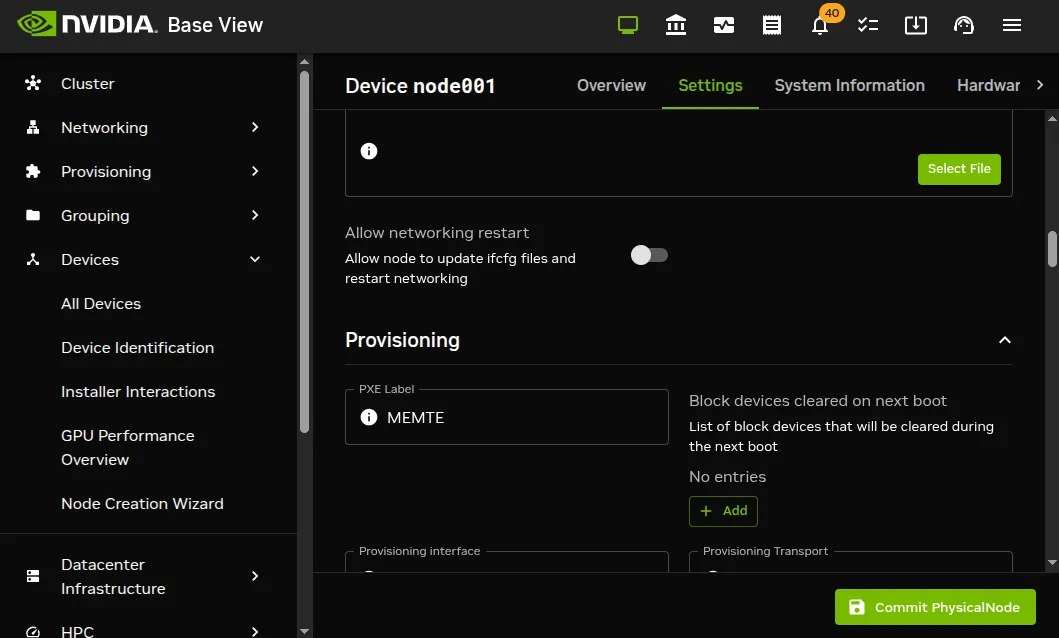
Figure 5.2: Base View PXE Label option
-
A more complicated example of overriding the default
MENU DEFAULTvalue now follows. Although it helps in understanding how PXE labels can be used, it can normally be skipped because the use case for it is unlikely, and the details are involved.In this example,
pxelabelis set by the administrator using Base View orcmshtolocaldrive. This will then set the node to boot from the first local drive and not the node-installer. This is a setting that is discouraged since it usually makes node management harder, but it can be used by administrators who do not wish to answer any prompt during node boot, and also want the node drives to have no risk of being overwritten by the actions of the node-installer, and also want the system to be up and running quite fully, even if not necessarily provisioned with the latest image from the head node.Here, the overwriting-avoidance method relies on the nodes being associated with a configuration file under
pxelinux.cfgat the time that thelocaldrivesetting is done. However, nodes that are unidentified, or are identified later on, will have theirMENU DEFAULTvalue still set to a defaultpxelabelvalue set in the files under/tftpboot/pxelinux.cfg/, which is the valuelinuxby default, and which is associated with a code block in that file with the labelLABEL linux. To make such (as yet) unidentified nodes boot to alocaldrivesetting instead, requires modifying the files under/tftpboot/pxelinux.cfg/, so that theMENU DEFAULTline is associated with the code block ofLABEL localdriverather than the code block ofLABEL linux.There are two methods other than using the preceding
pxelabelmethod to deal with the risk of overwriting. Unlike thepxelabelmethod however, these methods can interrupt node booting, so that the node does not progress to being fully up until the administrator takes further action:-
If it is acceptable that the administrator manually enters a confirmation as part of the boot process when a possible overwrite risk is found, then the
datanodemethod (section 5.4.4.4) can be used. -
If it is acceptable that the boot process halts on detecting a possible overwrite risk, then the XML assertions method (Appendix D.11) is recommended.
-
5.1.1.5 Changing The Install Mode Or Default Image Offered To Nodes
The selections offered by the PXE menu are pre-configured by default so that the AUTO menu option by default loads a kernel, runs the AUTO install mode, and eventually the default-image software image is provisioned.
Normally administrators should not be changing the install mode, kernel, or kernel options in the PXE menu configuration files under pxelinux.cfg/.
More on changing the install mode is given in section 5.4.4. More on changing software images, image package management, kernels, and kernel options, is to be found in Chapter 9.
5.1.2 iPXE Booting From A Disk Drive
Also by default, on disked nodes, iPXE software is placed on the drive during node installation. If the boot instructions from the BIOS for PXE booting fail, and if the BIOS instructions are that a boot attempt should then be made from the hard drive, it means that a PXE network boot attempt is done again, as instructed by the bootable hard drive. This can be a useful fallback option that works around certain BIOS features or problems.
5.1.3 iPXE Booting Using InfiniBand
On clusters that have InfiniBand hardware, it is normally used for data transfer as a service after the nodes have fully booted up (section 3.6). InfiniBand can also be used for PXE booting (described here) and used for node provisioning (section 5.3.3). However these uses are not necessary, even if InfiniBand is used for data transfer as a service later on, because booting and provisioning is available over Ethernet by default. This section (about boot over InfiniBand) may therefore safely be skipped when first configuring a cluster.
Booting over InfiniBand using PXE is enabled by carrying out these 3 steps:
-
Making BCM aware that nodes are to be booted over InfiniBand. Node booting (section 3.2.3.4, here) can be set from
cmshor Base View as follows:-
From
cmsh’snetworkmode: If the InfiniBand network name isibnet, then acmshcommand that will set it is:
cmsh -c "network; set ibnet nodebooting yes; commit" -
From Base View: The
Settingswindow for the InfiniBand network, for exampleibnet, can be accessed from theNetworkingresource using the navigation path:Networking > Networks > ibnet > SettingsThis is similar to figure 3.5, but for
ibnet. TheNode bootingoption foribnetis then enabled and saved.
If the InfiniBand network does not yet exist, then it must be created (section 3.2.2). The recommended default values used are described in section 3.6.4. The MAC address of the interface in CMDaemon defaults to using the GUID of the interface.
The administrator should also be aware that the interface from which a node boots, (conveniently labeled
BOOTIF), must not be an interface that is already configured for that node in CMDaemon. For example, ifBOOTIFis the deviceib0, thenib0must not already be configured in CMDaemon. EitherBOOTIFor theib0configuration should be changed so that node installation can succeed. It is recommended to setBOOTIFtoeth0if theib0device should exist. -
-
Flashing iPXE onto the InfiniBand HCAs. (The ROM image is obtained from the HCA vendor).
-
Configuring the BIOS of the nodes to boot from the InfiniBand HCA.
All MAC addresses become invalid for identification purposes when changing from booting over Ethernet to booting over InfiniBand.
Administrators who enable iPXE booting almost always wish to provision over InfiniBand too. Configuring provisioning over InfiniBand is described in section 5.3.3.
5.1.4 Using PXE To Boot From The Drive
Besides PXE booting from only the network, a node can also be configured using PXE to step over to using its own drive to start booting and get to the stage of loading up its kernel entirely from its drive, just like a normal standalone machine. This can be done by setting PXE LABEL to localdrive (here).
5.1.5 Network Booting Without PXE On The ARMv8 Architecture
ARMv8 nodes use a network boot implementation that differs slightly from the x86 PXE boot implementation. The actual firmware that starts up on ARMv8 nodes depends on the environment the hardware is in. Networking is then started by the firmware and the network requests what to boot. The head node however then sends out a GRUB binary instead of an iPXE binary. The GRUB binary then runs on the regular node, and fetches the kernel and initrd using TFTP. The node-installer then runs on the nodes and follows the same steps as in the x86 process.
5.1.6 Network Booting Protocol
The protocol used by network booting is set with the parameter bootloaderprotocol. It is set to HTTP by default at category level:
Example
The protocol can be modified at category or node level, to one of the values HTTP, HTTPS, or TFTP:
Example
If the protocol has the setting of HTTP, then initial PXE booting actually still uses the TFTP protocol on x86_64 hardware. However, a switchover to the HTTP protocol is done when loading up the kernel and RAM disk.
The HTTPS protocol for node booting should almost never be used, because it is rarely implemented in hardware.
5.1.7 The Boot Role
The action of providing a boot image to a node using DHCP and TFTP is known as providing node booting. Node provisioning (section 5.2), on the other hand, is about provisioning the node with the rest of the node image.
Roles in general are introduced in section 2.1.5. The boot role is one such role that can be assigned to a regular node. The boot role configures a regular node so that it can then provide node booting. The role cannot be assigned or removed from the head node—the head node always has a boot role.
The boot role is assigned by administrators to regular nodes if there is a need to cope with the scaling limitations of TFTP and DHCP. TFTP and DHCP services can be overwhelmed when there are large numbers of nodes making use of them during boot. An example of the scaling limitations may be observed, for example, when, during the powering up and network booting attempts of a large number of regular nodes from the head node, it turns out that random different regular nodes are unable to boot, typically due to network effects.
One implementation of boot role assignment might therefore be, for example, to have a several groups of racks, with each rack in a subnet, and with one regular node in each subnet that is assigned the boot role. The boot role regular nodes would thus take the DHCP and TFTP load off the head node and onto themselves for all the nodes in their associated subnet, so that all nodes of the cluster are then able to boot without networking issues.
5.2 Provisioning Nodes
The action of transferring the software image to the nodes is called node provisioning, and is done by special nodes called the provisioning nodes. More complex clusters can have several provisioning nodes configured by the administrator, thereby distributing network traffic loads when many nodes are booting.
Creating provisioning nodes is done by assigning a provisioning role to a node or category of nodes. Similar to how the head node always has a boot role (section 5.1.7), the head node also always has a provisioning role.
5.2.1 Provisioning Nodes: Configuration Settings
The provisioning role has several parameters that can be set:
A provisioning node keeps a copy of all the images it provisions on its local drive, in the same directory as where the head node keeps such images. The local drive of a provisioning node must therefore have enough space available for these images, which may require changes in its disk layout.
5.2.2 Provisioning Nodes: Role Setup With cmsh
In the following cmsh example the administrator creates a new category called misc. The default category default already exists in a newly installed cluster.
The administrator then assigns the role called provisioning, from the list of available assignable roles, to nodes in the misc category. After the assign command has been typed in, but before entering the command, tab-completion prompting can be used to list all the possible roles. Assignment creates an association between the role and the category. When the assign command runs, the shell drops into the level representing the provisioning role.
If the role called provisioning were already assigned, then the use provisioning command would drop the shell into the provisioning role, without creating the association between the role and the category.
As an aside from the topic of provisioning, from an organizational perspective, other assignable roles include monitoring, storage, and failover.
Once the shell is within the role level, the role properties can be edited conveniently.
For example, the nodes in the misc category assigned the provisioning role can have default-image set as the image that they provision to other nodes, and have 20 set as the maximum number of other nodes to be provisioned simultaneously (some text is elided in the following example):
Example
Assigning a provisioning role can also be done for an individual node instead, if using a category is deemed overkill:
Example
A role change configures a provisioning node, but does not directly update the provisioning node with images. After carrying out a role change, BCM runs the updateprovisioners command described in section 5.2.4 automatically, so that regular images are propagated to the provisioners. The propagation can be done by provisioners themselves if they have up-to-date images. CMDaemon tracks the provisioning nodes role changes, as well as which provisioning nodes have up-to-date images available, so that provisioning node configurations and regular node images propagate efficiently. Thus, for example, image update requests by provisioning nodes take priority over provisioning update requests from regular nodes.
5.2.3 Provisioning Nodes: Role Setup With Base View
The provisioning configuration outlined in cmsh mode in section 5.2.2 can be done using Base View too, as follows:
A misc category can be added using the navigation path
Grouping > Categories > + Add > Settings <name>
That is, within the Settings tab, the node category should be given a name misc (figure 5.3), and saved:
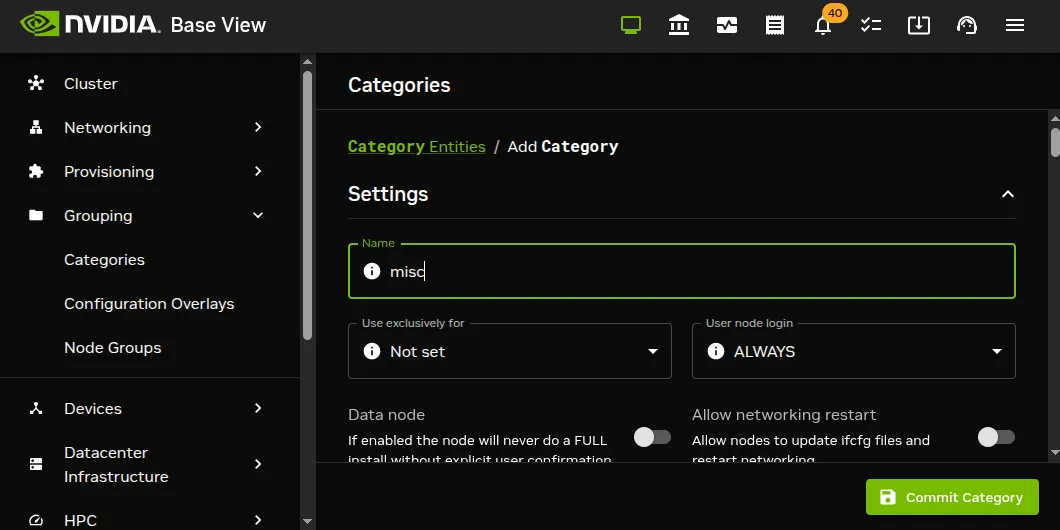
Figure 5.3: Base View: Adding A misc Category
The Roles window can then be opened by using the relative navigation path from the misc category pane:
… > Roles > + Add
A scrollable list of available roles is then displayed, (figure 5.4):
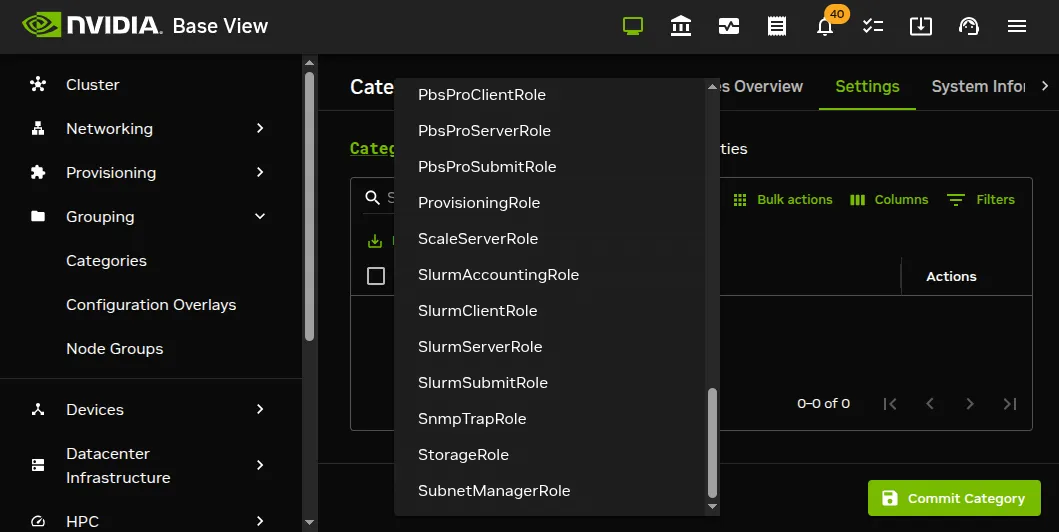
Figure 5.4: Base View: Setting A provisioning Role
If the category misc already exists, then the equivalent navigation path would be
Grouping > Categories > misc > Settings Roles > + Add
to display the same scrollable list of available roles (figure 5.4).
After selecting a role, the role can be saved using the Commit Category button there. A warning is displayed if the configuration properties have any issues. The warning can be examined by clicking through (figure 5.5):
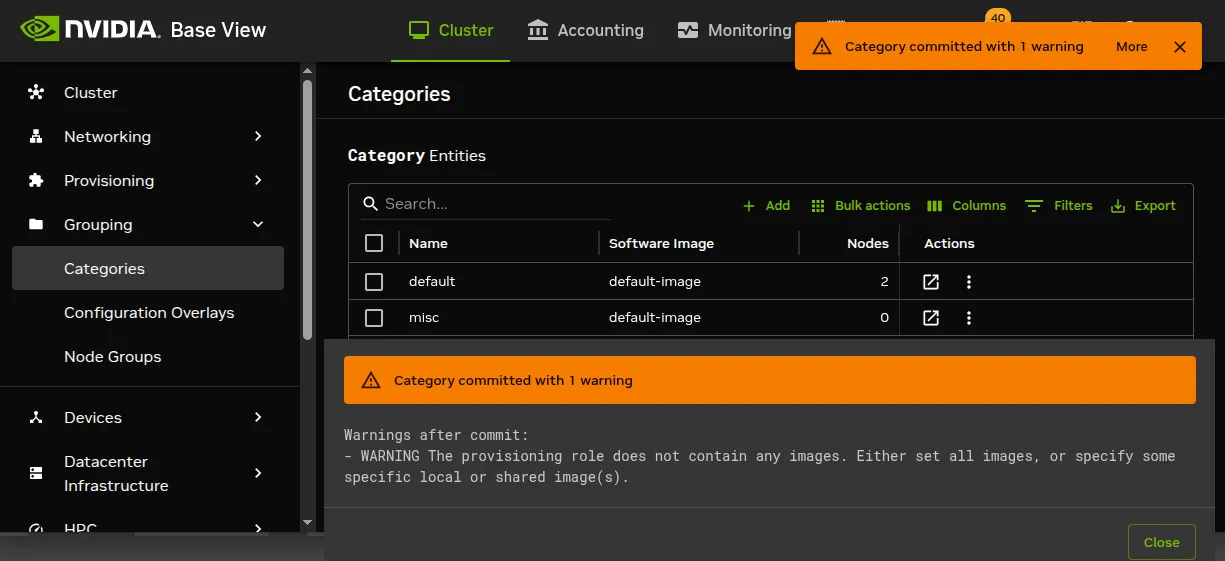
Figure 5.5: Base View: Warning When Setting A provisioning Role
The configuration properties of the role can be edited. To access the provisioning role properties in the misc category, the full navigation path would be:
Grouping > Categories > misc > Settings Roles > provisioning
This brings up a pane where values can be modified (figure 5.6):
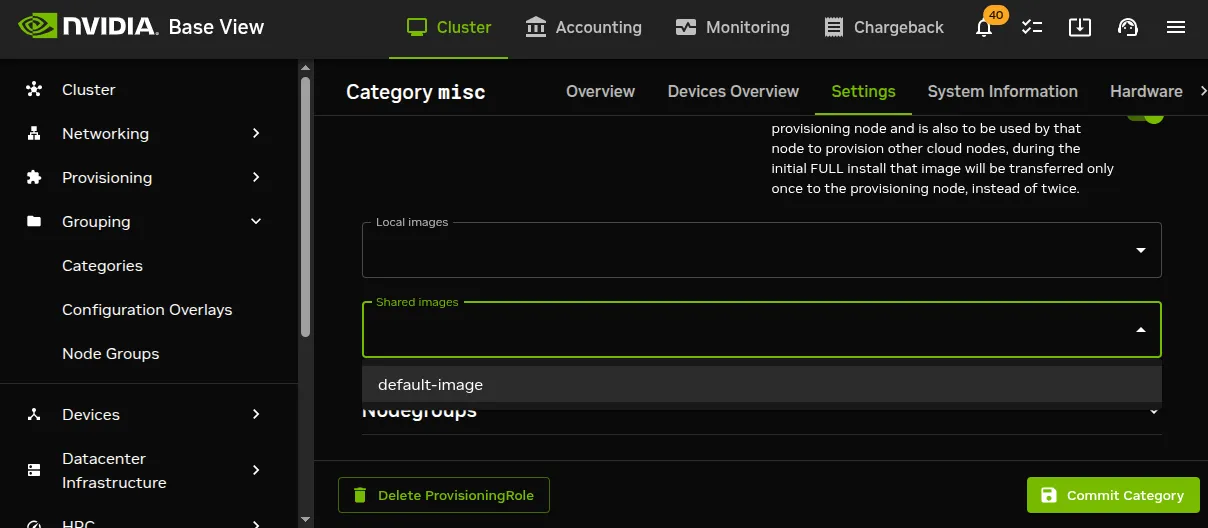
Figure 5.6: Base View: Configuring A provisioning Role
For example:
-
the
Provisioning slotssetting decides how many images can be supplied simultaneously from the provisioning node -
the
All imagessetting decides if the role provides all images -
the
Local imagessetting decides what images the provisioning node supplies from local storage -
the
Shared imagessetting decides what images the provisioning node supplies shared storage.
The settings can be saved with the Commit Category button of figure 5.6. The images offered by the provisioning role in the navigation path:
Grouping > Categories > misc > Settings Roles > provisioning > local or shared software image for provisioning
should not be confused with the software image setting of the misc category itself, which is the image the provisioning node requests for itself from the category, as seen in the navigation path:
Grouping > Categories > misc > Settings > Software image [software image for category]
5.2.4 Provisioning Nodes: Housekeeping
The head node does housekeeping tasks for the entire provisioning system. Provisioning is done on request for all non-head nodes on a first-come, first-serve basis. Since provisioning nodes themselves, too, need to be provisioned, it means that to cold boot an entire cluster up quickest, the head node should be booted and be up first, followed by provisioning nodes, and finally by all other non-head nodes. Following this start-up sequence ensures that all provisioning services are available when the other non-head nodes are started up.
Some aspects of provisioning housekeeping are discussed next:
5.2.4.1 Provisioning Node Selection
When a node requests provisioning, the head node allocates the task to a provisioning node. If there are several provisioning nodes that can provide the image required, then the task is allocated to the provisioning node with the lowest number of already-started provisioning tasks.
5.2.4.2 Limiting Provisioning Tasks With MaxNumberOfProvisioningThreads
Besides limiting how much simultaneous provisioning per provisioning node is allowed with Provisioning Slots (section 5.2.1), the head node also limits how many simultaneous provisioning tasks are allowed to run on the entire cluster. This is set using the MaxNumberOfProvisioningThreads directive in the head node’s CMDaemon configuration file, /etc/cmd.conf, as described in Appendix C.
5.2.4.3 Provisioning Tasks Deferral and Failure
A provisioning request is deferred if the head node is not able to immediately allocate a provisioning node for the task. Whenever an ongoing provisioning task has finished, the head node tries to re-allocate deferred requests.
A provisioning request fails if an image is not transferred. 5 retry attempts at provisioning the image are made in case a provisioning request fails.
A provisioning node that is carrying out requests, and which loses connectivity, has its provisioning requests remain allocated to it for 180 seconds from the time that connectivity was lost. After this time the provisioning requests fail.
5.2.4.4 Provisioning Role Change Notification With updateprovisioners
The updateprovisioners command is used to update the image on the provisioning nodes.
It can be accessed from the softwareimage mode in cmsh.
It can also be accessed from Base View, using the navigation path:
Software Images > ⋮ > Provisioning > Update provisioner
In the examples in section 5.2.2, changes were made to provisioning role attributes for an individual node as well as for a category of nodes. This automatically ran the updateprovisioners command.
The updateprovisioners command runs automatically if CMDaemon is involved during software image changes or during a provisioning request. If on the other hand, the software image is changed outside of the CMDaemon front ends (Base View and cmsh), for example by an administrator adding a file by copying it into place from the bash prompt, then updateprovisioners should be run manually to update the provisioners.
In any case, if it is not run manually, then by default it runs every midnight (UTC). The scheduling period can be adjusted with the autoupdateperiod setting:
Example
When the default updateprovisioners is invoked manually, the provisioning system waits for all running provisioning tasks to end, and then updates all images located on any provisioning nodes by using the images on the head node. It also re-initializes its internal state with the updated provisioning role properties, i.e. keeps track of what nodes are provisioning nodes.
The default updateprovisioners command, run with no options, updates all images. If run from cmsh with a specified image as an option, then the command only does the updates for that particular image. A provisioning node undergoing an image update does not provision other nodes until the update is completed.
Example
5.2.4.5 Provisioning Role Draining And Undraining Nodes With drain, undrain
The drain and undrain commands to control provisioning nodes are accessible from within the softwareimage mode of cmsh.
If a node is put into a drain state, then all currently active provisioning requests continue until they are completed. However, the node is not assigned any further pending requests, until the node is put back into an undrain state.
Example
To drain all nodes at once, the --role option can be used, with provisioning role as its value. All pending requests then remain in the queue, until the nodes are undrained again.
Example
5.2.4.6 Provisioning Node Update Safeguards And dirtyautoupdatetimeout
The updateprovisioners command is subject to safeguards that prevent it running too frequently. The minimum period between provisioning updates can be adjusted with a timeout parameter dirtyautoupdatetimeout, which has a default value of 300s.
Exceeding the timeout does not by itself trigger an update to the provisioning node.
When the head node receives a provisioning request, it checks if the last update of the provisioning nodes is more than the timeout period. If true, then an update is triggered to the provisioning node. The update is disabled if the dirtyautoupdatetimeout is set to zero (false).
The parameter can be accessed and set within cmsh from partition mode:
Example
Cluster > Settings > BMC Settings > Provisioning Settings > > Dirty auto update timeoutTo prevent provisioning an image to the nodes, it can be locked (section 5.4.7). The provisioning request is then deferred until the image is once more unlocked.
5.2.4.7 Synchronization Of Fspart Subdirectories To Provisioning Nodes
In BCM, an fspart is a subdirectory, and it is a filesystem part that can be synced during provisioning.
The fsparts can be listed with:
Example
The updateprovisioners command (here) is used to update image fsparts to all nodes with a provisioning role.
The trigger command: is used to update non-image fsparts to off-premises nodes, such as cloud directors and edge directors. The directors have a provisioning role for the nodes that they direct.
All of the non-image types can be updated with the --all option:
Example
The command help trigger in fspart mode gives further details.
The info command: shows the architecture, OS, and the number of inotify watchers that track rsyncs in the fspart subdirectory.
The locked, lock, and unlock commands:
-
The
lockedcommand lists fsparts that are prevented from syncing.Example
-
The
lockcommand prevents a specific fspart from syncing.Example
-
The
unlockcommand unlocks a specific locked fspart again.Example
Access to excludelistsnippets: The properties of excludelistsnippets for a specific fspart can be accessed from the excludelistsnippets submode:
Example
5.2.4.8 Last Provisioning Node: lastprovisioningnode
The lastprovisioningnode command is run from within device mode. It displays a list of nodes, along with the provisioning server that last provisioned each node. The lastprovisioningnode command can be useful for tracking which provisioning nodes are handling the provisioning workload, and for troubleshooting provisioning issues.
Example
Without the --inverse option, the output is grouped by provisioning server instead of by node (output truncated):
Example
The lastprovisioningnode command has options to filter by node, category, rack, and so on. Its help text (help lastprovisioningnode) has further details on its use.
5.2.4.9 Filesystem Partition Associations: fspartassociation
The fspartassociation command is run within device mode. It displays which filesystem partition paths are associated with each node, whether the node is a provider, uses shared storage, and any backup directory configurations. This is useful for understanding provisioning relationships and storage configurations:
Example
The fspartassociation command has options to filter by node, category, rack, and so on. Its help text (help fspartassociation) gives further details on its use.
5.2.4.10 Aborting Provisioning With cancelprovisioningrequest
The cancelprovisioningrequest command is run from softwareimage mode, and cancels provisioning.
Its usage is:
cancelprovisioningrequest [OPTIONS] [<requestid> ...]
To cancel all provisioning requests, it can be run as:
The provisioningstatus command of cmsh, can be used to find request IDs. Individual request IDs, for example 10 and 13, can then be specified in the cancelprovisioningrequest command, as:
The help page for cancelprovisioningrequest shows how to run the command on node ranges, groups, categories, racks, chassis, and so on.
5.3 The Kernel Image, Ramdisk And Kernel Modules
A software image is a complete Linux filesystem that is to be installed on a non-head node. Chapter 9 describes images and their management in detail.
The head node holds the head copy of the software images. Whenever files in the head copy are changed using CMDaemon, the changes automatically propagate to all provisioning nodes using the updateprovisioners command (section 5.2.4.4).
5.3.1 Booting To A “Good State” Software Image
When nodes boot from the network in simple clusters, the head node supplies them with a known good state during node start up. The known good state is maintained by the administrator and is defined using a software image that is kept in a directory of the filesystem on the head node. Supplementary filesystems such as /home are served using NFS from the head node by default.
For a diskless node the known good state is copied over from the head node, after which the node becomes available to cluster users.
For a disked node, by default, the hard disk contents on specified local directories of the node are checked against the known good state on the head node. Content that differs on the node is changed to that of the known good state. After the changes are done, the node becomes available to cluster users.
Each software image contains a Linux kernel and a ramdisk. These are the first parts of the image that are loaded onto a node during early boot. The kernel is loaded first. The ramdisk is loaded next, and contains driver modules for the node’s network card and local storage. The rest of the image is loaded after that, during the node-installer stage (section 5.4).
5.3.2 Selecting Kernel Driver Modules To Load Onto Nodes
Kernel modules can be managed in softwareimage mode (using an image), in category mode (using a category), or in device mode (using a node), as indicated by the following cmsh tree view of a newly-installed cluster with default values:
As is usual in BCM, if there are values specified at the lower levels in the hierarchy, then their values override the values set higher up in the hierarchy. For example, modules specified at node level override modules specified at category or software image level. Similarly modules specified at the category level override whatever is specified at the software image level. The cluster administrators should be aware that “override” for kernel modules appended to a kernel image means that any kernel modules defined at a higher level are totally ignored—the modules from a lower level exclude the modules at the higher level. A misconfiguration of kernel modules in the lower levels can thus prevent the node from starting up.
Modules are normally just set at softwareimage level, using cmsh or Base View.
5.3.2.1 Kernel Driver Modules With cmsh
In cmsh, the modules that are to go on the ramdisk can be placed using the kernelmodules submode of the softwareimage mode. The order in which they are listed is the attempted load order.
Within the kernelmodules submode, the import command can be used to import the kernel modules list from:
-
a software image (
-i|--image) -
a node (
-n|--node) -
a category (
-c|--category)
The import replaces the original kernel modules list.
Example
Whenever a change is made using the kernelmodules submode to the kernel module selection of a software image, CMDaemon automatically runs the createramdisk command. The createramdisk command regenerates the ramdisk inside the initrd image and sends the updated image to all provisioning nodes, to the image directory, set by default to /cm/images/default-image/boot/. The original initrd image is saved as a file with suffix “.orig” in that directory. An attempt is made to generate the image for all software images that CMDaemon is aware of, regardless of category assignment, unless the image is protected from modification by CMDaemon with a FrozenFile directive (Appendix C).
The createramdisk command can also be run manually from within the softwareimage mode.
5.3.2.2 Kernel Driver Modules With Base View
In Base View the kernel modules for a particular image are managed through the Software images resource, and then choosing the Kernel modules menu option of that image. For example, for the image default-image, the navigation path that can be followed is:
Provisioning > Software images[default-image] > Settings > Kernel modules
which opens up the KernelModule Entities screen. Kernel modules can be removed or added in this screen (figure 5.7):

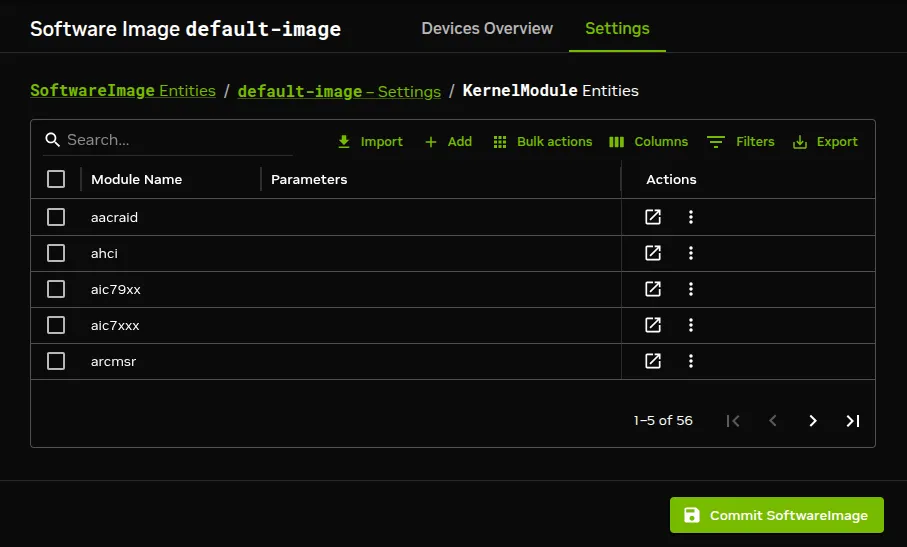
Figure 5.7: Base View: Selecting Kernel Modules For Software Images
The screen allows
-
the
+ Addoption to be used to add a new kernel module -
the ⋮ > Delete option to be used to remove a kernel module
-
the ↗ option to be used to set kernel module parameters
5.3.2.3 Manually Regenerating A Ramdisk
Regenerating a ramdisk manually using cmsh or Base View is useful if the kernel or modules have changed without using CMDaemon. For example, after running a YUM update which has modified the kernel or modules of the nodes (section 9.3). In such a case, the distribution would normally update the ramdisk on the machine, but this is not done for the extended ramdisk for nodes in BCM. Not regenerating the BCM ramdisk for nodes after such an update means the nodes may fail on rebooting during the loading of the ramdisk (section 5.8.4).
An example of regenerating the ramdisk is seen in section 5.8.6.
5.3.2.4 Implementation Of Kernel Driver Via Ramdisk Or Kernel Parameter
Sometimes, testing or setting a kernel driver as a kernel parameter may be more convenient. How to do that is covered in section 9.3.4.
5.3.3 InfiniBand Provisioning
On clusters that have InfiniBand hardware, it is normally used for data transfer as a service after the nodes have fully booted up (section 3.6). It can also be used for PXE booting (section 5.1.3) and for node provisioning (described here), but these are not normally a requirement. This section (about InfiniBand node provisioning) may therefore safely be skipped in almost all cases when first configuring a cluster.
During node start-up on a setup for which InfiniBand networking has been enabled, the init process runs the rdma script. For SLES the openib script is used instead of the rdma script. The script loads up InfiniBand modules into the kernel. When the cluster is finally fully up and running, the use of InfiniBand is thus available for all processes that request it.
Provisioning nodes over InfiniBand is not implemented by default, because the init process, which handles initialization scripts and daemons, takes place only after the node-provisioning stage launches. InfiniBand modules are therefore not available for use during provisioning, which is why, for default kernels, provisioning in BCM is done using Ethernet.
Provisioning at the faster InfiniBand speeds rather than Ethernet speeds is however a requirement for some clusters. To get the cluster to provision using InfiniBand requires both of the following two configuration changes to be carried out:
-
configuring InfiniBand drivers for the ramdisk image that the nodes first boot into, so that provisioning using InfiniBand is possible during this pre-
initstage -
defining the provisioning interface of nodes that are to be provisioned with InfiniBand. It is assumed that InfiniBand networking is already configured, as described in section 3.6.
The administrator should be aware that the interface from which a node boots, (conveniently labeled
BOOTIF), must not be an interface that is already configured for that node in CMDaemon. For example, ifBOOTIFis the deviceib0, thenib0must not already be configured in CMDaemon. EitherBOOTIFor theib0configuration should be changed so that node installation can succeed.
How these two changes are carried out is described next:
5.3.3.1 InfiniBand Provisioning: Ramdisk Image Configuration
An easy way to see what modules must be added to the ramdisk for a particular HCA can be found by running rdma (or openibd), and seeing what modules do load up on a fully booted regular node.
One way to do this is to run the following lines as root:
The rdma service in the two lines should be replaced by openibd service instead when using SLES, or distributions based on versions of Red Hat prior to version 6.
The first line stops the InfiniBand service, just in case it is running, in order to unload its modules, and then lists the modules on the node.
The second line starts the service, so that the appropriate modules are loaded, and then lists the modules on the node again. The output of the first step is stored in a file a, and the output from the second step is stored in a file b.
Running diff on the output of these two steps then reveals the modules that get loaded. For rdma, the output may display something like:
Example
As suggested by the output, the modules ib_ipoib, rdma_ucm and so on are the modules loaded when rdma starts, and are therefore the modules that are needed for this particular HCA. Other HCAs may cause different modules to be loaded.
For a default Red Hat from version 7 onward, the rdma service can only be started; it cannot be stopped. Finding the modules that load can therefore only be done once for the default configuration, until the next reboot.
The preceding lsmod lines in that case can be generated with:
Example
Here, systemctl is used instead of the older service command just because it is the modern way to run such commands.
The InfiniBand modules that load are the ones that the initrd image needs, so that InfiniBand can be used during the node provisioning stage. The administrator can therefore now create an initrd image with the required InfiniBand modules.
Loading kernel modules into a ramdisk is covered in general in section 5.3.2. A typical Mellanox HCA may have an initrd image created as follows (some text ellipsized in the following example):
Example
If the modules are put in another image instead of default-image, then the default image that nodes boot from should be set to the new image (section 3.20.2).
5.3.3.2 InfiniBand Provisioning: Network Configuration
It is assumed that the networking configuration for the final system for InfiniBand is configured following the general guidelines of section 3.6. If it is not, that should be checked first to see if all is well with the InfiniBand network.
The provisioning aspect is set by defining the provisioning interface. An example of how it may be set up for 150 nodes with a working InfiniBand interface ib0 in cmsh is:
Example
5.3.4 VLAN Provisioning
Nodes can be configured for provisioning over a VLAN interface, starting in NVIDIA Base Command Manager version 8.2.
This requires:
-
A VLAN network and node interface. The VLAN network is typically specified by the network switch. The interface that connects the node to the switch can be configured as a VLAN interface as outlined in section 3.4.
-
The
8021q(rtnl-link-vlan) driver to be available in the software image that is provisioned. In recent distributions this driver is not part of the base kernel, and is instead available as a module. The module should be loaded into the software image that is to be provisioned. For example, fornode001that is missing the module in the software image, the module could be configured to run on the node from the software image as follows:Example
Rebooted nodes that use the modified software image then have the VLAN module available in the running kernel.
-
The BIOS of the node must have the VLANID value set within the BIOS network options. If the BIOS does not support this setting, then PXE over VLAN cannot work. For a NIC that is missing this in the BIOS, the NIC hardware provider may sometimes have a BIOS update that supports this setting.
-
The VLANID value should be set in the kernel parameters. Kernel parameters for a node can be specified in
cmshwith thekernelparameterssetting ofsoftwareimagemode (section 9.3.4). An example where the VLANID is appended to some existing parameters could be:Example
5.4 Node-Installer
After the kernel has started up, and the ramdisk kernel modules are in place on the node, the node launches the node-installer.
The node-installer is a software image (section 9.4.4) provided by the head node. It interacts with CMDaemon on the head node and takes care of the rest of the boot process.
As an aside, the node-installer modifies some files (Appendix A.2.3) on the node it is installing to, so that they differ from the otherwise-expected pre-init stage Linux system. Such modifications can be prevented by a frozenFilesPerNode or frozenFilesPerCategory directive, as documented within the node-installer.conf file, and explained in greater detail here.
Once the node-installer has completed its tasks, the local drive of the node has a complete Linux pre-init stage system. The node-installer ends by calling /sbin/init from the local drive and the boot process then proceeds as a normal Linux boot.
The steps the node-installer goes through for each node are:
-
requesting a node certificate (section 5.4.1)
-
deciding or selecting node configuration (section 5.4.2)
-
starting up all network interfaces (section 5.4.3.1)
-
determining install-mode type and execution mode (section 5.4.4)
-
running
initializescripts (section 5.4.5) -
checking partitions, mounting filesystems (section 5.4.6)
-
synchronizing the local drive with the correct software image (section 5.4.7)
-
writing network configuration files to the local drive (section 5.4.8)
-
creating an
/etc/fstabfile on the local drive (section 5.4.9) -
installing GRUB bootloader if configured by BCM (section 5.4.10), and initializing SELinux if it has been installed and configured (Chapter 12 of the Installation Manual)
-
running
finalizescripts (section 5.4.11) -
unloading specific drivers no longer needed (section 5.4.12)
-
switching the root device to the local drive and calling
/sbin/init(section 5.4.13)
These 13 node-installer steps and related matters are described in detail in the corresponding sections .1–.13.
5.4.1 Requesting A Node Certificate
Each node communicates with the CMDaemon on the head node using a certificate. If no certificate is found, it automatically requests one from CMDaemon running on the head node (figure 5.8).

Figure 5.8: Certificate Request
The certificate is stored on the head node in /cm/node-installer/certificates/ by MAC address.
5.4.1.1 Certificate Auto-signing
Certificate auto-signing means the cluster management daemon automatically signs a certificate signing request (CSR) that has been requested by a node. Certificate auto-signing can be configured from within partition mode of cmsh, with the signinstallercertificates parameter. It can take one of the following values:
-
AUTO(the default) -
MANUAL
Example
For Base View, the navigation path is:
Cluster > Settings > Sign installer certificates
For untrusted networks, it may be wiser to approve certificate requests manually to prevent new nodes being added automatically without getting noticed.
Disabling certificate auto-signing for all networks can be done by setting signinstallercertificates to MANUAL.
Instead of disabling certificate autosigning for all networks, a finer tuning can be carried out for individual networks. This requires that signinstallercertificates be set to AUTO in partition mode. The allowautosign parameter in network mode can then be set for a particular network, and it can take one of the following values:
-
Always -
Automatic(the default) -
Never -
Secret
Example
If Always is set, then incoming CSRs from all types of networks are automatically auto-signed.
If Automatic is set, then only networks that are of type internal are automatically auto-signed.
If Never is set, then all incoming CSRs that come in for that network have to be manually approved.
The value Secret is required for the globalnet network, for edge sites. A node on an edge site uses a shared secret that is passed along with the node request. The secret is set during edge site setup by BCM (section 2.1.1 of the Edge Manual).
5.4.1.2 Manual Approval Of A CSR
Approval of the CSR from a regular node (not an edge node): Manual approval of a CSR is typically done from within certs mode. A list of requests can be found, and from the list, the appropriate unsigned request can be signed and issued. The following session illustrates the process:
Approval of the CSR from an edge node:
If the shared secret has not been set for the edge director—that is, if it has not been stored locally on the edge director, or if it has not been passed on using the installation medium—then the node-installer prompts for the secret the first time that it boots. If the secret that is typed in matches the site secret, then a CSR from the edge director is handled by the head node, and a signed certificate is issued.
The edge compute nodes pick up their secret from the director. If the director does not have the secret, then the compute node’s node-installer prompts for the secret on first boot. Once the secret is set, then edge compute node sends its CSR to the head node (using the edge director) and gets a signed certificate automatically.
Section 2.3 has more information on certificate management in general.
5.4.1.3 Certificate Storage And Removal Implications
After receiving a valid certificate, the node-installer stores it in /cm/node-installer/certificates/ <node mac address>/ on the head node. This directory is NFS exported to the nodes, but can only be accessed by the root user. The node-installer does not request a new certificate if it finds a certificate in this directory, valid or invalid.
If an invalid certificate is received, the screen displays a communication error. Removing the node’s corresponding certificate directory allows the node-installer to request a new certificate and proceed further.
5.4.2 Deciding Or Selecting Node Configuration
Once communication with the head node CMDaemon is established, the node-installer tries to identify the node it is running on so that it can select a configuration from CMDaemon’s record for it, if any such record exists. It correlates any node configuration the node is expected to have according to network hardware detected. If there are issues during this correlation process then the administrator is prompted to select a node configuration until all nodes finally have a configuration.
5.4.2.1 Possible Node Configuration Scenarios
The correlations process and corresponding scenarios are now covered in more detail:
It starts with the node-installer sending a query to CMDaemon to check if the MAC address used for net booting the node is already associated with a node in the records of CMDaemon. In particular, it checks the MAC address for a match against the existing node configuration properties, and decides whether the node is known or new.
-
the node is known if the query matches a node configuration. It means that node has been booted before.
-
the node is new if no configuration is found.
In both cases the node-installer then asks CMDaemon to find out if the node is connected to an Ethernet switch, and if so, to which port. Setting up Ethernet switches for port detection is covered in section 3.8.
If a port is detected for the node, the node-installer queries CMDaemon for a node configuration associated with the detected Ethernet switch port. If a port is not detected for the node, then either the hardware involved with port detection needs checking, or a node configuration must be selected manually.
There are thus several scenarios:
- The node is new, and an Ethernet switch port is detected. A node configuration associated with the port is found. The node-installer suggests to the administrator that the new node should use this configuration, and displays the configuration along with a confirmation dialog (figure 5.9). This suggestion can be interrupted, and other node configurations can be selected manually instead through a sub-dialog (figure 5.10). By default (in the main dialog), the original suggestion is accepted after a timeout.

Figure 5.9: Scenarios: Configuration Found, Confirm Node Configuration

Figure 5.10: Scenarios: Node Selection Sub-Dialog
- The node is new, and an Ethernet switch port is detected. A node configuration associated with the port is not found. The node-installer then displays a dialog that allows the administrator to either retry Ethernet switch port detection (figure 5.11) or to drop into a sub-dialog to manually select a node configuration (figure 5.10). By default, port detection is retried after a timeout.

Figure 5.11: Scenarios: Unknown Node, Ethernet Port Detected
- The node is new, and an Ethernet switch port is not detected. The node-installer then displays a dialog that allows the user to either retry Ethernet switch port detection (figure 5.12) or to drop into a sub-dialog to manually select a node configuration (figure 5.10). By default, port detection is retried after a timeout.

Figure 5.12: Scenarios: Unknown Node, No Ethernet Port Detected
-
The node is known, and an Ethernet switch port is detected. The configuration associated with the port is the same as the configuration associated with the node’s MAC address. The node-installer then displays the configuration as a suggestion along with a confirmation dialog (figure 5.9). The suggestion can be interrupted, and other node configurations can be selected manually instead through a sub-dialog (figure 5.10). By default (in the main dialog), the original suggestion is accepted after a timeout.
-
The node is known, and an Ethernet switch port is detected. However, the configuration associated with the port is not the same as the configuration associated with the node’s MAC address. This is called a port mismatch. This type of port mismatch situation occurs typically during a mistaken node swap, when two nodes are taken out of the cluster and returned, but their positions are swapped by mistake (or equivalently, they are returned to the correct place in the cluster, but the switch ports they connect to are swapped by mistake). To prevent configuration mistakes, the node-installer displays a port mismatch dialog (figure 5.13) allowing the user to retry, accept a node configuration that is associated with the detected Ethernet port, or to manually select another node configuration using a sub-dialog (figure 5.10). By default (in the main port mismatch dialog), port detection is retried after a timeout.

Figure 5.13: Scenarios: Port Mismatch Dialog
-
The node is known, and an Ethernet switch port is not detected. However, the configuration associated with the node’s MAC address does have an Ethernet port associated with it. This is also considered a port mismatch. To prevent configuration mistakes, the node-installer displays a port mismatch dialog similar to figure 5.13, allowing the user to retry or to drop into a sub-dialog and manually select a node configuration that may work.
However, a more likely solution in most cases is to:
-
either clear the switch port configuration in the cluster manager so that switch port detection is not attempted. For example, for
node001, this can be done by running thiscmshcommand on the head node:
cmsh -c "device clear node001 switchports; commit" -
or enable switch port detection on the switch. This is usually quite straightforward, but may require going through the manuals or software application that the switch manufacturer has provided.
By default (in the port mismatch dialog), port detection is retried after a timeout. This means that if the administrator clears the switch port configuration or enables switch port detection, the node-installer is able to continue automatically with a consistent configuration.
-
-
The node is known, and an Ethernet switch port is detected. However, the configuration associated with the node’s MAC address has no Ethernet switch port associated with it. This is not considered a port mismatch but an unset switch port configuration, and it typically occurs if switch port configuration has not been carried out, whether by mistake or deliberately. The node-installer displays the configuration as a suggestion along with a confirmation dialog (figure 5.14). The suggestion can be interrupted, and other node configurations can be selected manually instead using a sub-dialog. By default (in the main dialog) the configuration is accepted after a timeout.

Figure 5.14: Scenarios: Port Unset Dialog
A truth table summarizing the scenarios is helpful:
In these scenarios, whenever the user manually selects a node configuration in the prompt dialog, an attempt to detect an Ethernet switch port is repeated. If a port mismatch still occurs, it is handled by the system as if the user has not made a selection.
5.4.2.2 Summary Of Behavior During Hardware Changes
The logic of the scenarios means that an unpreconfigured node always boots to a dialog loop requiring manual intervention during a first install (scenarios 2 and 3). For subsequent boots the behavior is:
-
If the node MAC hardware has changed (scenarios 1, 2, 3):
-
if the node is new and the detected port has a configuration, the node automatically boots to that configuration (scenario 1).
-
else manual intervention is needed (scenarios 2, 3)
-
-
If the node MAC hardware has not changed (scenarios 4, 5, 6, 7):
-
if there is no port mismatch, the node automatically boots to its last configuration (scenarios 4, 7).
-
else manual intervention is needed (scenarios 5, 6).
-
5.4.2.3 The newnodes Command
newnodes basic use: New nodes that have not been configured yet can be detected using the newnodes command from within the device mode of cmsh. A new node is detected when it reaches the node-installer stage after booting, and contacts the head node.
Example
At this point the node-installer is seen by the administrator to be looping, waiting for input on what node name is to be assigned to the new node.
The nodes can be uniquely identified by their MAC address or switch port address.
The port and switch to which a particular MAC address is connected can be discovered by using the showport command (section 3.9.4). After confirming that they are appropriate, the switchports property for the specified device can be set to the port and switch values.
Example
When the node name (node003 in the preceding example) is assigned, the node-installer stops looping and goes ahead with the installation to the node.
The preceding basic use of newnodes is useful for small numbers of nodes. For larger number of nodes, the advanced options of newnodes may help carry out node-to-MAC assignment with less effort.
newnodes advanced use—options: The list of MAC addresses discovered by a newnodes command can be assigned in various ways to nodes specified by the administrator. Node objects should be created in advance to allow the assignment to take place. The easiest way to set up node objects in cmsh is to use the --clone option of the foreach command (section 2.5.5.9, here).
The advanced options of newnodes are particularly useful for quickly assigning node names to specific physical nodes. All that is needed is to power the nodes up in the right order. For nodes with the same hardware, the node that is powered up first reaches the stage where it tries to connect with the node-installer first. So its MAC address is detected first, and arrives on the list generated by newnodes first. If some time after the first node is powered up, the second node is powered up, then its MAC address becomes the second MAC address on the list, and so on for the third, fourth, and further nodes.
When assigning node names to a physical node, on a cluster that has no such assignment already, the first node that arrived on the list gets assigned the name node001, the second node that arrived on the list gets assigned the name node002 and so on.
The advanced options are shown in device mode by running the help newnodes command. The options can be introduced as being of three kinds: straightforward, grouping, and miscellaneous:
-
The straightforward options:
-
-n|--nodes -
-w|--write -
-s|--save
Usually the most straightforward way to assign the nodes is to use the
-noption, which accepts a list of nodes, together with a-wor-soption. The-w(--write) option sets the order of nodes to the corresponding order of listed MAC addresses, and is the same as setting an object incmsh. The-s(--save) option is the same as setting and committing an object incmsh, so-simplies a-woption is run at the same time.So, for example, if 8 new nodes are discovered by the node-installer on a cluster with no nodes so far, then:
Example
assigns (but does not commit) the sequence node001 to node008 the new MAC address according to the sequence of MAC addresses displaying on the list.
-
-
The grouping options:
-
-g|--group -
-c|--category -
-h|--chassis -
-r|--rack
The “
help newnodes” command indevicemode shows assignment options other than-nfor a node range are possible. For example, the assignments can also be made for a group (-g), per category (-c), per chassis (-h), and per rack (-r). -
-
The miscellaneous options:
-
-f|--force -
-o|--offset
By default, the
newnodescommand fails when it attempts to set a node name that is already taken. The-f(--force) option forces the new MAC address to be associated with the old node name. When used with an assignment grouping, (node range, group, category, chassis, or rack) all the nodes in the grouping lose their node-to-MAC assignments and get new assignments. The-foption should therefore be used with care.The
-o(--offset) option takes a number <number> and skips <number> nodes in the list of detected unknown nodes, before setting or saving values from the assignment grouping. -
Examples of how to use the advanced options follow.
newnodes advanced use—range assignment behavior example:
For example, supposing there is a cluster with nodes assigned all the way up to node022. That is, CMDaemon knows what node is assigned to what MAC address. For the discussion that follows, the three nodes node020, node021, node022 can be imagined as being physically in a rack of their own. This is simply to help to visualize a layout in the discussion and tables that follow and has no other significance. An additional 3 new, that is unassigned, nodes are placed in the rack, and allowed to boot and get to the node-installer stage.
The newnodes command discovers the new MAC addresses of the new nodes when they reach their node-installer stage, as before (the switch port column is omitted in the following text for convenience):
Example
The assignment of MAC to node address could be carried out as follows:
Example
Once this is done, the node-installer is able to stop looping, and to go ahead and install the new nodes with an image.
The physical layout in the rack may then look as indicated by this:
Here, node023 is the node with the MAC address ending in A.
If instead of the previous newnodes command, an offset of 1 is used to skip assigning the first new node:
Example
then the rack layout looks like:
Here, unassigned is where node023 of the previous example is physically located, that is, the node with the MAC address ...A. The lack of assignment means there is actually no association of the name node023 with that MAC address, due to the newnodes command having skipped over it with the -o option.
If instead the assignment is done with:
Example
then the node023 name is unassigned, and the name node024 is assigned instead to the node with the MAC address ...A, so that the rack layout looks like:
newnodes advanced use—assignment grouping example: Node range assignments are one way of using newnodes. However assignments can also be made to a category, a rack, or a chassis. For example, with Base View assigning node names to a rack can be done from the Racks option of the node. For example, to add a node001 to a rack1, the navigation path would be: Devices > All Devices > node001 > Settings > Rack + > rack1
In cmsh, the assignment of multiple node names to a rack can conveniently be done with a foreach loop from within device mode:
Example
The assignment of node names with the physical node in the rack can then be arranged as follows: If the nodes are identical hardware, and are powered up in numerical sequence, from node020 to node039, with a few seconds in between, then the list that the basic newnodes command (without options) displays is arranged in the same numerical sequence. Assigning the list in the rack order can then be done by running:
Example
If it turns out that the boot order was done very randomly and incorrectly for all of rack02, and that the assignment for rack02 needs to be done again, then a simple way to deal with it is to bring down the nodes of rack02, then clear out all of the rack02 current MAC associations, and redo them according to the correct boot order:
Example
newnodes advanced use—assignment forcing example:
The --force option can be used in the following case: Supposing that node022 fails, and a new node hardware comes in to replace it. The new regular node has a new MAC address. So, as explained by scenario 3 (section 5.4.2), if there is no switch port assignment in operation for the nodes, then the node-installer loops around, waiting for intervention. (With switch port assignment in place, scenario 1 means the new node simply boots up by default and becomes the new node022 without further intervention.)
This situation can be dealt with from the command line by:
-
accepting the node configuration at the regular node console, using a sub-dialog
-
accepting the node configuration using
cmsh, without needing to be at the regular node console:
5.4.2.4 Device Identification
The Device Identification resource can be accessed using the Base View navigation path:
Devices > Device Identification
Device Identification is the Base View version of the newnodes command of cmsh. It lists the unassigned new nodes that the head node detects. These are displayed in the pane along with their MAC addresses and switch ports (figure 5.15).
Similarly to newnodes in cmsh, the Base View pane lists the MAC address of any unassigned node that the head node detects, and shows the associated detected switch port for the node. Also, just as for newnodes, the Base View pane can help assign a node name to the node, assuming the node object exists. After assignment is done, the new status should be saved.
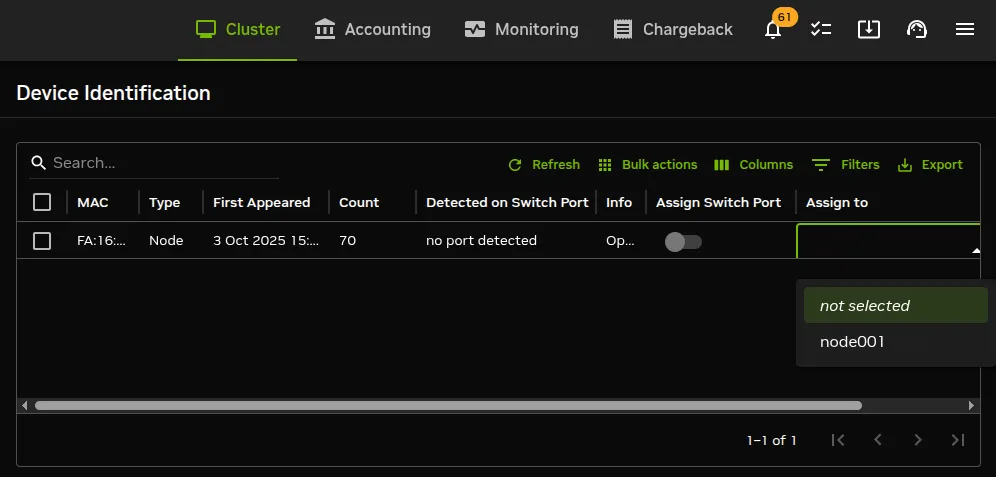
Figure 5.15: Device Identification Pane: Node Assignment
The most useful way of using the device identification resource is for node assignment in large clusters.
To do this, it is assumed that the node objects have already been created for the new nodes. The creation of the node objects means that the node names exist, and so assignment to the node names is able to take place. An easy way to create many nodes in Base View, set their provisioning interface, and set their IP addresses is described in the section on the node creation wizard (section 5.7.2). Node objects can also be created easily in large numbers by using cmsh’s foreach loop command on a node with the --clone option (section 2.5.5.9, here).
The nodes are also assumed to be set for net booting, typically set from a BIOS setting.
The physical nodes are then powered up in an arranged order. Because they are unknown new nodes, the node-installer keeps looping after a timeout. The head node in the meantime detects the new MAC addresses and switch ports in the sequence in which they first have come up and lists them in that order.
By default, all these newly detected nodes are set to an install mode of auto (section 5.4.4), which means that their numbering goes up sequentially from whatever number is assigned to the preceding node in the list. Thus, if there are 10 new unassigned nodes that are brought into the cluster, and the first node in the list is assigned to the first available number, say node327, then the remaining nodes can automatically be assigned in sequence as nodes node328 to node336.
-
With
cmshthis can be done with thenewnodes -soption, as described here. -
With Base View this can be done in the
Devices>Device Identificationpane, by:-
clicking on the checkbox that selects all the rows in the list of new nodes, then
-
clicking on the
Bulk actions > Autofill devicesoption to automatically fill the nodes, then -
clicking on the
Bulk actions > Commitoption to commit the changes
-
After the assignment, the node-installer looping process on the new nodes notices that the nodes are now known, so it breaks out of the loop, and installation goes ahead without any intervention needed at the node console.
5.4.3 Starting Up All Network Interfaces
At the end of section 5.4.2, the node-installer knows which node it is running on, and has decided what its node configuration is.
5.4.3.1 Starting Up All Provisioning Network Interfaces
It now gets on with setting up the IP addresses on the provisioning interfaces required for the node-installer, while taking care of matters that come up on the way:
Avoiding duplicate IP addresses: The node-installer brings up all the network interfaces configured for the node. Before starting each interface, the node-installer first checks if the IP address that is about to be used is not already in use by another device. If it is, then a warning and retry dialog is displayed until the IP address conflict is resolved.
Using BOOTIF to specify the boot interface: BOOTIF is a special name for one of the possible interfaces. The node-installer automatically translates BOOTIF into the name of the device, such as eth0 or eth1, used for network booting. This is useful for a machine with multiple network interfaces where it can be unclear whether to specify, for example, eth0 or eth1 for the interface that was used for booting. Using the name BOOTIF instead means that the underlying device, eth0 or eth1 in this example, does not need to be specified in the first place.
Halting on missing kernel modules for the interface:
For some interface types like VLAN and channel bonding, the node-installer halts if the required kernel modules are not loaded or are loaded with the wrong module options. In this case the kernel modules configuration for the relevant software image should be reviewed. Recreating the ramdisk and rebooting the node to get the interfaces up again may be necessary, as described in section 5.8.6.
5.4.3.2 Bringing Up Non-Provisioning Network Interfaces
Provisioning interfaces are by default automatically brought up during the init stage, as the node is fully booted up. The BMC and non-provisioning interfaces on the other hand have a different behavior:
Bringing Up And Initializing BMC Interfaces: If a BMC interface is present and powered up, then it is expected to be running at least with layer 2 activity (ethernet). It can be initialized in the node configuration (section 3.7) with an IP address, netmask and user/password settings so that layer 3 (TCP/IP) networking works for it. BMC networking runs independently of node networking.
Bringing up non-BMC, non-provisioning network interfaces:
Non-provisioning interfaces are inactive unless they are explicitly brought up. BCM can configure how these non-provisioning interfaces are brought up by using the bringupduringinstall parameter, which can take the following values:
-
yes: Brings the interface up during the pre-init stage -
no: Keeps the interface down during the pre-init stage. This is the default for non-provisioning interfaces. -
yesandkeep: Brings the interface up during the pre-init stage, and keeps it up during the transition to the init stage.
5.4.3.3 Bringing Up And Keeping Up Provisioning Network Interfaces
The preceding bringupduringinstall parameter is not generally supported for provisioning interfaces. However the yesandkeep value does work for provisioning interfaces too, under some conditions:
-
yesandkeep: Brings the interface up during the pre-init stage, and keeps it up during the transition to the init stage, for the following provisioning devices:-
Ethernet device interfaces using a leased DHCP address
-
InfiniBand device interfaces running with distribution OFED stacks
-
5.4.3.4 Restarting The Network Interfaces
At the end of this step (i.e. section 5.4.3.1) the network interfaces are up. When the node-installer has completed the remainder of its 13 steps (sections 5.4.4–5.4.13), control is handed over to the local init process running on the local drive. During this handover, the node-installer brings down all network devices. These are then brought back up again by init by the distribution’s standard networking init scripts, which run from the local drive and expect networking devices to be down to begin with.
5.4.4 Determining Install-mode Type And Execution Mode
Stored install-mode values decide whether synchronization is to be applied fully to the local drive of the node, only for some parts of its filesystem, not at all, or even whether to drop into a maintenance mode instead.
Related to install-mode values are execution mode values (here) that determine whether to apply the install-mode values to the next boot, to new nodes only, to individual nodes or to a category of nodes.
Related to execution mode values is the confirmation requirement toggle value (here) in case a full installation is to take place.
These values are merely determined at this stage; nothing is executed yet.
5.4.4.1 Install-mode Values
The install-mode can have one of five values: AUTO, FULL, MAIN, NOSYNC, and SKIP. It should be understood that the term “install-mode” implies that these values operate only during the node-installer phase.
NOTE: For example, imageupdate (section 5.6.2), which is run by CMDaemon, ignores these settings, which is as expected. This means that, for example, if imageupdate is run with NOSYNC set, then the head node image is still synchronized over as usual to the regular node while the node is up. It is only during node boot, during the installer stage, that setting NOSYNC prevents synchronization.
-
If the install-mode is set to
FULL, then the node-installer re-partitions, creates new filesystems and synchronizes a full image onto the local drive according a partition layout. This process wipes out all pre-boot drive content.A partition layout (Appendix D) includes defined values for the partitions, sizes, and filesystem types for the nodes being installed. An example of a partition layout is the default partition layout (Appendix D.3).
-
If the install-mode is set to
AUTO, then the node-installer checks the partition layout of the local drive against the node’s stored configuration. If these do not match because, for example, the node is new, or if they are corrupted, then the node-installer recreates the partitions and filesystems by carrying out aFULLinstall. If however the drive partitions and filesystems are healthy, the node-installer only does an incremental software image synchronization. Synchronization tends to be quick because the software image and the local drive usually do not differ much.Synchronization also removes any extra local files that do not exist on the image, for the files and directories considered. Section 5.4.7 gives details on how it is decided what files and directories are considered.
-
If the install-mode is set to
MAIN, then the node-installer does not carry out a disk check, and goes on to maintenance mode, allowing manual investigation of specific problems. The local drive is untouched. -
If the install-mode is set to
NOSYNC, and the partition layout check matches the stored XML configuration, then the node-installer skips synchronizing the image to the node, so that contents on the local drive persist from the previous boot. An exception to this is the node certificate and key, that is the files/cm/local/apps/cmd/etc/cert.{pem|key}. These are updated from the head node if missing.If however the partition layout does not match the stored configuration, a
FULLimage sync is triggered. Thus, for example, a burn session (Chapter 11 of the Installation Manual), with the default burn configuration which destroys the existing partition layout on a node, will trigger aFULLimage sync on reboot after the burn session.The
NOSYNCsetting should therefore not be regarded as a way to protect data. Ways to preserve data across node reboots are discussed in the section that discusses theFULLinstall confirmation settings (here).NOSYNCis useful during mass planned node reboots when set with thenextinstallmodeoption ofdevicemode. This sets the nodes to use the OS on the hard drive, during the next boot only, without an image sync:Example
-
If the install-mode is set to
SKIP, then the node-installer does not carry out a check of the partitions and filesystems, and it also does not carry out a software image synchronization. If a node runs into problems with its drive content during a normal start up attempt, then this mode can perhaps be used to attempt data recovery on the node.
5.4.4.2 Install-mode Logging
The decision that is made is normally logged to the node-installer file, /var/log/node-installer on the head node.
Example
In this case the node-installer detects that the size of /dev/sda2 on the disk no longer matches the stored configuration, and triggers a full re-install. For further detail beyond that given by the node-installer log, the disks script at /cm/node-installer/scripts/disks on the head node can be examined. The node-installer checks the disk by calling the disks script. Exit codes, such as the 18 reported in the log example, are defined near the top of the disks script.
5.4.4.3 Install-mode’s Execution Modes
Execution of an install-mode setting is possible in several ways, both permanently or just temporarily for the next boot. Execution can be set to apply to categories or individual nodes. The node-installer looks for install-mode execution settings in this order:
-
The “
New node installmode” property of the node’s category. This decides the install mode for a node that is detected to be new.It can be set for the
defaultcategory using a Base View navigation path such as:Grouping > Categories[default] > Settings > New node install modeor using
cmshwith a one-liner such as:By default, the “
New node installmode” property is set toFULL. -
The Install-mode setting as set by choosing a PXE menu option on the console of the node before it loads the kernel and ramdisk (figure 5.16). This only affects the current boot. By default the PXE menu install mode option is set to
AUTO.
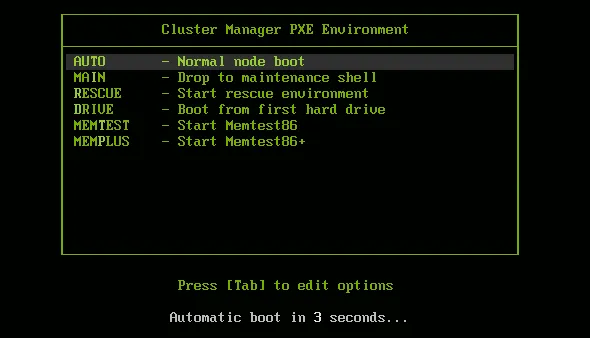
Figure 5.16: PXE Menu With Install-mode Set To AUTO
-
The “
Next boot install-mode” property of the node configuration. This can be set for a node such asnode001using the Base View navigation path:Devices > All Devices > node001 > Settings > Next install modeIt can also be set using
cmshwith a one-liner:The property is cleared when the node starts up again, after the node-installer finishes its installation tasks. So it is empty unless specifically set by the administrator during the current uptime for the node.
-
The
install-modeproperty can be set in the node configuration using the Base View navigation path:Devices > All Devices > node001 > Settings > Install modeor using
cmshwith a one-liner such as:By default, the install-mode property is auto-linked to the property set for
install-modefor that category of node. Since the property for that node’s category defaults toAUTO, the property for theinstall-modeof the node configuration defaults to “AUTO (Category)”. -
The
install-modeproperty of the node’s category. This can be set using Base View with a navigation path such as:Grouping > Categories > [default] > Settings > Install modeor usingcmshwith a one-liner such as:As already mentioned in point 4, the install-mode is set by default to
AUTO. -
A dialog on the console of the node (figure 5.17) gives the user a last opportunity to overrule the install-mode value as determined by the node-installer. By default, it is set to
AUTO:

Figure 5.17: Install-mode Setting Option During Node-Installer Run
5.4.4.4 FULL Install Confirmation Using datanode Setting
Related to execution mode values is the ability to carry out a FULL install only after explicit confirmation, using the datanode property. This must be set in order to prompt for a confirmation, when a FULL installation is about to take place. If it is set, then the node-installer only goes ahead with the FULL install after the administrator has explicitly confirmed it.
The datanode property can be enabled in the node configuration of, for example, node001 with Base View using the navigation path: Devices > All Devices > node001 > Settings > Data node
Alternatively, the parameter datanode can be set using a cmsh one-liner as follows:
The property can also be set at a category level. Since datanode is a boolean value, the actual value that is used used for a node is the result of the or operation for that value across the levels. The level at which a value works due to its boolean or non-boolean type is explained more here.
Why the FULL install confirmation is useful: The reason for such a setting is that a FULL installation can be triggered by disk or partition changes, or by a change in the MAC address. If that happens, then:
-
considering a drive, say,
/dev/sdathat fails, this means that any drive/dev/sdbwould then normally become/dev/sdaupon reboot. In that case an unwanted FULL install would not only be triggered by an install-mode settings of FULL, but also by the install-mode settings of AUTO or NOSYNC. Having the new, “accidental”/dev/sdahave a FULL install is unlikely to be the intention, since it would probably contain useful data that the node-installer earlier left untouched. -
considering a node with a new MAC address, but with local storage containing useful data from earlier. In this case, too, an unwanted FULL install would not only be triggered by an install-mode setting of FULL, but also by the install-mode settings AUTO or NOSYNC.
Thus, in cases where nodes are used to store data, an explicit confirmation before overwriting local storage contents is a good idea. However, by default, no confirmation is asked for when a FULL installation is about to take place.
Carrying out the confirmation: When the confirmation is required, then it can be carried out by the administrator as follows:
-
From the node console. A remote console launched from Base View or
cmshwill also work if SOL connectivity has been configured. -
From
cmsh, withindevicemode, using theinstallerinteractionscommand (some output elided):Example
The
installerinteractionscommand then sets the node to aconfirmedstate. The other possible states aredenyandpending.Besides confirmation, the
installerinteractionscommand has options that include letting it:-
deny the installation, and put it into maintenance mode
-
carry out a dry-run
-
carry out its actions for node groupings such as: node lists, node categories, node groups, chassis, racks, as are possible in the grouping options (here).
Further details on the command can be viewed by running
help installerinteractions. -
An alternative way to avoid overwriting node storage: Besides the method of FULL install confirmation for datanode, there is a method based on XML assertions, that can also be used to prevent data loss on nodes.
It uses XML assertions to confirm that the physical drive is recognized (Appendix D.11).
A way to overwrite a specified block device: A related method is that sometimes, for reasons of performance or convenience, it may be desirable to clear data on particular block devices for a node, and carry it out during the next boot only. This can done by setting the block device names to be cleared as values to the parameter Block devices cleared on next boot. The values can be set in cmsh as follows:
The value of blockdevicesclearedonnextboot is automatically cleared after the node is rebooted. Clearing data in this way ignores any datanode or nextinstallmode settings, and should therefore be used with due care.
5.4.5 Running Initialize Scripts
An initialize script is used when custom commands need to be executed before checking partitions and mounting devices (section 3.20.4). For example, to initialize some not explicitly supported hardware, or to do a RAID configuration lookup for a particular node. In such cases the custom commands are added to an initialize script. How to edit an initialize script is described in Appendix E.2.
An initialize script can be added to both a node’s category and the node configuration. The node-installer first runs an initialize script, if it exists, from the node’s category, and then an initialize script, if it exists, from the node’s configuration.
The node-installer sets several environment variables which can be used by the initialize script. Appendix E contains an example script documenting these variables.
Related to the initialize script is the finalize script (section 5.4.11). This may run after node provisioning is done, but just before the init process on the node runs.
5.4.6 Checking Partitions, RAID Configuration, Mounting Filesystems
5.4.6.1 Behavior As Decided By The Install-Mode Value
In section 5.4.4 the node-installer determines the install-mode value, along with when to apply it to a node. AUTO: The install-mode value is typically set to default to AUTO. If AUTO applies to the current node, it means the node-installer then checks the partitions of the local drive and its filesystems and recreates them in case of errors. Partitions are checked by comparing the partition layout of the local drive(s) against the drive layout as configured in the node’s category configuration and the node configuration.
After the node-installer checks the drive(s) and, if required, recreates the layout, it mounts all filesystems to allow the drive contents to be synchronized with the contents of the software image.
FULL, MAIN, or SKIP: If install-mode values of FULL, MAIN, or SKIP apply to the current node instead, then no partition checking or filesystem checking is done by the node-installer.
NOSYNC: If the install-mode value of NOSYNC applies, then if the partition and filesystem checks both show no errors, the node starts up without getting an image synced to it from the provisioning node. If the partition or the filesystem check show errors, then the node partition is rewritten, and a known good image is synced across.
5.4.6.2 Behavior As Decided By XML Configuration Settings
The node-installer is capable of creating advanced drive layouts, including LVM setups, and hardware and software RAID setups. Drive layout examples and relevant documentation are in Appendix D.
The XML description used to set the drive layouts can be deployed for a single device or to a category of devices.
Hardware RAID: BCM supports hardware RAID levels 0, 1, 5, 10, and 50, and supports the following options:
-
stripe size:
-
cache policy:
-
read policy:
-
write policy:
5.4.7 Synchronizing The Local Drive With The Software Image
After having mounted the local filesystems, these can be synchronized with the contents of the software image associated with the node (through its category). Synchronization is skipped if the install-mode values of NOSYNC or SKIP are set, and takes place FULL or AUTO are set. Synchronization is delegated by the node-installer to the CMDaemon provisioning system. The node-installer just sends a provisioning request to CMDaemon on the head node.
For an install-mode of FULL, or for an install-mode of AUTO where the local filesystem is detected as being corrupted, full provisioning is done. For an install-mode of AUTO where the local filesystem is healthy and agrees with that of the software image, sync provisioning is done.
5.4.7.1 The lock, unlock, And islocked Commands For Software Images
The software image that is requested is available to nodes by default. Its availability can be altered and checked with the following commands:
-
lock: this locks an image so that the image cannot be provisioned until the image is unlocked. -
unlock: this unlocks a locked image, so that request for provisioning the image is no longer prevented by a lock -
islocked: this lists the locked or unlocked states of images.
Locking an image is sometimes useful, for example, to make changes to an image when nodes are booting:
Example
For an unlocked image, on receiving the provisioning request, CMDaemon assigns the provisioning task to one of the provisioning nodes. The node-installer is notified when image synchronization starts, and also when the image synchronization task ends—whether it is completed successfully or not.
5.4.7.2 Exclude Lists: excludelistsyncinstall And excludelistfullinstall
What files are synchronized is decided by an exclude list. An exclude list is a property of the node category, and is a list of directories and files that are excluded from consideration during synchronization. The excluded list that is used is decided by the type of synchronization chosen: full or sync:
-
A
fulltype of synchronization rewrites the partition table of the node, then copies the filesystem from a software image to the node, using a list to specify files and directories to exclude from consideration when copying over the filesystem. The list of exclusions used is specified by theexcludelistfullinstallproperty.The intention of
fullsynchronization is to allow a complete working filesystem to be copied over from a known good software image to the node. By default theexcludelistfullinstalllist contains/proc/,/sys/, andlost+found/, which have no content in BCM’s default software image. The list can be modified to suit the requirements of a cluster, but it is recommended to have the list adhere to the principle of allowing a complete working node filesystem to be copied over from a known good software image. -
A
synctype of synchronization uses the propertyexcludelistsyncinstallto specify what files and directories to exclude from consideration when copying parts of the filesystem from a known good software image to the node. Theexcludelistsyncinstallproperty is in the form of a list of exclusions, or more accurately in the form of two sub-lists.The contents of the sub-lists specify the parts of the filesystem that should be retained or not copied over from the software image during
syncsynchronization when the node is booting. The intention behind this is to have the node boot up quickly, updating only the files from the image to the node that need updating due to the reboot of the node, and otherwise keeping files that are already on the node hard disk unchanged. The contents of the sub-lists are thus items such as the node log files, or items such as the/procand/syspseudo-filesystems which are generated during node boot.The administrator should be aware that nothing on a node hard drive can be regarded as persistent because a FULL sync takes place if any error is noticed during a partition or filesystem check.
Anything already on the node that matches the content of these sub-lists is not overwritten by image content during an
excludelistsyncinstallsync. However, image content that is not on the node is copied over to the node only for items matching the first sub-list. The remaining files and directories on the node, that is, the ones that are not in the sub-lists, lose their original contents, and are copied over from the software image.
A cmsh one-liner to get an exclude list for a category is:
Similarly, to set the list:
where a text-editor opens up to allow changes to be made to the list. In Base View the navigation path is: Grouping > Categories > Default > Settings > Exclude list full install Image synchronization is done using rsync, and the syntax of the items in the exclude lists conforms to the “INCLUDE/EXCLUDE PATTERN RULES” section of the rsync(1) man page, which includes patterns such as “**”, “?”, and “[[:alpha:]]”.
The excludelistfullinstall and excludelistsyncinstall properties decide how a node synchronizes to an image during boot. For a node that is already fully up, the related excludelistupdate property decides how a running node synchronizes to an image without a reboot event, and is discussed in section 5.6.
5.4.7.3 Interface Used To Receive Image Data: provisioninginterface
For regular nodes with multiple interfaces, one interface may be faster than the others. If so, it can be convenient to receive the image data using the fastest interface. Setting the value of provisioninginterface, which is a property of the node configuration, allows this.
By default it is set to BOOTIF for regular nodes. Using BOOTIF is not recommended for node configurations with multiple interfaces.
When listing the network interfaces in cmsh, the provisioning interface has a [prov] flag appended to its name.
Example
Head nodes and provisioninginterface: A head node in a single-head cluster does not use the provisioninginterface setting.
Head nodes in a failover configuration (Chapter 15), however, do have a value set for provisioninginterface, corresponding to the interface on the head that is being provisioned over internalnet by the other head (eth0 in figure 15.1).
5.4.7.4 Transport Protocol Used For Image Data: provisioningtransport
The provisioningtransport property of the node sets whether the image data is sent encrypted or unencrypted to the node from the provisioner. The property value is set using the device mode for the receiving node to one of these values:
-
rsyncdaemon, which sends the data unencrypted -
rsyncssh, which sends the data encrypted
The provisioningtransport value can be set for all nodes, including provisioning nodes, head nodes, and cloud-director (section 3.2 of the Cloudbursting Manual) nodes. Because encryption severely increases the load on the provisioning node, using rsyncssh is only suggested if the users on the network cannot be trusted. By default, provisioningtransport is set to rsyncdaemon. If high availability (Chapter 15) is set up with the head nodes exposed to the outside world on the external network, the administrator should consider setting up rsyncssh for the head nodes.
The rsyncssh transport requires passwordless root access using ssh from the provisioner to the node being provisioned. This is configured by default in the default BCM nodes. However, if a new image is created with the --exclude options for cm-create-image as explained in (section 9.6.2), the keys must be copied over from /root/.ssh/ on the existing nodes.
5.4.7.5 Tracking The Status Of Image Data Provisioning: provisioningstatus
The provisioningstatus command within the softwareimage mode of cmsh displays an updated state of the provisioning system. As a one-liner, it can be run as:
The provisioningstatus command has several options that allow the requests to be tracked, including:
-
-r|--requestinfo: displays the source and destination paths of provisioning requests, -
-a|--all: displays all status information on provisioning requests.
The Base View equivalent to provisioningstatus is accessed using the navigation path: Provisioning > Provisioning Node Status
The Base View equivalent to provisioningstatus -r is accessed using the navigation path: Provisioning > Provisioning Request Status
A provisioning request can be cancelled with the cancelprovisioningrequest command (section 5.2.4.10, here).
5.4.7.6 Tracking The Provisioning Log Changes: synclog
For a closer look into the image file changes carried out during provisioning requests, the synclog command from device mode can be used (lines elided in the following output):
Example
5.4.7.7 Path Of The Provisioning Log File
The path of the log file can be found with the -p option:
Example
5.4.7.8 Statistical Analysis Of Provisioning Sessions: syncinfo
A provisioning session takes place between a provisioning image and a filesystem partition on a node. Statistics can be presented for the sessions using the syncinfo command. The statistical information presented is for number of files considered for transfer, the number of files that were actually transfered, how long the transfer took, which image and node were involved, and so on. The syncinfo command is run in device mode (output ellipsized and truncated):
Example
The syncinfo command has options to run it per node, category, rack, and so on. Details on the options can be seen by running the help command (help syncinfo).
5.4.8 Writing Network Configuration Files
In the previous section, the local drive of the node is synchronized according to install-mode settings with the software image from the provisioning node. The node-installer now sets up configuration files for each configured network interface. These are files like:
/etc/sysconfig/network-scripts/ifcfg-eth0
for Red Hat, and Rocky Linux, while SUSE would use:
/etc/sysconfig/network/ifcfg-eth0
These files are placed on the local drive.
When the node-installer finishes its remaining tasks (sections 5.4.9–5.4.13) it brings down all network devices and hands over control to the local /sbin/init process. Eventually a local init script uses the network configuration files to bring the interfaces back up.
5.4.9 Creating A Local /etc/fstab File
The /etc/fstab file on the local drive contains local partitions on which filesystems are mounted as the init process runs. The actual drive layout is configured in the category configuration or the node configuration, so the node-installer is able to generate and place a valid local /etc/fstab file. In addition to all the mount points defined in the drive layout, several extra mount points can be added. These extra mount points, such as NFS imports, /proc, /sys and /dev/shm, can be defined and managed in the node’s category and in the specific configuration of the node configuration, using Base View or cmsh (section 3.14.2).
5.4.10 Booting From The Local Hard Drive
By default, a node-installer boots from the software image on the head node using the network.
The node-installer can, optionally, during image synchronization, install a local drive boot record on the local hard drive if the installbootrecord boolean property of the node configuration or node category is set to on. Setting the local drive boot record means that the node tries to use a local hard drive boot installer during the next boot. This is a step toward having it become a standalone node that does not boot from the network. This step, and the other steps needed to allow booting from the local hard drive are covered next.
5.4.10.1 Setting The Boot Record To Allow The Node To Be Standalone
The local drive boot record is installed in the MBR of the local drive, overwriting the default iPXE boot record (section 5.1.2).
With a working custom software image, the boot record can be installed with cmsh commands for a node node001 with:
or for a category default with:
Since installbootrecord is a boolean property, it means that if the node or if the node category have the value set, then the node uses that value.
In Base View, the equivalent is the Install boot record option. This can similarly be enabled and saved in the Base View node configuration or node category.
Setting the local drive boot record allows the next boot to be from the local hard drive, if the node is set up right to boot from the local hard drive.
Booting from the local hard drive often requires some further changes, as explained next.
5.4.10.2 Managing Boot Sequence And Bootloader To Ensure The Node Can Be Standalone
For a local hard drive boot to work:
-
hard drive booting must be set to have a higher priority than network booting in the BIOS of the node. Otherwise regular PXE booting is attempted, despite whatever value
installbootrecordhas. -
A working bootloader must be present.
By default, the node image for BCM has nodes set to use a SYSLINUX bootloader.
If the administrator is not using the default software image, but is using a custom software image (section 9.6.1), and if the image is based on a running node filessystem that has not been built directly from a parent distribution, then the GRUB boot configuration may not be appropriate for a standalone GRUB boot to work. This is because the parent distribution installers often use special logic for setting up the GRUB boot configuration. Carrying out this same special logic for all distributions using the custom software image creation tool
cm-create-image(section 9.6.2) is impractical.Providing a custom working image from a standalone node that has been customized after direct installation from the parent distribution, ensures the GRUB boot configuration layout of the custom image is as expected by the parent distribution. This then allows a standalone GRUB boot on the node to run properly.
Nodes can be set to use a GRUB bootloader from within
devicemode, or from withincategorymode, by changing thebootloaderparameter within the mode. For example, for a nodenode001:Example
or, for the
defaultcategory:
Arranging for the two items in the preceding list ensures that the next boot is from GRUB on the hard drive. However, the BOOTIF also needs to be changed for booting to be successful. How it can be changed, and why it needs to be changed, is described next.
5.4.10.3 Changing BOOTIF To Ensure The Node Can Be Standalone
If the BIOS is set to boot from the hard drive, and if there is a working boot loader, and if the boot record has been installed, then the node boots using the boot record on the hard drive.
BOOTIF is the default value for the network interface for a node that is configured as a BCM software image. However, the BOOTIF interface is undefined during hard drive booting, because it depends on the network provisioning setup, which is not running. This means that the networking interface would fail during hard drive boot for a standard image. To remedy this, the interface should be set to a defined network device name, such as eth0, or the modern equivalents such as en01 (section 5.8.1.1). The defined network device name, as the kernel sees it, can be found by logging into the node and taking a look at the output of ip link:
Example
In BCM the provisioning interface is mandatory, even if it is not provisioning. So it is set to the value of kernel-defined network device name instead of BOOTIF:
Example
In the preceding example, the kernel-defined network device name is assumed to be eth0. It should be modified as required.
In addition, the new IP address is assumed to be on the same internal network. If the administrator intends the node to be standalone on another network, then the network and the IP address can be set to appropriate values.
When interface changes are carried out to make the node standalone, warnings show up saying that a reboot is required. A reboot of the node should be done when the interface configuration is complete.
During reboot, the node then boots from the hard drive as a standalone, with a non-BOOTIF network interface.
5.4.10.4 Bringing A Node That Boots From Its Hard Drive Back Into A Cluster
If the node is to be brought back into the cluster, then simply unsetting “Install boot record” and rebooting the node does not restore its iPXE boot record and hence its ability to iPXE boot. To restore the iPXE boot record, the node can be booted from the default image copy on the head node using a network boot again. Typically this is done by manual intervention during node boot to select network booting from the BIOS of the node.
Setting the value of provisioninginterface in cmsh for the node to BOOTIF is also recommended.
As suggested by the BCM iPXE boot prompt, setting network booting to work from the BIOS (regular “PXE” booting) is preferred to the relatively roundabout way of iPXE booting from the disk.
5.4.10.5 SELinux Initialization For Hard Drive Boot And PXE Boot
If configured, SELinux (Chapter 12 of the Installation Manual) is initialized at this point. For a boot from the hard drive, the initialization occurs if an SELinux filesystem has been saved to disk previously. For a PXE boot, the initialization takes place if the SELinuxInitialize directive is set to true in the node-installer.conf file.
5.4.11 Running Finalize Scripts
A finalize script is similar to an initialize script (section 5.4.5), only it runs a few stages later in the node-provisioning process.
In the context of configuration (section 3.20.4) it is used when custom commands need to be executed after the preceding mounting, provisioning, and housekeeping steps, but before handing over control to the node’s local init process. For example, custom commands may be needed to:
-
initialize some not explicitly supported hardware before
inittakes over -
supply a configuration file for the software image that cannot simply be added to the software image and used by
initbecause it needs node-specific settings -
load a slightly altered standard software image on particular nodes, typically with the change depending on automatically detecting the hardware of the node it is being loaded onto. While this could also be done by creating a full new software image and loading it on to the nodes according to the hardware, it usually turns out to be better for simplicity’s sake (future maintainability) to minimize the number of software images for the cluster.
The custom commands used to implement such changes are then added to the finalize script. How to edit a finalize script is described in Appendix E.2.
A finalize script can be added to both a node’s category and the node configuration. The node-installer first runs a finalize script, if it exists, from the node’s category, and then a finalize script, if it exists, from the node’s configuration.
The node-installer sets several environment variables which can be used by the finalize script. Appendix E contains an example script which documents these variables.
5.4.12 Unloading Specific Drivers
Many kernel drivers are only required during the installation of the node. After installation they are not needed and can degrade node performance.
Baseboard Management Controllers (BMCs, section 3.7) that use IPMI drivers are an egregious example of this. The IPMI drivers are required to have the node-installer configure the IP address of any IPMI cards. Once the node is configured, these drivers are no longer needed, but they continue to consume significant CPU cycles and power if they stay loaded, which can affect job performance.
To solve this, the node-installer can be configured to unload a specified set of drivers just before it hands over control to the local init process. This is done by editing the removeModulesBeforeInit setting in the node-installer configuration file
/cm/node-installer/scripts/node-installer.conf,
For the node-installer.conf file in multidistro and multiarch (section 9.7) configurations, the directory path /cm/node-installer takes the form:
/cm/node-installer-<distribution>-<architecture>
The values for <distribution> and <architecture> can take the values outlined here.
By default, the IPMI drivers are placed in the removeModulesBeforeInit setting.
To pick up IPMI-related data values, IPMI access is then carried out over the network without the drivers.
5.4.13 Switching To The Local init Process
At this point the node-installer is done. The node’s local drive now contains a complete Linux installation and is ready to be started. The node-installer hands over control to the local /sbin/init process, which continues the boot process and starts all runlevel services. From here on the boot process continues as if the machine was started from the drive just like any other regular Linux machine.
5.5 Node States
During the boot process, several state change messages are sent to the head node CMDaemon or detected by polling from the head node CMDaemon. The most important node states for a cluster after boot up are introduced in section 2.1.1. These states are described again, along with some less common ones to give a more complete picture of node states.
5.5.1 Node States Icons In Base View
In the node icons used by Base View:
-
Nodes in the
UPstate are indicated by an up-arrow.-
If all health checks (section 10.2.4) for the node are successful, the up-arrow is green.
-
If there is a health check that fails or if the node requires a reboot, the up-arrow is red.
-
-
Nodes in the
DOWNstate are indicated by a blue down-arrow. -
There are some other states, including:
-
Nodes in a
CLOSEDstate are indicated by an X -
Nodes in a
DOWNstate that are installing are indicated by a underscored down-arrow icon: ↓_
-
5.5.2 Node States Shown In cmsh
In cmsh, the node state can be found using the status command from device mode for a node:
Example
The alias ds (here) is a convenient equivalent to device status and can be used anywhere within cmsh.
Devices in general can have their states conveniently listed with the list -f (here) command:
Example
The reason for a red icon as shown in section 5.5.1 can be found within the parentheses. In this example it is (hostname changed).
5.5.3 Node States Indicating Regular Start Up
During a successful boot process the node goes through the following states:
-
BOOTING. This is the state while the kernel and initrd are being downloaded by the node during network booting.To allow the
BOOTINGstate to be detected for a node:-
BOOTIFmust be defined as an interface, or -
if there is no interface with the value
BOOTIF, but a particular network device, such aseth0, is the boot interface, then a special revision tag ofbootifcan be used for no more than one interface:Example
-
-
INSTALLING. This state is normally entered as soon as the node-installer has determined on which node the node-installer is running. Within this state, information messages display indicating what is being done while the node is in theINSTALLINGstate. Possible messages under the status column for the node withincmshand Base View are normally, in sequence:-
node-installer started -
Optionally, the following two messages:
-
waiting for user input -
installation was resumed
-
-
checking disks -
recreating partitions and filesystems -
mounting disks -
One of these following two messages:
-
waiting for FULL provisioning to start -
waiting for SYNC provisioning to start
-
-
provisioning started, waiting for completion -
provisioning complete -
initializing SELinux
Between steps 1 and 3 in the preceding, these optional messages can also show up:
-
If
burnmode is entered or left:-
running burn-in tests -
burn-in test completed successfully
-
-
If
maintenancemode is entered:entered maintenance mode
-
-
INSTALLER_CALLINGINIT. This state is entered as soon as the node-installer has handed over control to the localinitprocess. The associated message normally seen with it incmshand Base View is:switching to local root
-
UP. This state is entered as soon as the CMDaemon of the node connects to the head node CMDaemon.
5.5.4 Node States That May Indicate Problems
Other node states are often associated with problems in the boot process:
-
DOWN. This state is registered as soon as the CMDaemon on the regular node is no longer detected by CMDaemon on the head node. In this state, the state of the regular node is still tracked, so that CMDaemon is aware if the node state changes. -
CLOSED. This state is appended to theUPorDOWNstate of the regular node by the administrator, and causes most CMDaemon monitoring actions for the node to cease. The state of the node is however still tracked by default, so that CMDaemon is aware if the node state changes.-
The
closecommand can be used to set theCLOSEDstate from withindevicemode ofcmsh. Thehelptext for the command gives details on how it can be applied to categories, groups and so on. The-moption sets a message by the administrator for the closed node or nodes.Example
The
CLOSEDstate can also be set from Base View using the navigation pathDevices > All Devices > ⋮ > Monitoring > Monitored State > CloseWhen the
CLOSEDstate is set for a device, CMDaemon commands can still attempt to act upon it. For example, in thedevicemode ofcmsh, theopencommand, described next, can act on it. -
open: This is the converse to theclosecommand. It has the same options, including the-moption that logs a message. It also has the following extra options:-
--reset: Resets whatever the status is of thedevicestatuscheck. However, this reset by itself does not solve any underlying issue. The issue may still require a fix, despite the status having been reset.For example, the
--resetoption can be used to reset the restart-required flag (section 5.5.2). However, the reason that set the restart-required flag is not solved by the reset. Restarts are required for regular nodes if there have been changes in the following: network settings, disk setup, software image, or category. -
-f|--failbeforedown<count>: Specifies the number of failed pings before a device is marked as down (default is 1).
-
-
drainandundrain(Appendix G.4.1) -
For nodes that have power control:
-
power -f on -
power -f off -
power -f reset
Power control mechanisms such as PDUs, custom power scripts, and BMCs using IPMI/HP iLO/DRAC/CIMC/Redfish, are described in Chapter 4.
-
-
-
The
mutecommand leaves the device monitored and in its regularUPorDOWNstate, but suppresses the monitoring actions (such as alerts and triggers) that would otherwise be acting. This is useful, for example, while maintenance is carried out on a node, so that expected failures do not generate notifications. The-moption, in a way similar to the how it works for theclosecommand, adds a message that is displayed in the device status, and node selection options such as-n,-c, and-rselect the devices to act on. -
The
unmutecommand is the converse of themute, and re-enables monitoring actions.Example
In Base View, the equivalents for a node
node001for example, are using the navigation paths:-
Devices > All Devices > node001 > Monitored state > Open|Close|Mute|Unmute -
Devices > All Devices > node001 > Workload > Drain Overview|Drain|Undrain -
Devices > All Devices > node001 > Power > On|Off|Reset.
CMDaemon on the head node only maintains device monitoring logs for a device that is in the
UPstate. If the device is in a state other thanUP, then CMDaemon only tracks its state, and can display the state if queried.For example: if a node displays the state
UPwhen queried about its state, and is given a ‘close’ command, it then goes into aCLOSEDstate. Querying the node state then displays the stateUP/CLOSED. It remains in thatCLOSEDstate when the node is powered down. Querying the node state after being powered down displaysDOWN/CLOSED. Next, powering up the node from that state, and having it go through the boot process, has the node displaying variousCLOSEDstates during queries. Typically the query responses show it transitioning fromDOWN/CLOSED, toINSTALLING/CLOSED, toINSTALLER_CALLINGINIT/CLOSED, and ending up displaying theUP/CLOSEDstate.Thus, a node set to a
CLOSEDstate remains in aCLOSEDstate regardless of whether the node is in anUPorDOWNstate. The only way out of aCLOSEDstate is for the administrator to tell the node to open via thecmsh“open” option discussed earlier.
The node, as far as CMDaemon is concerned, then switches from the
CLOSEDstate to theOPENstate. Whether the node listens or not does not matter—the head node records it as being in anOPENINGstate for a short time, and during this time the nextOPENstate (UP/OPEN,DOWN/OPEN, etc.) is agreed upon by the head node and the node.When querying the state of a node, an
OPENtag is not displayed in the response, because it is the “standard” state. For example,UPis displayed rather thanUP/OPEN. In contrast, aCLOSEDtag is displayed when it is active, because it is a “special” state.The
CLOSEDstate is normally set to take a node that is unhealthy out of the cluster management system. The node can then still be in theUPstate, displayingUP/CLOSED. It can even continue running workload jobs in this state, since workload managers run independent of CMDaemon. So, if the workload manager is still running, the jobs themselves are still handled by the workload manager, even if CMDaemon is no longer aware of the node state until the node is re-opened. For this reason, draining a node is often done before closing a node, although it is not obligatory. -
-
OPENING. This transitional state is entered as soon as the CMDaemon of the node rescinds theCLOSEDstate with an “open” command fromcmsh.The state usually lasts no more than about 5 seconds, and never more than 30 seconds in the default configuration settings of BCM. The
helptext for theopencommand ofcmshgives details on its options. -
INSTALLER_FAILED. This state is entered from theINSTALLINGstate when the node-installer has detected an unrecoverable problem during the boot process. For instance, it cannot find the local drive, or a network interface cannot be started. This state can also be entered from theINSTALLER_CALLINGINITstate when the node takes too long to enter theUPstate. This could indicate that handing over control to the localinitprocess failed, or the localinitprocess was not able to start the CMDaemon on the node. Lastly, this state can be entered when the previous state wasINSTALLER_REBOOTINGand the reboot takes too long. -
INSTALLER_UNREACHABLE. This state is entered from theINSTALLINGstate when the head node CMDaemon can no longer ping the node. It could indicate the node has crashed while running the node-installer. -
INSTALLER_REBOOTING. In some cases the node-installer has to reboot the node to load the correct kernel. Before rebooting it sets this state. If the subsequent reboot takes too long, the head node CMDaemon sets the state toINSTALLER_FAILED.
5.6 Updating Running Nodes
5.6.0.1 Updating Running Nodes From A Stored Image By Rebooting
Changes made to the contents of the software image for nodes, kept on the head node, become a part of any other provisioning nodes according to the housekeeping system on the head node (section 5.2.4).
Thus, when a regular node reboots, the latest image is installed from the provisioning system onto the regular node via a provisioning request (section 5.4.7).
5.6.0.2 Updating Running Nodes From A Stored Image Without Rebooting
However, updating a running node with the latest software image changes is also possible without rebooting it. Such an update can be requested using cmsh or Base View, and is queued and delegated to a provisioning node, just like a regular provisioning request. The properties that apply to the regular provisioning of an image also apply to such an update. For example, the value of the provisioninginterface setting (section 5.4.7.3) on the node being updated determines which interface is used to receive the image.
-
In
cmshthe request is submitted with theimageupdateoption (section 5.6.2). -
In Base View, it is submitted, for a node
node001for example, using the navigation path:Devices> All Devices > node001 ⋮ >Software Image>Update Node(section 5.6.3).
The imageupdate command of cmsh and the Update Node menu option of Base View use a configuration file called excludelistupdate, which is, as its name suggests, a list of exclusions to the update.
The running node is thus updated from a stored image with the help of that configuration file when imageupdate or Update Node are run. More details are given in the rest of this section (section 5.6).
5.6.0.3 Updating A Stored Image From A Running Node
The converse, that is, to update a stored image from what is on a running node, can be also be carried out. This converse can be viewed as grabbing from a node, and synchronizing what is grabbed, to an image. It can be done using grabimage (cmsh), or Grab to image (Base View), and involves further exclude lists excludelistgrab or excludelistgrabnew. The grabimage command and Grab to image option are covered in detail in section 9.5.2.
5.6.1 Updating Running Nodes: Configuration With excludelistupdate
The exclude list excludelistupdate used by the imageupdate command is defined as a property of the node’s category. It has the same structure and rsync patterns syntax as that used by the exclude lists for provisioning the nodes during installation (section 5.4.7).
5.6.1.1 Distinguishing Between The Intention Behind The Various Exclude Lists
The administrator should note that it is the excludelistupdate list that is being discussed here, in contrast with the excludelistsyncinstall/excludelistfullinstall lists which are discussed in section 5.4.7, and also in contrast with the excludelistgrab/excludelistgrabnew lists of section 9.5.2.
So, for the imageupdate command the excludelistupdate list concerns an update to a running system, while for installation sync or full provisioning, the corresponding exclude lists (excludelistsyncinstall and excludelistfullinstall) from section 5.4.7 are about an install during node start-up. Because the copying intention during updates is to be speedy, the imageupdate command synchronizes files rather than unnecessarily overwriting unchanged files. Thus, the excludelistupdate exclusion list it uses is actually analogous to the excludelistsyncinstall exclusion list used in the sync case of section 5.4.7, rather than being analogous to the excludelistfullinstall list.
Similarly, the excludelistgrab/excludelistgrabnew lists of section 9.5.2 are about a grab from the running node to the image.
-
The
excludelistgrablist here is intended for the case of synchronizing the existing image with the running node, and is thus analogous to theexcludelistsyncinstallexclusion list. -
The
excludelistgrabnewlist here is intended for the case of copying a full image from the running node, and is thus analogous to theexcludelistfullinstalllist.
The following table summarizes this:
The preceding table is rather terse. It may help to understand it if is expanded with some in-place footnotes, where the footnotes indicate what actions can cause the use of the exclude lists:
5.6.1.2 The Exclude List Logic For excludelistupdate
During an imageupdate command, the synchronization process uses the excludelistupdate list, which is a list of files and directories. One of the cross checking actions that may run during the synchronization is that the items on the list are excluded when copying parts of the filesystem from a known good software image to the node. The detailed behavior is as follows:
The exludelistupdate list is in the form of two sublists. Both sublists are lists of paths, except that the second sublist is prefixed with the text “no-new-files: ” (without the double quotes). For the node being updated, all of its files are looked at during an imageupdate synchronization run. During such a run, the logic that is followed is:
-
if an excluded path from
excludelistupdateexists on the node, then nothing from that path is copied over from the software image to the node -
if an excluded path from
excludelistupdatedoes not exist on the node, then-
if the path is on the first, non-prefixed list, then the path is copied over from the software image to the node.
-
if the path is on the second, prefixed list, then the path is not copied over from the software image to the node. That is, no new files are copied over, like the prefix text implies.
-
This is illustrated by figure 5.18.
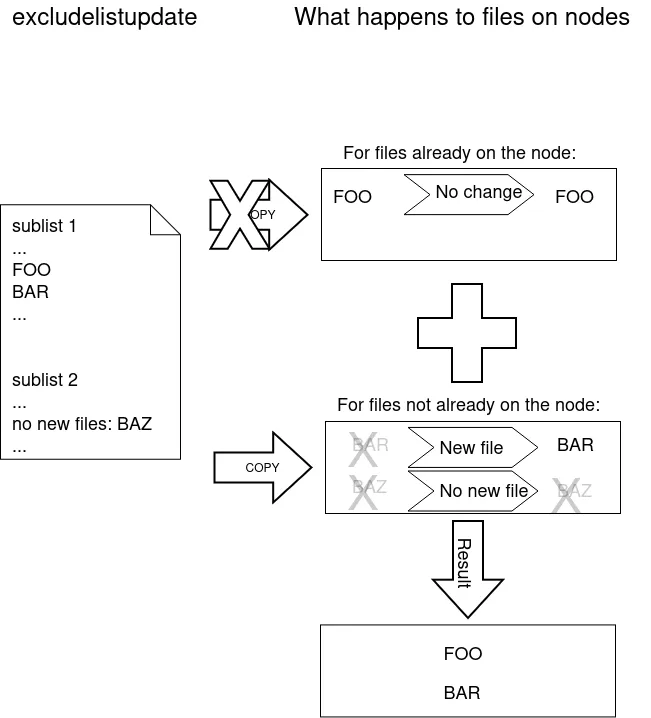
Figure 5.18: Exclude list logic
The files and directories on the node that are not in the sub-lists lose their original contents, and are copied over from the software image. So, content not covered by the sub-lists at that time is normally not protected from deletion.
Thus, the provisioning system excludes paths described according to the excludelistupdate property.
The provisioning system also excludes a statically-imported filesystem on a node if the filesystem is a member of the following special list: NFS, Lustre, FUSE, CephFS, CIFS, PanFS, FhGFS, BeeGFS, GlusterFS, or GPFS. If this exclusion were not done, then all data on these imported filesystems would be wiped, since they are not part of the software image. The automatic exclusion for these imported filesystems does not rely on the excludelist values maintained by CMDaemon—instead, CMDaemon carries out the check on-the-fly when provisioning starts.
Statically-imported filesystems that have their mounts managed by BCM via the fsmounts mode can be excluded from being mounted on the nodes in the first place, by removing them from the listed mounts within the fsmounts mode.
Imported filesystems not on the special list can have their data wiped out during provisioning or sync updates, if the statically-imported filesystems are placed in the image manually—that is, if the filesystems are mounted manually into the image on the head node via /etc/fstab without using cmsh or Base View.
Filesystems mounted dynamically cannot have their appearance or disappearance detected reliably: Any filesystem that may be imported via an auto-mount operation must therefore explicitly be excluded by the administrator manually adding the filesystem to the exclude list. This is to prevent an incorrect execution of imageupdate. Neglecting to do this may wipe out the filesystem, if it happens to be mounted in the middle of an imageupdate operation.
The fstab system is a statically mounting system, and not an auto-mounter: While fstab mounts filesystems automatically, system administrators should not confuse that with auto-mounting. Auto-mounting as provided by autofs is designed for the dynamic mounting of filesystems on demand by regular users. The fstab table is designed for mounting as carried out by the system, as occurs during boot, which is why it is regarded as a static, non-auto-mounting system.
5.6.1.3 Editing An Exclude List
A sample cmsh one-liner which opens up a text editor in a category so that the exclude list for updates can be edited is:
Similarly, the exclude list for updates can also be edited in Base View using the navigation path: Grouping > Categories > Settings > Exclude list update
5.6.1.4 Provisioning Modifications Via excludelistmanipulatescript
Sometimes the administrator has a need to slightly modify the execution of exclude lists during provisioning. The excludelistmanipulatescript file takes as an input the exclude list inherited from a category, modifies it in some way, and then produces a new exclude list. Conceptually it is a bit like how an administrator might use sed if it worked without a pipe. As usual, setting it for node level overrides the category level.
A script that manipulates the exclude lists of a node can be specified as follows within cmsh:
The script can be as simple as:
Example
If provisioning a node from the head node, then the script modifies the node-provisioning exclude lists—excludelistfullinstall, excludelistsyncinstall, and excludelistupdate—so that they appear to contain these items only:
The provisioning node then excludes everything during provisioning.
Careful editing and testing of the script is advised. Saving a script with just a single whitespace, for example, usually has undesirable results.
A more useful script template is the following:
Example
The provisioning exclude lists are simply read in, then sent out again without any change, except that the last two lines add comment lines to the exclude lists that are to be used.
Internally, the arguments taken by the excludelistmanipulatescript are the destination path and the sync mode (one of install|update|full|grab|grabnew). This can be seen in the output of $@, if running an imageupdate command to execute a dry run with the preceding example:
An excerpt from the sync log, after running the synclog command, then shows output similar to (some output elided):
Here, the sync mode is update and the destination path is “/”. Which of the exclude lists is being modified can be determined by the excludelistmanipulatescript by parsing the sync mode.
The bash variable that accepts the exclude list text is set to a safely-marked form using curly braces. This is done to avoid expansion surprises, due to wild card characters in the exclude lists. For example, if $REPLY were used instead of ${REPLY}, and the script were to accept an exclude list line containing “- /proc/*”, then it would give quite confusing output.
5.6.1.5 Other Exclude List Handling Options
The excludelistfailover and excludelistnormal files: are two further exclude list files that modify standard provisioning behavior. These are discussed in section 15.4.8.1.
The excludelistsnippets tool: When synchronizing to a cloud director, or to an edge director, it is sometimes useful to exclude unneeded files and paths from the synchronization, in order to speed it up. The excludelistsmanipulatescript tool is powerful enough to do it, but it has some issues due to its power. For example, it is a script, which means that it is called whenever it is used, and so uses up some extra resources. Also, it is a bit tricky to set up.
An easier way to manipulate exclude lists for the unneeded files and paths is via the excludelistsnippets tool, described in section 4.3.1 of the Cloudbursting Manual. This tool allows additional exclusion to be specified in a simpler way.
5.6.1.6 Exclude List State At Node Level
Exclude lists at category level and node level: An exclude list can be set at node level, as well as at category level. Roles and overlays can add implied exclude lists too.
At category level, an exclude list such as excludelistfullinstall can be set up explicitly with:
Example
At node level, an exclude list can be set in the same way:
Example
An exclude list that is not empty at node level overrules its corresponding category list. Exclude lists brought in via roles are however simply included in the exclude list.
The excludelist command: At node level it can be unclear what the resulting exclude list (“operational exclude list”) actually is. The exclude list state at node level can therefore be viewed using the excludelist command options. The excludelist command becomes active if a software image has been set at the node level.
-
The
listoption toexcludelistlists the source and destination paths:Example
-
The
getoption to theexcludelistcommand has synchronization mode and destination suboptions for a node.Earlier on (here), the intention behind the various exclude lists, according to the type of update or synchronization, were distinguished.
The
excludelist getcommand can have a destination path specified, and have the type of update or synchronization specified according to those distinguishing concepts.The output to the
excludelist getcommand then shows the operational exclude list as seen by a node for that path and for that update or synchronization.Thus, for example:
-
The
fullinstall operational exclude list for the path/on nodenode001, intended for a full installation to a node that is starting up, can be found as follows:Example
-
Similarly, the
syncinstall operational exclude list for the path/on nodenode001, intended for a sync installation to a node that is starting up, can be found as follows: -
Other
excludelist getoptions, besidesfullandsync, are:-
grab(a grab from a running node for a sync back to an existing image) -
grabnew(a grab from a running node for a full install to a new image) -
update(a sync update of a running node from an image).
All
excludelist getoptions correspond to the intentions of the associated exclude list types as distinguished here. -
-
5.6.2 Updating Running Nodes: With cmsh Using imageupdate
Using a defined excludelistupdate property (section 5.6.1), the imageupdate command of cmsh is used to start an update on a running node:
Example
By default the imageupdate command performs a dry run, which means no data on the node is actually written. Before passing the “-w” switch, it is recommended to analyze the rsync output using the synclog command (section 5.4.7.6).
If the user is now satisfied with the changes that are to be made, the imageupdate command is invoked again with the “-w” switch to implement them:
Example
5.6.3 Updating Running Nodes: With Base View Using the Update node Option
In Base View, an image update can be carried out by selecting the specific node or category, for example node001, and updating it via the navigation path:
Devices > All Devices > node001 ⋮ > Software Image > Update Node
5.6.4 Updating Running Nodes: Considerations
An attempt to update the image on a running node can run into some issues:
-
Updating an image via
cmshor Base View automatically updates the provisioners first via theupdateprovisionerscommand (section 5.2.4.4) if the provisioners have not been updated in the last 5 minutes. The conditional update period can be set with thedirtyautoupdatetimeoutparameter (section 5.2.4.6).So, with the default setting of 5 minutes, if there has been a new image created within the last 5 minutes, then provisioners do not get the updated image when doing the updates, which means that nodes in turn do not get those updates. Running the
updateprovisionerscommand just before running theimageupdatecommand therefore usually makes sense. -
By default, BCM does not allow provisioning if automount (here) is running.
-
Also, when updating services, the services on the nodes may not restart since the
initprocess may not notice the replacement.
For these reasons, especially for more extensive changes, it can be safer for the administrator to simply reboot the nodes instead of using imageupdate to provision the images to the nodes. A reboot by default ensures that a node places the latest image with an AUTO install (section 5.4.7), and restarts all services.
The Reinstall node option, which can be run, for example, on a node node001, using a navigation path of:
Devices > All Devices > node001 ⋮ > Software image > Reinstall node
also does the same as a reboot with default settings, except for that it unconditionally places the latest image with a FULL install, and so may take longer to complete.
5.7 Adding New Nodes
How the administrator can add a single node to a cluster is described in section 1.3 of the Installation Manual. This section explains how nodes can be added in ways that are more convenient for larger numbers of nodes.
5.7.1 Adding New Nodes With cmsh And Base View Add Functions
Node objects can be added from within the device mode of cmsh by running the add command:
Example
The Base View equivalent of this can be carried out using the navigation path: Devices > All Devices > + Add > PhysicalNode > Hostname then adding the value node002 to Hostname, and saving it.
When adding the node objects in cmsh and Base View, some values (the MAC addresses for example) may need to be filled in before the object validates. For regular nodes, there should be an interface and an IP address for the network that it boots from, as well as for the network that manages the nodes. A regular node typically has only one interface, which means that the same interface provides boot and management services. This interface is then the boot interface, BOOTIF, during the pre-init stage, but is also the management interface, typically eth0 or whatever the device is called, after the pre-init stage. The IP address for BOOTIF is normally provided using DHCP, while the IP address for the management interface can be set to a static IP address using cmsh or Base View by the administrator.
Adding new node objects as “placeholders” can also be done from cmsh or Base View. By placeholders, here it is meant that an incomplete node object is set. For example, sometimes it is useful to create a node object with the MAC address setting unfilled because it is still unknown. Why this can be useful is covered shortly.
5.7.2 Adding New Nodes With The Node Creation Wizard
Besides adding nodes using the add command of cmsh or the + Add option of Base View as in the preceding text, there is also a Base View wizard that guides the administrator through the process—the node creation wizard. This is useful when adding many nodes at a time. It is available using the navigation path:
Devices > Node Creation Wizard
This device creation wizard should not be confused with the somewhat-related device identification resource described in section 5.4.2.4, which identifies unassigned MAC addresses and switch ports, and helps assign them node names.
-
The node creation wizard creates an object for nodes, assigns them node names, but it leaves the MAC address field for these nodes unfilled, keeping the node object as a “placeholder”.
-
The device identification resource assigns MAC addresses so that node names are associated with a MAC address.
If a node is left with an unassigned MAC address—that is, in a “placeholder” state—then it means that when the node starts up, the provisioning system lets the administrator associate a MAC address and switch port number at the node console for the node. This occurs when the node-installer reaches the node configuration stage during node boot as described in section 5.4.2. This is sometimes preferable to associating the node name with a MAC address remotely with the device identification resource.
The node creation wizard goes through the following screens:
-
The
Node Range and Categoryscreen: An example of this screen is seen in figure 5.19, where a cluster with existing nodesnode001,node002, andnode003has 10 more node objects added to it, with numbering set to start fromnode004onwards.-
The
Node Rangesection: allows setting of the number of nodes to be added, their node name prefix, and their numeric suffix. -
The
Category, Management Network and Cloud Providersection: allows setting of the node category for the nodes, their management network, and their cloud provider, if any.
-
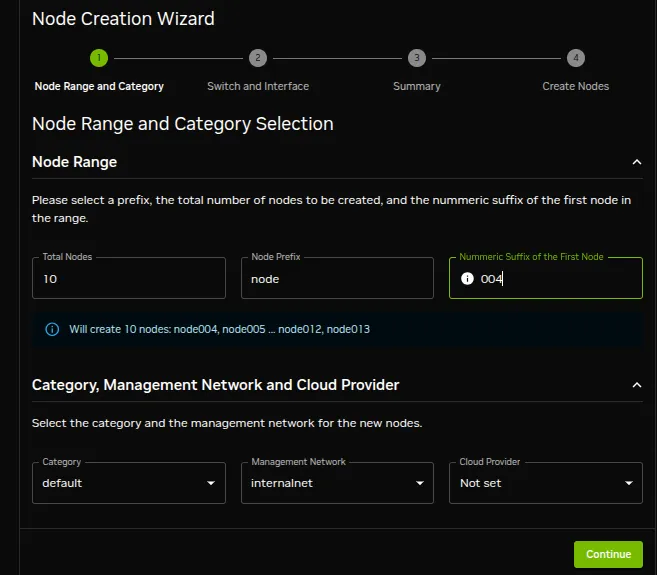
Figure 5.19: Node Creation Wizard: Node Range And Category Screen
Clicking on the Continue button brings up the next screen.
- The
Switch and Interfacescreen: lists the nodes and allows their interface properties to be assigned in bulk with theAssign Interfaces in Bulkoption (figure 5.20):
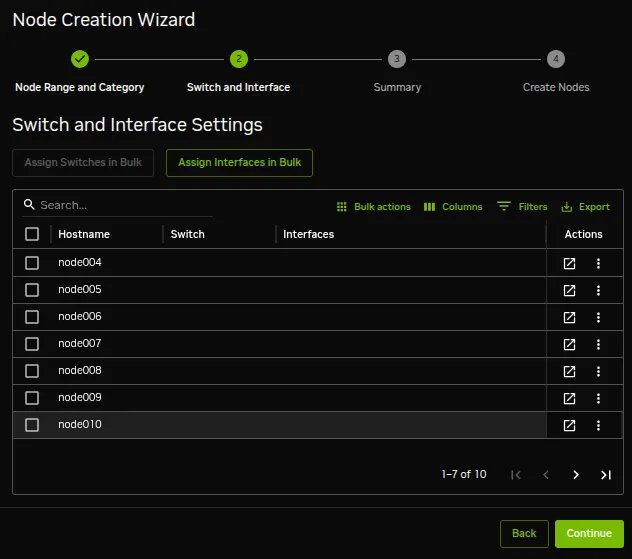
Figure 5.20: Node Creation Wizard: Switch And Interface Screen
The Assign Interfaces in Bulk option opens up a subpane that allows an interface to be added to the first node in the list of nodes objects that are to be created (figure 5.21):
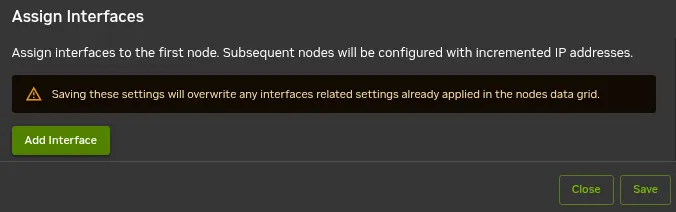
Figure 5.21: Node Creation Wizard: Adding An Interface For Bulk Assignment
In the case of nodes, the interface must be a BOOTIF interface, and should also be set to be used as a provisioning interface. The IP address that is suggested in the screen for the first node should be changed to a suitable IP address on the management network (figure 5.22):
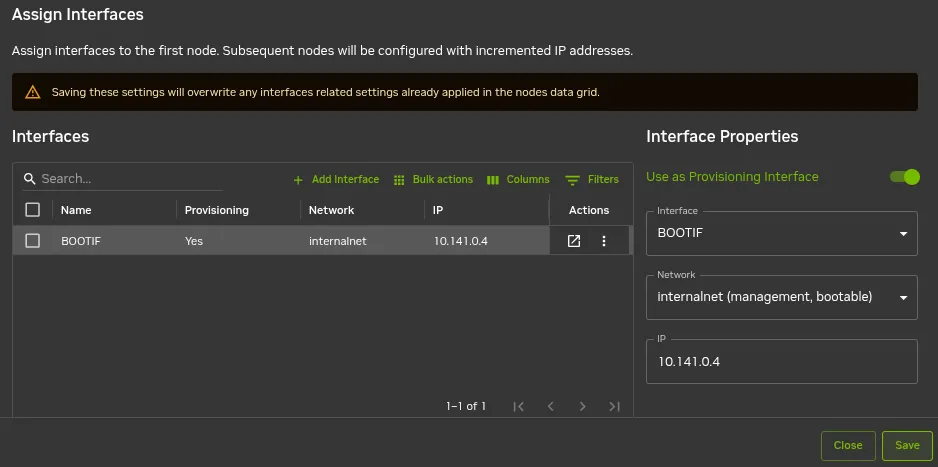
Figure 5.22: Node Creation Wizard: Adding Interface Settings For Bulk Assignment
When the Save button is clicked, the remaining nodes in the list of node objects are automatically bulk-assigned IP addresses that follow in a sequence from that of the first node assignment (figure 5.23):
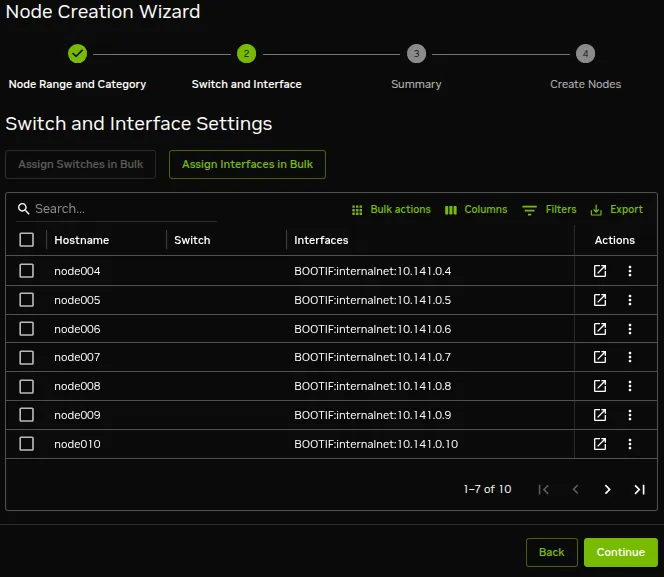
Figure 5.23: Node Creation Wizard: Proposed Bulk Assignment Saved
This assignment is a proposed assignment. Clicking on the Continue button brings up the next screen.
- The
Summaryscreen: shows a summary (figure 5.24) of the objects that are to be created.
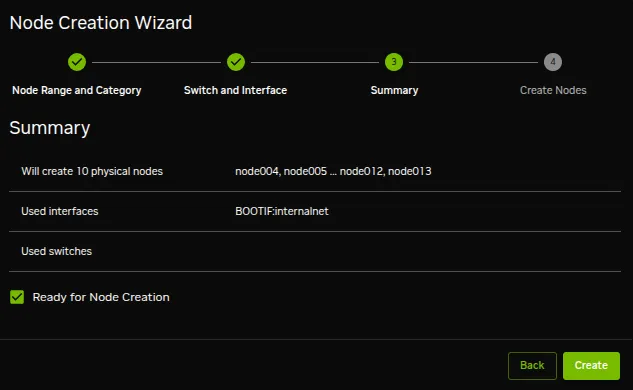
Figure 5.24: Node Creation Wizard: A Summary
After ticking the Ready for Node Creation box, clicking on the Create button creates the objects.
- The
Create Nodesscreen: shows the status of the node objects (figure 5.25)
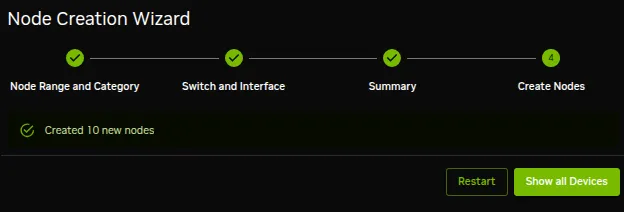
Figure 5.25: Node Creation Wizard: Node Objects Status
The Show all devices button just brings up the devices list pane, as seen by the Base View navigation path:
Devices > All Devices
The Restart button just restarts the wizard to allow more node objects to be created.
Once the node objects have been created, device identification (section 5.4.2.4) can be carried out as the associated physical nodes are brought up.
The cmsh equivalent of the node creation wizard is running foreach --clone on a node that is to be cloned over a node range (section 2.5.5.9, here).
5.8 Troubleshooting The Node Boot Process
During the node boot process there are several common issues that can lead to an unsuccessful boot. This section describes these issues and their solutions. It also provides general hints on how to analyze boot problems.
Before looking at the various stages in detail, the administrator may find that simply updating software or firmware may fix the issue. In general, it is recommended that all available updates are deployed on a cluster.
-
Updating software is covered in Chapter 9.
-
On the head node, the most relevant software can be updated with
yum,zypper, orapt, as explained in section 9.2. For example, withyum:Example
-
Similarly for the software image, the most relevant software can be updated too. This is done via a procedure involving a chroot installation., as described in section 9.4. If using
yum, then the update can be carried out within the image, <software image>, with:Example
-
-
UEFI or BIOS firmware should be updated as per the vendor recommendation
The various stages that may fail during node boot are now examined.
5.8.1 Node Fails To PXE Boot
Possible reasons to consider if a node is not even starting to network boot (PXE boot for x86 nodes) in the first place:
-
DHCP may not be running. A check can be done to confirm that DHCP is running on the internal network interface (usually eth0):
This may indicate that
Node bootingis disabled in Base View (figure 3.5, here) and needs to be enabled. The equivalent incmshis to check if the response to:needs to be set to
yes. -
The DHCP daemon may be “locked down” (section 3.2.1: figure 3.5 and table 3.1). New nodes are granted leases only after
lockdowndhcpdis set tonoincmsh, orLock down dhcpdis disabled in Base View for the network. -
A rogue DHCP server may be running. If there are all sorts of other machines on the network the nodes are on, then it is possible that there is a rogue DHCP server active on it, perhaps on an IP address that the administrator has forgotten, and interfering with the expected PXE booting. Such stray DHCP servers should be eliminated.
-
One way to identify the problem is to remove all the connections and switches and just connect the head node directly to a problem node, NIC-to-NIC. This should allow a normal network boot to happen. If a normal network boot then does happen, it indicates the problem is indeed due to a rogue DHCP server on the more-connected network.
-
For a more cerebral approach, which avoids recabling, the
nmaputility may be useful. Thenmaputility since version 7.90 can discover and list multiple DHCP servers using itsbroadcast-dhcp-discoverscript. The following session output shows the configuration and installation of the utility on to node002 on the internal network. It then runs it for the internal network interfaceens3. If it finds a second DHCP server on the network (in this test case on node001 at 10.141.0.1), then it may show responses in the output similar to the following (some output ellipsized):Example
-
-
The boot sequence may be set wrongly in the BIOS. The boot interface should normally be set to be the first boot item in the BIOS.
-
The node may be set to boot from UEFI mode. If UEFI mode has a buggy network boot implementation, then it may fail to network boot. For x86 nodes, setting the node to PXE boot using the legacy BIOS mode can be tried instead, or perhaps the UEFI firmware can be updated.
-
There may a bad cable connection. This can be due to moving the machine, or heat creep, or another physical connection problem. Firmly inserting the cable into its slot may help. Replacing the cable or interface as appropriate may be required.
-
There may a problem with the switch. Removing the switch and connecting a head node and a regular node directly with a cable can help troubleshoot this.
Disabling the Spanning Tree Protocol (STP) functions of a managed switch is recommended. With STP on, nodes may randomly fail to network boot.
-
The cable may be connected to the wrong interface. By default, on the head node, for a type 1 network, the first consistent network device name, for example
eno1, is normally assigned the internal network interface, and the second one, for exampleen02, is assigned the external network interface. However, the following possibilities should be considered during troubleshooting:-
The two interfaces can be confused when physically viewing them and a connection to the wrong interface can therefore be made.
-
It is also possible that the administrator has changed the default assignment.
-
The interface may have been set by the administrator to follow the network device naming scheme that has been used prior to RHEL7. Interfaces with names such as
eth0andeth1on the head node are suggestive of this. The problem with the pre-RHEL7 scheme is that it can sometimes lead to network interfaces swapping after reboot, which is why the scheme is no longer recommended. The workaround for this issue in pre-RHEL7 schemes was to define a persistent name in the udev ruleset for network interfaces.From NVIDIA Base Command Manager version 9.0 onward, the default scheme is the consistent network device naming scheme, and it is recommended.
5.8.1.1 Interface Naming Conventions Post-RHEL7 (Recommended)
https://access.redhat.com/documentation/en-US/Red_Hat_Enterprise_Linux/7/html/Networking_Guide/ch-Consistent_Network_Device_Naming.html describes the consistent network device scheme for interfaces post-RHEL7. This scheme sets an interface assignment on iPXE boot for multiple interfaces that is also valid by default during the very first iPXE boot. This means that an administrator can know which interface is used for provisioning and can connect the provisioning cable accordingly.
Some care may need to be taken in unusual naming assignments, in order to avoid exceeding the 16-character limit that Linux has for the naming of network interfaces.
5.8.1.2 Reverting To The Pre-RHEL7 Interface Naming Conventions (Not Recommended)
To revert to the pre-RHEL7 behavior, the key=value entries:
can be placed in the
GRUB_CMDLINE_LINUXline in/etc/default/grubwithin the head node:Example
For this:
-
The
biosdevnameparameter only works if the dev helper is installed. The dev helper is available from thebiosdevnameRPM package. The parameter also requires that the system supports SMBIOS 2.6 or ACPI DSM. -
The
net.ifnamesparameter is needed ifbiosdevnameis not installed.
A cautious system administrator may back up the original
grub.cfgfile:The GRUB configuration should be generated with:
If for some reason the administrator would like to carry out the pre-RHEL7 naming convention on a regular node, then the text
net.ifnames=0 biosdevname=0can be appended to thekernelparametersproperty, for an image selected fromsoftwareimagemode.Example
The
appendcommand requires a space at the start of the quote, in order to separate the kernel parameters from any pre-existing ones. -
-
-
The TFTP server that sends out the image may have hung. During a normal run, an output similar to this appears when an image is in the process of being served:
If the TFTP server is in a zombie state, the head node should be rebooted. If the TFTP service hangs regularly, there is likely a networking hardware issue that requires resolution.
Incidentally, grepping the process list for a TFTP service returns nothing when the head node is listening for TFTP requests, but not actively serving a TFTP image. This is because the TFTP service runs under xinet.d and is called on demand. Running
should include in its output the line:
if TFTP is running under xinet.d.
-
The switchover process from TFTP to HTTP may have hung. During a normal provisioning run, assuming that CMDaemon uses the default
bootloaderprotocolsetting ofHTTP, then TFTP is used to load the initial boot loader, but the kernel and ramdisk are loaded up via HTTP for speed. Some hardware has problems with switching over to using HTTP.In that case, setting
bootloaderprotocoltoTFTPkeeps the node using TFTP for loading the kernel and ramdisk, and should work. Another possible way to solve this is to upgrade the PXE boot BIOS to a version that does not have this problem.ARMv8 hardware can boot only via
TFTP.Setting
bootloaderprotocoltoHTTPSonly works for some special hardware. -
VLAN tagging may have been set up incorrectly in the BIOS of the node. VLAN provisioning (section 5.3.4) requires several changes in VLAN configuration for it to work.
-
Sometimes a manufacturer releases hardware with buggy drivers that have a variety of problems. For instance: Ethernet frames may be detected at the interface (for example, by
ethtool), but TCP/IP packets may not be detected (for example, bywireshark). In that case, the manufacturer should be contacted to upgrade their driver. -
The interface may have a hardware failure. In that case, the interface should be replaced.
5.8.2 Node-installer Logging
If the node manages to get beyond the net booting stage to the node-installer stage, then the first place to look for hints on node boot failure is usually the node-installer log file. The node-installer runs on the node that is being provisioned, and sends logging output to the syslog daemon running on that node. This forwards all log data to the IP address from which the node received its DHCP lease, which is typically the IP address of the head node or failover node. In a default BCM setup, the local5 facility of the syslog daemon is used on the node that is being provisioned to forward all node-installer messages to the log file /var/log/node-installer on the head node.
After the node-installer has finished running, its log is also stored in /var/log/node-installer on the regular nodes.
If there is no node-installer log file anywhere yet, then it is possible that the node-installer is not yet deployed on the node. Sometimes this is due to a system administrator having forgotten to change a provisioning-related configuration setting. One possibility is that the nodegroups setting (section 5.2.1), if used, may be misconfigured. Another possibility is that the image was set to a locked state (section 5.4.7). The provisioningstatus -a command can indicate this:
Example
To get the image to install properly, the locked state should be removed for a locked image.
Example
The node automatically picks up the image after it is unlocked.
Optionally, extra log information can be written by enabling debug logging, which sets the syslog importance level at LOG_DEBUG. To enable debug logging, the debug field is changed in /cm/node-installer/scripts/node-installer.conf.
For the node-installer.conf file in multidistro and multiarch (section 9.7) configurations, the directory path /cm/node-installer takes the form:
/cm/node-installer-<distribution>-<architecture>
The values for <distribution> and <architecture> can take the values outlined here.
From the console of the booting node the log file is generally accessible by pressing Alt+F7 on the keyboard. Debug logging is however excluded from being viewed in this way, due to the output volume making this impractical.
A booting node console can be accessed remotely if Serial Over LAN (SOL) is enabled (section 14.7), to allow the viewing of console messages directly. A further depth in logging can be achieved by setting the kernel option loglevel=N, where N is a number from 0 (KERN_EMERG) to 7 (KERN_DEBUG).
One possible point at which the node-installer can fail on some hardware is if SOL (section 14.7) is enabled in the BIOS, but the hardware is unable to cope with the flow. The installation can freeze completely at that point. This should not be confused with the viewing quirk described in section 14.7.4, even though the freeze typically appears to take place at the same point, that point being when the console shows “freeing unused kernel memory” as the last text. One workaround to the freeze would be to disable SOL.
5.8.3 Provisioning Logging
The provisioning system sends log information to the CMDaemon log file. By default this is in /var/log/cmdaemon on the local host, that is, the provisioning host. The host this log runs on can be configured with the CMDaemon directive SyslogHost (Appendix C.73).
The image synchronization log file can be retrieved with the synclog command (here) running from device mode in cmsh. Hints on provisioning problems are often found by looking at the tail end of the log.
If the tail end of the log shows an rsync exit code of 23, then it suggests a transfer error. Sometimes the cause of the error can be determined by examining the file or filesystem for which the error occurs. For example, the following synclog output:
Example
could be due to a missing lscratch mountpoint in the software image.
For the rsync transport, logs for node installation are kept under /var/spool/cmd/rsync/, with a log written for each node during provisioning. The name of the node is set as the prefix to the log name. For example node002 generates the log:
5.8.4 Ramdisk Fails During Loading Or Sometime Later
One issue that may come up after a software image update via yum, zypper, or apt (section 9.4), is that the ramdisk stage may fail during loading or sometime later, for a node that is rebooted after the update. This occurs if there are instructions to modify the ramdisk by the update. In a normal machine the ramdisk would be regenerated. In a cluster, the extended ramdisk that is used requires an update, but BCM is not aware of this.
Updating the RAM disk for the cluster solves the failure for this case. This can be done:
-
by running the
createramdiskcommand fromcmsh(section 5.3.2), using the appropriate modes (device,category, orsoftware image), or -
by running the
Create RAM Diskcommand using the appropriate Base View navigation paths:-
Devices > All Devices >selected node⋮ > Kernel > Create RAM Disk(typically inherited from software image by default) -
Grouping > Categories >selected category⋮ > Kernel > Create RAM Disk(typically blank by default) -
Provisioning > Software Images >selected software image⋮ > Kernel > Create RAM Disk
-
Another, somewhat related possible cause of a halt at this stage, is that the kernel modules that are to be loaded may have been specified incorrectly by the administrator in the hierarchy of software image, category, or node (here). A check of the kernel modules specified in softwareimage mode, category mode, or device mode (for the particular node) may reveal a misconfiguration.
5.8.5 Ramdisk Fails With No space left on device
The createramdisk log for a software image may show a message:
... abort: write error on <stdout> (No space left on device)
This error can be caused due to a large ramdisk being generated that exceeds the default tmpfs size configured by CMDaemon.
To solve this, a larger default tmpfs size value, in MB, can be specified with an AdvancedConfig (here) directive in cmd.conf, on all the head nodes in the cluster:
Example
After increasing the value with an AdvancedConfig directive, a restart of CMDaemon service is required on all head nodes for the change to take effect.
The default tmpfs size was 256MB for BCM 11 versions before 11.31.0. Due to kernel growth, this was sometimes inadequate. The default size was therefore set to 512MB for BCM 11 versions from 11.31.0 onward.
5.8.6 Ramdisk Cannot Start Network
The ramdisk must activate the node’s network interface in order to fetch the node-installer. To activate the network device, the correct kernel module needs to be loaded. If this does not happen, booting fails, and the console of the node displays something similar to figure 5.26.

Figure 5.26: No Network Interface
To solve this issue the correct kernel module should be added to the software image’s kernel module configuration (section 5.3.2). For example, to add the e1000 module to the default image using cmsh:
Example
After committing the change it typically takes about a minute before the initial ramdisk creation is completed via a mkinitrd run by CMDaemon.
5.8.7 Node-Installer Cannot Create Disk Layout
When the node-installer is not able to create a drive layout it displays a message similar to figure 5.27. The node-installer log file (section 5.8.2) contains something like:

Figure 5.27: No Disk
Disk layout failures can have several reasons.
5.8.7.1 BIOS And Order Issues
One reason may be that the drive may be disabled in the BIOS. It should be enabled.
Another reason may be that the drive order was changed. This could happen if, for example, a defective motherboard has been replaced. The drive order should be kept the same as it was before a motherboard change.
5.8.7.2 Read-only Mode Issues
Another reason may be due to SSDs that have a hardware jumper or toggle switch that sets a drive to read-only mode. A read-only mode drive will typically fail at this point. The drive should be made writeable.
5.8.7.3 Hardware Issues
If the node-installer log for the node shows lines with the text Input/output error, then it generally indicates a hardware issue. Possible hardware issues include:
-
a drive failure
-
a faulty cable between storage and controller
-
a faulty storage controller
-
a faulty backplane in the server
If the node has enough RAM, then it is possible to boot up the node as a diskless node, to carry out further diagnosis with disk tools such as smartmontools. The procedure for changing a node’s disk layout to a diskless configuration is given in section 3.13.
5.8.7.4 Automatic Diskless Fallback On Missing Device
The RAM-based diskless boot mentioned in the preceding text requires an administrator to decide to configure a node to install by bypassing a disk. This could be carried out for a node that has a functioning disk or it could be carried out for a node with a non-functioning disk.
A RAM-based diskless boot can be carried out with the decision to bypass made automatically instead, by setting the switchToDisklessOnMissingDevice directive to true in the node-installer.conf file. The node-installer configuration file is located at /cm/node-installer/scripts/node-installer.conf (at /cm/node-installer-<distribution>-<architecture>/scripts/node-installer.conf for multiarch/multidistro configurations).
If switchToDisklessOnMissingDevice is set to true, then a missing drive no longer causes a fatal error. The node-installer instead falls back to a diskless installation scheme, and the node boots up on its own. Further diagnosis can then be carried out on a live system, for example with smartmontools, or—on a DGX node—an nvsm dump. The default value is false, which preserves the original behavior of refusing to install the node when an expected drive cannot be found.
5.8.7.5 Software Driver Issues
One of the most common software issues is that the correct storage driver is not being loaded. To solve this issue, the correct kernel module should be added to the software image’s kernel module configuration (section 5.3.2).
Experienced system administrators work out what drivers may be missing by checking the results of hardware probes. For example, going into the node-installer shell using Alt-F2, and then looking at the output of lspci, shows a list of hardware detected in the PCI slots and gives the chipset name of the storage controller hardware in this case:
Example
The next step is to Google with likely search strings based on that output.
The Linux Kernel Driver DataBase (LKDDb) is a hardware database built from kernel sources that lists driver availability for Linux. It is available at http://cateee.net/lkddb/. Using the Google search engine’s “site” operator to restrict results to the cateee.net web site only, a likely string to try might be:
Example
The search result indicates that the mpt2sas kernel module needs to be added to the node kernels. A look in the modules directory of the software image shows if it is available:
Example
If it is not available, the driver module must then be obtained. If it is a source file, it will need to be compiled. By default, nodes run on standard distribution kernels, so that only standard procedures need to be followed to compile modules.
If the module is available, it can be added to the default image, by using cmsh in softwareimage mode to create the associated object. The object is given the same name as the module, i.e. mp2sas in this case:
Example
After committing the change it can take some time before ramdisk creation is completed—typically about a minute, as the example shows. Once the ramdisk is created, the module can be seen in the list displayed from kernelmodules mode. On rebooting the node, it should now continue past the disk layout stage.
5.8.8 Node-Installer Cannot Start BMC (IPMI/iLO) Interface
In some cases the node-installer is not able to configure a node’s BMC interface, and displays an error message similar to figure 5.28.

Figure 5.28: No BMC Interface
Troubleshooting may involve trying out node identification and port queries with a BMC (section 3.7.5), as well as other steps that are described in the text that follows.
Often the issue can be solved by adding the correct BMC (IPMI/iLO) kernel modules to the software image’s kernel module configuration. However, in some cases the node-installer is still not able to configure the BMC interface. If this is the case then the BMC probably does not support one of the commands the node-installer uses to set specific settings, or there may be a hardware glitch in the BMC.
5.8.8.1 The setupBmc Node-Installer Configuration Setting
To solve this issue, setting up BMC interfaces can be disabled globally by setting the setupBmc field to false in the node-installer configuration file /cm/node-installer/scripts/node-installer.conf (for multiarch/multidistro configurations the path takes the form: /cm/node-installer-<distribution>-<architecture>/scripts/node-installer.conf).
Doing this disables configuration of all BMC interfaces by the node-installer. A custom finalize script (Appendix E) can then be used to run the required commands instead.
The setupBmc field in the node-installer should not be confused with the SetupBMC directive in cmd.conf (here, Appendix C.58). The former is about enabling the BMC interface, while the latter is about enabling automated passwords to the BMC interface (an interface that must of course be enabled in the first place to work).
5.8.8.2 The failOnMissingBmc Node-Installer Configuration Setting
If the kernel modules for the BMC are loaded up correctly, and the BMC is configured, but it is not detected by the node-installer, then the node-installer halts by default. This corresponds to the setting failOnMissingBmc = true in the node-installer configuration file /cm/node-installer/scripts/node-installer.conf. Toggling this to false skips BMC network device detection, and lets the node-installer continue past the BMC detection and configuration stage. This can be convenient, for example, if the BMC is not yet configured and the aim is to get on with setting up the rest of the cluster.
5.8.8.3 The failOnFailedBmcCommand Node-Installer Configuration Setting
If a BMC command fails, then the node-installer by default terminates node installation. The idea behind this is to allow the administrator to fix the problem. Sometimes, however, hardware can wrongly signal a failure. That is, it can signal a false failure, as opposed to a true failure.
A common case is the case of ipmitool. ipmitool is used by BCM to configure the BMC. With most hardware vendors it works as expected, signaling success and failure correctly. As per the default behavior: with success, node installation proceeds, while with failure, it terminates.
With certain hardware vendors however ipmitool fails with an exit code 1, even though the BMC is properly configured. Again, as per the default behavior: success has node installation proceed, while failure has node installation terminate. Only this time, because the failure signal is incorrect, the termination on failure is also incorrect behavior.
To get around the default behavior for false failure cases, the administrator can force the node-installer to set the value of failOnFailedBmcCommand to false in the node-installer configuration file /cm/node-installer/scripts/node-installer.conf (for multiarch/multidistro configurations the path takes the form: /cm/node-installer-<distribution>-<architecture>/scripts/node-installer.conf). The installation then skips past the false failure.
5.8.8.4 BMC Hardware Glitch And Cold Reset
Sometimes, typically due to a hardware glitch, a BMC can get into a state where it is not providing services, but the BMC is still up (responding to pings). Contrariwise, a BMC may not respond to pings, but still respond to IPMI commands. A fix for such glitchy states is usually to power cycle the BMC. This is typically done, either physically, or by using a BMC management tool such as ipmitool.
Physically resetting the power supply to the BMC is done typically by pulling the power cable out and then pushing it in again. For typical rack-based servers the server can just be pulled out and in again. Just doing a shutdown of the server with the power cable still in place normally does not power down the BMC.
BMC management does allow the BMC to power down and be reset from software, without having to physically handle the server. This software-based cold reset is a BIOS-manufacturer-dependent feature. A popular tool used for managing BMCs that can do such a cold reset is ipmitool. This can be run remotely, but also on the node console if the node cannot be reached remotely.
With ipmitool, a cold reset is typically carried out with a command such as:
The values for <bmcusername> and <bmcpassword> can be obtained as shown in section 3.7.2.
5.8.8.5 BMC Troubleshooting With The System Event Log
The System Event Log (SEL) can be read with:
The timestamped output can be inspected for errors related to the CPU, ECC, or memory.
5.8.8.6 Other BMC Troubleshooting
Some more specific commands for handling IPMI might be using the service ipmi <option> commands, which can show the IPMI service has failed to start up:
Example
In the preceding session the driver has simply not been started up. It can be started up with the start option:
Example
In the preceding session, the start up failed. The service status output shows:
Example
Further details can be found in the journal:
Example
In the preceding session, the failure is due to a missing BMC interface (Unable to find any System Interface(s)). A configured BMC interface should show an output status similar to:
Example
Sometimes the issue may be an incorrect networking specification for the BMC interfaces. MAC and IP details that have been set for the BMC interface can be viewed with the lan print option to ipmitool if the service has been started:
Example
During normal operation the metrics (Appendix G) displayed by BCM are useful. However, if those are not available for some reason, then the direct output from BMC sensor metrics may be helpful for troubleshooting:
Example