

Day-to-day Administration
Just as for regular Linux system administration, it is a best practice for cluster administration procedures to be documented as they are carried out.
Updating software packages for bug fixes or for security fixes is a substantial and important part of the tasks carried out in daily cluster administration. It has its own chapter (Chapter 11).
This chapter discusses other tasks that may come up in day-to-day cluster administration with NVIDIA Base Command Manager.
Section 16.1 discusses running shell commands in parallel over the cluster.
Section 16.2 discusses how a cluster administrator can ask the help of the BCM support team for guidance with an issue in an optimum manner.
Section 16.3 discusses how backups can be implemented for BCM.
Section 16.4 discusses revision control for images.
Section 16.5 discusses BIOS configuration with BCM.
Section 16.6 discusses checking hardware matching across the nodes of the cluster.
Section 16.7 discusses Serial Over LAN console access.
Section 16.8 discusses administrative aspects of handling the large amounts of raw monitoring data.
Section 16.9 discusses node replacement.
Section 16.10 discusses using Ansible to configure the cluster via Ansible collections and playbooks.
16.1 Parallel Shells: pdsh And pexec
16.1.0.1 What pdsh And pexec Do
The cluster management tools include two parallel shell execution commands:
-
pdsh(parallel distributed shell, section 16.1.1), runs from within the OS shell. That is,pdshexecutes its commands from withinbashby default. -
pexec(parallel execute, section 16.1.2, runs from within CMDaemon. That is,pexecexecutes its commands from within thecmshfront end.
A one-time execution of pdsh or pexec can run one or more shell commands on a group of nodes in parallel.
16.1.0.2 A Warning About Power Surge Risks With pdsh And pexec
Some care is needed when running pdsh or pexec with commands that affect power consumption. For example, running commands that power-cycle devices in parallel over a large number of nodes can be risky because it can put unacceptable surge demands on the power supplies.
Within cmsh, executing a power reset command from device mode to power cycle a large group of nodes is much safer than running a parallel command to do a reset using pdsh or pexec. This is because the CMDaemon power reset powers up nodes after a deliberate delay between nodes (section 4.2).
16.1.0.3 Which Command To Use Out Of pdsh And pexec
The choice of using pdsh or pexec commands is mostly up to the administrator. The only time that running pdsh from bash is currently required instead of running pexec from within cmsh, is when stopping and restarting CMDaemon on a large number of regular nodes (section 2.6.1). This is because a command to stop CMDaemon on a regular node, that itself relies on being run from a running CMDaemon on a regular node, can obviously give unexpected results.
16.1.1 pdsh In The OS Shell
16.1.1.1 Packages Required For pdsh
By default, the following packages must be installed from the BCM repositories to the head node for pdsh to function fully:
-
pdsh -
genders -
pdsh-mod-cmupdown -
pdsh-mod-genders -
pdsh-rcmd-exec -
pdsh-ssh
The pdsh utility is modular, that is, it gets extra functionality through the addition of modules.
The genders package is used to generate a default /etc/genders configuration file. The file is used to decide what and how nodes are to be used or excluded by default, when used with pdsh. Configuration details can be found in man pdsh(1). The configuration can probably best be understood by viewing the file itself and noting that BCM in the default configuration associates the following genders with a list of nodes:
-
all: all the nodes in the cluster, head and regular nodes. -
category=default: the nodes that are in the default category -
computenode: regular nodes -
headnode: node or nodes that are head nodes.
In a newly-installed cluster using default settings, the genders category=default and computenode have the same list of nodes to begin with.
The default /etc/genders file has a section that is generated and maintained by CMDaemon, but the file can be altered by the administrator outside the CMDaemon-maintained section. However, it is not recommended to change the file manually frequently. For example, tracking node states with this file is not recommended. Instead, the package pdsh-mod-cmupdown provides the -v option for node state tracking functionality, and how to use this and other pdsh options is described in the next section.
16.1.1.2 pdsh Options
In the OS shell, running pdsh -h displays the following help text:
Further options and details are given in man pdsh(1).
16.1.1.3 Examples Of pdsh Use
For the examples in this section, a cluster can be considered that is set up with two nodes, with the state of node001 being UP and that of node002 being DOWN:
In the examples, the outputs for pdsh could be as follows for the pdsh options considered:
-A: With this pdsh option an attempt is made to run the command on all nodes, regardless of the node state:
Example
-v: With this option an attempt is made to run the command only on nodes nodes that are in the state UP:
Example
-g: With this option, and using, for example, computenode as the genders query, only nodes within computenode in the /etc/genders file are considered for the command. The -v option then further ensures that the command runs only on a node in computenode that is up. In a newly-installed cluster, regular nodes are assigned to computenode by default, so the command runs on all regular nodes that are up in a newly-installed cluster:
Example
-w: This option allows a node list (man pdsh(1)) to be specified on the command line itself:
Example
-x: This option is the converse of -w, and excludes a node list that is specified on the command line itself:
Example
16.1.1.4 The dshbak Command
The dshbak (distributed shell backend formatting filter) command is a filter that reformats pdsh output. It comes with the pdsh package.
Running dshbak with the -h option displays:
Further details can be found in man dshbak(1).
For the examples in this section, it is assumed that all the nodes in the cluster are now up. That is, node002 used in the examples of the preceding section is now also up. Some examples to illustrate how dshbak works are then the following: Without dshbak:
Example
With dshbak, with no dshbak options:
Example
With dshbak, with the -c (coalesce) option:
Example
The dshbak utility is useful for creating human-friendly output in clusters with larger numbers of nodes.
16.1.2 pexec In cmsh
In cmsh, the pexec command is run from device mode:
Example
16.1.3 pexec In Base View
In Base View, pexec is hidden, but executed in a GUI wrapper, using the navigation path Cluster > Run command.
For large numbers of nodes, rendering the output into the node subpanes (little boxes) can take a long time. To improve the Base View experience, selecting the Single text view icon instead of the Grouped view icon speeds up the rendering significantly, but at the cost of removing the borders of the subpanes.
Ticking the Join output checkbox places output that is the same for particular nodes, into the same subpane.
Running parallel shell commands from cmsh instead of in Base View is faster in most cases, due to less graphics rendering overhead.
16.1.4 Using The -j|--join Option Of pexec In cmsh
The output of the pexec command by default can come out in a sequence depending on node response time. To make it more useful for an administrator, order can be imposed on the output. Checking consistency across nodes is then easier.
For example, in a cluster with 2 nodes, the /etc/resolv.conf files for each node could be displayed as:
Example
More order can be imposed on the preceding output by using the -j|--join option. This joins identical fields together in a way similar to the standard unix text utility, join, which makes the result easier to view:
Example
In the following example, a cluster with 10 nodes is inspected. In the cluster, node002 is down, and the idea is to see if the remaining nodes have the same mounts:
Example
Here, even more order is imposed by sorting the output of each mount command within bash before the -j option operates from cmsh. The -c option executes the command on the default category of nodes.
16.1.5 Other Parallel Commands
Besides pexec, CMDaemon has several other parallel commands:
pkill: parallel kill
Synopsis:
pkill [OPTIONS] <tracker> [<tracker> … ]
plist: List the parallel commands that are currently running, with their tracker ID
Synopsis:
plist
pping: ping nodes in parallel
Synopsis:
pping [OPTIONS]
pwait: wait for parallel commands that are running to complete
Synopsis:
pwait [OPTIONS] <tracker> [<tracker> …]
Details on these parallel commands, including examples, can be seen by executing the help command within the device mode of cmsh for a parallel command, <pcommand>, as follows:
[basecm10->device]%``help <pcommand>
16.2 Getting Support With BCM Issues, And Notifications For Release Updates
The scope of BCM technical support is described in Appendix C of the Installation Manual.
16.2.1 The Support Portal For BCM
Support requests can be sent in via the support portal at
https://enterprise-support.nvidia.com/s/create-case
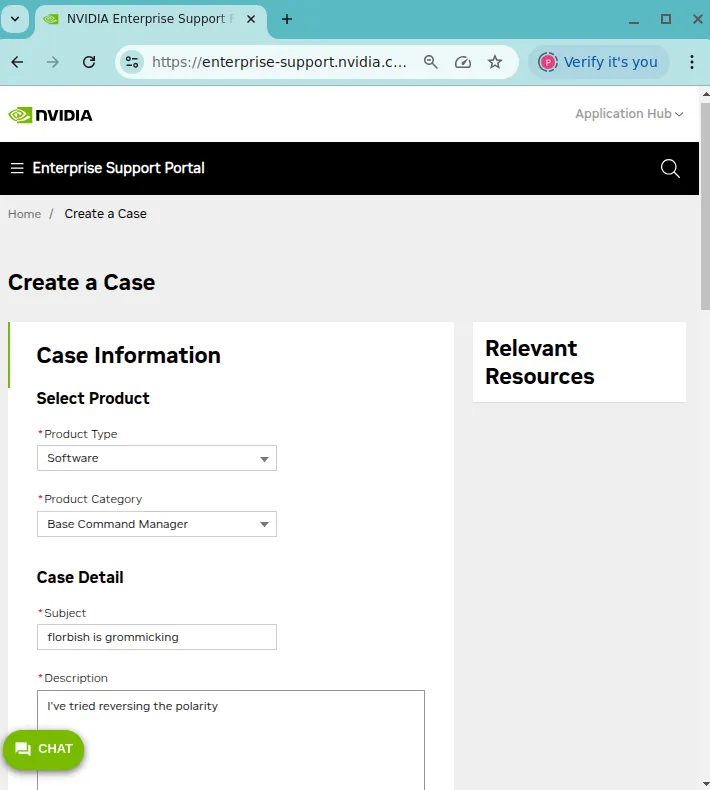
Figure 16.1: Customer support portal: submitting a support request
When creating a BCM support case at that URL:
-
the
Product Typethat must be selected isSoftware. -
the
Product Categorythat must be selected is:-
Bright Cluster Managerfor issues related to versions of BCM prior to BCM version 10. -
Base Command Managerfor issues related to BCM version 10 and beyond.
-
-
Registered users are advised to log in to the support portal. It makes the user experience better because cluster-related data values are already filled in for a logged-in user.
-
Unregistered users can also create a case via the same URL, to deal with registration issues.
The Enterprise Support Portal User Guide at
https://enterprise-support.nvidia.com/s/article/NVIDIA-Enterprise-Support-Guide-for-New-Users
has further details on how users can submit support requests.
BCM support as implemented via the support portal is carried out primarily via e-mail. To help resolve issues, the cm-diagnose (section 16.2.2) utility is provided as a supplement, and is discussed next.
16.2.2 Reporting Cluster Manager Diagnostics With cm-diagnose
The diagnostic utility cm-diagnose is run from the head node. It gathers data on the cluster that may help diagnose issues. Running it as
cm-diagnose --help
displays its options, capabilities, and defaults.
For particular issues it may be helpful to change some of the default values to gather data in a more targeted way. For example, for larger clusters, the log file limit and the timeout values can both be increased to avoid logs being cropped and commands being killed during the gathering of diagnostic data:
Example
The preceding command increases the log limit from its default of 50MB to 100MB, and the timeout value from its default of 60s to 240s.
When carrying out a run to pick up diagnostic data, cm-diagnose runs interactively by default. The administrator can send the resultant diagnostics file to BCM support directly. The output of a cm-diagnose session looks something like the following (the output has been made less verbose for easy viewing):
Example
16.2.3 Getting Notified About Updates
Updates for the various NVIDIA Base Command Manager releases continue for some time after the initial release is made public. The updates typically have bugfixes and improvements, and an administrator may wish to install an update when it becomes publicly available.
The release notes for BCM can be found online at:
https://docs.nvidia.com/base-command-manager/#release-notes
16.3 Backups
16.3.1 Cluster Installation Backup
BCM does not include facilities to create backups of a cluster installation. The cluster administrator is responsible for deciding on the best way to back up the cluster, out of the many possible choices.
A backup method is strongly recommended, and checking that restoration from backup actually works is also strongly recommended.
One option that may be appropriate for some cases is simply cloning the head node. A clone can be created by PXE booting the new head node, and following the procedure in section 17.4.8.
When setting up a backup mechanism, it is recommended that the full filesystem of the head node (i.e. including all software images) is backed up. Unless the regular node hard drives are used to store important data, it is not necessary to back them up.
If no backup infrastructure is already in place at the cluster site, the following open source (GPL) software packages may be used to maintain regular backups:
-
Bacula: Bacula is a mature network based backup program that can be used to backup to a remote storage location. If desired, it is also possible to use Bacula on nodes to back up relevant data that is stored on the local hard drives. More information is available at http://www.bacula.org
Bacula requires ports 9101-9103 to be accessible on the head node. Including the following lines in the Shorewall rules file for the head node allows access via those ports from an IP address of 93.184.216.34 on the external network:
Example
The Shorewall service should then be restarted to enforce the added rules.
-
rsnapshot: rsnapshot allows periodic incremental filesystem snapshots to be written to a local or remote filesystem. Despite its simplicity, it can be a very effective tool to maintain frequent backups of a system. More information is available at http://www.rsnapshot.org.
Rsnapshot requires access to port 22 on the head node.
16.3.2 Local Database And Data Backups And Restoration
The CMDaemon database is stored in the MySQL cmdaemon database, and contains most of the stored settings of the cluster.
Monitoring data values are stored as binaries in the filesystem, under /var/spool/cmd/monitoring.
The administrator is expected to run a regular backup mechanism for the cluster to allow restores of all files from a recent snapshot. As an additional, separate, convenience:
-
For the CMDaemon database:
-
the entire database is, by default, also backed up nightly on the cluster filesystem itself (“local rotating backup”) for the last 7 days:
Example
-
the CMDaemon database can also be manually backed up with the
cmdaemon-backupcommand. This can be useful if the administrator would like to carry out an extensive change on the cluster and would like the reassuring possibility of getting back the old configuration. If no argument is supplied tocmdaemon-backup, then any existing default backup of the day is overwritten. If a string is supplied, then the defaultbackup-prefix is replaced. The replacement becomes the supplied string concatenated with a timestamp. This is most easily illustrated with an example:Example
The time stamp in the preceding example is of the form:
-<two-digit year>-<month>-<date>_<hour>-<minute>-<seconds>_
-
-
For the monitoring data, the raw data records are not backed up locally, since these can get very large. However, the configuration of the monitoring data, which is stored in the CMDaemon database, is backed up for the last 7 days too.
16.3.2.1 Database Corruption Messages
A corrupted MySQL database is commonly caused by an improper shutdown of the node. To deal with this, when starting up, MySQL checks itself for corrupted tables, and tries to repair any such by itself.
When there is database corruption, InfoMessages in the /var/log/cmdaemon log may mention:
-
“
Unexpected eof found” in association with a table in the database, -
“
can't find file” when referring to an entire missing table, -
locked tables,
-
error numbers from table handlers,
-
“
Error while executing” a command.
A restoration from backup can be carried out to repair the database, as explained in the next section.
16.3.2.2 Restoring From The Local Backup
If the MySQL InnoDB repair tools do not fix the problem, then, for a failover configuration, the dbreclone option (section 17.4.2) should normally provide a CMDaemon and Slurm database that is current. The dbreclone option does not clone the monitoring data.
Cloning extra databases: The file /cm/local/apps/cluster-tools/ha/conf/extradbclone.xml.template can be used as a template to create a file extradbclone.xml in the same directory. The extradbclone.xml file can then be used to define additional databases to be cloned. Running the /cm/local/apps/cmd/scripts/cm-update-mycnf script then updates /etc/my.cnf. The database can then be cloned with this new MySQL configuration by running cmha dbreclone <passive>
where <passive> is the hostname of the passive head node.
If the head node is not part of a failover configuration, then a restoration from local backup can be done. The local backup directory is /var/spool/cmd/backup, with contents that look like (some text elided):
Example
The CMDaemon database snapshots are stored as backup- <day of week>.sql.gz In the example, the latest backup available in the listing for CMDaemon turns out to be backup-Tue.sql.gz
The latest backup can then be ungzipped and piped into the MySQL database for the user cmdaemon. The password, <password>, can be retrieved from /cm/local/apps/cmd/etc/cmd.conf, where it is configured in the DBPass directive (Appendix C.18).
Example
gunzip backup-Tue.sql.gz
systemctl stop cmd #(just to make sure)
mysql -ucmdaemon -p <password> cmdaemon < backup-Tue.sql
Running “systemctl start cmd” should have CMDaemon running again, this time with a restored database from the time the snapshot was taken. That means, that any changes that were done to BCM after the time the snapshot was taken are no longer implemented.
Monitoring data values are not kept in a database, but in files (section 16.8).
16.4 Revision Control For Images
BCM version 7 introduced support for the implementations of Btrfs provided by the distributions. Btrfs makes it possible to carry out revision control for images efficiently.
16.4.1 Btrfs: The Concept And Why It Works Well In Revision Control For Images
Btrfs, often pronounced “butter FS”, is a Linux implementation of a copy-on-write (COW) filesystem.
A COW design for a filesystem follows the principle that, when blocks of old data are to be modified, then the new data blocks are written in a new location (the COW action), leaving the old, now superseded, copy of the data blocks still in place. Metadata is written to keep track of the event so that, for example, the new data blocks can be used seamlessly with the contiguous old data blocks that have not been superseded.
This is in contrast to the simple overwriting of old data that a non-COW filesystem such as Ext3fs carries out.
A result of the COW design means that the old data can still be accessed with the right tools, and that rollback and modification become a natural possible feature.
“Cheap” revision control is thus possible.
Revision control for the filesystem is the idea that changes in the file system are tracked and can be rolled back as needed. “Cheap” here means that COW makes tracking changes convenient, take up very little space, and quick. For an administrator of BCM, cheap revision control is interesting for the purpose of managing software images.
This is because for a non-COW filesystem such as Ext3fs, image variations take a large amount of space, even if the variation in the filesystem inside the image is very little. On the other hand, image variations in a COW filesystem such as Btrfs take up near-minimum space.
Thus, for example, the technique of using initialize and finalize scripts to generate such image variations on the fly (section 3.20.4) in order to save space, can be avoided by using a Btrfs partition to save the full image variations instead.
“Expensive” revision control on non-COW filesystems is also possible. It is merely not recommended, since each disk image takes up completely new blocks, and hence uses up more space. The administrator will then have to consider that the filesystem may become full much earlier. The degree of restraint on revision control caused by this, as well as the extra consumption of resources, means that revision control on non-COW filesystems is best implemented on test clusters only, rather than on production clusters.
16.4.2 Btrfs Availability And Distribution Support
Btrfs has been part of the Linux kernel since kernel 2.6.29-rc1. Depending on which Linux distribution is being used on a cluster, it may or may not be a good idea to use Btrfs in a production environment, as in the worst case it could lead to data loss.
Btrfs has been officially removed from RHEL distributions since RHEL8.
Btrfs features are supported in SLES15, as described at https://www.suse.com/releasenotes/x86_64/SUSE-SLES/15-SP1/index.html#TechInfo.Filesystems.
While no problems have been noticed with storing software images on Btrfs using BCM, it is highly advisable to keep backups of important software images on a non-Btrfs filesystem when Btrfs is used.
An issue with using cm-clone-install with Btrfs is described here.
16.4.3 Installing Btrfs To Work With Revision Control Of Images In BCM
16.4.3.1 Installation Of btrfs-progs
To install a Btrfs filesystem, the btrfs-progs packages must be installed from the distribution repository first (some lines elided):
Example
16.4.3.2 Creating A Btrfs Filesystem
The original images directory can be moved aside first, and a new images directory created to serve as a future mount point for Btrfs:
Example
A block device can be formatted as a Btrfs filesystem in the usual way by using the mkfs.btrfs command on a partition, and then mounted to the new images directory:
Example
If there is no spare block device, then, alternatively, a file with zeroed data can be created, formatted as a Btrfs filesystem, and mounted as a loop device like this:
Example
16.4.3.3 Migrating Images With cm-migrate-images
The entries inside the /cm/images/ directory are the software images (file trees) used to provision nodes.
Revision tracking of images in a Btrfs filesystem can be done by making the directory of a specific image a subvolume. Subvolumes in Btrfs are an extension of standard unix directories with versioning. The files in a subvolume are tracked with special internal Btrfs markers.
To have this kind of version tracking of images work, image migration cannot simply be done with a cp -a or a mv command. That is, moving images from theimages2 directory in the traditional filesystem, over to images in the images directory in the Btrfs filesystem command with the standard cp or mv command is not appropriate. This is because the images are to be tracked once they are in the Btrfs system, and are therefore not standard files any more, but instead extended, and made into subvolumes.
The migration for BCM software images can be carried out with the utility cm-migrate-image, which has the usage:
cm-migrate-image <path to old image> <path to new image>
where the old image is a traditional directory, and the new image is a subvolume.
Example
The default-image directory, or more exactly, subvolume, must not exist in the Btrfs filesystem before the migration. The subvolume is created only for the image basename that is migrated, which is default-image in the preceding example.
In the OS, the btrfs utility is used to manage Btrfs. Details on what it can do can be seen in the btrfs(8) man page. The state of the loop filesystem can be seen, for example, with:
Example
The filesystem can be modified as well as merely viewed with btrfs. However, instead of using the utility to modify image revisions directly, it is recommended that the administrator use BCM to manage image version tracking, since the necessary functionality has been integrated into cmsh and Base View.
16.4.4 Using cmsh For Revision Control Of Images
16.4.4.1 Revision Control Of Images Within softwareimage Mode
The following commands and extensions can be used for revision control in the softwareimage mode of cmsh:
-
newrevision<parent software image name>"textual description"
Creates a new revision of a specified software image. For that new revision, a revision number is automatically generated and saved along with time and date. The new revision receives a name of the form:- <parent software image name>
@<revision number>
A new Btrfs subvolume:
/cm/images/<parent software image name>-<revision number>
is created automatically for the revision. From now on, this revision is a self-contained software image and can be used as such.
- <parent software image name>
-
revisions [-a|--all]<parent software image name>
Lists all revisions of specified parent software image in the order they ware created, and associates the revision with the revision number under the headerID. The option-a|--allalso lists revisions that have been removed. -
list [-r|--revisions]
The option-r|--revisionshas been added to thelistcommand. It lists all revisions with their name, path, and kernel version. A parent image is the one at the head of the list of revisions, and does not have@<revision number> in its name. -
setparent [parent software image name]<revision name>
Sets a revision as a new parent. The action first saves the image directory of the current, possibly altered, parent directory or subvolume, and then attempts to copy or snapshot the directory or subvolume of the revision into the directory or subvolume of the parent. If the attempt fails, then it tries to revert all the changes in order to get the directory or subvolume of the parent back to the state it was in before the attempt. -
remove [-a|--all] [-d|--data]<parent software image name>
Runnningremovewithout options removes the parent software image. The option-a|--allremoves the parent and all its revisions. The option-d|--dataremoves the actual data. To run theremovecommand, any images being removed should not be in use.
16.4.4.2 Revision Control Of Images Within category Mode
The category mode of cmsh also supports revision control.
Revision control can function in 3 kinds of ways when set for the softwareimage property at category level.
To explain the settings, an example can be prepared as follows: It assumes a newly-installed cluster with Btrfs configured and /cm/images migrated as explained in section 16.4.3. The cluster has a default software image default-image, and two revisions of the parent image are made from it. These are automatically given the paths default-image@1 and default-image@2. A category called storage is then created:
Example
With the cluster set up like that, the 3 kinds of revision control functionalities in category mode can be explained as follows:
-
Category revision control functionality is defined as unset
If the administrator sets thesoftwareimageproperty for the category to an image without any revision tags:Example
then nodes in the
storagecategory take no notice of the revision setting for the image set at category level. -
Category revision control sets a specified revision as default
If the administrator sets thesoftwareimageproperty for the category to a specific image, with a revision tag, such asdefault-image@1:Example
then nodes in the
storagecategory use the imagedefault-image@1as their image if nothing is set at node level. -
Category revision control sets the latest available revision by default
If the administrator sets thesoftwareimageproperty for the category to a parent image, but tagged with the reserved keyword taglatest:Example
then nodes in the
storagecategory use the imagedefault-image@2if nothing is set at node level. If a new revision ofdefault-imageis created later on, with a later tag (@3,@4,@5…) then the property takes the new value for the revision, so that nodes in the category will use the new revision as their image.
16.4.4.3 Revision Control For Images—An Example Session
This section uses a session to illustrate how image revision control is commonly used, with commentary along the way. It assumes a newly installed cluster with Btrfs configured and /cm/images migrated as explained in section 16.4.3.
First, a revision of the image is made to save its initial state:
A new image default-image@1 is automatically created with a path /cm/images/default-image-1. The path is also a subvolume, since it is on a Btrfs partition.
The administrator then makes some modifications to the parent image /cm/images/default-image, which can be regarded as a “trunk” revision, for those familiar with SVN or similar revision control systems. For example, the administrator could install some new packages, edit some configuration files, and so on. When finished, a new revision is created by the administrator:
This image is then automatically called default-image@2 and has the path /cm/images/default-image-2. If the administrator then wants to test the latest revision on nodes in the default category, then this new image can be set at category level, without having to specify it for every node in that category individually:
At this point, the content of default-image is identical to default-image@2. But changes done in default-image will not affect what is stored in revision default-image@2.
After continuing on with the parent image based on the revision default-image@2, the administrator might conclude that the modifications tried are incorrect or not wanted. In that case, the administrator can roll back the state of the parent image default-image back to the state that was previously saved as the revision default-image@1:
The administrator can thus continue experimenting, making new revisions, and trying them out by setting the softwareimage property of a category accordingly. Previously created revisions default-image@1 and default-image@2 will not be affected by these changes. If the administrator would like to completely purge a specific unused revision, such as default-image@2 for example, then it can be done with the -d|--data option:
The -d does a forced recursive removal of the default-image-2 directory, while a plain remove without the -d option would simply remove the object from CMDaemon, but leave default-image-2 alone. This CMDaemon behavior is not unique for Btrfs—it is true for traditional filesystems too. It is however usually very wasteful of storage to do this with non-COW systems.
16.5 BIOS And Firmware Management
16.5.1 Introduction
The main PC BIOS firmware is nowadays a subset of the more general firmware of a system. In older versions of BCM, BIOS and firmware management relied on proprietary vendor implementations. While such legacy implementations are still in use at the time of writing of this section (December 2023), the modern way of managing BIOS and firmware is with the Redfish standard.
The Redfish standard is an industry API standard intended for RESTful management of large numbers of nodes. It is supported by Dell, HPE, Intel, and others.
Redfish uses a pluggable framework architecture with JSON. This makes adding new properties easier, and also makes isolating, debugging, and fixing issues easier.
The CMDaemon front ends of cmsh and Base View provide a front end for BIOS and firmware management via Redfish.
16.5.2 BIOS Management With BCM JSON Configuration Templates In Redfish
For BIOS management via Redfish, the JSON configuration is specified per vendor. In BCM the files are kept under:
/cm/local/apps/cm-bios-tools/templates/
By default, BCM ships with the following configuration file templates:
-
dell_14g.json -
dell_15g-amd.json -
dell_15g-intel.json -
dell_r730.json -
hpe_dl110.json -
hpe_dl380g10.json
Example
16.5.2.1 BCM BIOS Configuration States And Operations Overview
In BCM, a BIOS configuration of a node or category can be thought of as being in one of 4 possible states, with 3 possible operations that apply the changes to the states. This is shown by the following schematic:
For example, the cluster administrator might adjust the BIOS configuration for the node or category in cmsh. The state set within cmsh then becomes a state stored within the CMDaemon database after the commit operation of cmsh is carried out.
The cluster administrator can then apply the BIOS configuration that is stored in the CMDaemon database by running the bios apply operation from within cmsh. The BIOS configuration is then taken up as the “BIOS (pending)”state stored in the BIOS firmware of the node (or category).
Finally, the cluster administrator can implement the BIOS, so that it runs on the live node (or category). This happens when carrying out a reboot operation for that node (or category). The BIOS configuration that was a pending BIOS setting then becomes a live BIOS setting.
The details of how these changes can be carried out are explained in the following sections.
16.5.2.2 Example BIOS Configuration Session In cmsh
In cmsh, the BIOS settings can be viewed, compared, and applied at the device mode level or category mode level.
The BIOS settings for the various states can alternatively be managed using the cm-bios-manage utility (here). However the cmsh or Base View front ends to cm-bios-manage are easier to use. Model: The model must be set for the BIOS settings before other BIOS settings can be managed. If it is not set, then the status command in biossettings displays an error, as indicated by the following cmsh session:
Example
It can be set with the help of tab-completion:
Example
Viewing BIOS Parameters: Each BIOS parameter can now have its value listed and compared by state.
The status command shows a list of the parameters, and their values are displayed for each state. So, the state columns show:
-
the BIOS parameter as stored in the CMDaemon database (the
Configuredcolumn), -
the BIOS parameter as stored on the node itself (the
Pendingcolumn), -
the BIOS parameter as implemented on the node itself (the
Livecolumn)
Example
In the preceding example, each parameter of the configured column has a setting of < default >. This means that the value for the configured setting is a null value, as achieved by running the clear command for that setting. A BIOS setting configured with < default > as a value does nothing based on that configuration setting when doing BIOS management operations. Thus, for example, the setting for Boot Mode in the Configured column can only be made to cause a change in the Pending or Live columns if it takes a value that is not default.
Changing And Checking Changes For BIOS Parameters: Thus, if the states for a node are as follows for the Boot Mode parameter:
Example
then have the Live state value change from UEFI Mode to Legacy BIOS Mode:
-
the first step is to change the
Configuredstate:Example
-
Beside using the
statuscommand within thebiossettingssubmode, the existing BIOS states that are configured (in CMDaemon) and detected (on the live node) can also be checked with thebios checkcommand atnodeorcategorylevel:Example
The
bios checkcommand shows a result if there is a difference between the configured (CMDaemon) and detected (live) configuration.
-
-
The next step is to apply the configuration change to the
PendingBIOS state:Example
-
Finally, a reboot causes the
Pendingvalue to be made live:Example
The BIOS change to the Live state is then complete. The Pending and Configured state values are cleared automatically too, so that the states for the Boot Mode parameter now show:
Example
16.5.2.3 BIOS Configuration Via cm-bios-manage
This section can usually be skipped because the administrator is not expected to use the cm-bios-manage utility directly.
This is because it is relatively low-level, and because the easiest way for a cluster administrator to manage the BIOS of a cluster via Redfish is usually via the cmsh (here) or Base View front ends.
The cm-bios-manage help text is:
A session with options might run as follows:
Example
16.5.3 Updating BIOS And Firmware Versions
There are two ways that the firmware can be updated. A legacy way based on DOS tools (here), and a more recent way, based on CMDaemon and Redfish (here).
16.5.3.1 Updating A BIOS Via DOS Tools
The legacy way of upgrading a BIOS to a new version involves using the DOS tools that were supplied with the BIOS to flash a new BIOS. The flash tool and the BIOS image must be copied to a DOS image. The file autoexec.bat should be altered to invoke the flash utility with the correct parameters. In case of doubt, it can be useful to boot the DOS image and invoke the BIOS flash tool manually. Once the correct parameters have been determined, they can be added to the autoexec.bat.
After a BIOS upgrade, the contents of the NVRAM may no longer represent a valid BIOS configuration because different BIOS versions may store a configuration in different formats. It is therefore recommended to also write updated NVRAM settings immediately after flashing a BIOS image.
The next section describes how to boot the DOS image.
Booting the DOS image: To boot the DOS image over the network, it first needs to be copied to software image’s /boot directory, and must be world-readable.
Example
An entry is added to the PXE boot menu to allow the DOS image to be selected. This can easily be achieved by modifying the contents of /cm/images/default-image/boot/bios/menu.conf, which is by default included automatically in the PXE menu. By default, one entry Example is included in the PXE menu, which is however invisible as a result of the MENU HIDE option. Removing the MENU HIDE line will make the BIOS flash option selectable. Optionally the LABEL and MENU LABEL may be set to an appropriate description.
The option MENU DEFAULT may be added to make the BIOS flash image the default boot option. This is convenient when flashing the BIOS of many nodes.
Example
The bios/menu.conf file may contain multiple entries corresponding to several DOS images to allow for flashing of multiple BIOS versions or configurations.
16.5.3.2 Firmware Configuration And Updates Via CMDaemon
For systems that support the Redfish protocol, such as HPE iLO5 and DGX H100, firmware management requires setting firmwaremanagemode, within a bmcsettings submode.
In addition, for DGX hardware, after the firmware has been flashed over to it, an activation based on an AC power cycle is required. Details on this are given (here) as part of the DGX installation example later on (here).
Setting firmwaremanagemode: The value of firmwaremanagemode is selected appropriately by the administrator according to the node hardware:
Example
The bmcsettings submode can be accessed and set within an instance of the device, category, or partition modes.
The hardware supported in the preceding example depends on the update version of BCM. The latest point-release versions (section 11.1.2) support more hardware. For example, B200 hardware is supported since BCM 10.25.03.
Running firmware operations and options: After firmwaremanagemode has been set, the firmware command can be run under the device mode of cmsh to carry out Redfish protocol updates. Firmware updated via Redfish need not be just the PC main system BIOS, but can also be the flashable software of subsystems, for example: NICs.
The help firmware command provides a help page covering the operations and options for the firmware command. Some of them are described next:
-
The
firmwarecommand includes the following operations:-
info: provides information on the firmwares available on the head node, available for uploading to nodes. By default these are files that the cluster administrator has picked up from the vendor and has placed under/cm/local/apps/cmd/etc/htdocs/bios/firmware/. -
list: (only for iLO) provides a list of firmware states on specified nodes. -
upload: (only for iLO) takes a specified firmware from the files listed by theinfooption, and copies it over to the specified nodes. For an HPE iLO system, the upload is carried out to a special flash storage, only visible to the BIOS and Redfish queries. After it is in that special flash location, it can be flashed to where the firmware is actually run. -
remove: (only for iLO) removes a specified firmware from the special flash storage of specified nodes -
flash: carries out the flashing of the firmware from the flash storage to the location where the firmware runs, for the specified nodes -
status: shows the status of the flash operation, and can take these output values:-
pending: the flash operation is pending -
exception: the flash operation failed during execution -
flashing: the flash operation is being executed -
completed: the flash operation succeeded
-
-
-
The
firmwarecommand also includes the following options:-
--targets: (only for DGX hosts) specifies names for particular component firmware targets. Without this option, the default is that updates are carried out automatically only for the firmware components that require updates. Overriding the default should not be needed, and is typically not recommended. Specifying--targets list -vlists the possible components. -
--force: (only for DGX hosts) needed to carry out a downgrade, and also needed for some other DGX firmware cases as described in https://docs.nvidia.com/dgx/dgxh100-fw-update-guide/sequence.html#update-steps -
--dry-run: (only for DGX hosts) pretends to carry out an installation, so that the administrator can get an idea of what components are affected from the output of the mock installation run
-
An HP iLO5 firmware upgrade example: The following session shows node001 getting uploaded and flashed with a firmware, and then having the firmware removed.
Example
A GPU tray upgrade example on the DGX H100:
Obtaining and placing the firmware packages on the cluster:
Firmware for the DGX H100 is available for the motherboard tray (chassis) components, and for the GPU tray components.
Firmware packages can be obtained via the DGX support portal, which can be reached from https://docs.nvidia.com/dgx/dgxh100-fw-update-guide/about.html#firmware-update-prerequisites.
The packages are available as .fwpkg packages. They should be placed in the head node directory at
/cm/local/apps/cmd/etc/htdocs/bios/firmware/
under the appropriate existing subdirectory for the platform type:
Example
Configuring BMC settings in BCM:
The BMC interface and settings should be configured for the DGX H100. Typically this requires:
-
adding a BMC network (section 3.2.2)
-
configuring its BMC settings (section 3.7.2) to be able to carry out the Redfish protocol. This means setting the:
-
username
-
userid
-
password
-
firmware mode for Redfish
-
-
adding an interface to the network for the node (section 3.7.1).
Example
Managing, installing and updating the firmware package in BCM:
BCM can then display information about the files in that head node firmware directory with the firmware info command:
Example
The firmware status command displays information on the state of the firmware components running on the node:
Example
Components can be updated by installing associated firmware packages with the firmware flash command. For example, the GPU tray firmware can be installed with one of the nvfw_dgx-hgx-h100x8* packages:
Example
The firmware status command then shows the installation progress for the GPU tray components during flashing:
Example
The non-GPU-related firmware components are not updated.
If the firmware flash command stage has completed its run, then when the firmware status command is run, the Component and Version columns show output indicating that the firmware version is transitioning. The rows that have to do with the GPU firmware status are the rows with the string nvfw_DGX-HG in the Filename column. Those GPU firmware rows have Component and Version column entries such as:
Example
In the preceding, the grep command is to select just the GPU-related rows, and the cut commands are used to remove some columns.
The firmware status GPU firmware rows also have the following output columns:
-
the
Statecolumn, which showsPendingif there are activation steps still required to complete the firmware update -
the
Resultcolumn, which suggests the recommended action to take to activate the firmware
Example
AC and DC power cycling:
As suggested in the Result column in the preceding example, an AC power cycle must then be carried out on the node to activate the GPU firmware with the new versions. The AC power cycle tag is a part of Redfish terminology, and it implies that all the AC power inputs need to be cut off. This can be carried out via a PDU powering off the entire system, or it can be done physically, by hand, by pulling out all the mains (AC) power leads to the system.
A regular power reset command run from the device mode of cmsh, which is a board level (DC) power cycle by default, is not enough to initialize some of the components for the DGX H100.
Details on firmware activation for the DGX H100 can be found at https://docs.nvidia.com/dgx/dgxh100-fw-update-guide/about.html#firmware-update-activation.
Successful activation and completed state confirmations:
After the power cycle, the output from firmware status indicates that the firmware now active on the node matches that of the .fwpkg file version.
It does this by displaying a value of success: activated in the Result column.
The output also now shows the new version value for the firmware component in the Version column, and indicates the firmware transition is now over with a value of completed in the State column:
16.6 Hardware Match Check With The hardware-profile Data Producer
Often a large number of identical nodes may be added to a cluster. In such a case it is a good practice to check that the hardware matches what is expected. This can be done easily as follows:
-
The new nodes, say node129 to node255, are committed to a newly-created category
newbunchas follows (output truncated):The preceding loop is easy to construct, and works, but it is quite slow for larger clusters, due to the time wasted in opening up
cmshand carrying out acommitcommand during each iteration of the for loop.For larger clusters the offending
forloop can be replaced with a more elegant, but slightly trickier: -
The hardware profile of one of the new nodes, say node129, is saved into the category
newbunch. This is done using thenode-hardware-profilehealth check script:Example
The profile is intended to be the reference hardware against which all the other nodes should match, and is saved under the directory
/cm/shared/apps/cmd/hardware-profiles/, and further under the directory name specified by the-soption, which in this case isnewbunch. -
The
hardware-profiledata producer (section 12.2.10) can then be enabled, and the sampling frequency set as follows:The
hardware-profiledata producer should also be set to the categorynewbunchcreated in the earlier step. This can be done by creating a category group within thenodeexecutionfilterssubmode. Within that group, categories can be set for where the hardware check is to run. For the example, it is just run on one category,newbunch: -
CMDaemon then automatically alerts the administrator if one of the nodes does not match the hardware of that category during the first automated check. In the unlikely case that the reference node is itself faulty, then that will also be obvious because all—or almost all, if more nodes are faulty—of the other nodes in that category will then be reported “faulty” during the first check.
16.7 Serial Over LAN Console Access
Direct console access to nodes is not always possible. Other possibilities to access the node are:
-
SSH access via an ssh client. This requires that an
sshserver runs on the node and that it is accessible via the network. Access can be via one of the following options:-
a regular SSH client, run from a
bashshell -
via an
sshcommand run from thedevicemode ofcmsh -
via an
sshterminal launched from Base View via the navigation path:Devices>Nodes> node >Connect>ssh.
-
-
Remote shell via CMDaemon. This is possible if CMDaemon is running on the node and accessible via Base View or
cmsh.-
In Base View, An interactive root shell session can be started up on a node via the navigation path:
Devices>Nodes> node >Connect>Root shell.This session is connected to the node via CMDaemon, and runs
bashby default. -
For
cmsh, indevicemode, running the commandrshell node001launches an interactive bash session connected to node001 via CMDaemon.
-
-
Connecting via a serial over LAN console. If a serial console is configured, then a serial over LAN (SOL) console can be accessed from
cmsh(rconsole).
Item 3 in the preceding list, SOL access, is a useful low-level access method that is covered next more thoroughly with:
-
some background notes on serial over LAN console access (section 16.7.1)
-
the configuration of SOL with Base View (section 16.7.2)
-
the configuration of SOL with
cmsh(section 16.7.3) -
the
conmanSOL logger and viewer (section 16.7.4)
16.7.1 Background Notes On Serial Console And SOL
Serial ports are data ports that can usually be enabled or disabled for nodes in the BIOS.
If the serial port of a node is enabled, it can be configured in the node kernel to redirect a console to the port. The serial port can thus provide what is called serial console access. That is, the console can be viewed using a terminal software such as minicom (in Linux) or Hyperterminal (in Windows) on another machine to communicate with the node via the serial port, using a null-modem serial cable. This has traditionally been used by system administrators when remote access is otherwise disabled, for example if ssh access is not possible, or if the TCP/IP network parameters are not set up right.
While traditional serial port console access as just described can be useful, it is inconvenient, because of having to set arcane serial connection parameters, use the relatively slow serial port and use a special serial cable. Serial Over LAN (SOL) is a more recent development of serial port console access, which uses well-known TCP/IP networking over a faster Ethernet port, and uses a standard Ethernet cable. SOL is thus generally more convenient than traditional serial port console access. The serial port DB-9 or DB-25 connector and its associated 16550 UART chip rarely exist on modern servers that support SOL, but they are nonetheless usually implied to exist in the BIOS, and can be “enabled” or “disabled” there, thus enabling or disabling SOL.
SOL is a feature of the BMC (Baseboard Management Controller) for IPMI 2.0 and iLO. For DRAC, CIMC, and Redfish, SOL via IPMI is used. SOL is enabled by configuring the BMC BIOS. When enabled, data that is going to the BMC serial port is sent to the BMC LAN port. SOL clients can then process the LAN data to display the console. As far as the node kernel is concerned, the serial port is still just behaving like a serial port, so no change needs to be made in kernel configuration in doing whatever is traditionally done to configure serial connectivity. However, the console is now accessible to the administrator using the SOL client on the LAN.
SOL thus allows SOL clients on the LAN to access the Linux serial console if
-
SOL is enabled and configured in the BMC BIOS
-
the serial console is enabled and configured in the node kernel
-
the serial port is enabled and configured in the node BIOS
The BMC BIOS, node kernel, and node BIOS therefore all need to be configured to implement SOL console access.
16.7.1.1 Background Notes: BMC BIOS Configuration
The BMC BIOS SOL values are usually enabled and configured as a submenu or pop-up menu of the node BIOS. These settings must be manually made to match the values in BCM, or vice versa.
During a factory reset of the node, it is likely that a SOL configuration in BCM will no longer match the configuration on the node BIOS after the node boots. This is because BCM cannot configure these. This is in contrast to the IP address and user authentication settings of the BMC (section 3.7), which BCM is able to configure on reboot.
16.7.1.2 Background Notes: Node Kernel Configuration
Sections 16.7.2 and 16.7.3 explain how SOL access configuration is set up for the node kernel using Base View or cmsh. SOL access configuration on the node kernel is serial access configuration on the node kernel as far as the system administrator is concerned; the only difference is that the word “serial” is replaced by “SOL” in BCM’s Base View and cmsh front ends to give a cluster perspective on the configuration.
16.7.1.3 Background Notes: Node BIOS Configuration
Since BIOS implementations vary, and serial port access is linked with SOL access in various ways by the BIOS designers, it is not possible to give short and precise details on how to enable and configure them. The following rules-of-thumb, if followed carefully, should allow most BMCs to be configured for SOL access with BCM:
-
Serial access, or remote access via serial ports, should be enabled in the BIOS, if such a setting exists.
-
The node BIOS serial port settings should match the node configuration SOL settings ( section 16.7.3). That means, items such as “
SOL speed”, “SOL Flow Control”, and “SOL port” in the node configuration must match the equivalent in the node BIOS. Reasonable values are:-
SOL speed: 115200bps. Higher speeds are sometimes possible, but are more likely to have problems.
-
SOL flow control: On. It is however unlikely to cause problems if flow control is off in both.
-
SOL port: COM1 (in the BIOS serial port configuration), corresponding to ttyS0 (in
x86_64) or ttyAMA0 (inaarch64) in the node kernel serial port configuration. Alternatively, COM2, corresponding to ttyS1 or ttyAMA1. Sometimes, the BIOS configuration display indicates SOL options with options such as: “COM1 as SOL”, in which case such an option should be selected for SOL connectivity. -
Terminal type: VT100 or ANSI.
-
-
If there is an option for BIOS console redirection after BIOS POST, it should be disabled.
-
If there is an option for BIOS console redirection before or during BIOS POST, it should be enabled.
-
The administrator should be aware that the BMC LAN traffic, which includes SOL traffic, can typically run over a dedicated NIC or over a shared NIC. The choice of dedicated or shared is toggled, either in the BIOS, or via a physical toggle, or both. If BMC LAN traffic is configured to run on the shared NIC, then just connecting a SOL client with an Ethernet cable to the dedicated BMC NIC port shows no console.
-
The node BIOS values should manually be made to match the values in BCM, or vice versa.
16.7.2 SOL Console Configuration With Base View
In Base View, SOL configuration settings can be carried out per image via the navigation path Provisioning > Software Images > image > Edit > Settings
If the Enable SOL option is set to Yes then the kernel option to make the Linux serial console accessible is used after the node is rebooted.
This means that if the serial port and SOL are enabled for the node hardware, then after the node reboots the Linux serial console is accessible over the LAN via an SOL client.
If SOL is correctly configured in the BIOS and in the image, then access to the Linux serial console is possible via the minicom serial client running on the computer (from a bash shell for example), or via the rconsole serial client running in cmsh.
16.7.3 SOL Console Configuration And Access With cmsh
In cmsh, the serial console kernel option for a software image can be enabled within the softwareimage mode of cmsh. For the default image of default-image, this can be done as follows:
Example
The SOL settings for a particular image can be seen with the show command:
Values can be adjusted if needed with the set command. The value for SOL Port is normally ttyS0 for x86_64 images, and ttyAMA0 for arch64 images.
On rebooting the node, the new values are used.
To access a node via an SOL client, the node can be specified from within the device mode of cmsh, and the rconsole command run on cmsh on the head node:
Example
If at this point, there is no further response in conman on the console after pressing the <ENTER> key, then there is a communication failure, probably due to a misconfigured communication parameter. This could happen, for example, if the serial port ttyS1 has been set, but the node is connected on ttyS0. Setting the value of SOL Port to ttyS0 and rebooting the node to pick up the new value, would solve that issue, so that pressing the <ENTER> key, would display the node console:
Example
16.7.4 The conman Serial Console Logger And Viewer
In BCM, the console viewer and logger service conman is used to connect to an SOL console and log the console output. If the “Enable SOL” option in Base View, or if the enablesol parameter in cmsh is enabled for the software image, then the conman configuration is written out and the conman service is started.
16.7.4.1 Logging The Serial Console
The data seen at the serial console is then logged via SOL to the head node after reboot. For each node that has logging enabled, a log file is kept on the head node. For example, for node001 the log file would be at /var/log/conman/node001.log. To view the logged console output without destroying terminal settings, using less with the -R option is recommended, as in: less -R /var/log/conman/node001.log.
16.7.4.2 Using The Serial Console Interactively
Viewing quirk during boot: In contrast to the logs, the console viewer shows the initial booting stages of the node as it happens. There is however a quirk the system administrator should be aware of:
Normally the display on the physical console is a copy of the remote console. However, during boot, after the remote console has started up and been displaying the physical console for a while, the physical console display freezes. For the Linux 2.6 kernel series, the freeze occurs just before the ramdisk is run, and means that the display of the output of the launching init.d services is not seen on the physical console (figure 16.2).

Figure 16.2: Physical Console Freeze During SOL Access
The freeze is only a freeze of the display, and should not be mistaken for a system freeze. It occurs because the kernel is configured during that stage to send to only one console, and that console is the remote console. The remote console continues to display its progress (figure 16.3) during the freeze of the physical console display.
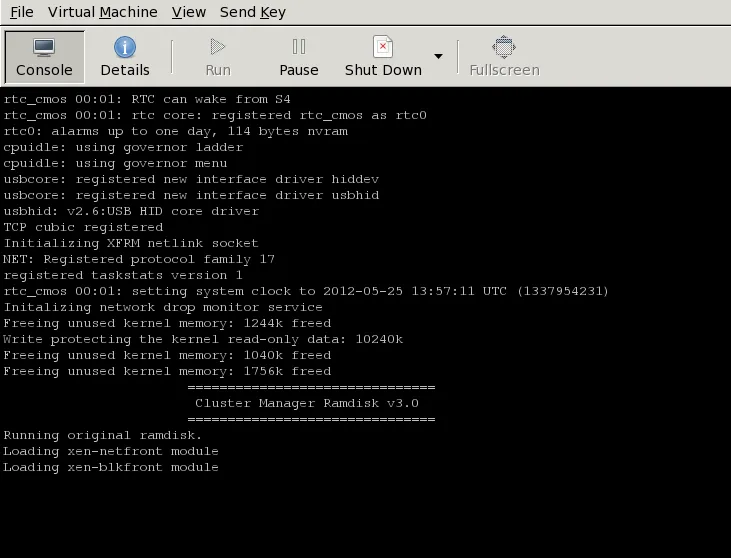
Figure 16.3: Remote Console Continues During SOL Access During Physical Console Freeze
Finally, just before login is displayed, the physical console once more (figure 16.4) starts to display what is on the remote console (figure 16.5).
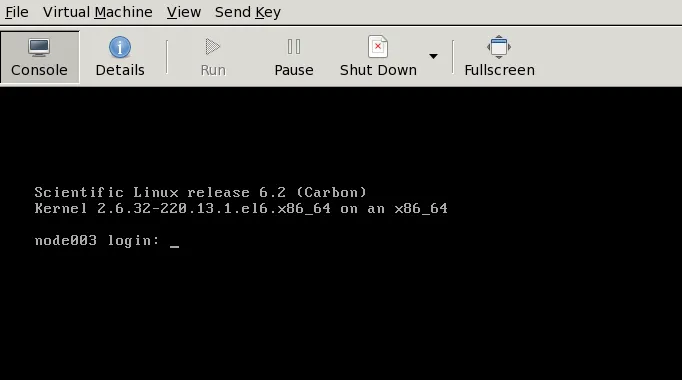
Figure 16.4: Physical Console Resumes After Freeze During SOL Access
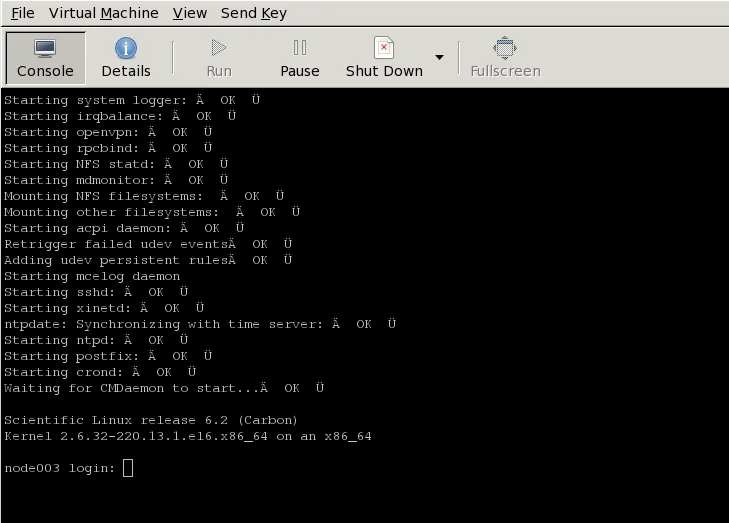
Figure 16.5: Remote Console End Display After Boot
The physical console thus misses displaying several parts of the boot progress.
Exit sequence: The conman console viewer session can be exited with the sequence &. (the last entry in the sequence being a period). Strictly speaking, the &. sequence must actually be preceded by an <ENTER>.
The console buffer issue when accessing the remote console: A feature of SOL console clients is that the administrator is not presented with any text prompt from the node that is being accessed. This is useful in some cases, and can be a problem in others.
An example of the issue is the case where the administrator has already logged into the console and typed in a command in the console shell, but has no intention of pressing the <ENTER> key until some other tasks are first carried out. If the connection breaks at this point, then the command typed in is held in the console shell command buffer, but is not displayed when a remote serial connection is re-established to the console—the previously entered text is invisible to the client making the connection. A subsequent <ENTER> would then attempt to execute the command. This is why an <ENTER> is not sent as the last key sequence during automated SOL access, and it is left to the administrator to enter the appropriate key strokes.
To avoid commands in the console shell buffer inadvertently being run when taking over the console remotely, the administrator can start the session with a <CTRL>-u to clear out text in the shell before pressing <ENTER>.
16.8 Managing Raw Monitoring Data
From NVIDIA Base Command Manager version 8.0 onward, the raw monitoring data values are stored as binary data under /var/spool/cmd/monitoring instead of as binary data within MySQL or MariaDB. The reason behind this change was to significantly increase performance. The monitoring subsystem in BCM was thoroughly rewritten for this change.
16.8.1 Monitoring Subsystem Disk Usage With The monitoringinfo --storage Option
The disk usage by the monitoring subsystem can be viewed using the monitoringinfo command with the --storage option:
Example
The Engine component stores the raw monitoring data. It grows in 1GB increments each time its usage reaches 100%.
16.8.2 Estimating The Required Size Of The Storage Device
The final size of the monitoring directory can be estimated with the script cm-monitoring-disk-usage.py.
The size estimate assumes that there are no changes in configuration, such as enabling advanced metrics for jobs, or increasing the maximum number of labeled entities, or large numbers of running jobs.
The size estimate value is the maximum value it will take if the cluster runs forever. It is therefore an over-estimate in practice.
Example
16.8.3 Moving Monitoring Data Elsewhere
A procedure to move monitoring data from the default /var/spool/cmd/monitoring/ directory to a new directory is as follows:
-
A new directory in which monitoring should be saved is picked.
The block storage device for the directory should not be a shared DAS (Direct Attached Storage, such as a locally attached drive) or a NAS (Network Attached Storage, such as NFS or Lustre which work over a network connection). That is because if there is an outage, then:
-
If such a DAS storage becomes unavailable at some time, then CMDaemon assumes that no monitoring data values exist, and creates an empty data file on the local storage. If the DAS storage comes back and is mounted again, then it hides the underlying files, which would lead to discontinuous values and related issues.
-
If such a NAS storage is used, then an outage of the NAS can make CMDaemon unresponsive as it waits for input and output. In addition, when CMDaemon starts with a NAS storage, and if the NAS is unavailable for some reason, then an inappropriate mount may happen as in the DAS storage case, leading to discontinuous values and related issues.
-
-
The
MonitoringPathdirective (here) is given the new directory as its value. -
CMDaemon is stopped (
systemctl stop cmd). -
The
/var/spool/cmd/monitoring/directory is moved to the new directory. -
CMDaemon is restarted (
systemctl start cmd).
16.8.4 Reducing Monitoring Data By Reducing Samples
Options to reduce the amount of monitoring data gathered include reducing the Maximal age and Maximal samples for data producers (section 12.4.1) to smaller, but still non-zero values. After re-initializing the monitoring data collection, so that existing data is removed, the values reported by the cm-monitoring-disk-usage.py script (section 16.8.2) then show the new storage estimates for the monitoring data.
16.8.5 Deleting All Monitoring Data
A procedure to delete all monitoring data from the default /var/spool/cmd/monitoring/ directory is as follows:
-
The CMDaemon service on all nodes can be stopped by running the following on the active head node:
pdsh -g all systemctl stop cmd -
On both head nodes, the monitoring data is removed with:
-
On both head nodes, the associated database tables for the CMDaemon user are cleared with a MySQL session run on each head node.
The CMDaemon database user is
cmdaemonby default, but the value can be checked with a grep on thecmd.conffile:Similarly, the password for the
cmdaemonuser can be found with a grep as follows:The monitoring measurables can then be deleted by running a session on each head node as follows:
Example
-
On both head nodes, CMDaemon can then be restarted with:
systemctl start cmd -
On the active head node, after the command:
cmha status
shows all isOK, the CMDaemon service can be started on all regular nodes again. TheOKstate should be achieved in about 15 seconds.The CMDaemon service is started with, for example:
pdsh -g computenode systemctl start cmd
16.9 Node Replacement
To replace an existing node with a new node, the node information can be updated via cmsh.
If the new MAC address is known, then it can set that for the node. If the MAC address is not known, then the existing entry can be cleared.
If the MAC address is not known ahead of time, then the node name for the machine should be selected when it is provisioning for the first time. The steps for a new node node031 would be as follows:
Example
If the disk is the same size as the one that is being replaced, and everything else matches up, then this should be all that needs to be done
There is more information on the node installing system in section 5.4. How to add a large number of nodes at a time efficiently is described in that section. The methods used can include the newnodes command of cmsh (here) and the Nodes Identification resource of Base View (here).
16.10 Ansible And NVIDIA Base Command Manager
This section describes using Ansible with BCM. Using Ansible to install NVIDIA Base Command Manager is described in section 3.4 of the Installation Manual.
16.10.1 An Overview Of Ansible
Ansible is a popular automated configuration management software.
The BCM administrator is expected to have some experience already with Ansible. The basic concepts are covered in the official Ansible documentation at https://docs.ansible.com/ansible/latest/user_guide/basic_concepts.html, and further details are accessible from that site too.
As a reminder:
-
Ansible is designed to administer groups of machines from an inventory of machines.
-
An Ansible module is code, usually in Python, that is executed by Ansible to carry out Ansible tasks, usually on a remote node. The module returns values.
-
An Ansible playbook is a YAML file. The file declares a configuration that is to be executed (“the playbook is followed”) on selected machines. The execution is usually carried out over SSH, by placing modules on the remote machine.
-
Traditionally, official Ansible content was obtained as a part of milestone releases of Ansible Engine, (the Red Hat version of Ansible for the enterprise).
-
Since Ansible version 2.10, the official way to distribute content is via Ansible content collections. Collections are composed of Ansible playbooks, modules, module utilities and plugins. The collection is a formatted set of tools used to achieve automation with Ansible.
-
The official Ansible list of collections is at https://docs.ansible.com/ansible/latest/collections/index.html#list-of-collections. At the time of writing of this section (March 2022) there were 100 collections.
-
Community-supported collections are also available, at
galaxy.ansible.com.
16.10.1.1 Picking Up The BCM Ansible Collections
In particular, the web interface at https://galaxy.ansible.com/brightcomputing shows the updated list of BCM Ansible collections.
From version 9.1 onward of BCM, the BCM Ansible collection naming scheme has been changed so that the name now indicates the BCM version number. This now makes it simpler for the cluster administrator to choose the right Ansible collection.
For example, to install the latest version of the BCM Ansible collection for a NVIDIA Base Command Manager 10 cluster, the following command can now be run:
16.10.2 A Simple Playbook Example
In this section, a playbook from the BCM collection is run.
16.10.2.1 Preparations
To start with, Python is loaded, and Ansible installed:
16.10.2.2 Running A Simple Playbook
The directory /cm/local/examples/cmd/ansible has several BCM Ansible playbook examples.
The Ansible playbook to add a user can be run. The playbook is simply:
The latest NVIDIA Base Command Manager 10-compatible version of the BCM Ansible collection is at https://galaxy.ansible.com/brightcomputing/bcm100. It can be installed with the ansible-galaxy tool from the galaxy.ansible.com repository directly with:
16.10.2.3 Documentation For The BCM Collection
The brightcomputing.bcm100 documentation for modules can be explored using ansible-doc in the usual way, using the namespace. For example, for the user module in the brightcomputing.bcm100 namespace, this would be (output truncated):
The list of modules in the brightcomputing.bcm100 collection can be viewed with ansible-doc -l brightcomputing.bcm100.
Almost all the modules are available as a pair. For such a pair, one module out of the pair is to query the attributes of the entity being dealt with by the pair, while the other module is to set the attributes.
16.10.2.4 Running The Ansible Playbook
The add-user playbook can now be run with:
Example
The YAML code shows a user should be created after execution of the playbook. If unsure, the playbook can be run again. This should do no harm since well-formed playbooks are idempotent.
The new list of users can be verified with:
16.10.3 An Intermediate Playbook Example: Setting Up A Cluster For Demonstration Purposes
The simple playbook in the preceding section has the advantage of being a quick way for the administrator to be reasonably sure that Ansible is running as it should be.
An administrator who is intending to use Ansible is typically going to need to be more familiar with how Ansible playbooks can be used to define BCM infrastructure.
This section (16.10.3) and the next (16.10.4) aim to provide this familiarity. They should be a guide for users when they go about defining their own BCM infrastructure with Ansible, as well as a model for how to carry out Ansible tasks for BCM.
The example session in this section (section 16.10.3) is about a cluster administrator who wishes to prepare a playbook so that the default image is updated, and then have the cluster set up some new objects with default values. This is useful for testing out changes in the new objects. The idea being that the administrator has up-to-date nodes with default settings in the new objects, and which work to begin with. That makes the new objects suitable for demonstrations and for making changes to see how it affects the standard settings. It also provides the convenience of being able to refer back to the working defaults in the original objects if things go wrong with the demonstration objects.
The tasks to bring the cluster to the “demo” state are described next.
16.10.3.1 Cloning The Image
The administrator now clones the default image. The idea being that further changes can be made on the cloned image later on, with the default image instance remaining unchanged, and available for comparison.
The YAML example clone-software-image.yaml provided with BCM can be displayed and used to carry out the cloning as shown in the following session:
16.10.3.2 Cloning The Category
A clone of the default category, democategory, can be built with the brightcomputing.bcm100.category module:
16.10.3.3 Setting The Software Image In The Cloned Category To Be The Cloned Image
The software image in the cloned category can then be set to the cloned-image from earlier with:
16.10.3.4 Setting The Regular Nodes To Be In The Cloned Category
The regular nodes node001 and node002 can be placed in the cloned category with:
Without using Ansible, and using cmsh directly instead, the preceding placement could be carried out with:
16.10.4 A More Complicated Playbook Example: Creating An Edge Site And Related Properties
This section provides a more complicated BCM Ansible collection-based playbook, and elaborates upon how it is used.
The collection is first shown as a whole in the following section. Then less obvious portions from it are explained, with the help of number labels, in the sections after that, starting here.
16.10.4.1 The Collection
The full collection is as follows:
16.10.4.2 Topmost Part
-
This is a standard Ansible playbook configuration item. It defines the group or host that the playbook is run on.
-
Fact gathering is skipped here, because there is no need to use any facts that Ansible usually gathers pre-playbook-run. As a bonus, skipping it makes execution faster.
16.10.4.3 Pre_tasks Part
The pre_tasks section could have been made a part of the tasks section. However, making it a separate section has the benefit of separating real action from simple fact definition:
-
In the preceding code, the Ansible templating capability is used to get the list of
compute_nodesfor the site that is to be created. The hostname attribute is extracted from every element of thenodesvariable and then transformed into a list, and assigned to thesite_compute_nodesvariable. -
The list that is created has all the nodes that are part of the site, which means the compute nodes as well as the director.
16.10.4.4 The Tasks Part
External and internal networks configuration: The tasks section starts with networking definitions (tagged here with (1) and (2)). These are the external and internal networks that are needed for the edge site that is to be created.
The possible values for each entity attribute can be seen by running the ansible-doc command:
Example
Director creation: A category must exist for the edge director, or must be created before the director can be created. The following snippet takes care of that:
-
The
cloneFromattribute is used to create the new software image from the existing one, to avoid copying over all the values that are part of the original image. Thedefault-imageis used here, since it is guaranteed to be defined in a new cluster.The
cloneFromattribute only takes effect when the resource is not defined. This means that if the software image is already present, then usingcloneFromhas no effect. Removing the image allows it to be re-created again using the cloneFrom attribute. -
The declared software image (here it is
my-software-image) is then used to define the director category. -
The edge directory category attributes in the snippet are standard values that are normally assigned to a director category that is to be used by director nodes.
-
The default value for
stateispresent, so the task has the same behavior if thestatefield is left out.
Values for the director node: The edge director node values can now be set
In the preceding snippet, values are set for the physical node so that it functions correctly as a director on an edge site.
- The director, just like the edge nodes, is just a physical node, with the role
EdgeDirectorRoleassigned to it, along with other relevant roles.
The edge (compute) nodes definition:
- In the following snippet, the looping mechanism defines a physical node that corresponds to each declared compute node.
Each edge node belongs to the correct network.
Edge site object creation: The last part of the playbook creates the edge site object.
The site_nodes variable, defined by the set_fact task, is assigned to the nodes attribute of an edge_site action.
Running this playbook on a fresh cluster should be enough to create a new edge site with the declared properties, even if the nodes are not physically present.
The state of the edge site can be checked with cmsh queries. It should be noted that the image creation step may take a few minutes, depending on how big default-image is.