

Monitoring: Job Accounting
14.1 Introduction
In addition to the concept of metrics for devices (Chapter 12), or the concept of metrics for jobs (Chapter 13), there is also the concept of metrics gathered for a classifier entity, for resources used during jobs. This last one is typically metrics gathered per user, for resources used during jobs.
Classifier-based metrics gathering for jobs can use classification done with PromQL queries on labeled entities (sections 14.2- 14.8), or it can be done with CMDaemon database queries (section 14.9).
Classifier-based metrics gathering for jobs is more conveniently called job accounting, partly because it ressembles the idea of an accountant watching over users to track their resource use while they carry out their jobs.
The concept, implementation, analysis, and visualization of job accounting are described in this Chapter.
For example, in BCM jobs resource usage can be presented per user. Thus, if there are jobs in a queue that are being processed, then the jobs can be listed:
Example
The resource usage statistics gathered per user, for example for a user tim, can then be analyzed and visualized using the job accounting interface of Base View (section 14.5).
14.2 Labeled Entities
In job accounting, job metrics during a run are tagged with extra labels, such as the job ID, host name, and the user running the job. The modified job metrics object that is tagged in this way then becomes a job accounting-related object, called a labeled entity.
Administrators interested in using job accounting can simply skip ahead and start reading about the Base View job accounting interface in 14.5, and just explore it directly. Those who would prefer some background on how job accounting is integrated with BCM and PromQL, can continue reading this section (14.2) and the next one ( 14.3).
14.2.1 Dataproducers For Labeled Entities
To view labeled entities in cmsh, the path to the labeledentity submode is:
cmsh > monitoring > labeledentity
The labeledentity submode allows job accounting-related objects, called labeled entities, to be viewed. The labels are in the form <key>="<value>”, for example: hostname="node001", or user="alice".
The default, existing labeled entities are created from the built-in JobSampler and JobMetadataSampler dataproducers when a job is run. Custom samplers, of type prometheus, can be used to create further custom labeled entities. A custom sampler dataproducer, for example customsamplerextras, can be created from the monitoring setup mode of cmsh as follows:
Example
The customsamplerextras dataproducer can now have its properties configured and committed as described in section 12.5.4.
14.2.2 PromQL And Labeled Entities
Labeled entities can be used by administrators to help create and debug job-related queries in the Prometheus query language, PromQL. PromQL is a part of the Prometheus monitoring and alerting toolkit (https://prometheus.io). Basic PromQL documentation is available at https://prometheus.io/docs/prometheus/latest/querying/basics/.
14.2.3 Job IDs And Labeled Entities
Each job ID has a number of labeled entities associated with it. Since the number of labeled entities scales with the number of nodes and jobs, the number of labeled entities can be very large. Therefore, if examining these entities using the CMDaemon front ends such as cmsh or Base View, then filtering or sorting the output is useful. For example, labeled entities associated with node001, and with the JobSampler data producer, and with job 1329 from the preceding output, could be viewed by filtering the full list of labeled entities as follows (output truncated and ellipsized):
Example
14.2.4 Measurables And Labeled Entities
The measurables (metrics) for an entity can be listed with the measurables (or metrics) command. For a particular entity with a JobSampler property and index value of 45447, the command can be run as follows:
In the labeledentity mode of cmsh, the measurables listing command, which lists the measurables for labeled entities, should not be confused with the measurable navigation command, which brings the administrator to the measurable submode under the main monitoring mode.
14.3 PromQL Queries
14.3.1 The Default PromQL Queries…
By default there are several predefined PromQL queries already available. The queries can be listed from the query submode:
Example
The queries can be conceptually divided into their classes, which at the time of writing (May 2023) are: accounting, ceph, cluster, container, jobs, kubernetes, along with various drilldown levels which classifies the queries according to various groups. The grouping for drilldown levels can be confusing, and the drilldownoverview command (section 14.8.1) can be helpful in clarifying the query intention for these.
By default, queries of all classes are sampled over a period, except for the accounting and drilldown metrics.
A metric in the accounting class query is evaluated (interpolated) from existing values. These existing values are raw samples gathered over the period, up to the time when the query is evaluated.
14.3.2 …And A Short Description Of Them
The description of each query can be listed with a little cmsh and unix text utility juggling:
Example
This yields the following table:
The listings give an idea of what the query does.
For example, for the users_job_cpu_usage utility, the idea is that it shows the CPU usage for jobs for each user.
14.3.3 Modifying The Default PromQL Query Properties
The properties of a particular query can be shown and modified:
Example
The PromQL query code itself is typically a few lines long, and can also be viewed and modified using get, and set.
14.3.4 An Example PromQL Query, Properties, And Disassembly
The users_job_cpu_usage query is a standard predefined query, and is used as an example here. The query shows the CPU usage by a user around the time the sample was taken. It is sometimes called an “instantaneous” value. However it is not that instantaneous, because its value is calculated by taking samples of the CPU usage over the last 10 minutes of the job run rather than at the query time. The code for the query can be viewed with:
Example
For those unfamiliar with PromQL, some disassembly of the users_job_cpu_usage query is helpful.
Terminology used by PromQL and BCM, for the pieces used to build the query, is listed in the following table:
As was mentioned before: job account metrics, unlike traditional metrics, are not directly associated with the device-related objects. For such metrics, the monitoring data command dumpmonitoringdata is therefore not accessed in cmsh from device mode or category mode.
Instead, the Prometheus metric job_cpuacct_usage_seconds, for example, is accessed via the labeledentities mode.
The properties and interpolated values at a particular instant of time for the metric can be accessed via an instantquery such as (some output excised for clarity):
Example
The properties and interpolated values of the metric over a range of time can be accessed via a rangequery such as (some output excised for clarity):
Example
The association of the instantquery and rangequery output with job accounts is because its dataproducer is JobSampler.
Further options for the instantquery and rangequery commands can be found in their help texts within cmsh.
14.3.5 Aside: Getting Raw Values For A Prometheus Class Metric
The PromQL language is aimed at providing an overall view of jobs and resource usage. The actual individual raw values that Prometheus metrics are built on—the entries in the Time Series Database (TSDB)—are not regarded as being important for the end user. The emphasis in PromQL is on seeing the values as seen by statistical reworking.
This section, which is about the raw TSDB values, is thus provided as background information for administrators who would anyway like to see what the raw values look like.
Raw values of the metric for a job ID can be accessed by using the index of the labeled identity that is associated with that job ID. For example, job ID 624 can have its index found with some grepping (some output elided or excised for clarity):
Example
The index for the job ID 624 is 4060. The job ID can be used by the dumpmonitoringdata command to show the series raw values along with their time stamps:
Example
These raw values are the values that are used for interpolation during PromQL queries.
The label names for job samples can be seen using the index:
14.3.6 …An Example PromQL Query, Properties, And Disassembly (Continued)
Getting back from the aside about raw values, and continuing on with the example PromQL query from the start of this section (here), the query code for the query users_job_cpu_usage was:
With the necessary background explanations having been carried out, the disassembly of this query can now be done:
The core of the query is built around the job sampler metric job_cpuacct_usage_seconds.
The irate measurement in this case calculates the rate of change based on the last two most recent values in the Prometheus range vector.
The Prometheus range vector is formed from the Prometheus instant query by using the square brackets with a time value enclosed (job_cpuacct_usage_seconds[10m]). The Prometheus instant query is, as the terminology table earlier pointed out, the Prometheus version of the job sampler metric.
Getting back to the range vector, a range vector in general is a series of values formed from the corresponding Prometheus instant query. With the instant query being job_cpuacct_usage_seconds here, the range vector is formed over a span of 10 minutes.
After the irate function has taken the average, the resultant is what in PromQL is called an instant vector value. This consists of data in the form {CPU seconds consumed during period, timestamp associated with time period sample}. The instant vector value is then joined against each vector element of the pair job_id, hostname to generate the labeled identifier for the job running on the node. The group_right of the result uses the wlm, job_id and hostname as the leading labels in the label identifiers. The job_metadata_is_running function means that values are generated only while job_metadata is running. The sum by(user) function means that the metric is aggregated over all raw data and grouped by user.
Visualisation based on the result is most easily carried out by plotting job CPU usage for each user against time in the period specified, which can be done in a more user-friendly way with Base View.
The users_job_wall_clock_seconds query, is similar, and can be used to plot wall clock seconds consumed by a user over the last period:
Example
Predefined queries can be executed in the labeledentity mode with the -q option:
If no period is specified with the -p|--parameter option, then the default period is 1w as the output indicates.
If Base View is used instead of cmsh, then Prometheus queries can be selected via the navigation path:
Menu bar > Accounting and reporting icon > Monitoring > PromQL Queries > Show/Hide query selection
For example the users_job_wall_clock_seconds query can be selected, its query parameter can be set to 1 week, the change saved, and the query run.
14.4 Parameterized PromQL Queries
It is also possible to create parameterized queries using the <key>="<value>” labels in the labeled entities mode.
This is handy for running the same query with different parameters or other drilldown options.
For example, an existing unparameterized query
users_job_wall_clock_seconds
can be used as a starting point:
For convenience, the original query can be cloned over to a new, soon-to-be-parameterized, query called
users_job_wall_clock_per_account_seconds
using
The idea is that Slurm accounts become a parameter in the new query.
Parameter fields can now be added to the query. All fields in users_job_wall_clock_per_account_seconds can be replaced verbatim. So any part of the query can be made into a parameter.
Some further adjustments are:
The new query can then be run by the administrator on demand.
The original query sums over all accounts:
The parameterized query lets the administrator run the same query for specific accounts.
If Slurm accounts for physics phys and mathematics math have been created with
then account=phys and account=math, are the <key>="<value>” format options. The query can then be run with the -p|--parameter option as follows:
14.4.1 Two Job GPU Metrics Used In PromQL Queries
There are two important job GPU metrics (section G.1.8.4) that are used in several PromQL queries. These two are:
-
The
job_gpu_utilizationGPU metric:This is based on the
gpu_utilizationmetric collected on GPU nodes via the DCGM library. The values it takes are in the interval [0, 1]. In DCGM the name of the metric isDCGM_FI_DEV_GPU_UTIL, and it represents the total GPU utilization.The
gpu_utilizationmetric values collected on the GPU are mapped to the job that uses the GPU at the time of the collection.job_gpu_utilizationis a labeled entity, tagged with a label representing a job. This allows the person carrying out PromQL queries to use such parameters asjob id,job user, and so on. It is assumed that one GPU is used only by processes of a single job, but there can be several GPUs, each used by different jobs simultaneously. Each of the GPUs on the node has independent values ofjob_gpu_utilization.One example of a PromQL query that uses the
job_gpu_utilizationGPU metric isjob_names_usage_gpu, which has the query expansion: -
The
job_gpu_wastedGPU metric:The
job_gpu_wastedmetric is a labeled entity (tagged metric) and is based on thejob_gpu_utilizationmetric. Thejob_gpu_wastedmetric shows what fraction, out of 1, of the GPUs on the node were unused by a job despite being allocated by the workload manager for that job. It can take values in the interval [0, 1].It is calculated as follows:
1 - (all_gpus_utilization / requested_gpus)
where
-
all_gpus_utilizationis the average utilization for allgpu_utilizationmetric values collected in the interval [-1; +1] from the time of the metric calculation for all GPUs requested by the job on the node -
requested_gpusis the number of GPUs allocated for the job in the workload manager
For example:
If a job requests two GPUs on a node, and the job does not use any of those GPUs at all, then
job_gpu_wastedtakes the value1.If the same job uses half of the first GPU and does not use the second one, then the metric value is calculated as:
1 - ((0.5 + 0) / 2) = 0.75
One example of a PromQL query that uses
job_gpu_wastedisjobs_wasted_allocated_gpus, which has the query expansion: -
14.5 Job Accounting In Base View
Job accounting in Base View is designed to present accounts of jobs without having to construct command lines with syntaxes that can be tricky to deal with. One useful output format is as basic Excel-format spreadsheets.
Job accounting can be viewed within Base View’s accounting mode by clicking on the calculator icon ( ) at the top right hand corner of the Base View standard display (figure 12.5).
By default, job accounting opens up with a dashboard report called K8S Container Metrics, which provides some Kubernetes container metrics panels (figure 14.1).
If Kubernetes containers have been running jobs that have been sampled, then pre-selected container-related queries can be run from these panels, and the data samples can be displayed as tables or plots. If Kubernetes containers have not been running jobs, then the pre-selected container-related queries have no data samples to display (figure 14.1):
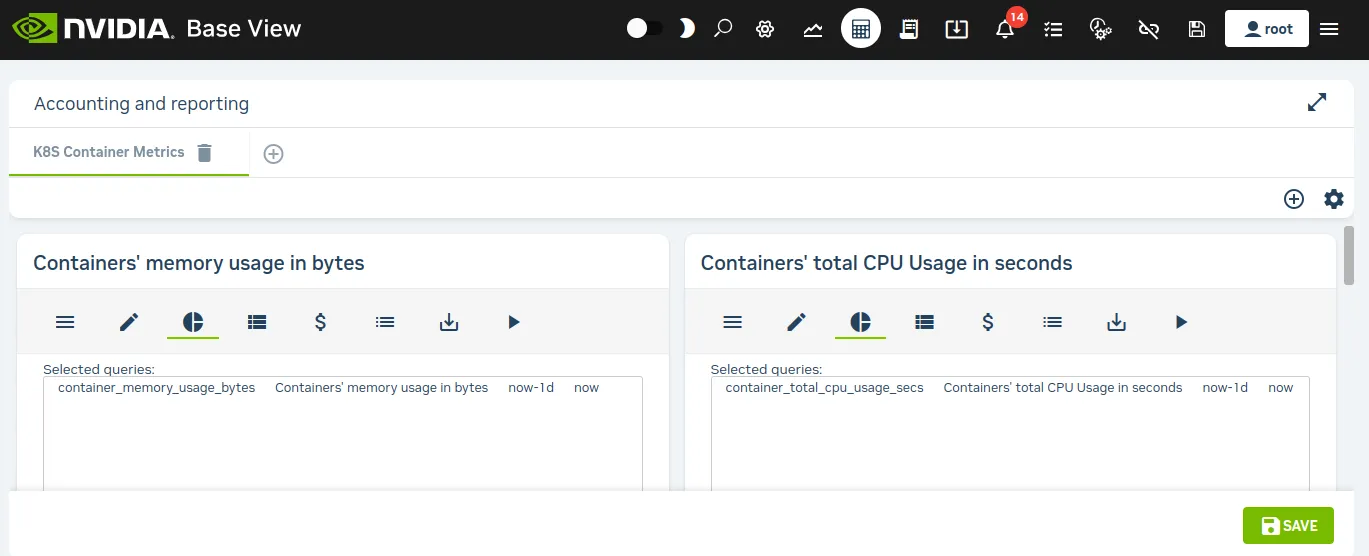
Figure 14.1: Job accounting: K8S container metrics panels
If the ⊕ icon next to the K8S Container Metrics tab is clicked, then a new dashboard report can be created. With the default options it displays a dashboard report with n accounting panel that has some pre-selected queries related to user jobs over the last period (figure 14.2):
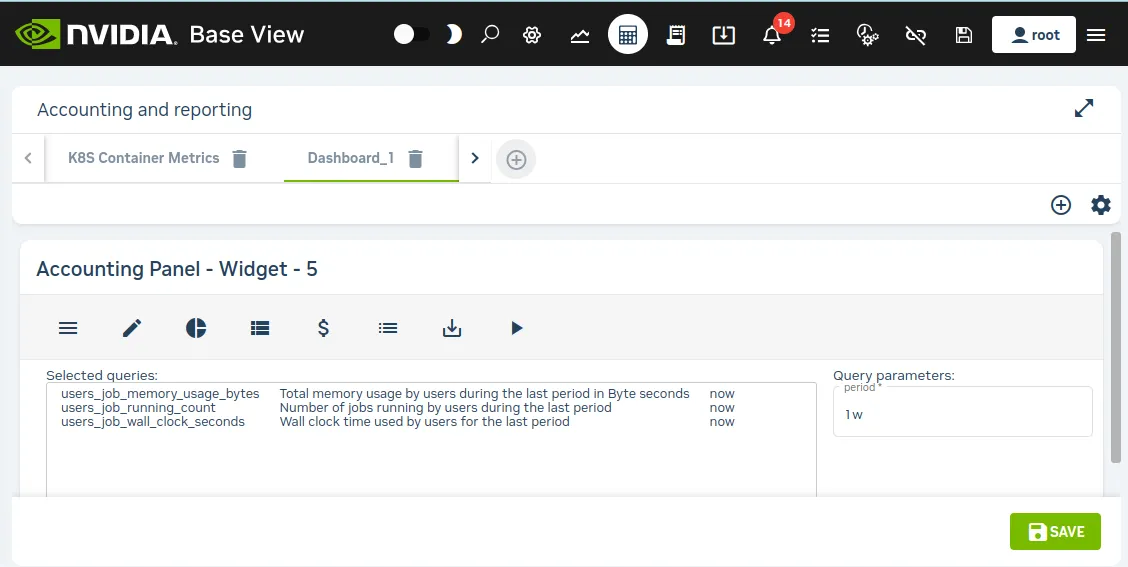
Figure 14.2: Job Accounting: Panel
14.5.1 Management And Use Of The Accounting Panel
The following description is illustrated by figure 14.2:
A Base View job accounting dashboard is made up of collections of Base View job accounting panels.
-
To add a new dashboard, the ⊕ button can be clicked in the dashboard menu bar. An existing dashboard can be removed by clicking on the trash icon in the menu bar associated with that existing dashboard.
-
To add a new panel, the ⊕ button can be clicked in the panel menu bar. An existing panel can be removed by clicking on the trash icon in the menu bar associated with that existing panel.
Job accounting is intended to present accounts of jobs. So, when a new dashboard is created, a dialog asks for inputs such as the time period over which the report is to be carried out, and the report name.
When the new dashboard is created, several predefined PromQL queries are selected by default. These can be modified using selection checkboxes within the query list. The query list can be shown or hidden by clicking on the Show/hide query list icon ( ).
).
By default, when the new dashboard is saved, the selected queries are run and a table can be seen of the results.
How to run and view PromQL queries in the Base View accounting panel is described in this section (14.5). The PromQL query specification itself in Base View is described in more detail in section 14.6.
14.5.1.1 PromQL Queries Input In The Accounting Panel
The PromQL queries (here) that are to be used can be managed in the query list associated with the Show/hide query list icon ().
Checkboxes can be ticked to select multiple queries, as long as the query classes allow it. The class restrictions are dynamically enforced by Base View by graying out the queries that cannot be checkboxed as query checkboxes are ticked.
To tick a new class of query in the same panel, all the queries that do not match the new class must first be unticked.
PromQL queries can by run in two modes: basic or advanced, by toggling the advanced icon ( ) of figure 14.2. In basic mode, several instant queries can be run. In advanced mode, only one instant query or a single range query can be run per panel.
14.5.1.2 Display Of The Results Of PromQL Query Runs In The Accounting Panel: Rows, Pie Charts, And Plots
The display of a run result can be managed by clicking on the Show/Hide table icon ( ), or clicking on the Show/Hide chart icon. (
 ).
).
- The table option toggles the display of the result as rows of data per classifier (user) (figure 14.3):
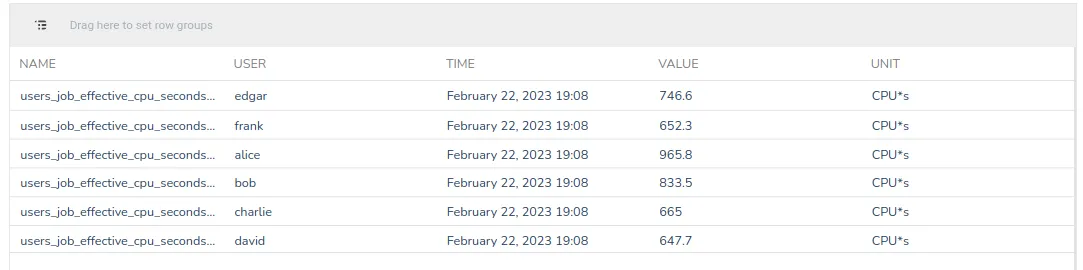
Figure 14.3: Job accounting: PromQL query instant mode table display
The classifier can be a user, a cluster, an account, or any other key in the labeled entity.
-
The chart option toggle toggles the display of the result as a chart.
- For a PromQL instant mode query, the chart can be a pie or doughnut chart (figure 14.4), or an x-y plot if the x-axis values are time.
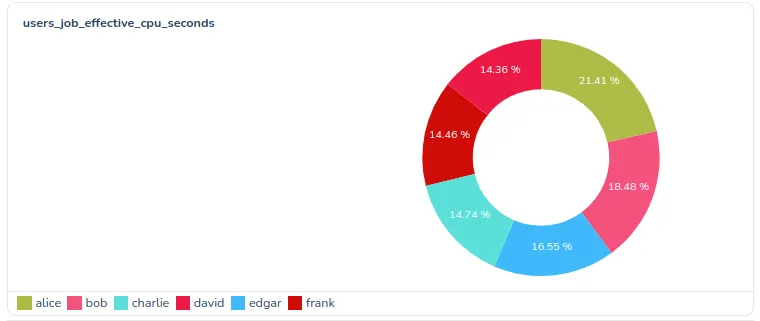
Figure 14.4: Job accounting: PromQL query instant mode pie chart display
The pie chart shows how much of the resource is used at that instant per user, per cluster, per account, or per other classifier.
How much of the resource is used can be displayed upon the pie chart in figures, either as the amount itself, or as a percentage of the total classifier amount.
The pie chart can display classifiers using a maximum of 10 slices, by default. If needed, the right amount of the smallest extra slices are grouped together as one slice, others, so that the maximum number is not exceeded
- For a PromQL range mode query, the chart is an x-y plot, with the x-axis being time (figure 14.5):
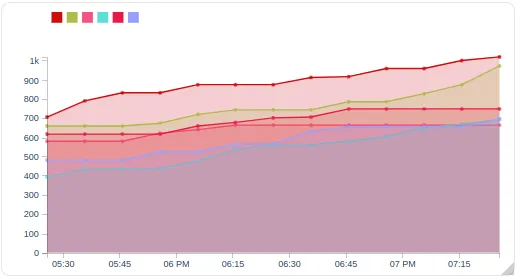
Figure 14.5: Job accounting: PromQL query instant mode x-y plot display
To have it display, the plot requires that
-
the advanced mode (
) be active -
the chart mode (
) be active -
the range query mode (
 ) be active
 -
the query state be saved (
 ), and then run (
 )
)
The plot shows resource use versus time. The plot can be per user, cluster, account, or other classifier.
A particular user or other classifier can be highlighted on the plot by placing the mouse pointer over the appropriate legend color icon.
How Base View is used to take PromQL query run inputs, and present PromQL query run results, has been covered in this section without going into much detail on PromQL specification itself for the run. PromQL specification is covered in more detail in the next section.
14.6 PromQL Query Modes And Specification In Base View
The advanced mode of Base View’s PromQL query mode specification is essentially a superset of the basic mode specification. The options that are described next for advanced mode therefore essentially include descriptions for the options for basic mode.
Advanced mode has the following options:
-
the
PromQL Query: Advanced mode allows the PromQL query itself to be edited in an editing box. -
the
Query Mode: This can be eitherInstant query mode( ), which deals with instant query types, or it can be
 Range query mode(), which deals with range query types. Only advanced mode handles both query modes—basic mode only deals with instant query mode.-
An
InstantQuery Type is executed at a particular instant. The instant at which it is executed isnowby default, but it can be set to a time earlier on. It outputs a single number for each entity (for example, a user). The number for the entity is the interpolated data value for the PromQL query at that time. The data values obtained by the PromQL query are typically a list of the data values for each entity (for example, a list of memory consumed for each user) over a preceding time period, where the preceding time period is defined in the PromQL query.The single number obtained by the query for each entity is typically used to summarize a value at that instant for that entity.
An example of the
Instantquery type isusers_job_waiting_seconds. This provides the total waiting time, in seconds, for each user, for the jobs the users ran during the past period. The past period is a time period, such as a week, defined for the query. Thus, the waiting time is caculated at the instant of time (Time) specified for the query, over the past period.If the
Timeparameter for the query is kept as the default value ofnow, then the query provides the latest value for each user.If the
Timeparameter is set to a time earlier on, then the query picks up the value at that earlier time in the past, or provides an interpolated value at that earlier time, for each user, and bases the calculation on a past period going further back from that earlier time.The display can be presented in rows of {user, value} pairs using the
Show/Hide tableicon (). The display can also be presented as a pie chart using the Show/Hide chartoption (). In the chart each slice is proportional to the value for the particular user, compared with the total value for all the users. Instead of a pie chart, the visualization can instead be a ring (or doughnut) chart, which is really just a pie chart with a hole in the centre.Basic mode does have an advantage over advanced mode in that it allows multiple instant queries to be run in an account pannel. Correspondingly, multiple results are displayed in the form of multiple sets of table entries and multiple pie charts. An advanced mode instant query run, in contrast, only allows one instant query to be run, with a corresponding result of one set of table entries, and one pie chart.
PromQL allows a variety of time specifications. The interface validates whatever the interface user types in, and there is a calendar widget that allows an absolute time to be specified. Some useful time specifications are:
Example
*The meaning can be understood by looking at how
/doperates. It rounds off the day by truncation, which in the case ofnow-0d/dmeans the midnight prior to now.
**Similarly, yesterday’s midnight is the midnight immediately prior to 24 hours ago.The time units for PromQL are (https://prometheus.io/docs/prometheus/latest/querying/basics/#range-vector-selectors):
-
s- seconds -
m- minutes -
h- hour -
d- day -
w- week -
M- month (31 days).Mis not a PromQL unit, so it cannot be used inside a query. But it is a handy alias in BCM for an invariant time of 31 days. -
y- year
The
-operator in Prometheus is an offset operator, used only afternowin the time specification field. The/<time unit> syntax implies a start at that unit of time.Thus if, for example,
now-1d/dis set as the end time, then when the query runs, it picks up the values at “yesterday’s midnight.” For each user, the value is the number of seconds the job of the user was in a wait state for the week prior to yesterday’s midnight. It rounds off the day by truncation, which in the case ofnow-1d/dmeans the midnight prior to 24 hours ago. Varying the user means that the number of seconds varies accordingly.The results of a run can be
-
displayed in rows as values in Base View itself (figure 14.3)
-
downloaded as a CSV file
-
downloaded as an Excel spreadsheet.
The last two options are convenient for plotting graphs that are more sophisticated than what Base View offers.
-
-
A
RangeQuery TypeThe
Rangequery mode can only be accessed from advanced mode, and allows the range query type to be executed.This range query type is executed over a time period. It fetches a value for each interval within that time range, and then plots these values.
An example of the
Rangequery type isusers_job_memory_usage_bytes. This fetches the total memory usage for jobs over intervals, grouped per user during that interval (figure 14.6). The query submitter can setStart timeandEnd timeparameters. However, very long ranges can be computationally expensive.
-
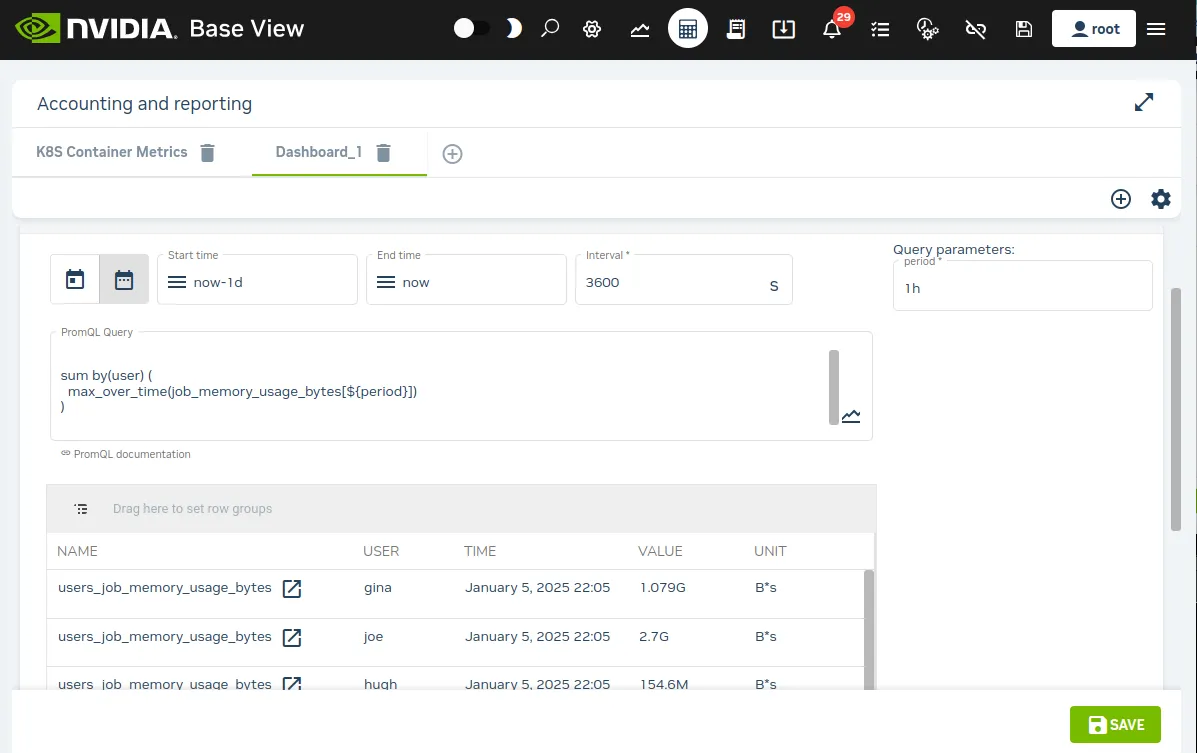
Figure 14.6: Job Accounting: User Values Over A Range
- the
Interval: The interval is the plot interval along the time axis. When editing a range query type, the interval for a range query run is set when theSavebutton is clicked. Lower numbers lead to smaller intervals, hence higher resolution and higher query execution times. A value of0means that a reasonable default interval is attempted. Choosing an interval that is less than the sampling time of the metric is a bit pointless, and tends to lead to data values that display non-smooth behaviour.
14.7 Access Control For Workload Accounting And Reporting
The ability to view jobs is controlled by four tokens defined in a user’s profile:
-
GET_JOB_TOKEN: Allows all running jobs to be seen. -
GET_OWN_JOB_TOKEN: Allows owned running jobs to be seen. -
GET_JOBINFO_TOKEN: Allows all cached historic and running jobs to be seen. -
GET_OWN_JOBINFO_TOKEN: Allows owned cached historic and running jobs to be seen.
To retrieve monitoring data for the job, the token PLOT_TOKEN must also be defined for the profile.
A job is always owned by the user that runs it. Ownership of a job can also be shared with other users by defining project managers. This establishes a 2-level hierarchy, with project managers above the subordinates, who are users that are assigned to the project manager. One or more accounts, can be assigned to project managers.
14.7.1 Defining Project Managers Using Internal User Management
Any user can be turned into a project manager. If the BCM LDAP server is being used, then the project manager can be configured via cmsh.
Example
alice can be made the project manager of bob and charlie. This allows her access to the job data of her subordinates:
Example
albert can be made the manager of the physics account. This gives him access to all jobs running under that account:
Both mechanisms, users and accounts, can be combined to provide access control.
Example
To limit access to jobs that are running under the physics account to a specific set of users:
14.7.2 Defining Project Managers Using External User Management
If an external user management server is used instead of the BCM LDAP server, then project managers cannot be defined in cmsh. Instead, a script has to be written that provides the definitions for project managers in the form of a JSON object.
The full path of the script, for example /path/to/the/script, has to be set as a value to the ProjectManagerScript parameter in cmd.conf. This is done by adding it to the AdvancedConfig directive (here):
Example
The directive becomes active after restarting CMDaemon.
An example of a project manager script can be found at /cm/local/apps/cmd/scripts/cm-project-managers.py. It gives users access to each other’s jobs if they share at least one group.
The easiest way to use the script is use a mapping to inform CMDaemon which of the other user’s jobs each user has access to.
Example
So if frank can access data belonging to bob and dennis, while bob can access data belonging to dennis, while dennis can only access his own data, then the project manager configurations can be set up as:
Account access control can also be included in the output of the script, by setting values for the users, accounts, and the boolean operator (and, or) options:
Example
After restarting CMDaemon, it automatically runs this script when committing a change for a device or data producer. It is also possible to manually trigger the script to be run on the active head, by executing:
The script must not take more than a few seconds to process.
14.7.2.1 Workaround For Project Manager Script That Takes Too Long
If the script takes longer to run, then it must be run outside of CMDaemon, and its output should be saved as a file. If the output file is located at /path/to/the/file, then its path can be set as an input to the ProjectManagerFile parameter in cmd.conf. This is done by adding it to the AdvancedConfig directive (here):
Example
The project manager definitions become active after CMDaemon is restarted.
14.8 Drilldown Queries For Workload Accounting And Reporting
Metrics can be classified in various ways. Common ways are by:
-
device: A typical hardware device is a node. Each node can then have its metrics, which are CPU usage, memory, storage, and other resource use, displayed over time. Device metrics are largely covered in this chapter in the sections up to and including section 12.8.
-
job: With this classifier, each job that is run by a workload manager can have its metrics, which are CPU usage, memory, storage and other resource use, displayed over time. Job metrics are covered in Chapter 13.
Other ways of classifying metrics are part of workload accounting. With workload accounting, a workload manager runs jobs, and a job metric can be classified by:
-
user
-
job (job ID)
-
account
-
job name
The classification can be carried out singly. However, it can also be carried out at the same time, like filters. For example:
-
each user could be classified for a particular job metric
or -
a particular user could be classified for a particular job metric
or -
a particular user could be classifed for a particular job metric for a particular job ID only
or -
a particular user could be classified for a particular job metric for that particular job ID only for a particular account only
A cluster administrator that uses several filters to get to the “bottom” of how resources are being used, functions in a manner reminiscent of someone drilling to the bottom to find something. This type of filtering is therefore called drilldown. Each filter corresponds to a level of drilldown.
Drilldown is a bit like how in cmsh the use of the filter command within jobs mode can narrow down what is displayed:
Example
except that in cmsh the value of the job metric is not specified or shown by the filter command.
Drilldown is also rather similar in concept to how pivot tables are used in Excel spreadsheets. Pivot tables are particular selections (like the filtered choices in drilldown). The selections are applied to a great deal of raw data. A function (like the metric in drilldown) is applied to the selection, to present the information more clearly to the end viewer.
In contrast with the filter output of cmsh, in Base View the job metric value is made visible in a table or in graphs over the period.
14.8.1 The drilldownoverview Command
The list of predefined drilldown queries of section 14.3.1 can be listed with the drilldownoverview command. This can be run from the query submode of the monitoring mode. The output, with some columns cut out for convenience, looks like:
Example
The queries have drilldown options. For example, the job_information_by_account:
14.9 The grid Command For Job Accounting
A way to carry out job accounting without relying on PromQL queries is the grid command of cmsh. The grid command can be accessed from within wlm mode for a workload manager. The command displays the nodes in a grid.
An example of grid output can be seen in the session here.
As seen in that output, the nodes are displayed in a sequence of rows. For each row, the following row of nodes has the same sequence of nodes, but after an interval of time. Each node in the grid is displayed as a colored block called a timeblock. The timeblock displays a value for the classifier entity that the grid command associates with that node. The value for the timeblock is indicated by either its color, or by text superimposed on that timeblock, or both.
14.9.1 The grid Command Help Text
The command options to grid can be looked up in the help text:
Example
The classifier entity shown by grid can be called its mode, and it can be set with the --mode option. By default the mode is set to used, which means the classifier entity value displayed for the node is either that it is being used to run a job, or not being used to run a job.
A help text to describe modes available for a timeblock can be seen with:
Example
14.9.2 Some grid Command Examples
With the grid command, the timeblock value is given a color, and can also be indicated by an associated text value.
14.9.2.1 Displaying Nodes Used
For example: over intervals of 10 minutes (600 seconds), from 28 hours ago to 27 hours ago, for nodes node001, node002, node003, the used mode for nodes can be displayed with the command:
Example
The --legend option provides a color legend after the display, and the --text option for this mode overwrites the timeblock with an associated value of 1.00000 or 0.000000.
The time specification is explained in detail in section 14.9.3.
14.9.2.2 Displaying Users Usage Of Nodes
Another example, which displays users that used the node the most, and their usage as a percentage, per timeblock of 600s, over a time from 5370 minutes in the past to 5350 minutes in the past:
The display percentage can be disabled with the --no-percent option.
14.9.2.3 Displaying Larger Numbers Of Nodes
For larger clusters, the administrator can view the grid output over a larger monitor, or over several monitors, and perhaps using higher resolutions to get a colour map. Figure 14.7 shows an output for 128 nodes:

Figure 14.7: Job Accounting: Grid account output for 128 nodes
The watch command of cmsh can be used to display updates as the cluster is used during the day, without requiring input from the cluster administrator. Patterns of use may be viewed in this manner.
For example, the black parts of node rows in figure 14.7 are a visual indication of times when those nodes were not used.
14.9.3 The grid Command Time Specification
The grid command time specification is identical to that of the dumpmonitoringdata command (section 12.6.4), except that dumpmonitoringdata has implicit mandatory arguments. The time specifications for grid are, on the other hand, done explicitly, and use the time options and arguments:
-
--before<end-time>and
-
--after<start-time>
The syntax for the time specifications of grid is also used by the statistics and filter commands.
The time options --after (mnemonic: aFTter=From Time) and --before (mnemonic: befOre=tO) can have their arguments specified as follows:
-
Fixed time format: The format for the times that make up the time pair can be:
-
[YY/MM/DD] HH:MM[:SS]
(If YY/MM/DD is used, then each time must be enclosed in double quotes) -
The unix epoch time (seconds since 00:00:00 1 January 1970)
-
-
now: For the--beforeoption, a value ofnowcan be set. The time at which thegridcommand is run is then used. -
Relative time format: One item in the time pair can be set to a fixed time format. The other item in the time pair can then have its time set relative to the fixed time item. The format for the non-fixed time item (the relative time item) can then be specified as follows:
-
For the <start-time>, a number prefixed with “-” is used. It indicates a time that much earlier than the fixed end time.
-
For the <end-time>, a number prefixed with “+” is used. It indicates a time that much later than the fixed start time.
-
The number values also have suffix values indicating the units of time, as seconds (
s), minutes (m), hours (h), or days (d).
The relative time format is summarized in the following table:
-
-
Both <start-time> and <end-time> can have their values prefixed with a “-”. In this case, the range over which the monitored values are seen is in the past, relative to the current time. If the end time for the range is specified as further in the past than the starting time, then the time values are swapped over so that the end time becomes more recent than the starting time.