


Save & Exit Tab#
Use the Left or Right arrow key to select the Save & Exit tab. Use the Up or Down arrow key to select an item, and then press Enter to select it.
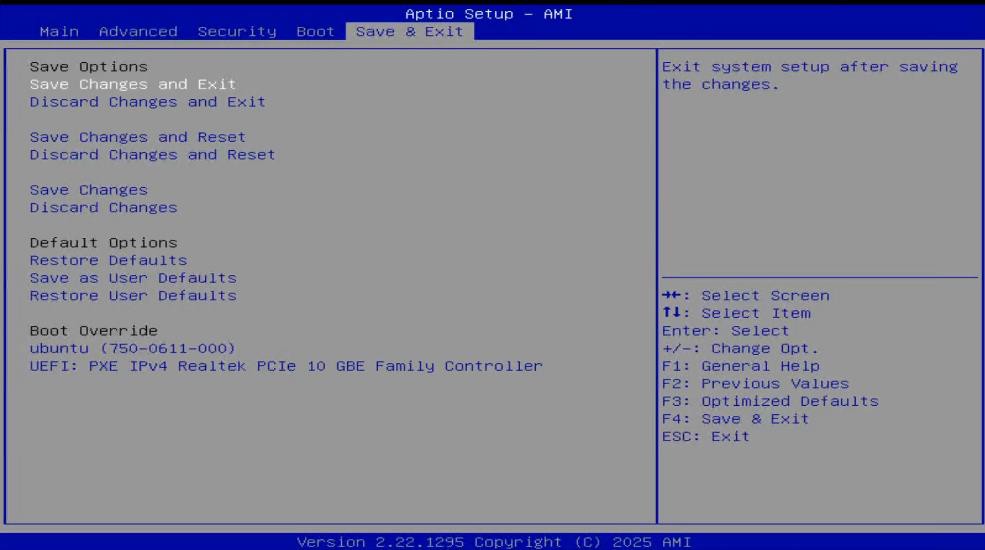
Save Options#
Location: Save & Exit → Save Options
Save Changes and Exit: Saves the changes and exits UEFI setup.
Discard Changes and Exit: Exits UEFI setup without saving changes.
Save Changes and Reset: Saves the changes and resets the system.
Save Changes: Saves the changes and remains in UEFI setup.
Discard Changes: Reverts the system to its previous state.
Discard Changes and Reset: Discards the changes and resets the system.
Note
UEFI is reset after Save Changes and Exit is selected.
Default Options#
Location: Save & Exit → Default Options
Restore Defaults: Restores factory settings, which are designed for maximum system stability rather than maximum performance.
Save as User Defaults: Saves the current UEFI settings as user defaults.
Restore User Defaults: Restores the previously saved user defaults.
Boot Override#
Location: Save & Exit → Boot Override
This section lists the boot options for the system. Select an option, press Enter, and the system boots using the selected boot option.
Note
If a recovery USB drive is listed under Boot Override but the system boots into the operating system instead, disable Secure Boot and retry:
Go to Security → Secure Boot and set Secure Boot to Disabled.
Select Save Changes and Reset.
Re-enter UEFI, and then select the USB drive under Boot Override.
Secure Boot is re-enabled after the recovery installation completes.