
Security Tab#
Use the Left or Right arrow key to select the Security tab. Use the Up or Down arrow key to select an item, and then press Enter to select it.
Security Tab
Setting |
Description |
|---|---|
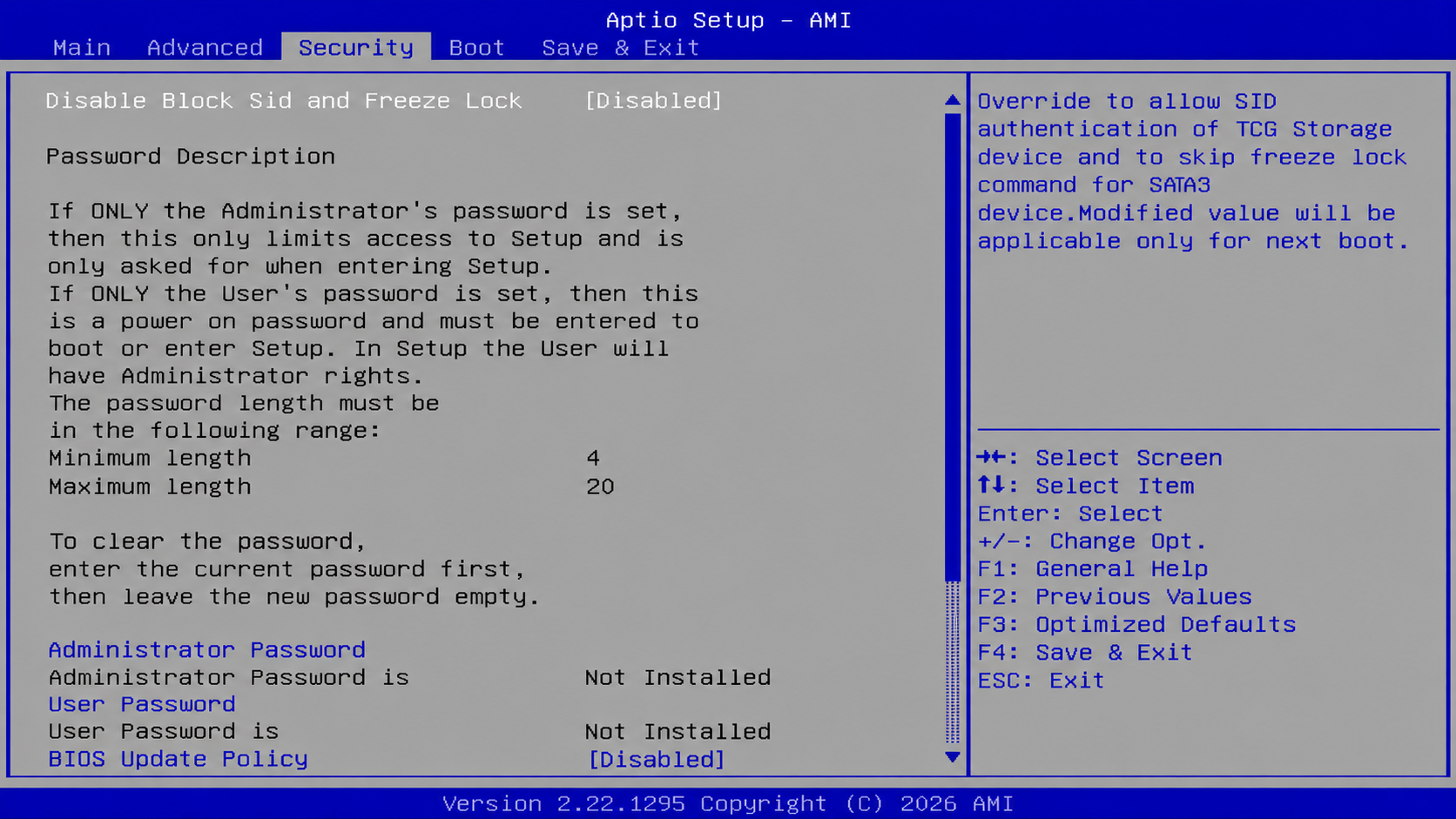
Disable Block Sid and Freeze Lock |
When enabled, overrides the default behavior to allow SID authentication for the TCG storage device and skip the freeze-lock command for the SAT3 device. The change applies only to the next boot. |
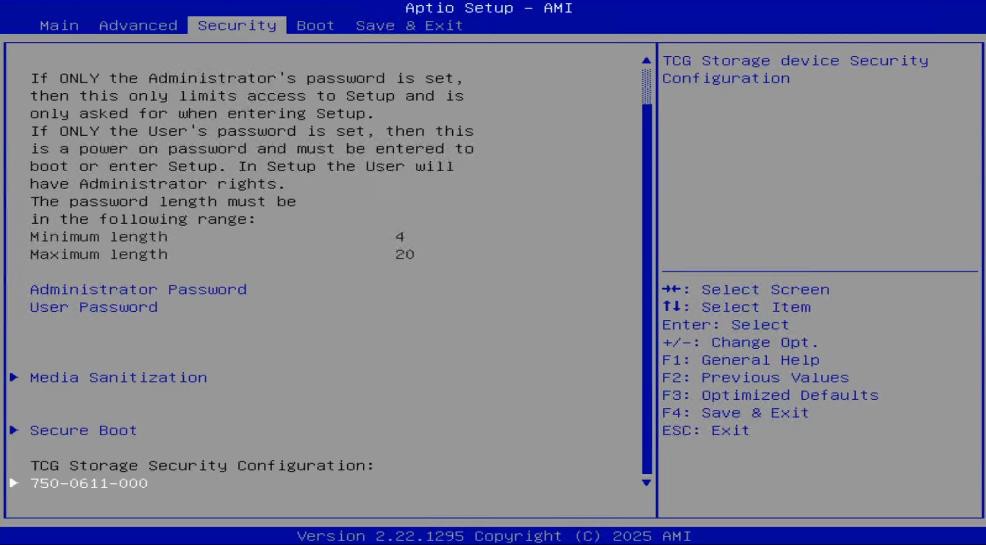
Administrator Password |
Sets the administrator password. |
User Password |
Sets the user password. |
UEFI passwords must contain four to 20 characters. To clear a password, enter the current password first, and then leave the new password empty.
Media Sanitization#
Path: Security → Media Sanitization
Warning
Clear and Purge are destructive methods that sanitize data on the selected storage device. Clear applies logical sanitization techniques to all user-addressable storage locations. Purge renders target data recovery infeasible. Verify the selected device and method before you continue.
Under Media Sanitization, select the storage device.
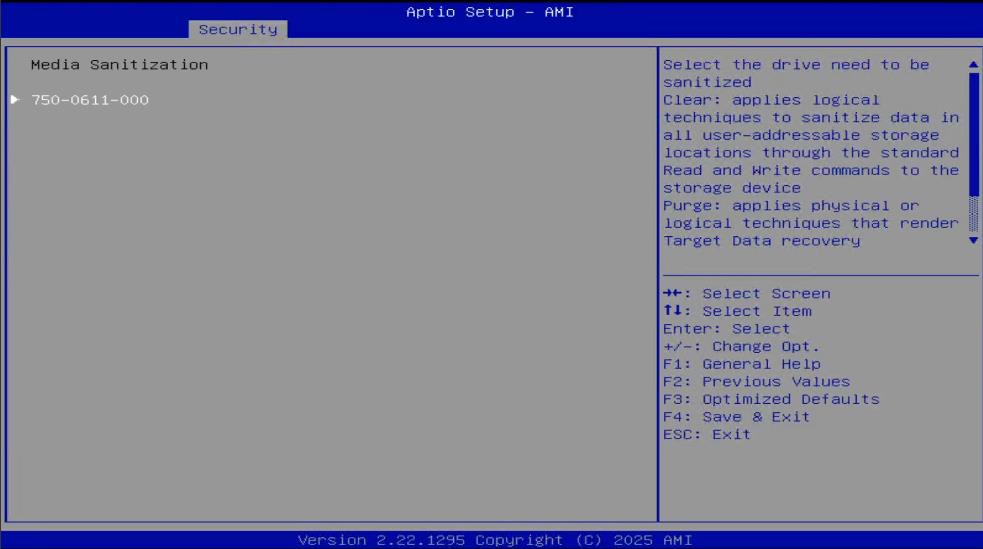
Select Method Type, and then select Clear or Purge.
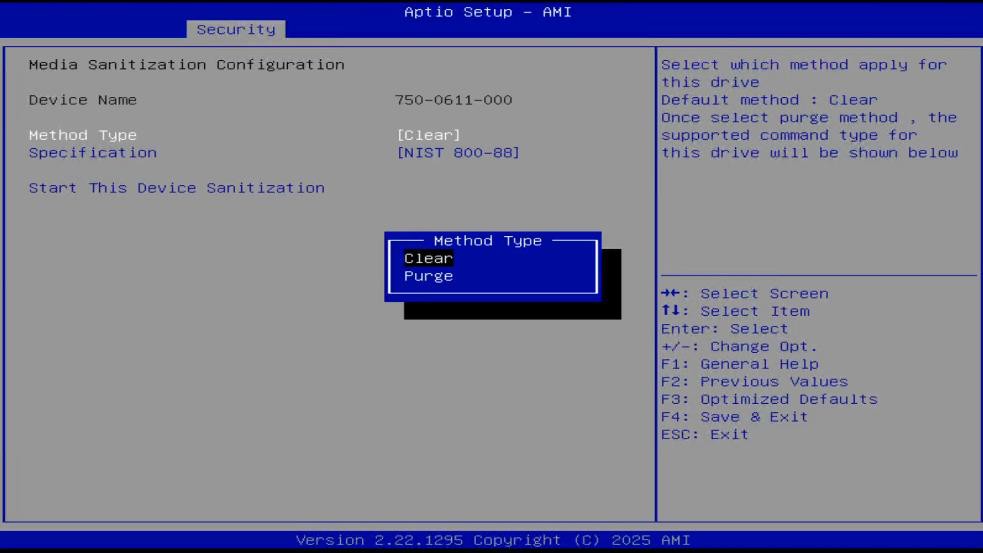
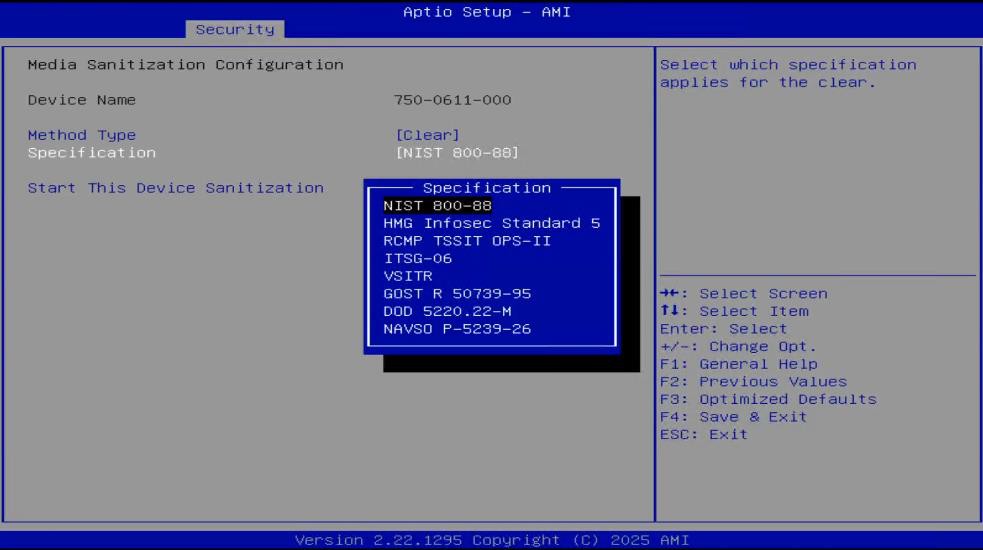
Select Specification, and then select the applicable specification.
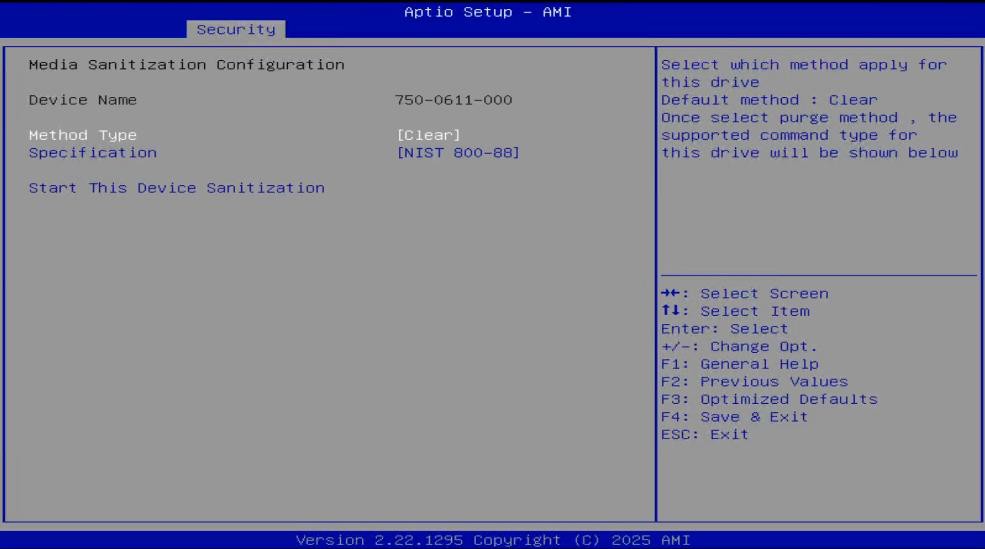
Start This Device Sanitization starts the selected sanitization method on the selected device.
Secure Boot#
Path: Security → Secure Boot
Select Secure Boot to configure boot mode and manage keys.
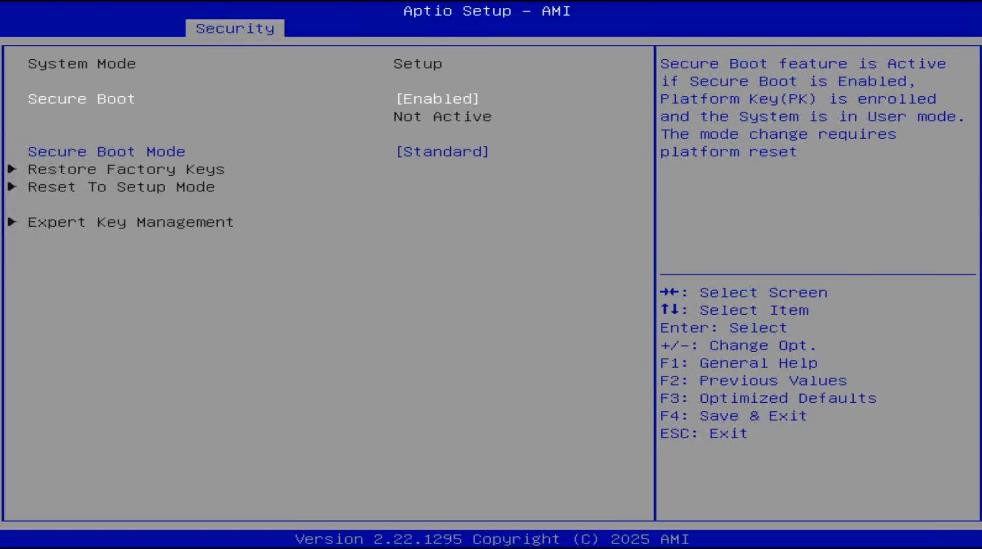
Secure Boot: Enables or disables Secure Boot. The default is Enabled. Secure Boot is active when it is enabled, the Platform Key (PK) is enrolled, and the system is in User mode. A mode change requires a platform reset.
Restore Factory Keys: Forces the system to User mode and installs factory-default secure boot key databases.
Reset To Setup Mode: Deletes the NVRAM content of all UEFI Secure Boot keys.
Expert Key Management: Configures key management settings.
Note
Restore Factory Keys is greyed out and cannot be selected when the system is in Standard mode. Systems boot in Standard mode with Secure Boot enabled and the secure boot keys already provisioned by the OS, so this option is not required for system recovery and can be skipped.
Expert Key Management#
Path: Security → Secure Boot → Expert Key Management
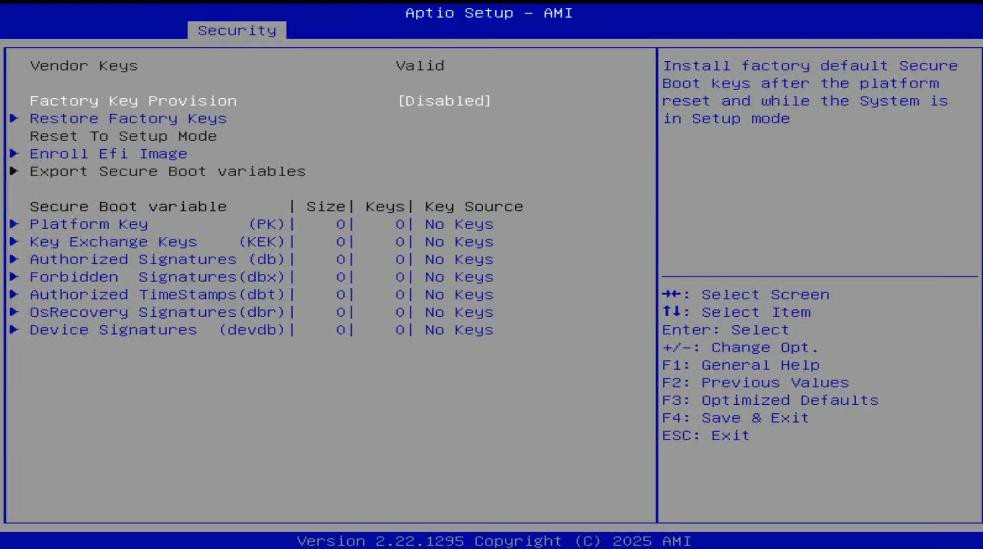
The expert key management accesses these formats:
Public Key Certificate: EFI Signature List, EFI CERT X509 (DER Encoded), EFI CERT RSA2048 (Bin), EFI SERT SHAXXX
Authenticated UEFI Variable
Key Source: Factory, External, Mixed
Settings for key management:
Factory Key Provision: When enabled, installs factory-default Secure Boot keys after a platform reset when the system is in setup mode.
Restore Factory Keys: Forces the system to user mode and configures NVRAM to contain the OEM-defined factory-default Secure Boot keys.
Reset to Setup Mode: Deletes all Secure Boot key databases from NVRAM.
Enroll EFI Image: Enrolls the SHA256 hash certificate of a PE image in the Authorized Signature database so that the image can run in Secure Boot mode.
Export Secure Boot variables: Copies the NVRAM content of Secure Boot variables to files in the root folder of a file system device.
Secure Boot Variables
Platform Key (PK): Configures PK settings. You can update the settings from factory defaults or a file in the file system.
Key Exchange Key (KEK): Configures KEK settings. You can update or append a value from factory defaults or a file in the file system.
Authorized Signatures: Configures Authorized Signatures settings. You can update or append a value from factory defaults or a file in the file system.
Forbidden Signatures: Configures Forbidden Signatures settings. You can update or append a value from factory defaults or a file in the file system.
Authorized TimeStamps: Configures Authorized TimeStamps settings. You can update or append a value from factory defaults or a file in the file system.
OsRecovery Signatures: Configures OsRecovery Signatures settings. You can update or append a value from factory defaults or a file in the file system.
Device Signatures: Configures Device Signatures (
devdb) settings. You can update or append a value from factory defaults or a file in the file system.
TCG Storage Security Configuration#
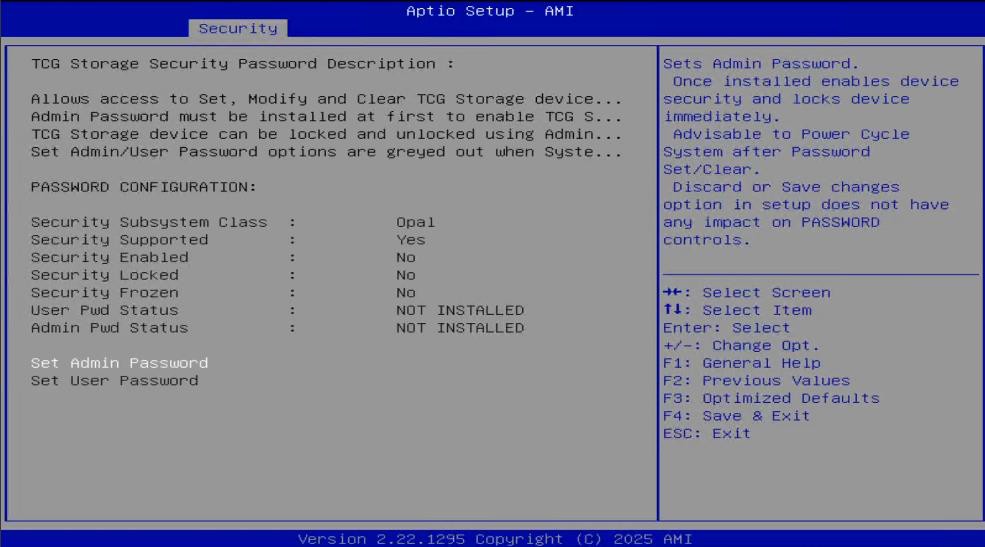
The TCG Storage Security Configuration screen is available when the TCG Storage device is selected.
Use this screen to set, modify, and clear the administrator and user passwords for the TCG storage device.
The administrator password must be installed before you can enable TCG storage security or create a user password. The administrator password can lock and unlock the device. The user password is an optional credential for unlocking the device during POST.
If the system enters UEFI setup after a boot failure, the device security is frozen and the administrator and user password options are unavailable. Power off the system, power it on, and press the UEFI setup key to enter setup.