

Appendix E: DCE BESS Equipment Qualification Process
NVIDIA defines the bar. Independent testing labs verify. OEMs prove compliance directly to their customer. Marketplace listing is recognition of a process completed — not the gate that allows it.
Roles with Qualification vs. Listing
The following steps outline the process for submitting completed test reports to NVIDIA for listing on its Marketplace website.
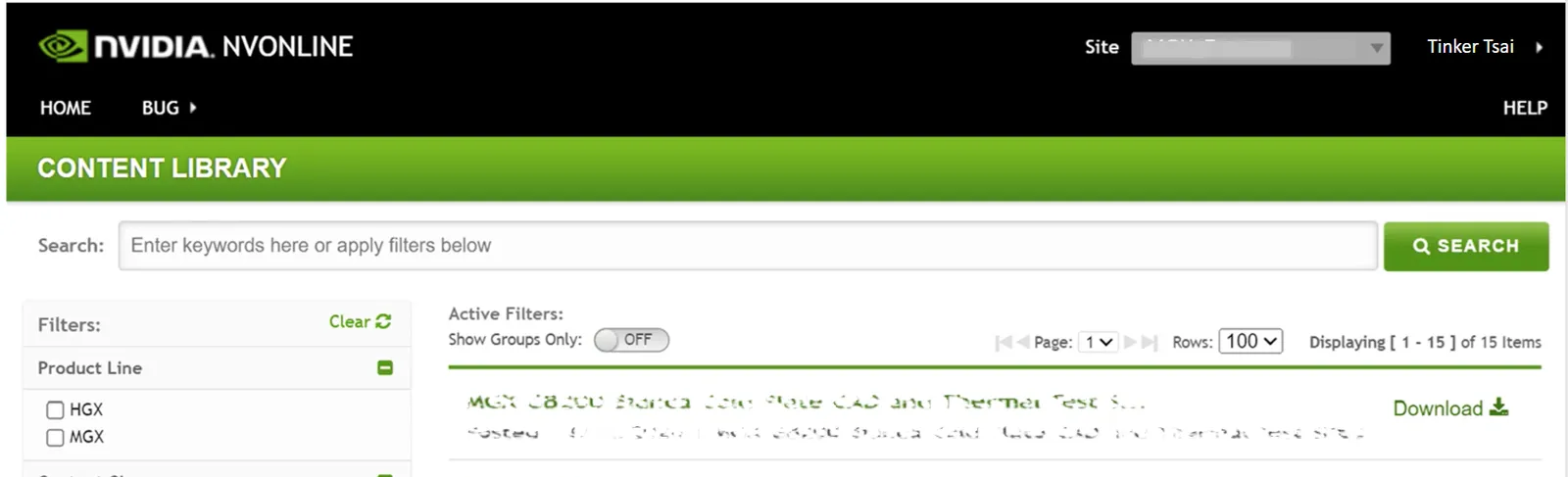
Step 1: Login to NVOnline
Navigate to the NVOnline portal. From the top navigation bar, select the appropriate site for your company. Use the Content Library to access reference documents such as platform design guides and related specifications.
Step 2: Navigate to Report a Bug
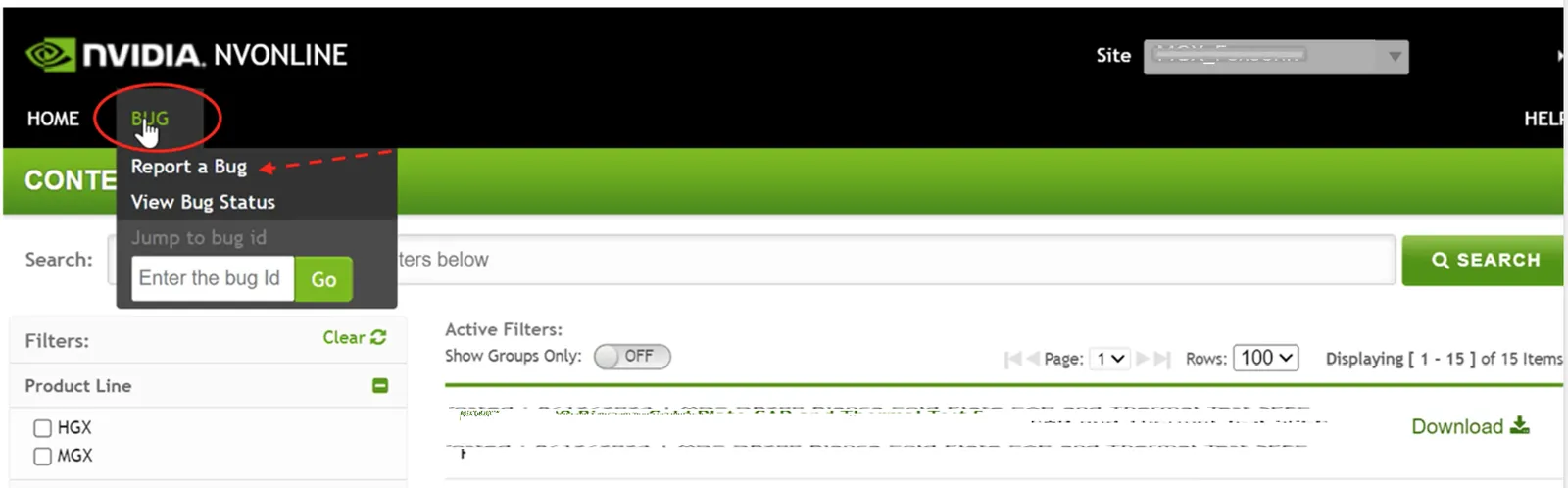
From the NVOnline homepage, click the “Bug” menu in the top navigation bar and select “Report a Bug” from the dropdown menu.
Step 3: Fill in the Bug Report Form
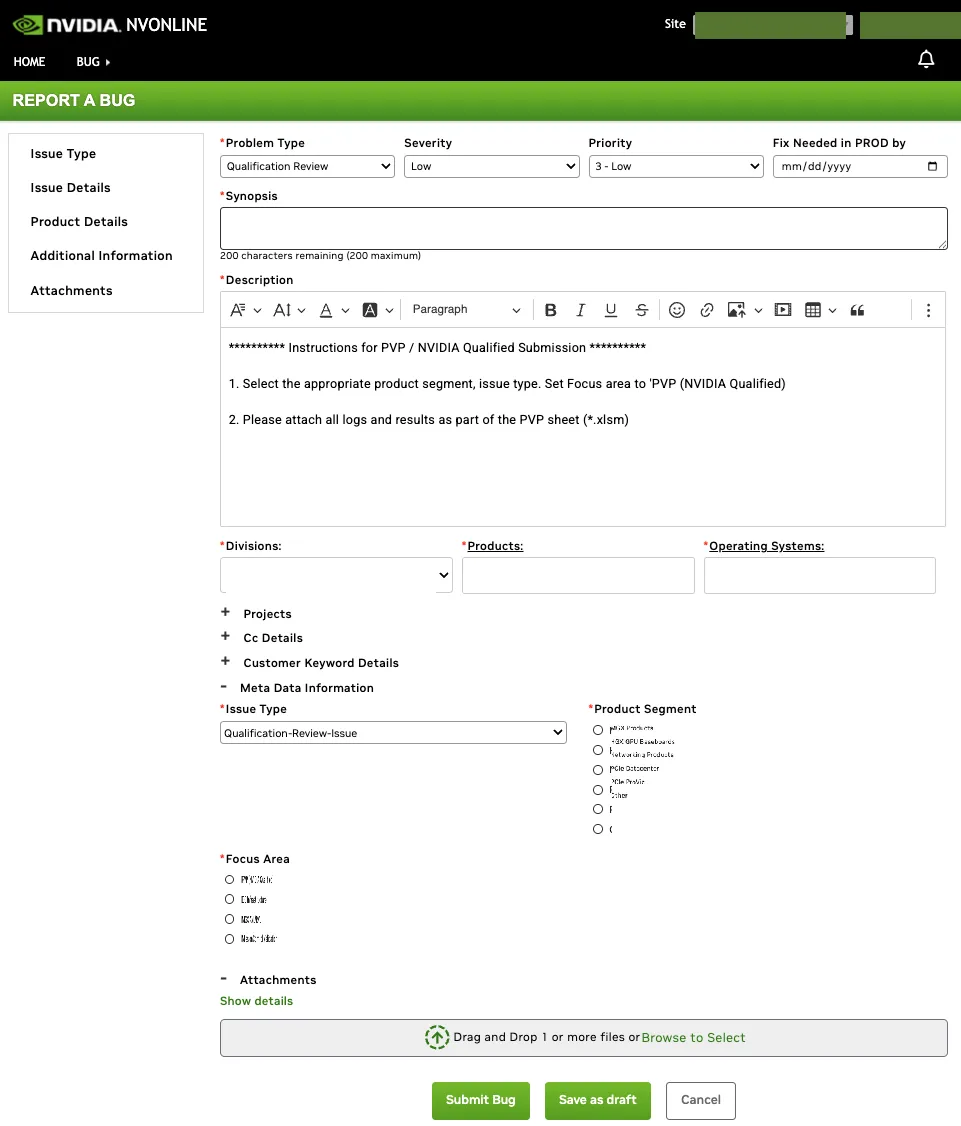
Complete the “Report a Bug” form.
Common Form Fields
- Problem Type: Select “Qualification Review” from the dropdown
- Severity: Low
- Priority: 3 - Low
- Divisions: Select your company site from the dropdown
- Issue Type: Select “Qualification-Review-Issue”
- Product Segment: Select “Other”
- Focus Area: Select “DC Infrastructure” and then “BESS” from the subcategory dropdown
Synopsis Format by Use Case
The Synopsis field (200 characters maximum) must follow one of these formats:
- Qualification Review: Facilities Level -
<Supplier Company Name>DC Infrastructure BESS Review
Step 4: Enter BESS-Specific Description (Qualification Review)
For Qualification Review submissions, enter the following information in the Description field. Items marked with <attachment> must be uploaded as file attachments:
- Subject: Facilities Level -
<Supplier Company Name>DC Infrastructure BESS Review - MPN:
<Supplier part number> - Revision:
<version> - SPEC: Supplier SPEC
<attachment> - 3D CAD: Supplier CAD
<attachment> - 2D Drawing: Supplier 2D
<attachment> - Self Validation Report: Supplier performance validation report per BESS Self-Qualification Guidelines
<attachment>
Step 5: Add Members, Upload Attachments, and Submit
Before submitting the bug, complete the following:
- Add Members: In the Cc Details section, add all relevant NVIDIA and partner team members who should be notified of this submission.
- Upload Attachments: In the Attachments section, drag and drop or browse to upload all design files referenced in the description (SPEC, 3D CAD, 2D Drawing, Self Validation Report).
- Submit: Once all details are filled in and attachments are uploaded, click the “Submit Bug” button. You may also use “Save as draft” to save your progress before submitting.
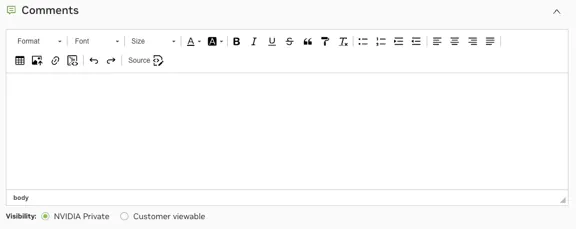
After submission, you can add comments and upload additional attachments through the Comments section.
Step 6: View Bug Status and Add Comments
After submitting, you can track your submission and provide additional information:
- View Bug Status: Navigate to Bug > “View Bug Status” in the top menu. Search by Bug ID, synopsis, or other criteria. Click on the Bug ID to view full details.
- Add Comments: From the bug detail page, scroll to the Comment Log section and click “Add Comment” to upload additional attachments or provide updates.
All submitted information is confidential and viewable only by the submitting partner and NVIDIA.
NVBug Notifications
Users receive system notifications (via email) whenever their NVBug submission is updated. These notifications include status changes, new comments, and resolution updates.
NVOnline Site Setup for Partners
Partners must have their NVOnline site properly configured to submit qualification bugs. The site must have “Customer Bug Forms Setup” enabled. The Qualification Review Bug Forms / Problem Types must also be activated.
Ensure the “Active” checkbox is selected. Contact your NVIDIA partner representative if your site is not configured correctly.