


Reports#
On the Reports tab, you can run reports on your inventory and on errors reported in your fleet. When you select a report, you can specify a time range, Compute Zone, and Node Group, or use the Filter Machines by Tag option. Node Group and Compute Zone are optional; machines can also be filtered by Tags.
You can download the inventory report as a CSV file using the button in the upper right. Use the Edit report button to change the report selection criteria.
Signed Inventory Reports#
In addition to standard CSV downloads, Fleet Intelligence can provide signed inventory reports — cryptographically signed by NVIDIA so that any third party can verify the report has not been tampered with and was generated by the NVIDIA Fleet Intelligence service. Signed reports are suited for regulatory compliance, audits, and supply-chain verification workflows.
A signed report is delivered as a .zip archive containing two files:
The inventory data as a
.csvfile.A Sigstore-format signature bundle (
.sig.bundle) that covers the full CSV payload and the generation timestamp.
The signature can be verified with the open-source cosign tool directly.
Downloading a Signed Report#
In the Fleet Intelligence dashboard, navigate to the Reports tab
and select the Inventory Report option. Generate the Inventory Report
as usual. When you click Download, you will be prompted to choose between
an unsigned csv file and a signed report zip archive.
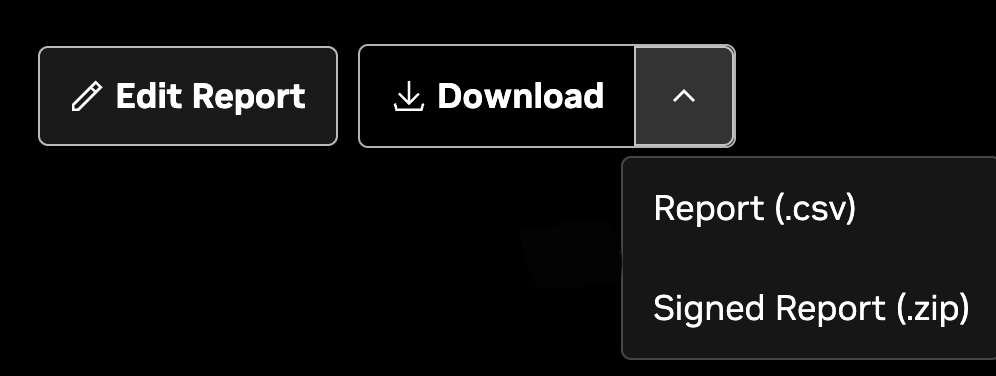
Extract the archive to obtain the .csv and .sig.bundle files
before verifying.
Verifying a Signed Report#
Third-Party Verification with Cosign#
Because the signature bundle uses the Sigstore format, anyone with the cosign tool and
the NVIDIA Fleet Intelligence public key can independently verify a
report. Cosign v3.0.0 or newer is required — v3 introduced the bundle
format used for signing and changed several flag defaults; earlier versions
will reject the bundle.
Download the NVIDIA Fleet Intelligence public key (PEM format) from the Fleet Intelligence API endpoint at https://api.fleet-intelligence.nvidia.com/.well-known/signing-key.pub:
cosign verify-blob \
   --key signing-key.pub \
   --bundle <report>.sig.bundle \
   --insecure-ignore-tlog \
   <report>.csv
A successful verification prints Verified OK.
Why –insecure-ignore-tlog? NVIDIA does not publish report signatures to a public transparency log. The flag’s name is misleading: with this flag set, verification remains cryptographically sound for our threat model and should not be misread as a security concern.
What “Verified OK” means If verification passes, the user has cryptographic proof that:
NVIDIA Fleet Intelligence produced these exact CSV bytes.
They have not been altered since signing.
Key Rotation Model#
Note
Key rotations should occur rarely and only in the event of a compromised key.
Under the current key rotation model, NVIDIA only provides the latest key. Any report signed with a historical key continues to verify with the historical key, but new reports are signed by the current key. Customers will be notified of key rotation and should take the following actions:
Re-download the same report from the API — the system regenerates byte-identical CSV bytes (deterministic regeneration is a design constraint) with a fresh signature under the new key.
Re-fetch the public key from https://api.fleet-intelligence.nvidia.com/.well-known/signing-key.pub.
Re-run the verification command.
Customers should re-download immediately on receiving a rotation notice and re-issue the artifact to any concerned parties. Anyone encountering a failed verification should ask the NVIDIA customer for a refreshed copy before concluding the report is forged.
Note
Exercise caution when verifying signed reports. Always confirm that you are using the latest public key.
Installing Cosign#
Install cosign on the system where you want to perform third-party
verification. For Linux and macOS installation, instructions are
available at sigstore/cosign. For Windows, see below.
Windows
Choose one of the following methods.
PowerShell (direct download):
Invoke-WebRequest `
    -Uri "https://github.com/sigstore/cosign/releases/latest/download/cosign-windows-amd64.exe" `
    -OutFile "cosign.exe"
WinGet:
winget install Sigstore.Cosign
Scoop:
scoop install cosign
After installation, confirm cosign is available:
cosign version