

Isaac Lab Basics#
This module puts the concepts from Robot Learning Fundamentals into practice. You’ll explore Isaac Lab and its related frameworks, physics engines, and libraries, generate a new project, and train and inspect a cartpole policy. The generated example gives you a small task to follow from configuration through manager execution and policy playback before you build the SO-101 task in Train a Robot Arm.
If you’re ready for a more complex task, you can skip ahead to Train a Robot Arm and return to this module later.
The cartpole example introduces how Isaac Lab organizes a learning task. You describe the actions the policy can take, the observations it receives, and how to score or end an episode. Isaac Lab uses helper objects called managers to carry out those parts of the task while the simulation runs.
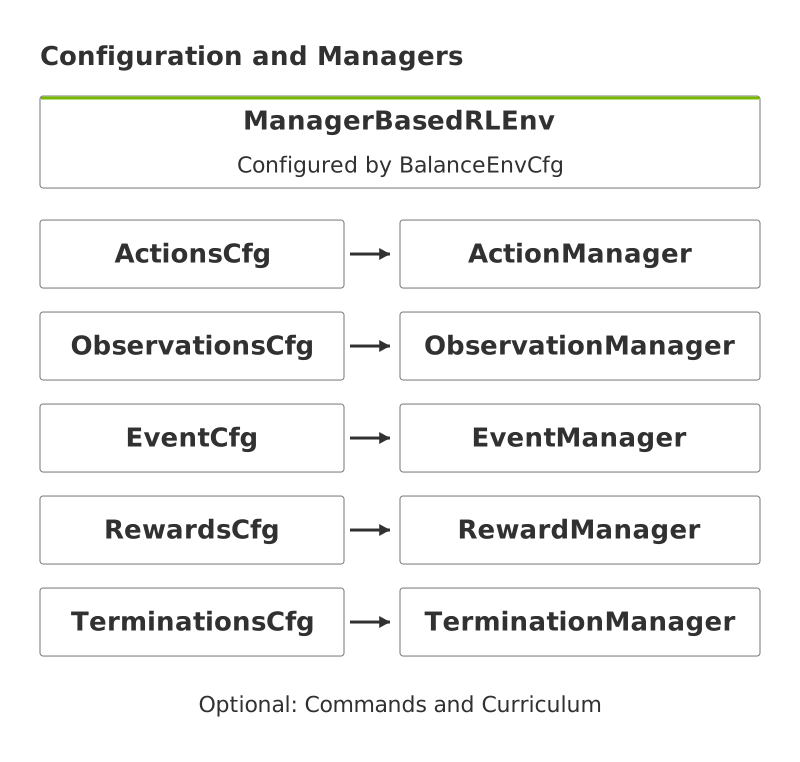
Each configuration on the left describes a part of the task; its manager on the right carries out that work during simulation.#
Use this diagram as a map as you work through the module. You’ll find these configuration classes in the generated project, then trace how the managers use them in Manager-Based Workflows. You don’t need to learn the class names before you begin.
Learning Objectives
Explain how Isaac Lab connects robot learning tasks, physics backends, and learning libraries.
Generate a cartpole project and find its task registration, environment configuration, and Proximal Policy Optimization (PPO) configuration.
Set up a local or remote development workflow and keep a record of experiment settings and outputs.
Describe how managers handle actions, observations, resets, rewards, and episode endings.
Use the Isaac Lab CLI to run zero-action and random-action baselines, train a PPO policy, and play saved checkpoints.
Compare training metrics and policy playback with baselines to assess learning progress and identify further reliability checks.
How to Use Code Blocks#
Read the instructions above each block. They tell you where to run a command or paste code and which values you need to change first. The labels below show how to use each type of block; these examples illustrate the conventions used in each lesson.
Paste: Copy the code into the file named in the instructions. For example, an instruction to replace
episode_length_sinenv_cfg.pymight show:episode_length_s = 20.0
Run: Copy the command and run it in the specified terminal or directory. For example, this command lists task IDs and presets from a generated project:
uv run python scripts/list_envs.py --show_presets
Reference: Read the example to understand the code or command syntax. Reference blocks have a gray background and no copy button. You do not need to run or paste them. For example, angle-bracket values below are placeholders:
uv run isaaclab <command> --task <task-id>
Output: Compare the block with what your command produces. Output blocks have a gray background and no copy button. This expected output is illustrative; paths, timings, and checkpoint names may differ in your run:
Training complete.
Checkpoint saved: logs/example-run/model_100.pt
Optional: Run or Optional: Paste: A dashed border marks a step you can skip and continue the lesson. The copy button remains available. For example, you can optionally explore the CLI from your project directory:
uv run isaaclab --help
You can still select text in reference examples and output blocks.
Use the activities to check your understanding as you go. Here are some tips for completing them:
Make a prediction about the outcome of a command before running it.
After running a command, change one thing and describe what you observe.
Answer the understanding question before opening its answer or hint.
Use an agent to quiz yourself on the learning objectives.