

Managing Engines in NVIDIA Personal AI Router
An engine is the local inference runtime Personal AI Router (PAIR) uses to run models. Today that means Ollama, LM Studio, or llama.cpp on a given machine. PAIR can install and run those engines for you, or work with a supported existing Ollama or LM Studio installation. This page explains what you can expect when you install, start, stop, update, or remove an engine.
For first-time setup, refer to Getting started. To change an engine’s ports or launch command, refer to Engine settings. If something does not start, refer to Troubleshooting.
Engine Requirements
PAIR does not run models by itself. Each participating machine needs at least one compatible engine that is:
- Installed, or adopted from an existing install.
- Running.
- Holding the model your request needs.
A request only goes to a machine when that machine is online, an eligible engine is running there, and the requested model is available on it.
Managing Engines
You can manage the engine using the UI or the terminal.
In the desktop application:
- Open Overview.
- Select a machine (node).
- Use that node’s Engine settings.
From there you can install or remove an engine, turn it on or off, change its port when PAIR manages it, download models, and review progress while long operations run.
In the terminal:
On a machine with no desktop, the terminal interface handles these engine lifecycle actions:
- Install an engine.
- Start an engine.
- Stop an engine.
- Restart an engine.
- Uninstall an engine.
- Change an engine’s ports and startup arguments.
- Pull a model.
- List, load, unload, and delete models.
- Do most of the above on another node in the cluster. Restart and uninstall stay on the machine that owns the engine.
It does not do everything that the application does.
Check that the terminal interface covers your workflow before relying on it. Refer also to Getting started.
Installing an Engine
You can install a supported engine during first-run setup or later from Engine settings.
When you install an engine, consider the following:
- Choosing install makes it an NVPAIR-installed engine. PAIR downloads it, configures it, and owns it from then on.
- A successful install starts the engine as part of the same flow, so you normally do not need a separate start step right after install.
- If Ollama or LM Studio is already running on the machine, PAIR can adopt that install instead of downloading another copy. Adoption helps when the usual engine port is already in use.
- llama.cpp is always a PAIR-managed install. Windows and Linux download fixed checksum-pinned CUDA server/runtime archives. Apple silicon Macs download the standard Metal-enabled archive, and Intel Macs download the CPU-only build, because upstream builds it without Metal. The engine download, roughly 0.3–0.7 GiB for the CUDA archives and about 11 MiB on macOS, happens on demand and is not part of the PAIR installer. Package choice is not driver-aware; llama.cpp retains CPU fallback when GPU acceleration is unavailable.
PAIR-managed llama.cpp models sleep after five minutes without inference work. This releases model and KV-cache memory, and the next request wakes the model automatically. The llama.cpp worker remains running and may retain some GPU memory.
To download models:
- Use Add model.
- Use Load when the engine requires an explicit load.
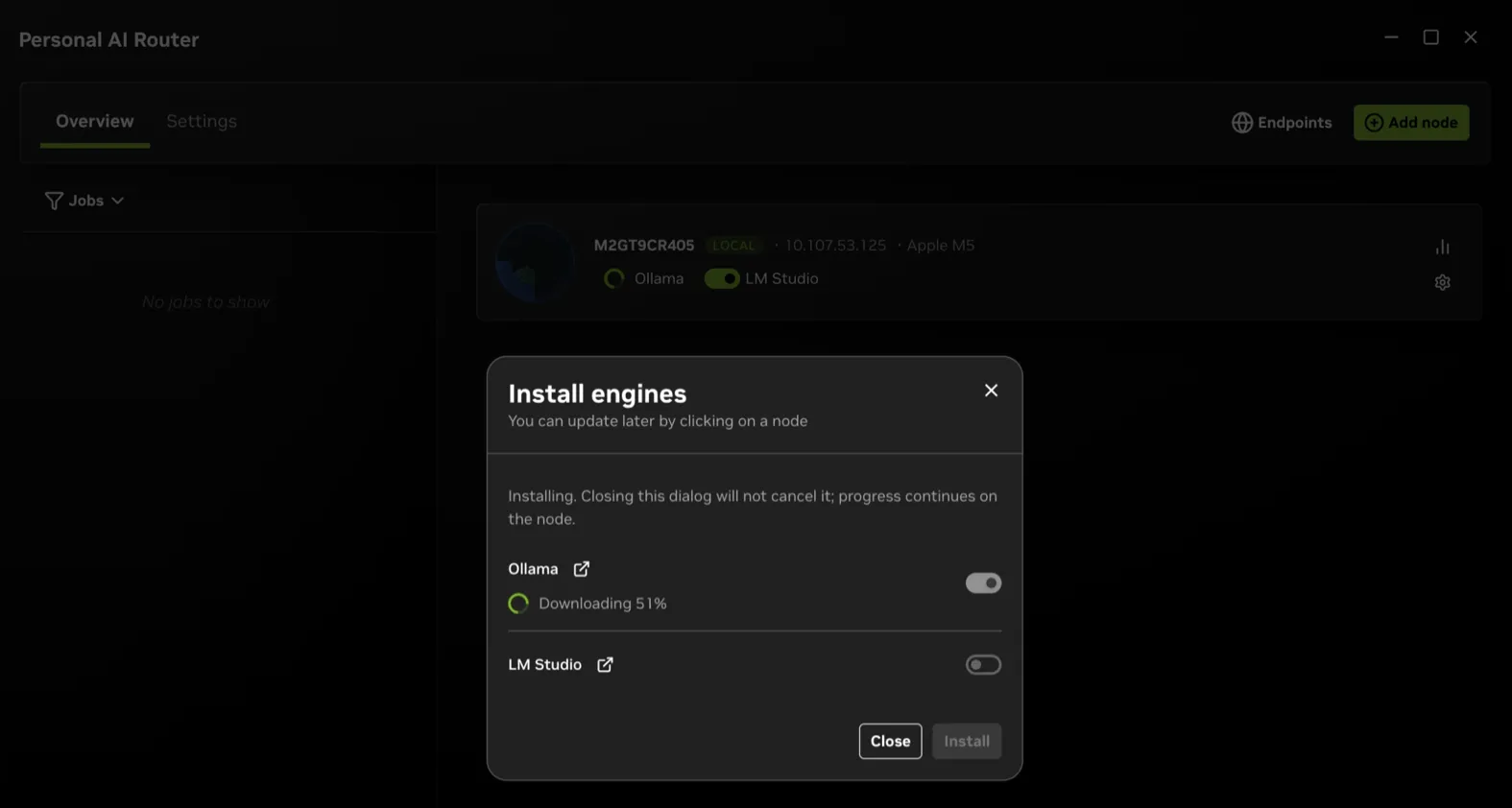
Starting and Stopping an Engine
Use the engine switch in Engine settings to start or stop an NVPAIR-installed engine.
- Start brings the engine up and marks it as something PAIR should keep running for you across relaunches. Refer to What Persists Across Restarts.
- Stop turns it off and remembers that you want it off.
- Progress and status update live on the Overview and engine views. Wait for the switch and status text to settle before assuming the change failed.
An engine must be running before Endpoints or your applications can use its models. If Endpoints says No engines are running, start an engine first.
Updating and Uninstalling an Engine
PAIR does not currently offer to update an engine, because it does not yet detect newer engine versions. To move an NVPAIR-installed Ollama or LM Studio to the vendor’s current release, uninstall it and install it again, which keeps your models as described below. llama.cpp installs the build pinned by your version of PAIR. Update an engine you installed yourself with its own installer.
Uninstall removes the NVPAIR-installed copy of an engine, and applies only to an engine PAIR installed. Use it when you no longer want PAIR to own that engine on the machine.
Uninstalling an engine does not remove its models. Downloaded model files stay
on disk in the engine’s own storage — ~/.ollama, ~/.llamacpp, or
~/.lmstudio/models — so uninstalling and reinstalling does not cost you
re-downloading them. The same is true of removing PAIR itself, or of resetting
its data. Both remove the engines PAIR installed as far as they can, and never
your models: a reset stops and tells you if an engine cannot be removed, while
uninstalling PAIR leaves that engine in place and finishes. To reclaim that
space, use Delete on individual models, or remove the engine’s storage
directory yourself.
PAIR keeps the model folder at the engine’s default location. If you moved LM
Studio’s models folder somewhere else inside ~/.lmstudio, removing an LM
Studio that PAIR installed — by uninstalling it, or by removing PAIR’s data —
deletes that folder with the rest of ~/.lmstudio. A models folder outside
~/.lmstudio, or one linked back to ~/.lmstudio/models, is kept.
PAIR also leaves alone any engine you installed yourself. Uninstall acts only on a copy PAIR installed; remove the others with the engine’s own uninstaller.
Port changes for an NVPAIR-installed engine also live in Engine settings. Prefer the controls in PAIR over editing the engine’s own config when PAIR is managing it. If PAIR adopted an engine that was already running, meaning it did not start the process, what it can do depends on how that engine is controlled:
- Ollama is managed as a process, so PAIR will not move an adopted one. It refuses the port change rather than killing something it did not start. Stop the engine in its own application first if you want PAIR to manage it fully.
- LM Studio publishes an official stop command, so PAIR can stop an adopted instance that way and restart it on the port you chose.
Refer to Engines and Ports in the architecture guide.
Managing Engines on Other Machines
After systems are paired, you can view another machine’s engines from Overview and, where supported, start or stop engines and pull models on that peer.
Some actions stay local only on each machine: uninstalling, updating, and changing an engine’s CORS settings. Perform those on the machine that owns the engine, or connect to that machine’s PAIR application or terminal interface. Ports and startup arguments can be edited from a paired machine, as described in Engine Settings.
Everything you change is scoped to one machine. A port you set on this node moves that node’s engine and nothing else. The other nodes keep the ports they already had, and PAIR does not push the value across the cluster. Installing, updating, and uninstalling work the same way, because each is a decision about one machine. This is why the endpoint to use is the one shown on the machine you are working at, rather than a port you remember from somewhere else.
Both sides still need the same model available if you want either machine to be eligible for a given request.
What Persists Across Restarts
PAIR remembers whether each local NVPAIR-installed engine should be on or off.
- When you quit or restart PAIR, it stops running engines cleanly as part of shutdown.
- The next time PAIR starts, it restores engines that were left on, so you do not have to flip every switch again.
- On the first open of the application on a machine, PAIR also starts engines that are already installed once, so a fresh setup is ready to use.
If you stopped an engine on purpose, it stays stopped after relaunch until you start it again.
Working with Models
The lifecycle of the engine (install, start, and stop) is separate from working with models (download, load, unload, and delete):
Eject removes a model from memory only. The download stays, and Load brings it back without fetching it again.
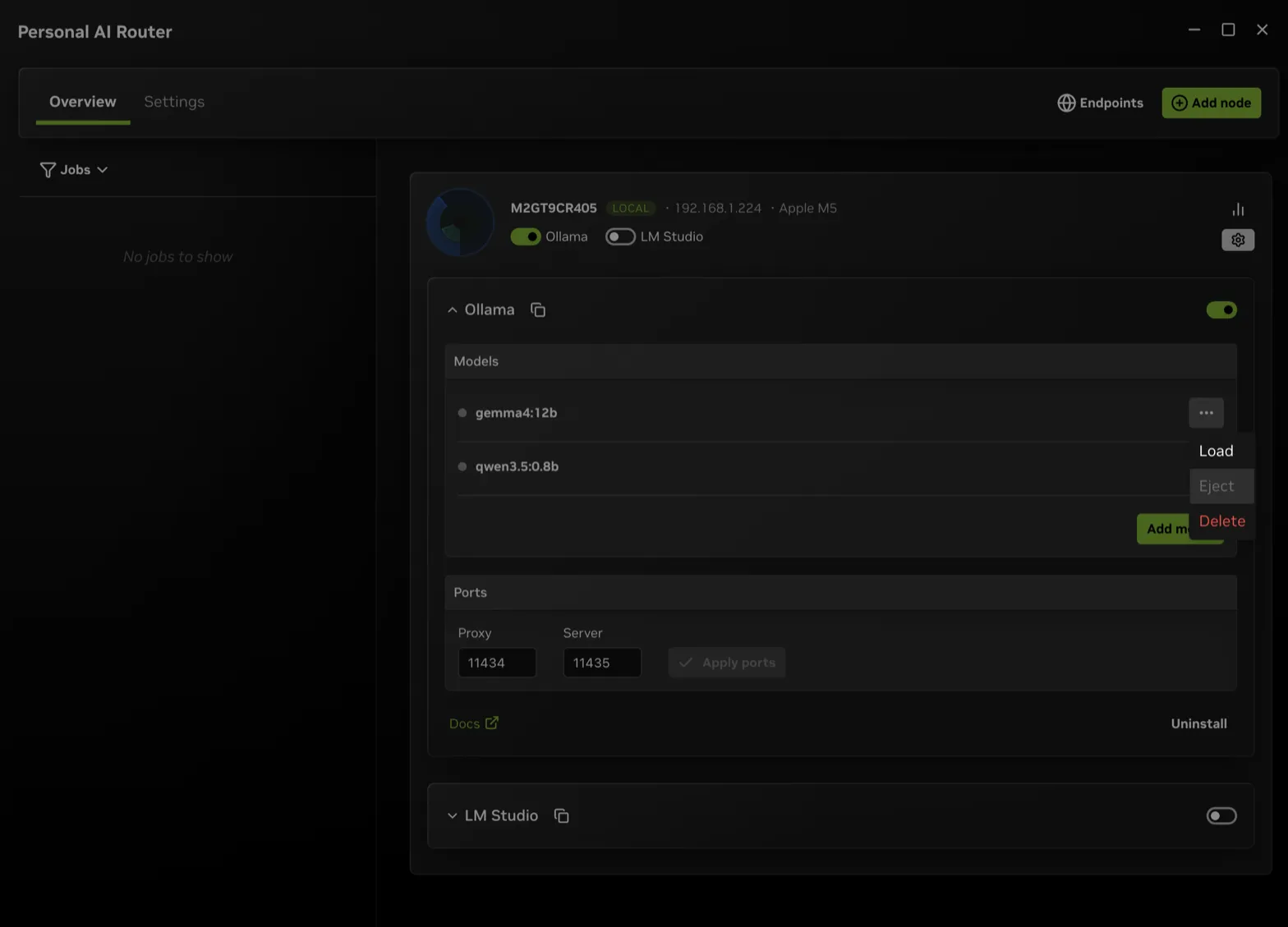
On a headless machine the terminal interface covers installing, starting, stopping, restarting, and uninstalling an engine; pulling a model; and listing, loading, unloading, or deleting models.
PAIR does not warm models. Starting an engine does not pre-load models into memory, and it holds nothing ready in advance. Depending on the engine, a model loads when you load it explicitly or when a request needs it. The first request to a cold model can therefore take longer.
You can delete individual models from Engine settings when that engine exposes delete. That is not the same as uninstalling the engine. Delete removes one model’s files through the engine, while Uninstall removes the NVPAIR-installed engine and leaves every model in place. PAIR has no action that uninstalls every model at once.
Applications need a running engine plus an available model. Copy API URLs
from Endpoints after an engine is running. Do not assume a fixed port such as
11434, 1234, or 8080.
Tips
These habits avoid the most common engine problems:
- Install PAIR and prepare engines on every machine that should serve work.
- To spread work across a cluster, put the same model on each eligible machine and keep a compatible engine running there.
- Prefer PAIR’s engine controls for an NVPAIR-installed engine. Editing it by hand alongside them can confuse ports and status.
- If an engine switch or install seems stuck, open Settings > Service, check service health and logs, then retry. Refer to Troubleshooting.
Related Documentation
These pages cover the surrounding workflows:
- Getting started
- Terminal interface
- Troubleshooting
- Overview
- Architecture (how engines fit into PAIR’s process model)