


Creating and Using an NVIDIA RTX Virtual Workstation Instance from the Google Cloud Platform Marketplace#
NVIDIA® RTX™ Virtual Workstation in the cloud is an NVIDIA Virtual Machine Image (VMI) preconfigured with NVIDIA RTX Virtual Workstation software and NVIDIA GPU hardware. The NVIDIA RTX Enterprise driver is preinstalled on the VMI and NVIDIA ensures that the image is always up to date with the latest NVIDIA RTX ISV certifications, patches, and upgrades. Support and technical information to help you get started are available on the NVIDIA RTX Virtual Workstation (vWS) on CSP Marketplace community forum and from additional resources.
Creating a GPU-Accelerated Virtual Workstation#
Prepare for creating a GPU-accelerated virtual workstation from the Google Cloud Platform marketplace as follows:
Ensure that you have a Google Cloud Platform account and an active subscription.
Decide the machine type of the VM instance on which you want to deploy your GPU-accelerated virtual workstation.
For information about the machine types that support NVIDIA RTX Virtual Workstation, see NVIDIA RTX Virtual Workstation on Google Cloud Platform Release Notes.
If you are creating a Linux VM instance and want to use SSH public key authentication for the administrator account, generate an SSH public key.
In a web browser, log on to Google Cloud Platform portal (https://console.cloud.google.com/).
In the search box, type
rtxand from the menu of search results that opens, select the NVIDIA RTX Virtual Workstation listing for the guest OS that you want to use.Click Launch to go to the New deployment page for NVIDIA RTX Virtual Workstation on your chosen operating system.
On the New deployment page, provide all the information required to create your virtual workstation.
For guidance, refer to the following Google Cloud Platform documentation:
Click Deploy.
Deployment is complete in a few minutes.
If you created a Windows VM instance, follow these instructions to create a password for the instance and connect to the VM instance:
Manage accounts and credentials on Windows VMs in the Google Cloud Platform documentation
Connecting to a GPU-Accelerated Virtual Workstation on a Windows VM Instance
If you created a Linux VM instance, follow these instructions to connect to the VM instance and verify that it was created properly:
Connect to Linux VMs in the Google Cloud Platform documentation
Verifying the Creation of your GPU-Accelerated Virtual Workstation
Connecting to a GPU-Accelerated Virtual Workstation on a Windows VM Instance#
Note
For instructions for a Linux VM instance, refer to Connect to Linux VMs in the Google Cloud Platform documentation.
Ensure that you have created a Windows instance password as explained in Manage accounts and credentials on Windows VMs in the Google Cloud Platform documentation.
On the Google Cloud Platform console VM instances page page, from the RDP drop-down list, select Download the RDP file.
When the download is complete, double-click the RDP file to start a Remote Desktop Connection session on the VM.
If you are warned that the publisher of the remote connection cannot be identified and are asked about whether to connect anyway, click Connect.
When you are prompted, log in to the VM with the credentials for the account that you specified when you created the password for your Windows VM Instance.
If you are warned that the publisher of the remote connection cannot be identified and are asked about whether to connect anyway, click Yes.
After connecting to your GPU-accelerated virtual workstation, verify that it was created properly as explained in Verifying the Creation of your GPU-Accelerated Virtual Workstation.
Verifying the Creation of your GPU-Accelerated Virtual Workstation#
After connecting to your GPU-accelerated virtual workstation, verify that it was created properly by listing its GPUs. On a Windows VM instance you can also use NVIDIA Control Panel to verify that the NVIDIA driver is running.
For details, see:
Verifying the Creation of a GPU-Accelerated Virtual Workstation on a Windows VM Instance
Verifying the Creation of a GPU-Accelerated Virtual Workstation on a Linux VM Instance
After verifying the creation of your GPU-accelerated virtual workstation, you are now ready to run your design and engineering software.
Verifying the Creation of a GPU-Accelerated Virtual Workstation on a Windows VM Instance#
Open a command prompt window and change to the folder that contains the
nvidia-smicommand.C:\Program Files (x86)\Google\Cloud SDK>cd C:\Program Files\NVIDIA Corporation\NVSMIList the GPUs in your GPU-accelerated virtual workstation by running the
nvidia-smicommand without any options.The following example shows the output from
nvidia-smifor a Windows VM instance configured with a single NVIDIA T4 GPU.C:\Program Files\NVIDIA Corporation\NVSMI>nvidia-smi Fri Jan 9 22:41:58 2026 +--------------------------------------------------------------------------+ | NVIDIA-SMI 581.42 Driver Version: 581.42 CUDA Version: 13.0 | |-----------------------------+---------------------+----------------------+ | GPU Name Driver-Model | Bus-Id Disp.A | Volatile Uncorr. ECC | | Fan Temp Perf Pwr:Usage/Cap| Memory-Usage | GPU-Util Compute M. | | | | MIG M. | |=============================+=====================+======================| | 0 Tesla T4 WDDM |00000000:00:1E.0 Off | 0 | | N/A 29C P8 14W / 70W | 346MiB / 15360MiB | 2% Default | | | | N/A | +-----------------------------+---------------------+----------------------+ +--------------------------------------------------------------------------+ | Processes: | | GPU GI CI PID Type Process name GPU Memory | | ID ID Usage | |==========================================================================| | 0 N/A N/A 660 C+G C:\Windows\System32\WUDFHost.exe N/A | | 0 N/A N/A 860 C+G C:\Windows\System32\dwm.exe N/A | | 0 N/A N/A 964 C+G ...indows\System32\ShellHost.exe N/A | | 0 N/A N/A 1220 C+G C:\Windows\System32\dwm.exe N/A | | 0 N/A N/A 5272 C+G ..._cw5n1h2txyewy\SearchHost.exe N/A | | 0 N/A N/A 5800 C+G ...2txyewy\CrossDeviceResume.exe N/A | | 0 N/A N/A 5844 C+G C:\Windows\explorer.exe N/A | | 0 N/A N/A 5932 C+G C:\Windows\System32\LogonUI.exe N/A | | 0 N/A N/A 7020 C+G ....0.3650.96\msedgewebview2.exe N/A | | 0 N/A N/A 7672 C+G ...y\StartMenuExperienceHost.exe N/A | | 0 N/A N/A 9872 C+G ...yb3d8bbwe\WindowsTerminal.exe N/A | +--------------------------------------------------------------------------+ C:\Program Files\NVIDIA Corporation\NVSMI>
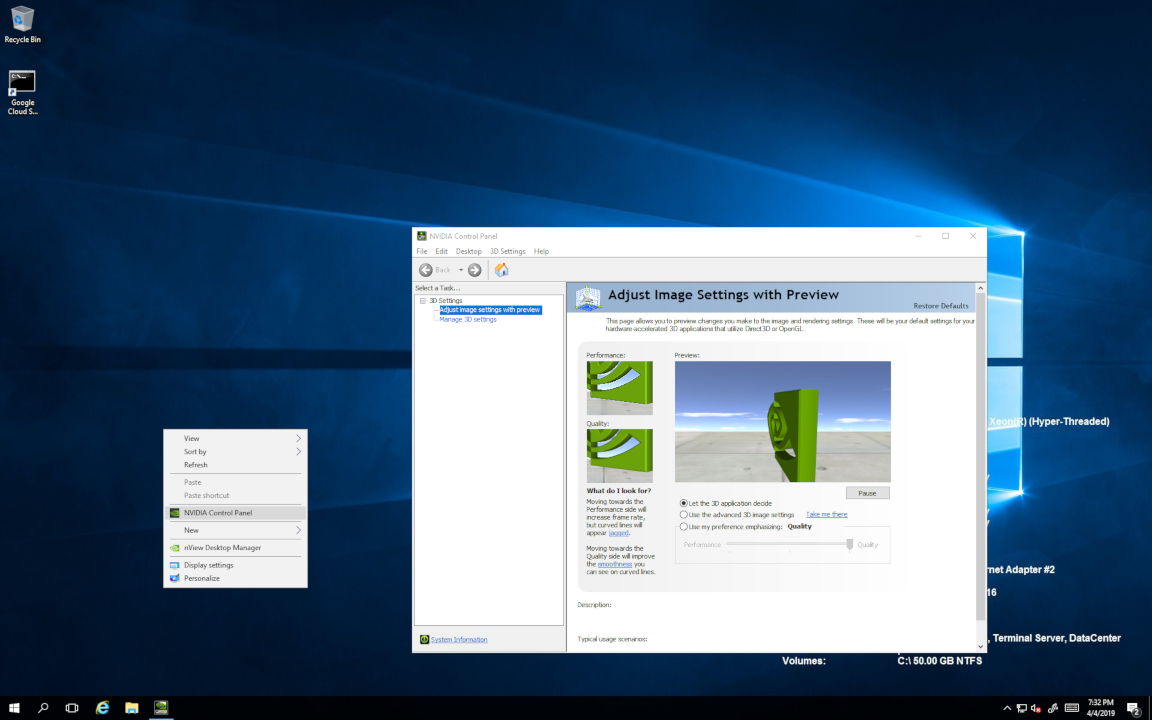
Start NVIDIA Control Panel to verify that the NVIDIA driver is running.
Right-click on the desktop.
From the menu that opens, choose NVIDIA Control Panel.
In the NVIDIA Control Panel, from the Help menu, choose System Information to get information about the GPU.
NVIDIA Control Panel reports the GPU that is being used, its capabilities, and the NVIDIA driver version that is loaded.
Verifying the Creation of a GPU-Accelerated Virtual Workstation on a Linux VM Instance#
List the GPUs in your GPU-accelerated virtual workstation by running the nvidia-smi command without any options.
The following example shows the output from nvidia-smi for a Linux VM instance configured with a single NVIDIA L4 GPU.
~$ nvidia-smi
Fri Jan  9 23:21:53 2026
+-----------------------------------------------------------------------------+
| NVIDIA-SMI 580.95.05    Driver Version: 580.95.05    CUDA Version: 13.0     |
|-------------------------------+----------------------+----------------------+
| GPU  Name        Persistence-M| Bus-Id        Disp.A | Volatile Uncorr. ECC |
| Fan  Temp  Perf  Pwr:Usage/Cap|         Memory-Usage | GPU-Util  Compute M. |
|                               |                      |               MIG M. |
|===============================+======================+======================|
|   0  NVIDIA L4            On  | 00000000:00:1E.0 Off |                    0 |
|  0%   24C    P8   11W /  300W |     0MiB /  23028MiB |      0%      Default |
|                               |                      |                  N/A |
+-------------------------------+----------------------+----------------------+

+-----------------------------------------------------------------------------+
| Processes:                                                                  |
|  GPU   GI   CI        PID   Type   Process name                  GPU Memory |
|        ID   ID                                                   Usage      |
|=============================================================================|
|  No running processes found                                                 |
+-----------------------------------------------------------------------------+
~$
Trying Out your GPU-Accelerated Virtual Workstation#
Some third-party application vendors have endorsed the use of some of their apps with NVIDIA RTX Virtual Workstation on Google Cloud Platform. If you can install an endorsed app in your VM, you can use the app to try out your cloud-based virtual workstation.
Trying Out your GPU-Accelerated Virtual Workstation with Adobe Premiere Pro#
Adobe has endorsed the use of the Adobe Premiere Pro video editing app with NVIDIA RTX Virtual Workstation on Google Cloud Platform. If you can install the Adobe Premiere Pro app in your VM, you can use the app to try out your cloud-based virtual workstation.
Open the sample project in Adobe Premiere Pro.
Scrub through the video and see that the video continues to play smoothly and without stutter.
Video showing scrubbing through of a video in the Adobe Premiere Pro app (17 s)
Adjust colors, contrast, and shadows and notice that the adjustments are applied instantaneously.
Video showing adjustments to colors, contrast, and shadows for a video in the Adobe Premiere Pro app (36 s)
Play the video and see that playback is remarkably smooth with no dropped frames.
Video showing video playback in the Adobe Premiere Pro app (6 s)
Trying Out your GPU-Accelerated Virtual Workstation with Esri ArcGIS Pro#
Esri has endorsed the use of the Esri ArcGIS Pro app with NVIDIA RTX Virtual Workstation on Google Cloud Platform. If you can install the Esri ArcGIS Pro app in your VM, you can use the app to try out your cloud-based virtual workstation.
Open Esri ArcGIS Pro.
View geographic data and notice the responsiveness of the app.
Video showing the responsiveness of the Esri ArcGIS Pro app when displaying geographic data (8 s)
Use Detect Objects Using Deep Learning to detect palm trees.
The geoprocessing feature provided by Esri deep learning tools uses inferencing to detect palm trees.
Video showing the detection of palm trees in geographic data by the Esri ArcGIS Pro app (32 s)
With NVIDIA RTX Virtual Workstation images from the Google Cloud Platform marketplace powered by NVIDIA GPUs, you can run complex graphics visualization applications with AI-enhanced features from anywhere.