


Creating and Using an NVIDIA RTX Virtual Workstation Instance from the Microsoft Azure Marketplace#
NVIDIA® RTX™ Virtual Workstation in the cloud is an NVIDIA Virtual Machine Image (VMI) preconfigured with NVIDIA RTX Virtual Workstation software and NVIDIA GPU hardware. The NVIDIA RTX Enterprise driver is preinstalled on the VMI and NVIDIA ensures that the image is always up to date with the latest NVIDIA RTX ISV certifications, patches, and upgrades. Support and technical information to help you get started are available on the NVIDIA RTX Virtual Workstation (vWS) on CSP Marketplace community forum and from additional resources.
Creating a GPU-Accelerated Virtual Workstation#
Prepare for creating a GPU-accelerated virtual workstation from the Microsoft Azure marketplace as follows:
Ensure that you have a Microsoft Azure account and an active subscription.
Decide which size of virtual machine (VM) you want to create.
For information about the VM sizes that support NVIDIA RTX Virtual Workstation, see NVIDIA RTX Virtual Workstation on Microsoft Azure Release Notes.
If you are creating an Ubuntu VM and want to use SSH public key authentication for the administrator account, generate an SSH public key.
In a web browser, log on to Microsoft Azure portal (https://portal.azure.com).
In the search box, type
rtxand from the menu of search results that opens, select the NVIDIA RTX Virtual Workstation listing for the guest OS that you want to use.Click the Plans + Pricing tab to view hourly pricing for the NVIDIA RTX Virtual Workstation product.
There are also additional Microsoft Azure infrastructure costs for the CPU, memory, and storage.
From the Subscription drop-down list, select the subscription that you want to use and from the Plan drop-down list, select the plan that you want to use.
Start the Create a virtual machine wizard.
To create a virtual machine with recommended defaults, click Start with a pre-set configuration and in the Choose recommended defaults that match your workload page that opens, click Continue to create a VM.
To create a virtual machine with your own configuration choices, click Create.
Follow the Create a virtual machine wizard to provide all the information required to create your virtual workstation.
On the Review + create tab, review your selections and click Create to provision the VM.
Deployment is complete in a few minutes.
Connect to your VM as explained in one of the following topics:
Starting and Connecting to a GPU-Accelerated Virtual Workstation on a Windows VM#
Note
For instructions for an Ubuntu VM, see Install and configure Remote Desktop to connect to a Linux VM in Azure on the Microsoft documentation site.
Click Virtual machines and in the list that appears, click the name of your VM.
If necessary, start your VM from the Virtual machine page.
Your VM might already be running because when your VM is deployed, it is started for you.
Click the Connect icon and in the Connect to virtual machine panel that opens, click Download RDP File.
When the download is complete, double-click the RDP file to start a Remote Desktop Connection session on the VM.
When you are prompted, log in to the VM with the credentials for the administrator account that you specified when you created the VM.
You are now ready to run your design and engineering software.
Trying Out your GPU-Accelerated Virtual Workstation with Ansys Discovery Live#
Ansys has endorsed the use of the Ansys Discovery Live app with NVIDIA RTX Virtual Workstation on Microsoft Azure. If you can install the Ansys Discovery Live app in your VM, you can use the app to try out your cloud-based virtual workstation.
Open Ansys Discovery Live.
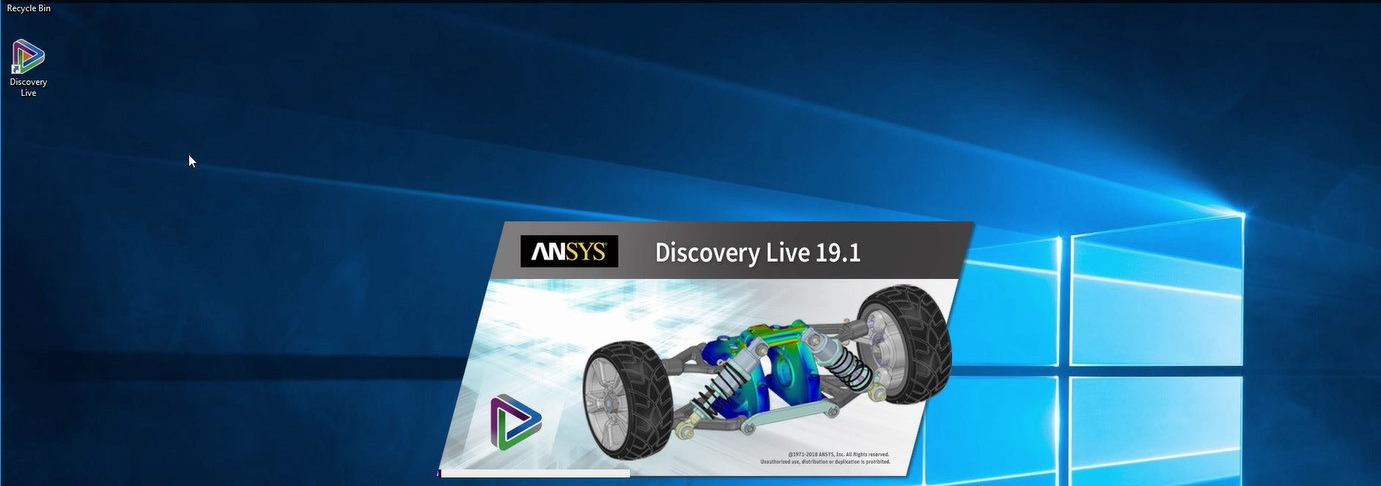
Select the sample model of a truck.
Make some adjustments to the sample model and notice that the changes are instantaneous as adjustments are made.
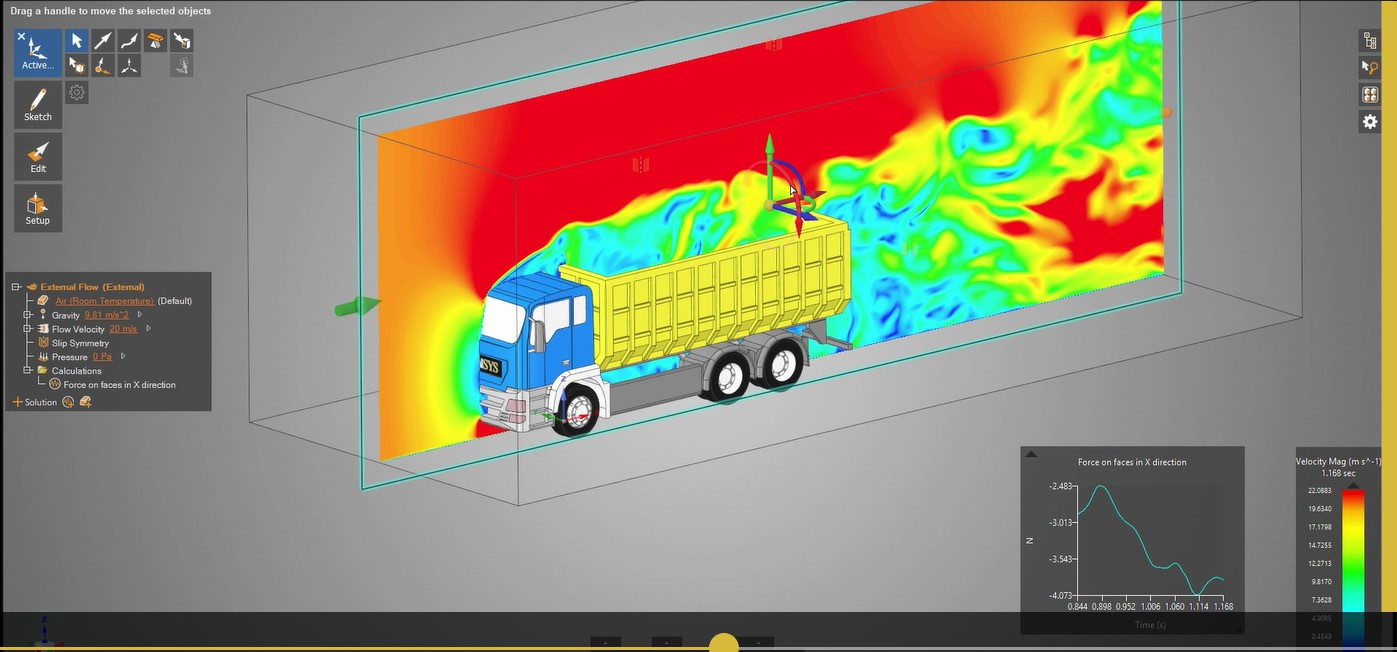
Instantly visualize your simulation and see the effects of changed geometry in seconds, not hours.
View circulation zones and particle flow to achieve a higher degree of confidence.
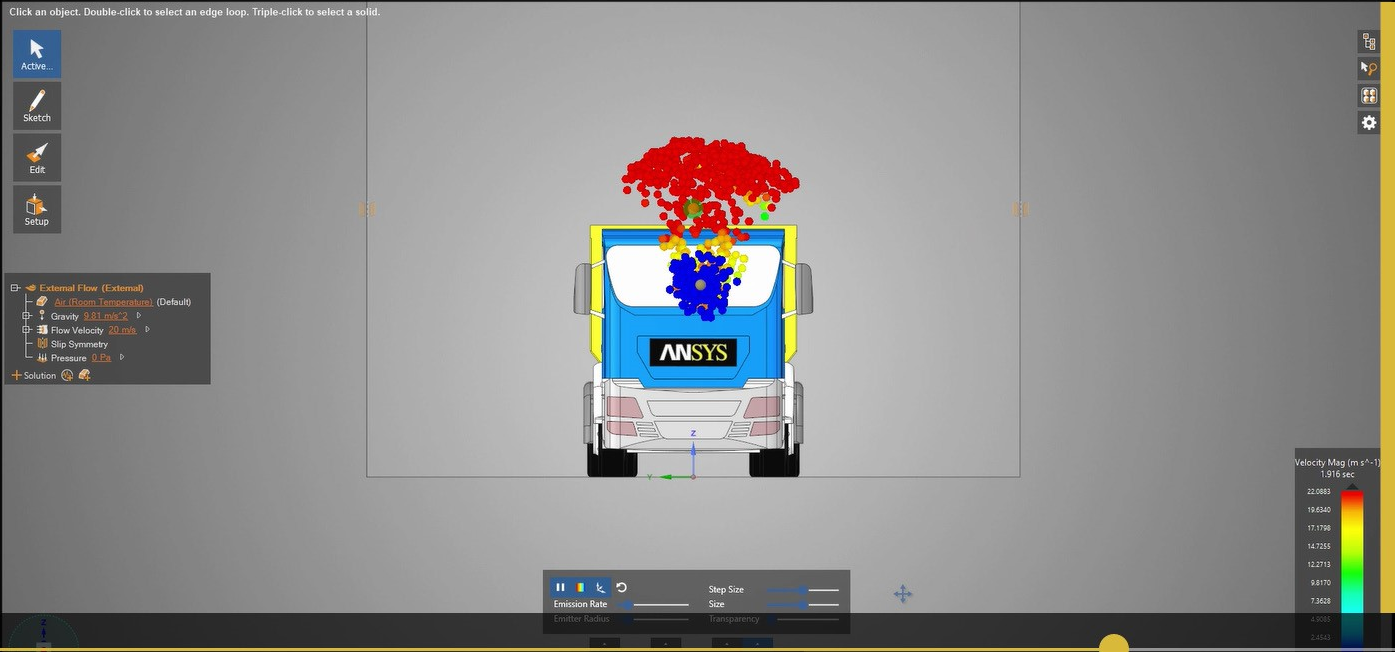
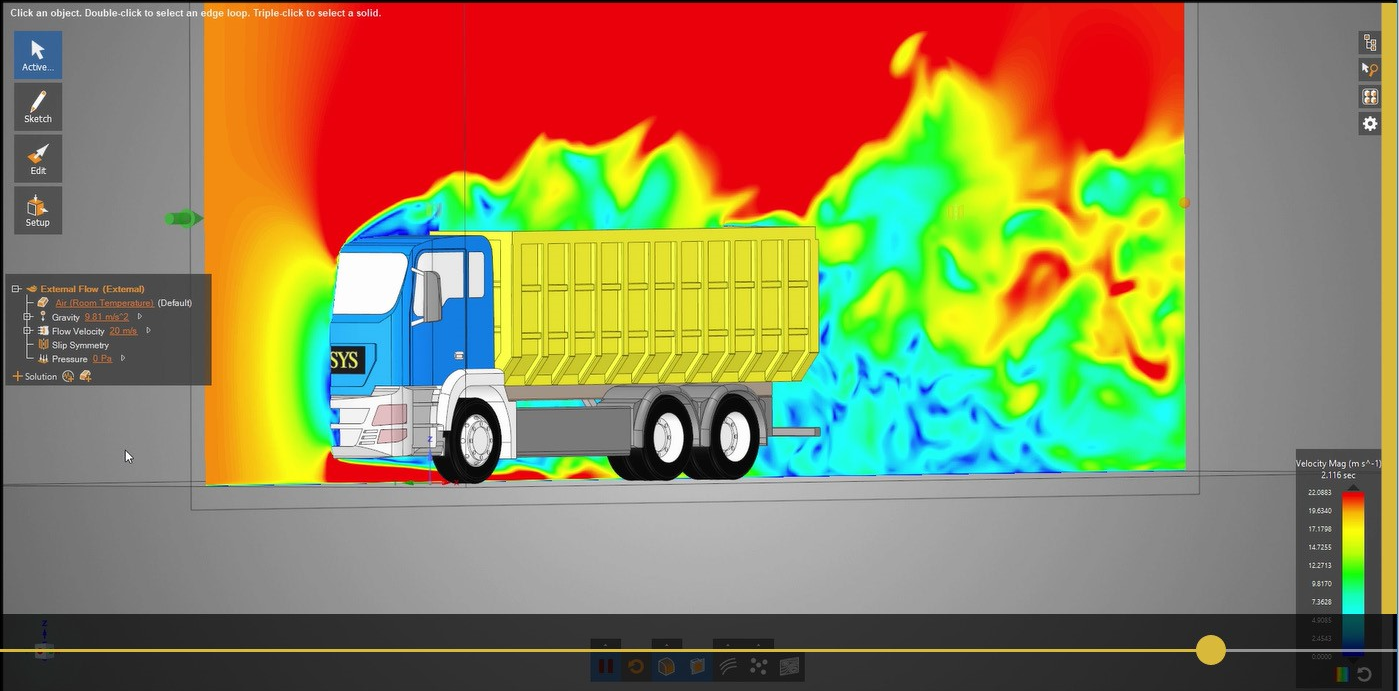
With NVIDIA RTX Virtual Workstation images from the Microsoft Azure marketplace powered by NVIDIA GPUs, you can now interact in real-time with simulation results and iterate design alternatives.