

EKS (Elastic Kubernetes Service)
Overview
New in version 3.1.
Amazon EKS is a managed Kubernetes service to run Kubernetes in the AWS cloud. NVIDIA AI Enterprise, the end-to-end software of the NVIDIA AI platform, is supported to run on EKS. In the cloud, Amazon EKS automatically manages the availability and scalability of the Kubernetes control plane nodes responsible for scheduling containers, managing application availability, storing cluster data, and other key tasks. This guide provides details for deploying and running NVIDIA AI Enterprise on EKS clusters with GPU Accelerated nodes.
The NVIDIA Terraform Modules offer an easy way to deploy Managed Kubernetes clusters that can be supported by NVIDIA AI Enterprise when used with supported OS and GPU Operator versions.
Prerequisites
-
NVIDIA Enterprise License via BYOL or a Private Offer
-
Install the AWS CLI
-
Install the EKS CLI
-
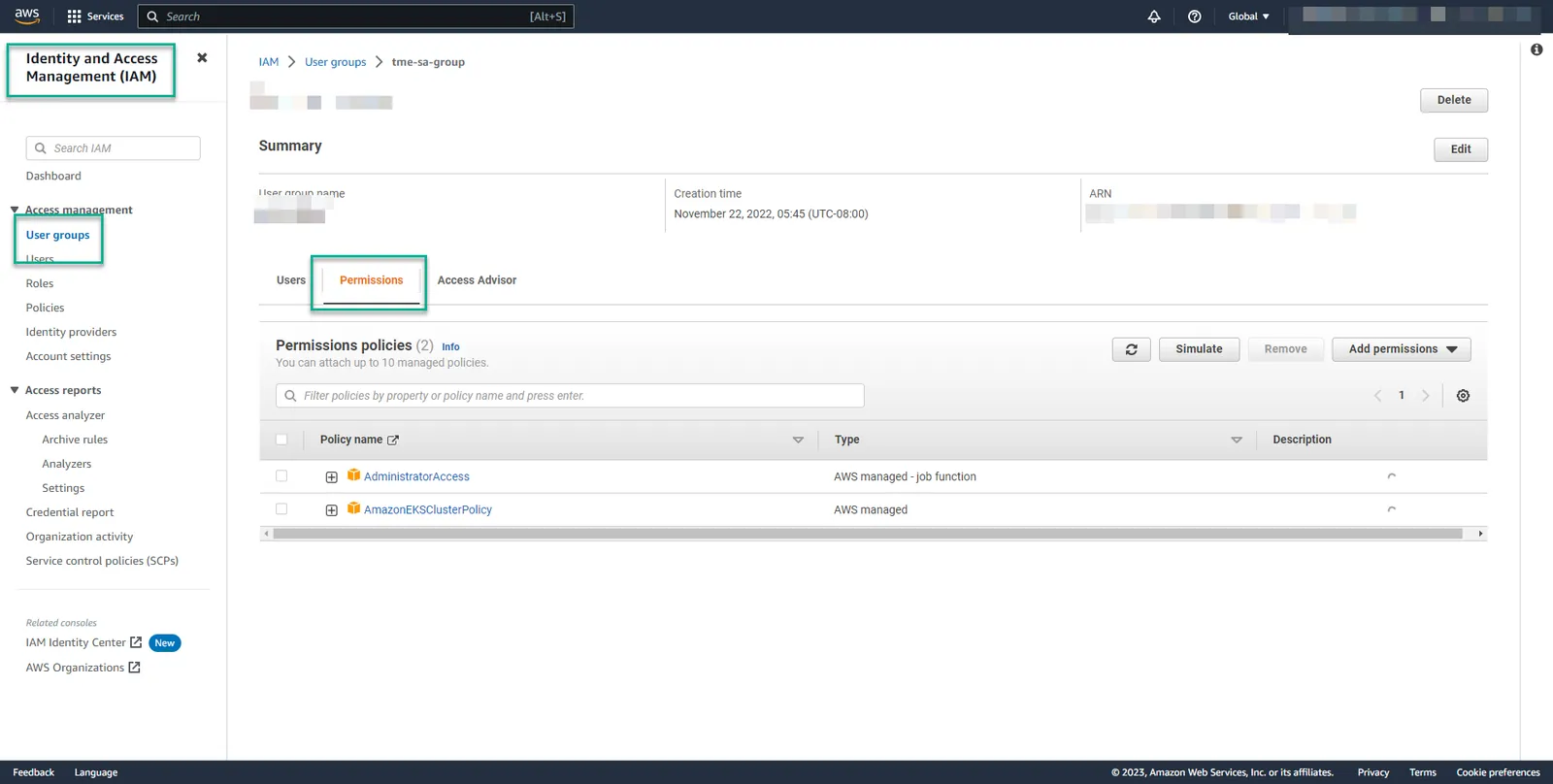
AWS IAM role to create EKS Cluster with the following permissions:
-
Administrator Access
-
AmazonEKSClusterPolicy
-
-
AWS EKS Cluster Prerequisites
Please note that release versions will differ within your local environment. As of this document’s publication, eksctl version 0.133.0 was used and validated. Please refer to Getting started with Amazon EKS for release note history as well as any topics not covered within this document’s scope.
Create a EKS Cluster
AWS configuration
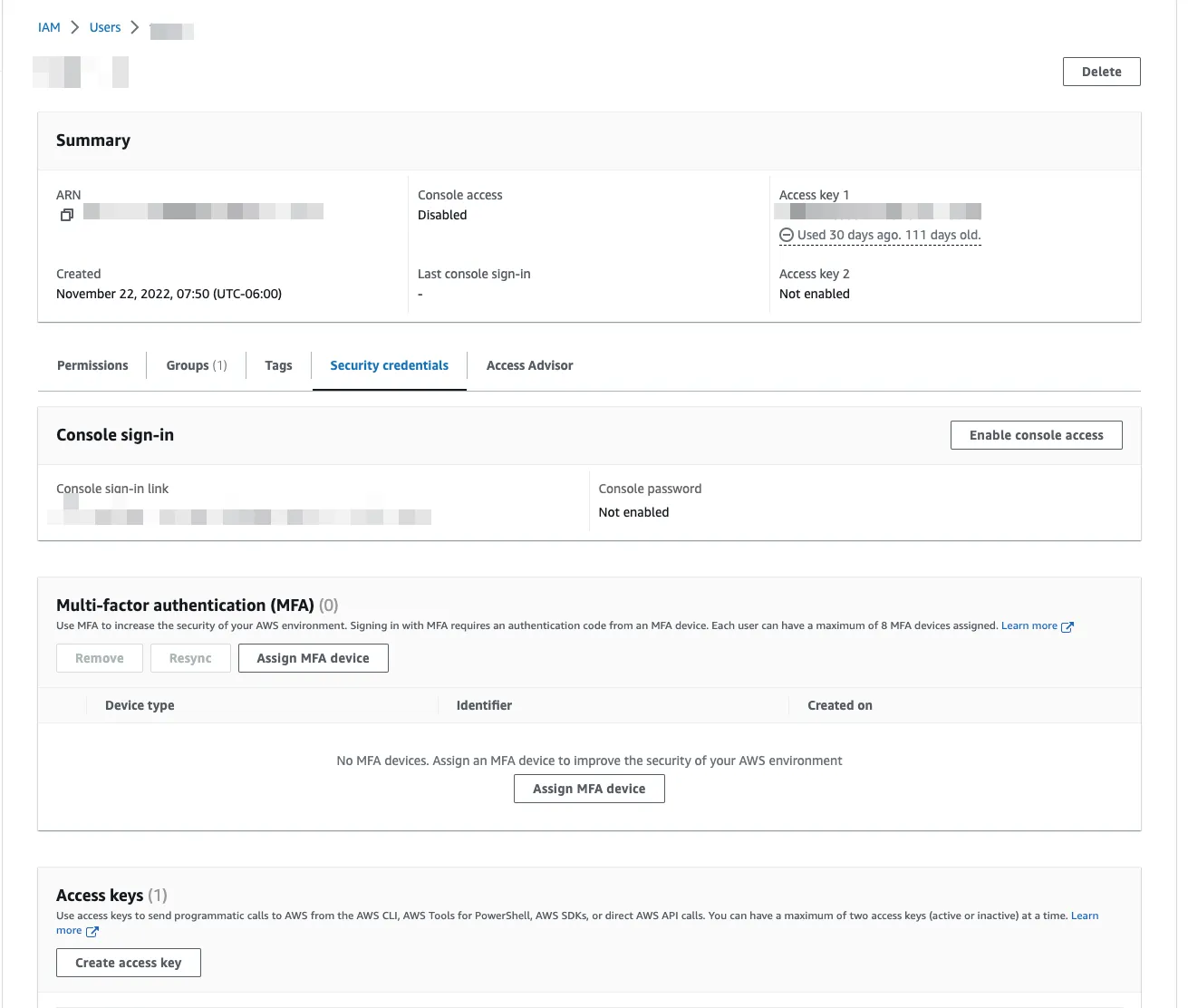
First we will get AWS credentials from the AWS console as per below, click on Access keys and proceed further
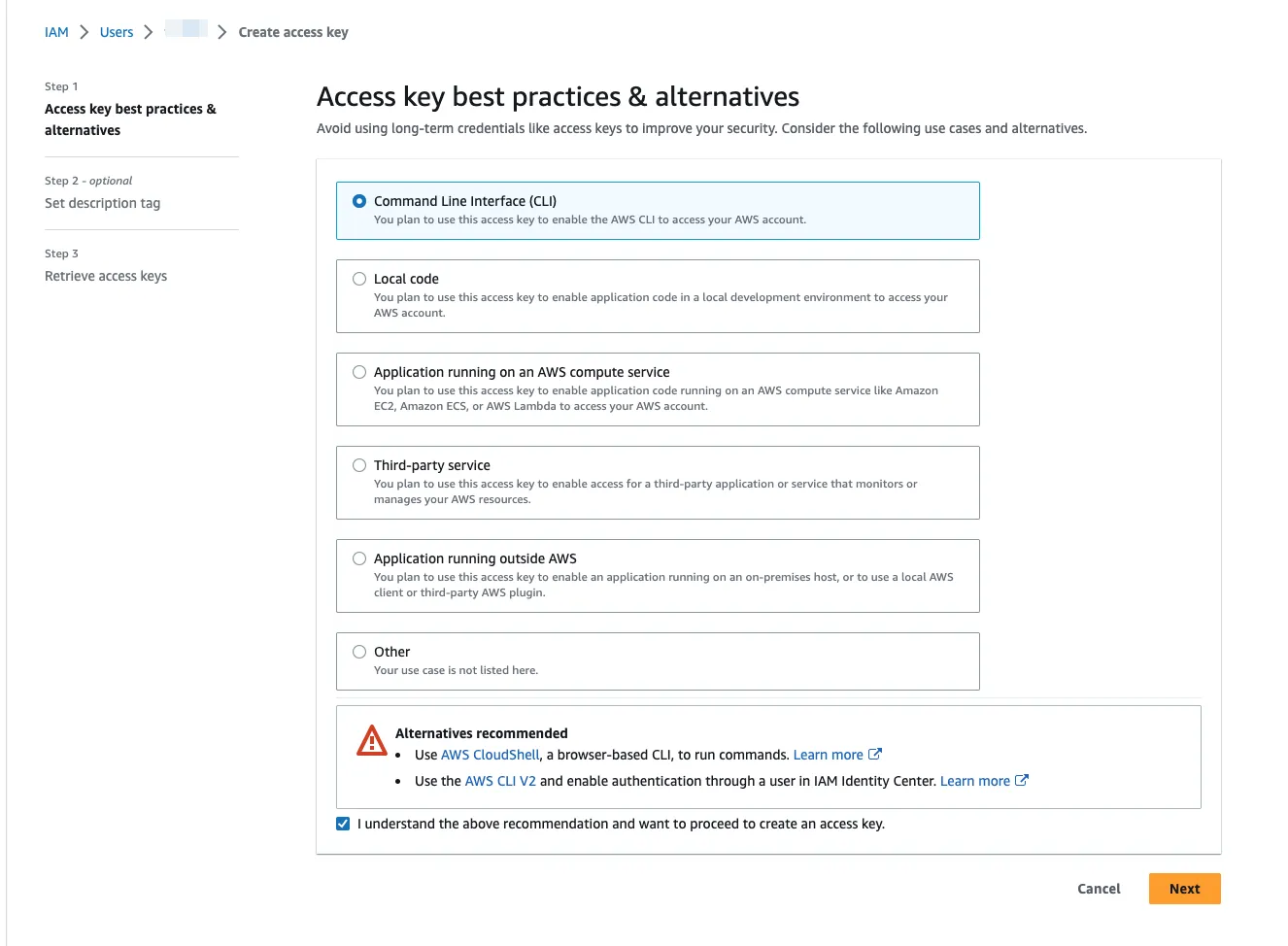
Select Command Line Interface and proceed to Next
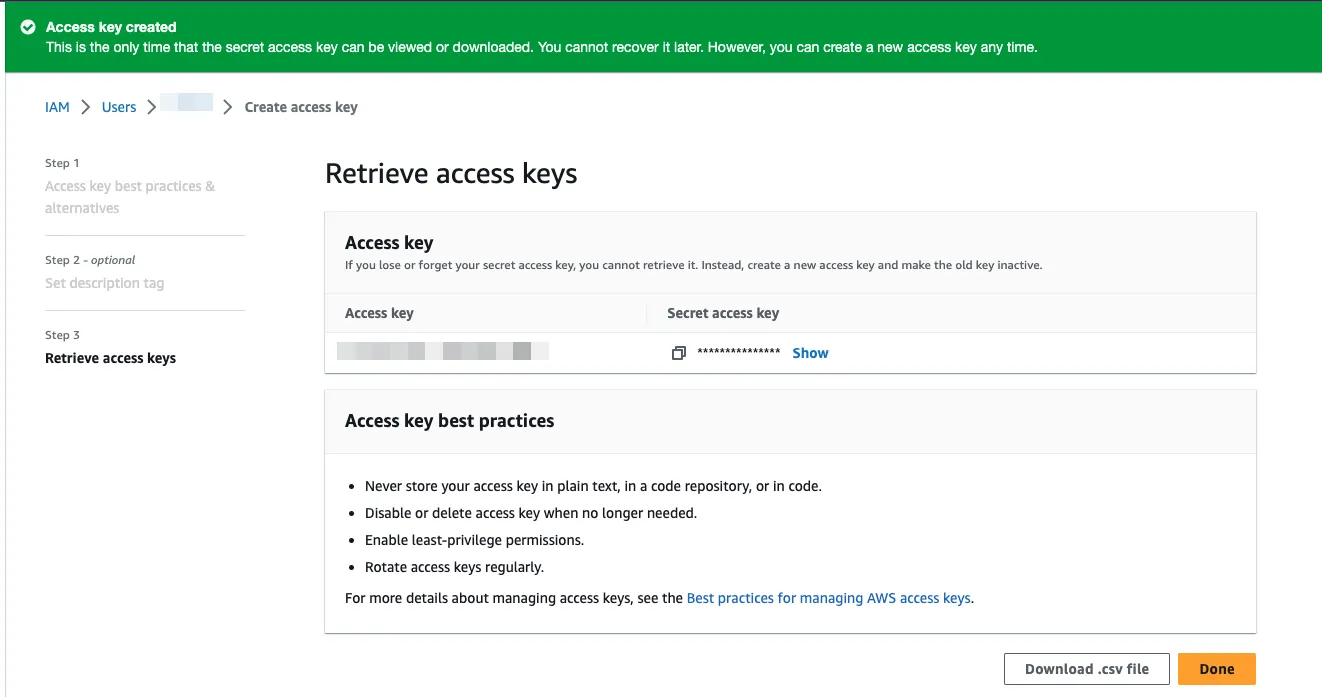
Download the .csv file for future reference and configure the credentials on your system with AWS CLI.
Below is an example output:
Depending on your organizations security practices you may need to use Temporary security credentials. Further details for using AWS STS can be found in the Temporary security credentials in IAM documentation.
Create a cluster-config.yaml as per below with details mentioned.
Replace the ami and amiFamily with the appropriate values from here: https://cloud-images.ubuntu.com/aws-eks/
Choose the region and update the AMI accordingly with respect to the region. Ensure that <eks-cluster-name> that the user provides is identical in both sections of the .yaml file. Choose the AMI that’s designed for the EKS cluster, you can get the AMI’s information from here.
Run the below command to create a EKS cluster.
The creation of the cluster will take some time to complete.
Run the below command to verify the node information
Example output result:
Deploy the GPU Operator
Now that the cluster and appropriate resources are created, the NVIDIA GPU Operator can be installed
The commands below serve as an example and will be similar, albeit slightly different, to the latest version of the GPU Operator. Please refer to the latest GPU Operator release notes for more information.
First we will access our NGC API Key.
Log into your NGC account and generate a new API Key or locate your existing API key. Please refer to the Accessing NGC section of the Appendix.
Generate an API key for accessing the catalog
Next you must generate an API Key that will give you access to the NGC Catalog.
Navigate to the user account icon in the top right corner and select Setup.
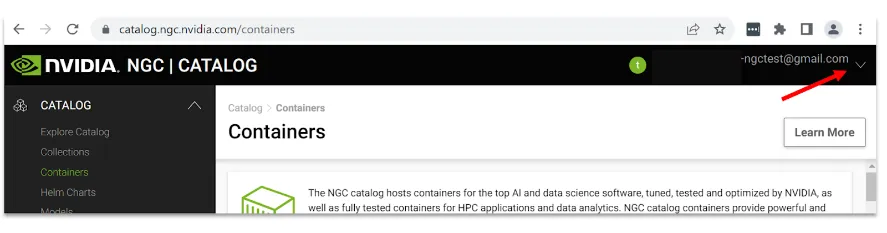
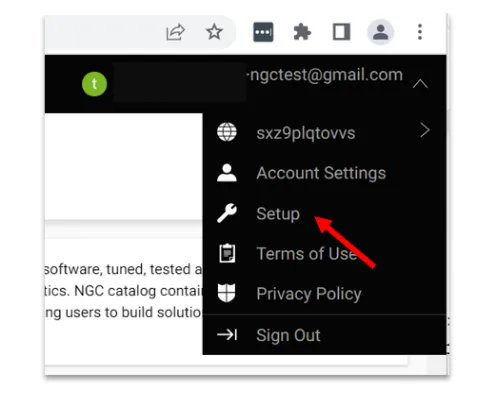
Select Get API key to open the Setup > API Key page.
Select Generate API Key to generate your API key.
Select Confirm to generate the key, and copy it from the bottom of the page. NGC does not save your key, so store it in a secure place.

Generating a new API Key invalidates the previously generated key.
Add the Helm repo and update with the below commands.
Create a NGC Secret with your NGC API key on “gpu-operator” namespace as per below.
Create an empty gridd.conf file, then create a configmap with NVIDIA vGPU Licence token file as per below
The configmap will look for the file client_configuration_token.tok, if your token is in different form such as client_configuration_token_date_xx_xx.tok, then please run the below command:
Install the GPU Operator from the NGC Catalog with a License token and the NVIDIA AI Enterprise driver repo.
If using K8s release prior to 1.25, then deploy GPU operator with PSP option enabled via the parameter option --psp.enabled=true. If using K8s release greater than or equal to 1.25, then deploy GPU operator without PSP option enabled
Ensure that you have the correct role. Please refer to the AWS IAM Role documentation if you lack the required permissions.
Once installed, please wait at least 5 minutes and verify that all the pods are either running or completed as per below.
Verify the GPU Operator Installation
Verify the NVIDIA GPU Driver loaded with below command.
nvidia-driver-daemonset-xxxxx will be different within your own environment for the above command to verify the NVIDIA vGPU Driver.
Verify the NVIDIA vGPU license information with below command
Inspect the validator pod logs to ensure the GPUs are exposed and utilized.
Run Sample NVIDIA AI Enterprise Container
Container images will be similar, albeit slightly different when using the latest image. Please refer to Pulling and Running NVIDIA AI Enterprise Containers to find the latest images on NGC.
Create a docker-registry secret. This will be used in a custom yaml to pull containers from the NGC Catalog.
Create a custom yaml file to deploy an NVIDIA AI Enterprise Container and run sample training code.
Paste the below contents into the file and save
Check the status of the pod.
View the output of the sample mnist training job.
The output will look similar to this.
Delete the EKS Cluster
Run the below command to delete the EKS cluster.