


DLSS / Smooth Motion / Reflex#
This is a high level guide, with the most common settings. Links are provided for more details and configuration on each specific component.
Common DLSS features you may see in games to improve performance:
DLSS Super Resolution (SR): Reconstructs higher-resolution frames from a lower-resolution render.
DLSS Frame Generation (FG): Generates additional frames.
DLSS Ray Reconstruction (RR): Improves ray-traced lighting quality by replacing traditional denoising with AI reconstruction.
DLSS Anti-Aliasing (DLAA): Uses DLSS technology for anti-aliasing at native resolution.
DLSS features that are used and “consumed” independently of the game implementation:
Smooth Motion: Frame generation feature for titles that do not natively support DLSS Frame Generation. It delivers smoother gameplay by inferring an additional frame between two rendered frames.
When a game has native support for DLSS, there are usually settings to enable the various DLSS technologies without anything that needs to be done on the system running the game. The libraries and options are game specific, so the options can vary substantially depending on the title and the age of the title. For games that do not support NVAPI, DLSS options are missing in-game.
This applies to both native Linux games as well to Windows games runnning via Steam Play / Proton. On Linux, Proton must expose NVIDIA’s APIs (NVAPI) for DLSS to function. This is done automatically with the included DXVK-NVAPI as part of a standard Proton installations.
Smooth Motion has no requirement, it can be enabled for any title without native DLSS support or with titles with native DLSS support disabled.
Warning
Native DLSS Frame Generation and Smooth Motion are competing technologies and should not be used together. Doing so results in lower performance and visual artifacts.
Other technologies:
NVIDIA Reflex: A technology that reduces system latency in games by synchronizing CPU and GPU work so your inputs appear on screen faster.
Smooth Motion#
Smooth Motion is enabled via an environment variable:
NVPRESENT_ENABLE_SMOOTH_MOTION=1
When enabling this, the Frame Generation is transparent to the game engine and gets applied automatically.
See also
- Chapter 39. NVIDIA Smooth Motion
NVIDIA Accelerated Linux Graphics Driver README
DLSS SR/FG/RR#
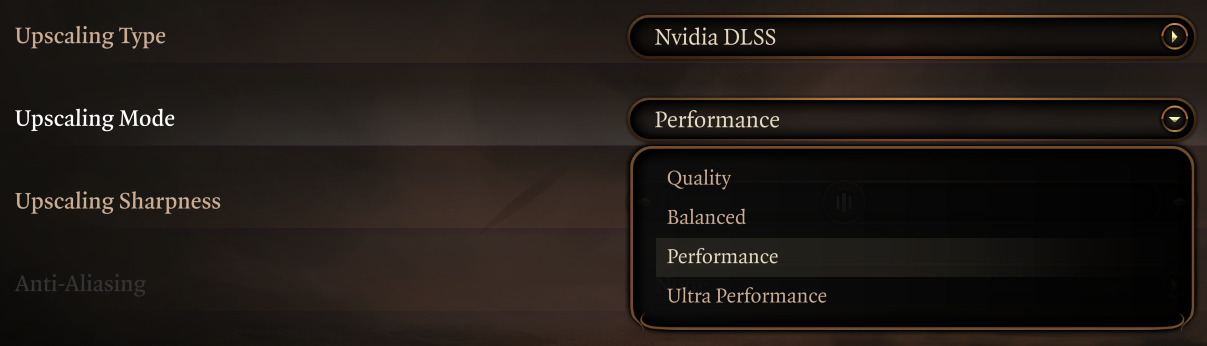
DLSS support is normally enabled in the game settings, and settings themselves depend on the game engine and update level. For example for Doom Eternal on Proton:

And with the Linux native port of Baldur’s Gate 3:
DLSS Update (Steam Play / Proton)#
Again with the example of Doom Eternal, we can see that the game originally ships with DLSS 2.3:
$ cd ~/.local/share/Steam/steamapps
$ peres -v common/DOOMEternal/nvngx_dlss.dll
File Version:                    65263.1213.1.0
Product Version:                 2.3.0.0
This can also be verified while the game is running with the DLSS Indicator (Steam Play / Proton):

So DLSS models are limited to the version of the Streamline SDK libraries that the game originally shipped with; but libraries and the settings can also be overridden.
By setting the following environment variable, the DLLs shipped with the game can be overridden:
PROTON_ENABLE_NGX_UPDATER=1
This result in the following files being added to the Proton root folder (the virtual Windows system drive) at runtime:
$ grep DOOMEternal appmanifest_*
appmanifest_782330.acf:      "installdir"            "DOOMEternal"
$ cd compatdata/782330/pfx/drive_c/
$ find ProgramData/NVIDIA/ -type f
ProgramData/NVIDIA/NGX/models/config/versions/2/files/nvngx_server_config.txt
ProgramData/NVIDIA/NGX/models/config/versions/1/files/nvngx_mapping.json
ProgramData/NVIDIA/NGX/models/config/versions/1/files/nvngx_deny_list.txt
ProgramData/NVIDIA/NGX/models/dlss/versions/20317442/files/160_E658700.bin
ProgramData/NVIDIA/NGX/models/nvngx_config.txt
And by looking at some of those, we can see that the DLSS versions have been overridden:
$ cat ProgramData/NVIDIA/NGX/models/nvngx_config.txt
[dlss]
app_E658700 = 310.5.2
$ peres -v ProgramData/NVIDIA/NGX/models/dlss/versions/20317442/files/160_E658700.bin
File Version:                    65263.1213.1.0
Product Version:                 310.5.2.0
This will only override the libraries, not the game engine settings. Again this can also be verified while the game is running with the DLSS Indicator (Steam Play / Proton):

The amount of libraries downloaded depends on the features implemented by the game engine. For example, for Cyberpunk 2077, we can see that three libraries are updated:
$ cd compatdata/1091500/pfx/drive_c/ProgramData/NVIDIA/NGX
$ find models -name "*.*"
models/config/versions/2/files/nvngx_server_config.txt
models/config/versions/1/files/nvngx_mapping.json
models/config/versions/1/files/nvngx_deny_list.txt
models/dlss/versions/131844/files/160_B9DB490.bin
models/dlss/versions/20317442/files/160_E658700.bin
models/nvngx_config.txt
models/dlssg/versions/20317442/files/160_E658700.bin
models/dlssd/versions/20317442/files/160_E658700.bin
$ cat nvngx_config.txt
[dlss]
app_B9DB490 = 2.3.4
app_E658700 = 310.5.2

[dlssg]
app_E658700 = 310.5.2

[dlssd]
app_E658700 = 310.5.2
dlss is for Super Resolution, dlssg for Frame Generation and dlssd is for Ray Reconstruction.
Note
Some titles prevent DLL updates even with PROTON_ENABLE_NGX_UPDATER=1, like Deep Rock Galactic. These titles require also the override of presets and snippets as described in the next section to fully unblock the updated libraries.
DLSS Update (native)#
Again with the example of Baldur’s Gate 3, we can see that the game originally ships with DLSS 3.7:
$ cd ~/.local/share/Steam/steamapps/common/Baldurs\ Gate\ 3/bin/
$ ls -1sh *dlss*
42M libnvidia-ngx-dlss.so.3.7.20
This can also be verified while the game is running with the DLSS Indicator (native):

So DLSS models are limited to that version of the libraries that the game originally shipped with, but libraries can also be overridden.
To update the DLSS libraries to a later version:
$ wget https://github.com/NVIDIA/DLSS/raw/refs/heads/main/lib/Linux_x86_64/rel/libnvidia-ngx-dlss.so.310.5.3
$ chmod +x libnvidia-ngx-dlss.so.310.5.3
$ ls -1sh *dlss*
53M libnvidia-ngx-dlss.so.310.5.3
42M libnvidia-ngx-dlss.so.3.7.20
This will only override the libraries, not the game engine settings. This can also be verified while the game is running with the DLSS Indicator (native):

Note
Overriding presets is currently not supported on Linux.
DLSS Settings Override (Steam Play / Proton)#
After updating the libraries (DLLs) to the latest published versions, it’s also possible to override game settings. To override settings for Super Resolution, Ray Reconstruction and Frame Generation and as well use the recommended presets available from the Streamline SDK you might also want to add these variables:
DXVK_NVAPI_DRS_NGX_DLSS_SR_OVERRIDE=on
DXVK_NVAPI_DRS_NGX_DLSS_RR_OVERRIDE=on
DXVK_NVAPI_DRS_NGX_DLSS_FG_OVERRIDE=on

DXVK_NVAPI_DRS_NGX_DLSS_SR_OVERRIDE_RENDER_PRESET_SELECTION=render_preset_latest
DXVK_NVAPI_DRS_NGX_DLSS_RR_OVERRIDE_RENDER_PRESET_SELECTION=render_preset_latest
This will result in a complete override of all settings in the game regardless of what is configured in the game engine settings. As shown by the DLSS Indicator (Steam Play / Proton):

Attention
NVAPI headers defining the presets available are included in DXVK-NVAPI, which is then in turn included in Proton. Depending on the age of the Proton release not all presets might available.
In this case, switch to a newer major Proton version or Proton Experimental that might contain a more recent version of the DXVK-NVAPI libraries.
See also
- NGX snippet updates and preset overrides
DXVK-NVAPI wiki
DLSS Indicator (Steam Play / Proton)#
Applied DLSS Settings can be verified in-game through the use of an additional environment variable:
DXVK_NVAPI_SET_NGX_DEBUG_OPTIONS=DLSSIndicator=1024,DLSSGIndicator=2
This will enable the overlay information (DLSS Indicator) at the bottom of the screen for Super Resolution and at the top for Frame Generation. These are the equivalent values of the Windows Registry settings, as specified in the programming guide linked below.
Note
These indicators are written to the registry inside the wineprefix (~/.local/share/Steam/steamapps/compatdata/<product id>) of the game. This means that once set, the Indicators are permanent; and they need to be set again with their value at zero at least once to make them disappear:
DXVK_NVAPI_SET_NGX_DEBUG_OPTIONS=DLSSIndicator=0,DLSSGIndicator=0
See also
- 20.0 DLSS-FG INDICATOR TEXT
Streamline - DLSS-G
- 3.18 Current DLSS Settings
NVIDIA DLSS Super Resolution Programming Guide
DLSS Indicator (native)#
Applied DLSS Settings can be verified in-game through the use of an additional environment variable:
__NGX_SHOW_INDICATOR=1024
This will enable the overlay information (DLSS Indicator) at the bottom of the screen for Super Resolution. This is the equivalent of the Windows Registry settings, as specified in the programming guide linked below.
See also
- 3.18 Current DLSS Settings
NVIDIA DLSS Super Resolution Programming Guide
Reflex#
NVIDIA Reflex is a technology by NVIDIA that reduces system latency by synchronizing the GPU and CPU to deliver faster, more responsive input-to-screen gameplay, especially in competitive games.
Reflex for Vulkan (Steam Play / Proton)#
Reflex is supported out of the box in DirectX games via DXVK-NVAPI; but in order to support the Vulkan flavor of NVIDIA Reflex, an additional Vulkan layer is required.
This layer intercepts Vulkan calls made by DXVK-NVAPI, enriches them with extra data, and forwards to a Vulkan driver that supports VK_NV_low_latency2 device extension. The Vulkan extension gives applications timing suggestions on when to start the recording of new frames to reduce the latency between input sampling and frame presentation.
To install the layer, first of all download the latest DXVK-NVAPI release and then:
$ tar -xzf dxvk-nvapi-*.tar.gz --strip-components=2 ./layer
$ sed -i -e 's|./libdxvk|libdxvk|g' VkLayer_DXVK_NVAPI_reflex.json
# install -m0644 -D VkLayer_DXVK_NVAPI_reflex.json \
    /usr/local/share/vulkan/implicit_layer.d/VkLayer_DXVK_NVAPI_reflex.json
Then for Debian/Ubuntu systems:
# install -m0755 -D libdxvk_nvapi_vkreflex_layer.so \
    /usr/local/lib/x86_64-linux-gnu/libdxvk_nvapi_vkreflex_layer.so
For all other RPM based distributions:
# install -m0755 -D libdxvk_nvapi_vkreflex_layer.so \
   /usr/local/lib64/libdxvk_nvapi_vkreflex_layer.so
Then a simple check will report if the Vulkan layer is available on the system:
$ vulkaninfo --summary | grep NVAPI
VK_LAYER_DXVK_NVAPI_reflex         DXVK-NVAPI Vulkan Reflex compatibility layer   1.3.295  version 1
Because the layer could interfere with other Vulkan applications that don’t use Reflex, it is currently disabled by default even when installed. To enable the layer, set the following environment variable:
DXVK_NVAPI_VKREFLEX=1
See also
- Vulkan Reflex layer
DXVK-NVAPI README.md
Reflex (native)#
Reflex is supported, not via the Reflex SDK but directly via the Vulkan extension VK_NV_low_latency2 in games that natively implement that. The Vulkan extension gives applications timing suggestions on when to start the recording of new frames to reduce the latency between input sampling and frame presentation.
GPU utilization reporting (Steam Play / Proton)#
On the titles that support it, GPU utlization and usage reporting is done through the NVIDIA Management Library (NVML). For example, on Assassin’s Creed Shadows:
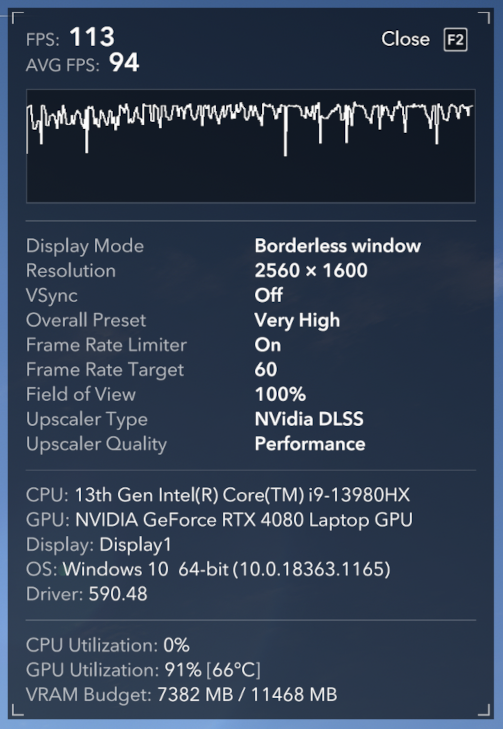
If the NVML library support is missing, the reporting is not correct:

Not being part of Wine/Proton, Wine NVML needs to be manually installed. First of all, download the latest release from the wine-nvml Github project.
Then proceed with the installation. For example, with Proton 10:
$ PROTON_LIBS=~/.local/share/Steam/steamapps/common/Proton\ 10.0/files/lib/wine
$ unzip wine-nvml*.zip
$ install -m0555 -p lib64/wine/x86_64-windows/nvml.dll "${PROTON_LIBS}/x86_64-windows/"
$ install -m0555 -p lib64/wine/x86_64-unix/nvml.so "${PROTON_LIBS}/x86_64-unix/"
The wine-nvml files are not part of a standard Proton installation, so the files are not overwritten or deleted in case of updates or manual integrity verification.
See also
Applying settings to games#
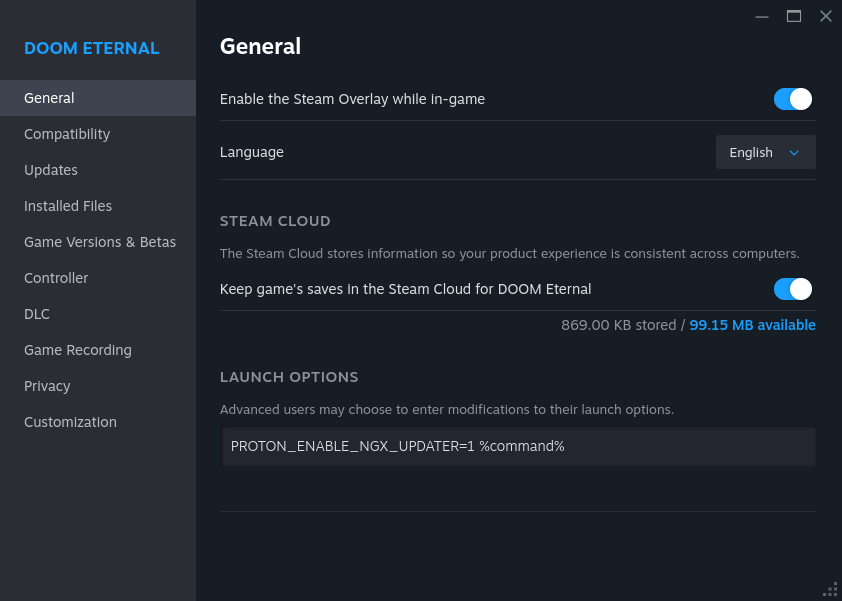
There are multiple ways settings can be applied to a specific game; for example directly via the Steam UI:
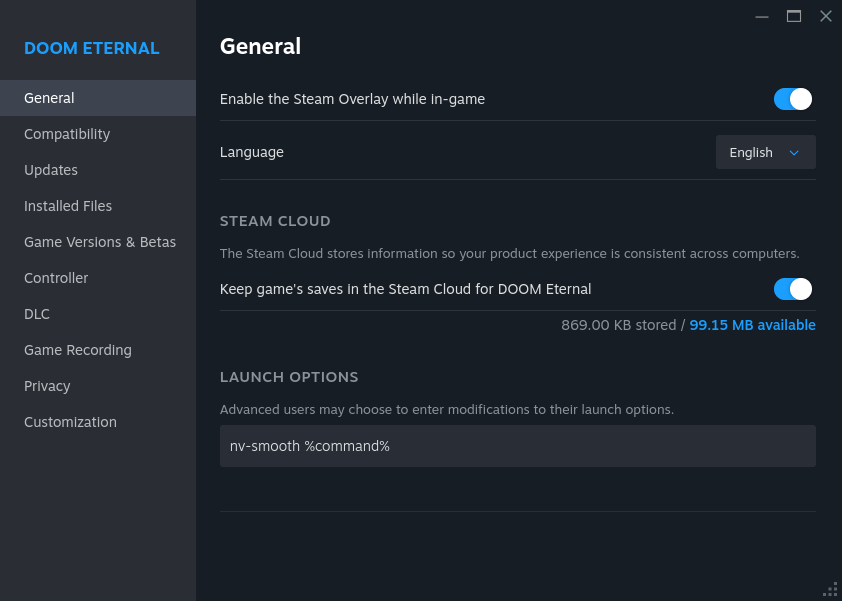
Through a script that’s applied to the Steam UI:
$ cat /usr/local/bin/nv-smooth
#!/usr/bin/bash
export NVPRESENT_ENABLE_SMOOTH_MOTION=1
export DXVK_NVAPI_VKREFLEX=1
exec gamemoderun "$@"
Through a specific Proton settings file, which will apply the same setting to all titles started with this particular Proton version:
$ cat .local/share/Steam/steamapps/common/Proton\ -\ Experimental/user_settings.py
user_settings = {
  "PROTON_ENABLE_NGX_UPDATER": "1",
  "DXVK_NVAPI_DRS_NGX_DLSS_SR_OVERRIDE": "on",
  "DXVK_NVAPI_DRS_NGX_DLSS_RR_OVERRIDE": "on",
  "DXVK_NVAPI_DRS_NGX_DLSS_FG_OVERRIDE": "on",
  "DXVK_NVAPI_DRS_NGX_DLSS_SR_OVERRIDE_RENDER_PRESET_SELECTION": "render_preset_latest",
  "DXVK_NVAPI_DRS_NGX_DLSS_RR_OVERRIDE_RENDER_PRESET_SELECTION": "render_preset_latest",
  "DXVK_NVAPI_VKREFLEX": "1"
}
Note
When using a combination of the above, for example using generic Proton settings, a custom script and specific variables in front of the script; launch options take precedence above the generic proton settings.