


Safety Core Guide#
Note
This documentation uses the updated terminology: Safety Event Integrator and Safety Decision Maker (SEI & SDM). File paths, Debian package names, and binary executables may retain legacy naming (psf, nvpss) for backward compatibility. Future releases will transition to the new naming convention.
1. Installation of the Safety Core#
The Safety Core can be installed using one of two methods:
Debian packages — Individual
.debpackages are provided for direct installation on the host system. This method is suitable for bare-metal deployments where the Safety Core components run natively on the target platform.Docker container — A pre-built Docker image is available on NGC containing all Safety Core binaries and runtime dependencies. This method simplifies deployment by encapsulating the application environment and is the recommended approach.
1.1 Debian Installation#
The following Debian packages are available:
psf-desktop.deb, psf-desktop-dev.deb — For x86-64 based systems. - psf-desktop.deb — HOISA application binaries and libraries - psf-desktop-dev.deb — HOISA development headers and makefiles
psf-tegra.deb, psf-tegra-dev.deb, psf-tegra-fsi.deb — For IGX Thor based systems (aarch64). - psf-tegra.deb — HOISA application binaries and libraries - psf-tegra-dev.deb — HOISA development headers and makefiles - psf-tegra-fsi.deb — HOISA FSI firmware binaries and the
fsicom-agenthost bridge. This package needs a separate sign-up here.
# x86-64
ngc registry resource download-version "nvidia/halos-outside-in/outside-in-safety:nv-psf-halos-1.2.1-x86-lin64-release-3041f93-psf-desktop"
ngc registry resource download-version "nvidia/halos-outside-in/outside-in-safety:nv-psf-halos-1.2.1-x86-lin64-release-3041f93-psf-desktop-dev"

# IGX (aarch64)
ngc registry resource download-version "nvidia/halos-outside-in/outside-in-safety:nv-psf-halos-1.2.1-aarch64-release-3041f93-psf-tegra"
ngc registry resource download-version "nvidia/halos-outside-in/outside-in-safety:nv-psf-halos-1.2.1-aarch64-release-3041f93-psf-tegra-dev"

# IGX (aarch64) - FSI support (need separate sign-up)
ngc registry resource download-version "nvidia/outside-in-safety/outside-in-safety:nv-psf-halos-1.2.1-aarch64-release-3041f93-psf-tegra-fsi"
Install the Debian packages using the following commands:
sudo dpkg -i psf-desktop.deb
sudo dpkg -i psf-desktop-dev.deb
sudo dpkg -i psf-tegra.deb
sudo dpkg -i psf-tegra-fsi.deb
sudo dpkg -i psf-tegra-dev.deb
After installation, the framework directory structure will be as follows:
Component |
Path |
|---|---|
Root Directory |
/opt/nvidia/psf |
Libraries |
/opt/nvidia/psf/lib |
Binaries |
/opt/nvidia/psf/bin |
Reference Apps |
/opt/nvidia/psf/apps |
Note
By default, SEI & SDM binaries and libraries inside the Docker container are located under
/opt/nvidia/psf/bin and /opt/nvidia/psf/lib respectively. To make these
binaries and libraries discoverable from the host environment (for example, when
launching helper tools or linking against container-provided libraries), extend
your PATH and LD_LIBRARY_PATH accordingly.
export PATH=/opt/nvidia/psf/bin:"${PATH}"
export LD_LIBRARY_PATH=/opt/nvidia/psf/lib:"${LD_LIBRARY_PATH}"
1.2 Docker Installation#
You can install Safety Core as a Docker container by downloading it from NGC using the following command:
Important
The Safety Core container image is hosted on NGC under gated access. Before pulling the image, complete the following one-time setup:
Accept the NGC invitation — An enrollment email is sent when your access is approved. Click the link in the email to join the NGC organization. If you did not receive the email or it has expired, contact your NVIDIA representative to have it resent.
Sign in to NGC — Log in at https://ngc.nvidia.com with your NVIDIA account.
Accept the license agreement — Navigate to the Halos Outside-In Safety resource page and accept the governing terms and user agreements when prompted.
Log in Docker to NGC — NGC CLI authentication is not enough for Docker image pulls. Docker must be authenticated to
nvcr.ioor the pull fails with401 Unauthorized.
If the docker pull command below fails with a permission or authentication error, verify that Docker is logged in to nvcr.io and that both the NGC invitation and the license agreement have been accepted.
export PSF_IMAGE=nvcr.io/nvidia/halos-outside-in/outside-in-safety:nv-psf-halos-1.2.1-3041f93

docker login nvcr.io
# Username: $oauthtoken
# Password: <NGC API key>

# Validate Docker registry access before deployment.
docker pull "${PSF_IMAGE}"
1.3 Safety Core Setup (Docker Runtime)#
Note
Ensure the VSS stack is fully up and running before starting the Safety Core (PSF) Docker container, with the calibration file including "restrictedObjectTypes":["Person"] for all relevant ROIs.
For dual-camera setups, all camera streams must be synchronized and named accurately.
1.3.1 Prerequisites#
VSS stack containers (analytics, UI, recorders, etc.) are running and reachable.
Calibration file for the monitored region is deployed and includes
"restrictedObjectTypes":["Person"]for the ROIs, where relevant.For dual camera configurations, ensure all camera streams are in sync.
2. Running Safety Core#
2.1 Setup#
2.1.2 Runtime library dependencies (Debian installation only)#
When using the Debian-based installation, the following shared libraries must be installed on the host system before launching Safety Core applications. These libraries are not bundled in the Safety Core Debian packages and must be installed separately.
librdkafka.so.1— Required for Kafka event ingestionlibprotobuf.so.32— Required for protobuf message parsing
Install them using apt:
sudo apt-get update
Ubuntu 22.04:
sudo apt-get install -y librdkafka1 libprotobuf23
Ubuntu 24.04:
sudo apt-get install -y librdkafka1 libprotobuf32t64
Note
Verify the libraries are accessible on the default library search path after installation:
ldconfig -p | grep librdkafka
ldconfig -p | grep libprotobuf
If either library is not found, ensure /usr/lib or the appropriate library directory is included
in /etc/ld.so.conf and run sudo ldconfig.
Tip
This step is not required for Docker-based installations. The Safety Core Docker container already includes all required runtime libraries.
2.1.3 Create the sensor configuration file#
Every Safety Core invocation consumes a sensor configuration file. It is the single source of truth mapping each physical camera stream to a fixed pipeline slot, a human-readable sensor name, and the RTSP URL from which frames are pulled. The file must exist and be readable by the user (or container) that launches Safety Core before any of the flows in sections 2.2, 2.3, or 2.4 are started.
Default path and name
The Safety Core Debian package ships a ready-to-edit template at:
/opt/nvidia/psf/bin/sensor_config.conf.sample
The operator renames (or copies) that template in place to produce the live configuration that is actually read at runtime:
/opt/nvidia/psf/bin/sensor_config.conf
This is also the default value of sensorConfig in
/opt/nvidia/psf/bin/nvpss.conf.
Manual mdx_client launches and Safety Core Docker launches must pass
the same file using --sensor-config /opt/nvidia/psf/bin/sensor_config.conf.
The SEI daemon (nvpss_daemon) reads this path from the sensorConfig
entry in /opt/nvidia/psf/bin/nvpss.conf.
File format
One sensor per non-blank line.
Fields are comma-separated in this exact order:
pipelineId, sensorName, rtspUrl
Blank lines are ignored.
Lines beginning with
#are treated as comments.Leading and trailing whitespace around each field is trimmed.
The RTSP URL field captures the remainder of the line, so any commas inside the URL (for example inside query parameters) are preserved verbatim.
Field rules
Field |
Type |
Constraints |
|---|---|---|
pipelineId |
uint8 |
Integer in |
sensorName |
string |
1-63 characters. Must be unique across the file.
Used as the human-readable identifier that appears
in logs, alerts, and Kafka |
rtspUrl |
string |
1-255 characters. The exact RTSP URL consumed by HOISA. It must be directly playable; VST online status alone is not sufficient. |
A single configuration may contain at most 8 entries (one per pipeline slot).
Example
# /opt/nvidia/psf/bin/sensor_config.conf
#
# pipelineId, sensorName, rtspUrl

1, Camera_North,     rtsp://192.168.10.21:554/stream0
2, Camera_South,     rtsp://192.168.10.22:554/stream1
3, Camera_Left,      rtsp://192.168.10.23:554/stream2
Create the file from the shipped template
# Start from the template installed by the Debian package.
sudo cp /opt/nvidia/psf/bin/sensor_config.conf.sample \
        /opt/nvidia/psf/bin/sensor_config.conf

# Edit in place with your real pipelineId / sensorName / rtspUrl
# tuples (the example above is a good reference).
sudo $EDITOR /opt/nvidia/psf/bin/sensor_config.conf

# Ensure the file is readable by the HOISA runtime.
sudo chmod 644 /opt/nvidia/psf/bin/sensor_config.conf

# Validate each configured RTSP URL before launching HOISA.
ffprobe -rtsp_transport tcp <rtsp_url>
# or
gst-launch-1.0 rtspsrc location=<rtsp_url> ! fakesink
Note
If the file is missing, malformed, contains duplicate pipelineId
or sensorName values, or lists more than 8 entries, HOISA Safety
Core components will fail to start and a descriptive error will be
written to /var/log/psf/*.log (or to stderr when launched outside
the container). Fix the offending line and relaunch; no partial
configurations are accepted.
Note
For HALOS deployments with VSS, use the VST proxy RTSP URL configured
for the registered sensor, typically a /live/<sensor-id> URL, in
sensor_config.conf and validate that exact URL. A direct
nvstreamer URL that plays in isolation is useful for camera
debugging, but it is not a substitute for validating the VST proxy URL
consumed by HOISA.
Tip
When creating VST sensors for HOISA, keep VST sensor names unique. If
sensor creation fails because names such as Camera_01,
Camera_02, or Camera already exist, remove the stale sensors or
create new PSF-specific names, then update sensor_config.conf with
the refreshed rtspUrl values.
Tip
The sensorName values configured here are the same strings the
Metropolis producer emits in the Behavior.sensor.id field of each
Kafka event. Keeping the two in sync is what lets Safety Core
correlate a Kafka alert back to a specific camera pipeline.
Safety Core is demonstrated by the following reference applications:
Control of safety function on a forklift
Proximity monitoring (Preview)
2.2 Launch ‘Control of safety function on a forklift’#
This application uses Safety Core to control a safety function on a forklift which is operating in a warehouse environment and performing loading and unloading of pallets to/from the trailer. The system responds to movement of the forklift when it approaches the trailer. The operation scenario appears below.
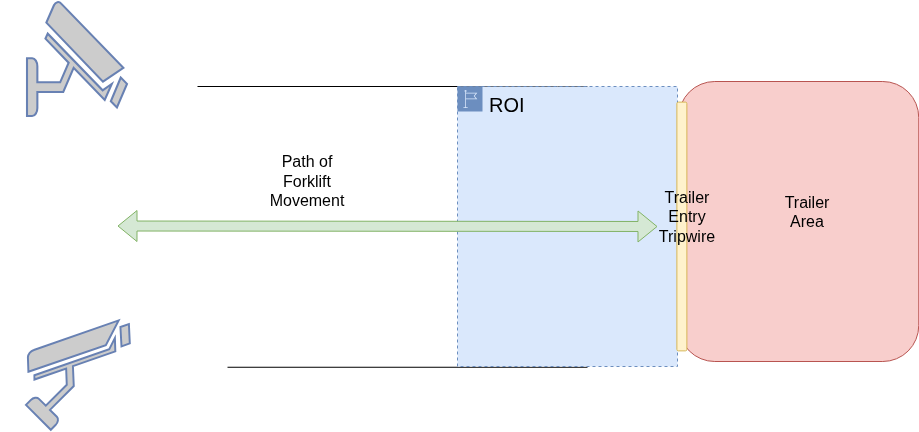
Operation of controlling the safety function on the forklift is based on following principles
When a forklift is about to enter the trailer, its safety function must be turned off provided there is no human personnel inside the trailer and in a defined ROI around the gate of the trailer.
When a forklift is about to exit the trailer, its safety function must be turned on if it was turned off while entering the trailer.
Supported Deployment Options
Safety Core supports the following deployment options:
Platform |
SDM Location |
Description |
|---|---|---|
x86-64 |
CCPLEX |
Standard deployment on x86-64 servers. |
aarch64 |
CCPLEX |
IGX Thor deployment with SDM running on the CCPLEX. Execution is identical to x86-64. |
aarch64 |
FSI |
IGX Thor deployment with SDM offloaded to the FSI (Functional Safety Island) for hardware-isolated safety. |
Note
If the forklift’s safety state is to be updated on the VST UI only, launching a separate command receiver application is not necessary.
Execution Steps:
2.2.1 Option A / B : x86-64 / aarch64 — SDM on CCPLEX#
This option applies to both x86-64 and aarch64 (IGX Thor) platforms when the Safety Decision Maker runs on the CCPLEX. The launch procedure is identical on both architectures.
Note
For aarch64 (IGX Thor) deployments, it is a prerequisite that the appropriate BSP version of IGX Software (version IGX SW 2.0) has been flashed on the target platform.
For Debian-based installation:
Note
Ensure the Debian package corresponding to the target architecture has been installed:
psf-desktop.deb for x86-64 or psf-tegra.deb for aarch64 (IGX Thor).
Refer to 1.1 Debian Installation for details.
# Launch command receiver (runs on host / external system)
# Default port: 12345, max_hb_failures: 10
./atl_sdm_cmd_receiver -p <port> --max_hb_failures 100

# Launch NvPSD Gateway
./nvpsd_gateway

# Launch SEI Daemon
# Reads sensorConfig from /opt/nvidia/psf/bin/nvpss.conf.
./nvpss_daemon

# Launch Safety Decision Maker
# Default cmd_rx_ip: 127.0.0.1, cmd_rx_port: 12345
./atl_sdm --cmd_rx_ip <IP> --cmd_rx_port <Port>

# Launch Event Ingestion
./mdx_client --config /opt/nvidia/psf/apps/atl/event_mapping_atl.pb.txt \
    --sensor-config /opt/nvidia/psf/bin/sensor_config.conf
For Docker-based installation:
In Docker-based installation, the command receiver application must run outside the Safety Core container. It can be extracted from the PSF-desktop.deb package.
# Extract psf-desktop Debian package
dpkg -x psf-desktop.deb .
The command receiver application can be found at <extracted_package_path>/opt/nvidia/psf/apps/atl/atl_cmd_receiver.
# Launch the command receiver app
./atl_sdm_cmd_receiver -p <port> --max_hb_failures 100
Note
The command receiver application can run on a different system in the same network. If it does, pass its IP address and port to the SDM application (atl_sdm --cmd_rx_ip / --cmd_rx_port) so the Safety Decision Maker can reach it.
The Safety Core Docker container pulled in the 1.2 Docker Installation section can now be launched. All Spatial AI 2D Docker containers must be up and running before proceeding. The Safety Core container should be started with the Docker socket, shared log directory, and sensor configuration file mounted from the host and bound to the host network.
# Launch the Safety Core (PSF) Docker container
docker run --name nv-psf \
    -v /var/run/docker.sock:/var/run/docker.sock \
    -v /var/log/psf:/var/log/psf \
    -v /opt/nvidia/psf/bin/sensor_config.conf:/opt/nvidia/psf/bin/sensor_config.conf:ro \
    --network="host" \
    --group-add $(getent group docker | cut -d: -f3) \
    -d nvcr.io/nvidia/halos-outside-in/outside-in-safety:nv-psf-halos-1.2.1-3041f93 \
    --app atl --cmd_rx_ip <IP> --cmd_rx_port <Port> \
    --sensor-config /opt/nvidia/psf/bin/sensor_config.conf
Tip
To view container logs in real time, run: tail -f /var/log/psf/psf.log
The default values for IP and Port are 127.0.0.1 and 12345 respectively.
2.2.2 Option C: aarch64 — SDM on FSI#
In this option, the Safety Decision Maker is offloaded to the Functional Safety Island (FSI) on IGX Thor based platforms. The SEI daemon, event ingestion pipeline, and NvPSD Gateway continue to run on the CCPLEX, while the SDM executes in the hardware-isolated FSI environment.
Prerequisites
Flash the IGX Thor BSP software and the Safety Extension Package (SEP) on the target platform. Refer to the IGX Safety Extension Package documentation for flashing instructions.
Extract the
psf-tegra-fsi.debpackage on the host machine to which the IGX Thor target is connected. This package contains the HOISA FSI firmware binary (fsi-ffw-t264.bin) required for running the SDM on the Functional Safety Island, as well as thefsicom-agentcommunication bridge (installed to/opt/nvidia/psf/bin/fsicom-agent) that relays decisions between the FSI and the NvPSD Gateway on the CCPLEX.
# Extract the FSI firmware package on the host
dpkg -x psf-tegra-fsi.deb <extraction_path>
After extraction, the firmware binary is located at:
<extraction_path>/opt/nvidia/psf/etc/fsi-fw/atl/fsi-ffw-t264.bin
Reflash the IGX Thor target with the above firmware image from the host. This step replaces the default firmware that was flashed as part of the Safety Extension Package with the HOISA-specific SDM firmware.
Execution Steps:
For Debian-based installation:
Note
Ensure the psf-tegra.deb package has been installed for the CCPLEX-side components.
Refer to 1.1 Debian Installation for details. The fsicom-agent bridge used in this
mode ships in the psf-tegra-fsi.deb package (see the prerequisite extraction step
above), while psf-tegra.deb supplies the remaining CCPLEX-side components.
In SDM-on-FSI mode, the atl_sdm binary is not launched on the CCPLEX. Instead, the
fsicom-agent communication bridge must be started on the CCPLEX to relay decisions between
the FSI and the NvPSD Gateway.
Note
The nvFsiCom daemon and fsicom-agent processes must be launched with root privileges.
# Launch command receiver (runs on CCPLEX / external system)
# Default port: 12345, max_hb_failures: 10
./atl_sdm_cmd_receiver -p <port> --max_hb_failures 100

# Launch FSI communication daemon
sudo /opt/nvidia/ccplex_sf/fsi_ccplex_com/nvFsiCom &

# Launch FSI communication agent (replaces atl_sdm in this mode)
# Default command receiver ip: 127.0.0.1, port: 12345
sudo ./fsicom-agent --relay-fsi-resp --ip <IP> --port <Port>

# Launch NvPSD Gateway
./nvpsd_gateway

# Launch SEI Daemon
# Reads sensorConfig from /opt/nvidia/psf/bin/nvpss.conf.
./nvpss_daemon

# Launch Event Ingestion
./mdx_client --config /opt/nvidia/psf/apps/atl/event_mapping_atl.pb.txt \
    --sensor-config /opt/nvidia/psf/bin/sensor_config.conf
Tip
SDM logs can be observed on the FSI UART shell. The tcu_muxer utility can be used
to obtain the device node for accessing the FSI UART.
For Docker-based installation:
The command receiver must run outside the Safety Core container, as described in 2.2.1 Option A / B : x86-64 / aarch64 — SDM on CCPLEX.
The Safety Core Docker container is launched with the --sdm-on-fsi flag, which skips
the CCPLEX-based SDM process. The nvFsiCom daemon and fsicom-agent must be launched
on the CCPLEX separately.
Note
The nvFsiCom daemon and fsicom-agent processes must be launched with root privileges.
# Launch the command receiver app
./atl_sdm_cmd_receiver -p <port> --max_hb_failures 100

# Launch FSI communication daemon
sudo /opt/nvidia/ccplex_sf/fsi_ccplex_com/nvFsiCom &

# Launch FSI communication agent on the CCPLEX (outside the container)
# Default command receiver ip: 127.0.0.1, port: 12345
sudo ./fsicom-agent --relay-fsi-resp --ip <IP> --port <Port>

# Launch the Safety Core (PSF) Docker container with SDM-on-FSI mode
docker run --name nv-psf \
    -v /var/run/docker.sock:/var/run/docker.sock \
    -v /var/log/psf:/var/log/psf \
    -v /opt/nvidia/psf/bin/sensor_config.conf:/opt/nvidia/psf/bin/sensor_config.conf:ro \
    --network="host" \
    --group-add $(getent group docker | cut -d: -f3) \
    -d nvcr.io/nvidia/halos-outside-in/outside-in-safety:nv-psf-halos-1.2.1-3041f93 \
    --app atl --sdm-on-fsi \
    --sensor-config /opt/nvidia/psf/bin/sensor_config.conf
Tip
To view container logs in real time, run: tail -f /var/log/psf/psf.log
Tip
SDM logs can be observed on the FSI UART shell. The tcu_muxer utility can be used
to obtain the device node for accessing the FSI UART.
The forklift safety control operation works based on the following algorithm:
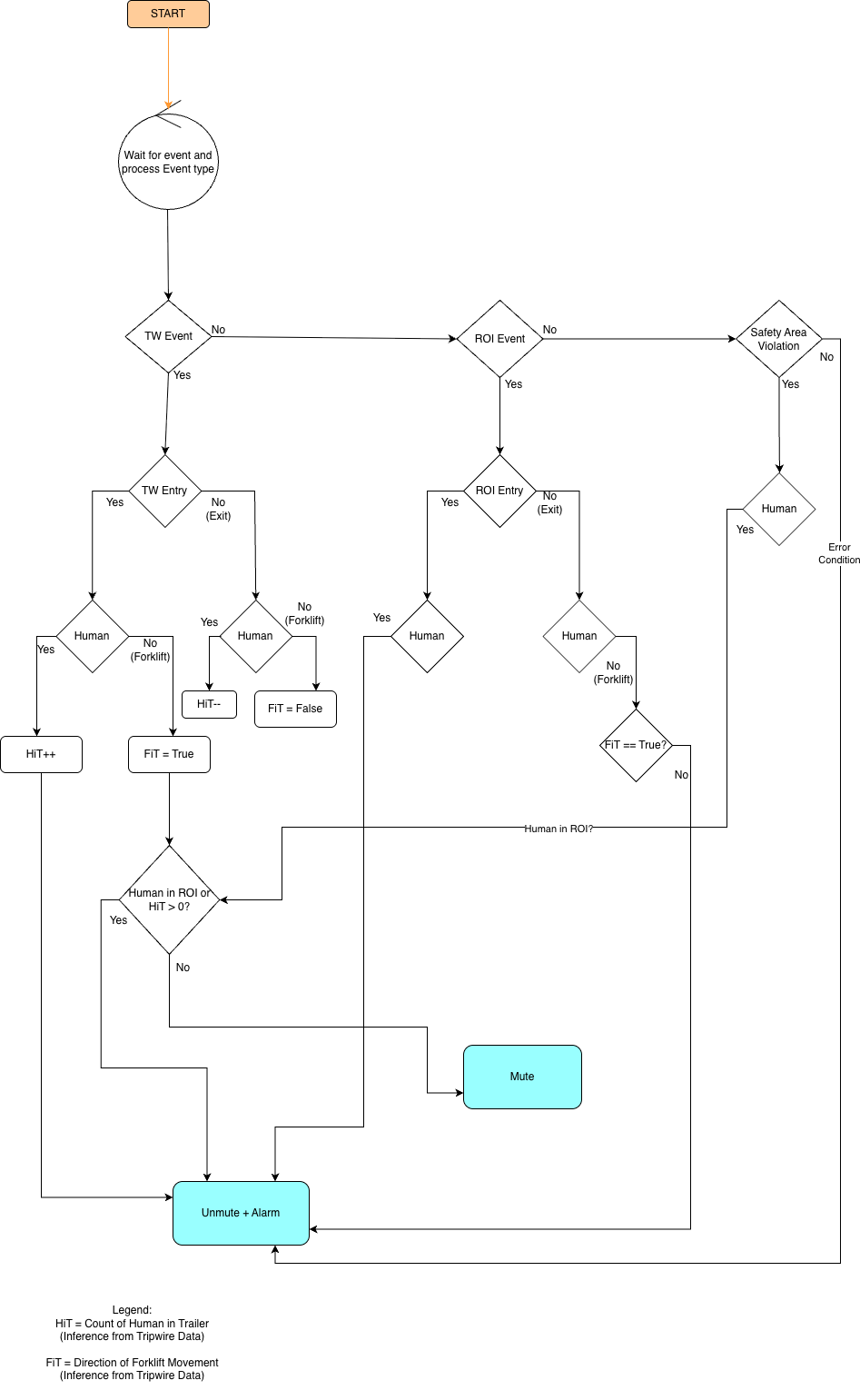
The Forklift Safety Control Application follows this execution flow:
Event Ingestion: Consumes Kafka events, processes them for alerts, and forwards safety events to the central daemon.
Event Integrator: Manages safety events centrally. It aggregates, validates, and fuses events from multiple sources, then forwards them to forklift safety control
Decision & Command: Receives validated safety events, forklift safety control algorithm, and sends mute/unmute commands via UDP with acknowledgments.
Command Reception & Ack: Listens for UDP commands, executes safety actions, and sends acknowledgment packets back.
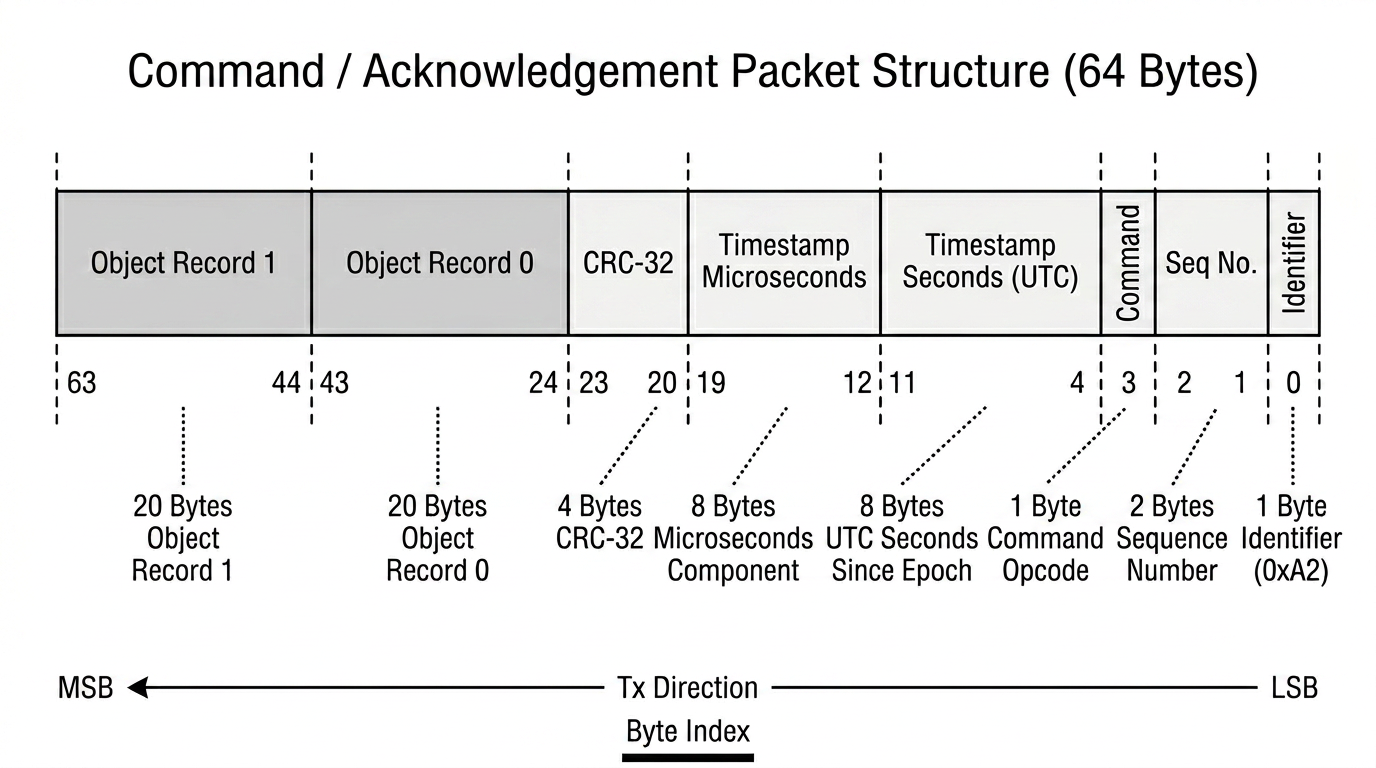
UDP Packet Format
Both command and acknowledgment packets are 64 bytes, structured as follows:
Byte 0 Identifier: 1 byte: Magic identifier (0xA2)
Bytes 1-2 Sequence Number: 2 bytes: Packet sequence number (uint16)
Byte 3 Command: 1 byte: Command opcode
Bytes 4-11 Timestamp Seconds: 8 bytes: UTC seconds since epoch (uint64)
Bytes 12-19 Timestamp Microseconds: 8 bytes: Microseconds component (uint64)
Bytes 20-23 CRC-32: 4 bytes: CRC-32 checksum (computed over bytes 0-19 and 24-63)
Bytes 24-43 Object Record 0: 20 bytes: First object record (object_id, x, y, z, metadata)
Bytes 44-63 Object Record 1: 20 bytes: Second object record (same layout)
2.3 Launch ‘Proximity Monitoring’#
Note
This feature is currently in Preview state. Interfaces, behavior, and configuration parameters may change in future releases.
This application uses Safety Core to monitor the distance between a human operator and an Agility Digit Humanoid robot operating in a warehouse environment. The system continuously evaluates the proximity between them and generates appropriate safety signals based on distance thresholds.
Note
Proximity Monitoring requires a VSS 3-D deployment with the
warehouse-4cams-20mx20m-synthetic dataset. Refer to the
VSS 3-D deployment documentation for setup instructions.
The proximity monitoring operation is based on the following distance thresholds:
Distance |
Zone |
Signal |
|---|---|---|
Greater than 2 meters |
Safe |
Normal Operation |
Between 1 and 2 meters |
Warning |
Slow Down |
Less than 1 meter |
Critical |
Emergency Stop |
When the distance between the human and the robot exceeds 2 meters, the system signals Normal Operation (
CMD_NORMAL), allowing standard robot movement.When the distance falls between 1 and 2 meters, the system signals Slow Down (
CMD_REDUCE), commanding the robot to reduce its speed.When the distance drops below 1 meter, the system signals Emergency Stop (
CMD_STOP), commanding the robot to halt immediately.
Supported Deployment Options
Proximity Monitoring supports the following deployment options:
Platform |
SDM Location |
Description |
|---|---|---|
x86-64 |
CCPLEX |
Standard deployment on x86-64 servers. |
aarch64 |
CCPLEX |
IGX Thor based deployment with SDM running on the CCPLEX. Execution is identical to x86-64. |
aarch64 |
FSI |
IGX Thor based deployment with SDM offloaded to the FSI (Functional Safety Island) for hardware-isolated safety. |
Execution Steps:
2.3.1 Option A/B: x86-64 / aarch64 — SDM on CCPLEX#
This option applies to both x86-64 and aarch64 (IGX Thor) platforms when the Safety Decision Maker runs on the CCPLEX. The launch procedure is identical on both architectures.
Note
For aarch64 (IGX Thor) deployments, it is a prerequisite that the appropriate BSP version of IGX Software (version IGX SW 2.0) has been flashed on the target platform.
For Debian-based installation:
Note
Ensure the Debian package corresponding to the target architecture has been installed:
psf-desktop.deb for x86-64 or psf-tegra.deb for aarch64 (IGX Thor).
Refer to 1.1 Debian Installation for details.
# Launch command receiver (runs on host / external system)
# Default port: 12345, max_hb_failures: 10
./proximity_sdm_cmd_receiver -p <port> --max_hb_failures 100

# Launch NvPSD Gateway
./nvpsd_gateway

# Launch SEI Daemon
# Reads sensorConfig from /opt/nvidia/psf/bin/nvpss.conf.
./nvpss_daemon

# Launch Safety Decision Maker
# Default cmd_rx_ip: 127.0.0.1, cmd_rx_port: 12345
./proximity_sdm --cmd_rx_ip <IP> --cmd_rx_port <Port>

# Launch Event Ingestion
./mdx_client --config /opt/nvidia/psf/apps/proximity/proximity_event_mapping.pb.txt \
    --sensor-config /opt/nvidia/psf/bin/sensor_config.conf
For Docker-based installation:
The command receiver application must run outside the Safety Core container. It can be extracted from the PSF-desktop.deb package.
# Extract psf-desktop Debian package
dpkg -x psf-desktop.deb .
The command receiver application can be found at <extracted_package_path>/opt/nvidia/psf/apps/proximity/proximity_sdm_cmd_receiver.
# Launch the command receiver app
./proximity_sdm_cmd_receiver -p <port> --max_hb_failures 100
Note
The command receiver application can run on a different system in the same network. If it does,
pass its IP address and port to the SDM application (proximity_sdm --cmd_rx_ip /
--cmd_rx_port) so the Safety Decision Maker can reach it.
The Safety Core Docker container pulled in the 1.2 Docker Installation section can now be launched. All Spatial AI 3D Docker containers must be up and running before proceeding. The Safety Core container should be started with the Docker socket, shared log directory, and sensor configuration file mounted from the host and bound to the host network.
# Launch the Safety Core (PSF) Docker container
docker run --name nv-psf \
    -v /var/run/docker.sock:/var/run/docker.sock \
    -v /var/log/psf:/var/log/psf \
    -v /opt/nvidia/psf/bin/sensor_config.conf:/opt/nvidia/psf/bin/sensor_config.conf:ro \
    --network="host" \
    --group-add $(getent group docker | cut -d: -f3) \
    -d nvcr.io/nvidia/halos-outside-in/outside-in-safety:nv-psf-halos-1.2.1-3041f93 \
    --app pxc --cmd_rx_ip <IP> --cmd_rx_port <Port> \
    --sensor-config /opt/nvidia/psf/bin/sensor_config.conf
Tip
To view container logs in real time, run: tail -f /var/log/psf/psf.log
The default values for IP and Port are 127.0.0.1 and 12345 respectively.
2.3.2 Option C: aarch64 — SDM on FSI#
In this option, the Safety Decision Maker is offloaded to the Functional Safety Island (FSI) on IGX Thor based platforms. The SEI daemon, event ingestion pipeline, and NvPSD Gateway continue to run on the CCPLEX, while the SDM executes in the hardware-isolated FSI environment.
The prerequisites for FSI deployment are the same as described in
2.2.2 Option C: aarch64 — SDM on FSI, with the FSI firmware located at
/opt/nvidia/psf/etc/fsi-fw/proximity/fsi-ffw-t264.bin.
For Debian-based installation:
Note
Ensure the psf-tegra.deb package has been installed for the CCPLEX-side components.
Refer to 1.1 Debian Installation for details. The fsicom-agent bridge used in this
mode ships in the psf-tegra-fsi.deb package (see the prerequisite extraction step
in 2.2.2 Option C: aarch64 — SDM on FSI), while psf-tegra.deb supplies the remaining
CCPLEX-side components.
In SDM-on-FSI mode, the proximity_sdm binary is not launched on the CCPLEX. Instead, the
fsicom-agent communication bridge must be started on the CCPLEX to relay decisions between
the FSI and the NvPSD Gateway.
Note
The nvFsiCom daemon and fsicom-agent processes must be launched with root privileges.
# Launch command receiver (runs on CCPLEX / external system)
# Default port: 12345, max_hb_failures: 10
./proximity_sdm_cmd_receiver -p <port> --max_hb_failures 100

# Launch FSI communication daemon
sudo /opt/nvidia/ccplex_sf/fsi_ccplex_com/nvFsiCom &

# Launch FSI communication agent (replaces proximity_sdm in this mode)
# Default command receiver ip: 127.0.0.1, port: 12345
sudo ./fsicom-agent --relay-fsi-resp --ip <IP> --port <Port>

# Launch NvPSD Gateway
./nvpsd_gateway

# Launch SEI Daemon
# Reads sensorConfig from /opt/nvidia/psf/bin/nvpss.conf.
./nvpss_daemon

# Launch Event Ingestion
./mdx_client --config /opt/nvidia/psf/apps/proximity/proximity_event_mapping.pb.txt \
    --sensor-config /opt/nvidia/psf/bin/sensor_config.conf
Tip
SDM logs can be observed on the FSI UART shell. The tcu_muxer utility can be used
to obtain the device node for accessing the FSI UART.
For Docker-based installation:
The command receiver application must run outside the Safety Core container. It can be extracted from the PSF-desktop.deb package as described in the Debian-based installation steps above.
The Safety Core Docker container is launched with the --sdm-on-fsi flag, which skips
the CCPLEX-based SDM process. The nvFsiCom daemon and fsicom-agent must be launched
on the CCPLEX separately, before starting the Docker container.
Note
The nvFsiCom daemon and fsicom-agent processes must be launched with root privileges.
# Launch the command receiver app (on CCPLEX)
./proximity_sdm_cmd_receiver -p <port> --max_hb_failures 100

# Launch FSI communication daemon
sudo /opt/nvidia/ccplex_sf/fsi_ccplex_com/nvFsiCom &

# Launch FSI communication agent on the CCPLEX (outside the container)
# Default command receiver ip: 127.0.0.1, port: 12345
sudo ./fsicom-agent --relay-fsi-resp --ip <IP> --port <Port>

# Launch the Safety Core (PSF) Docker container with SDM-on-FSI mode
docker run --name nv-psf \
    -v /var/run/docker.sock:/var/run/docker.sock \
    -v /var/log/psf:/var/log/psf \
    -v /opt/nvidia/psf/bin/sensor_config.conf:/opt/nvidia/psf/bin/sensor_config.conf:ro \
    --network="host" \
    --group-add $(getent group docker | cut -d: -f3) \
    -d nvcr.io/nvidia/halos-outside-in/outside-in-safety:nv-psf-halos-1.2.1-3041f93 \
    --app pxc --sdm-on-fsi \
    --sensor-config /opt/nvidia/psf/bin/sensor_config.conf
Tip
To view container logs in real time, run: tail -f /var/log/psf/psf.log
Tip
SDM logs can be observed on the FSI UART shell. The tcu_muxer utility can be used
to obtain the device node for accessing the FSI UART.
The Proximity Monitoring Application follows this execution flow:
Event Ingestion: Consumes Kafka events from the VSS 3-D perception pipeline, processes proximity data, and forwards safety events to the SEI daemon.
Event Integrator: Manages safety events centrally. It aggregates, validates, and fuses proximity events from multiple camera sources, then forwards them to the proximity control logic.
Decision & Command: Receives validated safety events, evaluates the proximity distance against configured thresholds, and sends Normal/Reduce/Stop commands via UDP with acknowledgments.
Command Reception & Ack: Simulates the robot’s command interpreter. Incoming commands are buffered and evaluated every 100 ms using a “most conservative wins” policy — any Stop overrides Reduce, which overrides Normal. Acknowledgment packets are sent back to the sender.
UDP Packet Format
Both command and acknowledgment packets are 64 bytes, with the same structure as described in
Section 2.2. The packet identifier for Proximity Monitoring is 0xA5.
The command opcodes specific to this application are:
Command |
Code |
Description |
|---|---|---|
HEARTBEAT |
0x00 |
Periodic liveness check |
HW_ERROR |
0x01 |
Hardware error signal |
STOP |
0x02 |
Emergency stop |
SW_ERROR |
0x03 |
Software error signal |
REDUCE |
0x05 |
Slow down (safe speed) |
NORMAL |
0x07 |
Normal operation |
2.4 Quick Start with launch_hoisa.sh#
As an alternative to the manual, per-component steps in sections 2.2 and
2.3, the reference launcher launch_hoisa.sh can bring up the full
Safety Core stack with a single command. It wraps the same
components described above:
the Safety Core Docker container (NvPSD Gateway, SEI daemon, event ingestion),
the host-side Safety Decision Maker (CCPLEX SDM, or the FSI bridge on IGX Thor),
the Safety AI Monitor in
LEARNorACTIVEmode, andgraceful startup/shutdown of the above on
SIGINT/SIGTERM.
The launcher is installed by the psf-desktop / psf-tegra Debian
packages at /opt/nvidia/psf/bin/launch_hoisa.sh.
Run the launcher from /opt/nvidia/psf/bin. SAIM baseline files are
created and read relative to the launcher’s process working directory, so
starting launch_hoisa.sh from another directory can cause
safety_monitor to report missing baseline files.
2.4.1 Operating Modes#
Mode |
Components launched |
When to use |
|---|---|---|
learn |
Safety AI Monitor only (LEARN). |
One-time baseline-learning pass per camera install. |
active |
Safety Core container + SDM + SAIM (ACTIVE). |
Full production stack. Default deployment. |
skip |
Safety Core container + SDM (no SAIM). |
AI-trust path validated separately, or no GPU/decoder budget available for SAIM. |
2.4.2 Typical Invocations#
Learn (first-time setup per camera install):
cd /opt/nvidia/psf/bin
sudo ./launch_hoisa.sh --mode learn \
    --sensor-config /opt/nvidia/psf/bin/sensor_config.conf \
    --threshold-config /opt/nvidia/psf/bin/thresholds.cfg \
    --learn-duration 300
Active — Forklift Safety Control:
cd /opt/nvidia/psf/bin
sudo ./launch_hoisa.sh --mode active --app atl \
    --sensor-config /opt/nvidia/psf/bin/sensor_config.conf \
    --docker-image <PSF_DOCKER_IMAGE> \
    --cmd-rx-ip <IP> --cmd-rx-port <Port>
Active — Proximity Monitoring:
cd /opt/nvidia/psf/bin
sudo ./launch_hoisa.sh --mode active --app pxc \
    --sensor-config /opt/nvidia/psf/bin/sensor_config.conf \
    --docker-image <PSF_DOCKER_IMAGE> \
    --cmd-rx-ip <IP> --cmd-rx-port <Port>
Active — SDM on FSI (IGX Thor; nvFsiCom must be started
separately, see sections 2.2.2 Option C: aarch64 — SDM on FSI and
2.3.2 Option C: aarch64 — SDM on FSI):
cd /opt/nvidia/psf/bin
sudo /opt/nvidia/ccplex_sf/fsi_ccplex_com/nvFsiCom &

sudo ./launch_hoisa.sh --mode active --app atl --sdm-target fsi \
    --sensor-config /opt/nvidia/psf/bin/sensor_config.conf \
    --docker-image <PSF_DOCKER_IMAGE> \
    --cmd-rx-ip <IP> --cmd-rx-port <Port>
2.4.3 Prerequisites#
psf-desktop.deb(x86-64) orpsf-tegra.deb(aarch64) installed.Docker installed and the invoking user a member of the
dockergroup (active/skipmodes only).The launcher must be run as root, or the invoking user must have
sudorights for the launcher. This is required to create the runtime directories under/var/log/psfand to launch the host-side SDM / SAIM processes.The launcher must be started from
/opt/nvidia/psf/binso SAIM reads and writes baseline files in the expected directory.Every
rtspUrlinsensor_config.confmust be validated withffprobeorgst-launch-1.0beforelearnoractivemode is started.Before
activemode, confirm the SAIM baseline files generated bylearnmode are present in/opt/nvidia/psf/bin. Baseline file names are derived from the configuredsensorNamevalues, for exampleCamera_01_baseline.cfg.nvpss.confmust be present and readable (by default at/opt/nvidia/psf/bin/nvpss.conf). See 3. Configuration Parameters of Safety Event Integrator Daemon.
2.4.4 Logs#
All runtime logs are written under /var/log/psf/:
psf.log— Safety Core container components.saim.log— Safety AI Monitor.atl_sdm.log— ATL SDM (--app atl).pxc_sdm.log— Proximity SDM (--app pxc).
To verify HALOS-specific runtime flow, check the SAIM and Safety Core logs directly:
grep -E "baseline|RTSP|SENSOR_INVALID|SENSOR_VALID" /var/log/psf/saim.log
grep -E "PSD Gateway|DecisionRequest|heartbeat" /var/log/psf/psf.log
Note
For Halos V1.2 with VSS 3.1.0, do not use the VST halo overlay as the pass/fail signal. Validate deployment health using logs and events instead. See VST UI visualization limitation.
3. Configuration Parameters of Safety Event Integrator Daemon#
This section documents all configurable parameters of the Safety Event Integrator (SEI) daemon,
including defaults, valid ranges, and tuning recommendations. Consult it whenever you modify nvpss.conf or adjust fusion behavior for a specific deployment.
4. Runtime Profile#
This section documents the measured runtime profile of Safety Core components on the IGX Thor (aarch64) reference platform. It captures CPU and GPU utilization, memory footprint (RSS / peak RSS), and NVDEC load under representative workloads. It serves as a reference for interpreting the per-component resource characteristics of the Safety AI Monitor, SEI daemon, SDM, and event ingestion pipeline.
5. Halos Outside-In Safety Error Handling#
5.1 Overview#
The Safety Core framework is designed to fail safe by detecting errors, logging them, and raising software failure events (SW_FAIL)
to the SEI daemon when critical components such as the event ingestion pipeline, VSS services, or the Decision control logic fail.
5.2 Kafka Connectivity Errors#
5.2.1 Initialization failures#
Retries up to 10 times with exponential backoff (1–30 seconds).
Logs warnings for each failed attempt.
On failure: no events sent to SEI daemon; system is non-operational.
5.2.2 Runtime receive errors#
Short-term errors (transient network issues) trigger brief sleep and retry.
Persistent payload consumption failures (>50 consecutive failures) raises
SW_FAILevent with severityHIGH.System stops consuming events and must be considered offline.
5.2.3 Message parsing errors#
Malformed protobuf messages are silently dropped.
Repeated failures indicate schema/version mismatch; verify compatible protobuf versions.
5.3 VSS Service Monitoring Errors#
A background thread verifies required Docker services (mdx-deepstream, mdx-ui, analytics, recorders etc.,) are running.
Command execution failure or missing services trigger a
SW_FAILevent (severityHIGH).Operator should check Docker status and restart missing containers.
5.4 SEI Client and Heartbeat Errors#
5.4.1 Registration/initialization#
Failure to register SEI client or initialize logging causes startup failure.
Application exits with error message; system is non-operational.
5.4.2 Heartbeat failures#
10 consecutive failed heartbeats cause SEI client termination and data client shutdown.
Indicates unreachable SEI daemon; check daemon logs and network connectivity.
5.5 Decision Maker Algorithm Errors#
5.5.1 SDM initialization#
Failure to create NvPSD context or register callbacks causes exit before controlling safety function.
5.5.2 UDP socket and PLC communication#
Socket creation/bind failures prevent communication; check IP/port configuration and network connectivity.
Send failures log errors but do not automatically retry.
5.5.3 Acknowledgment timeouts#
Decision Commands not acknowledged within 3 seconds generate warning logs.
Indicates PLC is unreachable or unresponsive; external safety measures required.
5.5.4 SEI error mode#
When SEI daemon signals error, SDM sends SOFTWARE ERROR commands to external system.
Ensures safe fail-to-alarm behavior.
5.6 Software Failure Events (SW_FAIL)#
Sources:
Persistent Kafka connection loss.
VSS services unavailable.
Docker command execution failure.
Safety implications:
Indicates software path for safe operation is compromised.
SEI daemon may fuse SW_FAIL with other events to trigger safety actions.
System should transition to safe state (e.g., stop motion, unmute alarms).
6. Troubleshooting#
Common Issues and Resolutions:
6.1 Events not being fused#
Symptoms:
All events show
SafetyEventStatus = PASSTHROUGHorSafetyEventStatus = STALEFusion confidence is not improving
Diagnosis:
Check
fusionThresholdinnvpss.conf(may be too high)Verify multiple pipelines are reporting events
Check
timeWindowSize(may be too small)
Solutions:
Lower
fusionThresholdto 0.4-0.5Increase
timeWindowSizeto 250-300ms
6.2 SEI Daemon fails to start when launched directly#
Symptoms:
nvpss_daemonexits immediately at startup when started directly on the host, outside oflaunch_hoisa.shor the Safety Core Docker container.The daemon log reports a socket setup failure referencing a path under
/run/nvpsf.
Diagnosis:
The SEI daemon uses the runtime directory
/run/nvpsffor its local IPC sockets. This directory is provisioned automatically by the supported launch paths (launch_hoisa.shand the Safety Core Docker container). When the daemon is started directly, the directory may not be present.Verify the directory is present and accessible:
ls -ld /run/nvpsf
Solutions:
Use one of the supported launch paths (recommended):
launch_hoisa.sh— see 2.4 Quick Start with launch_hoisa.sh.The Safety Core Docker container — see 1.3 Safety Core Setup (Docker Runtime).
If the daemon must be started directly, create the runtime directory with appropriate permissions before launching it:
sudo mkdir -p /run/nvpsf
sudo chmod 0755 /run/nvpsf
Note
/run is a tmpfs on most Linux distributions and is cleared on
every reboot. If the SEI daemon is launched directly after a reboot,
/run/nvpsf must be recreated before the daemon is started.
6.3 Safety AI Monitor exits with baseline file not found#
Symptoms:
safety_monitorexits duringactivemode startup.
/var/log/psf/saim.logreports a missing baseline file, such asCamera_01_baseline.cfg.
Diagnosis:
The launcher was started from a directory other than
/opt/nvidia/psf/bin.
learnmode was not run for the currentsensor_config.conf.The expected baseline files are not present in the launcher working directory.
Solutions:
Start the launcher from
/opt/nvidia/psf/bin:cd /opt/nvidia/psf/bin sudo ./launch_hoisa.sh --mode active --app atl \ --sensor-config /opt/nvidia/psf/bin/sensor_config.conf \ --docker-image <PSF_DOCKER_IMAGE> \ --cmd-rx-ip <IP> --cmd-rx-port <Port>If baseline files are missing, rerun
learnmode from/opt/nvidia/psf/bin.
6.4 VST sensor is online but RTSP playback fails#
Symptoms:
The VST dashboard or sensor API reports the sensor as online.
The configured
/live/<sensor-id>RTSP URL returnsDESCRIBEorPLAYerrors, orsafety_monitorcannot consume the stream.
Diagnosis:
Validate the exact
rtspUrlfromsensor_config.conf:ffprobe -rtsp_transport tcp <rtsp_url> # or gst-launch-1.0 rtspsrc location=<rtsp_url> ! fakesink
Solutions:
Refresh or recreate the VST proxy sensor.
Update
sensor_config.confwith the refreshed/live/<sensor-id>RTSP URL.Re-run the RTSP validation command before starting
learnoractivemode.
6.5 Duplicate VST sensor name#
Symptoms:
Creating a VST sensor fails with a duplicate-name error.
Existing names such as
Camera_01,Camera_02, orCameraare already present from an earlier deployment.
Diagnosis:
Stale VST sensors can remain after previous setup attempts and block a clean HALOS configuration.
Solutions:
Remove the stale VST sensors before recreating them.
Alternatively, create new PSF-specific sensor names and update
sensor_config.confso itssensorNameandrtspUrlvalues match the refreshed VST configuration.
6.6 No BA events on mdx-events#
Symptoms:
The VSS dashboard is reachable, but HOISA does not receive expected behavior analytics events.
SEI / SDM logs do not show the expected safety event flow.
Diagnosis:
Confirm the VSS perception pipeline is publishing behavior analytics events to Kafka:
docker exec mdx-kafka kafka-console-consumer \
    --bootstrap-server localhost:9092 \
    --topic mdx-events \
    --from-beginning \
    --timeout-ms 10000
Confirm the
Behavior.sensor.idvalues in the events match thesensorNamevalues insensor_config.conf.
Solutions:
Correct the VSS camera or pipeline mapping so BA events use the same camera names configured for HOISA.
Relaunch the Safety Core components after updating the mapping.