

Adding and Connecting Devices#
Overview#
Add a remote Linux device to Sync, connect to it, then launch an app.
Adding a device saves the details Sync needs to reach it.
Connecting opens a managed SSH tunnel.
The tunnel stays open until you disconnect in Sync.
You need SSH access to the device before you can add it.
The remote device must run an SSH server and have a reachable SSH port.
You need its hostname or IP address and a username and password.
If you have key-based access, set up an alias and then import it into Sync.
NVIDIA Sync can find devices through multicast DNS (mDNS) on your local network.
If your device is broadcasting, NVIDIA Sync should discover it for you to select.
You can enter the address yourself if discovery is not available.
Sync does not support connections through jump or bastion servers.
NVIDIA Sync can add devices by importing an existing SSH alias on your laptop.
If you don’t have password based access, set up a key-based alias in your main SSH config file.
Sync reads the main SSH config file and uses the entry as-is without an alternate key.
Adding a Device#
Choose a discovered device or enter its IP address.
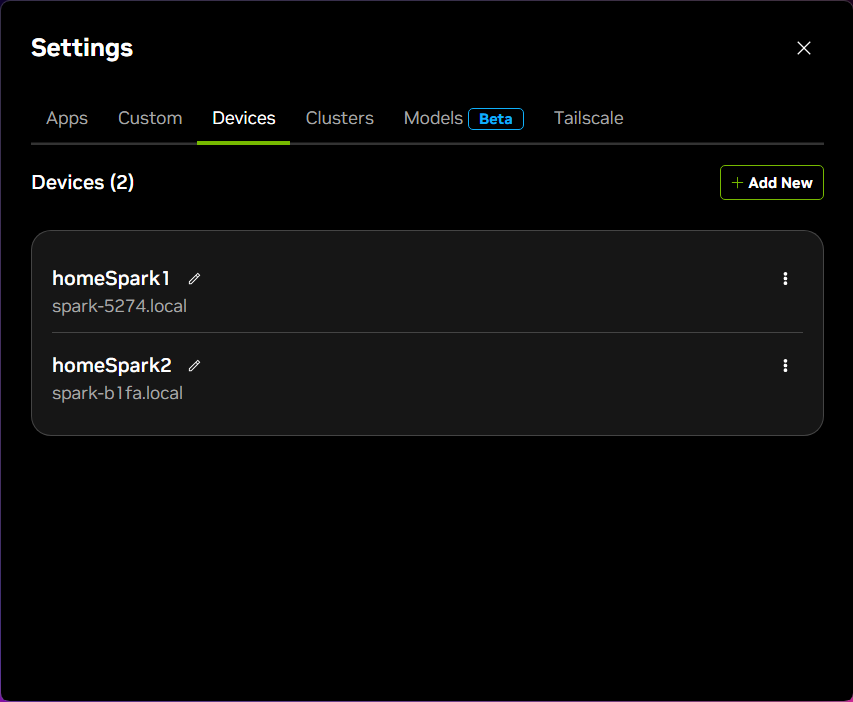
Open Settings > Devices and select Add New.
Select Add next to a discovered hostname, or select Add a device manually.
Fill in the form:
Field
What to Enter
Name
An optional name to identify the device.
Hostname or IP
The discovered hostname, or the device’s hostname or IP address.
Port
The SSH port, usually
22.Username
The account you use to sign in to the device.
Password
The password for that account.
Select Add.
Follow any Docker access prompt, or select Skip.
When setup succeeds, the device appears in Sync and you can connect to it.
Sync gains access to the device with your password but sets up key-based SSH access.
It also creates an SSH alias for you or other applications to use.
You can close the setup window and connect from the Sync task bar utility or Settings.
You can also add a device by importing an existing SSH alias on your laptop.
Open Settings > Devices.
Find the alias under Available from SSH config file.
Select Add next to it.
Manage imported aliases in your SSH configuration file. You cannot rename them in Sync.
Docker access is optional for connecting through SSH.
Model Launcher needs your login user to run Docker without
sudo.After adding a device with a username and password, Sync checks Docker access.
If Configure Docker Group? appears, Confirm adds the named user to the existing
dockergroup.Skip leaves the account unchanged. You can still connect to the device.
Membership in the docker group can grant root-level control of the device.
Sync does not install Docker or change Docker socket permissions.
For manual setup, see Docker’s Manage Docker as a non-root user guide.
Connecting and Disconnecting#
Connect from the Sync pop-up window.
Select the device.
Select Connect and wait for the connection to finish.
Sync uses a direct connection when it can reach the device without Tailscale. Set up Tailscale before you need access from another network. Once Tailscale is set up, Sync chooses the connection type for you.
Select Disconnect when you finish.
Open the Sync pop-up window and select Disconnect. This closes the managed tunnel. You can also use the saved SSH alias for separate terminal sessions and SSH-enabled apps.
Once connected, choose what you want to do.
Set up and run a model on a supported device or cluster.
Removing a Device From Sync#
Delete removes the saved device and disconnects Sync.
Models and files remain on the device. Delete does not guarantee that remote processes stop.
To remove a model and its files, uninstall the model first. Re-adding the device does not restore its model setup in Sync.
A model using LAN access can remain reachable after deletion. Sync warns you if it cannot check the endpoint.
Before deleting the device:
Finish or cancel any model task in progress.
Switch a model from LAN to Localhost, or uninstall it.
Delete its cluster first if it belongs to one.
Then open Settings > Devices, open the device’s action menu, and select Delete. Read the confirmation and any model warning, then select Delete again.
Troubleshooting#
The device does not appear in discovery.
Check that the device is powered on and connected to the network. Your network must support mDNS for discovery to work. If the network blocks discovery or the device does not broadcast its name, select Add a device manually and enter its hostname or IP address.
The SSH connection fails.
Check the hostname or IP address, SSH port, and login details.
Make sure SSH is running and the network allows access to its port.
For an imported alias, check that it still works from a terminal on your laptop.
Read the error in Sync. If it reports a host-key mismatch, check that the address still belongs to the device before changing the saved key.
If direct access is no longer available, use a Tailscale connection you have already set up or return to a network that can reach the device.
Docker access cannot be set up.
If Docker Group Not Configured appears, read the result and select Continue. The device remains in Sync, and you can still connect through SSH. For Model Launcher, fix the Docker access check from Settings > Models. See Setup Does Not Complete.