
Getting Started#
Overview#
NVIDIA Sync is a streamlined user experience for working with remote Linux devices.
Have a Linux system on your network with a running SSH Server.
Have username and password based access to the device (or an existing SSH alias).
Install NVIDIA Sync on your laptop.
Add the device to NVIDIA Sync and then connect to it.
Finally, launch a remote terminal or application from NVIDIA Sync.
See the installation playbook here.
You can use it with any remote Linux device, but it has special features for DGX Sparks and Stations.
It can discover Sparks through mDNS without needing the IP address.
The cluster assistant sets up the ConnectX-7 network between multiple Sparks (see video).
The model launcher sets up a containerized model on Sparks or a Station.
Installation#
Installation on Windows and MacOS#
Windows and MacOS are standard desktop application installs.
OS |
Step 1 |
Step 2 |
Step 3 |
Step 4 |
|---|---|---|---|---|
Windows |
Download the Windows installer |
Double-click the installer |
Accept the license agreement |
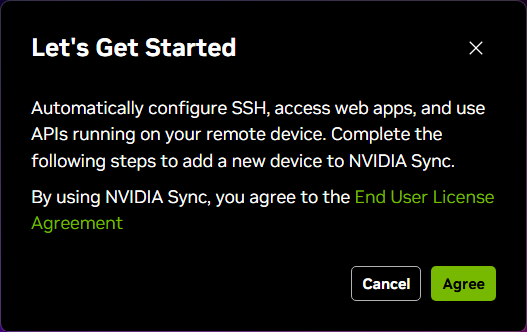
Finish the onboarding |
Mac OS |
Download the Mac application |
Drag and drop it into your Applications folder |
Open it in the Applications folder |
Accept the license agreement |
Installation on Ubuntu Desktop#
The application comes as a Debian package on Ubuntu.
Configure the package repository:
curl -fsSL https://workbench.download.nvidia.com/stable/linux/gpgkey | sudo tee -a /etc/apt/trusted.gpg.d/ai-workbench-desktop-key.asc
echo "deb https://workbench.download.nvidia.com/stable/linux/debian default proprietary" | sudo tee -a /etc/apt/sources.list
Update package lists:
sudo apt updateInstall NVIDIA Sync:
sudo apt install nvidia-sync
Selecting Default Applications#
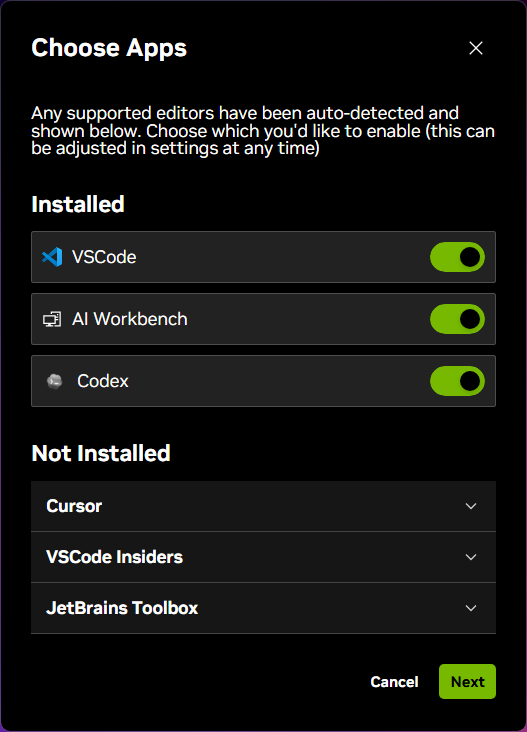
When you first install Sync, you will be asked to enable installed applications for launch.
NVIDIA Sync scans your laptop for a fixed list of applications.
If they are installed, you can enable them for Sync to launch on remotes.
You can add or remove those applications in Settings.
Next Steps#
After installation, continue with:
Adding and Connecting Devices — Add or import devices and connect directly or through Tailscale.
Applications — Launch IDEs, custom scripts, and the DGX Dashboard.
Model Launcher — Set up and run a model on a supported device or cluster, and use OpenCode.