

Configure a Multi-Node DGX Spark Cluster#
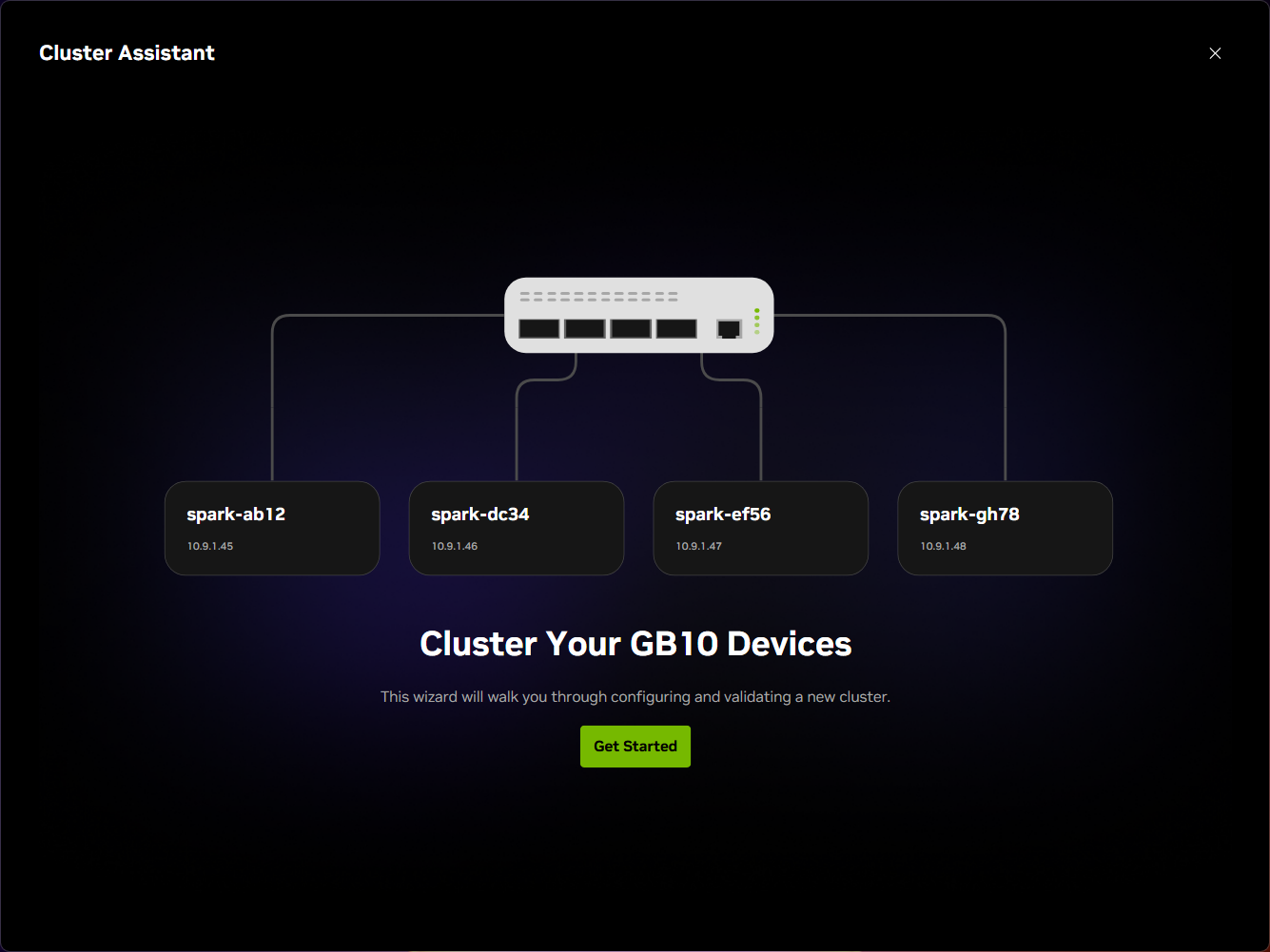
Overview#
The Cluster Assistant automatically configures the ConnectX-7 network for you.
Manually configuring the ConnectX-7 network on DGX Sparks requires significant experience with scripts and terminal commands (see manual steps here).
Using the cluster assistant is click through with just a few steps (see a video or the playbook).
The prerequisites are straightforward.
DGX Spark devices: The cluster assistant only supports DGX Spark (GB10) devices.
Properly connected: The Sparks must be cabled or set up with a switch.
Added to NVIDIA Sync: The Sparks must be available on your network or through (Tailscale).
DGX OS version: Each Spark must be updated to the DGX OS here.
sudopermissions: Your user on each device needssudoto implement the network.
Supported Number of Devices and Topologies#
The Cluster Assistant currently supports from two to four DGX Spark devices.
An upcoming release will support up to eight Sparks.
Cluster more than four devices yourself following the instructions in this playbook.
Connect two and three devices with cables or a switch, but four Sparks require a switch.
Direct connection through cables. For two or three Sparks, you can directly connect them using QSFP cables.
Connection through a switch. You must use a switch to cluster four Sparks with NVIDIA Sync.
See cabling instructions: The Connect Multiple Sparks playbook has a guide to physically connecting the devices.
Avoid simple mistakes when physically connecting the devices.
Do not mix connection types. Connect all devices directly, or connect all devices through a switch. Do not connect some devices directly and others through a switch.
Use only one cable per link. This is true for both direct connections and switch connections. Using two cables from a device to another device or to a switch will not improve performance.
After the Cluster Is Set Up#
Run a model with the Model Launcher or follow a playbook.
Use the NVIDIA Sync Model Launcher to run a model on the cluster.
Or, find other workloads for your cluster in the NVIDIA Playbooks.
Familiarize yourself With the ConnectX-7 network.
Inspect the network settings or test connectivity yourself (see here).
Learn more about the PCIe topology of your Spark (see DGX Spark docs here).
Change the topology of the cluster.
You can change the topology of the cluster by adding or deleting a node.
But you must first delete the cluster from within NVIDIA Sync.
Open Settings > Clusters.
Select the cluster and open its overflow menu (⋯).
Select Delete.
Troubleshooting#
For common setup failures and cabling issues, start with the playbook’s Troubleshooting tab. The notes below explain the assistant’s checks and optional choices.
Validate System Readiness#
The assistant checks each device before it changes the network. Fix any failed check and retry.
SSH Check Fails#
Make sure Sync can reach each device over SSH through your local network or Tailscale connection. See Adding a Device for device access requirements.
If the later SSH setup step times out, retry it. That step can take several minutes and has a five-minute limit for each device.
GB10 Check Fails#
Remove the unsupported device from the selection. The assistant works only with DGX Spark (GB10) devices.
Software Version Check Fails#
Update the device through the DGX Dashboard, then retry.
Password Check Fails#
Your account needs sudo access to change network settings.
Select Fix Now and enter the device password when prompted.
Sync keeps the password in memory for setup, then discards it.
Verify User Details#
Matching user details are optional.
You can continue if usernames, user IDs (UIDs), or group IDs (GIDs) differ across devices. Matching accounts can make workloads easier to manage: different usernames can mean different home paths, and different IDs can affect ownership of shared files.
If you want matching accounts, create them on each device before cluster setup and add the devices to Sync using those accounts. For SSH between devices, use the aliases Sync creates; they include the correct username for each device.
Set Network Configuration#
If the detected layout is wrong or a link does not reach the expected 200 Gbit/s, use the playbook’s cabling guide to check the cables, ports, and switch settings.
For network settings and commands to inspect or remove the network plan, see Inspect and Verify a ConnectX-7 Cluster Network Plan.
Check Network Performance#
A speed-test warning does not necessarily mean the cluster cannot work. You can fix the issue and select Run Test Again, or select Next to continue. See the playbook’s Troubleshooting tab for slow links and data transfers.