

Model Launcher#
Overview#
The Model Launcher is a beta feature that runs a pre-selected model on your DGX device.
It’s a streamlined approach to using a containerized model. It does a few basic things:
Downloads a specific model and optimized vLLM container image for your DGX device
Installs the open source coding harness OpenCode on your DGX device
Configures OpenCode as an NVIDIA Sync custom app using the model for inference
Lets you start/stop the containerized model on your DGX device
Lets you restrict model endpoint access to your laptop or share it on your LAN
The beta feature only supports DGX Spark and DGX Station devices.
DGX Spark (standalone or cluster): Qwen3.8 27B NVFP4 with the
eugr/spark-vllm:nightly-20261002container image.DGX Station (standalone): GLM 5.3 Flash NVFP4 with the
eugr/spark-vllm:station-20261001container image.
The feature supports 64 GB and 128 GB Sparks.
Memory per Spark |
Standalone |
Cluster Sizes |
|---|---|---|
64 GB |
One Spark |
Two, three, or four Sparks |
128 GB |
One Spark |
Two, three, or four Sparks |
Sync checks for a recipe that matches your device or cluster before setup starts.
Use NVIDIA Playbooks or NVIDIA’s Local AI Inference Recipes for other models.
The NVIDIA Playbooks site has two vLLM playbooks (single device, Spark cluster)
The Local AI Inference Recipes site has other devices, models and inference engines.
Setting Up a Model#
Setup downloads the model and vLLM container; it does not start the model.
vLLM is the inference server that loads the model and serves requests. For a Spark cluster, setup also copies files to the nodes that will run the model.
Set up the Spark cluster before you set up its model.
For example, two 64 GB Sparks use the two-node 64 GB recipe. Sync picks it when you select that cluster in Models.
Add each Spark to Sync and make sure you can reach it over SSH.
Cable the Sparks in a supported layout and run the Cluster Assistant.
Keep the Sparks powered on and reachable during setup. Each serving node needs enough free disk space and memory for the recipe’s checks to pass.
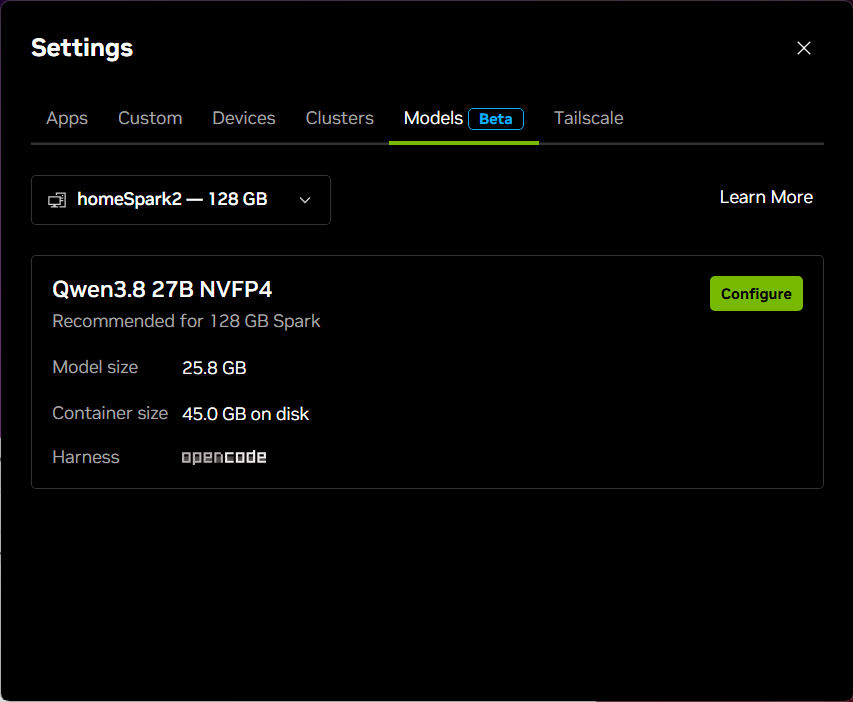
Open Settings > Models and select your device or Spark cluster.
Select Configure. For a cluster, choose the primary node on the Select a head node screen, then select Next.
Follow any prompts to fix a failed check. Setup starts once the checks pass.
Wait until Sync says the model is ready to launch, then select Proceed.
If a check or download fails, see Setup Does Not Complete. To stop setup, select Quit Task and wait for Sync to confirm it has stopped. See Canceling Setup for recovery help.
Choosing a Primary Node#
For a Spark cluster, you choose one Spark as the primary node.
Sync calls it the head node on the selection screen. It downloads the files, sends them to the other serving nodes, and coordinates the model’s work. The other serving nodes are workers; they share the work of running the model.
Choose a Spark you can keep powered on and reach from your computer. You’ll connect to it to start the model and use OpenCode. OpenCode runs on the primary node.
After setup, find the node marked primary in the Nodes list under Settings > Models.
Following Setup Progress#
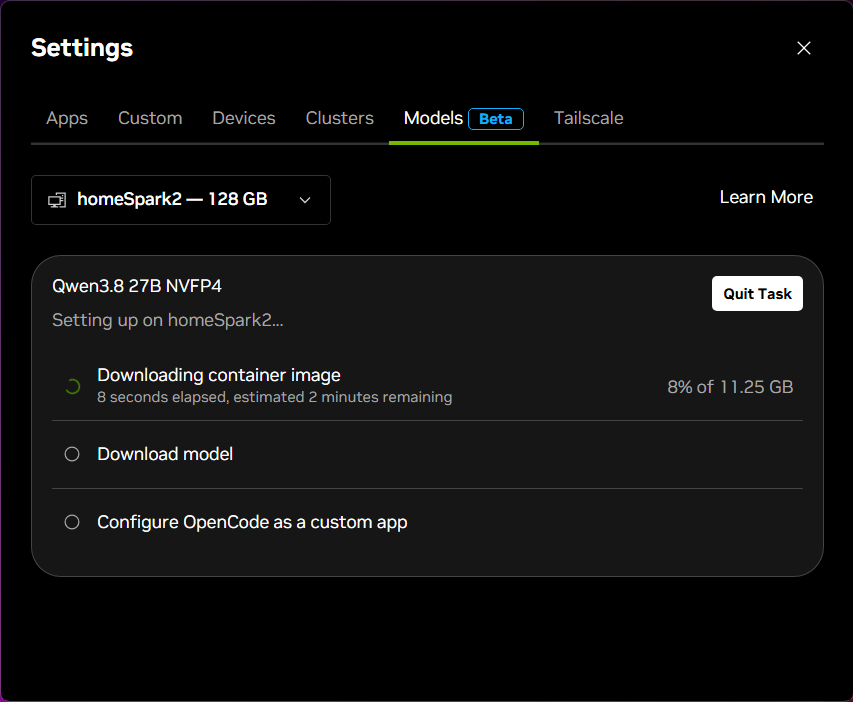
Downloads can take a while, especially on a slower network. Sync shows the model and container sizes before setup. During downloads, it shows the percent done and total size when those values are known. Once it has measured the download speed, it also shows elapsed time and an estimate of the time left. The estimate can change as the speed changes.
Setup also needs time to unpack the container, copy files, and check them. Download estimates do not cover those tasks or the time needed to start the model later. For a cluster, the progress rows show which node Sync is working on. You can close Settings and return to Models to check progress.
Configuring Network Access#
Choose who can reach the model under Network access in the Models tab.
Stop the model before you change these settings. The change takes effect the next time you start it.
Localhost: Access the model through Sync’s SSH tunnel to your computer. The endpoint is not open on the device’s network interfaces. Applications on your computer can use it while Sync stays connected.
LAN: Access the model through the device’s network address. The endpoint listens on every network the device is connected to, including VPNs. Anyone who can reach it can use it unless you set an API key.
LAN uses unencrypted HTTP, including when you set an API key. The key controls access but does not encrypt requests or responses. For a Tailscale connection, the URL Sync shows still uses its SSH tunnel.
You can switch modes after disconnecting Sync, as long as Sync can still reach the devices and confirm the model is stopped. After changing modes, start the model and copy the current URL again.
API Keys#
With the model stopped and LAN selected, select Generate API Key. Copy the key into each app that will use the endpoint. Use Regenerate to replace the key, or Remove Key to allow access without one.
After replacing a key, update your apps with the new value. If OpenCode was already running, restart it so it reads the new key too. Switching to Localhost keeps the saved key, but it is inactive until you switch back to LAN.
Starting and Stopping a Model#
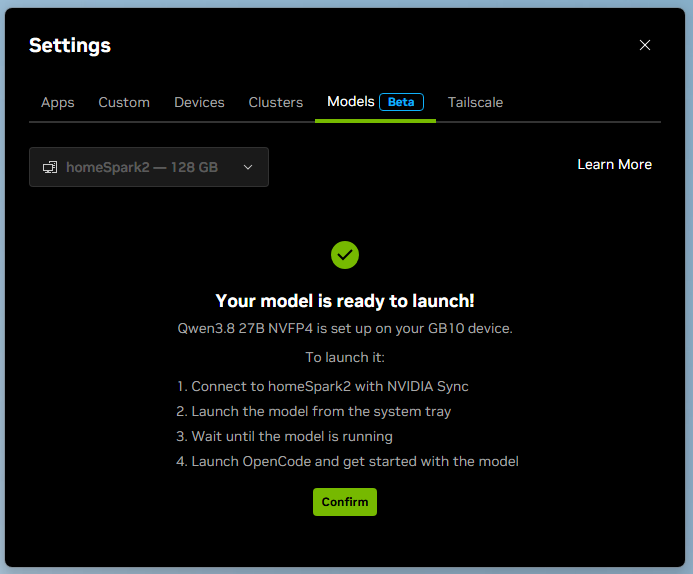
Starting the model runs the vLLM container and loads the model into memory.
Connect to the device, or the primary node for a Spark cluster.
Open Settings > Models, select your device or cluster, and select Start Model.
Wait until the status shows Running before you launch OpenCode or use the endpoint.
Starting can take several minutes. For a cluster, Sync starts the serving containers on the nodes used by the recipe. The primary node manages the workload. If startup fails, fix the reported cause and select Retry. See The Model Does Not Start for help.
To stop the model, select Stop Model and wait until Sync confirms it has stopped. Stopping frees memory and keeps the downloaded files, so you can start it again without repeating setup. To remove those files, use Uninstall.
The system tray has Start and Stop controls. The same actions are also in the three-dot model actions menu in Models. See Model Status for the status meanings.
Using OpenCode#
OpenCode is set up to use the model, so you can start working from your browser.
With the model Running, select Launch OpenCode in Settings > Models, or OpenCode in the system tray. Sync starts OpenCode on the remote device and opens its web app in your browser. Stay connected to the device, or the primary node for a Spark cluster, to use that connection.
If Launch OpenCode is disabled, check that the model is running and Sync is connected to the right device. For a cluster, a connection to a worker does not replace a connection to the primary node.
OpenCode works with files in ~/opencode on the remote device.
For a cluster, this workspace is on the primary node, under the user account you connect as.
Put the project files you want to work with there.
Sync creates an AGENTS.md file with device guidance and installs skills under ~/opencode/.opencode/skills/.
Uninstalling the model leaves your OpenCode workspace and sessions in place.
See Remote Files and Storage for the separate binary and model connection settings.
Using the Model Endpoint#
Other apps can use the endpoint if they support an OpenAI-compatible server.
When the model is running, use Copy endpoint beside Endpoint URL in Settings > Models, or Copy model URL in the system tray. In your app’s connection settings, choose a custom or OpenAI-compatible provider and use that URL as its base URL. Give the app the API key too, if you set one for LAN access.
Sync shows Endpoint Unavailable when it cannot provide a current, verified URL. For a stopped model, start it first. For a running model, check the connection and see The Endpoint Is Unavailable.
Try a request from your laptop.
This Bash example uses curl and Localhost access.
Keep Sync connected to the device, or the primary node for a cluster.
Start the model and wait for Running, then select Copy endpoint.
Open a Bash terminal on your laptop. Replace
<copied-endpoint-url>with the URL you copied, including/v1.MODEL_URL='<copied-endpoint-url>' curl --fail --show-error "$MODEL_URL/models"
Copy the model’s
idfrom the response. Replace<model-id>below with that value and send a message:curl --fail --show-error "$MODEL_URL/chat/completions" \ -H 'Content-Type: application/json' \ -d '{"model":"<model-id>","messages":[{"role":"user","content":"Say hello in one short sentence."}]}'
The reply appears in choices[0].message.content in the JSON response.
If Sync Disconnects#
The model keeps running if NVIDIA Sync disconnects or your computer sleeps.
Disconnecting closes Sync’s SSH tunnel, so a Localhost endpoint stops working until you reconnect. A client using the device’s LAN address can still reach the model if the network path stays available.
The Models tab keeps the last model status it read. Reconnect to check the current state and copy a fresh endpoint URL. To free the model’s memory, reconnect and select Stop Model. If Stop is disabled, check that you are connected to the primary node for a cluster.